Build a talking AI tutor with GPT-6 Astra, NotebookLM, and ChatGPT Voice. Learn hands-free while walking and create quizzes, reports, and study materials.
By Gencay
Published: 2026-09-25
URL: https://www.learnwithmeai.com/p/notebooklm-chatgpt-ai-tutor
TL;DR: I turned NotebookLM into a talking AI tutor. ChatGPT Voice (GPT-6 Astra) is the voice, Codex on my Mac does the work, and the NotebookLM CLI connects it to 22 lessons from Microsoft's free Generative AI for Beginners course.
Learning with AI is cheap and personal with the correct setup.
For instance, let’s say you want to be an AI Engineer in 2026.
You watch a video that explains it really well.
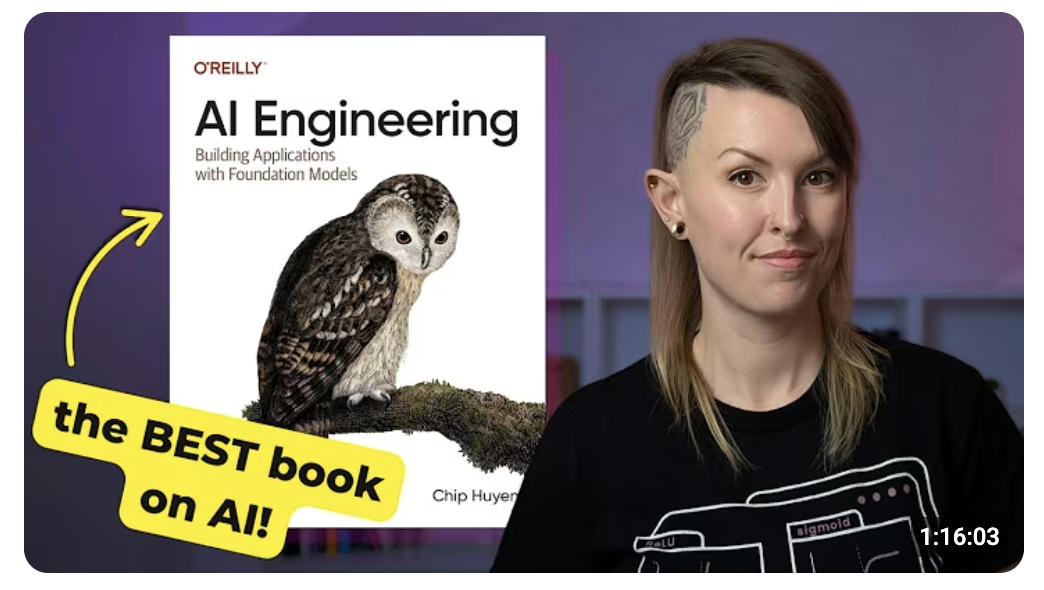
\Chip Huyen's AI Engineering. The book everyone tells you to start with.\
And you buy a book to start learning, but your enthusiasm fades after just two days.
That happens to most of us.
For me, simply sitting at a desk was already the first roadblock, even when I was preparing for the university entrance exam.
(Look at my setup right now: two PCs on my desk. I connect to them remotely and work from a small desk next to my sofa, using it like an office chair.)
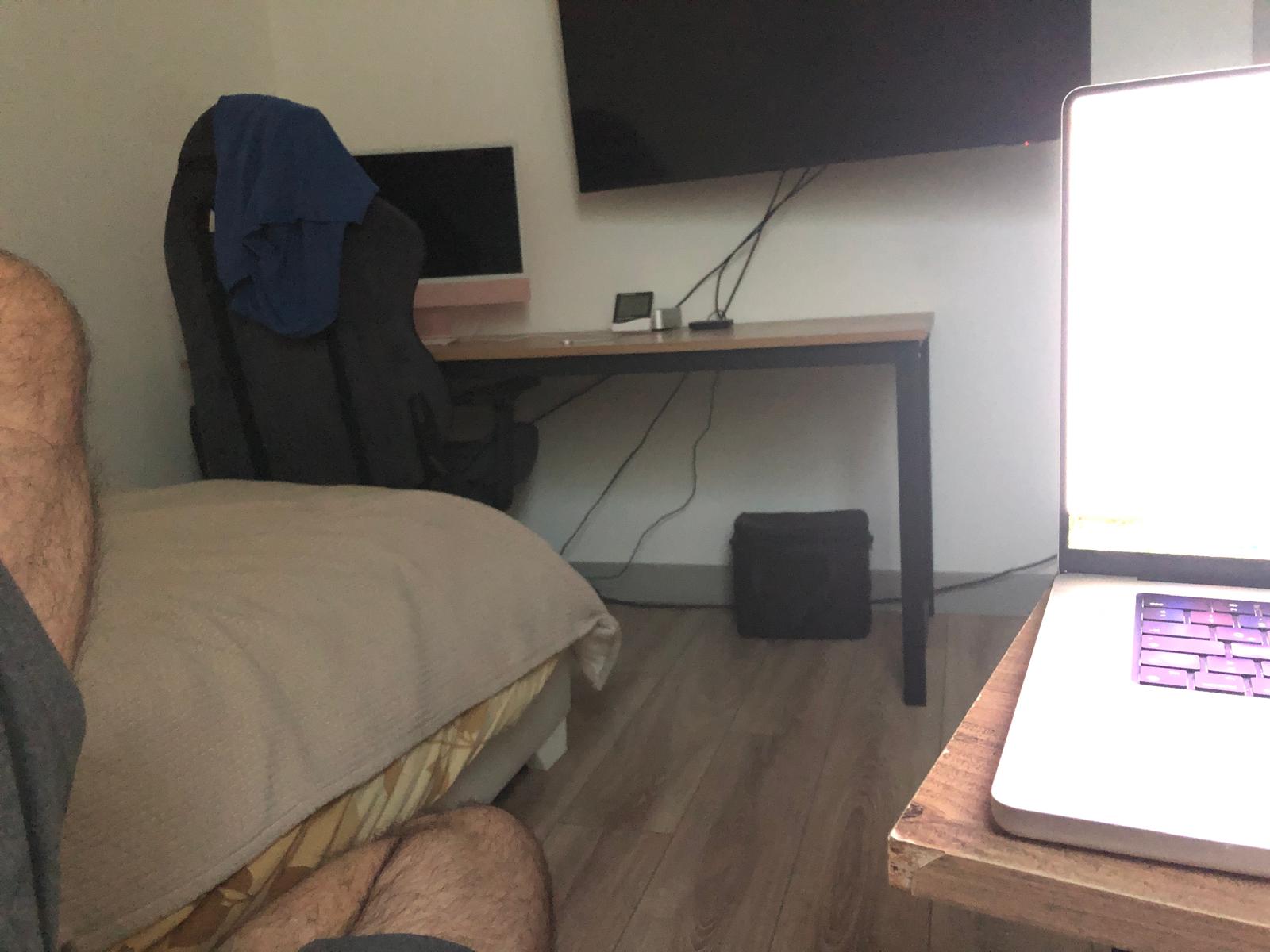
\My real office. The desk sits empty; I work from the sofa.\
That’s why, when I’m learning, I tend to have a hard time staying focused.
I love thinking while walking, and scientifically, walking has been shown to increase brain activity.
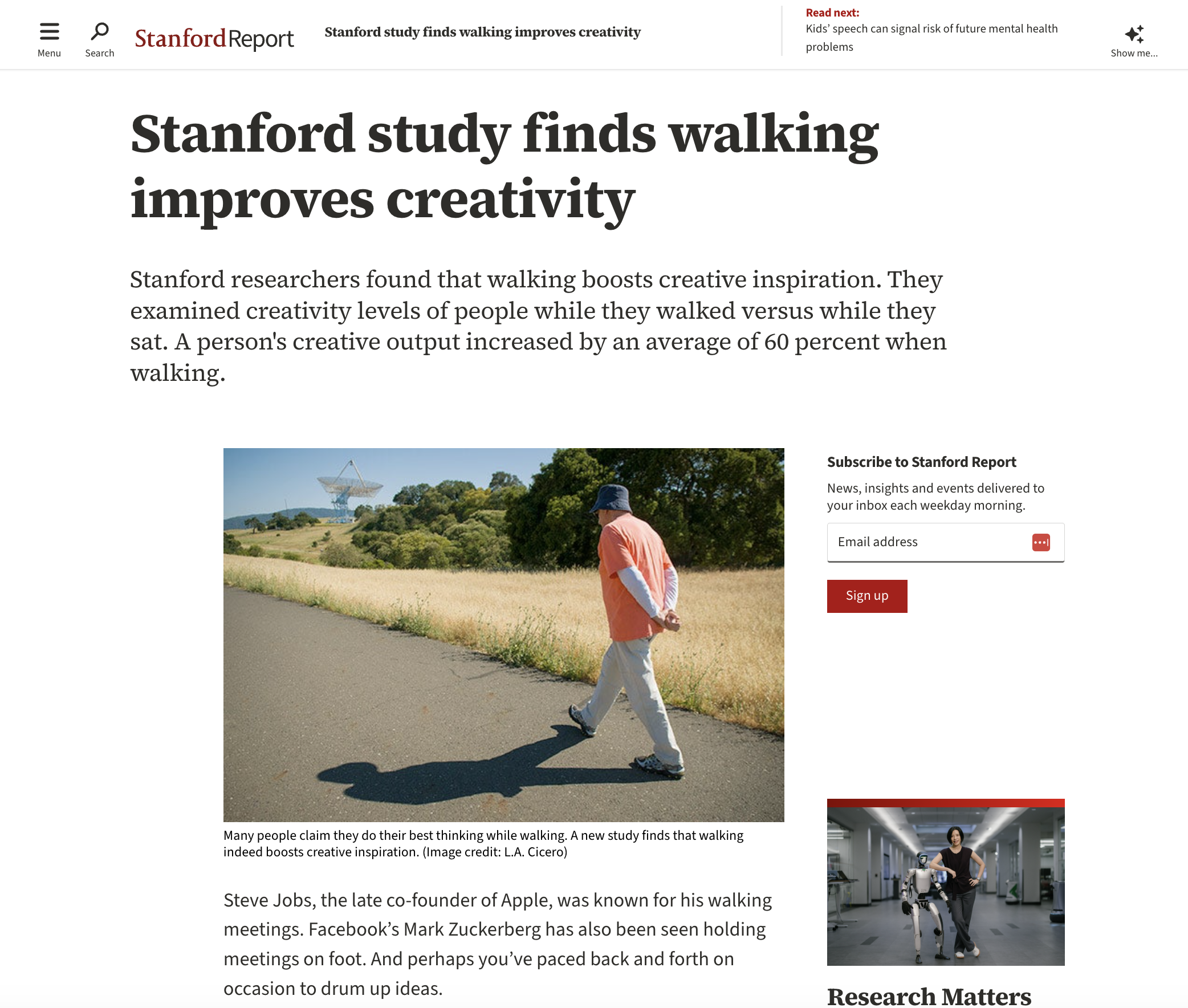
\Stanford measured it: creative output up 60% on average while walking.\
Even Aristotle was known for walking while teaching and thinking.
His followers became known as the Peripatetics, from the idea of walking while discussing philosophy.

\Aristotle taught on foot. His school was named after it.\
How Can an AI Tutor Teach You While You Walk?
I needed a system that let me learn while walking.
And recently, OpenAI added live voice conversation to Codex.
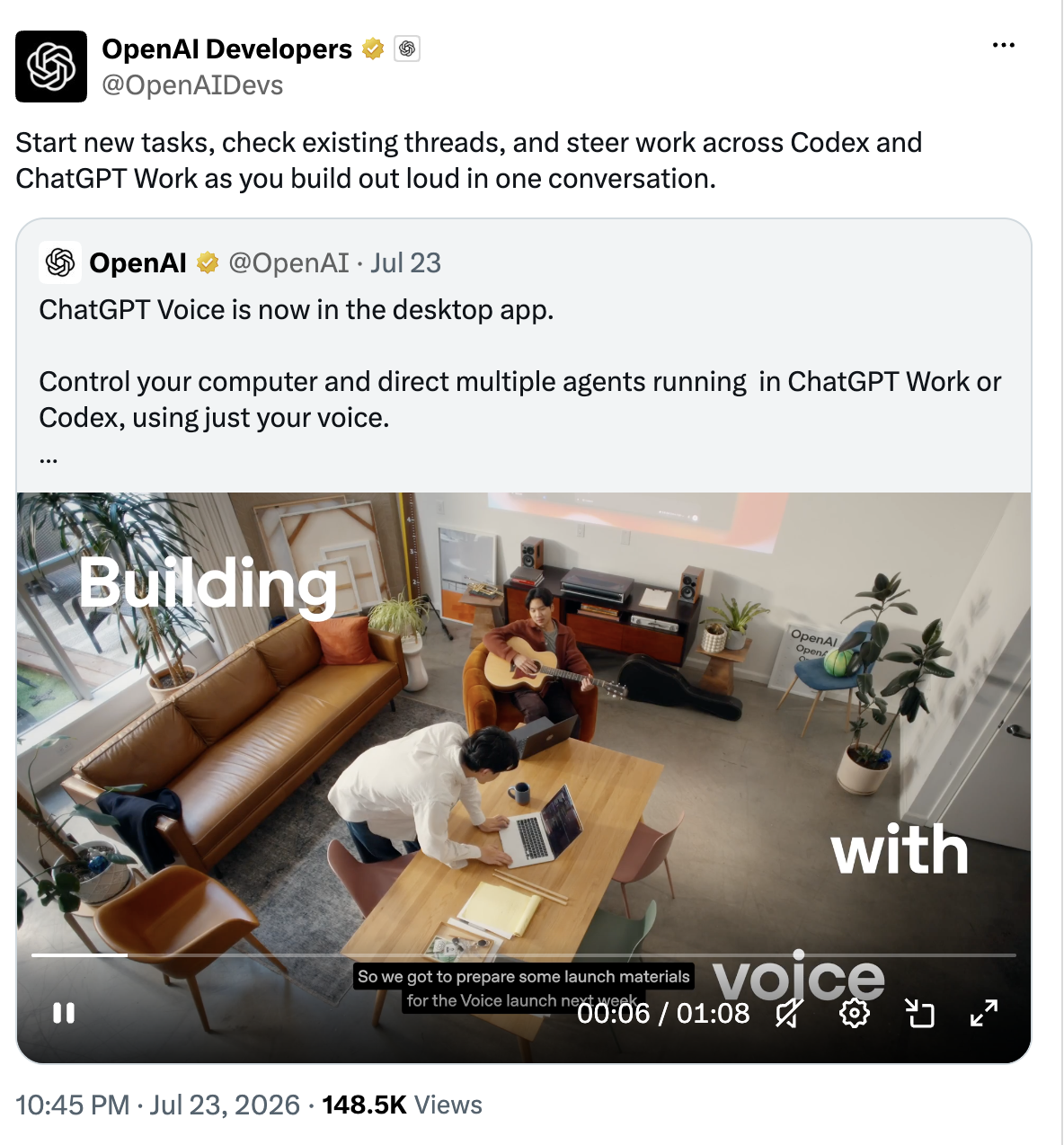
\July 23, 2026: ChatGPT Voice lands in the desktop app and can steer Codex.\
Thanks to it, I used to build a system while pushing a stroller.
But what if I want to learn while walking?
So I connected NotebookLM with ChatGPT and built my AI tutor that talks to me while I am walking.
Let me show you how.
After the paywall, you’ll watch my tutor teach me a real lesson through my phone, then see the infographic and podcast NotebookLM made 5 minutes later.
Then I’ll share the copy-paste prompt that loads Microsoft’s free AI course into NotebookLM and writes the tutor’s teaching rules.
And the 5 steps to connect it all to your phone, so you can start talking on your next walk.
After the conversation above, I opened the app 5 minutes later, and they were.
Here is the infographic it generates.
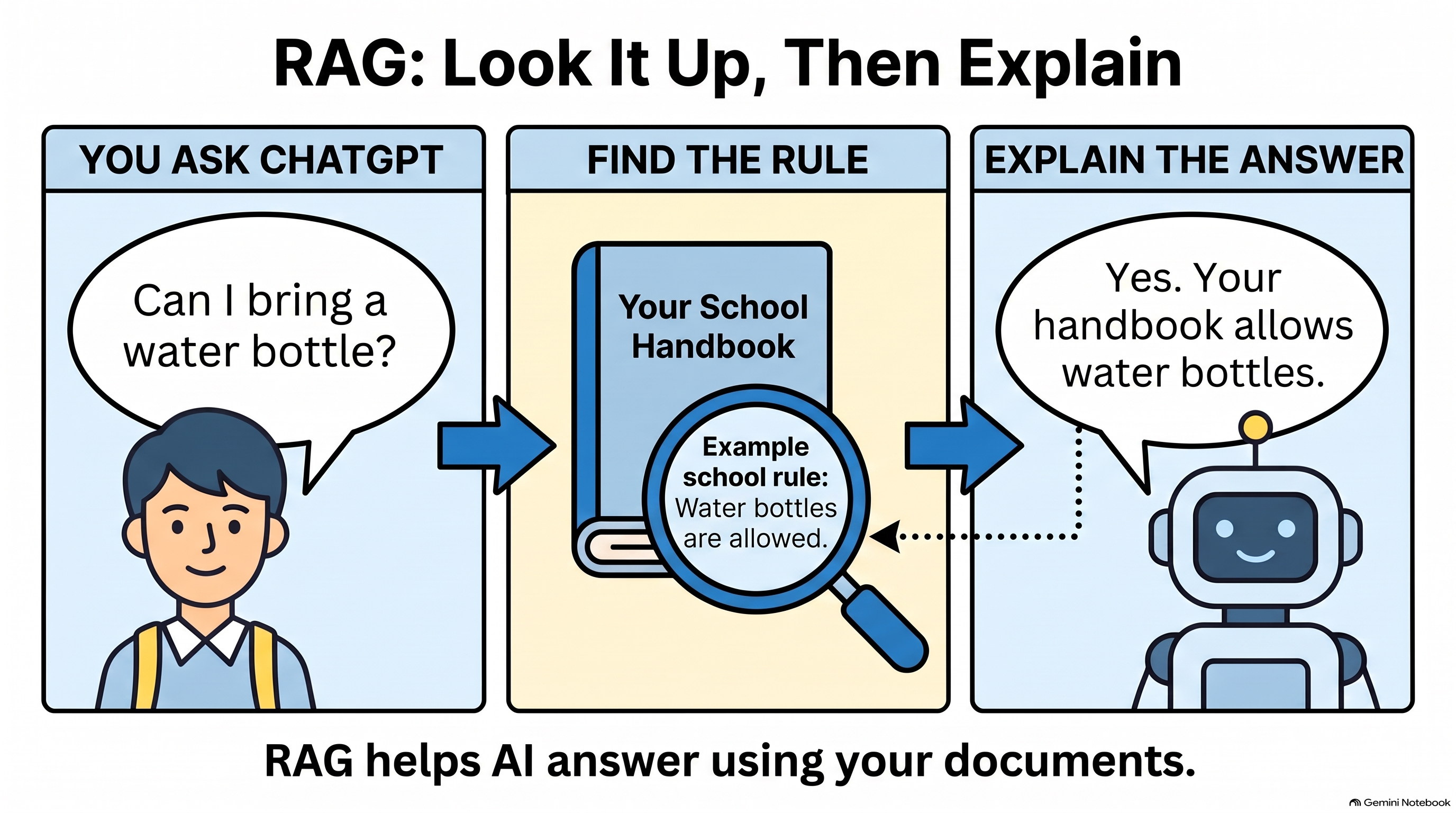
Here is the podcast that I want NotebookLM to generate.
Before setting up your NotebookLM like this, let me show you what you’ll need to do.
What you’ll need
The steps below use a Mac and an iPhone.
You’ll need:
- The latest ChatGPT app on both devices.
- Access to Codex and ChatGPT Voice.
- A Google account for NotebookLM.
- An internet connection on both devices.
Your computer does the work. Your phone lets you talk to the tutor and control the project remotely.
The computer needs to stay awake, with the desktop app running.
ChatGPT’s documentation explains the supported setup here.
In Mac, open terminal and paste this to keep your
Step 1: Keep your computer awake
Before leaving your desk, make sure your computer won’t fall asleep halfway through the lesson.
You can enable the option to keep it awake in ChatGPT’s Settings → Connections.
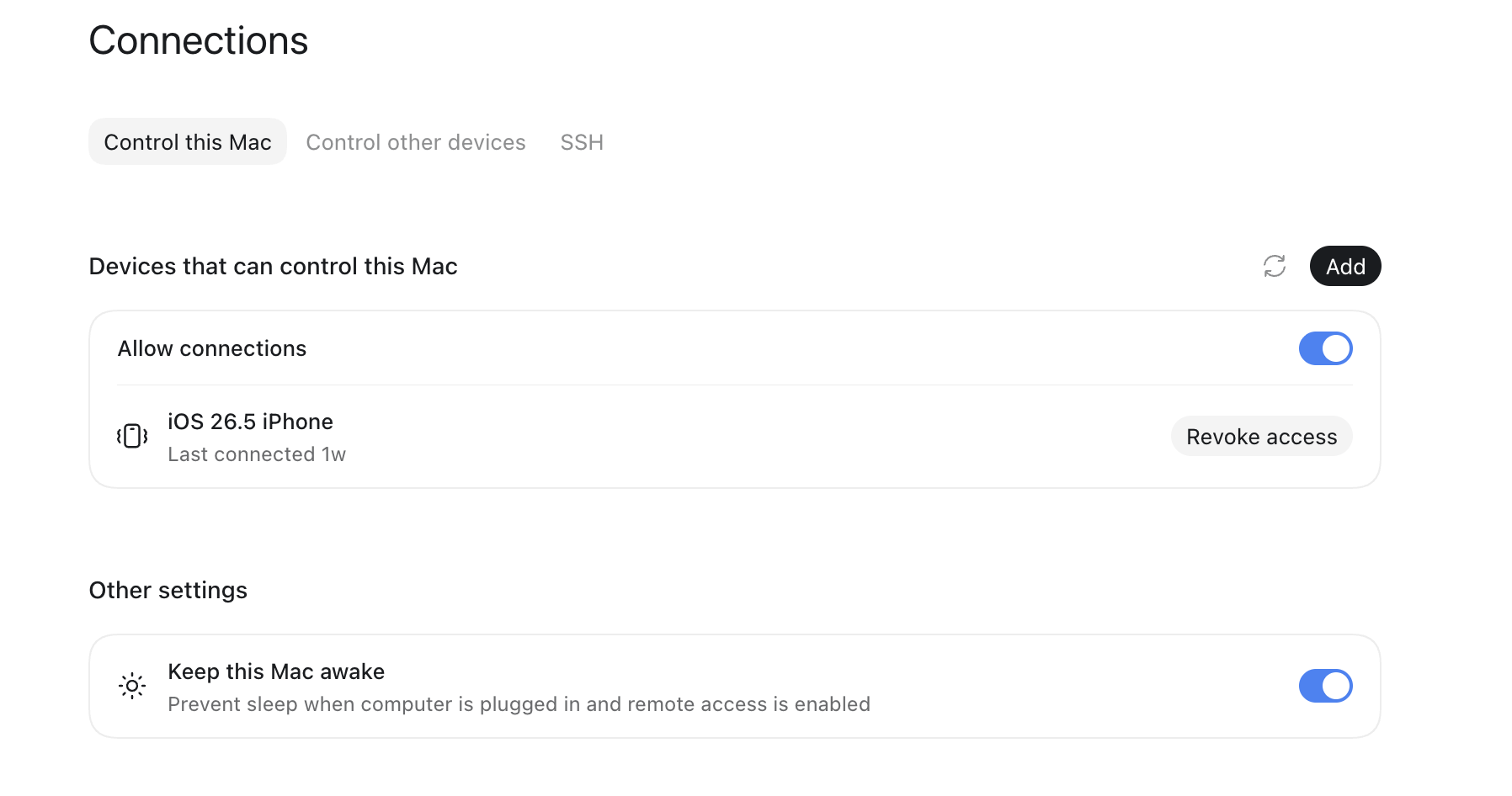
On a Mac, you can also open Terminal and run:
caffeinate -dims
Step 2: Give your tutor something to teach
I chose Microsoft’s free Generative AI for Beginners course.
It covers LLMs, prompt engineering, chat applications, RAG, AI agents, and fine-tuning.
I added all 21 lesson texts and the setup guide to NotebookLM.
That gave me 22 sources.
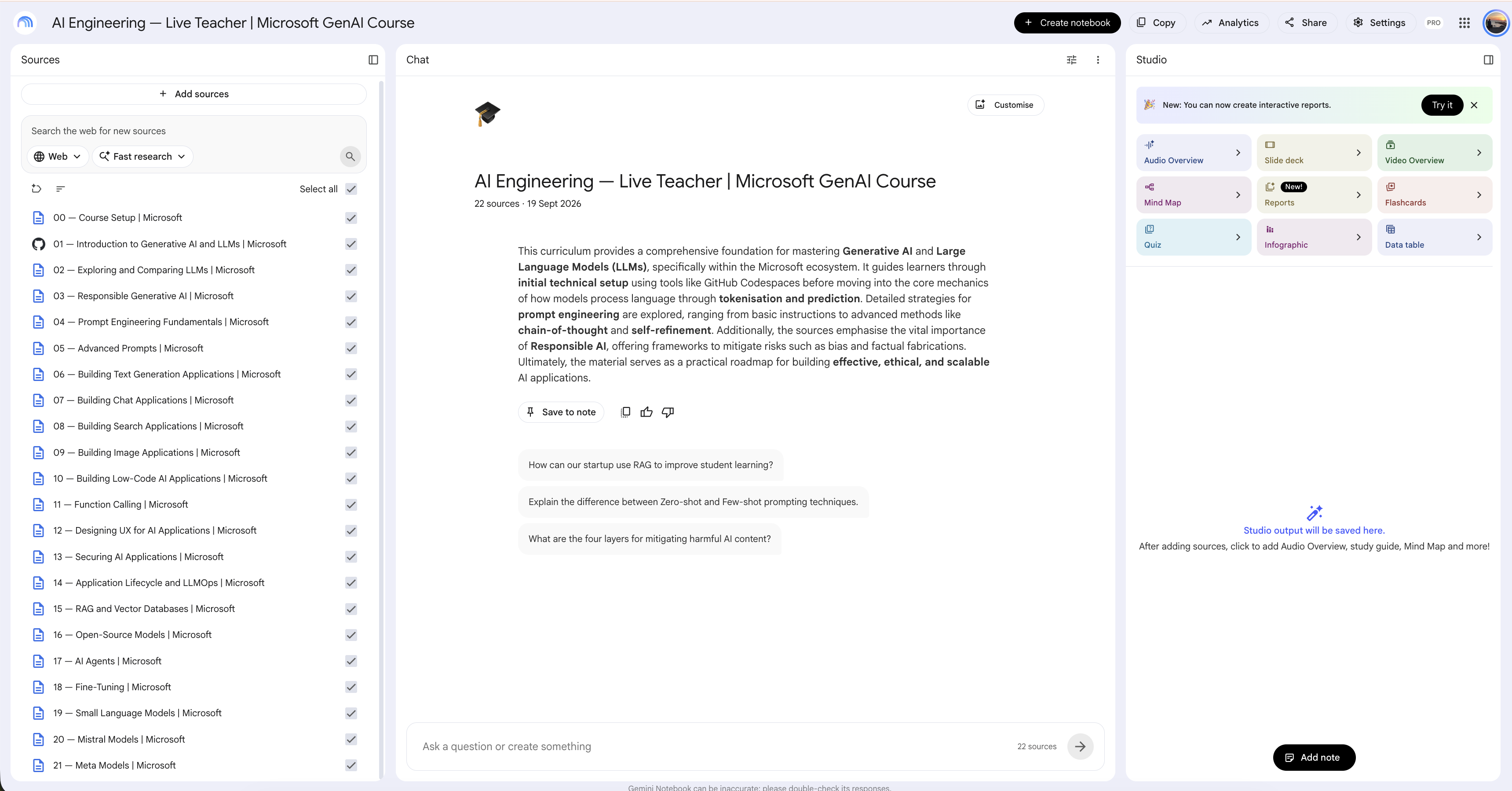
https://notebook.google.com/notebook/f5f108f6-c230-459c-b606-572c7f3c3830
I also checked that NotebookLM could answer questions with references to the lessons.
You can use the same course or choose material you’re already studying.
Start by opening a project folder in Codex.
Then paste this:
Set up this project as a live AI tutor using the notebooklm-py CLI.
Help me install the CLI and sign into NotebookLM if needed.
Create a notebook for Microsoft’s Generative AI for Beginners course:
https://github.com/microsoft/generative-ai-for-beginners
Add the full lesson texts for lessons 01–21 and the course setup guide as separate sources. Check that every source has finished processing.
Save the notebook ID and source IDs in this project so we can reuse them later.
Create an AGENTS.md file with these teaching rules:
Teach me in English using short explanations and practical examples. Query the notebook for course questions. If you give a general explanation while waiting, make that clear. When the source response arrives, use it to complete or correct your explanation.
When I request a quiz, create it in NotebookLM and ask me its questions one at a time. Wait for my answers, record my results, and explain my mistakes.
When I request study materials, use my actual mistakes to create an infographic and a study report in NotebookLM.
Complete any sign-in steps it asks you to handle.
The notebook holds the course material. The AGENTS.md file tells the tutor how to teach it.
Requirements: NotebookLM CLI should be installed on your Codex. To do that, use this repo: https://github.com/teng-lin/notebooklm-py
Step 3: Create a Project
Open a new folder inside ChatGPT and upload this AGENTS.md file to it.
Now it can connect to NotebookLM using the CLI. It will ask which NotebookLM notebook you want to connect to, and you’re ready to go.
You can connect more than one NotebookLM notebook, or simply connect your account and let it find the right notebook while you’re chatting.
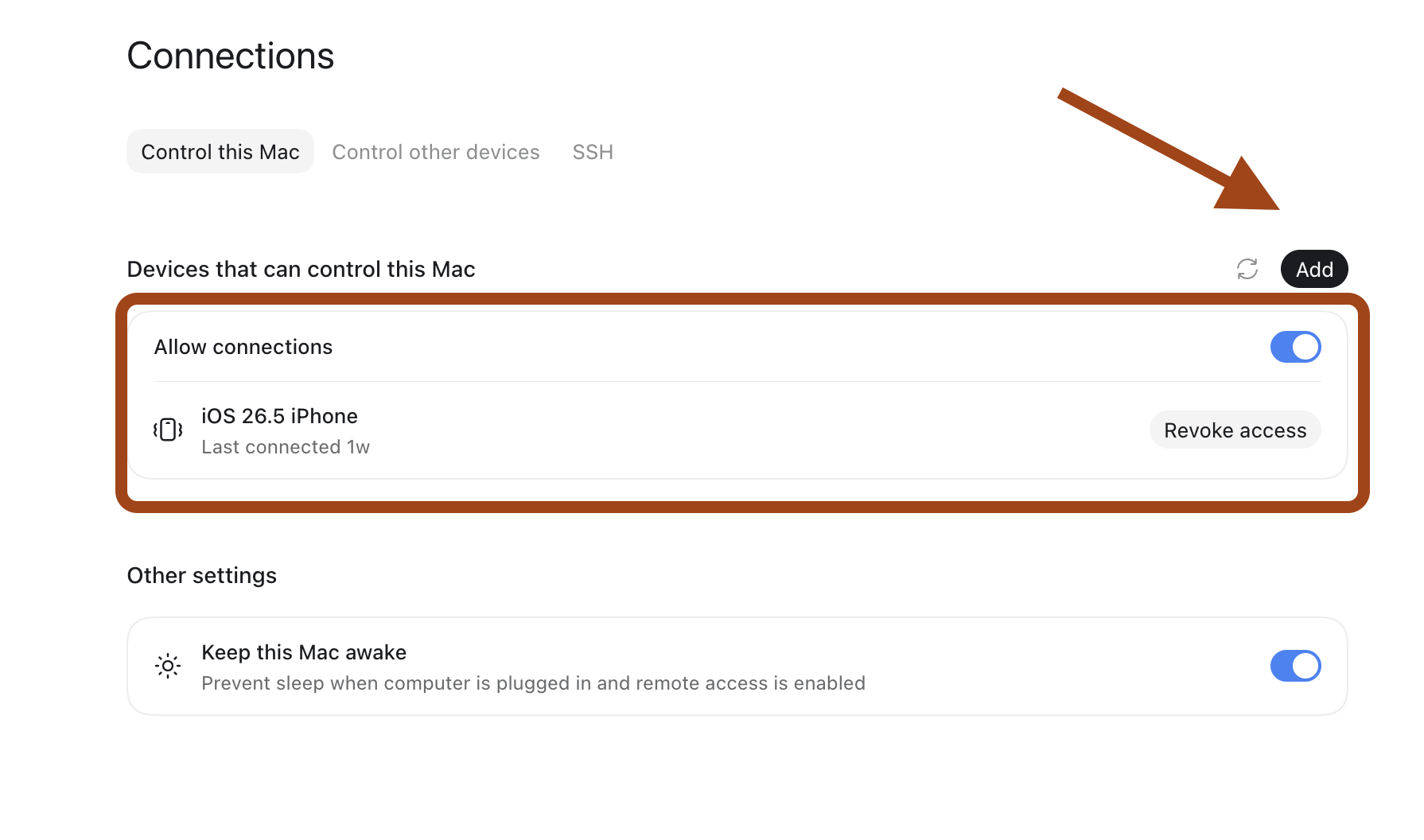
Step 4: Connect your phone
On your computer, open:
Settings → Connections → Control this Mac or PC
Select Set up or Add, then follow the pairing steps.
Scan the QR code with your phone and finish connecting in ChatGPT.
Step 5: Start Talking
Next, on your mobile device, open the ChatGPT application and click on Remote.
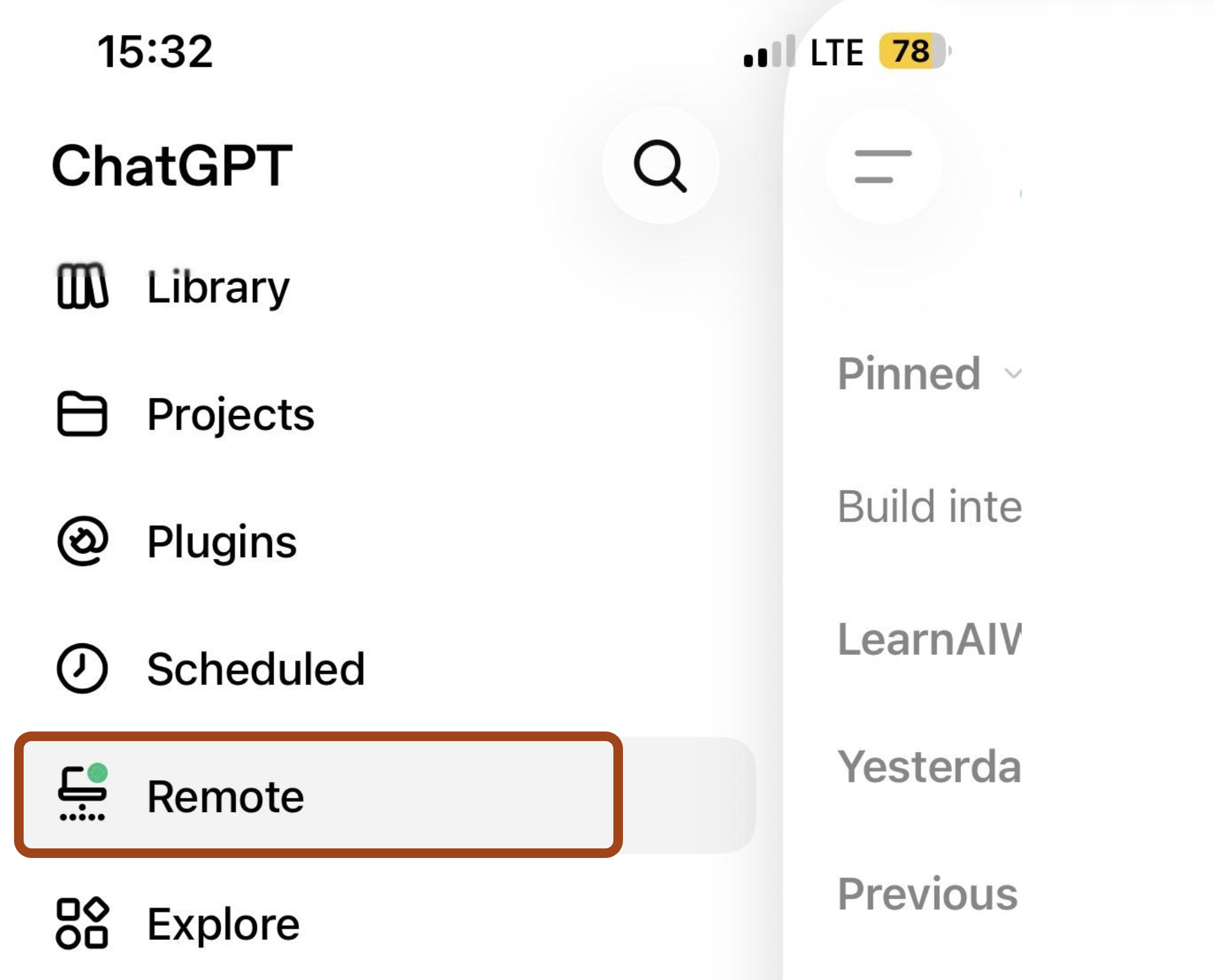
Select the device you just added. And click on here.
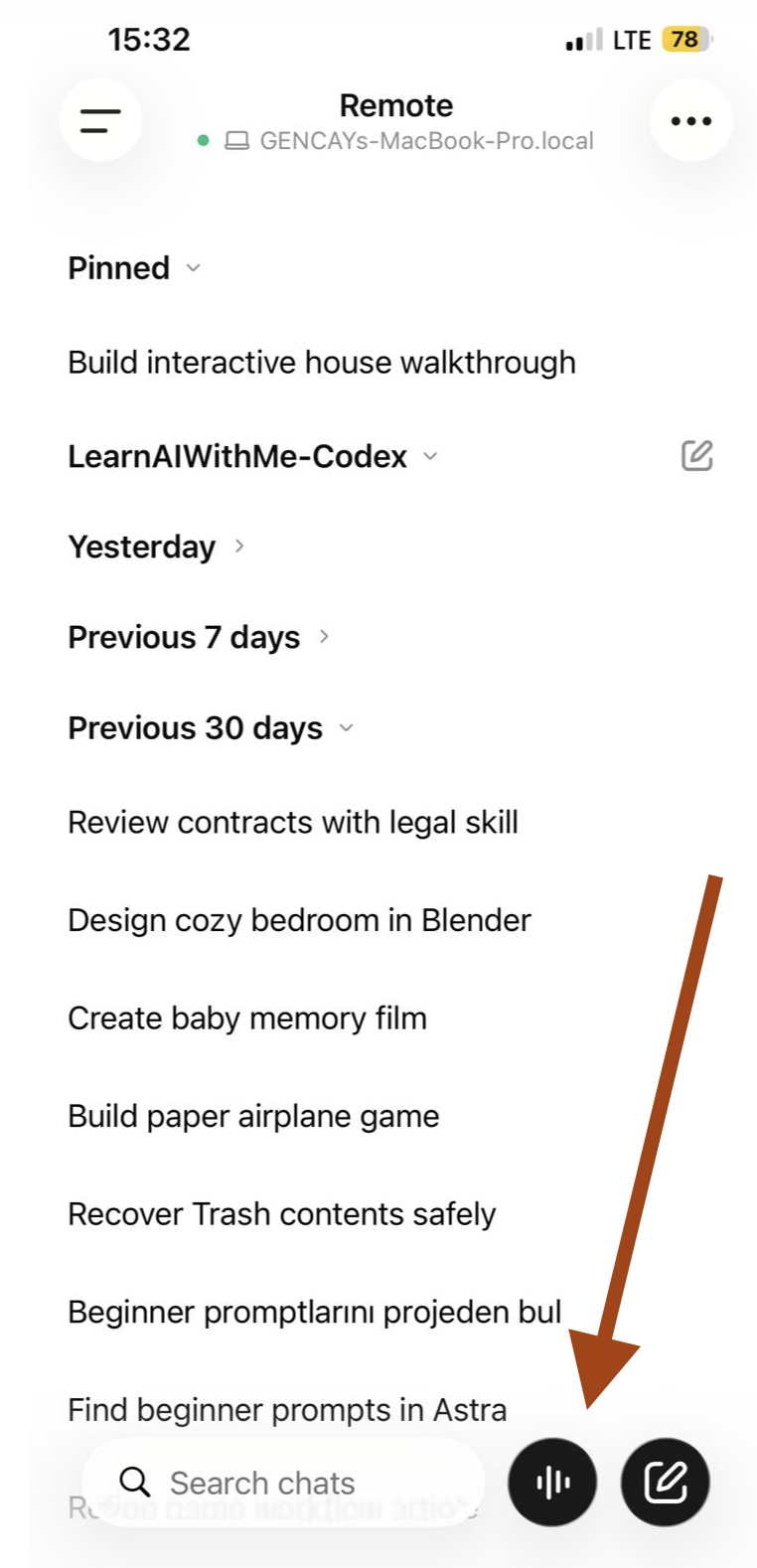
And start talking!
Let me know which NotebookLM you connected.
Thanks for reading.
If you want to build with me, join the AI Academy.(Inner Circle)
Also, AI Labs is $120/year until 30 September.(Annual Subscribers.)