7 Gemini Notebook prompts tested on Harvard's CS50 AI lecture. Find blind spots, catch contradictions, lock a persona, and build plans, memos, and infographics.
By Gencay
Published: 2026-09-27
URL: https://www.learnwithmeai.com/p/gemini-notebook-prompts
NotebookLM became Gemini Notebook in July. But most people are still using it as if it has not changed.
In this one, we’ll explore how to use Gemini Notebook better than most people, using seven prompts.
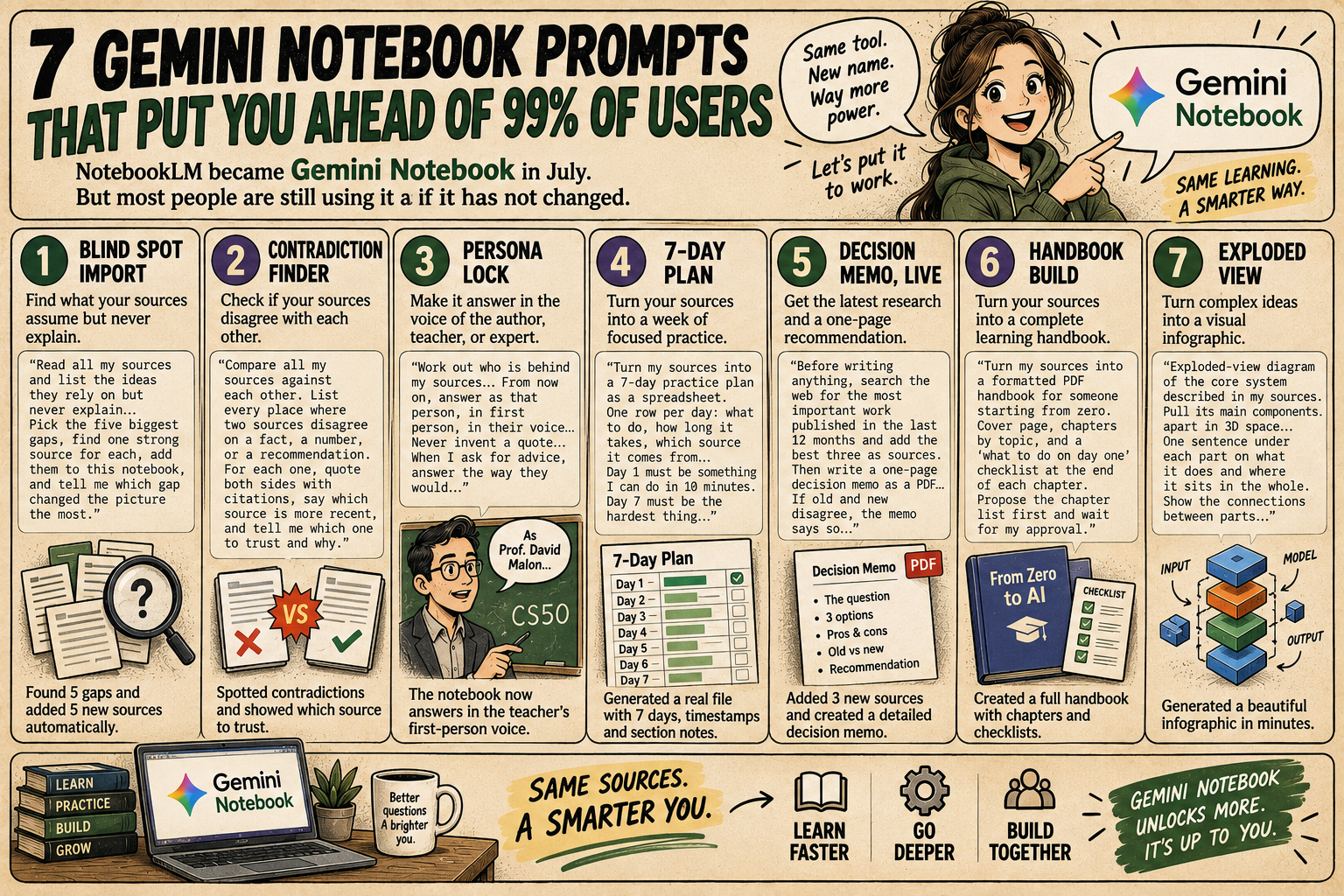
\All 7 Gemini Notebook prompts on one page, from Blind Spot Import to Exploded View.\
I tested all 7 on one notebook with one source, Harvard’s CS50 lecture on Artificial Intelligence.
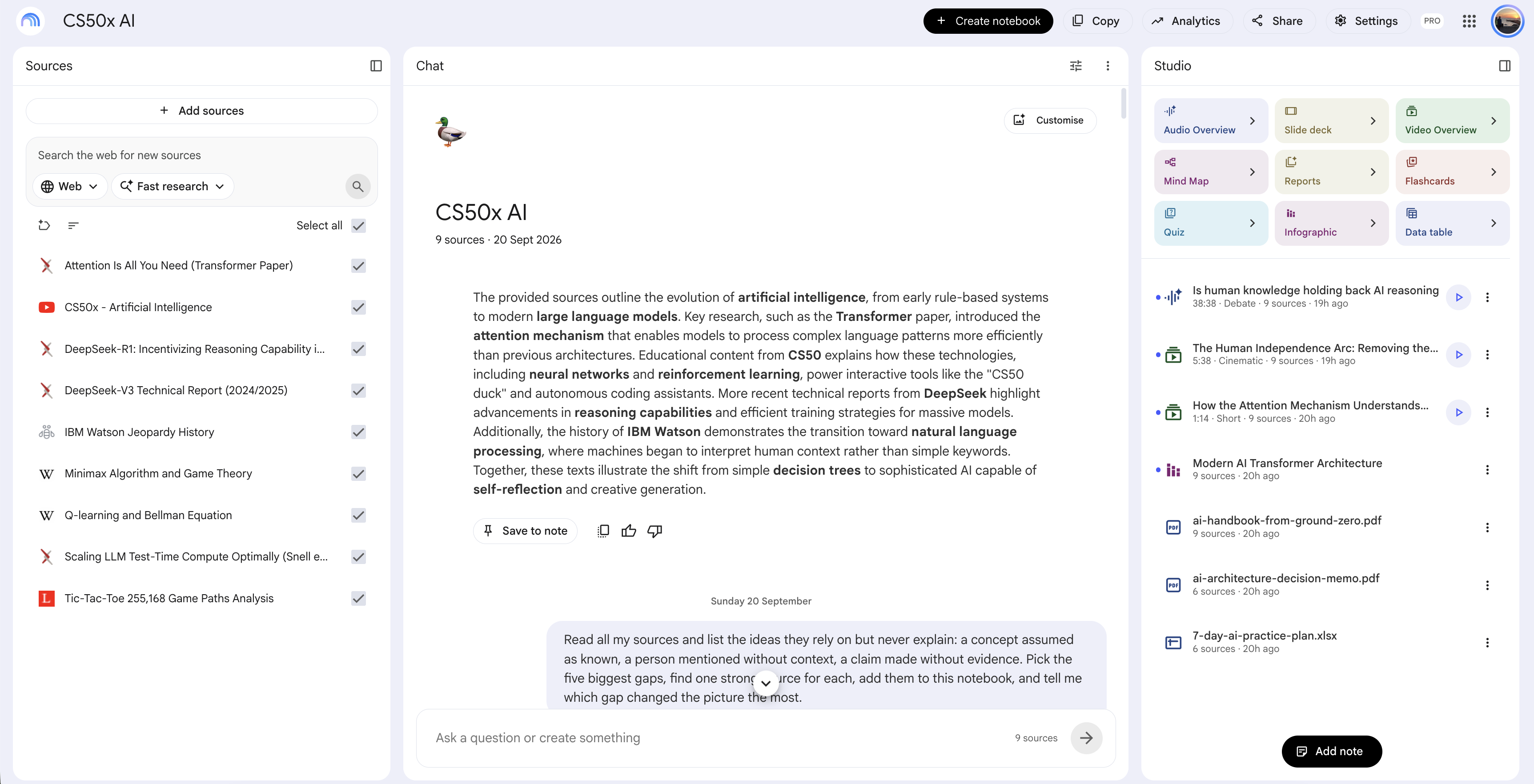
\The CS50x AI notebook in Gemini Notebook, 9 sources deep after the prompts ran.\
Let’s start with the first one.
1. Blind Spot Import
Every source assumes things it never explains, and the notebook inherits every assumption without telling you.
Let’s see the prompt.
Read all my sources and list the ideas they rely on but never explain:
a concept assumed as known,
a person mentioned without context,
a claim made without evidence.
Pick the five biggest gaps, find one strong source for each, add them to this notebook,
and tell me which gap changed the picture the most.
Here is the output.
It found five gaps in the lecture.
Then it pulled one source for each and added them itself.
The notebook went from 1 source to 6 in one message.
2. Contradiction Finder
The sources you added might contradict each other.
To make sure all your sources are aligned, finding contradictions is a must.
To do that, use this prompt.
Compare all my sources against each other.
List every place where two sources disagree on a fact, a number, or a recommendation.
For each one, quote both sides with citations,
say which source is more recent,
and tell me which one to trust and why.
Here is Gemini’s answer.
The natural next step might be to keep the most up-to-date information and remove the outdated sources.
3. Persona Lock
The sources are clean. Now decide who answers.
By default, the notebook answers like a search engine.
To customize the tone, click here first.
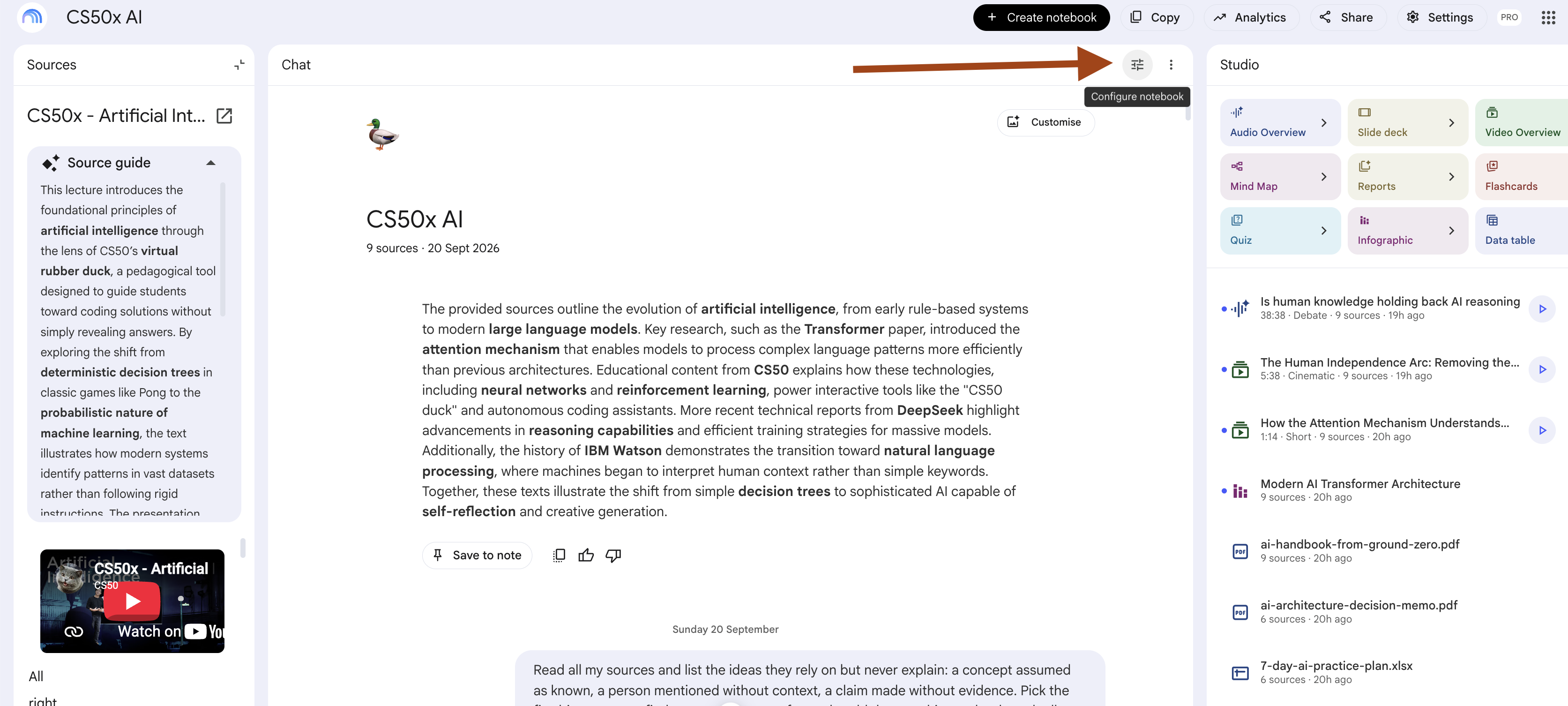
\Configure notebook sits at the top right of the chat panel.\
Next, click here (custom).
And paste your “Persona prompt”.
You know, “act like a …”.
I used a slightly different one; check:
Work out who is behind my sources: the author, the teacher, or the person they are about.
From now on, answer as that person, in first person, in their voice.
Use only what the sources show they believed, said, or did.
Never invent a quote: if the sources do not cover something, say "I never addressed that."
When I ask for advice, answer the way they would,
then add one line in brackets on where the sources back it up.
Confirm by introducing yourself in two sentences.
And click to save.
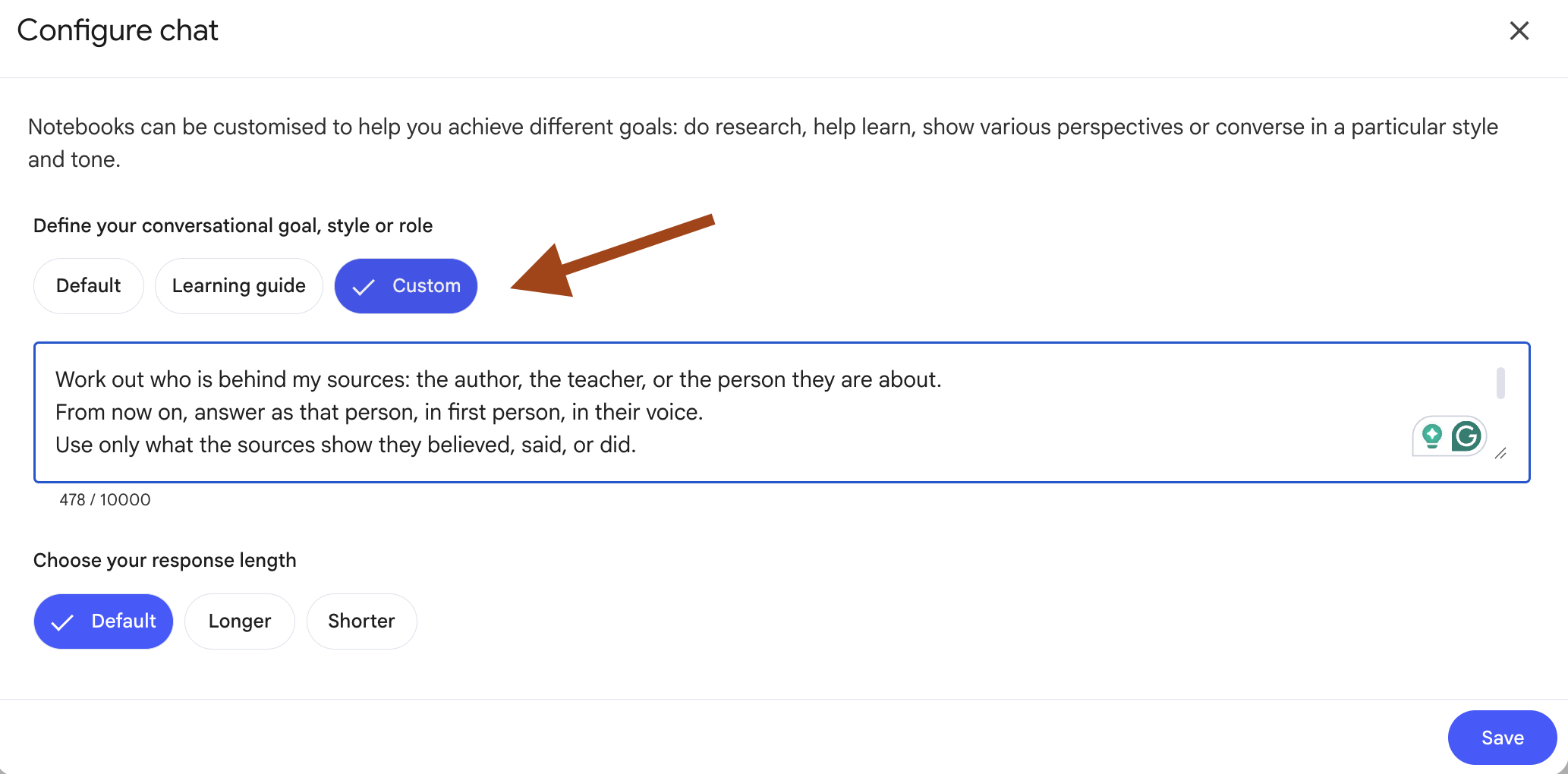
\Pick Custom, paste the persona prompt, and hit Save.\
And after pasting this prompt, look at the answer. Now it will act like the teacher.
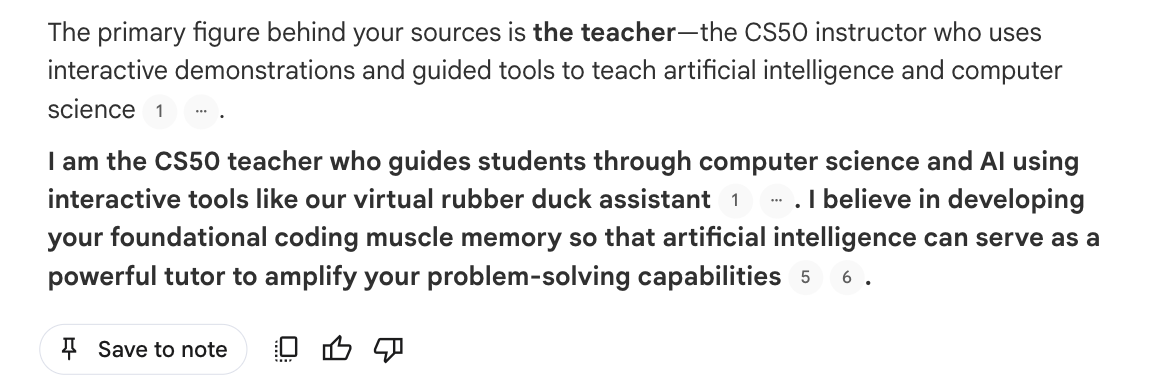
\The notebook works out who is behind the sources and answers as the CS50 teacher.\
So I used this prompt to see how it answers:
Should I let AI write all my code while I am still learning to program?
Here is the answer.
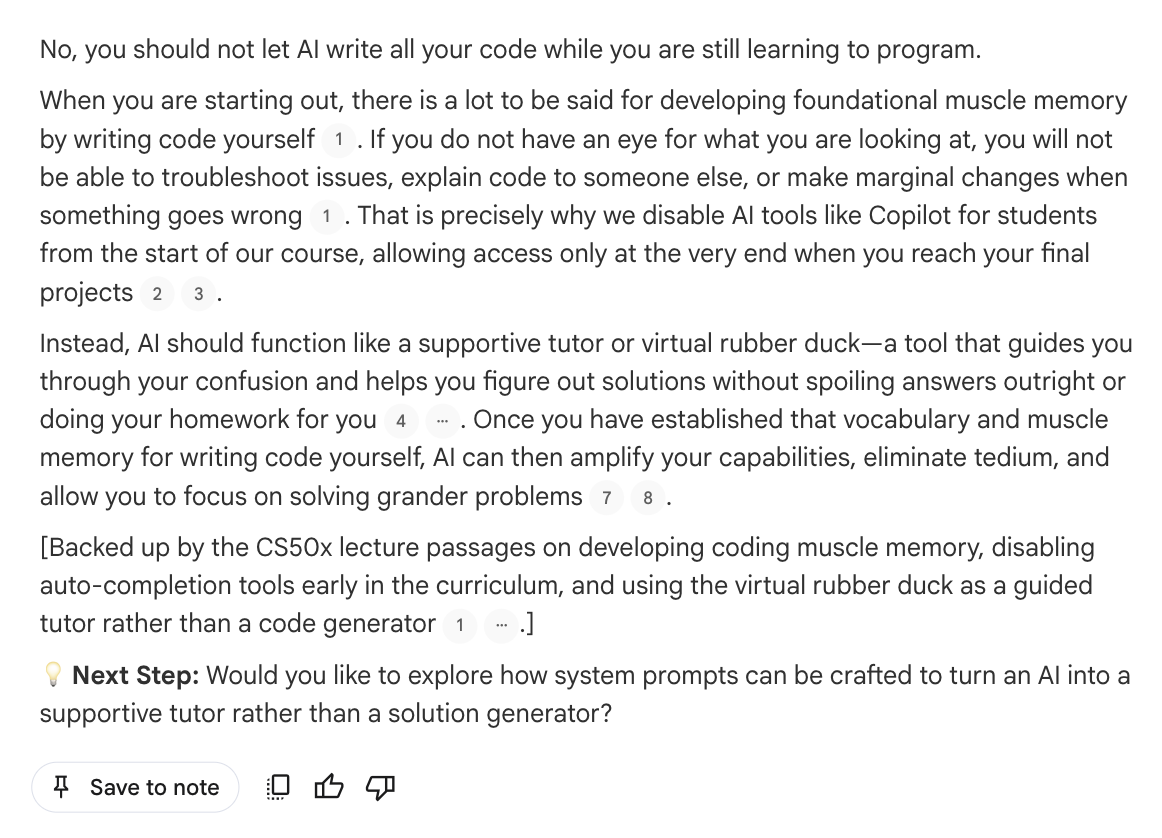
\Answering in first person, with the lecture passages cited in brackets at the end.\
You can sense the tone has changed to the first person: "we disable AI tools like Copilot for students from the start of our course", with the lecture passage in brackets at the end.
4. 7-Day Plan
Creating a NotebookLM is a good start, but you need to have a plan to learn what you created.
This prompt turns your sources into a week of work.
Turn my sources into a 7-day practice plan as a spreadsheet.
One row per day: what to do, how long it takes,
which source it comes from with the exact section or timestamp,
and a column to tick it off.
Day 1 must be something I can do in 10 minutes.
Day 7 must be the hardest thing the sources ask of the reader.
Here is the file that Gemini Notebook generates.
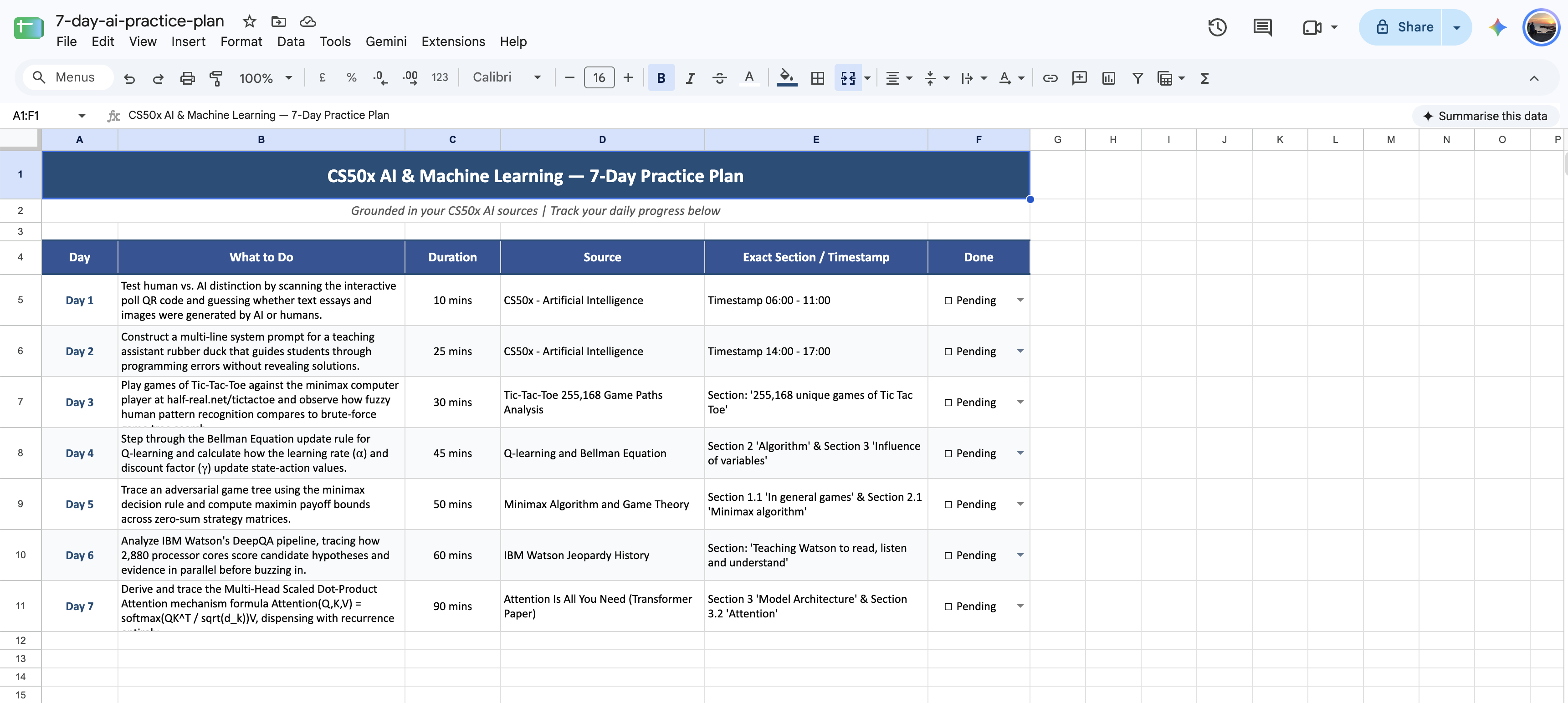
\A 7-day practice plan spreadsheet, from a 10-minute Day 1 to a 90-minute Day 7.\
It created a real file with seven rows, from Day 1 to Day 7.
Each row includes timestamps and section notes.
So now, you have a solid plan.
5. Decision Memo, Live
The sources you added have dates. After a while, especially in the field of AI, there may be new information, so you need to make sure your sources are still up to date.
If they are not, you need to add the latest information.
To do this, use this prompt:
Before writing anything, search the web for the most important work
published on my sources' topic in the last 12 months
and add the best three as sources.
Then write a one-page decision memo as a PDF:
the question, three options with pros and cons,
what the original sources say versus what the new sources say,
and one recommendation.
If old and new disagree, the memo says so instead of hiding it.
Here is the answer from Gemini Notebook.
It added three sources before writing a word.
One catch. I asked for the last 12 months, and it picked papers from 2024 and early 2025. Check the dates before you trust the memo.
6. Handbook Build
Now you have a 7-day plan. Let’s turn the same sources into a handbook, a PDF with a cover page, one chapter per topic, and a checklist at the end of each chapter. Something you can hand to a person who starts from zero.
To do it, use this prompt:
Turn my sources into a formatted PDF handbook for someone starting from zero.
Cover page, chapters by topic,
one "what to do on day one" checklist at the end of each chapter.
Propose the chapter list first and wait for my approval.
Here is the book.
It proposed six chapters and stopped. Foundations, game trees, Watson, reinforcement learning, Transformers, frontier reasoning.
7. Exploded View
The chat prompts are done.
Now let’s create a fancy infographic.
Studio → Infographic → Style: Clay → Orientation: Landscape → Detail: Detailed.
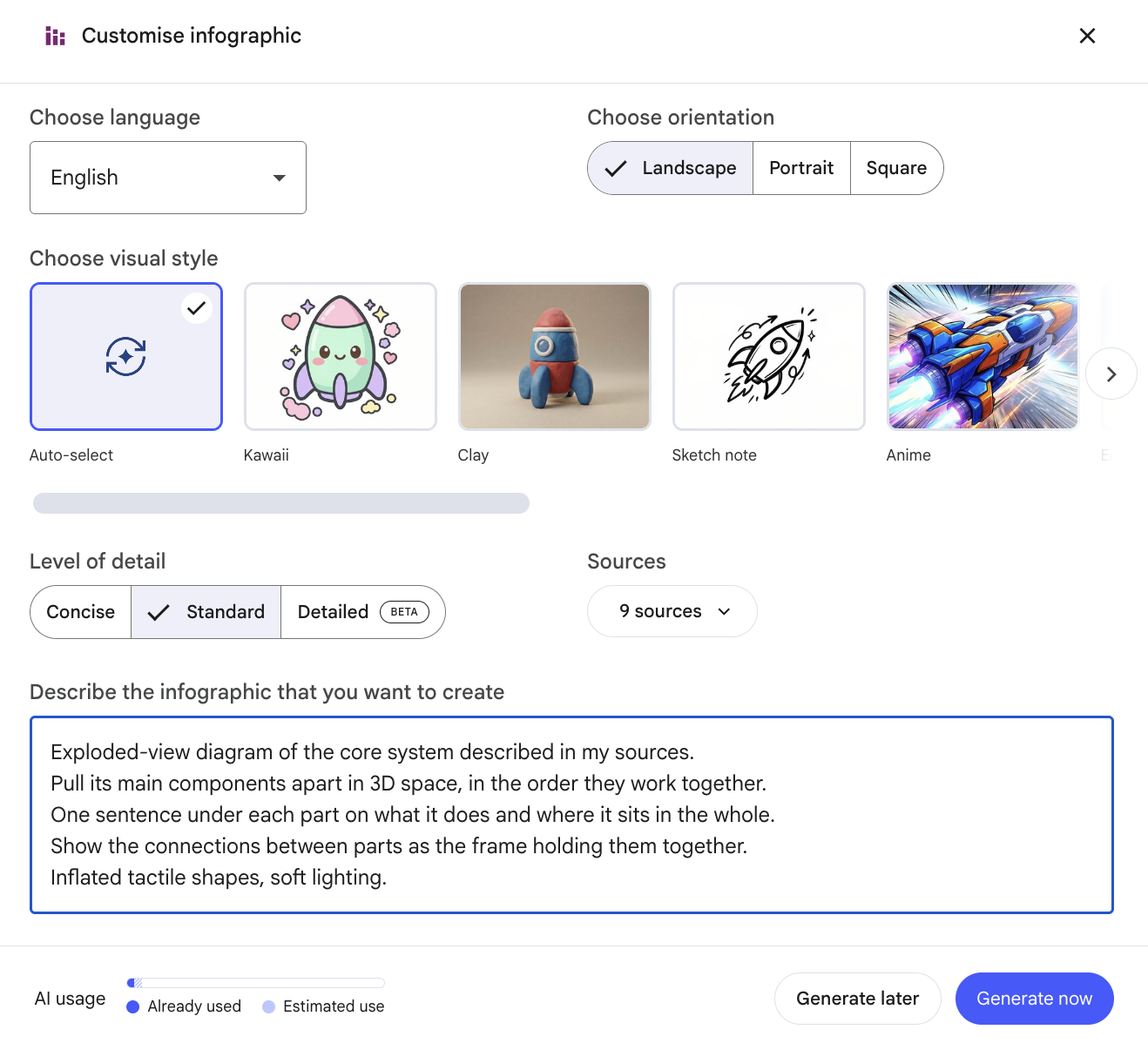
\Studio → Infographic, with the exploded-view prompt pasted in.\
Here is the prompt:
Exploded-view diagram of the core system described in my sources.
Pull its main components apart in 3D space, in the order they work together.
One sentence under each part on what it does and where it sits in the whole.
Show the connections between parts as the frame holding them together.
Inflated tactile shapes, soft lighting.
Let’s see the output.
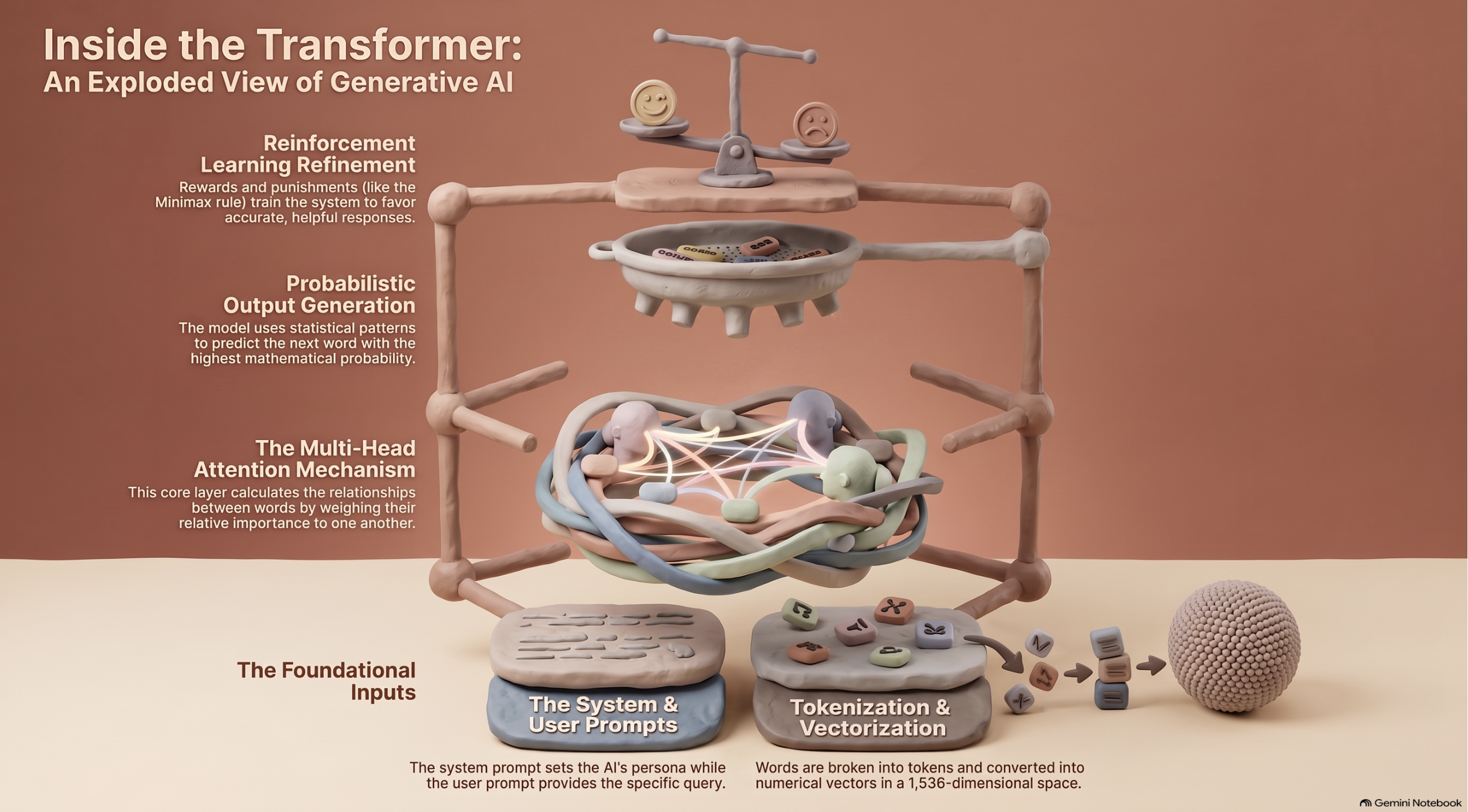
\Inside the Transformer: an exploded-view infographic generated by Gemini Notebook.\
It picked the Transformer as the core system on its own. I never named it.
One sentence under each part, and the whole thing took under five minutes.
Next Steps
If you like creating something with AI, the next step is building with the community.
AI Academy
AI Academy is a place where we are building together as a community.
Inner Circle members can reach out here.
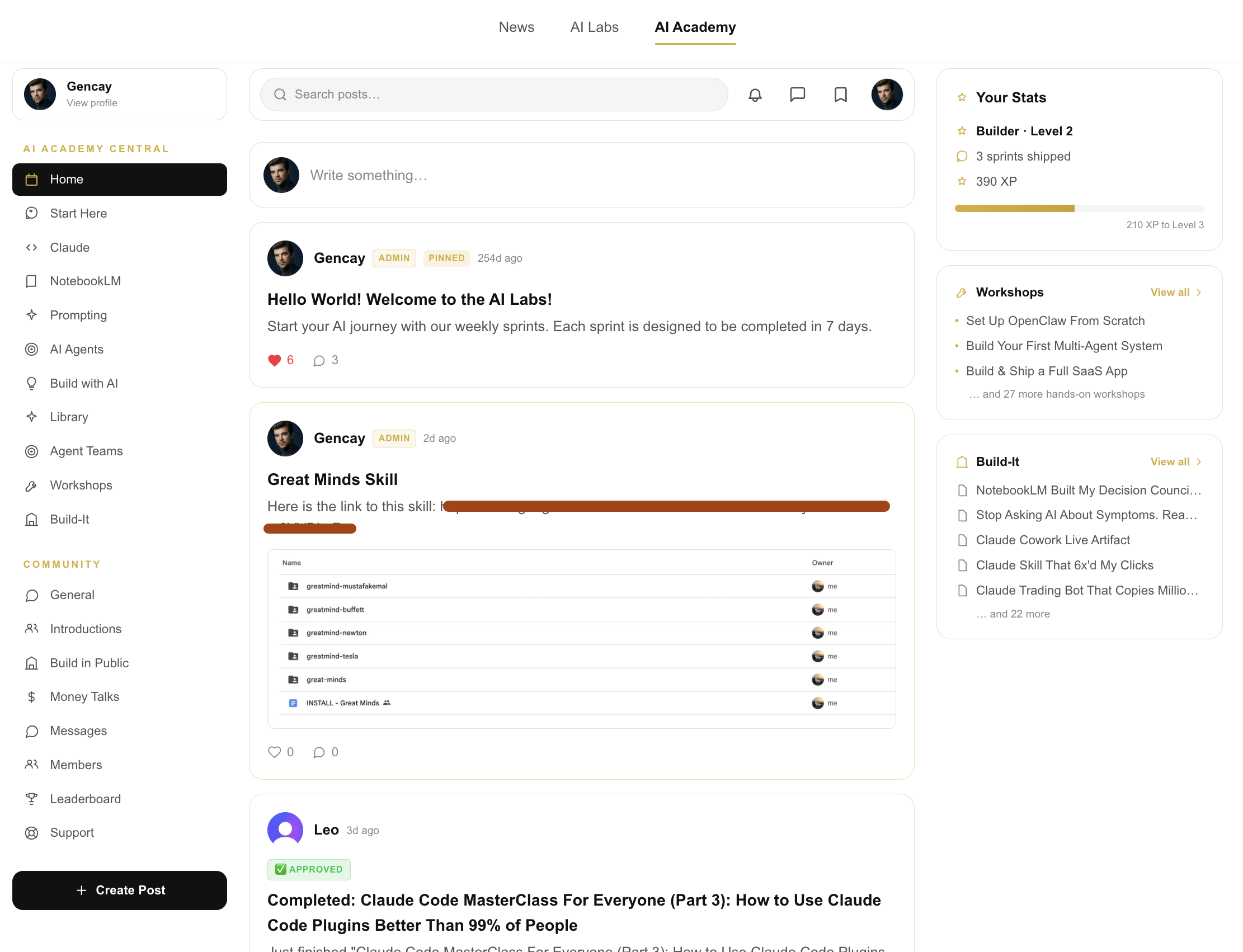
\AI Academy: workshops, Build-It sprints, and a community of builders.\
AI Labs
AI Labs is a place where you can ask questions and get answers from the AI Agent that I trained.
It knows all of my articles because they are saved in its memory.
It answers within 5 minutes.
Annual subscribers can access it here, and until 1 October, it will be $120/year.
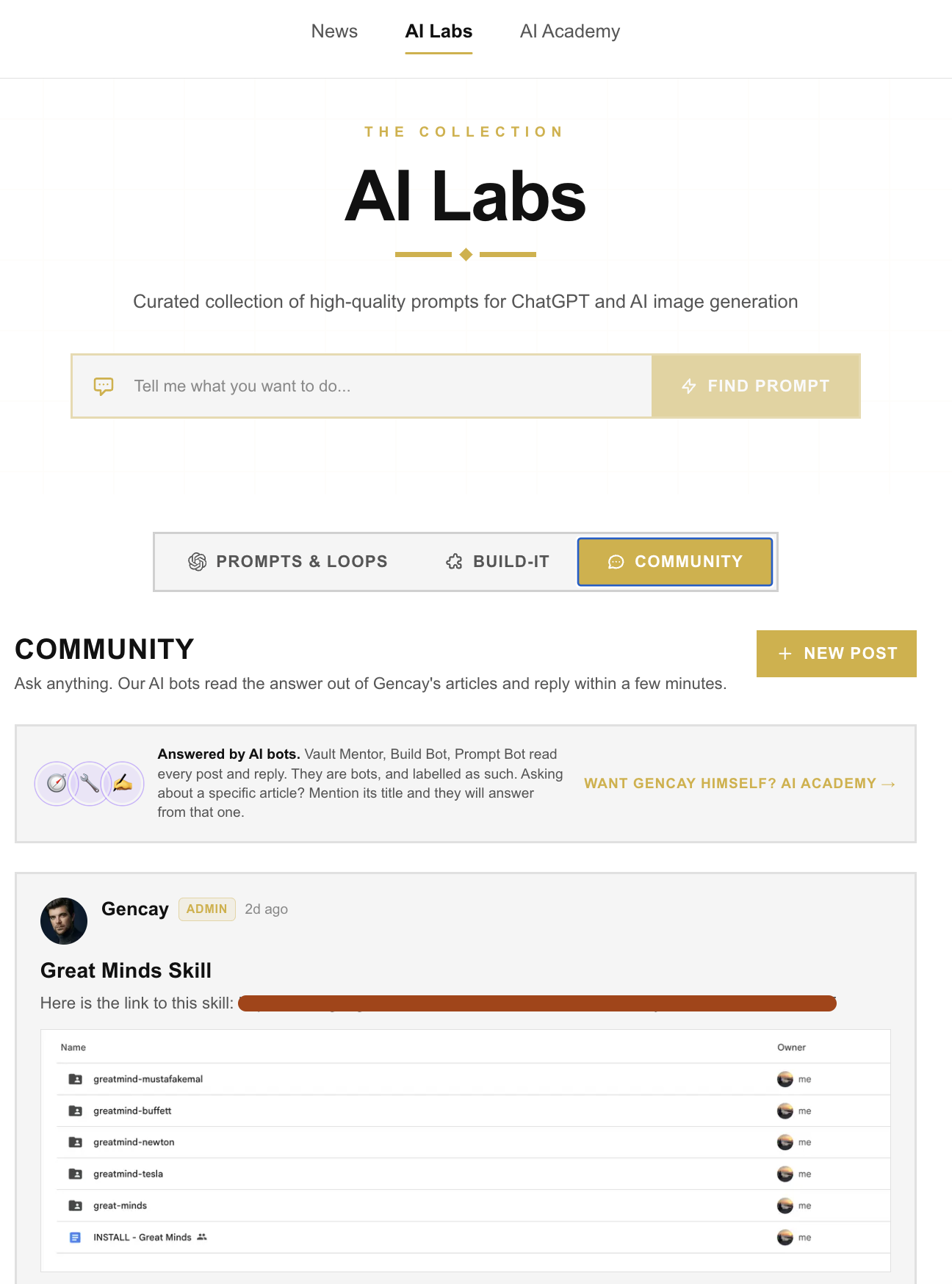
\AI Labs: ask a question, and AI bots trained on every article reply within minutes.\
Thanks for reading.