NotebookLM is now Gemini Notebook. Build 3 apps from YouTube videos with no code and no technical background. All 3 prompts are inside. The free plan is enough.
By Gencay
Published: 2026-07-26
URL: https://www.learnwithmeai.com/p/the-non-technical-persons-guide-to
NotebookLM has changed its skin. The new name is Gemini Notebook.
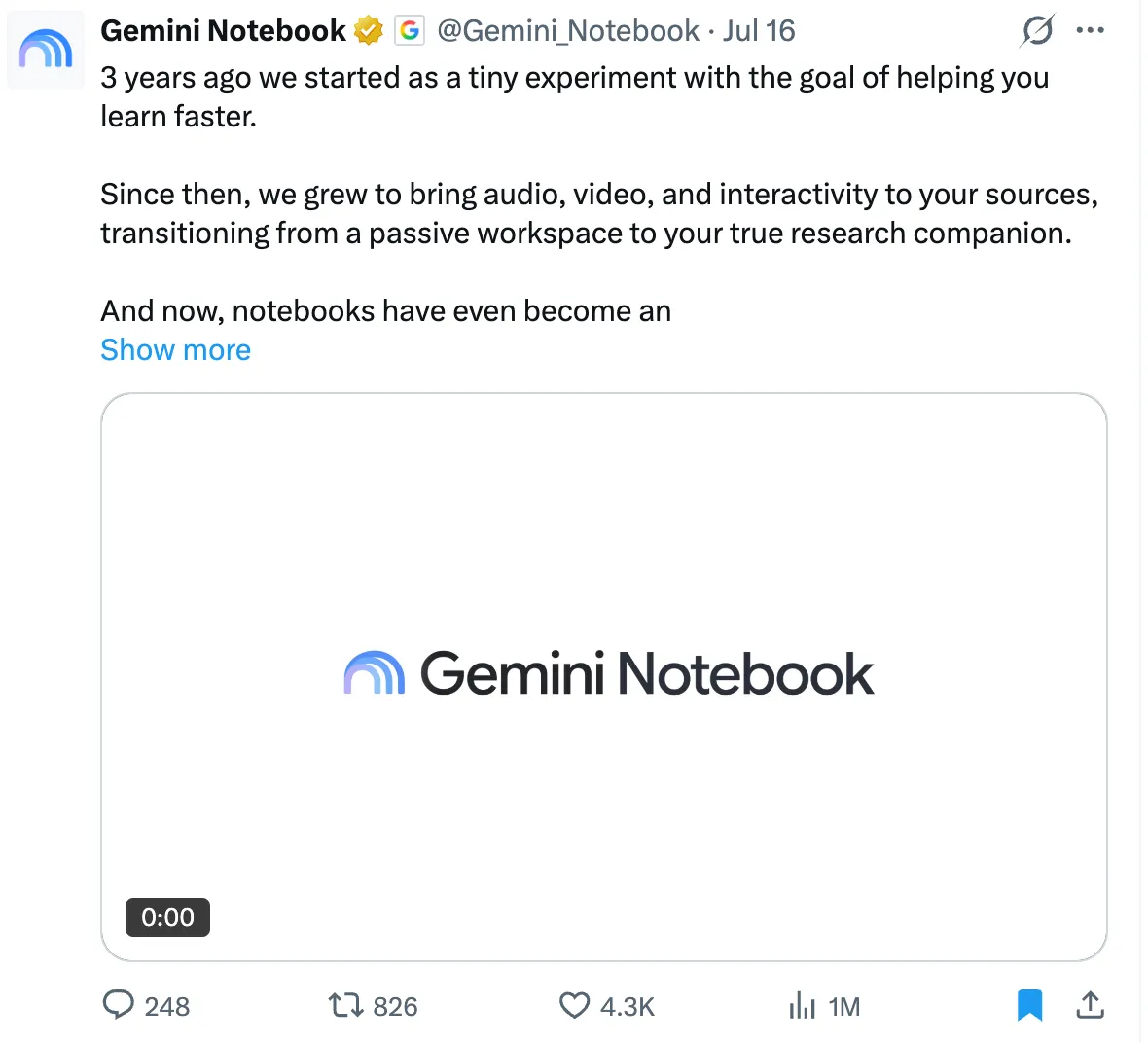
\Google announced it on July 16.\
The changes affect Ultra plan users for now. Only one of them affects you.
If you are on the Pro plan, Google will give you a cloud computer, so you can run your code inside Gemini Notebook, too.
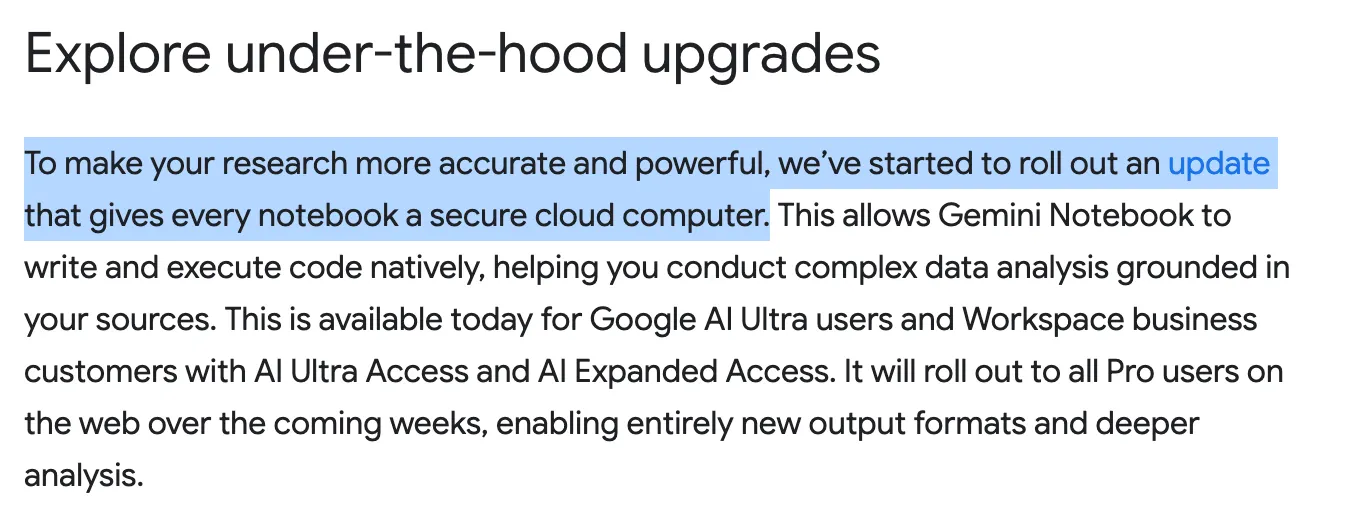
\Ultra today, Pro over the coming weeks, free plan unmentioned.\
Pretty crazy. When they make it available to Pro users, I’ll test it and report back.
Now I want to show you how to build with Gemini Notebook.
You don’t need to be technical.
I’ll show you everything step by step and give you the prompt.
That’s it.
3 prompts, 3 apps, in less than 30 minutes.
Sounds interesting, right?
Let’s start.
How to Build With Gemini Notebook?
Visit Gemini, from here: https://gemini.google.com/app
Next, click on “+”.
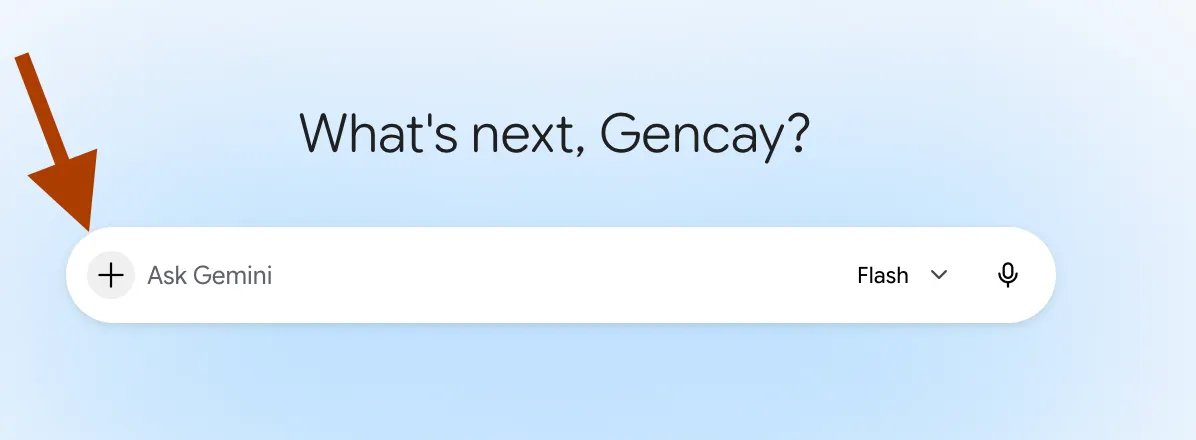
\The plus sits at the left edge of the prompt box.\
And scroll down to more uploads and select “Notebooks”.
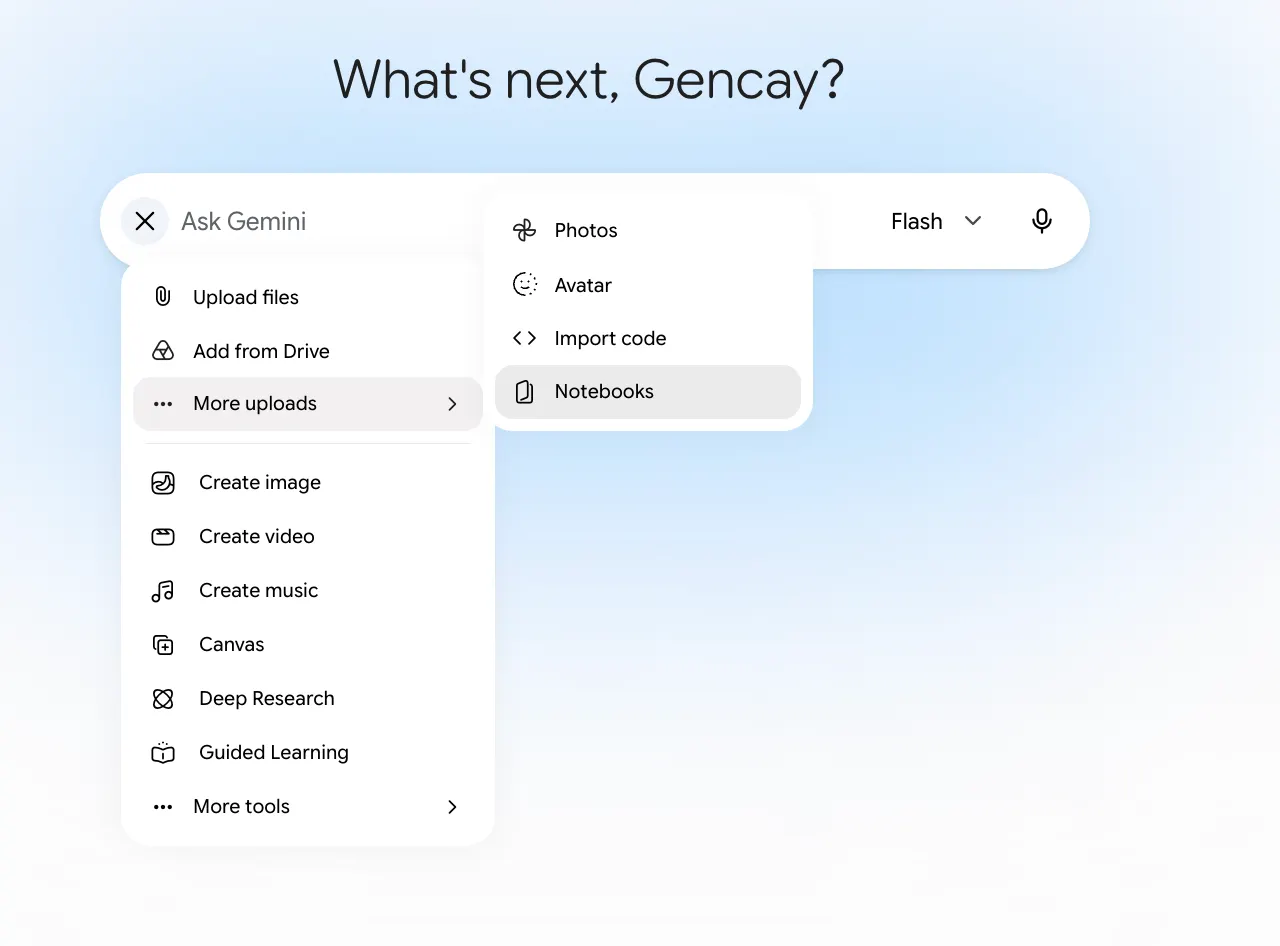
\Notebooks hides one level down, under more uploads.\
Next, choose the notebook you want.
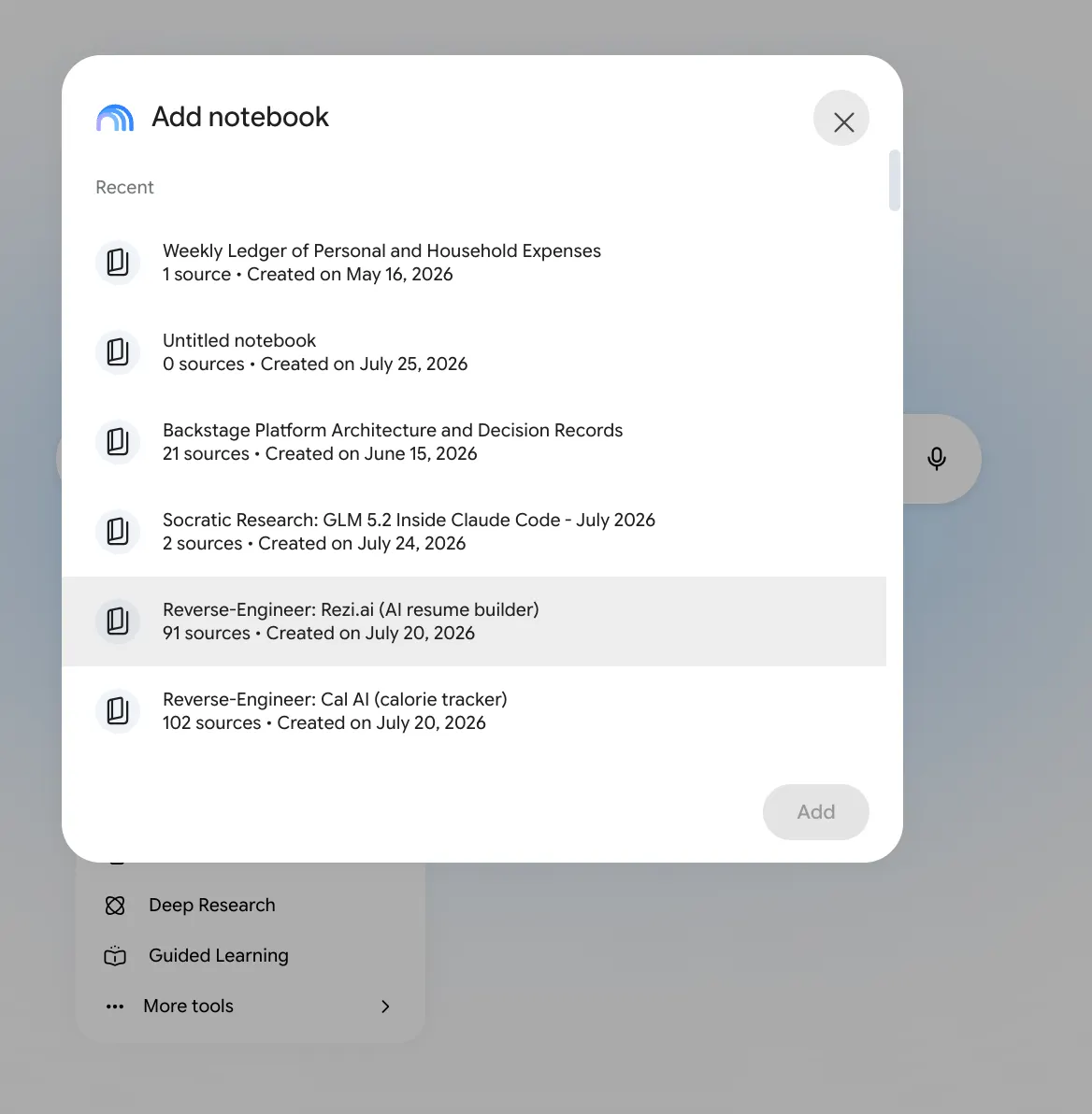
\Every notebook you trained shows up here with its source count.\
Next, click on “+” and select “Canvas”.
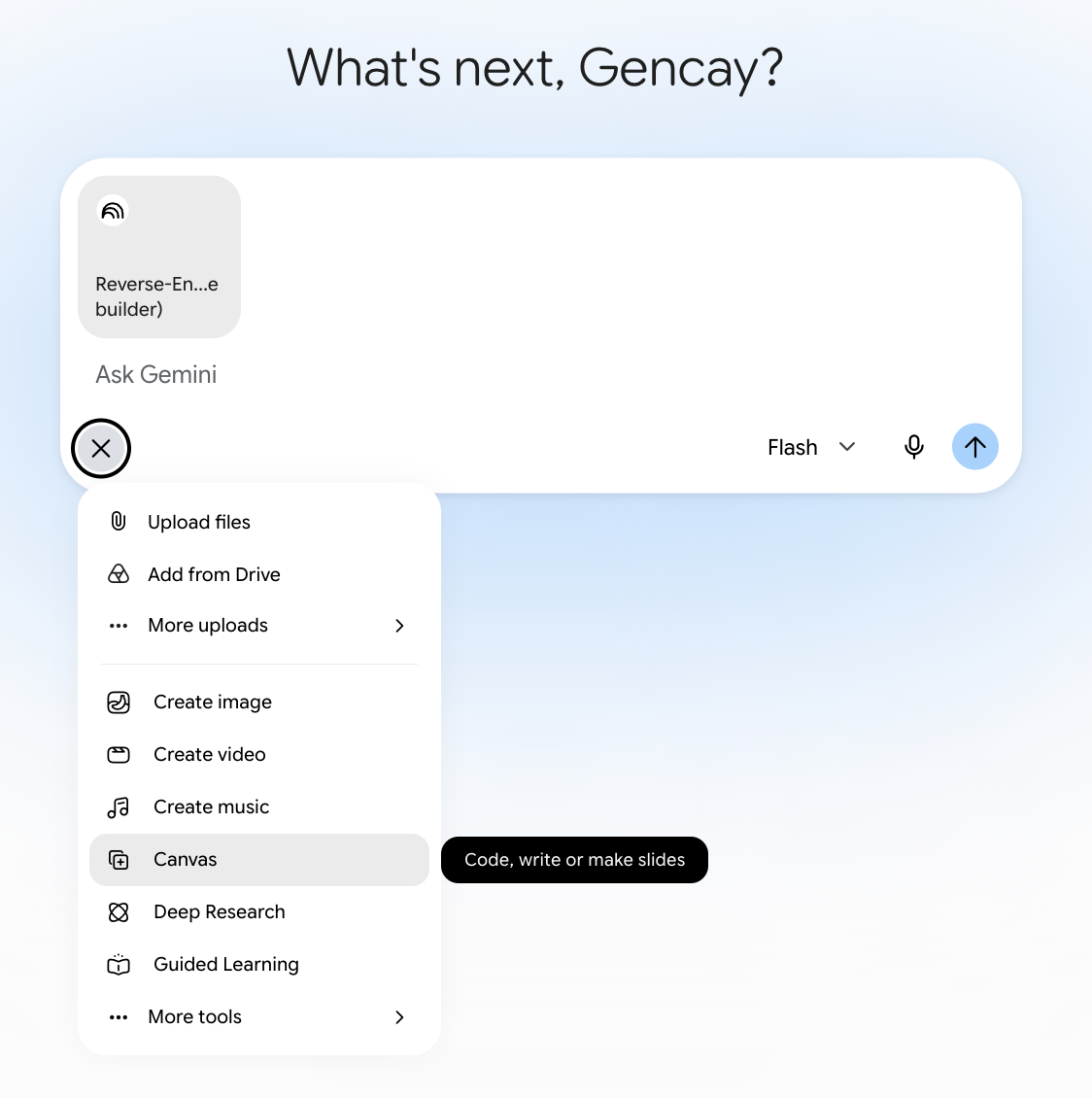
\Canvas is the part that turns the notebook into an app.\
Next, paste one prompt.
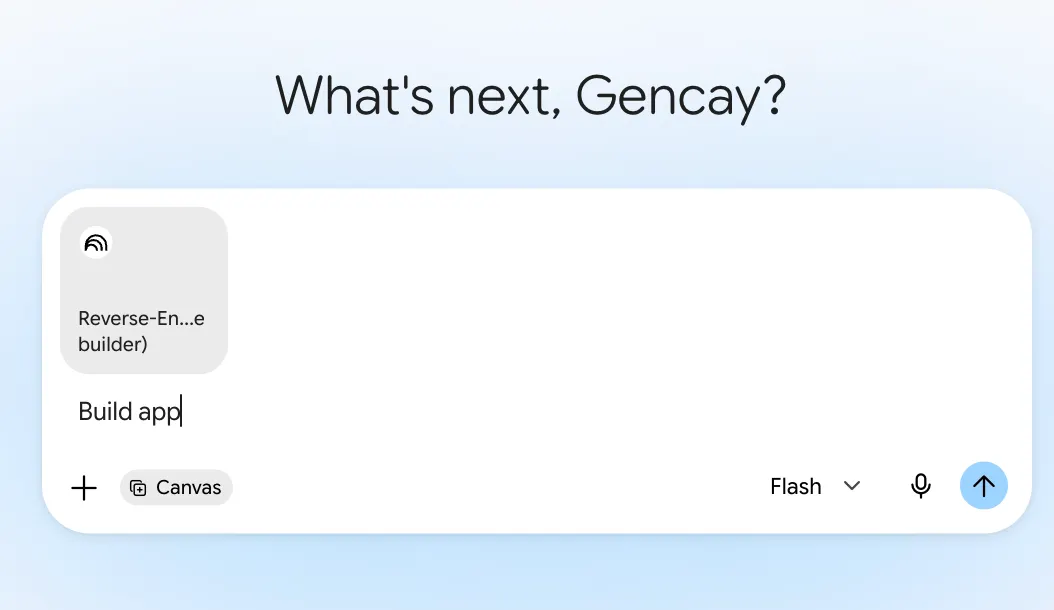
\Notebook attached, prompt in the box, nothing else.\
Believe it or not, that’s it!
Next, it’ll start building your app.
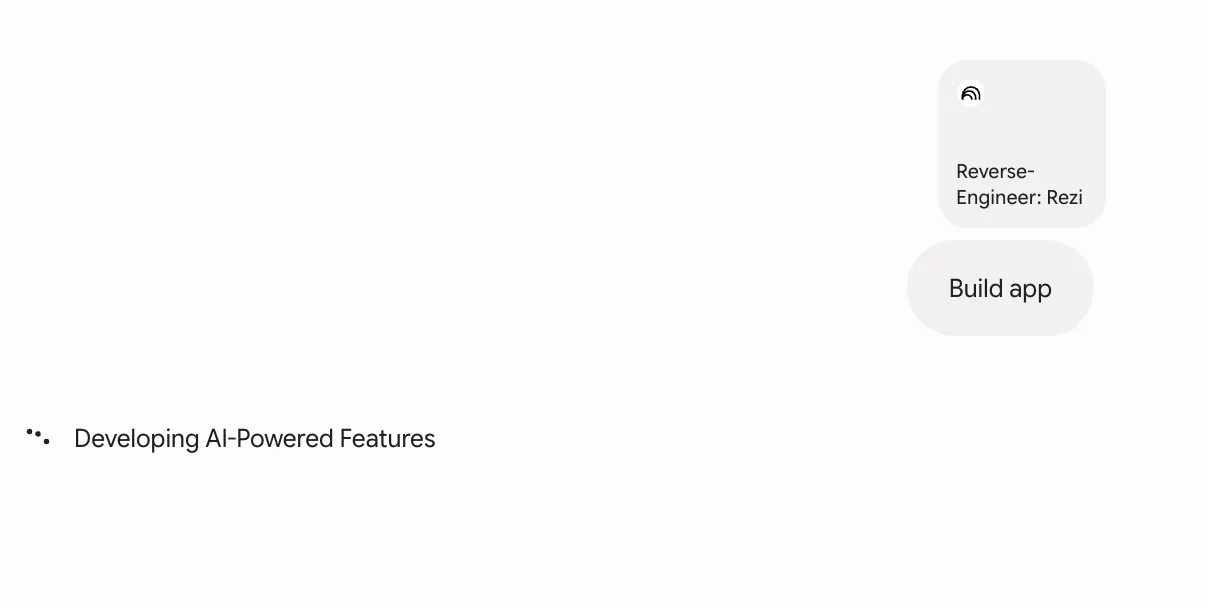
\No further input from here.\
After a few minutes, your app will be ready.
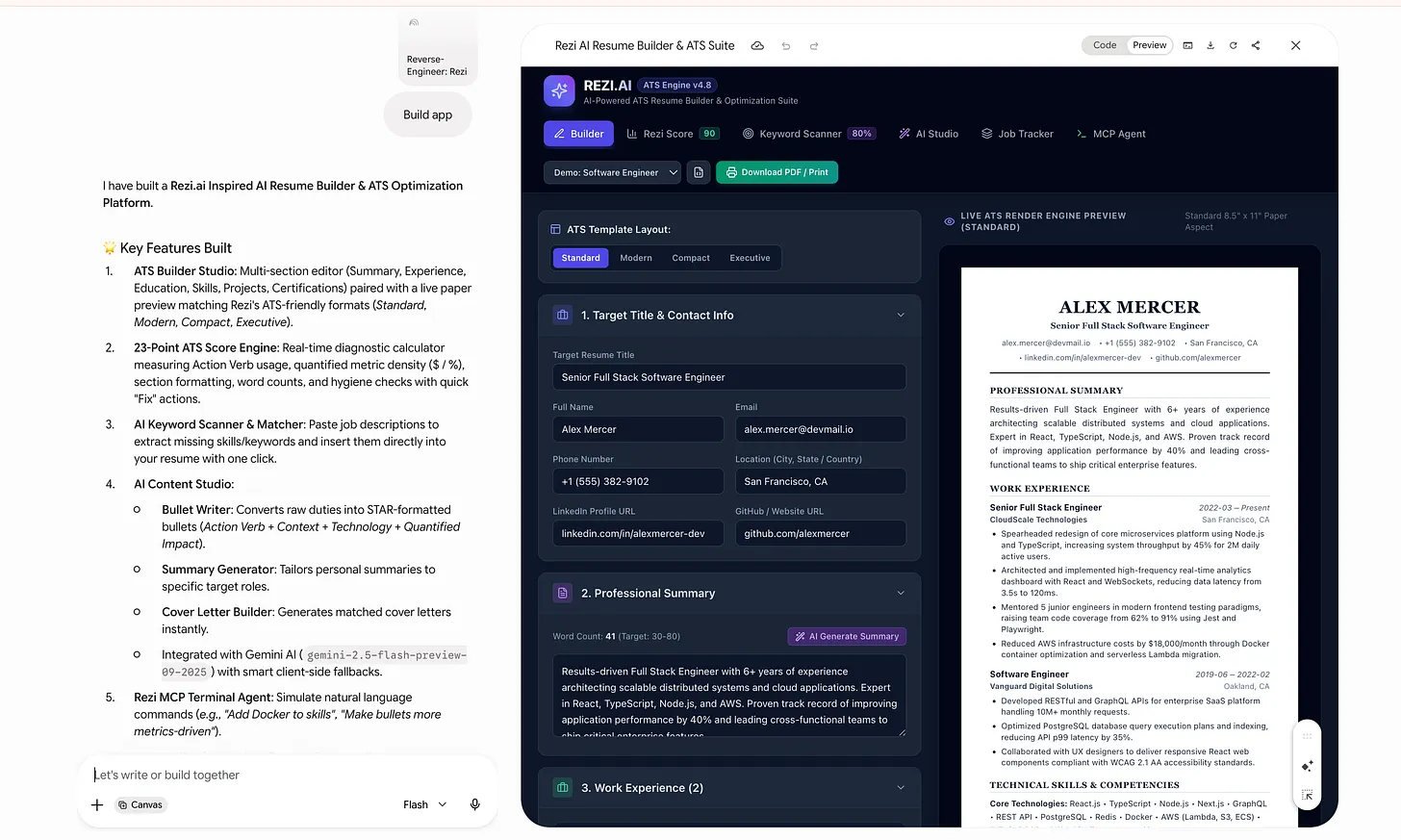
\The CV builder from the Kimi article,same two steps.\
Also, let me show you how to train NotebookLM.
How to train NotebookLM?
Watch the video above, or follow the steps below.
- Visit here.
- Click on Try Gemini Notebook.
- Click on “Create a new Notebook.”
- Click on “Websites”.
- And paste the YT Video you want(or videos, one by one.)
App 1. The Course You Actually Finish
To build an app, you only need one NotebookLM.
Train it by following the steps in the previous section.
Next, go to Gemini and follow the steps I just showed you:
1. Select NotebookLM,
2. Choose Canvas
3. Paste the build prompt.
Here is the prompt for you to copy/paste.
The link to the YouTube video series: https://www.youtube.com/playlist?list=PLXV9Vh2jYcjbnv67sXNDJiO8MWLA3ZJKR
Here is my screen;
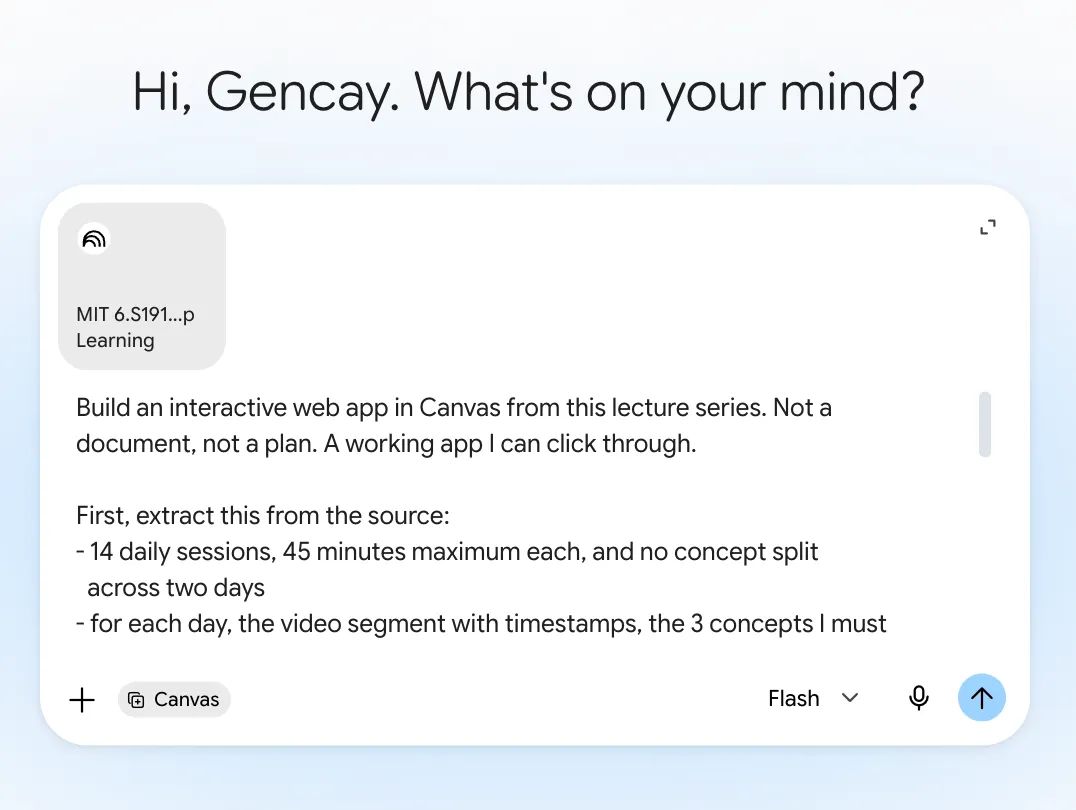
\The MIT notebook is attached, and the build prompt is pasted underneath.\
5 minutes later, the app is ready.
Let me show you the app.
As you can see, this app turned the entire MIT Foundation Models and Generative AI course into a 14-day study plan.
Day 2 does not unlock until you successfully answer Day 1’s questions. It also shows you where to improve and what to review after each mistake.
And it takes only five minutes to build.
After creating the app, click on “Share”, copy the link, and share it with your friends.
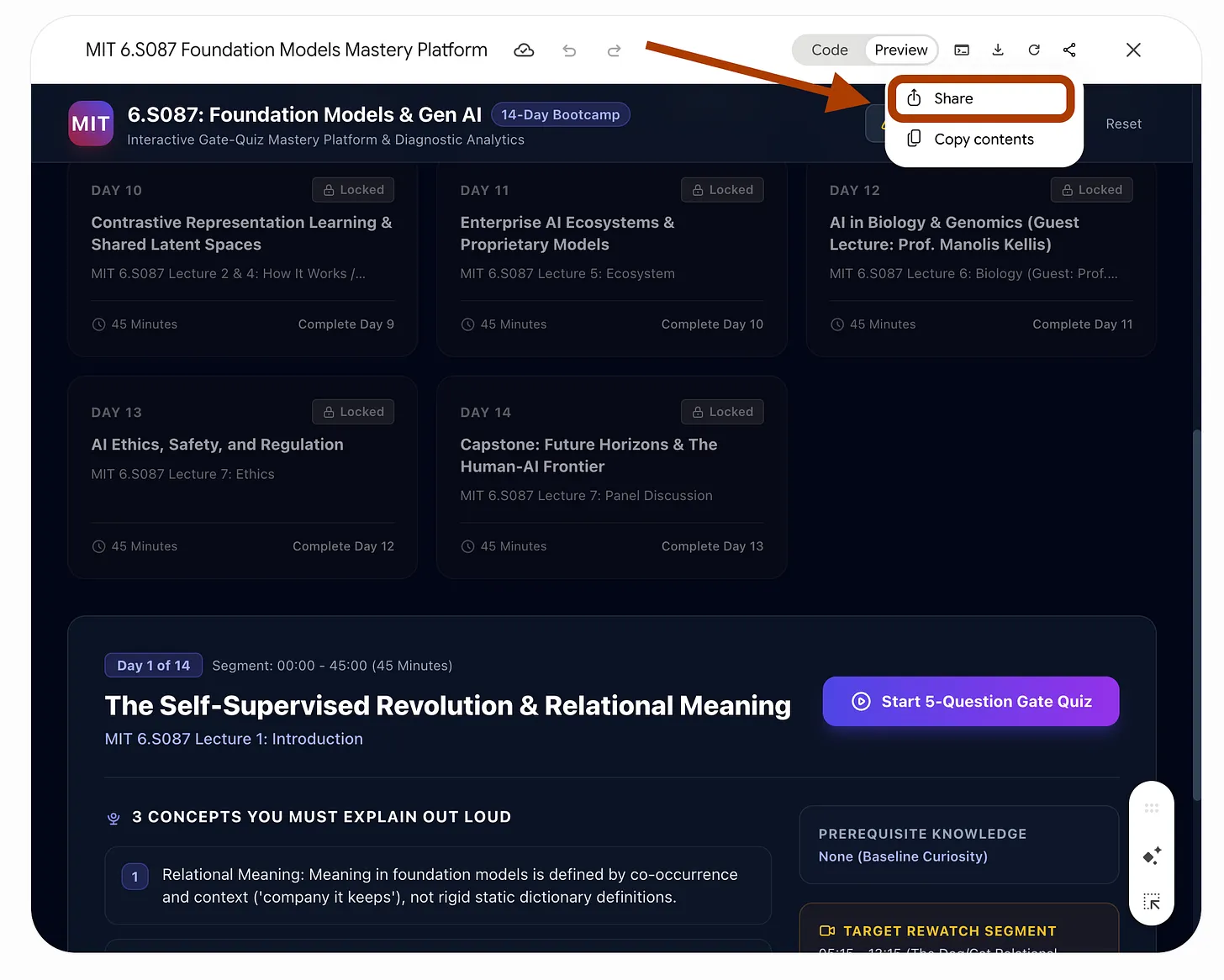
\Days 10 through 14 stay locked until the days before them are answered.\
Also, you can do these things using a free account.
App 2. The Tutorial That Becomes a Checklist
This app turns your YouTube video into a checklist you can tick off. By the end, you’ll know you completed everything covered in the video.
For the setup, we’ll repeat the same steps from the previous section. Check it out first if you haven’t already.
In short:
- First, train a NotebookLM.
- Next, connect with Gemini.
So I did the same.
Here is the prompt for you to copy/paste.
Here is the YT link that I used to train NotebookLM:
youtube.com/watch?v=B\_KAEqiC-0Q
Let me show you the app.
Look how it turns a YouTube video into a step-by-step course you can follow.
Let’s say you want to learn how to do [X], but you’re a beginner and feel overwhelmed by the full video. Train a NotebookLM, connect it with Gemini, and it will guide you through the process in the right order, one step at a time.
App 3. The Practice Interviewer
Now we’ll do an interview with Boris Cherny, the creator of Claude Code.
Follow the same steps we followed in App 1.
Here is the prompt for you to copy/paste.
Here is the YouTube video I used to train NotebookLM: youtube.com/watch?v=B\_KAEqiC-0Q
In this Youtube Video, Boris Cherny explains how to master claude 30 mins.
Let me show you the app.
As you can see, I answered his questions, reviewed his feedback, and completed the interview.
What’s next? Build your own interviewer using a different video and prepare for your next interview.
What should I do next?
Pick one video you want to work on, and build your own app.
Share it with your friends, let them break it, and improve it day by day.
The next natural step would be connecting NotebookLM with Claude Code to build production-ready apps.
If you don't know how to use Claude Code, no worries. I have a Claude Code MasterClass for everyone, so you can start learning today and build your own app in hours.
Life is practical; don’t stop after learning.
Start building!
Thanks for reading.