Google just merged NotebookLM into Gemini. Learn how to connect them and build apps from your notebooks using one prompt. Step-by-step with NotebookLM and Gemini.
By Gencay
Published: 2026-04-15
URL: https://www.learnwithmeai.com/p/notebooklm-now-lives-inside-gemini

\NotebookLM Gemini connection build apps from notebooks zero code 2026 step by step tutorial (Created with Midjourney)\
Google just merged NotebookLM into Gemini.
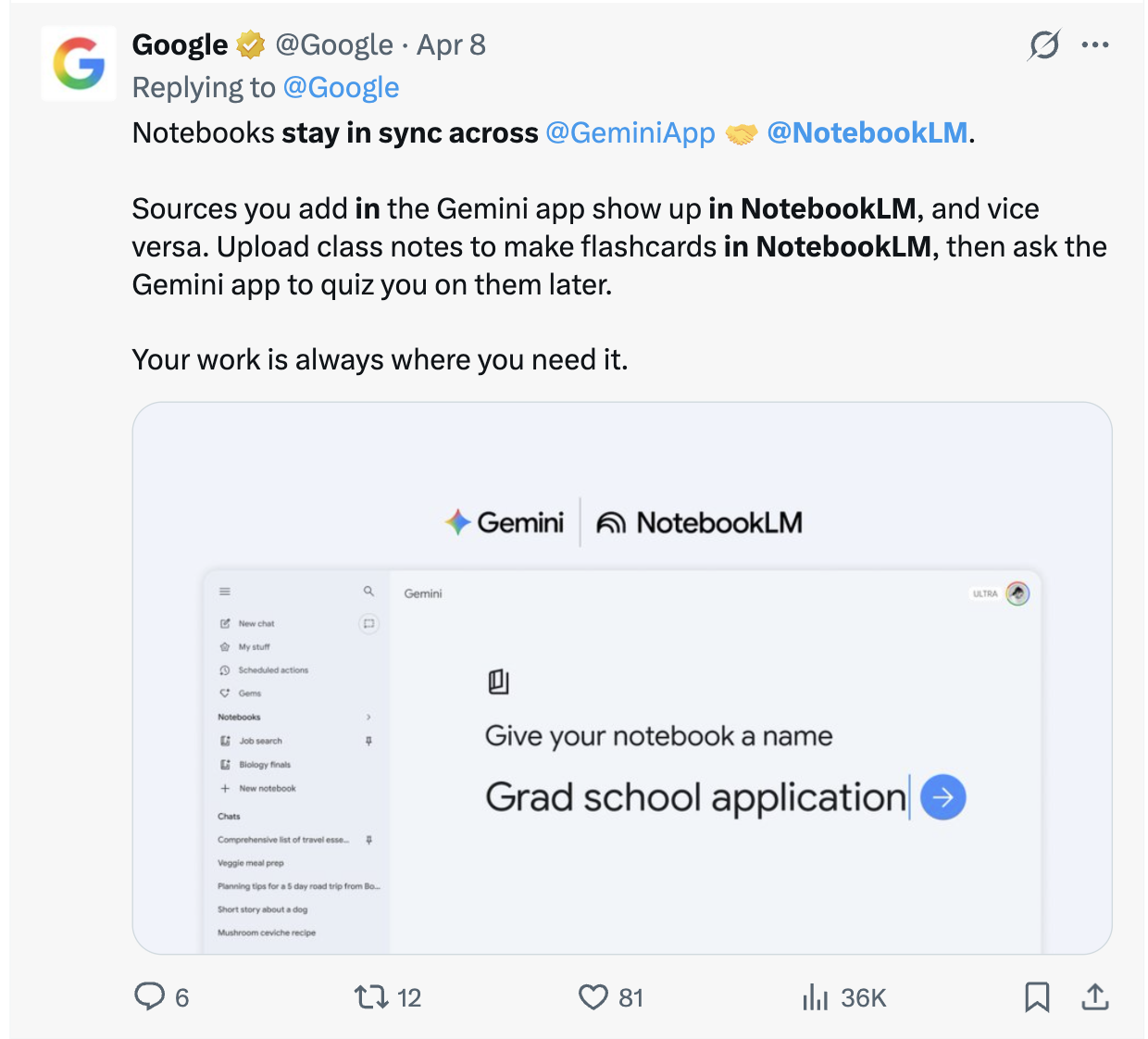
\NotebookLM and Gemini Connection,reference.\
Notebooks stay in sync across both apps. Sources you add in Gemini show up in NotebookLM, and vice versa. Your work is always where you need it.
If you have been following my work, you know I have been building with NotebookLM for months. I connected it to Claude Code to build production apps. I paired it with Antigravity to turn docs into working code. I built AI teachers, prompt advisors, and research back reports using this connection.
But this update changes the game. Because now you do not need any external connection to build apps from your notebooks. NotebookLM lives inside Gemini. Select your notebook, choose Canvas, type one prompt, and Gemini builds your app.
Here is what changed and how I did it.
How to connect Gemini with NotebookLM?
After visiting NotebookLM, you probably see a notification like this.
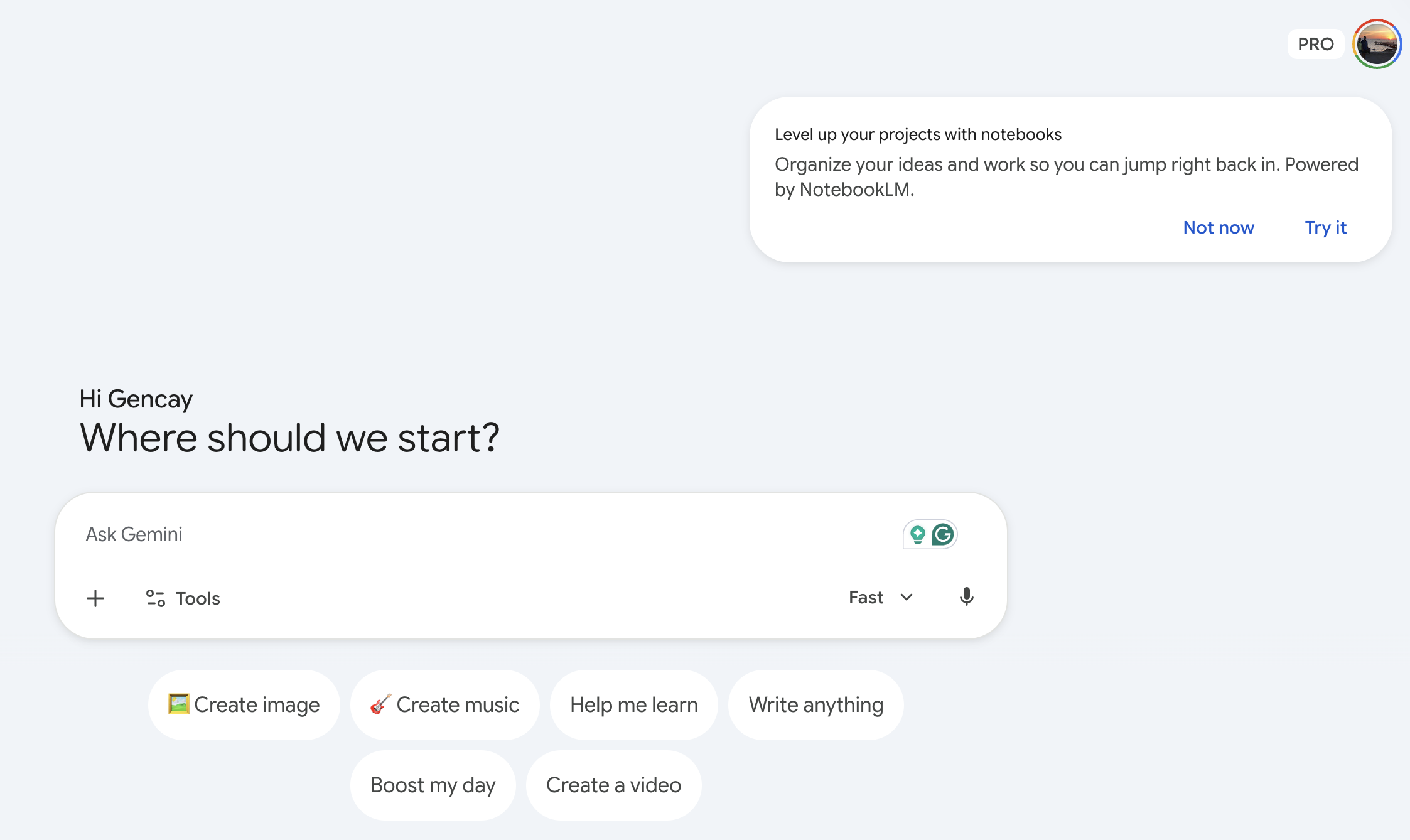
\New Feature - Gemini NotebookLM Official Connection\
Once you click “Try it”, you land inside Gemini. All of your notebooks are here.
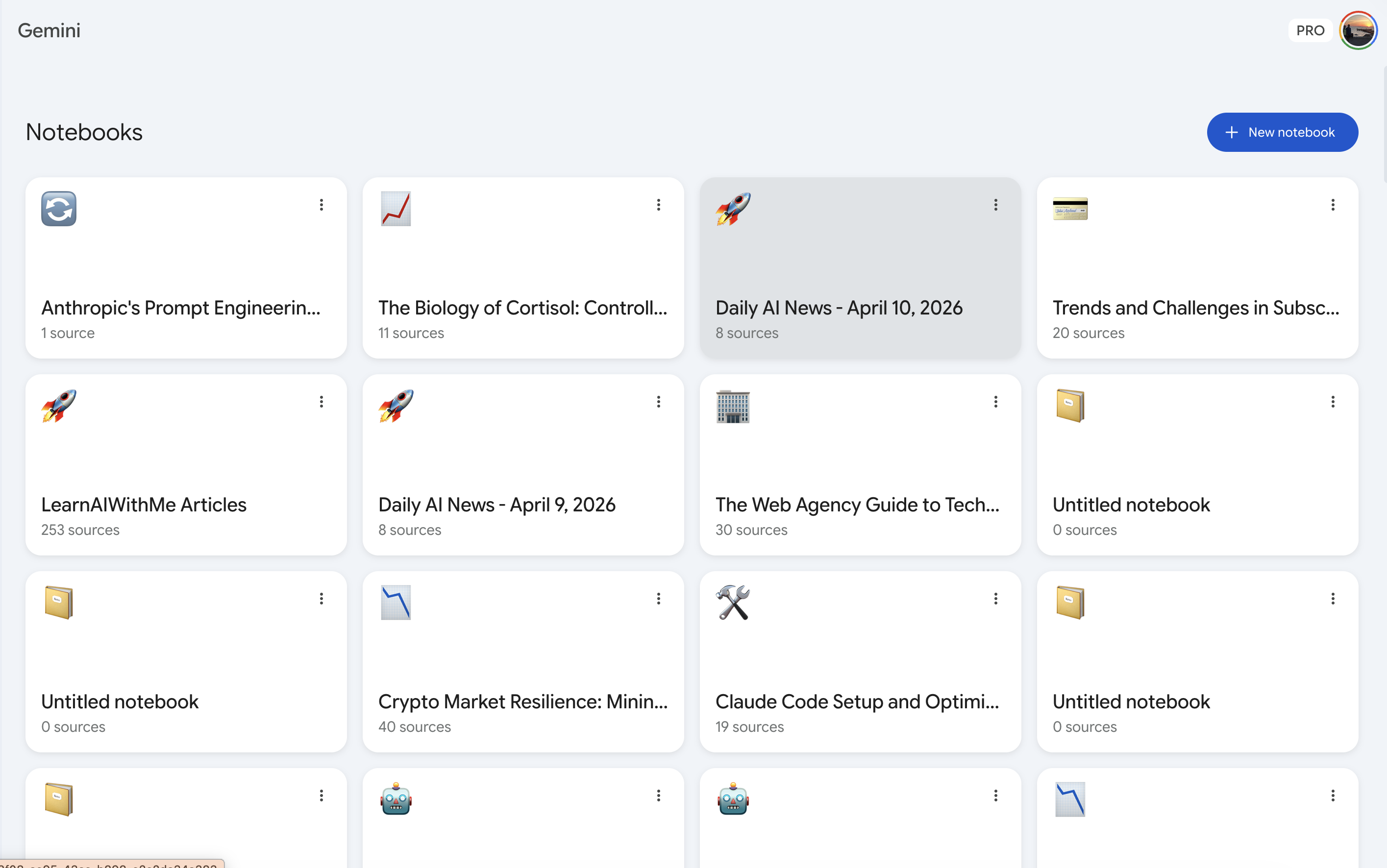
\NotebookLM’s inside Gemini\
You can also select all of your NotebookLMs from the left sidebar.
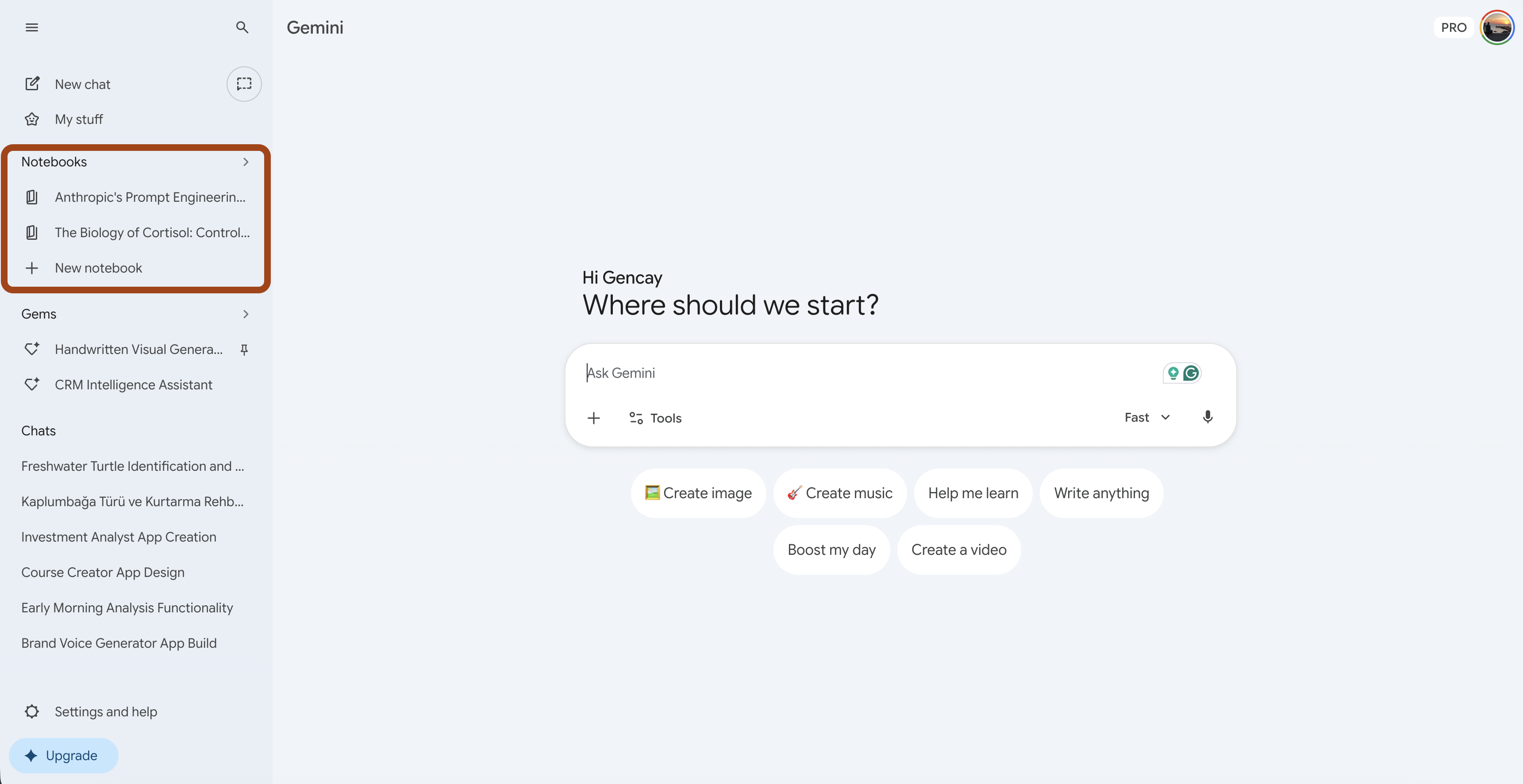
\NotebookLM’s inside Geini\
Once you select one of your NotebookLMs, the chat will change like this. You are now inside Gemini, talking to your notebook.
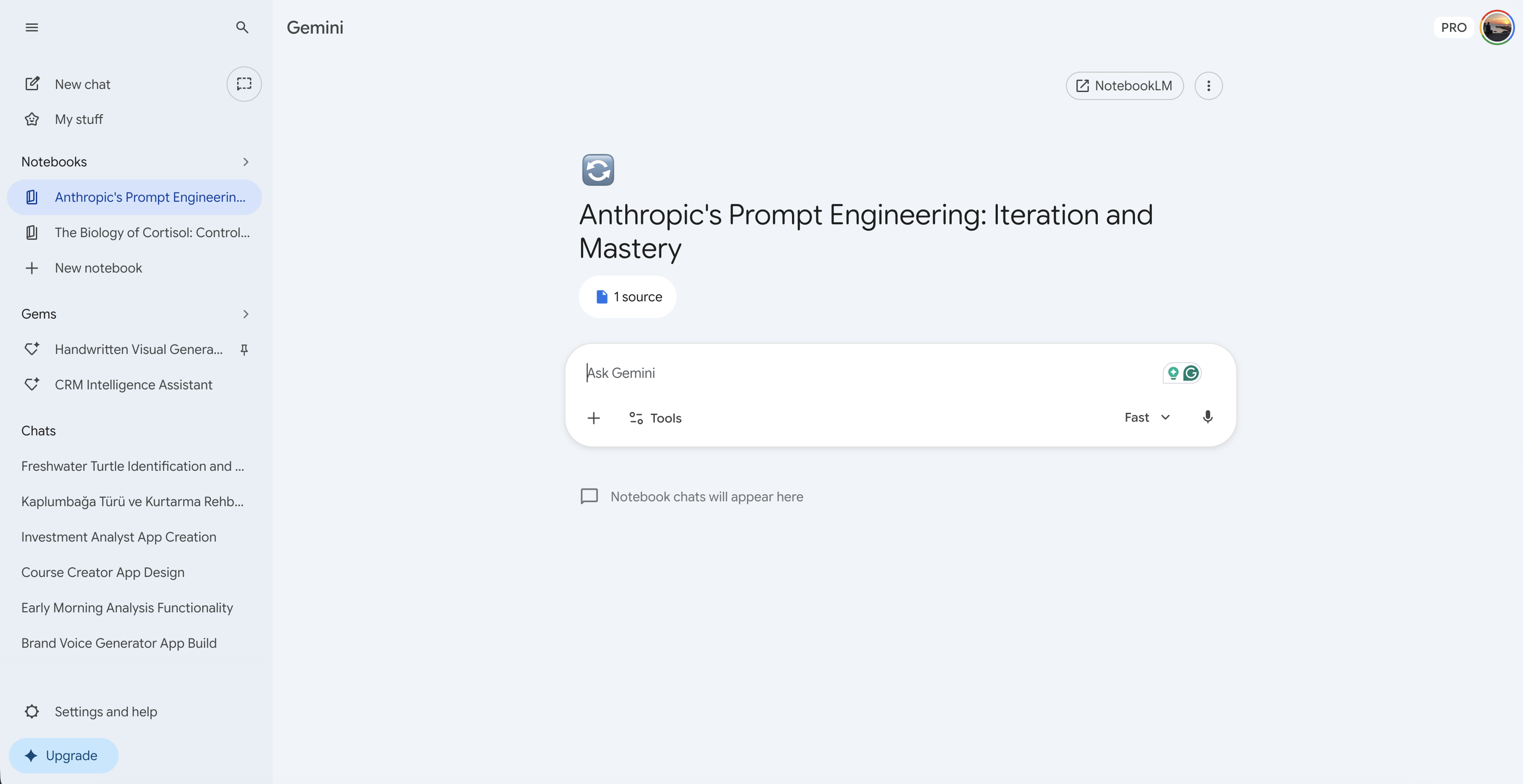
\Talk with NotebookLM inside Gemini\
Click on the three dots, and you get notebook settings.
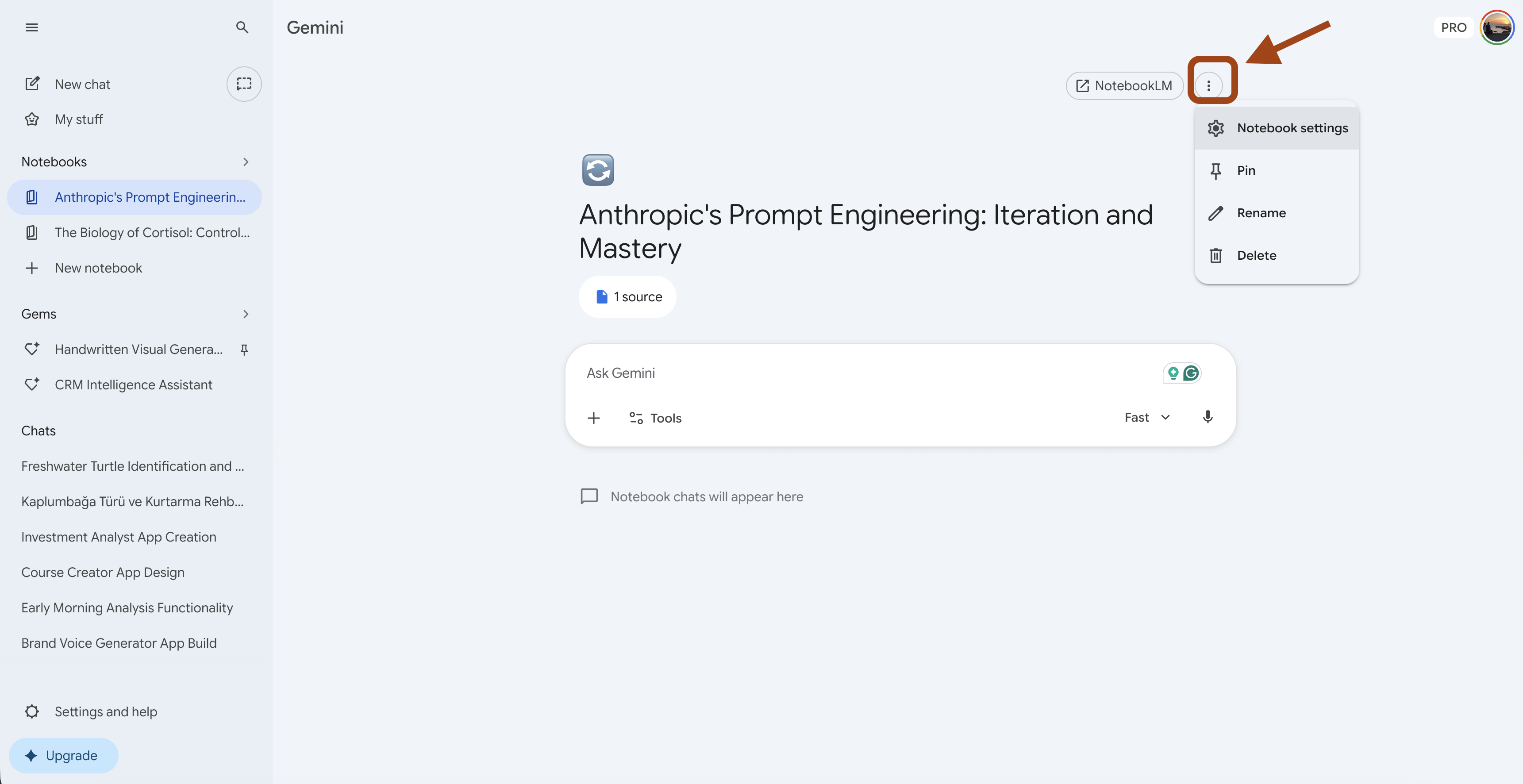
\Customizing NotebookLM inside Gemini\
Here you can adjust instructions and set a persona. I set mine to “Act like Ms. Nilüfer, who is always passionate and patient with my questions, and explains everything visually so I can learn clearly.”
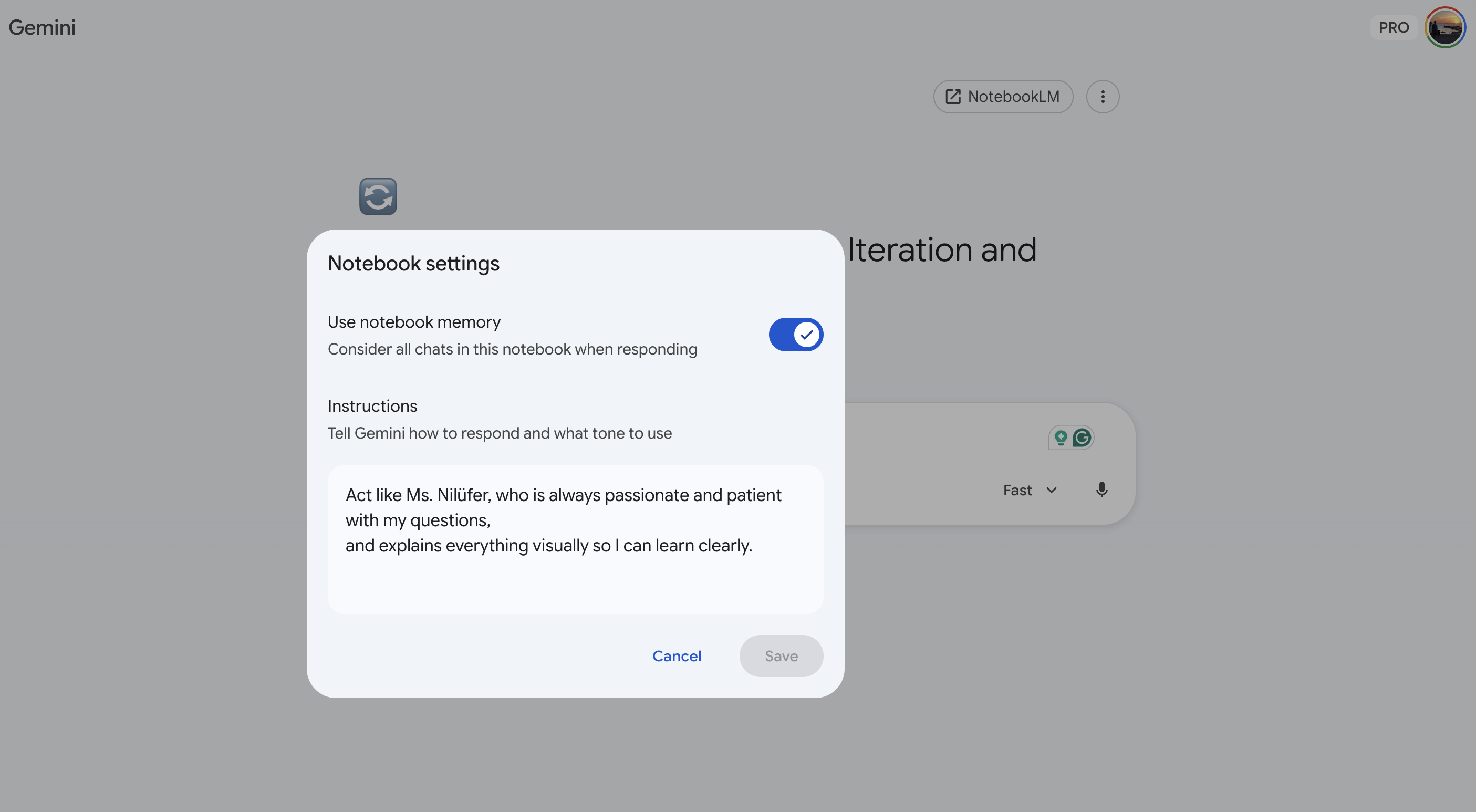
\NotebookLM settings inside Gemini\
This part is basically the same as NotebookLM’s chat.
Same sources, same grounded answers, same citations.
But here is what makes this different: you can build apps from your notebooks directly inside Gemini.
How to build an app using Gemini and NotebookLM connection?
Once you are inside your notebook in Gemini, click on “Tools” at the bottom of the chat. Select Canvas.
Then type what you want to build.
Gemini reads your notebook sources and builds the app right in front of you.
Here is the prompt I used:
Build an app from this NotebookLM, which teaches me how to prompt.
One sentence. Gemini started generating code, designing the layout, and writing content from my sources.
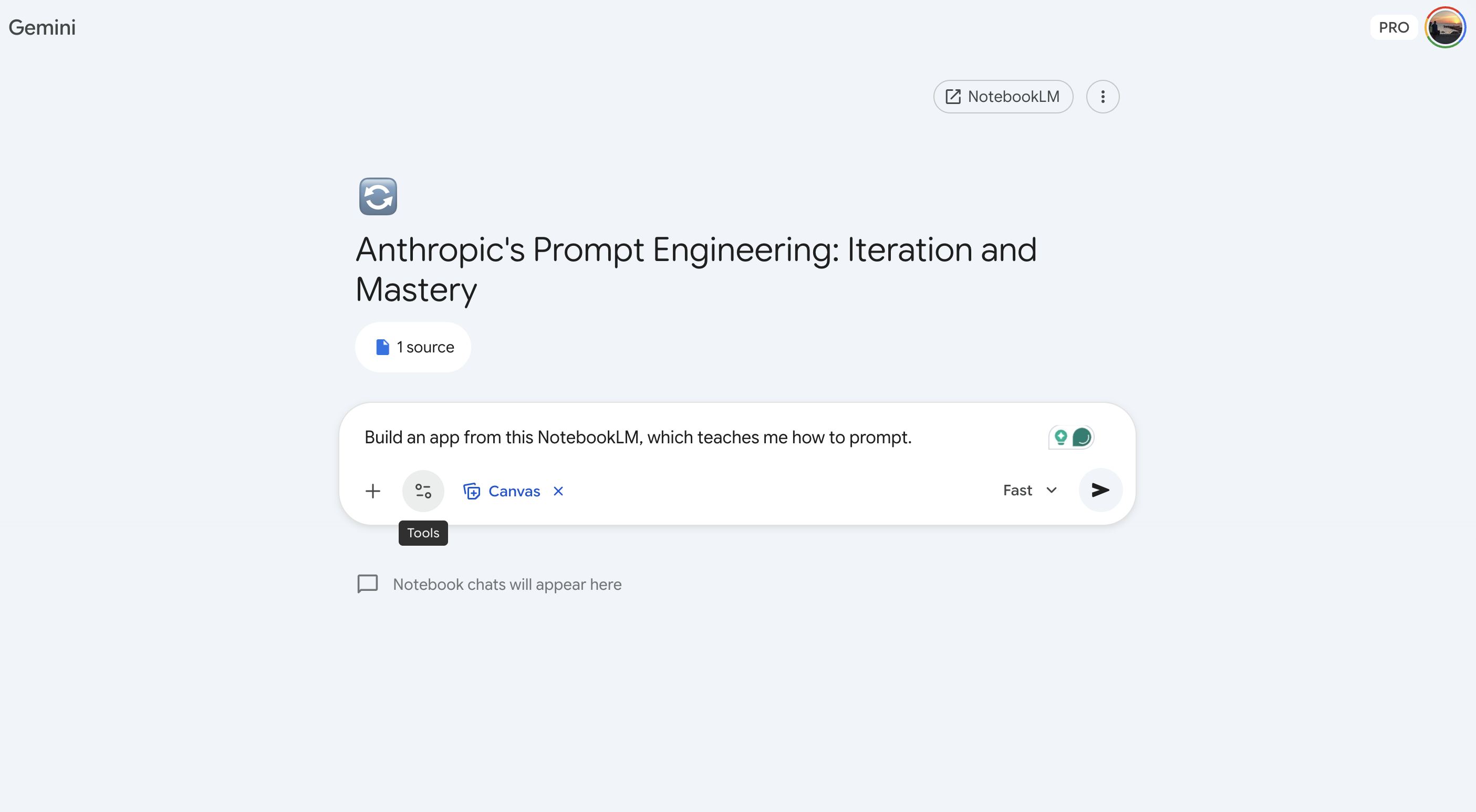
\Building apps using Gemini and NotebookLM connection\
Two minutes later, a working app appeared.
Once the app is built, you can rename it, view the files, move it to a notebook, or share it with a public link.
That is the entire process. Pick a notebook, select Canvas, type a prompt, and get an app.
Now let me show you what I built.
3 Apps We’ll Build with NotebookLM and Gemini Connection
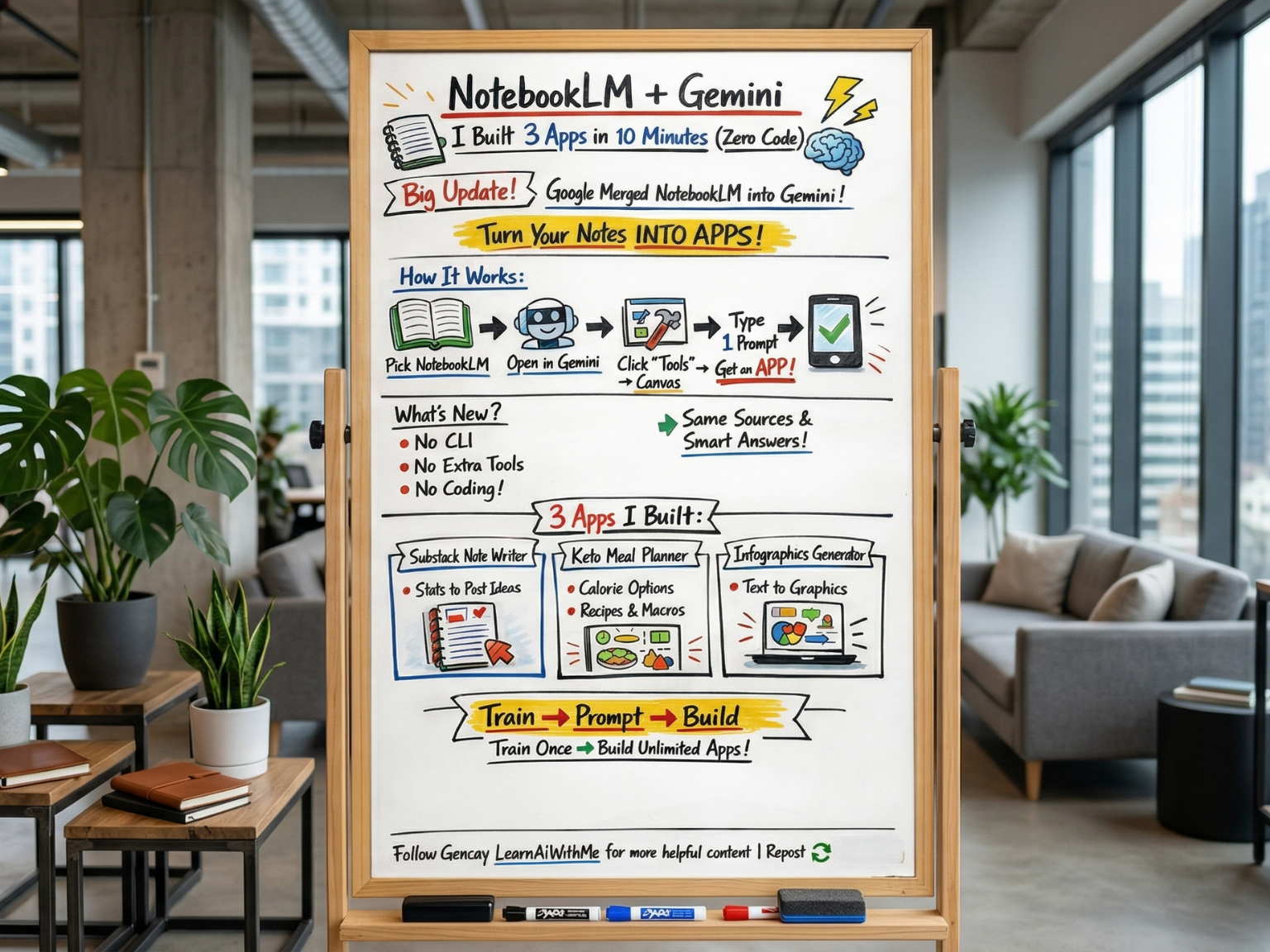
\3 Apps, built by NotebookLM and the Gemini connection\
In this one, we’ll build 3 different apps;
- Substack Note Writer
- Keto Meal Planner
- Infographics Generator
I’ll show you how I trained NotebookLM and how I built these apps using it.
I’ll also share the links so you can try them yourself.
App 1: Substack Note Writer
First, I trained NotebookLM, using my Substack Note statistics.
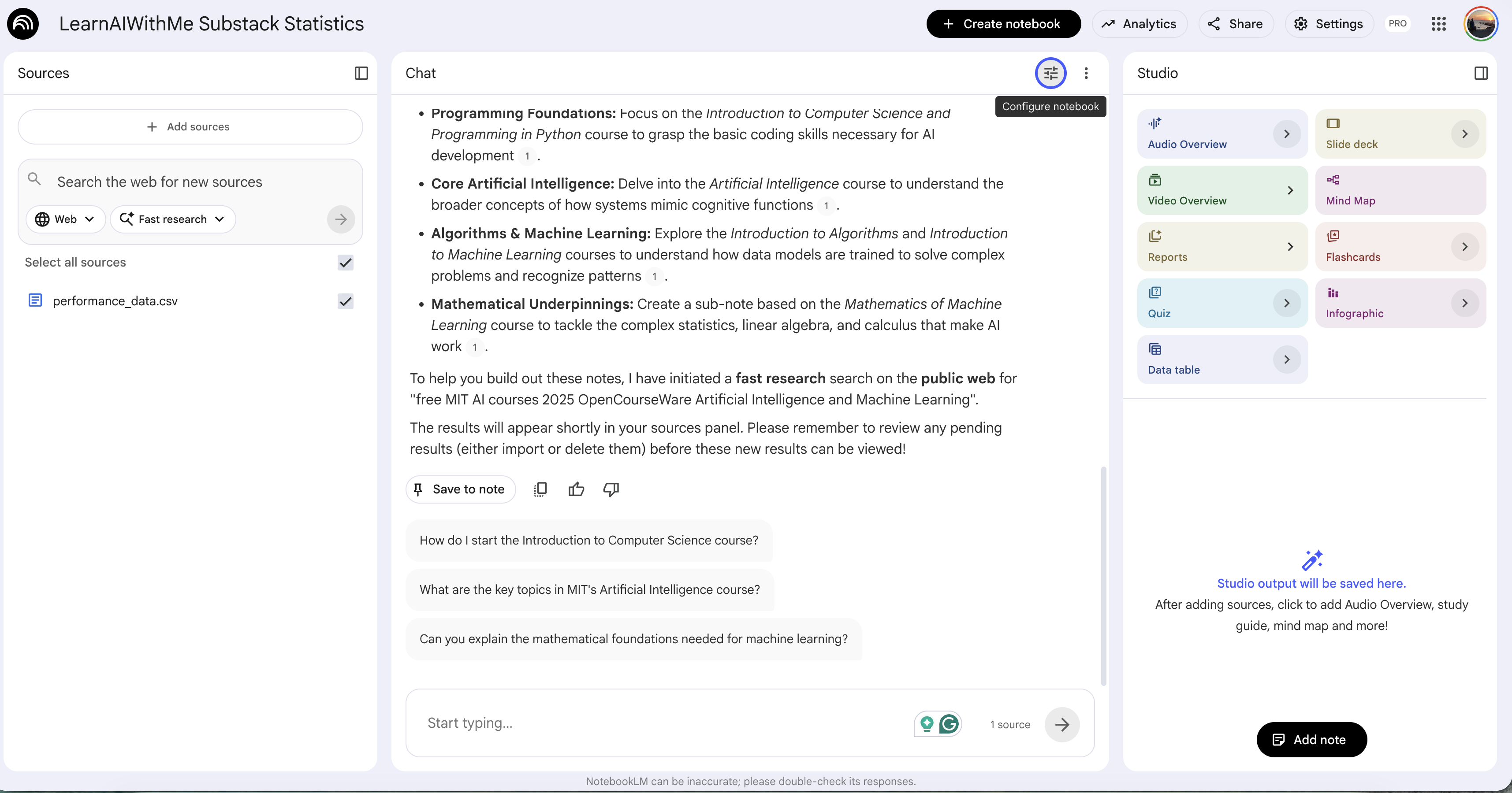
Next, I turned it to the app with this prompt.
Build an app to write substack notes, using the sourced NotebookLM as a reference, because it includes performance statistics
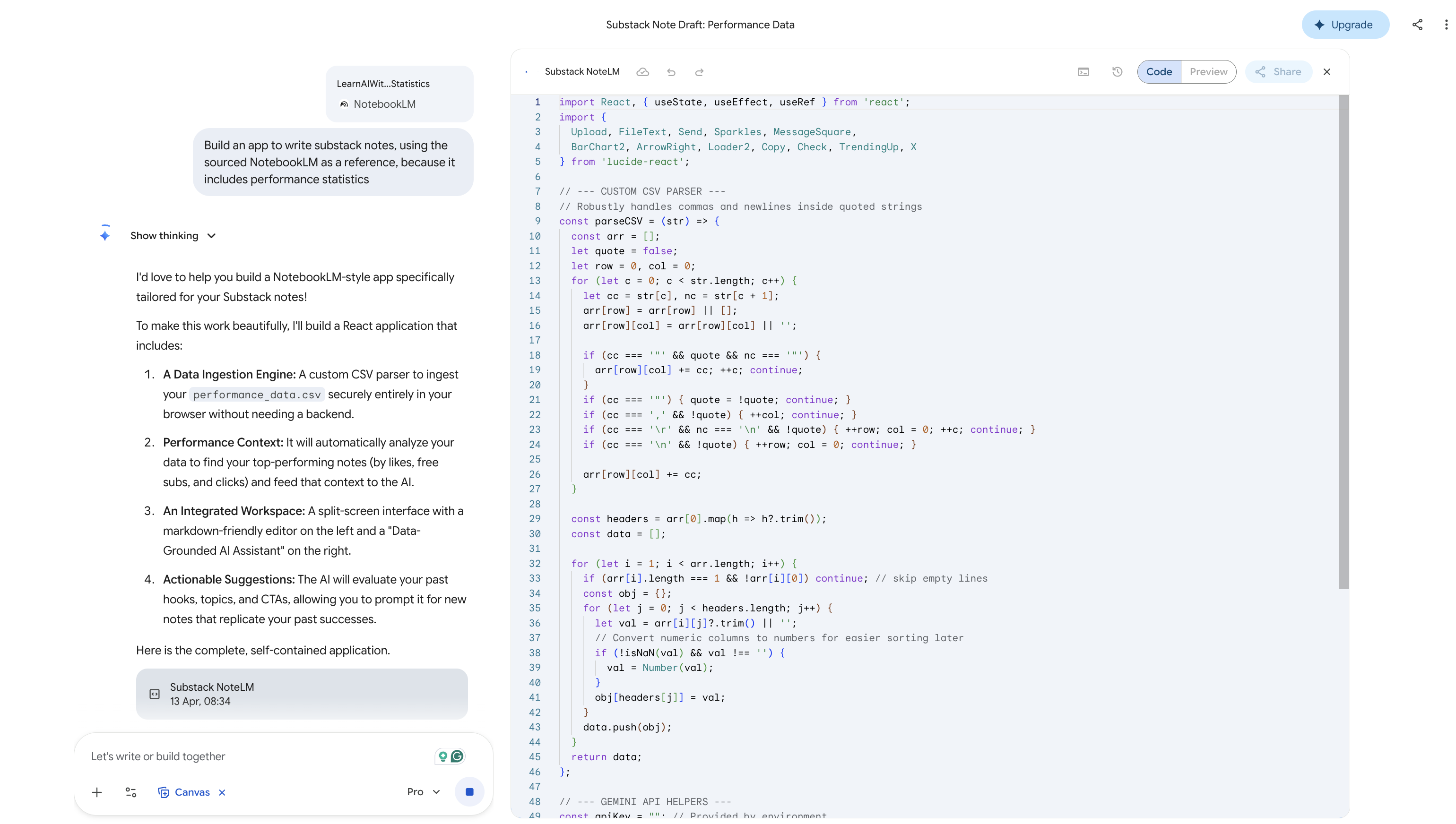
Here is the app.
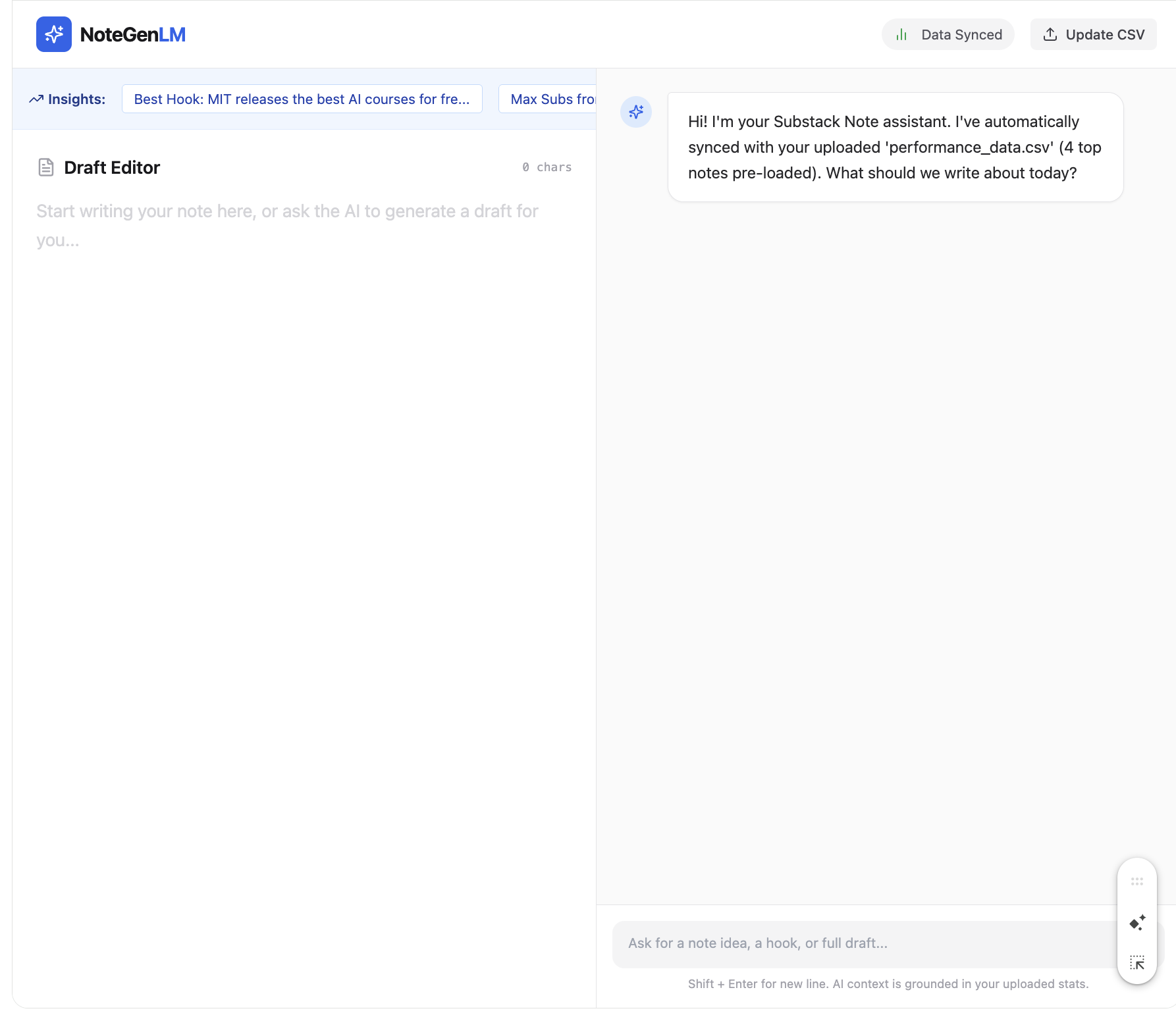
Let’s use this app.
I posted “Option 1” as a Substack Note. Here is the Substack note.
Update: After 1 day, here are the note statistics.
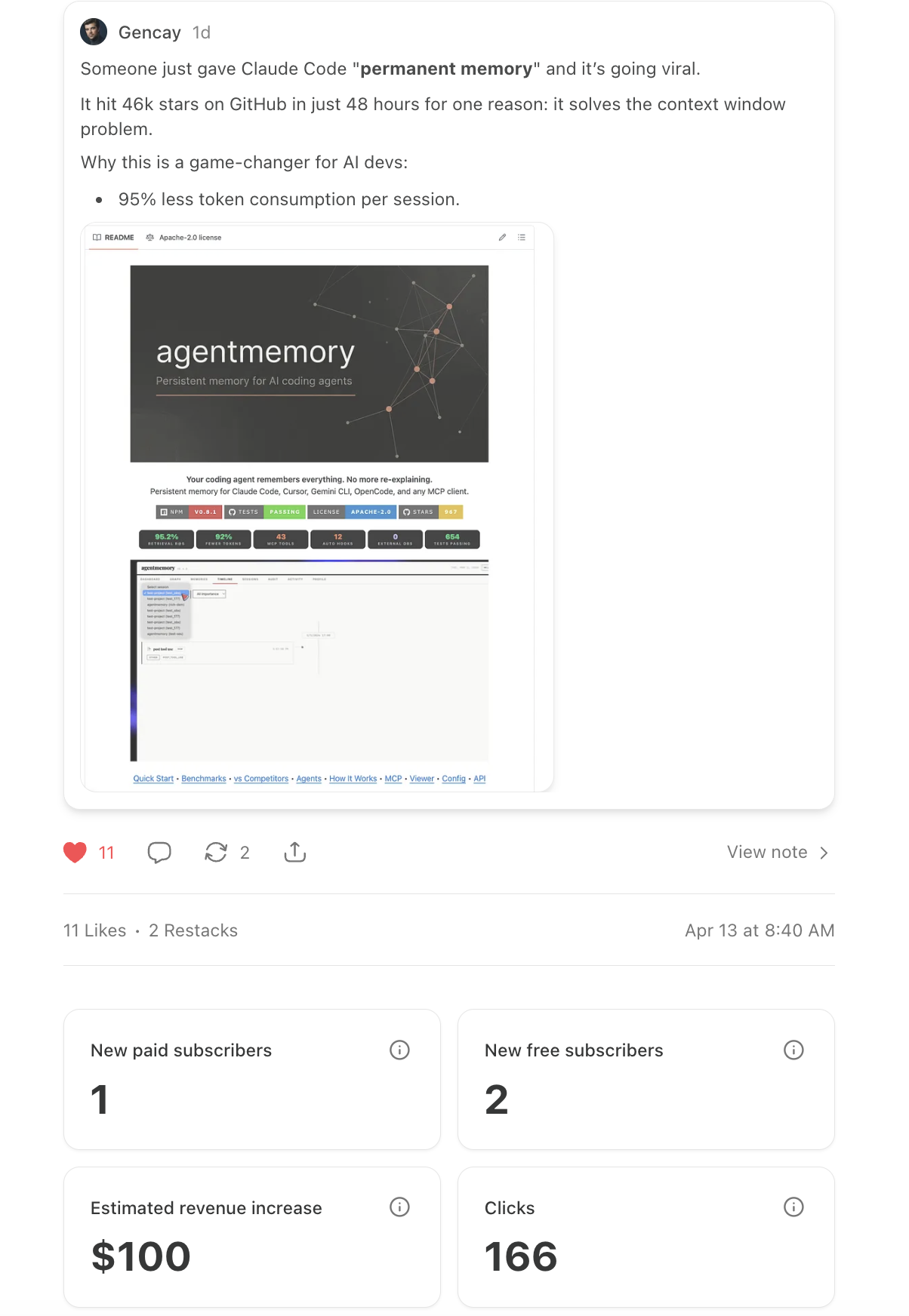
Try this app from this link: https://gemini.google.com/share/458efb031104
App 2: Keto Meal Planner
First, we need to train NotebookLM. I used Deep Research to build the knowledge base.
Open NotebookLM, create a new notebook, and click on Deep Research. Use this prompt:
Research the ketogenic diet: macronutrient ratios, foods to eat,
foods to avoid, common mistakes, and sample weekly meal plans.
Include breakfast, lunch, dinner, and snack options with calorie counts.
Focus on practical, budget-friendly meals.
NotebookLM will search the web, pull from multiple sources, and compile everything into your notebook. Wait a few minutes and import the sources afterward.
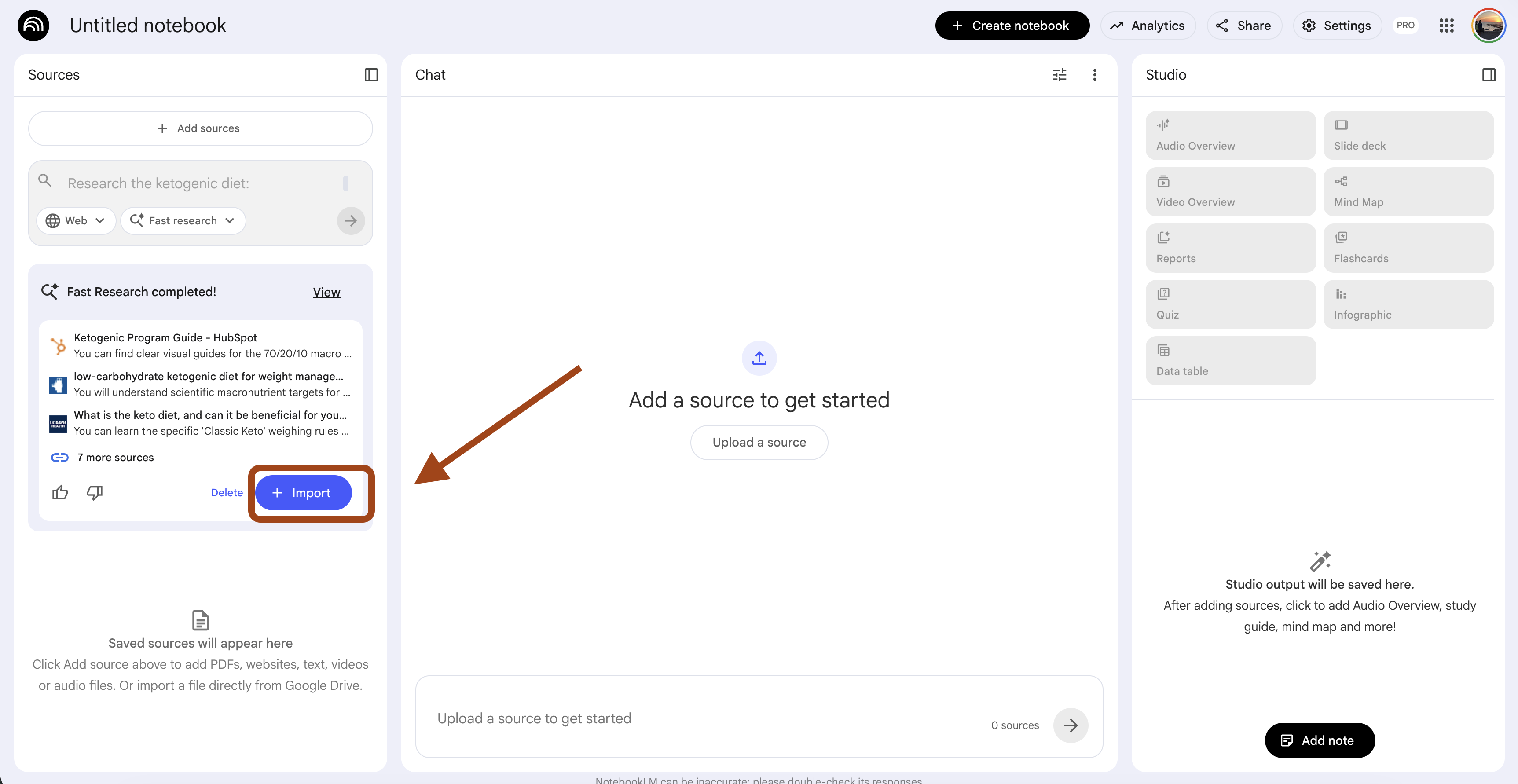
Here, our notebookLM is ready.
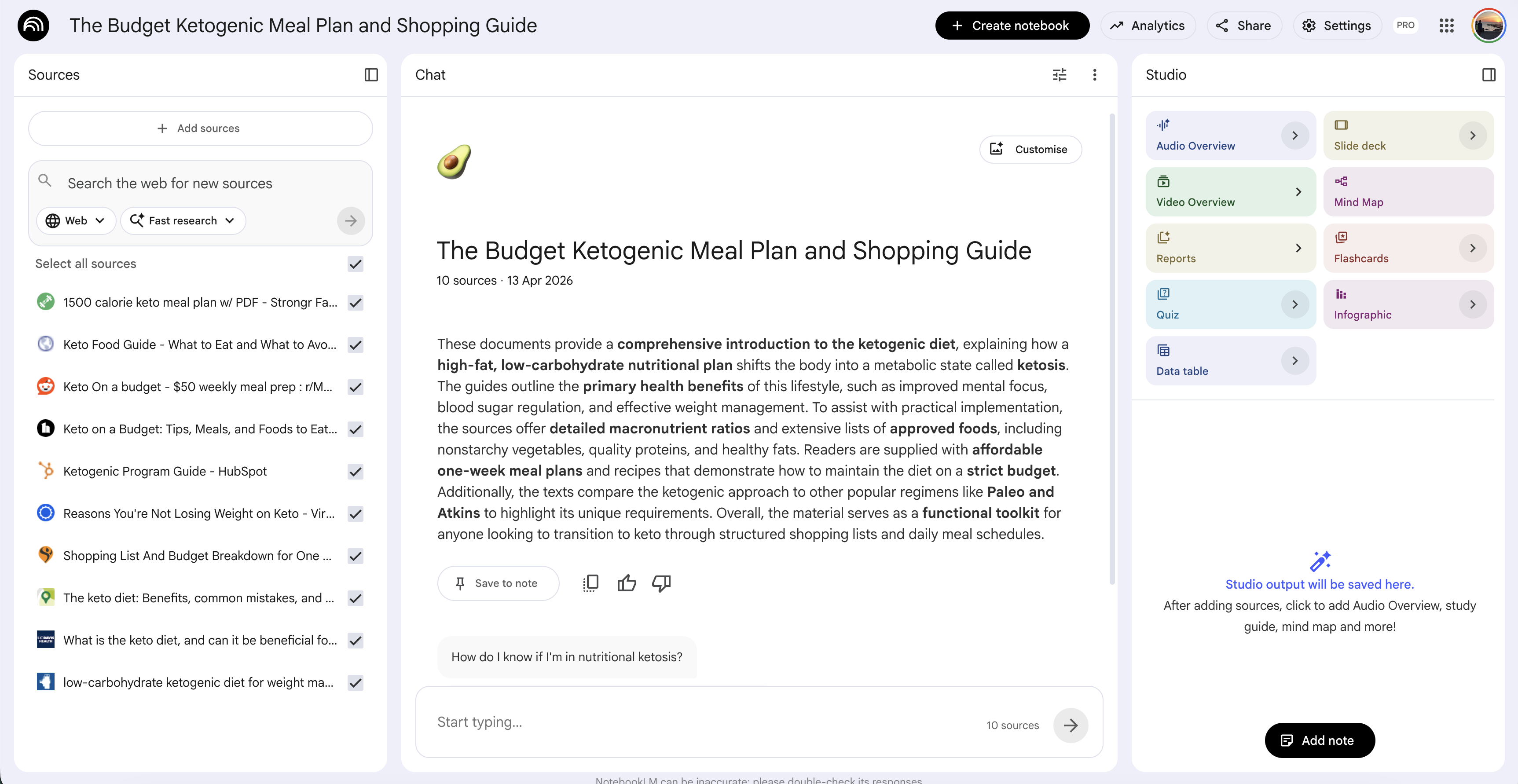
Now, head to Gemini, click on “+”, and select the notebook you just created.
Next, click on “tools” and select canvas.
Use this prompt.
Build a Keto Meal Planner app from this NotebookLM.
Let the user select their daily calorie target (1200, 1500, 1800, 2000).
Generate a full day of meals: breakfast, lunch, dinner, and one snack.
Show macros for each meal (fat, protein, carbs).
Add a "Generate New Day" button to get a fresh plan.
Here is the app.
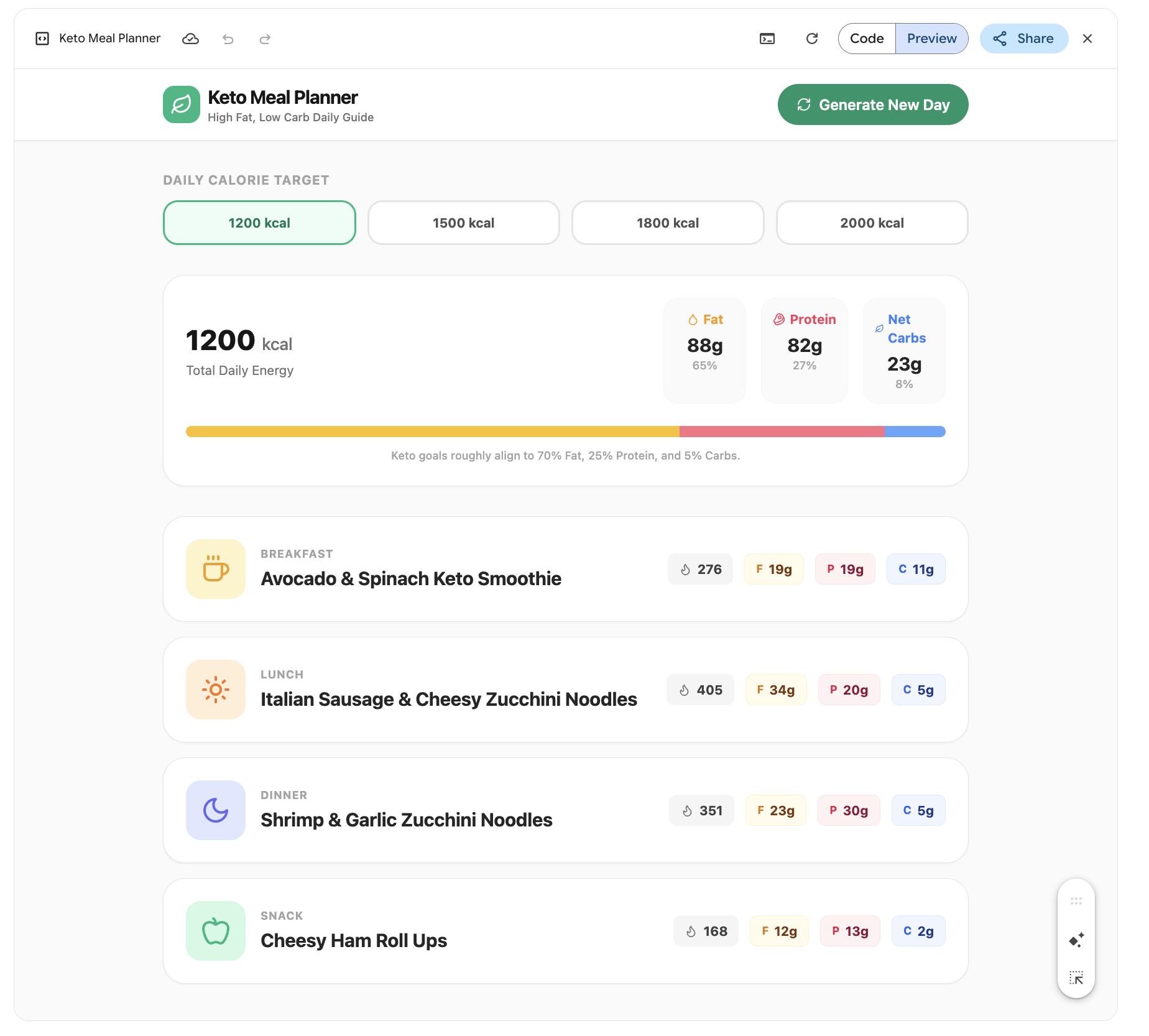
I think after clicking on these meals, it will be better to have a recipe. And, it is great to add restrictions, like “gluten-free”, “dairy-free” options.
To do that, here is my prompt;
Also, after clicking on each meal, it should explain how that meal can be prepared.
Please also add a restrictions section where users can choose dietary preferences such as gluten-free, dairy-free, and similar options.
Additionally, show each dish as an attached image, including visible ingredients, using Nano Banana Pro.
Here is the latest version.
Try this app from this link: https://gemini.google.com/share/b234ca025c47
App 3: Infographics Generator
This one combines two steps: first, learning the best infographic prompts from the web. Then building an app that generates infographics from any text you give it.
If you already have a set of prompts to generate an image, also add them too.
Open NotebookLM, create a new notebook, and use Deep Research:
Research the best AI infographic nanobanana prompts for 2026.
Find prompt templates for hand-drawn style, professional style,
sketch note style, minimalist style infographics and more.
Include prompts that work with Gemini, Nano Banana, and Midjourney.
Focus on prompts that produce clean, shareable, social media-ready visuals.
(Click on import sources) And here your notebookLM will be like;
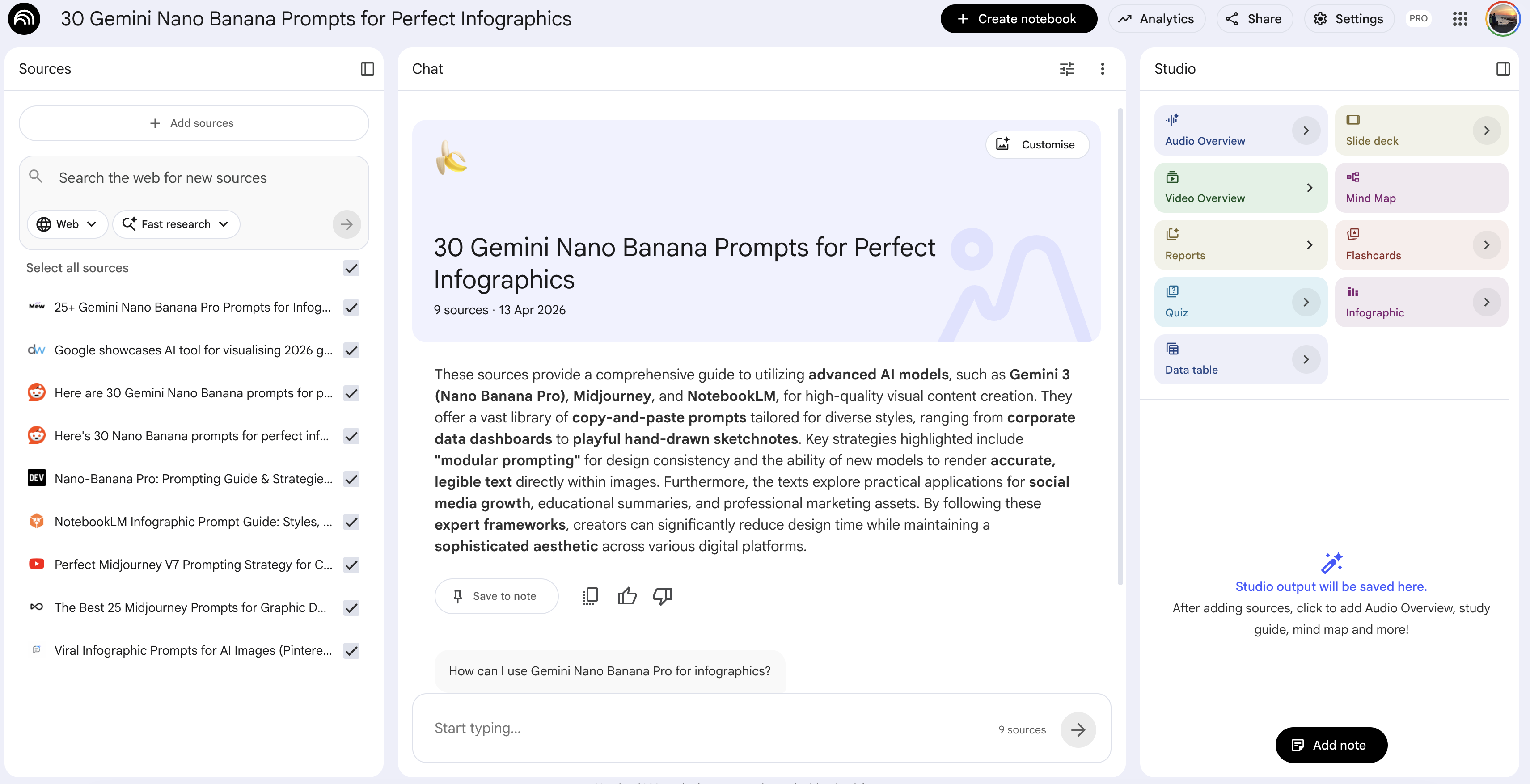
Now, head to Gemini, click on “+”, and select the notebook you just created.
Next, click on “tools” and select canvas.
Paste this prompt:
Build an Infographic Generator app from this NotebookLM.
Then let them choose a design style: hand-drawn, professional,
sketch note, minimalist, or scientific.
Using the best prompt templates from the notebook,
generate an infographic from the pasted text in the selected style.
Add a "Regenerate" button to try a different layout.
Let’s see the app.
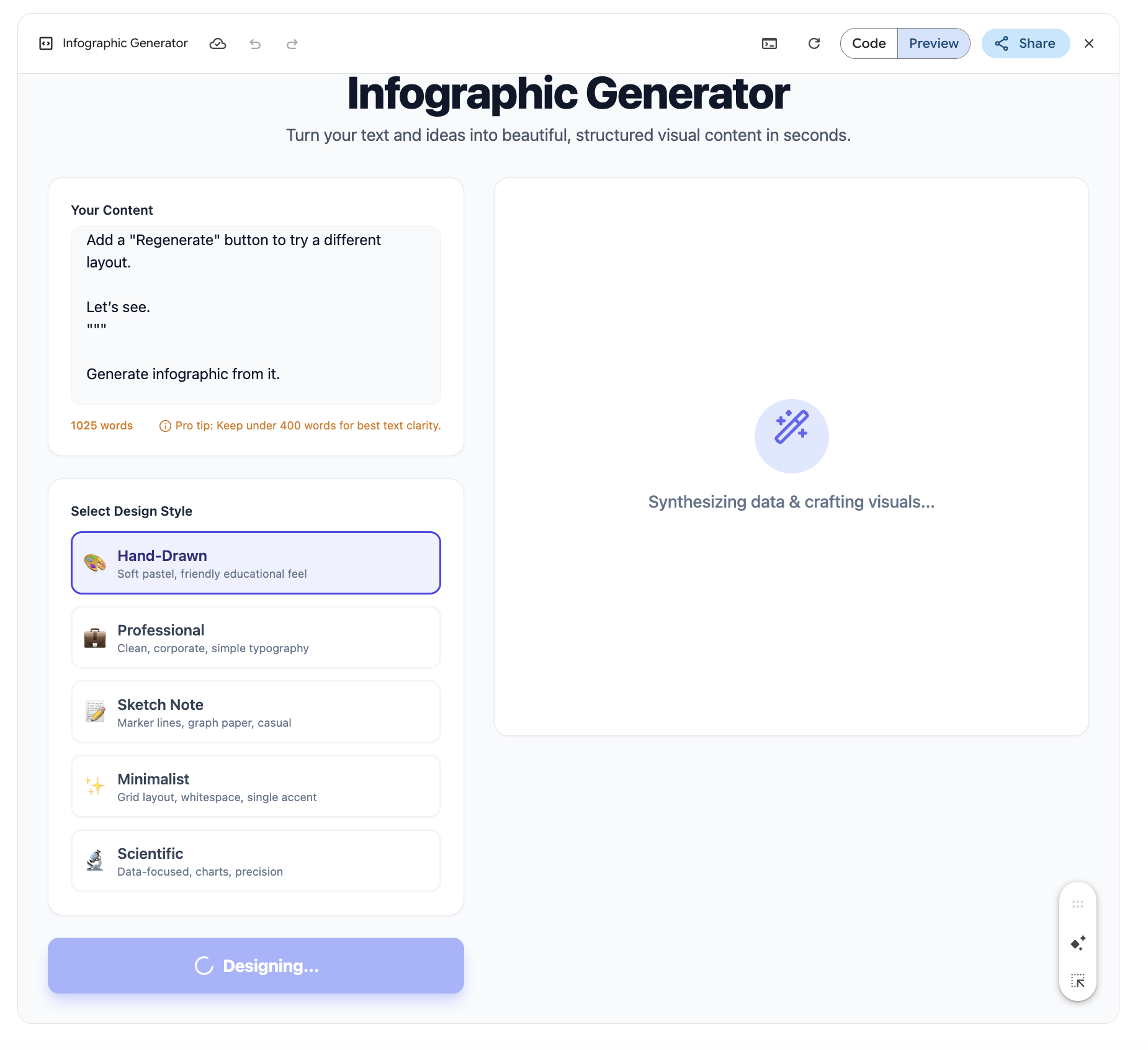
I pasted this article into it, and here is the image it generates this one.
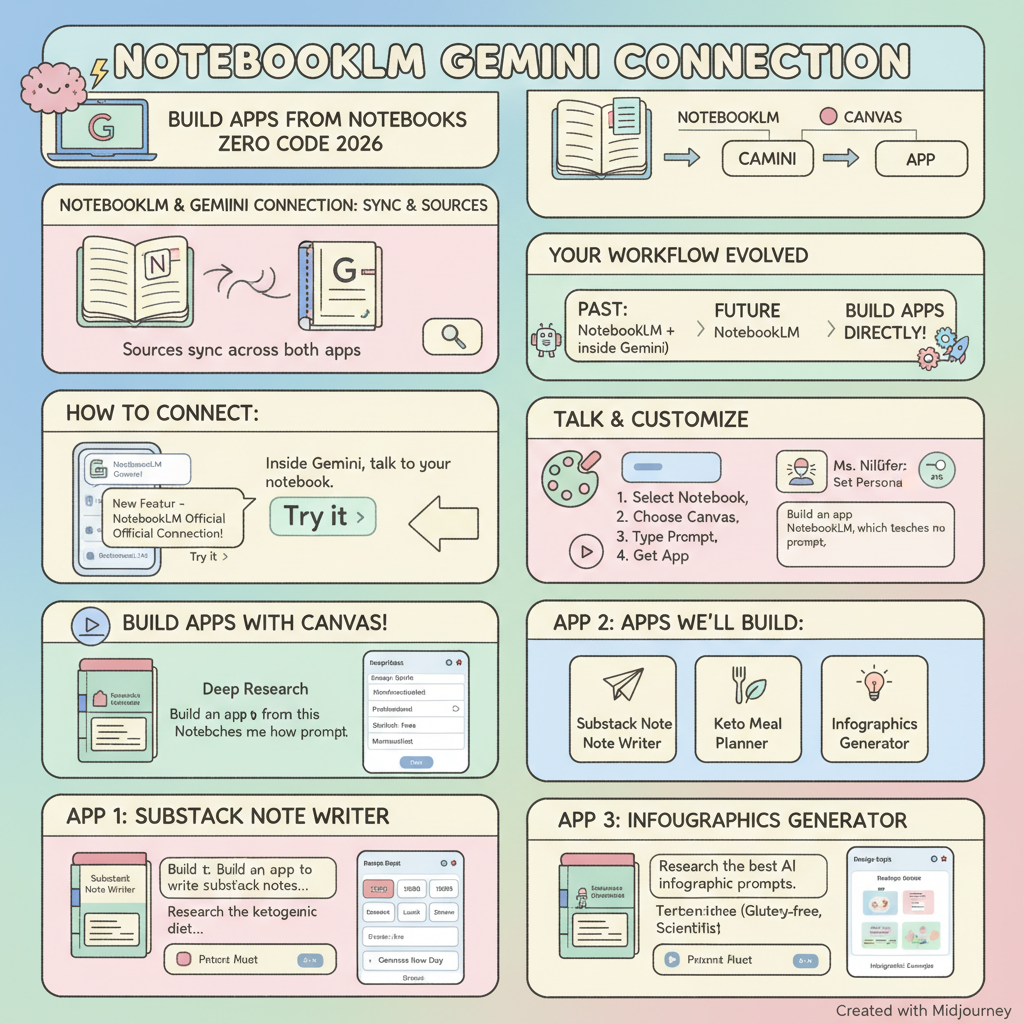
Try this app from this link: https://gemini.google.com/share/ad9485ed5510
Final Thoughts
NotebookLM and Gemini are now one system. Your research lives inside your builder.
You do not need a CLI, an MCP, or a GitHub skill to build apps from your notebooks anymore. Select a notebook, open Canvas, and type a prompt.
I built a Substack Note Writer from my own performance data. A Keto Meal Planner from deep research. An Infographic Generator from the best prompts on the web. Each one took under 10 minutes.
The pattern is always the same: train NotebookLM on any topic, open Gemini, build an app from it.