Learn how to set up Claude Code routines that run on schedule while you sleep. Local and cloud setup with 2 real examples. Zero code required.
By Gencay
Published: 2026-04-16
URL: https://www.learnwithmeai.com/p/claude-code-routines-setup
\Claude Code Routines tutorial — local and cloud setup guide. Part 7 of the Claude Code MasterClass.\
Two days ago, Claude dropped the Claude Code routines:
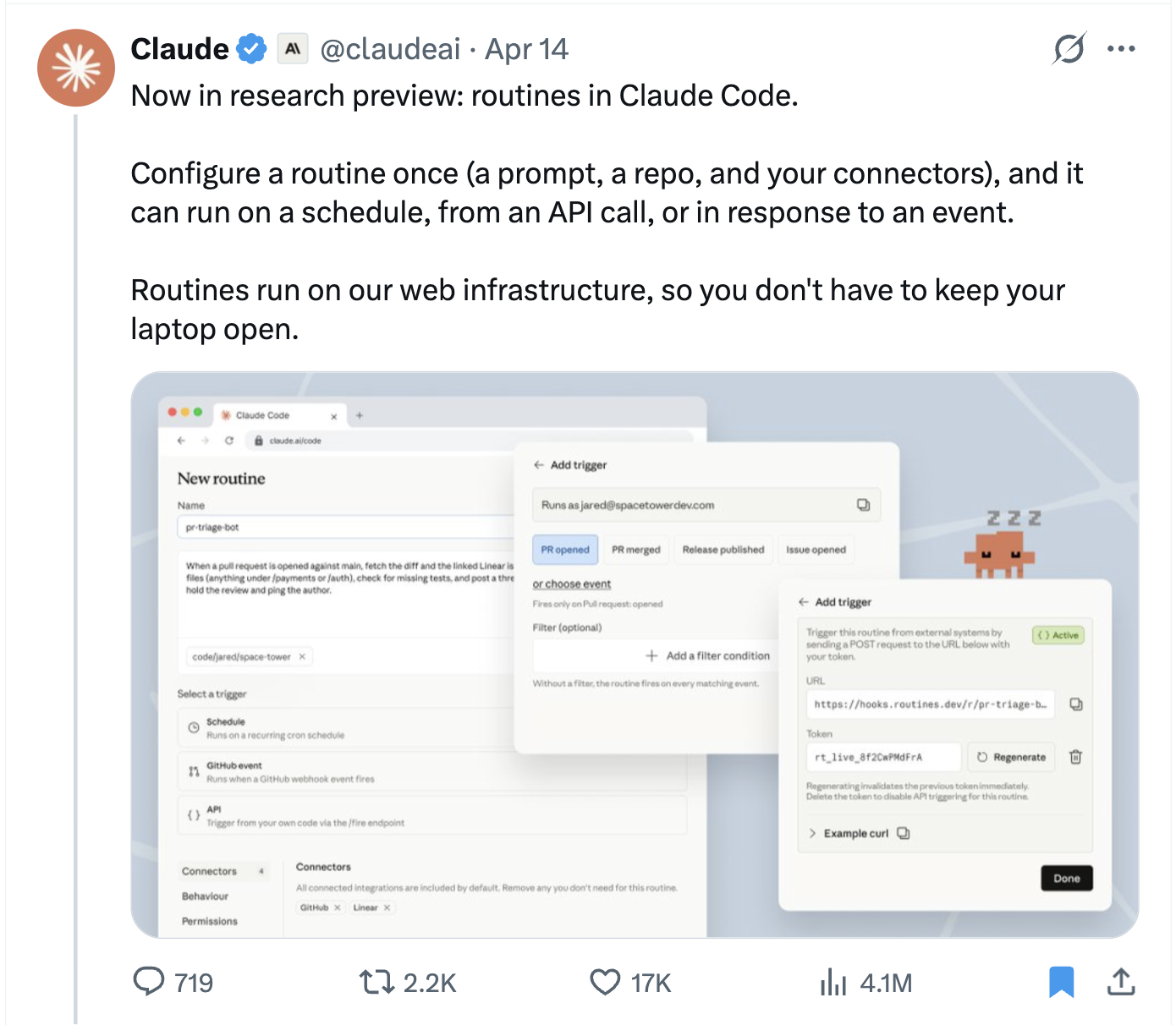
\Claude Code Routines\
4.1 million views. 17,000 likes.
Claude Code routines are here.
You configure a prompt, a repo, and your connectors once.
Claude Code runs it on a schedule, from an API call, or when a GitHub event fires. Local or cloud.
Your laptop stays closed.
Claude keeps working.
I read the announcement.
Then I built two Claude Code routines before dinner.
One local. One cloud.
Each took a single prompt to configure.
TL;DR
Claude Code routines let you run automations on a schedule.
We’ll build two Claude Code routines, with two prompts.
Together, they save me hours every week.
In Part 7 of the Claude Code MasterClass, I'll show you both routines: the exact prompts, the setup, and the screenshots.
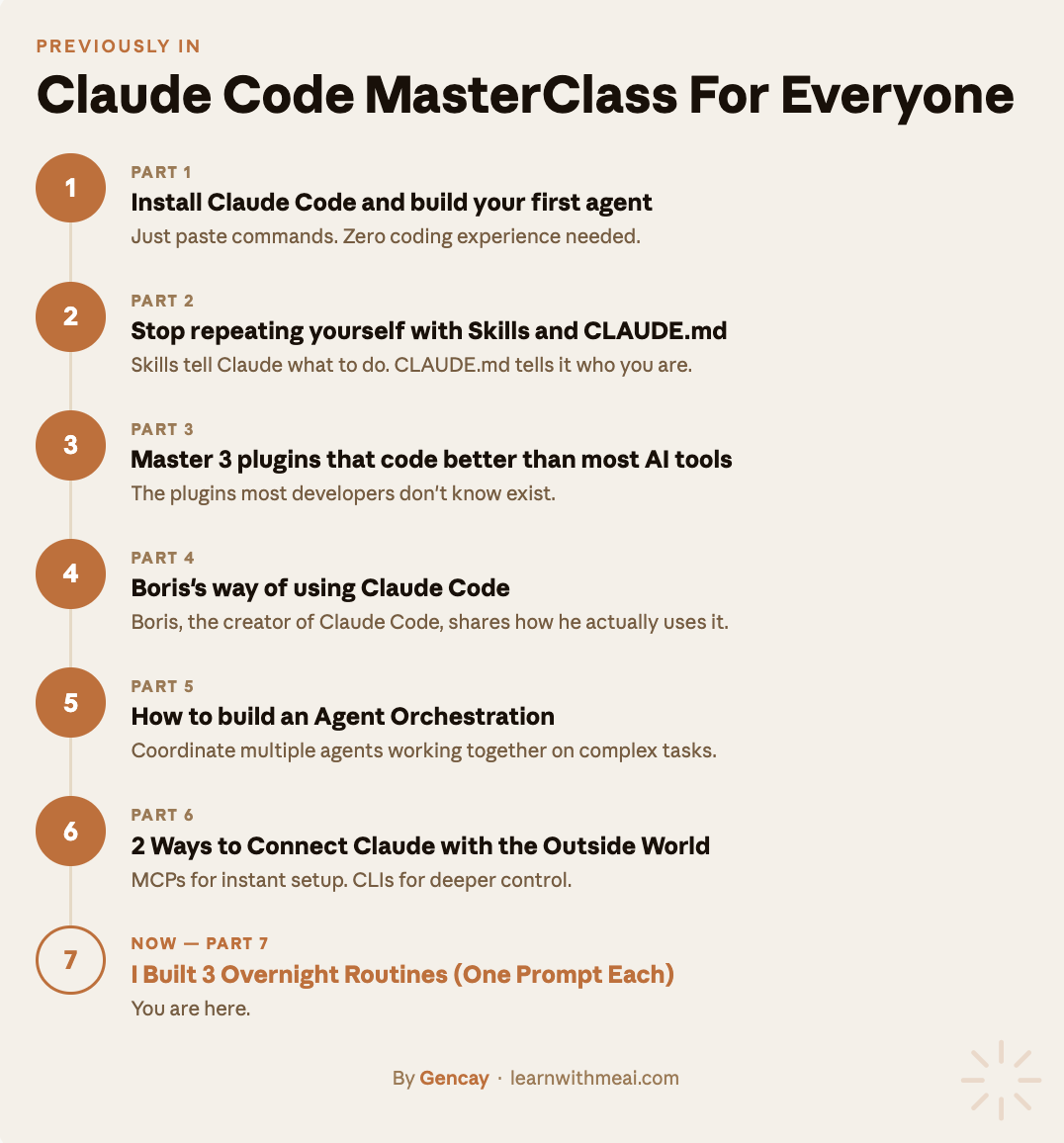
Previously in Claude Code MasterClass For Everyone
In Parts 1 through 6, we installed Claude Code, set up memory, built agents, connected MCP servers, and shipped real projects.
Part 7 is different. This time, Claude Code works without you.
\Claude Code MasterClass for Everyone\
- Part 1: Install Claude Code (just paste commands) and build your first agent, zero coding.
- Part 2: Stop repeating yourself with Skills (what to do) and CLAUDE.md (who you are).
- Part 3: Master 3 plugins that code better than most AI tools.
- Part 4: We explored Boris’s way of using Claude Code(Boris, the creator of Claude Code)
- Part 5: We explored how to build an Agent Orchestration.
- Part 6: MCP servers and CLI.
You are at Part 7.
What are routines in Claude Code?
A Claude Code routine is a saved automation that runs on its own schedule, from an API call, or when a GitHub event fires. It runs on your local machine or in the cloud.
Until now, Claude Code worked when you worked.
You typed a prompt, Claude executed it, and you watched. Close the laptop, Claude stops.
Claude Code Routines change that.
A routine is a Claude Code task that runs on its own. You write the prompt once. Pick a schedule. Walk away. Claude handles the rest at 2 am, 7 am, or whenever you set it.
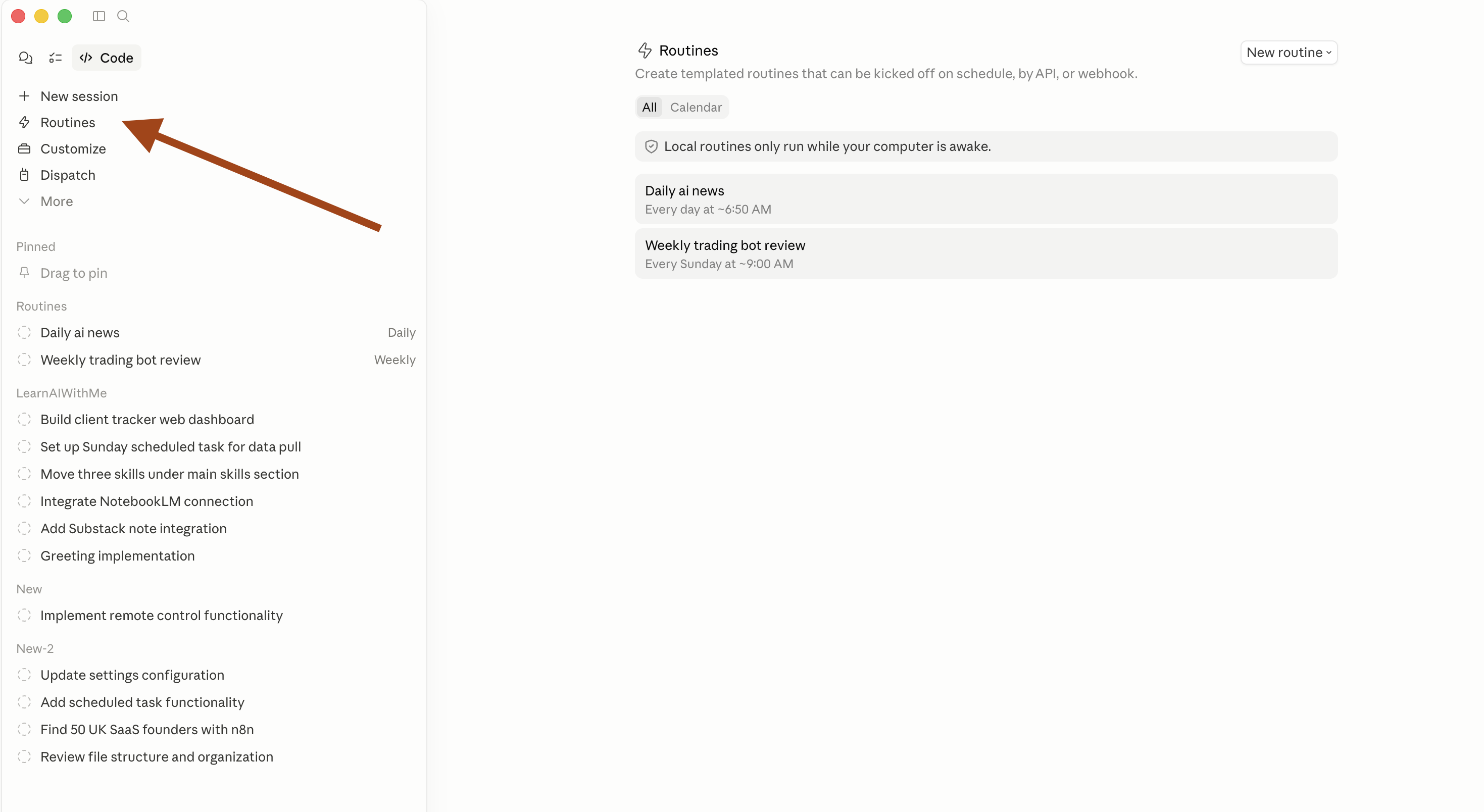
To reach them, first update your Claude Code.
And click “Routine” like this.
\Claude Routine\
After clicking here, you’ll see this screen.
As you can see, there are two types of routine. (Local, Remote)
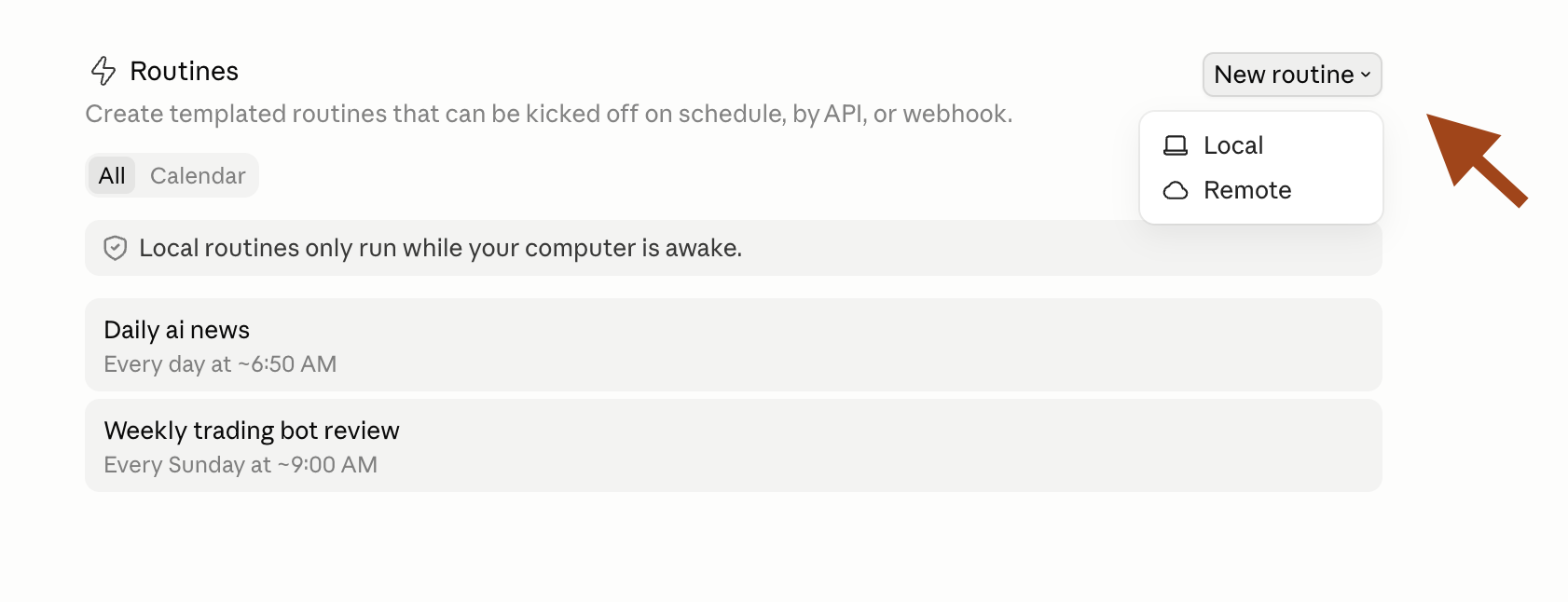
\Claude Code Routines Types\
1. Local Claude Code Routines
Local routines run on your machine.
Think of them as an alarm clock for Claude Code.
You set the time, point it at a folder, and it runs.
To set one up, update Claude Code and click “Routine.”
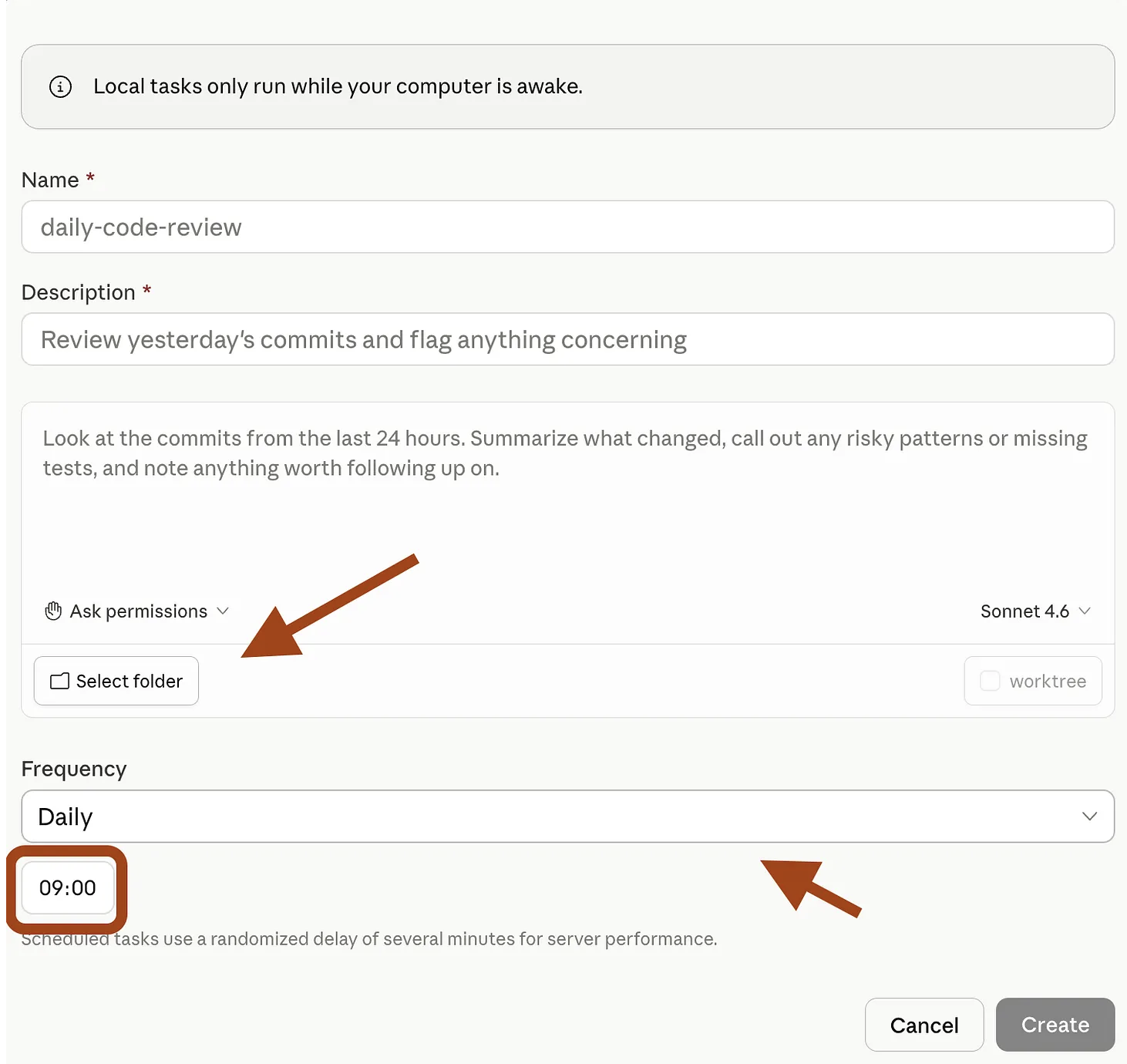
\Claude Code Routines - Local\
Don’t forget to give permission, so it will run without you.
To do that, click here.
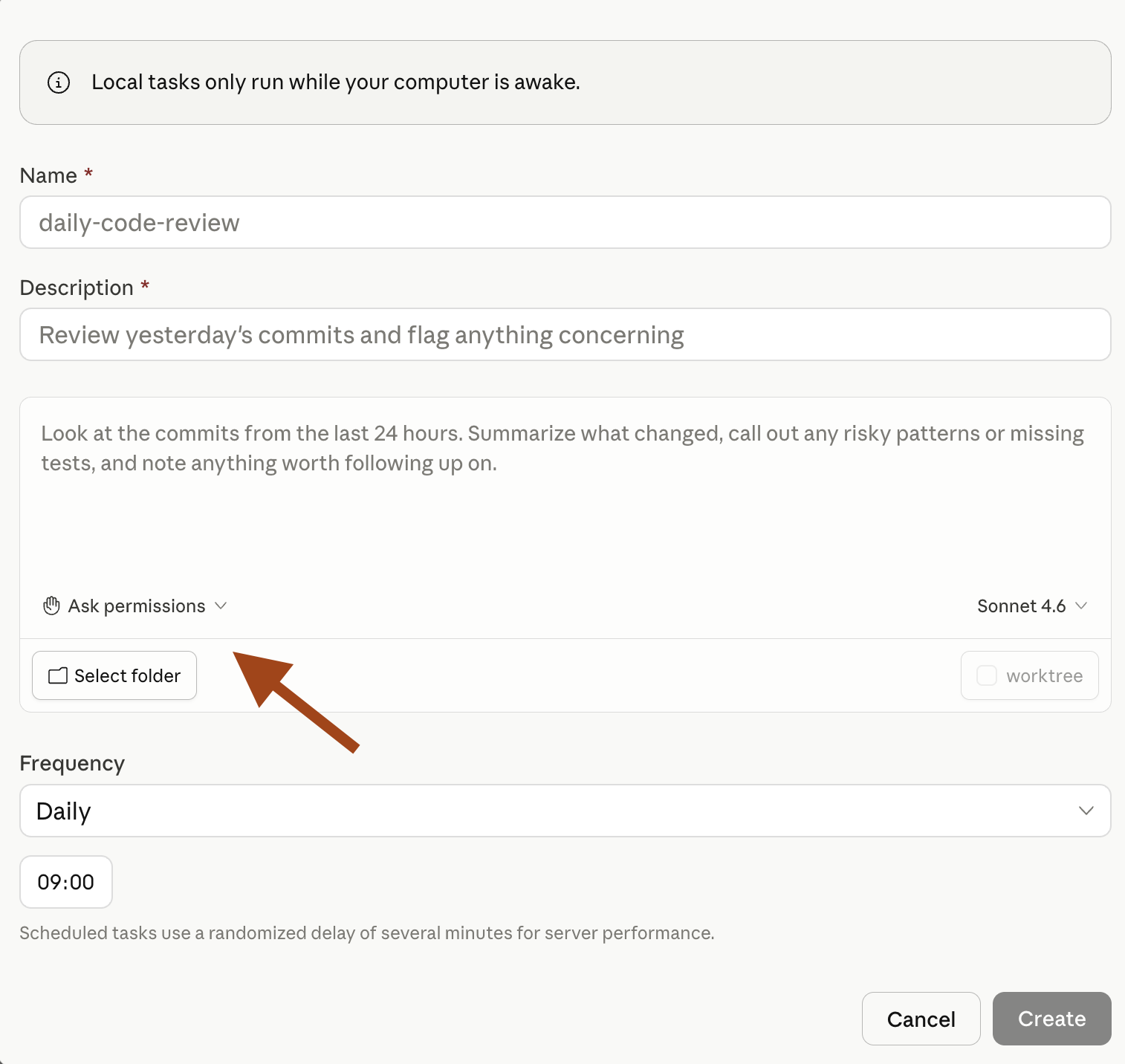
\Claude Code Routines: Local, settings\
Select accept edits.
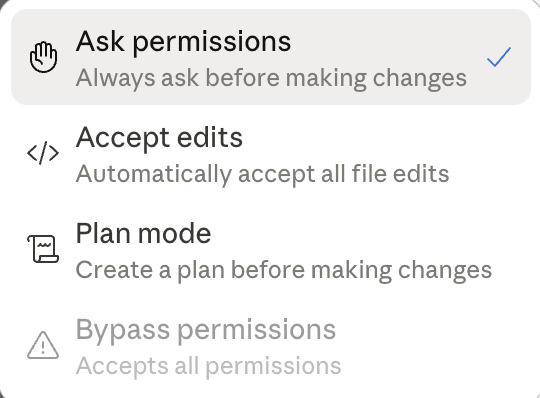
\Claude Code Routine: Permissions\
Next, define your automation.
Here’s one example of a previous automation I built, where I pull daily news using NotebookLM and Claude’s scheduling feature.
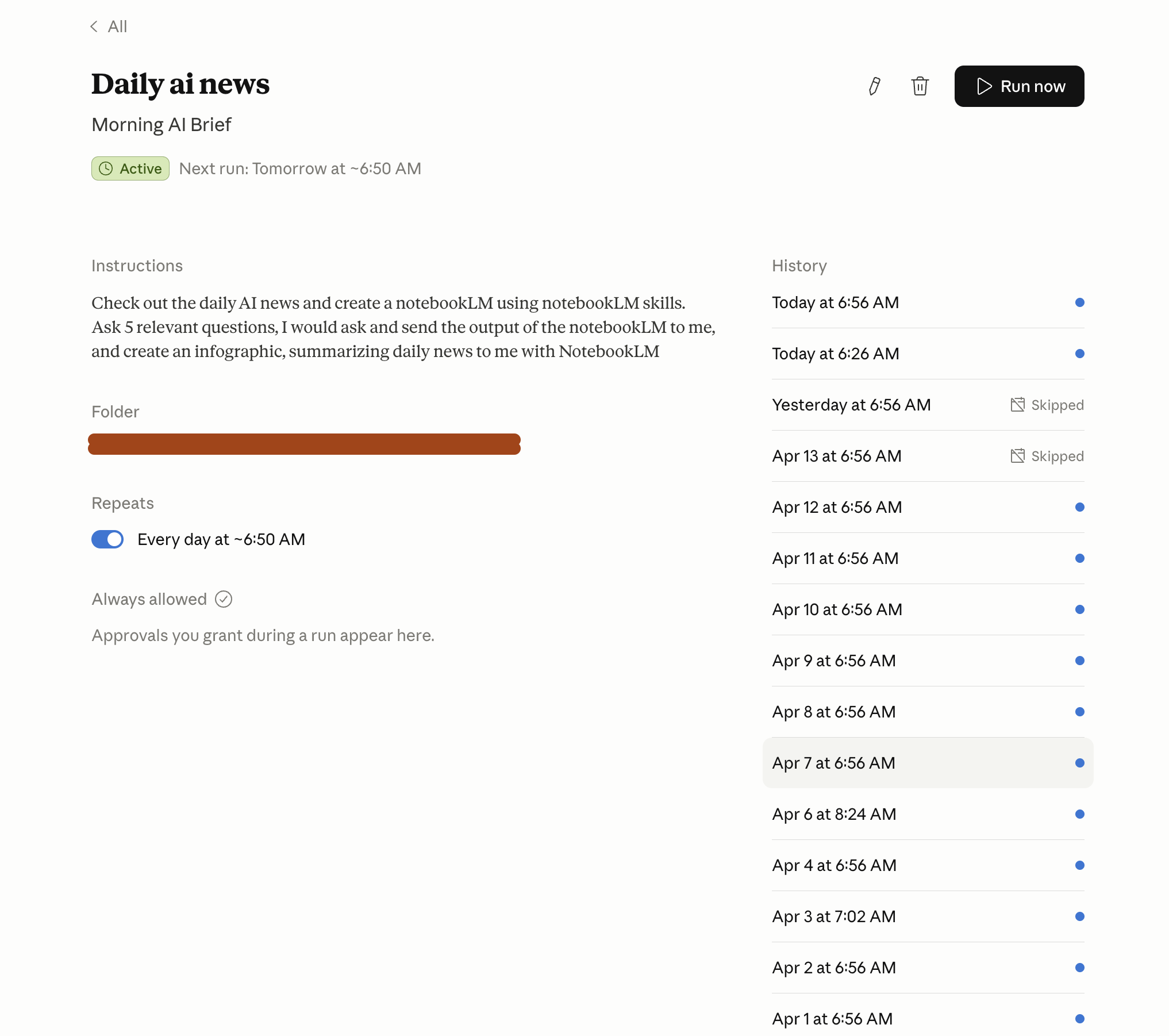
\Claude Code Routines: Daily AI News\
That’s it. Your local routine is live.
It will run every time the clock hits your schedule, as long as your computer is awake.
2. Remote Claude Code Routines
Cloud routines are different. They run on Anthropic’s servers. Your laptop can be off. You can be asleep. Claude keeps working.
When you select “Remote,” this screen appears:
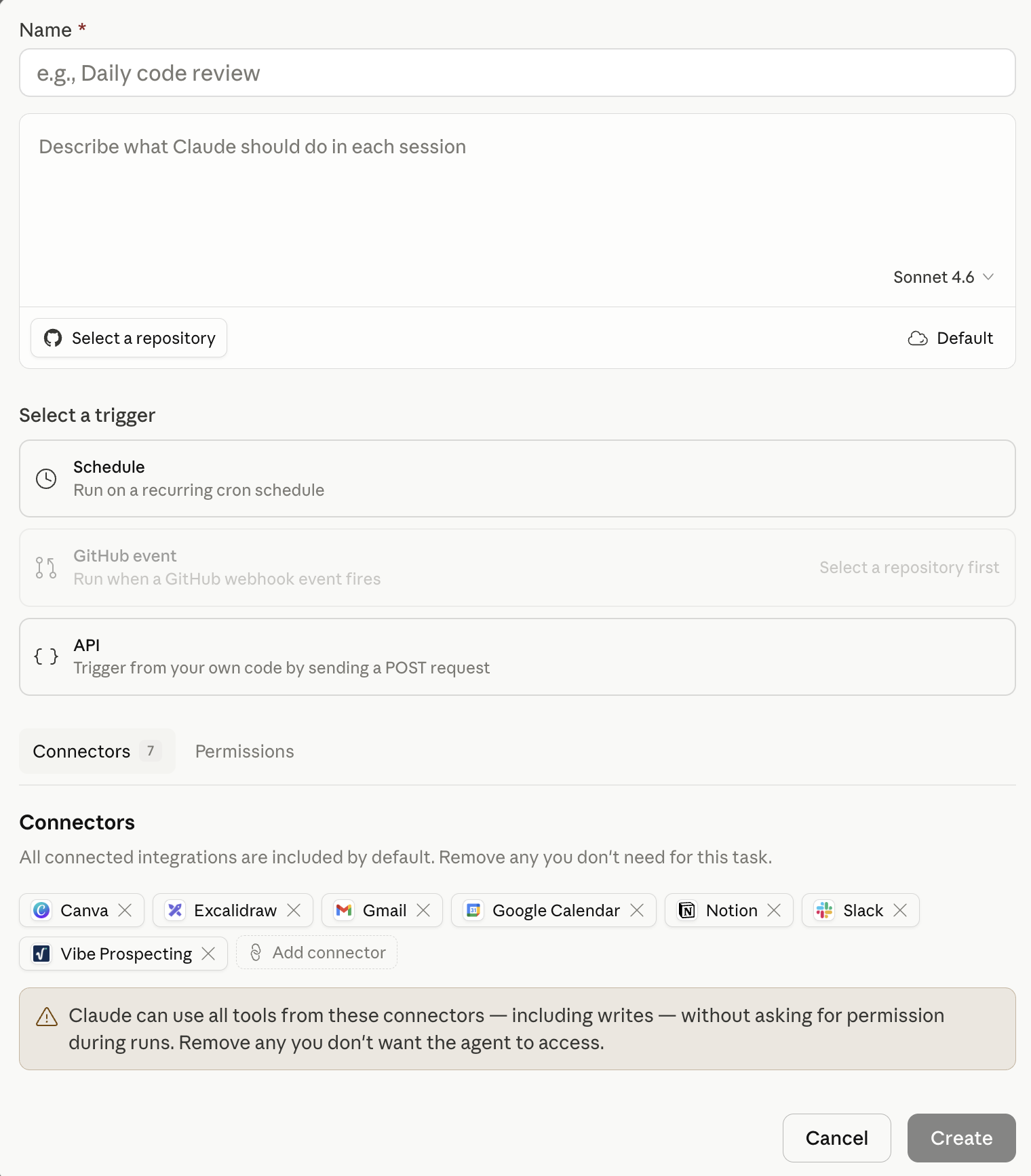
\Remote Claude Code Code Routines\
Let me walk through each section.
Name, Repo, and Model
Name your routine. Select the GitHub repo Claude should work in. Pick your model. I use Opus 4.6.
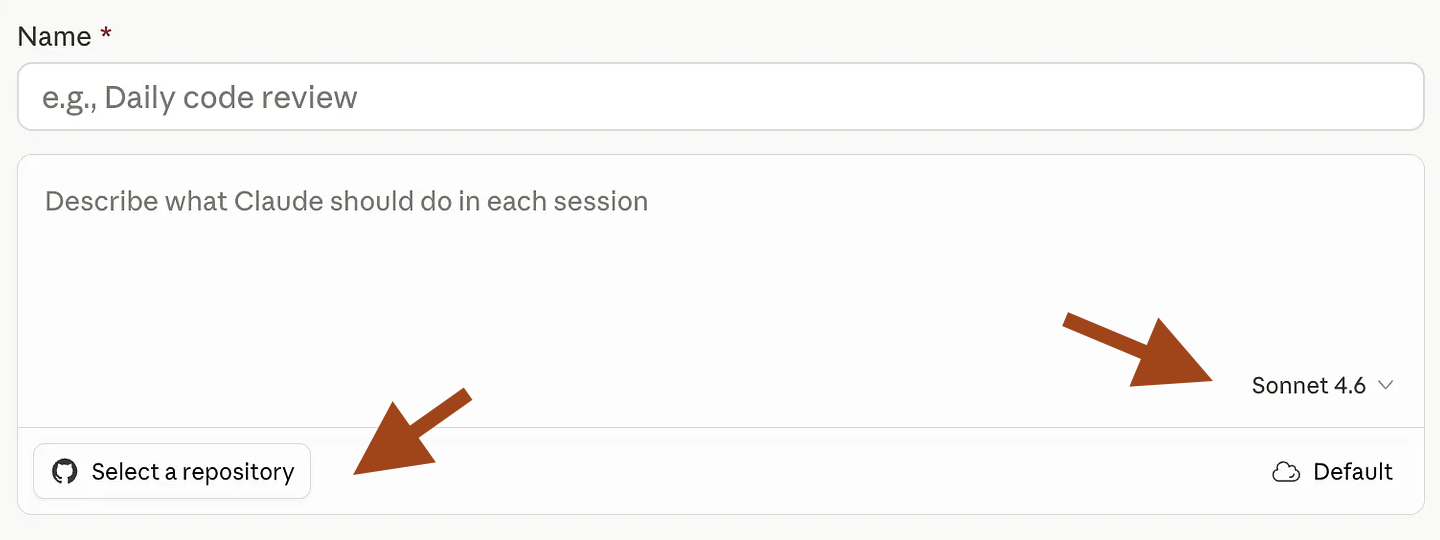
\Remote Claude Code Routine-setup\
Click “Default” to set where this code runs.
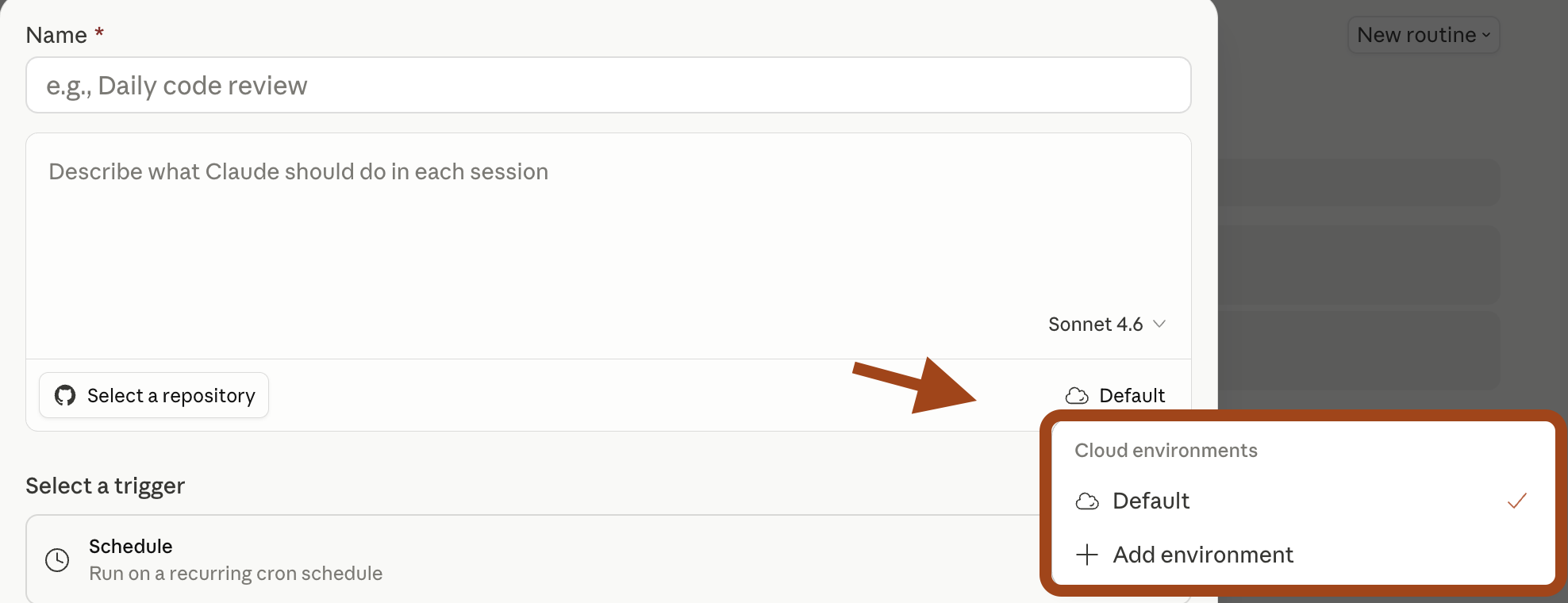
\Remote Claude Code Routine-setups\
You can also create a new environment by clicking “Add environment.”
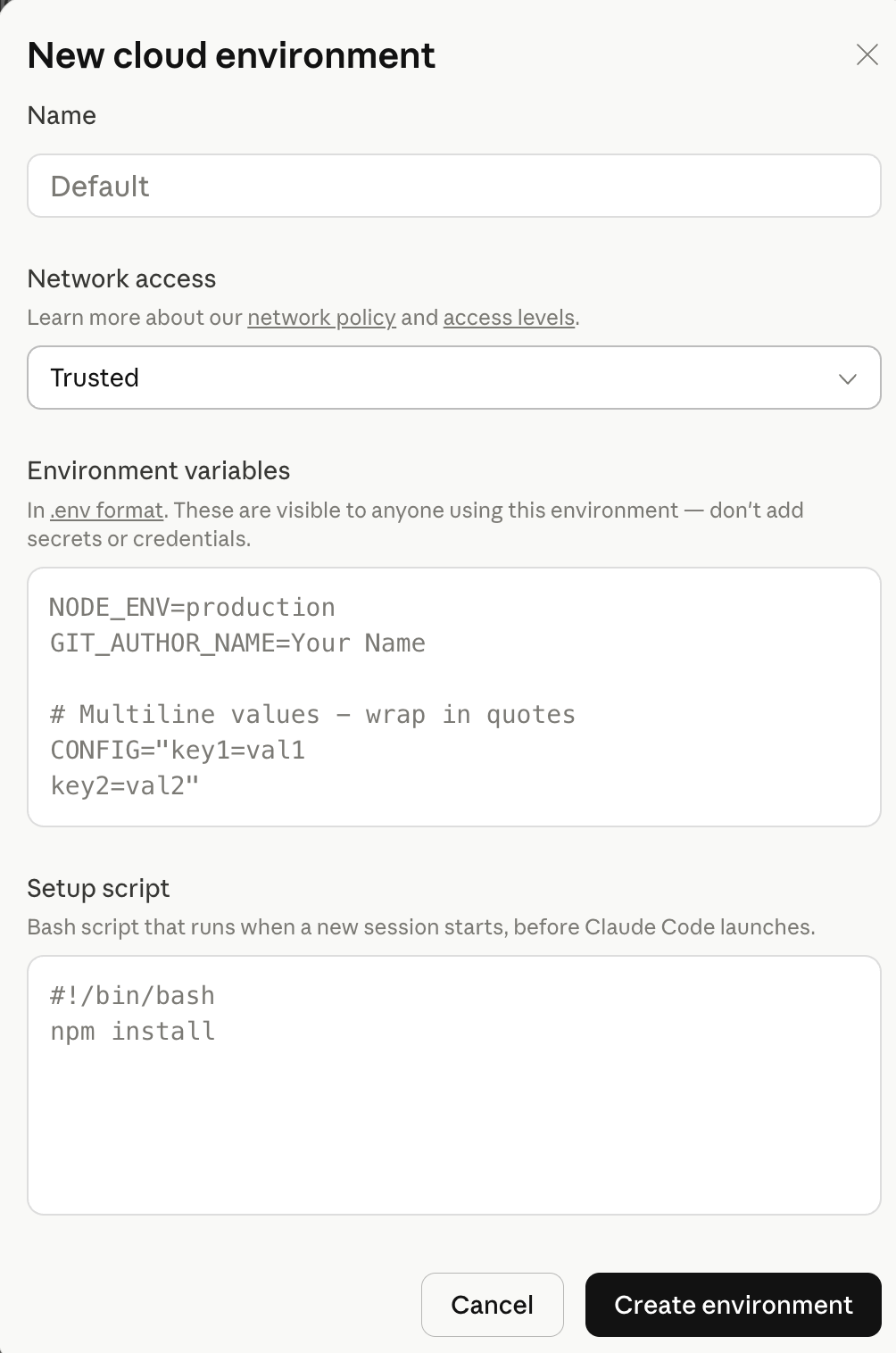
\Cloud Environment setup\
Triggers
This is where you tell Claude when to wake up. Three options.
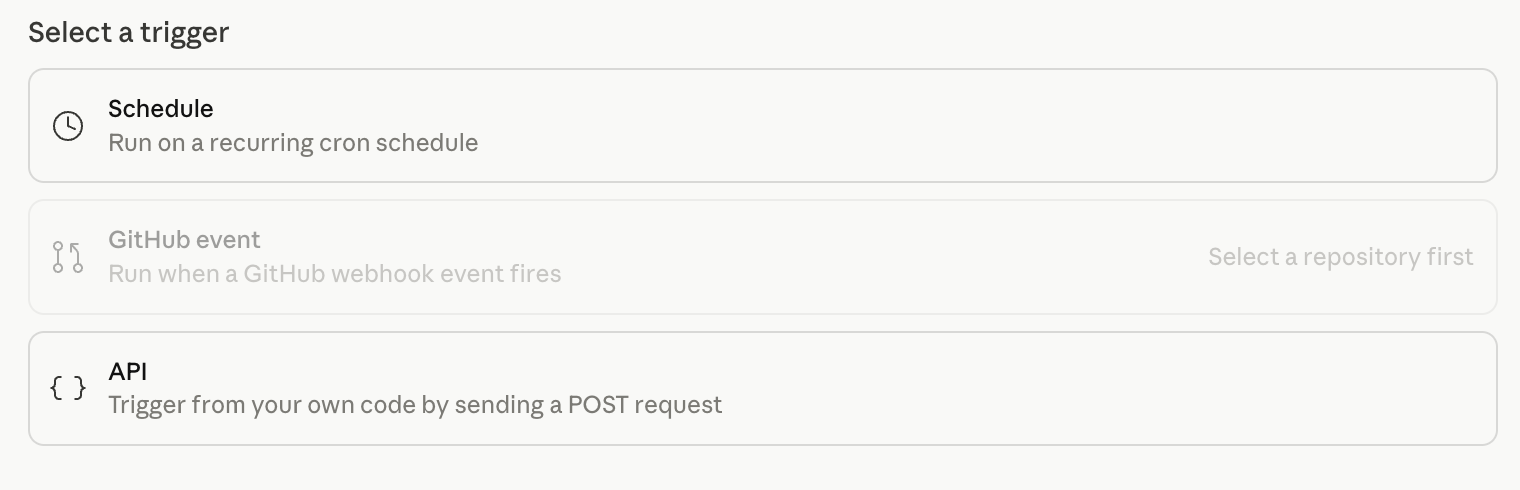
\Triggers\
Schedule
Schedule runs on a clock. Daily at 9 am. Every Monday at 7 am. Set it and forget it.
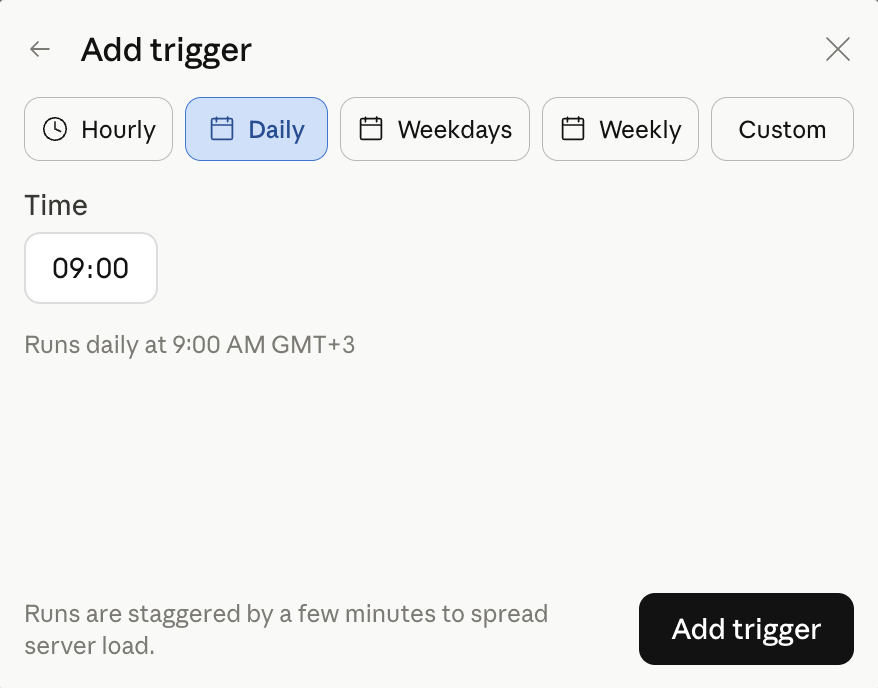
\Triggers time\
Github Event
GitHub Event triggers when something happens in your repo. A PR opens. Code gets merged. A release ships. Claude reacts automatically.
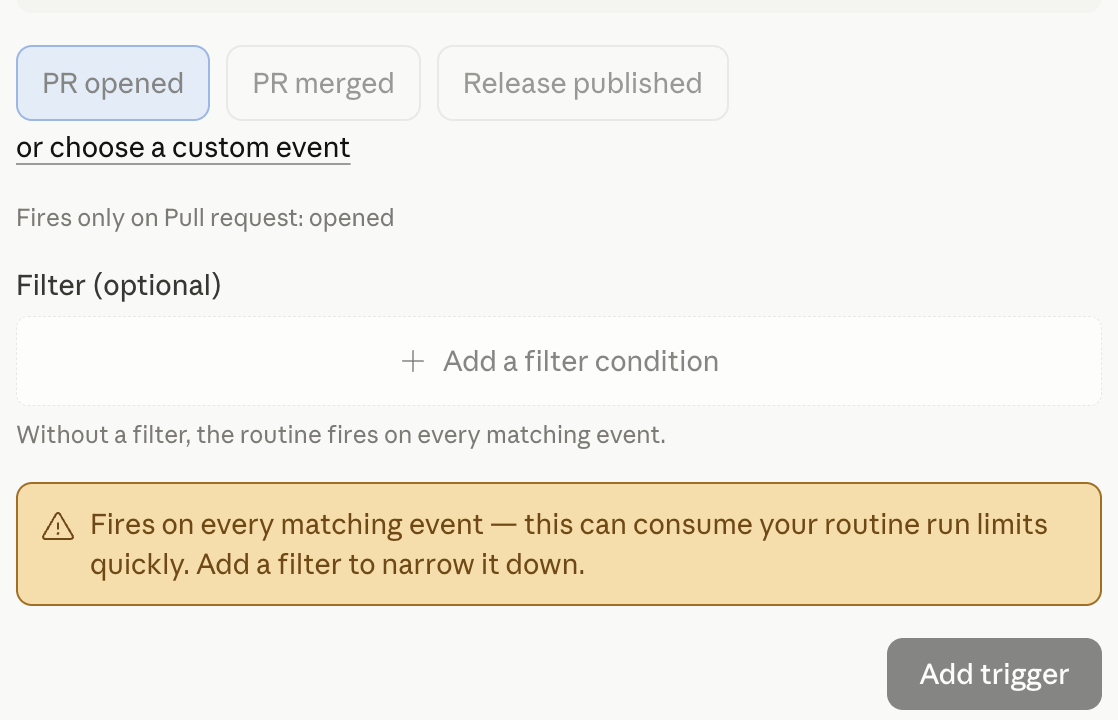
\Github event-setup\
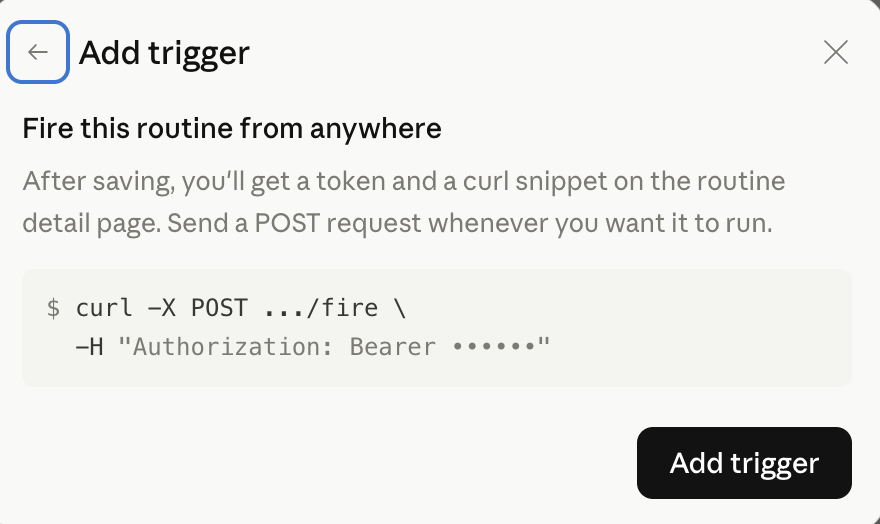
API
API listens for an external signal. Your monitoring tool fires an alert. Your deploy pipeline finishes. Any app that can send a POST request can trigger your routine.
\Triggers\
Example:
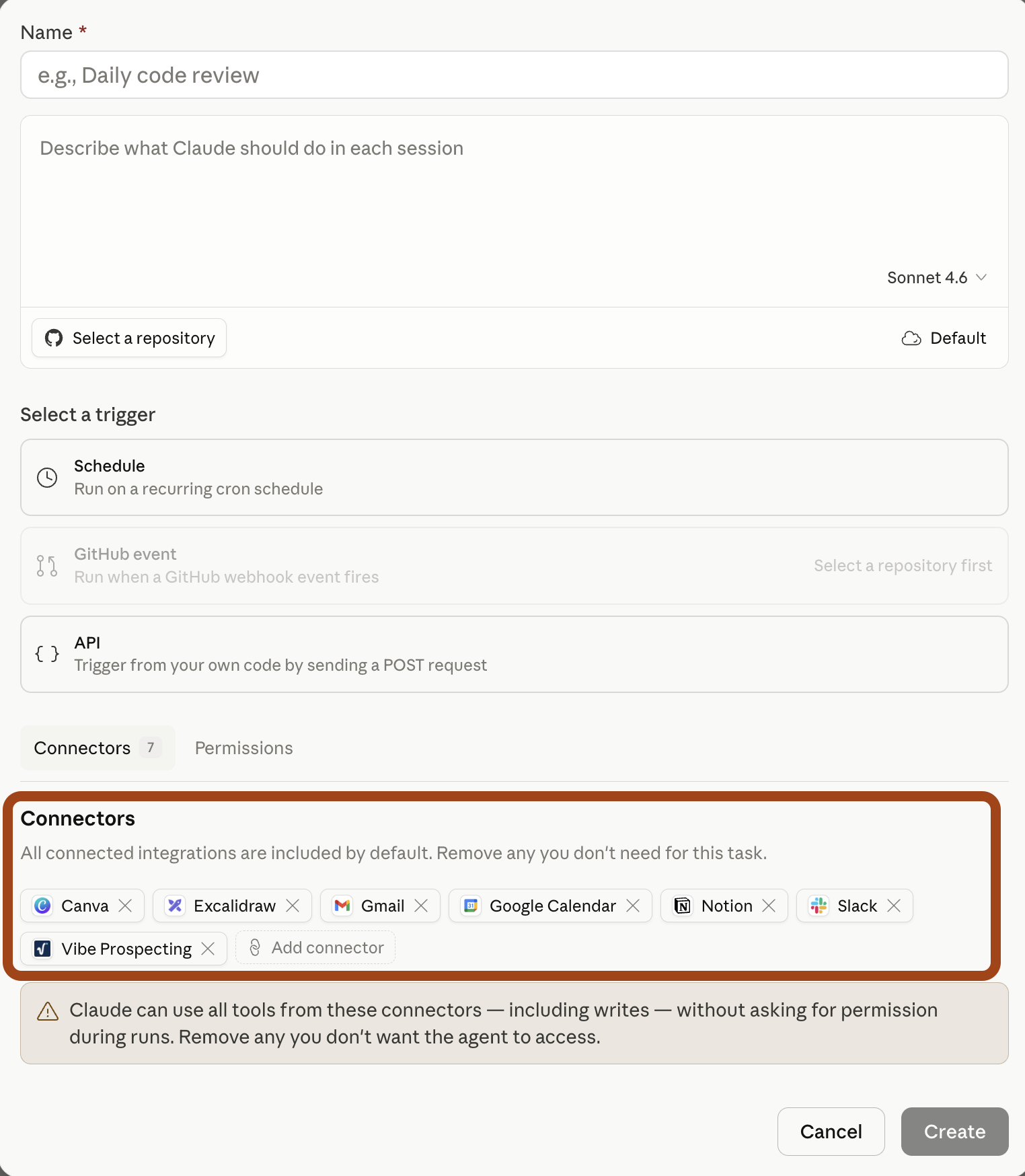
Connectors
Connectors are the hands of your routine. Gmail, Slack, Notion, Google Calendar, Canva, Excalidraw, Vibe Prospecting.
We’ve covered connectors(MCP’s) in the Claude Code MasterClass Part 6.
\Connectors Setup - Cloud\
Without connectors, your routine can only think. With connectors, it can act.
Now let’s build two routines. One local. One cloud.
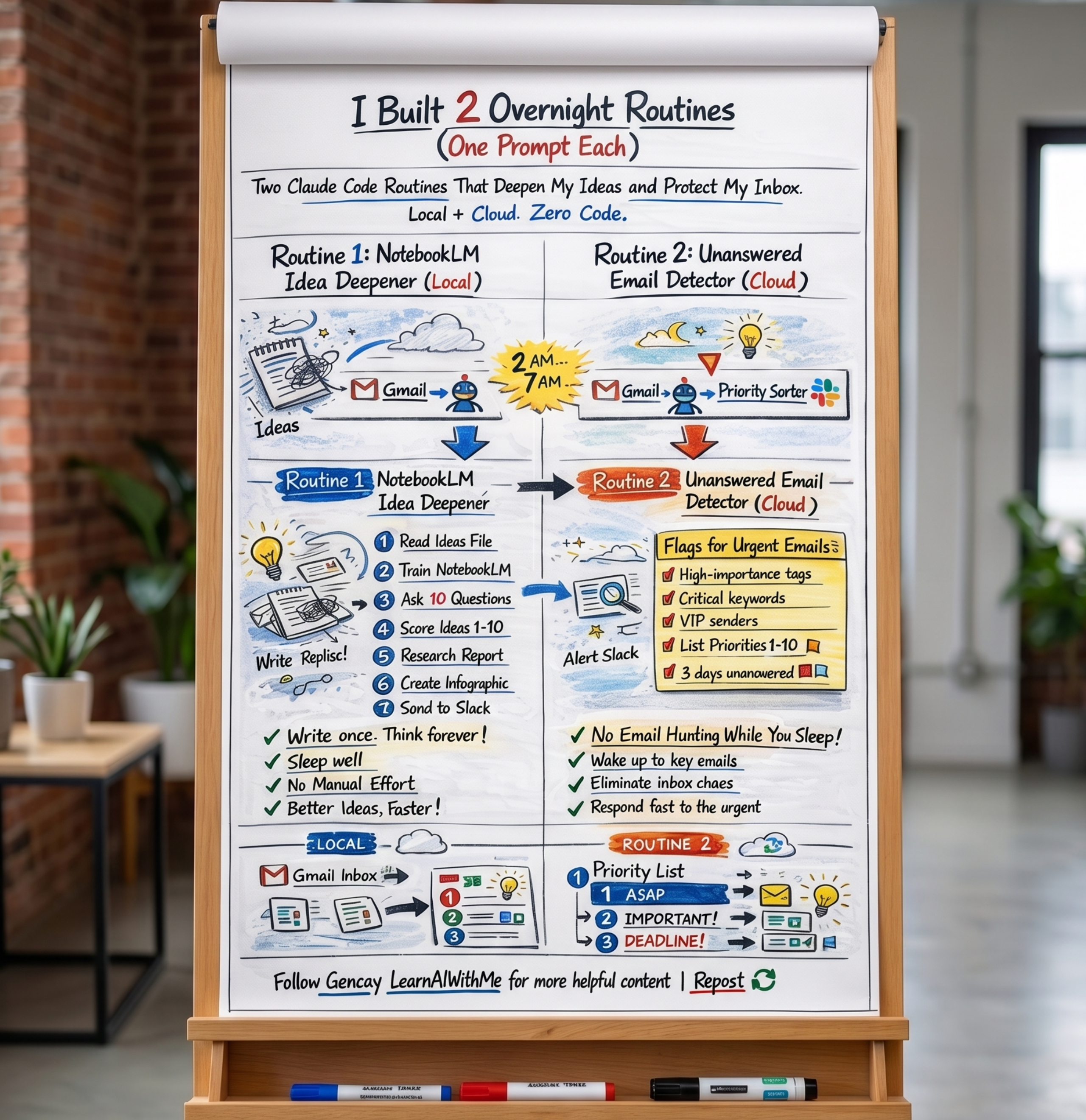
Fast-Forward: What We’re Building
\Two Claude Code Routines\
Two routines. Two problems everyone has. Two prompts to solve them.
- Routine 1: NotebookLM Idea Deepener (Local)
- Routine 2: Unanswered Email Detector (Cloud)
One runs locally. One runs in the cloud. Both run while you sleep.
Let’s build them.
Routine 1: NotebookLM Idea Deepener
I have a problem. Ideas hit me at random. In the shower. On a walk. At 11 pm, when I should be sleeping.
Most of them die in my notes app.
Not anymore.
Every night, I dump my raw ideas into a text file.
One sentence each. Half-baked. Ugly. Doesn’t matter.
Claude picks them up. Feeds them into NotebookLM with my existing research sources. Then runs each idea through 10 questions.
Not random questions. Socratic questions.
The kind that turn "maybe I should write about AI agents" into a fully formed article with an angle, an audience, and a hook.
By morning, two things are waiting in my Slack:
A research report. Each idea expanded with answers to all 10 questions, sourced from my NotebookLM notebook. The weak ideas get exposed. The strong ones get sharper.
An infographic. A visual summary of the best ideas, ranked, with the key insight from each one. Ready to screenshot. Ready to share.
Here’s the prompt:
1. Read /ideas/dump.md for today's raw ideas
2. For each idea, train NotebookLM using NotebookLM CLI.
3. Run each idea through these 10 Socratic questions:

- What exactly does this solve?

- What assumption is it built on? What if wrong?

- What evidence supports this?

- What if the opposite were true?

- Who tried this before? Where did it originate?

- Who cares? Who doesn't?

- If it works, what changes?

- What dependencies must be true?

- What is the first principle underneath?

- Reader finishes reading. What do they do next?
4. Score each idea 1-10 based on depth of answers
5. Write a research report with full Q&A for each idea
6. Create an infographic: top 3 ideas, key insight each, visual ranking
7. Post both to Slack #idea-factory
One prompt. That’s the whole routine.
Here's how it looks.
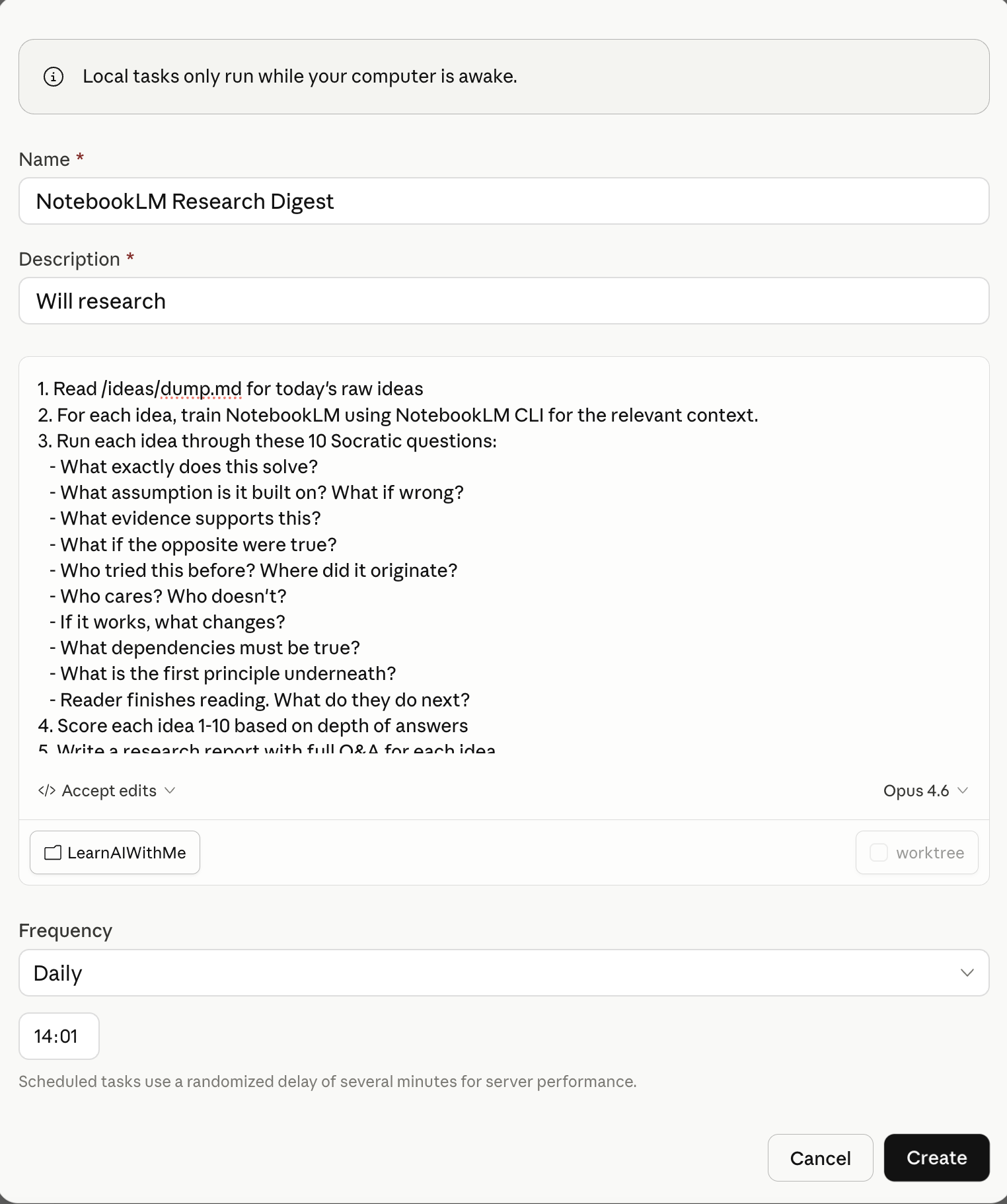
But check this, local routines will work only when your computer is awake.

To test it, let’s trigger this routine. (Click on Run now)
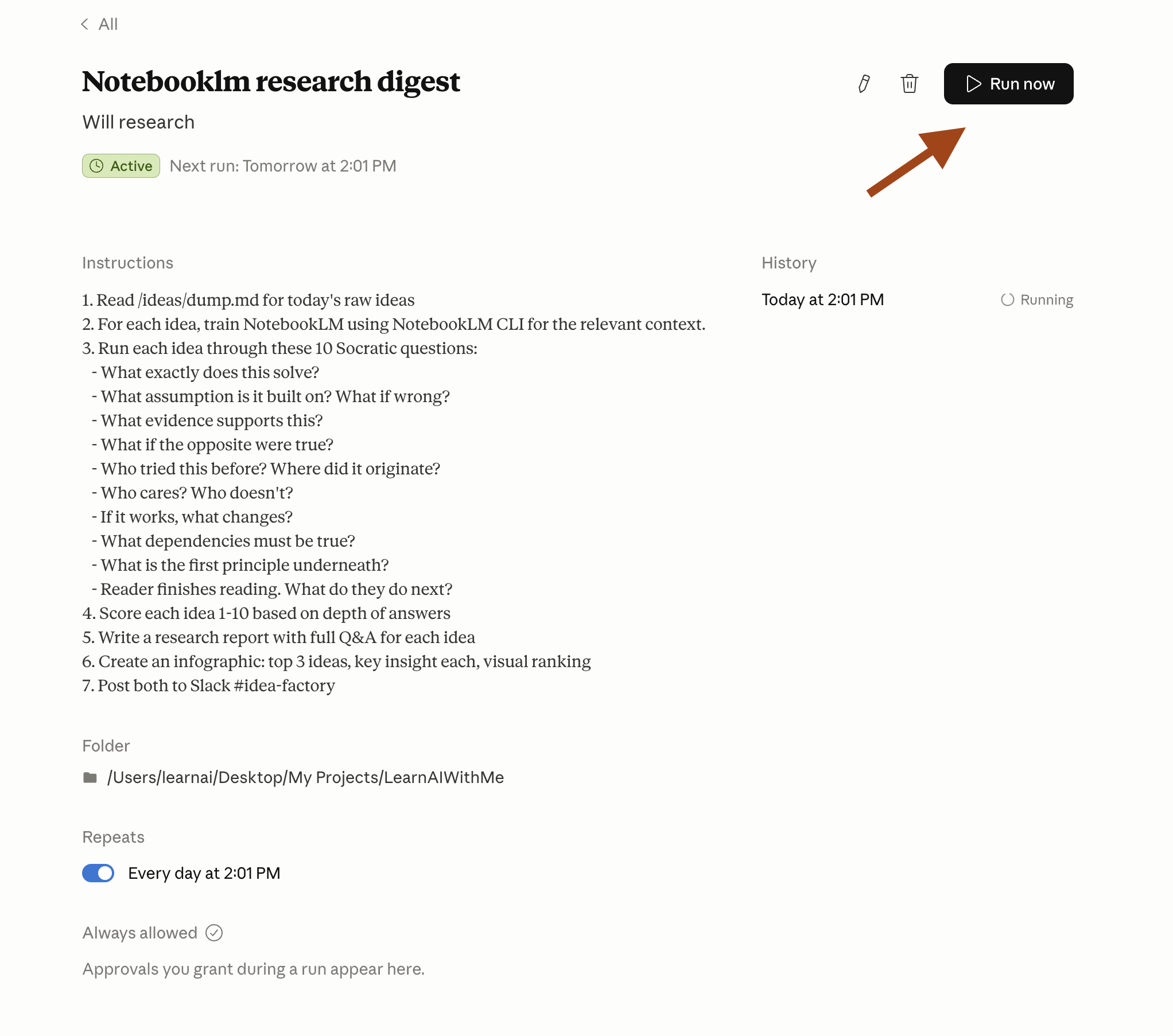
And here it starts working.
Let me check the NotebookLM side.
(My idea: Creating Voice Cloner Skill)
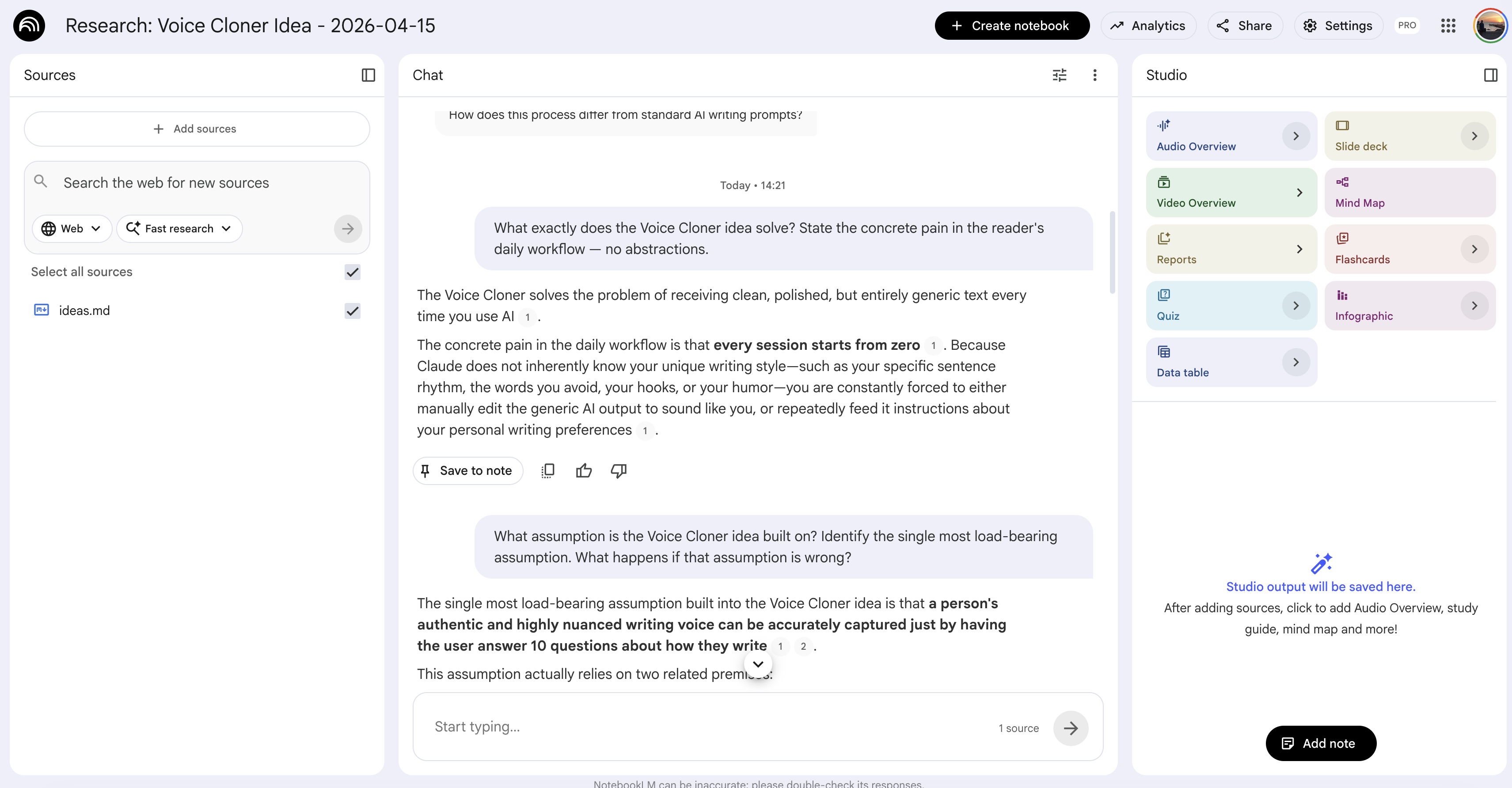
As you can see, NotebookLM was already trained, and the questions started being asked one by one.
At the same time, I’ve been watching Fargo, what a great series! I liked season 1, but I loved season 2, and there are 5 seasons in total.
I’ve been watching quite a lot while working, thanks to Vibe coding.
As you can see, my routine is talking with the NotebookLM.
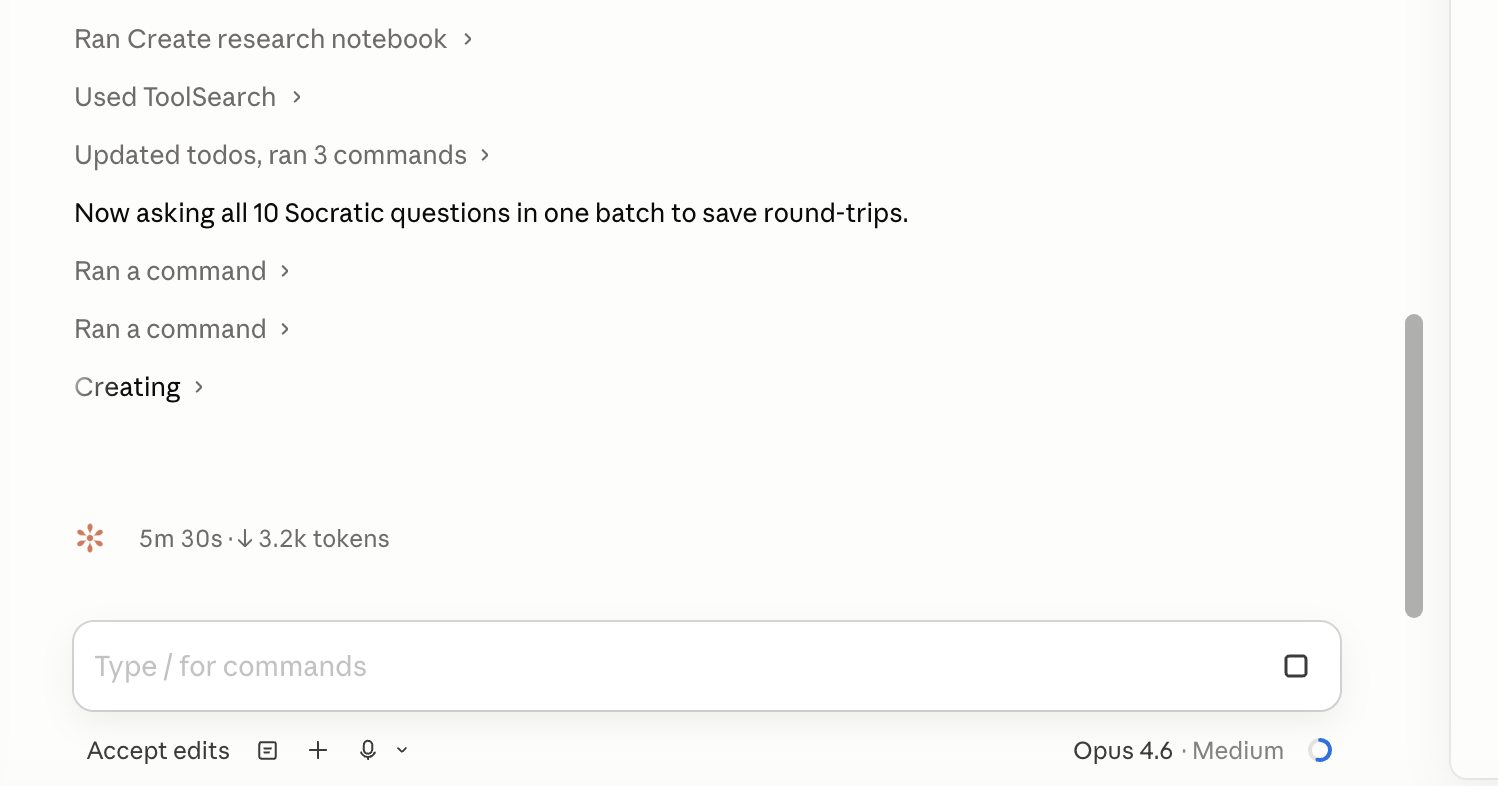
And here is the first part of the output that comes to my Slack.
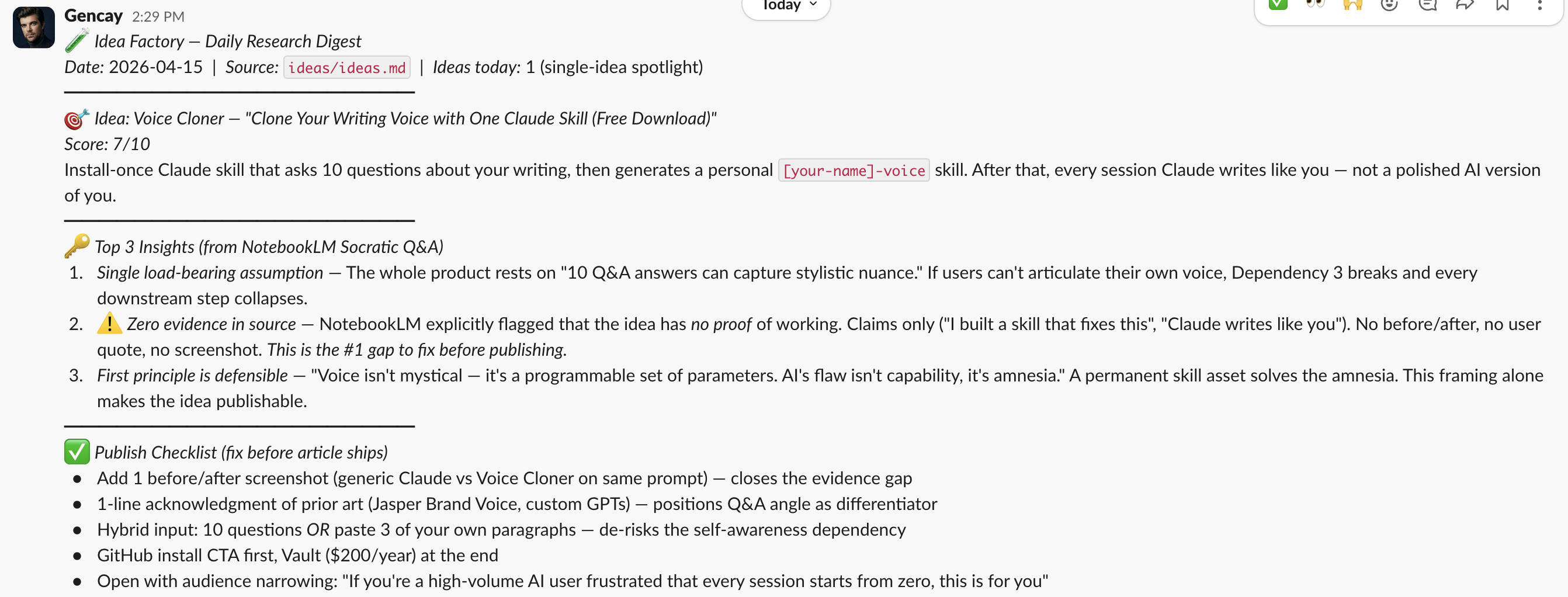
And here is the second part.
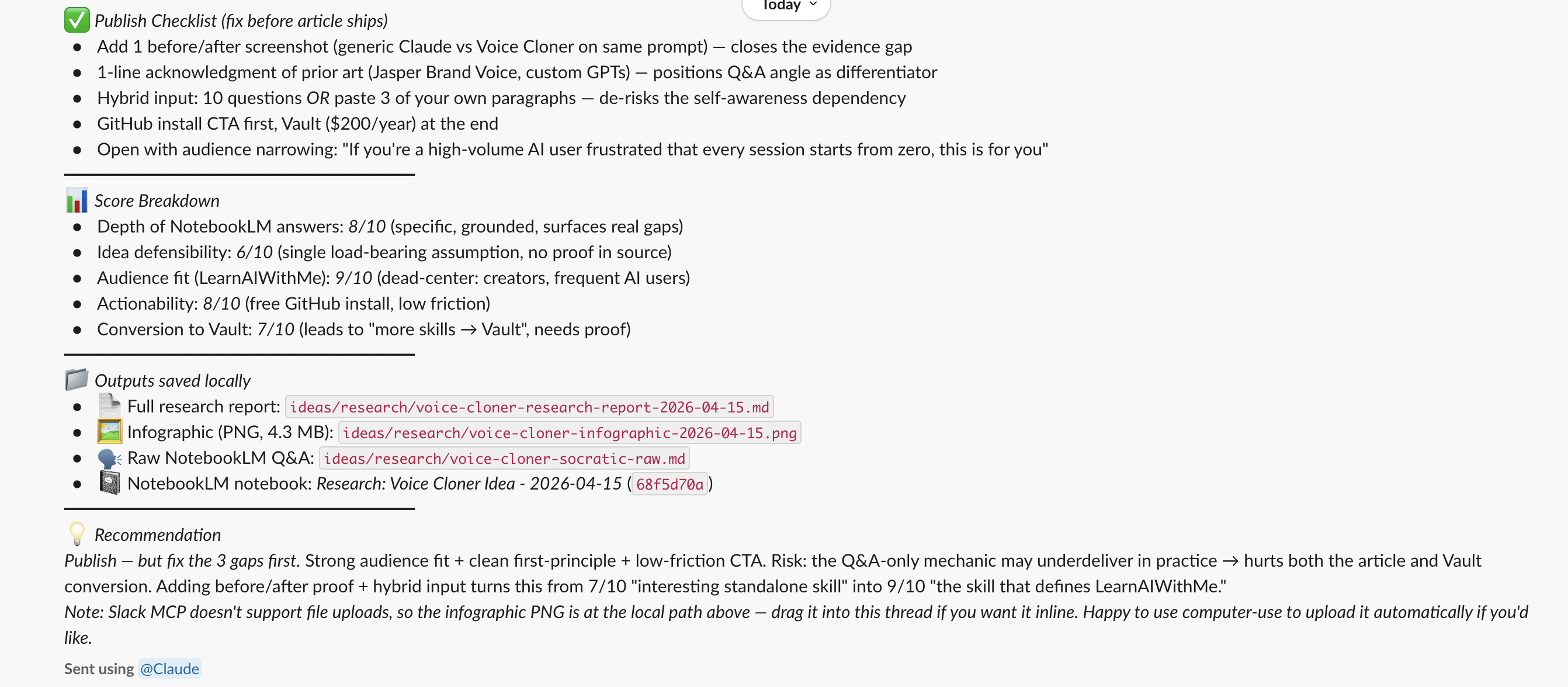
And here is the infographic it creates.

And here is the full report.
Routine 2: Unanswered Email Detector (Cloud)
Here’s a confession. Last month I lost a $2,000 project.
Not because I wasn’t good enough. Because I replied 4 days late. The client hired someone else.
I checked my Gmail. The email was sitting there. Read. Not replied. Buried under 15 other messages.
Never again.
Every morning at 9 am, Claude scans my Gmail. Finds every email where someone is waiting for my reply. Calculates how many hours have passed. Ranks them by urgency. Sends me a Slack message.
Three categories. Red: over 24 hours, you’re losing trust. Yellow: over 8 hours, reply today. Green: under 8 hours, you’re fine.
Here’s the prompt:
1. Scan my Gmail inbox for emails where I am the last recipient (not the last sender)
2. Exclude newsletters, automated notifications, and no-reply addresses
3. For each unanswered email, calculate hours since received
4. Categorize:

- RED: over 24 hours unanswered

- YELLOW: over 8 hours unanswered

- GREEN: under 8 hours
5. For each email, include: sender name, subject line, hours waiting, one-line preview
6. Sort by hours waiting, longest first
7. Post to Slack #email-alerts with this format:
🔴 [count] emails over 24hrs
🟡 [count] emails over 8hrs
🟢 [count] emails under 8hrs
Then list each one.
Setup:
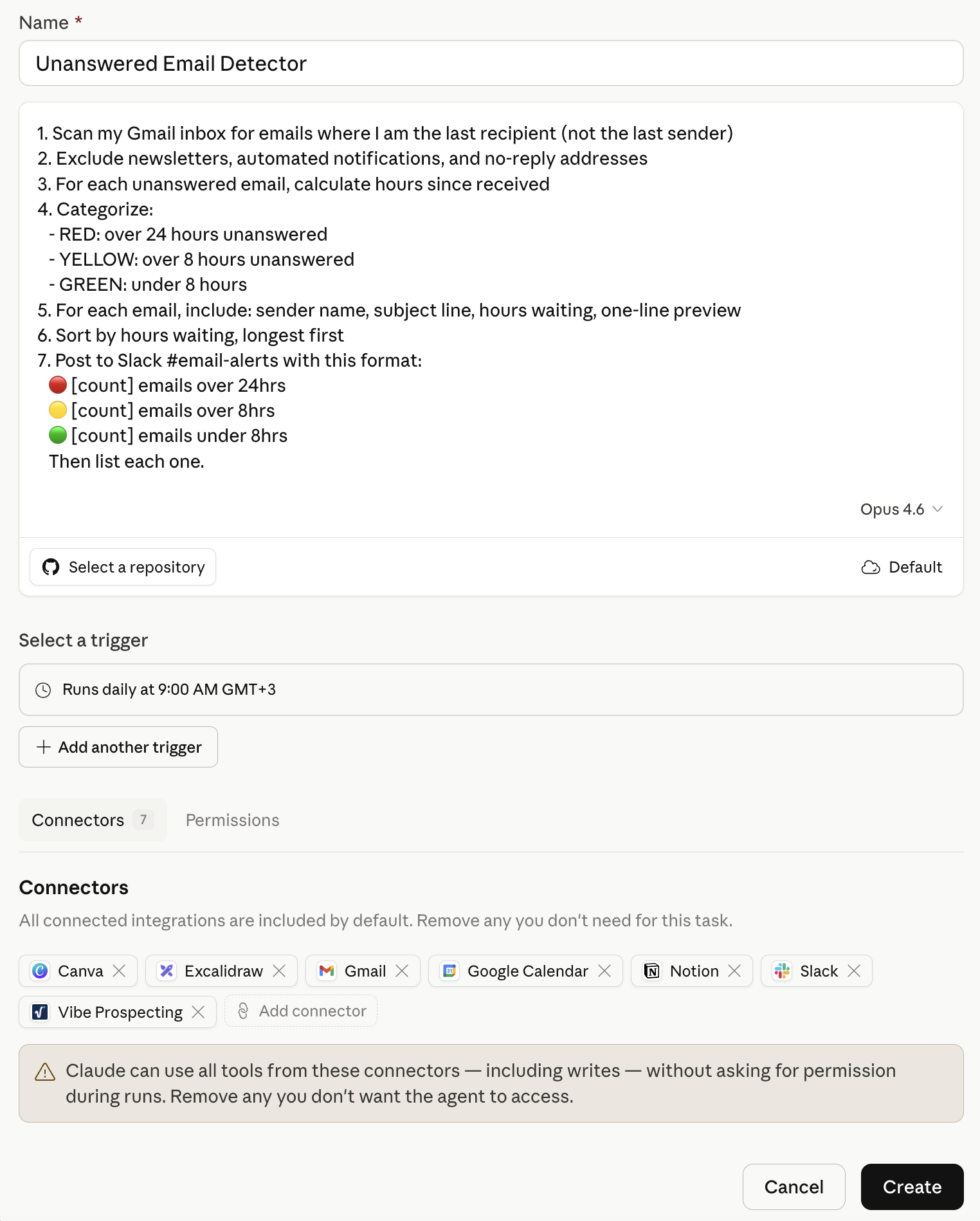
Name: Unanswered Email Detector
Trigger: Schedule, daily at 9 am Connectors: Gmail + Slack
Model: Opus 4.6
That’s it. One prompt. Two connectors. Five minutes to set up.
Let’s test it by manually triggering it; you know how to do it from step one.
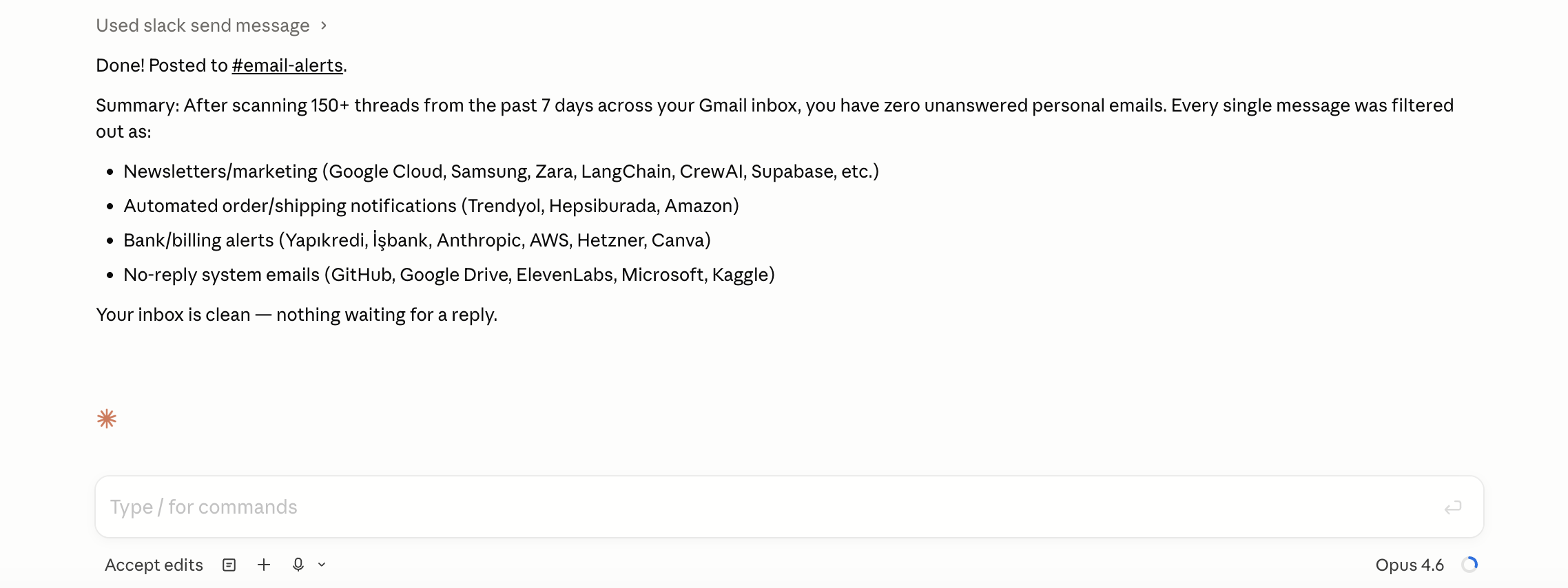
And here is my Slack message:

Thank god, otherwise my wife would never let me go :D Because I don’t want to lose one more client.
Here is the Claude Side.
Final Thoughts
Here’s what just happened.
You set up two routines. One local, one cloud. Total setup time: 10 minutes. Total prompts written: 2.
Routine 1 turns your messy midnight ideas into researched, scored, and visualized article plans. While you sleep.
Routine 2 makes sure you never lose another client to a late reply. While you have breakfast.
Neither routine required a single line of code. Neither required your laptop to stay open. Neither required you to remember anything.
That’s the shift. Parts 1 through 6 taught you how to work with Claude. Part 7 taught Claude how to work without you.
And we only scratched the surface. Two routines. Two connectors each. Claude supports seven connectors and three trigger types. The combinations are endless.
See you in Part 8.