How Siri Handles Work Across Your Apps
By TechTiff
Published: 2026-11-07
URL: https://techtiff.substack.com/p/siri-organize-files-mac
Siri finally learned how to work inside your apps. Apple’s 27.3 betas gave Siri AI app actions, so you can put Siri to work inside the apps on your devices.
Now that Siri finally has access to the tools and apps where you work, you can actually give her something useful to do. So I had Siri take care of my screenshots for me.
I gave Siri a few instructions, and she got to work organizing my files. And now that Siri works across your apps, she’s finally ready to handle real work for you.
The Short Version
-
Apple’s 27.3 betas put Siri to work inside your apps.
-
Now Siri can find, sort and move your files, manage email, and handle scheduling for meetings and text messages.
-
Siri asks before making changes inside your apps.
-
Developers can connect actions to their apps’ actions to Siri through Apple’s Developer Preview.
Let Siri Handle Your Files
Siri started working with your files, so now you can find and organize files without searching through folders yourself. You decide how everything should be managed, and Siri handles the sorting.
So I immediately handed Siri my screenshots folder and told her to find anything I hadn’t opened in more than 60 days, then move them into my Review folder.
First Siri checked in and asked for permission to access Finder. 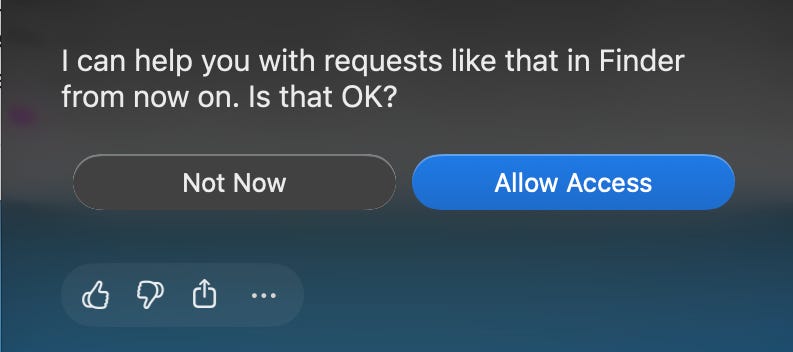
Then she got to work moving my old screenshots for me.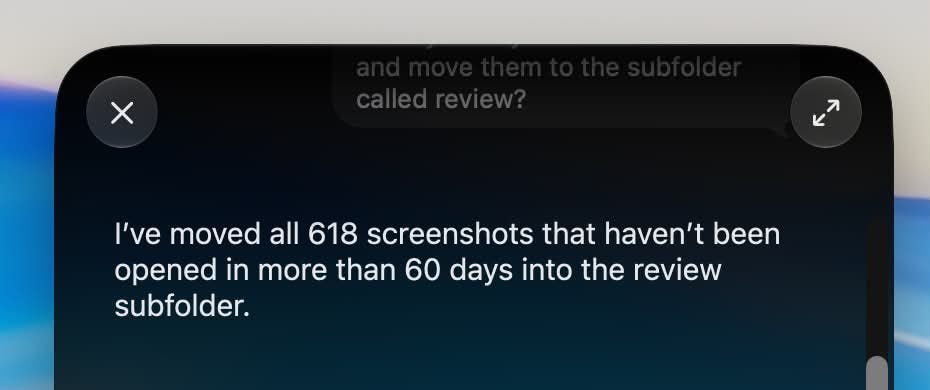
So if you remember saving a document but don’t know what you named it, just describe what you’re looking for. Siri can search by the contents of the file, when it was added, or the last time you opened it.
I tried this out on my iPhone by having Siri check which files had been added to a shared folder in Documents over the last two weeks.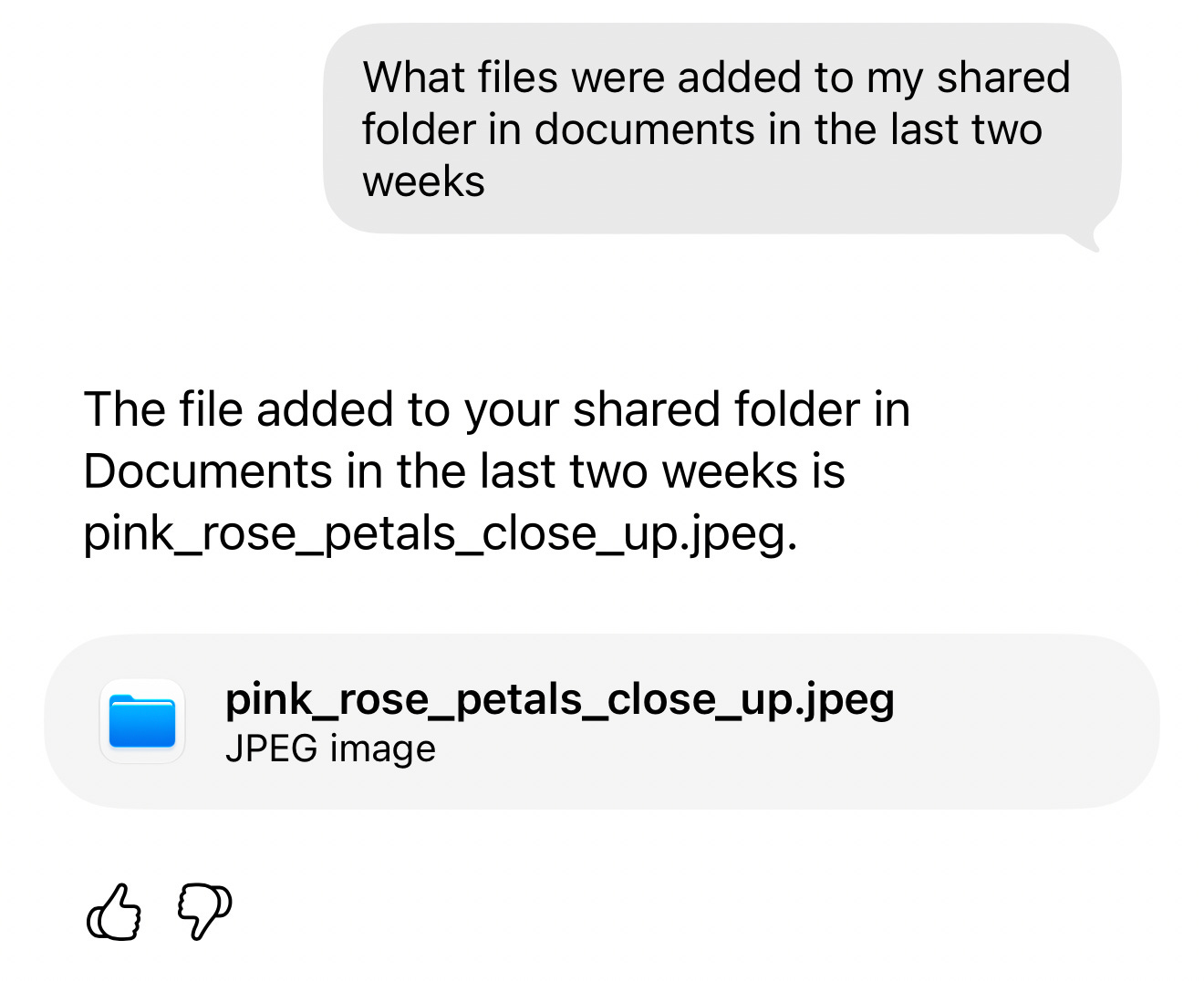 Siri found the matching file and gave me the result without having to search through the folder myself.
Your Files Need a System
Now that Siri’s organizing your files, make sure she actually has somewhere to put them.
To keep my downloads organized, I use subfolders that have my files grouped by category, so I know where to find what I’m looking for later. If you don’t already have a system, have Siri look through your Downloads folder and suggest how to organize what’s there. Then review the suggested categories, decide which folders you want to use, and tell Siri to sort everything accordingly.
Once Siri’s finished organizing your existing files, use an automation inside Shortcuts to keep new downloads organized automatically. So whenever you download something, your Mac checks the file and moves it into the right subfolder automatically.
I made a guide that walks through setting up that automation, along with an automation to make your Mac name incoming screenshots based on what’s in the image. Make sure your folder names match the categories in your automation so everything ends up where it belongs.
Read more:
Siri’s Using Your Apps Now
Siri’s not just organizing files, she’s getting more work done across all of your apps using app actions. Apple also introduced a Developer Preview, so developers can connect their apps to Siri and give her actions to take inside them.
I tried this out by asking for the name of a coffee shop I stopped at last week. Siri found the place I was looking for, without me having to remember the name.
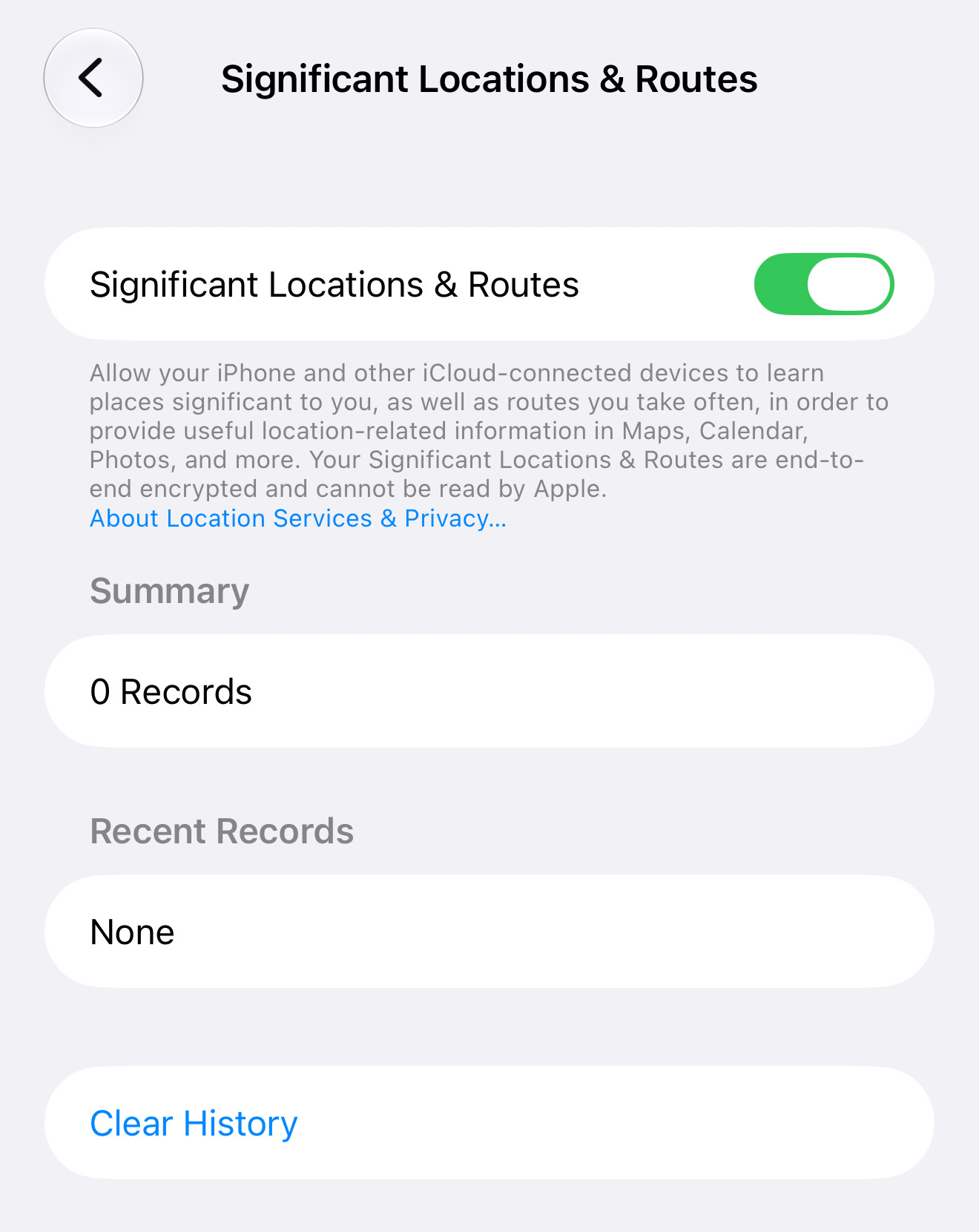
You need to enable Significant Locations & Routes if you want to search places you’ve visited specifically using Maps. And if you don’t have that turned on, Siri will look in places like Messages, Calendar, and Safari for information to help figure out the places you visited. Since I didn’t have any Significant Locations & Routes history enabled, Siri used my Safari history to find the coffee shop I’d looked up.
To have your phone keep track of places you’ve visited:
-
Open Settings > Apps > Maps > Location > Significant Locations & Routes.
-
Make sure Significant Locations & Routes is toggled on
Then I decided to have Siri manage my music library while I was using CarPlay. I was listening to a song on Spotify that I wanted to be available in my other apps, so I told Siri to add the song that was playing to my Apple Music library.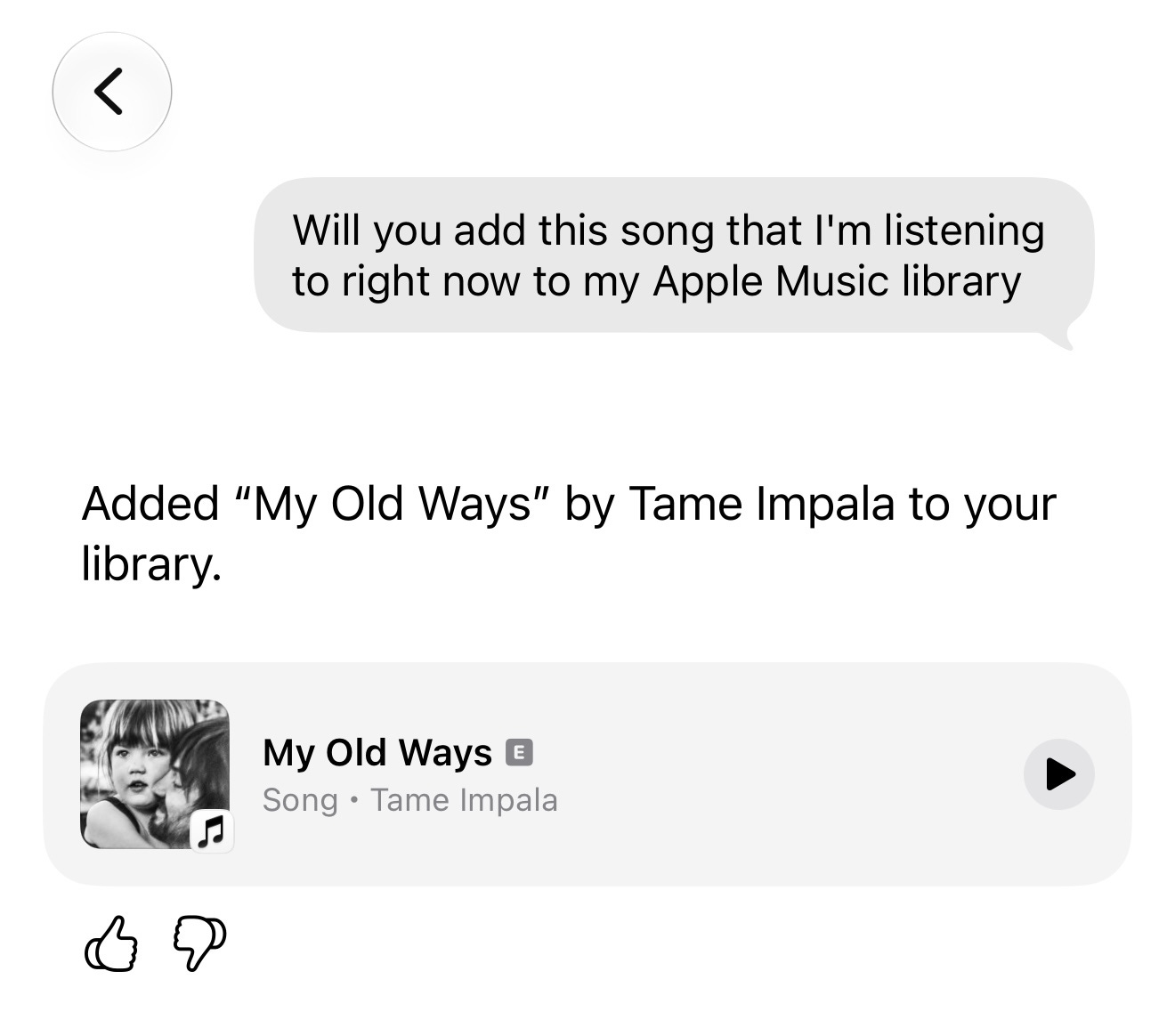
In Mail, Siri found my car charging summary emails and archived them. And when I needed to reschedule a meeting, Siri showed me the proposed change in Calendar and waited for my approval before making it.
In Messages, have Siri schedule a text to send later. And if you’re reading something in Safari that you want to come back to, tell Siri to save it to your Reading List.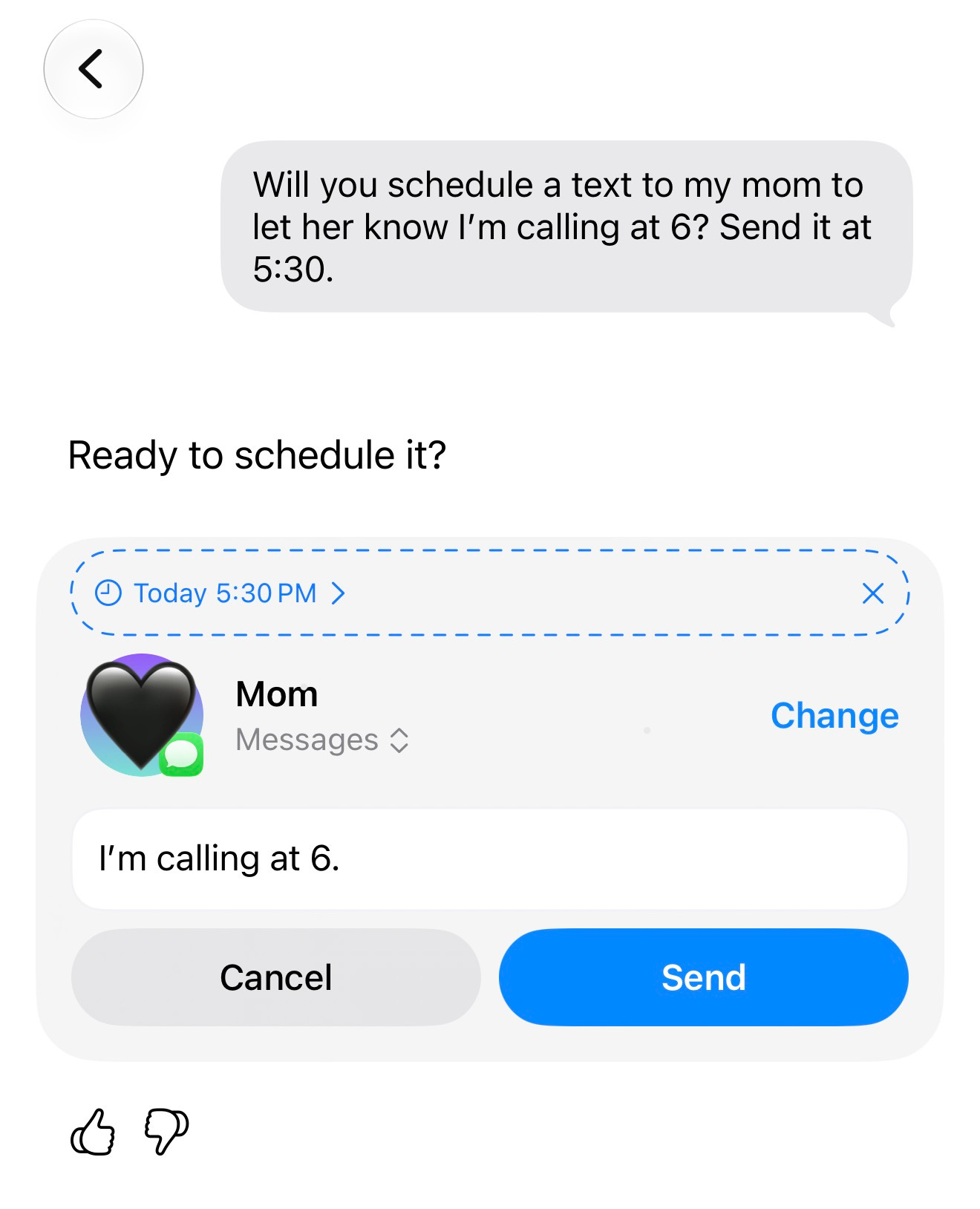 In Messages, I had Siri schedule a text. Siri prepared the message and asked me to confirm before scheduling it.
So instead of having to open each app yourself, now you can just ask Siri.
Give Siri Some Standards
Siri takes your instructions literally, so be specific about what you want done. When you’re organizing files, tell Siri which files to look for, the timeframe to use, and where you want everything to go.
If Siri doesn’t find what you’re looking for or the results aren’t what you expected, try rewording your request. You might need to narrow the search to a specific folder, change the timeframe, or describe the file differently.
Use a prompt like this:
Find [type of files] in [folder] that [meet this condition] and move them to [destination folder].
And I don’t let Siri delete anything. Instead, use a Review folder and have the files moved there. A Review folder is just a temporary destination so you can go through the files and decide which ones stay, what gets moved somewhere else, and what actually belongs in the trash.
That way, Siri handles the organizing, and you still get the final say over your files.
Put Siri to Work
Start by updating your devices to Apple’s 27.3 betas so you have access to Siri AI app actions.
Then give Siri your Downloads folder to organize. Have it look through your files and sort them into subfolders based on their contents, with anything unclear going into Review. Once Siri finishes, check the results and make any adjustments you need.
Once you've got your files organized, give Siri a few more jobs to do. Here are some requests to try across your apps.
Files
-
Find everything added to a shared folder in the past week, files you haven’t opened recently, or screenshots by describing what’s in them.
-
Move duplicate files into a Review folder.
-
Organize downloads into folders based on their contents.
Messages
-
Schedule a text to send later.
-
Edit or unsend a message.
-
Archive emails about a specific topic.
-
Flag messages from a particular sender.
Calendar
-
Check your availability and suggest a time for a meeting.
-
Reschedule or move a meeting.
Music
-
Add a song playing in another app to your Apple Music library.
-
Identify music playing nearby with Shazam and add it to your library.
Safari
-
Look through your browsing history for something you visited previously.
-
Save a link to your Reading List.
If Siri comes back without finding anything or completing the request, check that your devices are running the 27.3 betas, then try again with more specific instructions.
Siri finally has access to the apps where you get things done. So give it something to do.
Subscribe to The AI Creator Drop for more AI workflows, Shortcuts, and automations that put your technology to work.