How Live Rewind and Siri Recap Catch What You Missed and Summarize What Was Said
By TechTiff
Published: 2026-11-04
URL: https://techtiff.substack.com/p/apple-watch-privacy
Your Apple Watch started taking notes. Live Rewind and Siri Recap are now in beta on Apple Watch Series 12 and Ultra 4.
Live Rewind turns the last 15 seconds of speech into text on your wrist. Siri Recap automatically detects conversations and writes organized summaries based on what was said. Your Watch already knows what song is playing and when to wake you up. So I guess taking notes was the next job on its list.
The Short Version
-
Live Rewind turns the last 15 seconds of speech into text when you double-click the Digital Crown, and plays a chime every time, even on silent.
-
Siri Recap automatically detects conversations during the days, hours, and places you choose, then writes a title, summary, and key points in the Siri app.
-
Ask Siri acts on what was said, so a plan or recommendation turns into nearby stores, an address, or directions.
-
Live Rewind and Siri Recap are in beta on Apple Watch Series 12 and Ultra 4 with an iPhone 16 or later, iOS 27.3, watchOS 27.3, and Siri AI turned on.
Your Watch Catches the Last 15 Seconds
Double-click the Digital Crown and the last 15 seconds of speech appear as text. A chime plays every time, even with your Watch on silent, so everyone nearby hears it.
Under the text are two buttons. Save to Siri keeps it in the Siri app. Ask Siri treats what was said as a request and acts on it. Skip both, and the text disappears about 30 seconds after the screen dims.
Live Rewind transcribes what it hears, including the occasional mistake. It handles clear speech pretty well, but fast conversations and technical terms can trip it up. So check the transcript before you trust it with anything important.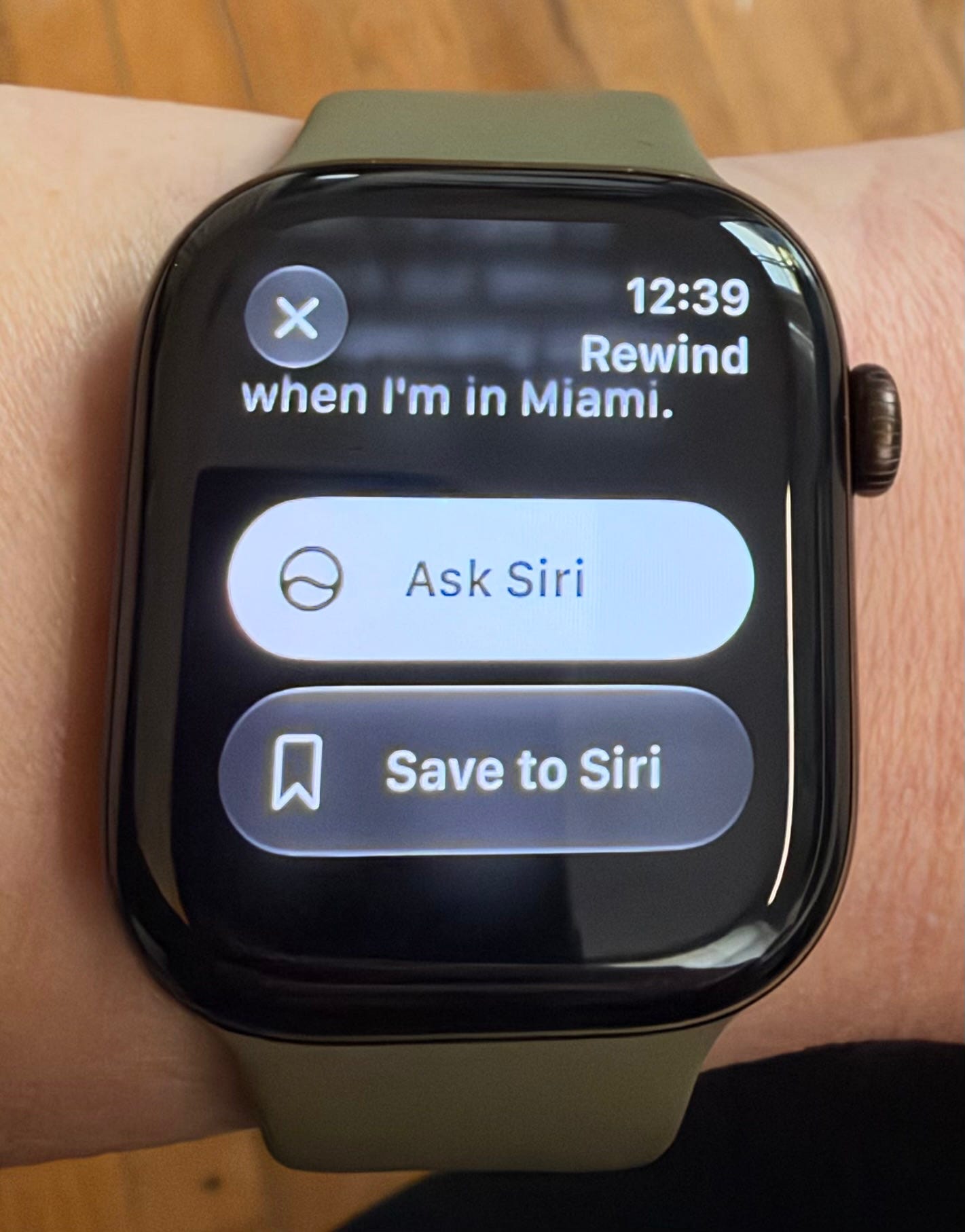
Siri Takes Notes on the Whole Conversation
Siri Recap runs during the days, hours, and places you choose. When it detects a conversation, it writes a recap and sends it to the Siri app on your iPhone.
Each recap includes a title, the time it started, how long it ran, a one-line summary, and key points grouped by topic. The key points stick to what was said: decisions, dates, numbers, next steps. Names show up when someone says them out loud.
If you use Live Rewind during a conversation, Siri adds that quote to the top of your recap. So you've got the full summary and the specific thing you didn't want to forget.
From there, edit the recap, copy it, share it, or save it to Notes or Journal. Recaps delete after 7 days unless you bookmark them.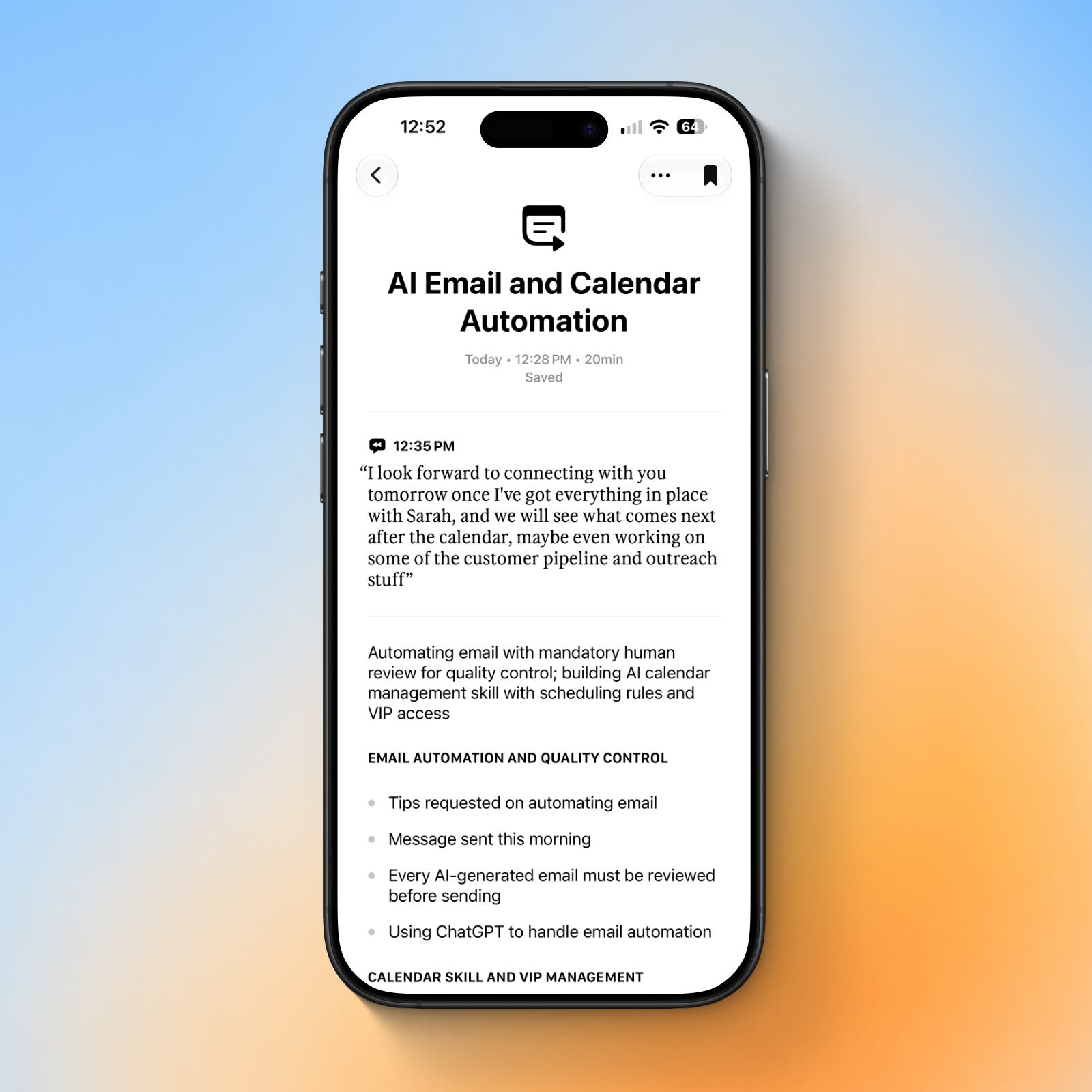
Pick When Siri Pays Attention
To set it up, open the Watch app on your iPhone and tap Siri. Live Rewind is a single toggle. Siri Recap walks you through choosing where and when it runs, including specific locations, days, and hours. Every screen has a Not Now button if you’d rather skip it.
Turn on notifications to get a reminder each evening to review your recaps.
To stop Recap during a personal conversation, press the side button on your Watch and tap the Recap button in Control Center. It shows blue while Recap is on. Low Power Mode pauses it too, and so does listening through headphones with noise cancellation on.
Audio gets processed on your devices and deleted, with no recording kept. To write a recap, your iPhone sends a condensed, encrypted version of the conversation to Private Cloud Compute, which returns the summary and deletes the request.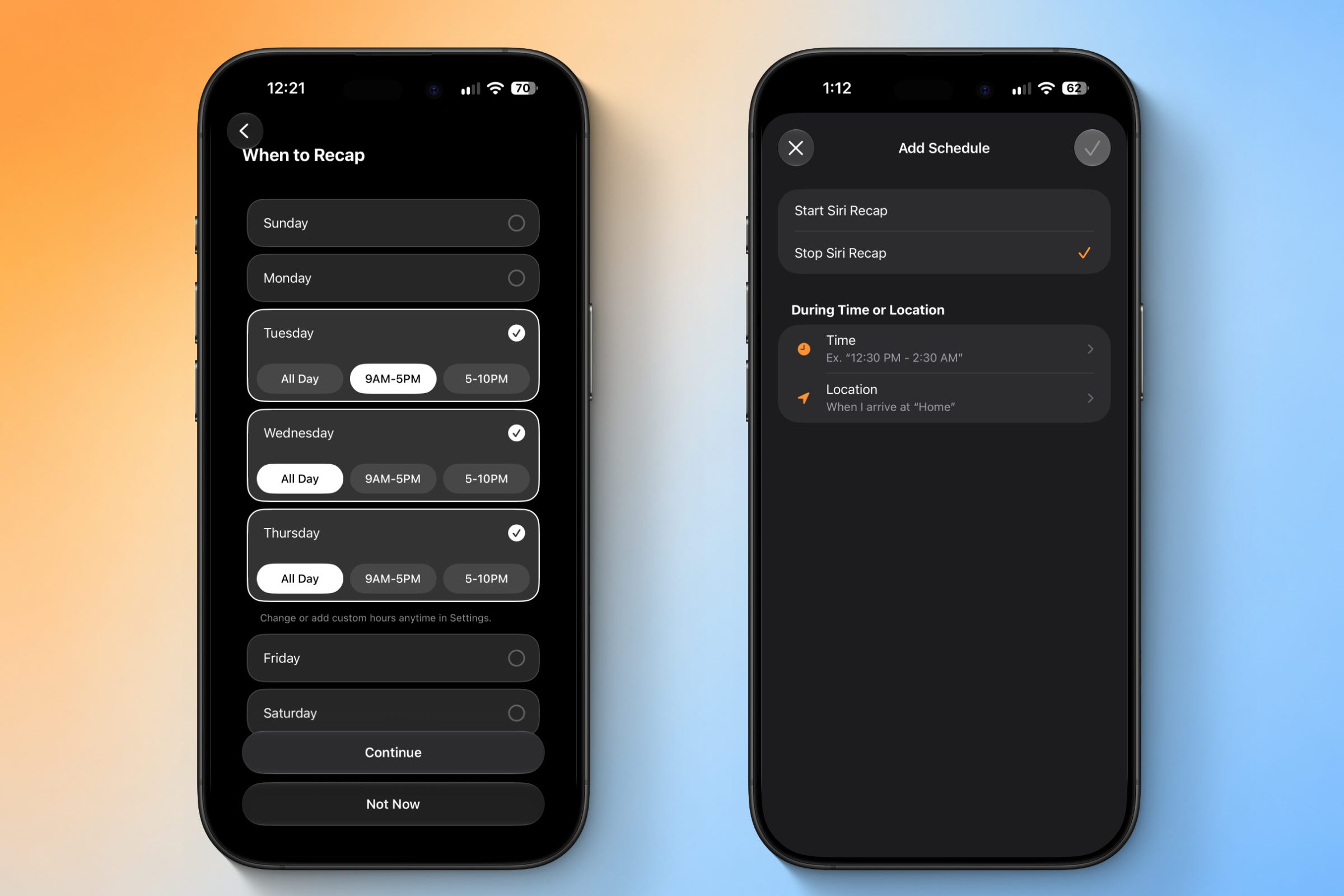
Read more:
Turn What You Hear Into Plans
I said out loud, “let’s go to the store and grab some supplies for making s’mores tonight.” Then I double-clicked the Digital Crown and tapped Ask Siri. Siri pulled up nearby grocery stores.
Then I tried a recommendation for a trip: “check out White Rose for specialty coffee when I go to Miami.” Ask Siri found that exact cafe with its address, a map, Get Directions, and Show on Map. Siri used the city from the sentence, so it worked from across the country.
When a friend lists movies you should watch, double-click and tap Save to Siri. The titles are waiting for you on the couch later.
Recap picks up AI voice calls too. I ran a ChatGPT voice call on speaker from my computer while Recap was on its schedule. The recap came back titled by topic, with every decision listed as a key point.
So if you're having voice conversations with ChatGPT or Claude, your Apple Watch is basically taking meeting notes for you, regardless of which app you're using.
Save a recap to Notes and the formatting comes with it. The title becomes a heading, the Live Rewind quote becomes a block quote, and the topics and key points stay organized.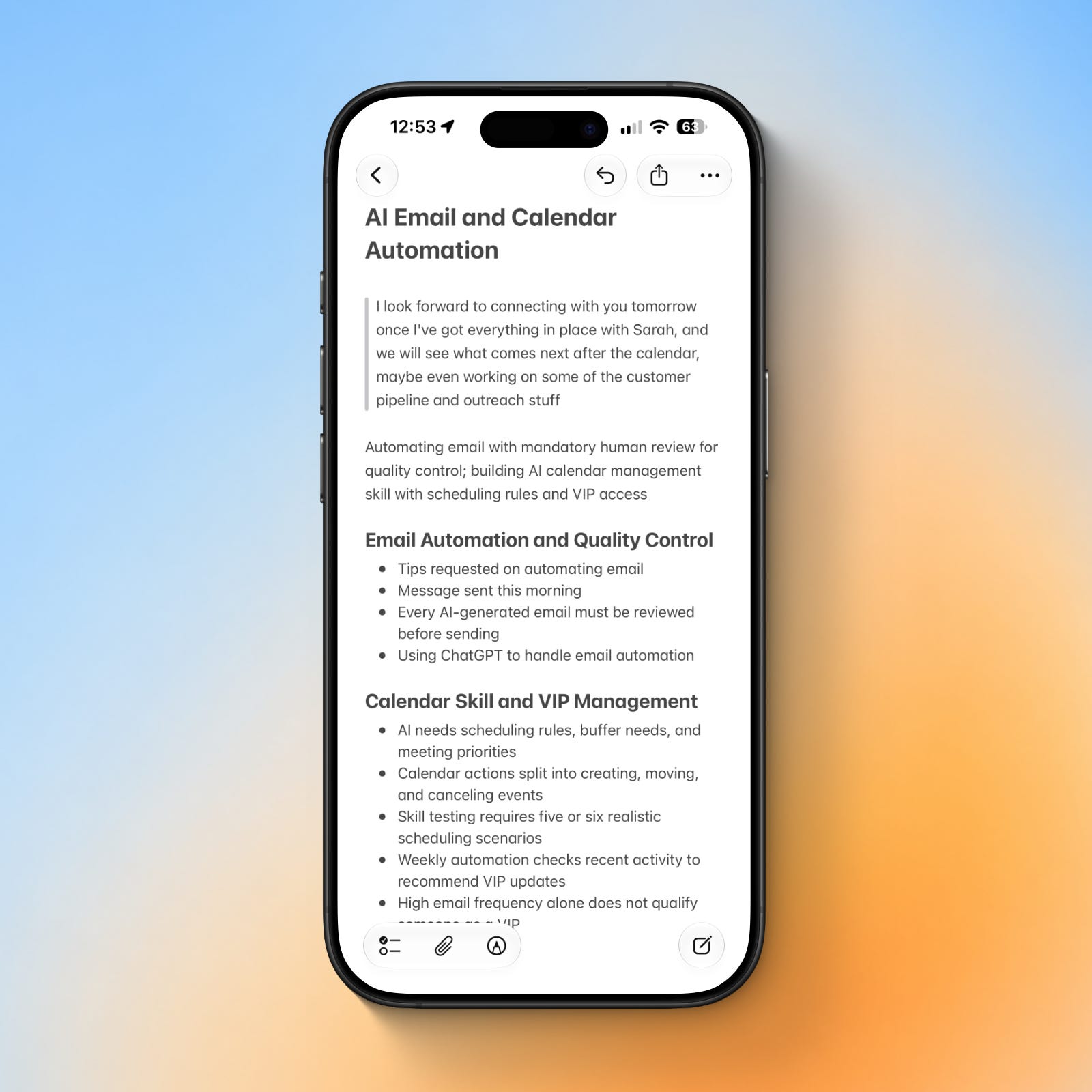
Before You Install the Beta
-
Live Rewind and Siri Recap need a Series 12 or Ultra 4 paired with an iPhone 16 or later (the iPhone 16e is excluded), Siri AI turned on, and English as your language.
-
A Watch beta can’t be rolled back. Going back means sending your Watch to Apple.
-
Recap focuses on conversations you’re part of, but a loud speaker nearby can still end up in a recap when you’re only listening.
-
Recap works without your iPhone nearby and processes once they reconnect.
-
Siri AI and Shortcuts can’t read recaps yet. Save to Notes to get them where the rest of your tools can reach them.
-
Recaps can miss or misstate details. Each one has Looks Good and Something Isn’t Right buttons for feedback.
Try It Today
Install the iOS 27.3 developer beta on your iPhone first. A free Apple developer account works. Then open the Watch app and go to General, then Software Update, to install watchOS 27.3.
Once you’re updated, open the Watch app, tap Siri, turn on Live Rewind, and set up Siri Recap. Say something out loud, double-click the Digital Crown, and tap Ask Siri.
So your Apple Watch is listening, taking notes, and keeping track of your conversations. All you have to do is tell Siri when to work.
If your Watch is going to attend your conversations, it might as well take the notes. Subscribe for more ways to give your devices a job.