How Shortcuts Turn Text Messages Into Automated Action
By TechTiff
Published: 2026-10-30
URL: https://techtiff.substack.com/p/iphone-text-message-automation
If your iPhone goes missing, a text message can make it report back its location and what’s around it. Shortcuts, the automation app built into your iPhone, tells it exactly what to do when the right text shows up.
So you just decide who and what your phone should respond to. Pick someone you trust, like a partner, a parent, or your own second device. Then set the conditions based on a sender or specific words inside an actual message.
Your iPhone already saw the message, so make it actually do something about it.
The Short Version
-
A missing iPhone can reply with its location and photos from both cameras.
-
Set a shortcut to run when a text arrives from a specific sender, with a code word you set, or both.
-
Describe a Shortcut creates the automation from a prompt on iPhone 15 Pro and later.
A Text Message Runs the System
Your iPhone needs to know when to start the shortcut, so give it rules inside the Shortcuts app under Automation.
In iOS 27, automations are inside the shortcut itself. To add a trigger, open a shortcut or create a new one, tap Edit, then Automation, and choose a trigger like Message.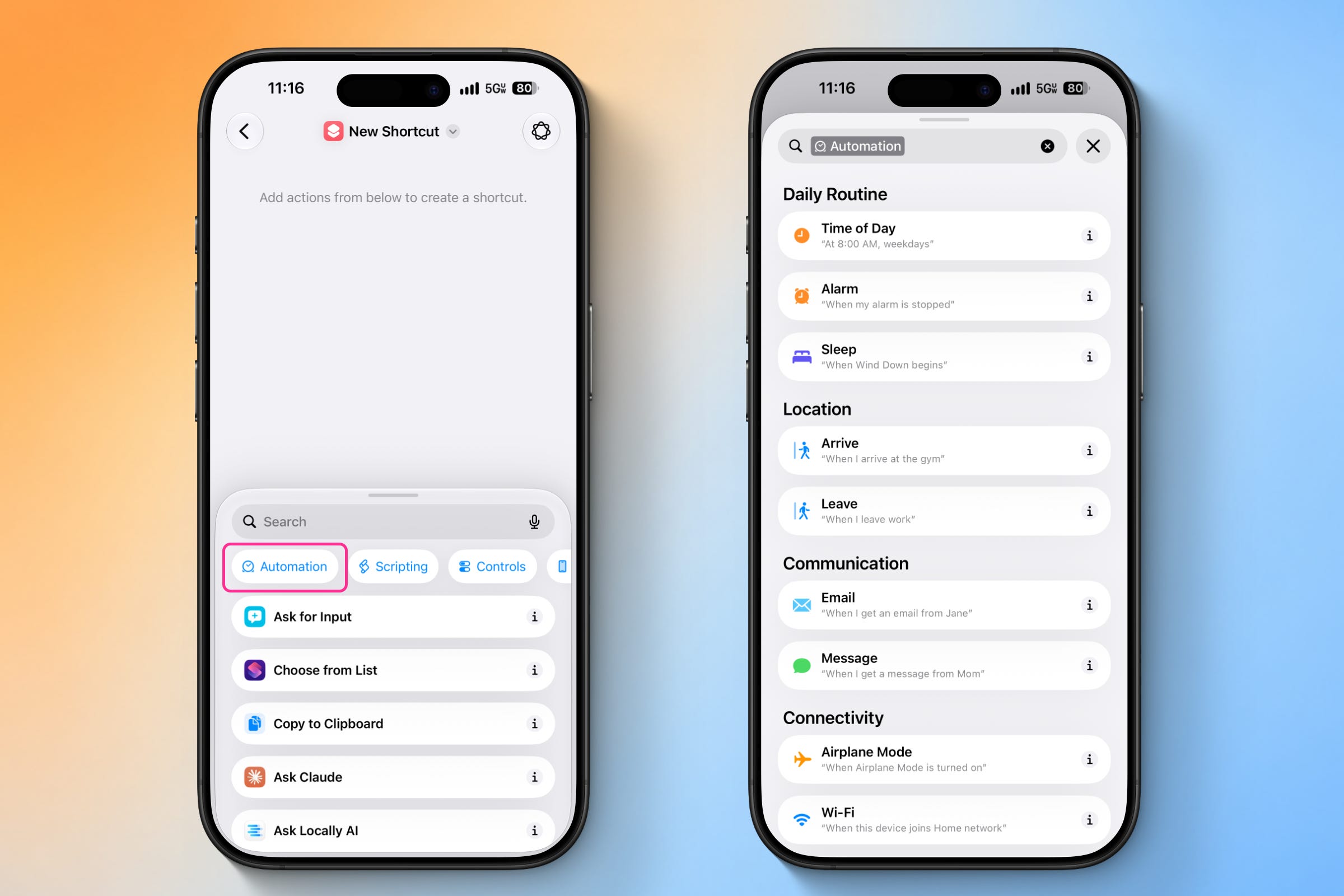
To see every shortcut with an automation attached, go to your shortcut Library, then tap Automation. Filter to see which are turned on or off.
Teach Your iPhone What to Look Out For
A message automation watches your incoming texts and runs a shortcut the moment one matches your filters.
When automating messages, shortcuts have two things they can look out for:
-
Sender - when a text arrives from a specific contact
-
Message Contains - when a text includes a specific phrase.
Every filter you set has to match before anything runs, so the shortcut waits for the right person and the right code word together.
For the iPhone Check-in shortcut, make sure your code word is random enough that nobody texts it by accident. I use a mix of letters and numbers, so something like StatusCheck8921. Treat this phrase like a password: keep it private, write it down somewhere safe, and update it occasionally.
Describe It, or Build It Yourself
Use Describe a Shortcut to have your iPhone build the check-in, or use the editor to add the actions to the shortcut yourself.
Let Apple Intelligence Build It
Tap the plus sign to start a shortcut and tell it what you want the shortcut to do.
Try a prompt like this one:
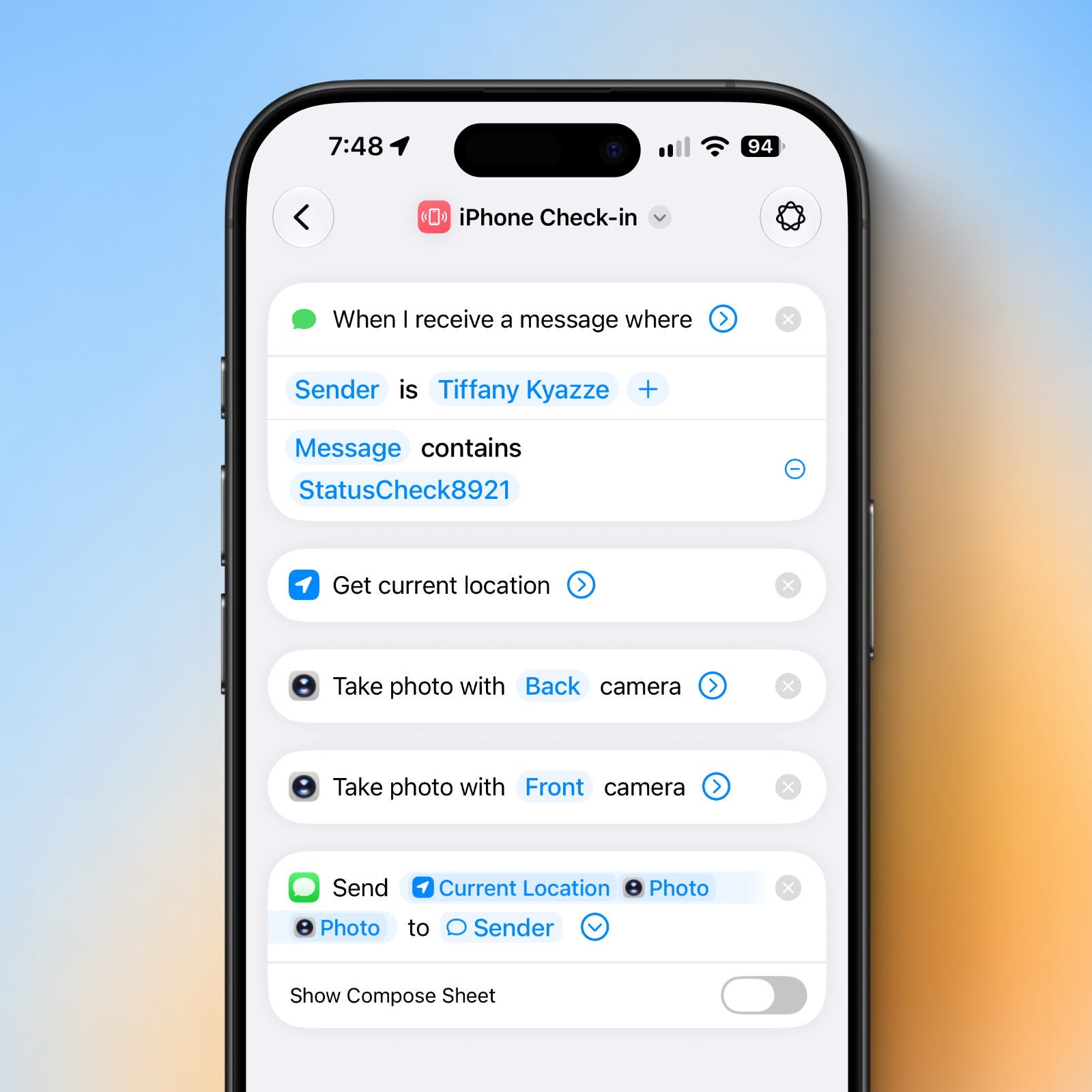
When I receive a message from [name] containing “StatusCheck8921”, get my current location, take a photo with the back camera, take a photo with the front camera, and then send the location and both photos to the sender.
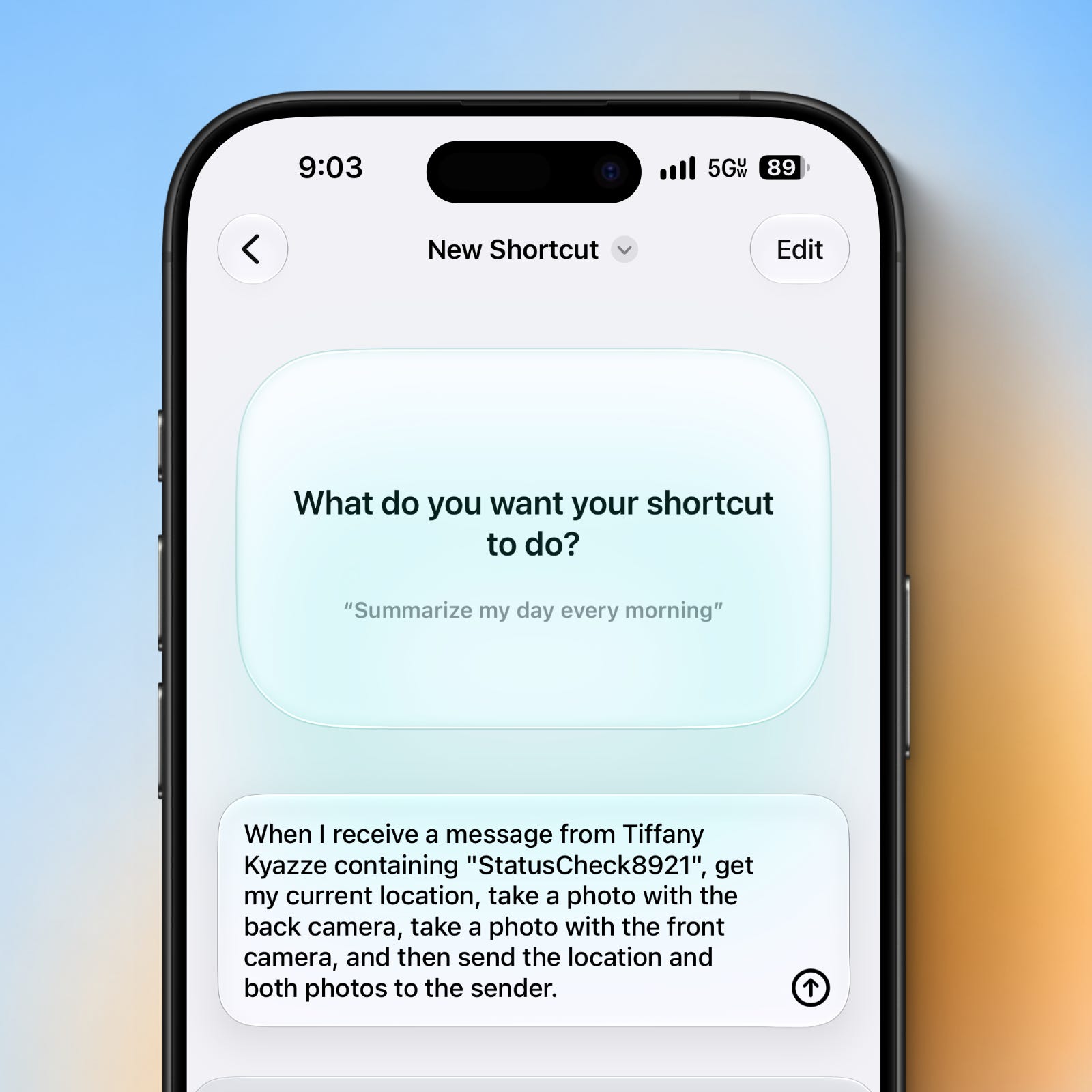
Once your iPhone builds the shortcut, tap Run to test it. If anything needs to be adjusted, describe the change you want without starting over.
Describe a Shortcut runs in iOS 27 and works on iPhone 15 Pro, iPhone 15 Pro Max, and iPhone 16 or later.
Build the Shortcut Yourself
After starting a new shortcut, tap Edit in the top corner of the screen to open the editor and add the trigger and every action by hand.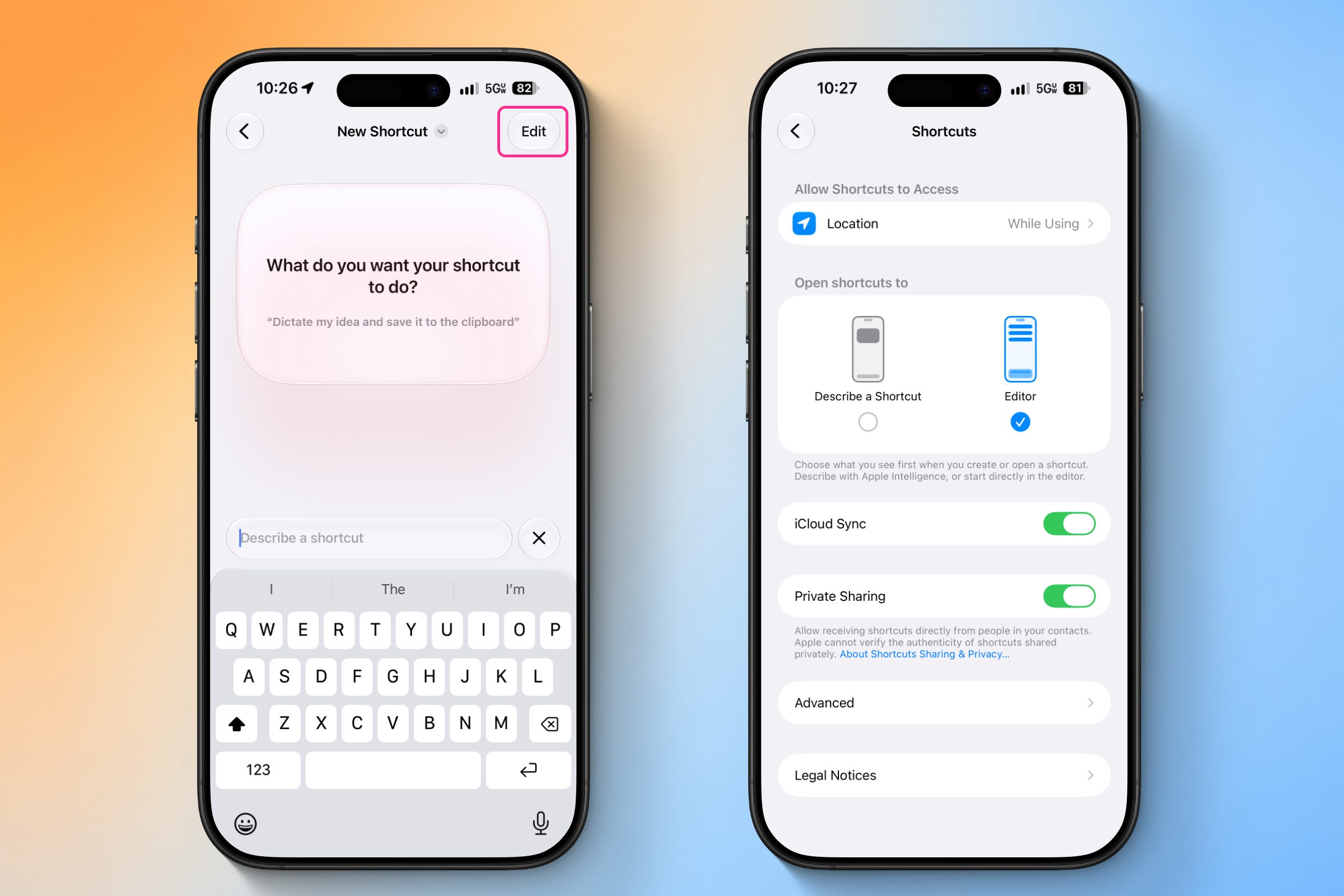 To always start in the editor, go to Settings, then Apps, then Shortcuts, and set Open shortcuts to Editor.
Building it by hand puts every action in front of you, so you know exactly what runs and in what order. Start by picking someone you trust to send the code word, like a partner, a parent, or your own second device. Then open the editor.
-
Tap the plus sign, tap Edit, then tap Automation and choose Message.
-
In the “When I receive a message where” section, set Sender to your trusted contact.
-
Add a second filter with the plus sign, set it to Message contains, and type your code word.
-
Expand the automation and turn off Confirm Before Run.
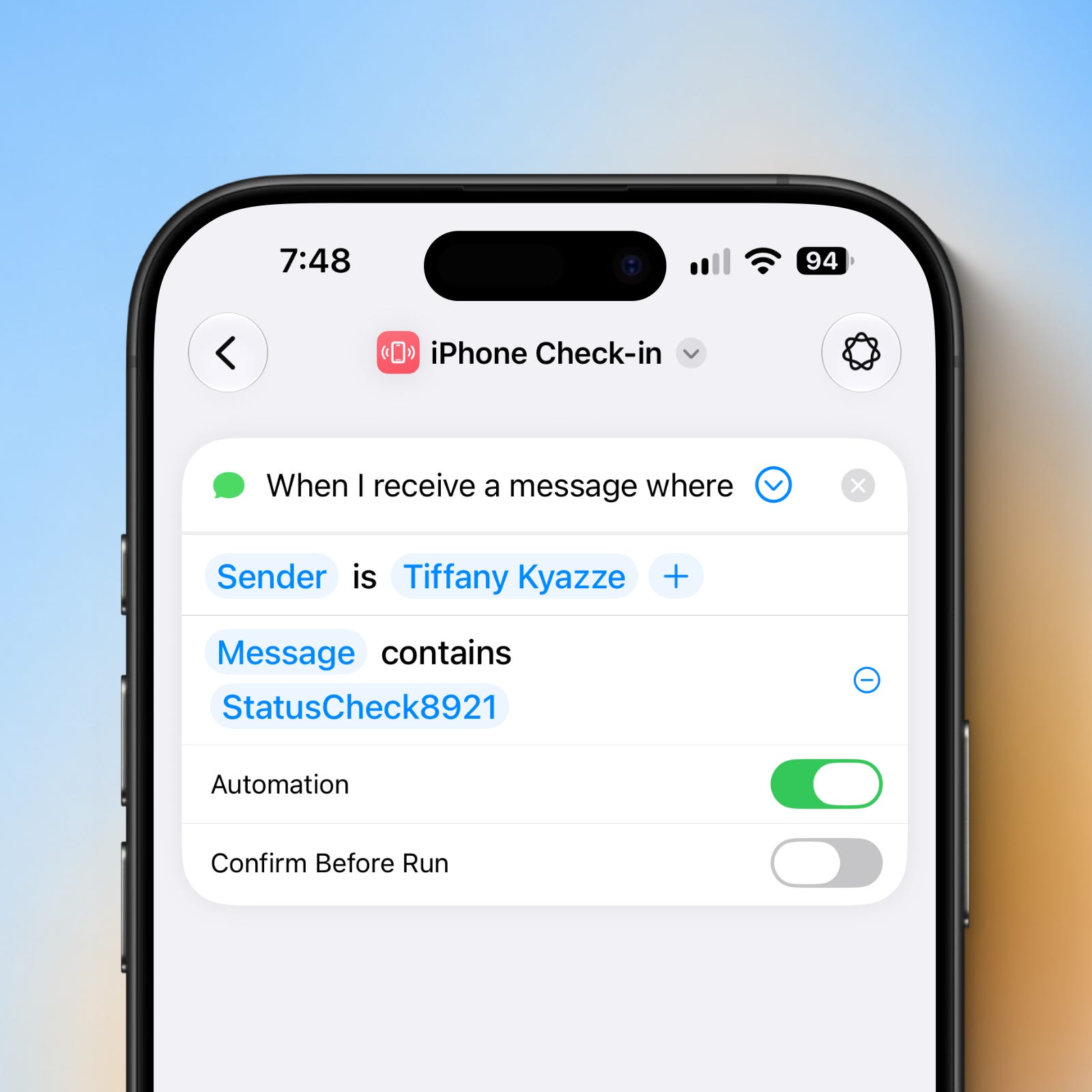 Tap the arrow next to the automation action and turn off “Confirm Before Run” so your phone runs the shortcut without asking you first.
Then add these actions:
-
Get Current Location.
-
Take Photo.
-
Expand the action and turn off Show Camera Preview, so the phone grabs the picture on its own.
-
It uses the back camera by default.
-
Duplicate the Take Photo action by tapping the camera icon.
-
Switch the duplicated action to the front camera.
-
Send Message.
-
Long press the recipient, select Message, then tap Message and choose Sender, so the check-in goes back to whoever texted the code.
-
Inside the message, tap Select Variable and insert the current location and photos.
-
Show Compose Sheet stays off, so the message sends without you.
Once your shortcut is complete, make sure it can run when your phone is locked. Tap the Info button at the bottom of the editor, tap Privacy, and turn on Allow Running When Locked.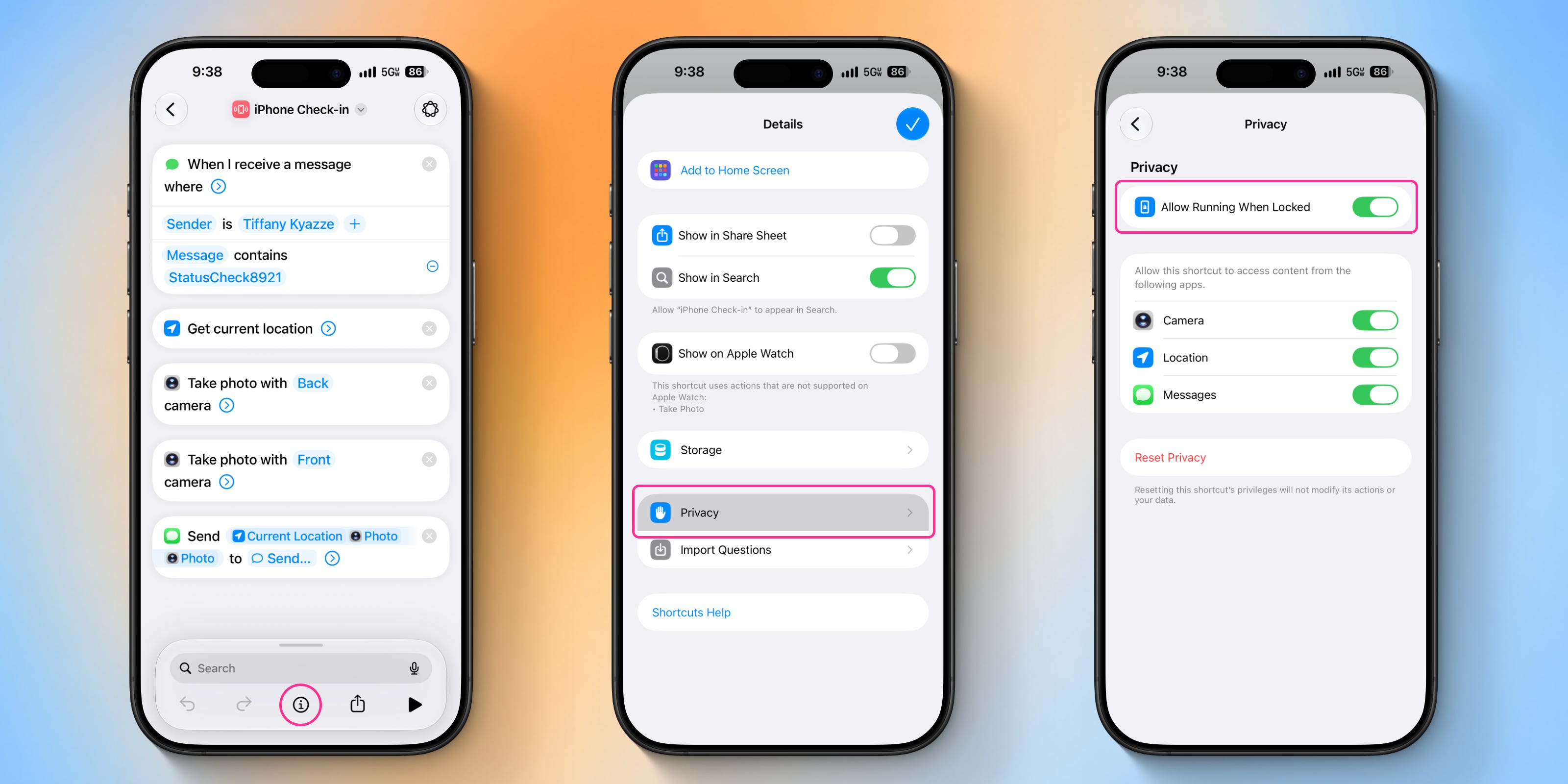 To make sure the shortcut runs when your phone is locked, turn on Allow Running When Locked
Your trusted contact gets the location and photos from both cameras.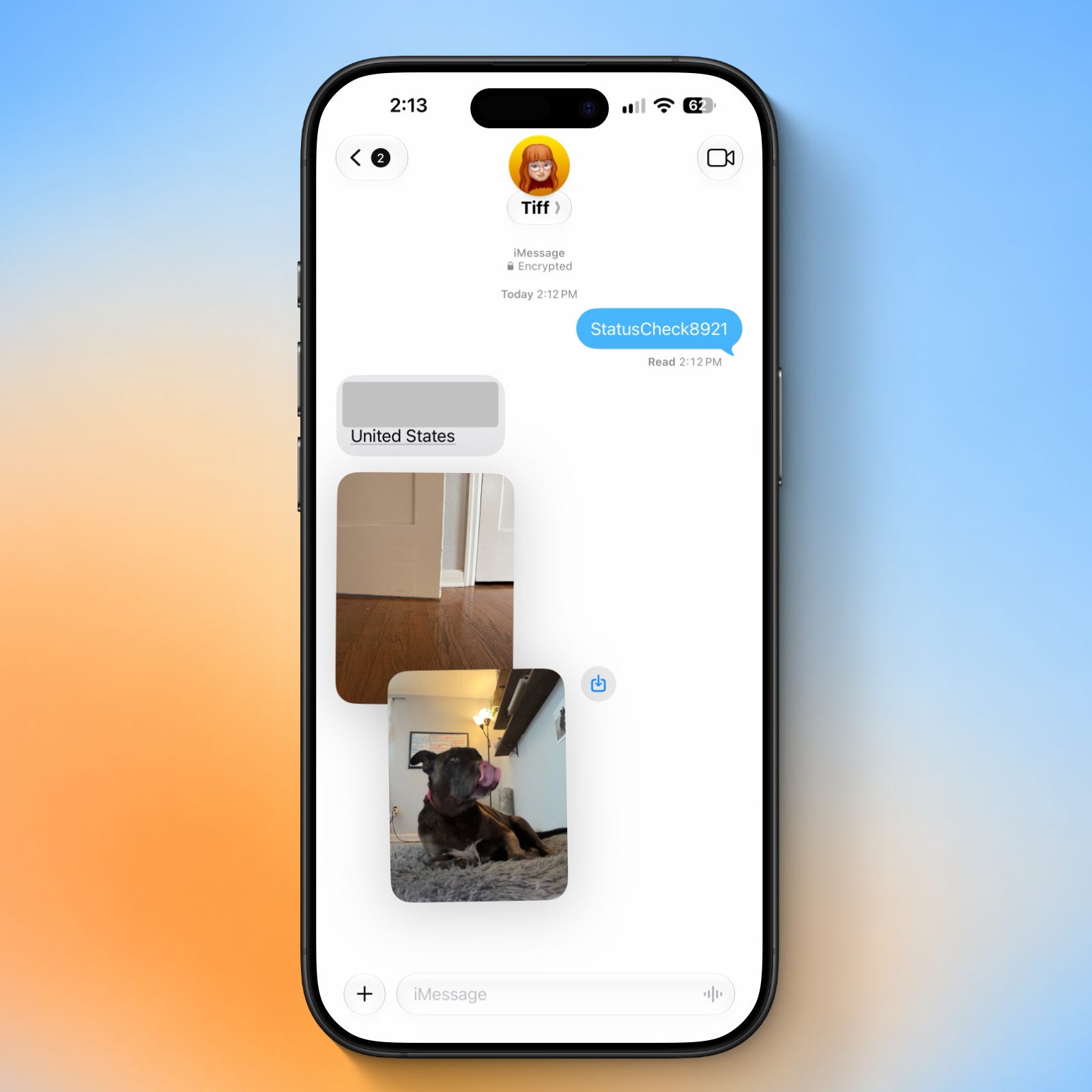 The result: when you get a text with your secret code, your iPhone grabs it’s current location, snaps pictures with each camera, and sends them back.
Read more: For the lockdown shortcut and what to do once your phone reports in, read the full lost-phone guide.
Test It Before You Need It
Lock your phone and have your trusted contact text the code word. If the first run asks for camera or location access, allow it. Confirm the location arrives, both photos land, and the message sends on its own, then run it again. Watch your screen while it runs so you know exactly what shows up.
Make Your Text Messages Start the Action
The check-in is one job for a message trigger. Swap the filters and the actions, and the same setup runs anything Shortcuts handles.
-
Turn after-hours texts from your coworkers into reminders due the next morning, and send an automatic reply.
-
Make your iPhone update your shopping list based on requests that land in the family group chat.
-
Let your iPhone use a “heading home” text to turn on the porch lights through the Home app.
Know What Your Phone Is Running
The sender filter and the code word decide who starts an automation and when. If you’re ever considering building something like this on someone else’s device, consent is the only relevant conversation.
Go to your Library, tap Automation, and read every shortcut on the list. Remove anything you didn’t build yourself.
If you find something unfamiliar that concerns you in a deeper way, you don’t have to figure it out alone.
National Domestic Violence Hotline: 1-800-799-7233 or text START to 88788 / thehotline.org
Grab the Check-In Shortcut
Download the check-in shortcut, then open it, set Sender to your trusted contact, and swap in your own code word. Have that contact text it while your phone is locked and watch it report back.
There's a lot more your iPhone could be doing for you. Subscribe for practical ways to make your tech work harder so you don't have to.