How OpenAI’s Dots Manage Ongoing Work Across Conversations
By TechTiff
Published: 2026-09-29
URL: https://techtiff.substack.com/p/openai-dots-chatgpt-agent
ChatGPT finally has an agent that knows the assignment when you come back.
Today at DevDay, OpenAI announced dots, persistent AI agents inside ChatGPT that manage ongoing work and keep working between conversations.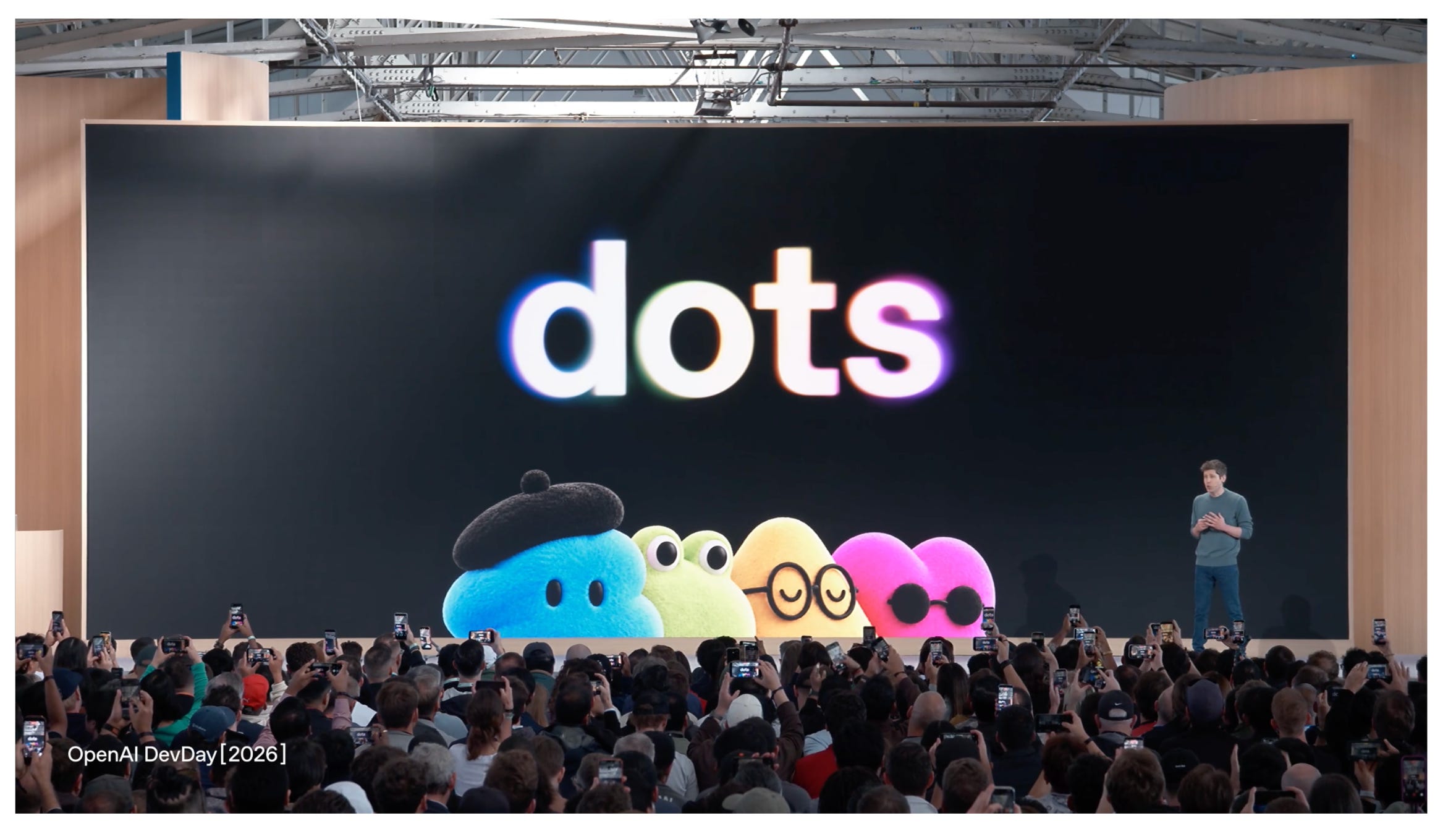 OpenAI announced dots at DevDay, introducing persistent AI agents that manage ongoing work inside ChatGPT.
OpenAI also announced GPT-6.1 Sol for coding, computer use, and professional work in ChatGPT Work, Codex, and the API.
OpenAI dots are persistent AI agents powered by GPT-6 Astra that remember relevant context, take on ongoing responsibility, and keep working between conversations.
So instead of starting over every time you open ChatGPT, your agent already knows what it’s responsible for and keeps the work moving.
I got an early look at dots before launch, and the biggest change is that I don’t have to manage every ChatGPT conversation myself.
The Short Version
-
OpenAI Dots give ChatGPT a persistent AI agent powered by GPT-6 Astra that keeps track of ongoing work between conversations.
-
Your dot has its own cloud computer and uses a browser, ChatGPT Work, and Codex to complete assignments.
-
The main dot conversation manages the project while separate task conversations handle assignments and return results.
-
Dots are rolling out to ChatGPT Pro and Business Premium in eligible markets, with an admin-enabled beta for Enterprise, Edu, and Healthcare workspaces.
Working With Dots
Your dot starts with a name and avatar, which gives the agent a clear identity inside ChatGPT. I called mine Pixel, then gave it an email address, connected it to Slack, and started using calls inside ChatGPT. 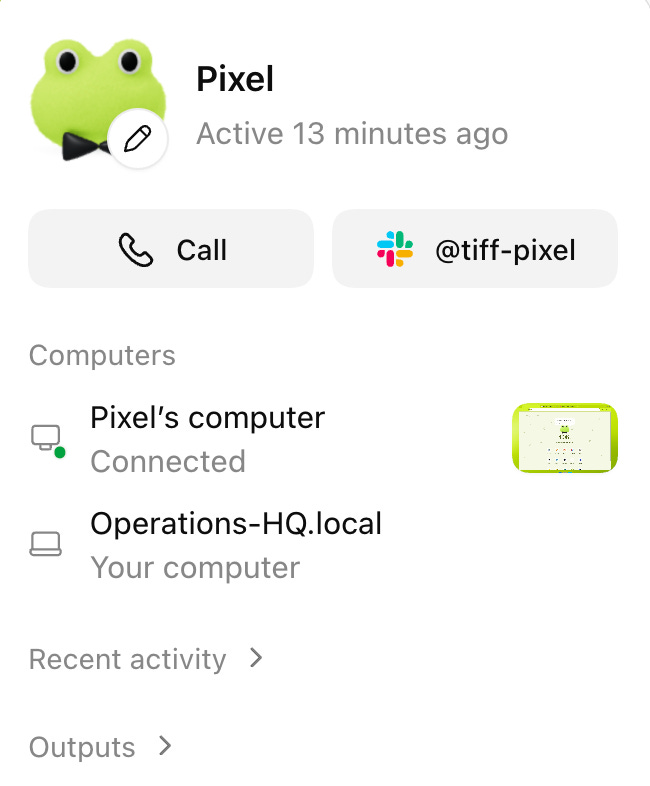 Meet Pixel. A frog with a bow tie, its own computer, and a place in my Slack. Apparently this is my life now.
The dot also has its own cloud computer and uses a browser, ChatGPT Work, and Codex to handle assignments. And it connects to your computer so it can work locally on your files as well.
Dots also work across more than the main ChatGPT window. Message or call your dot in ChatGPT, use it through Slack or Teams, and texting is coming soon. I also tested email during early access, so I could forward something to Pixel and have it actually do something without even opening the app.
The part that changes the workflow is that you’re still dealing with the same agent.
I can talk to Pixel in ChatGPT, move over to Slack, come back later, and continue working with the same dot instead of treating every interaction like a brand-new assistant with no idea what happened before. Dots keep context across channels so the work can continue wherever you reach them.
Let Your Dot Manage the Project
Your dot works from one ongoing conversation. When something needs to get done, it opens a separate task, handles the work, then comes back with the result and a link to what it did. So you still have a way to open that conversation and check out the details inside of it.
So the main conversation thread is the place where the project lives, while the actual work happens in another chat.
Your dot conversation keeps the larger project context, like what you’re trying to accomplish, any information the work depends on, and the direction you’ve already given. As the project develops, that conversation gives your agent somewhere to keep the work connected.
When you assign a task involving research, analysis, or building something, the dot moves it into a separate task conversation so it has a dedicated place for execution.
Then it handles the assignment and brings the completed work back with a link to the task. So managing the project doesn’t have to mean starting each of the conversations to get what you need, because your agent handles those for you.
One Conversation Gets Crowded
After a few days with my dot, I ran into a new problem.
One ongoing conversation gives me one place to assign work and get results back, but once I started giving my agent several ongoing responsibilities, it got easy to forget what I’d already asked it to do.
So I gave it another job and had it build a dashboard for the work we already had going across ChatGPT.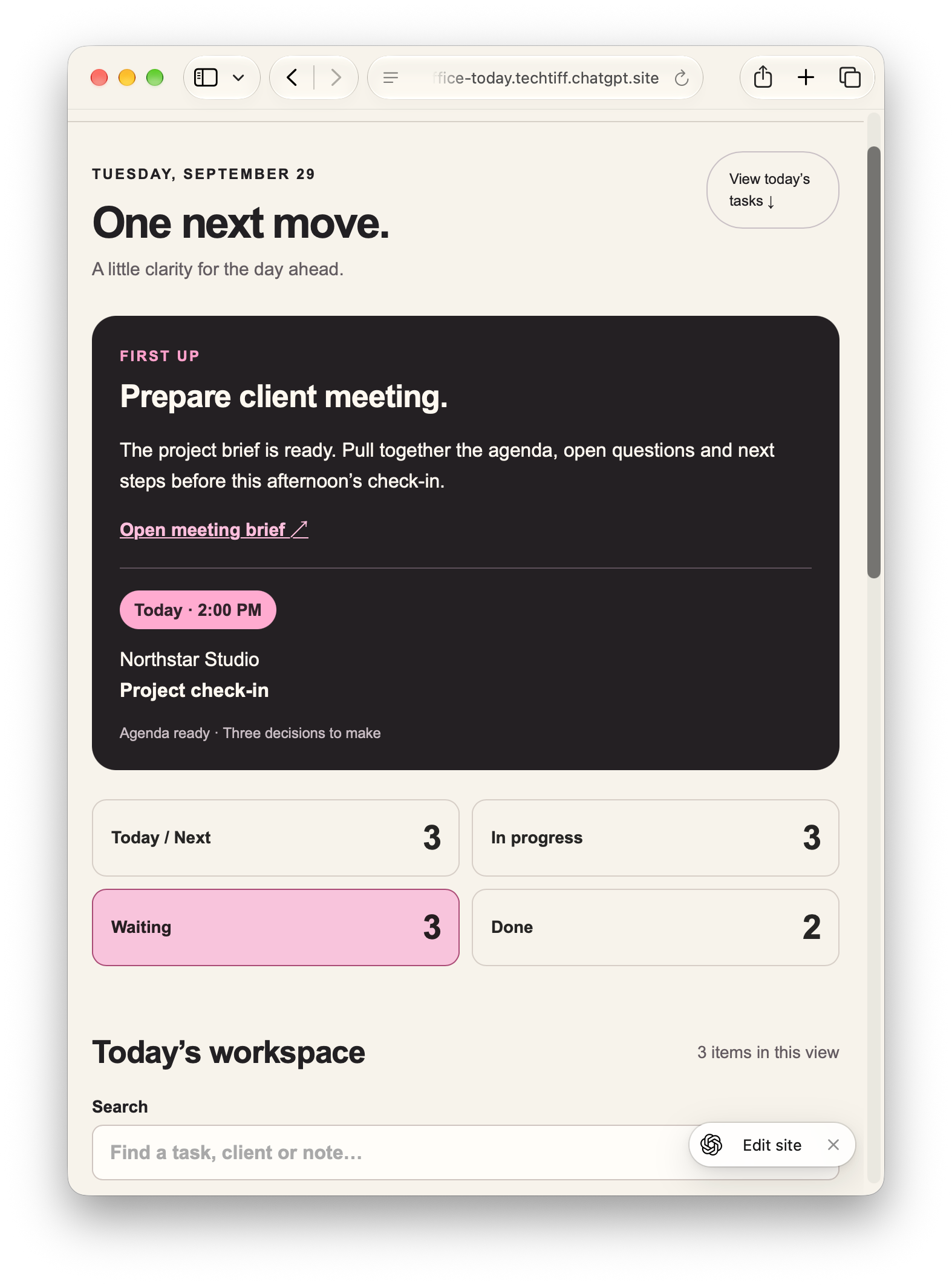 A custom dashboard showing sample assignments, their status, and what needs attention.
This dashboard is not a built-in dots feature. I asked my agent to build it because my own conversation created a new workflow problem, and I wanted my AI to manage that problem too.
The agent was already keeping track of the projects, so I gave it a better way to show that work back to me.
You Still Steer the Work
Giving your dot ongoing responsibility does not mean handing over every decision. You choose the apps it can access, set boundaries through permissions and Custom Rules, follow its progress, redirect the work, and review actions that need approval.
That means I still review what Pixel gives me and correct the direction when needed. The difference is that I’m spending less time opening separate chats, rebuilding context, and manually tracking every assignment, because my dot is handling more of that project management between conversations.
Get Started
If you’re on ChatGPT Pro or Business Premium in an eligible market, create your dot in the ChatGPT desktop app or a desktop browser.
Give your dot a defined ongoing responsibility, provide the context it needs, and connect the tools involved. Describe the expected result and set boundaries around what it should handle independently and what needs your decision.
Use the persistent conversation for direction and returned results, with separate tasks handling execution. As assignments accumulate, add a clearer status view so you see what’s moving, what’s waiting, and where your attention belongs.
Your AI has enough information. Give it something to be responsible for.