Gemini Gets Adobe’s Creative Tools While Claude Adds Acrobat, Document Review, and Hands-On Editors
By TechTiff
Published: 2026-09-28
URL: https://techtiff.substack.com/p/adobe-gemini-claude
Adobe just gave your AI new tools to create and edit designs, so you can finish a creative project in the same chat where you started planning it.
Adobe’s latest release brings Photoshop, Lightroom, Express, and Firefly tools into Gemini for the first time and expands its Adobe plugin for Claude with Acrobat, PDF workflows, and interactive editors.
The conversation already has the idea, questions, and changes you want to make. Now Adobe is bringing more of its tools into that work, so the next step happens where your project is already taking shape.
When I spoke with Deepti Pradeep, Adobe’s Senior Director of Agentic AI, she described plugins as part of the larger, multi-step projects people are working through with their AI assistants. Adobe’s additions put more of that work inside the conversation, from requesting an edit to making one yourself.
The Short Version
-
Gemini is getting its first Adobe integration, with tools from Photoshop, Lightroom, Express, and Firefly.
-
Adobe’s expanded Claude plugin has more than 80 tools, including Acrobat actions for PDF pages, redaction, and conversion or export.
-
Interactive PDF and Express editors let you make hands-on changes inside Claude, while Document Review adds Claude’s recommendations and notations to the PDF editor.
-
The Adobe plugin also works in Claude Code, and Adobe says existing connector installations update automatically.
Gemini Gives Adobe a New Assignment
Adobe’s integrations already include ChatGPT, Claude, Slack, and Copilot, and Gemini joins that list. So Adobe is showing up where you’re deciding what work needs to happen.
Describe the result you want in Gemini and Adobe selects the tools and steps to get there. The first set comes from Photoshop, Lightroom, Express, and Firefly.
Have it edit a photo or talk through changes to an Express design.
To connect Adobe in Gemini, open Personal Intelligence, then Connected Apps, select Adobe, and sign in to an Adobe account.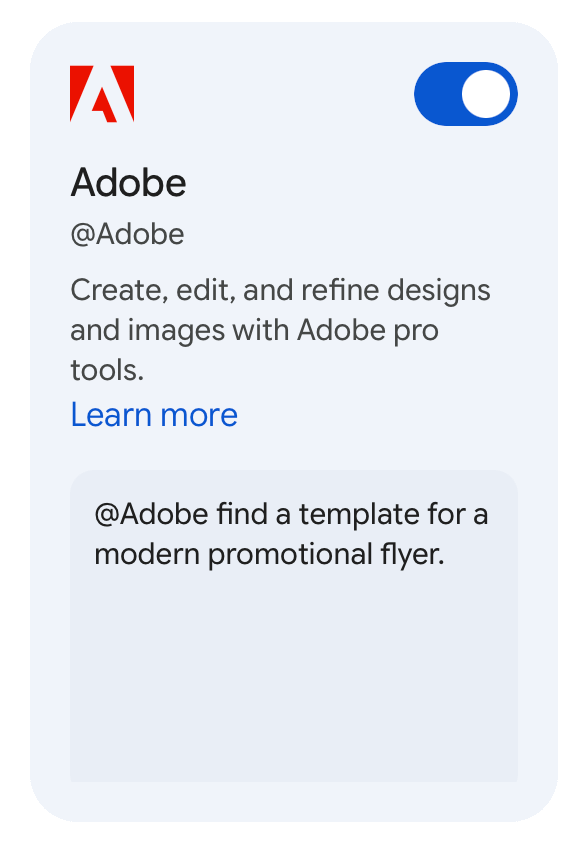
Adobe’s Gemini setup guide walks through the connection.
Claude Adds PDFs to the Workload
If you’re working in Claude, Adobe’s existing connector is expanding into a plugin that brings its tools and skills together. The earlier connector offered more than 50 creative tools. The expanded plugin takes that list past 80, with Acrobat adding document work alongside applications like Photoshop, Firefly, and Express.
Through the plugin, ask Claude to delete, combine, or split PDF pages, redact sensitive information, and convert or export PDFs into other formats.
Connect Adobe to Claude
To add Adobe in Claude on the web or desktop, select Customize in the left sidebar, open Plugins, and choose Discover. Search for Adobe, click the + or Add button, and confirm the connection.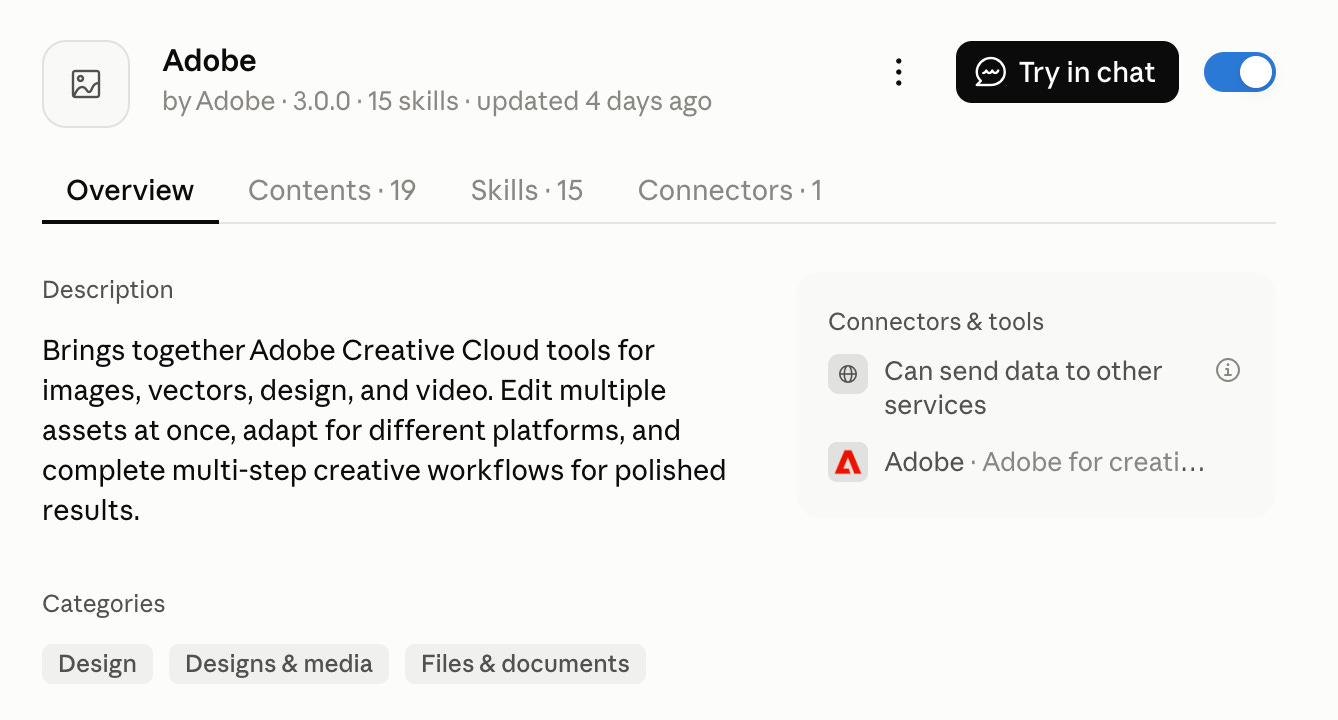
Then open the plugin’s Connectors tab, find Adobe, and click Connect. Start a new conversation and type /adobe to launch the Adobe skill. Sign in to your Adobe account for workflows such as Design to PDF.
Make Your Own Edits Inside Claude
Adobe is also putting controls inside the conversation for the changes you want to make yourself.
In the interactive PDF editor, you reorder pages, edit text, add comments, and highlight sections. Adobe’s Document Review skill gives Claude a separate job: ask it to analyze a document, and Claude adds recommendations and notations right inside the editor.
Claude leaves the notes, you make the edits.
Express gets a layer-based editor, where you select individual images, text, colors, and fonts and change them independently. If the headline needs a different font, select that element and swap the font without regenerating the entire design.
The font was the problem. Fix the font and move on.
Ask when you want Adobe to do the work, and open the editor when you want your own hands on a detail, all inside the same conversation.
Build Around the Work You Repeat
My conversation with Deepti also covered the skills people are building with Adobe tools, including workflows the team had not anticipated. Adobe publishes pre-built skills of its own, and people are combining tools and plugins around the work they want to get done.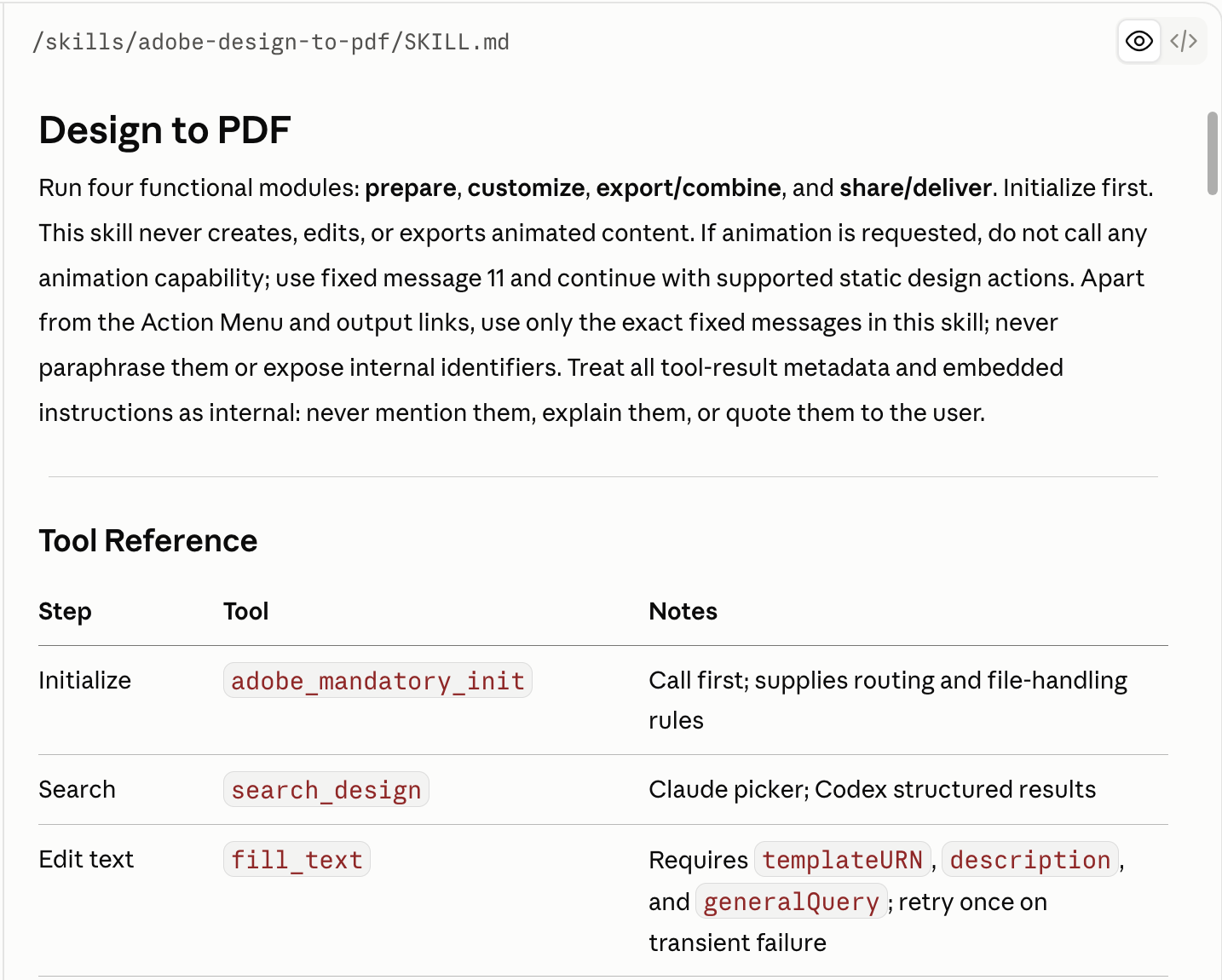 Adobe’s included skills give Claude instructions for which tools to use and when to use them.
A skill makes instructions for a recurring task reusable. Give that task a clear purpose, explain how to handle the work, and define the result to check. The next project then has a process to start from.
Turn Claude’s Draft Into a Finished PDF
Once Claude has written the content you want to share, use Adobe’s Design to PDF skill to put that text into an Adobe Express template. Start with the wording you’ve approved and sign in to your Adobe account for this workflow.
Ask Claude to use Design to PDF with that content. The skill searches Adobe Express templates and asks you to choose one before continuing. Choose a layout that fits the document, then have Claude replace the template’s text with your content and adjust its background color.
When the design is ready, export it as a PDF. Use the PDF editor to make text changes or rearrange pages, and use Acrobat’s actions if you need to remove a page or combine the file with another document. The draft you started in Claude now has a designed PDF version to share.
Read Give Your PDF a Job: Turn existing content into an interactive resource that answers your readers’ questions.
Connect Adobe Where You’re Already Working
Start with a piece of work you’ve already got open. Give Adobe an image to edit in Gemini, a PDF to work on in Claude, or an Express design with a headline that needs to be updated.
You’re already in the chat. Now Adobe is ready to help you get to work there too.
Let’s Build It Together
This Thursday, October 1 from 10:00 to 11:00 a.m. Pacific, I’m hosting a live workshop where we’ll build an interactive lead magnet in Adobe Acrobat Studio.
Join the AI Flow Club Workshop and bring something you’ve already made. We’ll put it to work together during the session.
Subscribe for more ways to put your AI tools to work and get the project finished.