A simple way so the slide decks don’t look like they are AI generated
By Phillip Alcock
Published: 2026-09-30
URL: https://phillipalcock.substack.com/p/how-to-generate-editable-slide-decks
This technical guide outlines a method for generating slide decks in ChatGPT that align pedagogical learning goals with a 90s cartoon visual aesthetic, drawing strictly from official OpenAI product documentation.
View the slides here - https://docs.google.com/presentation/d/1rlLbw3UYx8-cJ9C5gLVkcYhTQZdY44C_yOx1cE7hTMI/edit?usp=sharing
Before You Begin
To use these methods, you require:
-
An active OpenAI account with access to ChatGPT on the web or desktop app.
-
A clear curriculum standard, learning objective, or learning outcome for your slide deck.
-
Access to features including ChatGPT Images, Data Analysis, and Custom GPTs (availability depends on your account subscription tier, as detailed in the ChatGPT Capabilities Overview).
Slide Deck Assembly via Python in Data Analysis
Documented Capability
ChatGPT can write and execute Python code in a stateful Jupyter notebook environment to manipulate data and generate downloadable output files (Data analysis with ChatGPT).
Procedure
-
Open a new chat session in ChatGPT.
-
Submit a prompt instructing ChatGPT to use the python-pptx library to create a slide presentation file based on your learning goal.
-
Specify the 90s cartoon styling parameters directly in the prompt (e.g. RGB colour palettes, high-contrast borders, blocky header typography). Feel free to add different styling to suit.
-
When the code finishes execution, select the generated file download link to save the .pptx file to your computer.
Example Application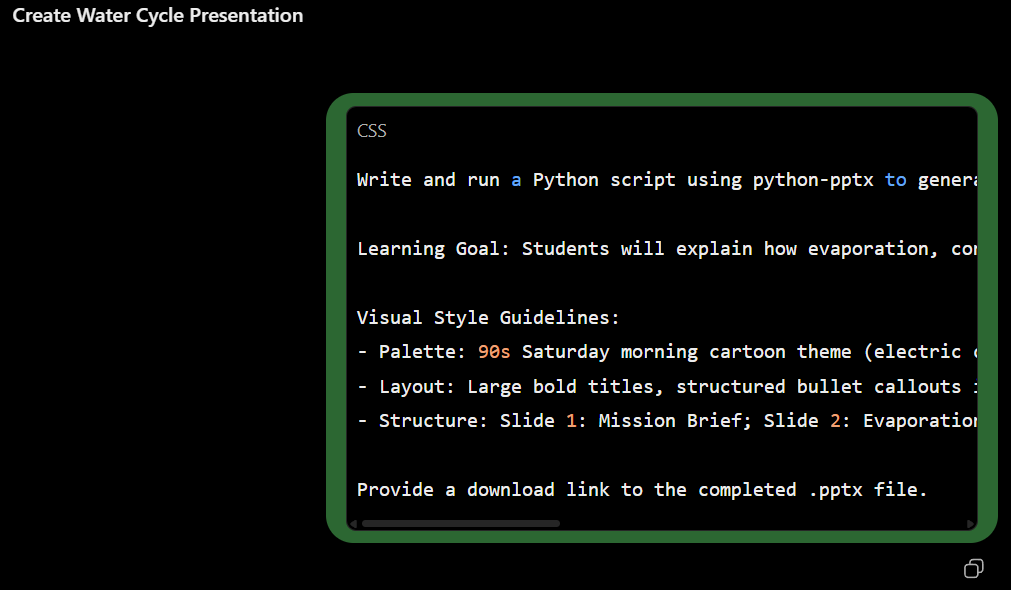
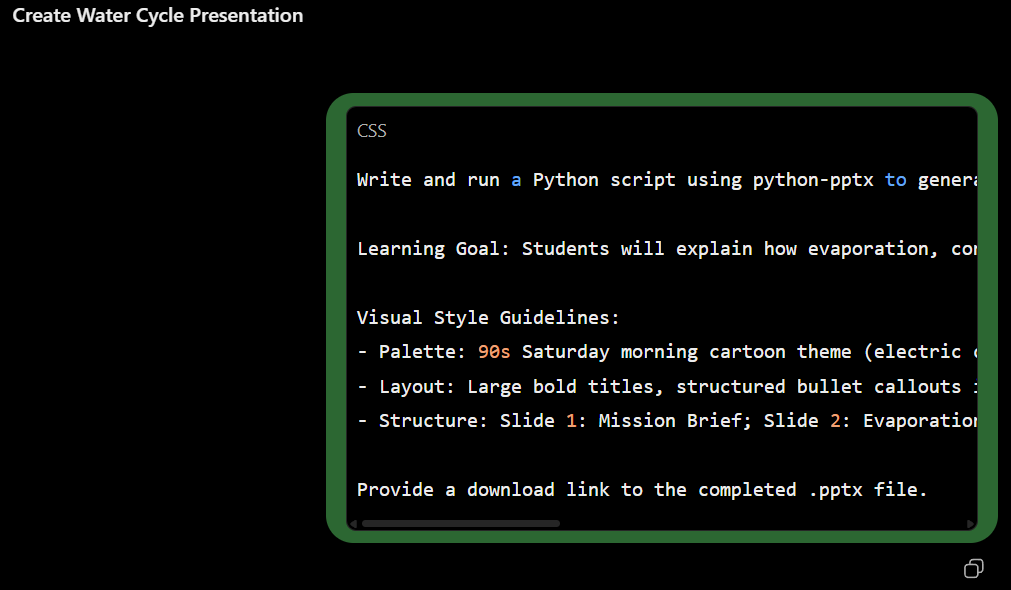
Write and run a Python script using python-pptx to generate a 5-slide presentation on the water cycle for Year 5 students.

Learning Goal: Students will explain how evaporation, condensation, and precipitation function together in an ecosystem.

Visual Style Guidelines:
- Palette: 90s Saturday morning cartoon theme (electric cyan #00D2FF, vivid yellow #FFE600, bubblegum magenta #FF2A85, deep ink black #1A1A1A).
- Layout: Large bold titles, structured bullet callouts inside defined card containers, and explicit placeholder boxes for 90s cartoon spot illustrations.
- Structure: Slide 1: Mission Brief; Slide 2: Evaporation in Action; Slide 3: Cloud Condensation Lab; Slide 4: Precipitation Breakdown; Slide 5: Student Thinking Challenge.

Provide a download link to the completed .pptx file.
It creates the slides with a part for the images. You can upload it to Canva and add elements or ask it to generate some for you: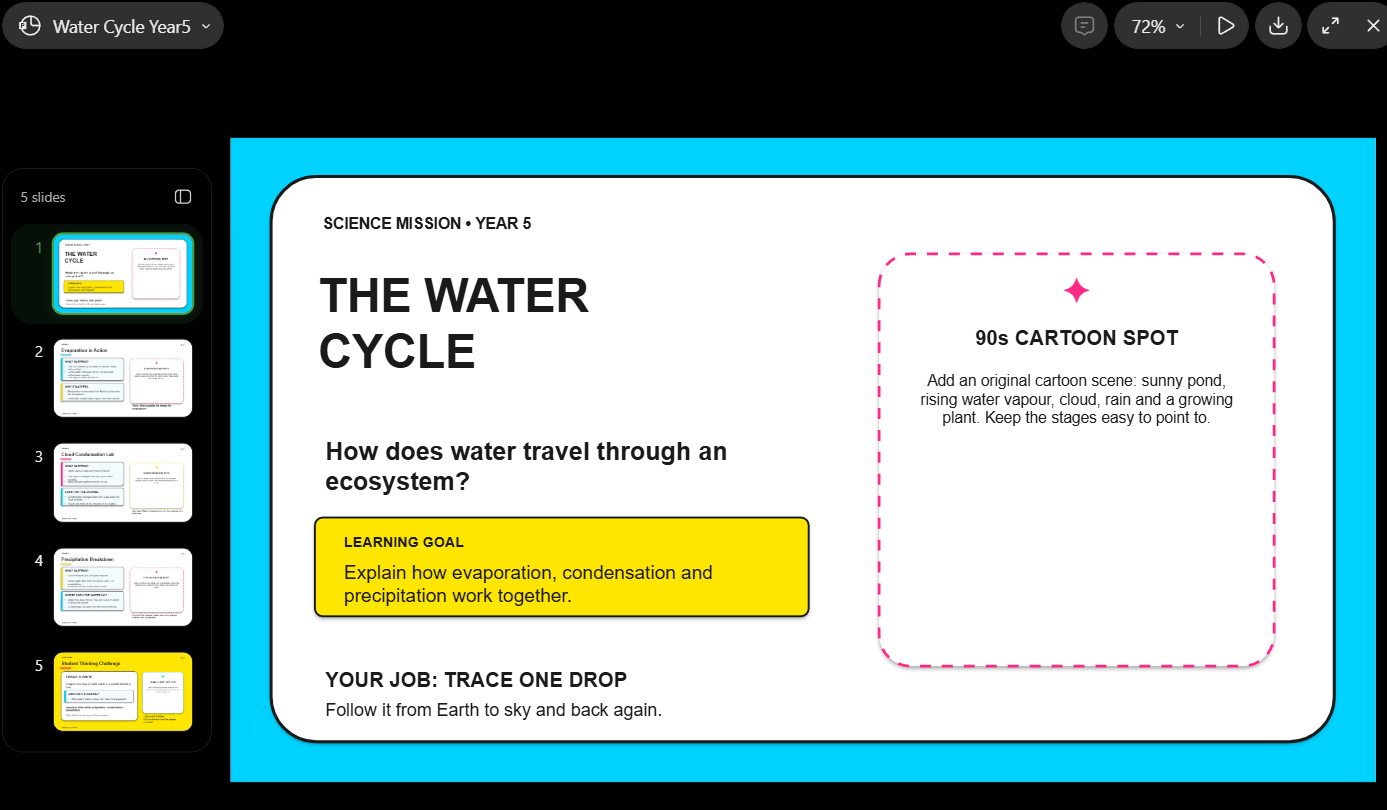
I asked it to ‘Generate the required images and remake the slides’.
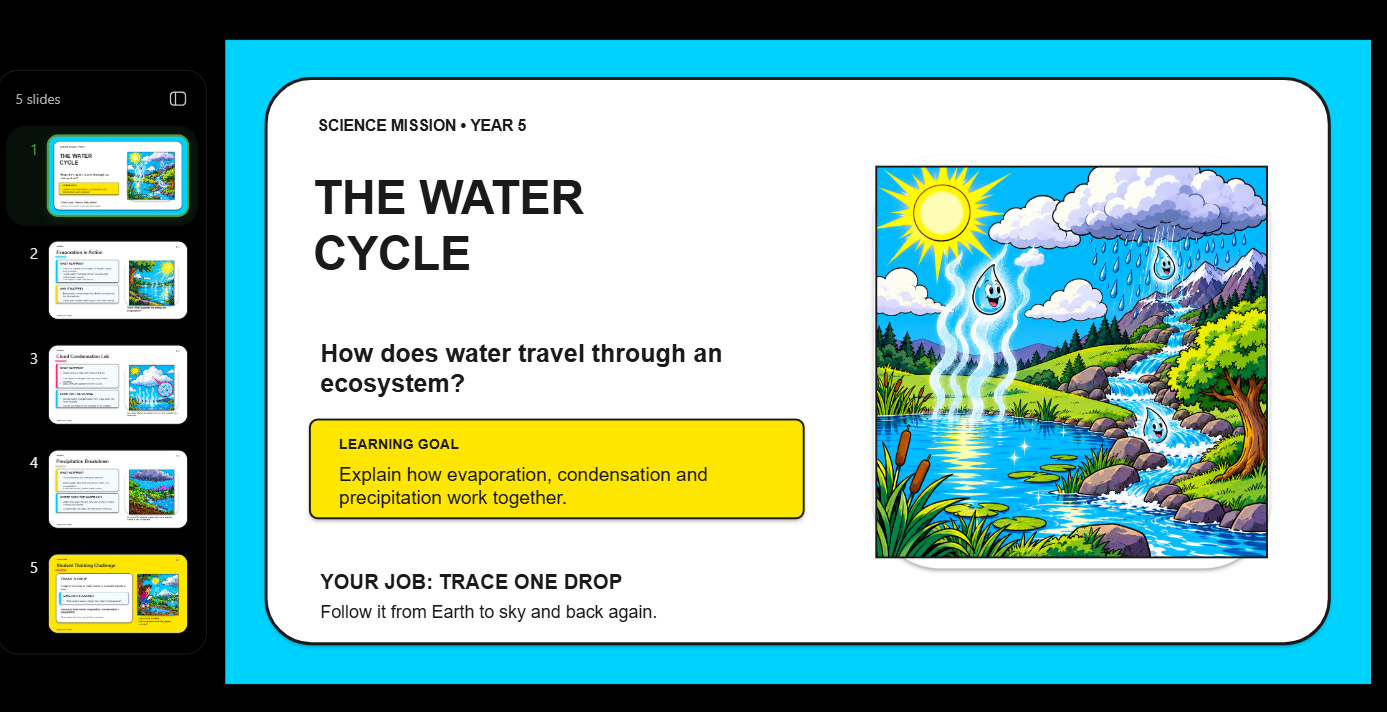
View the slides here - https://docs.google.com/presentation/d/1rlLbw3UYx8-cJ9C5gLVkcYhTQZdY44C_yOx1cE7hTMI/edit?usp=sharing
Sources
-
Images in ChatGPT (OpenAI Help Center, checked 30 September 2026).
-
Data analysis with ChatGPT (OpenAI Help Center, checked 30 September 2026).
-
Creating and editing GPTs (OpenAI Help Center, checked 30 September 2026).
-
GPTs in ChatGPT (OpenAI Help Center, checked 30 September 2026).
-
ChatGPT Capabilities Overview (OpenAI Help Center, checked 30 September 2026).
-
Introducing canvas (OpenAI, checked 30 September 2026).
-
Model Release Notes (OpenAI Help Center, checked 30 September 2026).
AI for Teachers membership
AI for Teachers provides resources and community support for teachers who want to use AI in classroom planning and recurring workflows.
Join the community
Visit skool.com/aiforteachers-5181.
Annual Substack subscriber access
Annual paid subscribers to this Substack receive 12 months of full premium access at no additional charge. This as a $490 value. After upgrading, subscribers should allow up to 24 hours for account activation.
Want to explore AI in your teaching alongside other educators and access my future courses?
Join AI for Teachers on Skool to connect with teachers, share ideas, and learn together about using AI in education.
Come join the community: https://www.skool.com/aiforteachers-5181