Create interactive flashcards and practice comprehension quizzes grounded strictly in uploaded source materials using Google NotebookLM Studio.
By Phillip Alcock
Published: 2026-09-29
URL: https://phillipalcock.substack.com/p/notebooklm-generating-flashcards
Before you begin
-
A Google Account with access to NotebookLM (notebooklm.google.com).
-
A notebook with at least one uploaded source document (PDF, Google Doc, text file, or web link).
Documented capability vs Example application
-
Documented capability: NotebookLM includes dedicated flashcard and quiz generators in the Studio panel. Users can generate decks to memorise key terms, dates, and concepts, customise question count, difficulty level, and source filtering, and interactively flip cards to reveal grounded answers.
-
Example application: Using Alain Gholam’s paper on visual thinking routines to generate a 20-card retrieval-practice deck for teacher training, focused on each routine’s purpose and classroom use.
Walkthrough screenshots
Step 1 — Open the notebook and confirm the source is selected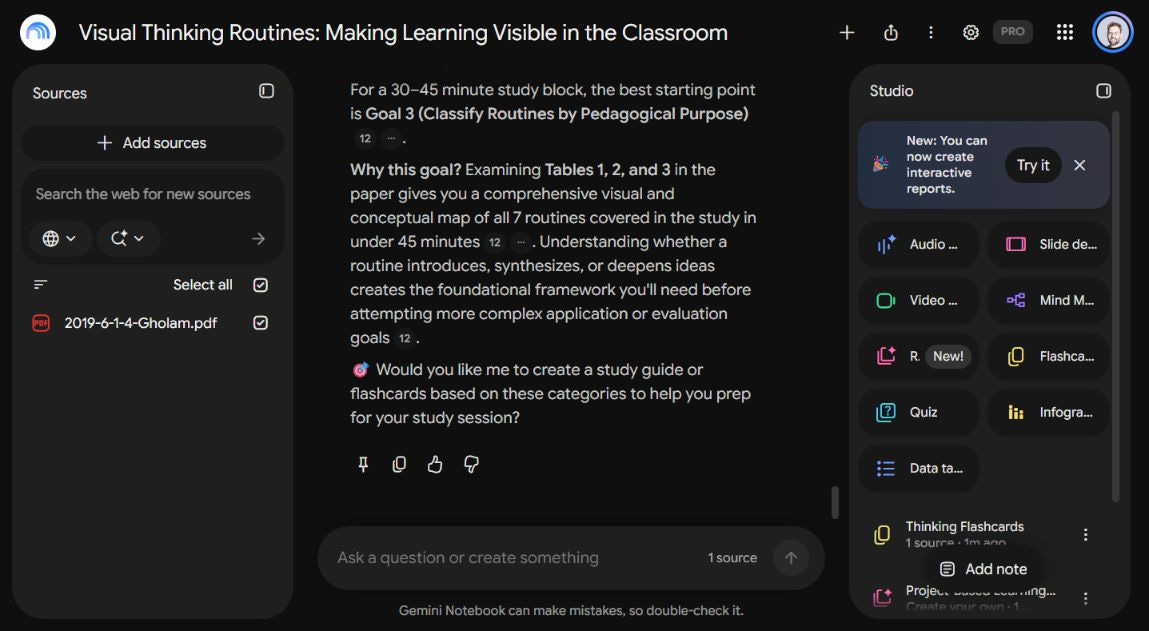
Step 2 — Choose Flashcards and configure quantity, difficulty, and guidance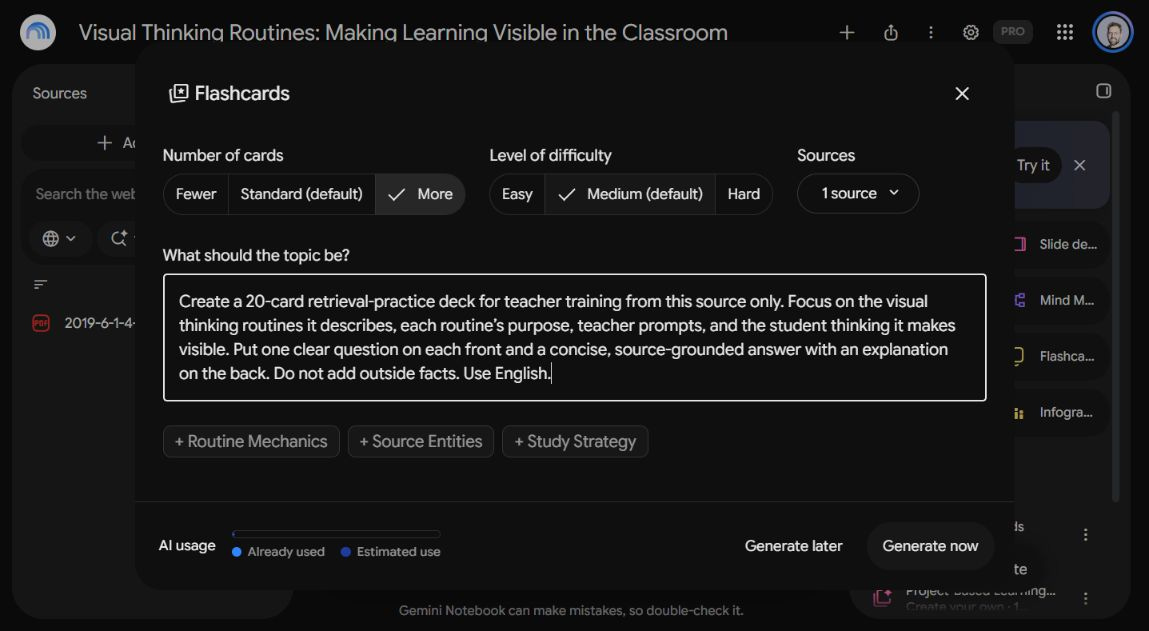
Step 3 — Review the generated 20-card deck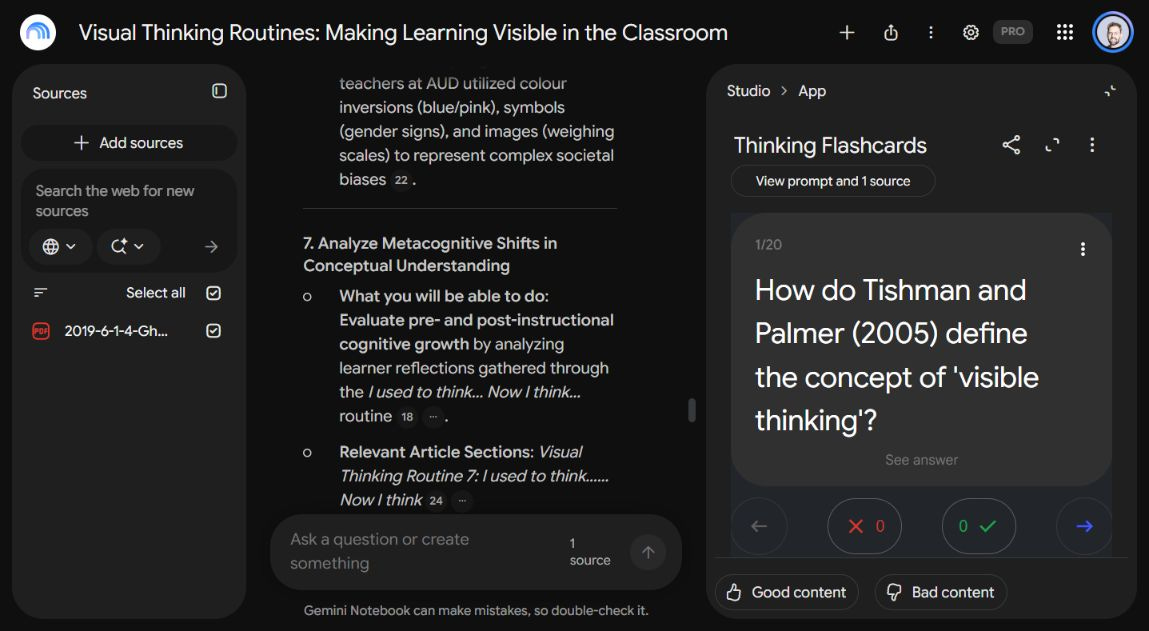
Step 4 — Flip a card to reveal its source-grounded answer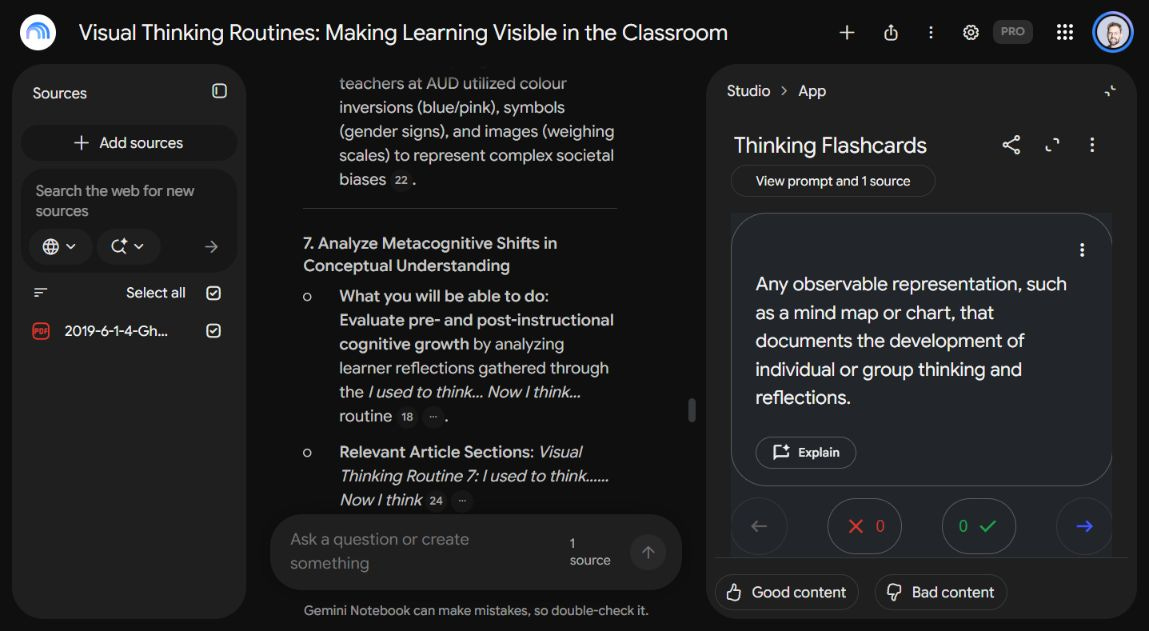
Step-by-step procedure
-
Open notebooklm.google.com and navigate into your target notebook.
-
Do a quick search for your topic or add your own source materials.
-
In the Sources panel on the left, confirm the checkboxes next to desired source documents are selected.
-
Locate the Studio panel on the right side of the workspace.Select Flashcards (or Quizzes). In the current interface, this opens the setup dialog directly.
-
Adjust the settings: choose the preferred language, select difficulty level, adjust card quantity, and enter a guidance prompt (e.g. “Focus on core assessment definitions, cognitive load principles, and pedagogical rubrics”).
-
Select Generate.
-
Allow NotebookLM a few moments to synthesise the source material into structured question-answer pairs.
-
Interact with the deck: tap individual flashcards to flip and reveal the grounded answer, use the shuffle button to randomise order, or delete unwanted cards.
Expected outcome
NotebookLM generates an interactive study deck strictly grounded in the uploaded sources, allowing immediate retrieval practice without introducing external ungrounded facts.
Limitations
-
Flashcards and quiz items are derived strictly from explicit text in the sources; ambiguous or implied concepts may not produce distinct question-and-answer pairs.
-
Generation can take a few minutes for large source collections.
Sources
-
Get started with the NotebookLM app, Google, checked 29 September 2026.
-
NotebookLM Overview and Help, Google, checked 29 September 2026.

AI for Teachers membership
AI for Teachers provides resources and community support for teachers who want to use AI in classroom planning and recurring workflows.
Membership resources
Members receive:
-
Gemini Spark Classroom Playbook: A six-part course on automating recurring lesson preparation.
-
Plug-and-play SKILL.md vault: Prompts for differentiated reading, rubrics and project-based learning units. The source describes these as tested and privacy-safe.
Join the community
Visit skool.com/aiforteachers-5181.
Annual Substack subscriber access
Annual paid subscribers to this Substack receive 12 months of full premium access at no additional charge. This as a $490 value. After upgrading, subscribers should allow up to 24 hours for account activation.
Want to explore AI in your teaching alongside other educators and access my future courses?
Join AI for Teachers on Skool to connect with teachers, share ideas, and learn together about using AI in education.
Come join the community: https://www.skool.com/aiforteachers-5181