Stories, explainers and instructions you can watch. Prompts to plan your video, make a first cut and give Claude scene-by-scene notes.
By Michael Crist
Published: 2026-10-02
URL: https://michaelcrist.substack.com/p/make-ai-videos-with-claude
What if you could create a video with AI the same way you ask it to write an email?
Well, I’ve started treating Claude like a video production team and wow, I’m having a ridiculous amount of fun.
I bring the idea, the material, and direction. Then Claude develops concepts, write scripts, and makes videos that I can watch and revise.
I turned a slide deck into a video explaining changes to our homeschool app, created promo videos for new products, and directed a small short film.
All inside Claude.
I’ll show you those examples below, along with a really useful way to edit the video by putting notes right beside the scenes you want to change.
If you can give me 20 minutes, I’ll help you:
-
Prepare your material and shape your video concept Claude’s help
-
Turn the concept into a video (with copy/paste prompts)
-
Apply small edits to get the final video exactly like you want it
You don’t need to be a video-junkie to make this work. I’ll walk you through everything step-by-step.
By the end of this article, you’ll be able to create anything you can imagine in a short video with AI.
Are you ready? Let’s go! 👇
I turned a presentation into a video
My wife and I use WaitWhat, a homeschool app I’m building, to homeschool our son. The current version has issues, and I want to change the underlying approach to creating lessons.
I needed to explain to my wife what I wanted to change and why.
First, Claude built me a slide-style HTML pitch page. Think of a presentation laid out as a webpage, with slides stacked vertically. You scrolled down and read through them.
I found that cumbersome. Then I realized I could ask Claude to turn the presentation into an explainer video.
So I did.
I already had the pitch in Claude, and I asked it to make the video from that material. Here’s what it came up with:
What’s crazy is that I’m still working on exactly how I want to change the underlying philosophy of the WaitWhat app. So, I had very little direction to give Claude and I still felt like it absolutely knocked it out of the park.
I made a product promo, too
I’ve also been making promotional videos for ShineOn.
In this one, I asked for a video that features our logo-name necklace.
I gave Claude a bunch of images, our brand assets and colors, and some general direction. I asked it to open with a little Etsy scroll to introduce the product. I didn’t give it a reference video to copy.
Claude proposed two or three concepts, and I steered it toward one. It did most of the work on the concept and script, helped gather the imagery, and wrote the Suno music prompt and sound effects. I edited and nudged as we went.
And for fun, I made a short film
I asked Claude for some unusual historical stories to animate into a short film. It suggested the Cadaver Synod about the trial of Pope Formosus’s corpse in 897.
Pretty weird, Claude!
But I’m here for it.
I asked it to help turn that idea into a detailed production prompt. Claude then handled the script, animation and art with very little additional direction from me.
I spent a good amount of time going back and forth with editing this video. This was half Claude’s fault for being cheesy, and half my fault for overcorrecting.
What you’re watching above went through several drafts before we reached this result.
Still, not bad!
Here’s the workflow
To work toward a finished video, I’d use this sequence.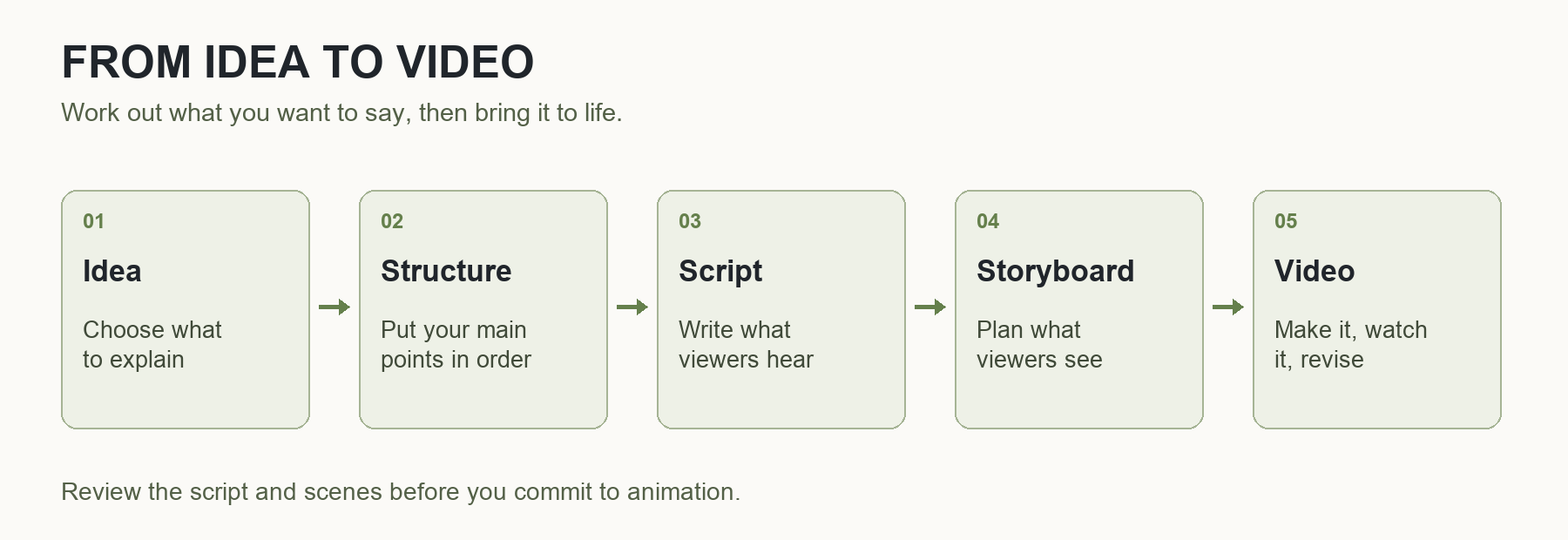
The idea is what you’re trying to explain.
The structure puts the main points in order.
The script gives you the words the viewer will hear.
The storyboard is a scene-by-scene plan of what they’ll see while they hear those words.
You can ask Claude to help with each of those. Read the script before it becomes narration. Look at the planned scenes before they become animation. It’s easier to change a paragraph than to discover the same problem throughout a finished video.
You can jump in and experiment too. Just leave room for some rework when you decide what you want to keep.
Now, let’s make yours 👇
1. Start with what you need to explain
Choose the material, the viewer and the point you want them to understand. For WaitWhat, I had a proposed change to how we create lessons. My wife needed to understand both the change and my reasons for it.
That gave the video a job to do.
Your starting point might already exist. For example, you could turn:
-
A presentation into a video explaining a proposal and the reasoning behind it.
-
A product pitch into a short promotional video using actual screenshots and product details.
-
A process document into a walkthrough showing the steps someone needs to follow.
These are possible projects to try. My own example started with the HTML pitch page Claude had built.
Once you’ve picked your idea, gather the material Claude will need. Paste your notes, save the relevant document, or collect the images you want it to use. For a presentation, include the explanations behind the slides as well as the headlines. Claude needs enough context to understand what you’re proposing and why.
If you’re making something factual, include sources you can check. For a pitch or promotion, use the actual product details and supported claims. A convincing animation doesn’t make the explanation true.
For a first attempt, I’d choose something you know well enough to judge. You’ll have a much easier time spotting where the explanation goes wrong.
2. Let Claude help write the request
Now, it’s time for the good stuff. Below, you’ll find:
-
A planning prompt that turns your presentation or pitch into a script and scene plan.
-
A production prompt that asks Claude to make the video and return an MP4 file.
-
A feedback-storyboard prompt that puts text boxes beside scenes, so you can write revision notes while you watch.
I can’t wait to see what you create with it!