Record a recurring task, let AI draft the instructions, and check the guide before handing it to a coworker.
By Michael Crist
Published: 2026-09-24
URL: https://michaelcrist.substack.com/p/hand-off-recurring-tasks-with-ai
How often do you have a task you could hand to someone on your team, but end up doing it yourself?
You start thinking about everything you’d need to explain, and suddenly it seems easier to do it on your own.
Funny how “it’s faster if I just do it” becomes a permanent job description.
In this article, I’ll show you how to use AI to turn one recording of yourself doing a task into instructions you can use to teach someone else.
It’s easy to start. All you have to do is record your screen and talk through the process as you work. Give AI the transcript and a few useful screenshots, and ask it to turn them into a clear, organized guide.
You don’t need a polished presentation. You can ramble, click the wrong tab, or backtrack to explain something you forgot. Just make your corrections clear. AI can clean up the explanation, and you check the draft.
By the end of this walkthrough, you’ll have a step-by-step guide your coworker or employee can use to take over the task, so it can finally come off your plate.
This practice of writing processes for repetitive work so you can hand it off can save you hundreds of hours per year.
I’ll give you the prompt, a worked example, and a simple test to check that someone else can follow the instructions.
Are you ready? Let’s go! 👇
What a useful handoff looks like
I created Munder Difflin Scraper Company for AI demos. It’s a fictional business that sells ice scrapers, kitchen scrapers, and other scraping tools.
For this tutorial, let’s imagine you work there:
Every Friday, your job is to prepare welcome emails for new wholesale customers whose onboarding calls are scheduled for the following week.
The spreadsheet calls these meetings “kickoffs”. Your account lead reviews and sends the emails.
Here’s the process:
You open the Clients spreadsheet and look through the Kickoffs tab. First, you find the clients whose kickoff falls between the following Monday and Sunday. Skip anyone outside that week. The Welcome sent column shows the date the welcome email was sent, so you also skip any client with a date there.
For everyone else, you check that the kickoff is confirmed, the agreement is signed, and both the client’s email address and the kickoff time are filled in. If a client fails any of those checks, you put the company and the reason in a Questions list for the account lead.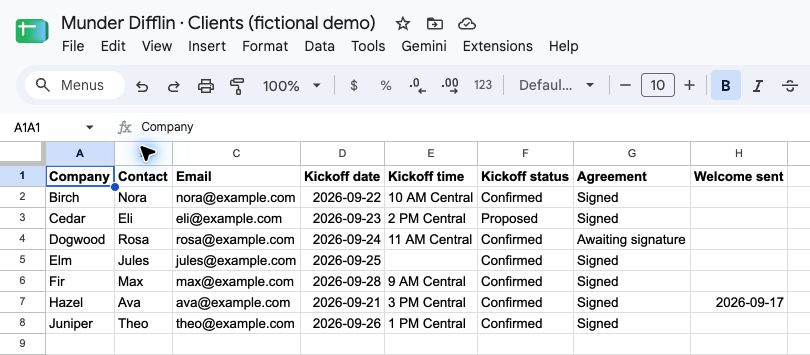
You’ve done this enough times that you’re almost on autopilot. Now you want to turn it into a step-by-step guide so a coworker can take over on Fridays.
So, with the method I’m about to teach below, you’d record your screen while doing the task and explain your choices aloud. Then you’d get the recording’s transcript (the written version of what you said), and some fancy screenshots, and give it all to AI to turn into written instructions.
(I’ll explain how to do this in step 3 below.)
First, let’s walk through how to make it, starting with the task you want to hand off.
1. Pick the task you can show from start to finish
Start with a job you do mostly the same way each time, with a finished result you can check.
For example:
-
Prepare the weekly welcome emails.
-
Export the report and save it in the right folder.
-
Set up the files for a new client.
-
Check tomorrow’s appointments and flag the ones that need a call.
“Manage client onboarding” is too big for a first attempt. “Prepare next week’s welcome email drafts” gives you a clear place to start and stop.
Pick something you already know how to do. If you’re still deciding how the process should work, save that one for later.
Before you hit Record, open the files you’ll need and close anything private that doesn’t belong in the recording. Use the recording and AI tools your company allows for this work. If you’re practicing, use made-up client details.
For this walkthrough, use Loom to record your screen and narration. Open Google Chrome, install Loom’s Chrome extension, and create a Loom account or sign in. Loom also provides a transcript, a written copy of what you say. Its quick setup video shows the recording controls.
We’ll give AI that text and selected screenshots, so you don’t have to figure out whether your chat app can watch a video or open a recording link.
2. Record the work, including the little decisions
Turn on microphone audio in your screen recorder and start recording. Begin by saying what you’re doing and where your part ends.
For the welcome email example, that sounds like this.
I’m preparing welcome email drafts for clients whose kickoff is next week. The account lead reviews and sends them. My job is done when the drafts and any questions are ready for their review.
Then do the task normally, explaining your choices as you make them.
The easy part is naming the clicks. “Open Clients. Click Kickoffs. Sort by date.”
Pay more attention to the moments when you pause, skip something, or check another file. Explain why. Those are the parts a coworker can’t learn by copying your mouse.
If you compare two things, say what you’re looking for.
Before I finish, I’m comparing the date, time, timezone, and email address in each draft against the spreadsheet.
And if you correct yourself, leave the correction in.
I said to sort by company. Ignore that. Kickoff date is the order we need.
You don’t need a second take because you clicked the wrong tab. Just make the correction clear. AI has been hired to clean this up. Give it some cleaning to do.
At the end, show the finished result. In our example, that’s the Drafts tab and the Questions list. Explain how you know you accounted for everybody.
Every client in next week’s group should have a draft, a date in Welcome sent, or an entry in Questions.
That last sentence gives your coworker a way to check their own work. Keep it in the recording.
When you’ve shown the finished result and explained the checks, stop and save the recording.
3. Give AI the recording’s useful parts
Once the transcript is ready, open your saved video in Loom. Select Transcript in the side panel, then click the copy button above the transcript. Check that the copied text contains the explanation you recorded. Loom’s transcript instructions
Open a new chat in ChatGPT, or another AI tool that accepts text and images, and paste in the transcript. The screenshots here use ChatGPT.
Then pause your recording at any screens that would help someone find the right place or recognize the finished result. On a Mac, press Shift-Command-4 and select the area you want; the screenshot saves to your desktop. On Windows, press Windows-Shift-S and select the area; the screenshot goes to your clipboard. For the welcome email task, I’d capture the Kickoffs column headings and a completed Drafts row.
(Side note: If you use Codex it can watch the video and take screenshots for you.)
In ChatGPT, click the + beside the message box and choose Add photos & files to attach saved screenshots, or paste an image from your clipboard. Label each image so AI knows what it’s showing.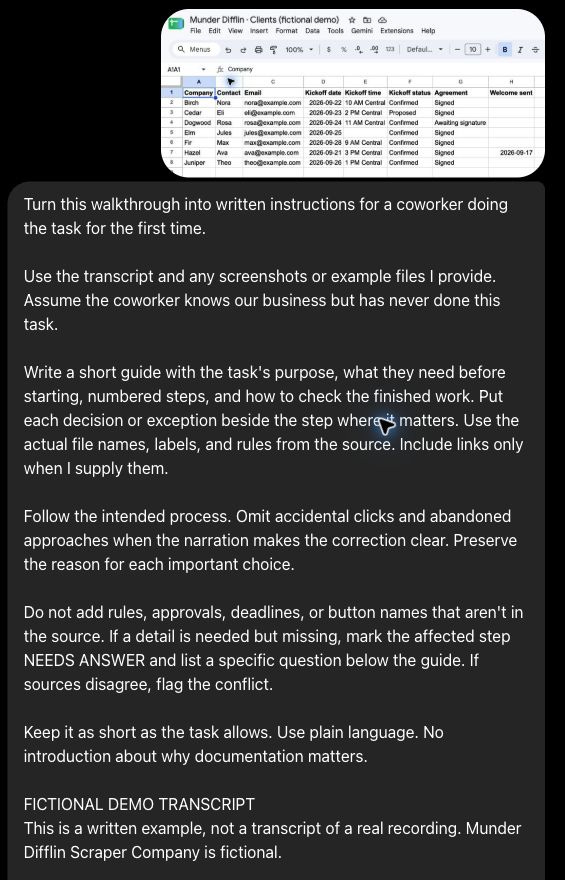
Also give AI anything the coworker must reuse. In this case, that’s the welcome email template. Attach the file or paste its contents into the chat, and include its shared location for the instructions. A video of you opening a template doesn’t give the next person the template itself.
Then paste this prompt.
Turn this walkthrough into written instructions for a coworker doing the task for the first time.
Use the transcript and any screenshots or example files I provide. Assume the coworker knows our business but has never done this task.
Write a short guide with the task’s purpose, what they need before starting, numbered steps, and how to check the finished work. Put each decision or exception beside the step where it matters. Use the actual file names, labels, and rules from the source. Include links only when I supply them.
Follow the intended process. Omit accidental clicks and abandoned approaches when the narration makes the correction clear. Preserve the reason for each important choice.
Do not add rules, approvals, deadlines, or button names that aren’t in the source. If a detail is needed but missing, mark the affected step NEEDS ANSWER and list a specific question below the guide. If sources disagree, flag the conflict.
Keep it as short as the task allows. Use plain language. No introduction about why documentation matters.
Check any dates in the draft. If AI writes “September 21 through September 27,” replace that with “Each Friday, prepare drafts for clients whose kickoff falls between the following Monday and Sunday.”
4. Check the instructions where a mistake would matter
Read the guide once with the source open beside it.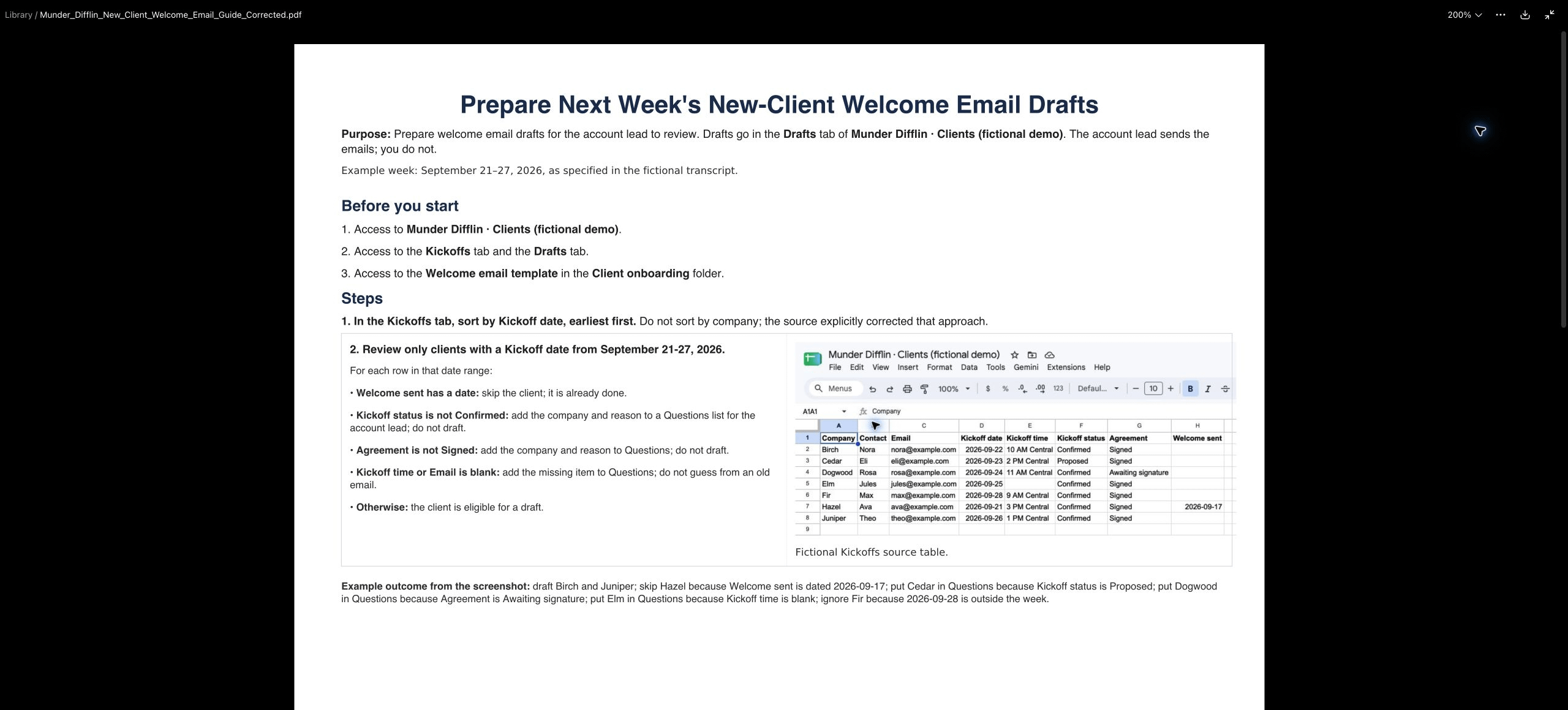
Here’s an example guide generated from the fictional transcript and spreadsheet. It still uses specific dates, so I’d replace those with the recurring Friday rule before reusing it.
Check that the files and links work. Then focus on the choices that change the result.
In our example, Confirmed and Signed are both required. If the guide says either one is enough, the writing can look perfectly fine and still produce the wrong emails.
The same goes for “prepare” and “send.” Those are two different jobs. The recording says the account lead sends the emails, so the guide must stop at drafts.
Answer any questions AI flagged. If you spot a rule you forgot to explain, tell AI and have it update the guide. You don’t need to record the whole thing again.
Save the guide in whatever document tool your team uses. You can copy the checked text from chat; a PDF is optional. If an image helps explain a step, place it beside that step in the saved guide.
Include links to the source spreadsheet, template, and recording, and confirm your coworker can open them. Specify where completed drafts and the Questions list belong. AI can’t fill in a location you haven’t chosen or supplied.
The guide gives them the steps; the video is there when seeing the screen would help.
5. Let someone try it before you call it handed off
Give your coworker the guide and a new example of the task.
If you use the exact case from the video, they can copy what you did without learning how to handle the next one. A fresh case makes the instructions do some work.
For the welcome emails, that could be a new set of clients with a mix of confirmed kickoffs, unsigned agreements, and a missing time. Ask your coworker to prepare the drafts and questions without sending anything.
Resist the urge to narrate over their shoulder. See where they stop.
If they ask where the template lives, add the link. If they can’t tell whether a blank cell means “not done” or “not needed,” explain it beside that step. If they finish but send the wrong clients to review, fix the selection rule.
Those questions are useful. They’re showing you exactly what still lives in your head.
Update the guide with the answers, and let them finish. For a task where a mistake would be costly, keep reviewing the result until you’re comfortable handing over more of it.
Start with one task
“It’s faster if I just do it” might be true today. But that same task is going to come around again.
Pick one recurring job you keep meaning to hand off. The next time you do it, turn on the recorder and explain the work as you go.
Once you’ve checked the instructions and let your coworker try them, you have something both of you can use again. They have steps to follow, and you have a place to add answers instead of starting the explanation from scratch.
Hit reply and tell me which task you’re going to try this on. What’s the job that keeps finding its way back to you?
Take care & see you in the next one ✌️
-Michael
P.S. If you found this useful, it’d mean the world to me if you subscribed, restacked, or dropped a comment. All of that’s free for you but a huge boost for me, and I’d really appreciate it.