Learn Claude Code by building a real app, from install to production.
By Gencay
Published: 2026-10-16
URL: https://www.learnwithmeai.com/p/claude-code-beginners-course
People think they have to spend weeks learning how to use Claude.
I made a 7-part Claude Code Masterclass before, but don’t read it.
In this one post, we will start from the very first step: installation.
And at the end, we’ll build a time tracker, cloned from an app that has 100K+ downloads on Android.
So not only will you learn how to use Claude Code, but you will also build an app that you can sell.
And yes, I am going to show you how to put your app into production.
This is the longest one that I wrote, so to help you keep it up, here is the roadmap we’ll follow.
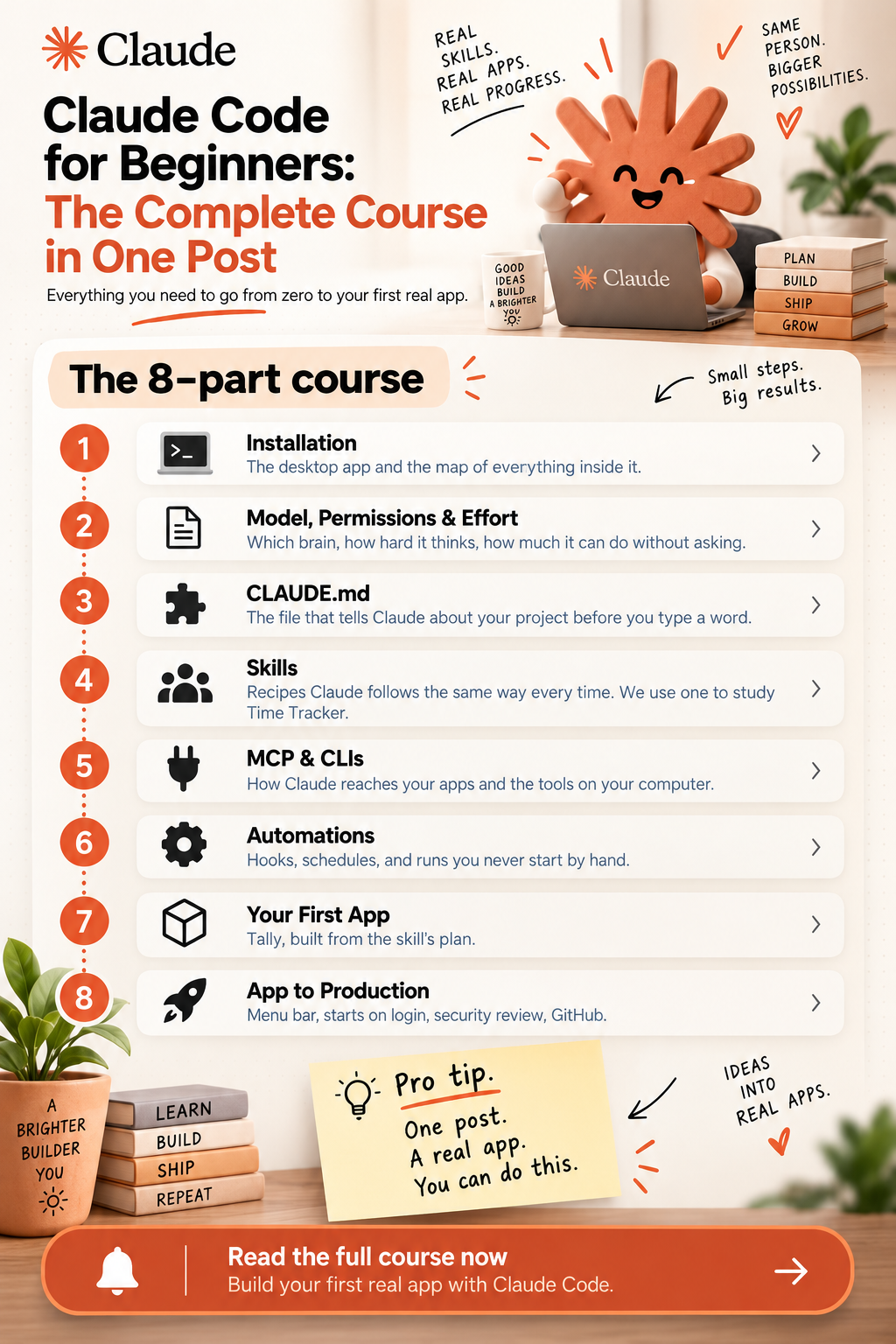
\The 8-part course, from install to a real app in production.\
Every level has the exact prompt I used, a screenshot of what came back, and a link to Anthropic’s own docs.
Level 1: Installation
Two months ago, I would have told you to install Visual Studio Code and run Claude Code inside it.
Not anymore.
Anthropic kept shipping its own desktop app, and it is now the best place to start.
So install that one.
You can download it here.
There is a Mac version and a Windows version.
- Click Download for your computer.
- Open the installer. On a Mac, Claude lands in your Applications folder. On Windows, it shows up in the Start menu.
- Open Claude and sign in with your Claude account.
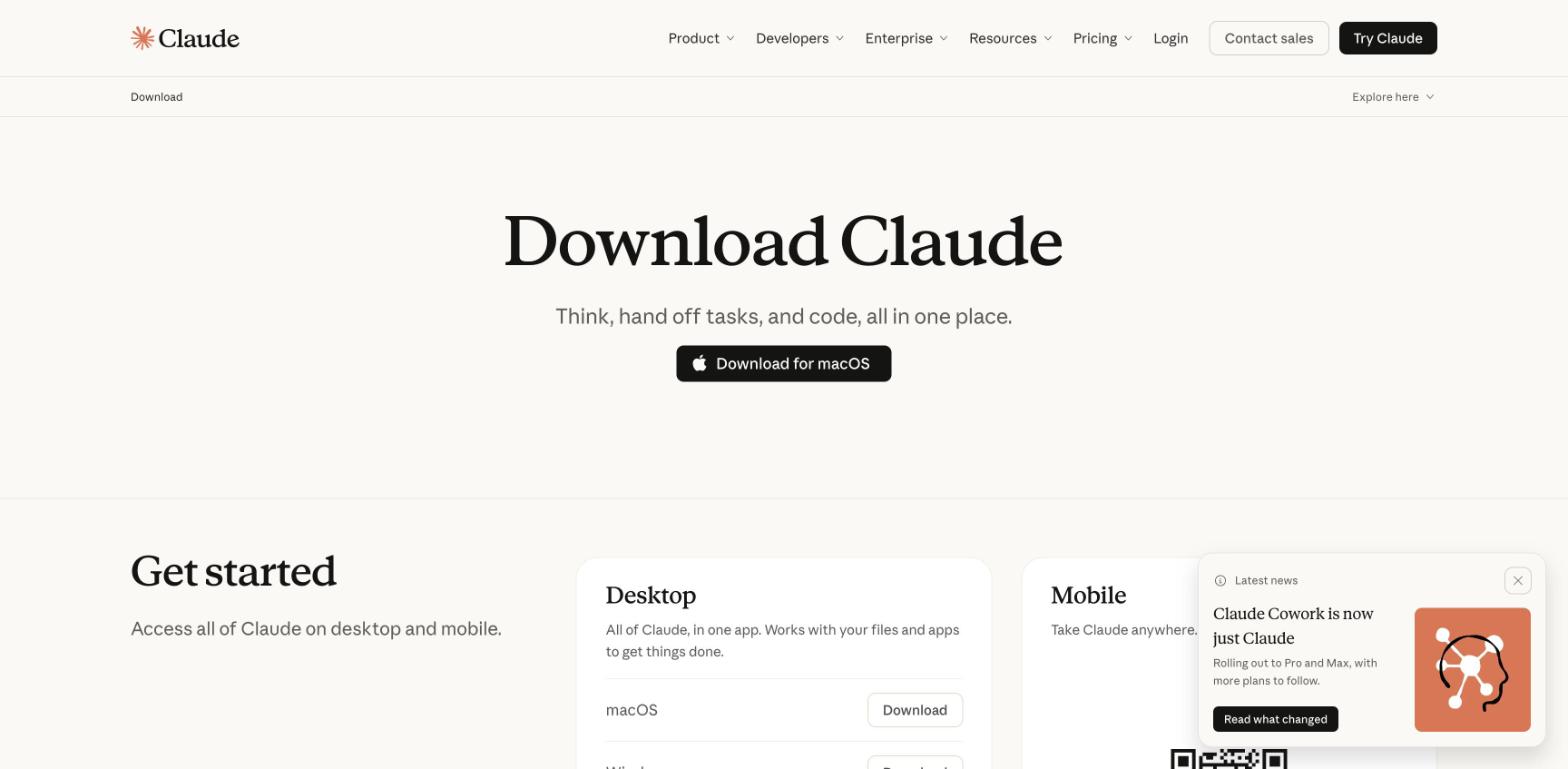
\One app for chat, tasks, and code.\
After downloading, open the app.
Look at the top left corner.
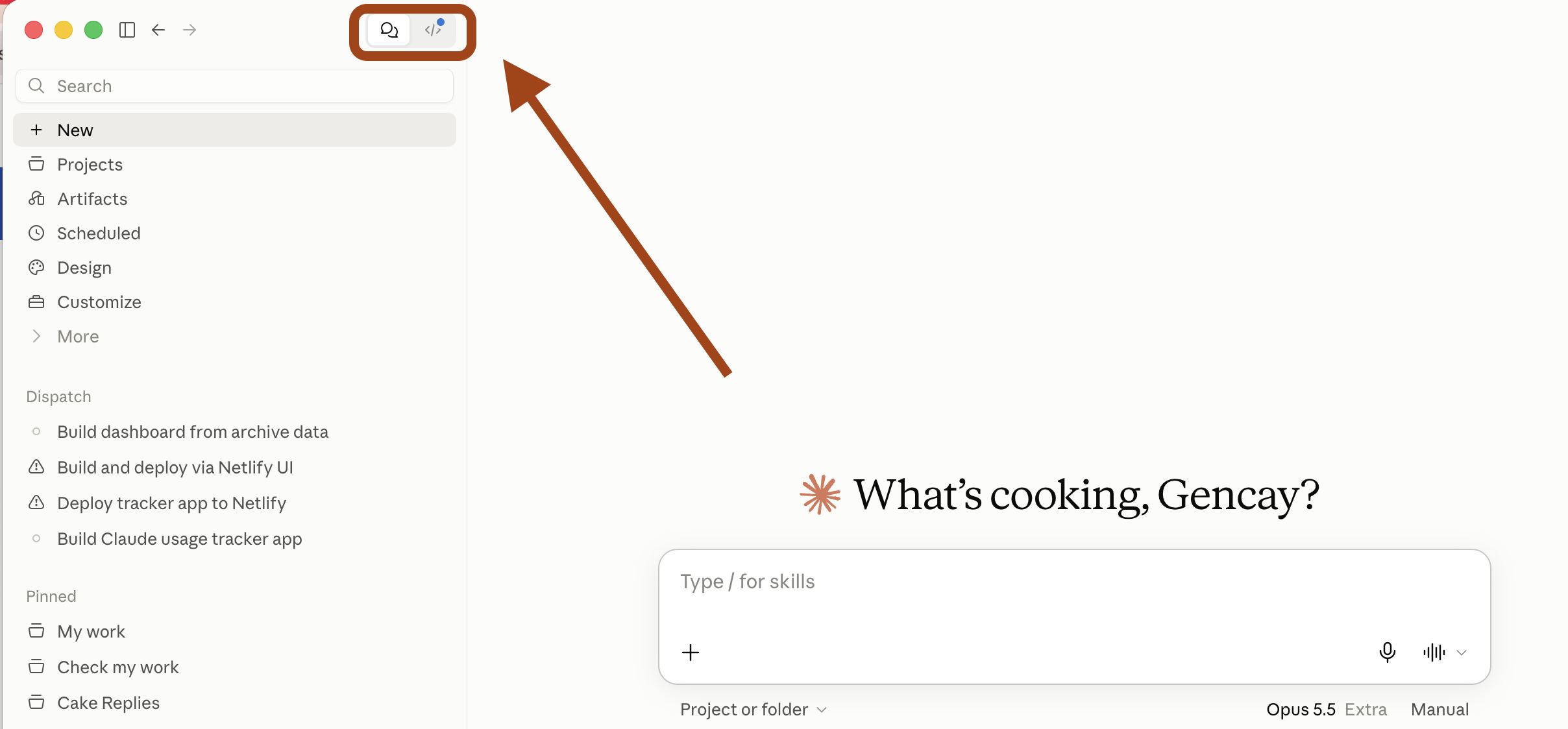
\Top left of the Claude desktop app. Chat on one side, Code on the other.\
There are two small icons, Chat and Code.
Chat is where you talk to Claude. Cowork lives here too. Anthropic merged it into Claude, and the download page says so in its news box.
Code is where Claude Code lives.
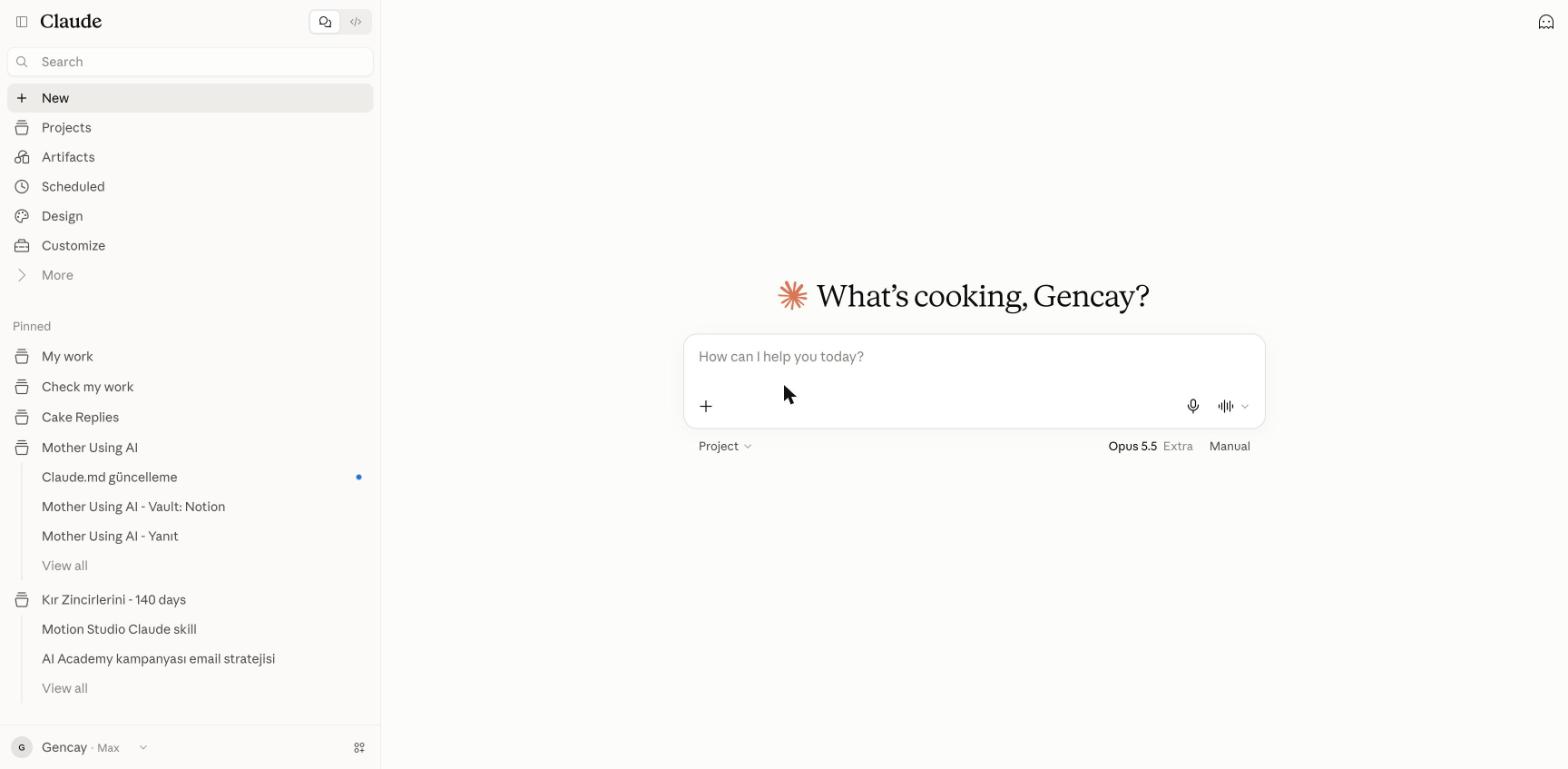
\The Chat and Code switch sits at the top left.\
Chat
The Chat side has five items in the menu. Projects, Artifacts, Scheduled, Design, and Customize.
Projects are folders for your work.
You put your files and instructions in once, and every chat inside that project remembers them.
Mine has one called My work.
Its whole description is one line: “Everything I do for my job, so I never explain myself twice.”
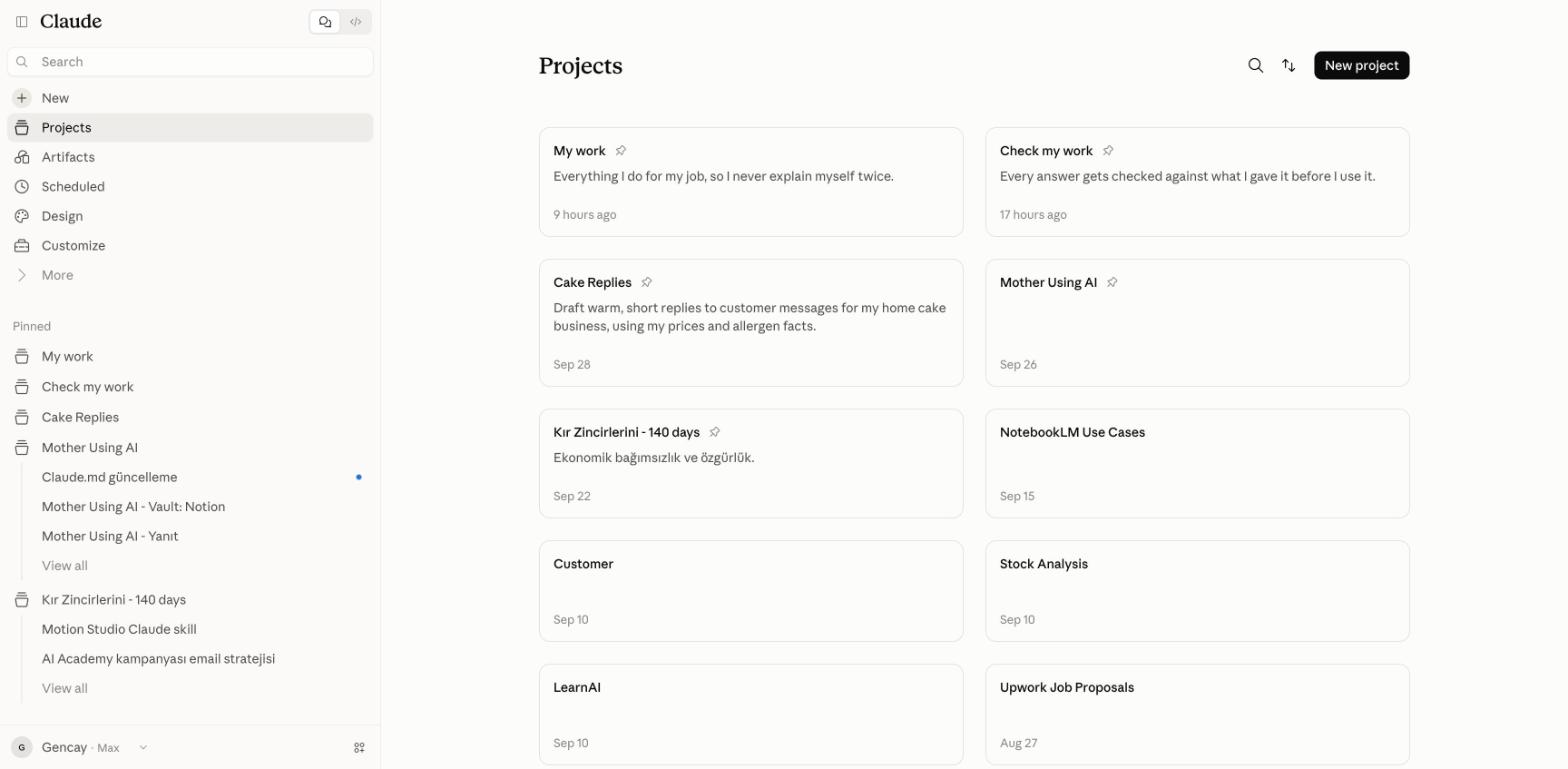
\Every project carries its own files and instructions.\
Artifacts are ready apps.
You ask, Claude builds a working page, and it waits here.
Read this one to discover more about Artifacts.
Docs, Slides, Design, and Dashboard each have a button under Make something new.
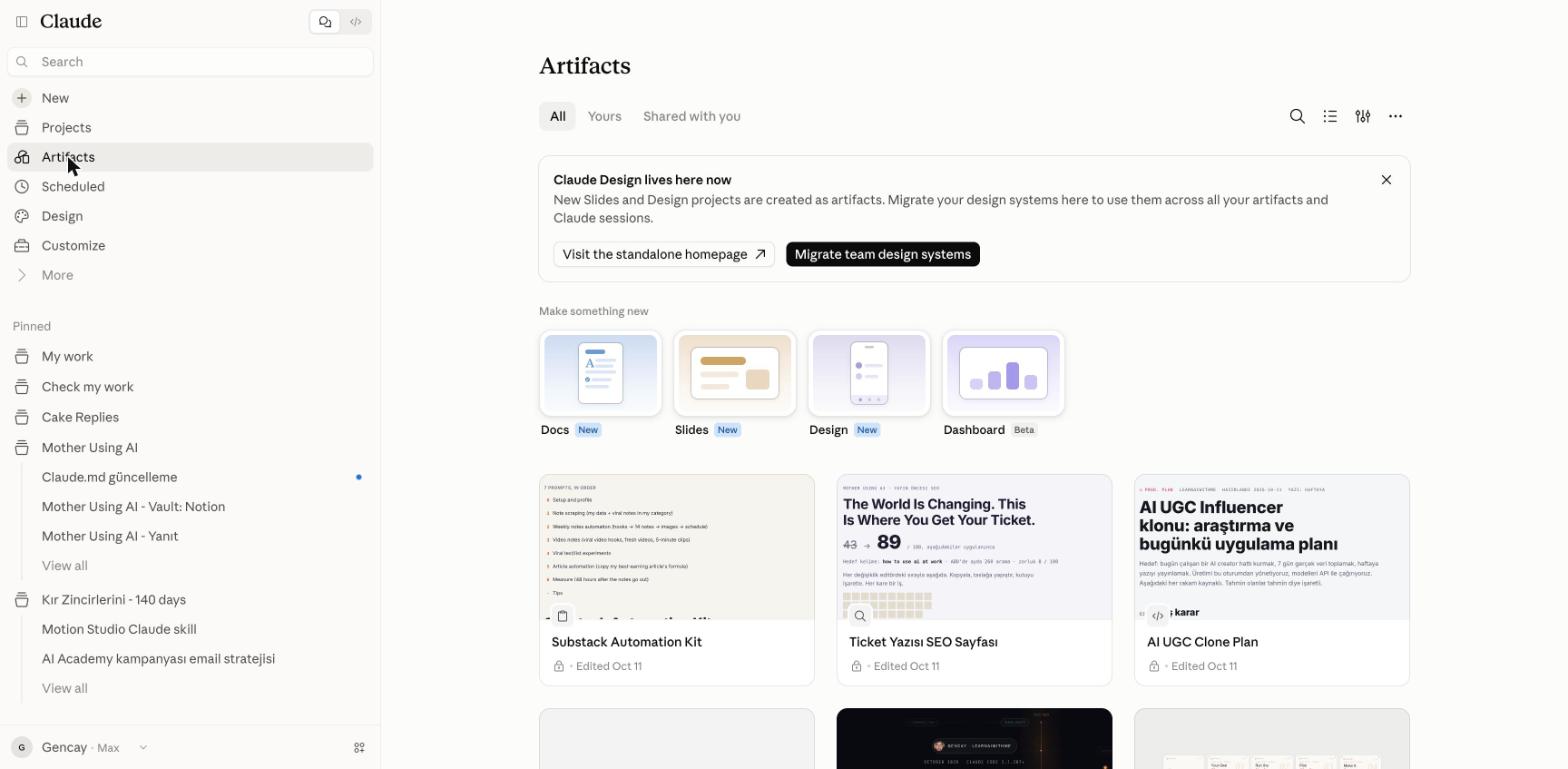
\Everything Claude built for you, in one place.\
Scheduled is where your recurring tasks live.
You tell Claude what to do and when, and it runs on time.
Each task shows if it is Active or Paused and when it runs next.
Read this one to discover more about scheduled tasks.
(Templates are a good place to steal your first one.)
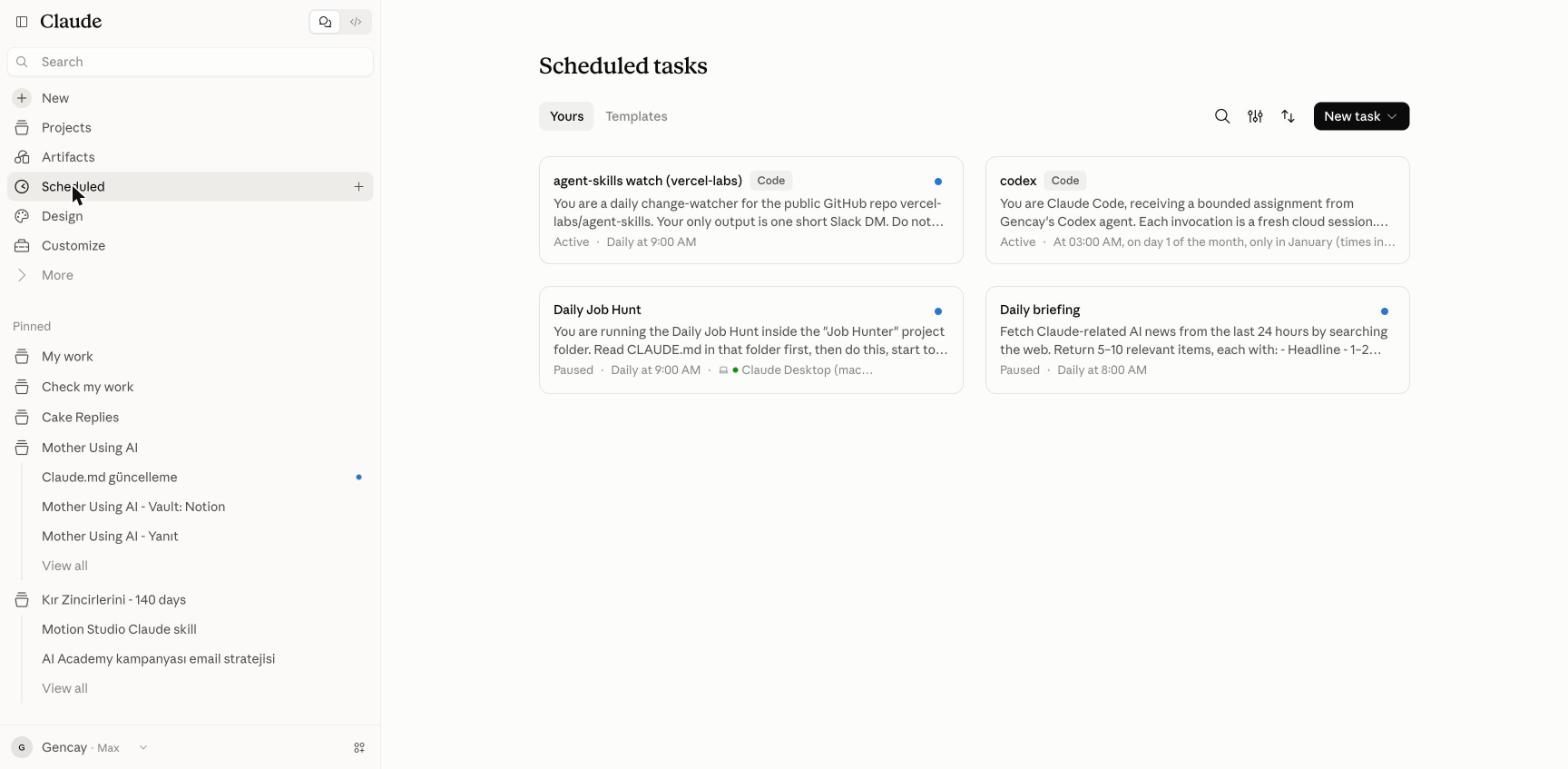
\Claude runs these without you opening a chat.\
Design is for visual work. Slides, Design, Design in codebase and Design System. A design system holds your colors and fonts, so every slide and page Claude makes looks like yours.
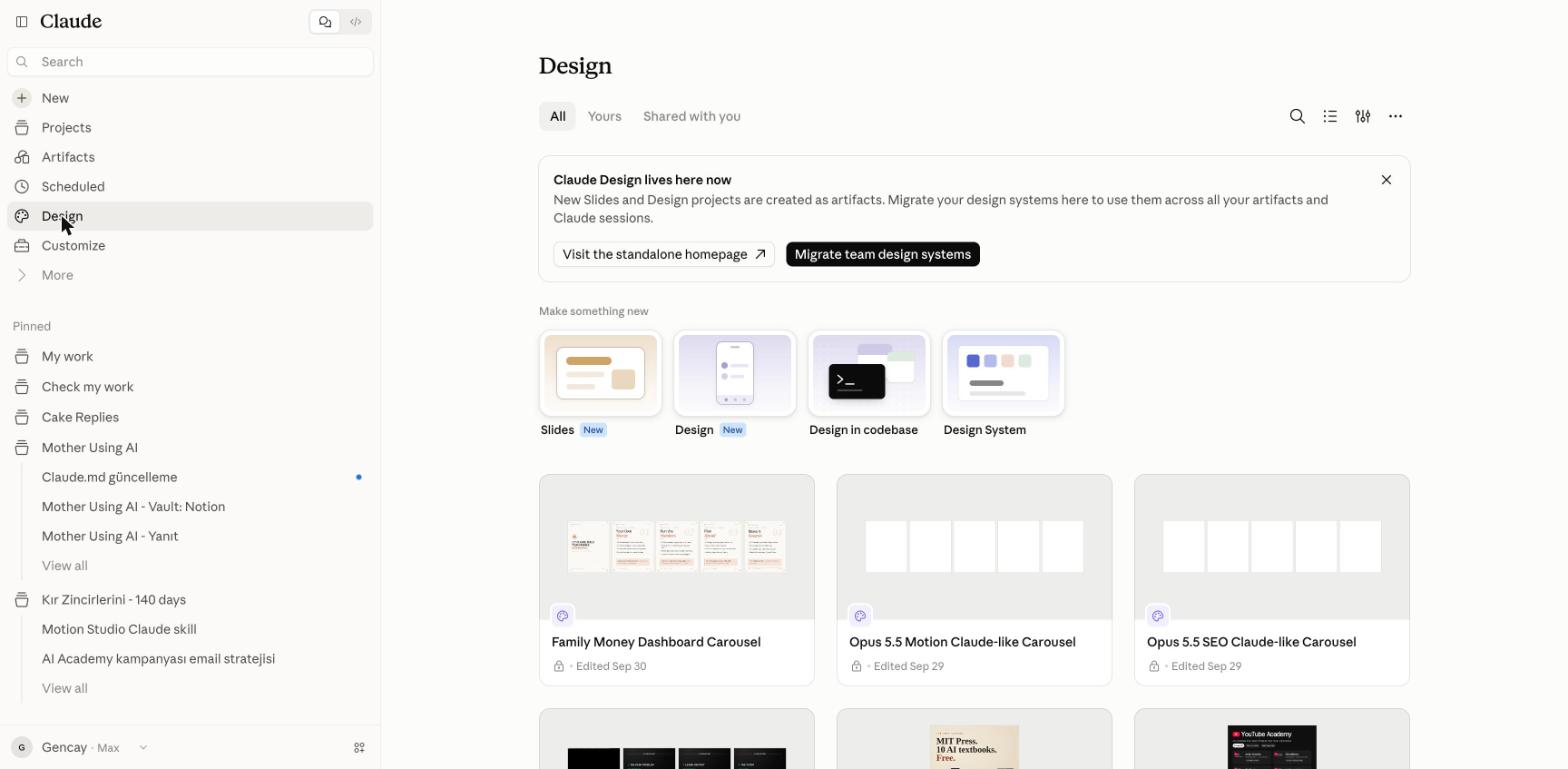
\Slides and designs come out as artifacts too.\
If you want to discover Claude Design, read this one.
Code
Click the Code icon and the menu gets shorter.
Artifacts, Routines, and Customize.
The middle of the screen is where you work.
You type a task in the box at the bottom. Under it you pick where Claude works, the model and the effort. (Mine says Opus 5.5 and High. Level 2 covers what those mean.)
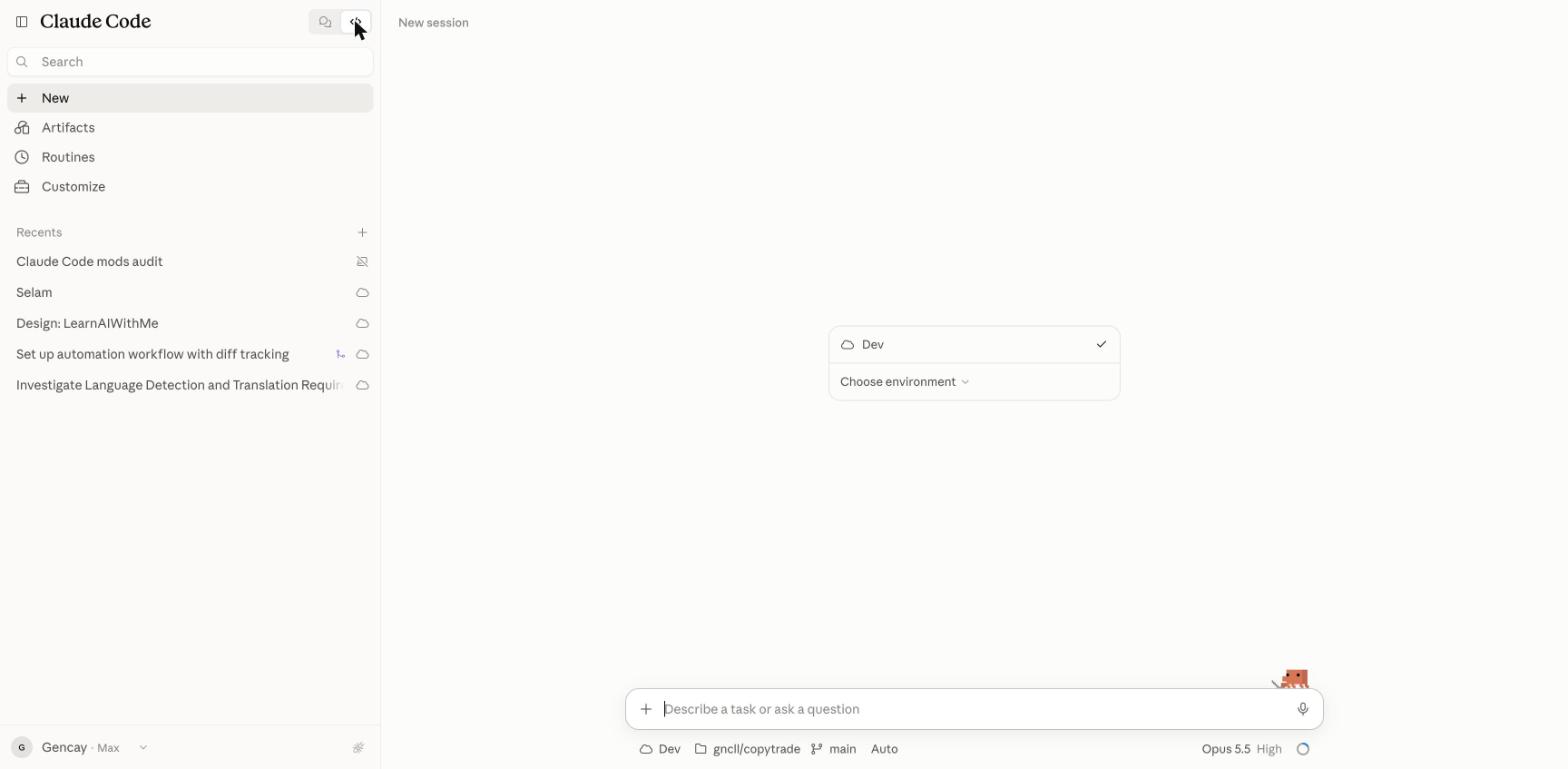
\The Code side. Task box at the bottom, model and effort under it.\
Artifacts here are the same shelf you saw in Chat.
Anything Claude Code builds as a page shows up here, and you keep it private, share it with your team or publish it with a public link.
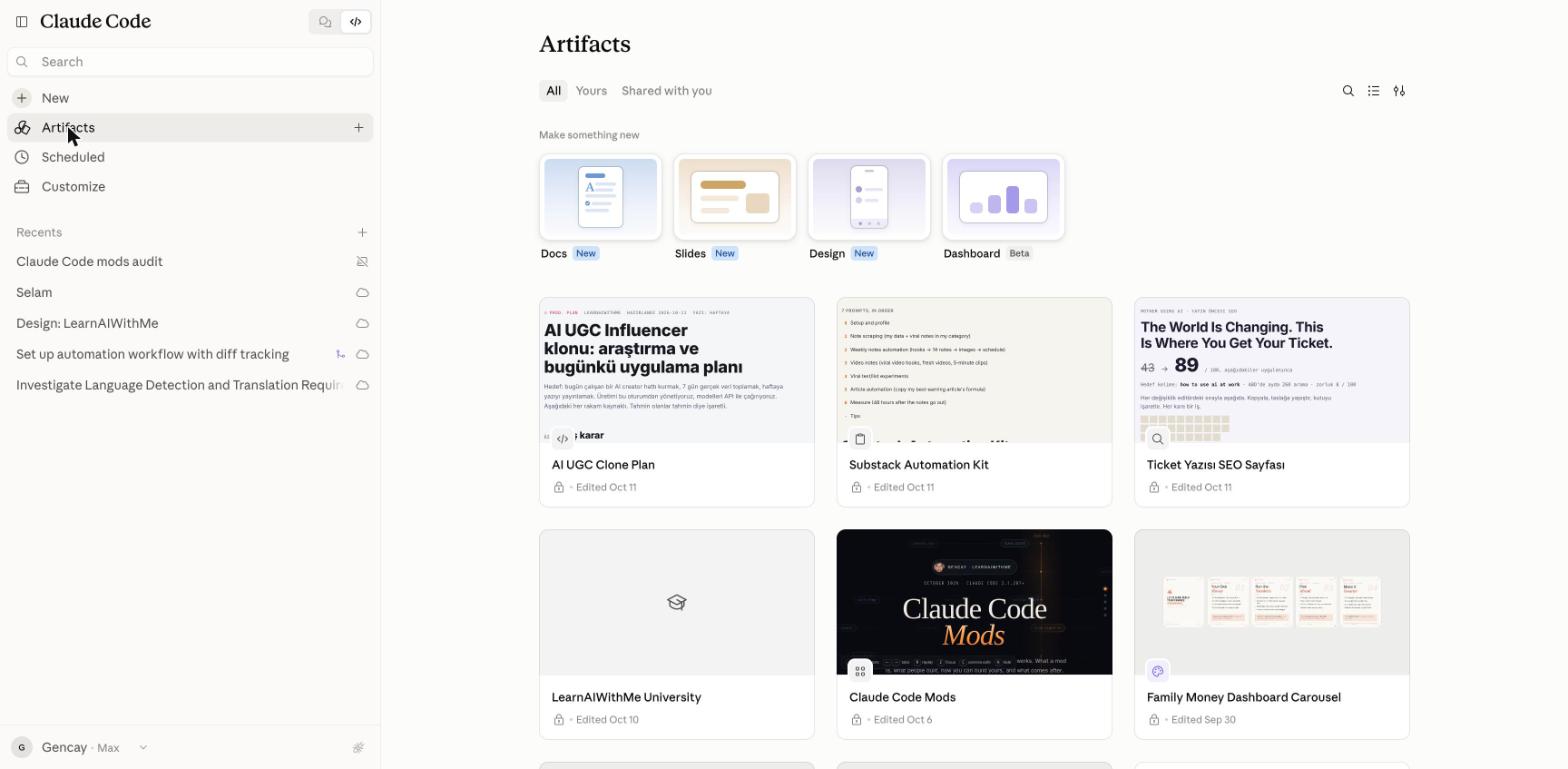
\Same artifacts, opened from the Code side.\
Routines put Claude Code on autopilot. A routine runs on a schedule, when an API call comes in or when something happens on GitHub.
It runs in the cloud, so your laptop can stay closed.
The page opens as Scheduled tasks, and each task tells you if it belongs to Chat or Code.
You can read this one to discover Routines.
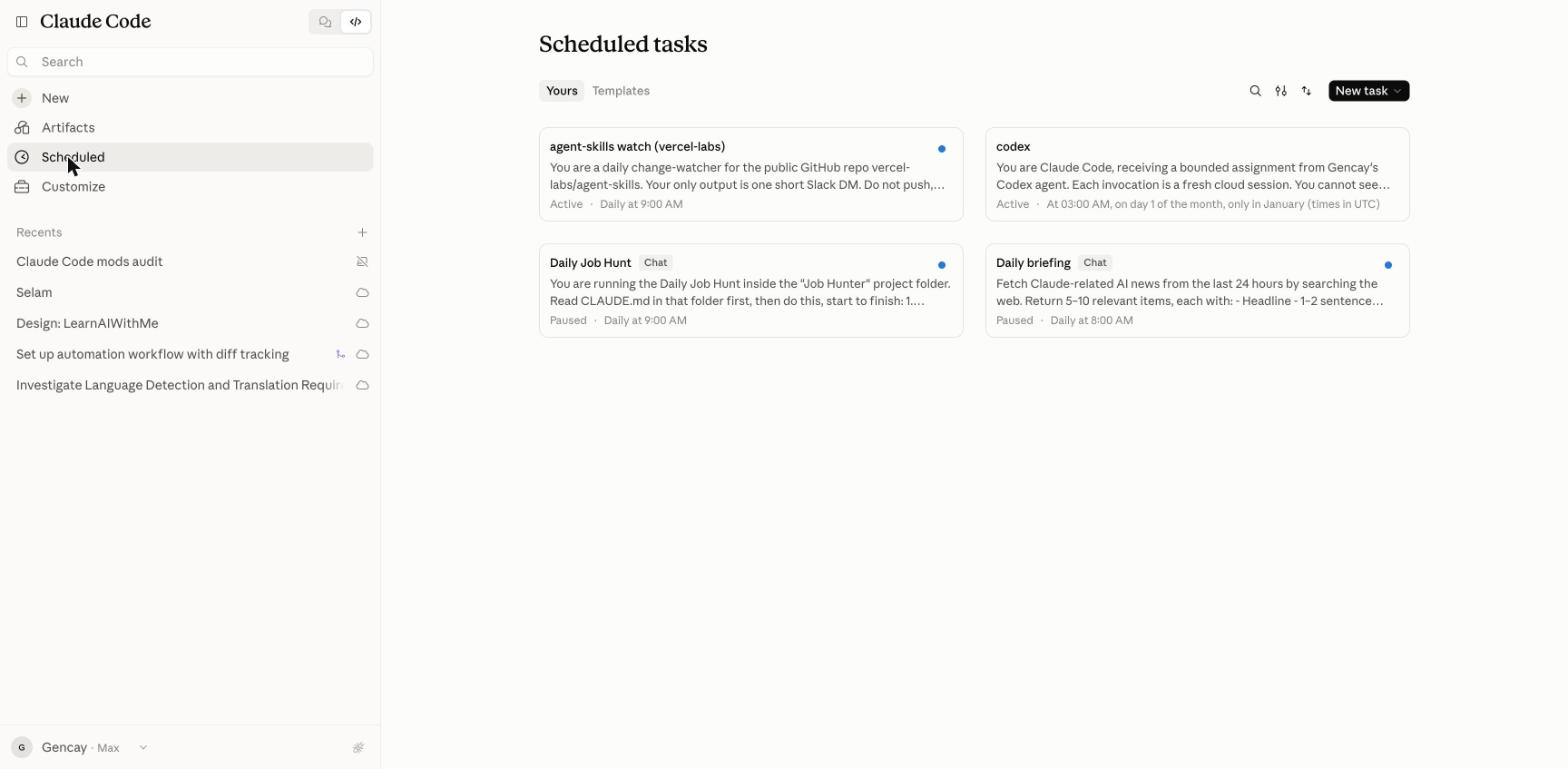
\Chat tasks and Code tasks sit on the same list.\
There is one more piece you will not find in the browser.
Dispatch lives in the desktop app.
You message it a task from your phone, and Claude decides how to handle it.
Coding work becomes a Code session with a Dispatch badge, and your phone buzzes when it finishes or needs your approval. (Dispatch needs a Pro or Max plan.)
Read this to discover dispatch.
Customize
Customize looks the same on both sides. It has three tabs: Skills, Connectors, and Plugins. Each tab splits into Yours and Discover.
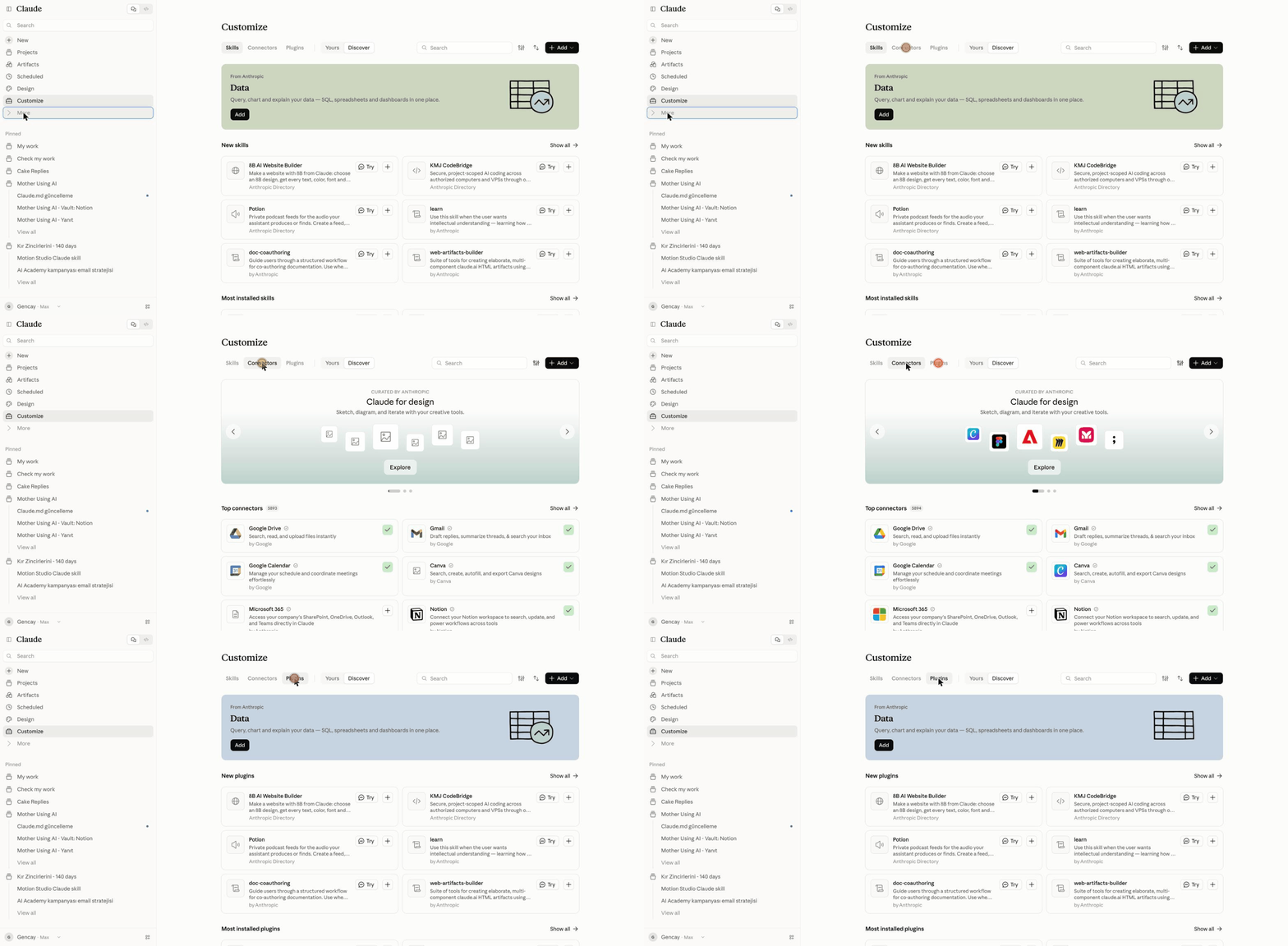
\Skills, Connectors and Plugins.\
A skill is a saved recipe. It holds the steps for a job, and Claude follows them every time you call it. Anthropic ships its own, like doc-coauthoring and web-artifacts-builder.
A connector plugs Claude into an app you already use. Google Drive, Gmail, Google Calendar, Canva and Notion sit at the top of the list, and the counter next to Top connectors says 5,894.
A plugin is a package. One install can bring several skills, commands and connections together.
That is the whole app. From Level 2 on, we work in Code.
Official docs. Get started with the desktop app: Desktop application, Artifacts, Routines, Skills, Plugins
Level 2: Model, Permissions & Effort
Now you know where to use.
But how to configure the model, permissions, and effort is the part 99% skip.
I am going to show you everything.
Open the Code side and start a new session in an empty folder. (Keep it out of Desktop and Documents if iCloud syncs them. Level 8 shows why.)
Mine is called Claude Code Masterclass.
Look at the bar under the task box. Three settings live there.
They decide which brain works for you, how hard it thinks, and how much it can do without asking.
Model
Click the model name. You get four choices: Opus 5.5, Fable 5.1, Sonnet 5.5, and Haiku 5.5.
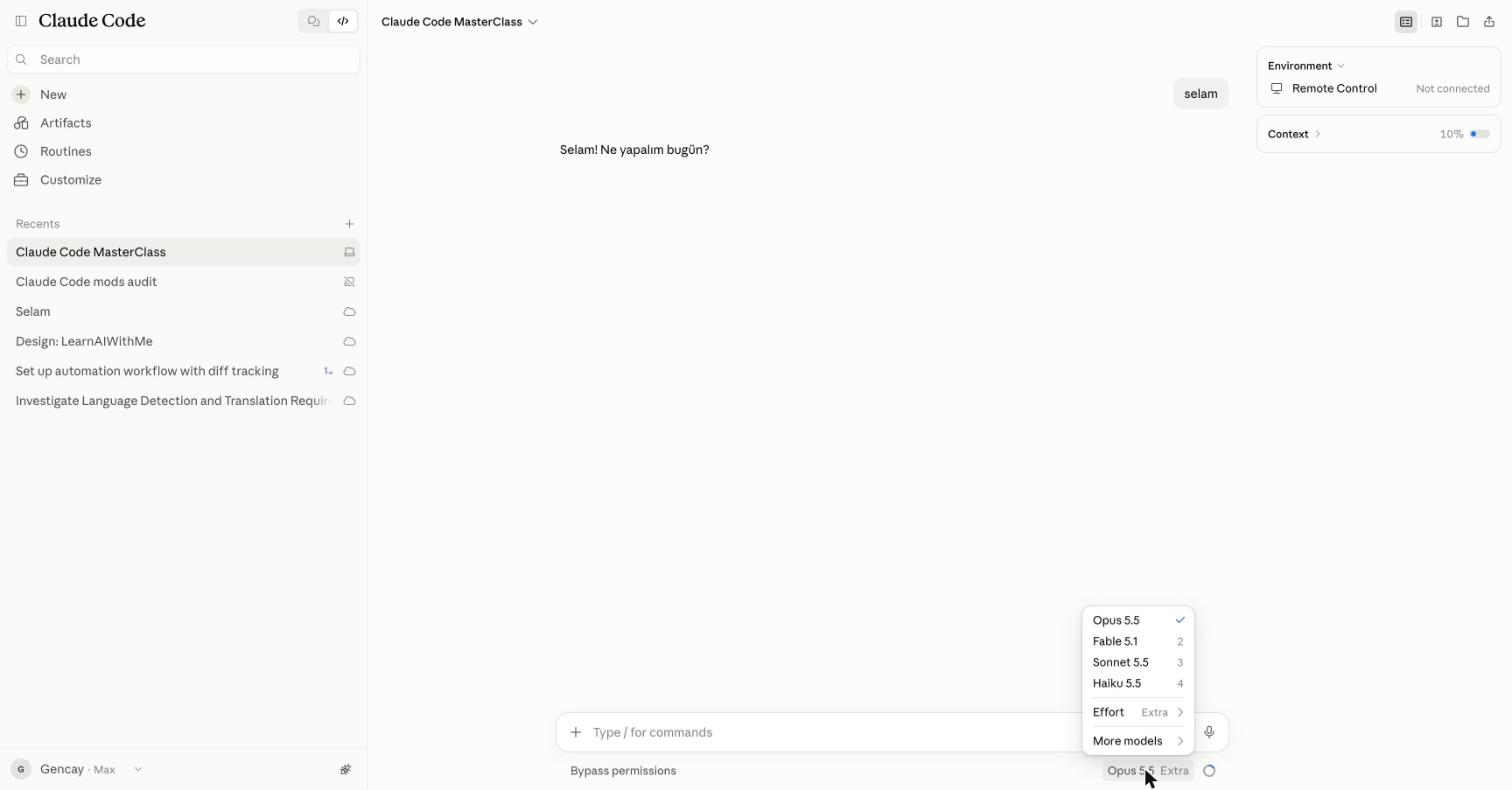
\Four models, one click.\
Anthropic’s docs describe them in one line each.
- Opus is for complex reasoning tasks.
- Sonnet is for daily coding tasks.
- Haiku is the fast one for simple tasks.
- Fable 5.1 is the most capable model in Claude Code, built for tasks larger than a single sitting. (On some plans Fable bills usage credits, and the picker says so on its row.)
Start with Opus 5.5.
This whole course runs on it.
Effort
Hover over Effort in the same menu.
Six options show up. Low, Medium, High, Extra, Max, and Ultracode.
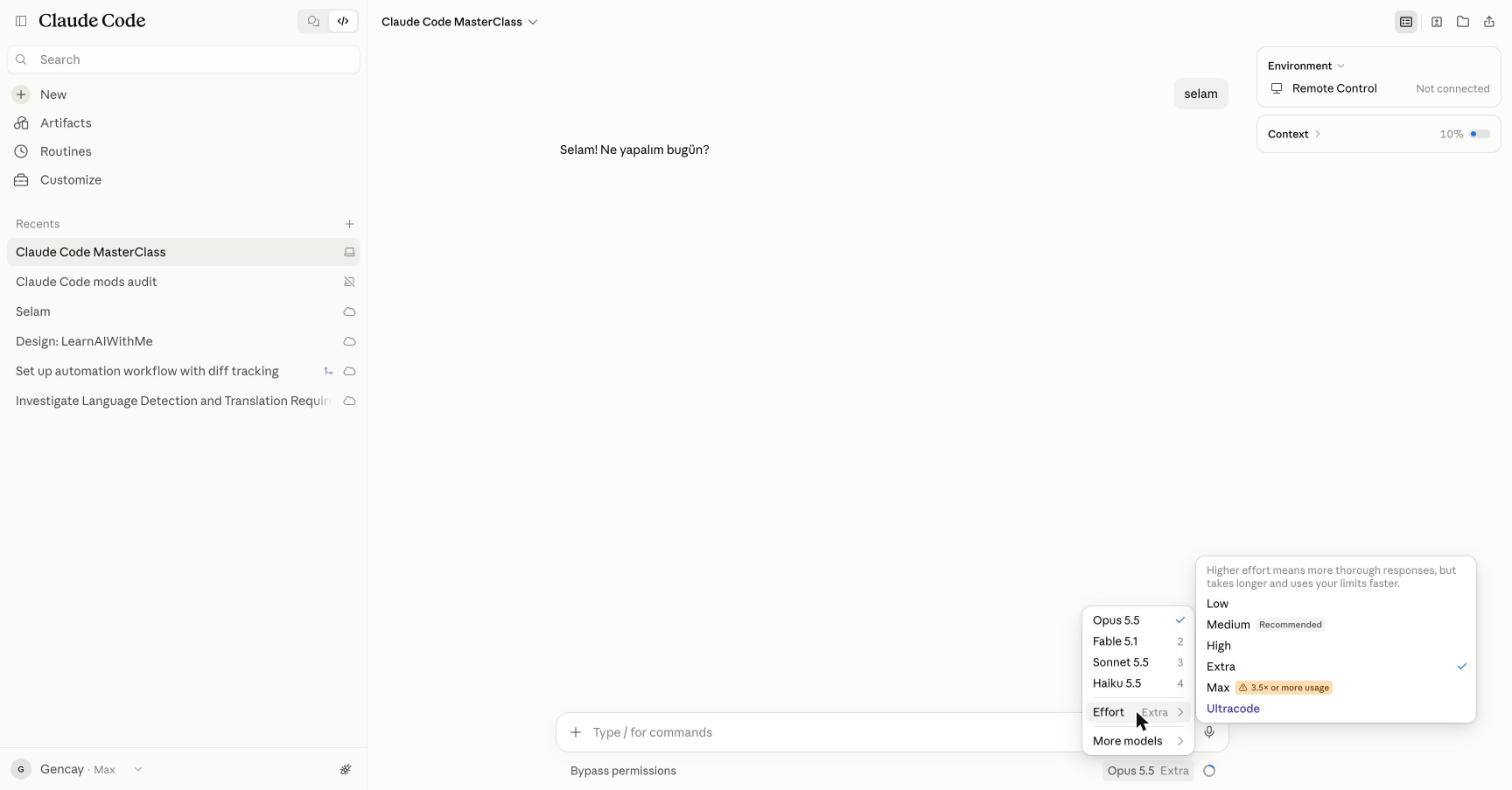
\Medium is the recommended level on Opus 5.5.\
The menu explains itself.
Higher effort means more thorough responses. It takes longer and uses your limits faster.
Max carries a warning label, 3.5x or more usage.
Medium is the default on Opus 5.5, and Anthropic says Opus 5.5 at medium matches or beats Opus 5 at high on their coding tests.
So I left it on Medium for the whole course.
Need one hard answer without changing the setting?
Type Ultrathink anywhere in your prompt. Claude thinks deeper on that turn only.
Permissions
Click the mode on the left side of the bar.
Four modes, each with one line that tells you what it does.
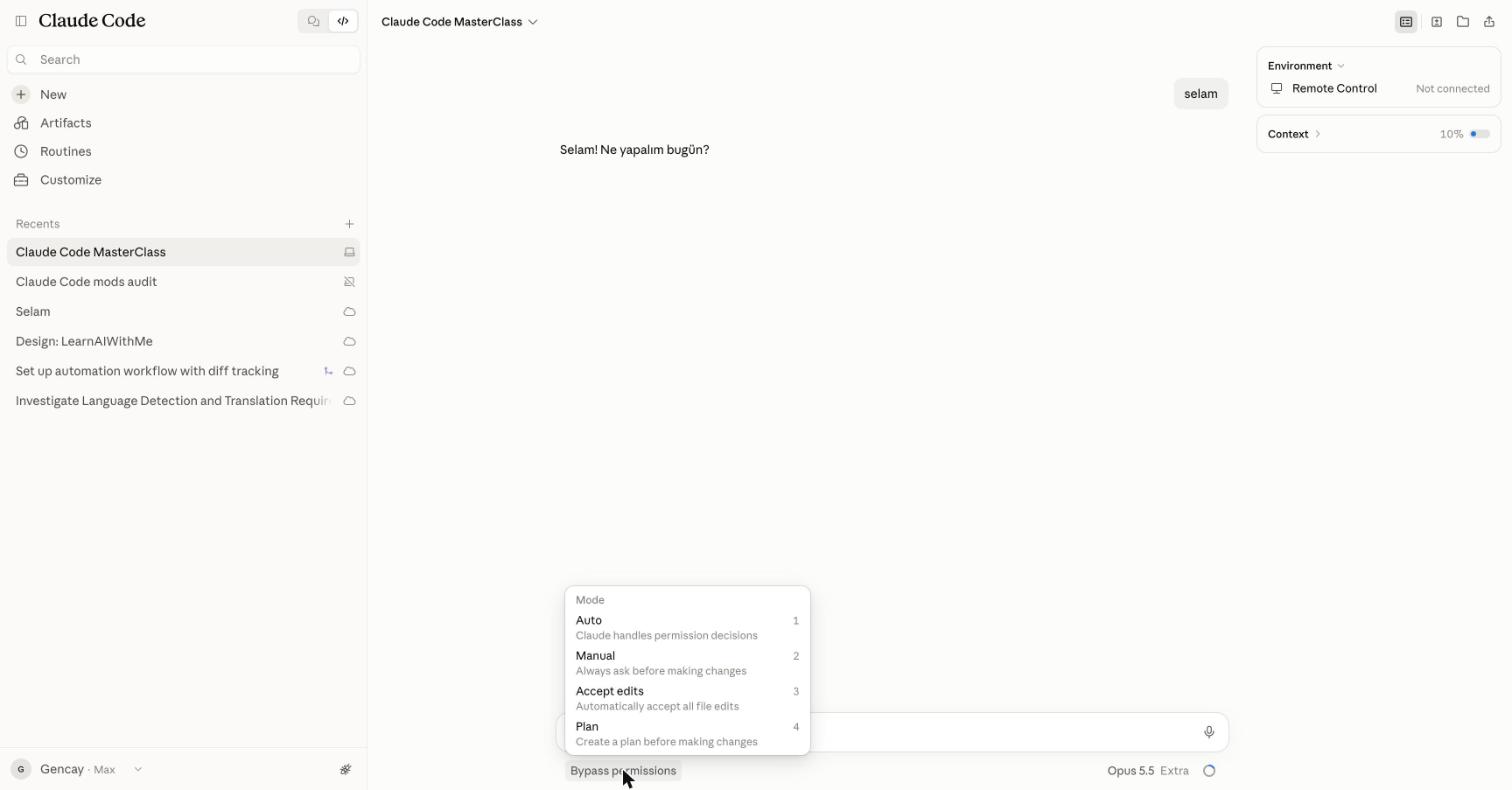
\Auto, Manual, Accept edits and Plan.\
- Manual. Always ask before making changes.
- Accept edits. Automatically accept all file edits.
- Plan. Create a plan before making changes.
- Auto. Claude handles permission decisions.
There is a fifth one called Bypass permissions.
It skips every check, and Anthropic’s docs say it is for isolated containers and virtual machines only. Leave it alone.
Here is the difference in practice.
I switched to Manual and sent this prompt.
Create a file called notes.md with one line: Time Tracker clone, day 1.
Claude stopped and asked first.
It showed the exact file and the exact line it wanted to write.
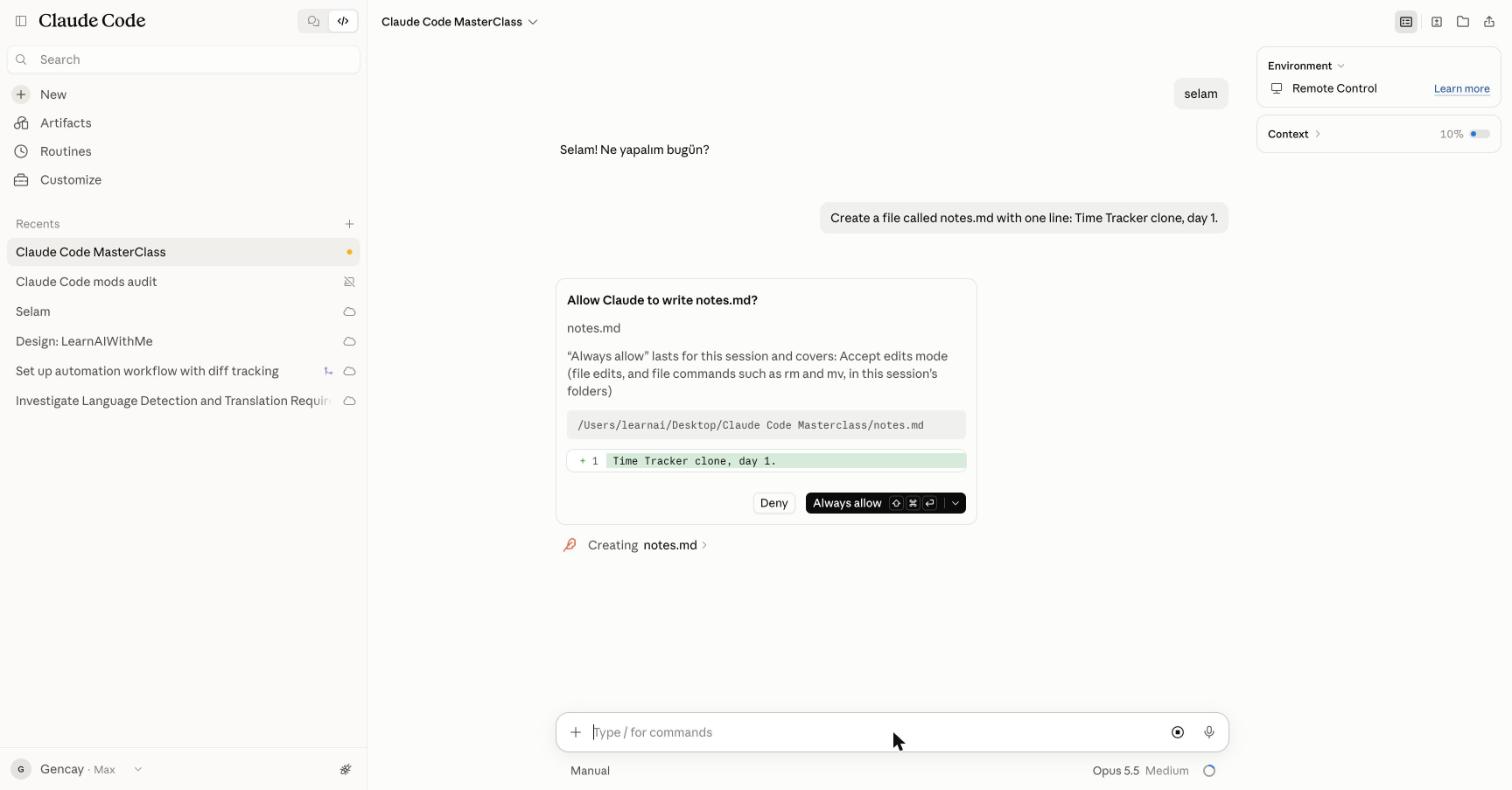
\Manual mode. Claude asks before it writes anything.\
You get three answers. Deny, Allow once, or Always allow.
Always allow lasts for this session and moves you to Accept edits mode.
I clicked Always allow and sent the next prompt.
Add a second line to notes.md: Goal, a clone of the Time Tracker app on my Mac.
No question this time.
Claude edited the file, and the bar now says Accept edits.
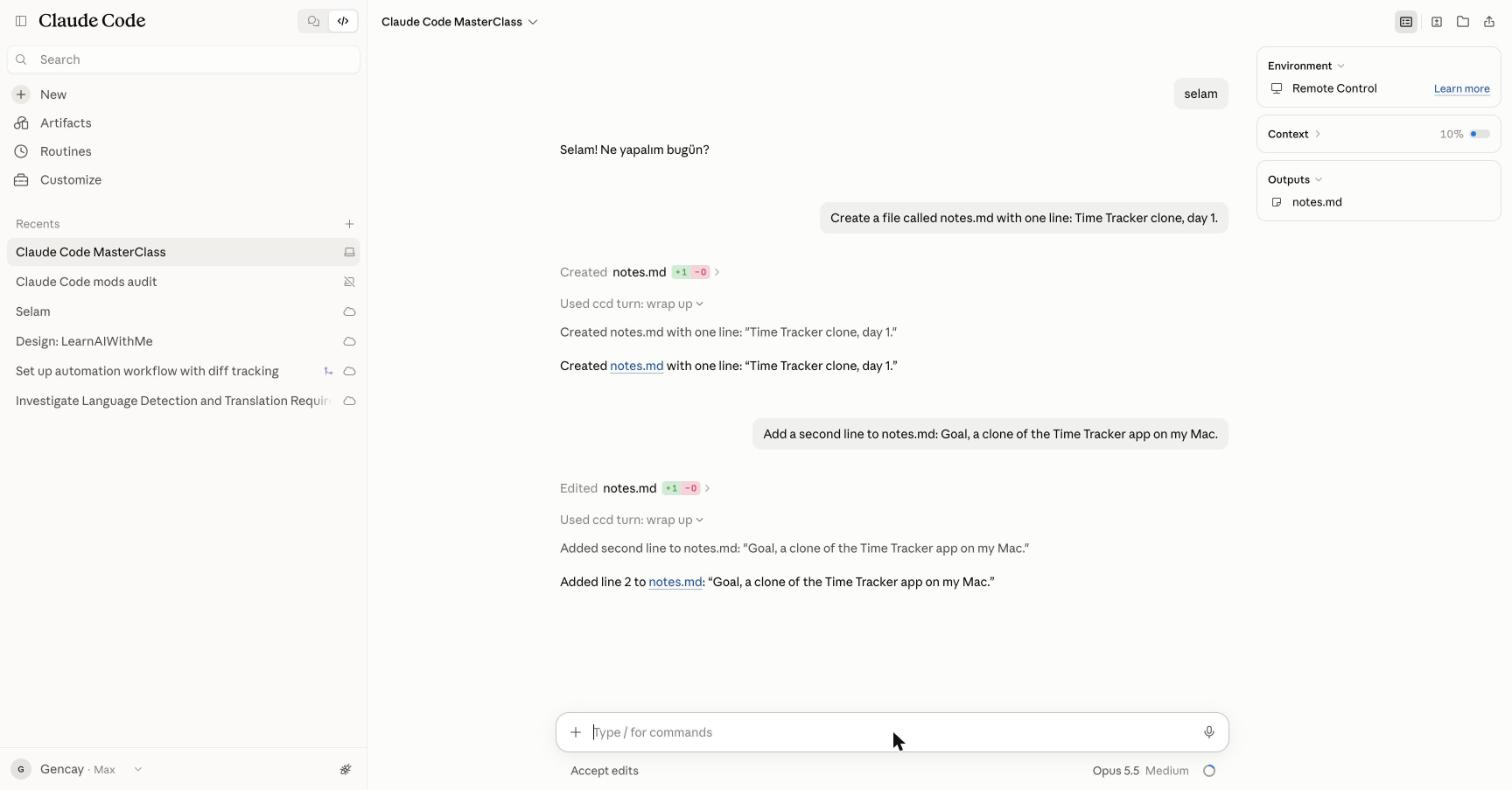
\Accept edits mode. File changes go through without a question.\
My rule for beginners is simple.
- Start in Manual and read what Claude wants to do.
- Switch to Accept edits once you trust the task.
- Use Plan before big changes (Level 7 does exactly that).
- Use Auto for long jobs you don’t want to babysit.
Official docs: Model configuration, Adjust effort level, Choose a permission mode, Claude Code effort level and model selection
Level 3: CLAUDE.md
Every new session starts with an empty head.
Claude doesn’t remember yesterday, your stack, or your rules.
CLAUDE.md fixes that.
It is a plain text file in your project folder.
Claude Code reads it at the start of every session, before you type a word.
So before a single line of code, I wrote one. Here is the app we are building in this course.
Time Tracker is an Android app by Zafer Ertas.
It has 100K+ downloads and 2.62K reviews on Google Play.
It does one job well.
You add activities, start a stopwatch, set targets and look at your stats.
We are building our own version for the Mac. It gets its own name, Tally.
Use this prompt:
Write a CLAUDE.md for this project. We are building our own version of Time Tracker, an Android app by Zafer Ertas with 100K+ downloads. Ours is called Tally and runs on a Mac. It has the same three screens, Tracker, History and Statistics, plus daily, weekly and monthly targets. Rules: study how the original works and write our own code. No copied name, logo, icons or text. Python standard library and plain HTML, CSS and JavaScript only. Data stays on this Mac in one SQLite file. Keep it under 40 lines.
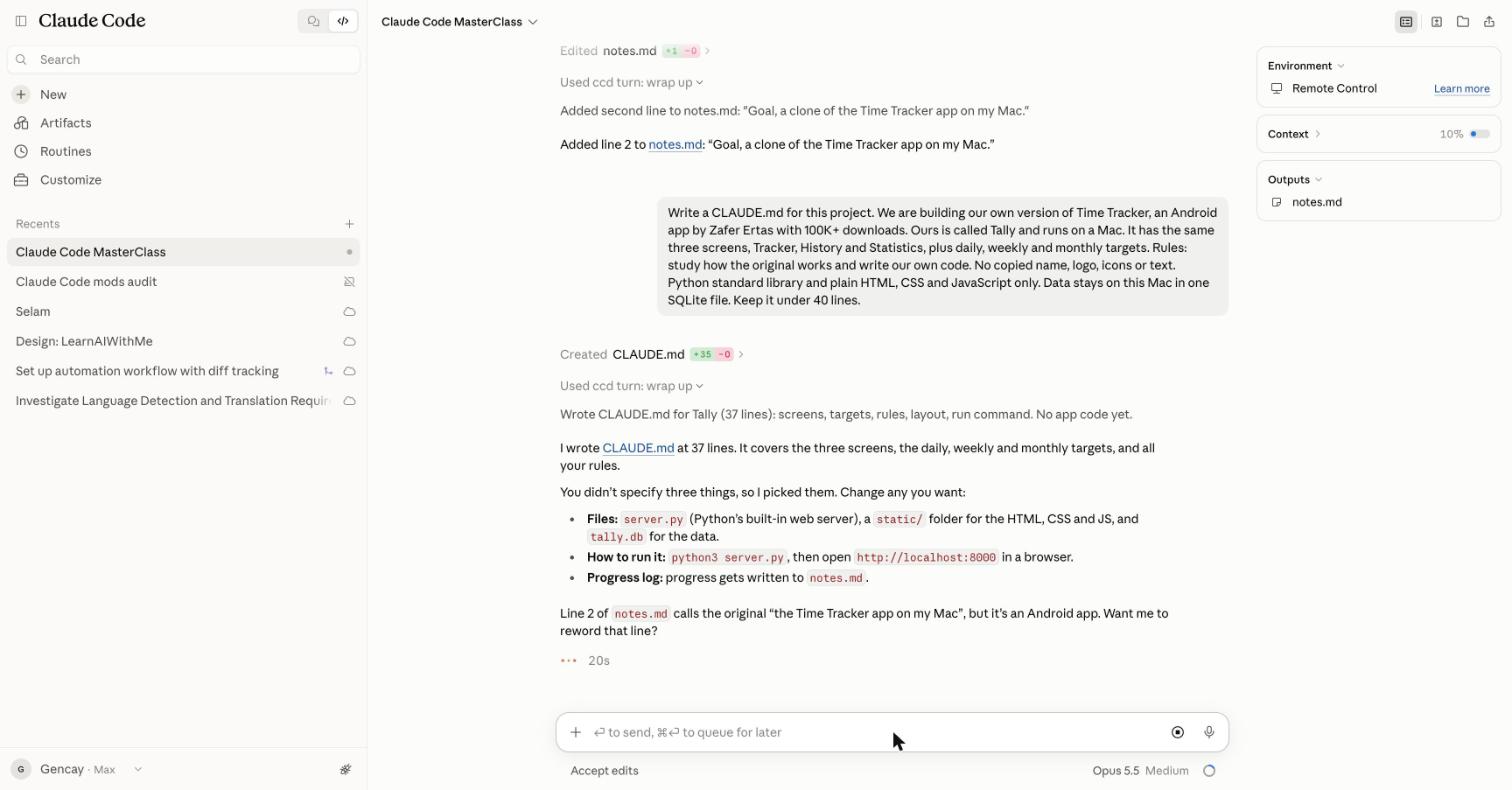
\37 lines, and three decisions Claude made on its own.\
Claude wrote 37 lines.
Look at the bottom of its answer.
I never said which files to create or how to run the app, so it picked them and told me. A server.py file, a static folder for the page, and one tally.db file for the data.
Then I added the part that makes Tally better than a phone app. A Mac knows which app you are using.
Add one rule to CLAUDE.md. Tally also watches my Mac. Every 5 seconds the server checks which app is in front with lsappinfo and saves it, so every activity shows which apps I used while it was running.
(lsappinfo is a small tool that ships with every Mac. Claude tested it before it wrote the rule. It returned “Google Chrome”.)
Does Claude actually read it?
Test it. Type /clear to wipe the conversation, then ask.
What are the rules of this project? Answer from what you already know, don't open any files.
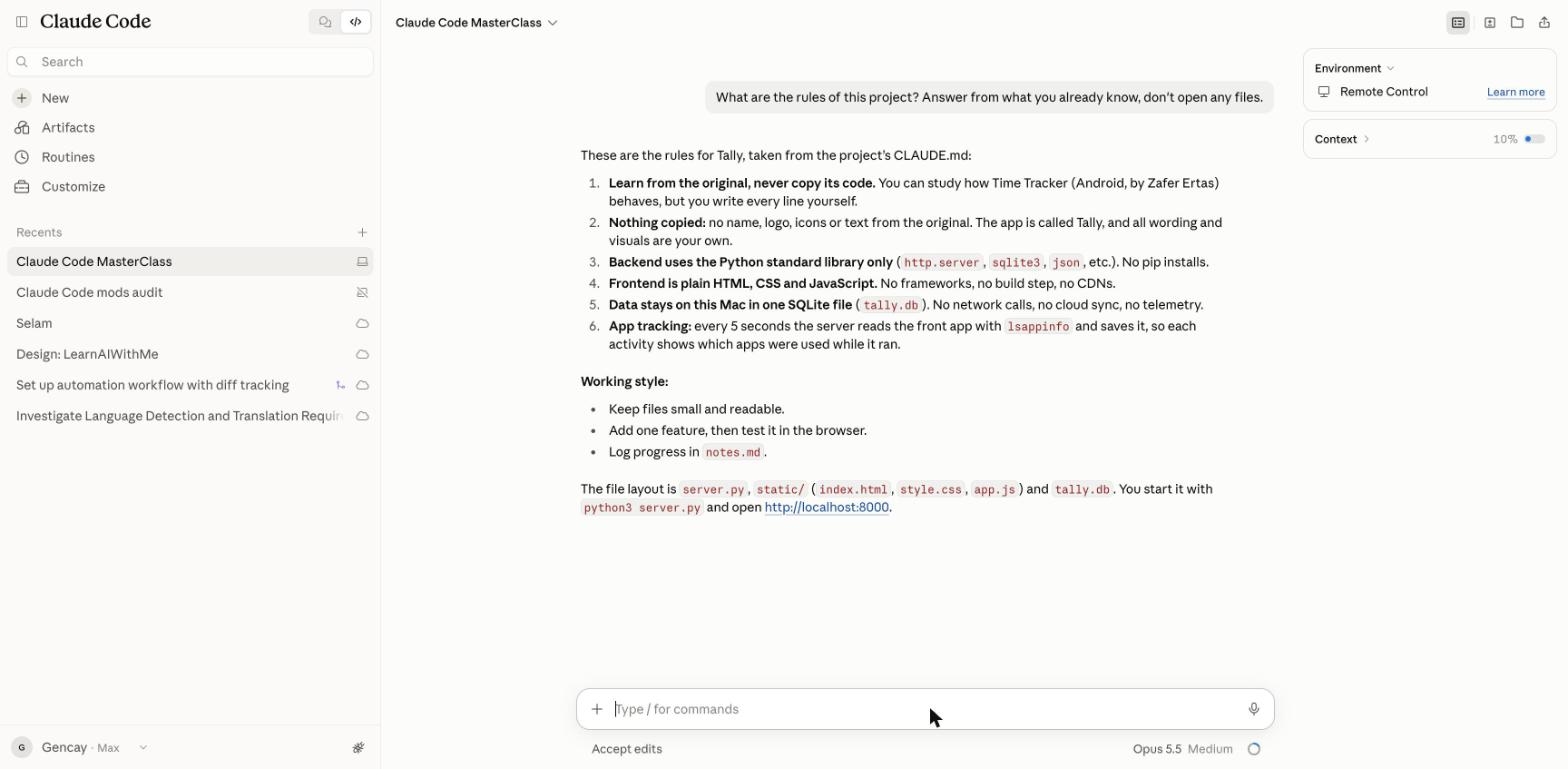
\A fresh conversation. Claude lists all six rules from CLAUDE.md.\
Six rules, the file layout and the run command. Nothing was opened. The conversation was empty. That is CLAUDE.md working.
Two more places for the same idea. For an existing project, type /init and Claude writes the first CLAUDE.md from your code. For rules you want in every project, use the one in your home folder (~/.claude/CLAUDE.md). Mine holds my writing rules for this newsletter.
The one-prompt version
With the rules in place, I asked for the smallest possible app.
Build the simplest version of Tally. One page with a list of activities, a start and stop button for each, and a line at the top that shows which app is in front on my Mac right now. Nothing else yet. Start the server and give me the address.
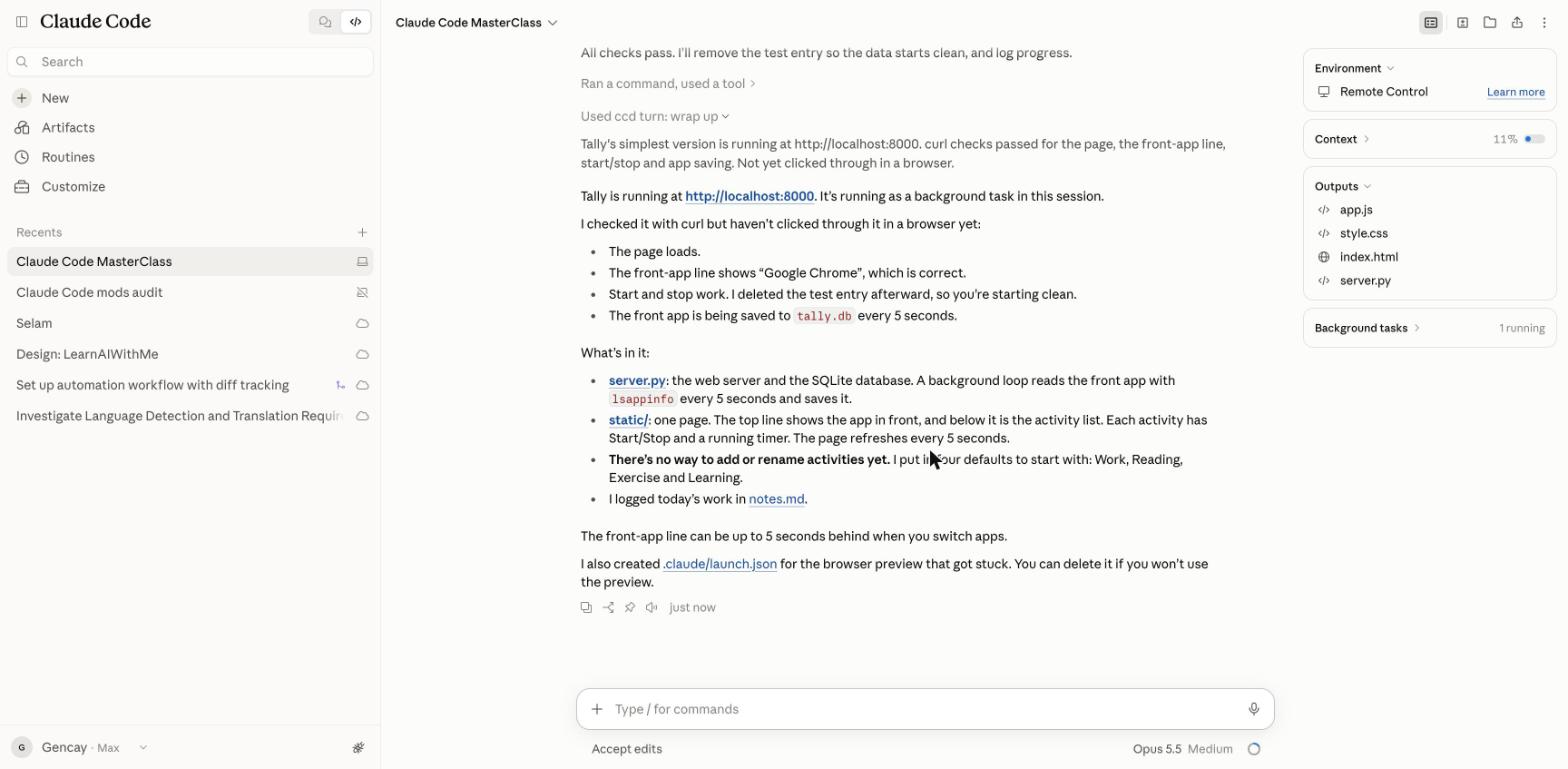
\Four files, 294 lines, running at localhost:8000.\
Claude followed every rule without being reminded. Python standard library, one SQLite file, no frameworks.
It checked its own work with curl and said it had not clicked through the page in a browser yet. (I like that honesty.)
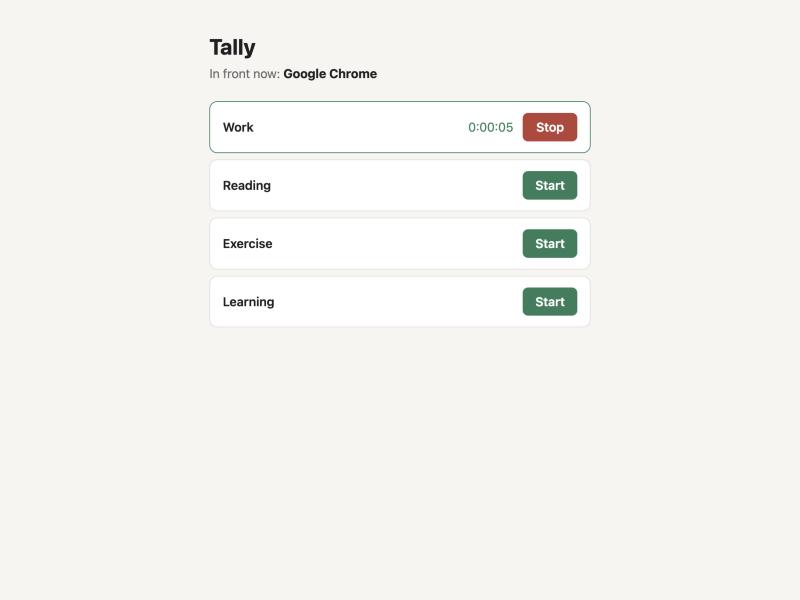
\The one-prompt version. It works, and it knows Chrome is in front.\
That is what one prompt gives you.
A page that works and four activities it made up on its own.
Level 4 fixes that with a skill.
Official docs. How Claude remembers your project, Explore the .claude directory
Level 4: Skills
One prompt gave us a page with four buttons. It works. It is nothing like an app with 100K+ downloads.
The gap is method.
Claude guessed what a time tracker should be. It never looked at Time Tracker.
A skill fixes that.
A skill is a folder with one file inside called SKILL.md.
That file holds a recipe, the steps for a job you do more than once.
Claude reads only the short description until the job comes up, then loads the whole recipe and follows it.
Anthropic’s docs give the rule for when to make one. Make a skill when you keep pasting the same instructions, checklist or multi-step procedure into chat.
Where skills live
Two folders matter for you.
- Personal skills go in ~/.claude/skills. Every project on your Mac gets them.
- Project skills go in .claude/skills inside one project folder. Commit them and your team gets them too.
The skills you add in Customize (Level 1) sync from your claude.ai account. Type / in the task box and every skill you have shows up in the list.
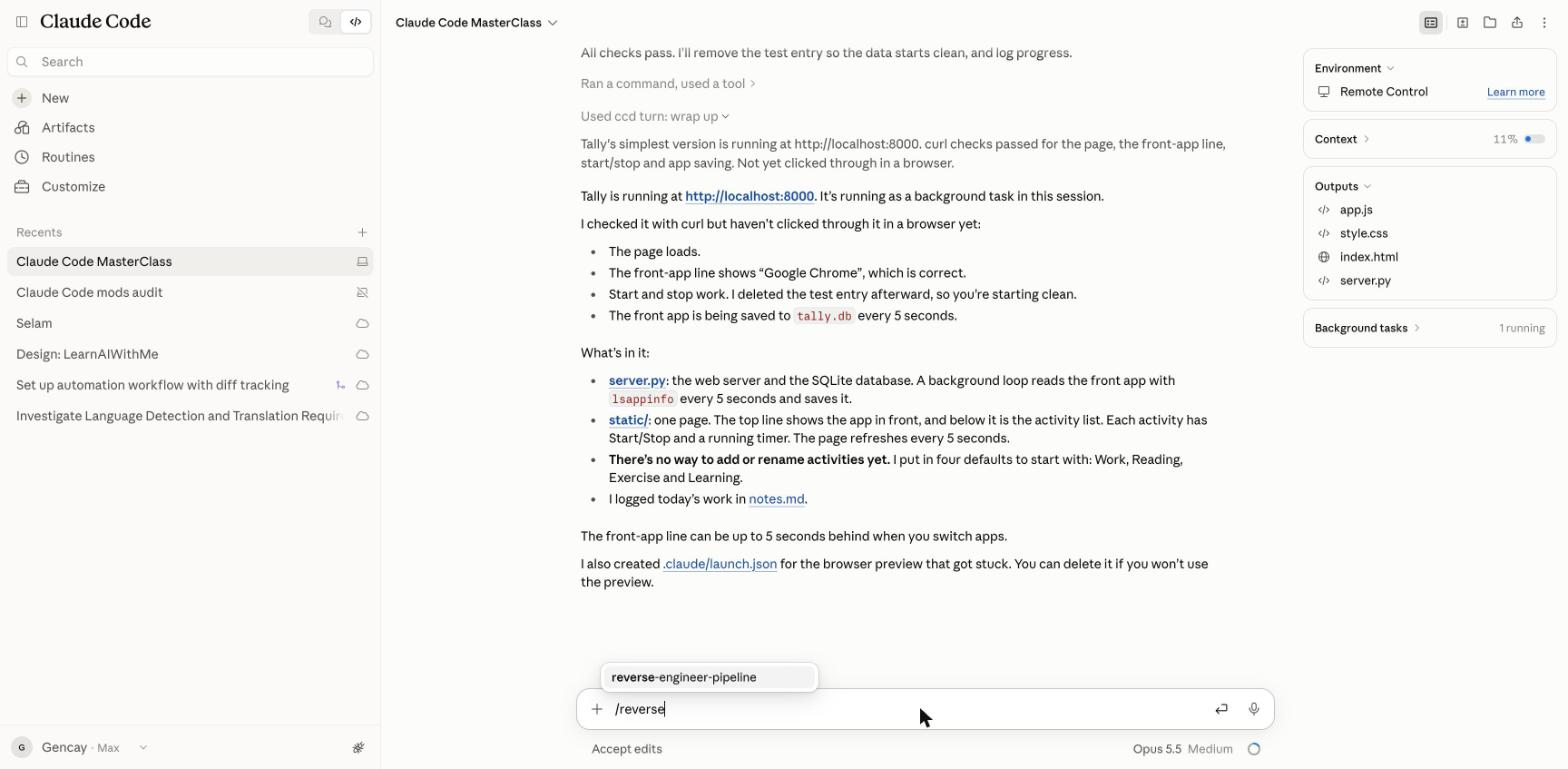
\Type /reverse and the skill shows up.\
The skill we use in this course
I built a skill for exactly this job.
It is called reverse-engineer-pipeline. You point it at an app, and it studies the app until it knows how it works. Then it writes one build prompt for your own version.
I asked Claude to explain it before running it. (Good habit with any skill you didn’t write.)
Open the reverse-engineer-pipeline skill and explain it to a beginner. What does each step do, and which file does it leave behind? Keep it short.
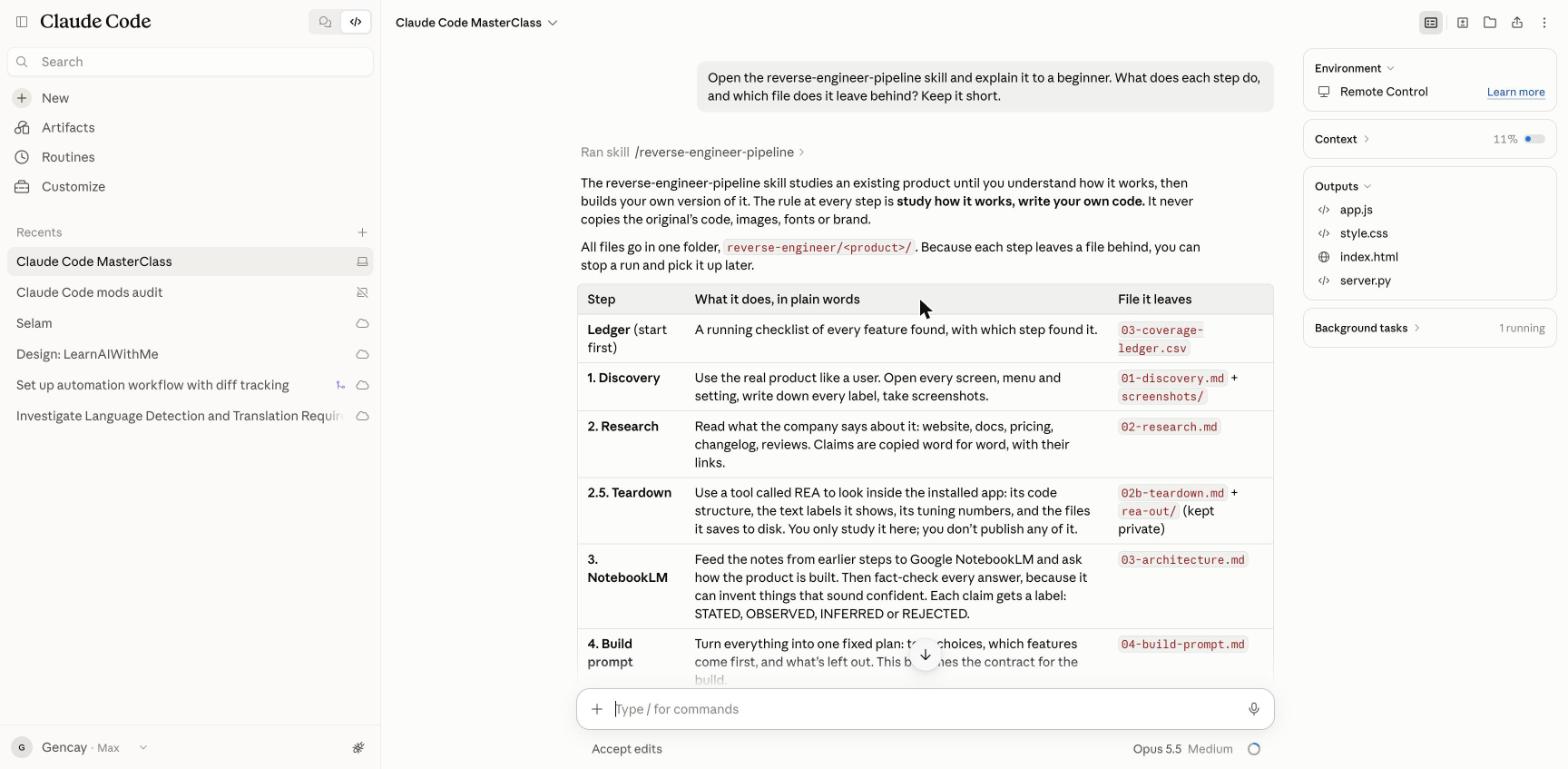
\Six steps, one file per step, one folder for everything.\
- Discovery. Use the real product like a user and write down every screen and label.
- Research. Read what the company says. Every claim copied word for word with its link.
- Teardown. Look inside the app’s own code with a tool called REA.
- NotebookLM. Ask Google’s NotebookLM how the product is built, then fact-check every answer.
- Build prompt. Freeze everything into one plan.
- Build. Make the app from that plan and test it like a user.
A ledger runs through all of it.
Every feature goes on a list with the step that found it.
On its first run, against the Mac screen recorder Screen Studio, the known features grew from 16 to 49 to 88 to 89 step by step.
One rule sits on top.
Study how it works, write your own code. No copied code, images, fonts or brand.
Run it on Time Tracker
I switched to Auto mode (this run is long, and I didn’t want to approve every web page it reads).
Then I pointed it at the Play Store page.
Run the reverse-engineer-pipeline on Time Tracker by Zafer Ertas, https://play.google.com/store/apps/details?id=zzz1zzz.tracktime . Do Steps 1 to 4 and stop at the build prompt. It's an Android app and I don't have the APK, so skip Step 2.5 and don't download the APK from anywhere. Our version is Tally, the web app described in CLAUDE.md.
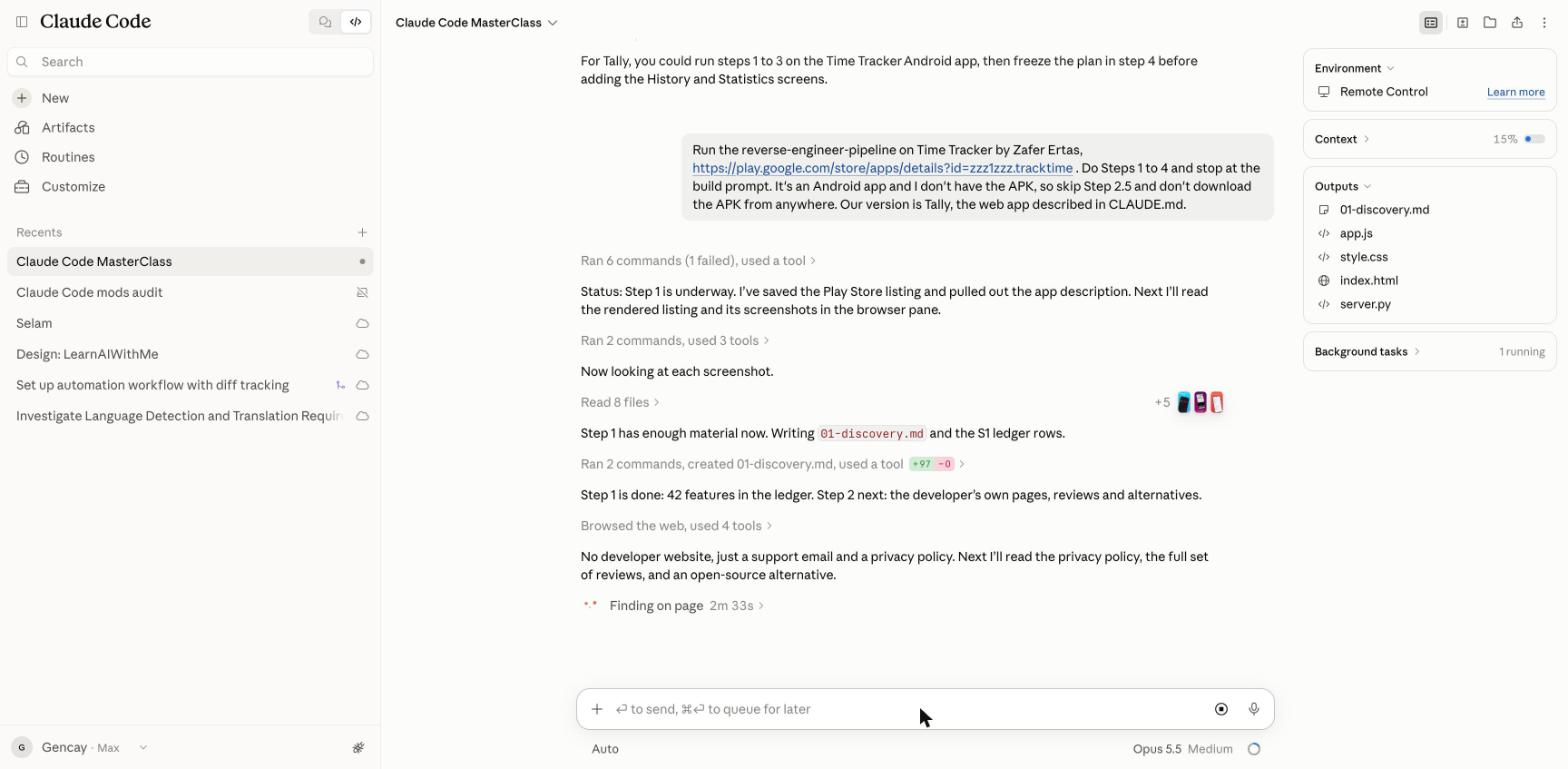
\Step 1. Eight Play Store screenshots in, 42 features out.\
There is no APK and no device, so Step 1 worked from what anyone can see. The eight official screenshots and the store text. Claude wrote down every control on every screen and marked the icons it could not confirm.
Step 2 found something better than docs. Time Tracker has no website, no docs and no changelog. It has about 320 developer replies to reviews, going back to 2017. Claude read them as the changelog.
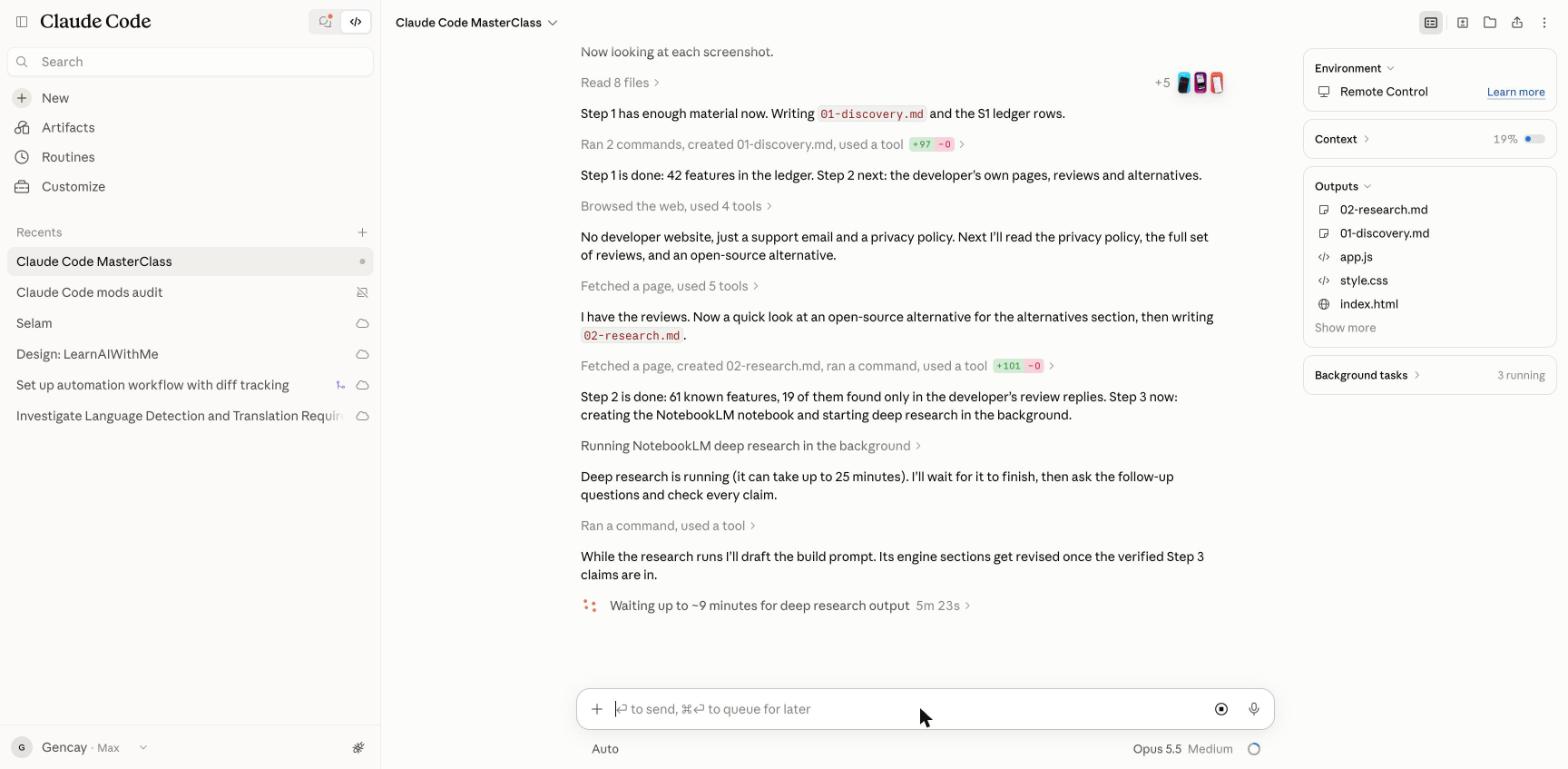
\Step 2. 61 features, 19 of them only in the developer’s replies.\
That is where the real mechanics were hiding. Two kinds of target, one per period and one per session. Why pause was refused for years before it finally shipped. How idle time gets calculated. The free version’s limit of 7 activities.
Step 3 sent everything to NotebookLM for a deep research run. Then Claude did the part most people skip. It checked the answers.
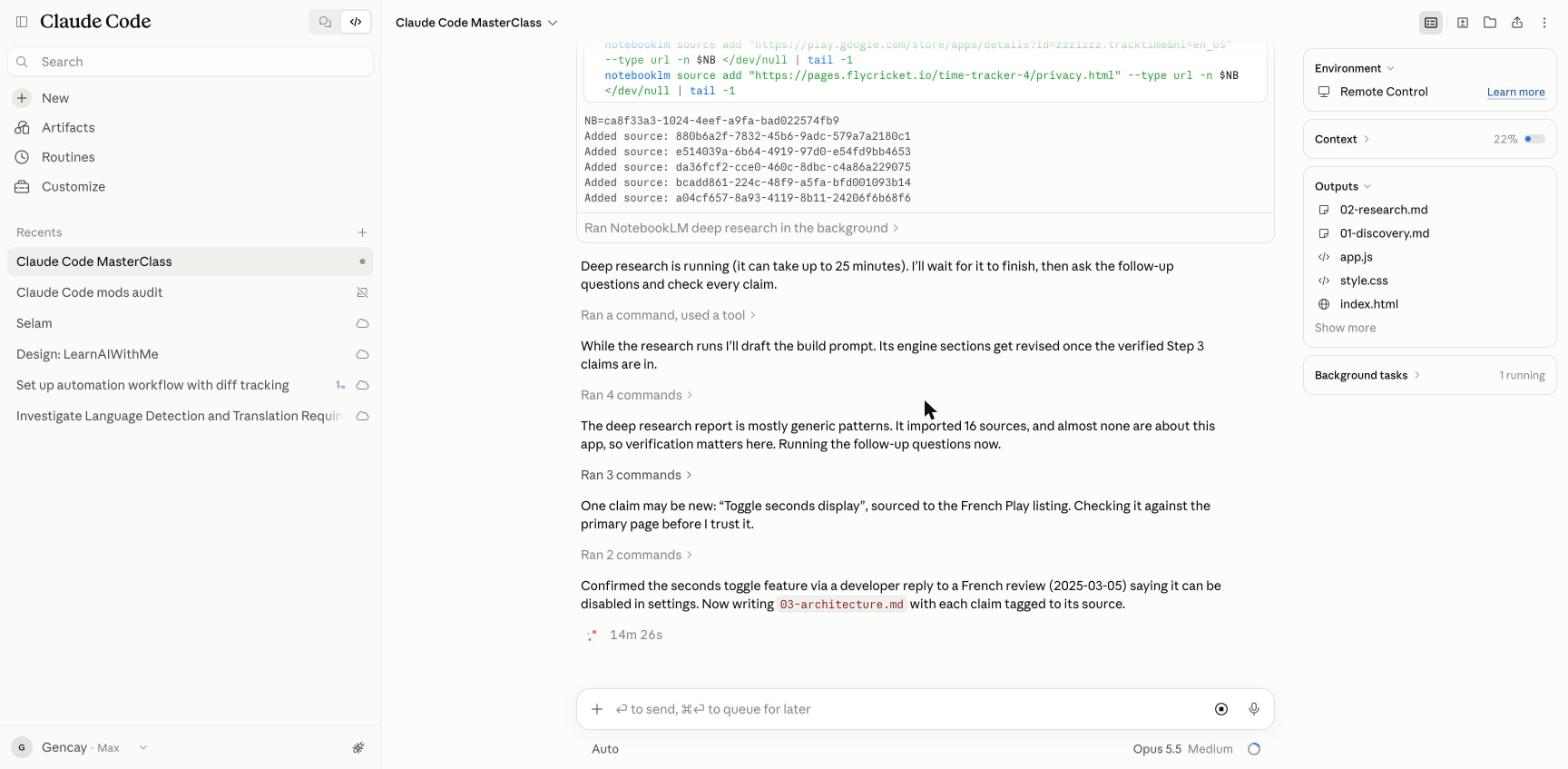
\NotebookLM suggested a new feature. Claude checked it against a developer reply before trusting it.\
Deep research pulled in 16 sources, and only 4 of them were about this app. One source added 20 features that belong to other products. Claude tagged every claim STATED, OBSERVED, INFERRED or REJECTED. Five claims got REJECTED, among them a “Pomodoro mode” the developer never built and an “offline only” label the ad-supported app doesn’t fit.
One claim survived. A setting to hide seconds, confirmed in a developer reply to a French review.
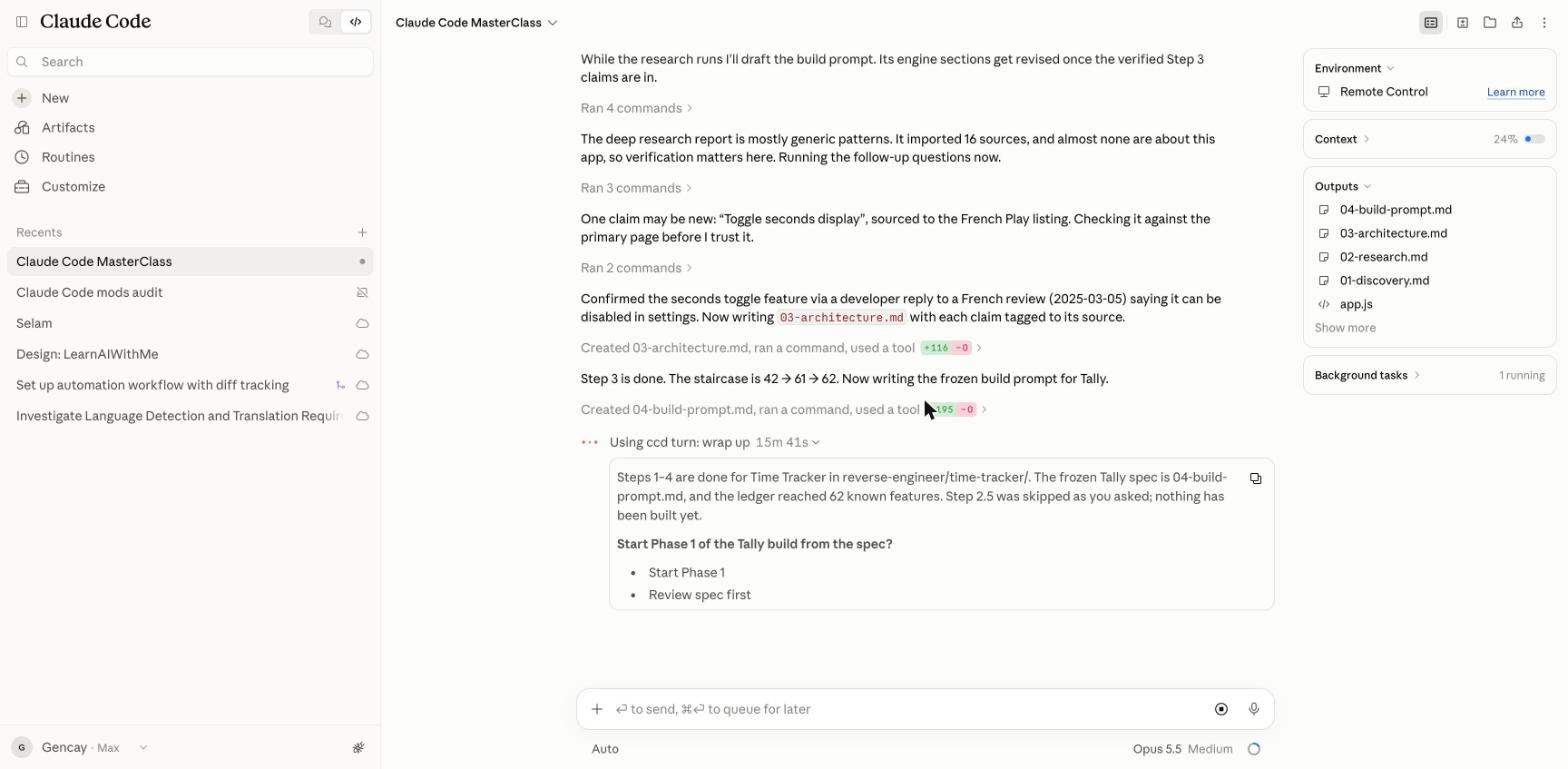
\Steps 1 to 4 done. 62 known features and one frozen build spec.\
The ledger tells the story in three numbers. 42 features after Discovery, 61 after Research, 62 after NotebookLM. (The percentages are of the features we know about, never of the whole app.)
Step 4 froze all of it into one 195-line build spec. The stack, the data model, the API, three build phases and a list of scope cuts. It ends with a legal line. No code, icons, screenshots, text or name from Time Tracker, and the APK was never downloaded or opened.
Compare that with Level 3. One prompt gave us four buttons Claude made up. The skill gave us 62 features with a source for each one. Level 7 builds from it.
Get the skill
Here is the skill, the same folder I used for this article. It is a shared Google Drive folder with the skill, its scripts and a full example run on Screen Studio.
Reverse-Engineer Pipeline on Google Drive
- Open the folder and click Download. Drive packs it into a zip and saves it to your Downloads folder.
- Open the file one-prompt.md inside it.
- Copy the prompt in that file and paste it into a Claude Code session.
Claude installs the skill into ~/.claude/skills, sets up REA and the NotebookLM tool and runs two tests. Start a new session after the install so the skill loads.
Official docs. Extend Claude with skills
Level 5: MCP & CLIs
Look back at the Level 4 run. Claude read a web page, looked at eight screenshots, saved files, and started a research job in Google’s NotebookLM.
None of that happens inside the chat box. Claude reached outside it in two ways.
CLIs, the tools already on your computer
A CLI is a program you run by typing its name in a terminal. Your Mac ships with hundreds of them. You install more with one command.
Claude Code runs them for you. In this course, it already used three.
- lsappinfo, which ships with macOS. It tells Tally which app is in front (Level 3).
- curl, for fetching pages and checking that the Tally server answers.
- notebooklm, an unofficial open-source CLI for Google’s NotebookLM. The skill drove the whole research step with it.
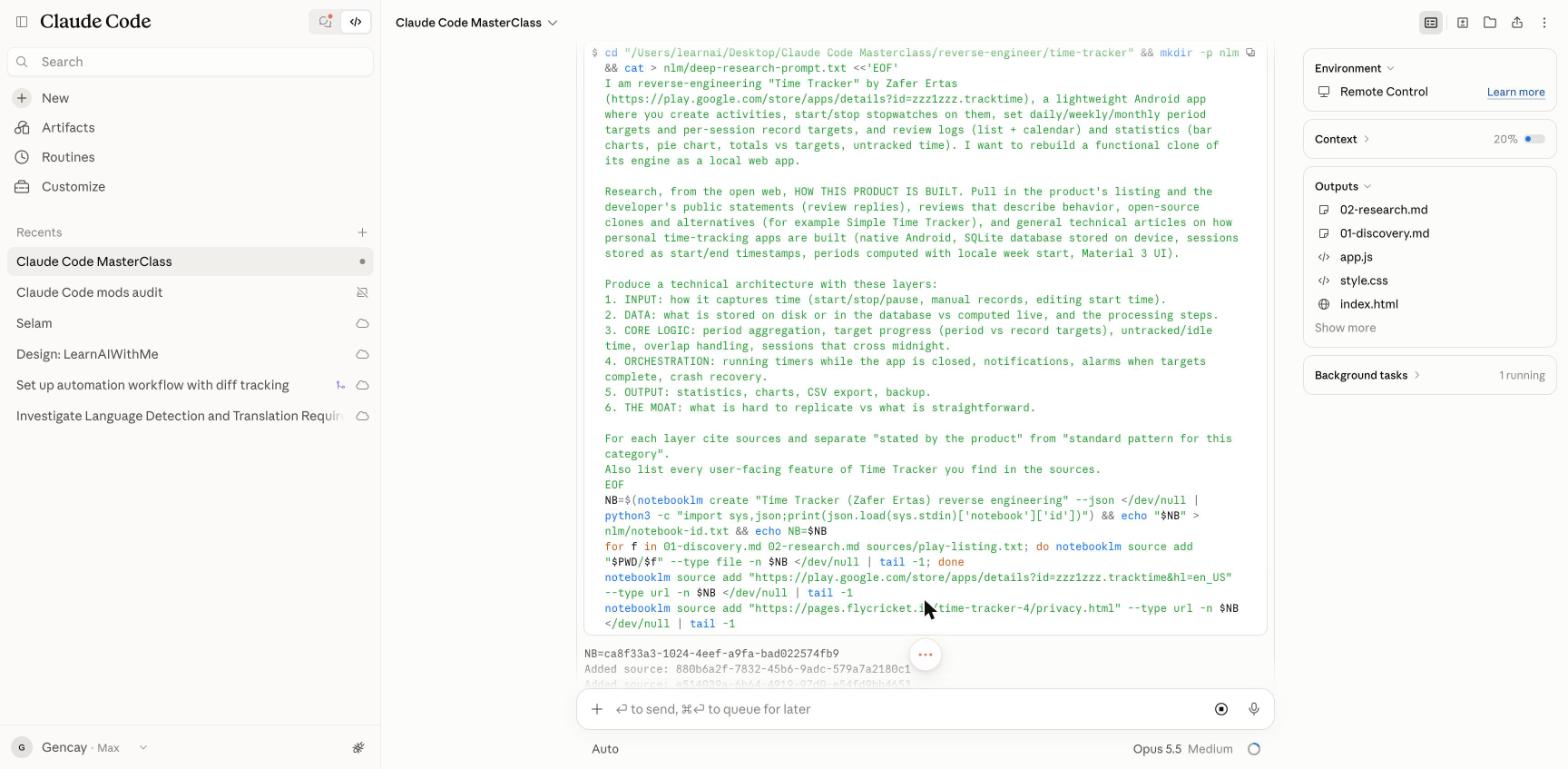
\The skill creates a notebook and adds sources with plain notebooklm commands.\
Click any grey “Ran a command” line in a session and it opens. Here the skill wrote its research question to a file, created a notebook with notebooklm create and added five sources with notebooklm source add. No browser, no clicking.
The rule is simple. If a tool has a CLI and you can install it, Claude can use it. You don’t need anything else.
MCP, the plugs into your apps
Some apps have no CLI. Your calendar, Notion, Gmail. For those there is MCP, the Model Context Protocol. An MCP server is a plug. It hands Claude a set of tools for one app, like list my events or create a page.
You saw the plugs in Level 1. Customize, then Connectors. Anything you connect there shows up in Claude Code too.
I have Google Calendar connected. So I asked a calendar question in the same Code session.
Before we build, a quick question. Use my Google Calendar to tell me how many hours of meetings I have today. Only the total and the number of meetings, no titles.
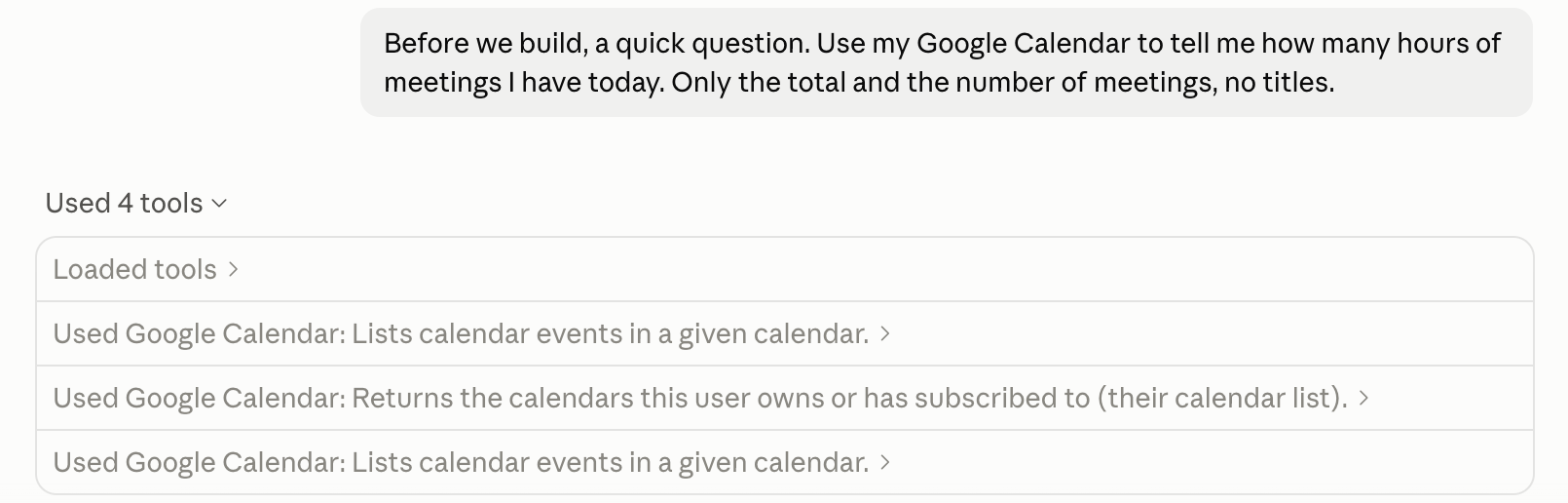
\Three Google Calendar calls. No setup in this project.\
Claude loaded the calendar tools, listed my calendars and read today’s events in each. The answer was 0 meetings and 0 hours.
Which one when
Use a CLI when the tool lives on your computer and has one. It is faster and Claude knows most of them already.
Use MCP when the tool lives in the cloud behind a login, like your calendar.
Official docs. Connect Claude Code to tools via MCP, Connect to MCP servers, CLI reference
Level 6: Automations
Everything so far started with you typing. This level is about the work that starts on its own.
Claude Code gives you three ways to do that. A hook fires at a fixed moment inside a session. A scheduled task runs on a clock. A headless run is Claude Code started from a terminal or a script, with no chat window at all.
Hooks
The Level 4 run took about 15 minutes. I didn’t want to stare at the screen for it. So I asked for a ping when Claude is done.
Add a hook to this project that shows a Mac notification saying "Claude is done" every time you finish a reply. Put it in the project settings.
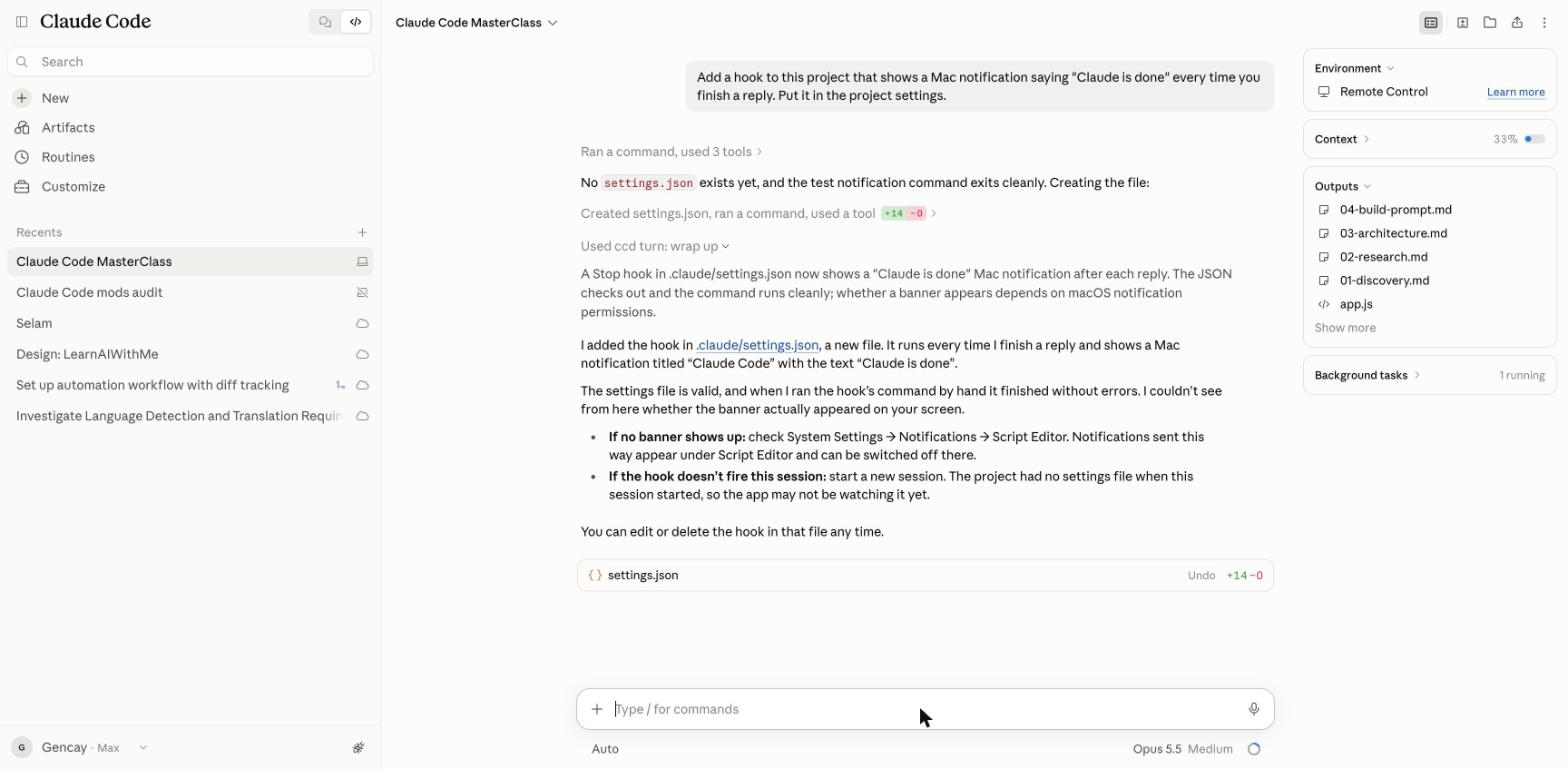
\One new file, .claude/settings.json, with a Stop hook inside.\
A hook is a shell command tied to an event. Here the event is Stop, the moment Claude finishes a reply. Other events fire before a tool runs, after a file changes or when Claude needs your input.
Read the last part of Claude’s answer.
It ran the command by hand and said it couldn’t see whether a banner appeared on my screen. It even told me where to look if nothing shows up (System Settings, Notifications, Script Editor).
That is the kind of honesty you want from a tool that runs on your computer.
(My banner never showed up during this test. My Mac was locked, and Tally recorded that too. More on that below.)
Scheduled tasks
Time Tracker still gets updates. I want to know when a new feature lands, without checking the Play Store myself. You can create a scheduled task by describing it in any session.
Set up a scheduled task for this folder. Every Monday at 9 AM, check the Time Tracker Play Store page for a new version or new features, add anything new to the ledger and tell me in 3 lines.
Claude saved today’s listing as a baseline first, so every run has something to compare against. Then it asked for permission in a way I hadn’t seen before.
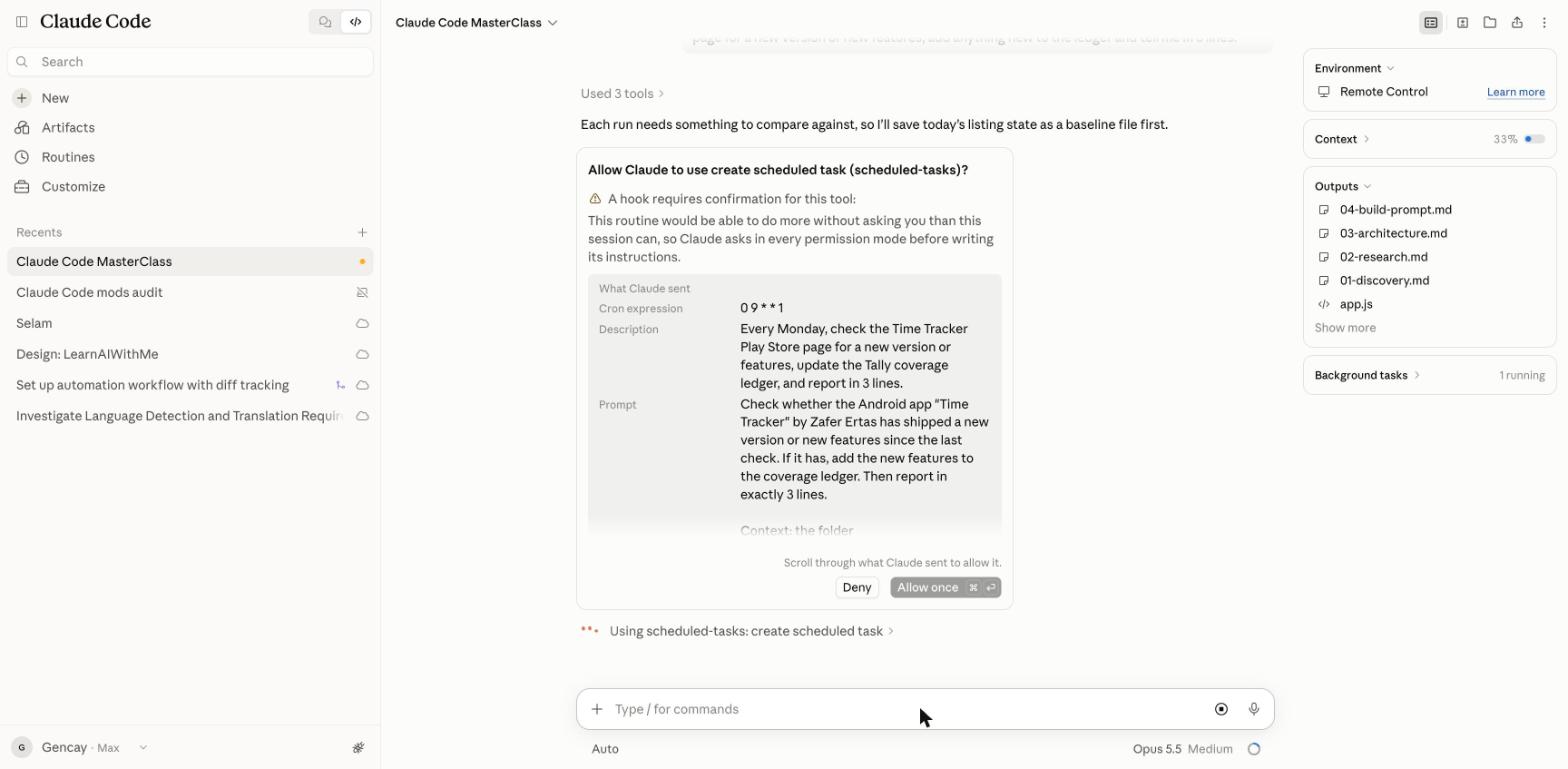
\The Allow button stays grey until you scroll through the whole task.\
A scheduled task runs later without you watching. So Claude Code asks in every permission mode, even Auto, and it makes you scroll through the exact instructions before Allow becomes clickable.
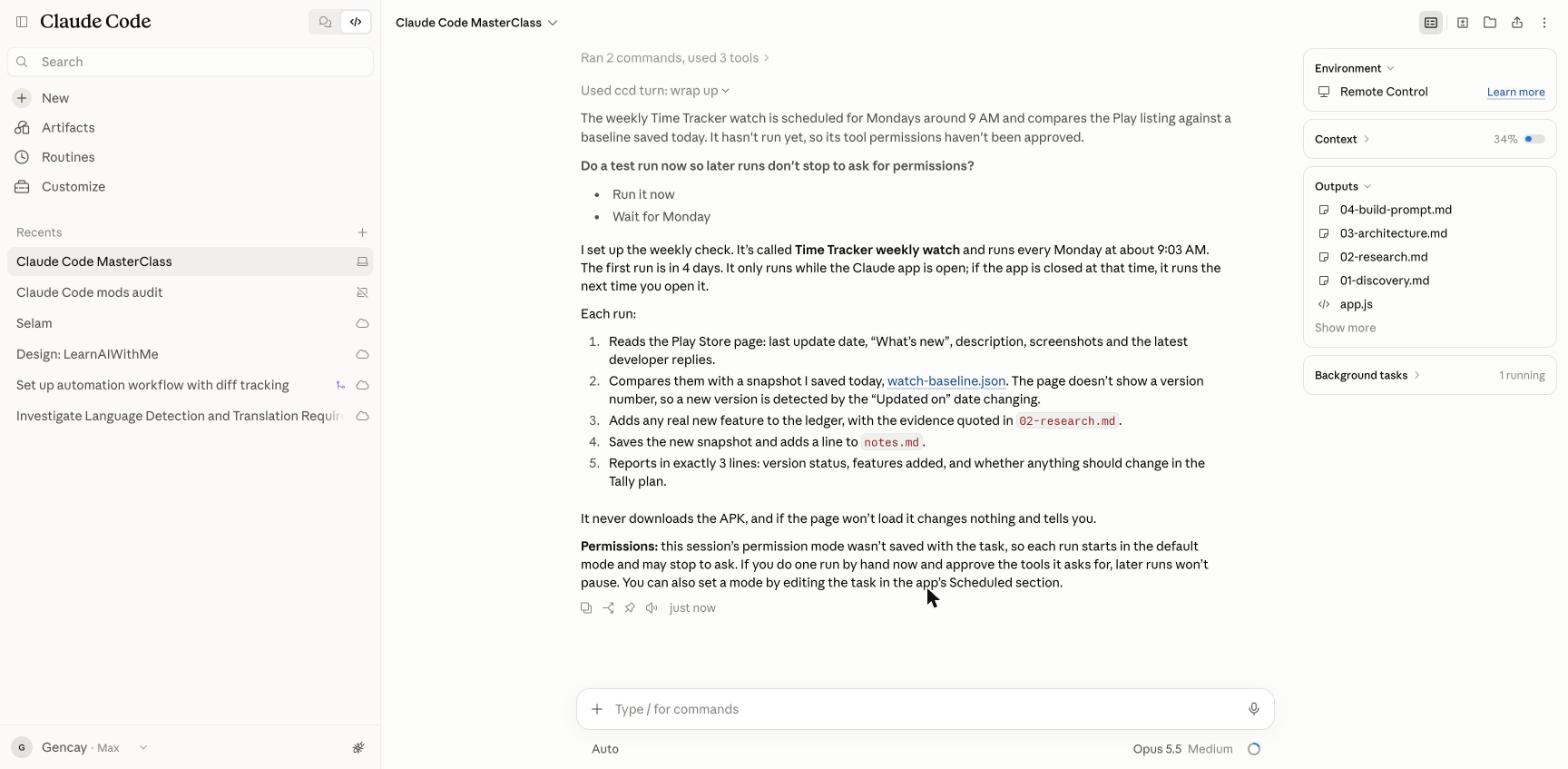
\Time Tracker weekly watch. Mondays at 9:03 AM, first run in 4 days.\
Two things to know. A Desktop task runs on your Mac, so the Claude app has to be open (a missed run starts the next time you open it). For work that must run with the laptop closed, use a cloud routine instead. It runs on Anthropic’s machines and can’t see your local files.
Headless runs
The last one has no window at all. Open Terminal in your project folder, type claude -p with a question, and Claude answers and exits.
claude -p "Which 3 apps were in front most today, according to tally.db? One line each." --allowedTools "Bash(sqlite3:\*)"
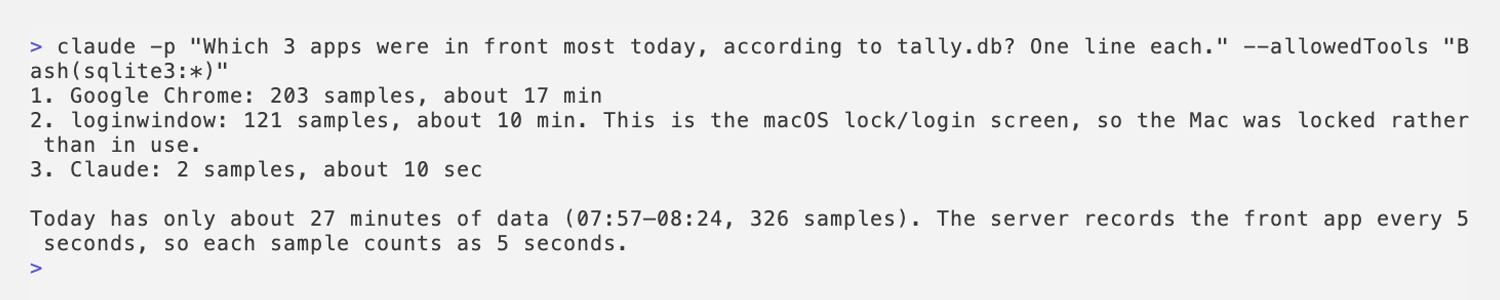
\27 minutes of data, and 10 of them were the lock screen.\
The --allowedTools part lets Claude run sqlite3 without asking. Look at line 2. loginwindow is the macOS lock screen. My Mac was locked for 10 minutes during this level, and the one-prompt version of Tally counted it like any other app.
That is a bug the real build has to fix. Put a line like this in a script and Claude becomes one step of a bigger job, a nightly report, a check before every commit, anything that runs on a schedule.
Official docs. Automate actions with hooks, Schedule recurring tasks in Claude Code Desktop, Automate work with routines, Run Claude Code programmatically
Level 7: Your First App
Everything Claude needs now lives in files. CLAUDE.md holds the rules. The build spec from Level 4 holds the plan. So I started the build with an empty conversation.
Type /clear, then switch the mode to Plan.
Plan mode means Claude reads and thinks, and changes nothing until you approve. For a build this size, that is the mode you want.
Use this prompt:
Build Tally from reverse-engineer/time-tracker/04-build-prompt.md. All three phases, in order. Keep the data already in tally.db. Make a plan first.
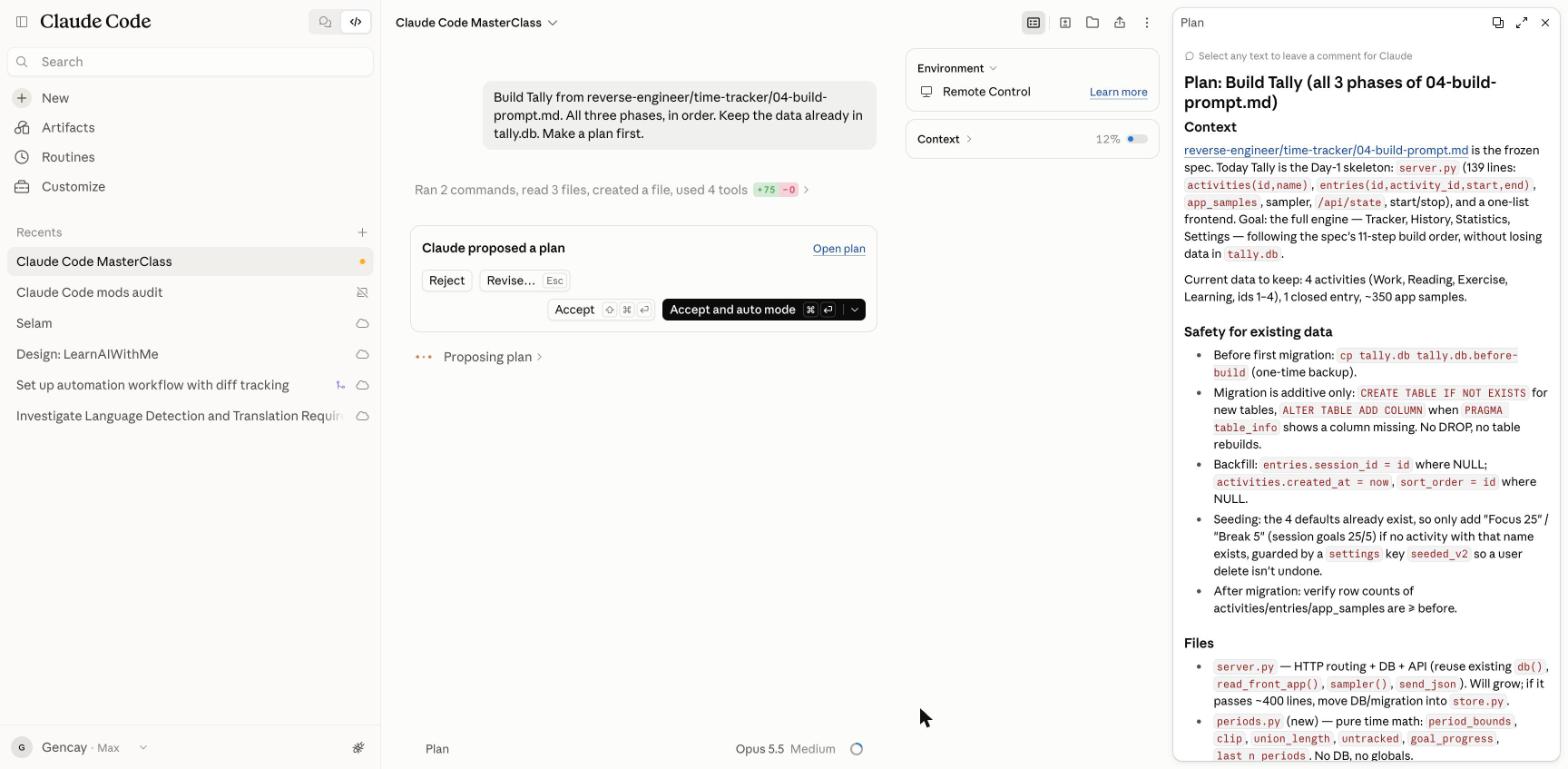
\The plan opens in its own panel. The first section is about not losing my data.\
The first thing in the plan is a backup of tally.db. Then a migration that only adds tables and columns and never drops anything. Then the files, the 11 build steps from the spec and how each step gets tested.
Read the plan, then push back
Two things were missing. Level 6 showed my locked Mac counted as an app called loginwindow. And the app’s built-in browser preview had got stuck in Level 3.
So I clicked Revise and wrote what I wanted changed.
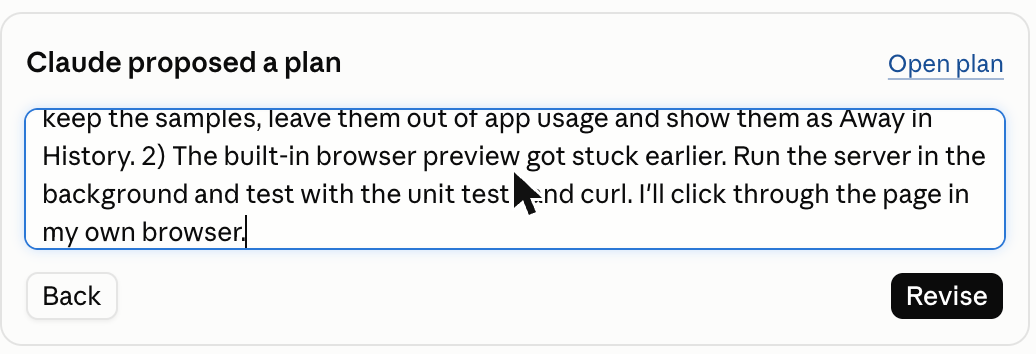
\Revise sends your notes back. Claude rewrites the plan before any code exists.\
Two changes. 1) My Mac was locked for 10 minutes today and Tally logged it as an app called loginwindow. Treat loginwindow and the screensaver as Away: keep the samples, leave them out of app usage and show them as Away in History. 2) The built-in browser preview got stuck earlier. Run the server in the background and test with the unit tests and curl. I'll click through the page in my own browser.
The new plan got a whole section called Away time. Then I clicked Accept and auto mode. Accept starts the build. Auto mode lets it run without asking me about every file.
Then I stopped typing. Claude worked through the steps on its own. Engine and database first, then the server, then every screen.
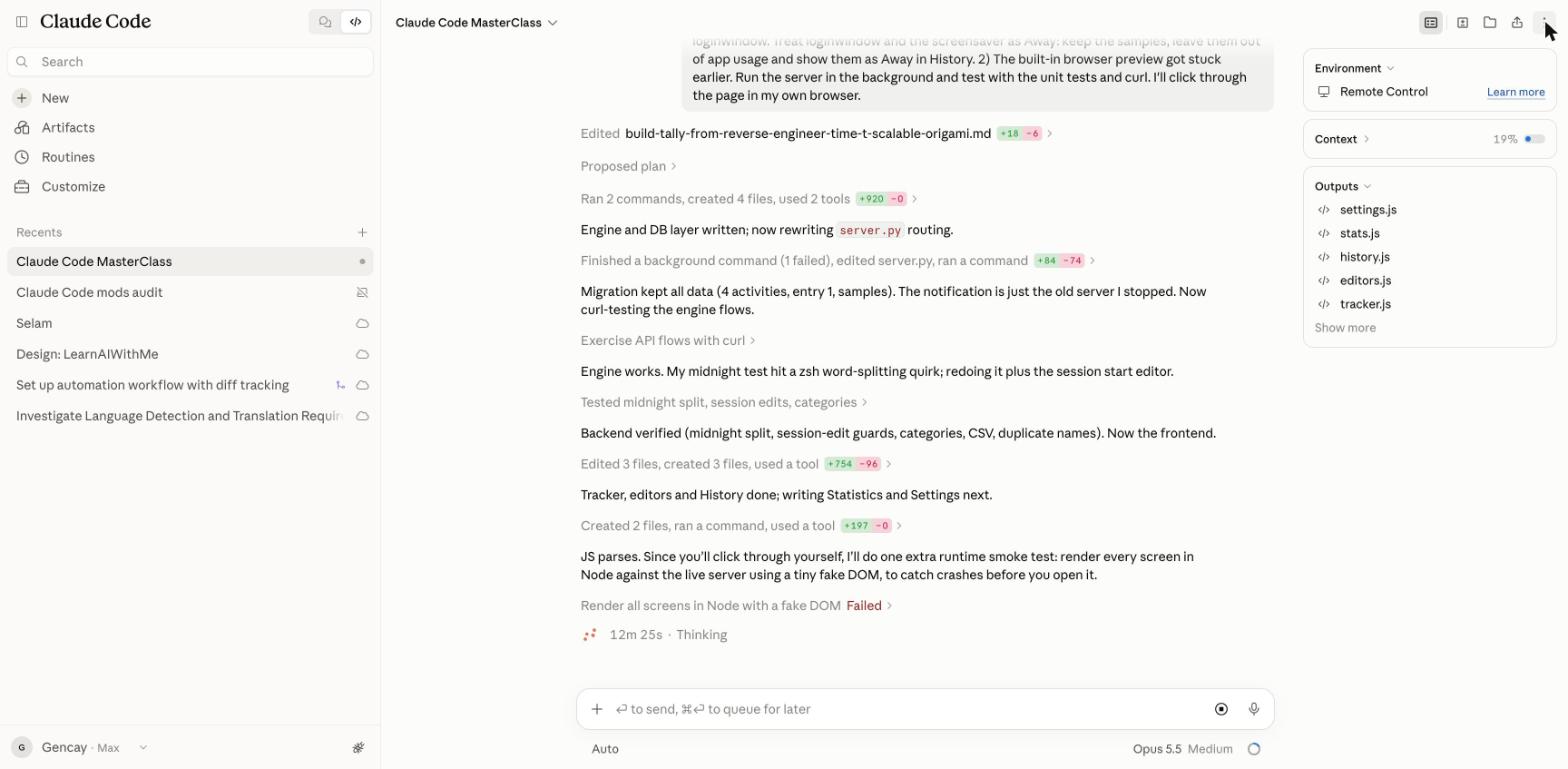
\Each grey line is work. Each black line is Claude telling you what it just did.\
It backed up tally.db before touching it and checked afterwards that my 4 activities and every app sample were still there. It tested an entry that crosses midnight. One of its own tests failed on the way, and it fixed it and moved on.
A little over 10 minutes later it stopped with a report. 14 files, 2,055 new lines, 21 unit tests passing.
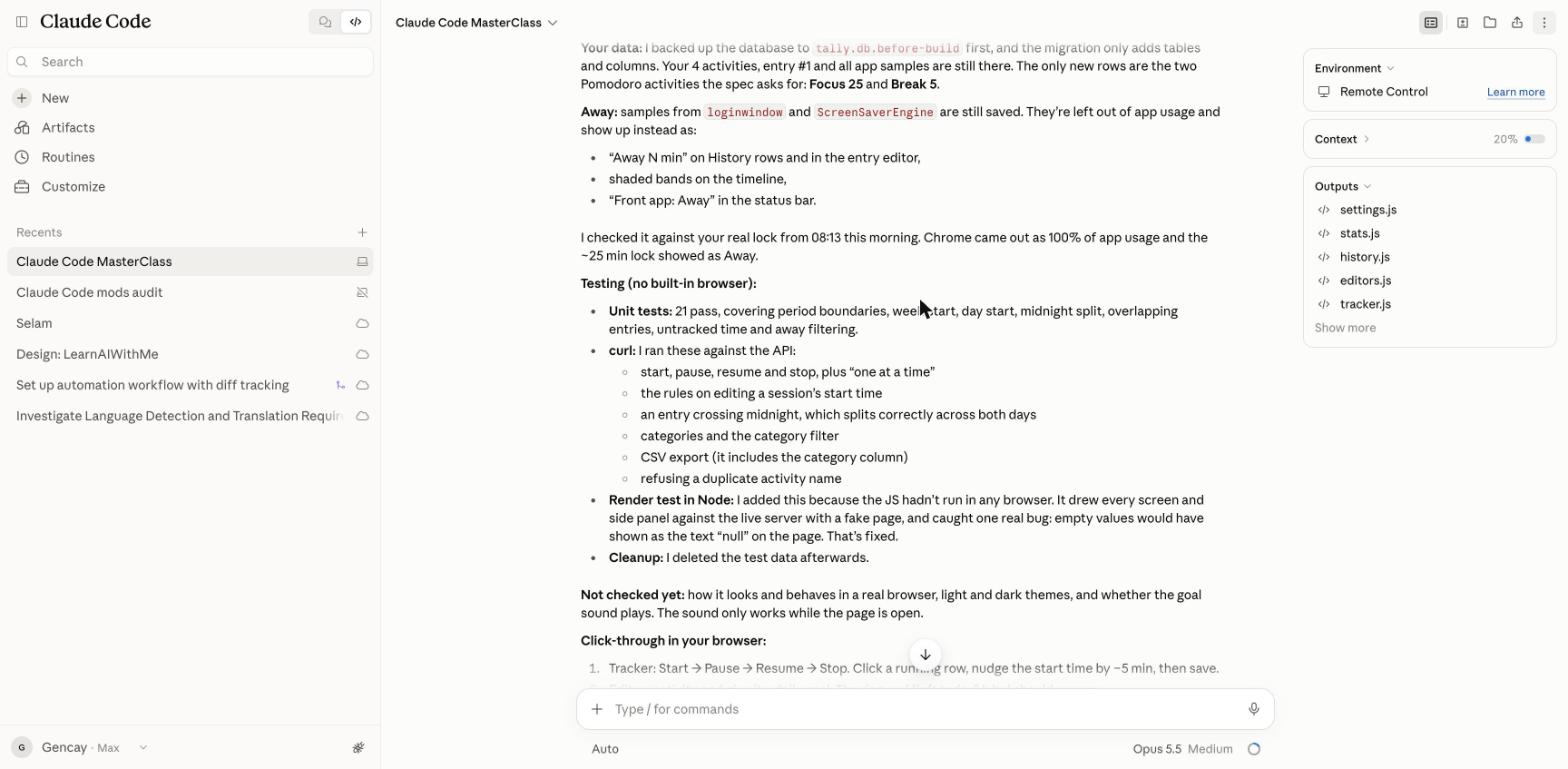
\The report says what was tested, and what was not.\
Read the bottom part of every report like this. Claude listed what it had not checked yet, how the page looks and behaves in a real browser. Then it gave me a click-through list for my own browser.
Test it like a user
I opened Tally in Chrome and clicked the first activity. Two bugs, on the first click.
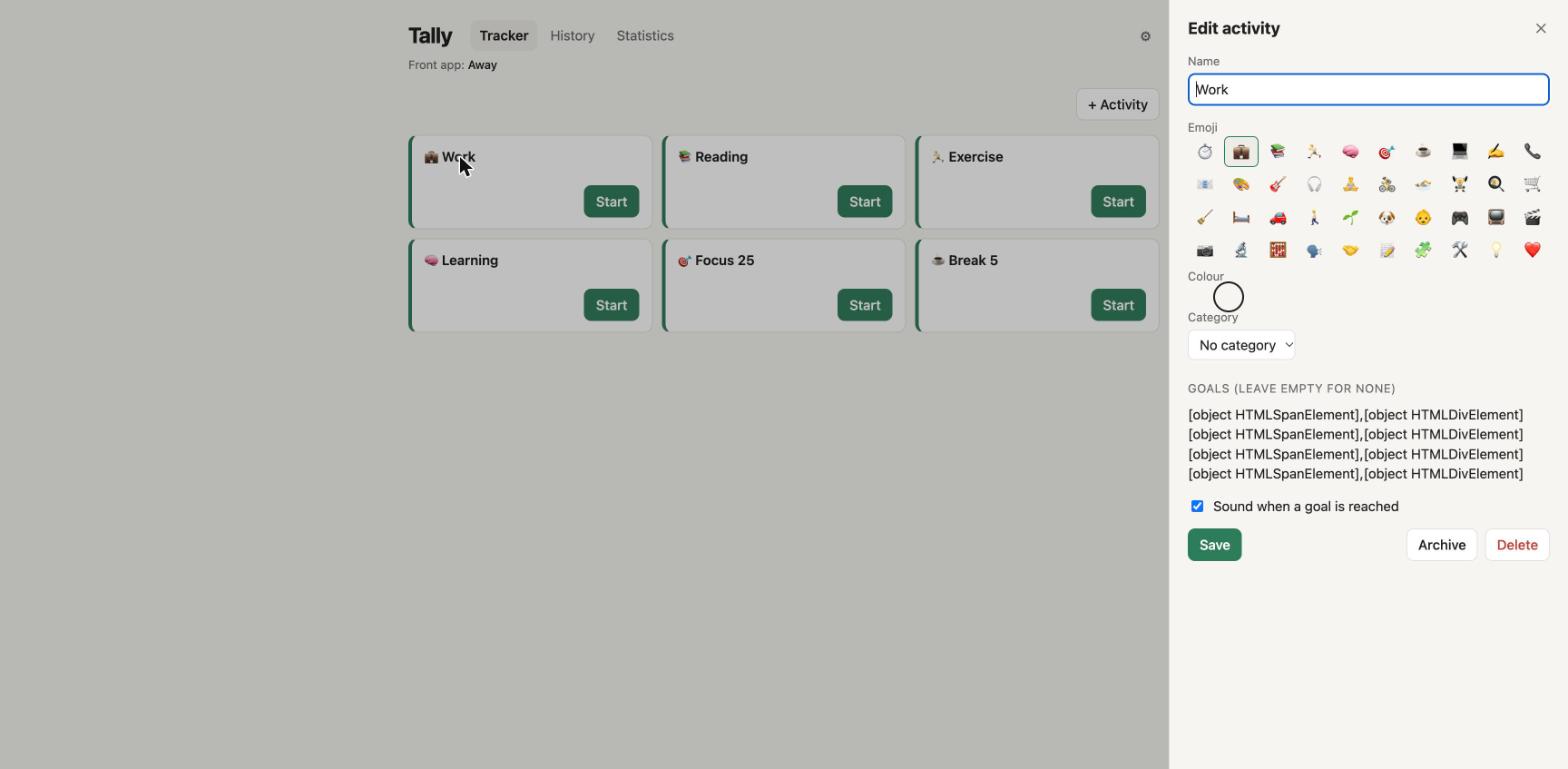
\Goal fields printed as code, and one empty circle where 12 colours should be.\
I described exactly what I saw.
I opened Edit activity in Chrome. Two bugs. The Goals section shows "[object HTMLSpanElement],[object HTMLDivElement]" four times instead of the inputs, and Colour shows one empty circle instead of 12 colours. Fix both, then check every other panel and screen for the same kind of bug.
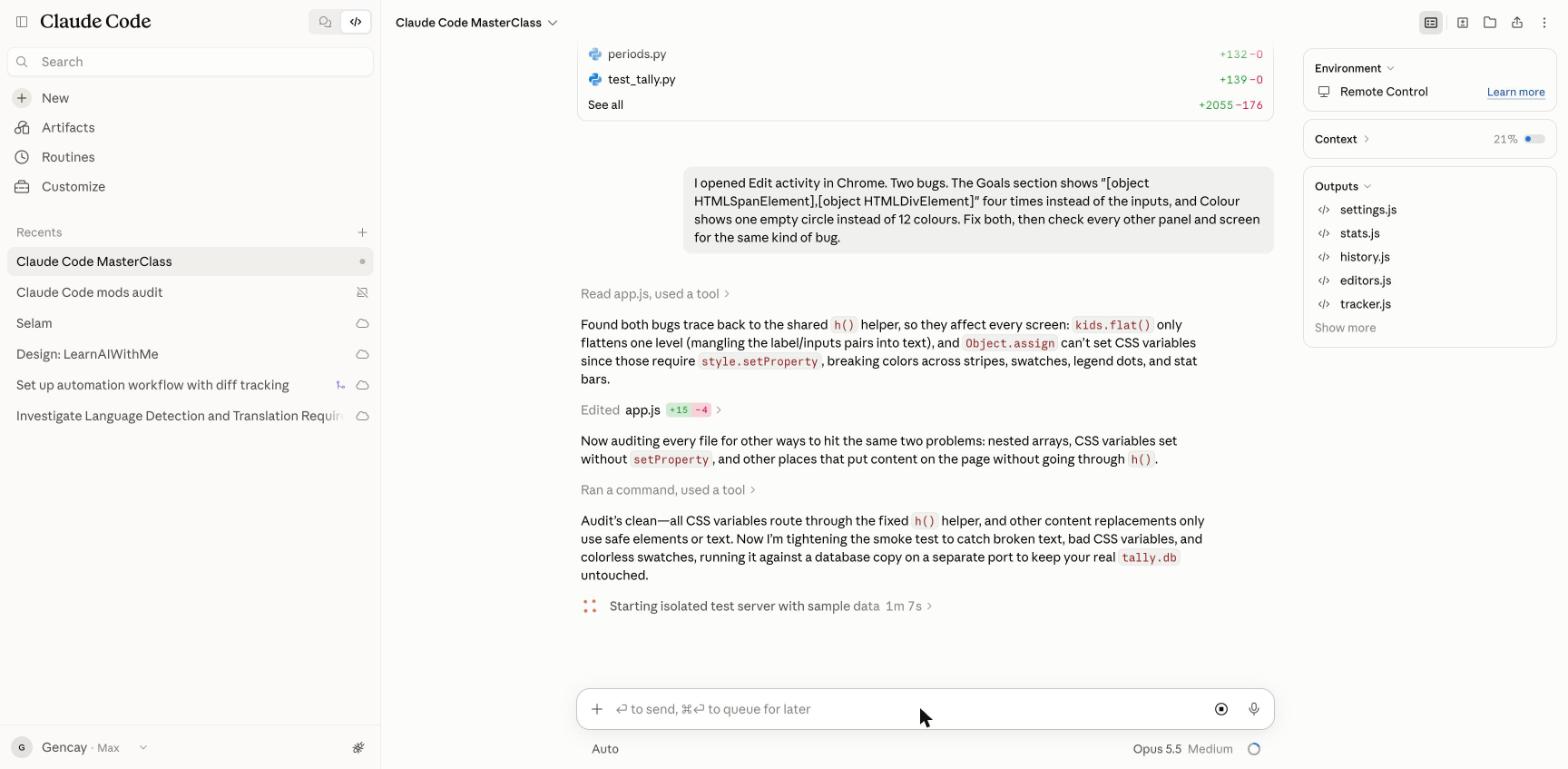
\Both bugs came from one helper function, so both were everywhere.\
Both bugs lived in one small helper that builds every screen. So Claude didn’t only fix the editor. It checked every file for the same mistake, then made its own test strict enough to catch it. The strict test found 182 problems in the old code, my two among them. The fixed code passes.
That is step 6 of the skill from Level 4. Test it like a user. Unit tests passed the whole time. The bug was only visible to someone looking at the page.
Tally, working
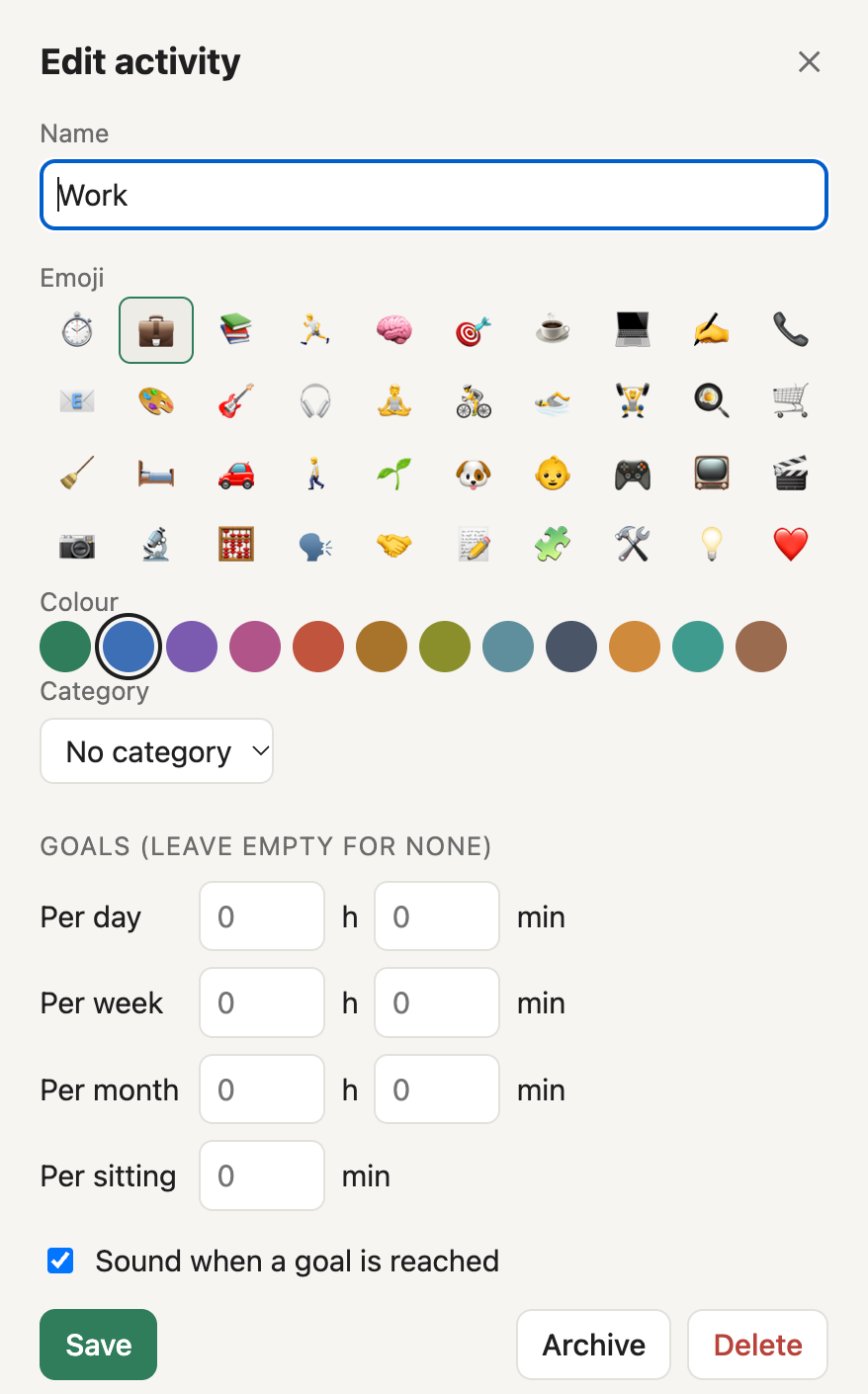
\12 colours, and a goal per day, week, month and sitting.\
I gave Work a goal of 2 hours a day and pressed Start.
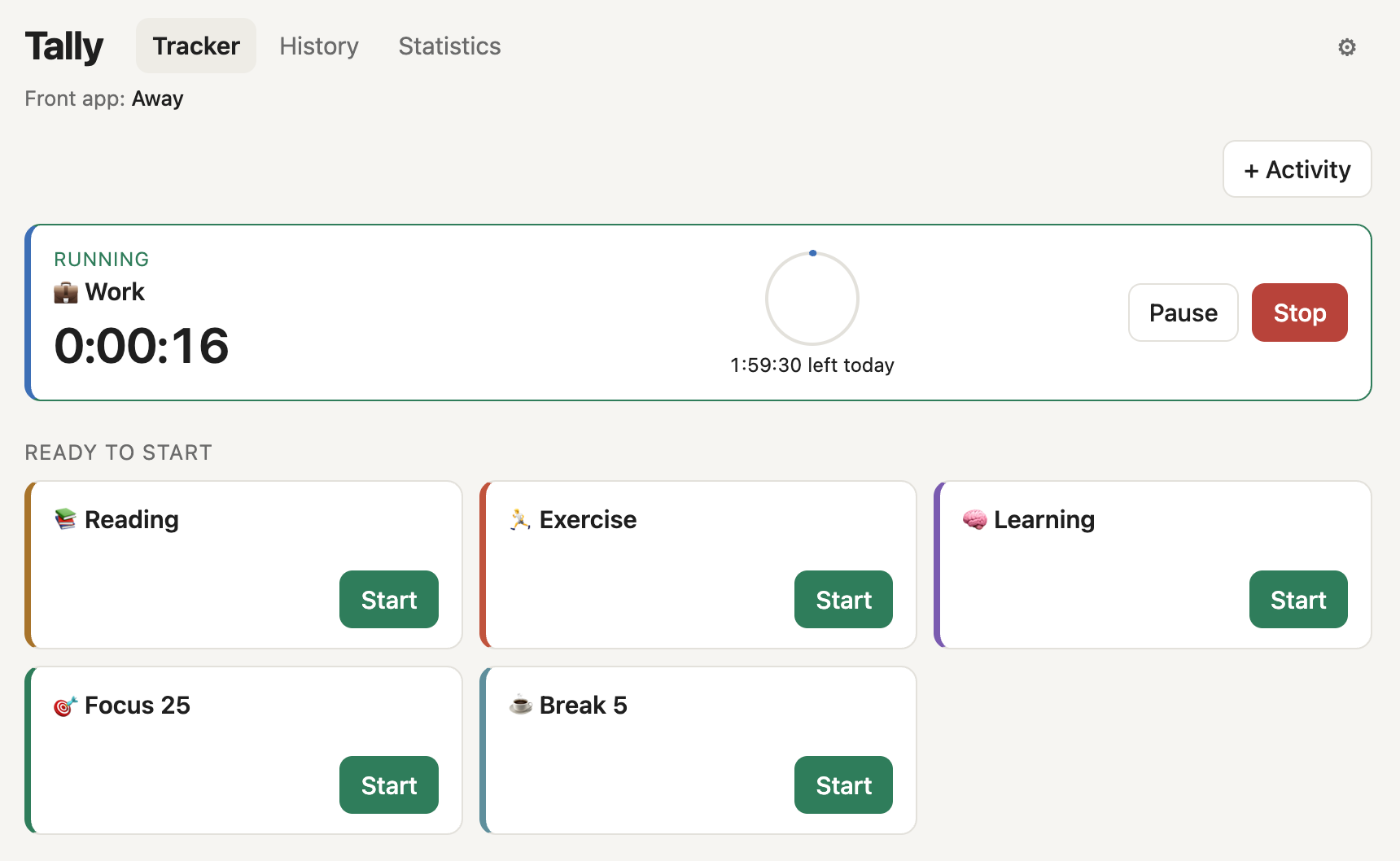
\The running activity moves to the top. The ring counts down to today’s goal.\
My Mac sat locked the whole time Work was running. Remember the bug from Level 6? This is the fix.
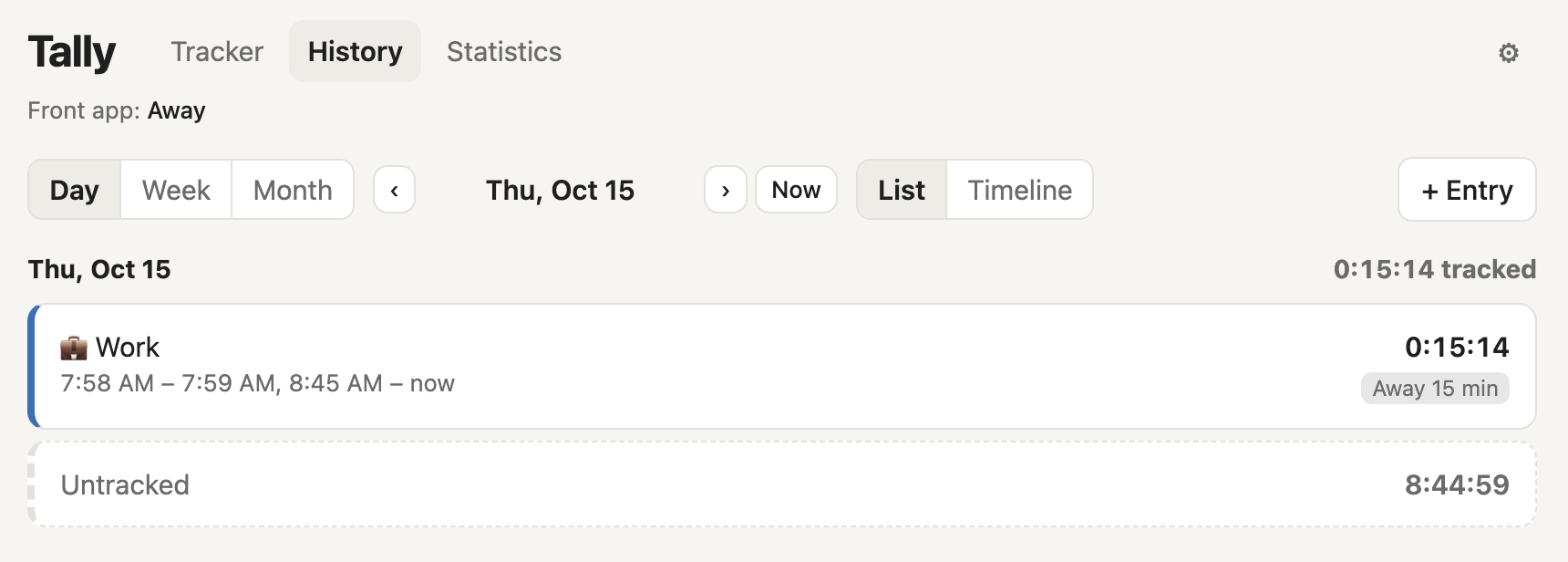
\History knows the timer ran while the Mac was locked.\
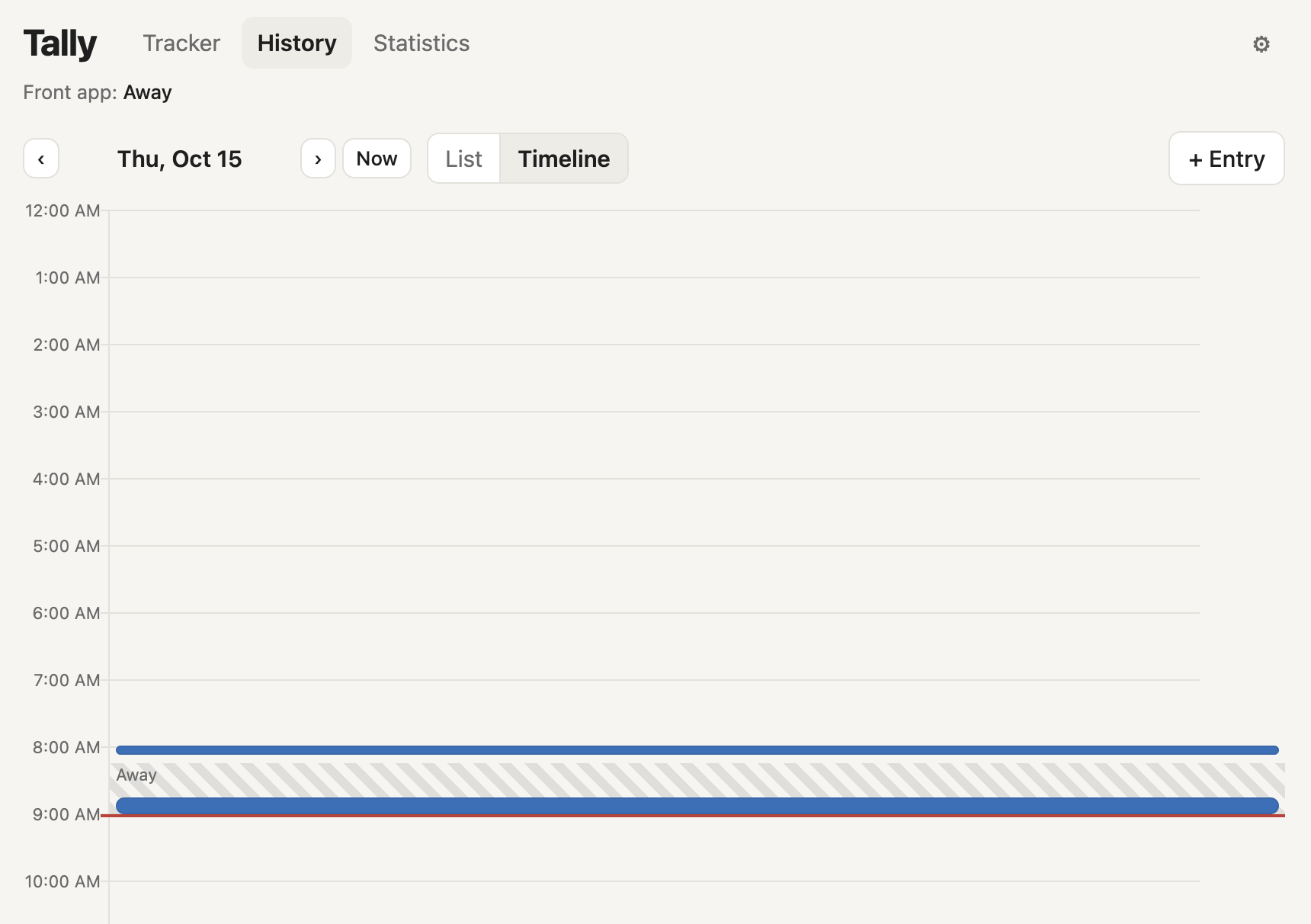
\The timeline shades the locked stretch as Away.\
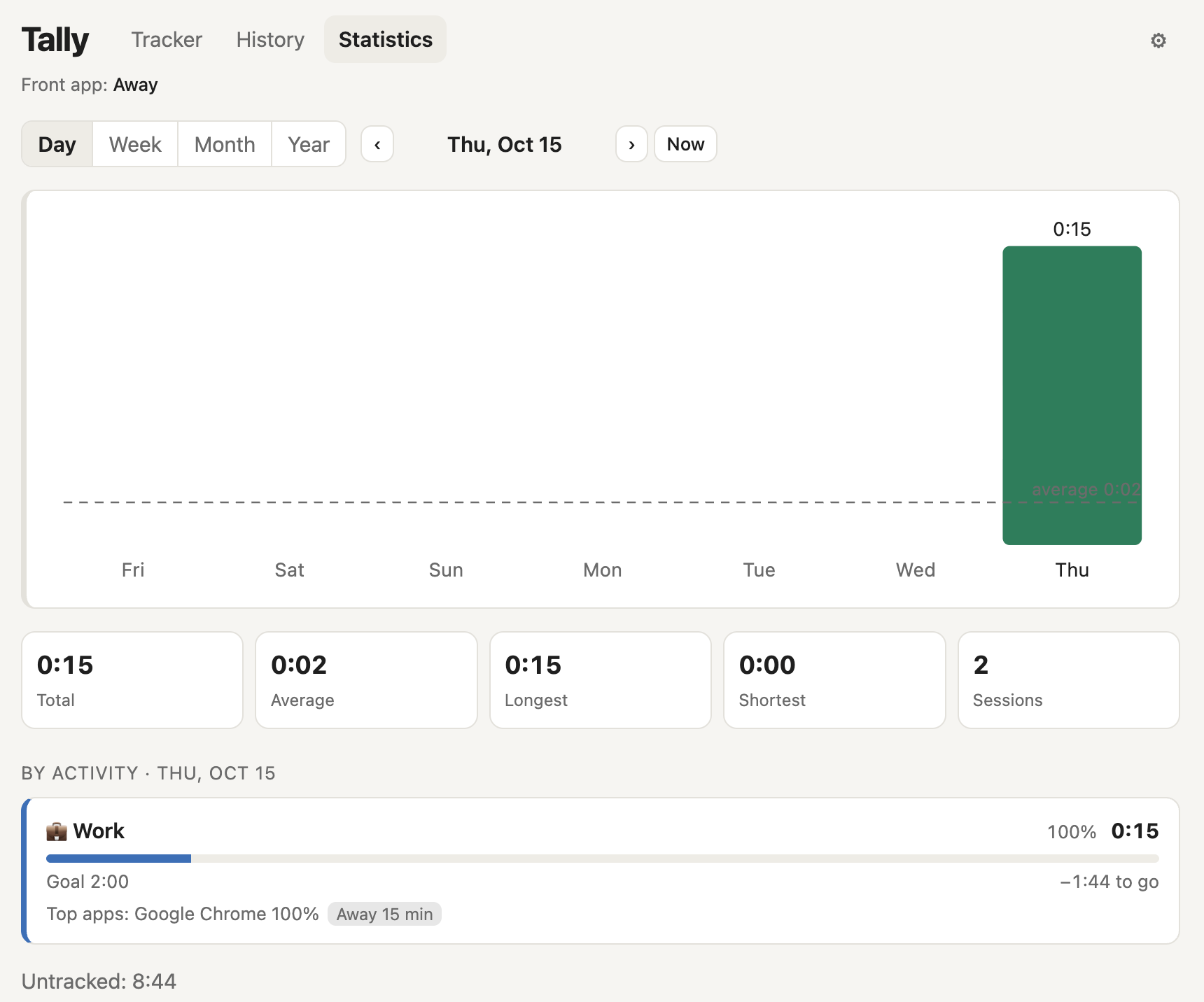
\Goal progress, the apps used and the Away time, per activity.\
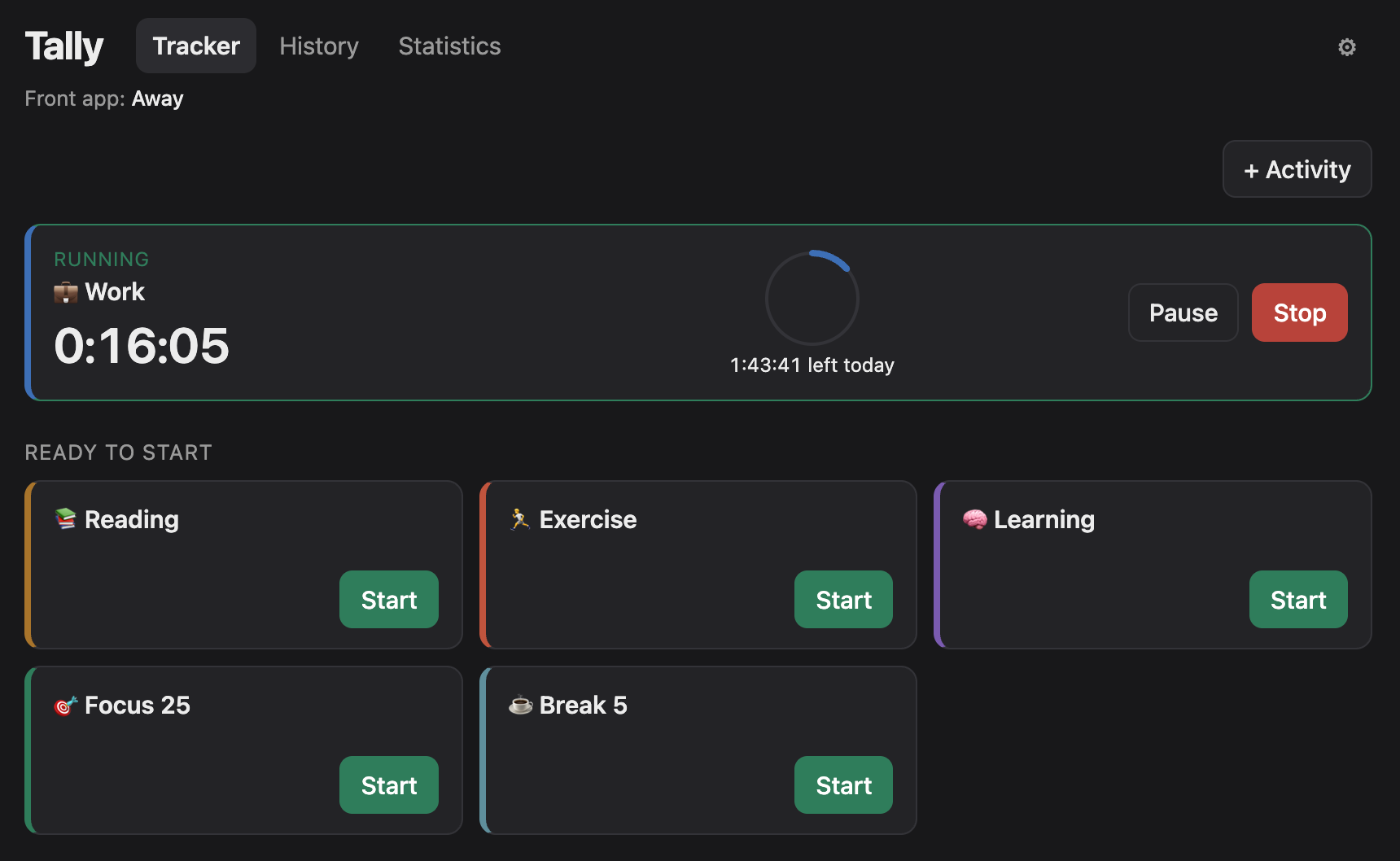
\Dark mode came free with the spec.\
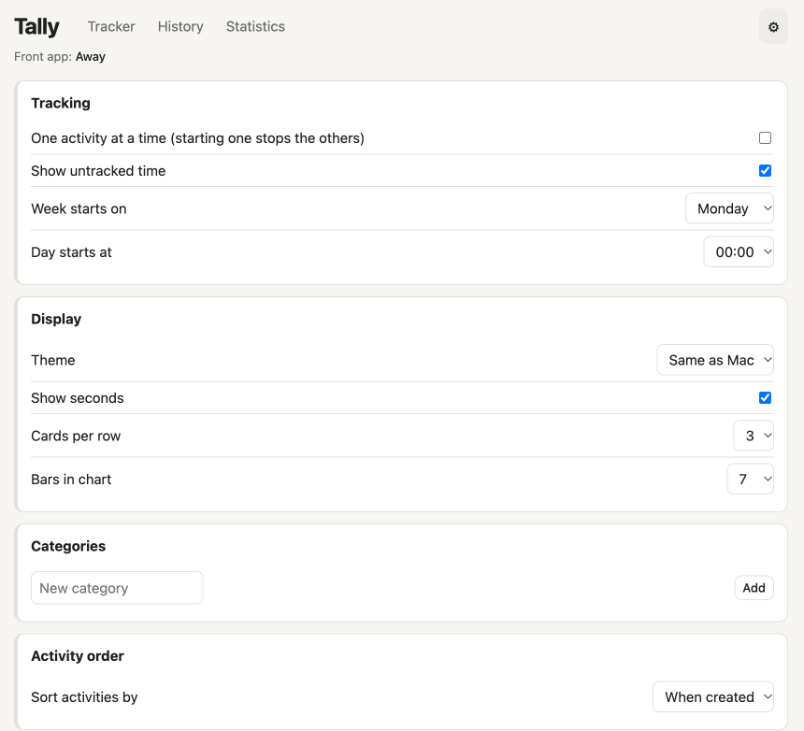
\Every setting from the spec, including the week start and day start.\
Count the prompts in this level. One to build, one to revise the plan, one bug report.
Official docs. Common workflows, Best practices for Claude Code, Analyze before you edit with plan mode
Level 8: App to Production
Tally works. It only works when a browser tab is open, and I remember to start it.
Production for a one-person app means six things. It runs without you. It starts again after a restart. It is safe. It lives somewhere other than your laptop. Other people can open it. And it looks finished. Six prompts, one for each.
1. A menu bar app
Both fixes look right in Chrome. Now turn Tally into a Mac menu bar app with rumps. The menu bar shows the running activity and its timer. The menu has Start for each activity, Stop, and Open Tally. Installing rumps with pip is the one exception to the no-pip rule, so add that exception to CLAUDE.md.
rumps is a small Python library for Mac menu bar apps. It breaks the no-pip rule from Level 3, so the prompt changes the rule on purpose. Rules in CLAUDE.md are yours to update.
Claude didn’t install it into my main Python. It made a private environment inside the project folder, so the exception stays inside Tally. It caught a bug of its own on the way. The menu bar reads Tally’s state every few seconds, and that read was quietly using up the goal alarms meant for the web page. It added a flag so the menu bar only looks.
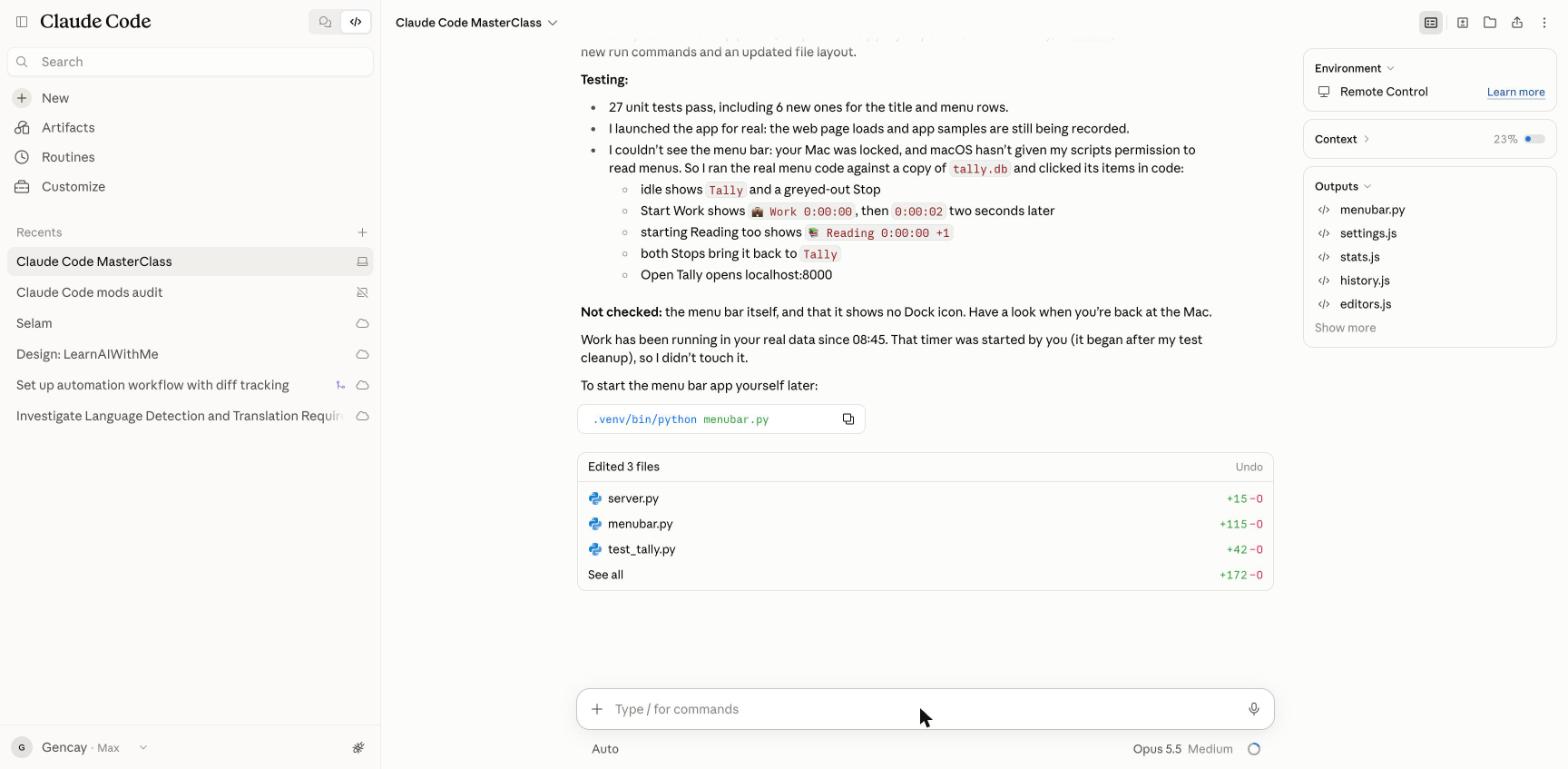
\It couldn’t see my menu bar, so it said so, and tested the menu code another way.\
My Mac was locked again. So Claude ran the real menu code against a copy of my data and clicked every item in code. Its report ends with one line under Not checked. The menu bar itself.
2. Start on login
Make Tally start on its own when I log in. Use a launchd agent for the menu bar app, test that it really starts, and tell me the exact commands to turn it off and to remove it.
launchd is the part of macOS that starts things at login. Claude wrote one small settings file for it, installed it and then tried to break it. It force-quit Tally and watched it come back by itself. It ran every command it gave me before giving it to me.
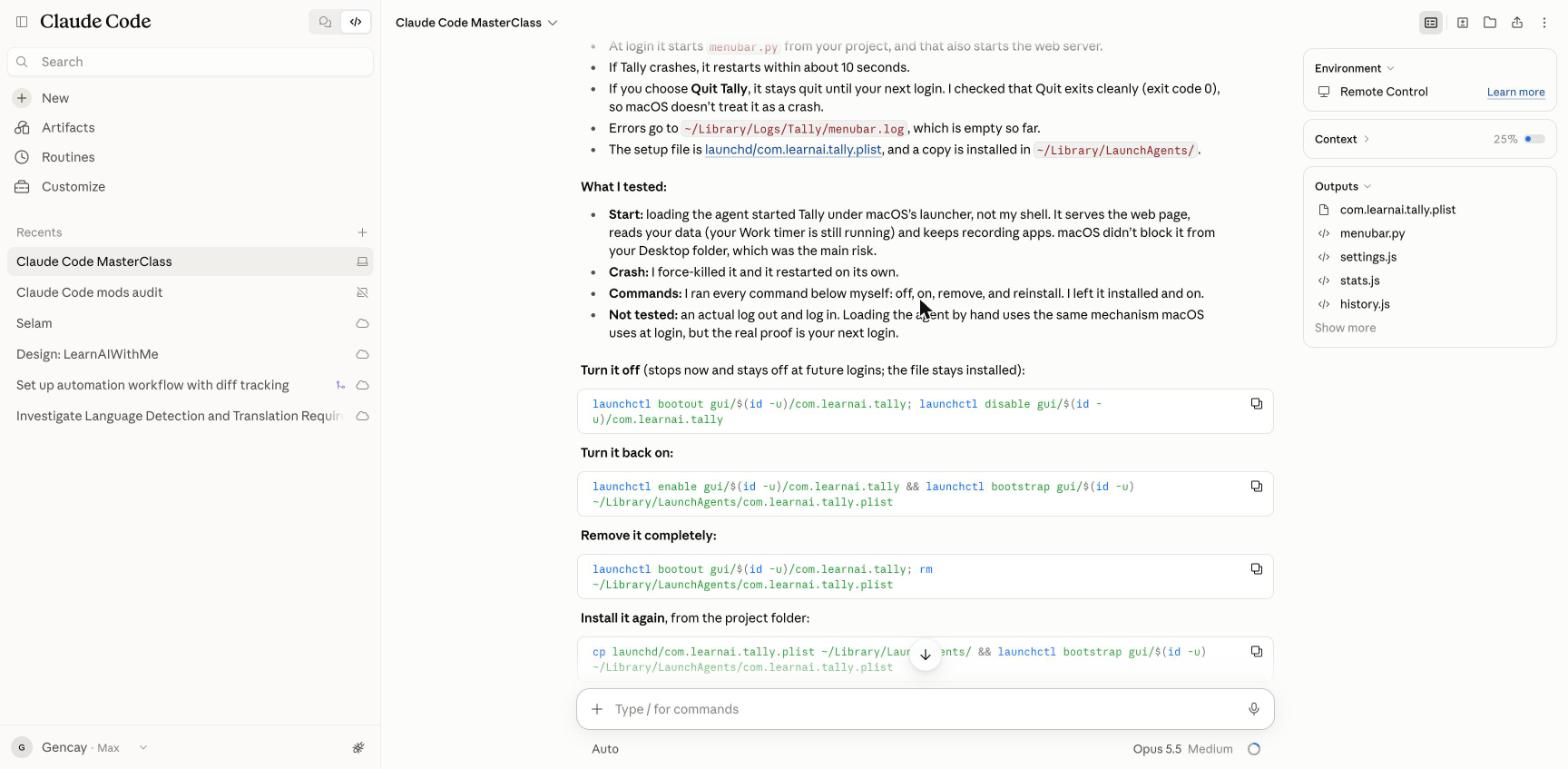
\What it tested, what it didn’t, and the exact commands to undo it.\
Keep these. Turn it off.
launchctl bootout gui/$(id -u)/com.learnai.tally; launchctl disable gui/$(id -u)/com.learnai.tally
Remove it completely.
launchctl bootout gui/$(id -u)/com.learnai.tally; rm ~/Library/LaunchAgents/com.learnai.tally.plist
(Your file name follows whatever name Claude picks for your agent. Mine is com.learnai.tally.)
3. A security review
Before this goes on GitHub, do a security review of the whole project. Who can reach the server, what can it run, what does it store, and what would leak if the repo became public. Fix anything serious and list the rest.
This is the prompt I’d skip if I were in a hurry. It found the most.
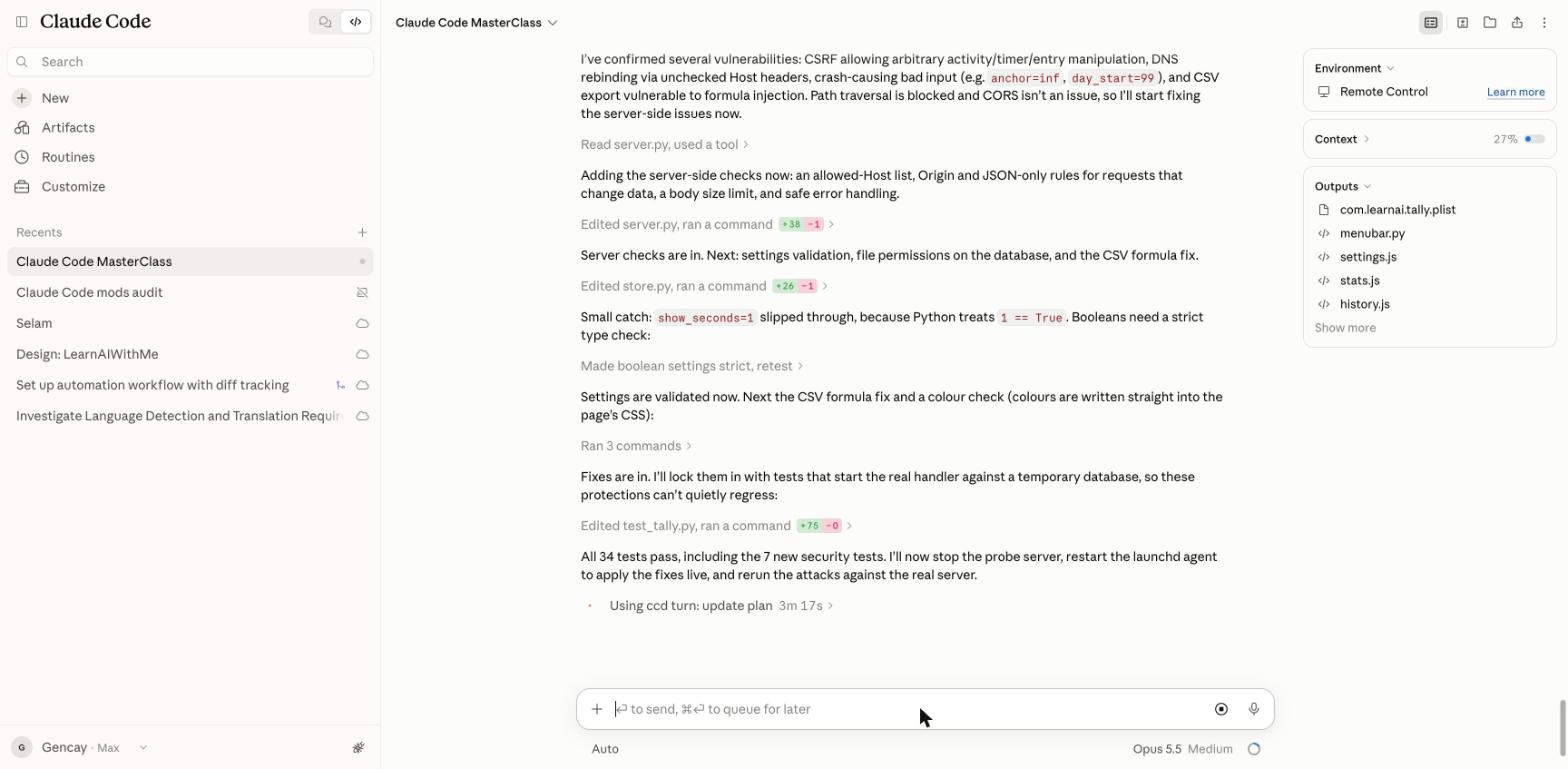
\It tried each attack by hand first, then fixed it.\
- Any website I opened could send requests to Tally and start or stop my timers. Tally runs on my Mac, and my browser can reach it.
- The server answered any web address pointed at it, a trick called DNS rebinding.
- One bad value in a request crashed it, and another broke every page.
- A note like =HYPERLINK(...) would turn into a live formula in the CSV export.
- tally.db could be read by any account on the Mac.
It fixed all five and wrote 7 new tests that attack the real server, so the fixes can’t quietly break later. 34 tests pass.
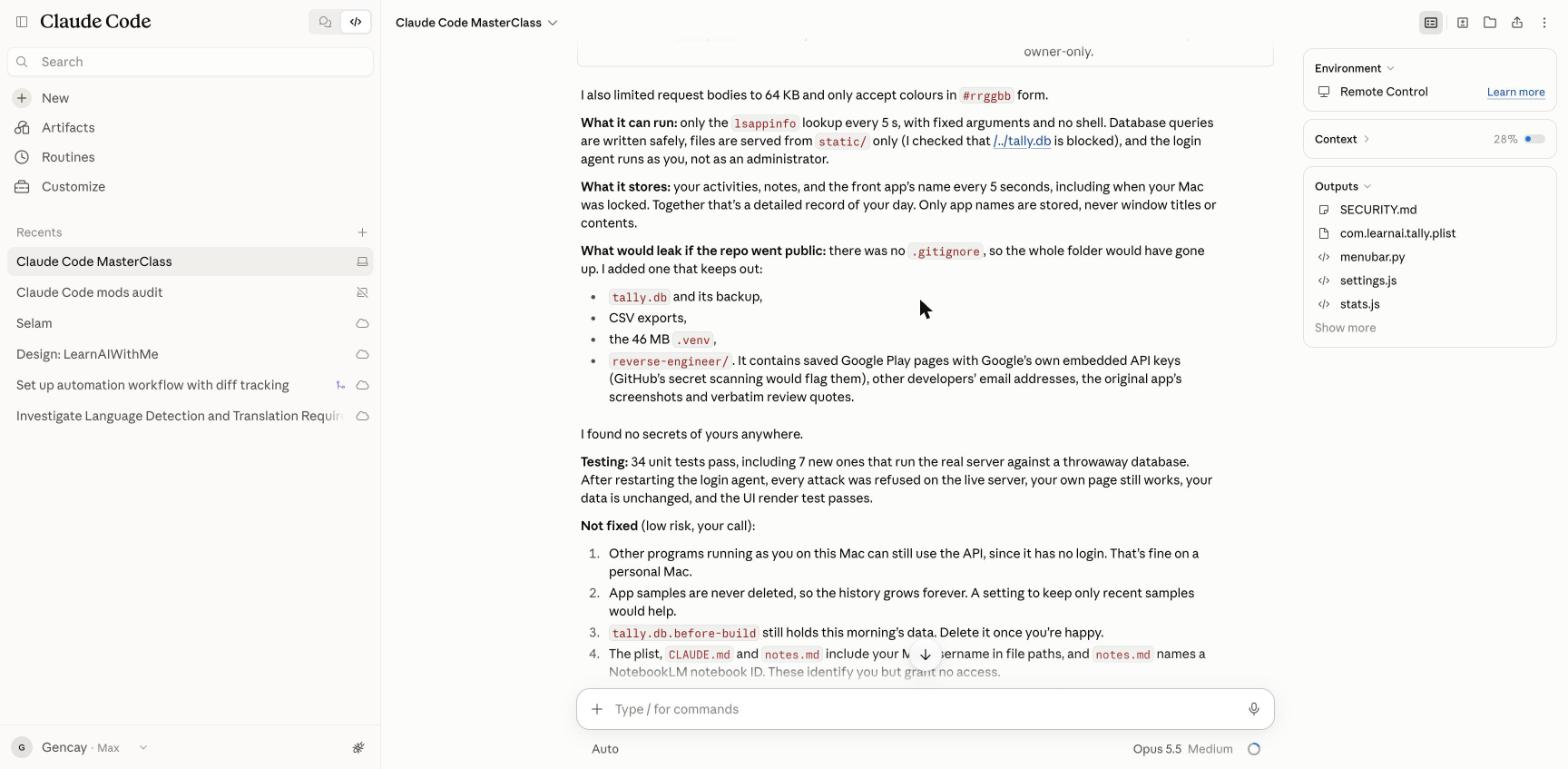
\No .gitignore yet. One git add would have published everything.\
The leak check mattered just as much. A plain git add would have published my database, its backup and a 46 MB folder of Python packages. The research folder from Level 4 held saved Google Play pages, with Google’s own embedded keys inside and other developers’ email addresses. Claude wrote a .gitignore that keeps all of it out.
(Claude Code has a /security-review command too. It reviews the changes on a branch against GitHub, so it is for later, once the repo exists.)
4. GitHub
Write a short README, then put Tally on GitHub as a private repo called tally with gh, and push it. Show me git status --ignored before the first commit so I can see what stays out.
gh is GitHub’s CLI from Level 5. It was already logged in on my Mac.
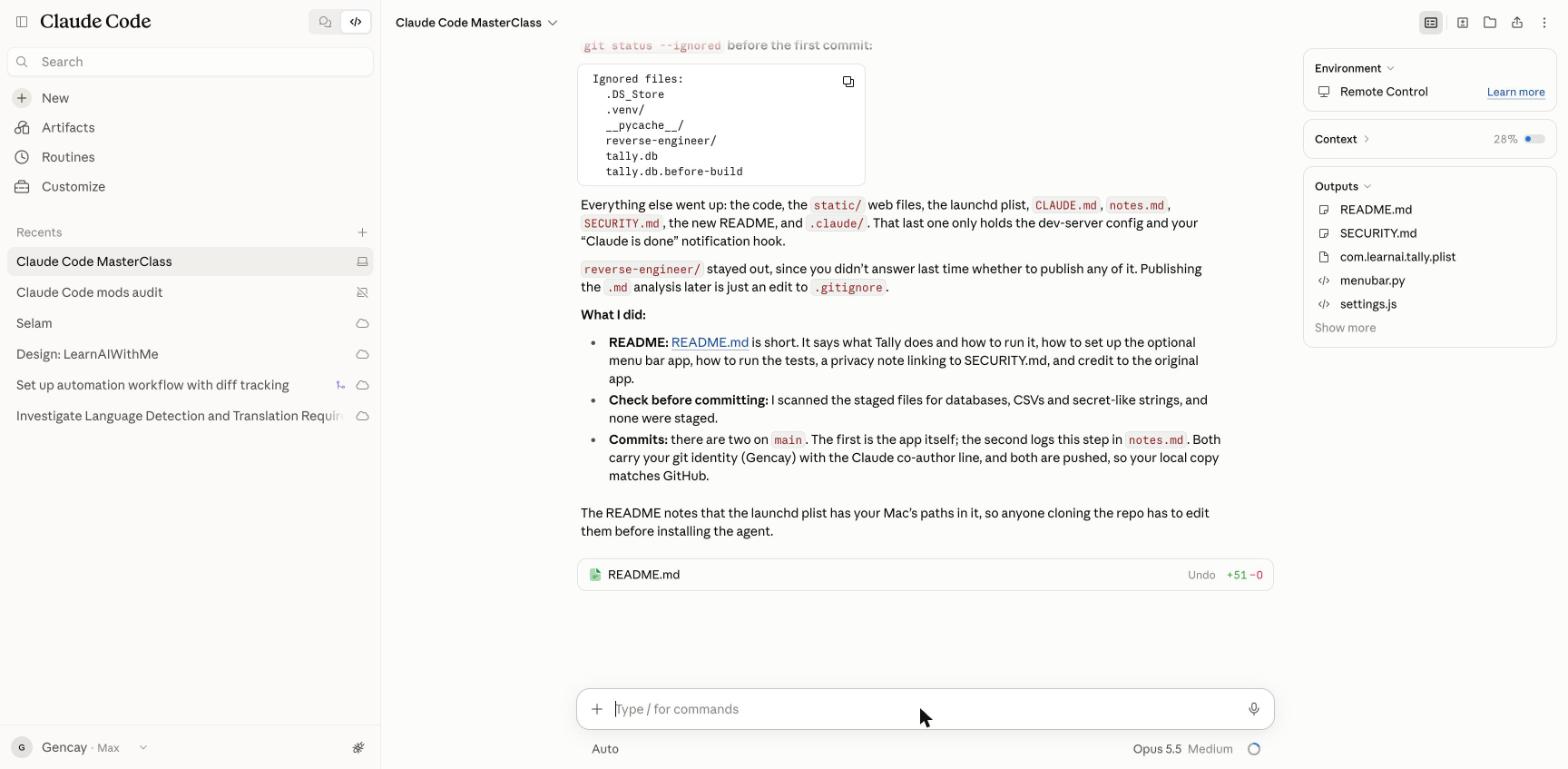
\The ignored list first, then 22 files on GitHub.\
Claude showed me the ignored files, scanned the staged files for databases and secrets, pushed and then checked GitHub’s side through the API. 22 files went up. None of them is a database or a research file.
5. A live link on Vercel
Everything so far runs on my Mac. Production usually means one more thing. Other people can open it.
Tally can’t simply move to a server, and that is the interesting part. A server in a data center can’t see which app is in front on my Mac. So the tracker stays home and the web app goes out. Same screens, a sample week, no tracker.
(I added this step the same evening, after the rest of this post was written.)
Put Tally on the internet as a demo on Vercel.
The tracker can't come along. A server in the cloud can't see which app is in front on my Mac. So the demo is the web app only.

- Same screens from static/, with no Python server behind them.

- The API runs in the browser and keeps data in the visitor's localStorage, so every visitor gets their own copy.

- One sample week of activities, entries and apps used, so History and Statistics have something to show.

- A thin banner that says it's a demo and the real Tally runs on your Mac.

- The Mac version keeps working exactly as it does now, tests included.
Deploy only the demo files with the Vercel CLI, as a new project called tally-demo. tally.db, notes.md and reverse-engineer/ never leave this Mac, so check the live site for them after the deploy. Then commit, push and give me the link.
Vercel hosts websites. Its CLI is a terminal tool like gh, so Claude deploys without me opening a dashboard. (Free plan. The CLI was already logged in on my Mac.)
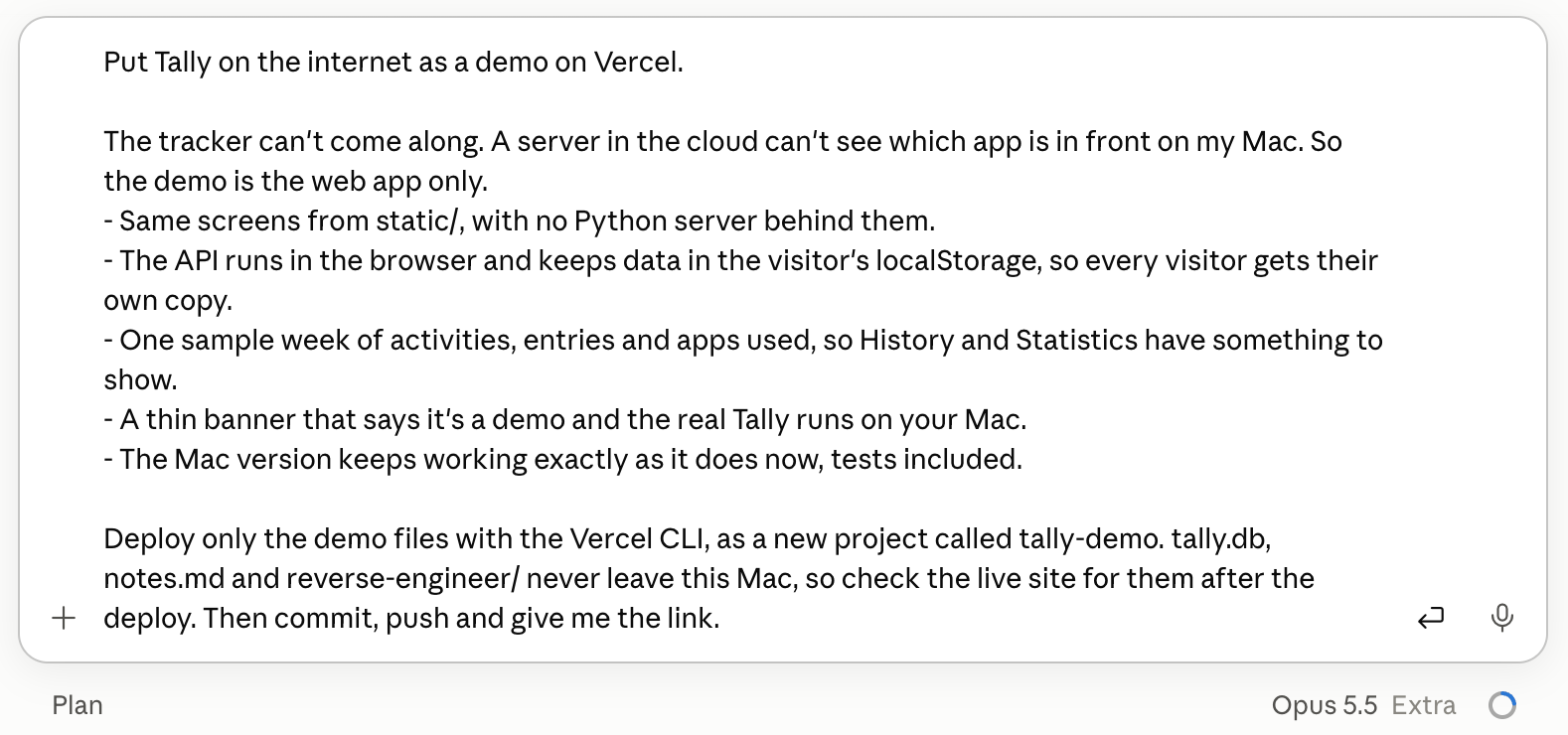
\Plan mode first. Nothing changes until I say yes.\
The plan took 4 minutes. Claude found that every screen talks to the server through one function. So the demo swaps that function for a copy of the server that runs inside your browser. The screens never notice. On the Mac side one small function changes, so the CSV export works without a server.
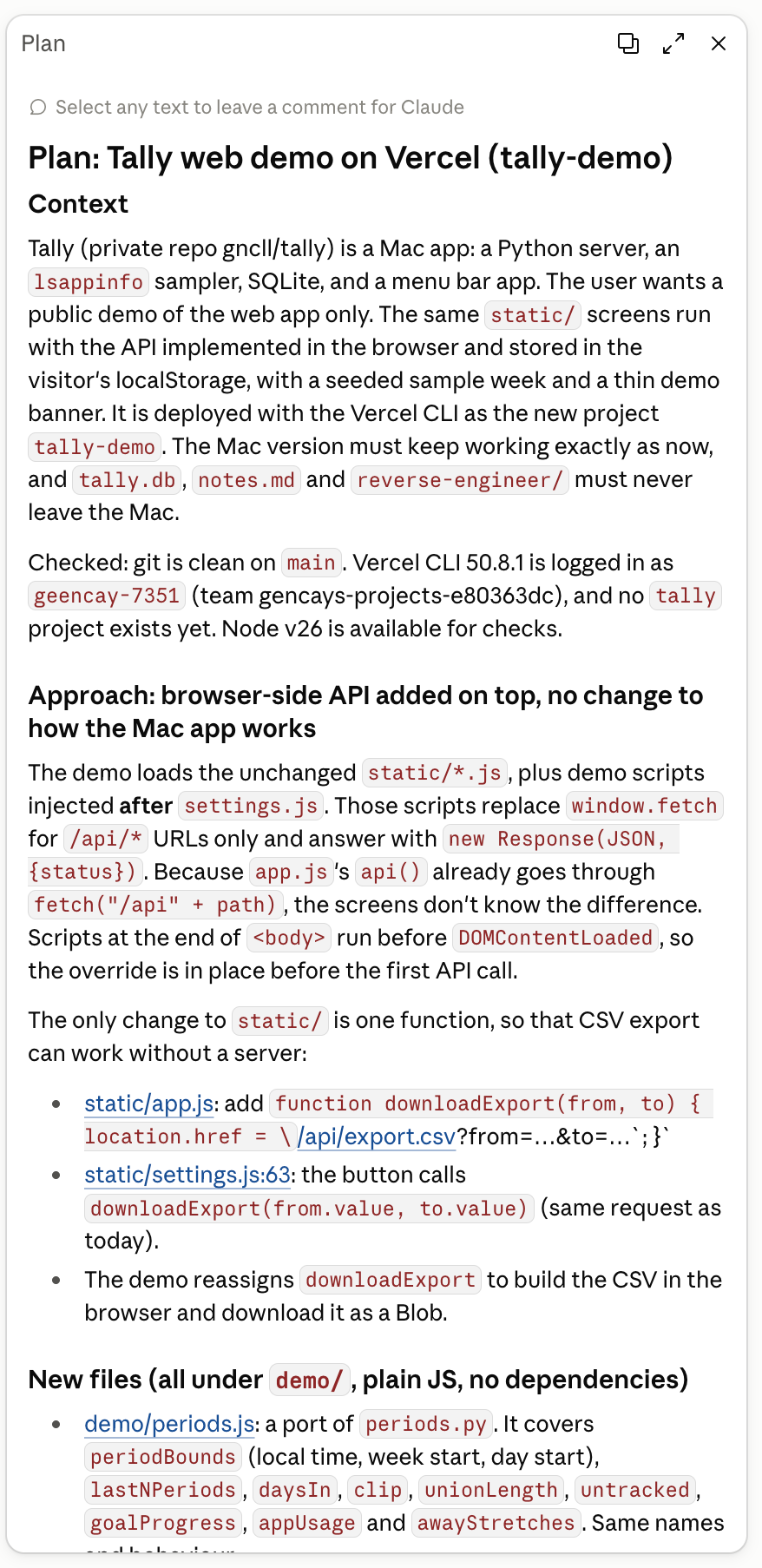
\The Mac side barely changes. Everything else goes in a new demo folder.\
One line in the plan sold me. The upload folder is built from a list of allowed files, so nothing else can sneak in. (Remember the leak check in step 3? Same idea, one level up.)
I clicked Accept and auto mode. Claude rewrote the server’s engine in JavaScript, 442 lines, plus 122 lines of time math and a seeded sample week.
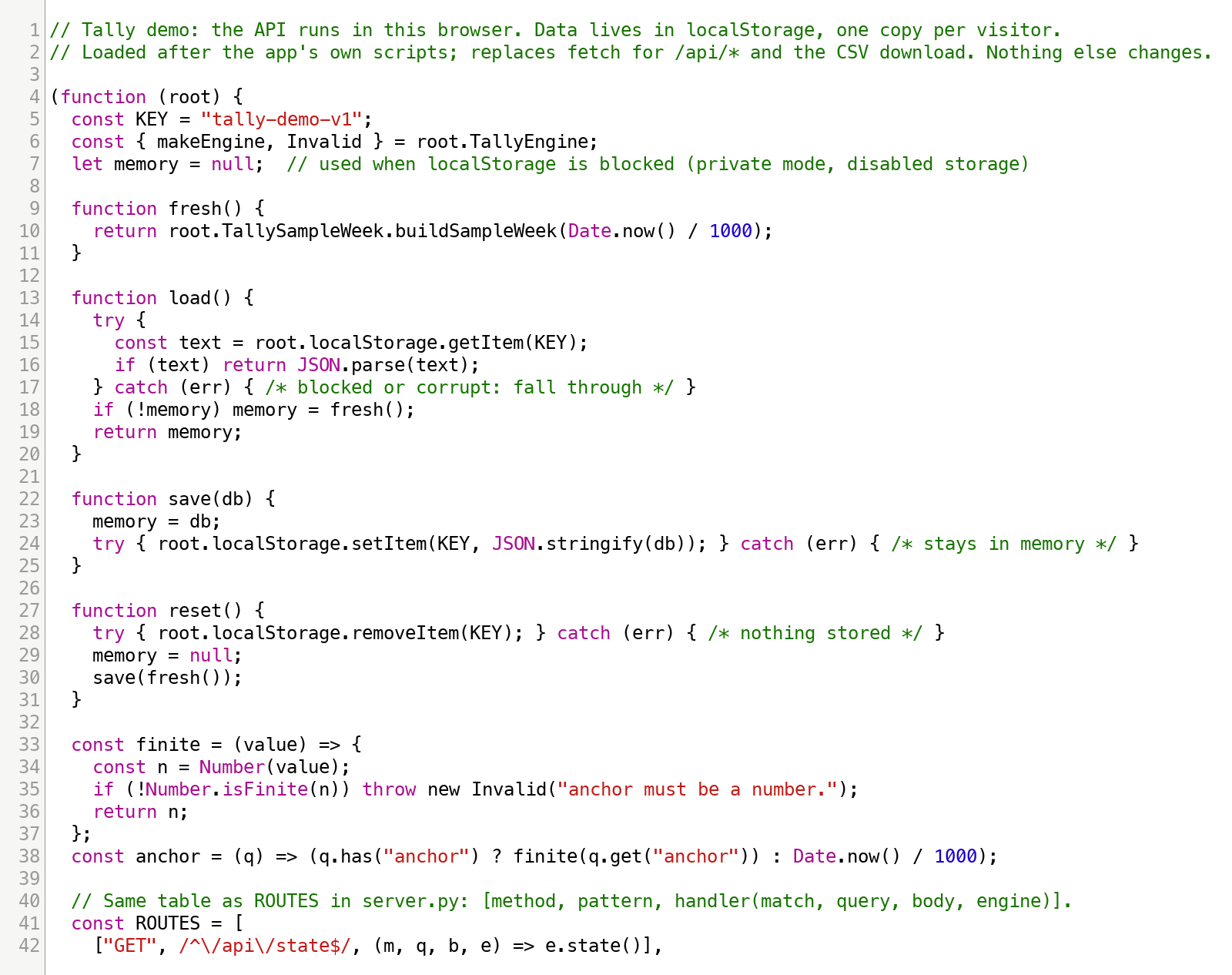
\The same API, answering from your browser.\
Then it checked its own work three ways.
- A fake browser opened every screen with no server behind it.
- It broke its own engine on purpose to prove the check can fail. The check caught 4 failures.
- It fed the same week to the Python engine and to the JavaScript copy. 585 numbers matched. It tried again with weeks starting on Sunday and days starting at 4 AM. 588 matched.
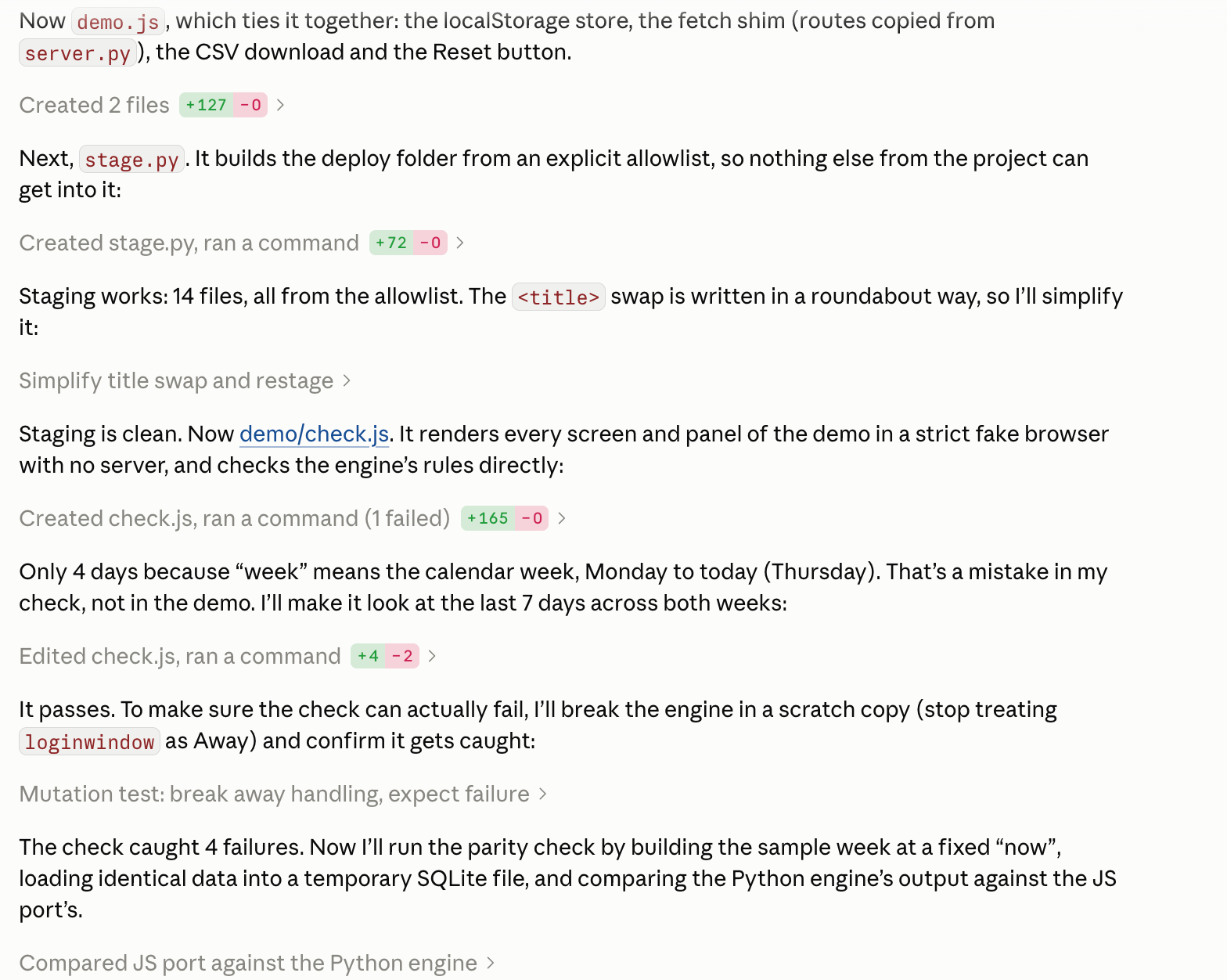
\Its first check failed. The mistake was in the check, and it said so.\
Then one command. Check, stage, deploy.
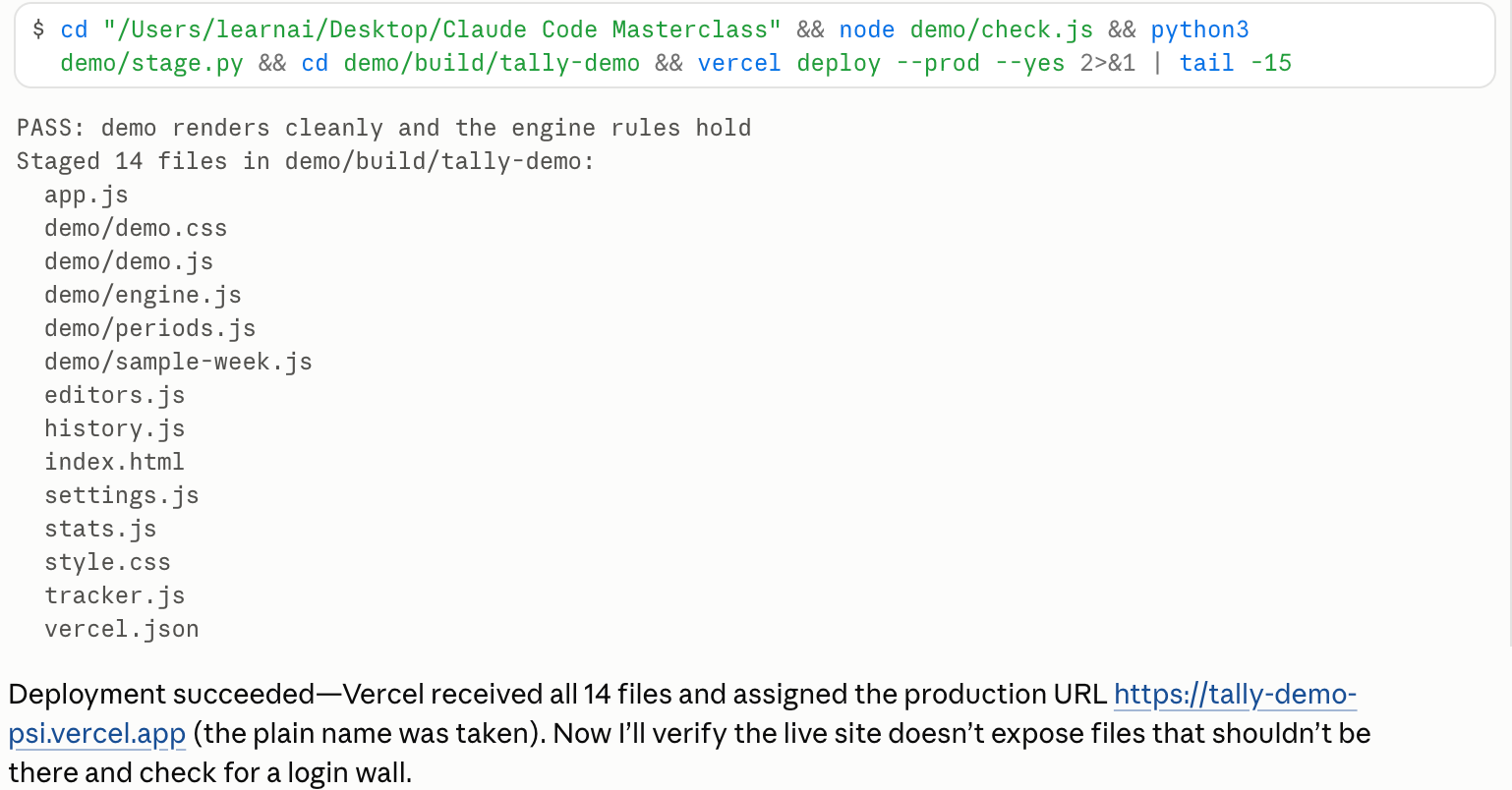
\14 files left my Mac. Nothing else.\
Then the part I cared about most. Claude asked the live site for tally.db, notes.md, the research folder and every Python file. All of them came back 404.
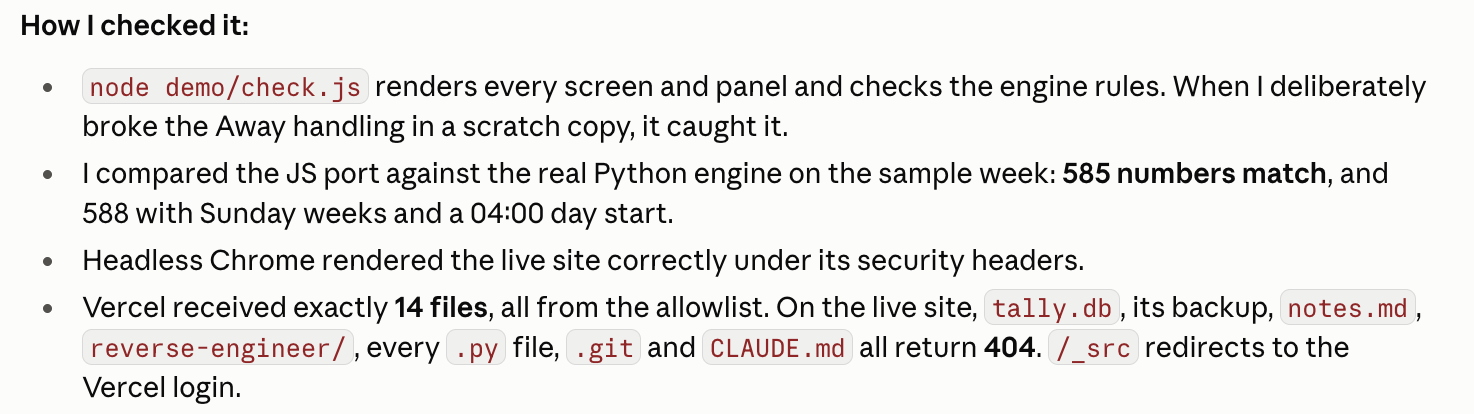
\The leak check again, on the live site this time.\
Here it is. tally-demo-psi.vercel.app. (Someone already had tally-demo, so Vercel added a suffix.) Click Start. Close the tab. Come back tomorrow and your week is still there. It lives in your browser and nowhere else.
Production found a real bug.
Halfway through, Claude stopped and told me something I didn’t know. Tally on my Mac had stopped saving.
It didn’t guess. It read the logs and compared the times. The failure started at 8:14 PM. Its own first edit came at 8:41. The cause was iCloud. My Desktop syncs to iCloud and my disk was 98% full, so Optimize Mac Storage kept moving Tally’s files to the cloud. 1,305 of them. A login agent isn’t allowed to pull them back.
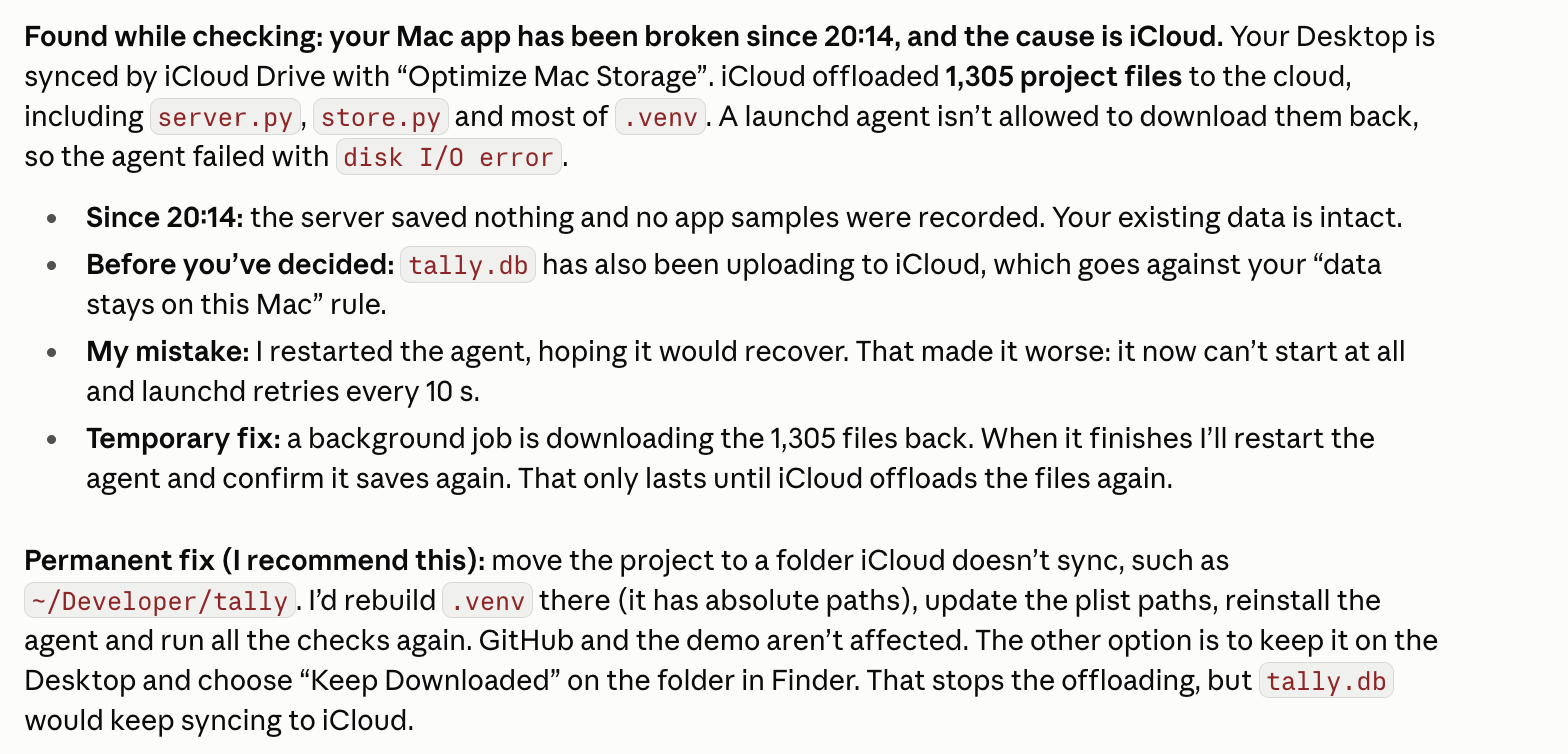
\It owned its one mistake too. Restarting the agent made things worse.\
That is what production means. Your app meets your real machine. (Keep your projects out of Desktop and Documents if iCloud syncs them.)
6. Make it look finished
Then I opened the live link and winced.
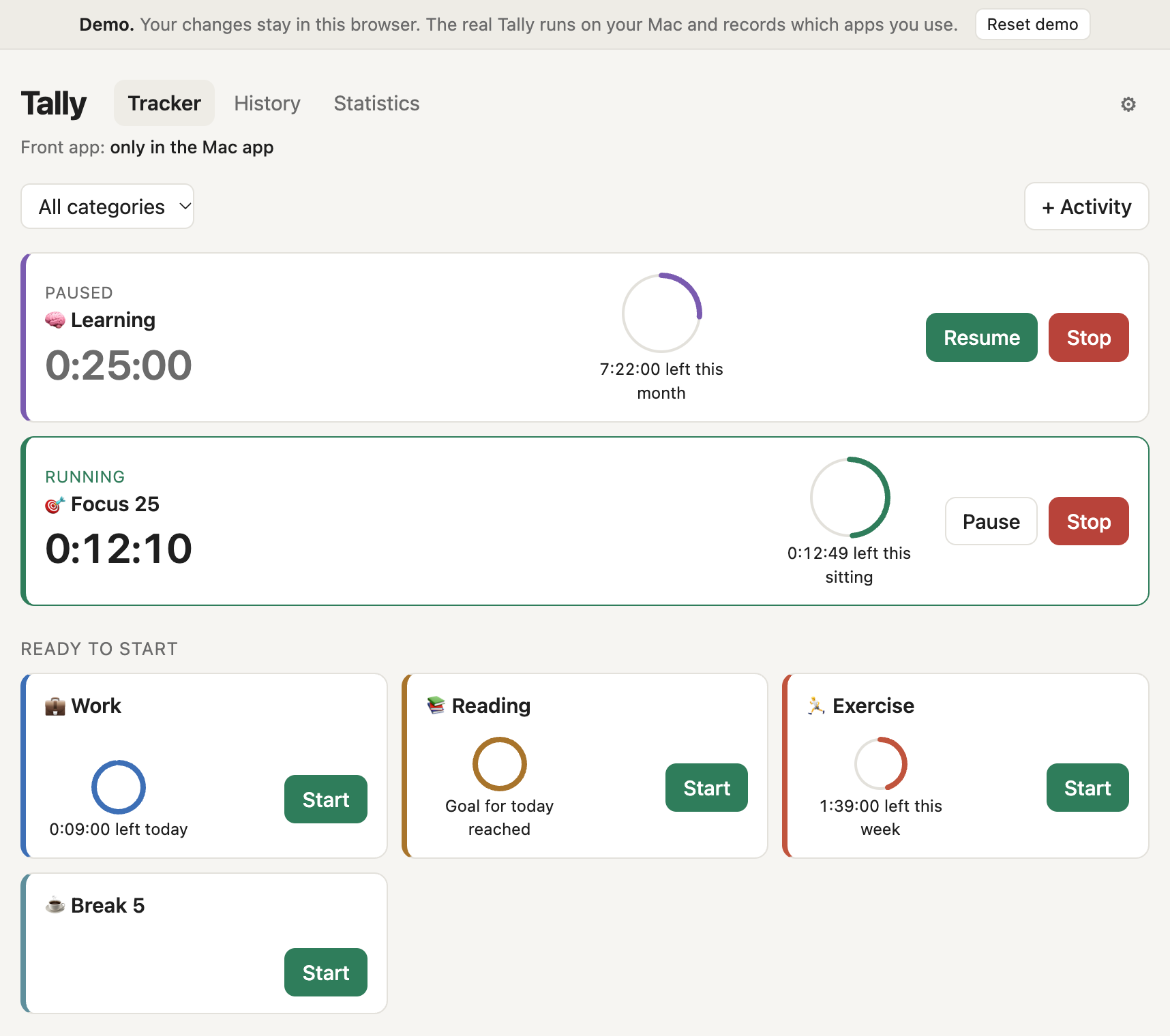
\The first shot. Everything works. Nothing pulls your eye.\
That was Claude’s first draft of a design. Clean, correct and forgettable. Code gets you a working app. Taste is still your job.
So I did what designers do. I opened five apps I like and took screenshots. Time Tracker, the app we studied in Level 4, plus Timing, Rize, Session and Toggl. I saved them in one folder inside the project and pointed Claude at it.
The demo works, but it looks like a first draft. Make Tally beautiful.
I saved screenshots of apps I like in reverse-engineer/design-refs/. Time Tracker, the app we studied, plus Timing, Rize, Session and Toggl. Look at every one and write me a short design brief first. What each one does well, and what Tally takes from it. Spacing, type, the timer as the hero, colour, cards, charts, dark mode.
Then redesign Tally in its own style. Learn from them, copy nothing. No layouts lifted one to one, no icons, no wording, no colours taken from them. Every feature and every label stays. Plain CSS and our static/ files, no frameworks, no CDNs.
Keep the 34 tests and the demo checks green, check every screen in light and dark, redeploy the demo, then commit and push.
Before all that, finish the iCloud temporary fix and confirm the Mac app saves again. We decide the move after the redesign.
(The screenshots sit in the research folder. That folder never goes to GitHub or Vercel.)
Claude read all 13 screenshots. Then it loaded a design skill on its own, the same kind of skill you met in Level 4. Then it wrote the brief.
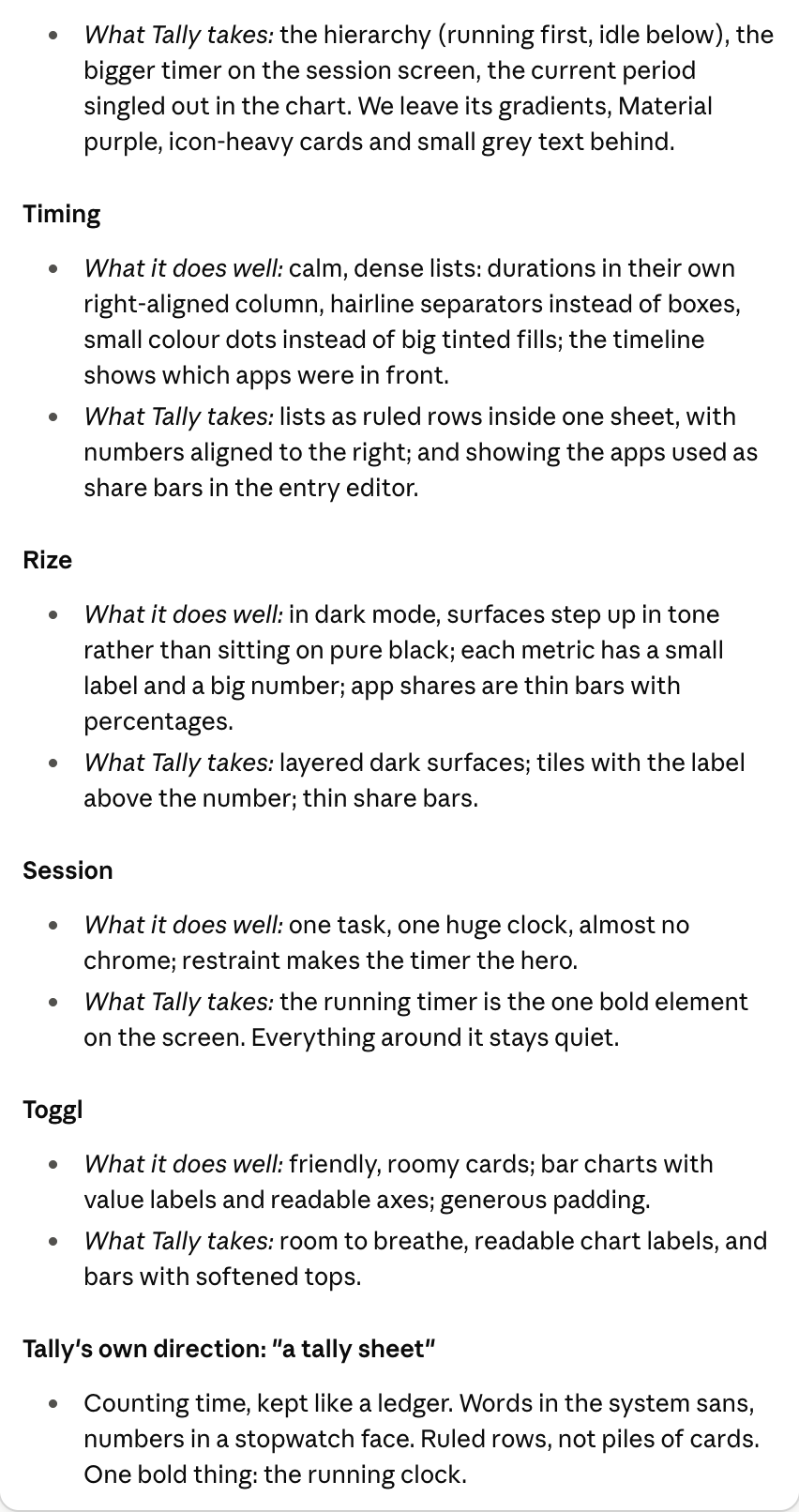
\Learn from them, copy nothing. Its own direction is a tally sheet.\
The idea is simple. Counting time, kept like a ledger. Ruled rows instead of piles of cards. Numbers in a stopwatch face. One bold thing on the screen, the running clock.
I clicked Accept and auto mode again. 25 minutes later the new Tally was live. 14 files changed, half of it in one stylesheet. Claude took screenshots of every screen, light and dark, desktop and phone. It found 9 visual problems and fixed all of them. (Chart text too small on a phone. An emoji crowding a panel title.)
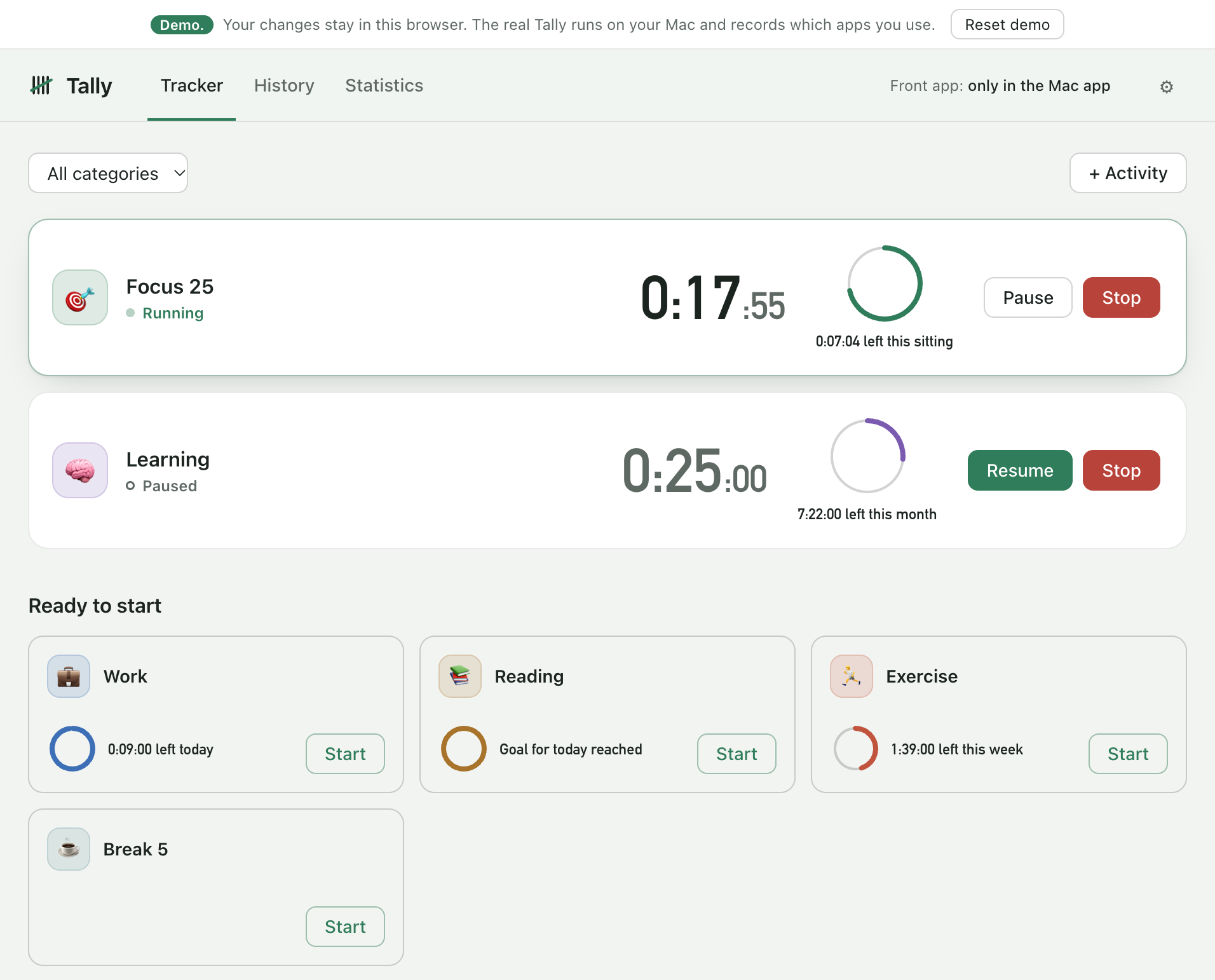
\Same app, same buttons, same data. The running clock is the hero now.\
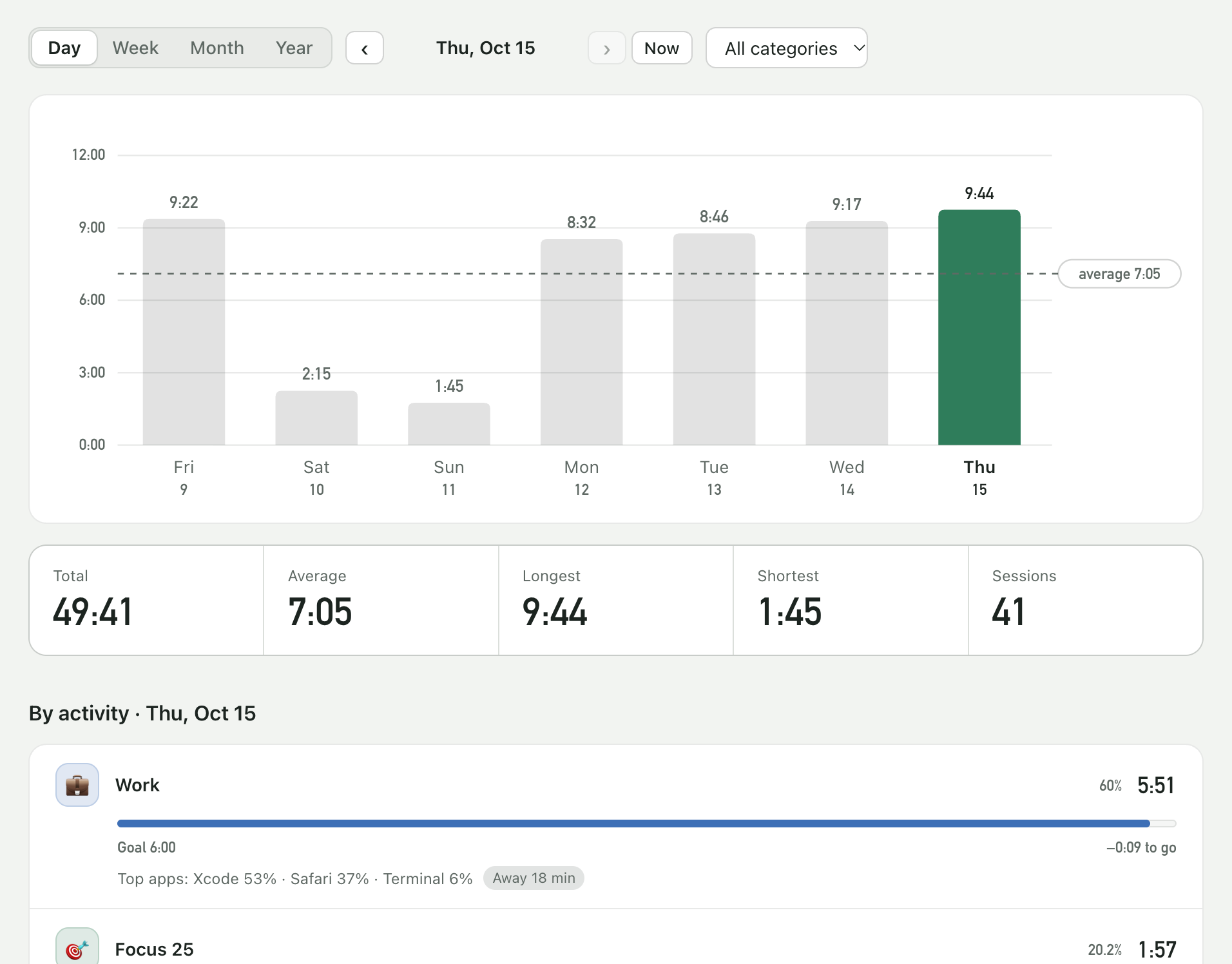
\Gridlines, a labelled average and today in green.\
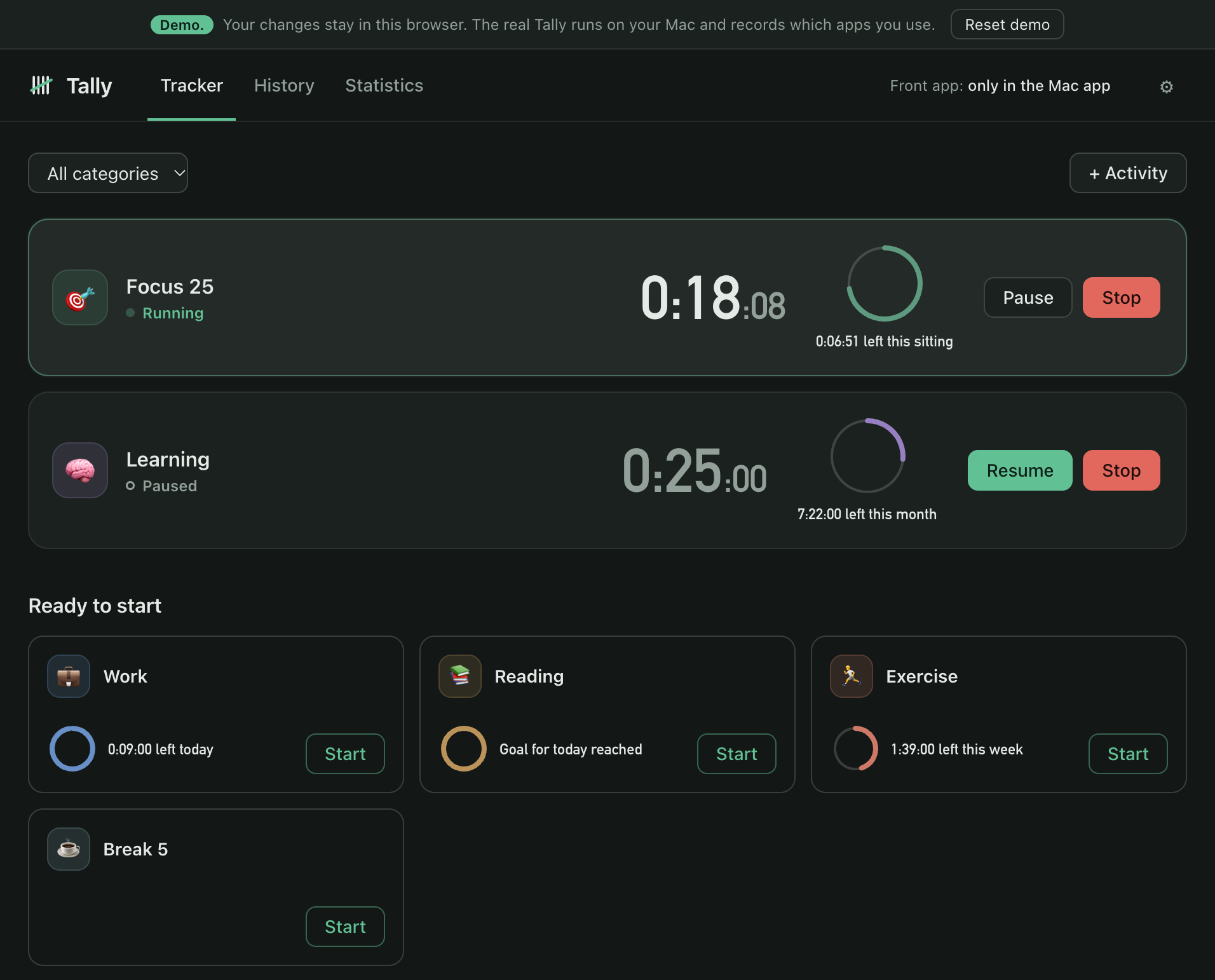
\Dark mode gets its own surfaces instead of plain black.\
Every feature and every label stayed. Claude redeployed the demo, committed and pushed. Then it did the move it had asked me about. Tally now lives in ~/Developer/tally, outside iCloud.
That is the last lesson of this course. Claude gives you a working first draft fast. You make it good by showing it what good looks like.
My repo stays private. You still get the app. Here is Tally on Google Drive, the whole thing minus my database.
Download Tally.zip, unzip it and run python3 server.py.
The README walks you through the menu bar and the login agent. (The build spec from Level 4 is in the folder too, in case you’d rather have Claude build your own.)
Official docs. Claude Code GitHub Actions, Code Review, Catch security issues as Claude writes code, Vercel CLI
Final Thoughts
At 7:43 this morning, there was an empty folder on my desktop.
At 8:59, there was Tally. It tracks my activities against daily, weekly, and monthly goals, shows which apps I used during each one, and knows when my Mac is locked. It starts when I log in; it passed a security review, and it lives in a private GitHub repo.
By 9:30 that evening, anyone could try it at a live link, in a design it learned from five apps I like.
I didn’t write a line of it.
I wrote prompts, read a plan, pushed back twice, and clicked through the result like a user.
That is the whole course in one sentence. Claude Code does the work.
You decide what the work is, and you check it.
If you want the next build the day it ships, the annual plan is $150/year and adds AI Labs with 1,000+ prompts.
Inner Circle is $300/year and adds the AI Academy on top.