Codex Remote lets you control your computer by voice from anywhere. I built a Claude Skill that scores fake news on a stroller walk. Setup and files inside.
By Gencay
Published: 2026-07-29
URL: https://www.learnwithmeai.com/p/codex-remote-computer-use-guide
After my baby girl was born, I searched for new ways to use my time more effectively; every parent reading this would understand me.
And these days, I am testing ChatGPT’s new features like ChatGPT Work, GPT 5.6 Sol and Codex, so as not to stay behind.
And I must admit, some of them are really powerful.
If you recently switched from ChatGPT to Claude, you know Claude doesn’t have a voice feature as good as ChatGPT’s.
It looks like OpenAI realized this could be a point where they could differentiate themselves from Claude, and now ChatGPT Voice can be used within Codex.

\Voice inside Codex. This is the part that changed my walks.\
Meaning, if you give the Codex app computer access, you can do whatever Codex can do just by talking.
You can imagine what I felt when I read this. I must try immediately, because it looks like an opportunity for me as a new father.
While testing it, I came across a feature most people still don't know about, and I did not expect it to be this powerful.
If you connect your phone the Codex app, using “Remote”.
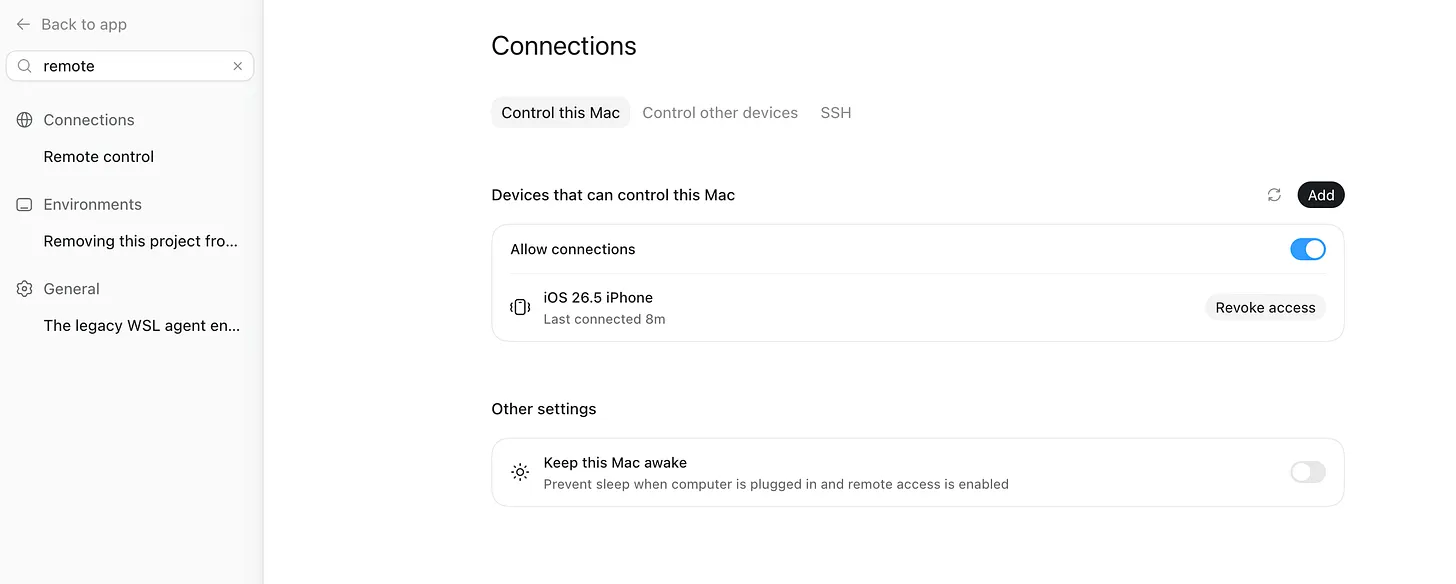
\Remote sits in the Codex app. Most people scroll straight past it.\
You can now control your computer from anywhere through your phone.
ANYWHERE.
And you don’t have to type like you have to while controlling your Claude via Dispatch, or control your OpenClaw/Hermes by typing via Telegram.
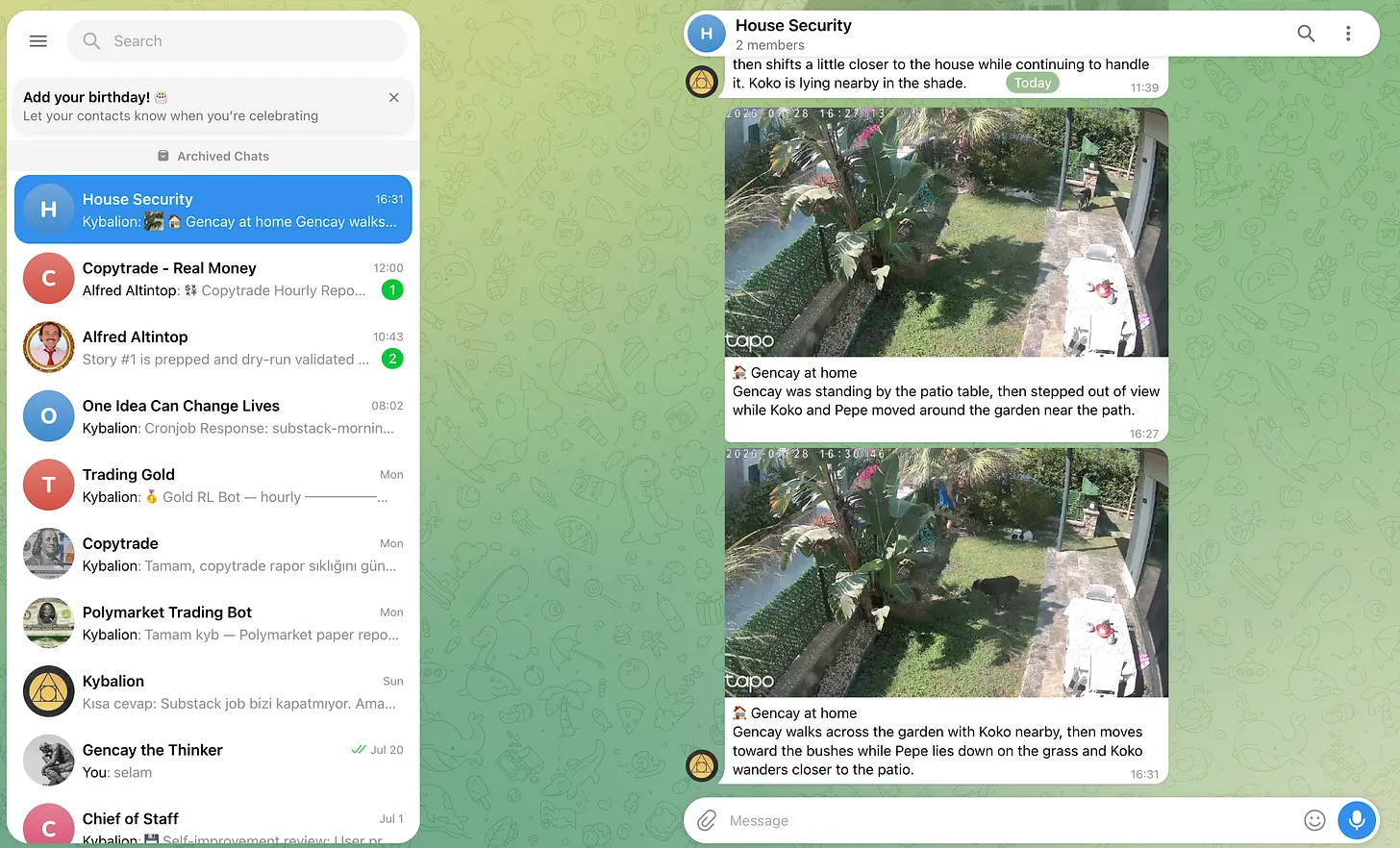
\This is the old way. Every instruction typed into Telegram.\
Now all I have to do is connect the AirPods to my phone, open the ChatGPT app, activate the remote, and convince my wife that I also might talk with Juniper, because I have to finish something.
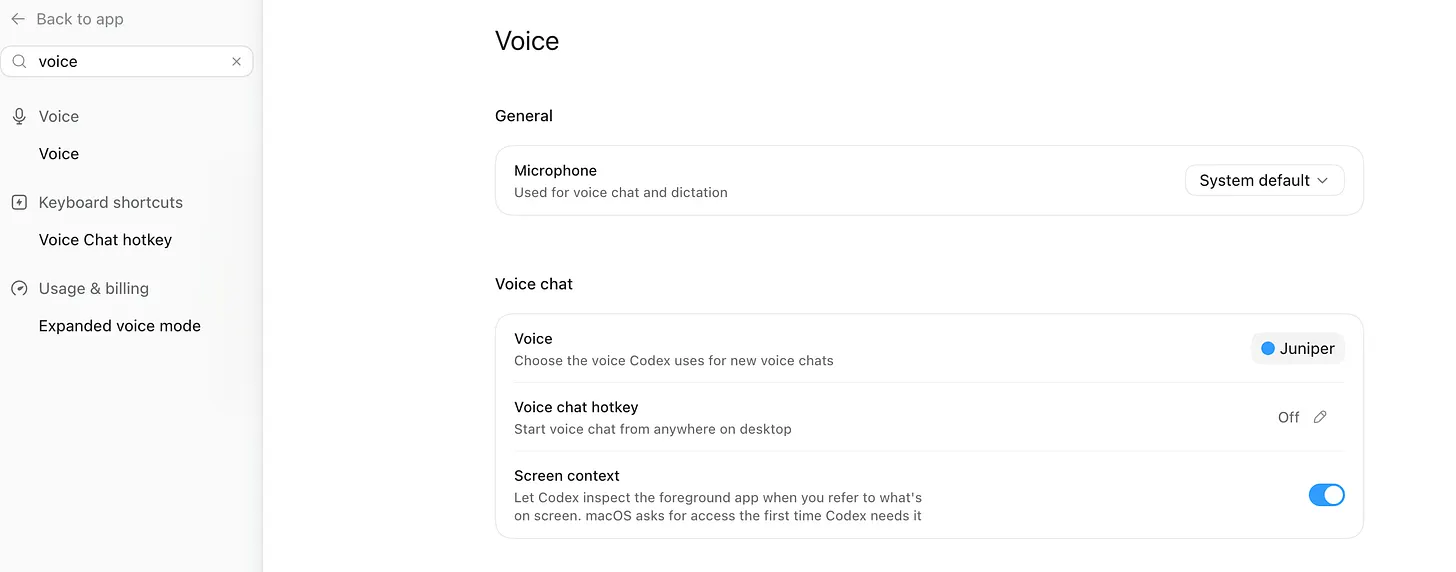
\Juniper. The reason I had to explain myself at home.\
The only Juniper she wants is the Tesla one, but I convinced her.
I left the PC on at home (haven't tested my Mac mini yet).
While everyone is talking about prompts, loops, and graphs, I’ll be outside, near my newborn girl, my wife, and Juniper, who can access everything.
Amazing, right?
Today’s walk, I built a working Claude Skill this way.
It cost me 20% of my AirPods’ battery, 5% of my iPhone’s battery, and 10% of my Max plan’s limit.
When I got home, this skill was sitting on my computer, finished.
Before showing you, let me explain to you how I decided to build this.
Why I Built the News Truth Barometer With Codex
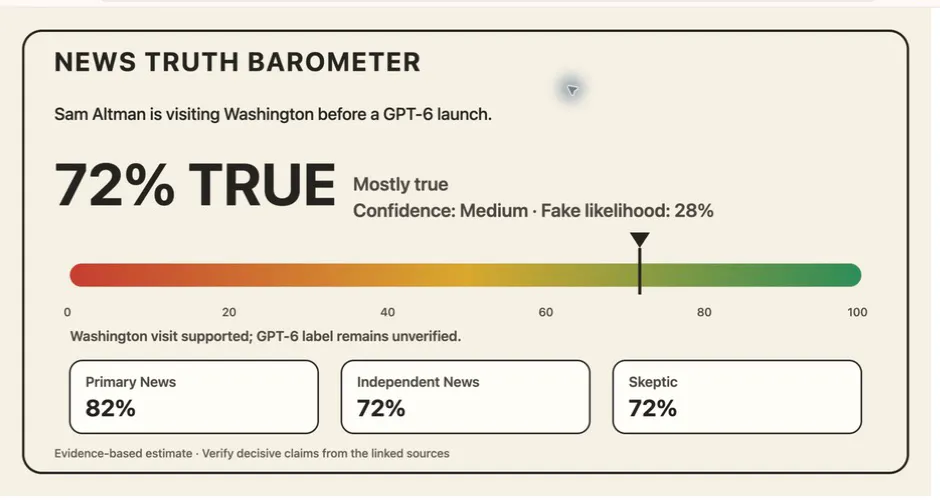
\The finished barometer. The story behind that 72% is below.\
Yesterday, while walking with my wife, we started talking about an AI news story I had seen on Twitter.
I told her Sam Altman was going to Washington to meet with government officials because GPT-6 was about to be released.
I did not remember the exact X post I read, but she told me this is not the story.
The Washington visit was real, but the GPT-6 part was still speculation.
We talked about it for a while and checked the story when we got home.
She was right.
How much can we trust the news we read online?
Today, after planning to build something to show in my post, I remembered this.
Maybe I can build something that detects the credibility of any news given.
Also, I have to go out for a walk with my wife, baby girl, and my dog, and I love this Codex Voice mode.
So I built a Skill that scores news.
What I Built With Codex
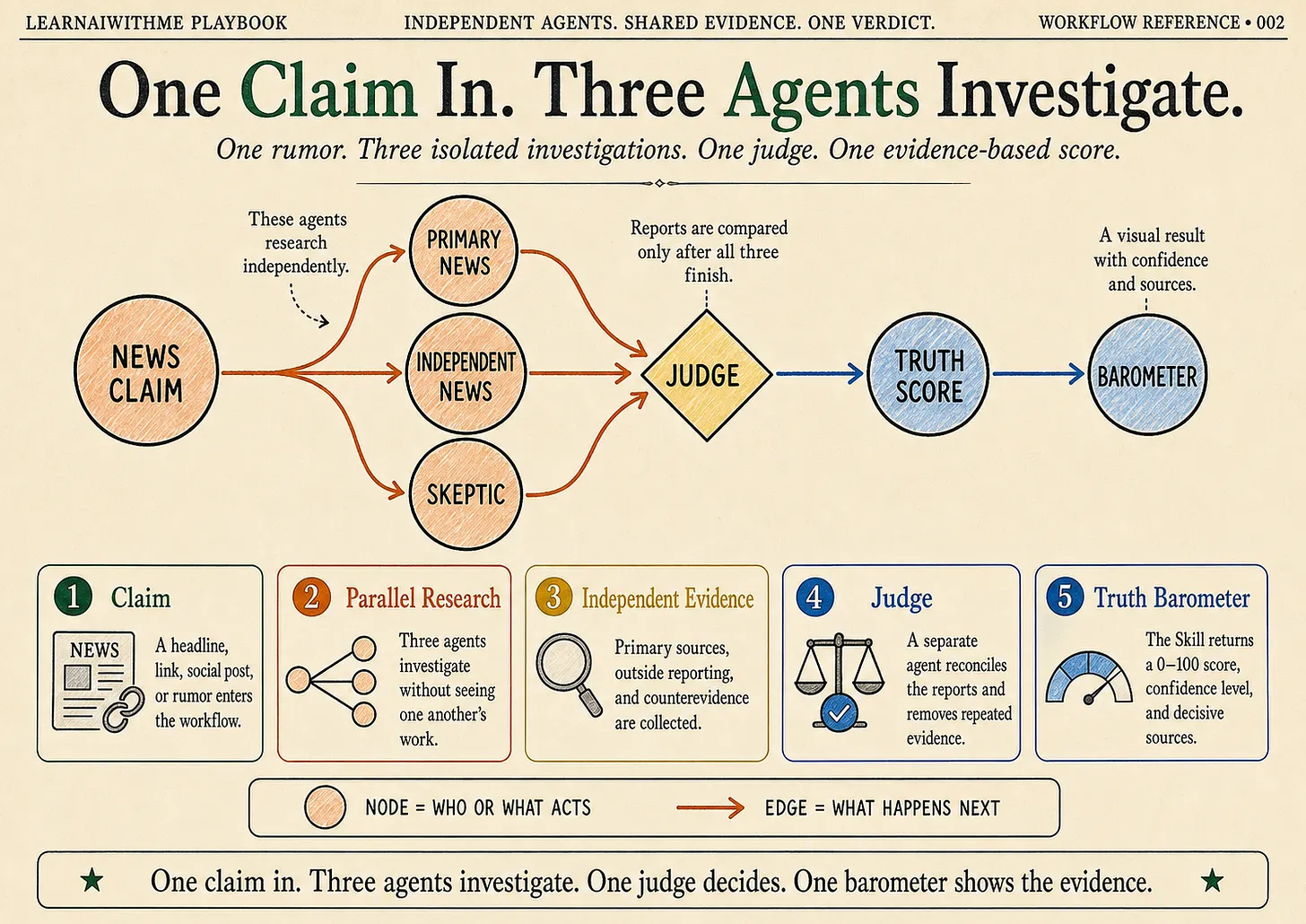
\Three researchers and one judge. Nobody grades their own work.\
The skill I built can take a headline, a link, or even a rumor. (NEWS CLAIM)
It gives the same claim to three agents.
One checks Primary News, one checks Independent News, and Skeptic tries to find everything that might be wrong with it.
Then, a separate Judge compares their findings and gives the story a truth score.
While I was testing the Skill, Codex also built a small barometer app that turns the result into a visual.
After a few attempts, Codex built the skill and tested it with mock data.
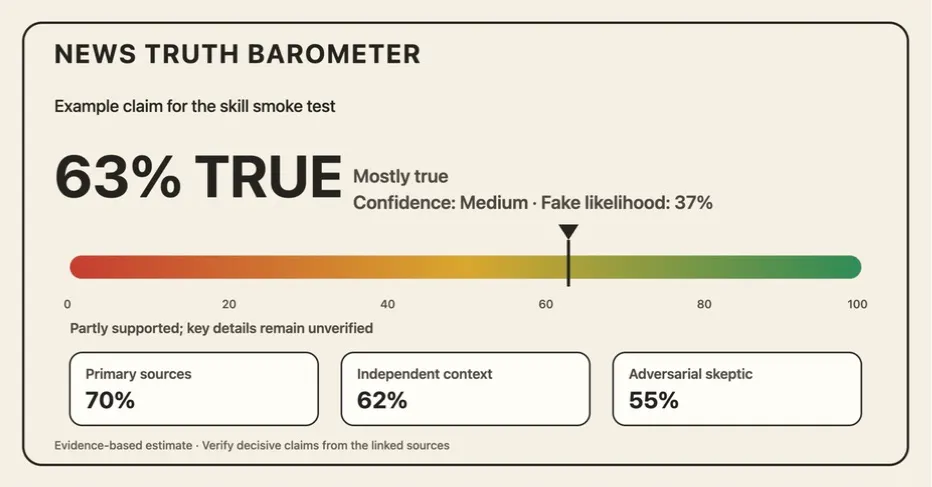
\Smoke test on placeholder data. It only proved the renderer worked.\
But the issue was that it could not send the SS to me, so I told it to email it to me.
I had already given it computer use, so it did.
It opened Gmail on my computer, attached the image, wrote an email to me, and here it is.
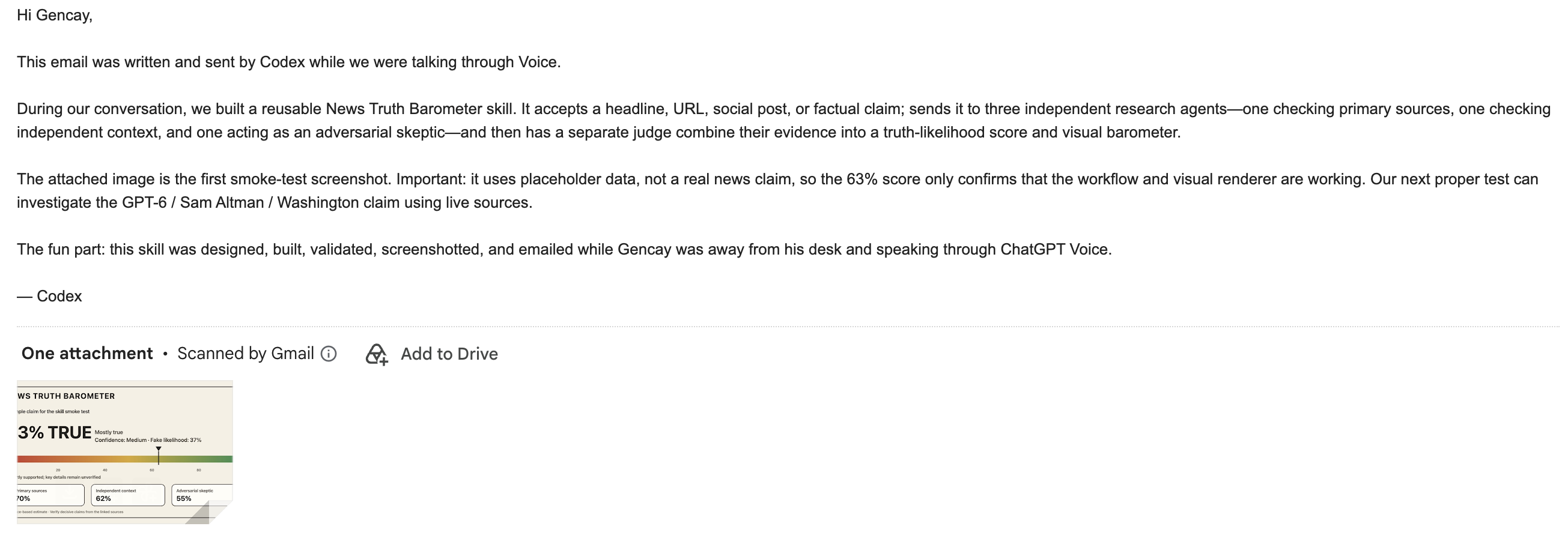
\Codex could not hand me the screenshot, so it opened Gmail and mailed it.\
I looked at the results and wanted a small change from Codex.
It then updated the Skill, tested it again, and it worked.
This time, I gave it the real story that my wife and I had discussed:
Sam Altman is visiting Washington before a GPT-6 launch.
The three agents researched it independently.
- Primary News gave it 82%.
- Independent News gave it 72%.
- Skeptic gave it 72%.
Then the Judge agent reviewed all three reports and gave the final result:
72% TRUE.
The Washington visit and the meetings with US officials were supported by credible reports.
But the GPT-6 part was still unverified.
And this is the visual the Skill created:
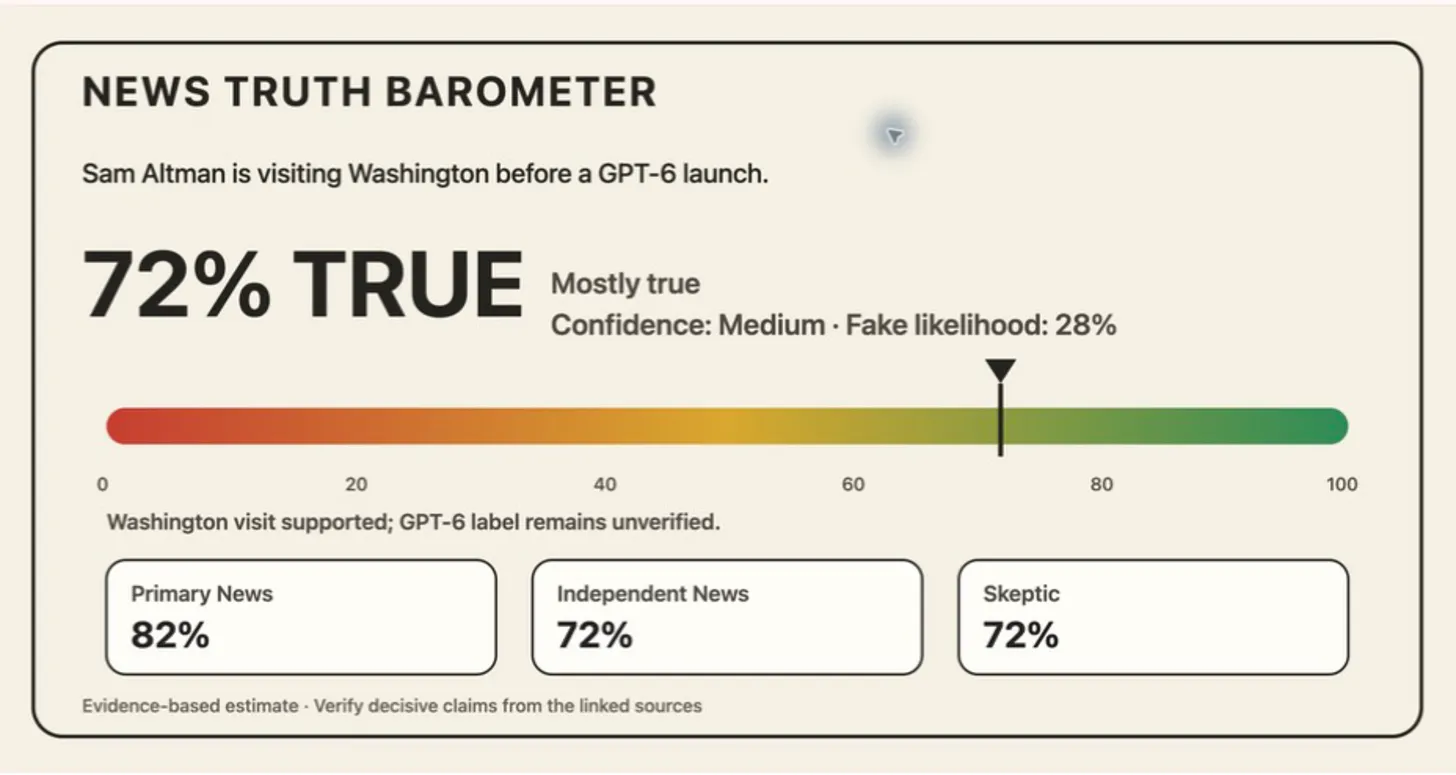
\82, 72, 72. The Judge settled on 72% TRUE.\
Then I asked Codex to email this result to me too.
It wrote another English explanation, attached the new screenshot, and sent it.
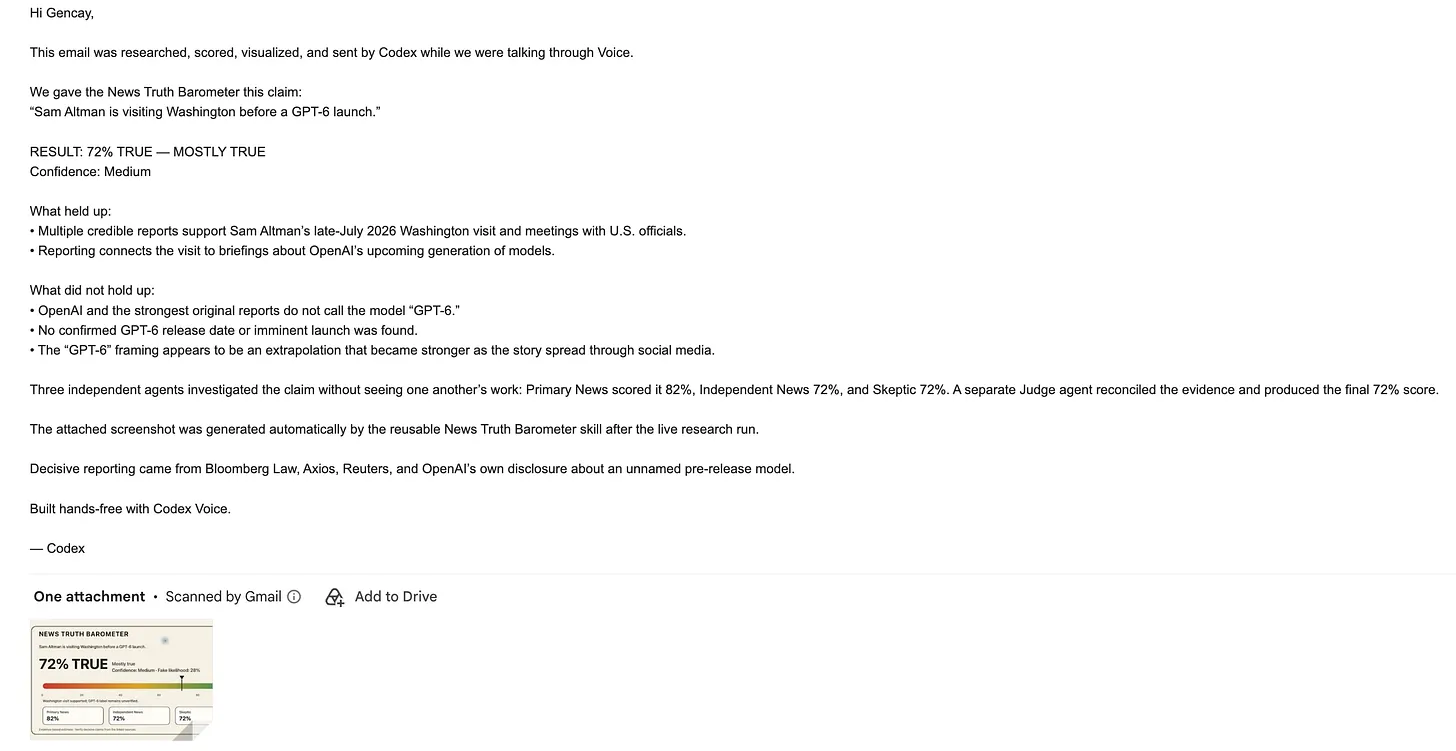
\What held up, what did not, and the sources. Written and sent by Codex.\
Now I am going to give you the exact Skill files and show you how to install them in less than five minutes.
But I will also show you how to install the Codex app on your computer, connect your phone using Remote, and enable Computer Use so Codex can actually use your computer while you are away.
Then I will give you one Terminal command that keeps your Mac awake, so you can leave home, connect your AirPods, and continue building from anywhere.
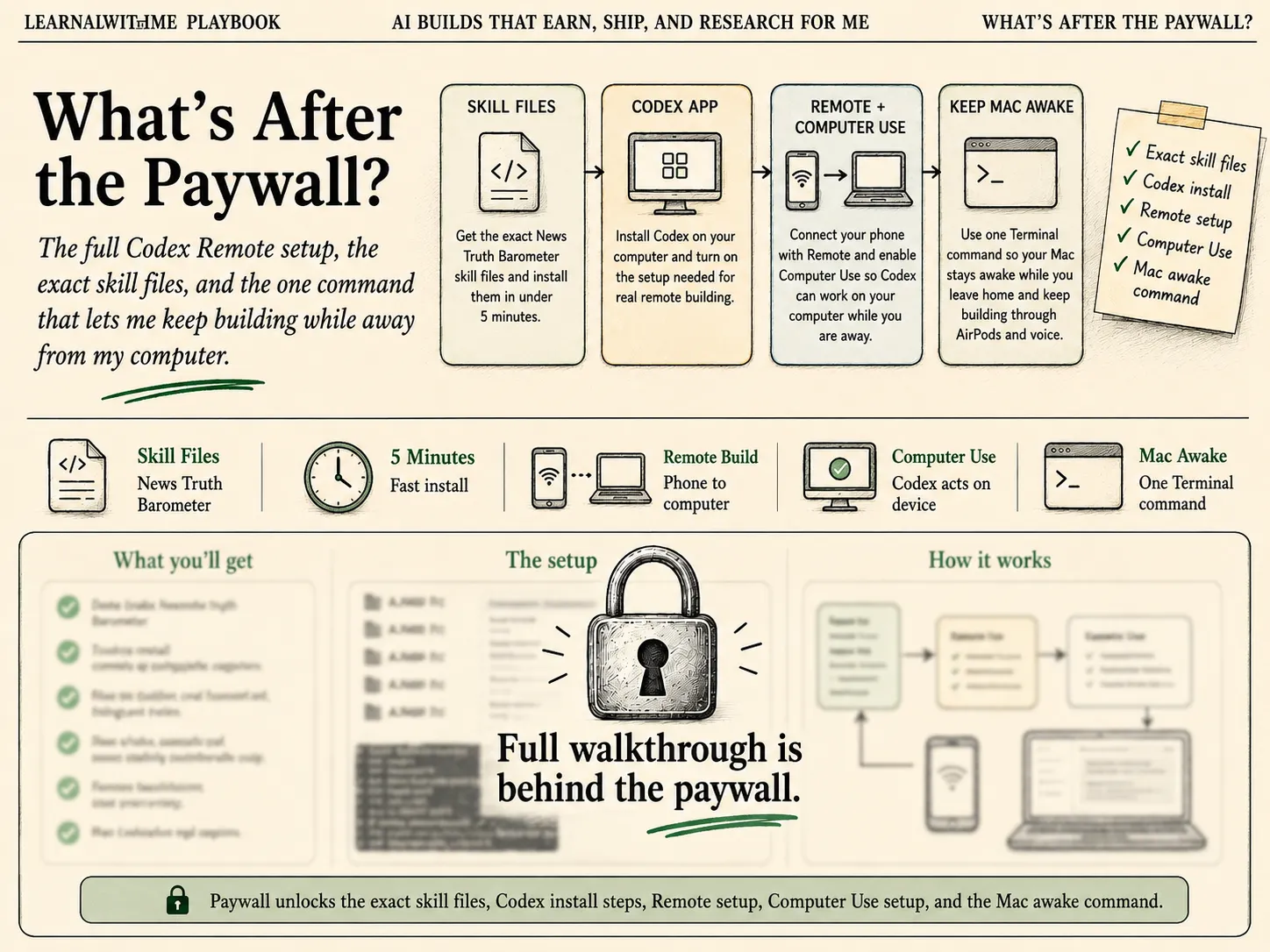
\Everything below is the setup. Five minutes if the ChatGPT app is installed.\
Here are the skill files.
https://drive.google.com/drive/u/0/folders/1wxKsZcU5bzWosbPJ122stqe2nW1yqjpw
1. Get the News Truth Barometer Skill
You can download the exact Skill folder I used here:
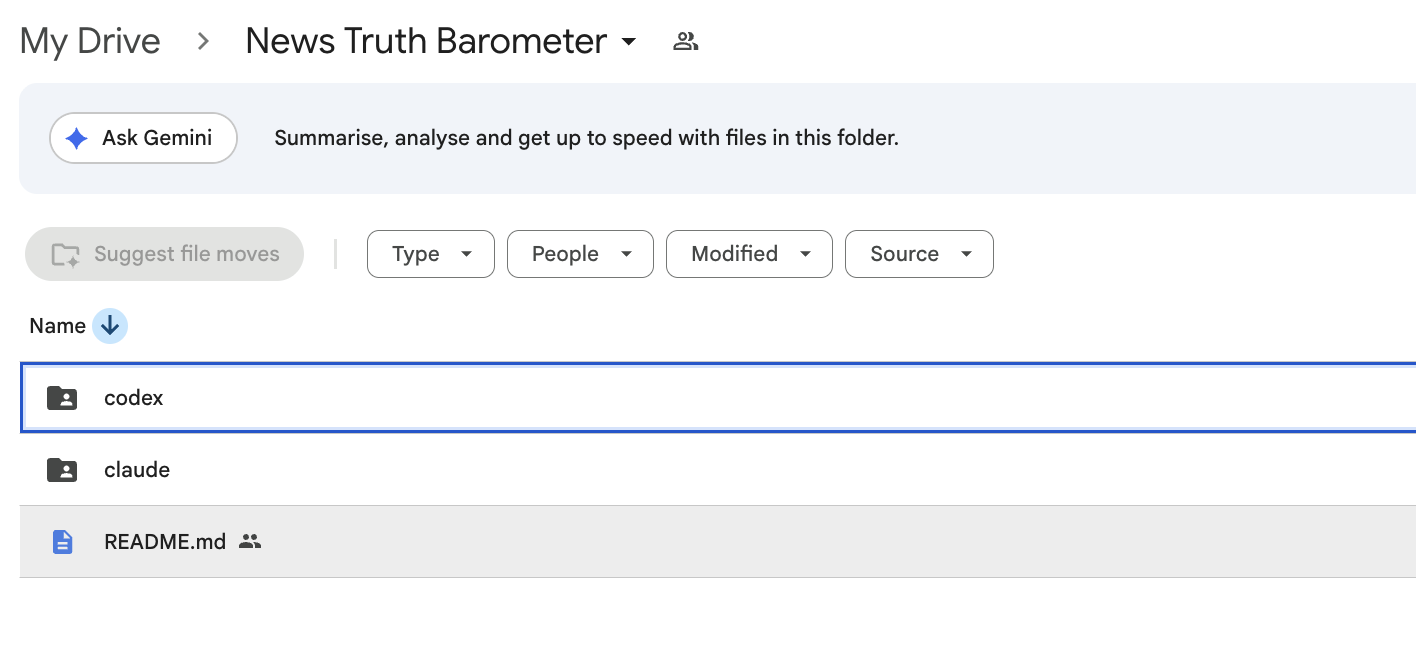
There are two versions of the skill, so maybe you want to build it on Claude, too.
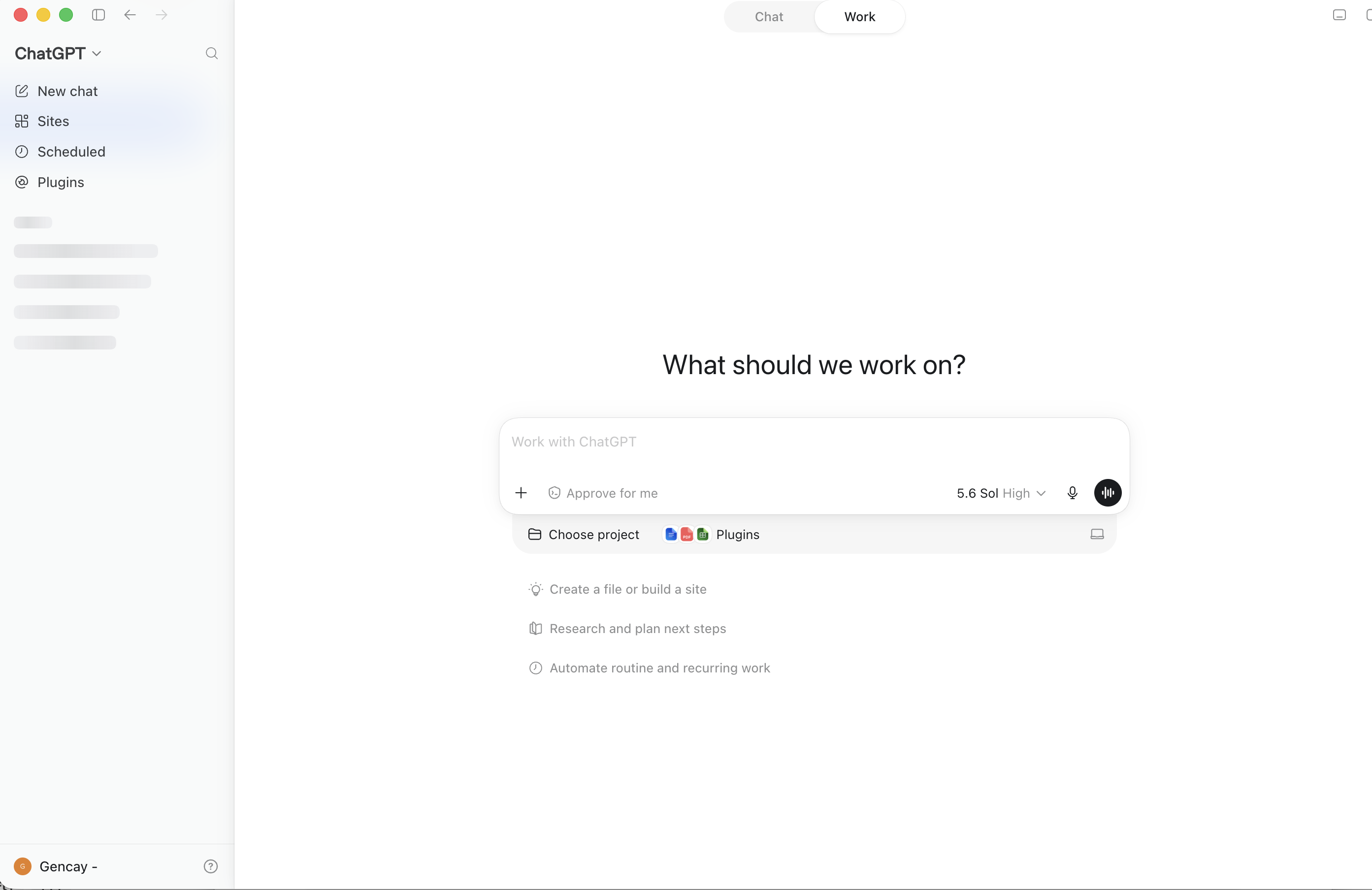
2. Install the ChatGPT Desktop App and Open Codex

First, go here and download it for your system.
This is what it looks like.
3. Connect Your Phone Using Remote
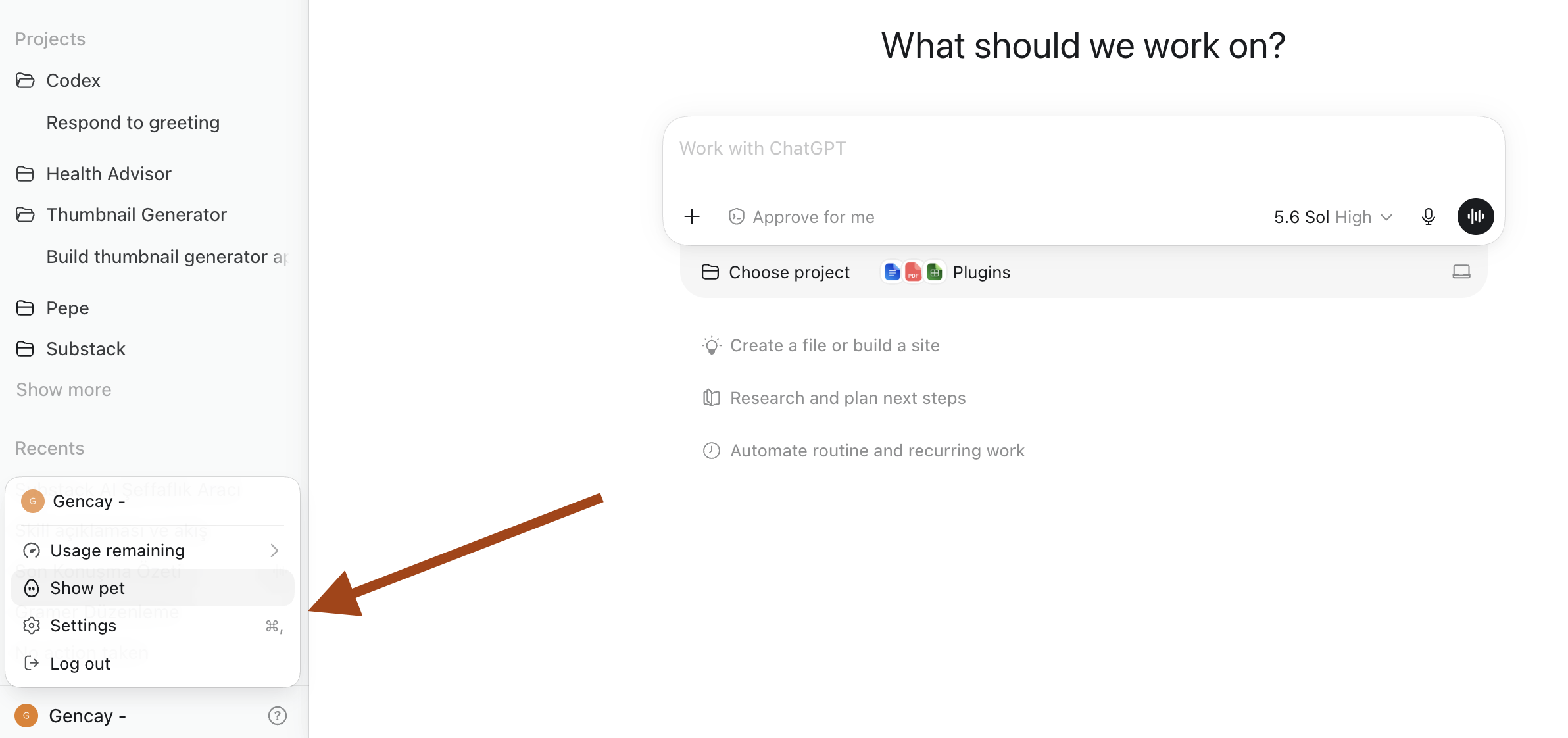
Click on the bottom left and settings, like this.
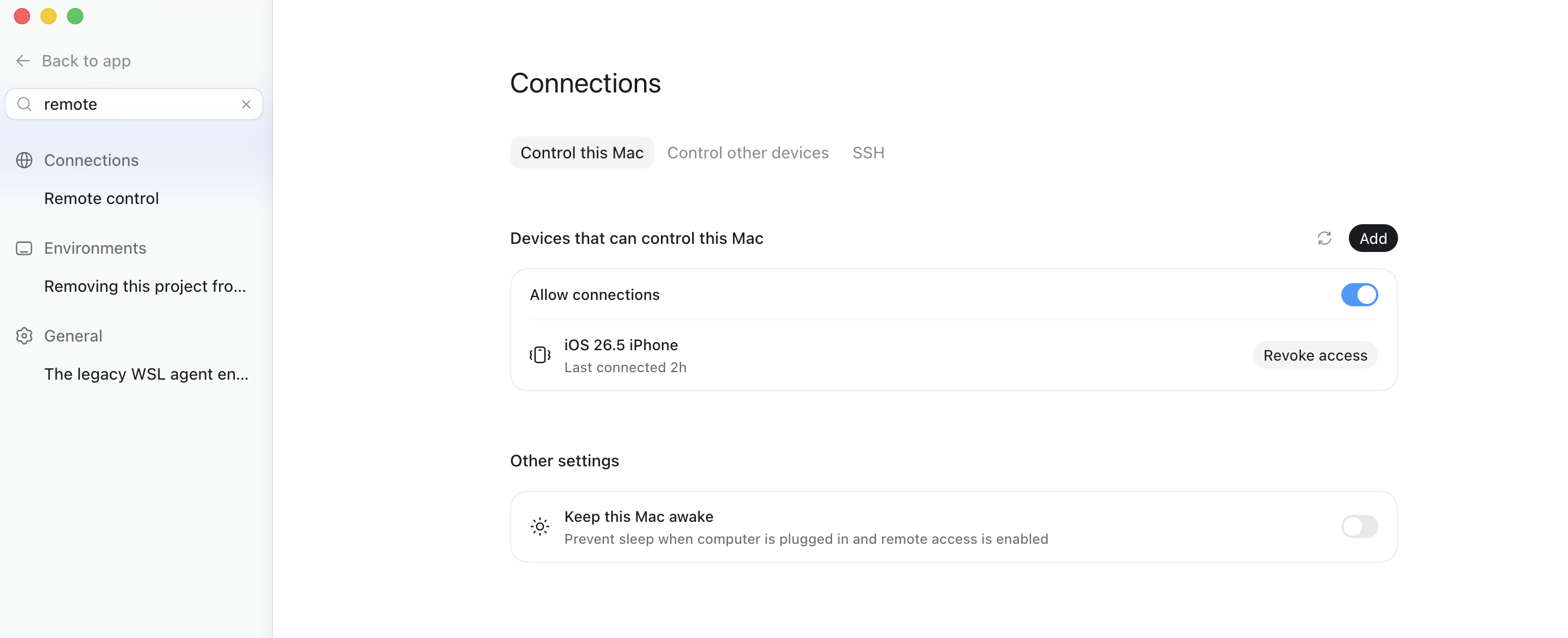
And then, type “Remote” at the top left and click.
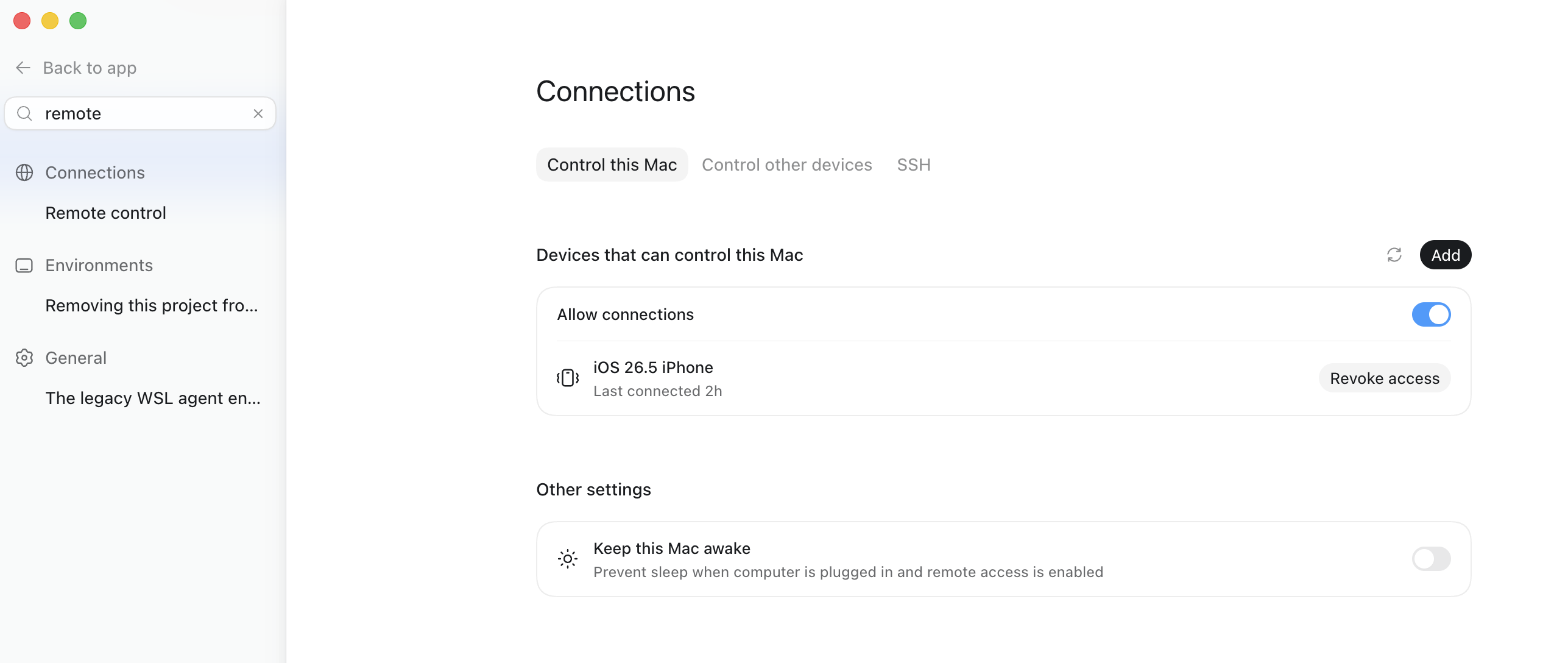
After clicking on “add”, it wants you to open your camera and scan the QR. That’s it.
Also, your phone needs to have the ChatGPT app.
4. Enable Computer Use
Follow the same steps as step 3, click on settings, and type computer use.
Your screen should look like this.
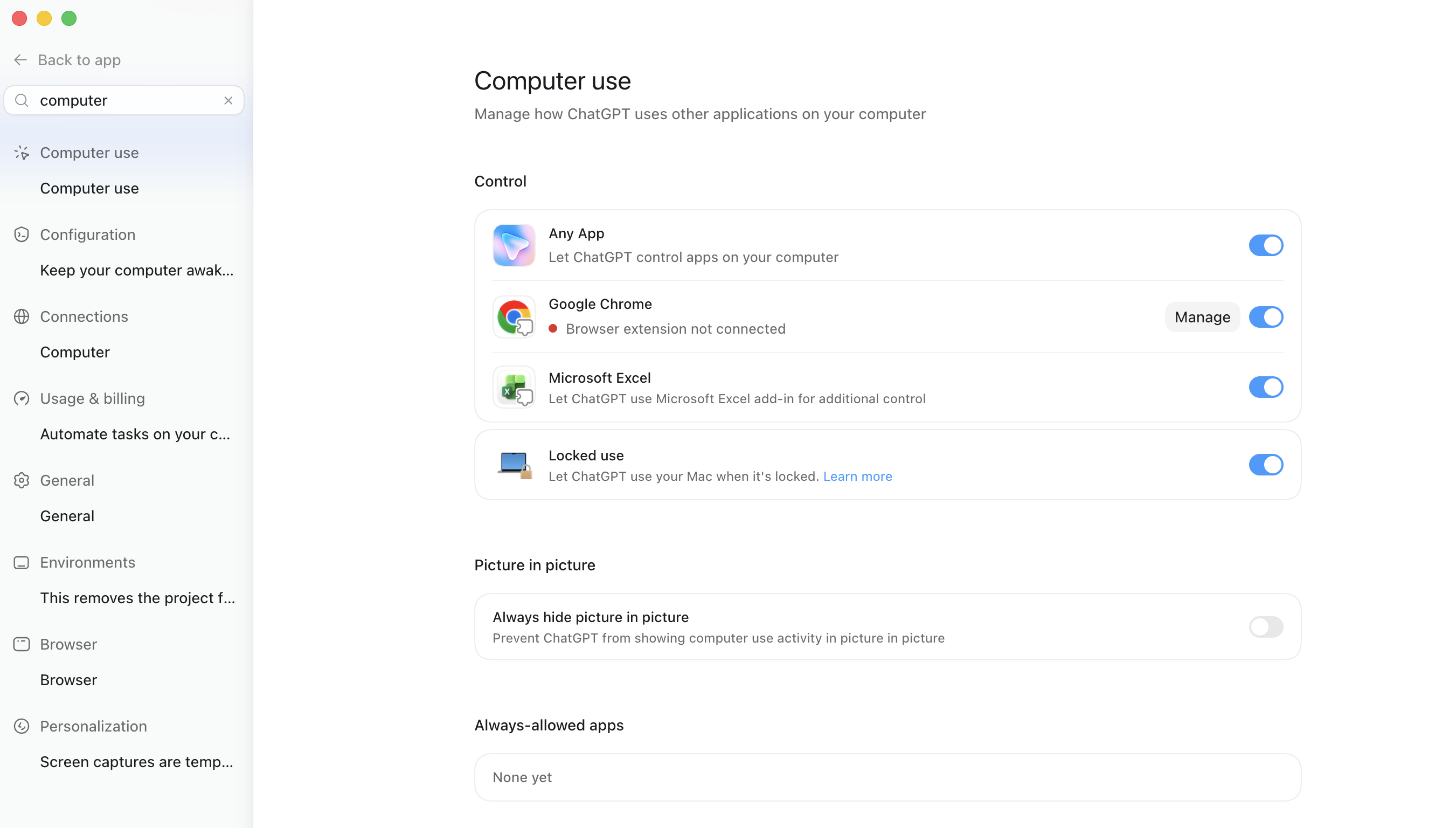
And that’s it.
Now you have connected your phone.
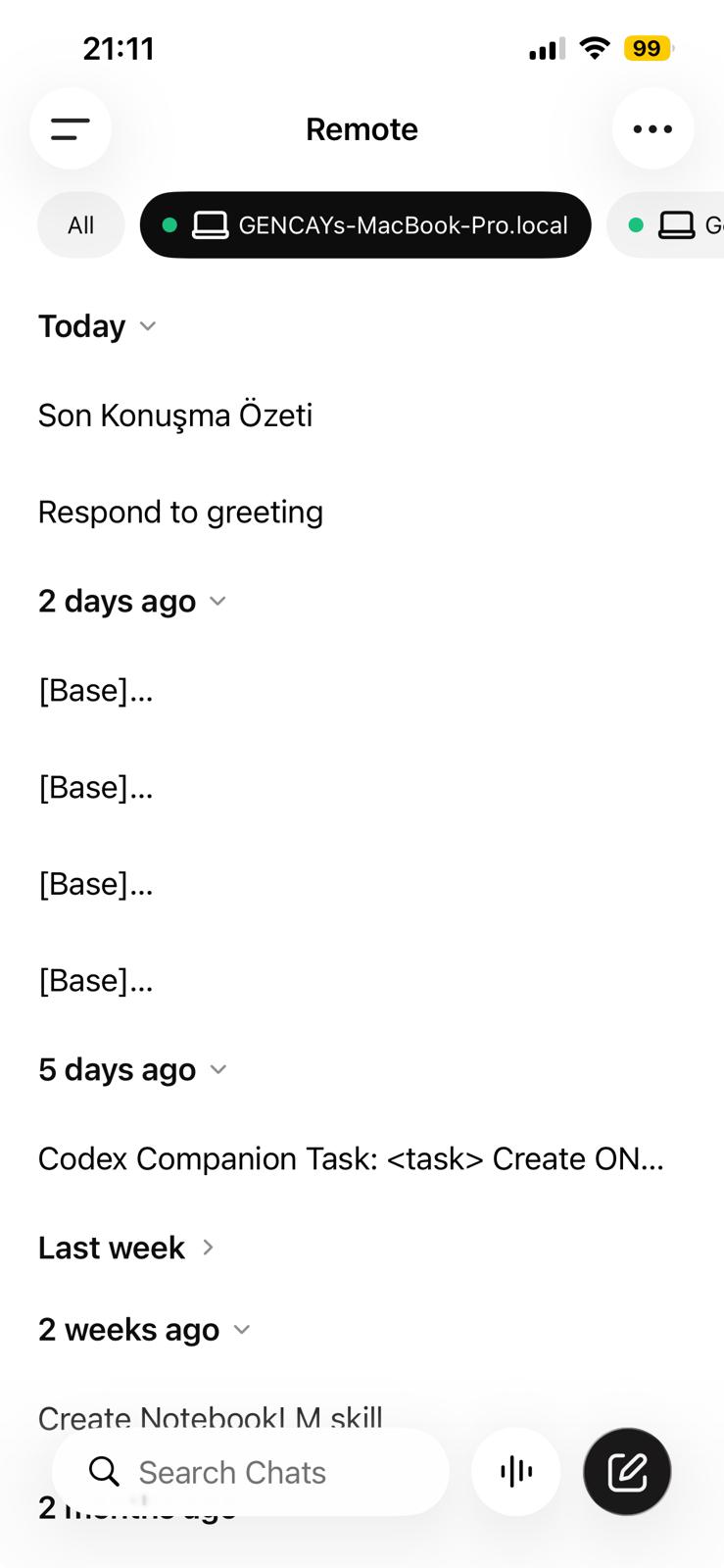
Click on “Remote” on your phone and select your device. Let me show you.
5. Keep Your Mac Awake with Caffeinate
To make sure your computer stays awake, open your terminal.
Paste this command.
caffeinate
And now you’re ready.
Make sure your internet is stable, and happy building!