Build a 3-page AI app that tracks crypto & stocks, pulls live news, and gives you a buy, hold, or sell read on your own positions. Zero code and subscriptions.
By Gencay
Published: 2026-02-22
URL: https://www.learnwithmeai.com/p/notebooklm-and-gemini-and-antigravity

You track 5 stocks. You check the news 3x/day. You make emotional trades.
You lose money.
Here’s the problem: Bloomberg Terminal costs $2,000/month.
Free apps sell your data.
Building your own used to take weeks.
But not now.
You can build an AI investment analyzer in under an hour.
No code or emotion.
Train it on YOUR portfolio.
Let’s See What We’ll Build at the End
Let’s see what we’ll build at the End
Three pages. One app. Built in minutes.
How does this app work?
There are 3 pages.
Page 1: Wallet
Your portfolio, live. Add XRP, SOUN, AAPL, whatever you hold. Real-time P&L updates from Yahoo Finance.
Page 2: AI Advisor
- Click Fetch News → today’s headlines for every asset.
- Click Run AI Analysis → Gemini reads your portfolio, cross-references 40+ pages of research, returns: risk score, recommendation (Buy/Hold/Reduce), key catalysts.
Your portfolio. Your risk.
Page 3: Trade Log
AI that knows your positions.
Ask anything: “Should I average down on XRP?” “What’s my stop-loss?” “Summarize the SOUN bull case.”
It answers like a disciplined trader, not a chatbot.
0. Current Stack
Before getting into this app, we’ll use 3 different AI tools.
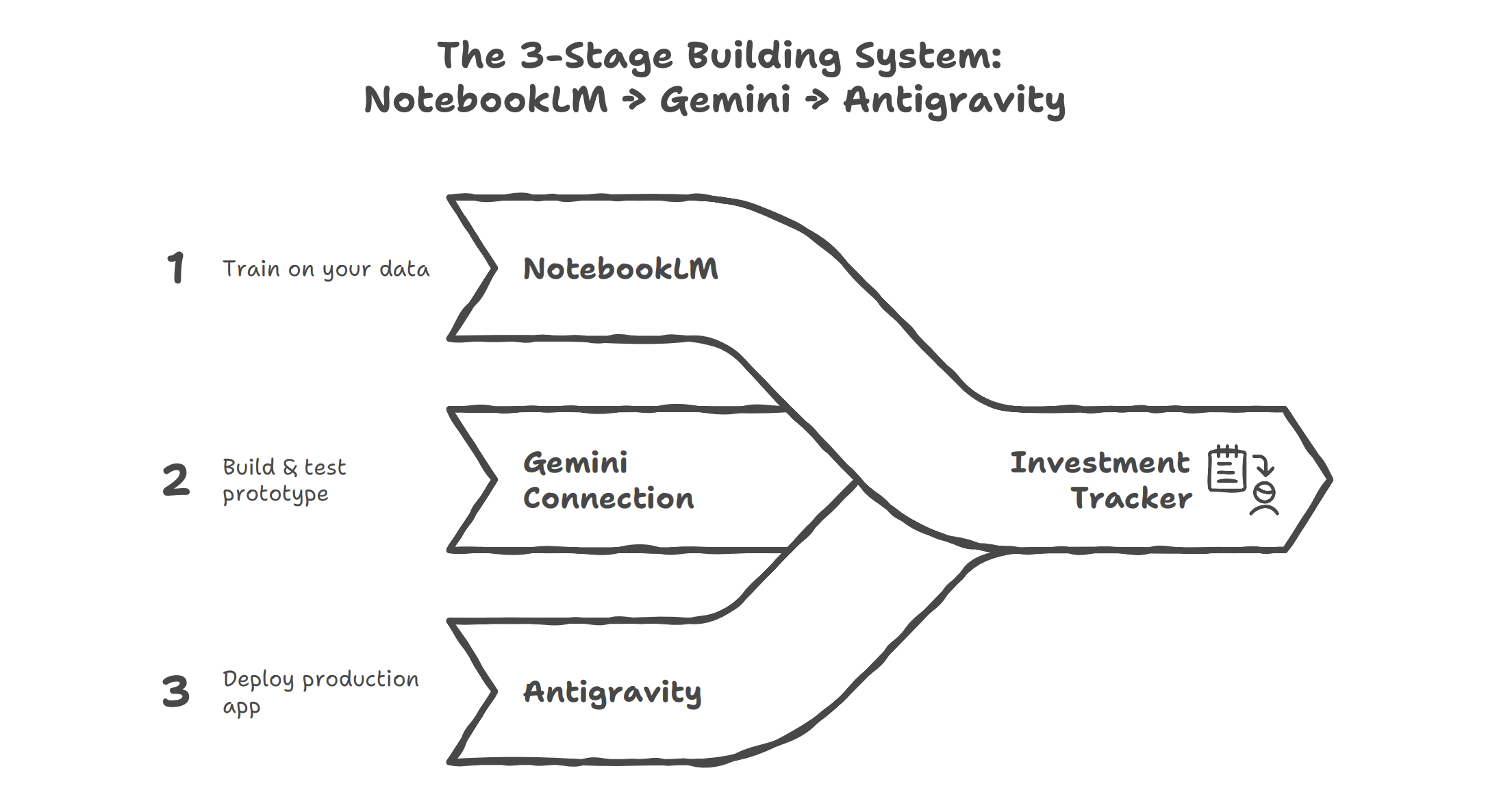
And let’s discover them.
1. What is NotebookLM?
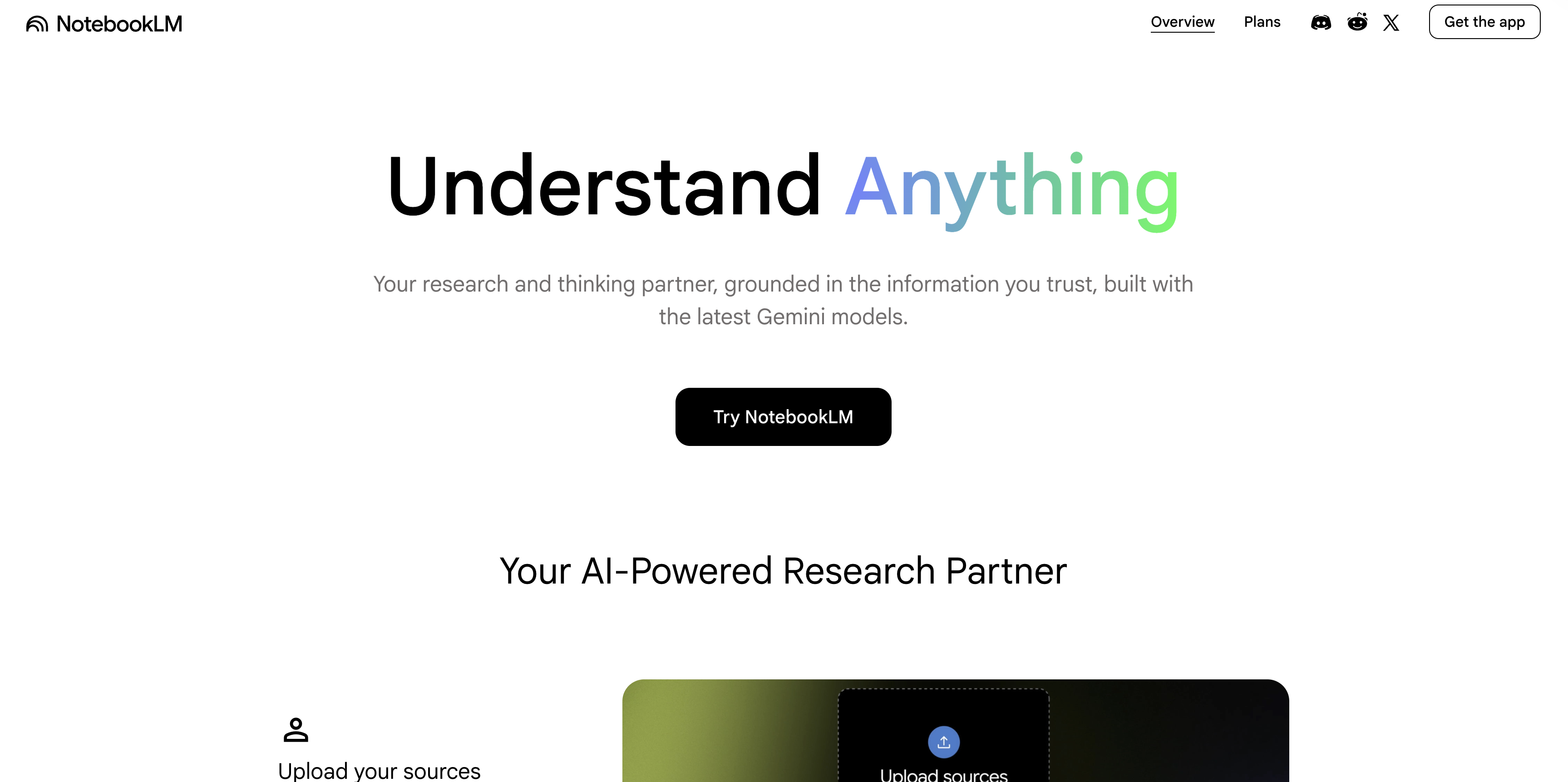
\What is notebookLM?\
NotebookLM is Google’s greatest AI tool.
You can train Notebook, using your own documents.
Or adding YT Videos.
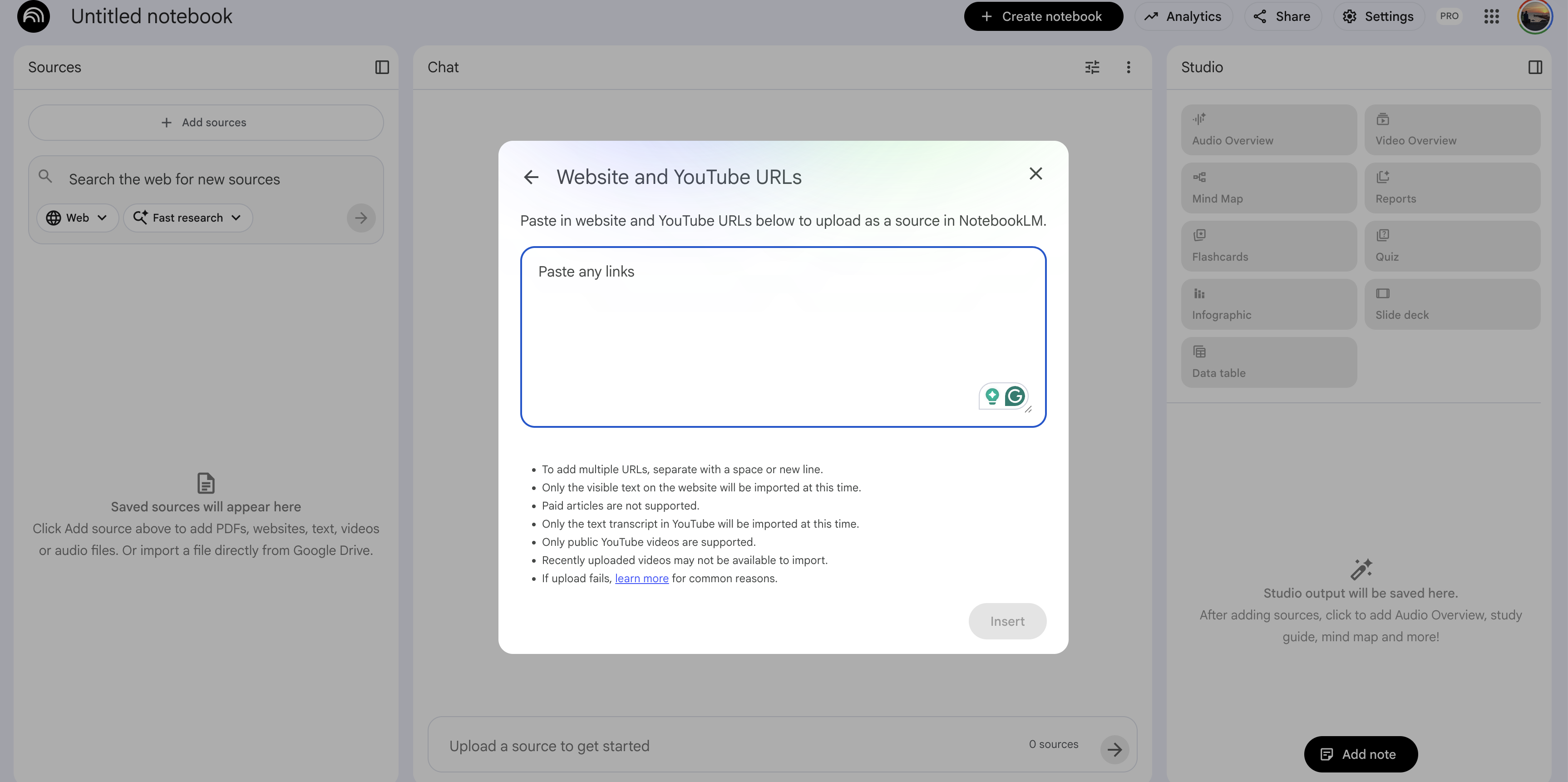
\Adding YouTube Videos as a source.\
You can even do a deep search using Gemini models.
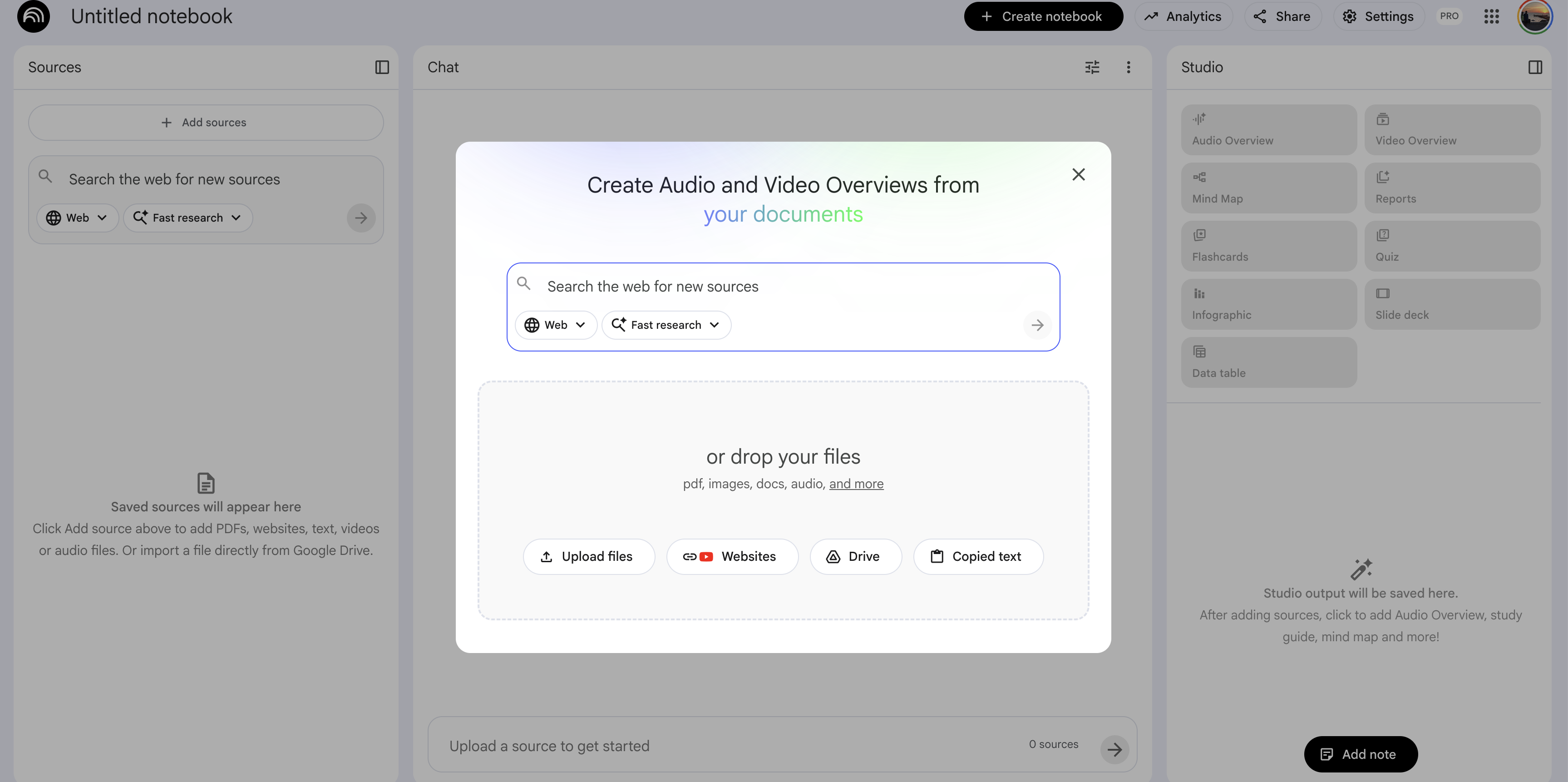
\Adding Source, as a result of a deep search.\
And upload them as source.
Up to 300 sources.
Let’s see how you can do this.
a) How to train NotebookLM?
Visit notebooklm.google.com.
- Click “Try”
- Next, click on “Create New.”
- Add your sources.
- Name your notebook
That’s it.
NotebookLM now knows your data.
For NotebookLM tips and tricks, read this one.
b) How to connect NotebookLM with Gemini?
Let’s see how you can connect NotebookLM with Gemini in 5 steps.
- Go to the Gemini: https://gemini.google.com/
- Click on “+” and add your NotebookLM as a source.
- Use this prompt.
> “Develop app from attached Notebook.”
- Select Canvas as a tool.
- Click on Submit
In a couple of minutes, you’ll see your app ready.
2. What is Antigravity?
Antigravity is Google’s AI IDE.
a) Claude Code inside Antigravity
You can also use Claude Code inside it, using an extension.
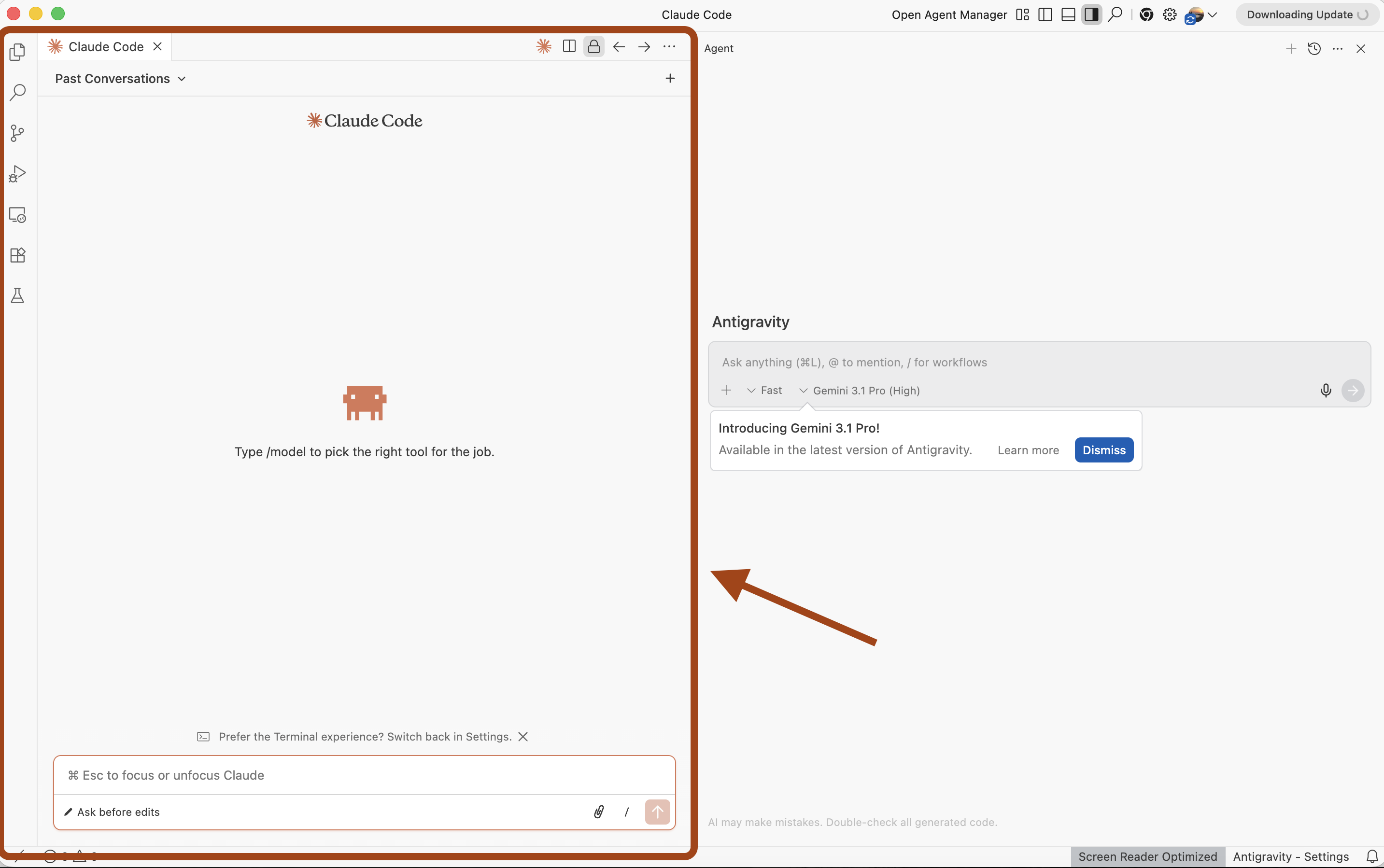
\Claude Code inside Antigravity.\
This way, you can combine Claude’s power on the left and Gemini models on the right.
To explore how to install the Claude extension, read this one.
b) Agent Manager
Click here.
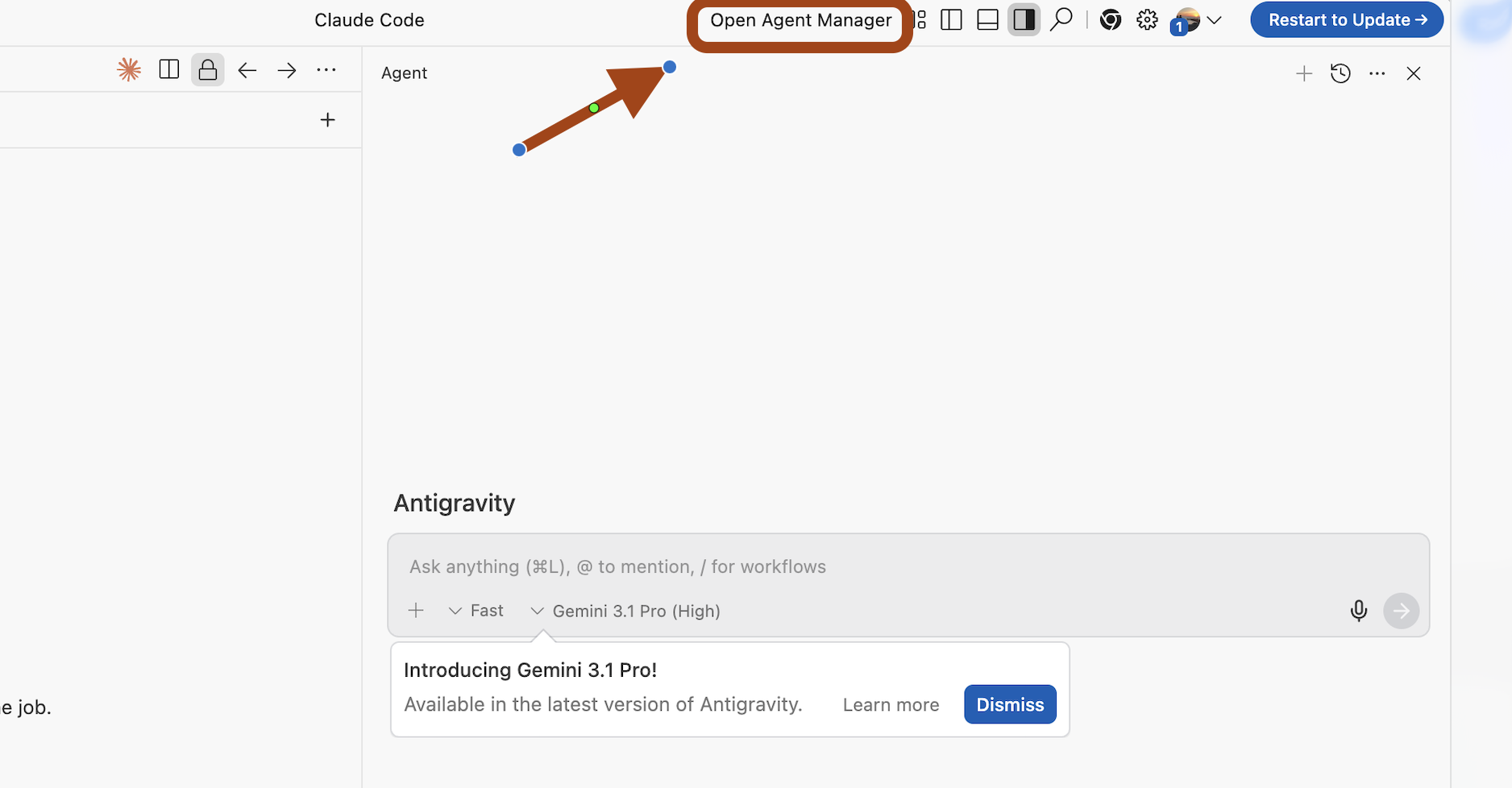
\How to initiate Agent Manager?\
You can run agents in parallel, so they handle multiple tasks at the same time.
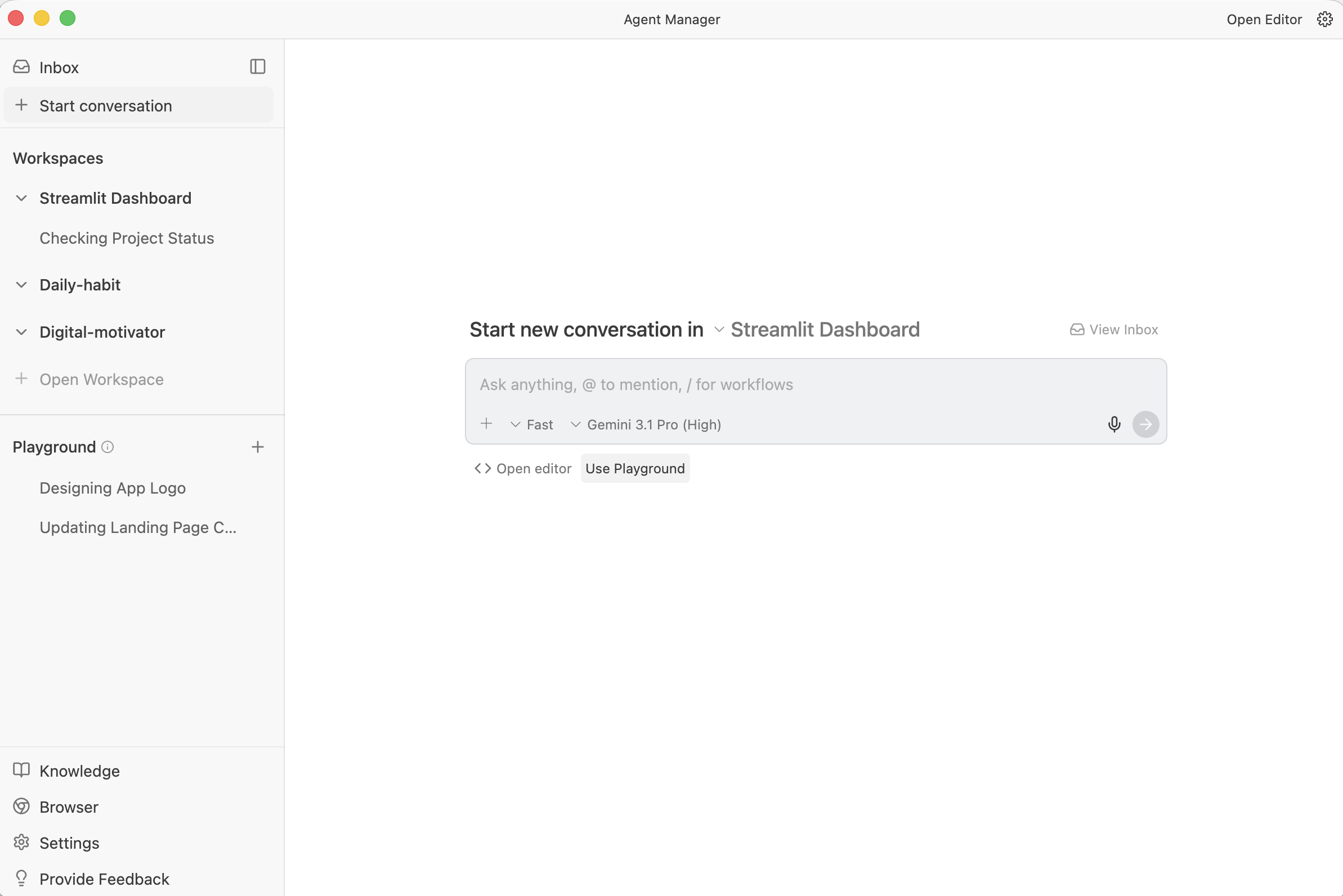
\Agent Manager\
Antigravity can turn your Gemini prototypes into production apps.
We’ll discover this in three steps.
3. The 3-Stage Building System
I previously connected NotebookLM with Gemini to build apps.
Next, I connected NotebookLM with Antigravity.
Now I’ll connect each three.
Here’s the system I use:
- Stage 1: Research (NotebookLM) → Do I need this?
- Stage 2: Test (Gemini mock) → Does the UX work?
- Stage 3: Build (Antigravity prototype) → Will people use it?
Let me show you how to build our investment tracker.
Stage 1: Research with NotebookLM
First, let’s train notebookLM.
Follow the steps I show you in 1a - How to train NotebookLM?
a. Training NotebookLM
And when you see this screen, use the prompt I give you.
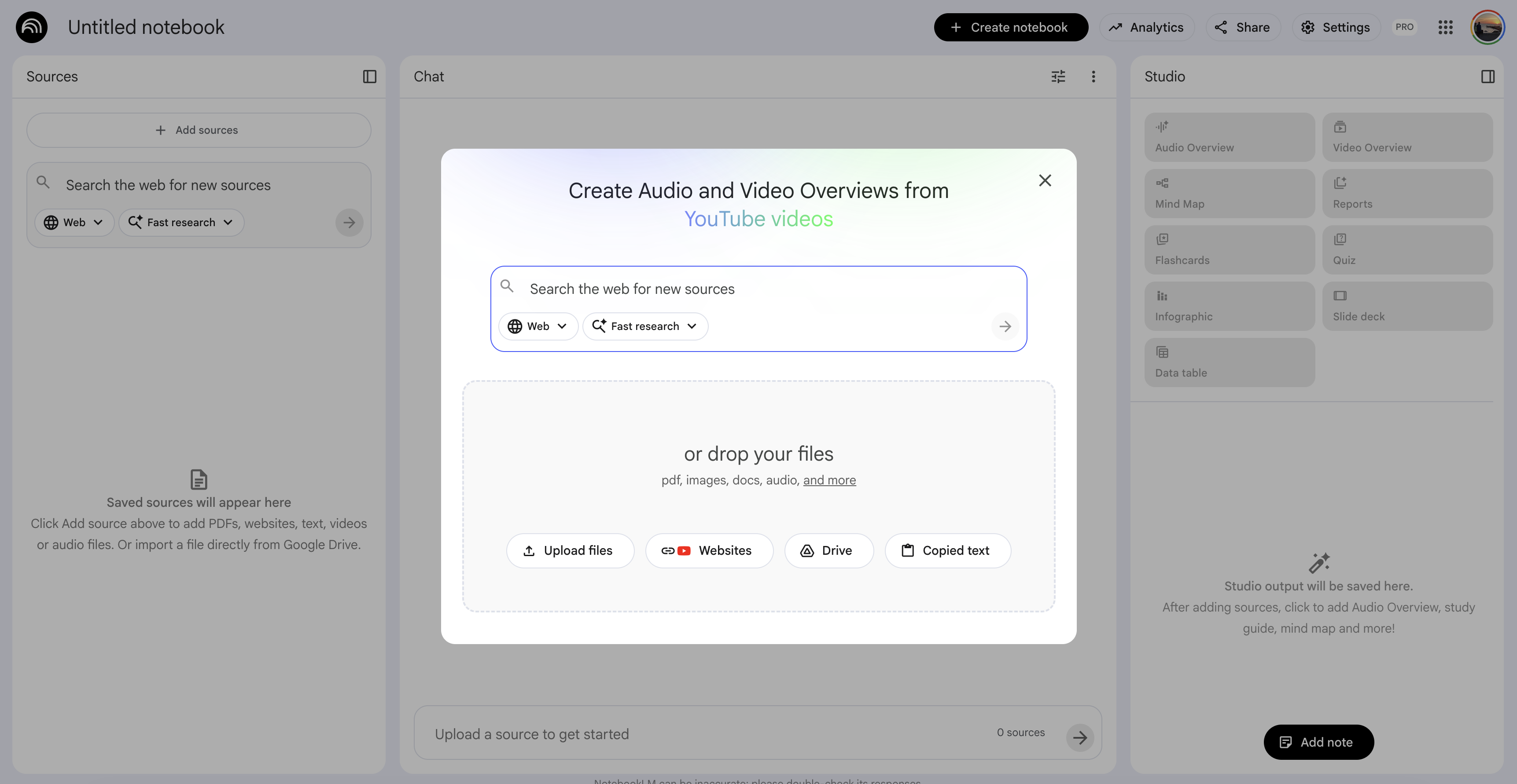
Here is the prompt:
Create a NotebookLM notebook called "Investment Portfolio Tracker - [stock 1 ] & [stock 2 ] Analysis"
Upload these specific sources:
1. \*\*Your Portfolio Data\*\*

- Current holdings: [stock name ] (Amount, Your buying price)

- Current holdings: [stock name ] (Amount, Your buying price)
2. \*\*Company Fundamentals\*\* ([stock name ])

- SoundHound AI investor relations page

- Latest quarterly earnings report (Q4 2024)

- SEC filings (10-K, 10-Q)

- Competitor analysis (Nuance, Google Cloud Speech)
3. \*\*Crypto Analysis\*\* (stock name)

- XRP/USD technical analysis (TradingView, CoinMarketCap)

- Ripple legal updates (SEC lawsuit status)

- On-chain metrics (whale movements, exchange flows)

- XRP adoption news (banking partnerships)
4. \*\*Market Context\*\*

- S&P 500 trend (for correlation analysis)

- Crypto market sentiment (Bitcoin dominance, altcoin season indicators)

- AI sector performance (for [stock] context)
5. \*\*Strategy Documents\*\*

- Your investment thesis for each position

- Risk management rules (stop-loss, position sizing)

- Target price levels
After a few minutes, your NotebookLM will be ready to go.
b. Ask NotebookLM to Validate Your Idea
If you want to use only this NotebookLM, it is cool.
You can track anything.
Here is a quick prompt to do that.
Here is my portfolio : [XRP, $500, SOUN $500]
I bought XRP in $0.5
I bought SOUN in $0.5
Do me SWOT analysis.
And next, you will see the analysis being done using the most updated information.
Cost?
$0.
c. Customization
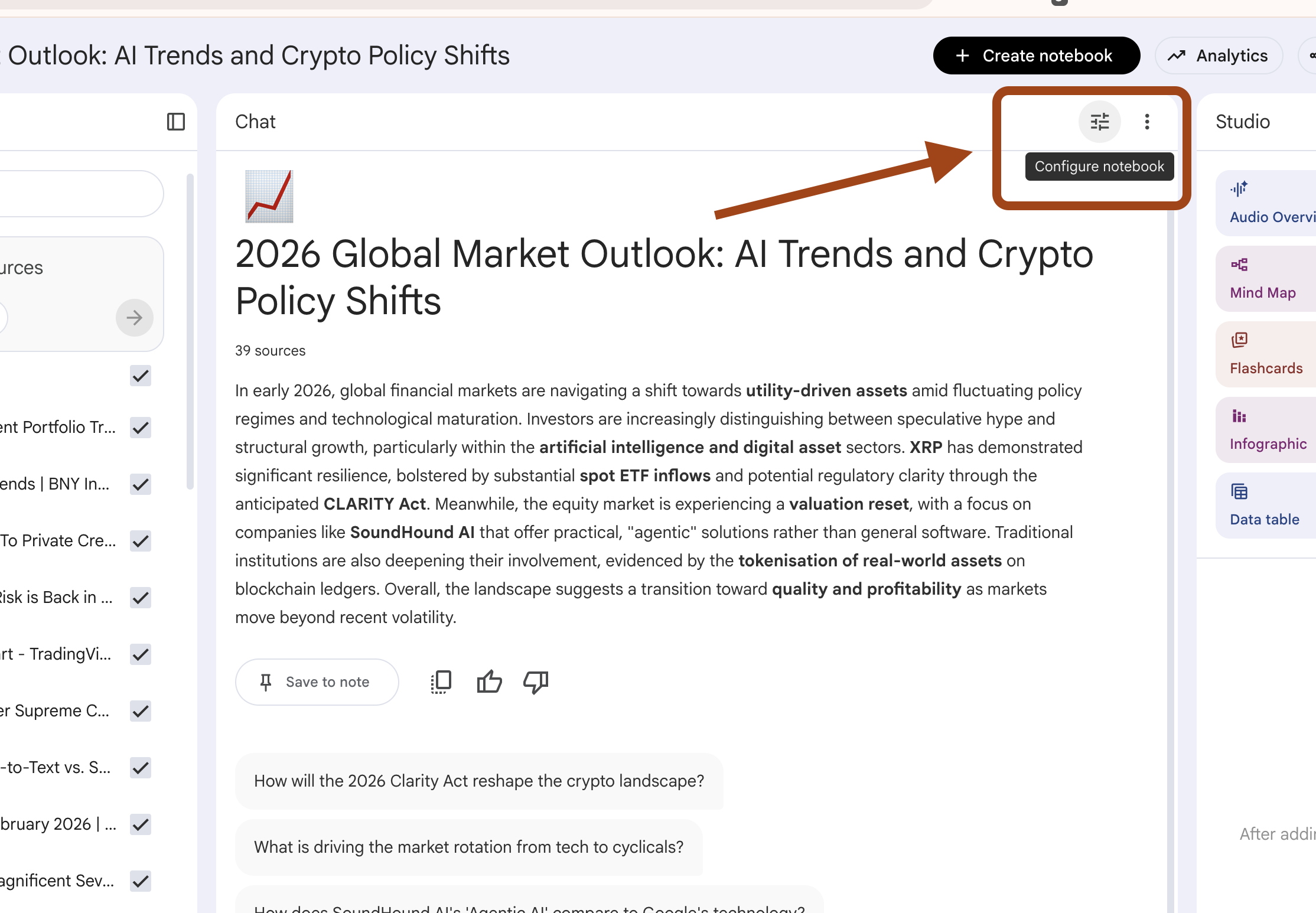
Click on “Configure Notebook”.
Next, select “Custom”.
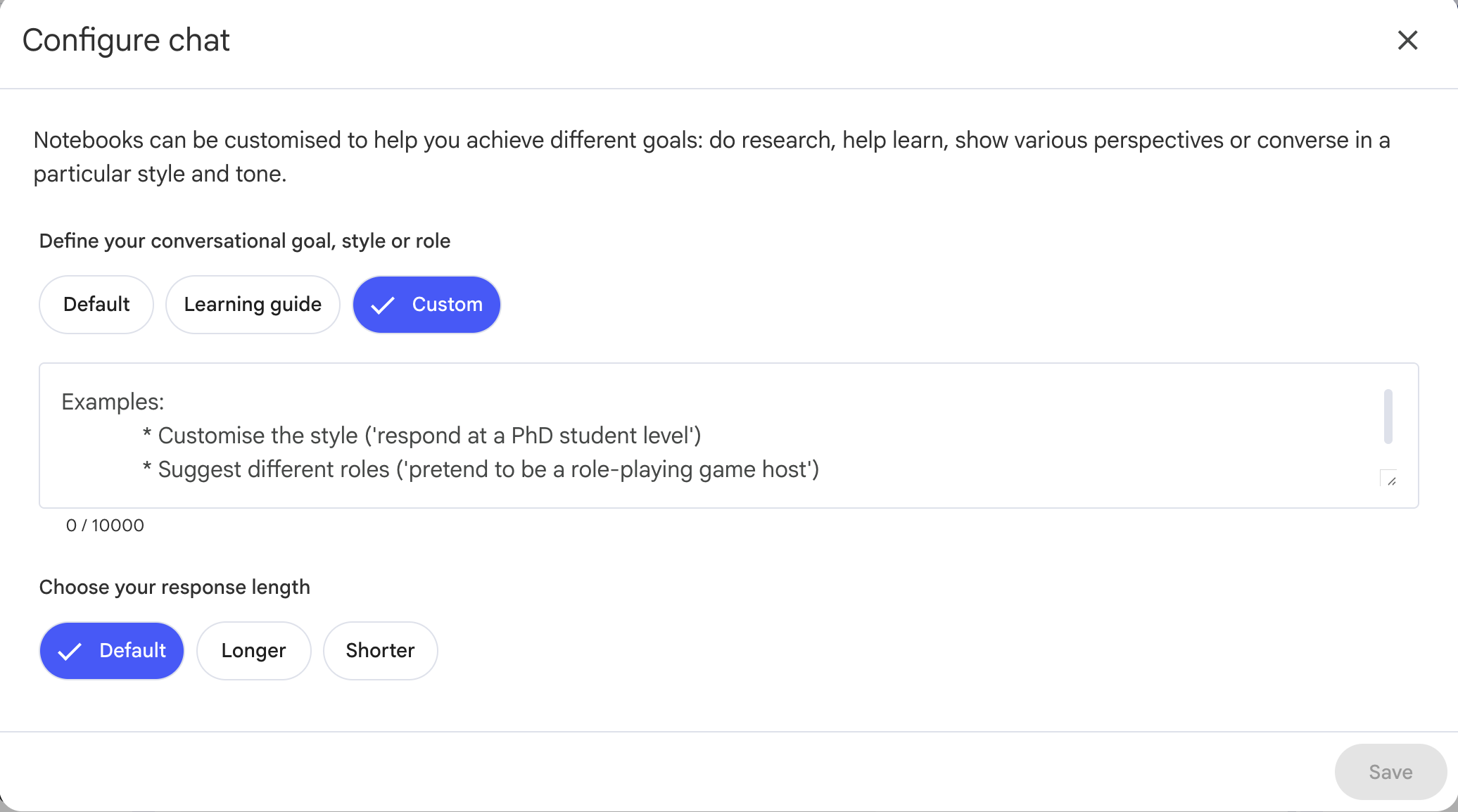
Use this prompt to act your NotebookLM as a financial trader.
Act as my disciplined financial trader and portfolio analyst.
Use only the uploaded sources.
Analyze [write your stocks ] based on fundamentals, technicals, market context, and my risk rules.
For each asset provide:
• Current bias (bullish, neutral, bearish)
• Key risks
• Key catalysts
• Clear action: hold, add, reduce, or exit
• Suggested stop-loss and target levels
Be objective, data-driven, and conservative with risk.
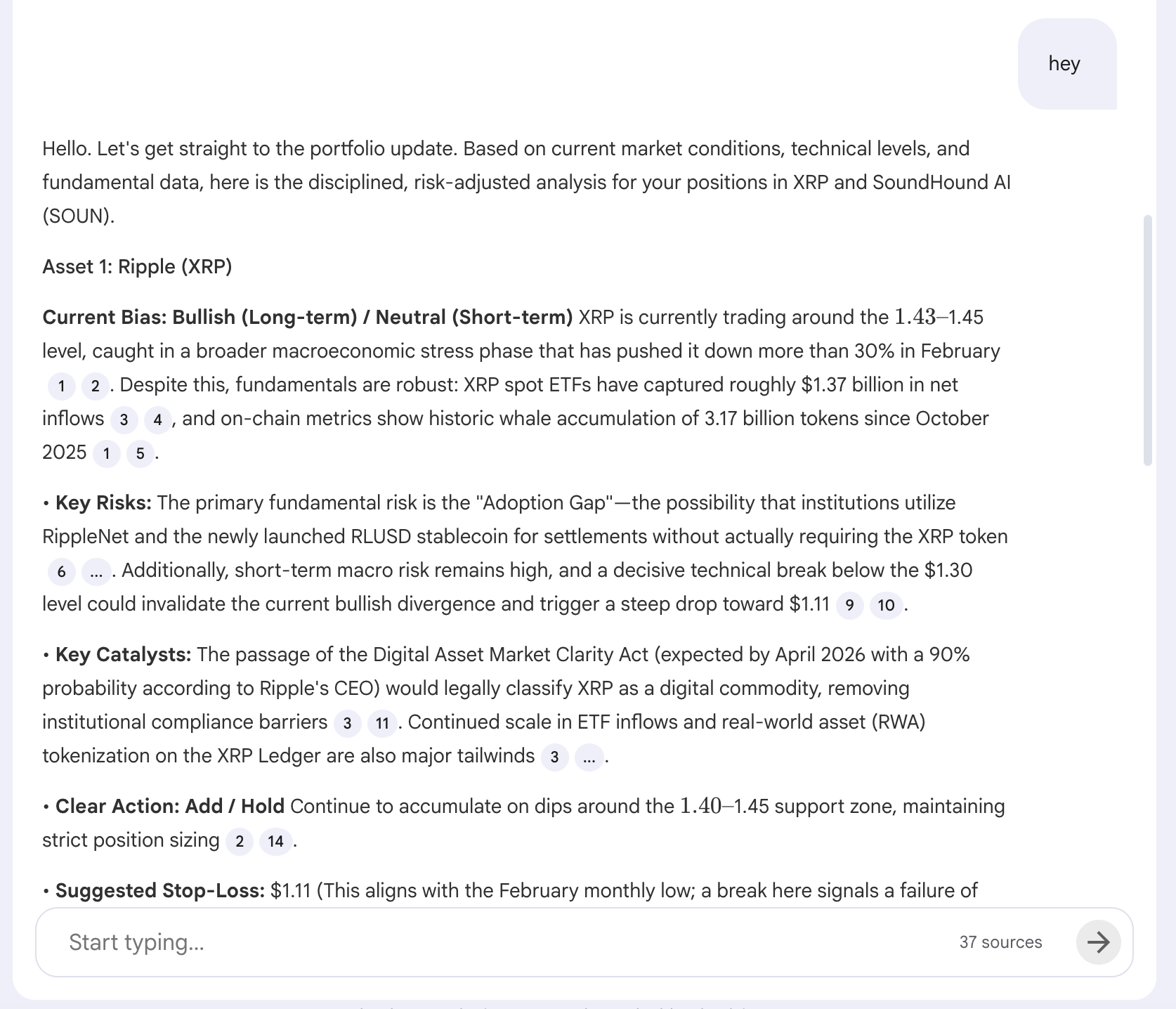
And when you prompt inside NotebookLM, now it knows you even better.
d. Sources
After some time, if you find your app insufficient, you can add more sources.
For example, if you watch a YouTube video and like their financial suggestions, go to your NotebookLM, add a source, and paste the link.
Now, your NotebookLM knows that information too.
Stage 2: Test with Gemini Connection
Now, let’s use Gemini to build something.
We will use NotebookLM, which we just trained.
Here are the steps.
- Go to Gemini.
- Click on “+” and add your NotebookLM as a source.
- Use this prompt.
Build a simple 2-page app using NotebookLM connected to Gemini via Antigravity MCP.
Page 1: Wallet Tracker

- Show crypto/stock portfolio

- Display: coin name, amount, current price, total value

- Calculate total portfolio worth
Page 2: AI Analysis

- Pull NotebookLM Deep Research results

- Show buy/hold/sell recommendations for each position

- Display risk score and key insights
Data source: NotebookLM notebook with portfolio data
Keep it minimal. 2 pages. Clean UI.
- Select Canvas as a tool.
- Click on Submit
And your app will be ready in minutes.
Important Note: Take your Gemini API key, and tell your app to insert this key to collect live information from the web. And you are good to go.
Stage 3: Build with Antigravity
Now we will transform everything to Antigravity.
What We’re Building?
The app will have multiple pages:
- Page 1: Log in to your investments. Save your wallet.
- Page 2: Track news, trends, and analysis from the web.
- Page 3: AI trained on all data from Pages 1-2. You can chat with it.
How to Build This?
We’ll build this in 3 steps.
A) Query NotebookLM to Collect Info
Go back to NotebookLM. Use this prompt:
Export all the investment data we discussed in json.
Include:

- Portfolio structure

- Analysis criteria

- News sources

- AI chat instructions for preventing emotional trading
Format this as a data summary I can use in an app.
Copy this output.
B) Download the App File from Gemini
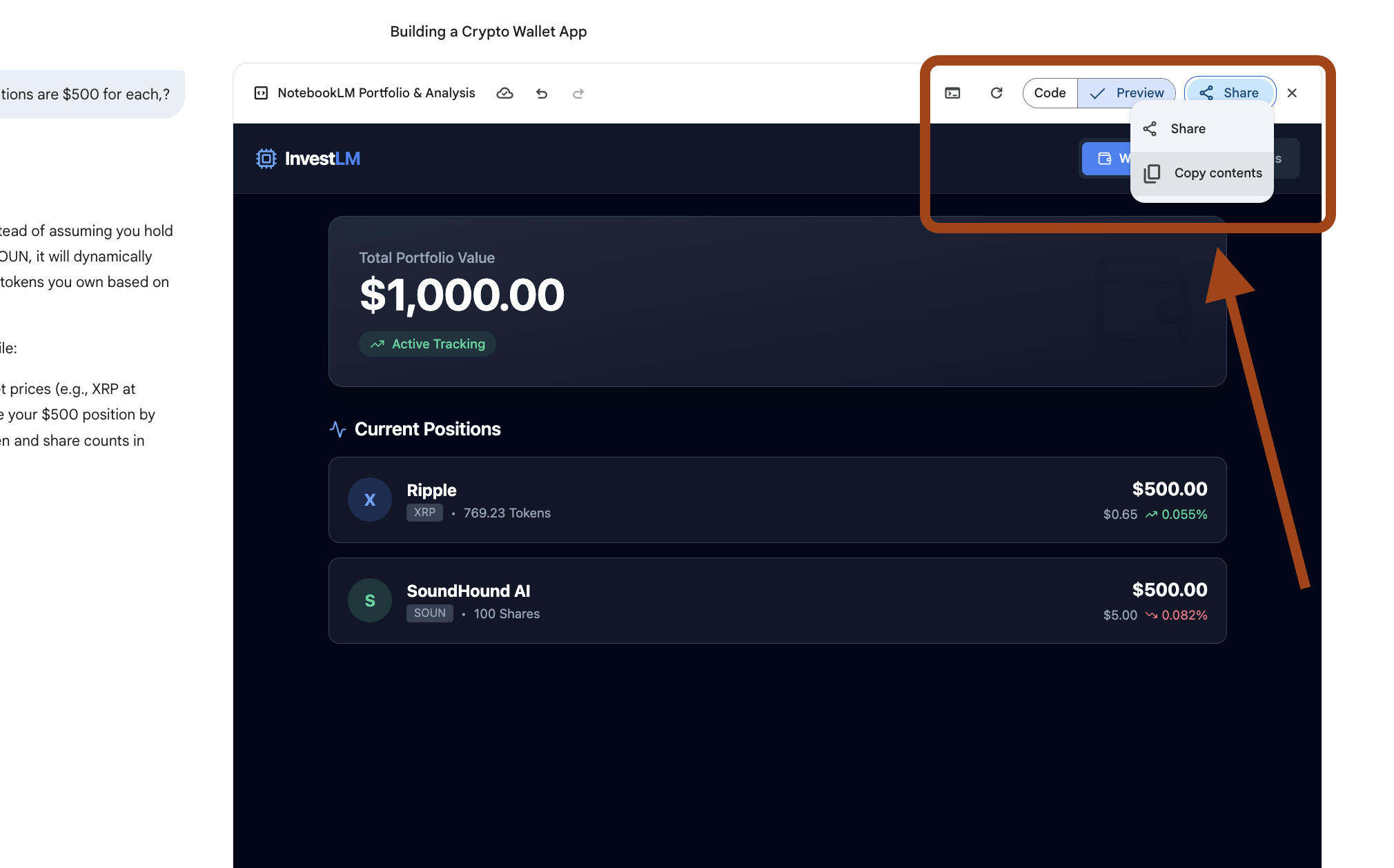
Go to your app.
Click on “Copy Content”.
C) Merge in Antigravity with Huge Prompt
- Create a new folder.
- Open Antigravity.
- Select this folder you just created
- Use this prompt:
Build a 3-page investment tracking app with live data fetching and AI analysis.
Tech Stack:

- Frontend: Next.js + React

- Backend: Simple JSON file storage (no database needed)

- AI: Gemini API (for live news, trends, and chat)

- Styling: Tailwind CSS
Data Sources
Replace these with your own data:
1. NotebookLM Deep Research JSON (paste your own)
2. Gemini App Component Code (paste your own):
3. Gemini API Key: YOUR_KEY_HERE]
Page 1: Portfolio Manager
Input form: Ticker, Amount, Buy Price, Date
"Save to Portfolio" button → stores in local JSON file
Display table: Ticker | Amount | Buy Price | Current Price | Gain/Loss %
Fetch current prices from external API (CoinGecko for crypto, Yahoo Finance for stocks)
Delete/Edit buttons for each position
Export portfolio as JSON
Page 2: Market Intelligence Dashboard
For each holding in portfolio:
Fetch latest news headlines (Google News API or NewsAPI)
Fetch 7-day price trend (CoinGecko/Yahoo Finance)
Display risk score (from NotebookLM JSON or calculate via Gemini)
Show key catalysts (from NotebookLM JSON or extract from news via Gemini API)
Market sentiment indicator (analyze news sentiment via Gemini API)
Auto-refresh data every 5 minutes
Use Gemini API to analyze news and generate insights
Page 3: AI Chat Assistant
Chat interface using Gemini API
Context for AI:
User's portfolio (from Page 1 local storage)
NotebookLM Deep Research data (from pasted JSON)
Latest news & trends (from Page 2 API calls)
Market data (live prices, charts)
Example queries: "Should I buy more XRP?" "What's the risk in my portfolio?" "Summarize today's crypto news"
AI responds using Gemini API with full context
API Integration:
Gemini API (for AI analysis & chat):
Endpoint: https://generativelanguage.googleapis.com/v1beta/models/gemini-2.5-flash-preview-09-2025:generateContent
Use your API key from step 3 above
Use Cases:
Analyze news headlines → extract risk, catalysts, sentiment
Answer user chat queries with portfolio + NotebookLM context
Generate investment recommendations
Price Data APIs:
CoinGecko API (crypto prices, 7-day charts)
Yahoo Finance API (stock prices, trends)
News APIs:
NewsAPI or Google News API (fetch headlines for tickers)
Backend API Endpoints:
POST /api/portfolio - Save new position to local JSON file
GET /api/portfolio - Read all positions from JSON file
GET /api/prices/:ticker - Fetch current price (CoinGecko/Yahoo Finance)
GET /api/news/:ticker - Fetch latest news (NewsAPI)
POST /api/analyze - Send data to Gemini API, return analysis (uses NotebookLM JSON as context)
POST /api/chat - Send user message + portfolio + NotebookLM data to Gemini API, return response
And now wait for it to work for you.
This is the best part!
Occasionally, it will ask your approval, approve, fill your coffe and wait for it build for you! (07:53)
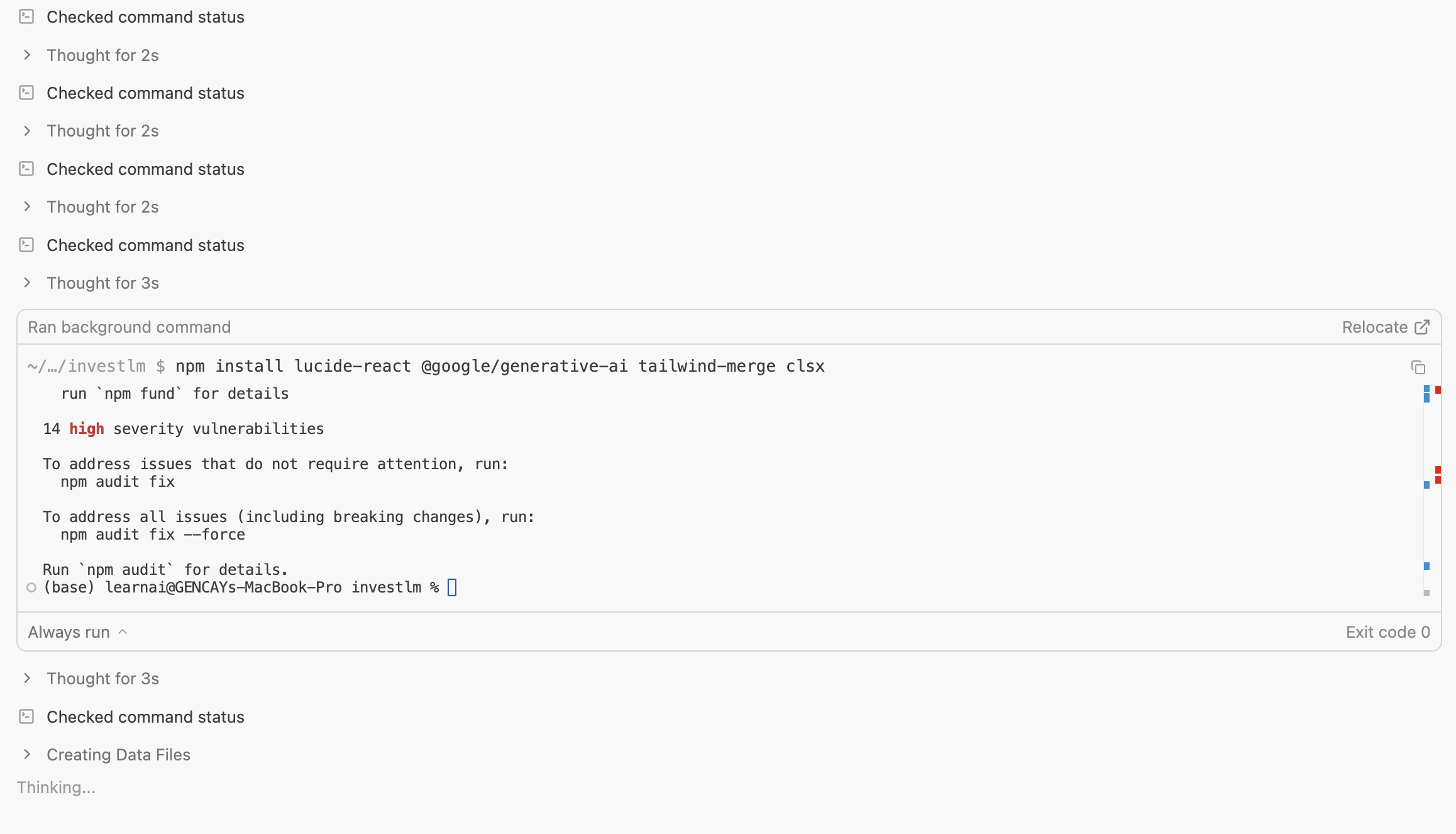
And here it is, our app is ready.
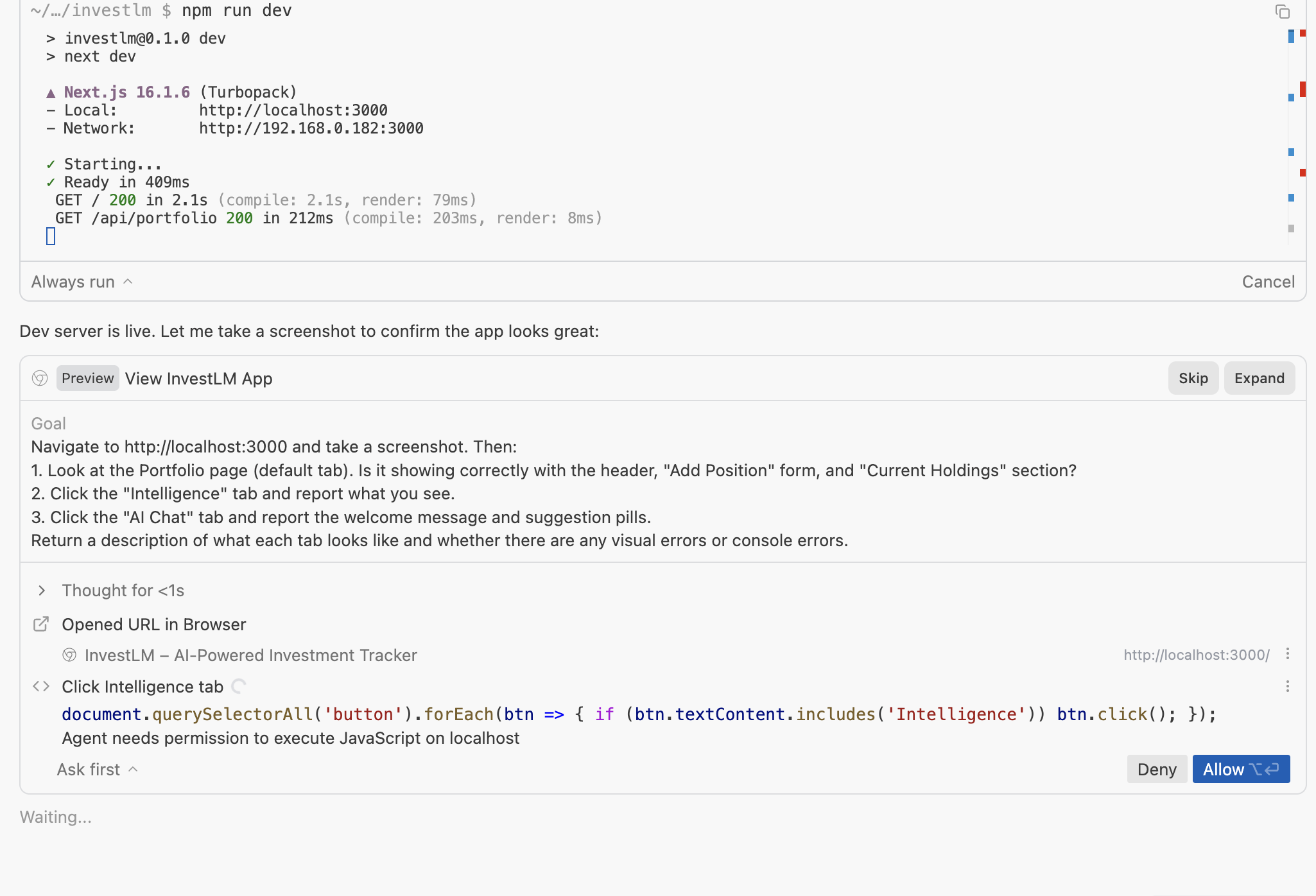
And the antigravity even does its own testing, really interesting.
Let’s see how our app is looking.
Stage 4: Monetize (Optional)
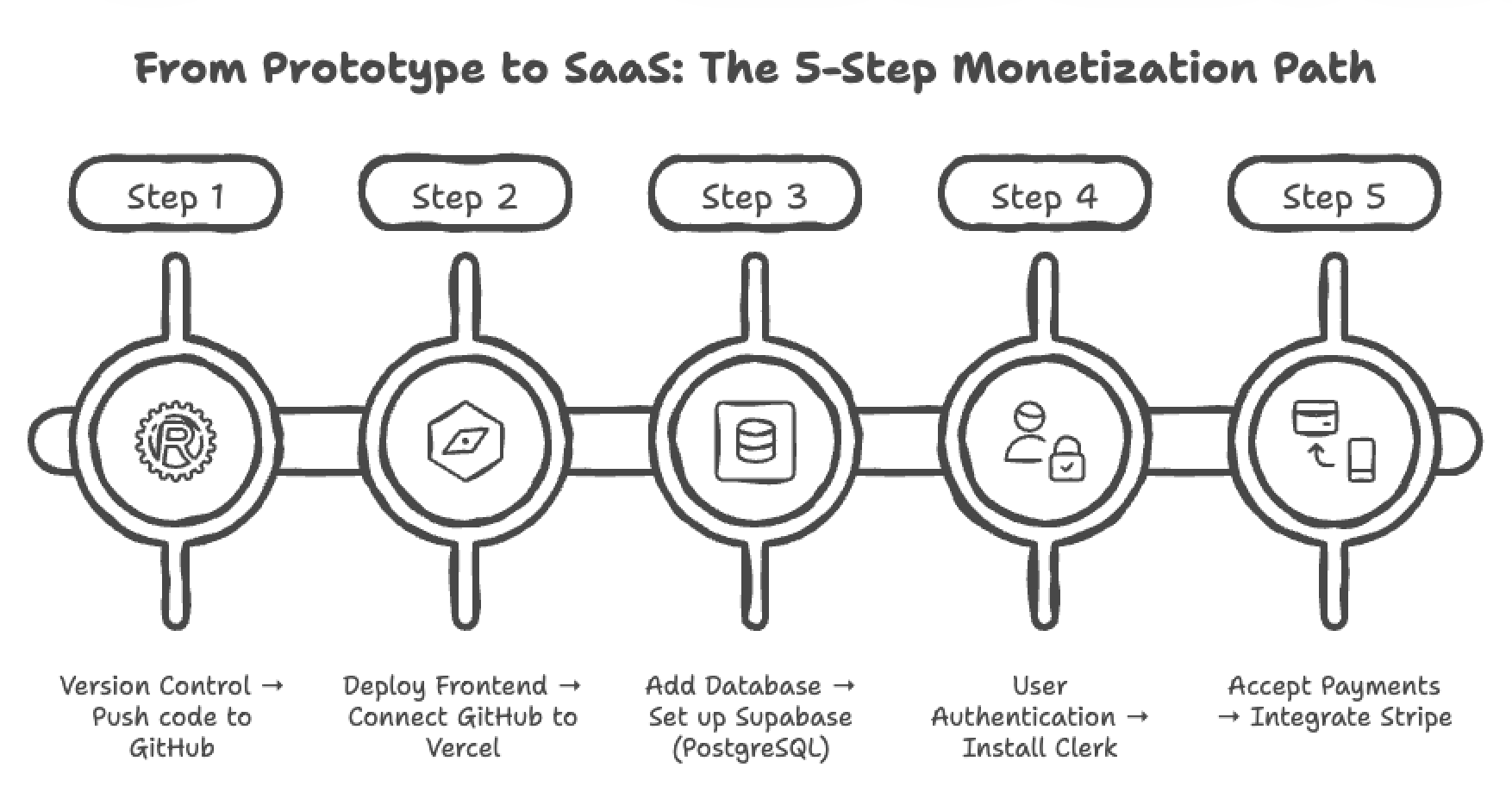
If you want to turn this into a SaaS:
- GitHub: Version control, GitHub documentation.
- Vercel: Deploy your app, vercel deployment guide.)
- Supabase: Database for multi-user portfolios, supabase docs.
- Clerk: User authentication, official docs.
- Stripe: Accept payments, Stripe integration, official docs.
Intellectual trading: validate demand before building infrastructure.
Don’t waste weeks on auth if nobody wants the app.
Disclaimer: This article is for educational purposes only. Not financial advice. Do your own research before making investment decisions.
Final Thoughts
You just built an AI investment analyzer.
NotebookLM trained on YOUR portfolio data.
Gemini tested YOUR strategy.
Antigravity deployed YOUR app.
The system knows your positions, your risk tolerance, and your entry prices.
Thanks for reading this!
And stop just reading, start building!