Create meeting summaries, performance reviews, and pitch decks in minutes then edit them with a single prompt. No design skills required
By Gencay
Published: 2026-02-19
URL: https://www.learnwithmeai.com/p/notebooklm-now-lets-you-edit-ai-slides

Your presentation is due in 2 hours.
You have the data.
You have the story.
But you’re stuck picking fonts.
What if you could describe what you want and get it in minutes?
And be able to edit each of them by just prompting.
NotebookLM just changed the game.
What Is NotebookLM?
NotebookLM is Google’s research & thinking partner.
Sources
On the left of the screen, you can see the sources. These are NotebookLM’s memory.
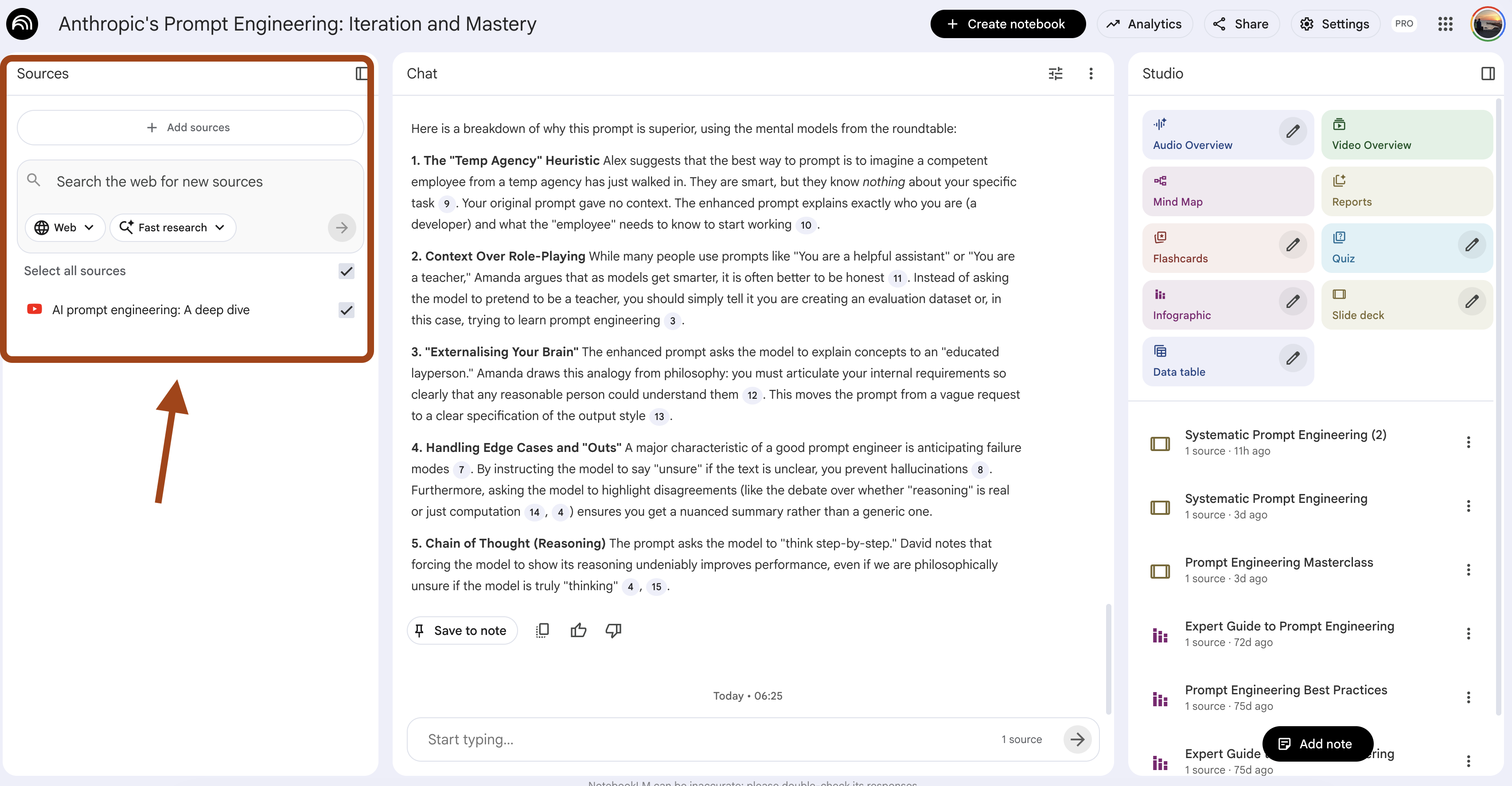
\NotebookLM Sources\
You can add different kinds of files (see the screenshot below), and also do deep research using Gemini, then export the sources.
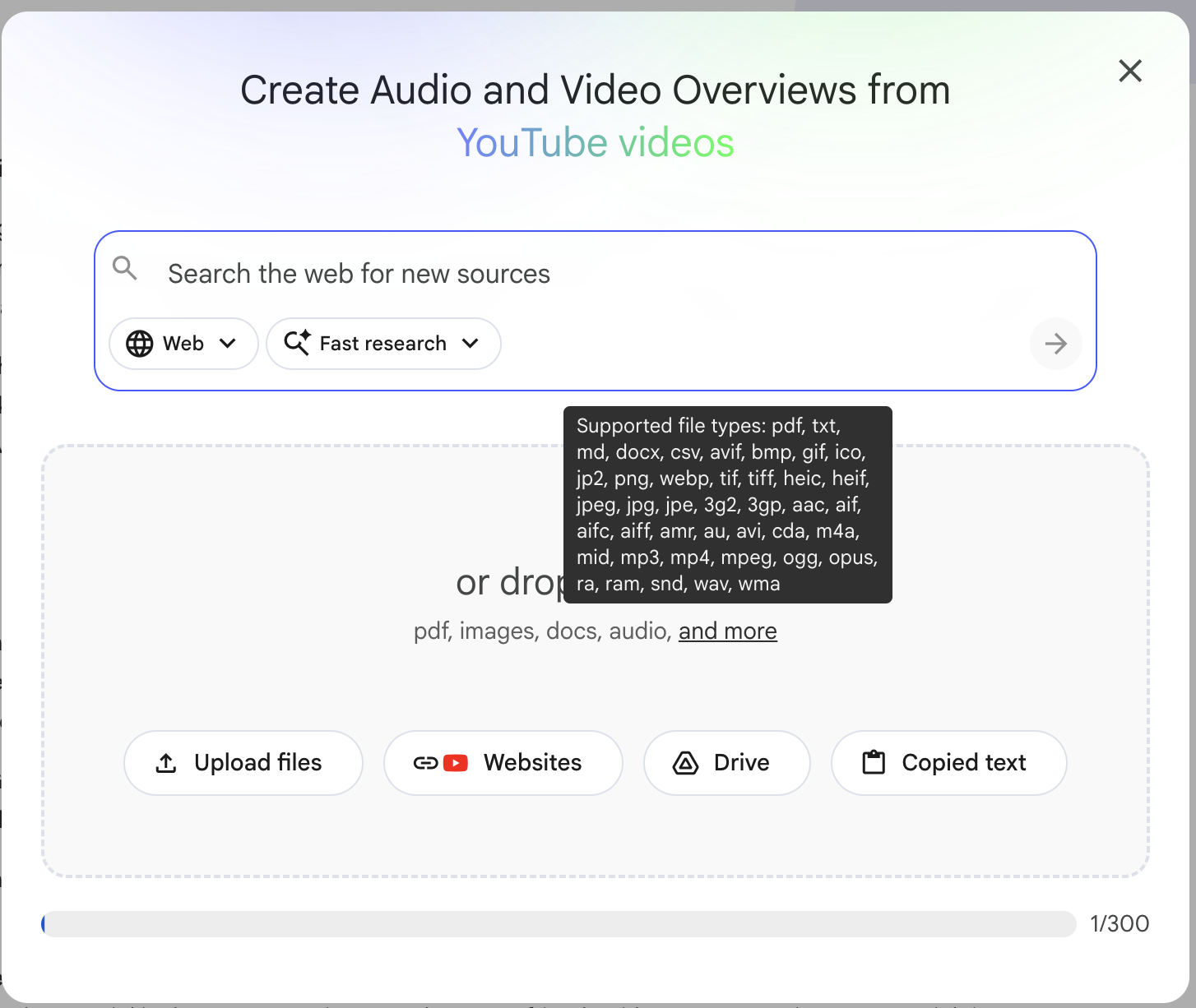
\NotebookLM Source Types\
Chat
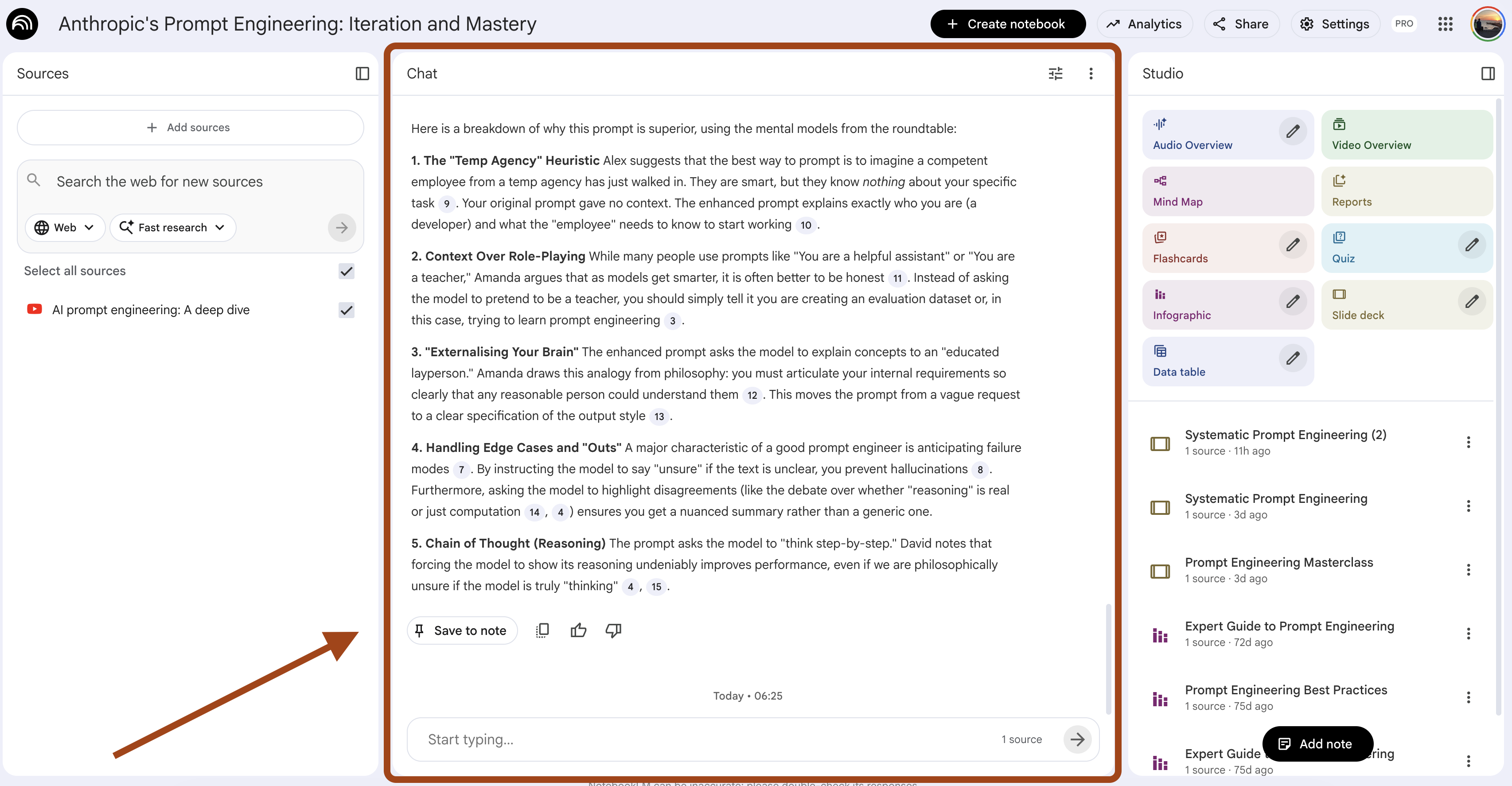
\NotebookLM Chat\
In the middle, you can see the “Chat” part, where you can talk with the NotebookLM.
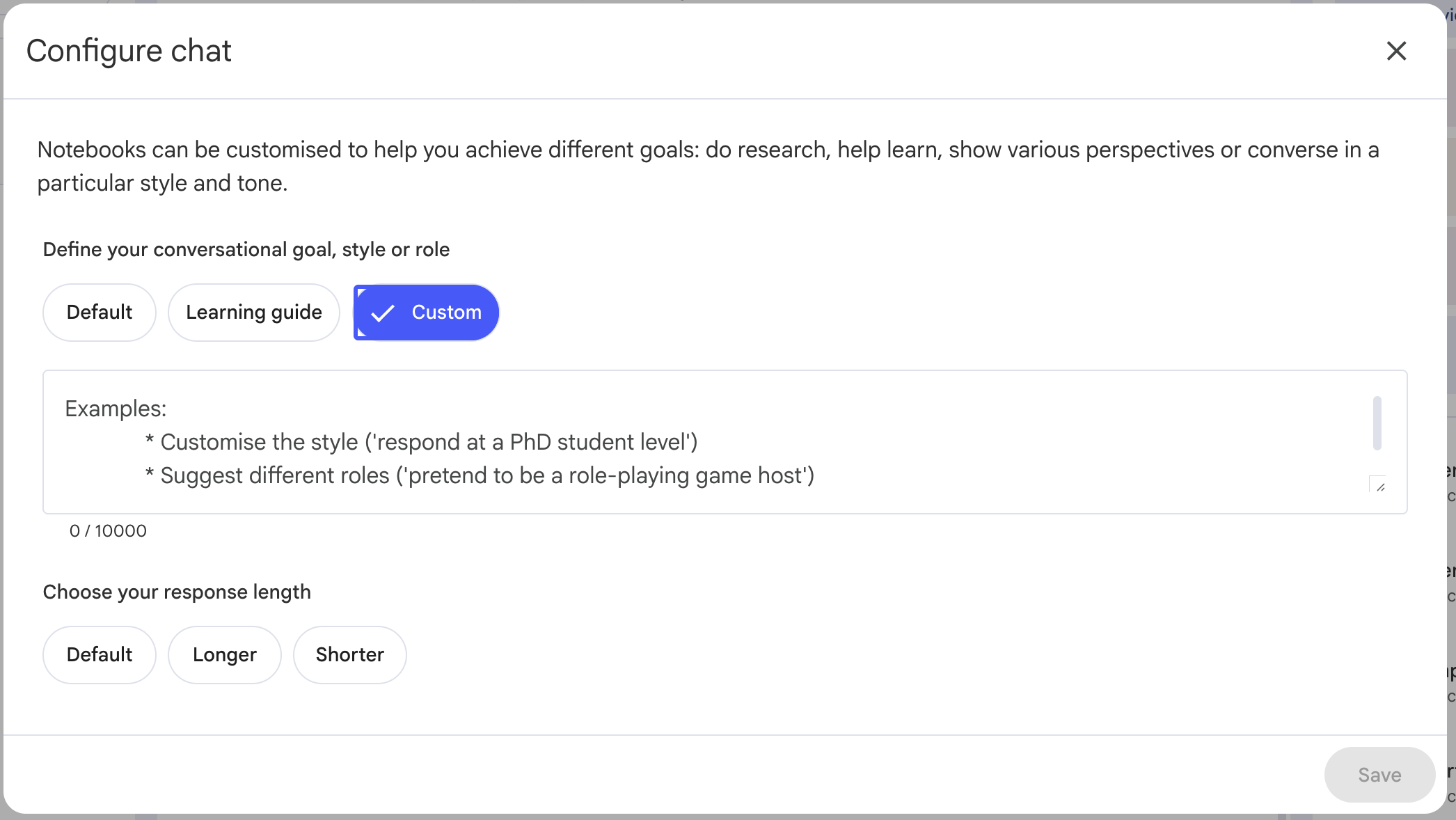
Here, you can also customize it by clicking here.
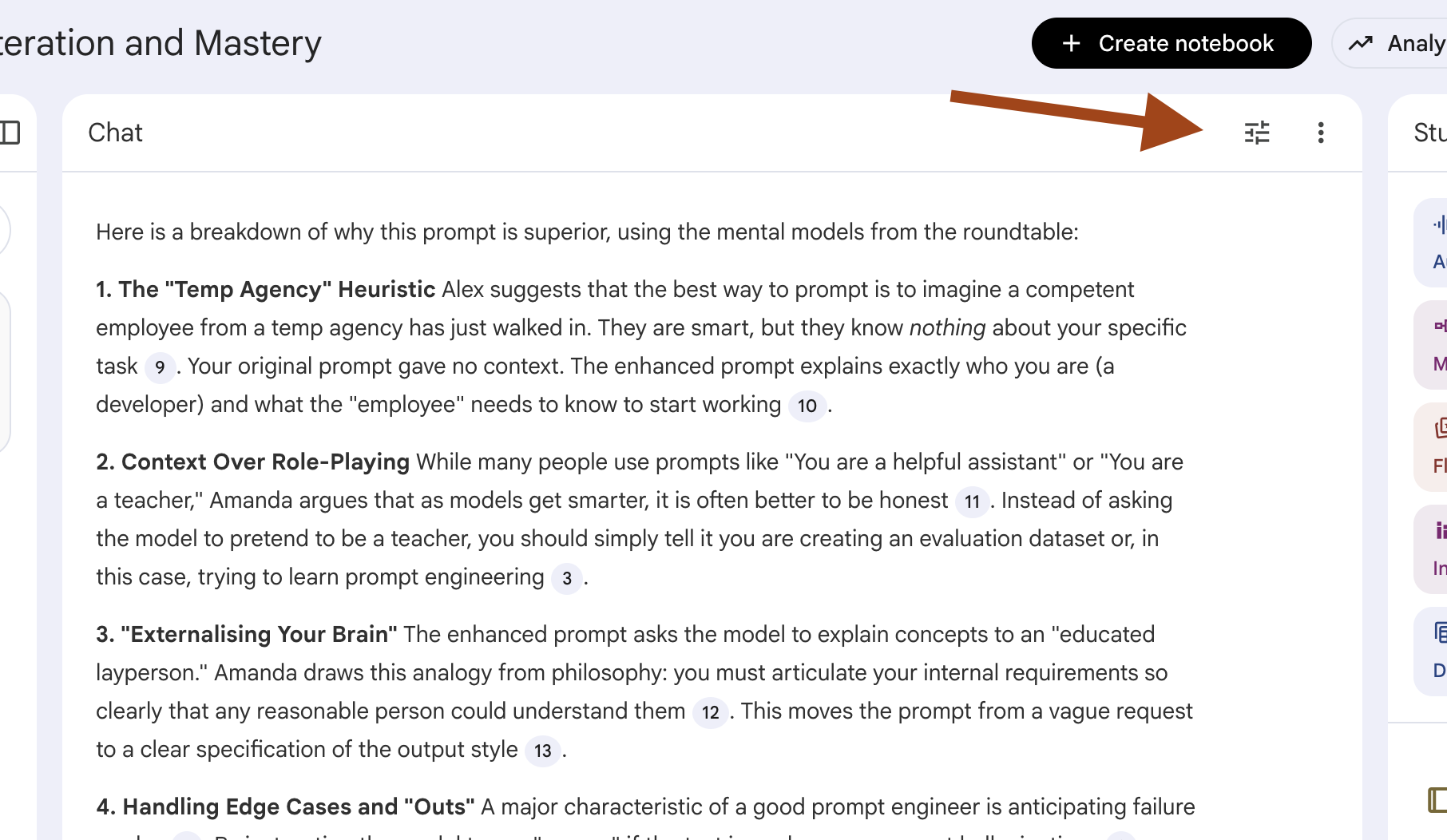
\NotebookLM Chat Customization\
Here is the customization screen.
\NotebookLM - Chat configuration\
Options? You can make it speak like a teacher you love learning from by clearly describing that teacher’s tone.
Act like Ms. Nilüfer, who is always passionate and patient with my questions,
and explains everything visually so I can learn clearly.
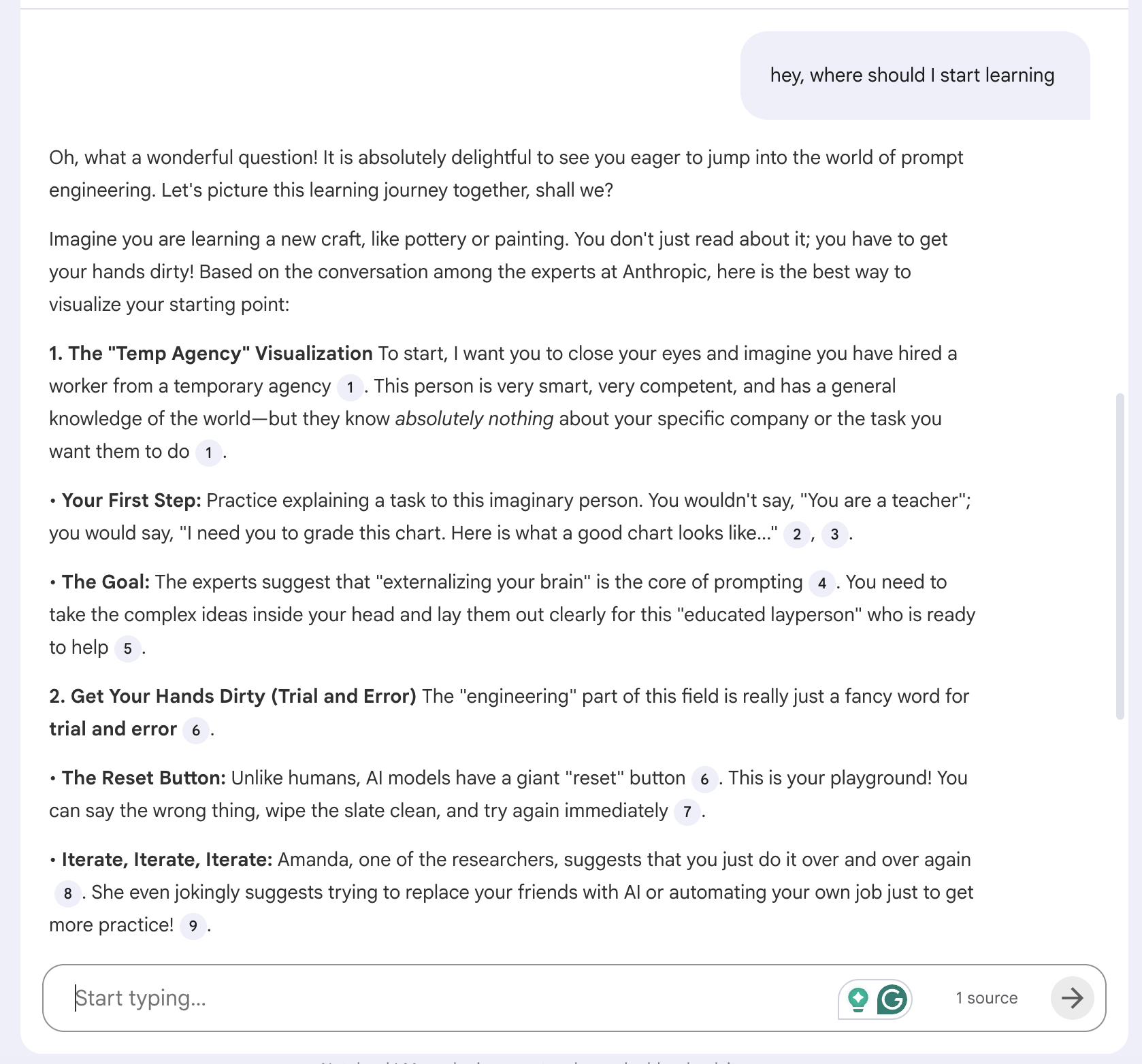
And when you interact with it, you can detect the tone, feel better and keep learning!
\NotebookLM Conversation\
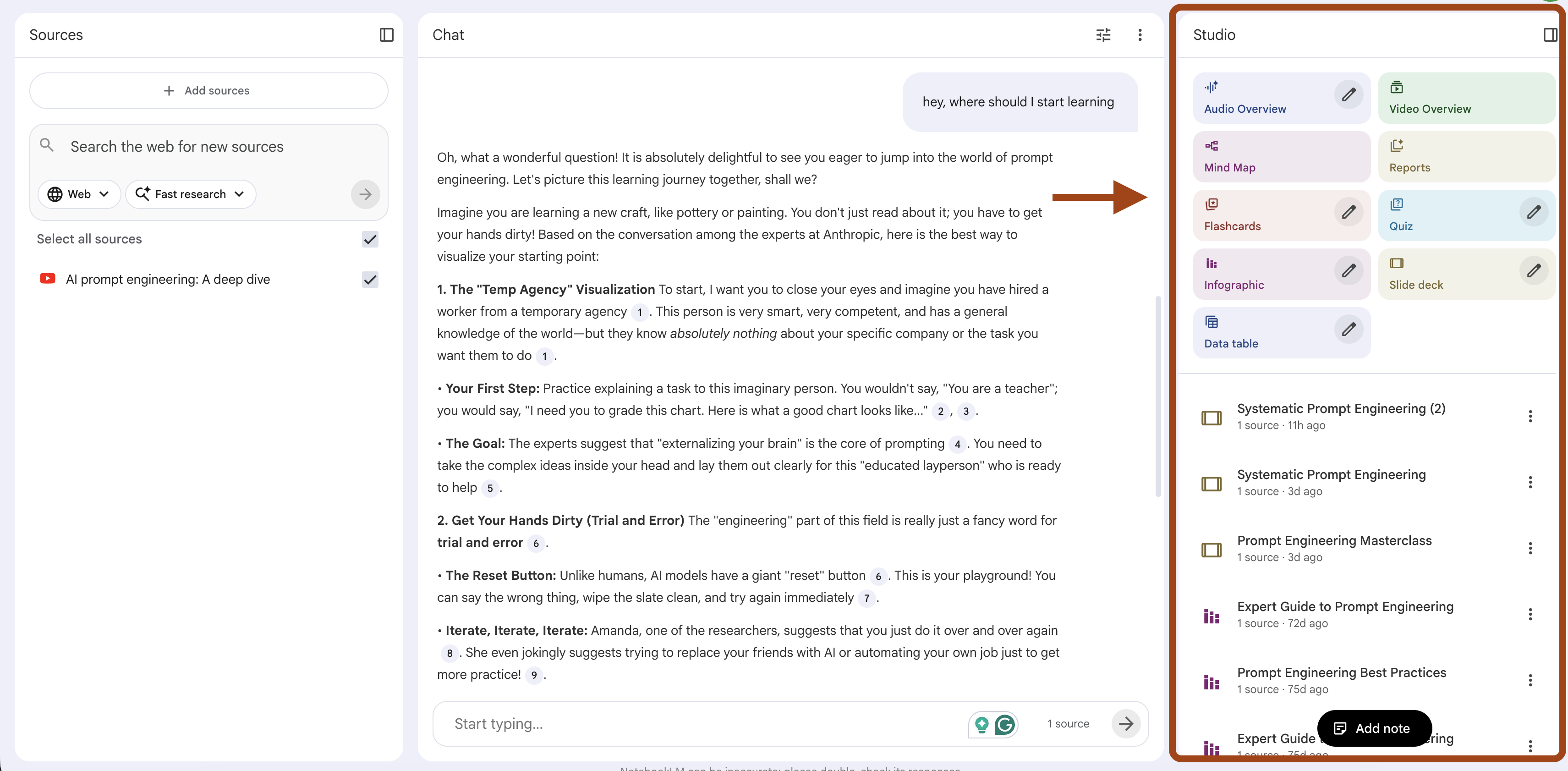
Studio
\NotebookLM Studio.\
There are 9 different features for now. I am saying for now because they are expanding so fast.
- Audio Overview: Creates a podcast-style summary using your sources.
- Mind Map: Generates a visual mind map of the topic.
- Flashcards: Create flashcards to help you learn key concepts.
- Infographic: Generates an infographic using Nano Banan Pro.
- Data Table: Converts your data into a structured table.
- Video Overview: Creates a video summary from your sources.
- Reports: Generates a blog post, document, story guide, or custom report.
- Quiz: Creates a quiz based on your documents.
- Slide Deck: Generates presentation slides from your document.
We’ll get into detail with the slide deck. But first, let me show you how to train NotebookLM.
How to train NotebookLM?
Let me show in steps.
- Visit NotebookLM from here.
- Click on “Try NotebookLM”.
- Next, click on “Create new”.
- Add any source you want, your options.
- Deep search using Gemini
- YT videos
- Website
- Drive
- Copy/paste
- Click, add your sources.
And after a couple of minutes, your NotebookLM is trained and waiting for you.
How to create Slides in NotebookLM?
Let’s create NotebookLM, using Andrew NG’s Stanford course on Machine Learning, this video.
Steps You Should Follow
- Go to NotebookLM.
- Click Try to start a new notebook.
- Add a source to train it.
- Link: youtube.com/watch?v=jGwO\_UgTS7I&t=2s
- Click the Slide Deck to generate slides automatically.
In the next step, we’ll edit slides by just prompting.
This is the newest feature of NotebookLM.
How to edit Slides in NotebookLM?
- Open the generated deck and review the slides.
- Select the specific slide you want to improve.
- Paste a clear prompt to edit that slide and refine it.
What will be next? - 10 Powerful Slide Prompts (And How to Edit Them)
Now you know how to create and edit slides.
But what should you create?
That’s where these 10 prompts come in.
Each one solves a real problem:
- Meeting notes → Stakeholder deck (2 minutes)
- Messy journal → Year in review (shareable on LinkedIn)
- Job research → Interview cheat sheet (10 minutes before the call)
You’ll get:
- What to train NotebookLM with (sources)
- The generation prompt (creates the slides)
- The editing prompt (customizes instantly)
Let’s start with the most common one.
1. Meeting Summary to Stakeholders
Meeting ends.
You have 5 bullet points in Google Docs.
Half are incomplete sentences.
Your boss needs an update in 30 minutes.
Steps You Must Follow
- Go to NotebookLM.
- Select “Copied Text”.
- Paste your meeting summary.
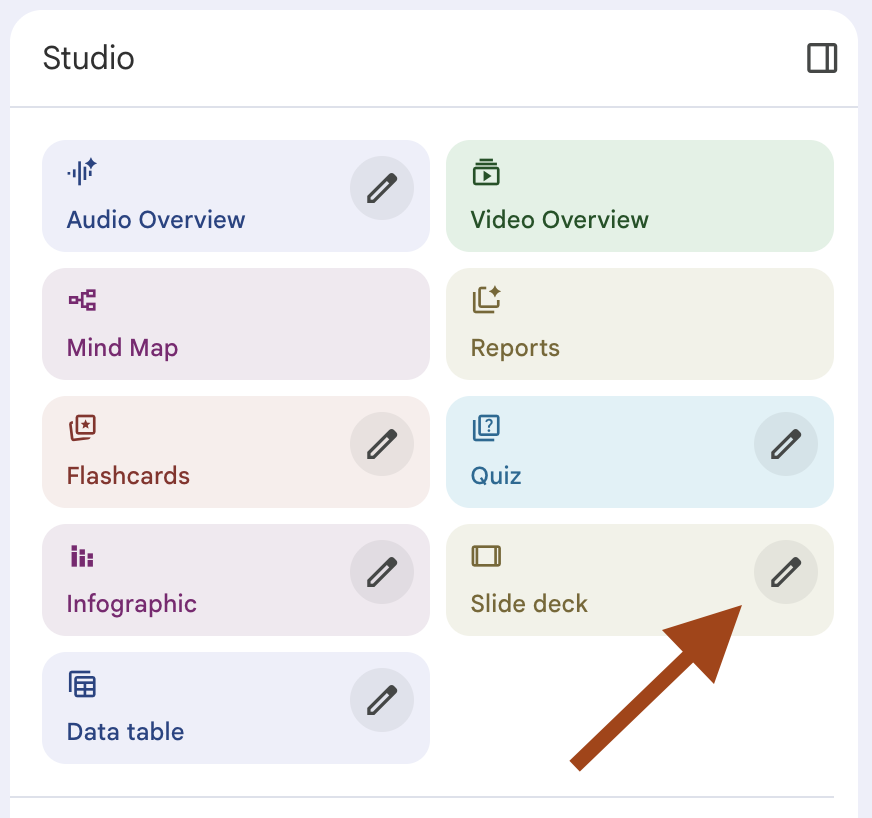
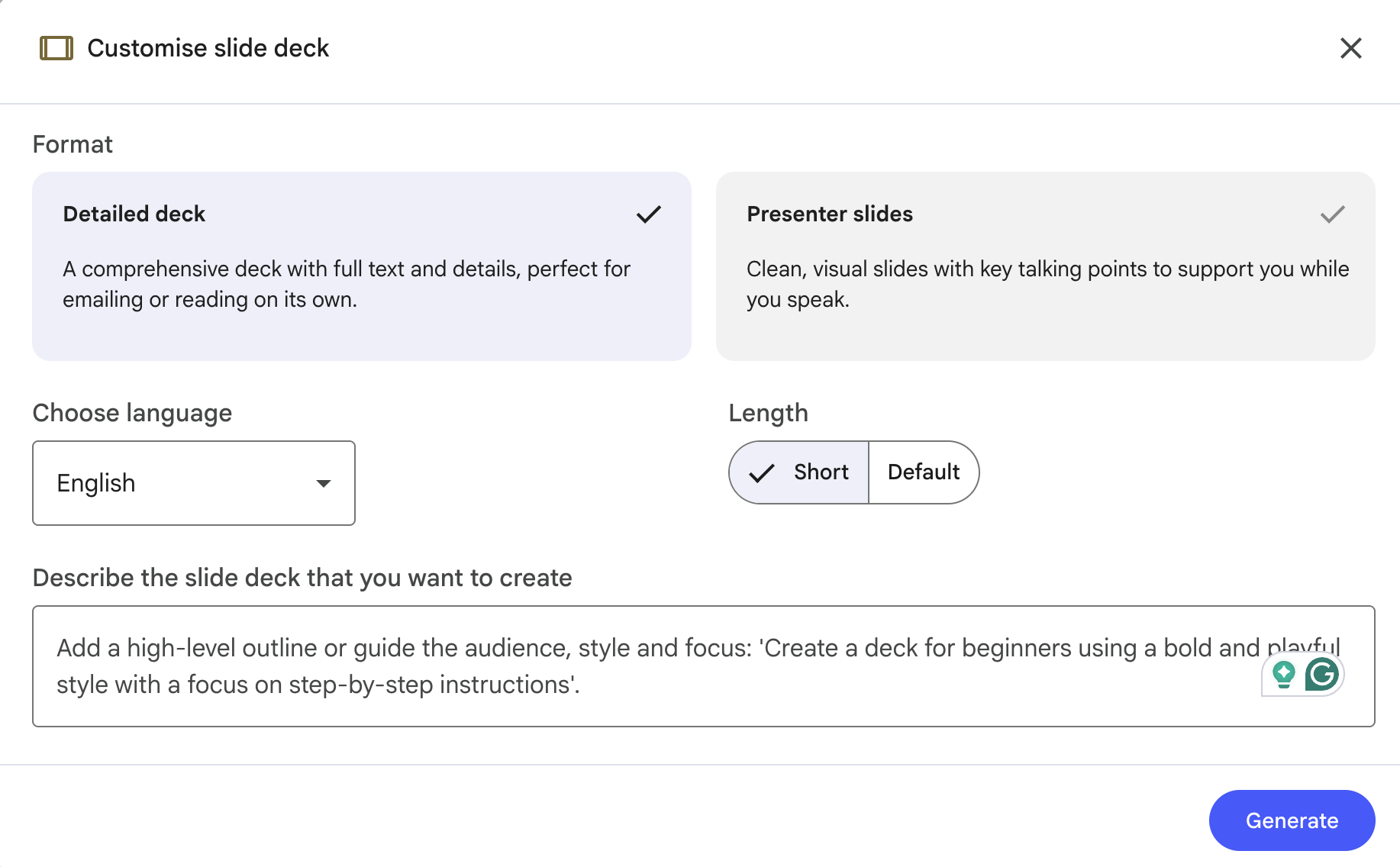
After your NotebookLM has created, click on the pencil icon near slides.
\Studio - Customization Slide Generation\
And, use this prompt to customize the slide.
Slide Generation Prompt
Create a stakeholder update deck from these meeting notes.
Structure:

- Key decisions made (with context)

- Action items (owner + deadline)

- Open questions (need input on)

- Next steps (timeline)
Use traffic light status indicators (green/yellow/red).
Keep it sendable in 2 minutes after the meeting.
Your screen will look like this. And click on “Generate”.
And here will be your slides.
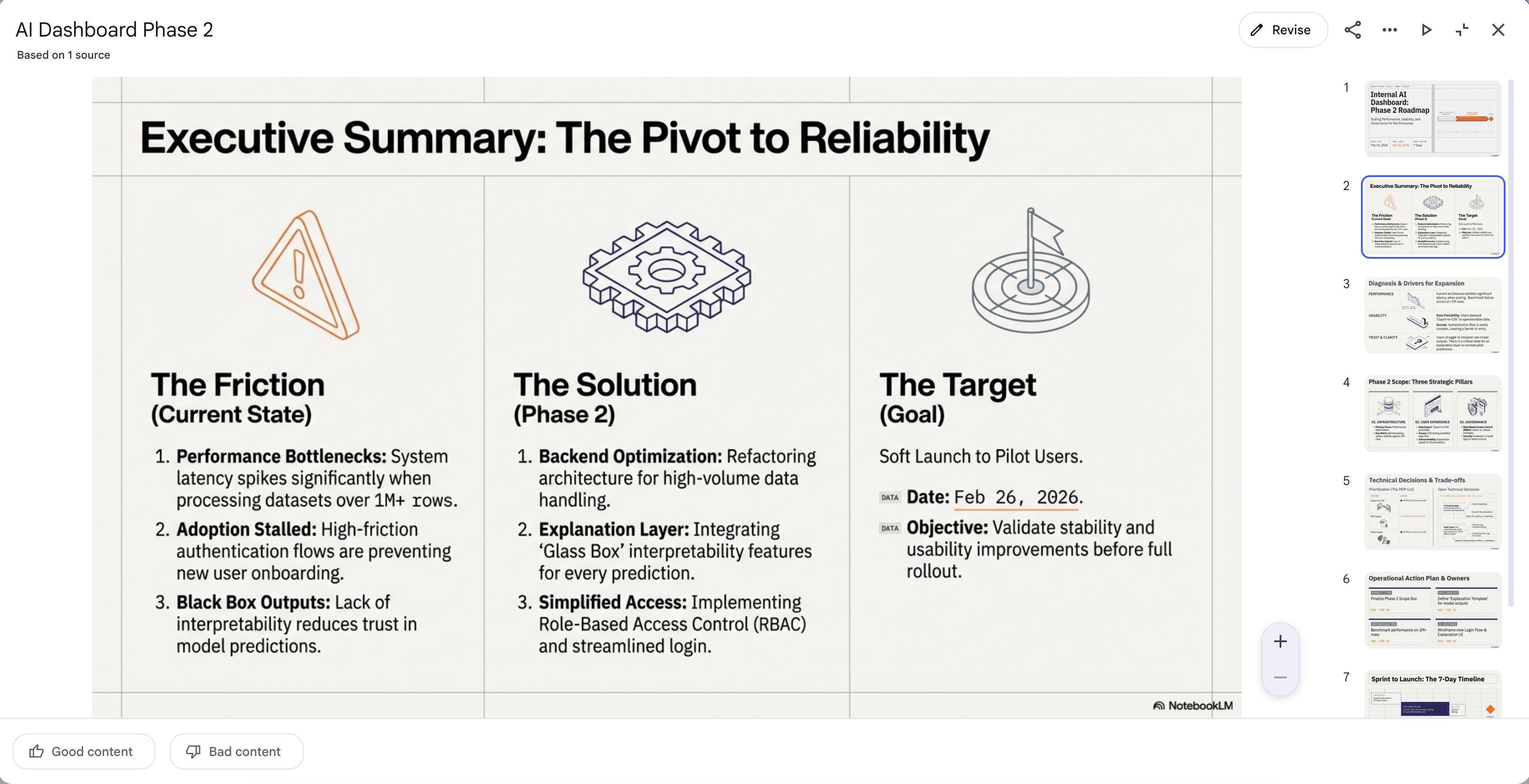
Now, let’s click on “Revise”.
And select any slide you want to update.
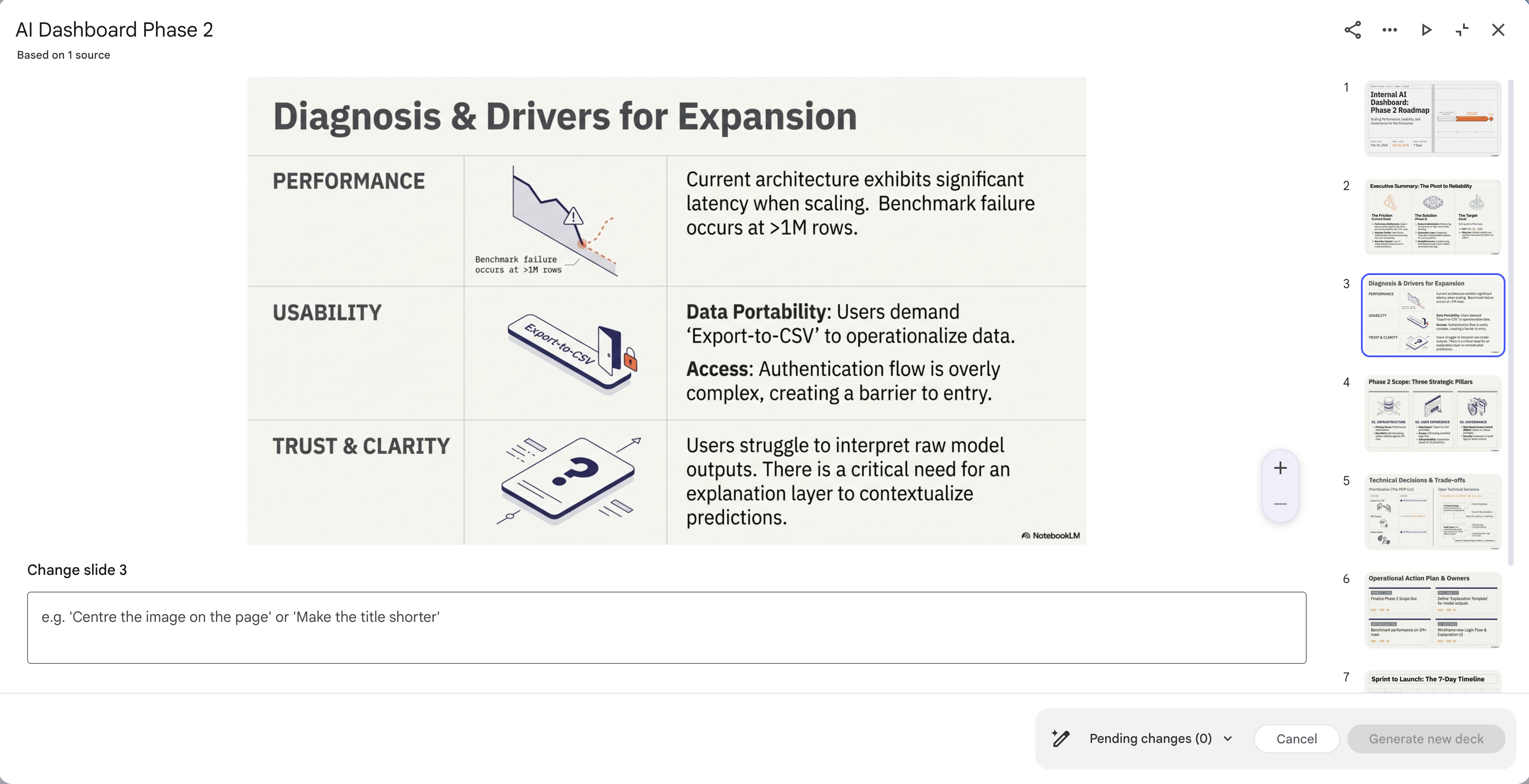
Here is the prompt for you to edit.
Slide Editing Prompt: Simplifying Prompt
Rewrite this slide in very simple English.
Use short sentences.
Max 20 words total.
No technical terms.
Keep 3 bullet points only.
Here is what it looks like next.
Click on “Generate new deck.”
Here is the updated Slide 3.
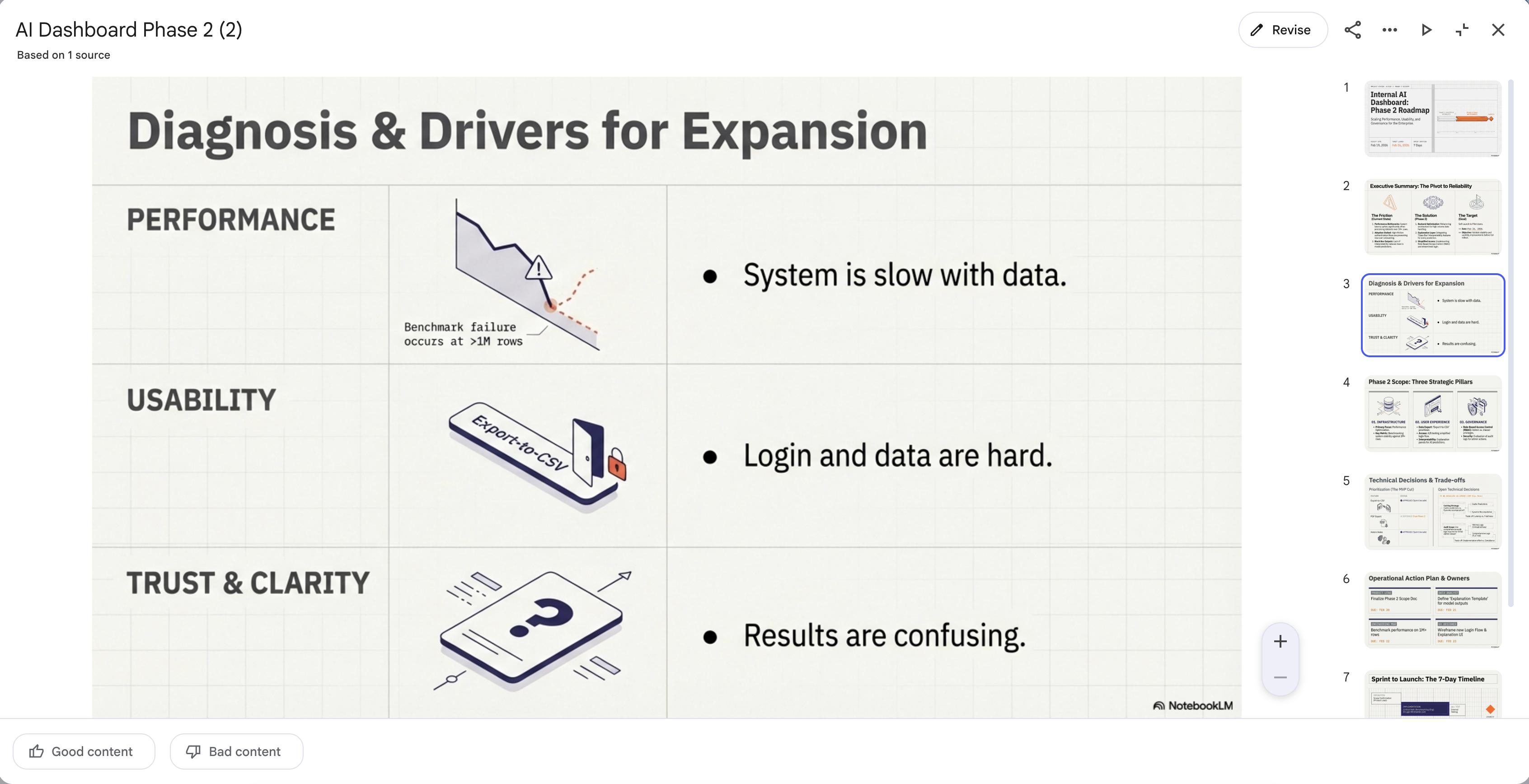
Simple, clear, and concise, just as we asked.
We did everything step by step in Step 1.
In the next prompts, I’ll share the structure.
- Sources to Train NotebookLM
- Slide Generation Prompt
- Slide Editing Prompt
2. Weekly/Monthly Report Template
Every Friday at 4 PM, same routine.
You copied last week’s slide.
Update the numbers. Rewrite the bullets. It takes 45 minutes.
Every. Single. Week.
Sources to Train NotebookLM
Now, let’s train a NotebookLM using these sources.
- Your project update notes (Google Doc, Notion page, or text file)
- Metrics sheet (CSV export, spreadsheet screenshot, or bullet list)
- Task tracker export (Asana, Jira, Linear — paste the completed/in-progress tasks)
And click on “Slide Deck”, but by customizing as we did in step one.
And use this prompt.
Slide Generation Prompt
This week:

- Shipped v2.3 login flow (2 days early)

- User signups: 1,240 (target was 1,000)

- Blog post draft done, waiting on design review

- Blocked: API rate limit issue with Stripe integration
Next week:

- Fix Stripe bug

- Launch email campaign

- Start Q1 planning doc
After generating your slides, let’s say you want to change their style.
Slide Editing Prompt
Redesign this slide in minimalist style.
Maximum 3 elements per slide.
Lots of white space.
Single accent color.
No decorative graphics.
3. Resume → Personal Pitch Deck
Resumes are forgettable PDFs in a sea of forgettable PDFs.
Recruiters spend 6 seconds scanning yours.
You need something that actually tells your story.
Sources to Train NotebookLM
- Your resume/CV (upload PDF or paste text)
- LinkedIn profile (copy-paste “About” + “Experience” sections)
- Portfolio page or personal website link
Slide Generation Prompt
Convert my CV into a visual pitch deck about me.
Structure:

- Who I am (one-liner headline)

- My superpower (what I'm known for)

- Career journey (timeline with key milestones)

- Key achievements (with numbers/impact)

- What I'm looking for (next role or project type)
Design it like a personal brand, not a boring CV.
Make every slide tell a story.
Slide Editing Prompt - (Confident/Bold tone)
Rewrite with confident, assertive tone.
Use definitive statements, not hedging language.
"I will" not "I might."
"I built" not "I helped build."
Remove all qualifiers (very, quite, somewhat).
4. Job Interview Prep Deck
You have an interview in 3 days.
You Google the company. Open 15 tabs. Read nothing deeply.
The night before, you panic-skim their About page.
Sources to Train NotebookLM
- Company news (TechCrunch articles, press releases, LinkedIn company posts)
- Funding announcements (Crunchbase, PitchBook data)
- Glassdoor reviews (copy-paste 5-10 reviews, recent ones)
- Job description (full text from the posting)
Slide Generation Prompt
Create an interview preparation deck from my research about this company.
Include:

- Company overview (mission, recent wins, challenges)

- Their recent news (last 6 months — IPO, product launch, leadership changes)

- Role requirements mapped to my experience (match job description to my skills)

- Questions I should ask (strategic, not generic)

- Salary research summary (Glassdoor + Levels.fyi data)
Make it my personal cheat sheet.
One-pager I can review 10 minutes before the call.
Slide Editing Prompt - (Corporate/Professional Style)
Convert to formal corporate style.
Use navy blue and gray palette.
Serif fonts for headers.
Clean grid layout.
Subtle shadows.
5. Self-Performance Review
Performance review season.
You know you did good work.
But remembering what you shipped 8 months ago?
You end up listing tasks, not impact.
Sources to Train NotebookLM
Now, let’s train a NotebookLM using these sources.
- Your work journal (daily notes, bullet logs, “what I shipped this week” entries)
- Project notes (launch postmortems, retrospective docs, roadmap updates) - Emails with praise (copy-paste thank-yous from colleagues, customers, managers)
- Metrics you tracked (dashboard screenshots, CSV exports, Notion tables)
And click on “Slide Deck”, but by customizing as we did in step one. And use this prompt.
Slide Generation Prompt
Build my annual performance review presentation.
Pull my accomplishments from the sources.
Structure:

- Key wins with metrics (revenue impact, time saved, launches delivered)

- Skills developed (courses taken, mentorship received, new tools mastered)

- Challenges overcome (blockers, team conflicts, scope changes — how I handled them)

- Goals for next year (aligned to company priorities)
Format achievements as impact statements:
Action → Result → Business Value
Example: "Led redesign of onboarding flow → 34% faster time-to-value → $420K ARR retained
After generating your slides, let’s say you want to make them more data-focused.
Slide Editing Prompt - Data-Driven/Analytical Tone
Remove opinions, add data.
Every statement should be backed by a number or reference.
Clinical, objective tone.
No adjectives unless they describe a metric.
6. Project Proposal
You have a great idea.
But without a slide deck, it stays in Slack threads and 1:1s.
You need a business case, not just enthusiasm.
Sources to Train NotebookLM
Now, let’s train a NotebookLM using these sources.
- Problem statement (customer complaints, support tickets, internal friction points) - Research notes (user interviews, competitor analysis, market data)
- Resource needs (team members, tools, budget estimate)
- Expected outcome (revenue impact, cost savings, efficiency gain)
And click on “Slide Deck”, but by customizing as we did in step one. And use this prompt.
Slide Generation Prompt
Build a project proposal deck I can present to my manager.
Include:

- Problem we're solving (customer pain or internal inefficiency)

- Proposed solution (high-level approach, not technical deep-dive)

- Required resources (people, budget, tools)

- Timeline (phases with milestones)

- Expected ROI (revenue, cost savings, or efficiency gain)

- Risks and mitigation (what could go wrong + how we'll handle it)
Keep it under 10 minutes to present.
Every slide answers: "Why should we fund this?
After generating your slides, let’s say you want to strengthen your claims.
Slide Editing Prompt - (Add Proof Points)
Strengthen every claim with evidence.
Add statistics, case study references, third-party validation, or customer quotes.
Replace assumptions with data.
7. Negotiation Prep
You’re about to negotiate salary (or rent, or a contract).
You Google “average salary for [role]” and get 10 different numbers.
You walk in hoping for the best, not knowing your leverage.
Sources to Train NotebookLM
Now, let’s train a NotebookLM using these sources.
- Market salary data (Glassdoor, Levels.fyi, Payscale, copy-paste ranges)
- Your accomplishments list (specific wins from last 6-12 months)
- Comparable job offers (if you have competing offers, paste details)
- Company context (their funding, growth stage, typical salary bands)
And click on “Slide Deck”, but by customizing as we did in step one. And use this prompt.
Slide Generation Prompt
Build a negotiation preparation deck.
Include:

- Market research/benchmarks (salary range for my role + location + experience)

- My value proposition (what I bring that's above market rate)

- BATNA (Best Alternative To Negotiated Agreement — my walkaway option)

- Target vs. walkaway numbers (ideal outcome + minimum acceptable)

- Anticipated objections and responses ("Budget is tight" → "I can defer start date for Q2 budget")

- Key phrases to use (confidence builders, not desperate language)
Format as talking points, not a script.
After generating your slides, let’s say you want to make them more assertive.
Slide Editing Prompt - (Confident/Bold Tone)
Rewrite with confident, assertive tone.
Use definitive statements, not hedging language.
"I will" not "I might."
Remove all qualifiers (very, quite, somewhat).
8. Client Onboarding Welcome
New client signs on.
They email: “What’s next?” “When do we start?” “How do revisions work?”
You answer the same questions every time. Manually.
Sources to Train NotebookLM
Now, let’s train a NotebookLM using these sources.
- Your service description (what you offer, how you work, deliverables)
- Process doc (phases, timelines, approval checkpoints)
- FAQ from past clients (billing questions, scope change policy, communication norms)
- Client testimonials or feedback (what worked well in past projects)
And click on “Slide Deck”, but by customizing as we did in step one. And use this prompt.
Slide Generation Prompt
Build a client welcome deck.
Include:

- What to expect working with me (process overview, communication rhythm)

- Communication preferences (Slack vs. email, response time expectations)

- Project timeline (phases, milestones, delivery dates)

- Key milestones (checkpoints for feedback and approval)

- How to give feedback (format, timing, revision policy)

- FAQ (billing, scope changes, what's included vs. add-ons)
Professional first impression that saves 10 back-and-forth emails.
After generating your slides, let’s say you want to add visual elements.
Slide Editing Prompt - (Add Icons)
Add relevant icons next to each bullet point.
Use consistent icon style (outline/filled).
Icons should reinforce meaning.
9. Decision Matrix
You have 3 job offers (or 5 software tools, or 4 apartments).
You make a pros/cons list. It doesn’t help.
Everything looks equal. You’re paralyzed.
Sources to Train NotebookLM
Now, let’s train a NotebookLM using these sources.
- Your options (list each with details: salary, location, team size, etc.)
- Criteria that matter (what you’re optimizing for: growth, work-life balance, learning, etc.)
- Deal-breakers (non-negotiables like remote work, visa sponsorship, budget cap)
And click on “Slide Deck”, but by customizing as we did in step one. And use this prompt.
Slide Generation Prompt - (Convert to Table)
Create a decision-making presentation.
Options I'm comparing: [List them]
Criteria that matter to me: [Salary, location, growth, culture / Features, price, support, integrations]
Include:

- Weighted scoring (assign importance to each criterion: 1-5 scale)

- Pros/cons visual (side-by-side comparison table)

- Recommendation with rationale (which option wins + why)
Use this for: job offers, software tools, vendors, apartments, grad schools.
After generating your slides, let’s say you want to make the comparison clearer.
Slide Editing Prompt
Transform this content into a structured table.
Define clear column headers.
Make it scannable.
Use color coding for scores (green/yellow/red).
10. Year in Review
It’s December 31st.
You know you did stuff this year.
But what, exactly? You scroll your camera roll. Read old notes.
Nothing feels coherent.
Sources to Train NotebookLM
Now, let’s train a NotebookLM using these sources.
- Journal entries (daily logs, weekly reflections, quarterly reviews)
- Accomplishments list (work wins, personal milestones, habits built)
- Photos or memories (travel, events, people — paste descriptions or captions)
- Goals from last January (what you planned vs. what actually happened)
And click on “Slide Deck”, but by customizing as we did in step one. And use this prompt.
Slide Generation Prompt
Build my year-in-review presentation.
Pull from my notes:

- Biggest wins (personal + professional)

- Lessons learned (failures, mistakes, course corrections)

- Goals I hit vs. missed (honest assessment)

- Memorable moments (travel, people, milestones)

- Gratitude list (who helped me, what I'm thankful for)

- Theme and intentions for next year (one-word theme + 3 focus areas)
Reflective but forward-looking.
Shareable on social media or keep it private for self-review.
After generating your slides, let’s say you want to make them more inspiring.
Slide Editing Prompt - (Storytelling/TED-Style)
Transform into TED talk style.
One big idea per slide.
Powerful imagery.
Minimal text.
Emotional hooks.
Dramatic pacing.
Final Thoughts
Now you have 10 prompts to create slides.
And 10 to edit them.
Just describe what you want.
NotebookLM builds it in minutes.
If you liked it, please click the like button, leave a comment, or even better, share it!
Thanks for reading!