What 99% of ChatGPT Users Miss Every Day.
By Gencay
Published: 2025-12-28
URL: https://www.learnwithmeai.com/p/7-hidden-chatgpt-features-most-people

You use ChatGPT every day.
But you’ve barely scratched the surface.
OpenAI added dozens of features you won’t find on the main screen. Scheduled tasks that run while you sleep. Group chats where you and your friends can talk to the same AI. Codex, which builds AI agents without writing a single line of code. A memory system that knows you and remembers your preferences. Even a hidden app store.
These features aren’t secret. But nobody talks about them.
I picked 7. I’ll walk you through each one.
Let’s go.
1. Scheduling: AI Works Overnight?
This is hands down the most overlooked feature in ChatGPT, yet one of the most powerful.
Let’s say you wake up, open your computer, and your personalized AI briefing is waiting for you. No searching, no prompting, just ready-to-read insights.
How does it work?
Simply tell ChatGPT what you want and when. For example:
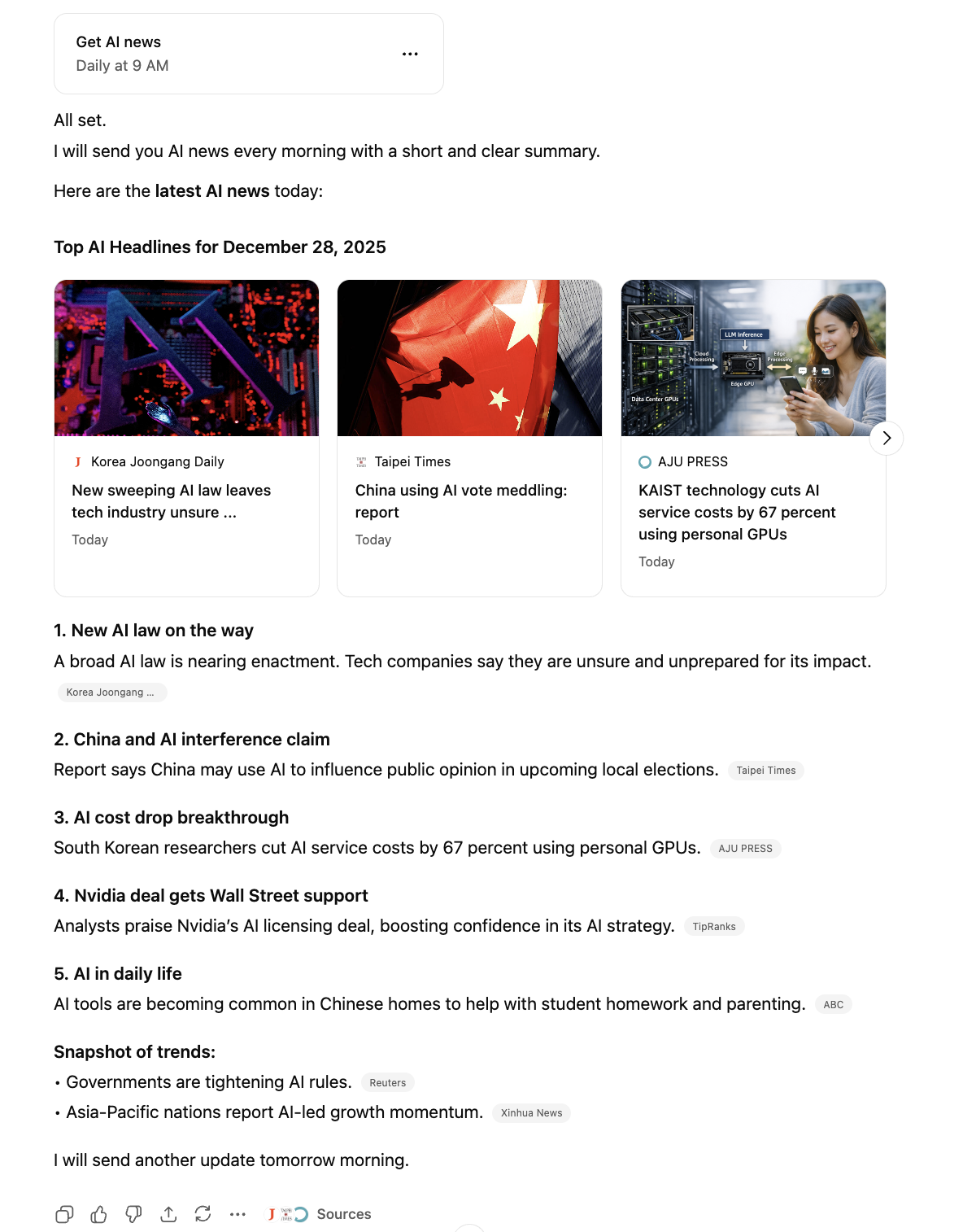
Send me AI news each morning

That’s it. ChatGPT automatically detects this as a scheduled task. You’ll see a confirmation where you can customize the time, edit the request, or delete it entirely.
At 9:00 AM the next day, your AI news summary will be waiting for you: no action required on your part.
Why This Is a Game-Changer?
Think beyond news. Here’s what you can automate:
- Daily motivation – “Send me an inspiring quote every morning.”
- Learning habits – “Teach me one new Spanish phrase each day.”
- Market updates – “Summarize crypto news every evening.”
Any feedback? Fill out this form, and each month, I’ll send a free subscription to those who contribute the most.
2- Group chat: Invite your friends or colleagues
Want to brainstorm with your team?
Get feedback from a friend? Now you can invite anyone into your ChatGPT conversation in real-time.
How to Start a Group Chat?
Step 1: Click on Start a group chat in the top right corner of your screen.
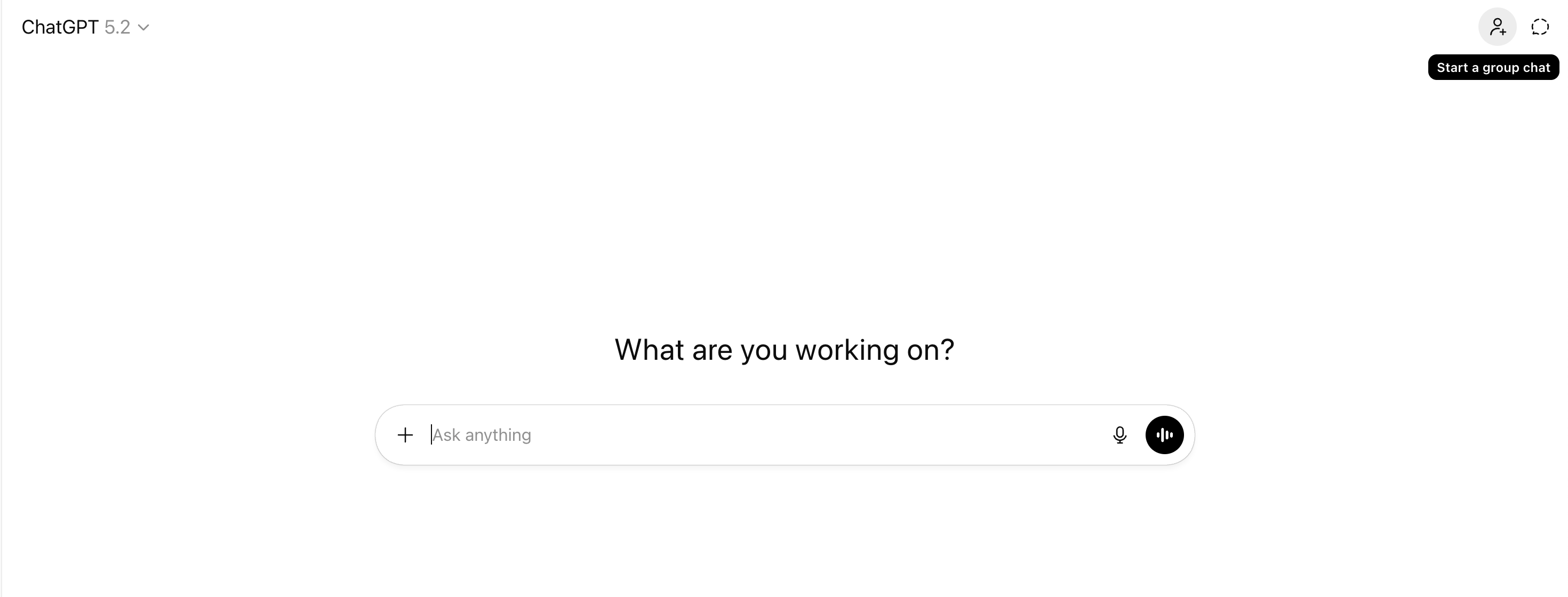
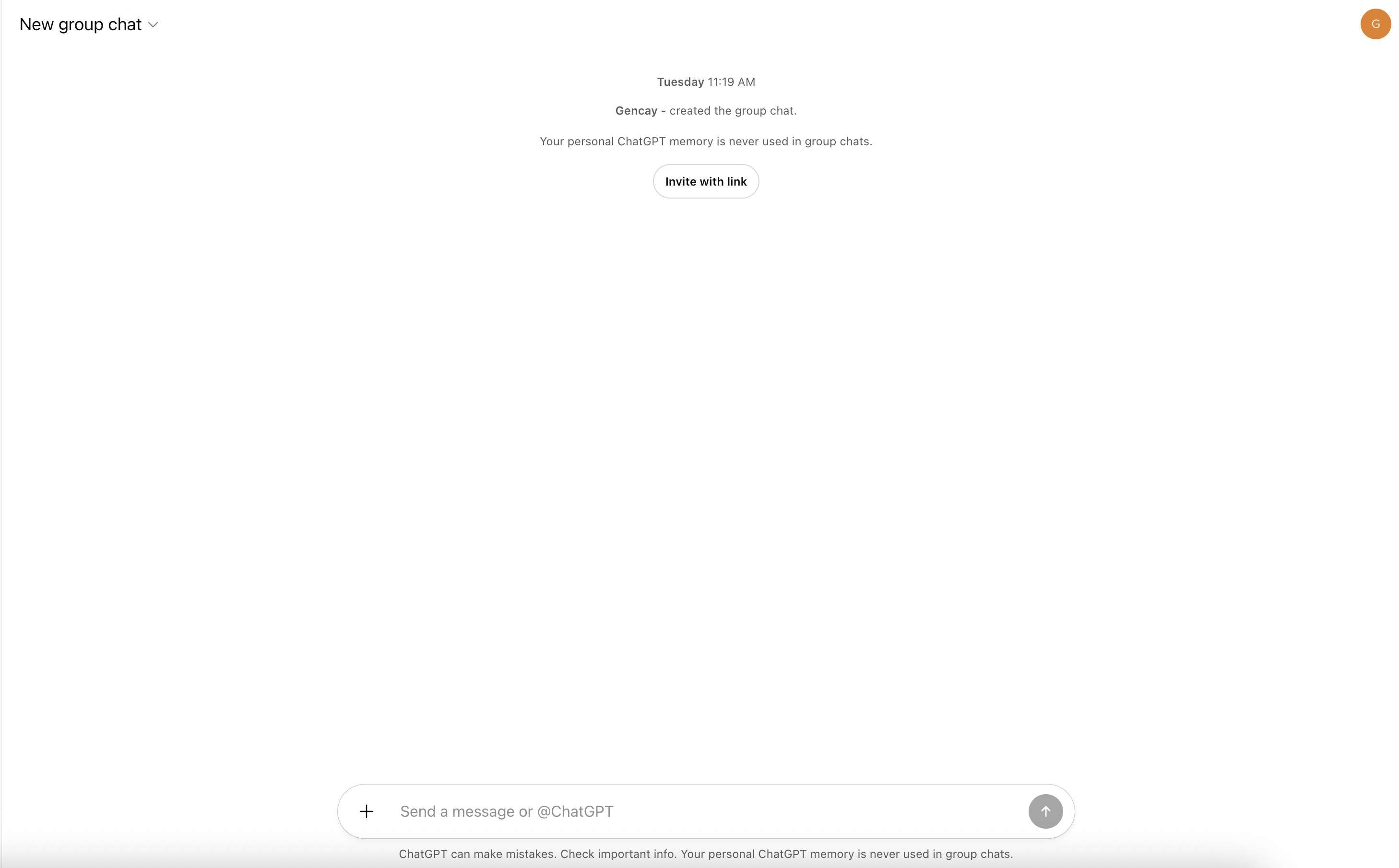
Step 2: Copy the shareable link and send it to whoever you want to invite: colleagues, friends, classmates, or anyone.
Step 3: Start chatting. In my example, I asked ChatGPT to catch me up on the latest AI news.
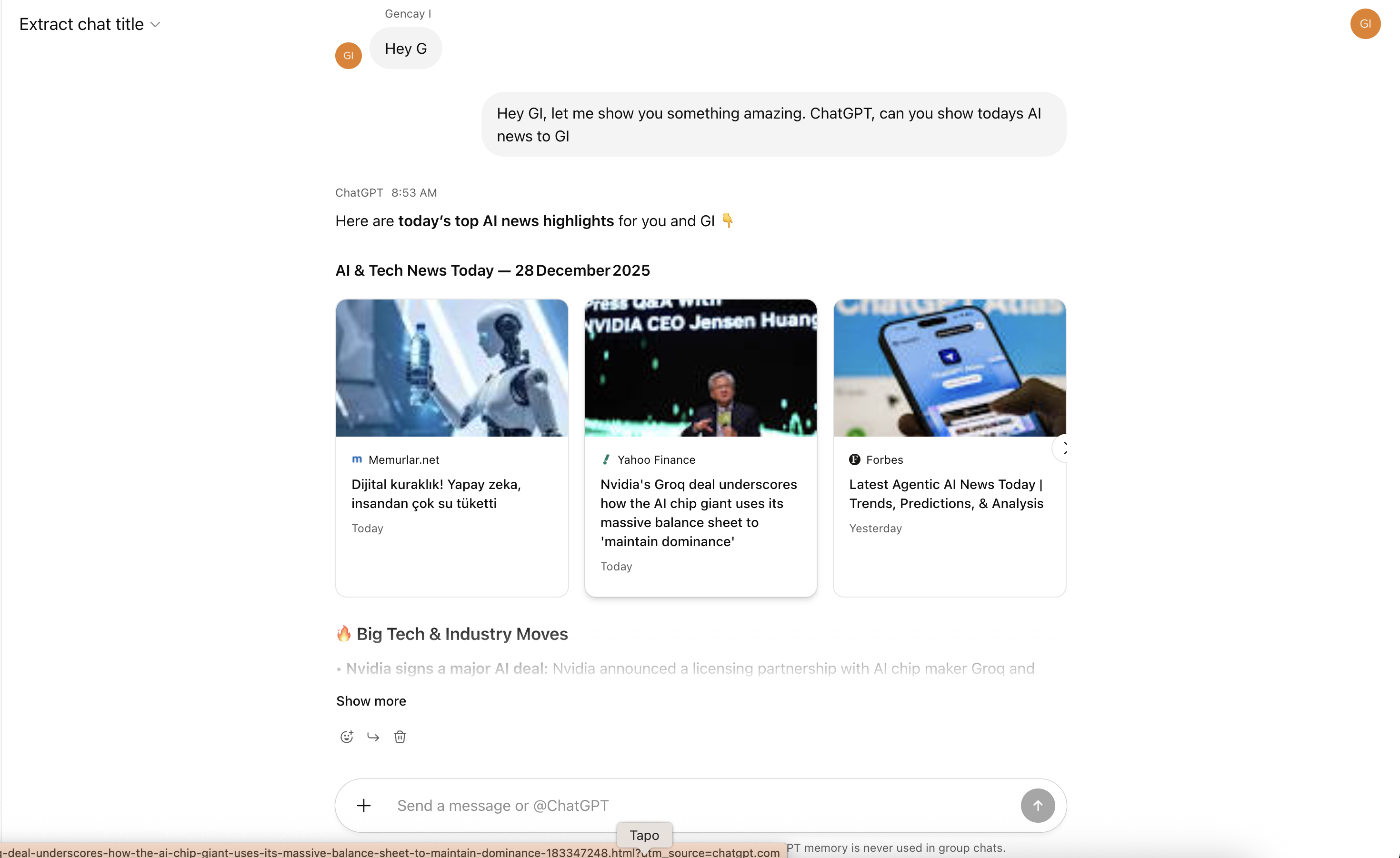
Once your friend joins, both of you can interact with ChatGPT in the same conversation. Ask follow-up questions, build on each other’s ideas, or just explore a topic together.

Why This Matters?
Think about the possibilities:
- Team meetings – Everyone can query ChatGPT together and see responses instantly
- Study groups – Learn and explore topics as a group
- Client calls – Walk through ideas with clients in real-time
3- Codex: Zero Code Agents
Claude Code is everywhere right now. I use it daily. But can you do the same thing with ChatGPT? Absolutely. Meet Codex.
How to install Codex?
It’s surprisingly simple. Open your terminal and follow these steps:
1- Install Codex.
npm i -g @openai/codex
2 - Initiate Claude using the following code.
codex
3 - Sign in to your ChatGPT account.
That’s it. You’re ready to build.
What’s next?
Let me walk you through creating a fully functional AI agent, no coding required.
Step 1: Create Your Folder
I created a folder named agent-codex.
Step 2: Install VS Code
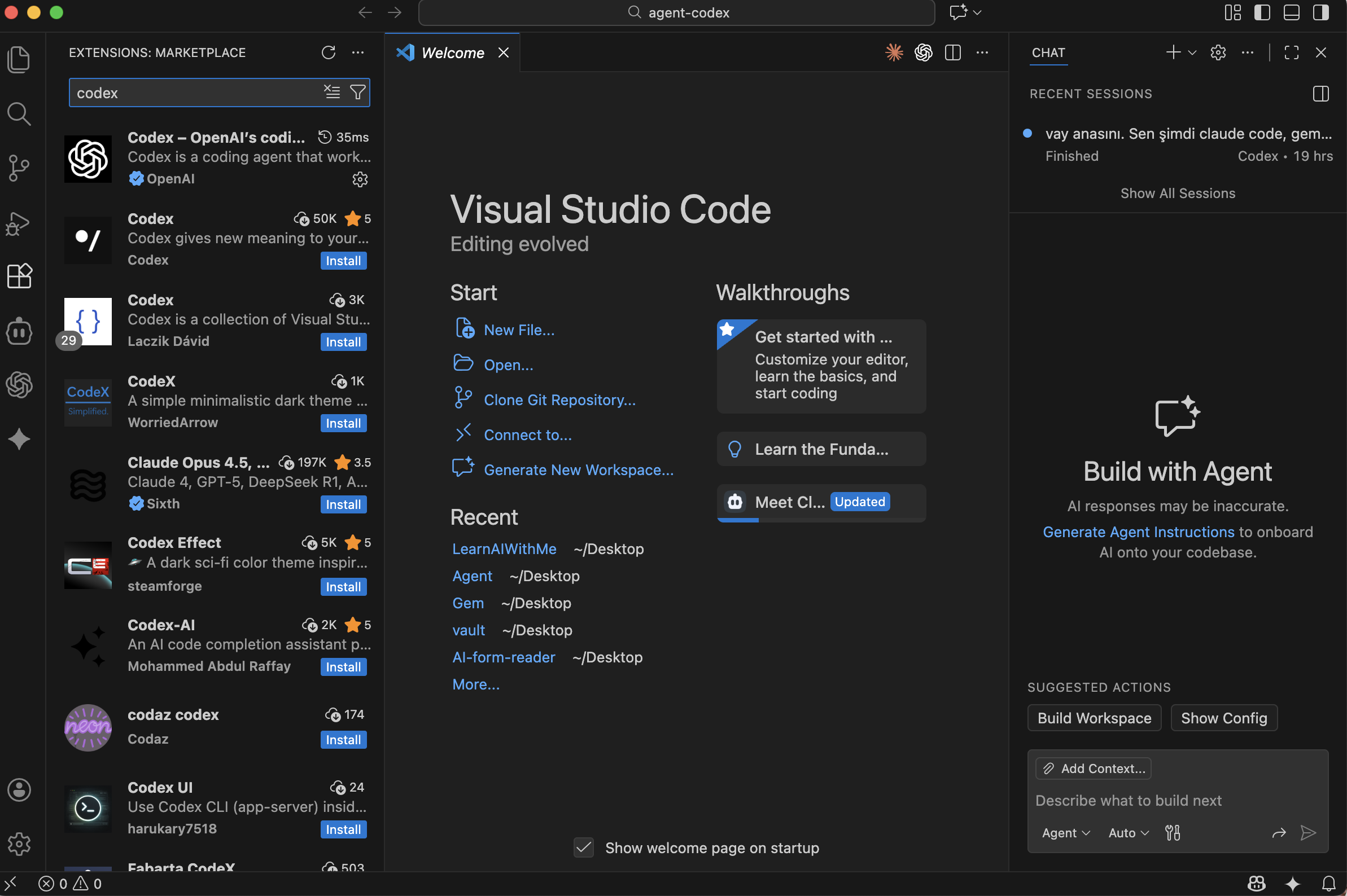
VS Code has the Codex extension, so you can use it outside the terminal. Download it from this link.
Step 3: Install Codex Extension
Click on the “Extension” as shown below, and install Codex.
Step 4: Build an AI Agent without Coding
Open the folder you recently created inside VS Code and click on the Codex button.
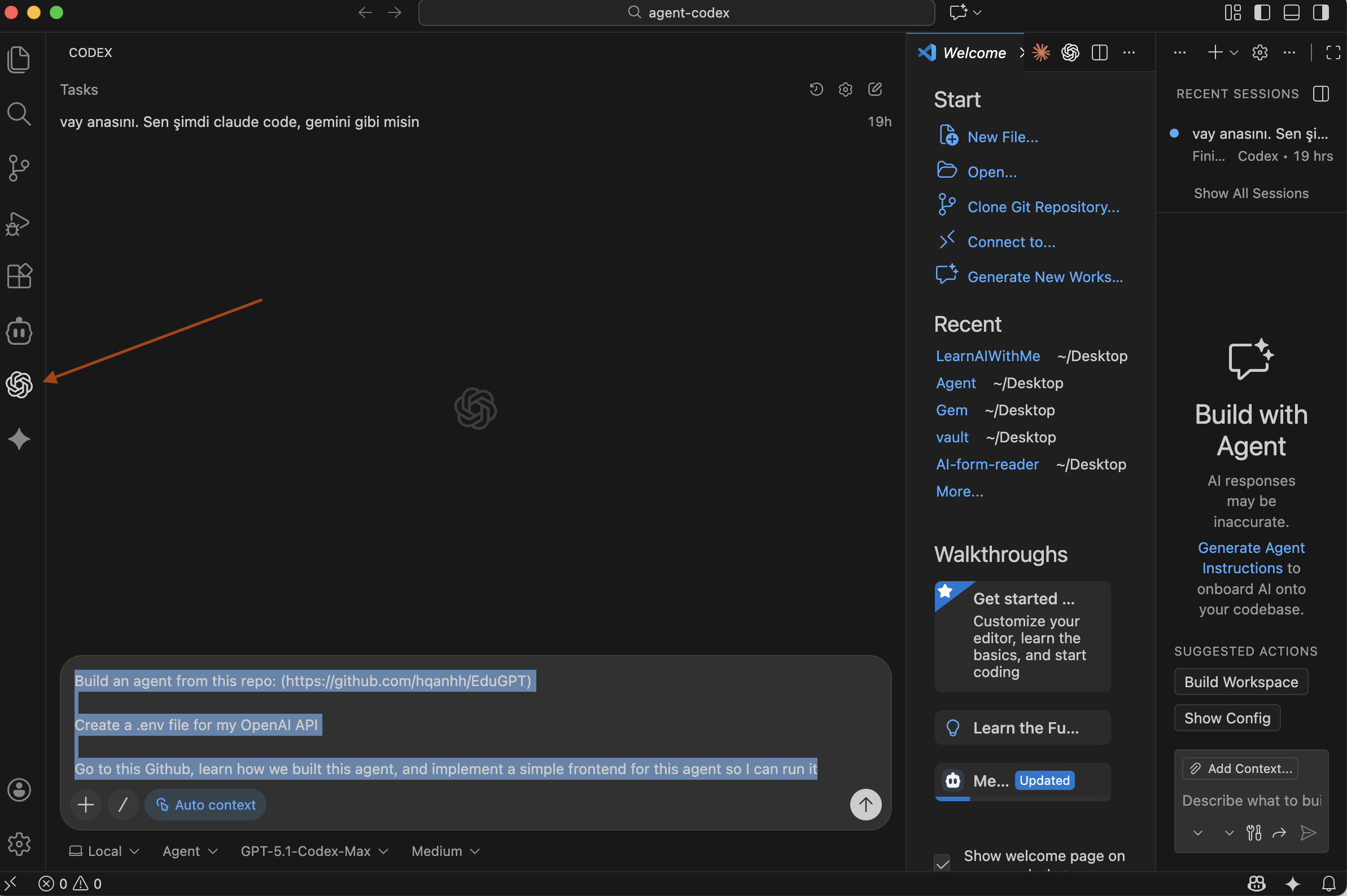
Here is the prompt you should use.
Build an agent from this repo: (https://github.com/hqanhh/EduGPT)
Create a .env file for my OpenAI API
Go to this Github, learn how we built this agent, and implement a simple frontend for this agent so I can run it
Next, collect your openai api from here. After sending your prompt, it starts building.
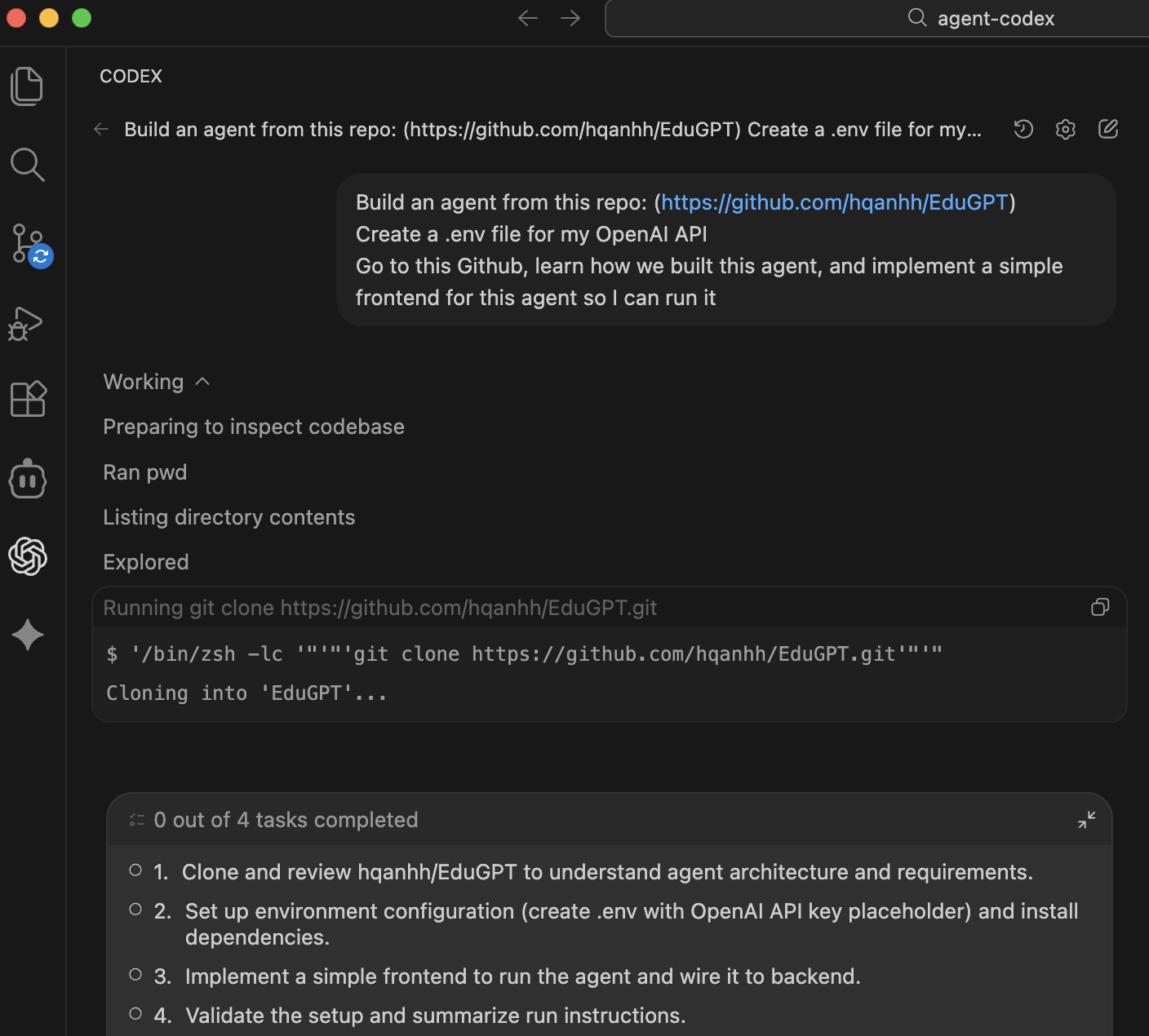
While it is working, click on the “Pages”, find the “env” file and save your api key here.
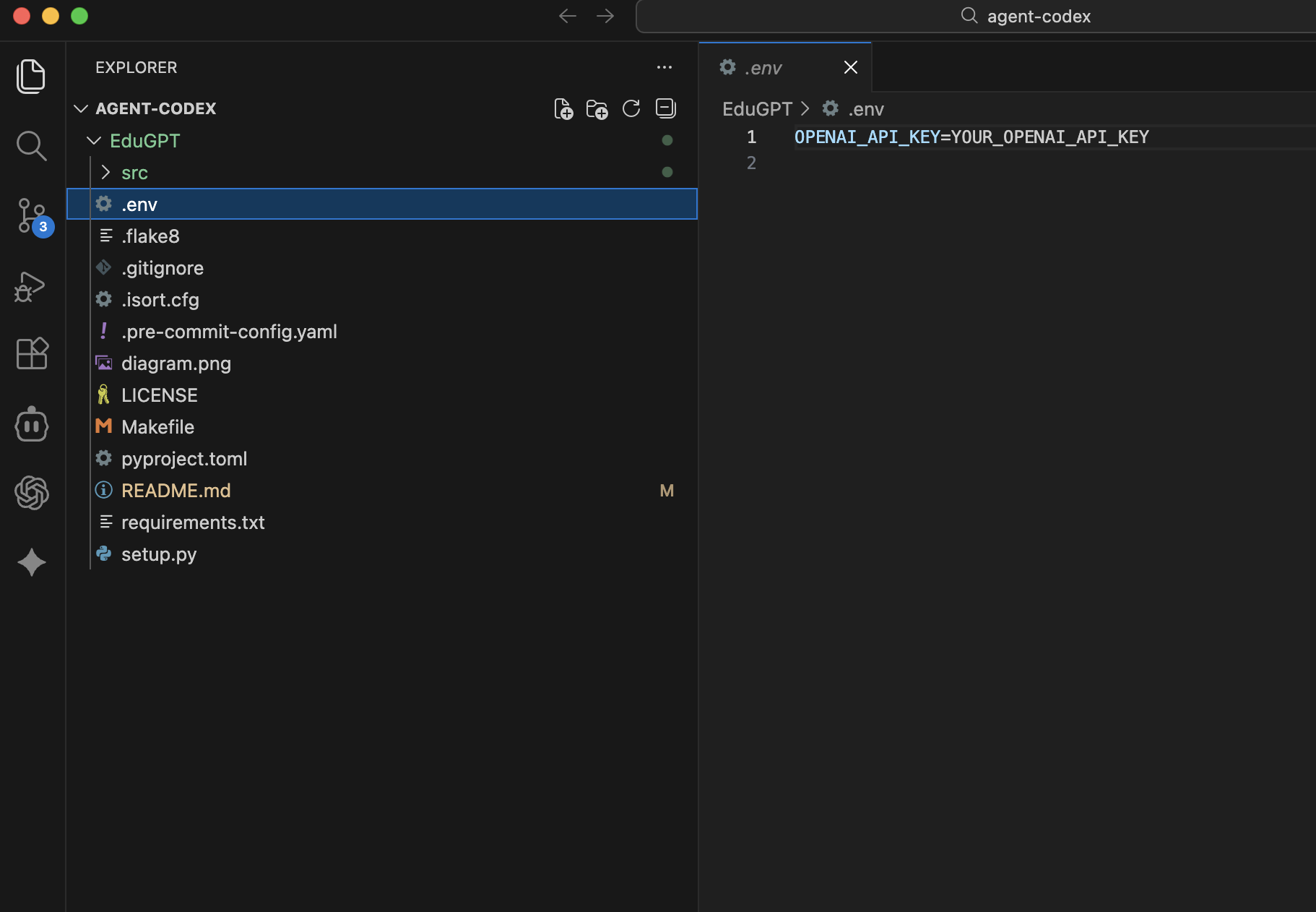
And it is finished!
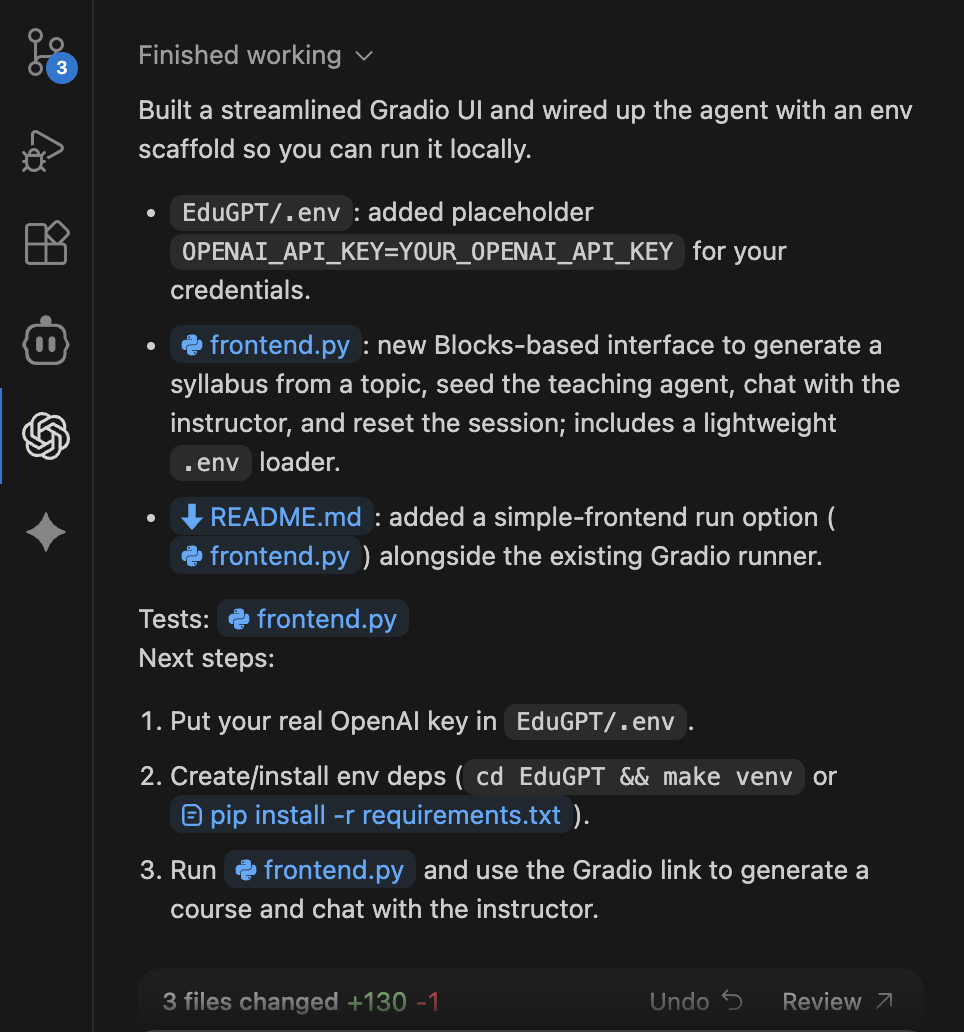
You just saved your OpenAI API key, and it did everything for you, let’s test it!
I used this prompt:
I want to learn AI.
Here is the output.
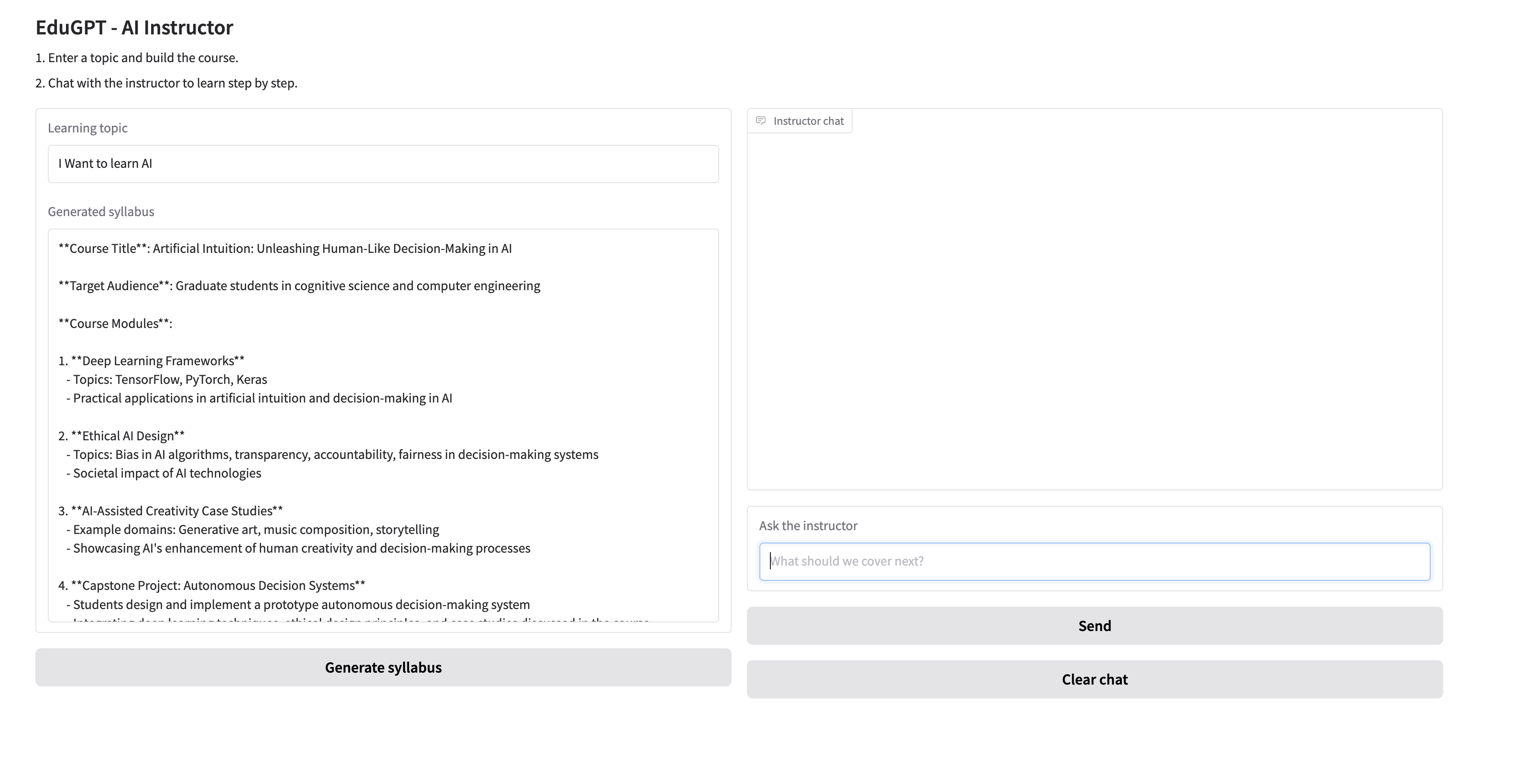
You can start learning from the panel on the right. Let’s start with deep learning.
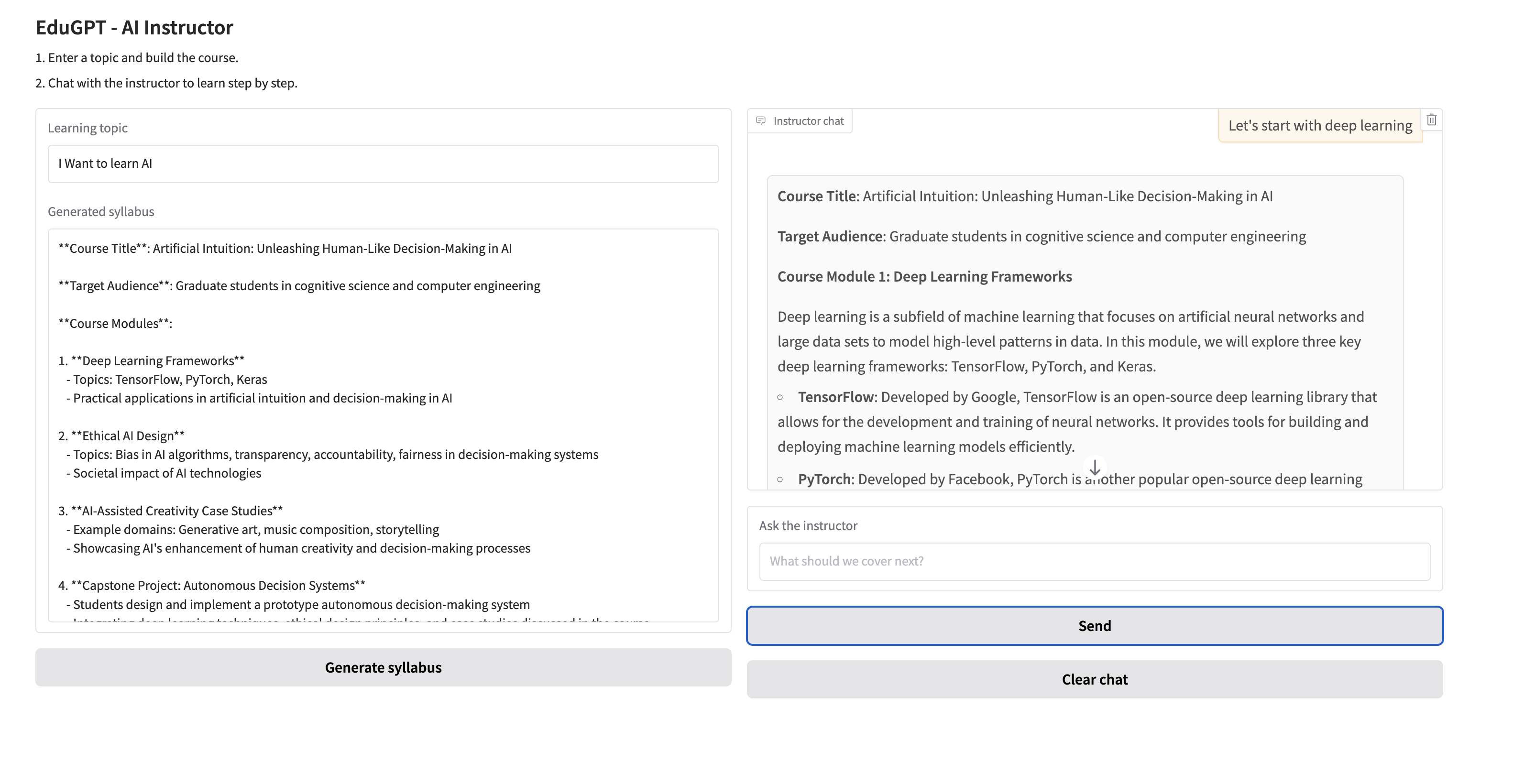
As you can see, our Agent is up and running.
Next step? Upload it to GitHub. Create a Vercel account and ship this app to live.
If you want to monetize, visit Clerk and add user authentication without coding.
And next, monetize it and let the world know what it is!
4- Personalization: Set Once. Done.
This is where ChatGPT gets to know you better and learns how to talk with you. You can select the style, tone, characteristics, and custom instructions.
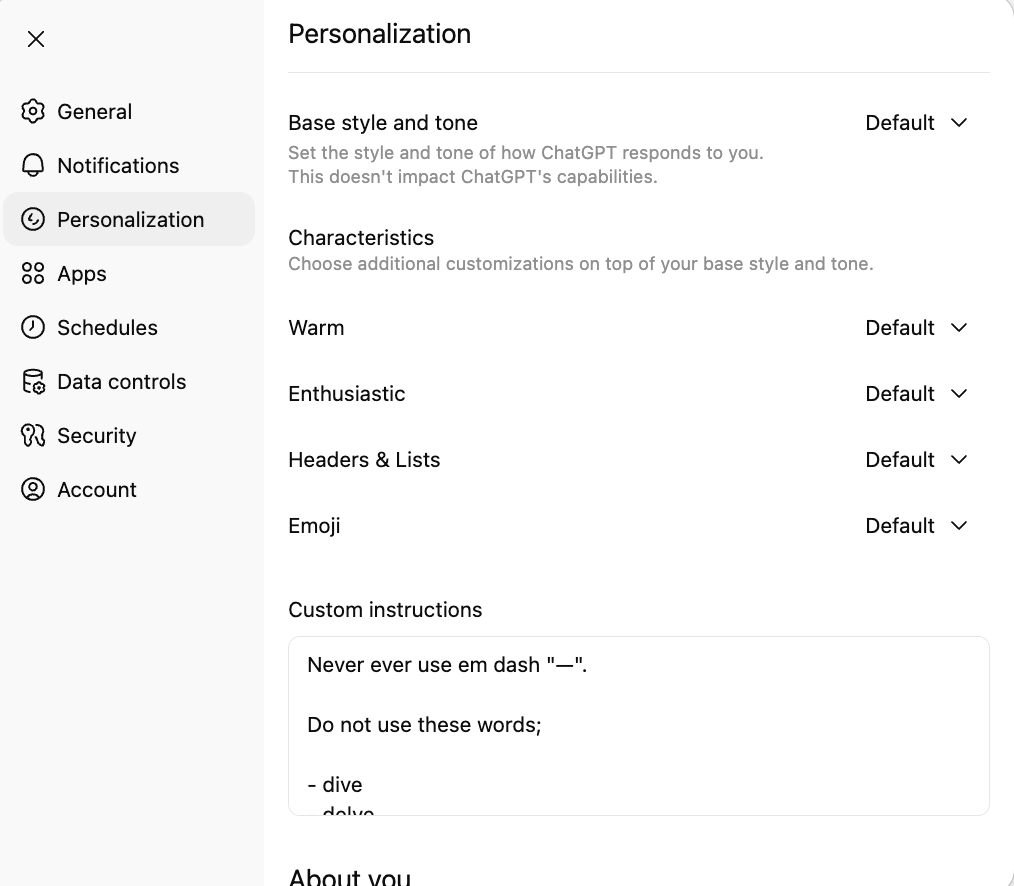
These custom instructions will shape ChatGPT for your future conversations. I asked it not to use em dashes or words that signal AI, like ‘dive’ and ‘delve.’
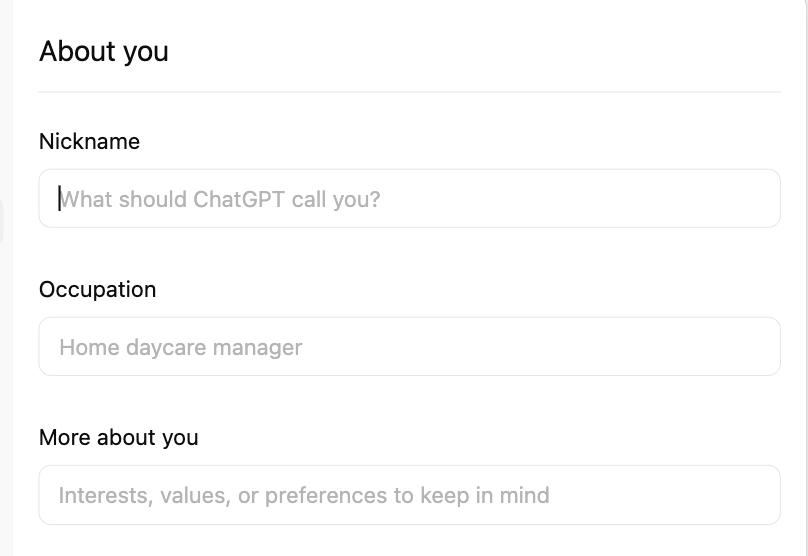
Once you scroll down, it asks you to add your nickname, occupation, or more information about yourself.
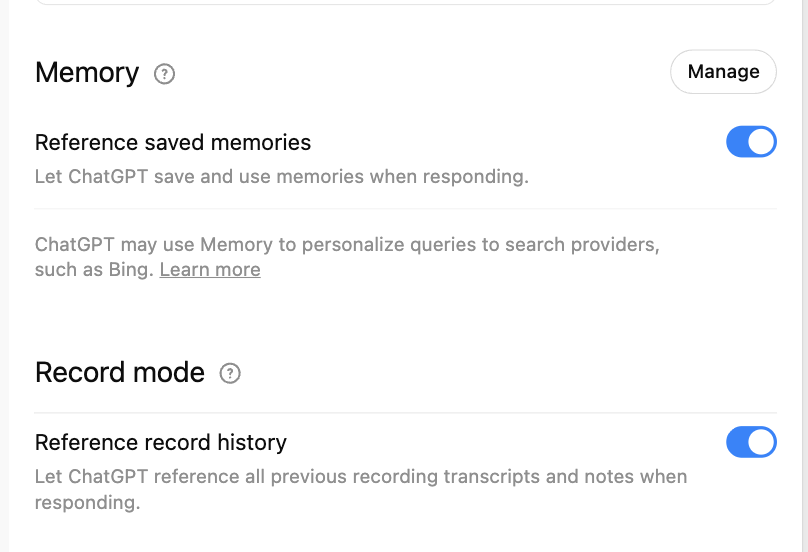
Next, you’ll see the memory. This might be the most important yet overlooked feature.
After clicking on ‘Saved memories,’ you’ll see your previous memories. This is my professional account, so as you can see, it’s mostly technical stuff.
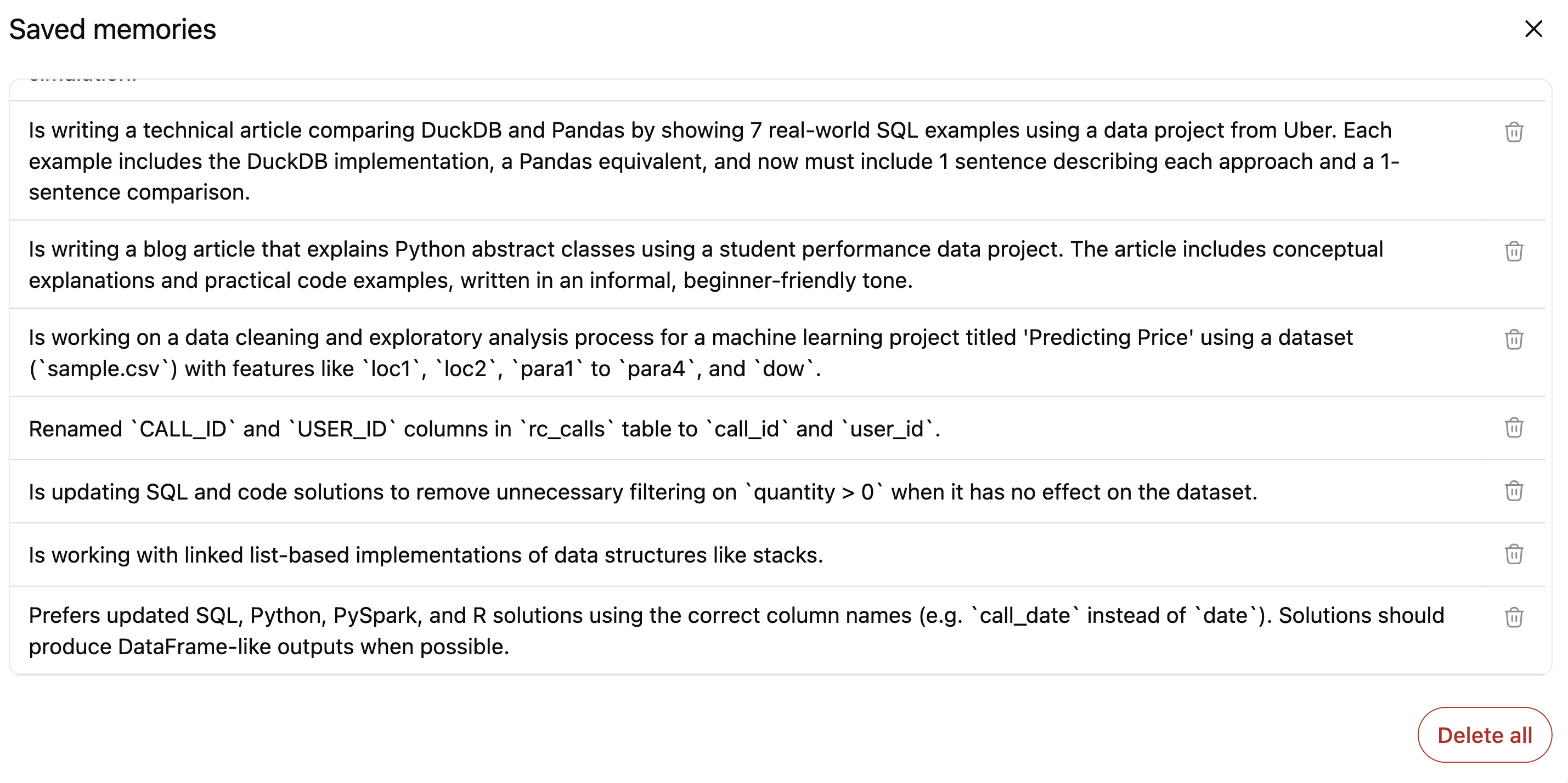
ChatGPT remembers me by checking these memories. I didn’t add them one by one. When I share a preference, it saves it automatically. For example, when I asked for updated SQL code using correct column names like ‘call\_date’ instead of ‘date,’ it saved that. Let’s add one more memory.

As you can see, the memory has been updated. When I get back to “Memories”, I saw that this overrides my old memories. Can you understand how it works?
5- Memory: AI Clones You
We explored memory in the previous step, but here’s where it gets powerful: ChatGPT can actually write like you.
Once ChatGPT learns your communication style, you can ask it to mimic your tone in any context. Try this prompt:
Write a slack message telling my boss that I can not work tomorrow, by following my tone.
Let’s see the output.
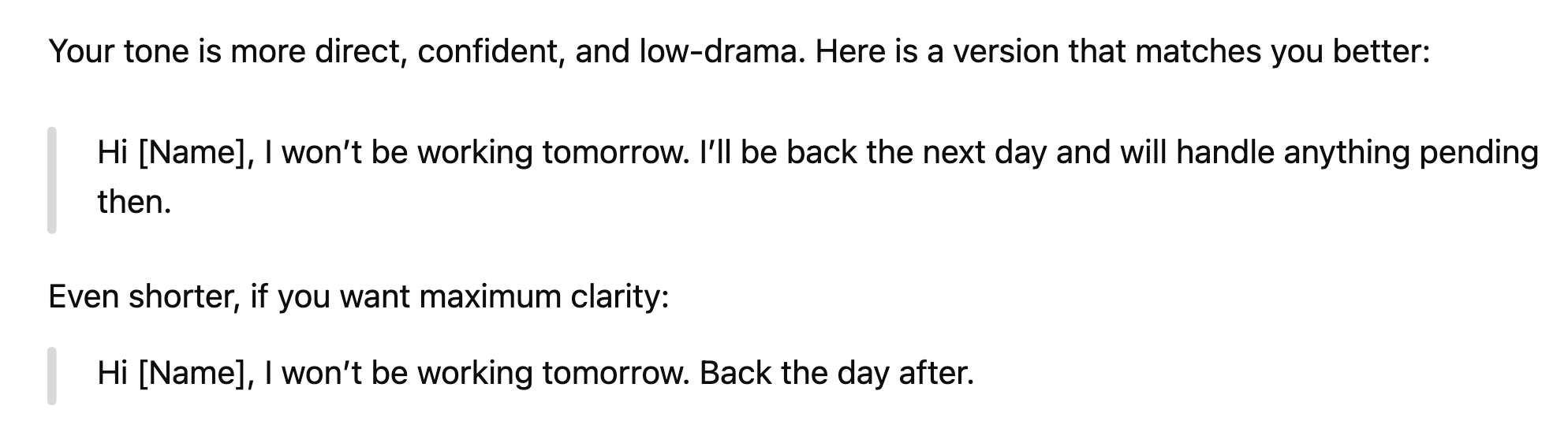
The output won’t sound like generic AI. It’ll sound like you, matching your level of formality, your choice of words, even your quirks.
Before You Try This
Make sure your memory feature is turned on. Here’s how to check:
- Click your profile icon in the bottom left corner
- Select Personalization
- Ensure Memory is enabled
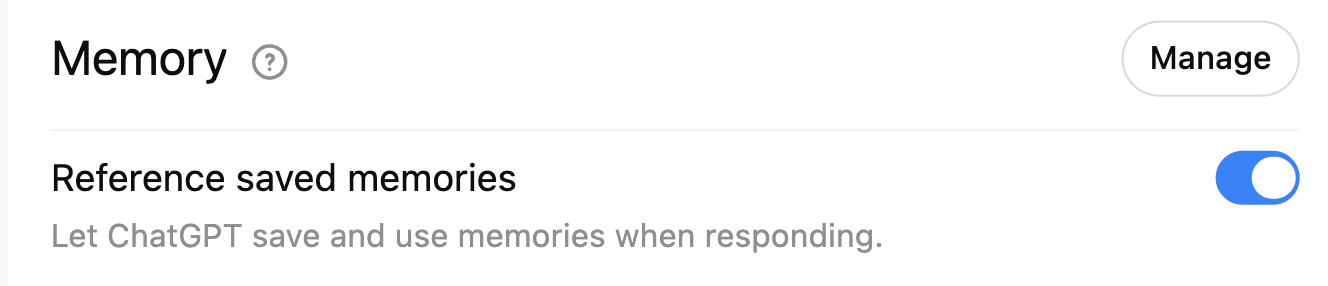
If it’s off, ChatGPT won’t remember anything about your style or preferences, and this trick won’t work.
Pro Tip: The more you chat with ChatGPT, the better it learns your voice. Over time, it becomes surprisingly accurate at mimicking how you write emails, messages, and even social media posts.
6- GPT Store: Hidden App Market
ChatGPT now has an App Store. Here’s how it works;
- Open ChatGPT.
- Click on ‘apps’ in the sidebar.
- Browse apps like Spotify, Booking, and Canva.
- Connect an app, then call it with an @ mention.
Let me show you what’s possible.
Photoshop
Want to edit photos without leaving ChatGPT? Upload your image, mention Photoshop, and try this prompt:
Edit this photo and make it black and white.

Your edited image appears right in the chat. No switching tabs, no exporting files.
Replit
This one’s wild. You can build entire apps without writing a single line of code:
@replit
Build me a simple habit tracking app
After you send this, Replit will ask for your permission and immediately start building your app.
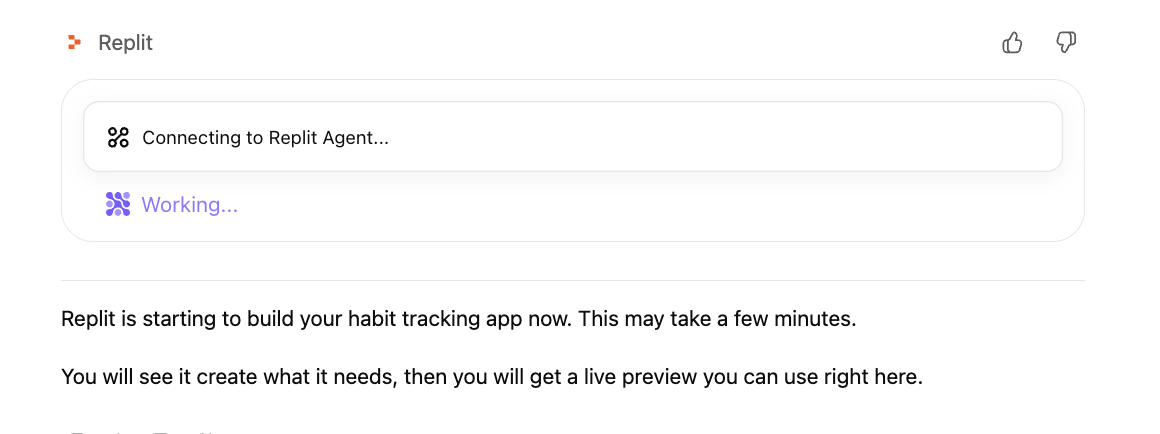
Within minutes, you’ll have a fully functional application ready to use.
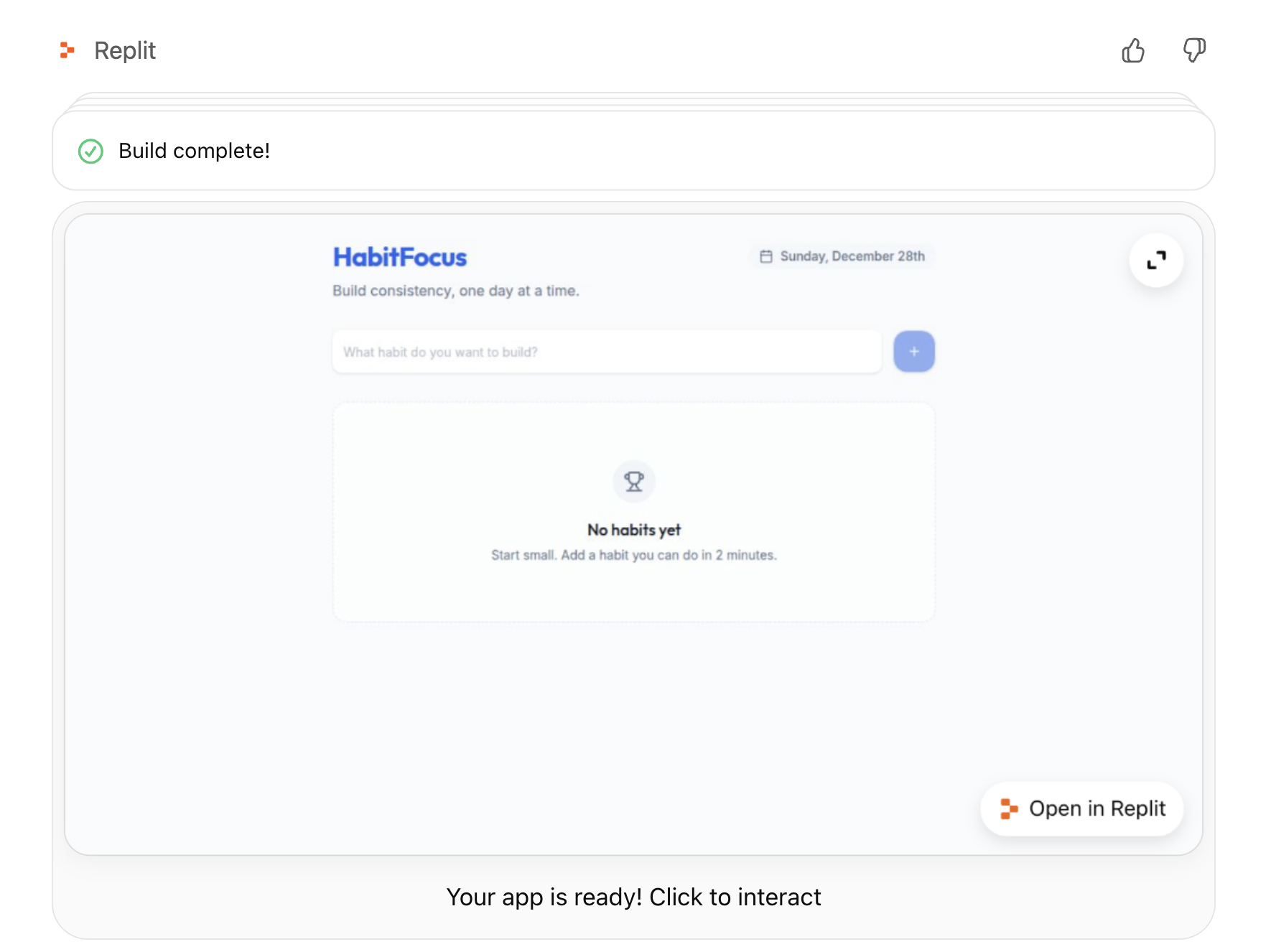
Click the link to try it live on Replit; it’s that simple.
7- Projects: Your AI Brain
Projects are the most powerful way to turn ChatGPT into your personalized assistant.

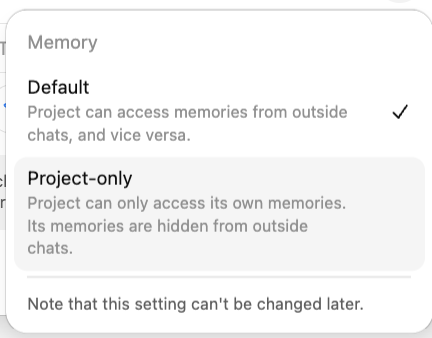
When you click the Create Project button, you’ll see the project creation screen. You can name your project here, but the real magic hides behind the Settings button in the top right corner.
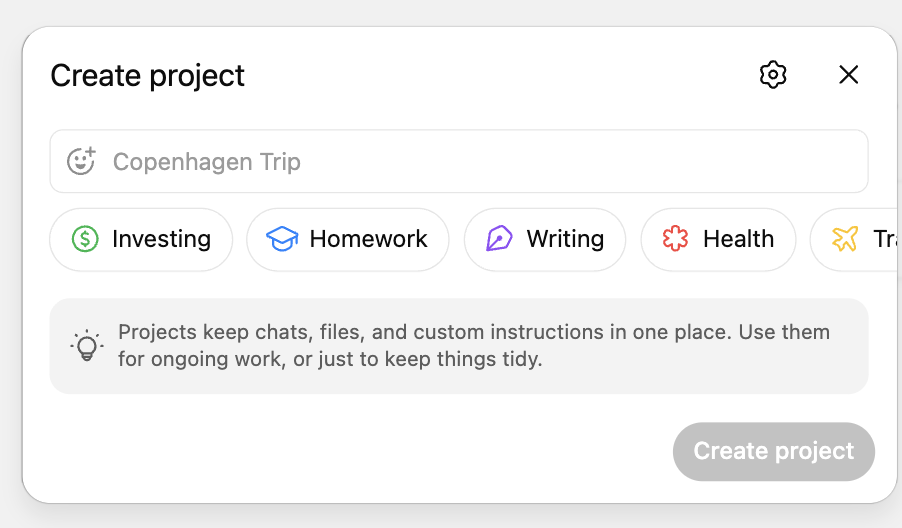
Click on Settings, and you’ll discover the project-only memory option. This feature ensures that conversations within this project stay isolated and don’t affect your overall ChatGPT experience. Think of it as creating separate “brains” for different purposes.
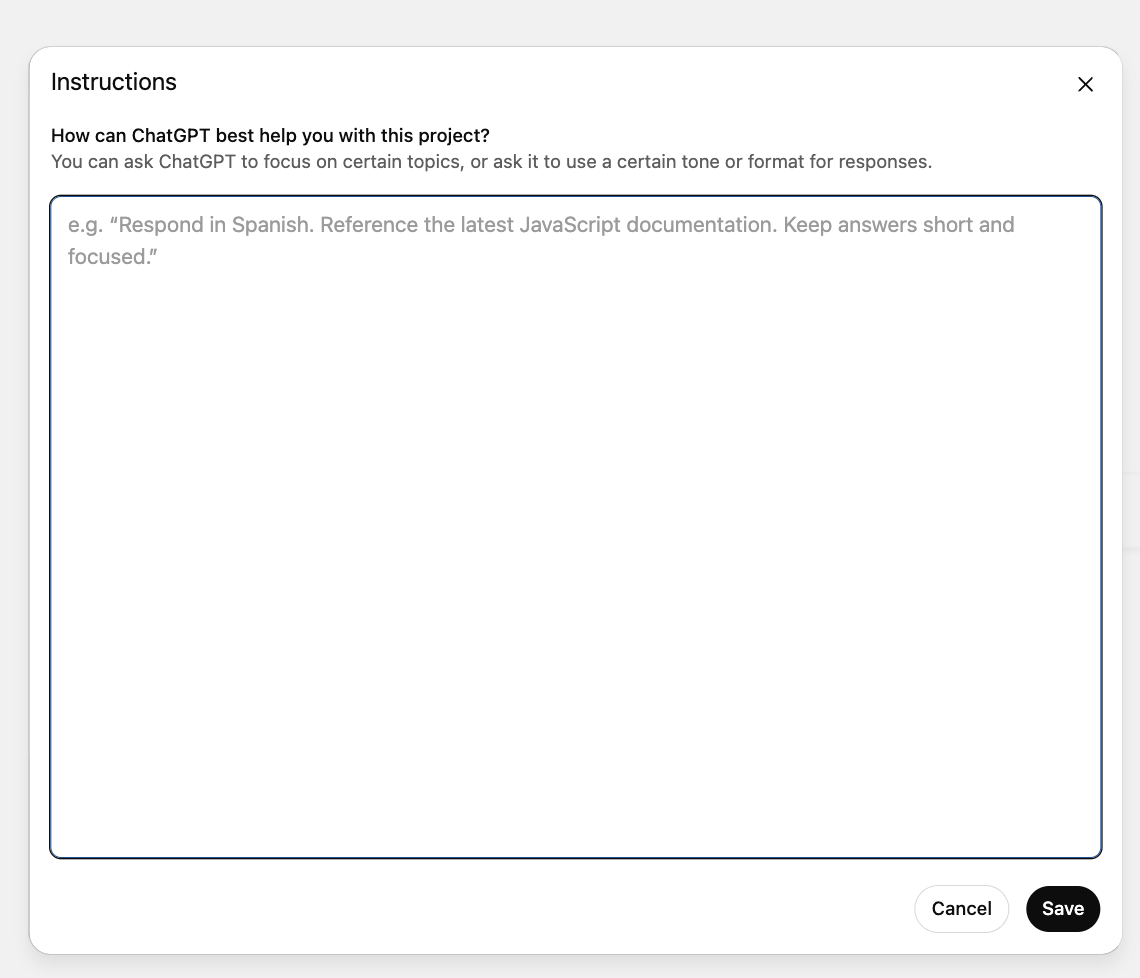
Once you’ve created your project, click Add instructions in the top right corner. Here you can add custom instructions that apply exclusively to this project.

For example, one project might say “Always respond in bullet points” while another says “Write in a casual, friendly tone.”
Pro Tip: If multiple people share the same account, Projects is an absolute lifesaver. Everyone can work on their own project without messing up each other’s settings or memory.
Final Thoughts
Most people use ChatGPT like a search engine. Ask a question, get an answer, close the tab.
But you just learned how to turn it into something else entirely: a personal assistant that works while you sleep, remembers how you think, and builds tools for you without code.
Pick one feature. Try it today. That’s all it takes to get ahead.