So you can laser-focus on the most important part: the writing
By Nicolas Cole
Published: 2026-10-08
URL: https://writewithai.substack.com/p/how-to-outsource-90-of-your-launch

Write With AI is our paid newsletter where we share internal AI prompts & workflows we’re using to run our 7-figure digital writing business.
But if you want access to our most in-depth products, and to write with us LIVE during sprints, bootcamps, Ship 30 for 30 cohorts, and Monday Hot Seats, come join us inside AI Writing Skool.
Over the last 3 weeks, I’ve written 70+ emails.
All of them for the launch of our new and upgraded Ship 30 for 30 cohort inside AI Writing Skool (shout-out to all the Shippers reading this!).
But writing them was only HALF the job.
Every single one of those emails also had to be:
-
Spell-checked
-
Grammar-checked
-
Loaded into Kit
-
Put in the right template
-
Sent to the right segment
-
QC’d again inside Kit (add images, etc.)
-
Scheduled
-
Etc., etc., etc.
Multiply that by 70, and you start to see the problem.
(And on top of that, I had to create and build out the new Ship 30 curriculum, too!)
Now, I like to do the drafting, writing, and quick editing of all our launch emails. That’s where I can make the highest-leverage contribution:
-
The ideas
-
The strategy
-
The line-by-line copy
Everything else?
That’s purely manual work—copy, paste, click, check, repeat. I can delegate this to our digital intern: AI. And I can let that run in the background while I continue to pump out the rest of the 70 emails I need to write.
So, I built a Claude Skill to do all the manual parts for me.
By the end of the launch, I’d write the email in Notion, give Claude the link, and it would handle everything else from spelling and grammar to loading the email to Kit as a broadcast, to selecting the correct segment, etc.
So, today, I’m going to walk you through exactly how I set it up inside Claude.
And then, at the end, I’ll give you a Claude Skill you can take for yourself and, with some tweaks, make it so you can check and load your emails in a matter of minutes.
I built the Skill to work with any Notion page and any Kit account. Which means it will ask you things like which template to use and which segment to send to. But if you send the same type of email every week, you can hardcode all of that. Once you’ve loaded the Skill, just ask Claude, “Edit this Skill so it always uses my [template] and sends to my [segment].” Claude will look up the right details in your Kit account and rewrite the Skill for you.
Let’s dive in.
How I Hand Over 90% of My Email Admin To Claude
Before you try this for yourself, you need to do 2 things:
-
Set up the Kit MCP with Claude. Watch this video to get an easy step-by-step tutorial on how to connect Kit to Claude.
-
Connect your writing editor to Claude. I write all my emails in Notion first and then load them to Kit (it helps keep all my launch assets in one place!). If you want to use this Skill with any other editor, then you’ll have to tweak it slightly (super easy—just load the Skill and ask Claude to change it for you).
Now, let’s go through each step.
Step 1: Call the Skill and paste in your Notion link.
Give Claude the link to the Notion page and say “Hey Claude, help me check and load this email to Kit.”
Claude will then read the page, find the email copy, and run a full spelling and grammar check on the subject line, preview text, and body copy.
Then, if you’re prone to typos and mistakes like I am, you’ll get a long list of errors in the email copy: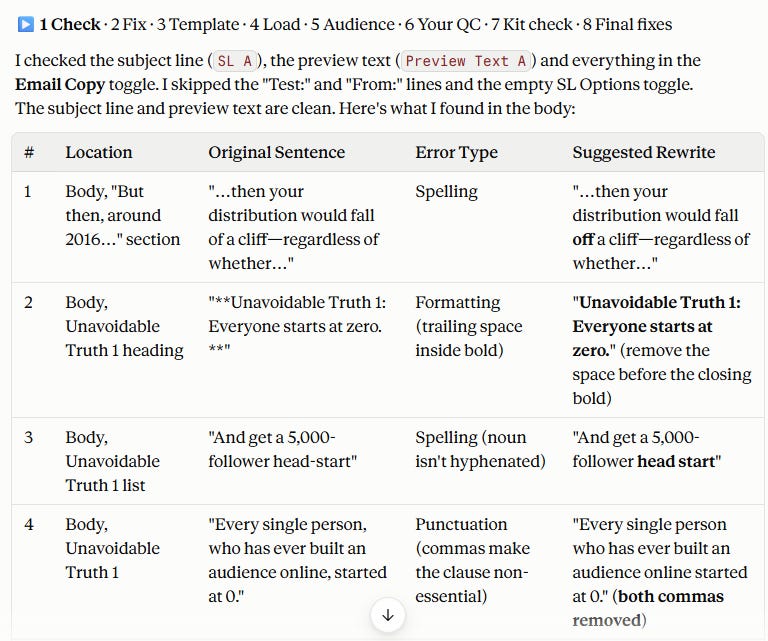
Step 2: Pick which errors to fix.
Claude doesn’t “correct” your writing without your permission.
After all, you might have a certain way of writing which doesn’t fall in with the Chicago Manual of Style. I know I do!
Instead, Claude gives you a numbered table with the original sentence, the type of error, and a suggested fix. Then it lists softer style notes separately (things that aren’t technically wrong, but might be worth a second look).
You reply with the numbers you want fixed, and Claude makes only those edits inside Notion.
Nothing else gets touched.
You might also have to direct Claude in the edits you send back: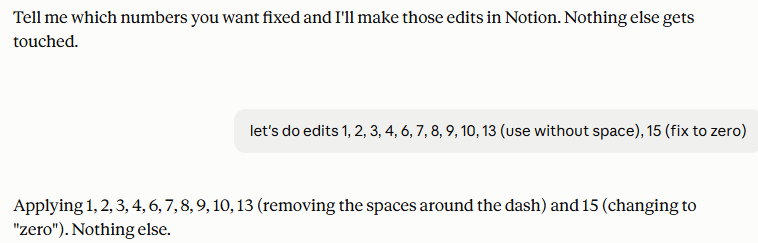
Step 3: Kickstart the loading process by telling Claude which template to use.
I use different templates for different email communications.
It helps me set the formatting, font size, etc. It also helps me include opt-out links so people who want to stay on the list but don’t want to hear about a launch can choose to opt out. Each launch, product, and newsletter needs its own template.
So yeah… I have a ton!
Luckily, you can get Claude to search your templates—all you need to do is give it the name of the template, and it will find it for you.
Claude searches your Kit account, finds the matching template, and confirms it with you. It also carries over the template’s styling, which is exactly the kind of thing that breaks when you move emails around by hand.
Step 4: Claude loads the email into Kit.
This is where it saves the most time.
Claude scans your Notion page for three things:
-
The subject line
-
The preview text
-
The email copy
It doesn’t matter where they live on the page.
If anything is unclear, Claude asks before it loads.
Then it builds the email inside Kit as a draft—headings, bold, italics, bullet points, and links all intact.
I used the Skill to load a newsletter I’m working on at the moment: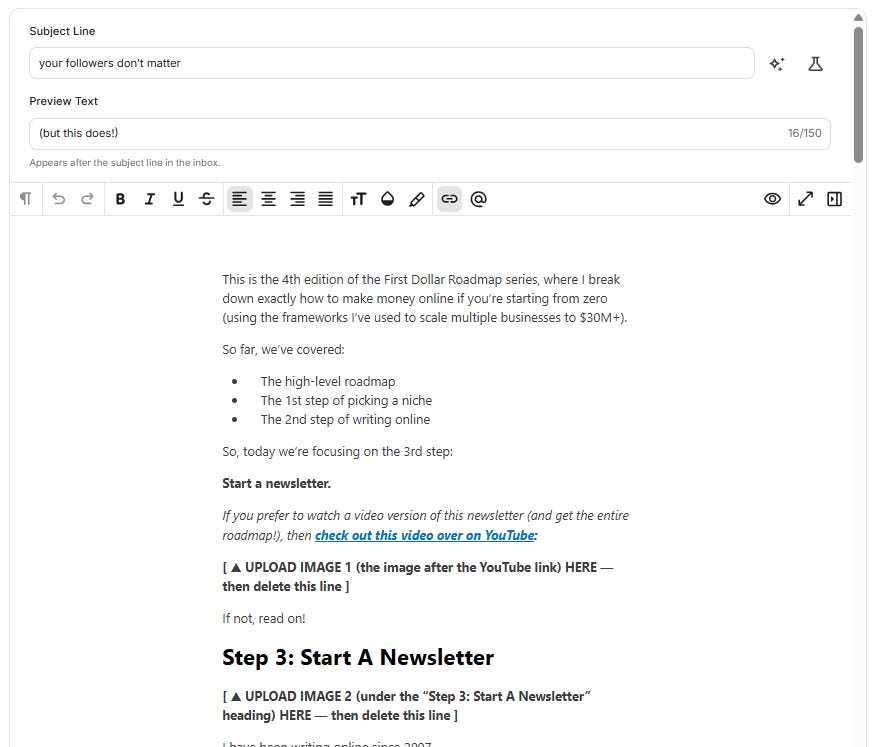
Step 5: Tell Claude who to send it to.
Give it the tags or segments by name.
Claude then:
-
Finds them in Kit
-
Confirms them with you
-
And sets the audience on the draft
It also reminds you to exclude cold subscribers, since that’s the one setting you still have to add yourself.
Step 6: Do your own QC.
Now it’s your turn.
Claude hands you a link to the draft inside Kit and then asks you to check it. and stops.
-
Read through it
-
Make any edits you want
-
Upload your images (unfortunately, the Kit MCP can’t load images from Notion—only from hosted images online)
When you’re done, just tell Claude, “I’ve QC’d it.”
Step 7: Fix any final errors in Kit and Notion.
Now, if you’re anything like me… you love to do final edits inside Kit itself.
The change of writing “environment” means I always find something I want to tweak.
I’m convinced this is related to point 1 in Dickie’s writing advice here:
But this comes with risks:
-
You tweak a line.
-
You add a sentence.
-
You fix one thing and accidentally break another.
Anyway, once you tell Claude you’ve QC’d it, it will go through your draft in Kit and pick up any “mistakes” for you just like before and ask if you’d like to make edits: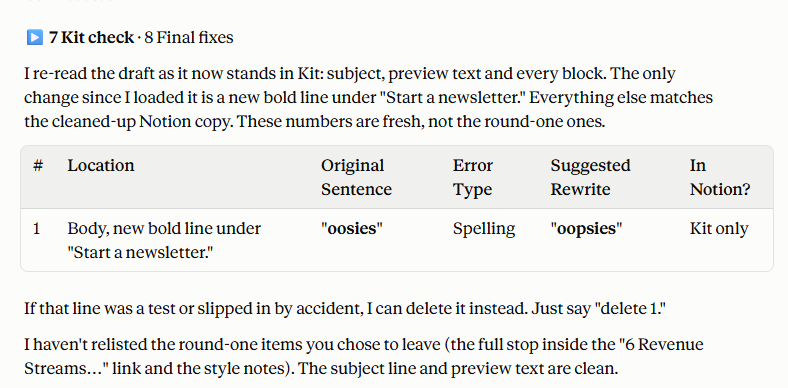
You pick the numbers and Claude makes the edits.
Except this time, it fixes them in both places—Notion AND Kit. That way, you never end up with two slightly different versions of the same email.
Then Claude hands the draft back to you.
All that’s left is the one click I’d never hand over anyway:
Hitting schedule.