From interactive applications and document creation to computer use, coding, and AI agents, Claude has become much more than a place to ask questions. Here's what you may be missing.
By Working Smarter with AI
Published: 2026-11-14
URL: https://thepromptshell.substack.com/p/youre-probably-using-claude-like
Most of us discovered Claude in a very simple way. We opened a conversation, asked a question, and received an answer.
Maybe it helped us write an email, understand a complicated topic, summarize a document, or come up with ideas for something we were working on. The experience was familiar, particularly if we had already used ChatGPT or another AI assistant.
But imagine opening Claude today and asking it to create an interactive language-learning application, build a presentation from your research, help organize files on your computer, or develop a small website.
These are very different activities, yet they increasingly belong to the same Claude ecosystem.
Claude has been changing much faster than the way many of us have learned to use it.
In September 2026, Anthropic announced a move toward bringing Claude Chat and Cowork into a more unified experience, alongside capabilities for creating documents, presentations, and designs. The availability of individual features still depends on the plan, platform, and rollout.
This development makes Claude worth exploring again, even if you have been using it for some time.
I don’t think everyone needs to become an expert in AI agents or learn to program but I do think we should understand what these tools can do before deciding which ones are useful for us.
So I want to start a five-part series exploring Claude as it exists today.
This first article is a guided tour. We will look at seven capabilities that deserve attention, try a small experiment, and see how the different parts of Claude fit together.
In the following articles, we’ll go much deeper, with detailed instructions, examples, and practical exercises.
1. Claude can create interactive applications
Let’s start with something that may surprise people who mainly use Claude for writing.
You can describe a small application in ordinary language and ask Claude to build an interactive version of it.
For example, imagine you want to help a child practice geography.
You could ask Claude to explain the capitals of European countries, produce a list of questions, or prepare a study guide.
You could also ask it to create a quiz where the child selects answers, receives feedback, and sees a final score.
This is where Artifacts become interesting.
Artifacts allow Claude to create content and interactive experiences that you can view, test, and refine alongside the conversation.
You don’t necessarily need to know how to write the code yourself and the application doesn’t need to be complicated. It could be a calculator, a quiz, a personal planner, an interactive diagram, or a simple educational tool.
The important difference is that you are asking Claude to create something you can interact with rather than simply produce text.
Try it yourself: create a geography quiz
Open Claude and start a new conversation.
Copy the following prompt:
PROMPT — CREATE AN INTERACTIVE QUIZ
Create an interactive geography quiz about European countries and their capitals.
The application should include:
- Ten multiple-choice questions.
- Four possible answers for each question.
- Immediate feedback after each answer.
- A progress indicator showing how many questions remain.
- A final score and a short message based on the result.
- A button to restart the quiz.
- A clean, attractive design that works on desktop and mobile screens.
Make it an interactive Artifact rather than a text-based quiz.
After Claude generates the result, open the Artifact and try answering a few questions.
Does the score update correctly? Does the progress indicator work? Can you restart the quiz?
Now ask Claude to change something.
For example:
Add three difficulty levels: beginner, intermediate, and advanced. Let the user choose a level before starting the quiz.
Or:
Add a 20-second countdown timer for each question.
You are now experimenting with a small application by describing what you want to change.
Of course, the result may need corrections. The questions may contain errors, the interface may have problems, or a feature may not behave as expected but the experiment illustrates a capability that is easy to overlook when we think of Claude only as a chatbot.
You can move from an idea to an interactive prototype through conversation and that is only one part of the story.
2. Claude can create documents and presentations
Most people have asked AI to help write something.
Perhaps you’ve used it to prepare a report, improve an email, or organize information into a presentation outline.
There is an important difference between asking for the content of a presentation and asking an AI system to create the presentation itself.
Claude’s document and presentation capabilities are moving toward the second approach.
Depending on the tools available in your account, Claude can help create and edit documents, slides, and other structured outputs.
Imagine planning a family holiday in Japan.
You have collected information about Tokyo, Kyoto, Osaka, transport options, hotels, and places you would like to visit.
Instead of manually organizing everything into a document, you could ask Claude to help build a travel guide.
You might want a daily itinerary, a summary of transport options, a checklist of things to prepare, and a presentation that you can share with your family.
The interesting part is the ability to work towards a finished deliverable, rather than stopping at a written suggestion.
In this point we need to distinguish between generating content, creating an editable document, and producing a polished presentation. These are different capabilities, and their availability varies.
We’ll explore them properly in Part 3 of this series.
For now, the point is that Claude can help with more of the creation process than simply writing the text that goes into a document.
3. Claude can help with tasks on your computer
This is one of the developments that deserves particular attention.
Imagine you have a folder containing hundreds of files.
Some have meaningful names. Others are called things like Document1, Final\v2, or Scan\003.
You want to organize them into categories, identify duplicates, and prepare a summary of what is inside.
Traditionally, you would need to inspect the files manually, write a script, or use a dedicated application.
Claude’s more advanced task-execution capabilities, including Cowork and supported computer interaction, can help with certain activities involving files and applications.
Depending on your plan, operating system, and permissions, you may be able to give Claude access to an appropriate working area and ask it to perform a sequence of actions.
This is different from asking a question.
You are delegating part of a task.
That it introduces something we need to understand carefully: the difference between giving AI information and giving AI permission to act.
If Claude can modify files or interact with applications, we need to know exactly what it is allowed to do.
For example, before asking Claude to reorganize a folder, I would want to know whether it could rename or move files, whether it might overwrite anything, and how I could review the proposed changes.
I would also start with copies of non-sensitive files rather than original documents.
The potential is interesting, but the responsibility increases as we move from generating answers to performing actions.
We’ll explore this in Part 4, including permissions, limitations, and practical safeguards.
4. Claude can help investigate questions that don’t have simple answers
There is a difference between asking AI for information and using AI to support research.
Suppose you want to choose a destination for a two-week family holiday.
You have several options, but you want to compare them based on cost, weather, transportation, activities, and travel time.
A normal conversation might give you a quick recommendation.
A more structured research approach can help you investigate the alternatives, examine sources, identify uncertainties, and organize the findings.
Claude offers web search and research-related capabilities that can support this type of work but there is something important to understand. A convincing answer is not necessarily a well-researched answer.
If Claude recommends a destination because the weather is usually good in August, we should still examine whether the information is current and whether it applies to the specific region we are considering.
If it provides hotel prices, transport schedules, or entry requirements, those details may change.
The ability to find information is useful. The ability to evaluate the information is what makes the result more dependable.
In Part 3, we’ll explore how to use Claude for research, how to check sources, and how to recognize conclusions that require additional verification.
5. Claude can help you build software
This is another area where Claude has developed capabilities that many casual users may not know about.
Claude Code is designed to help people work with software projects.
It can assist with understanding existing code, making changes, debugging problems, and developing applications.
If you’re a programmer, the possibilities are fairly obvious but if you’re not, I think it’s worth understanding what this means.
Imagine you want a small personal website to organize a collection of books.
You want to record each book’s title, author, genre, reading status, and personal notes.
You could use a spreadsheet or an existing application, and those may be perfectly good solutions but you could also explore building a simple application that works exactly the way you want.
Claude Code can help with that development process, although installing and using it introduces technical requirements that are different from ordinary Claude Chat.
It doesn’t remove the need to test the application, understand where information is stored, or think about security and it doesn’t mean that every application generated by AI is ready for real-world use.
Still, the possibility of developing software through natural-language instructions is worth exploring.
We’ll dedicate Part 5 to Claude Code, agents, APIs, and more advanced applications.
6. Claude can connect to information outside the conversation
One limitation of a normal AI conversation is that the information you need may be somewhere else.
Perhaps it’s stored in a document repository, a collaboration application, or another business system.
You can manually copy the information into Claude, but that isn’t always convenient or appropriate.
Connectors and integrations provide ways for Claude to interact with supported external tools and information, subject to permissions and configuration.
MCP, or Model Context Protocol, is one of the technologies used to connect AI systems with external tools and data sources.
The idea is straightforward, even if the technical implementation can be complex.
Instead of manually transferring information between applications, a connected AI system may be able to retrieve relevant information or perform supported actions through an integration.
In this case access matters because a connector should not be treated as permission for an AI system to use everything available in an organization.
The specific application, authentication method, permissions, and available actions determine what Claude can do.
This is especially important when dealing with confidential business information.
In Part 4, we’ll examine how these connections work, what they make possible, and what should be checked before enabling them.
7. Claude can use specialized capabilities through Skills and plugins
You may already have encountered AI Skills.
A Skill packages instructions, procedures, and sometimes supporting files or scripts into a reusable capability.
Plugins can combine different capabilities, including Skills and connections to external tools, depending on the environment.
The interesting development is that AI tools are becoming increasingly modular.
Instead of expecting one general-purpose assistant to handle every activity in exactly the same way, we can give it more specialized capabilities for particular tasks.
For example, a Skill might help with a specific document format, a research process, or a specialized analysis.
A plugin might provide access to a particular service or combine several tools into a workflow.
There is a distinction worth making between a Project, a Skill, and a plugin.
A Project helps organize ongoing work and context. A Skill provides reusable instructions or procedures. A plugin may package capabilities and connections that extend what Claude can do.
They are related, but they don’t serve exactly the same purpose.
I recently explored the difference between using a simple prompt, a structured prompt, and an AI Skill in my article A Simple Prompt, a Better Prompt, or an AI Skill: Which Should Run Your Weekly Report?
That article focuses on when building a reusable Skill is worth the effort, so I won’t repeat the exercise here.
In Part 4 of this series, we’ll focus specifically on how Skills and plugins fit into Claude’s environment, how to use them, and how they work alongside connectors and other capabilities.
So which part of Claude should you actually use?
After exploring these capabilities, you might be wondering whether you need to learn all of them.
I don’t think you do.
The better question is what you want to accomplish.
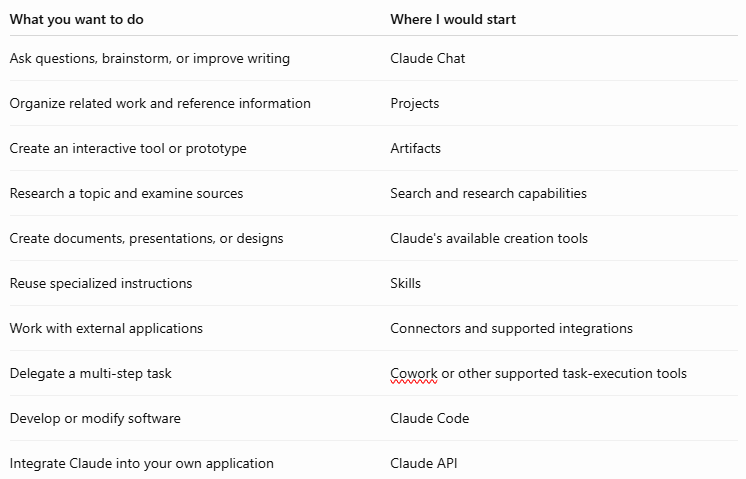
This isn’t a strict set of rules. Several tools can support the same task, and the best choice depends on complexity, availability, and the result you need.
Sometimes a simple conversation is enough.
Other times, the task may justify a more specialized approach.
The point is to understand the options before deciding.
What I would be careful about
I don’t want to finish this introduction by suggesting that Claude can do everything because it can’t.
Like other AI systems, Claude can misunderstand instructions, make mistakes, misinterpret documents, and produce convincing answers that aren’t supported by reliable evidence.
An interactive application may contain bugs. A presentation may include incorrect information. A research summary may overlook an important source.
A system that can interact with files or applications introduces risks that don’t exist in the same way when we simply ask it to write a paragraph.
There are also practical limitations involving subscriptions, usage allowances, supported platforms, and organizational permissions.
Throughout this series, I want to distinguish between what Claude is capable of demonstrating and what we can reasonably depend on in real work.
Those are not always the same thing.
What comes next: the Claude Masterclass
This article was intended to show you the broader picture.
We’ve looked at several capabilities, but we’ve only scratched the surface of how to use them.
The next four articles will take a different approach. Instead of briefly introducing features, we’ll explore them in detail, with step-by-step instructions and practical examples.
Part 2 — Build Your Personal Claude Workspace
We’ll start with Claude’s settings, models, personalization, Projects, and knowledge management. I’ll explain what each option does, which ones are worth paying attention to, and how to configure Claude for your own needs.
Part 3 — From Conversations to Deliverables
We’ll explore research, documents, spreadsheets, presentations, Artifacts, and interactive applications, with practical instructions for creating and improving them.
Part 4 — Skills, Connectors, and Automation
We’ll examine reusable capabilities, plugins, external connections, Cowork, and more advanced task execution, including permissions and security.
Part 5 — Claude for Power Users
We’ll explore Claude Code, agents, APIs, and advanced workflows, with examples of what you can build and how to evaluate the results.
The goal isn’t to turn everyone into a developer or an automation specialist.
It’s to help you understand Claude well enough to decide which capabilities are worth using and how to start using them properly.
One final thought
When we talk about AI, it’s easy to become focused on which model is better, which benchmark has improved, or which company has released the latest feature.
I find it more useful to ask what we can actually do with the technology.
Claude is a good example of why that matters.
If we only use it to answer questions, we may never discover that it can help create interactive applications, produce structured deliverables, work with connected tools, or support more complex tasks.
That doesn’t mean we need all those capabilities, but knowing they exist gives us more options.
Next week: let’s explore Claude properly
In Part 2, we’ll open Claude and work through its environment step by step.
We’ll look at the models, settings, personalization options, Projects, and other configuration choices that shape how Claude behaves.
By the end, you should understand how to set up a workspace that fits the kind of work you want to do.
I’m also curious about something.
Which of these capabilities surprised you most, or which one would you like to learn first?
Share your answer in the comments. It will be interesting to see which parts of Claude people are most curious about.
See you in Part 2.
Here are some examples of other articles that I published. Give it a look because you may find some very interesting stuff.
The Complete Guide to Google Notebook - Part 1
The Complete Guide to Google Notebook - Part 2
12 AI businesses to make you rich
10 Real work problems I give AI instead of starting from scratch
The Biggest Risk of AI Isn’t Hallucinations. It’s Skipping the Thinking
Your AI Isn't Broken. Your Workflows Are
NotebookLM is becoming something ChatGPT and Claude were never designed to be