Turn Your Documents, Videos, and Research Into Knowledge You Can Actually Use
By Working Smarter with AI
Published: 2026-10-17
URL: https://thepromptshell.substack.com/p/the-complete-guide-to-google-notebook
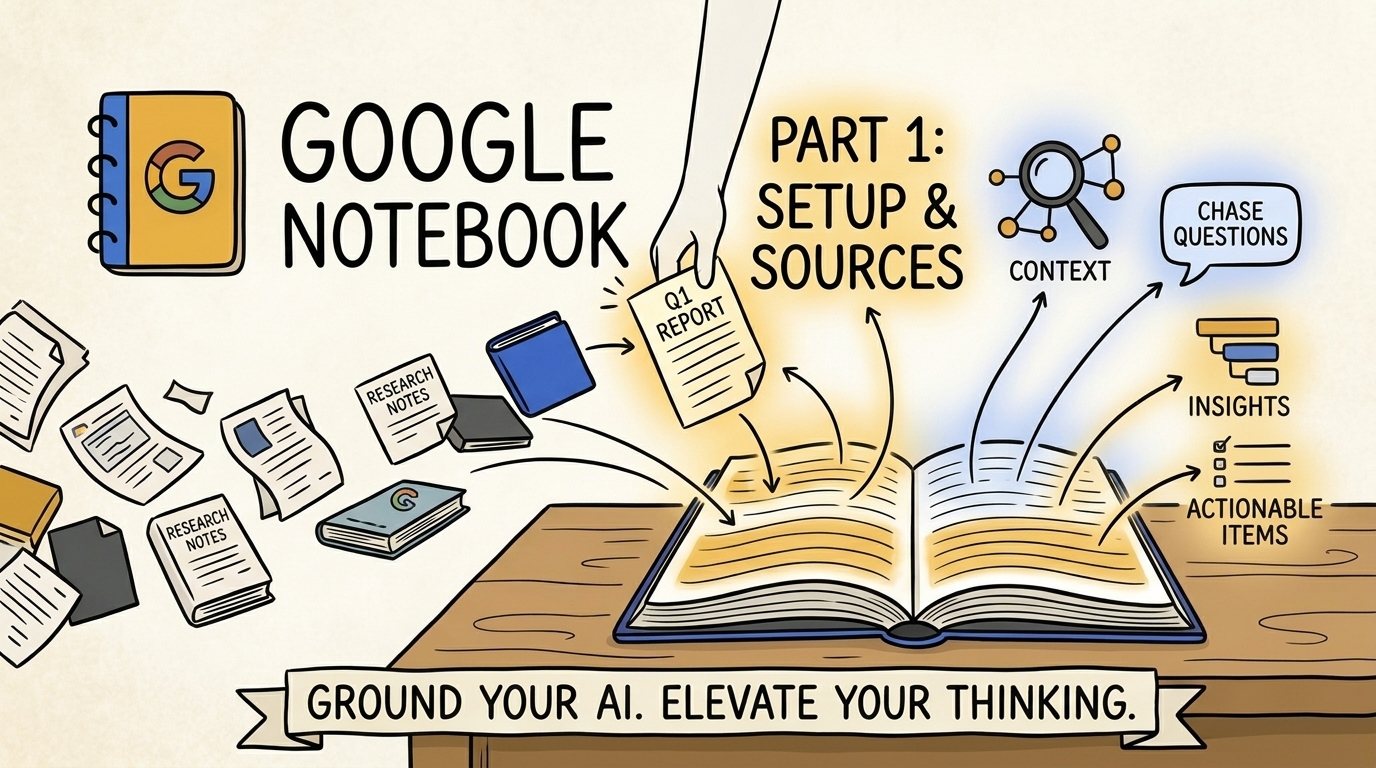
Most people use AI to get answers. Google Notebook gives you something completely different which is the ability to build an AI assistant around the information you choose, then use that information to learn, investigate, compare, explain, and produce useful material.
Imagine having 15 PDF documents, three YouTube tutorials, a collection of meeting notes, and several websites about a project. Normally, you would spend hours reading, searching, highlighting, and trying to connect everything.
With Notebook, you can bring those sources into one place, ask questions across them, identify contradictions, generate a presentation, or even listen to an AI-generated conversation explaining the material.
You don’t need to be technical to do all of this. It can be used by anyone.
This guide is designed to be saved and reused. You can read it from beginning to end if you’re new to Notebook, or jump directly to a particular feature when you need help.
By the end, you will know how to:
- Create and organize notebooks.
- Upload documents, websites, videos, audio, and other sources.
- Discover additional sources through AI research.
- Customize the length, style, focus, and structure of answers.
- Ask better questions and verify citations.
- Generate audio and video explanations.
- Create presentations, infographics, reports, and mind maps.
- Build flashcards and quizzes.
- Compare documents and extract structured information.
- Apply Notebook to work, studying, research, and everyday decisions.
I’ll also share on Part 2 a collection of prompts that you can copy, adjust, and reuse.
Note: Google’s Notebook product has evolved from NotebookLM, and some screens still use the NotebookLM name. This guide refers to it as Notebook. Features, usage limits, and availability can differ by account, subscription, region, and device. The instructions focus on the desktop experience, which offers the broadest set of tools.
Because the information is too extensive I will divide this manual into 2 parts.
1. What is Google Notebook, and why it is different from ChatGPT or Gemini?
Notebook is an AI-powered research and knowledge workspace from Google.
Its main idea is simple: you provide the information, and the AI helps you work with it.
In a conventional AI conversation, you often ask a question and receive an answer based on the model’s broader knowledge and whatever additional information it can access.
Notebook takes a more controlled approach.
You create a notebook, add sources, and ask questions grounded in those materials. The answers can even include citations that take you back to the relevant parts of the original sources.
For example, suppose you’re preparing to buy an electric car.
You could upload:
- Technical specifications for three vehicles.
- Independent reviews.
- Charging information.
- Pricing documents.
- Warranty conditions.
Then ask:
Compare these three vehicles based on battery range, charging speed, warranty, and price. Create a table using only the information in my sources, and identify where information is missing.
Instead of searching through all those documents manually, you receive a structured comparison with references to the source material.
The same principle works for a student preparing an exam, a manager reviewing a project, a developer studying technical documentation, or someone trying to understand an insurance contract.
The three things to understand
There are three things that can make a huge difference in the quality and type of return that you can take from Notebook:
1. Sources are the foundation. The quality and relevance of the documents you provide have a major influence on the quality of the answers.
2. Your instructions control the output. You can request explanations for beginners, technical analysis, comparisons, timelines, tables, or recommendations.
3. The Studio transforms information into different formats. You can generate audio, video, slides, reports, study material, and visual explanations from the same collection of sources.
The important distinction is that Notebook is particularly useful when you already have information, or want to collect reliable information and need to understand or reuse it.
It does not eliminate the need to verify facts and despite having citations to help you inspect the evidence, they are not a guarantee that every interpretation is correct.
2. Getting started: create your first Notebook
Open notebook.google.com and sign in with your Google account.
On the home screen, you’ll find the notebooks you have already created, along with an option to create a new one.
Step 1: Create a Notebook
Select Create new notebook.
Give it a descriptive name. Avoid generic titles such as “Research” or “Documents” because they become difficult to distinguish once you have several projects.
Better examples:
- AI Automation Research
- Project Alpha: Requirements and Decisions
- Learning Python
- Home Renovation Research
- Marketing Strategy 2026
I recommend creating one notebook per project, subject, or recurring area of work.
This makes the information easier to maintain and reduces the chance of mixing unrelated material.
Step 2: Understand the workspace
The desktop experience is organized around three main areas:
- Sources - Stores and manages the information you add.
- Chat - Lets you ask questions, analyze material, and refine answers.
- Studio - Creates audio, videos, slides, reports, visualizations, and study resources.
Think of Sources as your library, Chat as your research assistant, and Studio as your production workspace.
Once you understand those three areas, the rest becomes much easier.
3. Adding sources: The most important part of Notebook
Notebook becomes more useful as you give it relevant, well-organized information.
You can add sources using the Add sources option in your notebook. The available methods include direct file uploads, Google Drive, website links, YouTube links, copied text, and source discovery.
3.1 Supported source types
The sources that are supported by the tool are:
- PDF - Reports, books, manuals, research papers
- Word documents - Contracts, project plans, procedures
- PowerPoint - Presentations and training material
- Google Docs and Slides - Shared work documents
- Google Sheets and CSV - Tables, records, and structured information
- Websites - Articles, documentation, public research
- YouTube - Tutorials, lectures, interviews
- Audio files - Recorded meetings, interviews, lectures
- Images - Screenshots, diagrams, visual reference material
- EPUB - E-books
- Text and Markdown - Notes, transcripts, instructions
Not every type of content is interpreted equally well.
Complex spreadsheets, heavily visual PDFs, scanned material, or websites with restricted content may require additional preparation.
3.2 Uploading documents
Suppose you’re responsible for implementing an AI assistant in your company.
You have a project proposal, a requirements document, a security policy, and a vendor presentation.
Open your notebook, select Add sources, choose the files, and upload them.
Once processed, they appear in the Sources panel.
You can now ask:
Prompt: Understand the documents
Analyze all the uploaded documents and create an executive summary of the project. Explain the objectives, expected benefits, technical requirements, major risks, and decisions still pending. Include citations for every important finding.
You could follow with:
Prompt: Find missing information
Review these documents as an experienced project manager. Identify requirements that are ambiguous, incomplete, contradictory, or missing. Group your findings by business, technical, security, and operational considerations. Do not invent requirements that are not documented.
This second prompt is often more useful than a simple summary because it asks Notebook to identify problems that need your attention.