Shortcuts, Automations, and Security Settings that Give Your Phone an Actual Job
By TechTiff
Published: 2026-10-11
URL: https://techtiff.substack.com/p/iphone-ai-shortcuts-automation
You got a new iPhone, transferred everything over, and now it looks just like your old one. It has the same apps, Home Screen, and job description. So it’s basically just sitting there.
Meanwhile, your iPhone has AI and knows how to automate tasks. Apple Intelligence and ChatGPT work with Shortcuts to read information, make decisions about it, and turn the result into an action. So you should probably give it something to do.
That’s why my iPhone writes an agenda for me before I wake up, organizes my screenshots, tracks my Apple Wallet purchases, and has a plan in case it gets lost or stolen. My job is to check its work.
Let’s get into how to set up your iPhone and give it some actual responsibilities.
Read more:
The Short Version
-
Shortcuts give your iPhone a list of steps to follow, and AI handles the steps that need information to be processed.
-
Automations run your Shortcuts at a set time, after a Wallet purchase, when you arrive somewhere, or based on a trigger you decide.
-
The Action Button, Back Tap, and NFC tags start a Shortcut the moment you decide to run it.
-
Stolen Device Protection and Find My protect the phone that’s doing all this work.
Shortcuts Give Your iPhone a Job
Shortcuts are basically to-do lists for your iPhone. Start with a job, give it the steps to follow, and decide what should happen when it’s finished. Each action is another instruction, and your phone follows them in order to complete the task.
Add AI to that process and it handles the steps that need information to be processed or a decision to be made. AI helps with organizing information, categorizing purchases, or summarizing something you’ve saved.
Here are some of the Shortcuts you can set up to give your phone responsibilities like preparing a daily agenda, keeping your screenshots organized, and tracking expenses.
Let Your iPhone Prep Your Day
My morning briefing shortcut is scheduled to run daily at 7:00 AM. First my iPhone checks the weather, unread emails from the last 12 hours, today’s calendar events, and any incomplete Reminders that are due.
Then that information goes to ChatGPT with instructions to organize it into an agenda. When it’s ready, my shortcut sends the response to me as a text message.
So I wake up to a single text message with the information I need, instead of opening any apps. ChatGPT and my iPhone already had their morning meeting and I just review the notes.
Read more:
Give Your Screenshots Somewhere to Go
The Screenshot Manager starts from the Share menu.
When you take a screenshot it gives you a choice to create a Reminder, save the information to Notes, or put the screenshot in an album.
So you’re doing something with the screenshot while you still remember why you actually took it.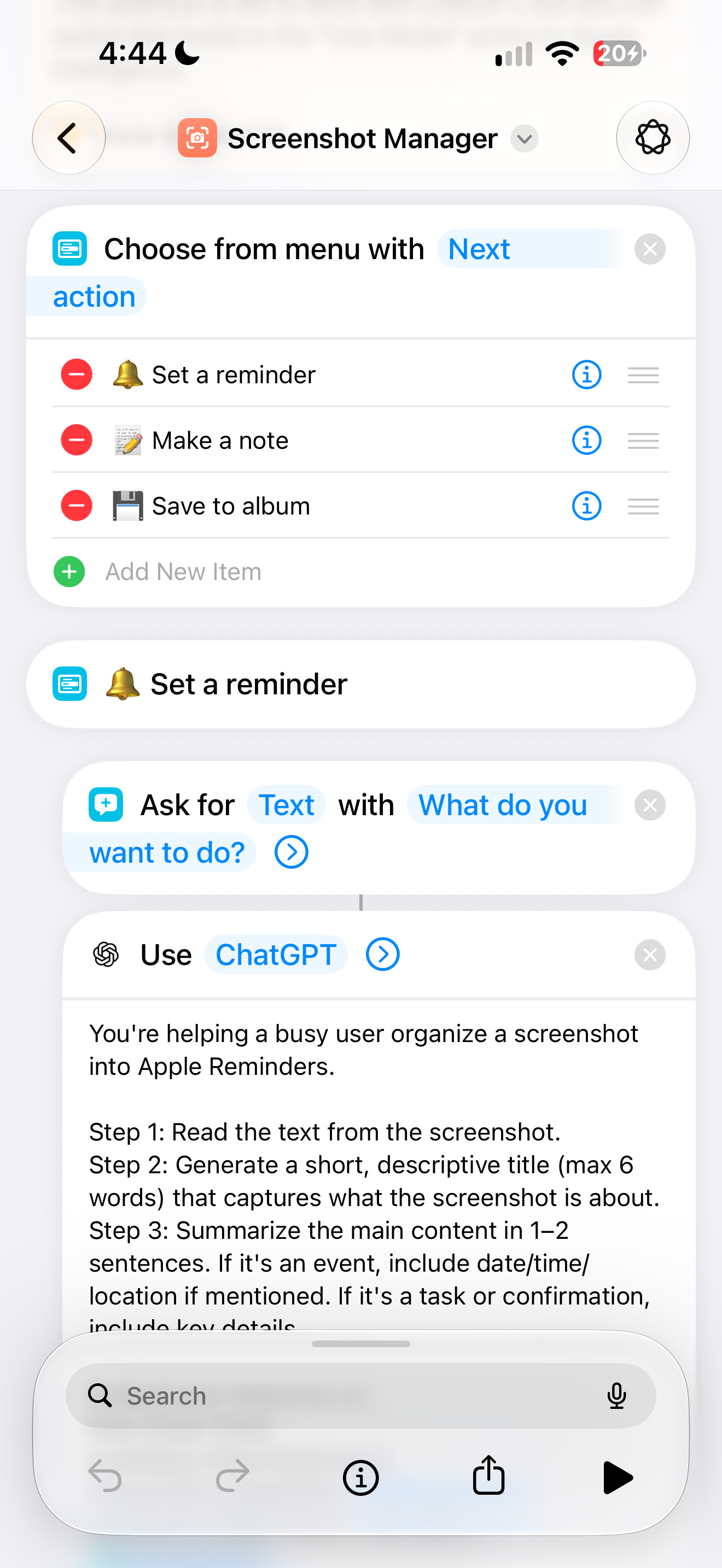
Selecting Notes or Reminders uses ChatGPT to read the screenshot and write a short title and summary.
And screenshots on your computer can use a similar system. Like when I’m working on my MacBook, an automation names my screenshots as soon as they get added to a folder.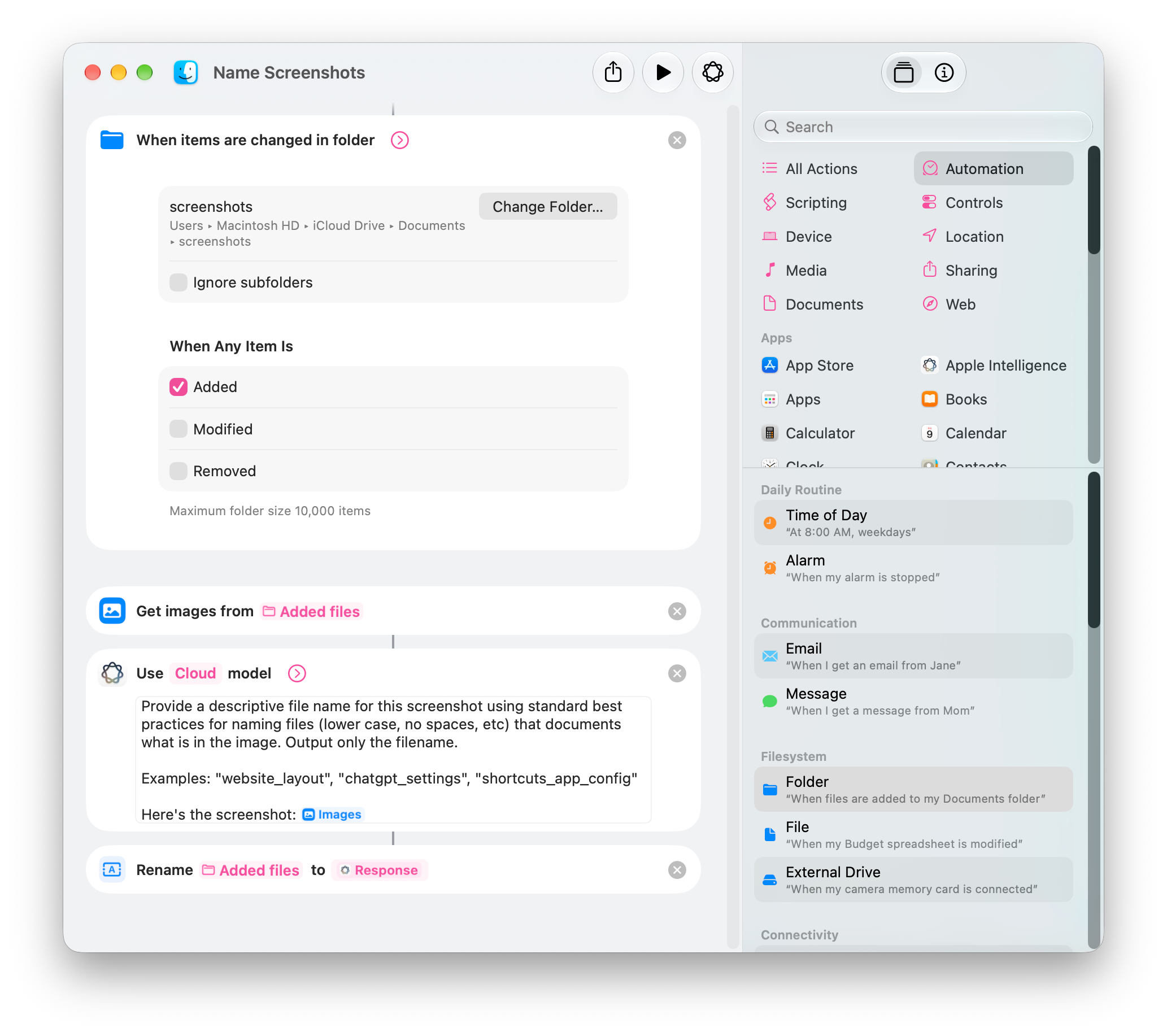 This shortcut runs when I take a screenshot.
First it gets the images, then uses a model to generate the file name, and renames the new file.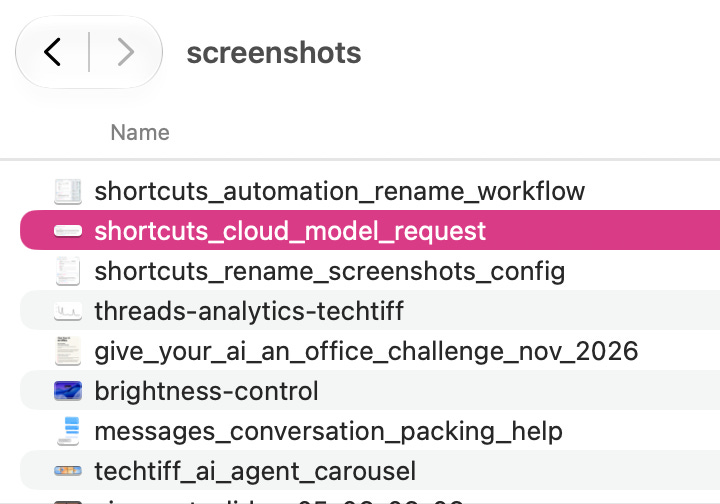
So later on, when I look for a screenshot it actually has a name that makes sense.
Read more:
Let Your iPhone Keep Track of Your Spending
Whenever you pay with Apple Wallet, that transaction can trigger an automation.
So I made a Shortcut that uses AI to analyze the transaction details, categorize the purchase, and then records the expense in a Numbers spreadsheet.
Because your phone already saw the purchase happen, so we’re letting it handle the paperwork too.
Read more:
Decide When Your Phone Clocks in to Work
A Shortcut knows which steps to follow, but you still have to decide what starts it. Automations handle that part for you using events like a time of day, Wallet transaction, or change in location. You choose the trigger that should start the job, then assign the Shortcut you want your phone to run when that happens.
So it’s basically how a Shortcut goes from something you remember to run into a job your phone starts for you.
My Morning Briefing runs on a schedule, before I ask for the day’s information. The Expense Tracker uses a Wallet transaction as its trigger, so when I buy something it starts the logging workflow.
To try this with one of your own Shortcuts, open Shortcuts, select Automation, and decide when your shortcut should run.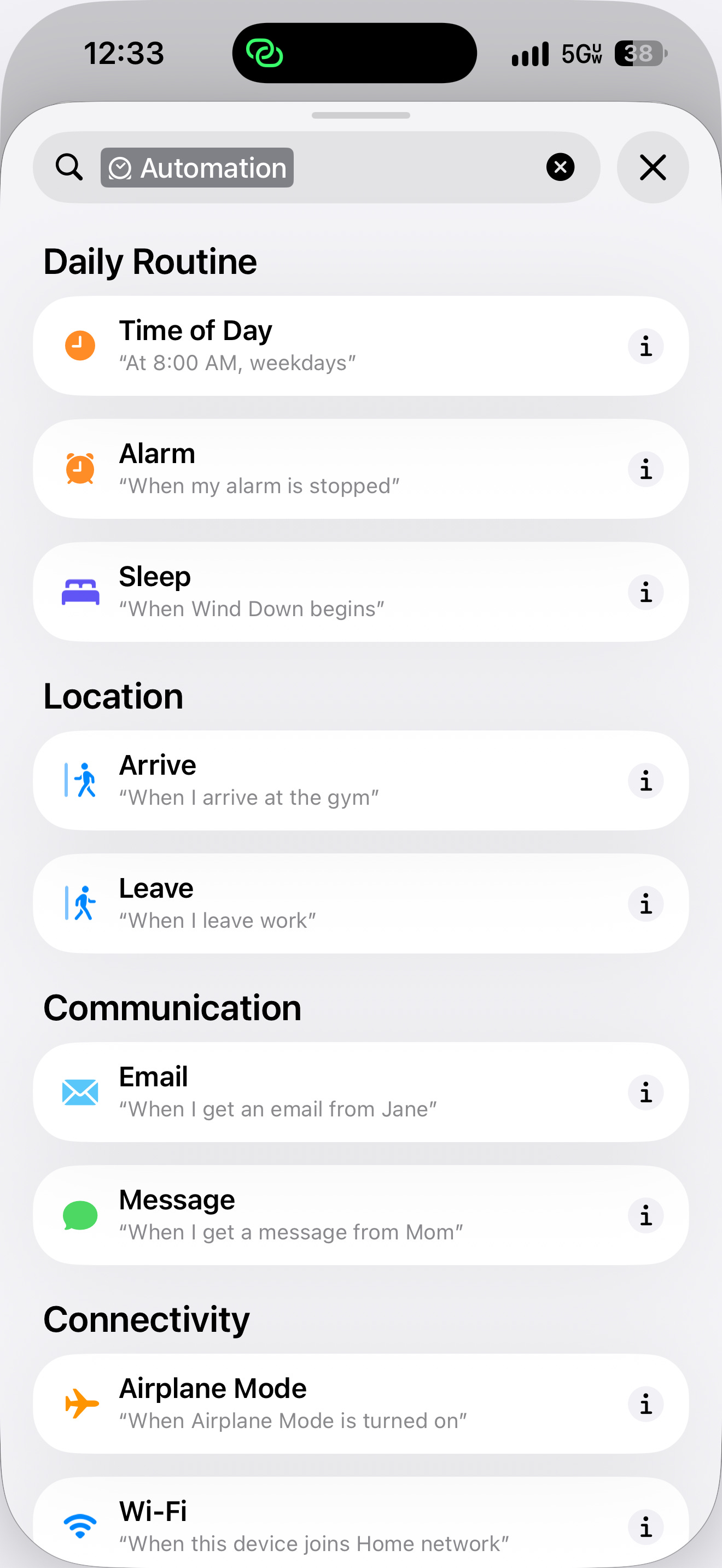
Check whether the trigger offers a Run Immediately option, review any permissions, and test the result before depending on it.
Run Shortcuts From a Button or Tap
Not every Shortcut needs to run on a schedule. Some jobs should start when you decide you need them, without searching through your app library. The Action Button and Back Tap give those workflows a way to launch from the phone itself.
If your iPhone has an Action Button, open Settings, choose Action Button, and select Shortcut. You can assign one workflow, or create a Shortcut with a Choose from Menu action that opens several jobs. I use a menu so one button gives me access to things like my AI assistant and a voice-note workflow instead of limiting the button to one task.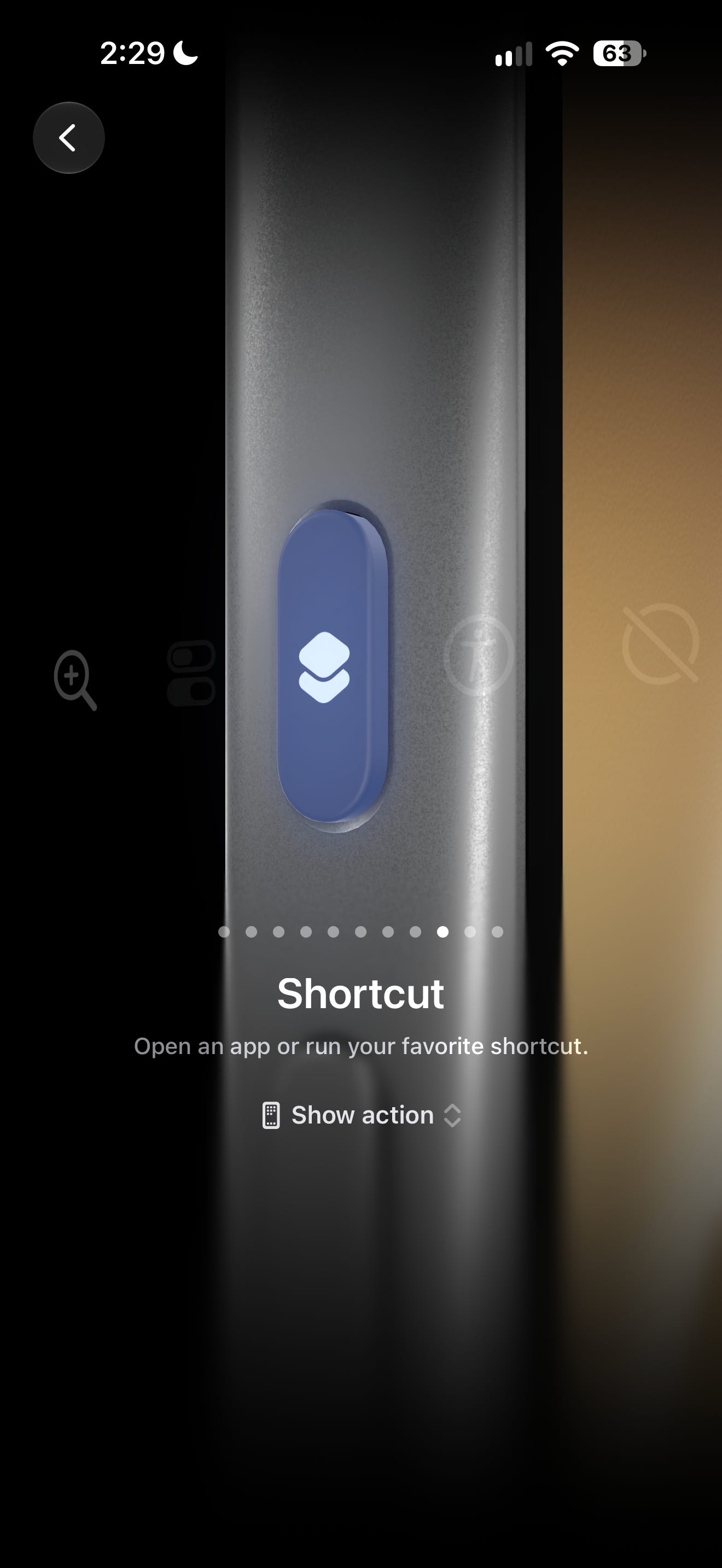
Back Tap gives you two more gestures to assign. Open Settings → Accessibility → Touch → Back Tap, choose Double Tap or Triple Tap, and select a Shortcut.
I use mine to turn on my lights, or a triple tap starts a dictation workflow that saves the result as a Reminder in my shopping list.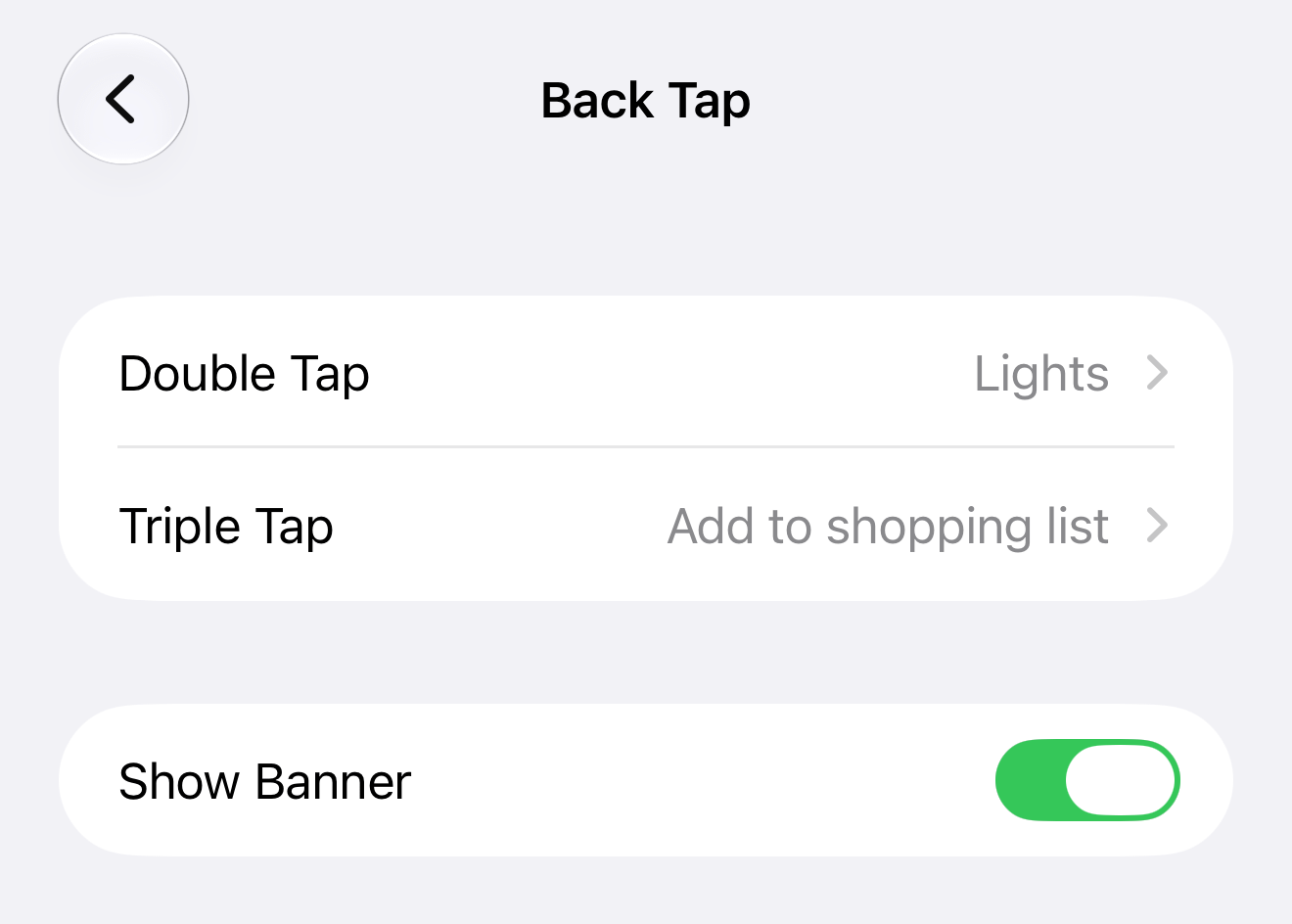
Use physical triggers for jobs you want to start yourself, and Automations for work that has a predictable trigger. Both launch the same kind of Shortcut, so you don’t have to learn a separate system for each one. Once you’ve built a workflow, choosing how to start it is part of the setup.
Give an Old Debit Card a New Job
Your debit card can start a playlist, open an app, or text your mom, and right now all it does is spend money.
Debit cards, transit passes, hotel keys, and NFC stickers all have a small chip your iPhone reads when you hold it close. Shortcuts uses that chip’s ID as a trigger. My expired debit card stopped paying for things, but the chip still works, so a tap turns on my focus mode and shuts down distractions.
To set one up, open Shortcuts, tap Automation, tap the plus button, and scroll to NFC. Scan your tag, give it a name you’ll remember, and choose the Shortcut it should run. Stick tags where the job happens, like your desk, your car, or your nightstand.
Read more:
Protect the Information Your Phone Is Working With
Giving AI a job often involves sharing information from your notes, messages, screenshots, or calendar. Check the input to each Shortcut and which model is receiving it, especially when you’re working with personal information.
An on-device model and an external AI service have different data-handling arrangements, so use the option that fits the information involved. Before sending personal notes, messages, or screenshots to ChatGPT, check exactly what information your Shortcut includes in the request. Leave out anything AI doesn't need to complete the task.
I also check the iPhone’s built-in security settings before I finish a new setup.
Go to:
-
Settings → Face ID & Passcode to turn on Stolen Device Protection.
-
Settings → [your name] → Find My → Find My iPhone to check that Find My iPhone, Find My network, and Send Last Location are enabled.
Those features need to be configured before your phone disappears if you expect to use Find My to locate it or place it in Lost Mode.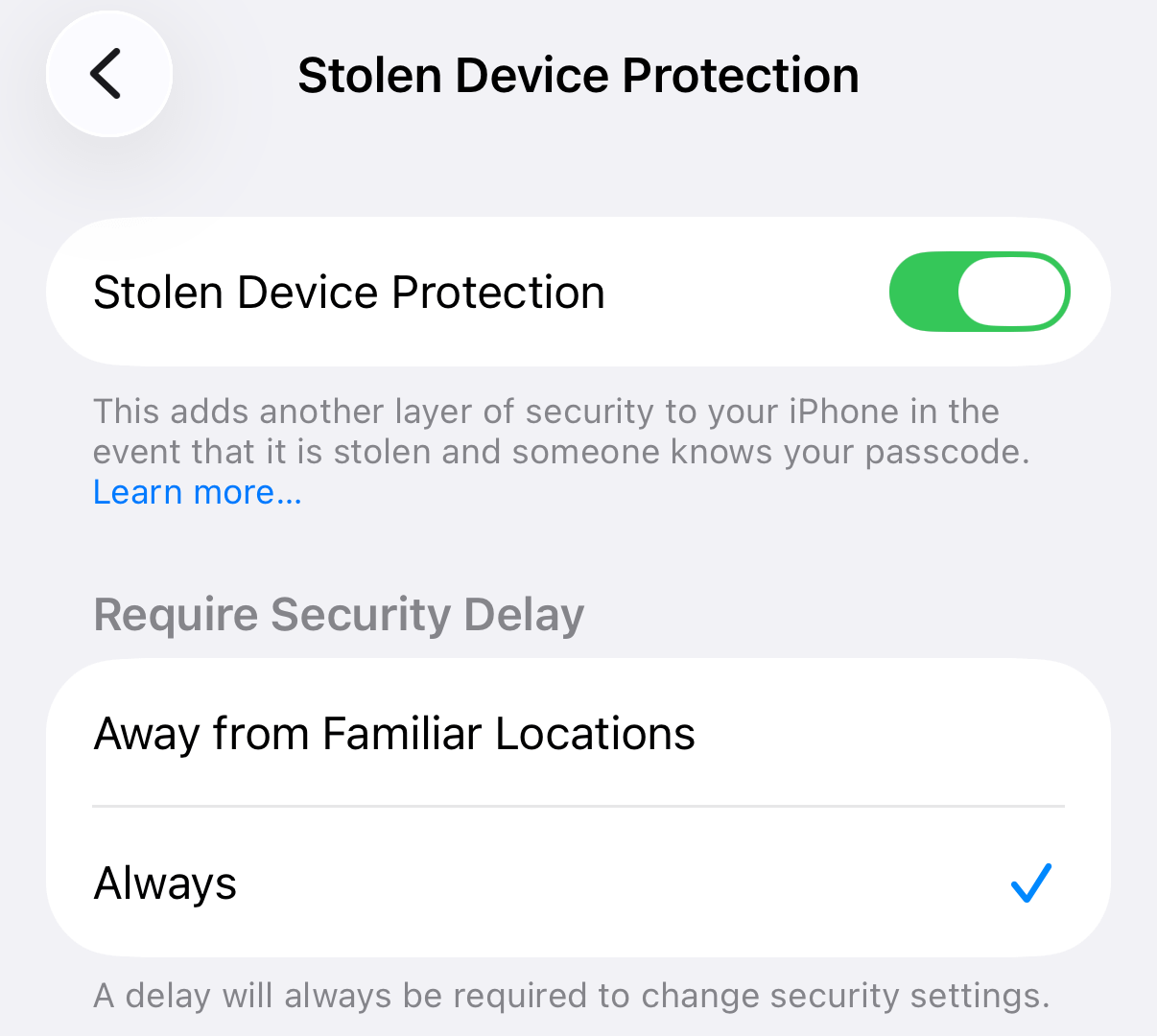
If your phone is stolen, you can mark it as lost through Find My on another device or at iCloud.com/find. If you erase the stolen phone remotely, leave it associated with Find My so Activation Lock remains in place.
Removing a stolen device from Find My also removes Activation Lock, making it easier for someone else to activate the phone.
Read more:
I’ve also built a separate Shortcut that changes your phone’s Focus, sends your location to a trusted contact, and starts recording during an emergency. The complete guide covers the setup along with the recording and privacy considerations you should review before using it.
Give Your iPhone Its First Assignment
Start with a task you repeat.
Decide:
-
what information the Shortcut needs
-
how AI should process it
-
where the finished result should go
Then choose whether it should run on a schedule, after a specific event, or when you press a button.
Run your Shortcut a few times and check the results before setting it to work automatically. If something isn't working the way you expected, fix the instructions before giving it more responsibility.
Once that job works, add another one that fits the same system. Your phone already has the apps, the AI, and the controls to do more of the work you’re handling manually. Give them clear instructions and let them get on with it.
Your phone should be doing more of the work around here. Subscribe and I'll keep showing you how to make that happen.