How iOS 27 Uses Siri AI, Shortcuts, Safari, Passwords, and Photos to Find, Check, Secure, and Edit
By TechTiff
Published: 2026-09-14
URL: https://techtiff.substack.com/p/ios-27-siri-ai-guide
Today iOS 27 was released, and Siri got a much bigger job on your iPhone.
Now Siri understands more of the information already on your device, sees what you’re doing, and actually acts on that information
Apple has a new name for the version of Siri inside it: Siri AI.
Apple Intelligence is the broader AI system working across iOS 27. Siri AI uses it to understand personal context, find current information from the web, and take action on your device.
On iPhone 15 Pro and newer, Siri AI finds details from your messages, understands what you’re showing it with the camera, and works across your apps to get things done.
So Siri got a much longer to-do list.
Siri AI isn’t the only part of the iPhone doing more work. Shortcuts builds workflows and automations from a description, Safari watches webpages for changes, Passwords deals with compromised logins, and Photos has new ways to edit a shot.
The Short Version
-
Siri works with information already saved on your iPhone, what’s visible on screen, what the camera sees, and actions available inside your apps.
-
Shortcuts creates and edits workflows and automations from a description.
-
Safari uses Notify Me to check for an update online for you, then sends a notification when that information appears.
-
Photos uses Extend and Reframe to edit the composition of an existing image.
-
Passwords can automatically change compromised passwords for supported accounts and save the replacements.
Set Siri Up for the Work
Siri learned how to express herself in iOS 27, so before you start giving Siri more to do, decide how you want her to show up.
Open Settings → Siri → Voice to choose a voice, then adjust its pace and expressivity. 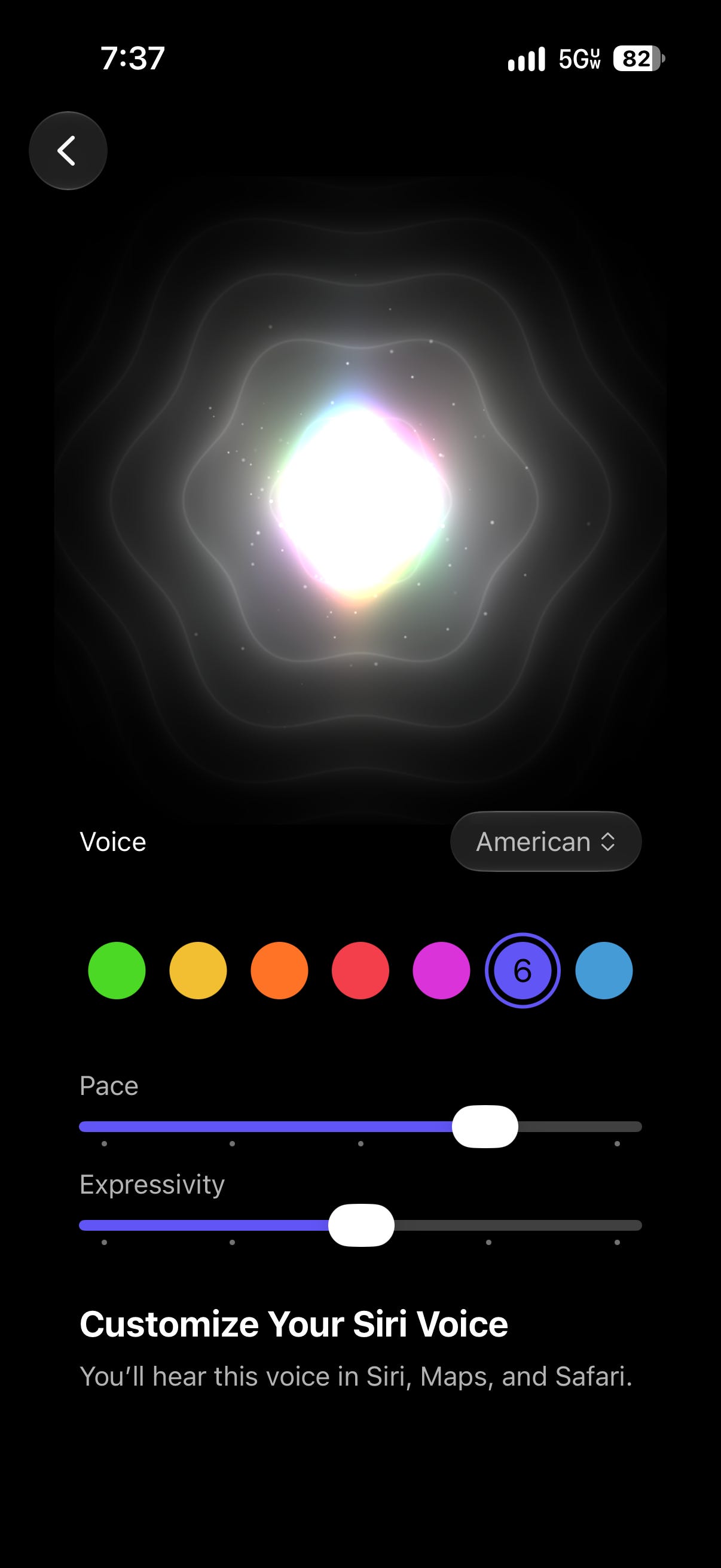
So if you want Siri faster, calmer, or a little more animated when she responds, you get more control over how she sounds instead of choosing a voice and calling it a day.
While you’re in Siri settings, set up the rest of the workspace too.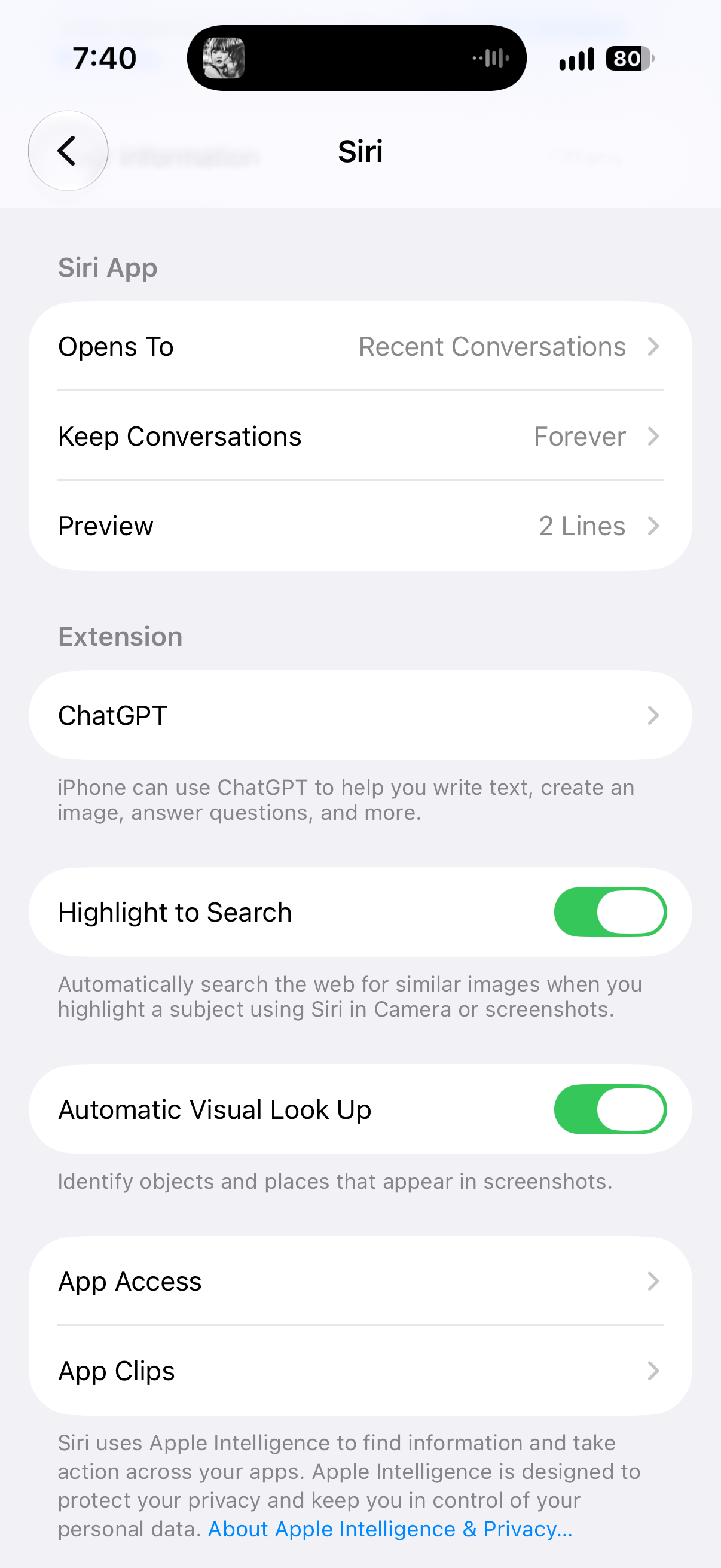
This is where you control the Siri app, manage conversation settings, and decide which apps Siri has access to. Those permissions matter once you start asking Siri to find information and take action across your phone, because Siri needs access to the apps involved in the assignment.
Give Siri the access you’re comfortable with, set the voice you actually want to hear, and then put her to work.
Here are five places to start putting iOS 27 to work:
1. Make Siri Find It
Instead of digging through your phone to find what you need, start by asking Siri about what you’re looking for. Siri AI works with information across your iPhone, so ask for what you need and let Siri find where it is.
And Siri uses what’s on your screen as context, so ask about a website, photo, or whatever you’ve got open.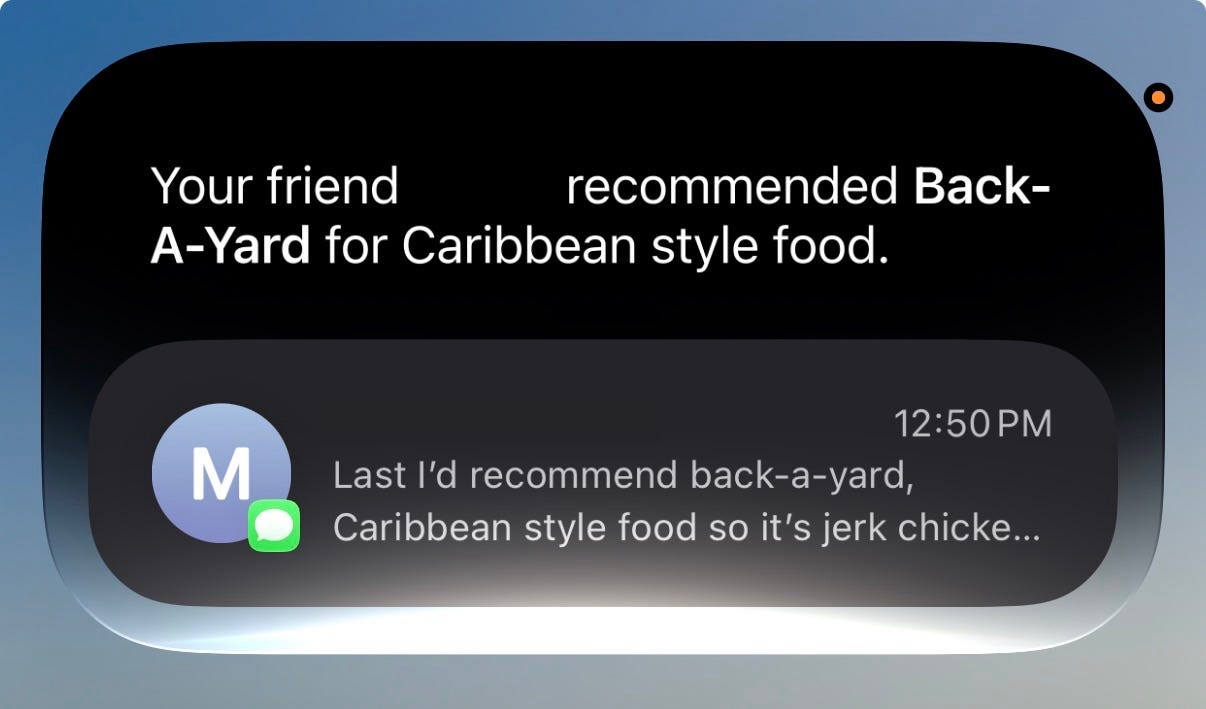 Ask, “What’s that restaurant my friend mentioned the other day?” and Siri finds the relevant conversation and gives you the answer.
Or open your camera, switch to Siri mode, and it uses what you’re looking at as context for the request. Point Siri at a flyer and it recognizes the events without needing a photo first. Tap Add to Calendar to review what it found.
Point the camera at something in front of you and give Siri the task there.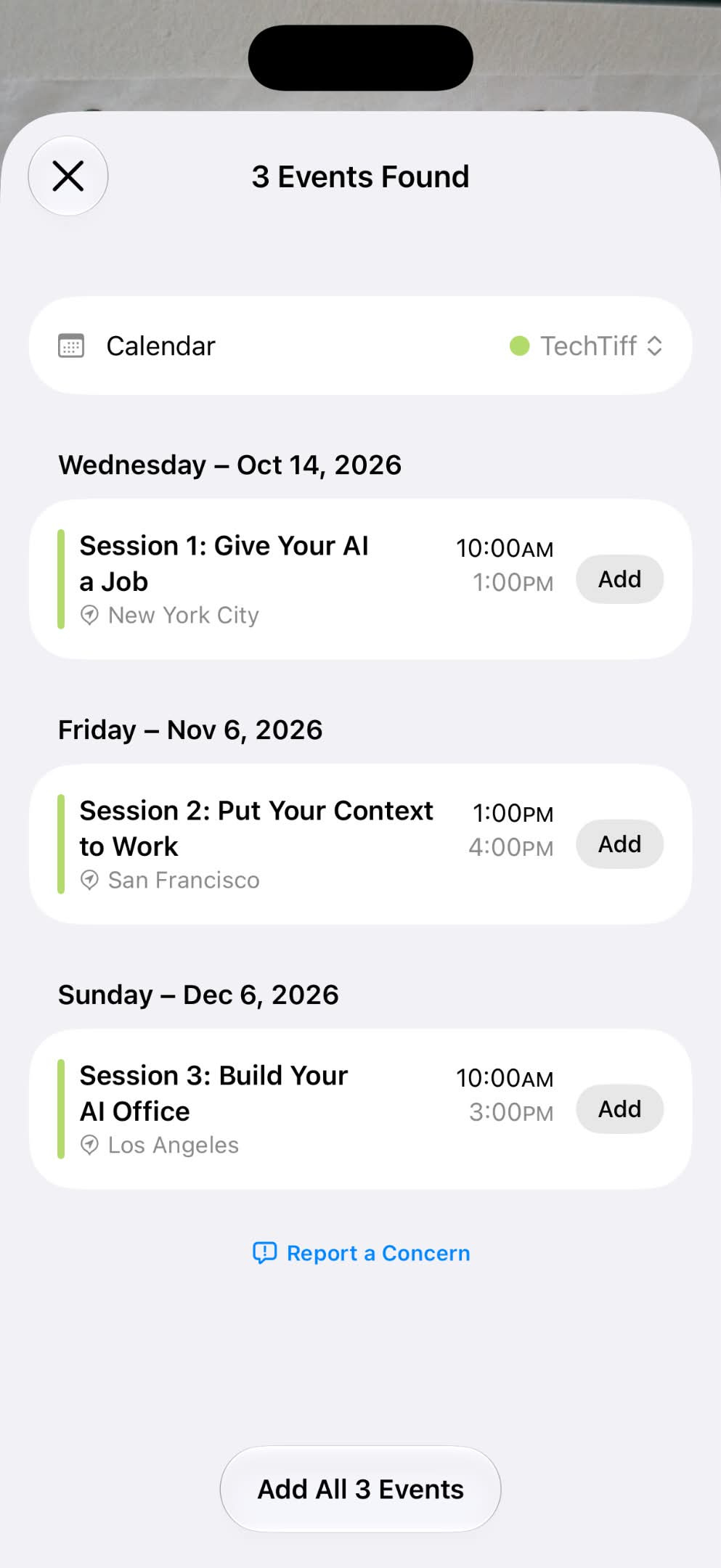 Siri turns the information on the flyer into Calendar events, then lets you review each one before adding them.
Siri also takes action inside supported apps, including third-party apps. Ask it to draft an email, send a message, or handle the next step of a task. Then review anything it prepares before it gets sent.
Siri actually understands what’s in front of you. So you’re just asking for the result you want and letting Siri handle the app switching.
2. Describe the Result
Now Shortcuts creates workflows from a description, so you just explain the result you want, what information your phone needs to work with, and when the routine should run.
Your phone uses Apple Intelligence to select the actions and set up the Shortcut. Then you can keep editing that Shortcut by giving new instructions.
Open Shortcuts, create a new one, and describe what you want it to do.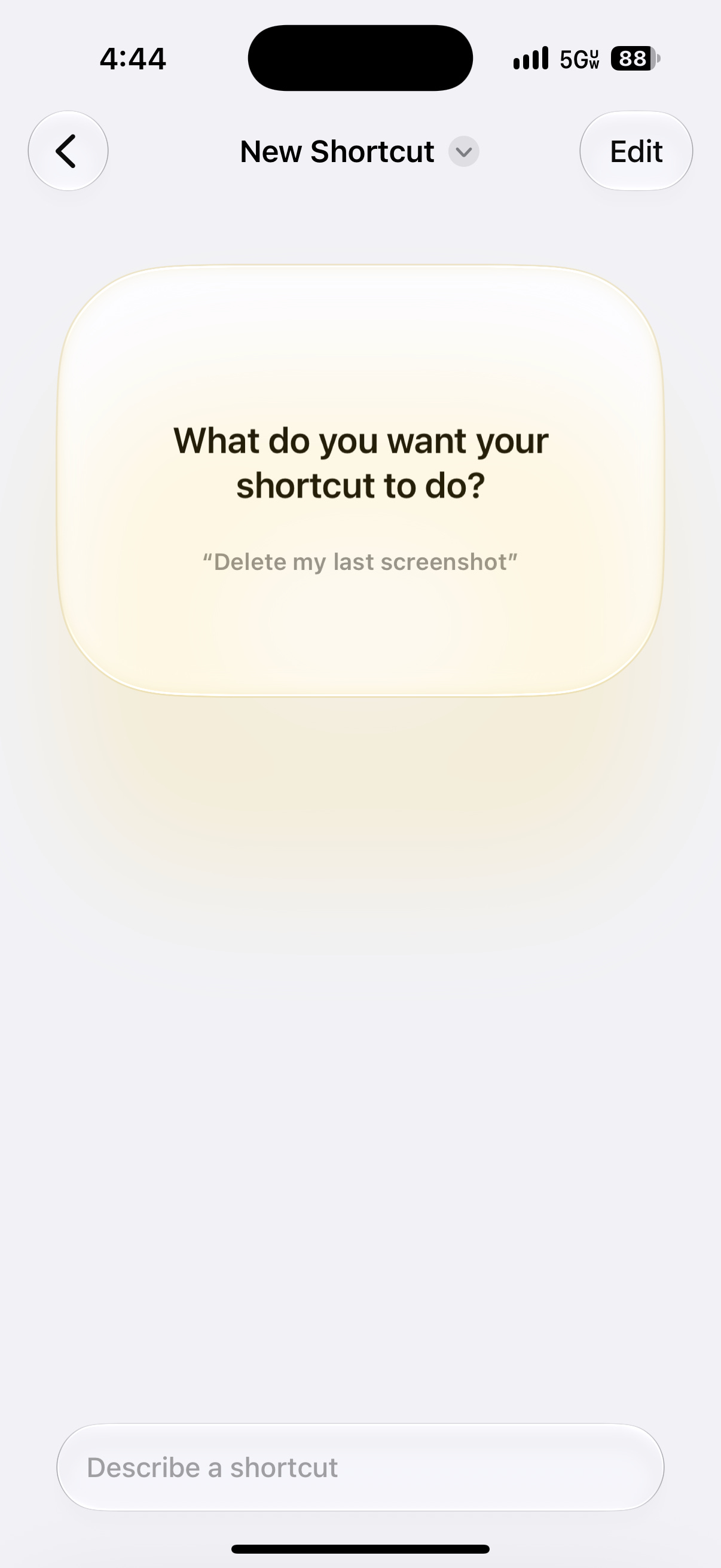
Include what it needs to check, when to run the schedule, and what steps should happen.
Turn on Use Broad World Knowledge when your Shortcut needs to get current information from the web. Broad World Knowledge gives a shortcut access to search the web for current information when the task needs it.
Apple Intelligence also gives Shortcuts different options for the AI work inside the routine, including On-Device, Cloud, Cloud Pro, and ChatGPT.
iOS 27 also adds new Shortcuts actions that save information between runs, so a Shortcut remembers something after it finishes and uses it again later.
Read more: How iOS 27 gives Shortcuts a memory and what you can actually do with it
3. Make It Watch for Updates
Some work is just checking the same webpage over and over because you’re waiting for something to change.
Safari looked at your open tabs and said, “I’m handling this myself.”
Open the webpage you want to track, tap the menu, and choose Notify Me. Tell Safari what you’re waiting for and how often to check.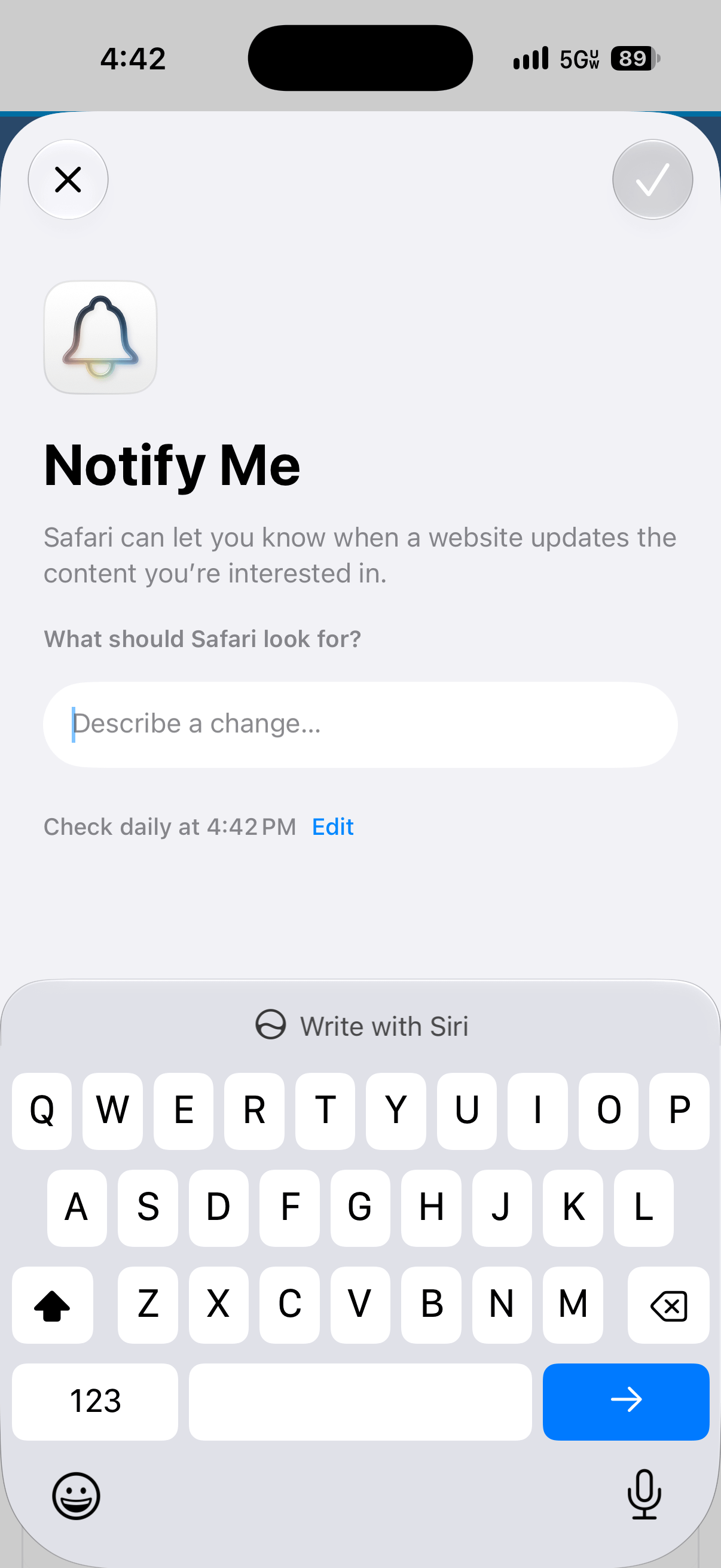
Ask it to watch for a price drop, an item coming back in stock, registration opening, or permits opening up. Safari checks the page in the background and sends a notification when the condition is met.
When setting up alerts, go to Settings → Apps → Safari → Notifications and make sure notifications are turned on. Otherwise, Safari has updates for you and absolutely nowhere to send them.
Existing alerts live under Settings → Apps → Safari → Notify Me, so you have a single place to review or change what Safari is watching.
Then close the tab and put your browser to work.
4. Make It Secure Your Passwords
Safari handles the waiting and Passwords handles the security follow-up.
Start inside Settings and make sure AutoFill Passwords and Passkeys is turned on, then open the Passwords app and tap Security.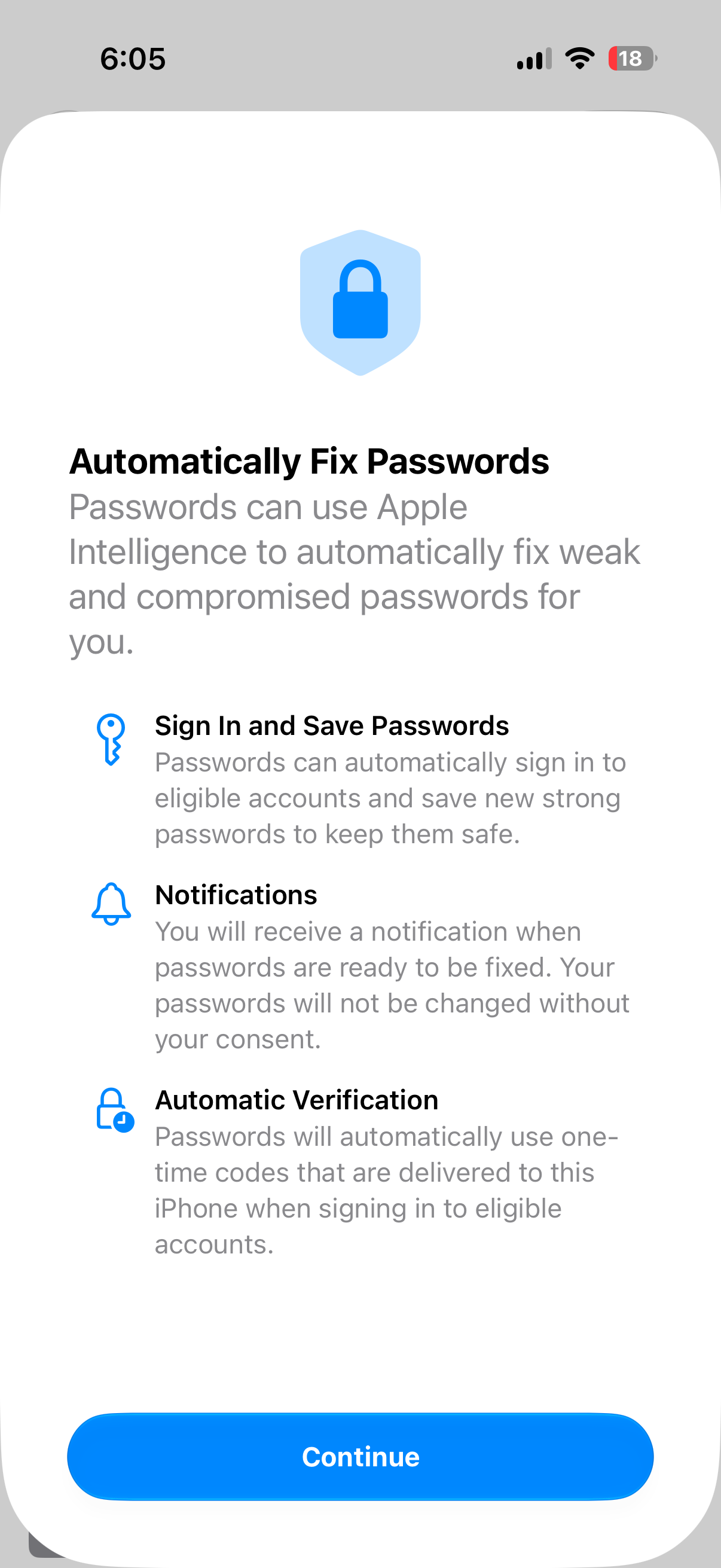
Under Automatically Fix Passwords, tap Get Started, review which accounts your iPhone should update, and choose Fix Passwords. For supported accounts, your iPhone signs into the website, creates a strong replacement, changes the password, and saves the new credential in Passwords.
If automatic repair doesn’t finish the change, choose the account and tap Change Password on Website.
Your iPhone takes you to the website to finish it manually. Passwords identifies the login that needs attention, then handles more of the work after it finds the problem.
5. Make Your Photos Edit Themselves
Photos also picked up more work inside the editor.
Open a photo and go to Edit → Tools to work with Clean Up, Extend, and Reframe.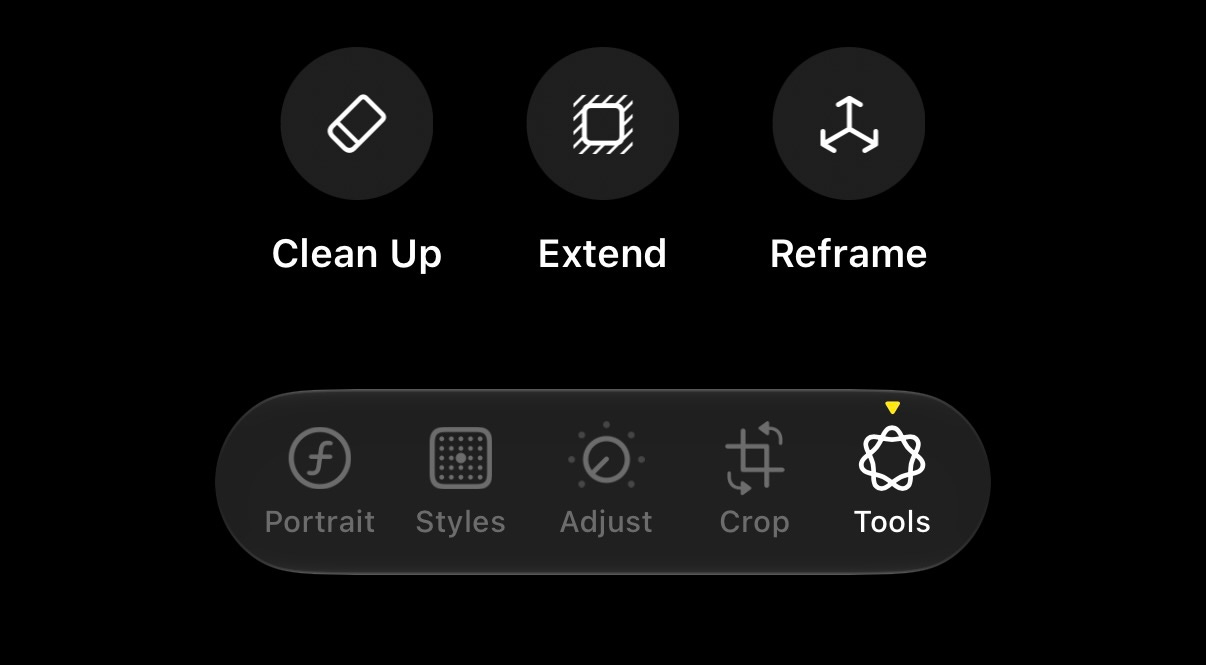
Clean Up got an upgrade. It removes larger objects with higher quality and uses a more realistic fill.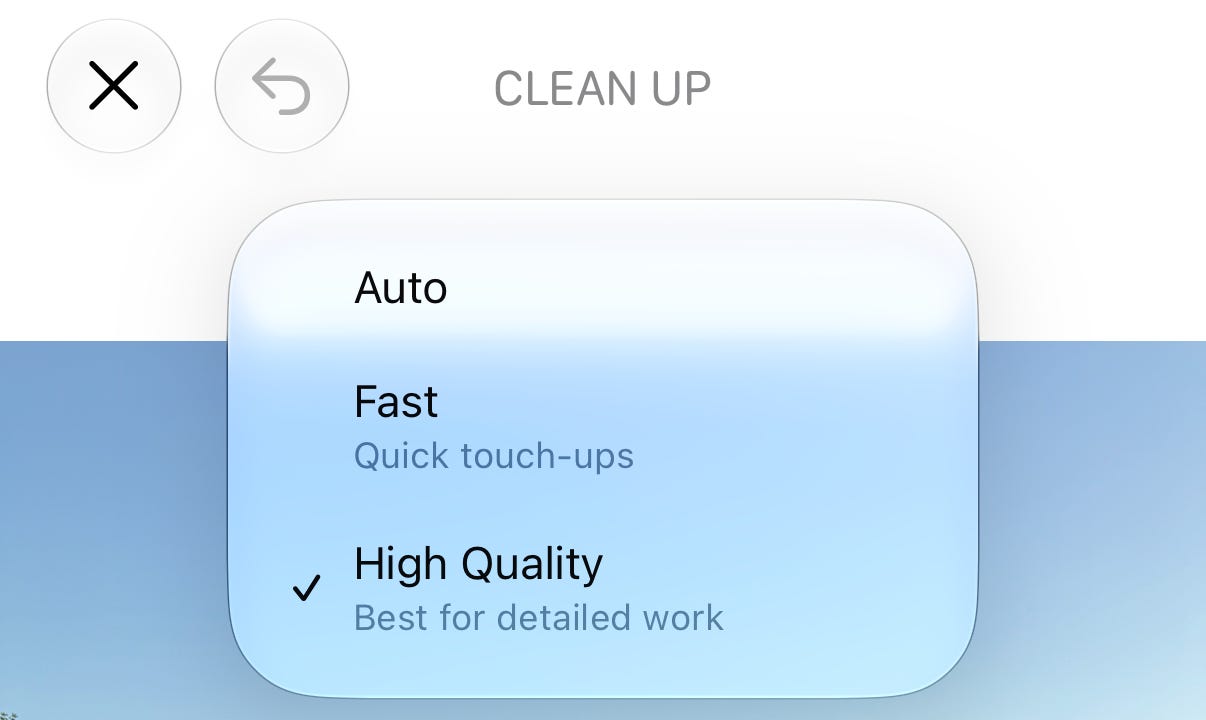
Choose Fast for quick touch-ups or High Quality for detailed edits.
Extend expands the image beyond the original edges of the photo, generating new content to fill the added space.
Reframe changes the composition of the photo by adjusting how the subject and surrounding scene are framed.
Extend handles the edges, Reframe handles the composition, and Clean Up handles the distraction.
Send this to someone whose iPhone is still just sitting there unemployed.
Give Your iPhone the Next Task
iOS 27 gives Siri more information to work with and more ways to act on it. The next step is giving it an assignment that normally sends you bouncing between apps, double-checking details, and putting the result somewhere else.
Prep Your Daily Update
Use this to have Siri check your apps and give you the relevant information about your day without making you open each app yourself.
“Prep my daily update.”
Siri checks your weather, calendar, reminders, and recent messages before preparing an update.
Review Your Work
Use this to have Siri search the web to find up-to-date information and use it to find the gaps in your work.
“Open [note name] and use Broad World Knowledge to check what’s missing. List what I still need to add, flag incorrect information, and save your recommendations in a new note.”
Siri starts with your note, checks current outside information, identifies what still needs attention, and saves the next steps in a new note.
Organize Your Photos
“Hey Siri, find any photos I took in the past week and move anything that isn’t marked as a favorite to my Archive album.”
Siri finds the photos that match the request, checks the condition, and moves the result where you asked.
iOS 27 gives your iPhone more context and ways to act on it.
Tell Siri what you want finished and let your iPhone handle the details.
Get new shortcuts, AI workflows, and setups delivered straight to your inbox.