Inside Google Pics: A New AI Image Editor for Google Workspace
By TechTiff
Published: 2026-09-01
URL: https://techtiff.substack.com/p/google-pics-ai-image-editor
Google Pics just launched, and it’s built to make AI image edits a lot more consistent.
Pics is a new Workspace app for generating images and targeting edits to the objects and text inside them. Select the part that needs work, describe the change, and Pics uses that selection to guide the edit while keeping everything else in the picture consistent.
Meg Whittenberger, a Google product manager working on Pics, walked me through the editor ahead of launch. She explained that Nano Banana handles generation and editing while Gemini identifies the objects and text you select on the canvas.
Pics is built on Google’s Nano Banana image generation and editing model, so it essentially gives that model its own editor inside Workspace. Pics identifies the individual objects and text inside an image, so when you select something, it already has information about what you’re pointing to.
Pics is built for the image that’s already almost right and needs one specific change.
The Short Version
-
Google Pics generates new images or edits existing files imported from Drive, Google Photos, or a computer.
-
Select an object, area, or embedded text and describe the change instead of rewriting the entire image prompt.
-
Pics changes aspect ratios, applies style filters, upscales images, and supports multiple edits at once.
-
Docs and Slides connect directly with Pics, while one-click editing from Drive is coming later.
Break the Image Into Editable Parts
Start with a prompt, import an existing image from Drive, Google Photos, or your computer, or add another image as a content or style reference.
Once the image is on the canvas, Pics identifies the individual objects and text inside it. Select the part that needs work, describe the change, and send that specific edit through the image model instead of rewriting the entire prompt.
Group multiple edits together before submitting your request to save time.
Text gets its own editing workflow. Change or translate text inside an image, tell Pics which terms should remain unchanged, and choose from the generated translations.
The toolbar handles crops, aspect ratios, style filters, revision history, collaborative editing, and 2K and 4K upscaling.
Google says object edits leave the surrounding image unchanged and text edits retain their visual treatment. Both results still need a final review against the original image.
The Edit Stays Connected to Your File
Open Google Pics at pics.new, or by tapping Edit on an image in Docs or Slides.
Pics brings back multiple options for you to choose from. Select the version you want, then continue editing directly on the canvas.
From there, select an object, text, or marked region and describe the change. Make several edits together or work through them individually depending on what the image needs.
Inside Docs or Slides, select Replace image to place the revised image right back into the document or presentation. Pics files also live in Drive, support sharing and revision history. So you’re not downloading an asset, editing it somewhere else, and uploading another copy.
Edit the Image Without Starting Over
Start with something from Drive, Photos, or your computer and change the details that need work.
If a finished graphic has incorrect text, select the words and enter the correction. Pics applies the correction inside the existing composition instead of asking you to regenerate the image from scratch.
For visual changes, select an object or draw over an area and describe the edit. Pics isolates that part of the image and applies the requested change while keeping the surrounding image in place.
Up to five edits can be submitted together.
For other visual changes, select an object or draw over the area and describe what should be there. Or use it to handle things like removing an object, replacing something in the background, or changing one detail without adjusting the rest of the picture.
Google says Pics preserves the surrounding design while changing the selected area, but spelling, typography, faces, logos, and anything you did not intend to change still deserve another look before the image is finished.
I Tried It on a Real Photo
I tested the workflow with a photo of my dog, Nike. I started by adding a brick wall beneath her, which gave the whole thing a slightly accidental Humpty Dumpty situation.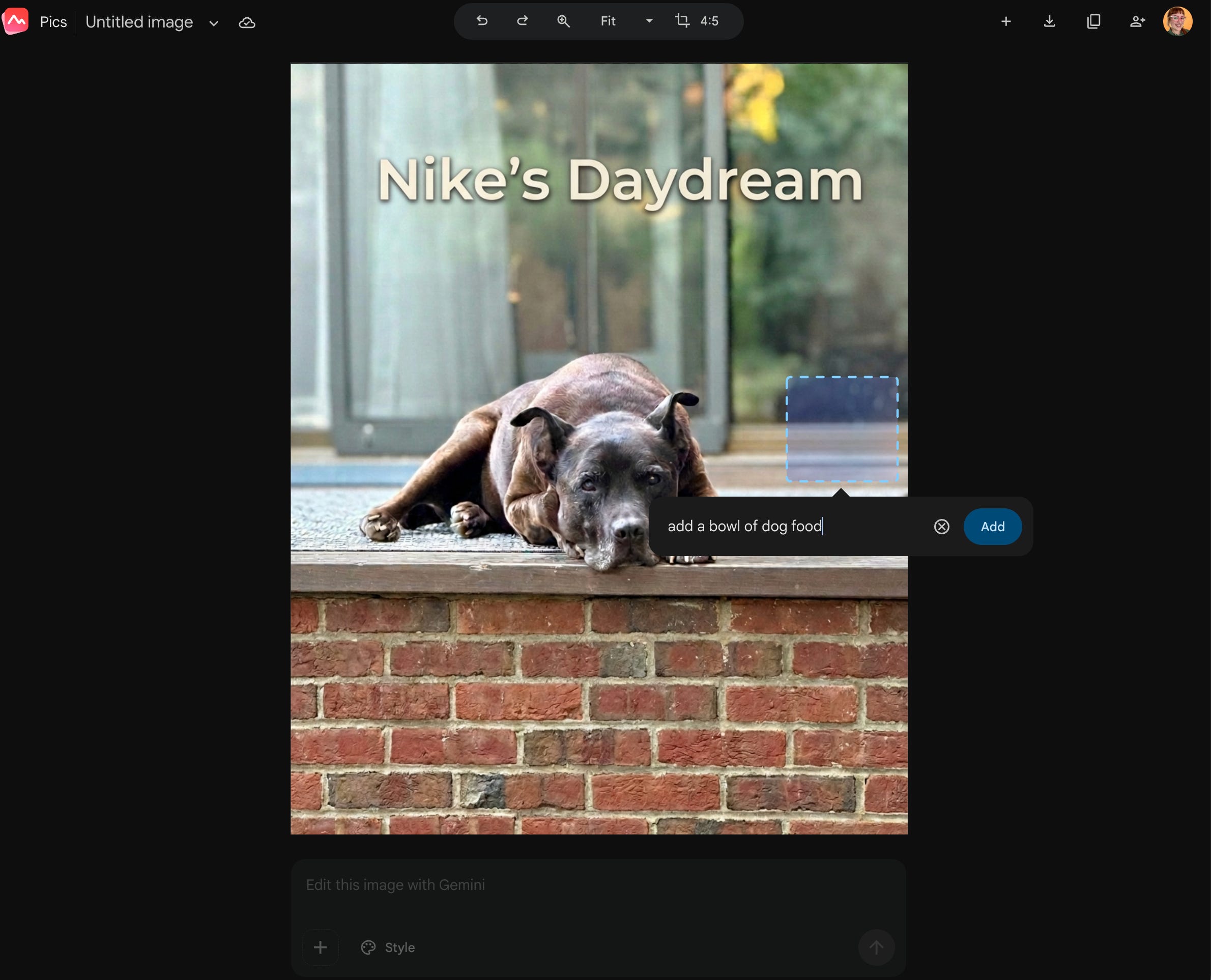 Instead of rewriting the full prompt, mark the area that needs work and describe what should change there. The selection gives the model a much narrower editing target.
From there, I added a bowl of dog food beside her, a heading at the top, and “Pup Power” across the brick.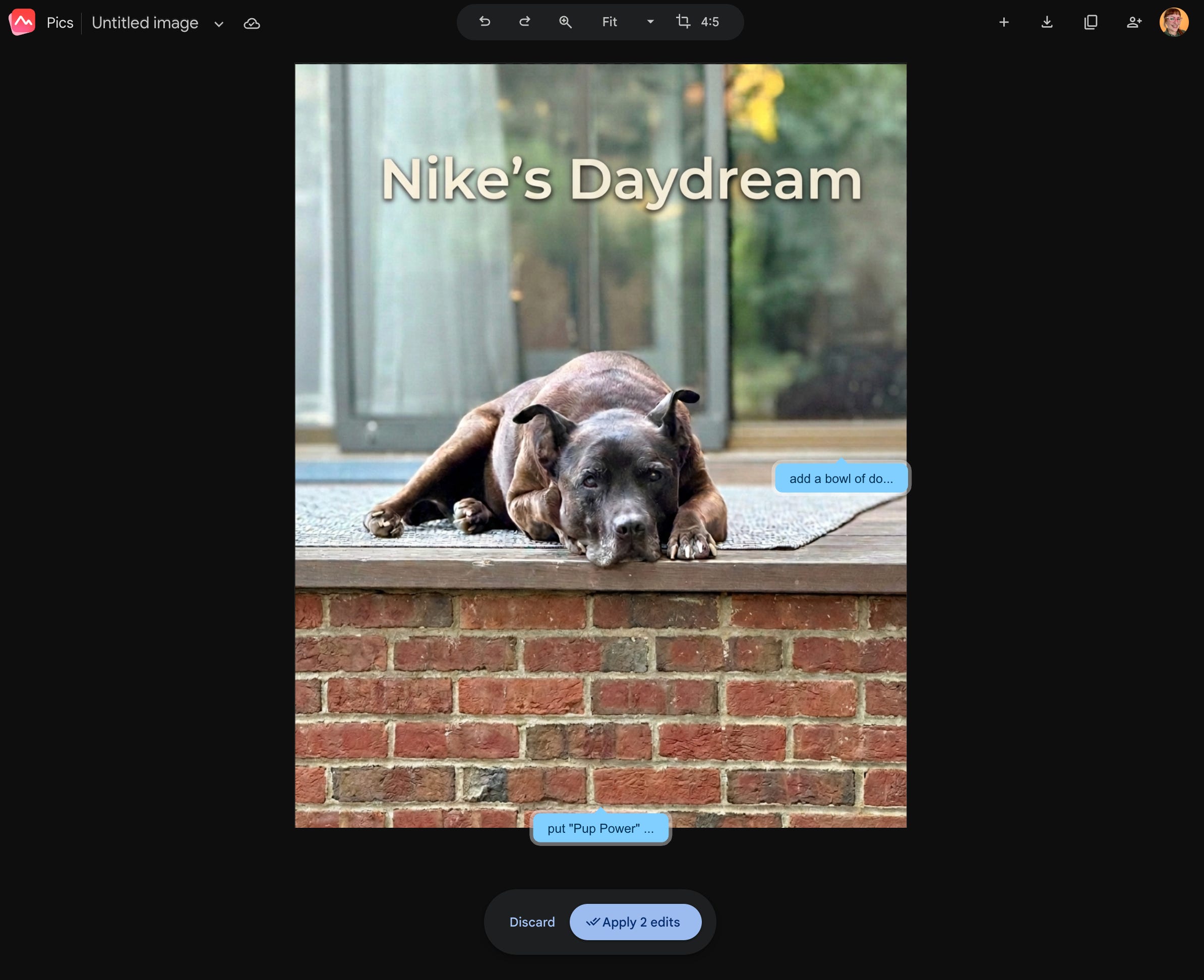 Pics lets you queue multiple changes before generation. Here, two separate edits are attached to specific parts of the image and ready to apply together.
Each change started from the same image. I marked the area I wanted to edit, described what should go there, and stacked multiple edits before applying them together.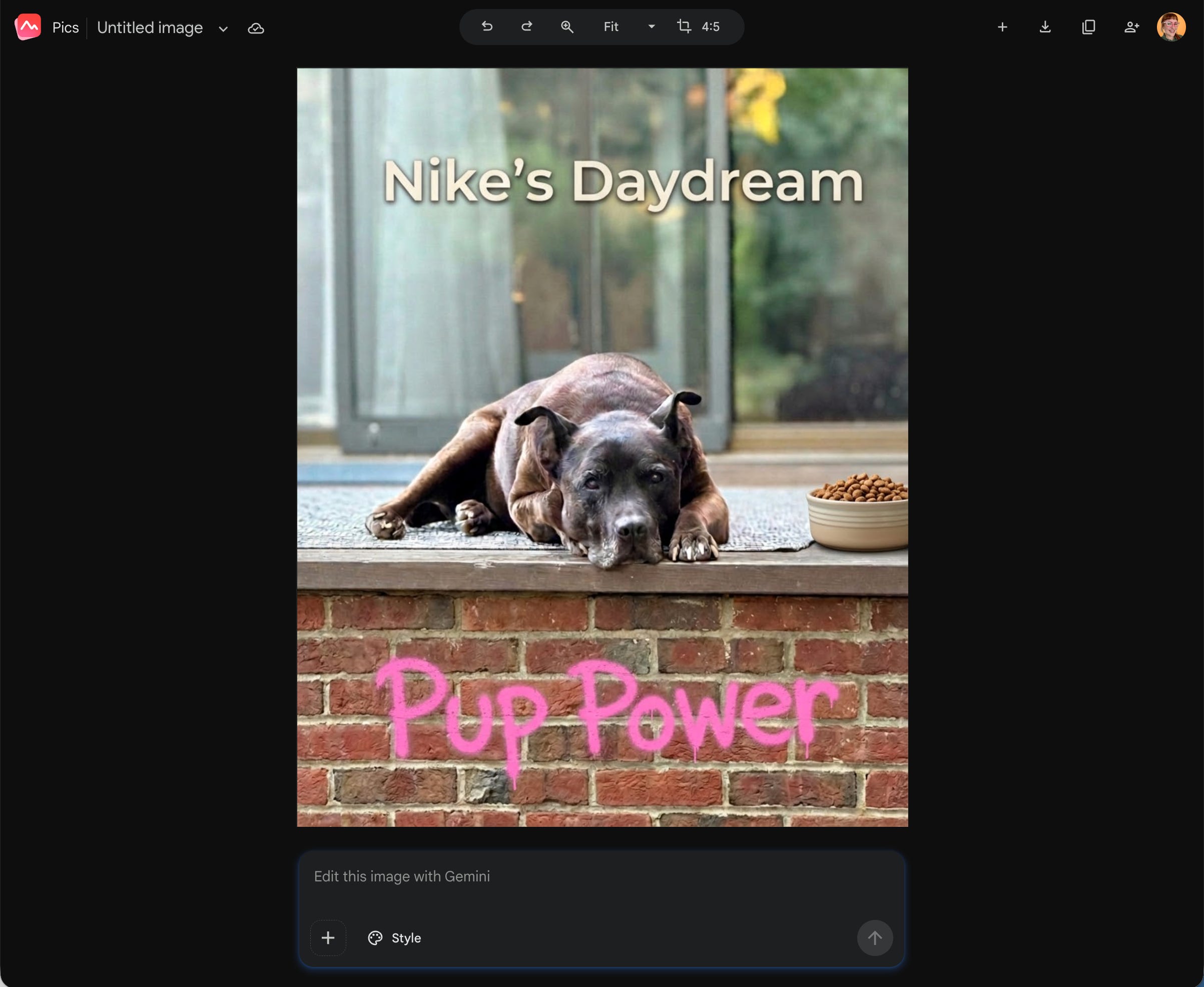 Two targeted edits applied to the same image: a bowl of dog food added beside Nike and “Pup Power” added to the brick without rebuilding the entire composition.
That’s the part of Pics I wanted to test: whether I could keep working on one image without rebuilding the whole thing every time I changed my mind.
Revision history gives you a record of the image as it changes, so you can move backward through earlier versions instead of treating every edit like a point of no return.
That matters when you’re stacking several AI edits onto the same image and want to compare what changed along the way.
It also makes Pics feel more like a real editing workspace than a one-shot image generator.
Docs and Slides connect directly with Pics, while one-click editing for images stored directly in Drive is coming later.
Put It to Work
Use Pics where the work already is: on the image that’s already close, inside the file you’re already editing.
Start with something you already have that needs another pass. Change the headline, replace an object, translate the copy, or adjust the format for where the image is going next.
Use the canvas as part of the editing process. Make the change, review the result, and keep working. If the image belongs in a Doc or Slide, use Replace image to send the finished version back into the file.
Before using the image, check the text, faces, logos, spacing, and the areas you didn’t ask Pics to change. Generated edits still need a full check, especially when text or branded elements are involved.
Then move the finished image into the next step of the workflow.
Get practical AI workflows, new tools, and clear ways to use them in the work you’re already doing, delivered right to your inbox.
Inside AI Flow Club, we build practical, repeatable AI workflows around the work you already do, including where review belongs before an AI-generated result becomes finished work.