How Firefly makes the music, voiceover, and sound effects that finish the video.
By TechTiff
Published: 2026-08-20
URL: https://techtiff.substack.com/p/adobe-firefly-ai-music-speech-sound-effects
Firefly started running the whole creative workflow. Now it’s generating music, sound effects, and voiceovers.
The AI Assistant already runs multi-step creative projects for images and videos, picking the tools and pushing the work forward from one request to the next. Now audio just joined the team.
Generate Music builds the track around the mood and runtime. Generate Speech takes the script and delivers the voice. Generate Sound Effects adds the chaos, drama, or sparkle. Video generation fills in the B-roll, while Gemini Omni Flash keeps juggling text, images, audio, and video like it owns the studio.
So the same Assistant handling the visual work now has the audio production sitting right beside it.
Firefly got a sound department.
The Short Version
-
The AI Assistant is moving beyond image and video generation and taking on more of the production work around the project, so Firefly is running more of the creative workflow.
-
Generate Music creates original tracks, Generate Speech handles voiceover, and Generate Sound Effects builds audio around the action and timing of a scene.
-
Gemini Omni Flash works with text, images, audio, and video as references, then uses your follow-up instructions to keep refining the video.
Set the Mood with Music
Hand Firefly the mood and runtime, and it creates a fully licensed track.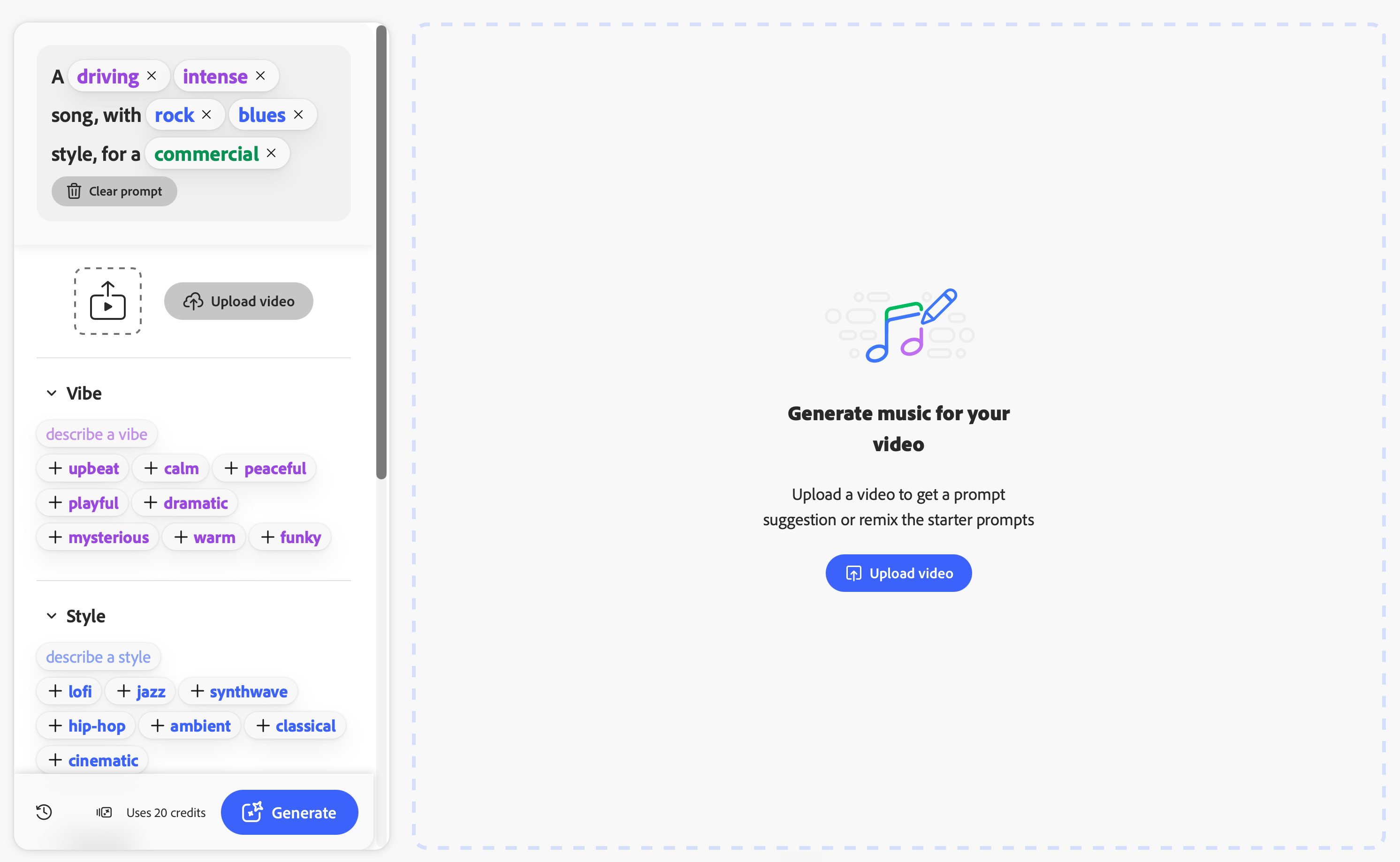 Tell Firefly the sound and the duration, and it hands back a fully licensed track that’s done before you even think about editing.
Adobe and Berklee College of Music surveyed video creators, musicians, and marketers about how music fits into published video. 79.3% publish daily or several times per week, and every respondent uses music. 32.7% already use AI-generated music as the final track in what they release.
Getting that music into the work comes with its own cost. 43.2% cited legal or copyright risk as a barrier, while 38.9% cited licensing cost.
And since music generated with Firefly is fully licensed, the track you generate is cleared for the video you publish.
Publishing a video means your music choice has to nail the mood and come with the paperwork. Generate Music reads the vibe and the runtime, and Adobe makes sure the track shows up with the license attached.
From Script to Voiceover
Generate Speech takes your script and makes it talk. Pick a voice from Firefly or ElevenLabs, hit go, and your voiceover comes back ready to drop into a video.
The workflow starts with the script. Drop in the copy, choose the voice, generate the narration, and listen to it with the video you’re making.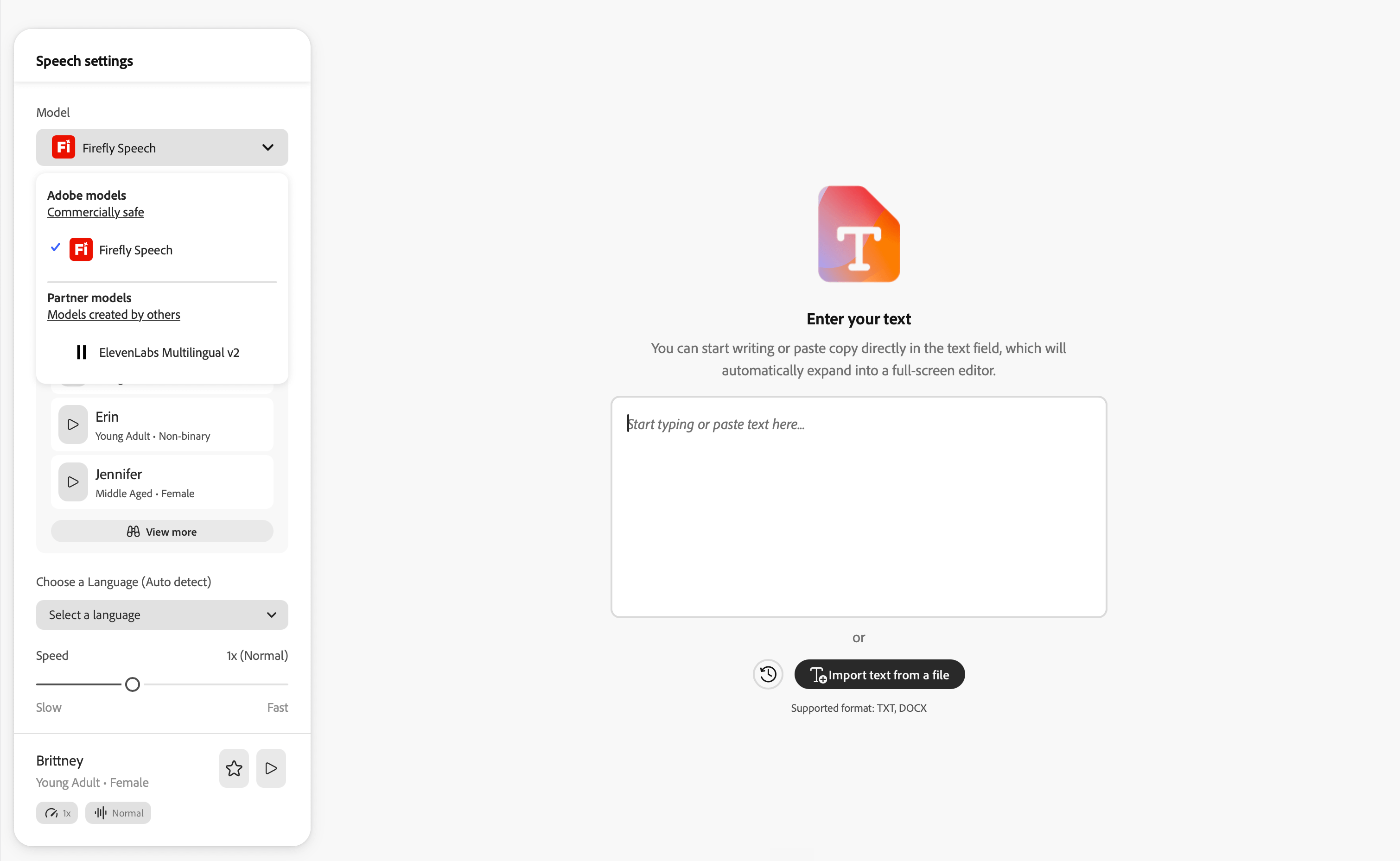 Your copy writes the show. Generate Speech just gives it a voice. Pick Firefly or ElevenLabs, hit generate, and hear your script narrate the video it was meant for.
If the script changes, update the copy and generate the narration again. The written version sets the narration.
From there, the scene itself starts telling you where sound belongs.
Create Sound Effects From a Scene
Generate Sound Effects turns the energy of your content into custom audio that actually feels like it belongs there.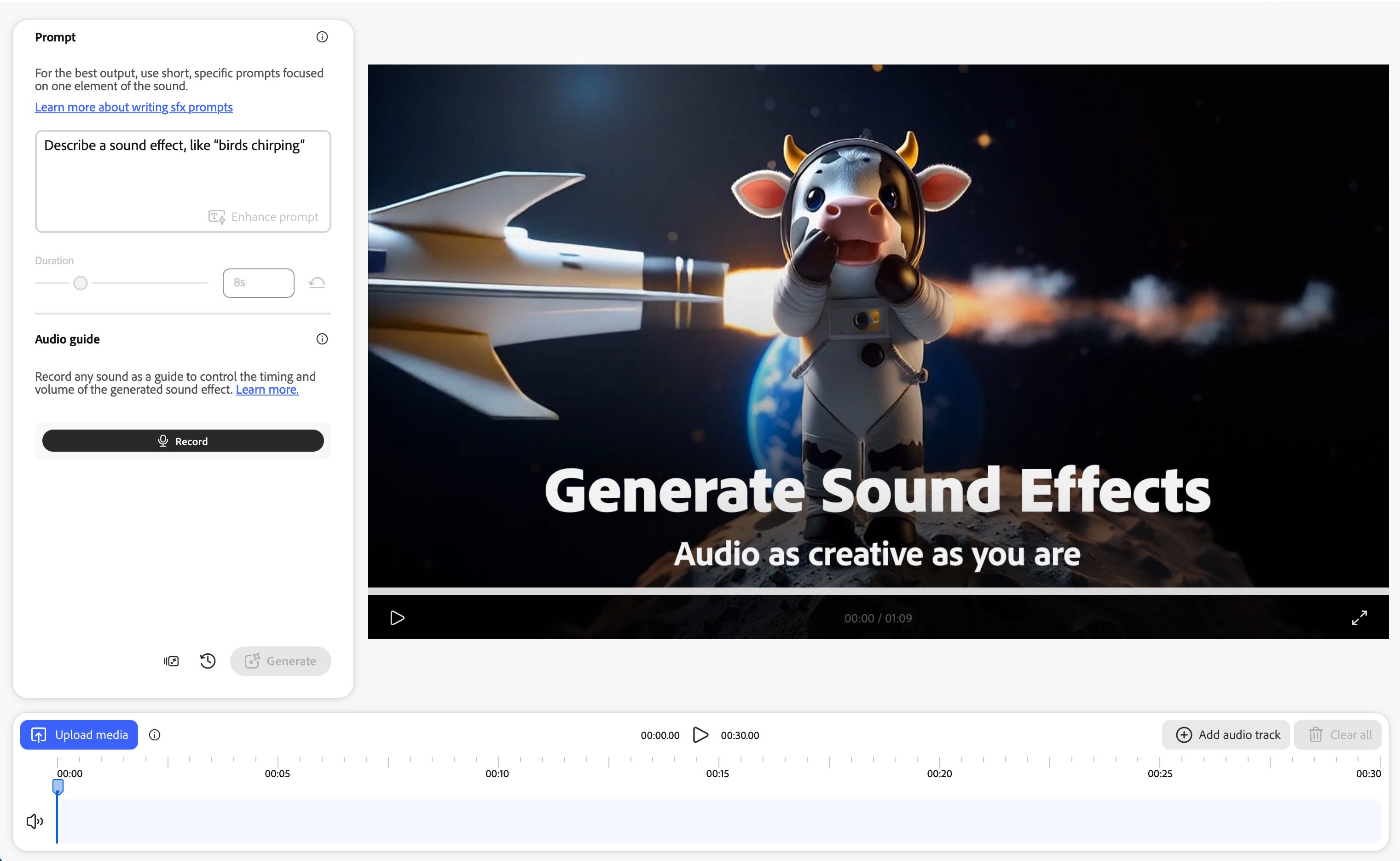
Give Firefly the action, exact timing, and mood, or use your voice to direct the energy. A slow door slide gives a soft latch. A fast door slam hits like a heavy thud. The movement stays the same while your direction changes the sound.
Music sets the vibe, speech brings the script to life, and sound effects hit the exact moments the action happens. Drop them in, and Gemini Omni Flash suddenly has the full playground of audio to work with.
Keep Revising with Gemini Omni Flash
Gemini Omni Flash works with text, images, audio, and video like it’s running the whole production studio, then keeps refining it every time you give it more direction.
The image sets the look, the audio sets the sound, the video shows the starting point, and your prompt tells Gemini what to change.
Review the result, give the next instruction, and keep working from the version already in front of you. Each follow-up can adjust the look, sound, timing, or action while the edit continues to move forward.
Gemini handles the video revision. For work that expands beyond the edit itself, Firefly AI Assistant takes on the larger creative assignment.
Give Firefly AI Assistant the Job
Now free users have a way to try Firefly AI Assistant and it comes with the skills to do things like create storyboards, brand kits, mockups, and batch image editing.
Each step hands work to the next. The storyboard frames the sequence, the brand kit sets the tone, and batch editing spreads that finished look over the full image batch.
Create Storyboard gives the Assistant a defined sequence to produce, while Create Brand Kit centers the assignment on brand material. Branded mockups and batch image editing keep the work tied to the assets already inside the creative job.
Choose an existing skill, describe the outcome you want, run the job, then review what it creates and adjust the direction from there.
Put Firefly on Your Next Video
Open Firefly AI Assistant and describe the video you want to finish. Give it the creative direction, script, scene, and media, then review what it creates and adjust the direction from there.
Go make something and let the Assistant handle the production work while you direct the result.
Subscribe for guides, updates, and news on AI and automation, written for people who have actual work to do.
Join the AI Flow Club at flow-club.techtiff.ai to build AI workflows that take real work off your desk.