Set up Claude once, then use the same twenty habits to plan lessons, build resources, give feedback and make small classroom tools, with the checking staying with you.
By Phillip Alcock
Published: 2026-11-19
URL: https://aiworkflowsforteachers.substack.com/p/top-20-claude-tips-for-teachers
Time: 25-35 minutes to read and try the first three, estimated | Level: Beginner to intermediate | Platforms: Claude (claude.ai)
Before you start
You need a Claude account. Projects, chat search and memory are paid plan features. Claude Docs, Slides and interactive artifacts are available on every plan, with some parts in beta on Team and Enterprise. Check your school policy before pasting any student work, and remove names and identifying details first.
Route: Claude chat (think and draft) → Projects (keep the context) → Docs, Slides and Artifacts (finished resources) → your lesson folder (saved copies).
AI Workflows for Teachers membership
This workflow is available to paid subscribers of AI Workflows for Teachers. Paid membership also includes access to other paid resources, including:
-
AI workflows designed for teachers.
-
Permission to reuse the workflows in training sessions.
-
13 packs from the Gumroad store at no extra cost. The packs are valued at over $200 USD and include skills and ebooks. I’ll send subscribers a Google Drive link to access them.
*Annual membership costs $50 USD. Subscribe as a paid member to access the workflows and receive the 13 packs.
Membership support helps me continue creating AI resources for teachers and growing the publication.
AI for Teachers is a reader-supported publication. To receive new posts and support my work, consider becoming a free or paid subscriber.
Free subscription
Free subscribers receive at least one free post each week, along with partnership and sponsored posts. The 130 free workflows are also available to explore.
Set up once
1. Name the finished product in your first sentence.
“Help me plan” gives Claude nothing to aim at. “Write a one page student self-check sheet from this rubric” gives it a product, a size and a source. Product, audience, size, source. Four things, one sentence.
2. Get Claude to ask questions before it writes anything.
Add this line to the start of any planning prompt: “Before you draft, ask me up to five questions about anything that would change the result. Then wait.” Claude’s questions show you what your own brief left out, and answering them is faster than fixing a full draft written on a wrong guess.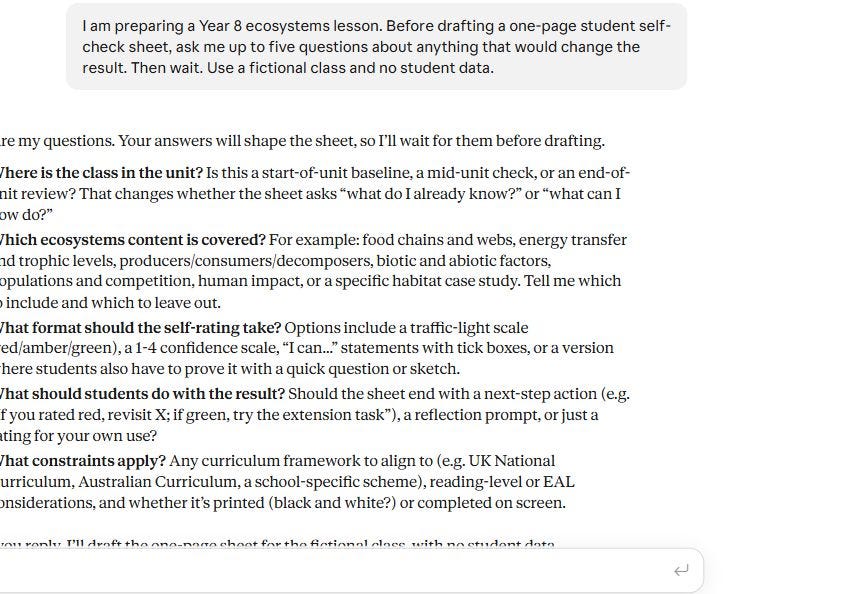
3. Fence your source material.
Paste the text Claude is allowed to use, then set the boundary inside the prompt: “Use only the text below for facts. If the text does not cover something, write [GAP] instead of filling it in.” The [GAP] markers show you exactly where your material runs out.
4. Create one Project per class or unit.
Projects hold their own files, instructions and chat history. Upload the unit plan, the rubric and the texts you teach from. Every chat inside that Project starts with that material in reach, so you stop re-uploading the same files each week.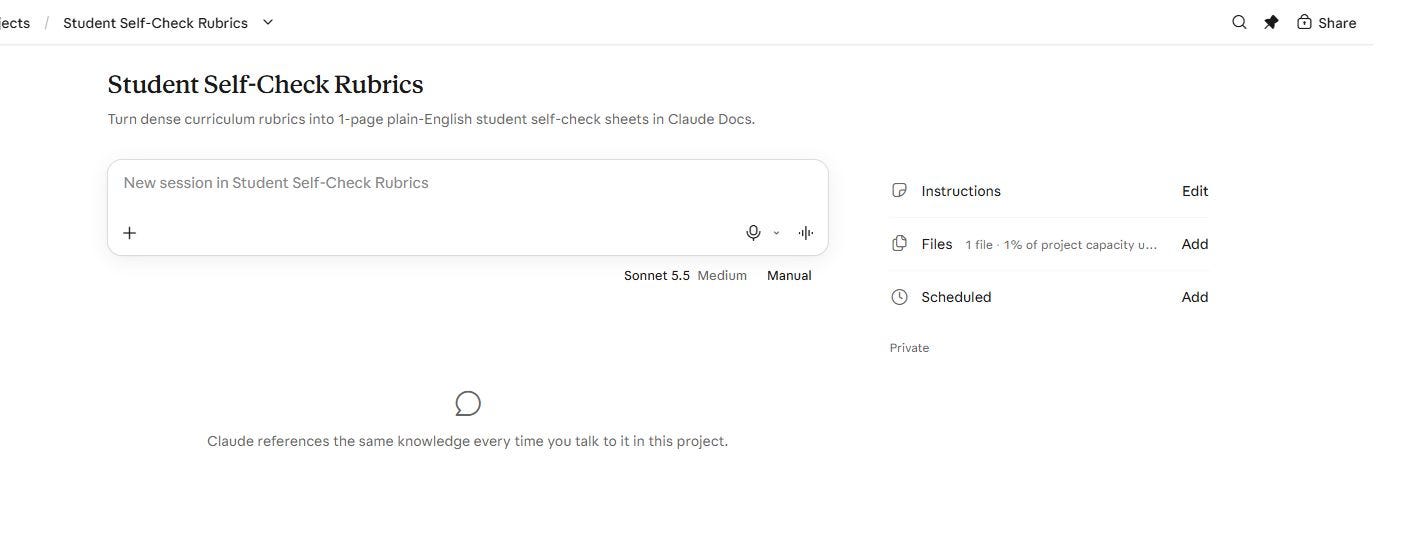
5. Write Project instructions like a steering file.
Short, plain, permanent rules for that class. Reading level, sentence length, your feedback voice, the words your students will not know, the output shape you want. Ten good lines in the instructions save a paragraph of repeating yourself in every prompt.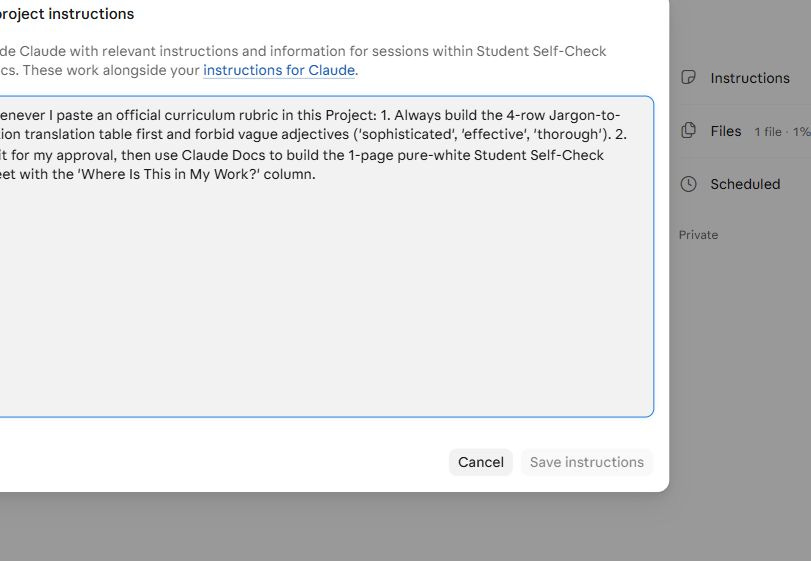
Plan and build resources
6. Plan in stages, with a check between each one.
Stage one: Claude lists the ideas, angles and problems in your topic. Stage two: you pick. Stage three: Claude drafts from your picks. A draft built on your choices needs less rescue than a draft built on Claude’s first guess.
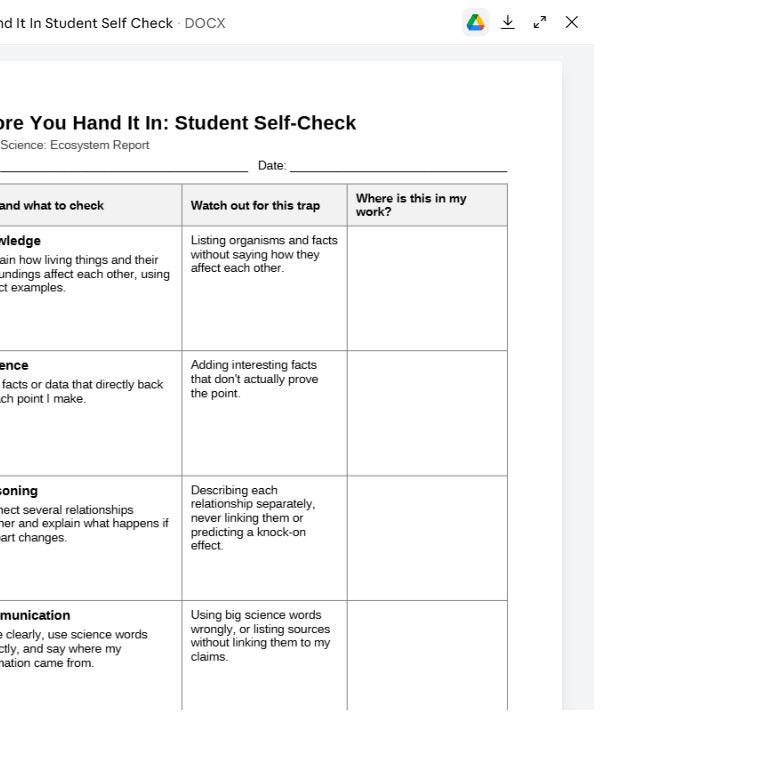
7. Turn a dense rubric into a student self-check sheet in Claude Docs.
Give Claude the rubric and ask for the jargon translated into student actions first, one row per criterion. Check the translation. Then ask for a Claude Doc: a one page checklist with a column where the student writes where their evidence is. Edit any line directly on the page, then export a PDF and check the print copy fits one page.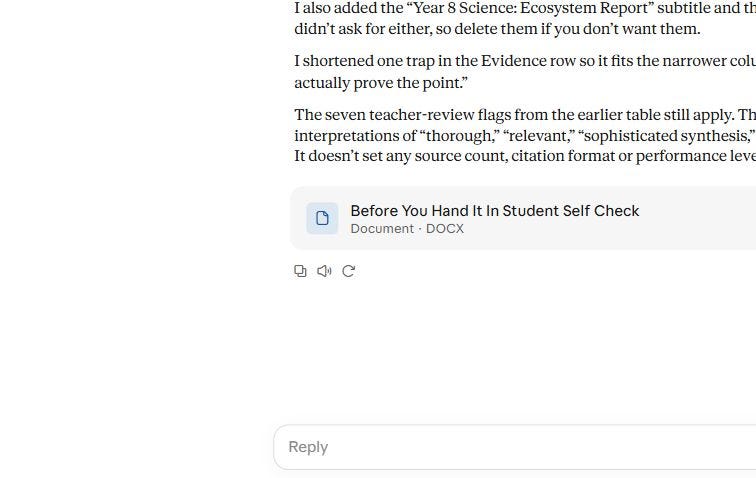
8. Ask for the same content at three reading levels.
One source text, three versions: the original, a supported version with shorter sentences, and an extension version with harder questions. Keep the facts locked to the source with Tip 3, and read the supported version yourself before it reaches a student. The best way is to show a mastery exemplar and ask it for 3 scaffolds going back.
9. Build a single file interactive instead of a worksheet.
Ask Claude for an interactive artifact: a quiz, a flashcard set, a sorting activity, a small simulation. Claude builds it beside the chat and you test it in the same window. If a question is wrong, say which one and what it should ask. The artifact updates in place.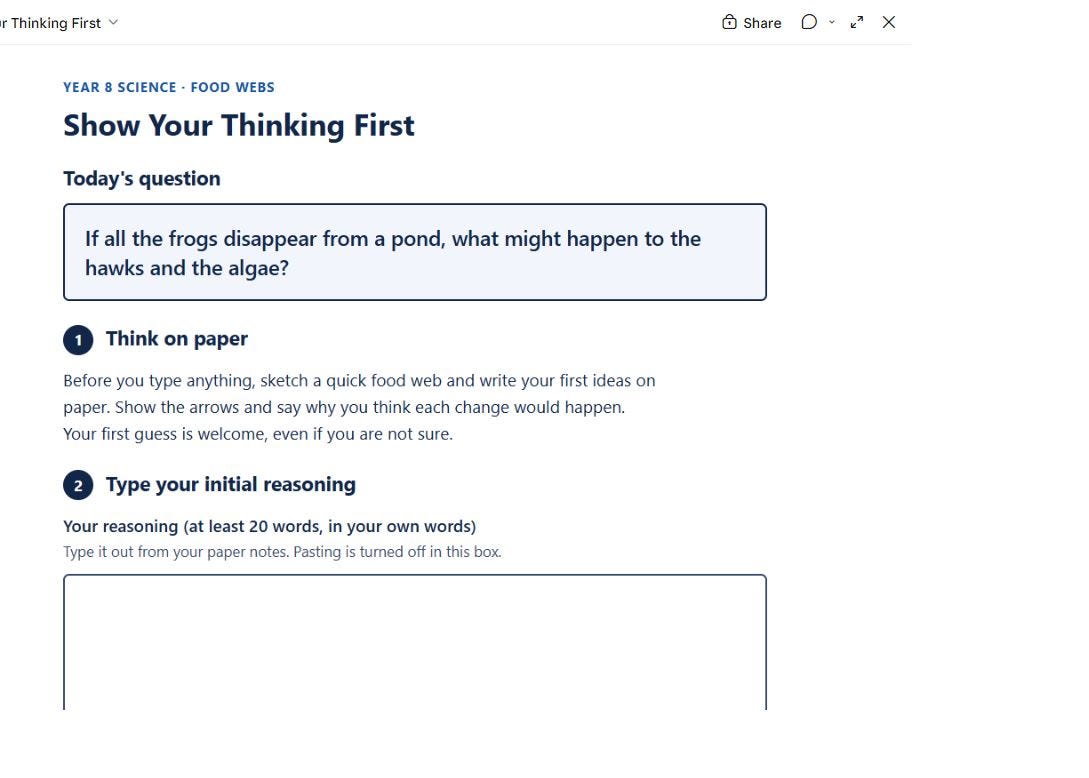
10. Let the artifact call Claude.
Artifacts can use Claude themselves. A practice tool built this way can mark a student’s answer and respond to what they typed, rather than matching one fixed answer. Describe the student, the topic and the feedback style in your prompt, and test it with a wrong answer before any student sees it.
11. Make the deck in Claude Slides.
Give Claude your checked lesson content and ask for a Slides deck. Edit the slides in Claude, then download as PowerPoint or PDF, or export to Google Slides. Build decks from content you have already checked, not from a topic sentence.
12. Put marks and feedback patterns in Claude Sheets.
A sheet Claude can edit with you: columns for the criterion, the mark and the comment. Ask Claude to sort it, total it and list the three most common errors across the class.
Feedback and assessment
13. Give Claude two samples of your feedback voice first.
Paste two comments you have written and approved. Then ask Claude to draft new comments in that voice, at that length, for the work you supply. Without samples, Claude writes in a general teacher voice that sounds like nobody.
14. Ask for feedback in two parts: what is working, what is next.
One part naming the strongest evidence in the work, quoted. One part naming the single next step, with the sentence or section it applies to. One next step per student. A list of five fixes gets read as a list of five failures.
15. Make Claude mark against the rubric, then argue with it.
Ask Claude to place the work in a rubric band and quote the line from the work that decided the band. Then check that quote yourself. If the quote does not support the band, the mark is wrong and you have found it in seconds.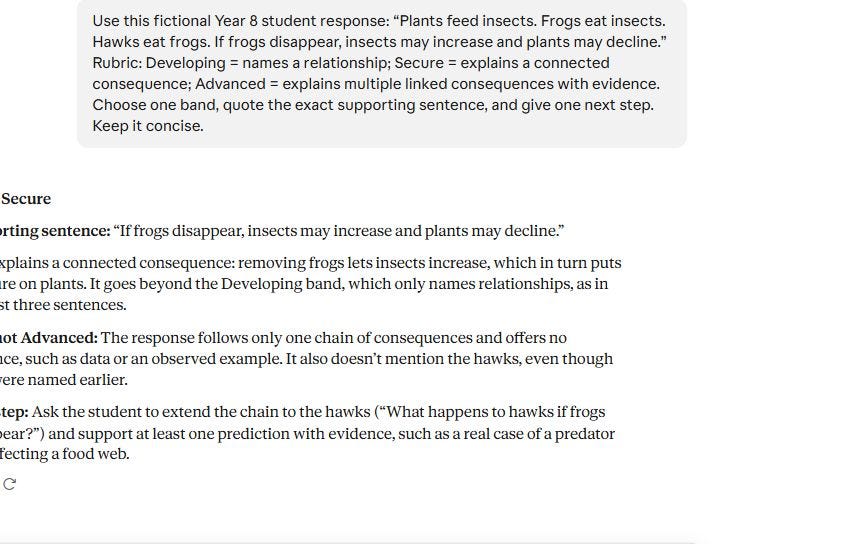
16. Turn the class error list into the next lesson.
Take the common errors from Tip 12 and ask Claude to build a ten minute starter: one wrong example to fix together, one question that exposes the error, one check question at the end. Your marking becomes your planning.
Students and research
17. Use Learning mode if your institution has Claude for Education.
Learning mode works inside Projects and guides students with questions instead of handing over answers. It is part of Anthropic’s institution plans, aimed at universities. If your school does not have it, copy the pattern into Project instructions: “Ask questions first. Give hints in steps. Do not supply the final answer.”
18. Use Research mode for topic background, and open the sources.
Research runs several searches, builds on what it finds and writes a report with citations. Use it to prepare a new topic or check your own understanding. Open at least two of the cited sources before any fact from the report goes into lesson material.
19. Save a repeated job as a Skill.
Skills are saved instruction sets Claude loads for a specific job. If you write report comments, feedback or quiz questions the same way every time, record or write that job once as a Skill, with your template and your rules inside it. The next run starts from your standard instead of a blank prompt.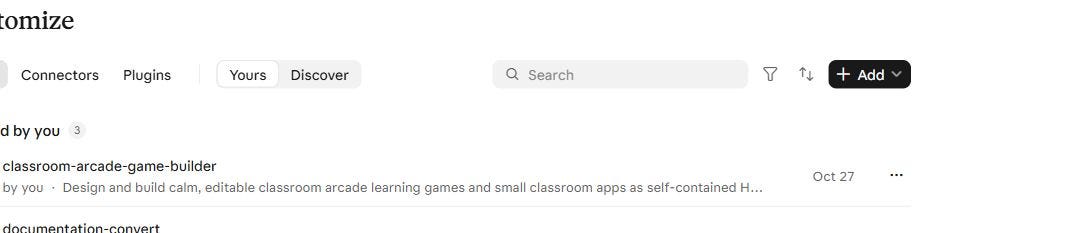
20. Ask Claude to find your earlier work.
On paid plans Claude can search your past chats and remember context between them. “Find the exit ticket questions you wrote for my ecosystems unit” is a real instruction. Name your units and classes clearly in chat titles and Project names, and that search gets sharper every month.
Completion check
-
One Project exists for your current unit, with the unit plan and rubric uploaded.
-
The Project instructions hold your reading level, voice and output rules.
-
Every factual prompt carries a source fence and a [GAP] rule.
-
One resource from this list has been built, checked by you, and saved in your lesson folder.
-
No student names or identifying details appear in any prompt.
Phil