Everyone should regularly clean up their privacy and security settings on iPhone, Google accounts, and social media accounts.
By Sabrina Ramonov 🍄
Published: 2026-09-02
URL: https://www.sabrina.dev/p/chatgpt-prompt-for-privacy-and-security
Everyone SHOULD do this asap…
Twice a year: your privacy/security data cleanup 🔥
Type this prompt into any AI chat:
“Give me a 30-minute privacy cleanup I can do today on my iPhone, Google account, and social media. Include direct links or screenshots where to go.”
It will give you a step-by-step cleaning process.
Focused on permissions, tracking, discoverability, and data that keeps leaking without your permission.
Here’s what ChatGPT gave me, and you can follow it step-by-step:
1. Lock Down Your iPhone
1. Kill cross-app tracking — 1 min
Go to:
Settings → Privacy & Security → Tracking
Turn Allow Apps to Request to Track → OFF.
That causes apps requesting tracking permission to be treated as though you chose “Ask App Not to Track.” (Apple Support)
2. Audit the 4 dangerous permissions — 5 min
Go to:
Settings → Privacy & Security
Open these one at a time:
-
Location Services: Change random apps from Always to While Using, or Never.
-
Contacts: Remove access from social apps that don’t genuinely need your entire address book.
-
Photos: Prefer Limited Access instead of full-library access where practical.
-
Microphone / Camera: Turn off anything that has no obvious reason to use them.
For social apps specifically, I would be aggressive about Contacts and Location.
3. Run Apple’s Safety Check — 3 min
Settings → Privacy & Security → Safety Check → Manage Sharing & Access
This shows which people, apps, and devices currently have access to information associated with your iPhone. Apple also lets you review devices connected to your Apple Account from here. (Apple Support)
Apple Safety Check instructions
Apple Safety Check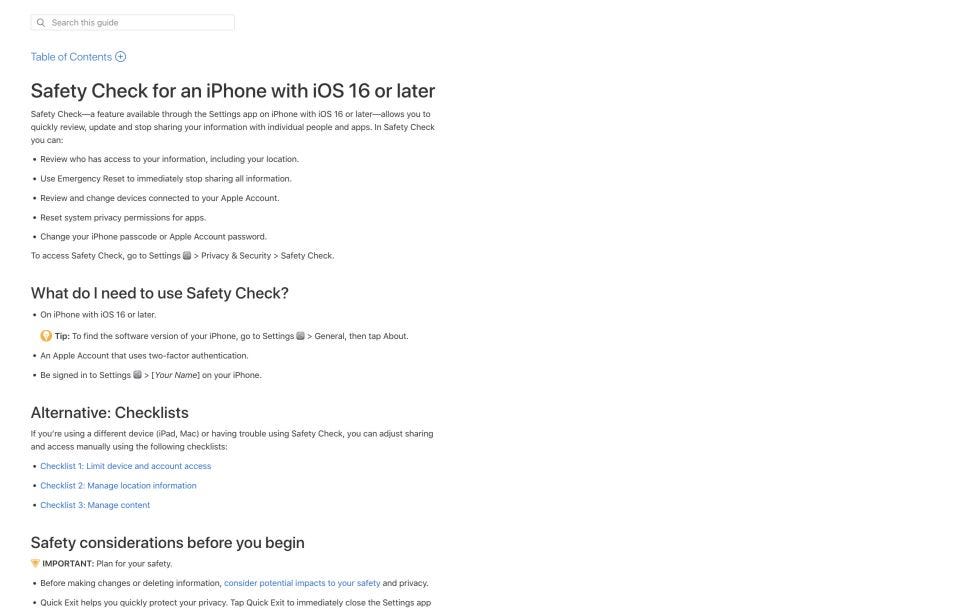
Don’t use Emergency Reset unless you actually want to revoke virtually everything immediately.
4. Turn on App Privacy Report — 1 min
Settings → Privacy & Security → App Privacy Report → Turn On
It starts showing which apps access your location, contacts, microphone, camera and network domains over the following days. (Apple Support)
Apple App Privacy Report guide
Lock Down Your Google Account
5. Run Google’s Privacy Checkup — 3 min
Pay particular attention to activity/history settings. Google lets you stop saving many types of activity and delete previously stored activity. (Google Help)
For a privacy-first setup, I would either turn unnecessary history off or use the shortest auto-delete period you’re comfortable with.
Google Privacy Checkup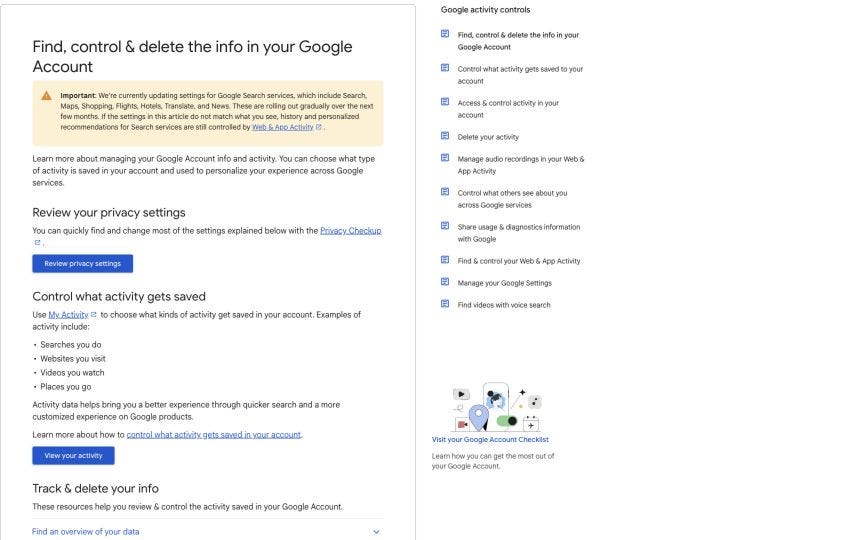
6. Delete old Google activity — 2 min
Tap:
Delete → All time
You can selectively delete Search, YouTube, Maps, etc. instead if you want to preserve some history. (Google Help)
7. Revoke abandoned apps — 3 min
Review apps connected to Google
Look especially for apps that can access:
-
Gmail
-
Google Drive
-
Calendar
-
Contacts
-
YouTube
Remove anything you no longer use. Revoking access stops future access, although it does not necessarily delete data the third-party app previously copied. (Google Help)
8. Turn down ad profiling — 1 min
You can disable personalized advertising or restrict which account/activity signals are used. (Google Help)
9. Set up “Results about you” — 1 min
This one is unusually valuable.
Google Results About You instructions
Google can look for Search results containing your phone number, home address or email, alert you, and let you request removal of eligible results. (Google Help)
Google Results About You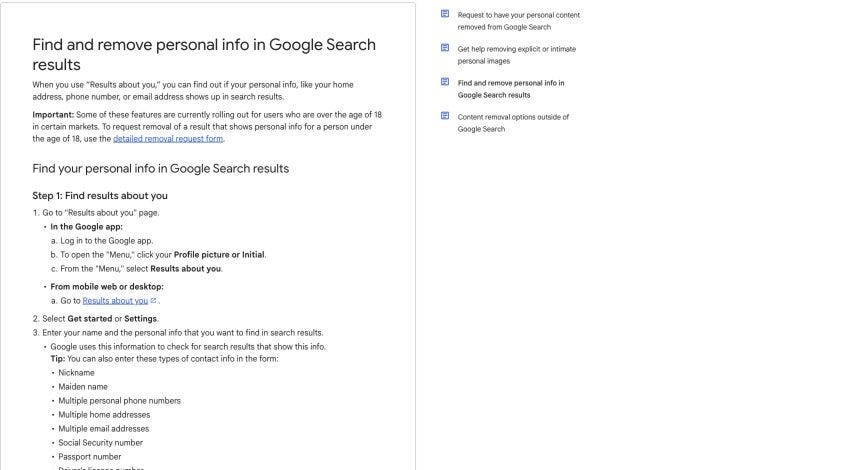
3. Lock Down Your Social Media Accounts
Don’t try to inspect every privacy toggle.
Do these 4 things on your major social accounts.
10. Stop contact syncing — 3 min
This is one of the most overlooked privacy leaks.
Your address book can contain hundreds or thousands of people’s names, phone numbers and emails.
For Instagram:
Profile → ☰ → Accounts Center → Your information and permissions → Upload contacts
Turn contact uploading/syncing off.
Then on your iPhone:
Settings → Privacy & Security → Contacts
Disable Instagram/TikTok/Facebook/X access unless you actually need it.
For TikTok:
Profile → ☰ → Settings and privacy → Privacy → Sync contacts and Facebook friends
Turn syncing off.
TikTok also uses contact information as one mechanism for recommending accounts.
For X:
Settings and privacy → Privacy and safety → Discoverability and contacts
Turn off Sync address book contacts, and use Remove all contacts if you’ve previously uploaded them. Simply stopping sync does not remove previously uploaded contacts.
X contact/privacy instructions
X contact syncing controls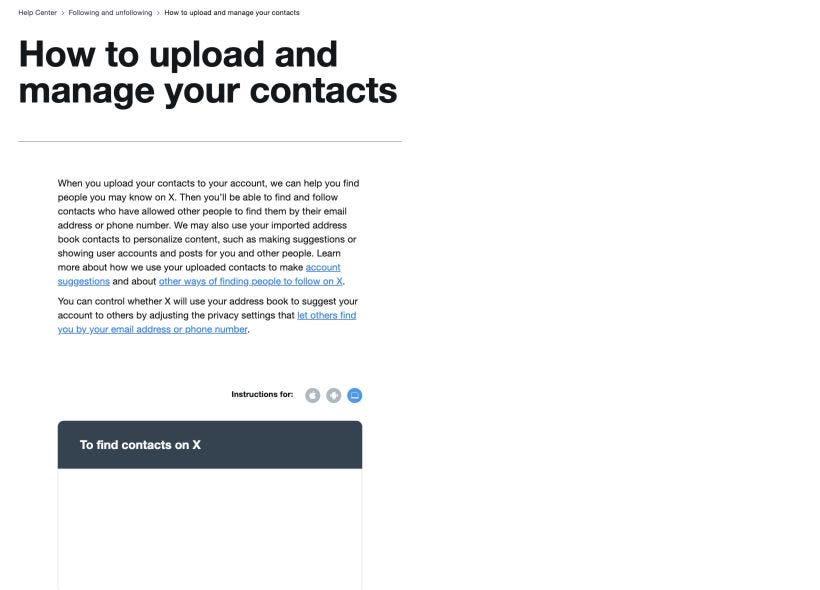
11. Reduce how easily strangers can connect your phone/email to you — 2 min
TikTok:
`Privacy → Suggest your account to others
`Consider turning off:
-
Contacts
-
Facebook friends
-
People who open or send links to you
For adults, TikTok says these suggestion settings are on by default.
X:
Privacy and safety → Discoverability and contacts
Turn off:
-
Let people who have your email address find you
-
Let people who have your phone number find you
12. Audit what strangers actually see — 3 min
Open your profiles while logged out or in a private Safari tab.
Look specifically for:
-
personal phone number
-
personal email
-
birthday
-
hometown
-
current location
-
family names
-
photos revealing your house/address
-
real-time vacation/location posts
-
old tagged photos
-
employer/location information you don’t need public
For Facebook, Meta specifically recommends its Privacy Checkup to review what you’re publicly sharing. (facebook.com)
13. Do one final Google search
In a private browser, search:
"Your Full Name"
Then:
"Your Full Name" phone
"Your Full Name" address
"Your Full Name" email
Also Google your phone number in quotes.
If a result exposes personal contact information, send it through Results about you. Google permits removal requests for things including home addresses, phone numbers, emails, certain government IDs and financial information. (Google Help)
Pro tip:
Enable ChatGPT Work and it can do all the Google/social steps for you!
Not Sure Where To Start? 👇
I’ve organized my best trainings below:
-
-
-
-
-
-
-
-
-
Subscribe to my Youtube and hit the “notification” bell
So that you never miss my free trainings 👇
IMPORTANT: I will NEVER ask you for money. I am NOT sending you friend requests. I am NOT on Whatsapp, Telegram, or messaging apps. I will NEVER sell a course. Always block & report scammers.