**Pick any open-source AI agent from GitHub, clone it into Claude Cowork,
and ship it with one prompt. Full build, errors, and a daily scheduled task.**
By Gencay
Published: 2026-05-06
URL: https://www.learnwithmeai.com/p/claude-cowork-ai-agent-github
There are hundreds of open-source AI agents on GitHub.
Most people scroll, save the repo, and never touch it again.
I'll show you the opposite, how to clone any AI agent into Claude Cowork.
How to clone it into Claude Cowork and how to let Claude build it for you.
You end up with something that actually runs.
What will we build?
I picked PromethAI from the awesome-ai-agents repo.
A nutrition assistant who decomposes goals into meals and generates recipes.
In the end, your agent will generate two things;
1- The image of your meal

\Classic cheeseburger and french fries generated by Claude Cowork AI agent\
2- The recipe
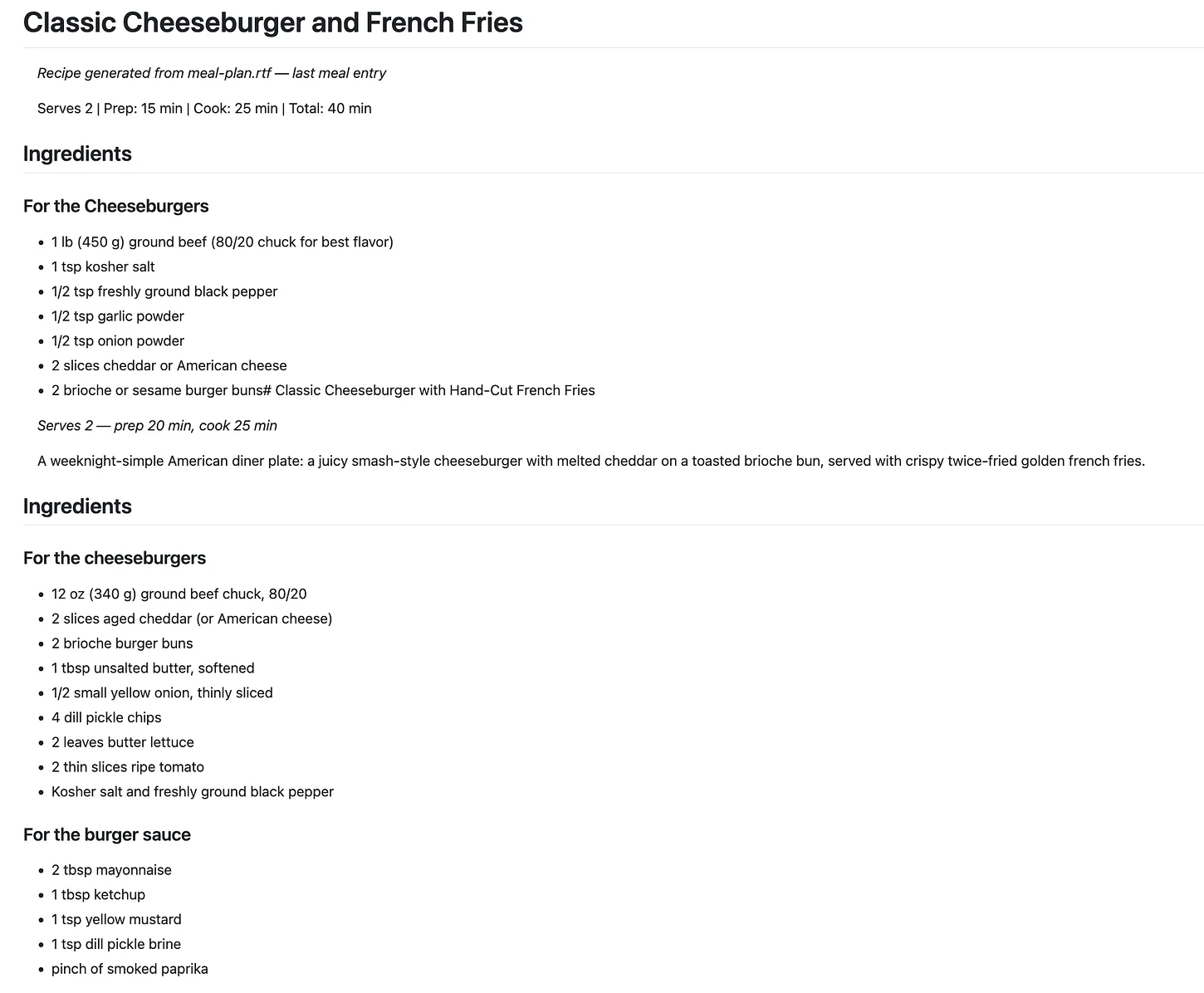
\AI-generated recipe markdown from Claude Cowork PromethAI agent\
And we’ll add a Claude routine that reads your meal plan the night before and creates the recipe for you first thing in the morning.
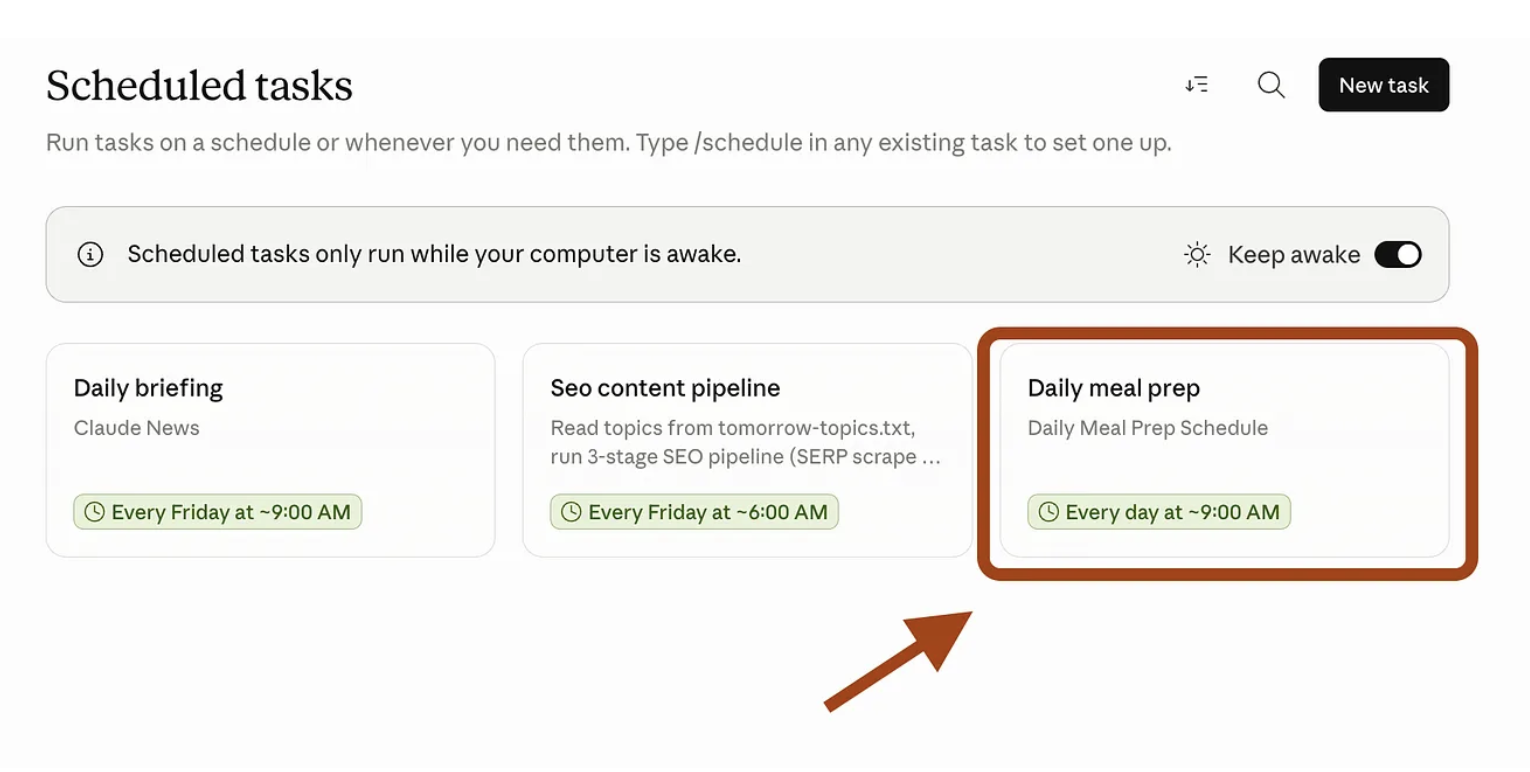
\Claude Cowork scheduled task for daily meal prep\
A digital chef that lives on your machine, similar to fridge gourmet we implemented before, but more powerful.
If the Claude team ever connects Claude to a home robot that cooks your meal, we’ll be the first ones plugging this system into it.
Pick an open-source AI agent from GitHub
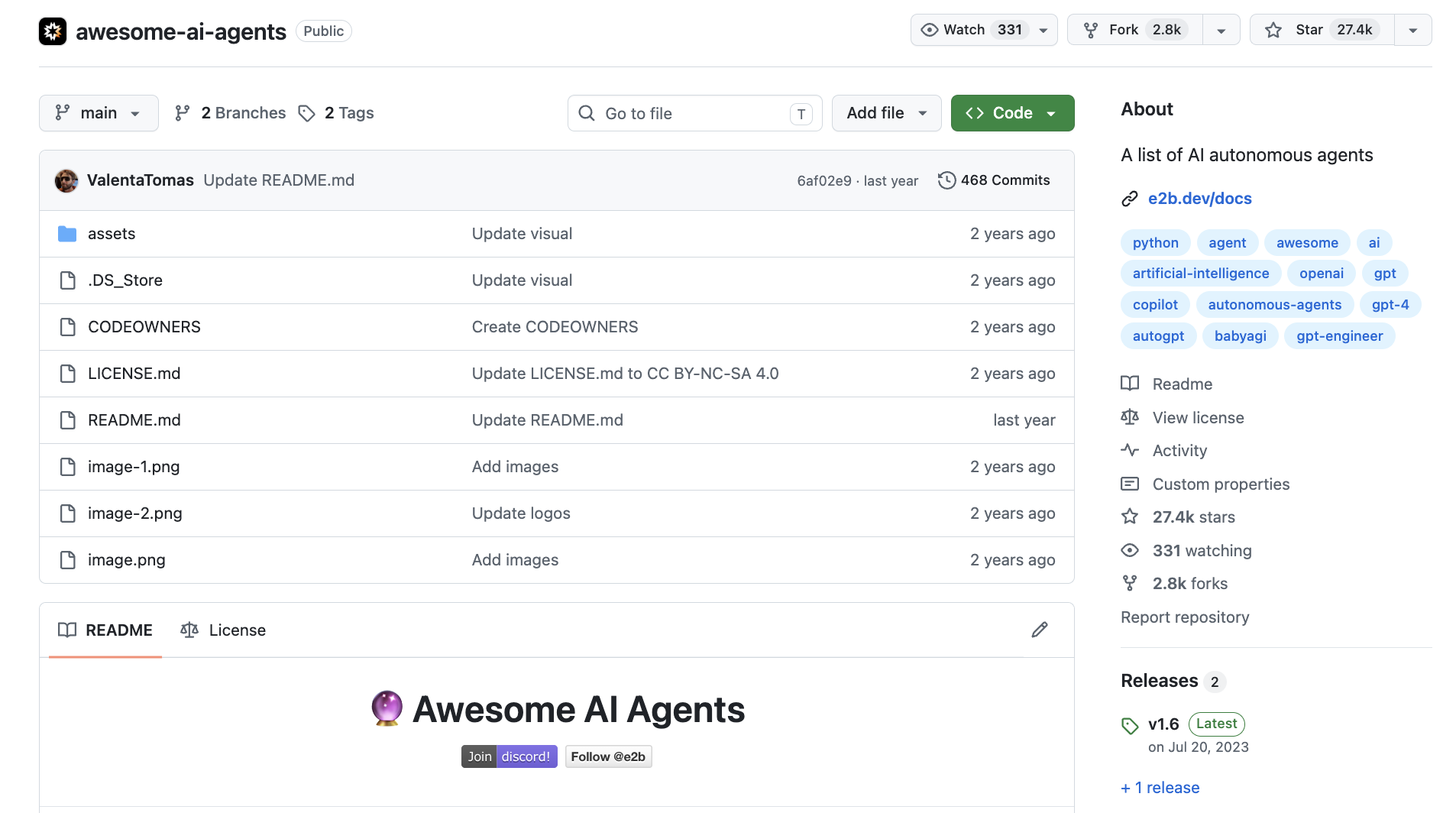
\Awesome AI agents GitHub repo — pick an agent to build in Claude Cowork\
Start here: awesome AI agents repo.
Hundreds of agents. Productivity tools, research assistants, code generators, browser automation, nutrition planners, SQL agents. Each has a short description and a link to the source code.
The selection method is simple. Pick one that solves a problem you actually have.
For me, that was PromethAI. A nutrition agent that decomposes goals into meals and generates recipes. My wife is pregnant. Meal planning is a real daily question in our house. If the agent works, we use it. If it doesn't, I learn something.
Set up before you prompt Claude Cowork
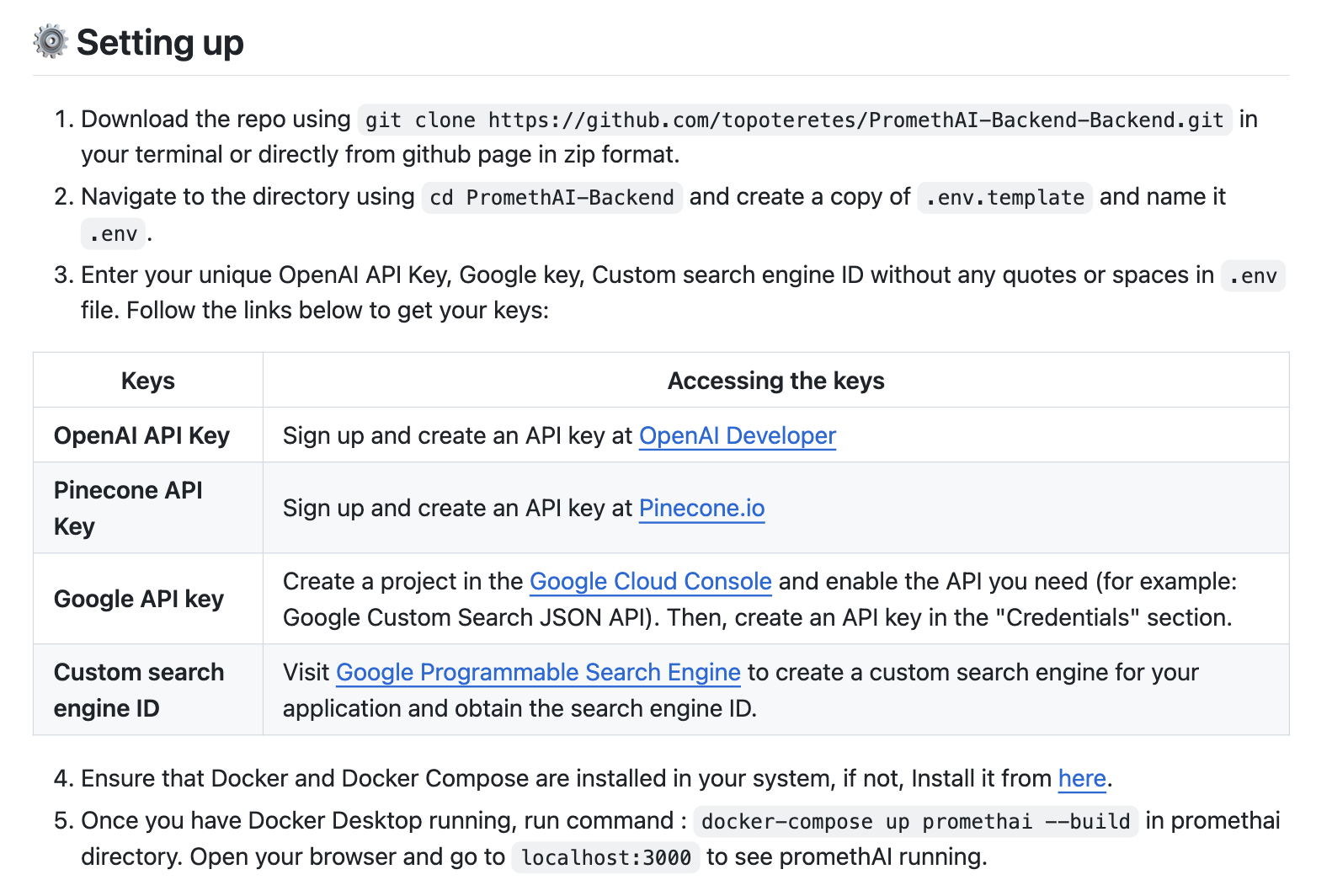
Before you prompt Cowork to clone anything, open the repo’s README and find the setup section. This is the part most people skip and regret later.
PromethAI’s setup tells me exactly what I need before starting:
Four AP’s.
Don’t skip this step. If you start prompting Cowork before you have your keys ready, you’ll hit a wall three commands in and have to stop, leave your agent hanging, and go sign up for accounts.
Get the keys first. Then we build.
Cowork
Open the Claude desktop.
Download from here if you did not already.
One thing before we click anything. If you’ve used Claude in the browser, Cowork feels similar but behaves differently.
It’s Claude with access to a real folder on your machine. It can clone repos, edit files, run terminal commands, and remember what it did across sessions.
Now, click on Cowork in the left sidebar.
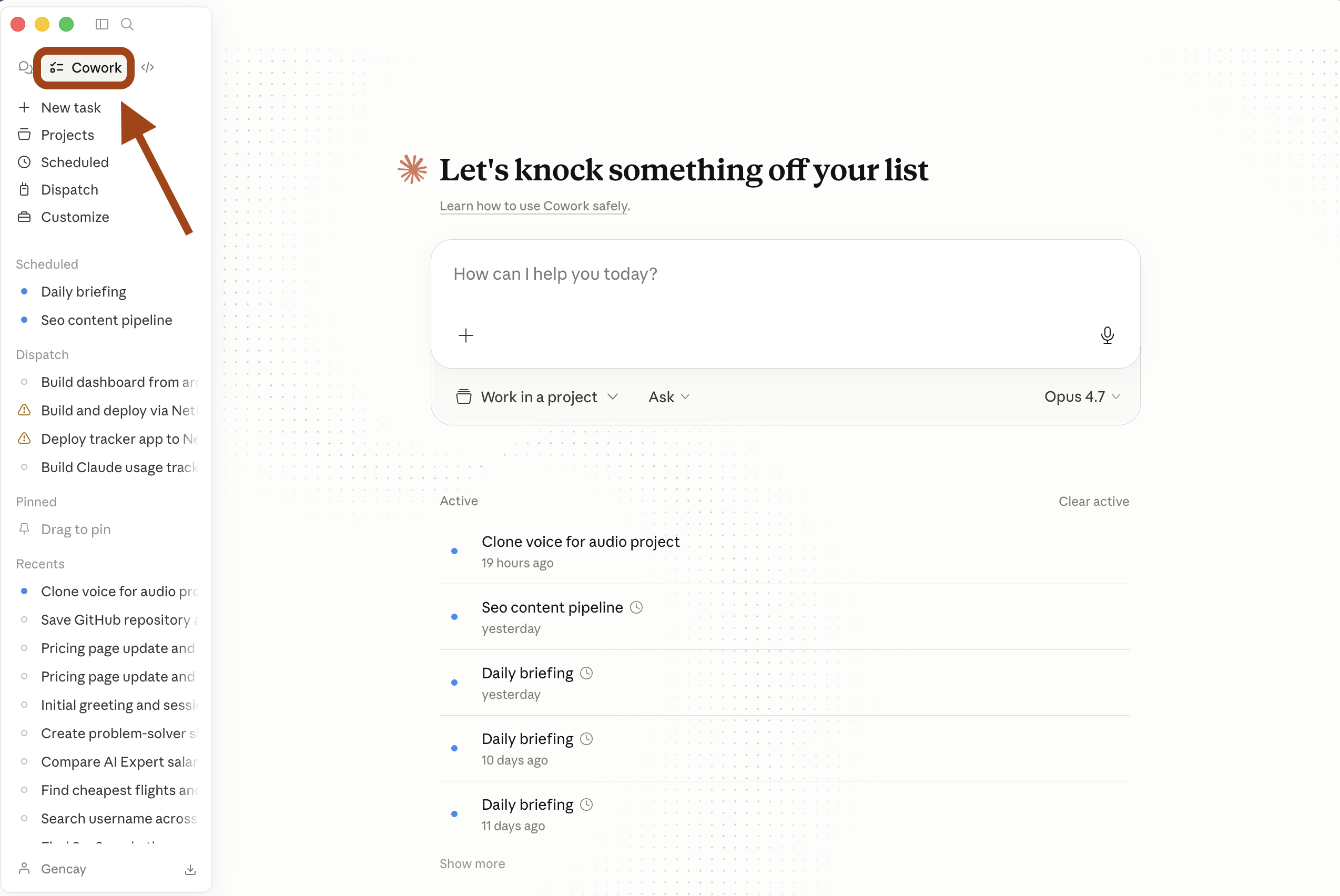
Before you do anything else, create a folder on your desktop called Nutrition Assistant.
This is where your entire agent will live.
Cowork will clone PromethAI into it, generate the front-end here, and store the meal plans here. One folder, everything in one place.
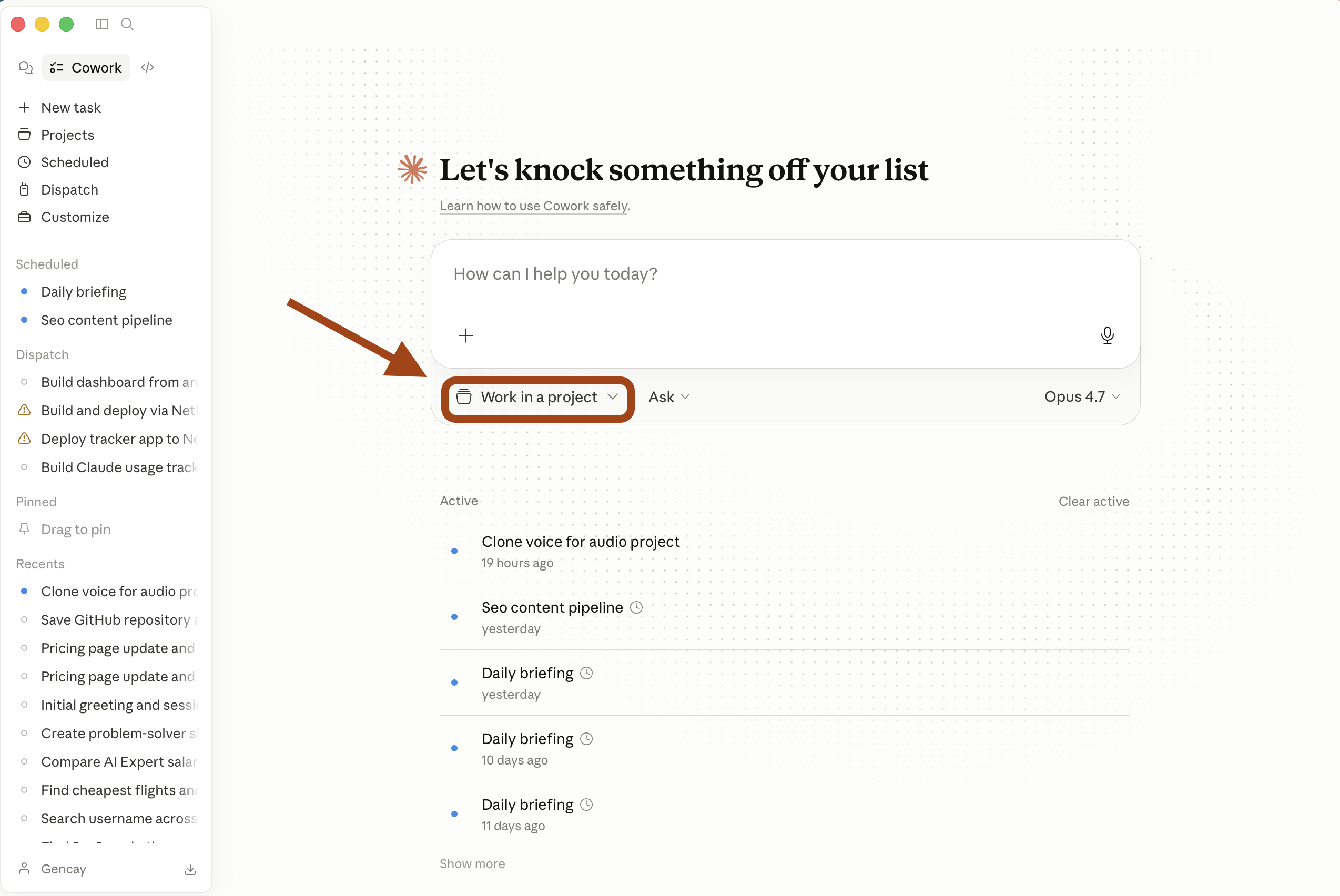
Now, in Cowork, click Work in a project.
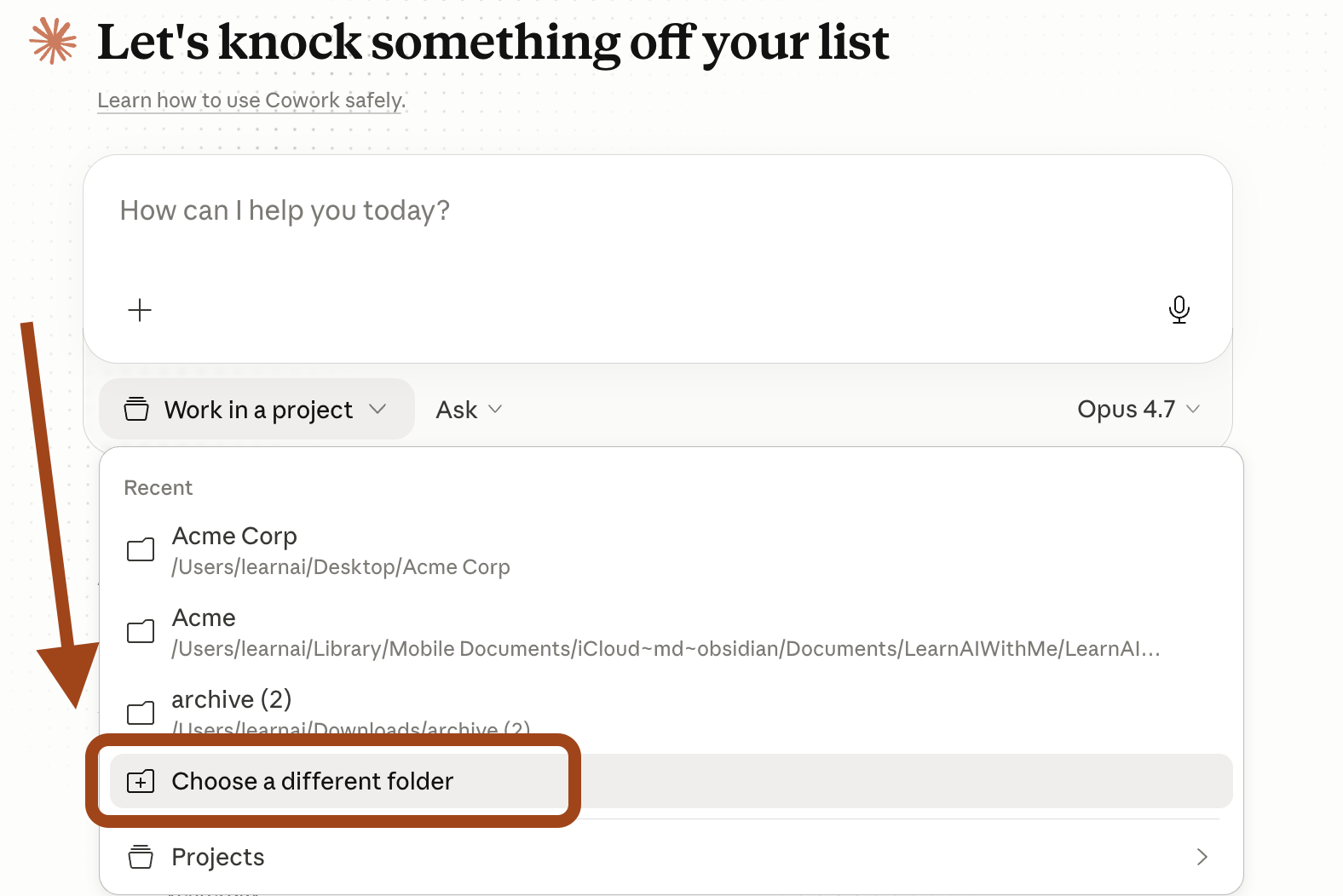
Click Choose a different folder.
Navigate to your Nutrition Assistant folder and select it. Cowork will ask for permission to read, edit, and delete files in that folder.
Click Allow.
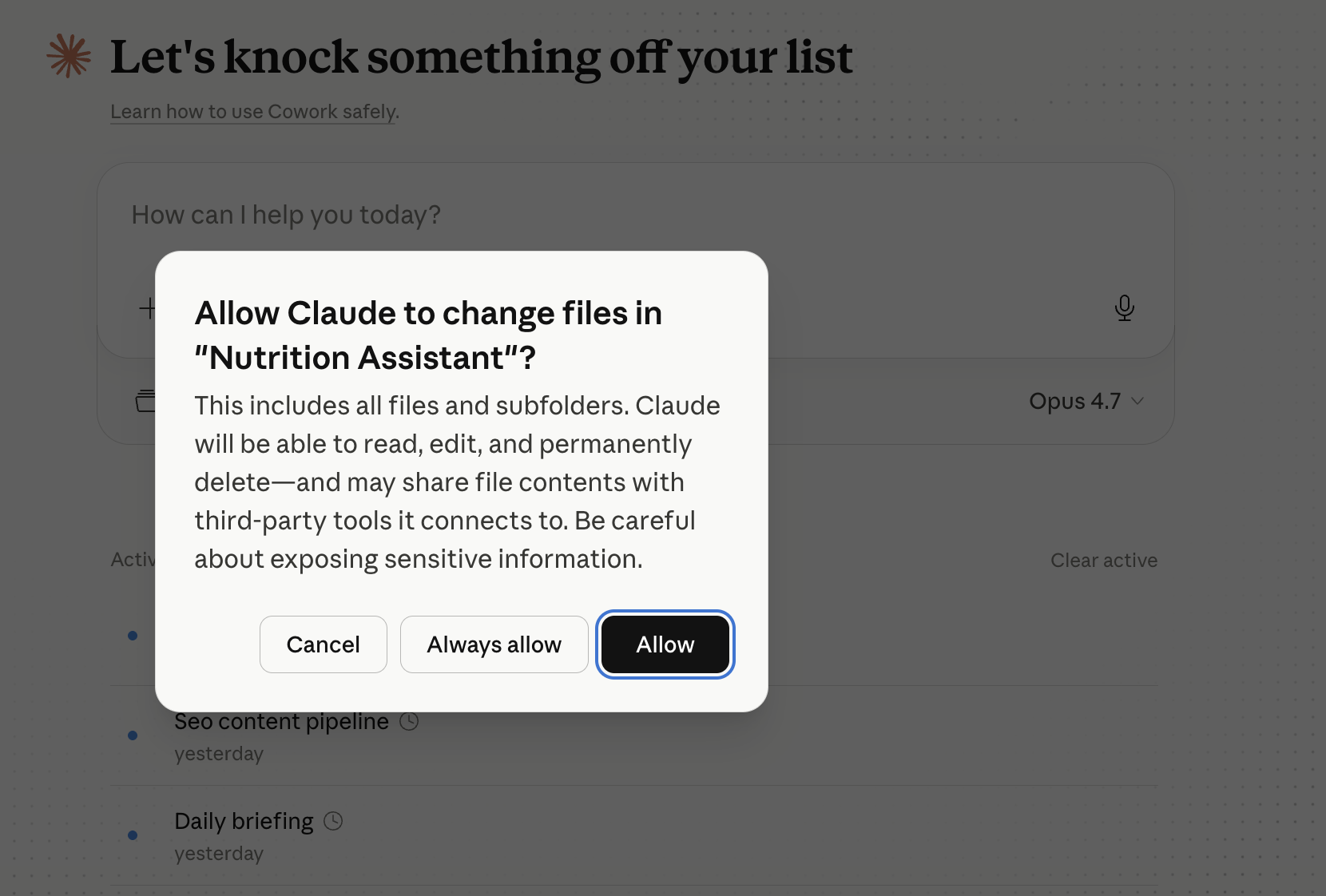
That’s the Cowork setup done. It now has a home, permissions, and your attention.
Time to set up the agent.
Agent Setup
Back in Cowork, here’s the prompt I used:
Clone PromethAI using this : git clone https://github.com/topoteretes/PromethAI-Backend-Backend.git
Navigate to the directory using cd PromethAI-Backend and create a copy of .env.template and name it .env.
Here are my keys:
OpenAI API Key: <paste your key here>
Pinecone API Key: <paste your key here>
Google API key: <paste your key here>
Custom search engine ID: <paste your ID here>
Related git repo is this: https://github.com/topoteretes/PromethAI-Backend
Visit here if neccesary to finish the setup.
And run this agent.
That's it. One prompt. No step-by-step instructions. Cowork reads the repo, figures out the setup, clones it, writes the .env file with your keys, and starts building.
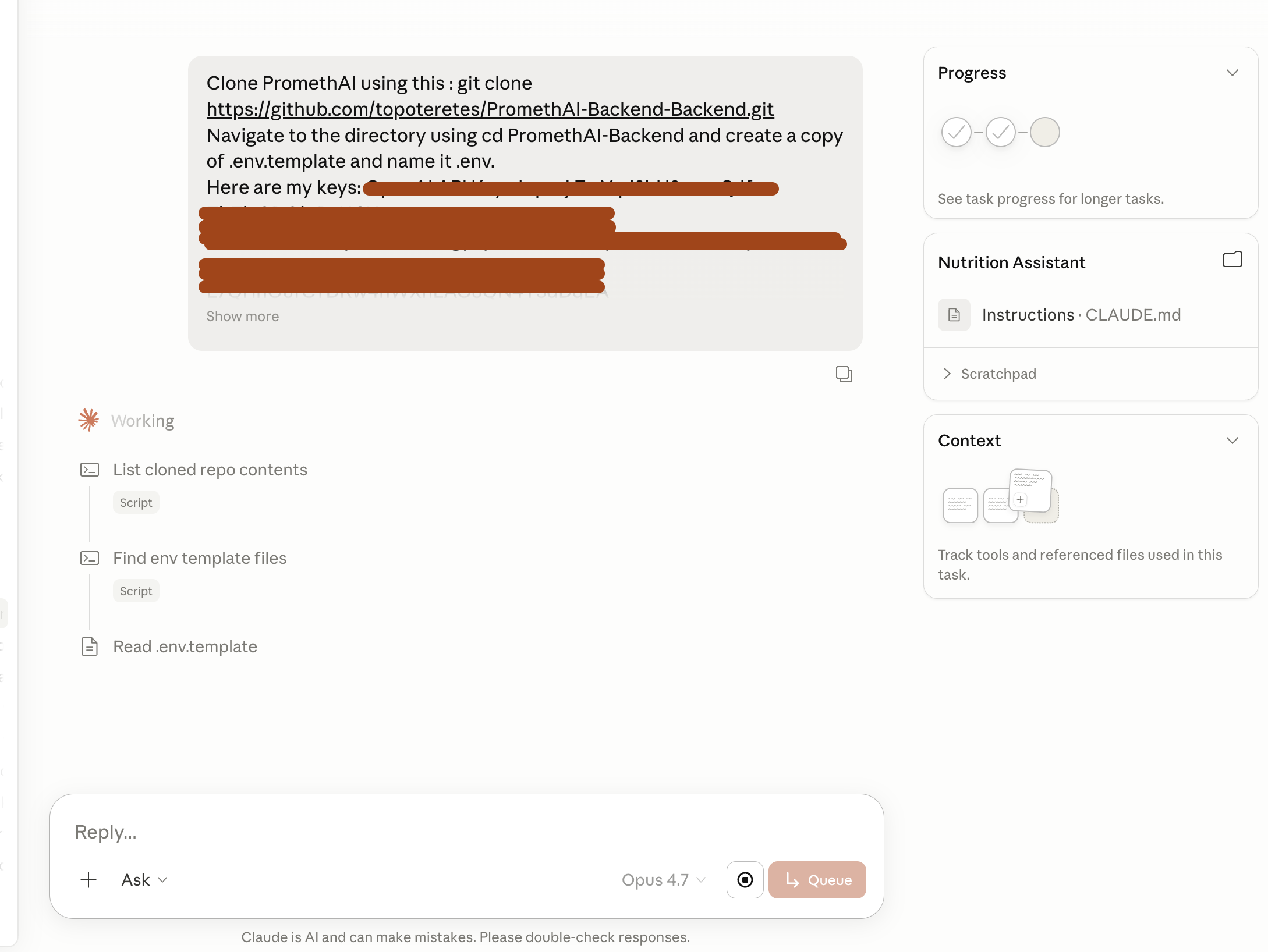
When Cowork stops and waits
After a few minutes, Cowork said the project was ready but wanted me to run it manually. That happens. Cowork is cautious about running services on your machine by default.
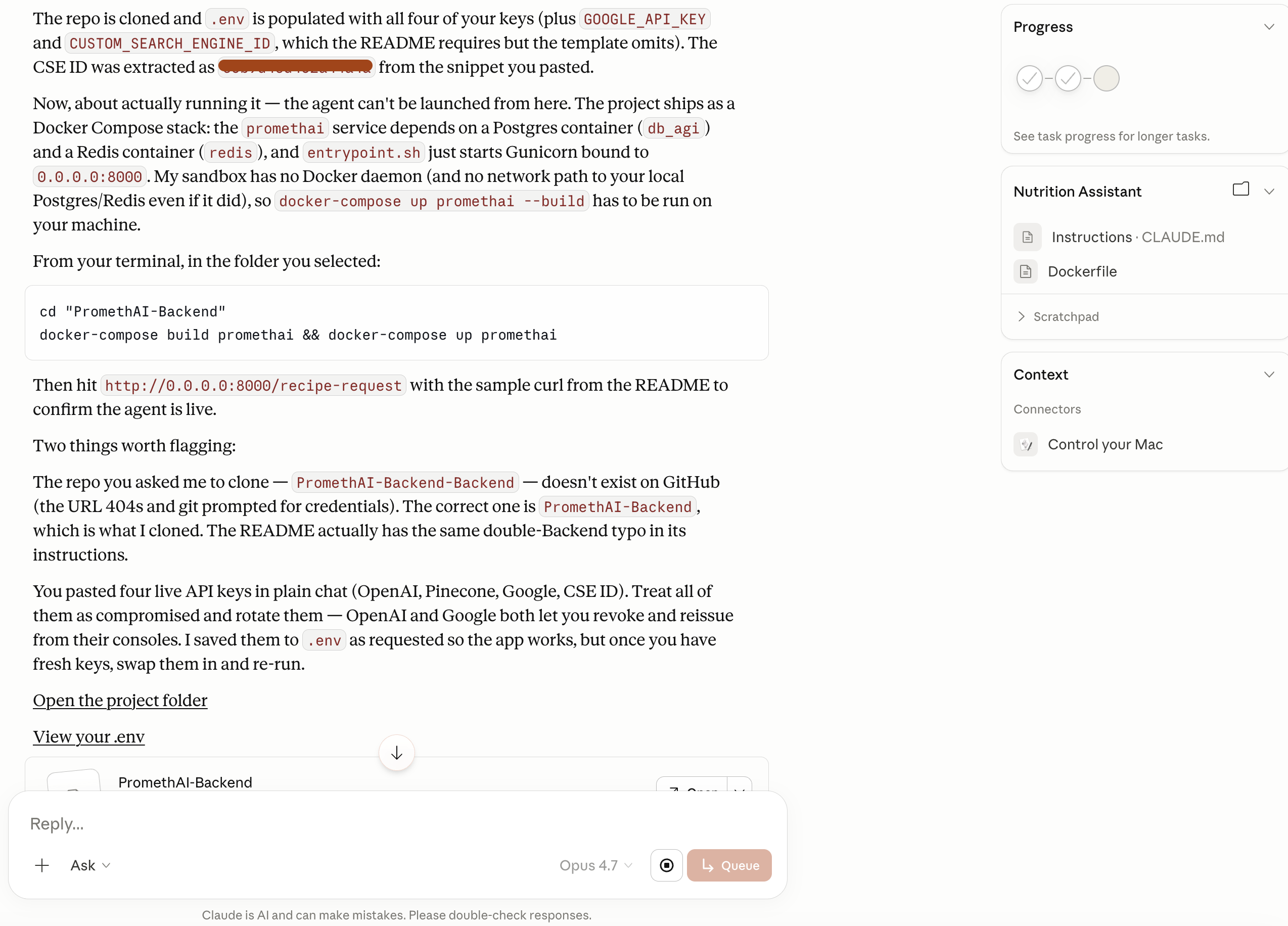
I sent one more prompt:
Prompt
you can run via terminal please run it for me
And here it started to work again.
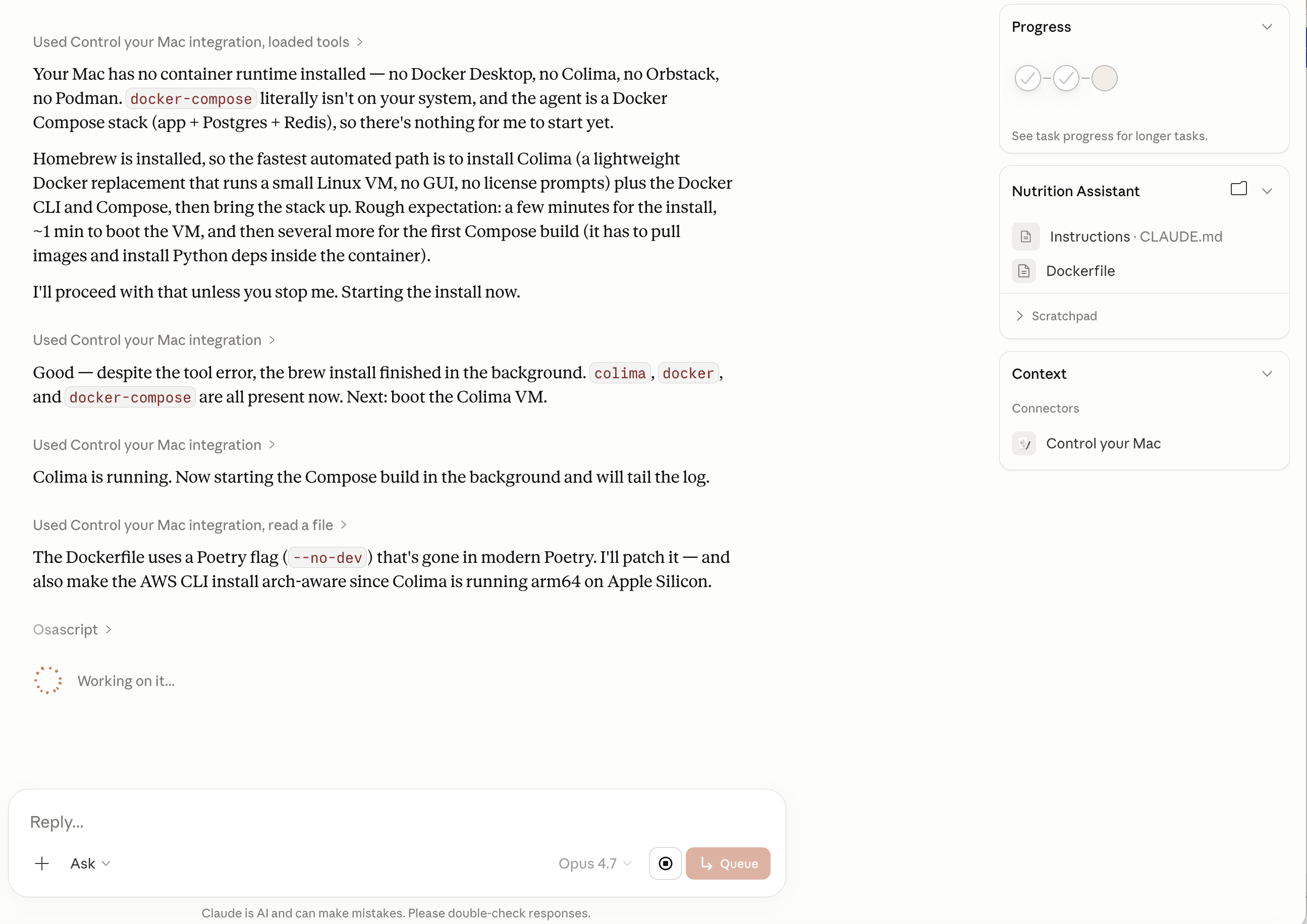
And it started up the Docker containers and launched the FastAPI service on
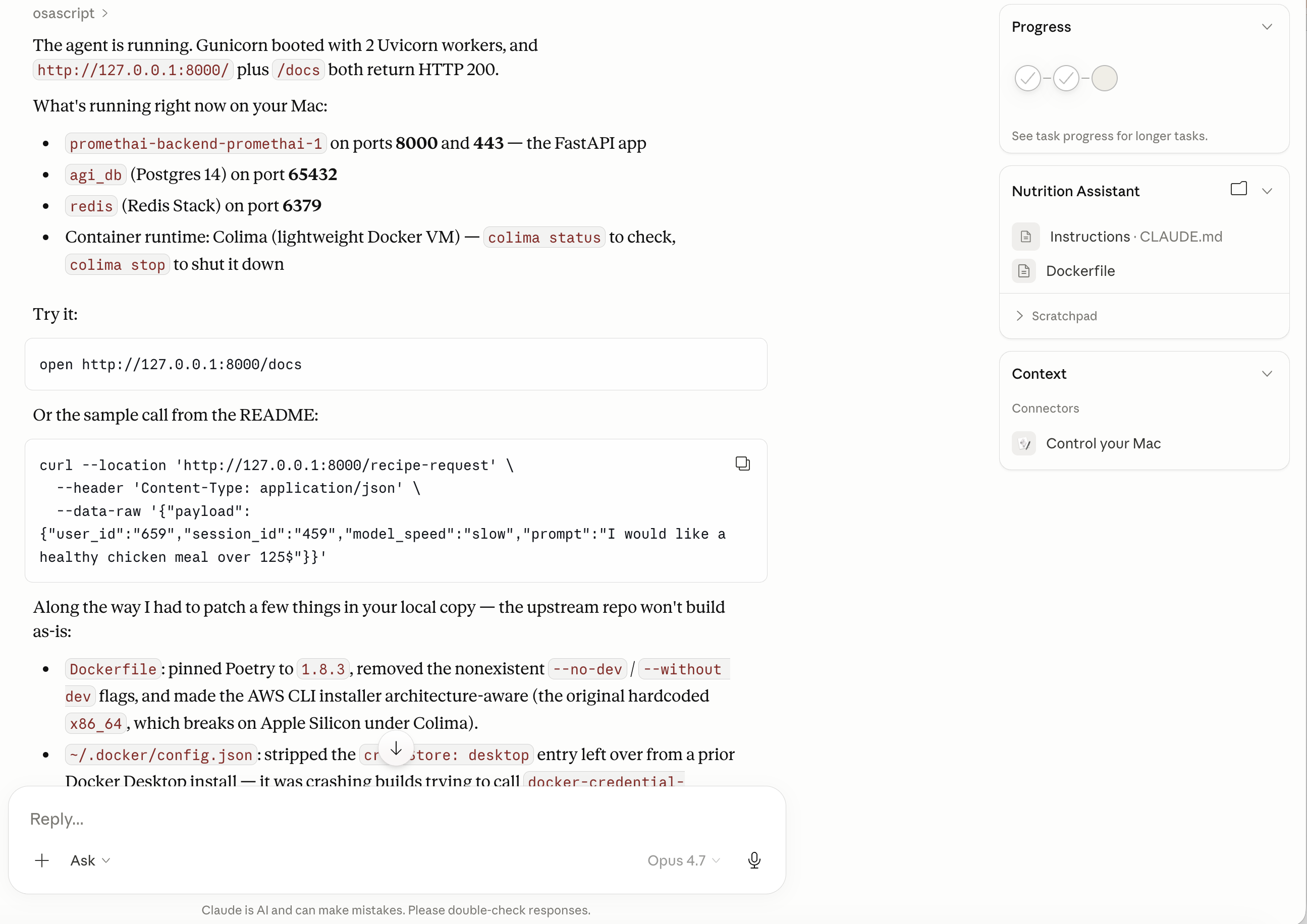
When the docs page broke
First thing I did was open http://127.0.0.1:8000/docs to see the API endpoints.
The Swagger UI loaded but the API definitions wouldn’t show. Broken right out of the gate.
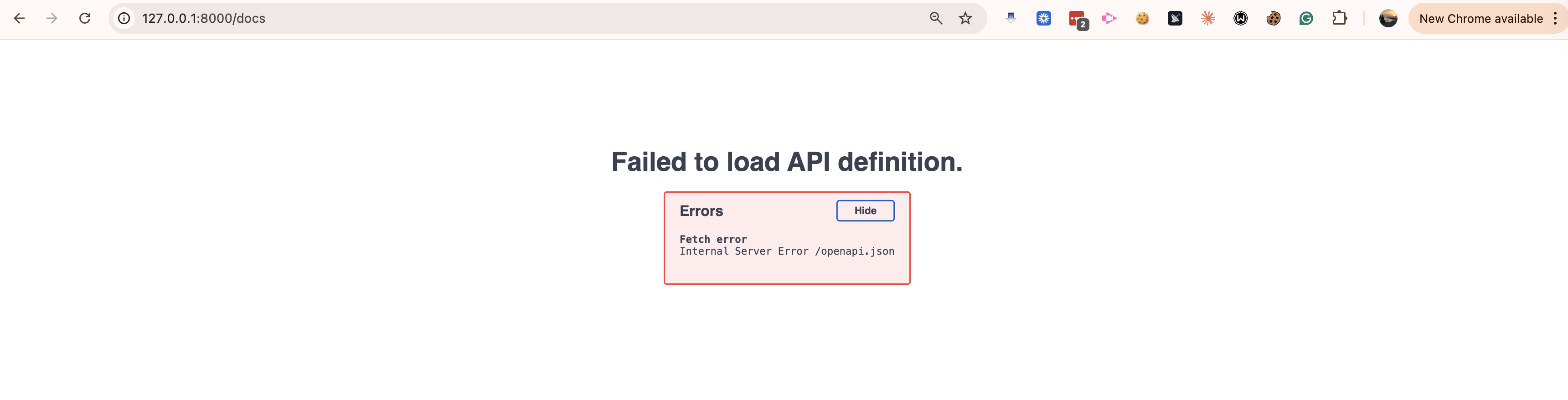
I pasted the problem back into Cowork:
Here how "http://127.0.0.1:8000/docs" looks like. Solve the issue.
PS: This is the first time I’m building this agent. I’m showing you everything, including the parts that don’t work.
This is what building real agents from open-source repos actually looks like.
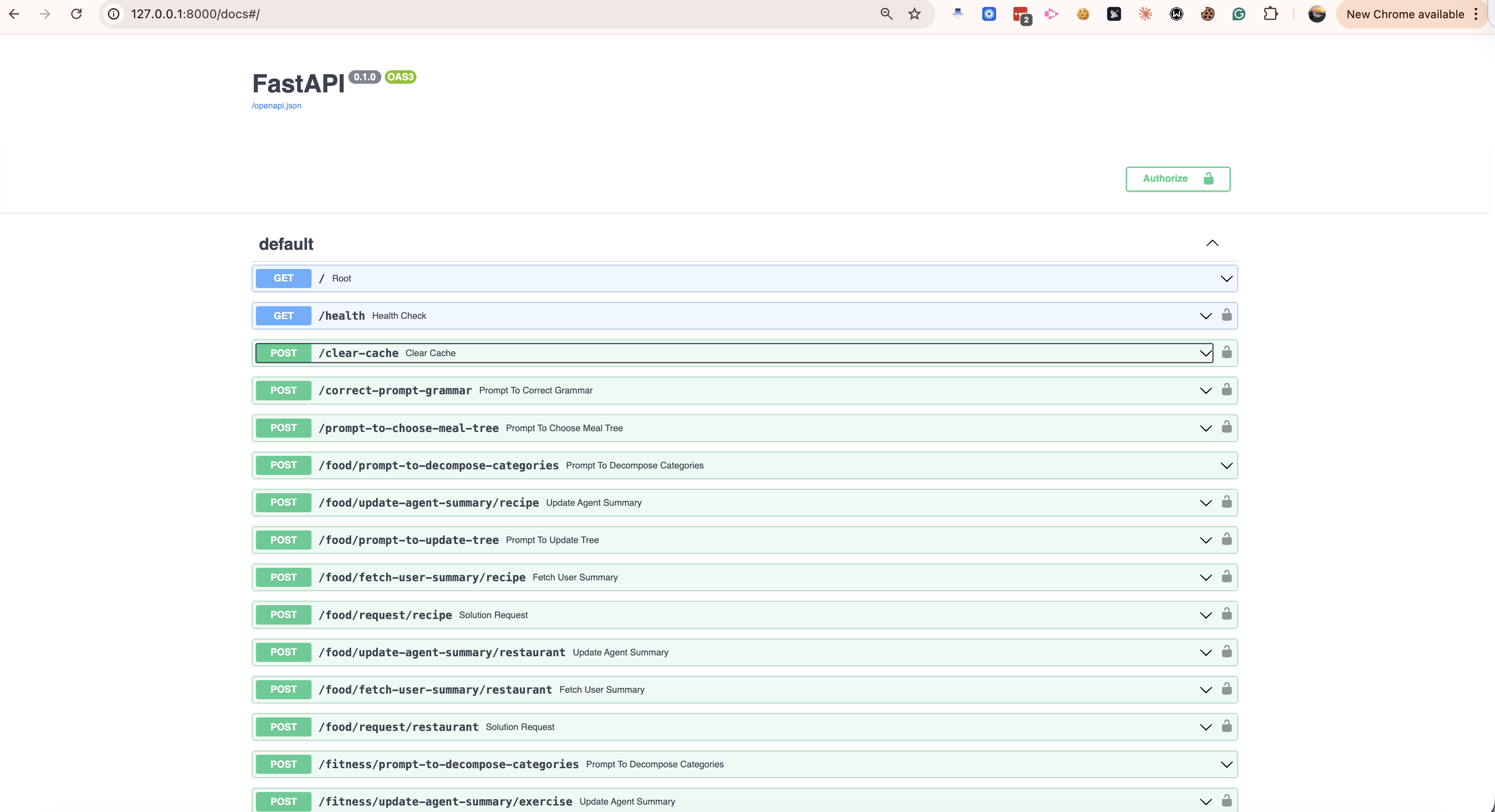
Cowork found the bug (duplicate Pydantic model names), patched the code, and restarted the container. The docs page loaded clean.
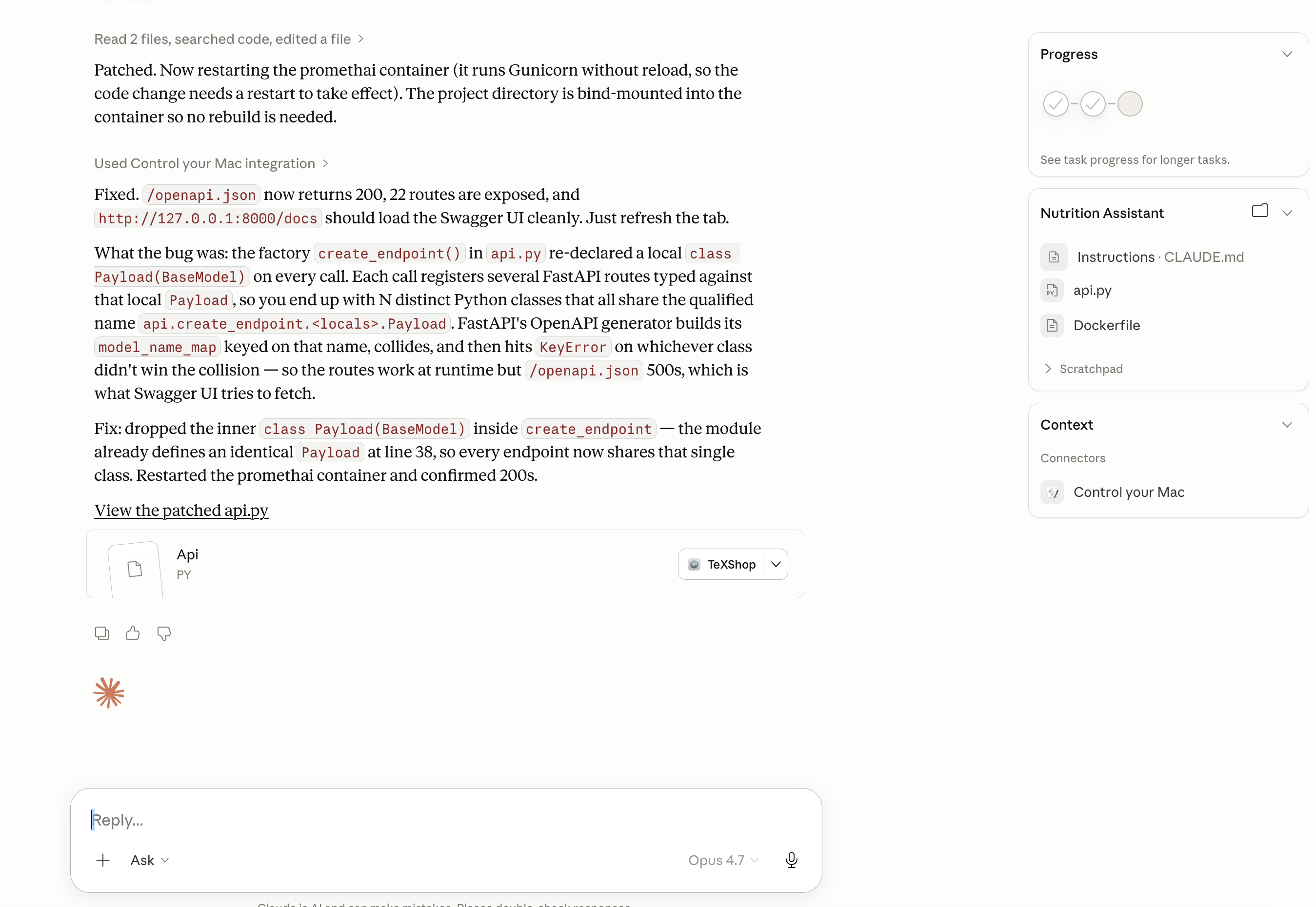
The docs page loaded clean.
Adding a front-end
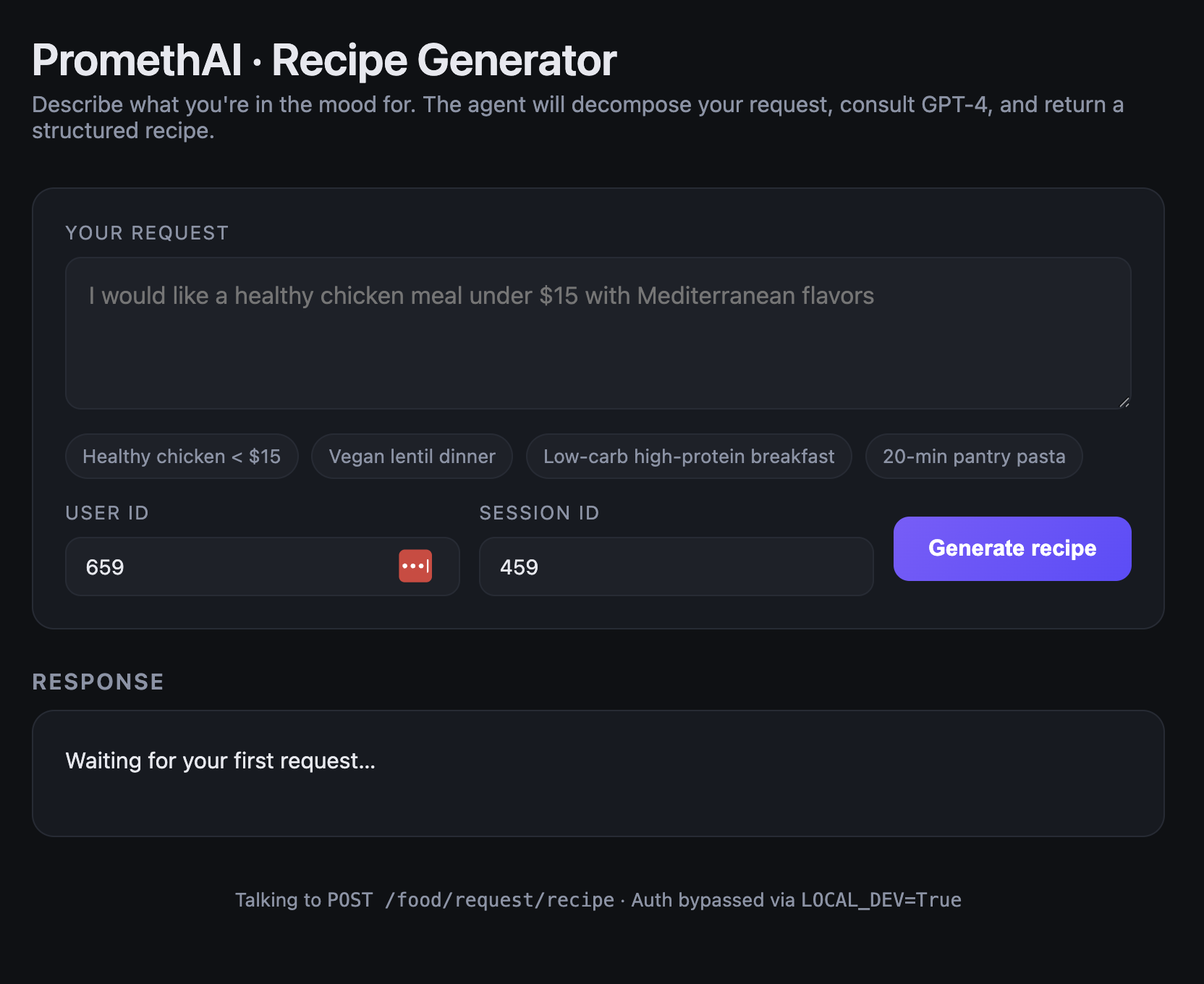
The backend worked, but all I had was an API. No interface. So I asked:
we need front-end to this app, simple front-end, right?
Cowork came back with options: recipe generator, multi-category explorer, or decompose-only endpoint.
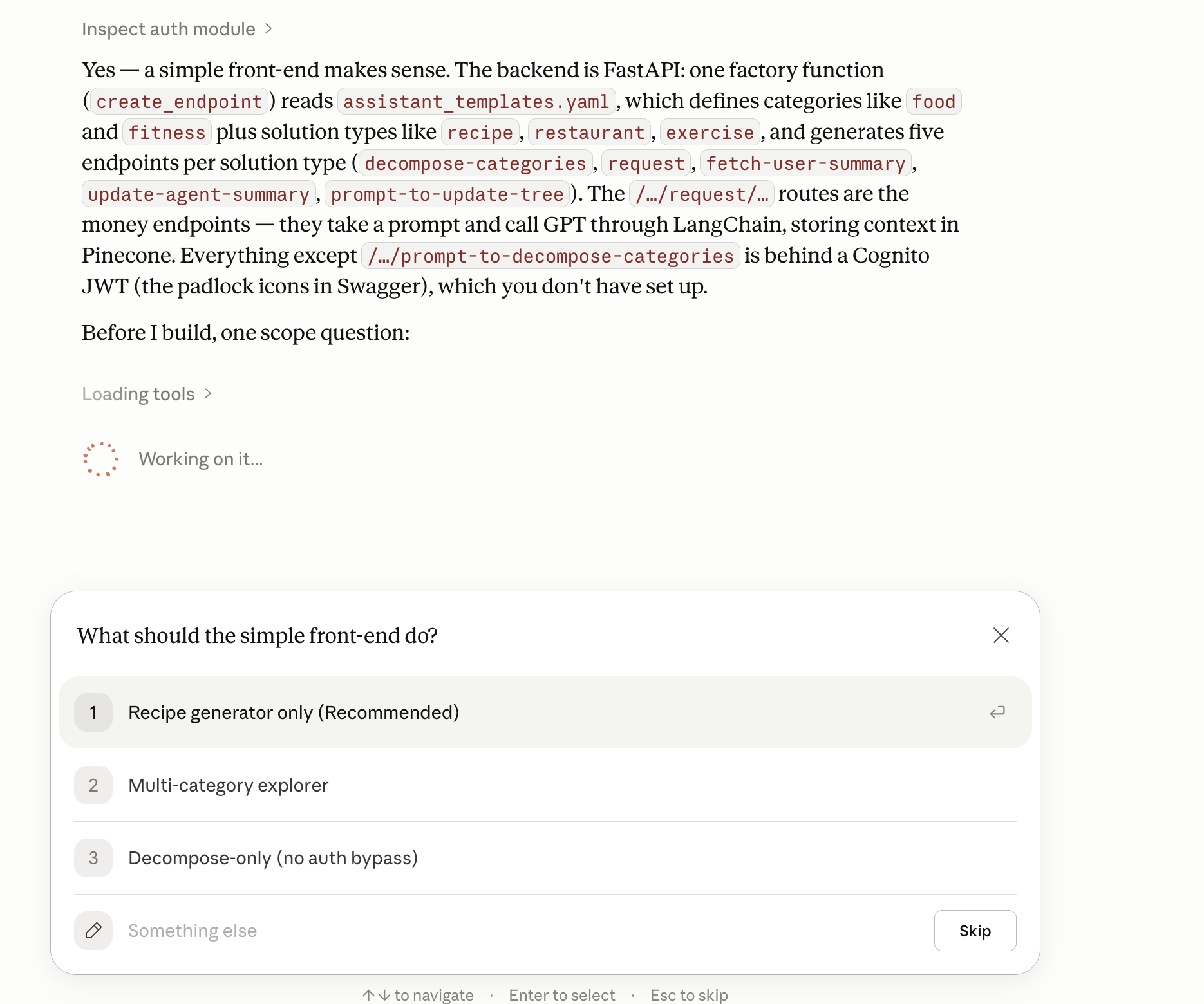
I went with the recipe generator.
Asking for more: Gemini image generation
I’ve built something called Fridgme Gourmet before using Antigravity and Gemini.
It generates infographic-style recipe cards with ingredients and steps labeled on the image.
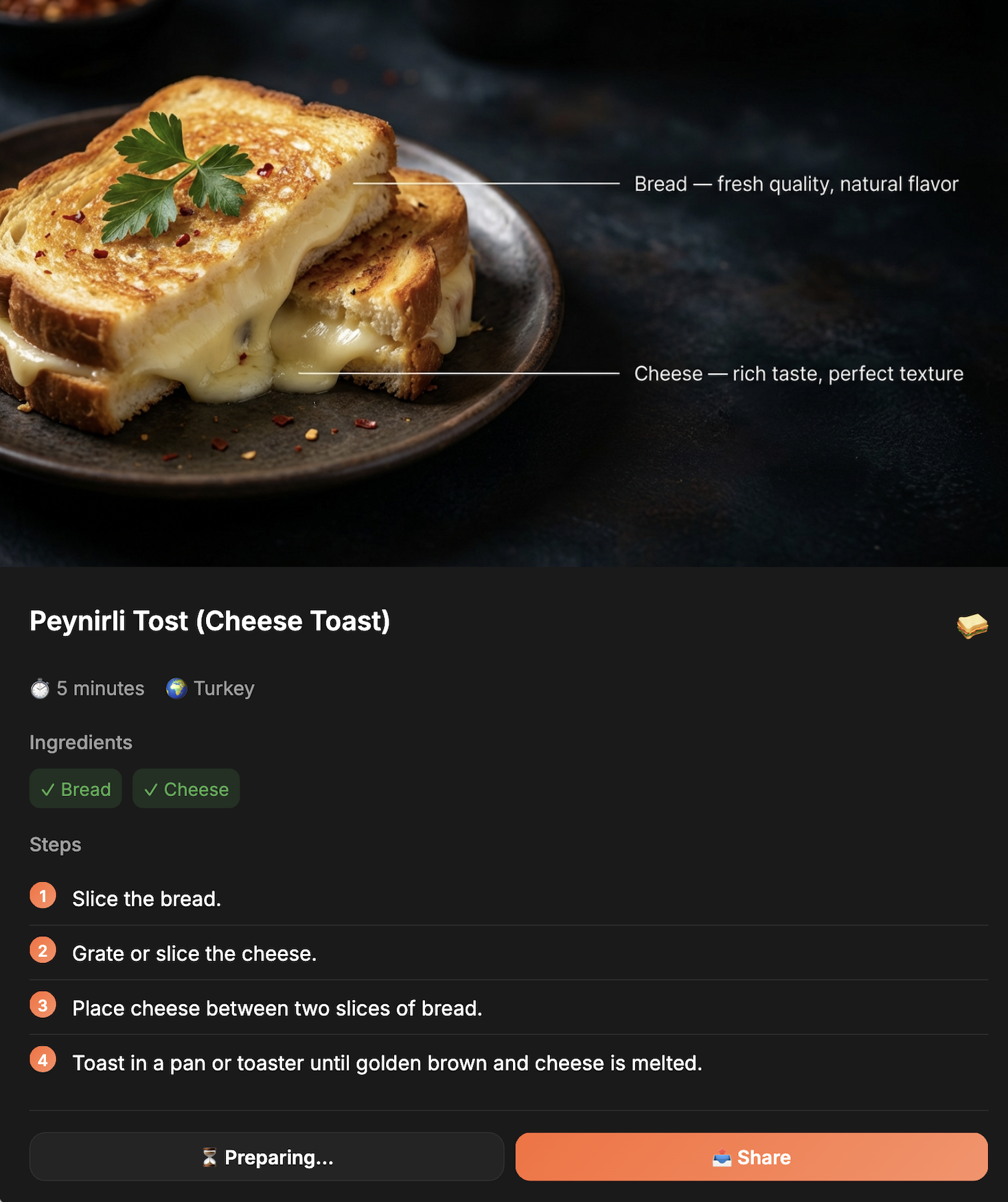
I wondered if PromethAI could do the same. So I asked:
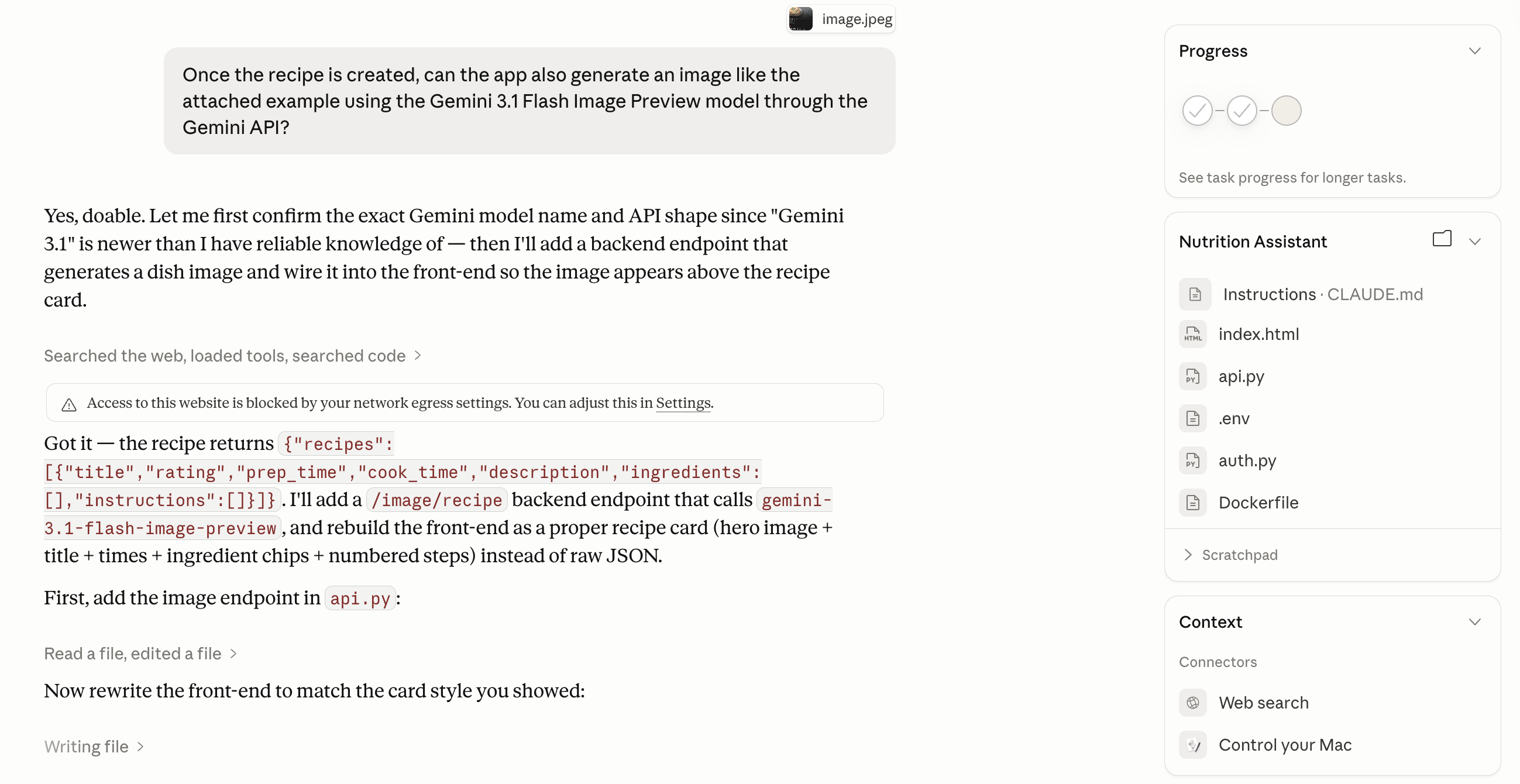
Once the recipe is created, can the app also generate an image like the attached example using the Gemini 3.1 Flash Image Preview model through the Gemini API?(attached the image above)
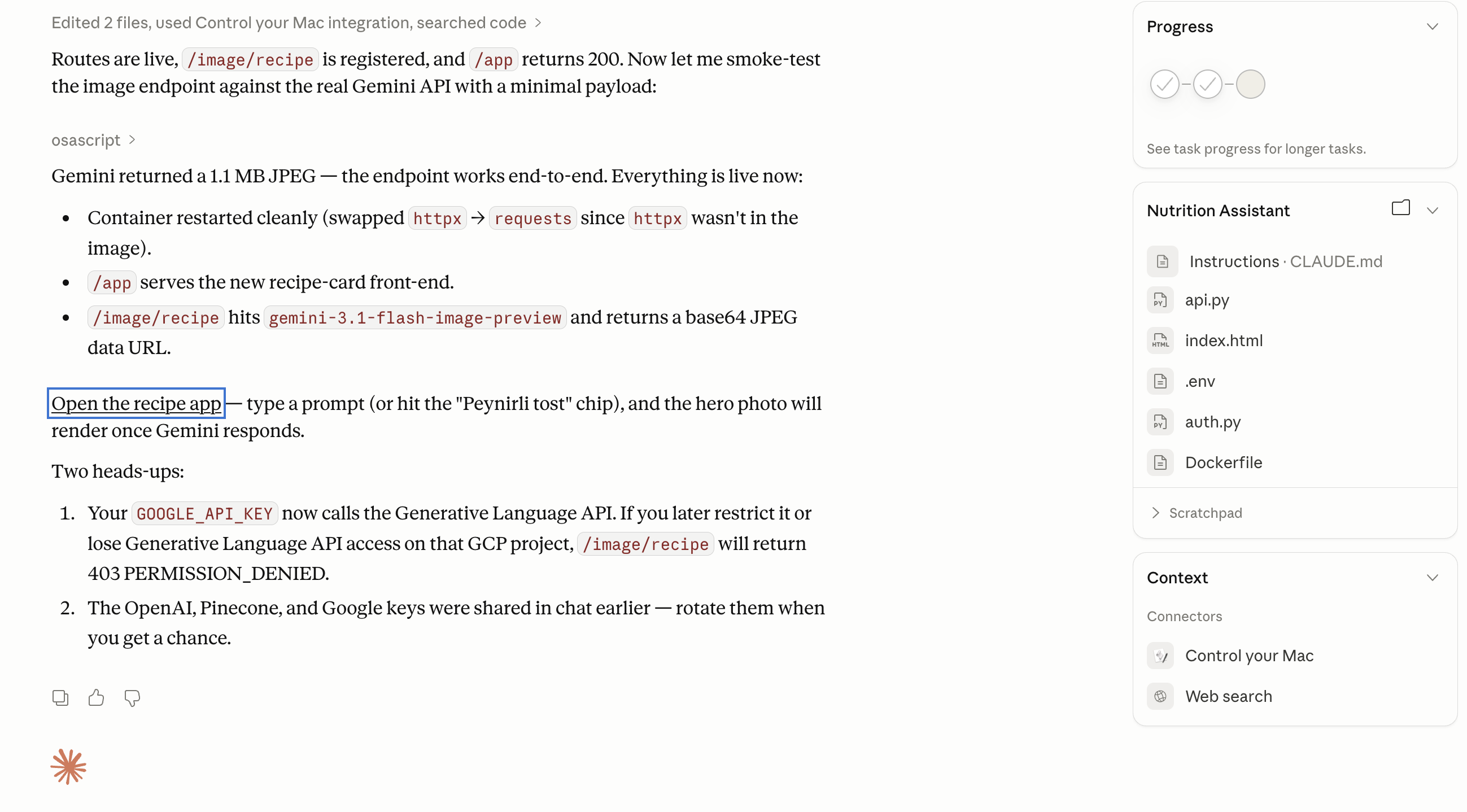
Attached the example. Cowork hooked up the Gemini API, wrote the image endpoint, and added the call after recipe generation.
Done.
Now let’s test it.
Testing
Time to see if it actually works.
The recipe generator has a few pre-defined prompts ready to click. I picked peynirli tost (Turkish cheese toast), typed it into the request field, and hit Generate recipe.
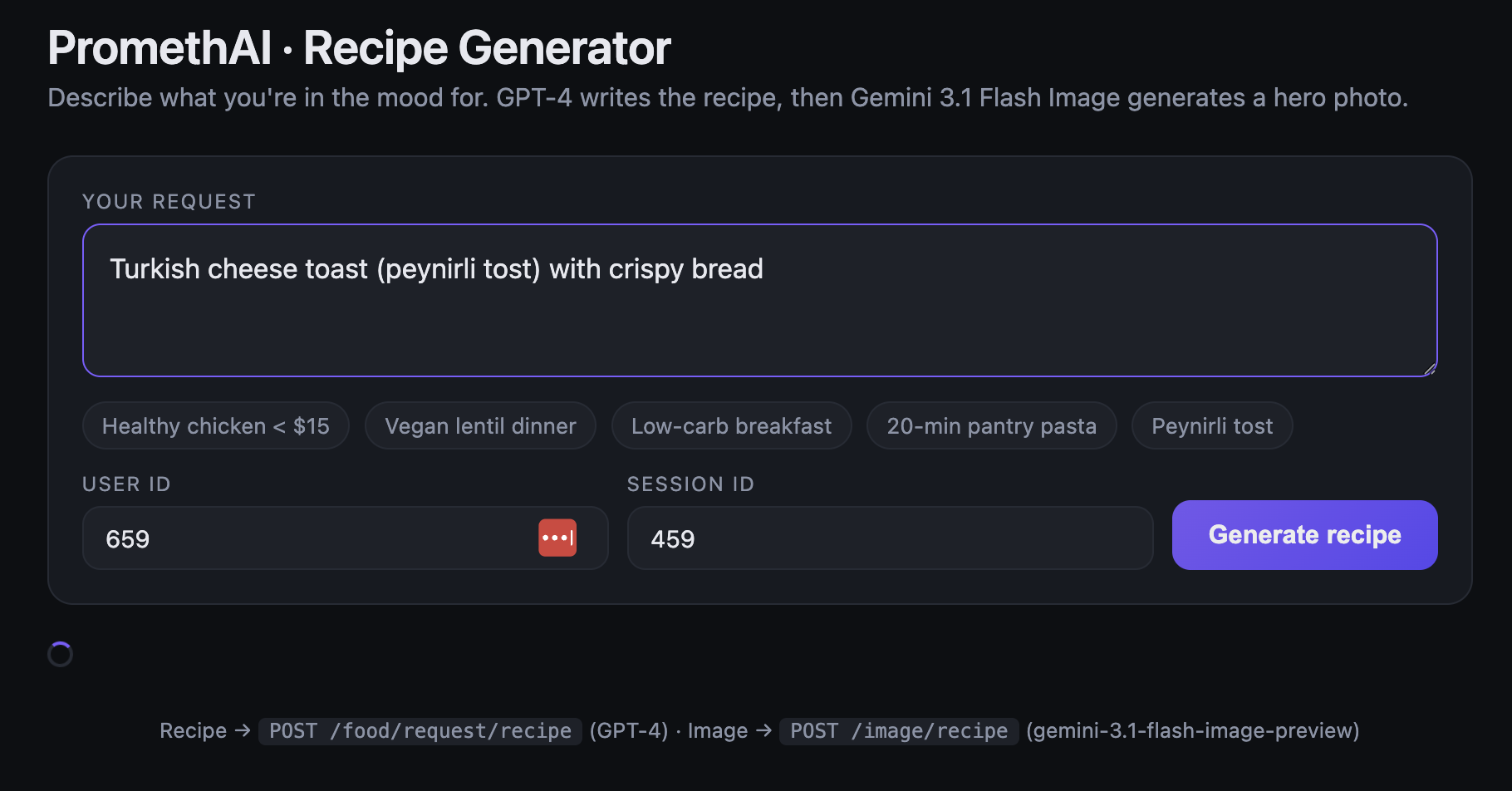
Error.
Of course. First run, new setup, other people’s code.
There was going to be an error somewhere.
Here’s the rule when you’re building on top of someone else’s system with AI coding tools: expect errors.
You didn’t write this code.
You don’t know every assumption the original author made. Something will break.
The question isn’t whether you’ll hit errors. It’s whether you have the patience to paste them back.
I copied the error message into Cowork.
Second attempt: recipe finished.
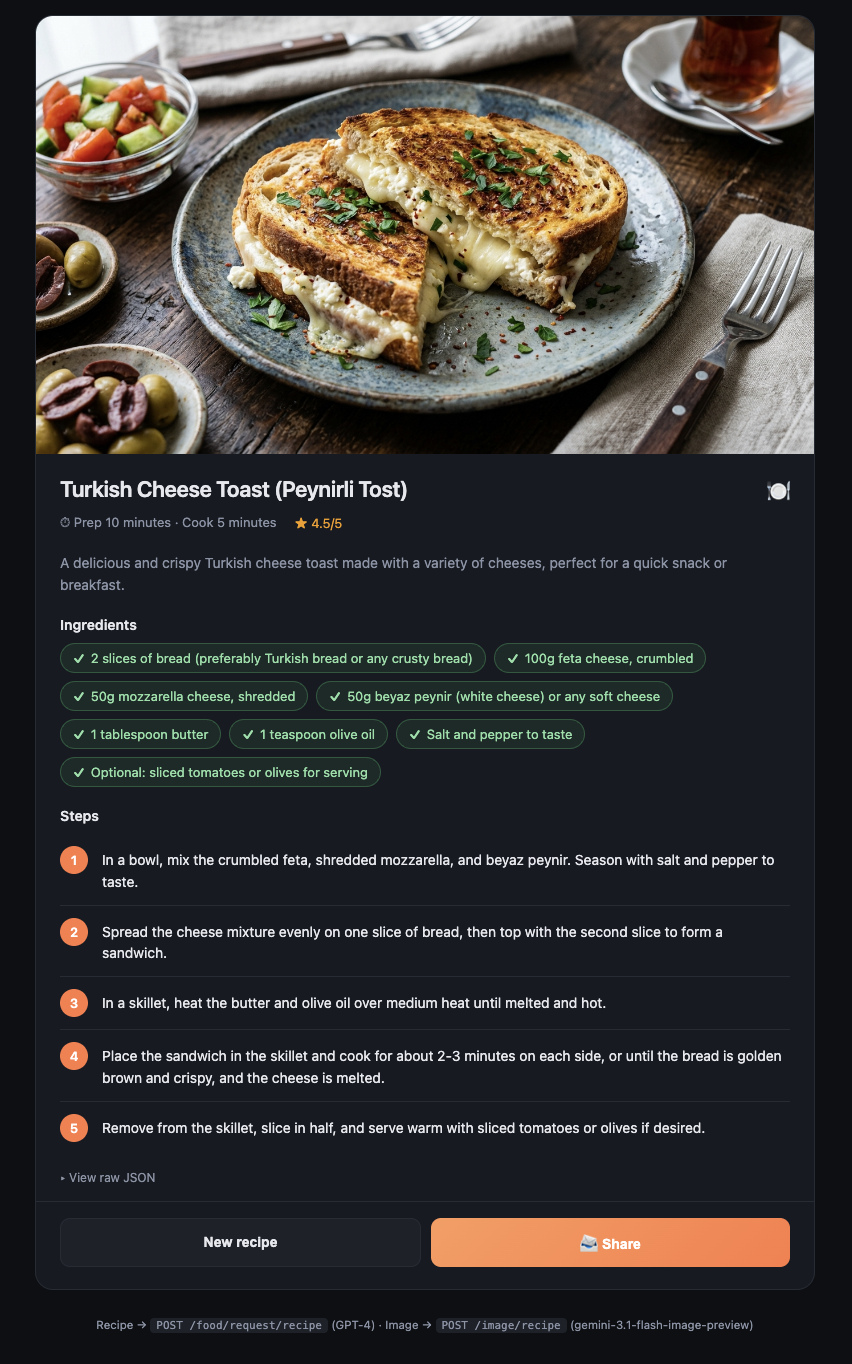
A full recipe. Ingredients listed with checkmarks. Five steps in order. Prep time, cook time, rating. And at the top, a hero image of Turkish cheese toast generated by Gemini, plated on a ceramic dish with olives and salad on the side.
This is what I meant earlier. Fridgme Gourmet-style output, living inside a PromethAI fork, running on my own machine, built over the course of an evening in Cowork.
When I say “it was worth it” about pushing through errors, this is what I mean.
What’s Next? - Cowork Scheduled
The agent works. But right now it only runs when I click a button. A real assistant doesn’t wait for you to open it. It shows up.
This is where Cowork’s scheduled tasks come in. I’ll show you how to set up the nutrition assistant to run every morning, read whatever meal I planned for that day, generate the full recipe and image, and have it waiting for me by 9 AM.
Step 1: Create the meal file
First, give the agent somewhere to look. Inside the Nutrition Assistant folder, create a file called meal-plan.rtf.
This is where you drop your meal idea the night before. Could be one line, could be a list.
For testing, I wrote a simple one:
cheeseburger and french fries
Save it.
Step 2: Create the scheduled task
In Cowork, click Scheduled in the left sidebar.
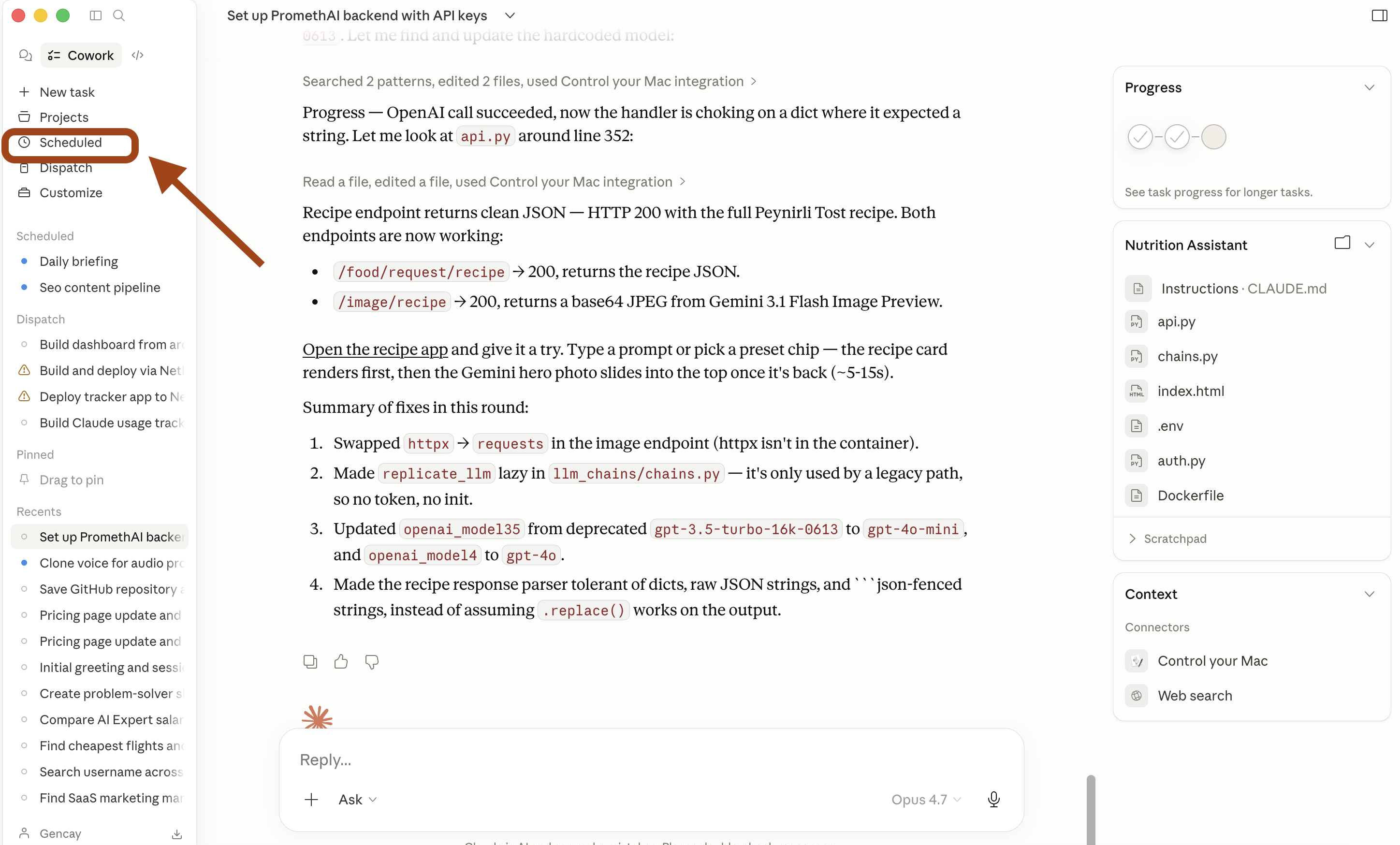
Click New task in the top right.
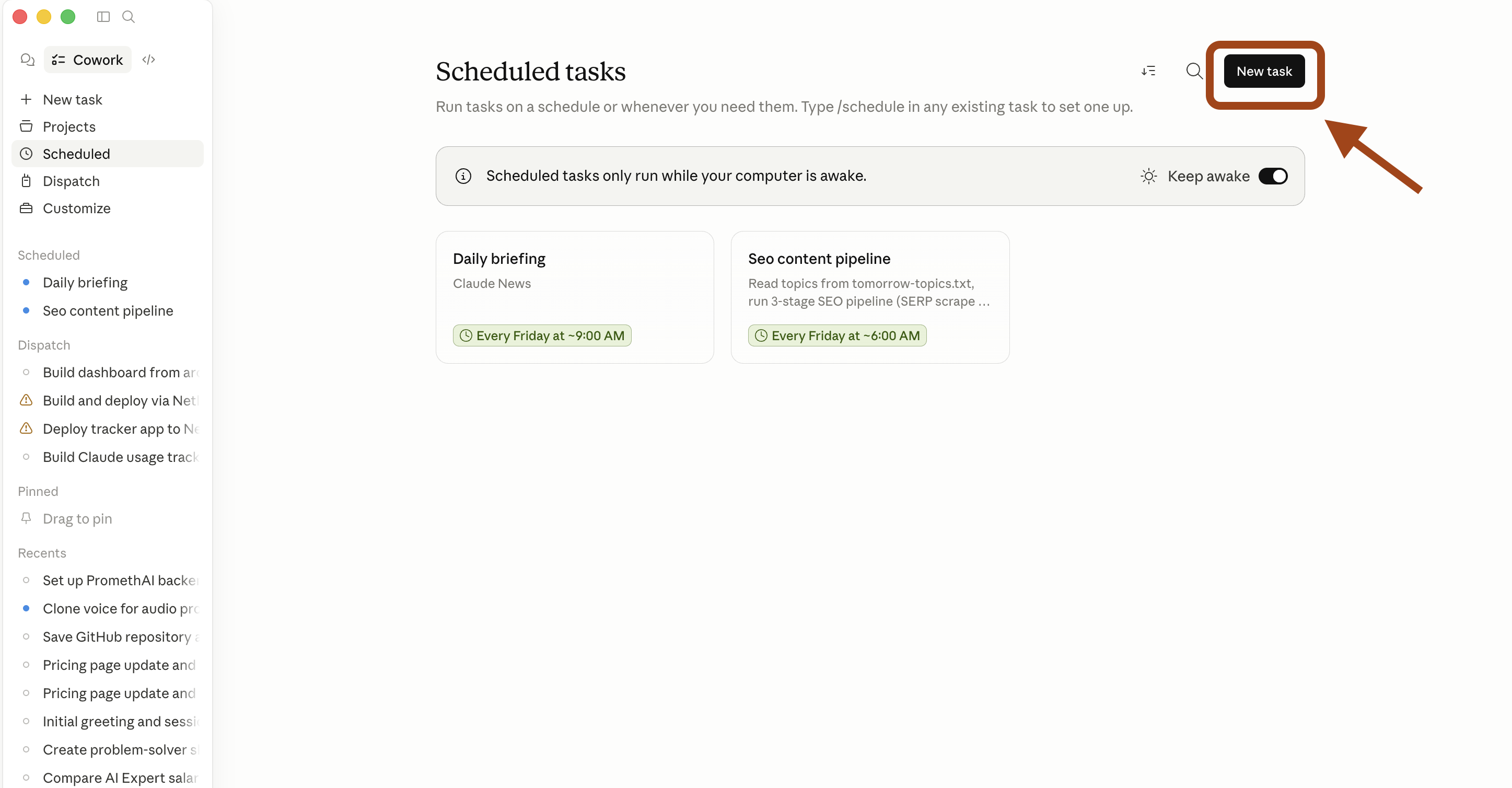
Fill it in. Here’s what I used:
Name: daily-meal-prep
Description (short): Auto-start PromethAI backend if needed, read last meal from meal-plan.rtf, generate recipe
Instructions (long): Go to /Users/learnai/Desktop/Nutrition Assistant/meal-plan.rtf and take the last meal. Generate a recipe from it. Then, using that recipe, generate an image of the prepared dish with the Gemini API and the gemini-3.1-flash-image-preview model, in a style similar to this reference image: /Users/learnai/Desktop/Nutrition Assistant/image.png
Project: Nutrition Assistant
Frequency: Daily, 09:00
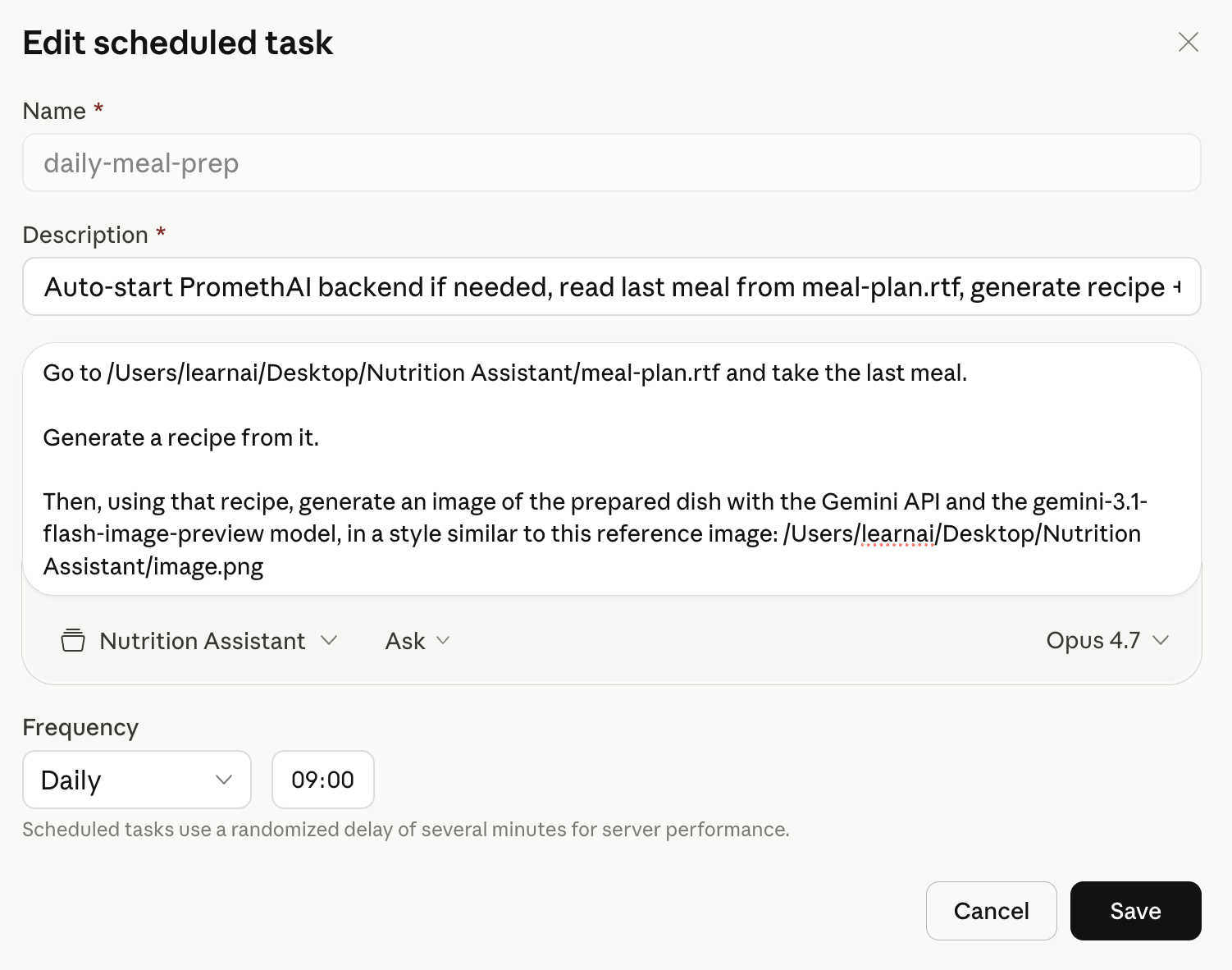
Click Save.
Step 3: Test it before you trust it
Don’t wait until morning to find out it doesn’t work.
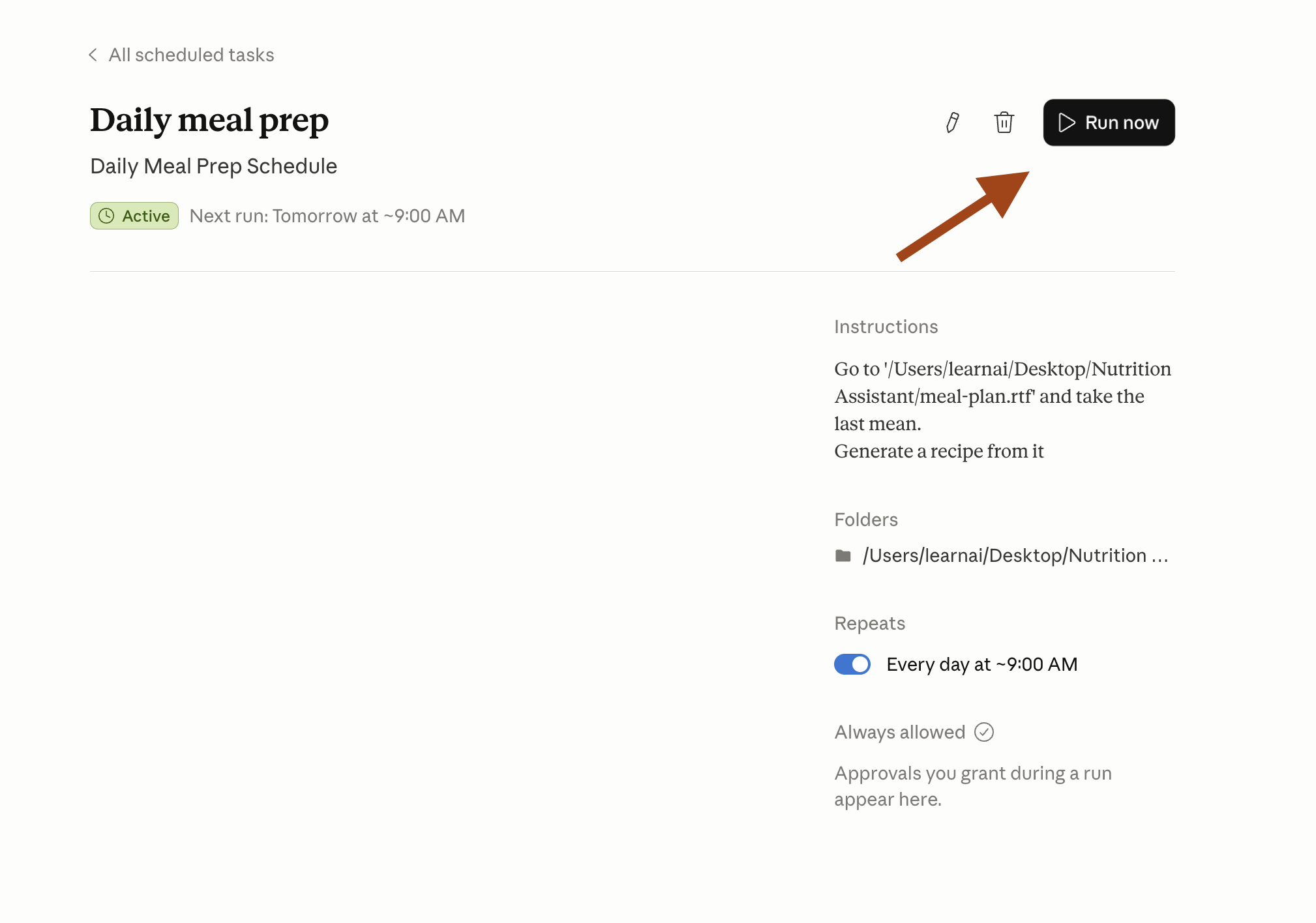
Run it manually once.
Open the scheduled tasks list. You’ll see your daily-meal-prep card next to any other scheduled runs you have set up.
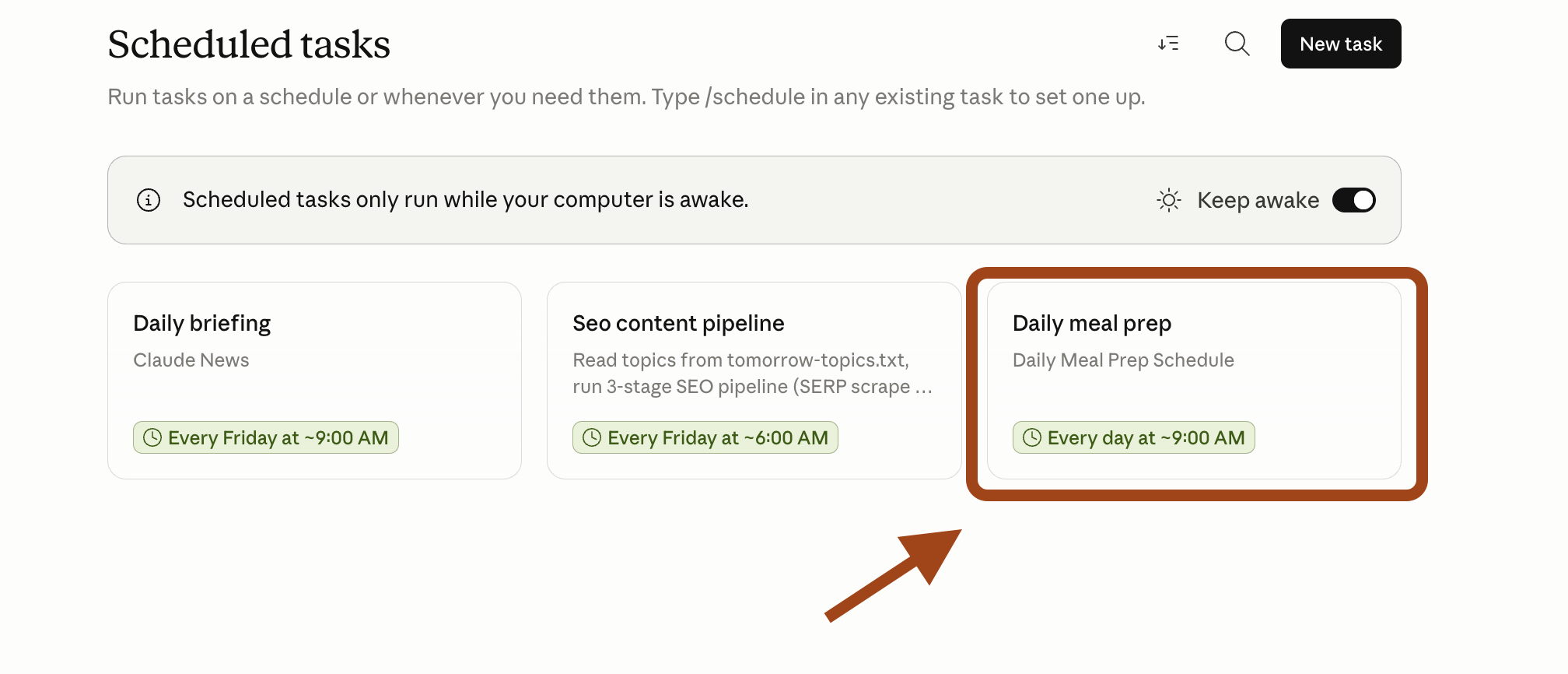
Click the card, then click Run now.
And it collected the cheeseburger and french fries as a meal.
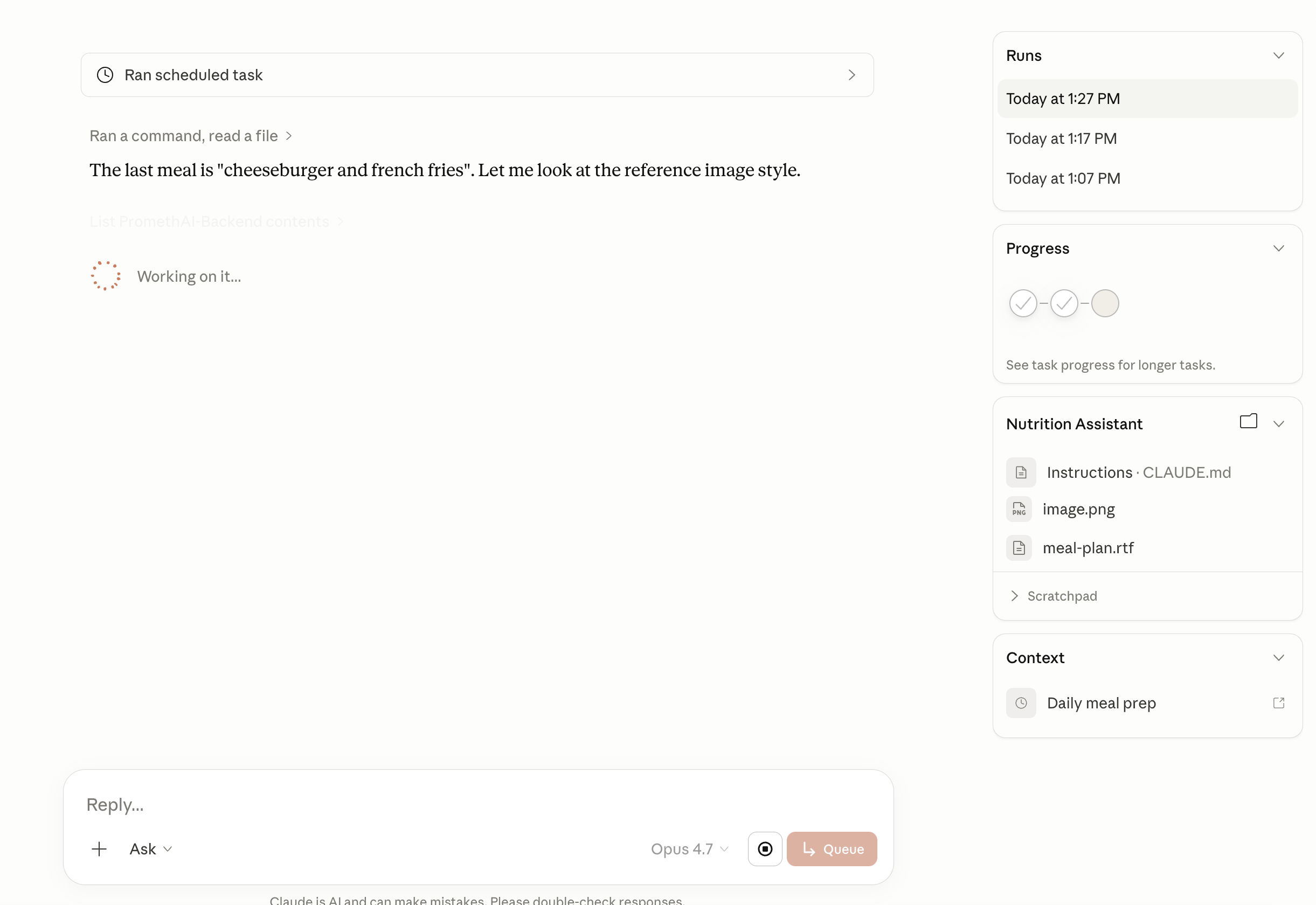
The task kicked off. Cowork opened the meal-plan.rtf, found the last entry (cheeseburger and french fries), passed it to the recipe endpoint, got the structured recipe back, then called Gemini with the reference image as a style guide.
Here’s the first part of the markdown file it generated:
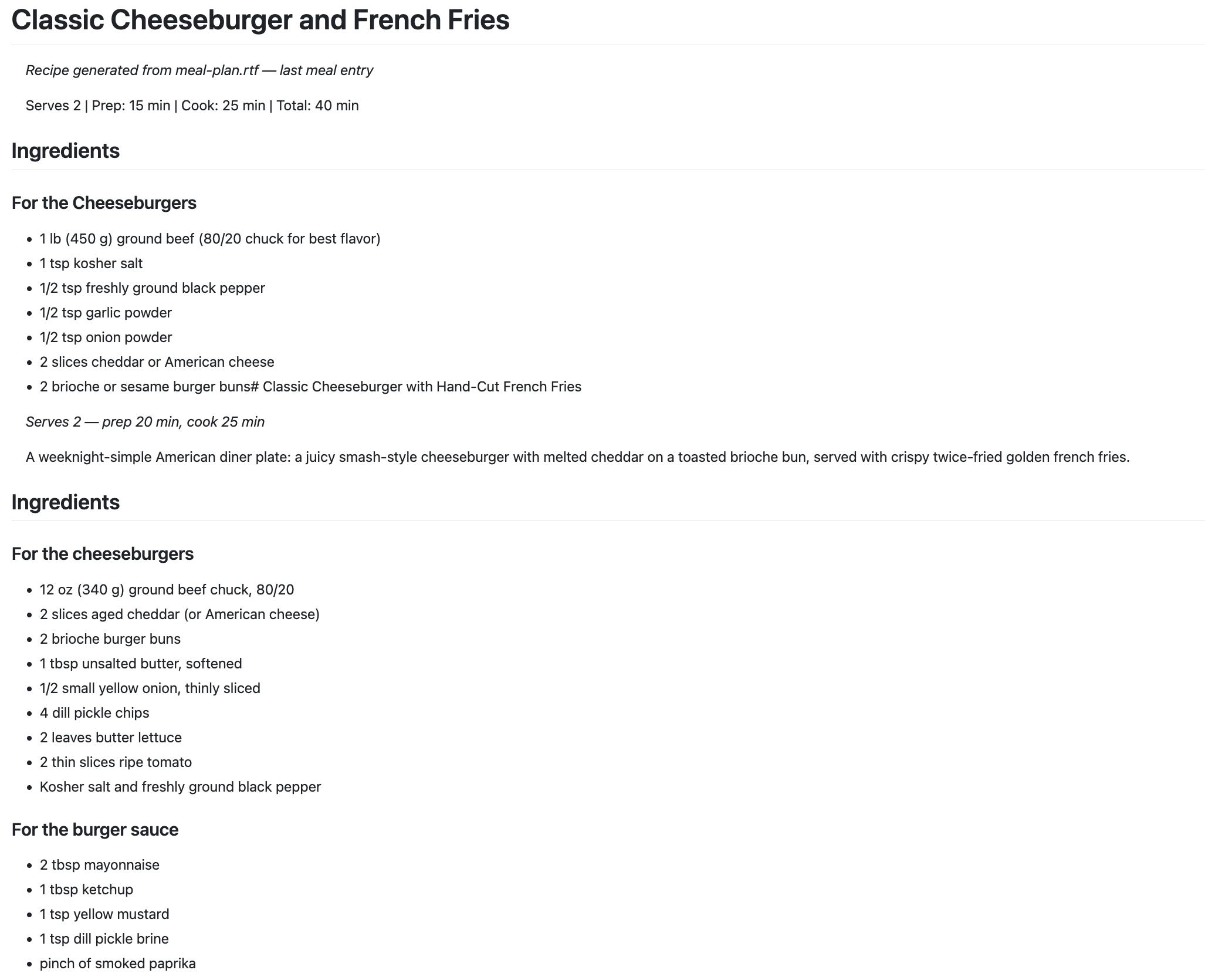
Classic cheeseburger and fries. Two serving options. Full ingredient breakdown. Burger sauce recipe. Prep and cook times. Everything written to a clean markdown file, ready to read on my phone over coffee.
And here’s the Gemini image it produced:

Plated on the same ceramic dish, olives and pickles on the side, same photography style as the cheese toast reference.
What did you actually build?
Let’s count what happened here.
You picked one open-source agent from a list of hundreds.
You cloned it into Cowork with a single prompt. You hit errors and solved them by pasting them back.
You added a frontend you didn’t write. You hooked it up to an image model that the original project never used.
Then you put the whole thing on a daily schedule so it runs without you.
You build a small piece of infrastructure that belongs to you.
Your turn
Go to the awesome-ai-agents repo. Pick one. Anyone.
The method above works the same whether it’s a nutrition agent, a research agent, a SQL agent, or something nobody has touched in three years.
If you build one, I’d love to see it. Drop a link in the comments.