Turn static NotebookLM presentations into fully customizable decks. No formatting headaches.
By Gencay
Published: 2026-02-15
URL: https://www.learnwithmeai.com/p/i-turn-notebooklm-slides-into-editable

It’s 5 PM. Client meeting at 9 AM. You need a professional PowerPoint deck from that 50-page research report.
Traditional methods? 4+ hours of manual copying, formatting, and structuring. Most people resign to all-nighters or embarrassing bullet-point dumps.
What if you could turn any PDF into editable PowerPoint slides in 5 minutes?
No code. No design skills. No formatting headaches.
This isn’t theory. This is the exact 5-minute process I use.
Here’s what you’ll get
- NotebookLM slide generation
- Canva conversion to editable PowerPoint
- Free tools only
- Fully customizable results
Let’s build.
What Is NotebookLM?
\Reference\
NotebookLM, Google’s research partner.
I think it is Google’s best AI tool.
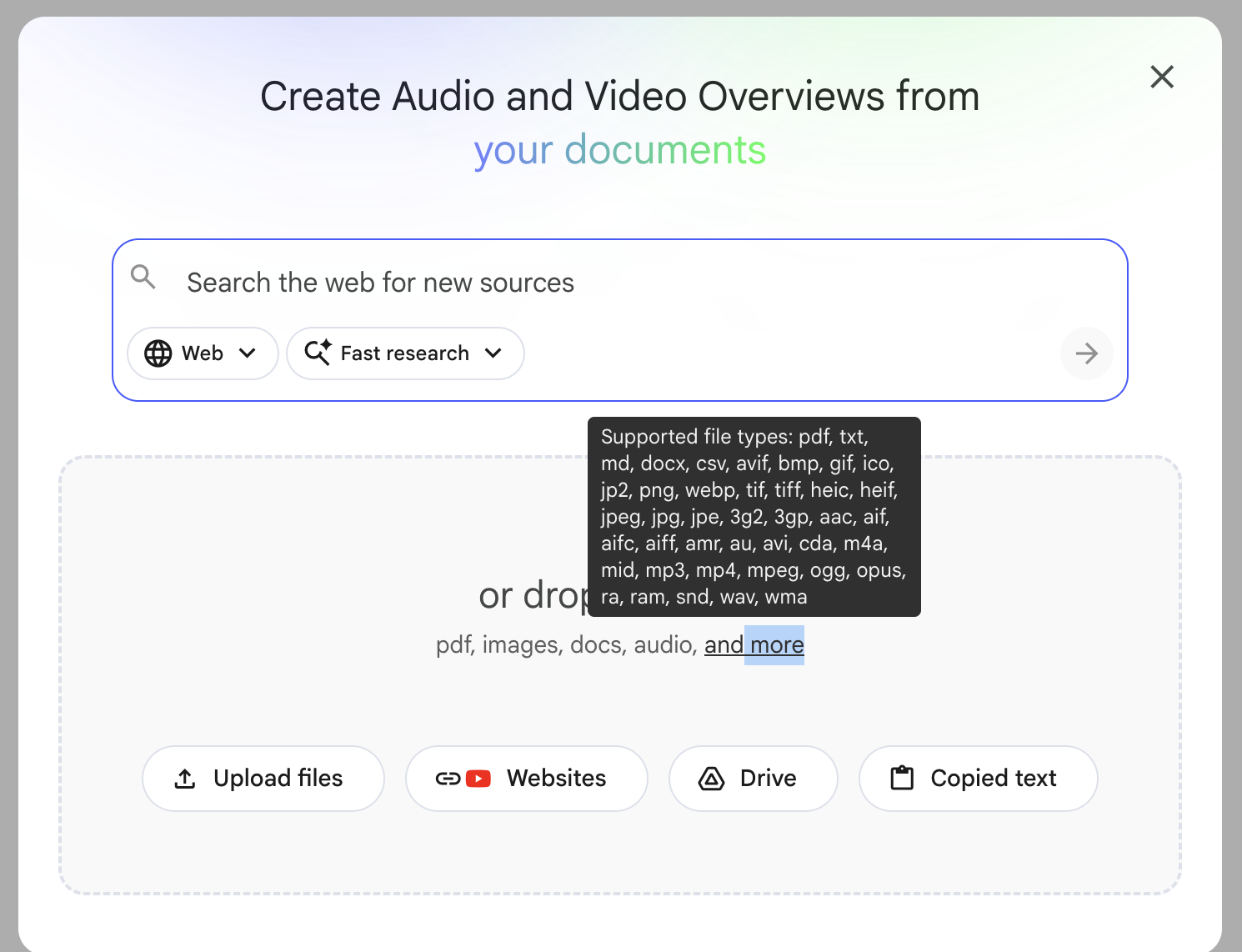
Simply upload files(check out supported files below), or do a deep search & fast research to generate NotebookLM.
\NotebookLM creation.\
Unlike ChatGPT, it is less prone to hallucination because it is trained on the document you uploaded.
How to Create a Notebook?
Visit notebooklm.google.com.
- Click “Try”
- Next, click on “Create New.”
- Add your sources: PDFs, Google Docs, URLs, or YouTube videos
- Name your notebook
That’s it.
NotebookLM now understands your content.
For NotebookLM tips and tricks, read this one.
How Do I Generate Slides from a PDF Using NotebookLM?
Now, upload your document, YT video, or any supported kind of document to it.
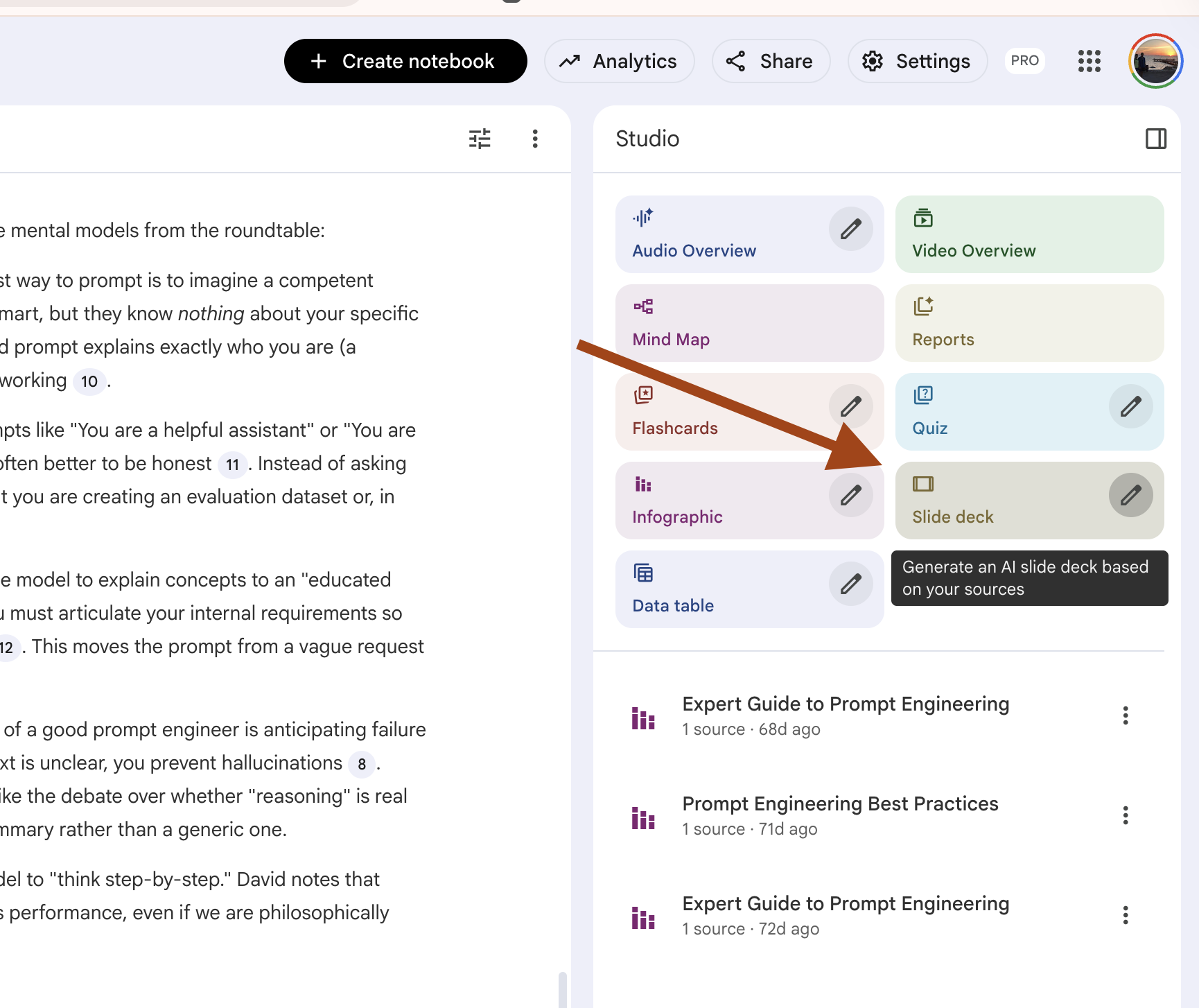
Click on “Slide Deck”
\Generating Slides Using NotebookLM\
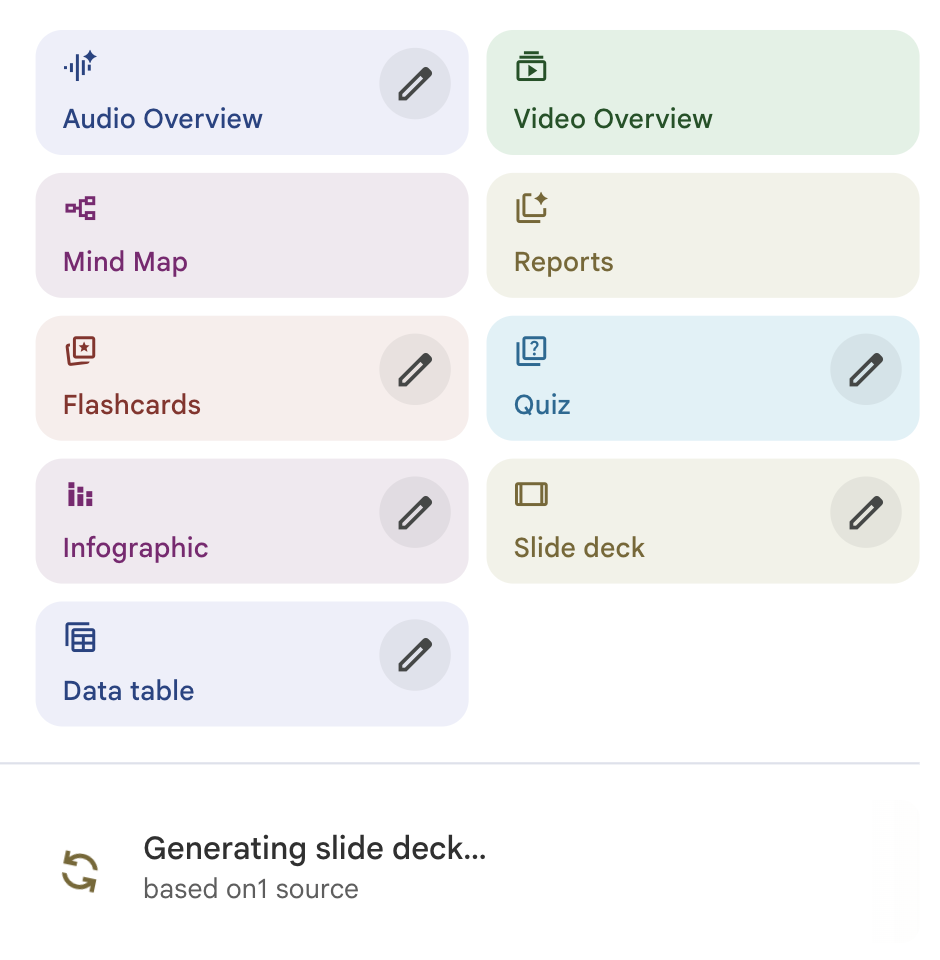
And your slide will be available in a couple of minutes.
\Generating slides.\
Slides generated.
But if you stop here, you’ve only done 40% of the work.
NotebookLM gives you locked PDFs.
You can’t customize them. You can’t match your brand. You can’t edit a single word.
There is a 2-step method.
It will allow you to edit these slides.
Free tools. 5 minutes max.
Let me show you.
Step 1- NotebookLM
Let’s click here.
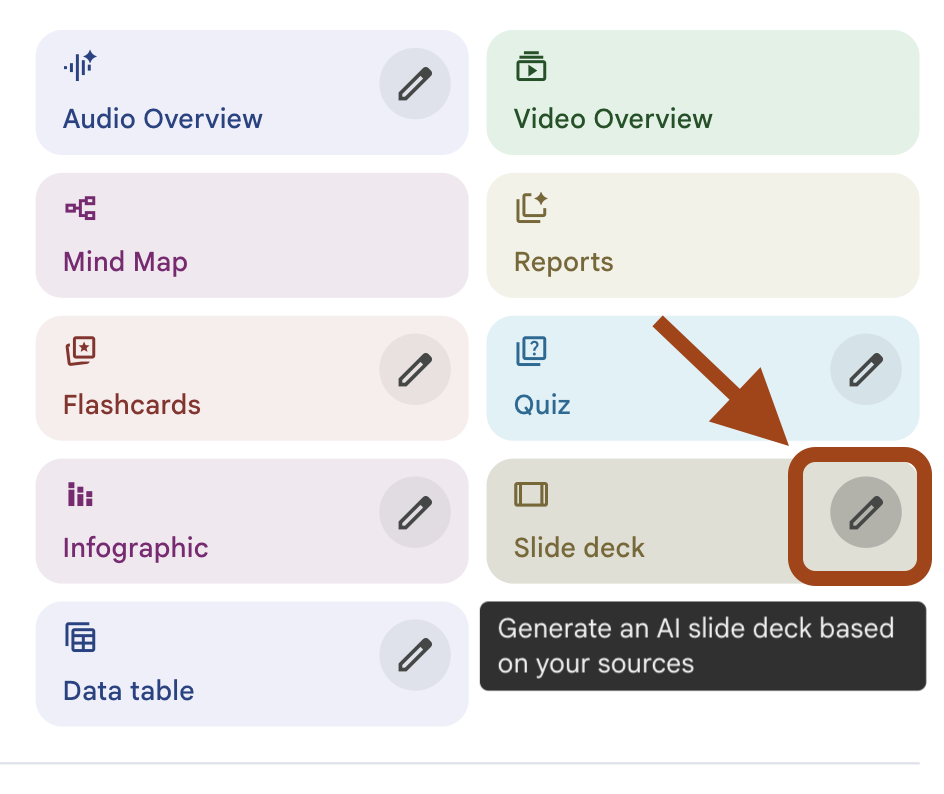
Now, you can customize these slide decks. Select “Presenter Slides”.
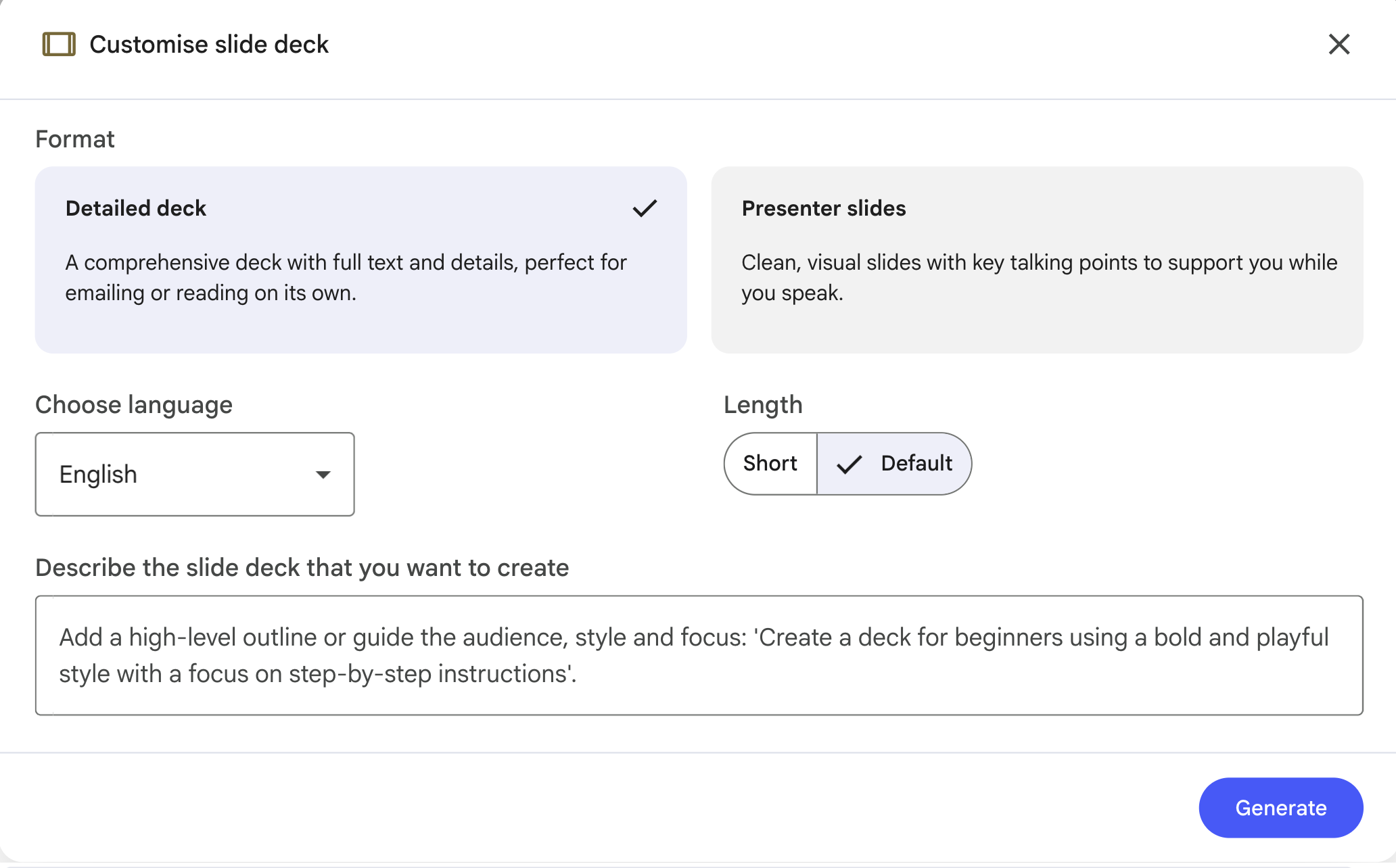
\Slide Deck Customization\
And we’ll use this prompt from the vault.
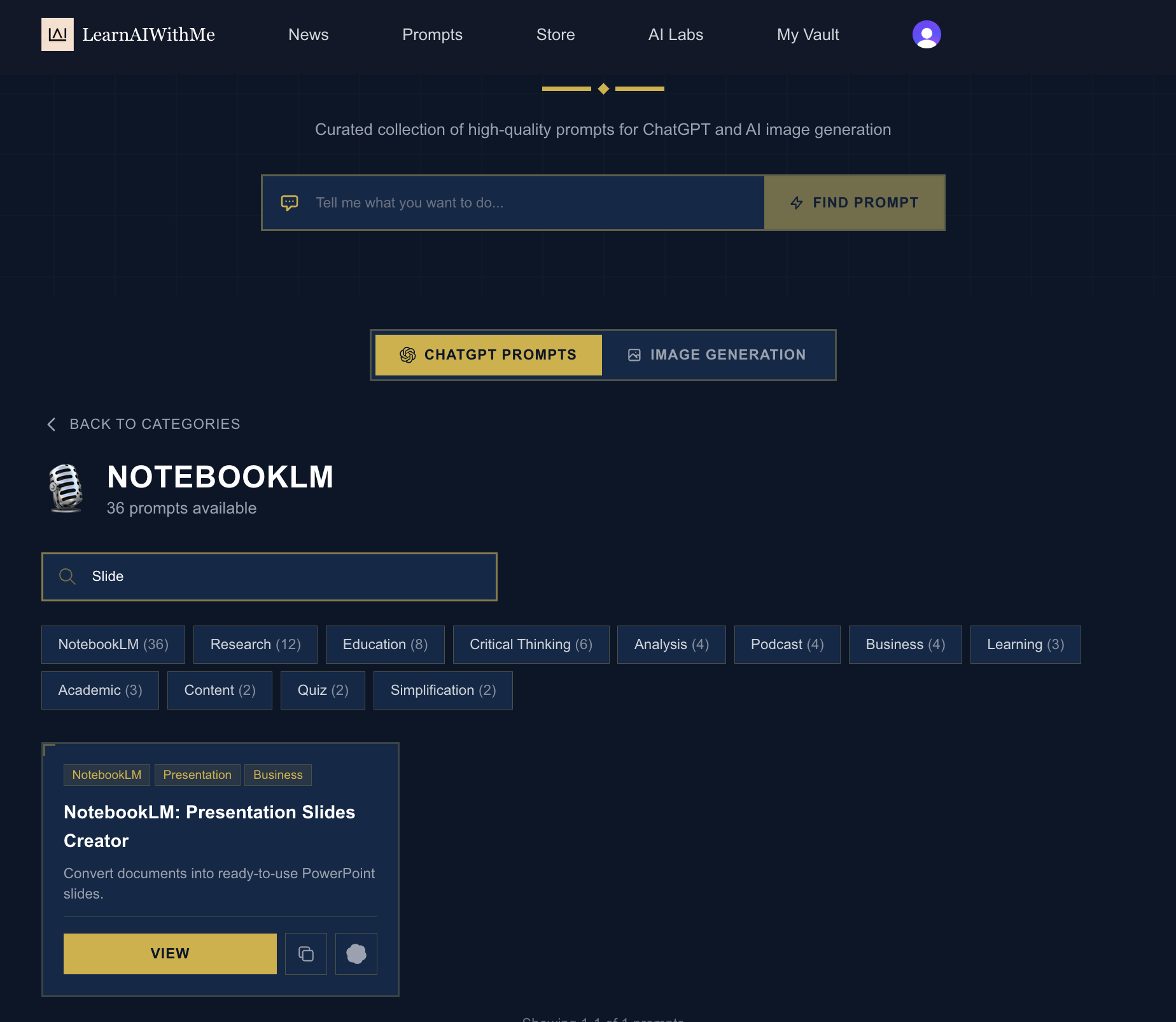
\For more info about vault, readthis.\
There are 35 more NotebookLM prompts in the vault.
Now here is the prompt.
Convert this document into presentation slides. For each main topic:
1. Create a slide title
2. Add 3-5 bullet points (concise, actionable)
3. Include a key quote or data point
4. Suggest a visual element (chart, image, diagram)
Format: [Slide 1] Title → Bullets → Quote → Visual
Put this prompt in NotebookLM and click on Generate.
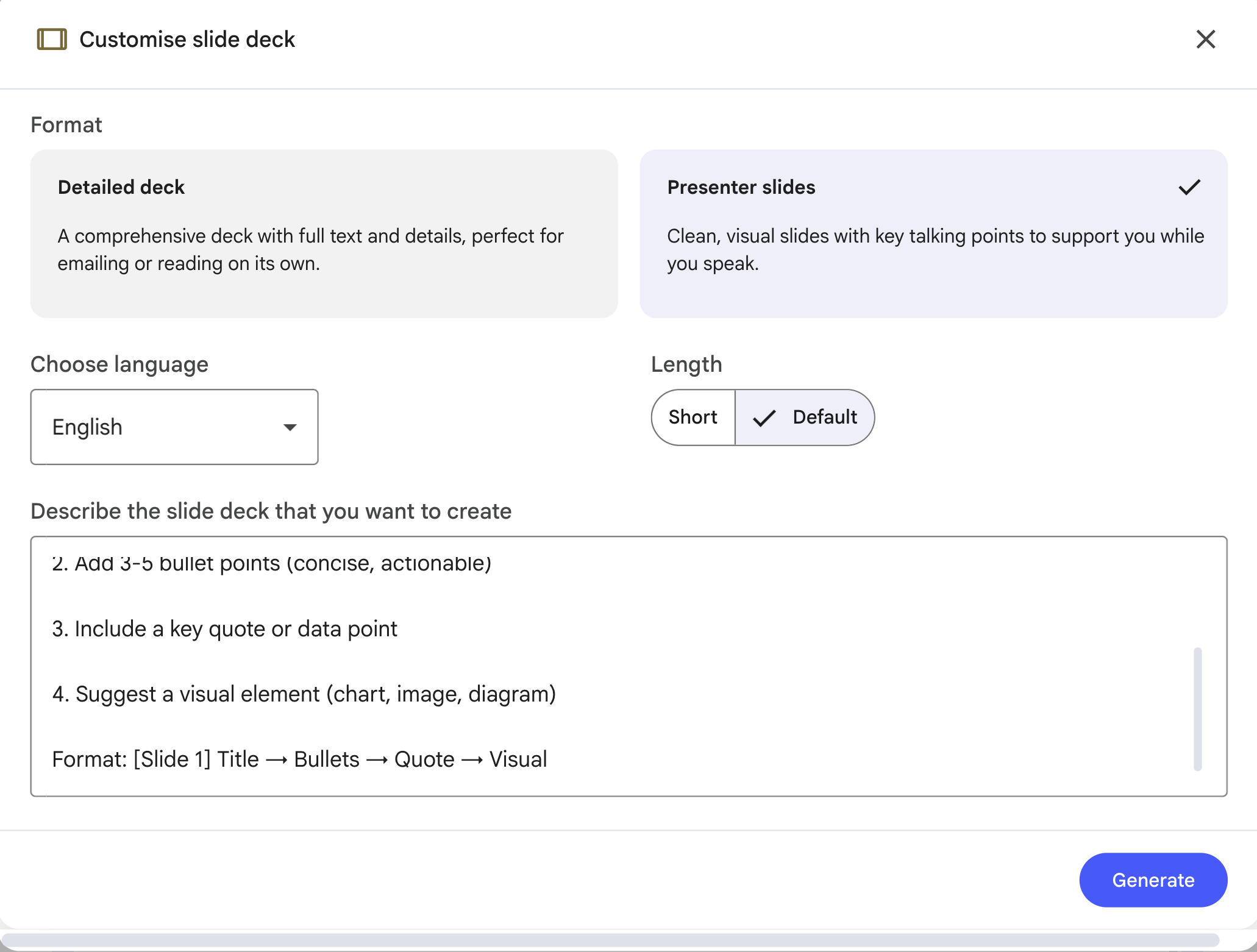
Next, your Slide will be available after a couple of minutes.
Download it as a PDF.
Step 2- Open Canva Converter
- Go to: https://www.canva.com/features/pdf-to-ppt-converter/
- Click on “Upload your file.”
- Upload the PDF you just downloaded from NotebookLM
- And your slidesare now uploaded to the Canvas.
- Now, click on edit.
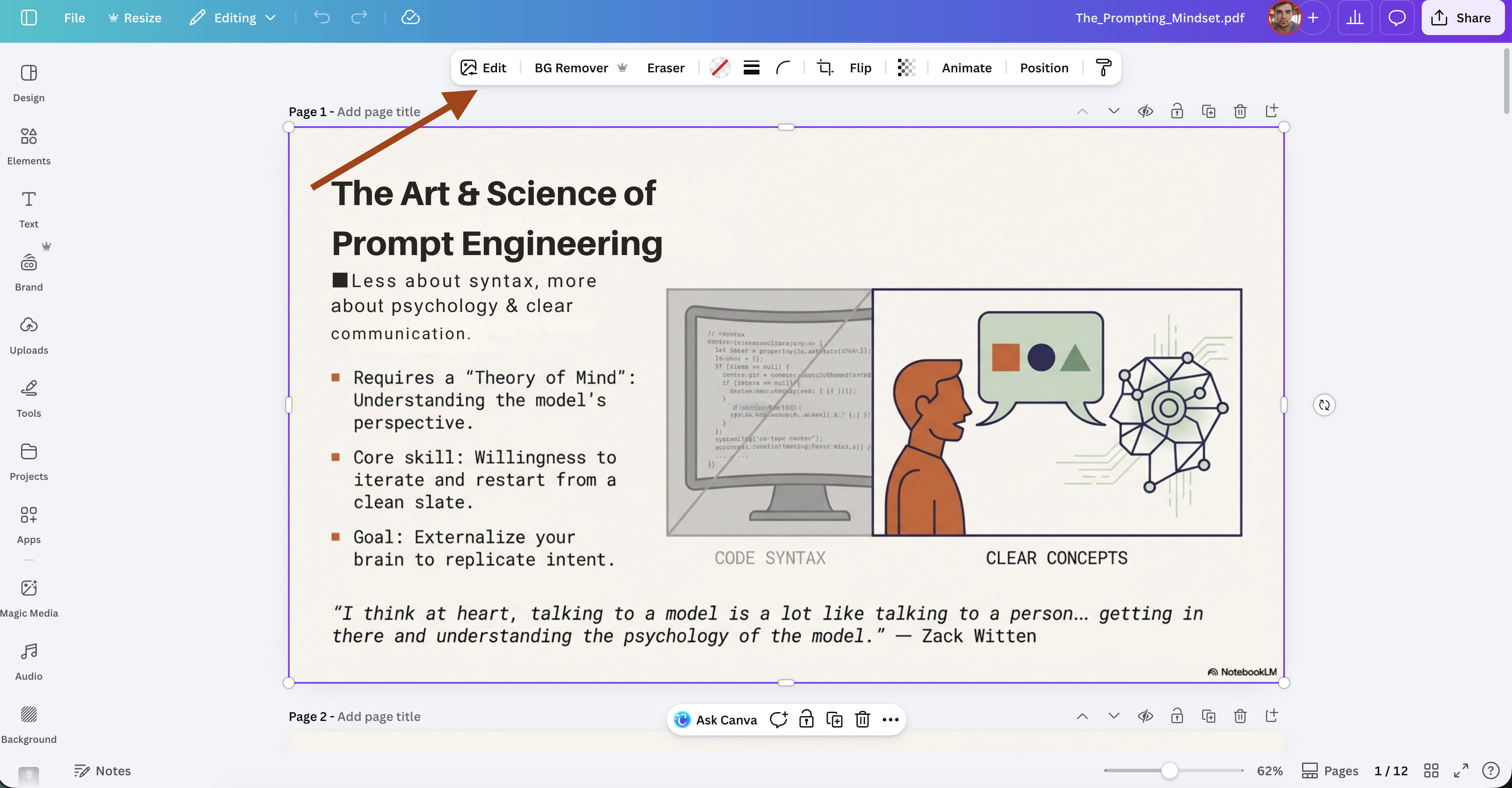
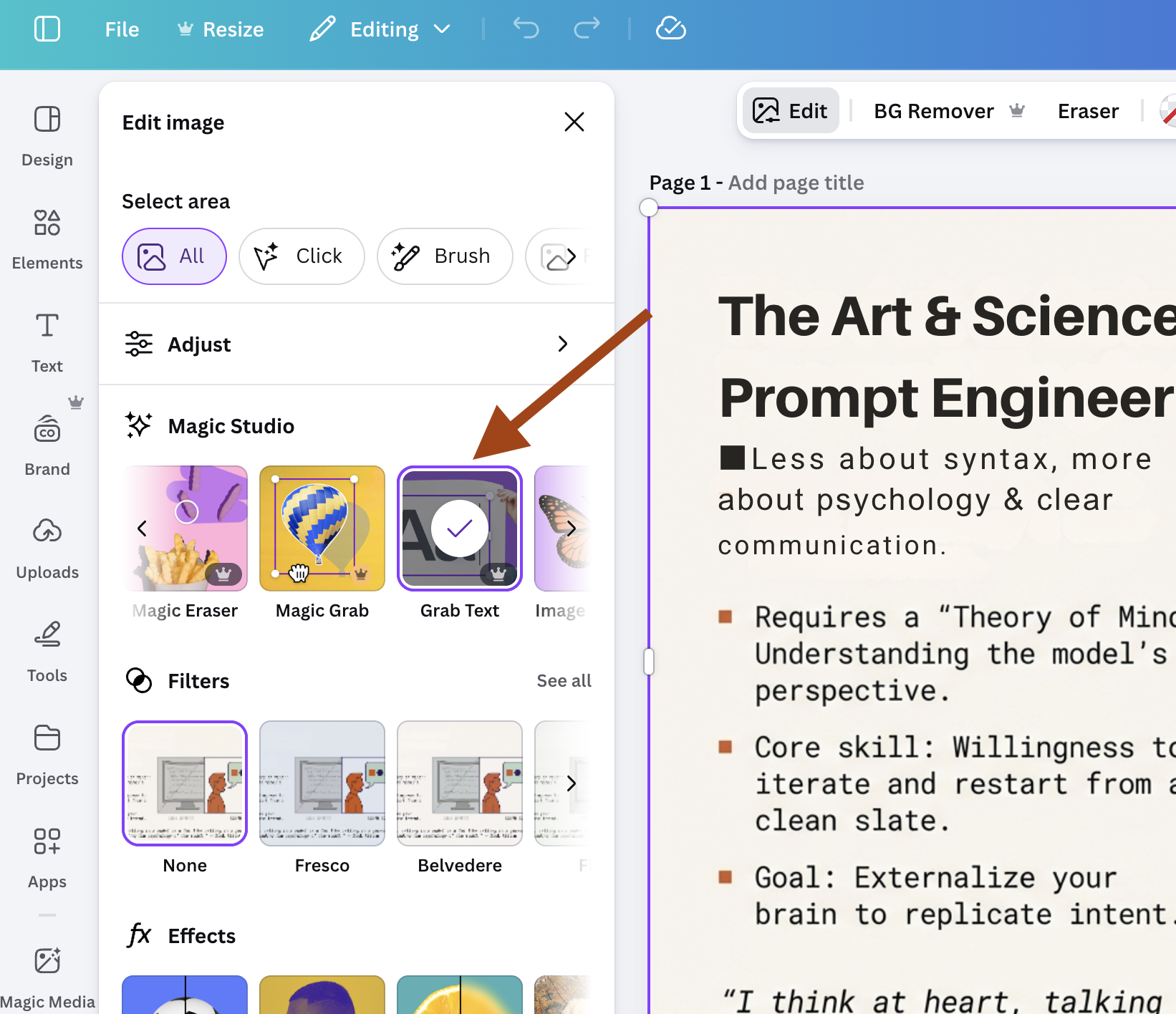
- Click on “Grab Text”, in “Magic Studio.”
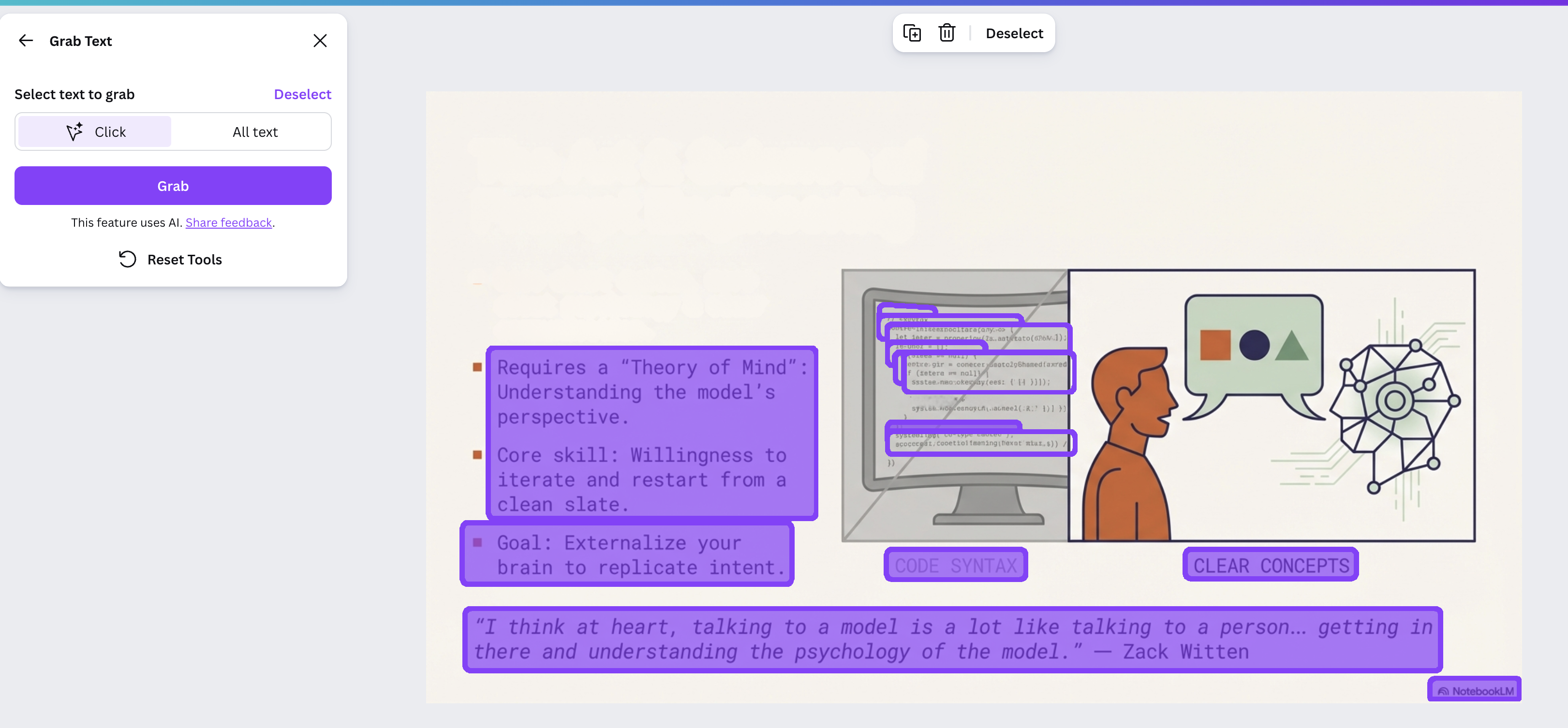
- Select all elements you want to edit and click on “Grab” once again.
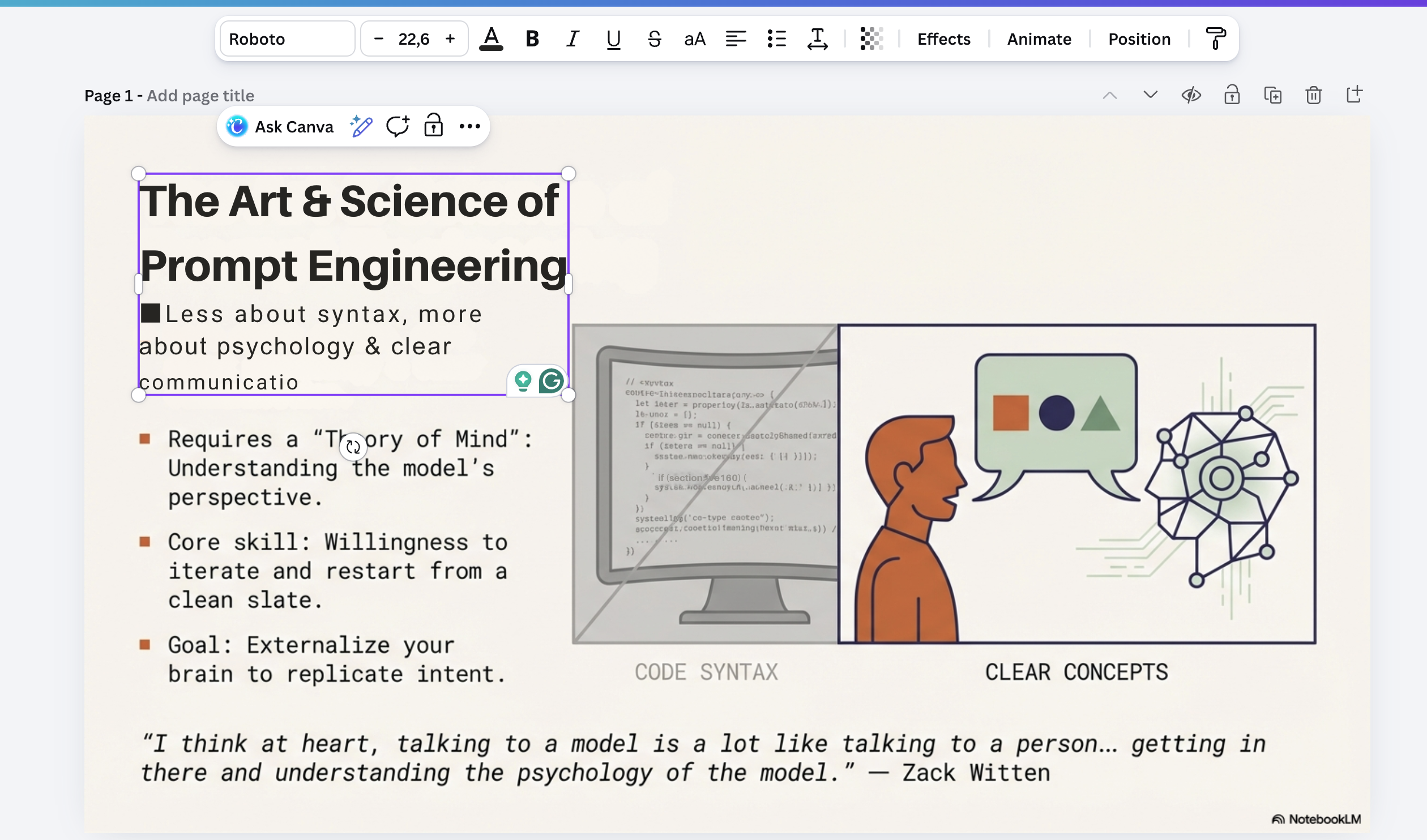
- Now you can customize the elements you just grabbed.
Final Thoughts
You just turned Anthropic’s prompt engineering course into a professional slide deck in 5 minutes.
No manual summarizing. No reformatting. No design headaches.
NotebookLM extracted the key concepts.
Canva made them editable.
You customized the visuals in clicks.
This works for any dense document: research papers, technical docs, online courses, client reports.
Next time you need to present complex material?
Upload → Generate → Convert → Customize.