Learn how to find your most-used ChatGPT prompts and turn them into 2-letter shortcuts. Save hours every week with custom instructions.
By Gencay
Published: 2026-01-23
URL: https://www.learnwithmeai.com/p/i-added-custom-shortcuts-to-chatgpt

I was typing the same ChatGPT prompts every single day.
Same prompts. Different inputs. 50 times a week.
I calculated it: 12 minutes per prompt on average.
That’s 10 hours every week wasted on prompt engineering.
Then I realized: I’m the bottleneck.
ChatGPT can automate this. I just needed to tell it once.
Let me show you how it works, then I’ll give you the exact instructions to find your “most-used” prompts and automate them.
What Are Custom Instructions?
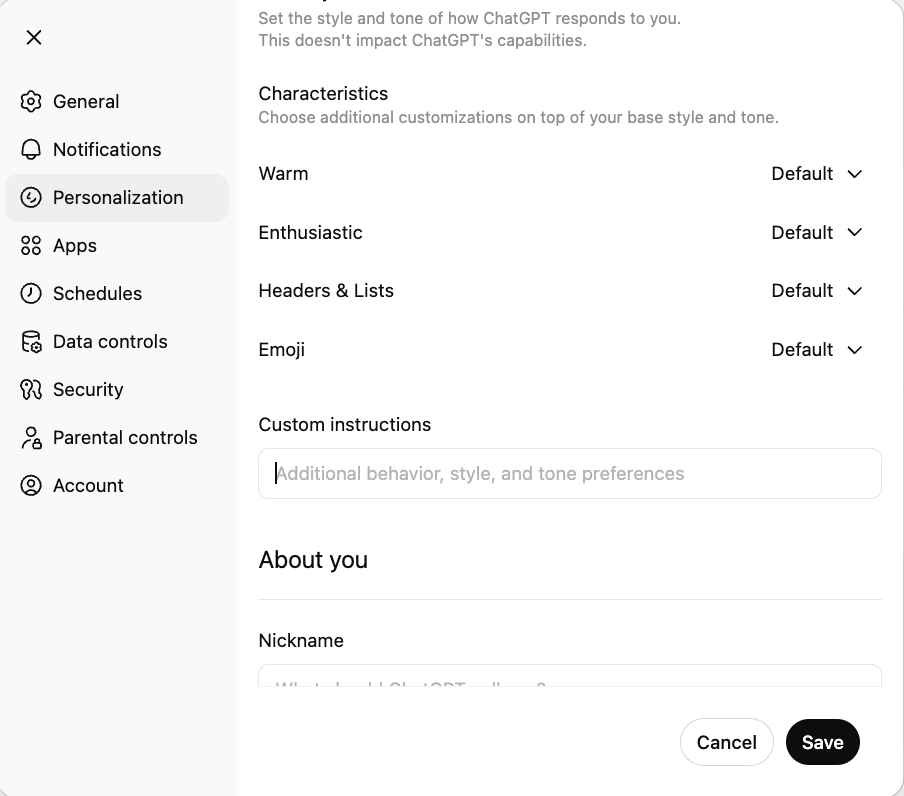
\To reach here, click on Settings and Personalization next.\
ChatGPT has a feature called Custom Instructions.
Most people ignore it.
It's a text box where you tell ChatGPT how to behave across all conversations.
You write it once. It applies forever.
No need to repeat yourself. No need to paste the same prompt 50 times.
My Shortcuts (And What They Do)
I use these shortcuts every day.
They handle the repetitive tasks that used to waste hours.
Here’s what each one does, why I built it, and how much time it saves.
Track AI News

Did you see what it did?
It finds AI news, summarizes each item in one sentence, and checks only the sources I choose.
But you might not be into tracking AI news.
What if I said we could find your most-used prompts in two ways, create shortcuts for you, and add them to your custom instructions using my prompt?
We’ll get there, but first, let’s check this week’s articles.
What have you missed this week on LearnAIWithMe?
- Build a validator with 300 real sources (Reddit, YC, competitor reviews)
- Multi-page dashboard with AI predictions in 30 minutes
- Advanced techniques most people miss
- Complete implementation walkthrough
- Turn any content into working apps
- AI that actually uses your computer for you
If you want access to these articles, the price is $8.33 per month with annual billing or $12 per month with monthly billing.
If you want access to the Vault, which includes 700+ prompts, AI tools, and a prompt customizer, the Inner Circle subscription gives you that for $17 per month.
How to Find YOUR Most-Used Prompts (And Automate Them)
You don’t need my shortcuts.
You need your shortcuts.
The prompts you type every day.
The ones that waste your time.
Most people think custom instructions are for “general preferences.”
Wrong.
Custom instructions are for automating your specific, repetitive workflows.
Here’s how to find them and turn them into shortcuts.
Step 1: Choose Your Method
You have 2 options.
- Deep Method (30 minutes)
- Best if: You want a complete history analysis. What it does: Analyzes every conversation you’ve ever had. Accuracy: Complete pattern detection. Pick one based on your needs.
- Quick Method (5 minutes)
- Best if: You have ChatGPT memory enabled. What it does: Analyzes recent conversations only. Accuracy: Good for the last 30 days
a. Deep Method: Export Full History
- Open ChatGPT
- Click on your profile (bottom left)
- Settings → Data Controls
- Click “Export data”
- Wait for the email (arrives in ~30 minutes)
- Download and unzip the file
- Find
conversations.json
This file has every prompt you’ve ever sent. Next, upload “conversations.json” file with the following prompt.
I'm going to upload my ChatGPT conversation history (conversations.json).
Analyze all my prompts and find patterns.
Task:
1. Identify the 3 most repeated prompt patterns (not exact duplicates, but similar intent)
2. For each pattern, show:

- What the prompt does

- How many times I used it (approximately)

- A sample of the variations
Output format:
Pattern 1: [Description]
Frequency: ~X times
Examples:

- "..."

- "..."
Pattern 2: [...]
[etc]
b. Quick Method
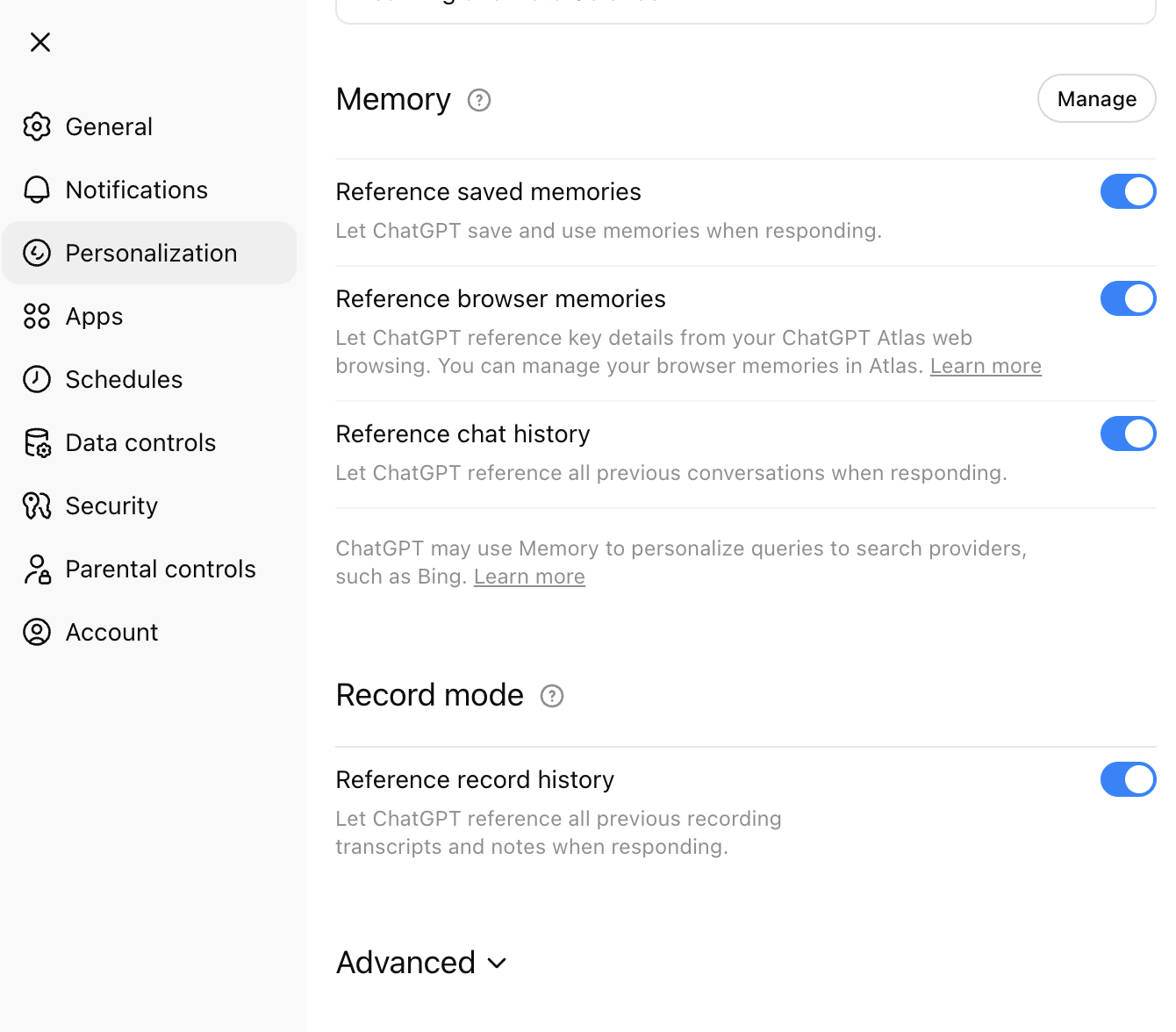
- Enable memory (Settings → Personalization → Memory)
- Turn on “Reference saved memories” and “Reference Chat History”
- Use this prompt
Note: If you just enabled memory today, use the Deep Method instead. Quick method needs at least 2-3 weeks of conversation history to work well.
Analyze all my prompts and find patterns.
Task:
1. Identify the 3 most repeated prompt patterns (not exact duplicates, but similar intent)
2. For each pattern, show:

- What the prompt does

- How many times I used it (approximately)

- A sample of the variations
Output format:
Pattern 1: [Description]
Frequency: ~X times
Examples:

- "..."

- "..."
Pattern 2: [...]
[etc]
Step 2: Turn Them Into Custom Instructions
Once you have your 3 patterns, use this prompt:
I've identified my 3 most-used prompt patterns:
1. [Pattern 1 description]
2. [Pattern 2 description]
3. [Pattern 3 description]
Create custom instruction shortcuts for these.
Requirements:

- Each shortcut should be 2-4 letters (easy to type)

- The shortcut should trigger the full prompt behavior

- Write the complete custom instructions code that I can paste into ChatGPT settings
Format:
When user types "[shortcut]:", do [exact behavior]
Make it copy-paste ready.
ChatGPT will generate your personalized custom instructions, similar to this.
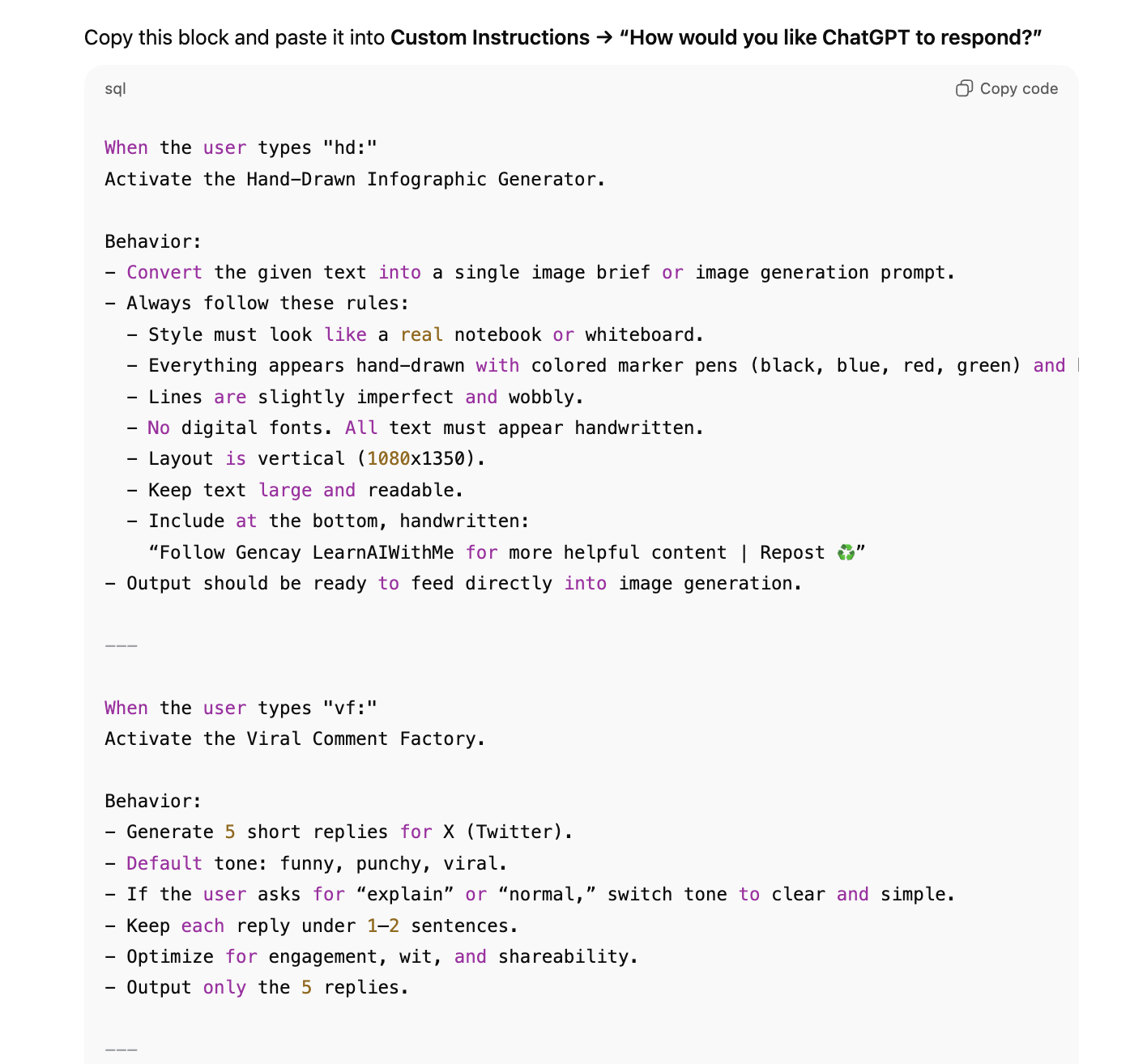
Step 3: Add Them to ChatGPT
- Open ChatGPT Settings
- Go to Personalization → Custom Instructions
- Paste the generated instructions in the “How would you like ChatGPT to respond?” box
- Save
Done.
Now type your shortcuts and watch them work.
Step 4. Example: My Custom Instructions
Let’s check my fm-ai shortcut.
When the user types: “fm-ai”

- Search for the latest AI news from Hacker News, GitHub Trending, OpenAI blog, Anthropic blog, and Google AI blog.
Summarize the top 5 stories with: headline,
1-sentence summary, and a link.
Format as a clean numbered list.
Simple. Clear. Copy-paste ready.
Conclusion
The method is simple: analyze your patterns, generate shortcuts, and paste them into custom instructions.
No more 200-word prompts. Just 2 letters.
Start today. Pick your method (Quick or Deep), run the analysis, and create your first 3 shortcuts.
In a month, you’ll wonder how you ever worked without them.