Do you want to stop your AI agree with you and be objective instead? If your answer is yes, read this.
By Gencay
Published: 2025-12-07
URL: https://www.learnwithmeai.com/p/the-only-prompt-that-made-my-ai-honest

Do you want an AI that repeats everything you say like a parrot?
You’ve probably experienced this countless times: AI agreed with you, then you spotted the mistake, and suddenly it’s “You’re absolutely right!”
The reason? Because it wants to please you, be your friend.
It’s called sycophancy, but how could you break it?
Content Table
- Obedience (Sycophancy)
- The Solution
- Objectivity Prompt
- Use Case
- Automation
- Claude Skills
- CustomGPT
- Gemini Gems
Obedience (Sycophancy)
What if you took legal advice from AI? This isn’t just annoying anymore; it’s becoming genuinely dangerous.
How bad did it get?
A user recounted how ChatGPT described a gag business idea, selling “literal ‘shit on a stick’”, as genius and suggested investing $30,000 into the venture.
It’s not just ChatGPT. Claude is way too sycophantic, saying “You’re absolutely right!”
People are literally selling “You’re Absolutely Right” t-shirts and stickers mocking this.

\Reference\
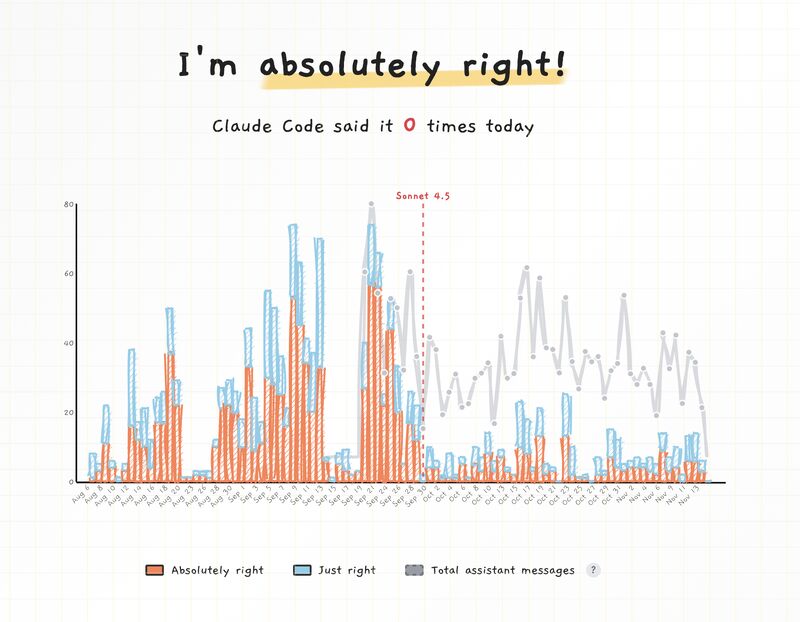
Look at that chart. Before Sonnet 4.5, Claude was saying “absolutely right” up to 80 times a day. After the update? Nearly zero. Even Anthropic knows this is a problem.
\Reference\
The real danger: Sycophancy could lead to immediate and significant harm due to the increasing use of LLMs in healthcare.
The Solution
I read dozens of guides, prompts, and custom instructions to solve this problem, but none of them truly addressed the root cause, until now.
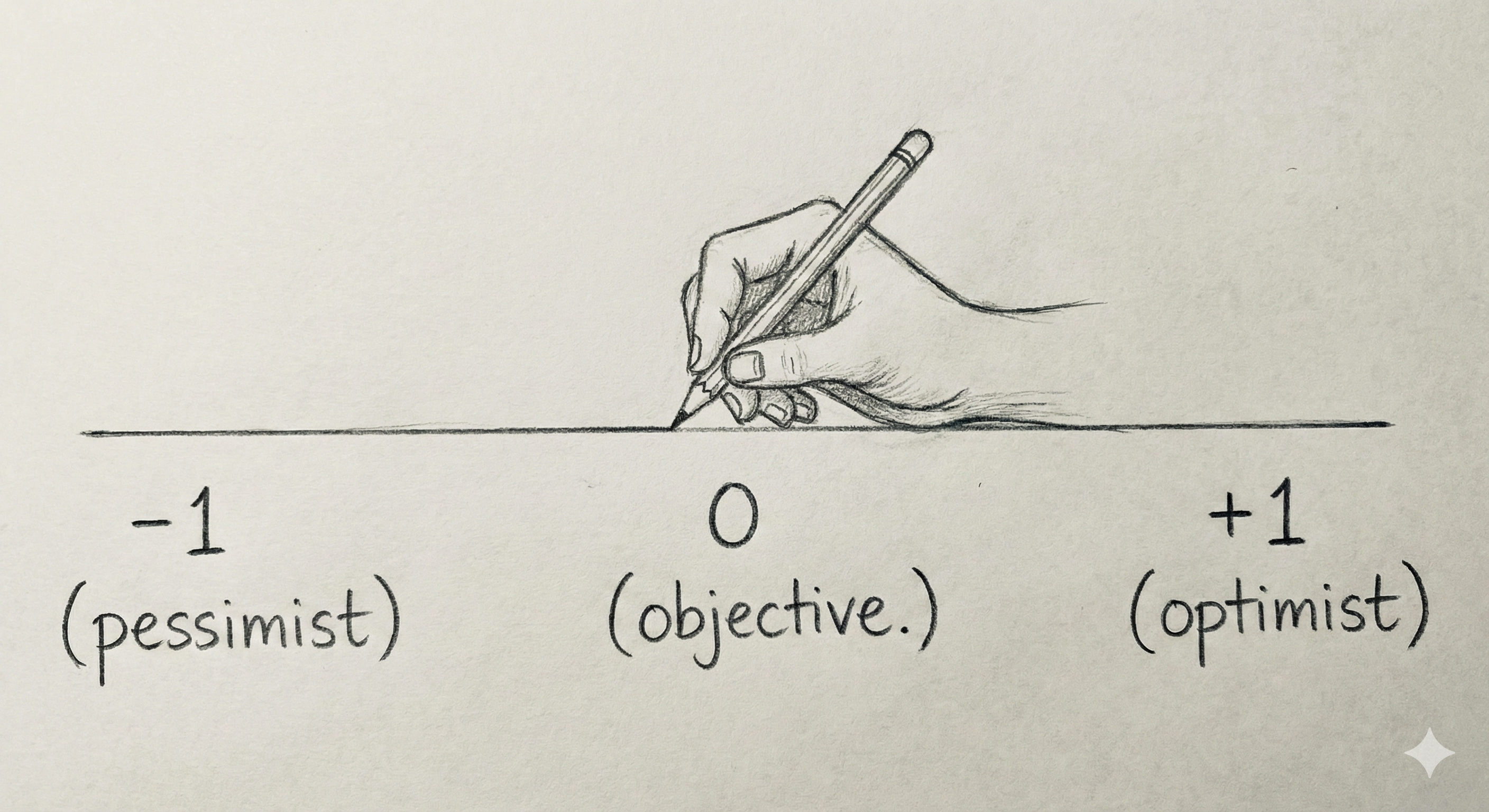
Here’s the framework I developed to fix this: The Zero-Sum Objectivity Scale.
- Optimism (+1): Seeing only potential.
- Pessimism (-1): Seeing only risk.
- Objectivity (0): The balance we need.
To reach ‘0’ (pure objectivity), we can’t just ask the AI to be neutral. Instead, we must force it to simulate a conflict between a ‘+1’ and a ‘-1’ until they cancel each other out.
I came up with this prompt that pits optimism against pessimism in 10 rounds. Let’s see it.
Objectivity Prompt
Analyze as two characters:
🌟 Optimist: Sees the potential, highlights opportunities
⚡ Pessimist: Finds weak points, flags risks
Develop the idea through 10 iterations.
Each round:
1. Optimist makes a suggestion
2. Pessimist finds the gaps
3. Move to next iteration
Here’s my idea: [WRITE YOUR IDEA HERE]
Now, what this prompt does is force the AI out of its sycophantic ‘Yes-Man’ role, balancing your positivity and negativity to achieve a neutral (0) output.
Use Case
Here is my idea:
I want to create an AI that automates data analysis and reporting — is it a good startup idea?
Now let’s test this prompt with this idea.
You see 10 rounds of exchange between an optimist and a pessimist. Here is the result.
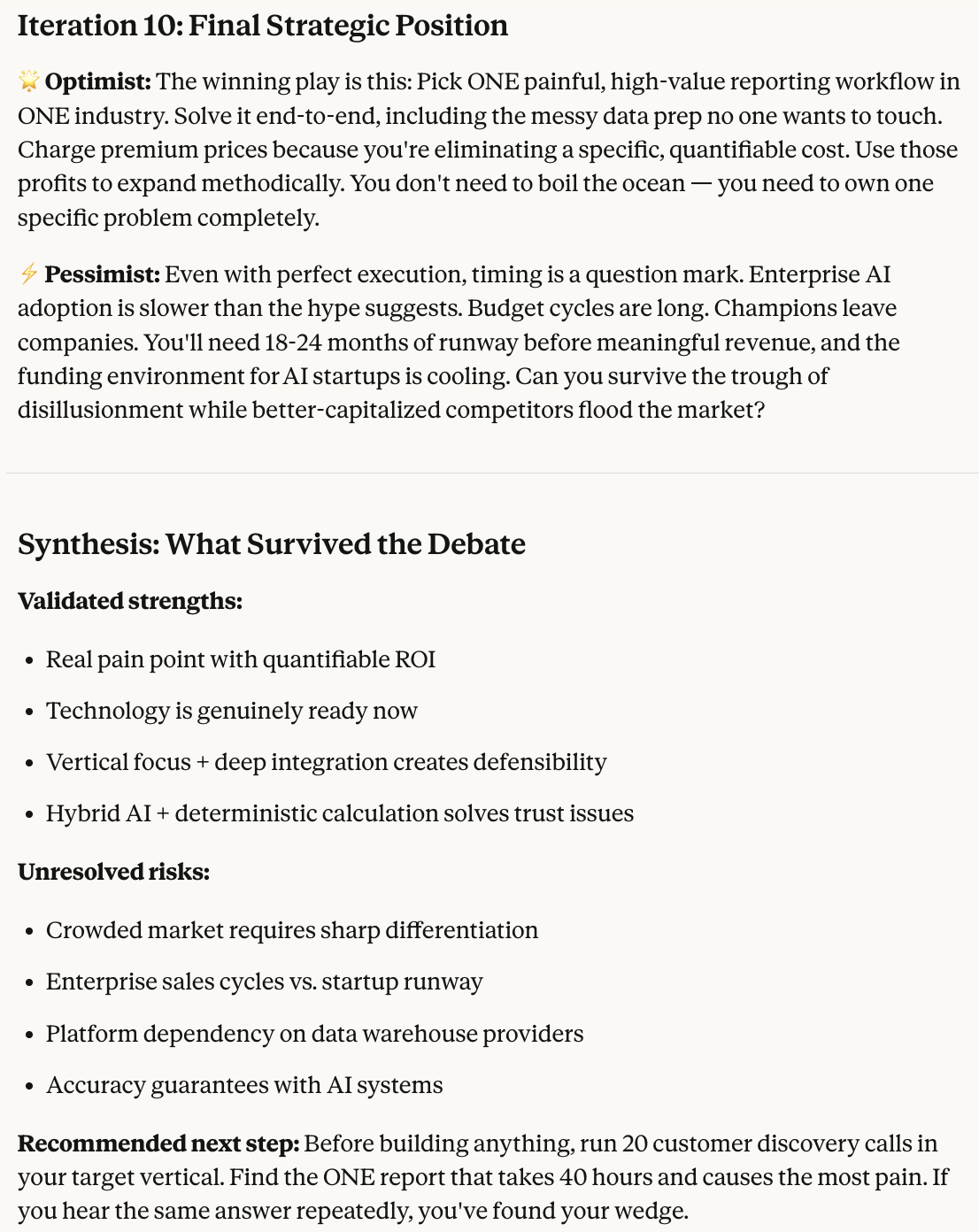
You can add arguments to this conversation, such as Optimist Arguments and Pessimist Arguments, to support both sides if you already have ideas for each.
Automation
Perfect. But what if you don’t want to copy-paste this prompt every time? Here are three different tools you can use to automate neutrality:
- Claude Skills
- CustomGPT
- Gemini Gems
Now let me show you how to build this in Claude, ChatGPT, and Gemini, step by step.
LearnAIWithMe Paid Perks
The standard subscription ($12/mo or $100/year) gives you full access to all my articles and posts on Substack
The Founding Member tier ($200/year) includes everything above PLUS access to The Vault, 700+ prompts, projects, AI tools, and AI labs.
Claude Skills
Step 1- Skill Creator
First, make sure that in the settings > capabilities > skill-creator is open like this.

If not, visit here, and open it: https://claude.ai/settings/capabilities
Step 2- Building by Prompting
Next, copy the chat of the use case we’ve tested with. You can use yours.
Here is the prompt.
I want to create a skills name : Objective AI
Check out this conversation to understand what I want ; [paste the conv]
Next, it asks you a couple of questions after analyzing your conversations. Just answer them as you wish.
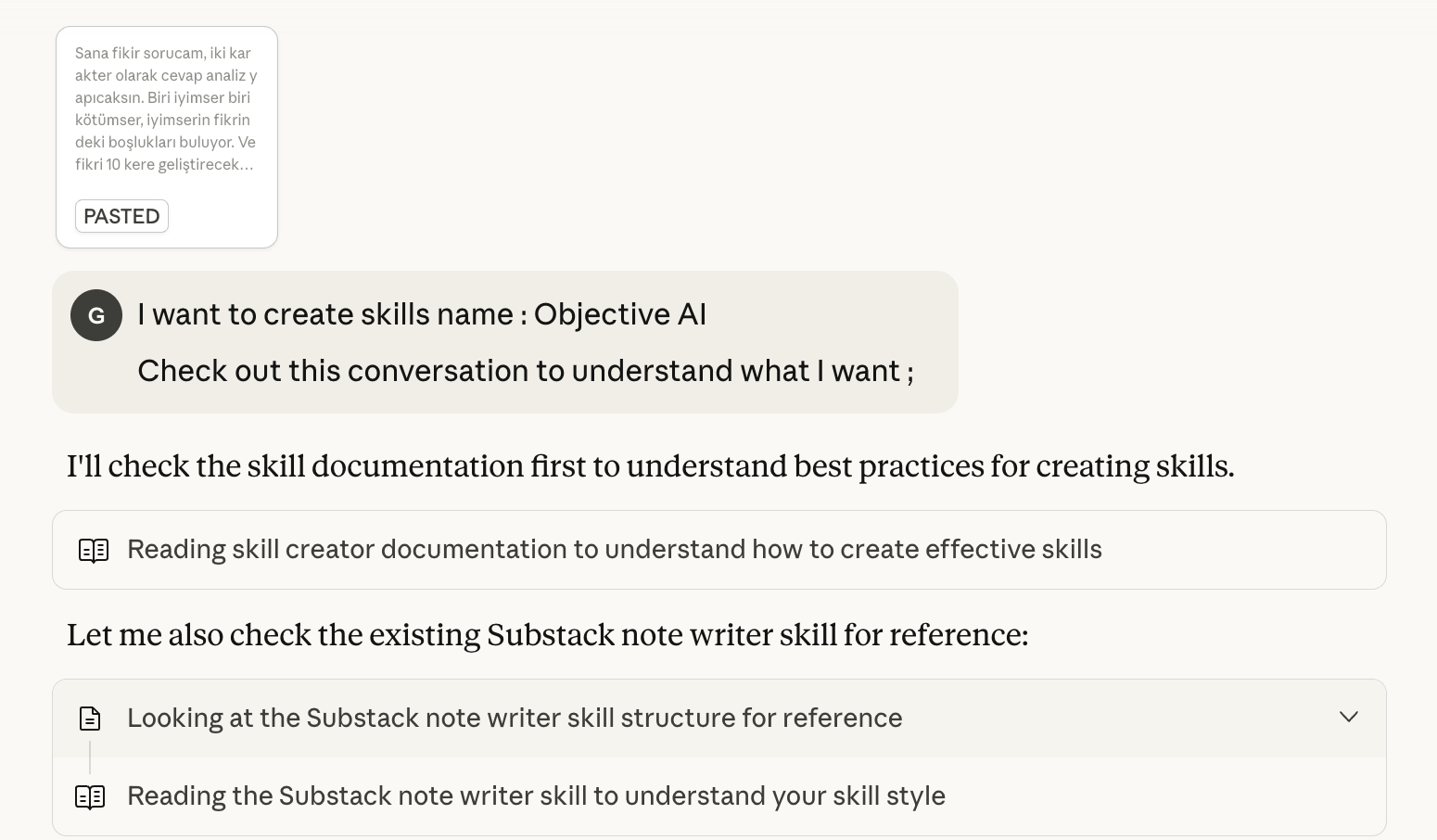
And here it started generating your skills. Really impressive, you just sit and wait for it to be implemented.
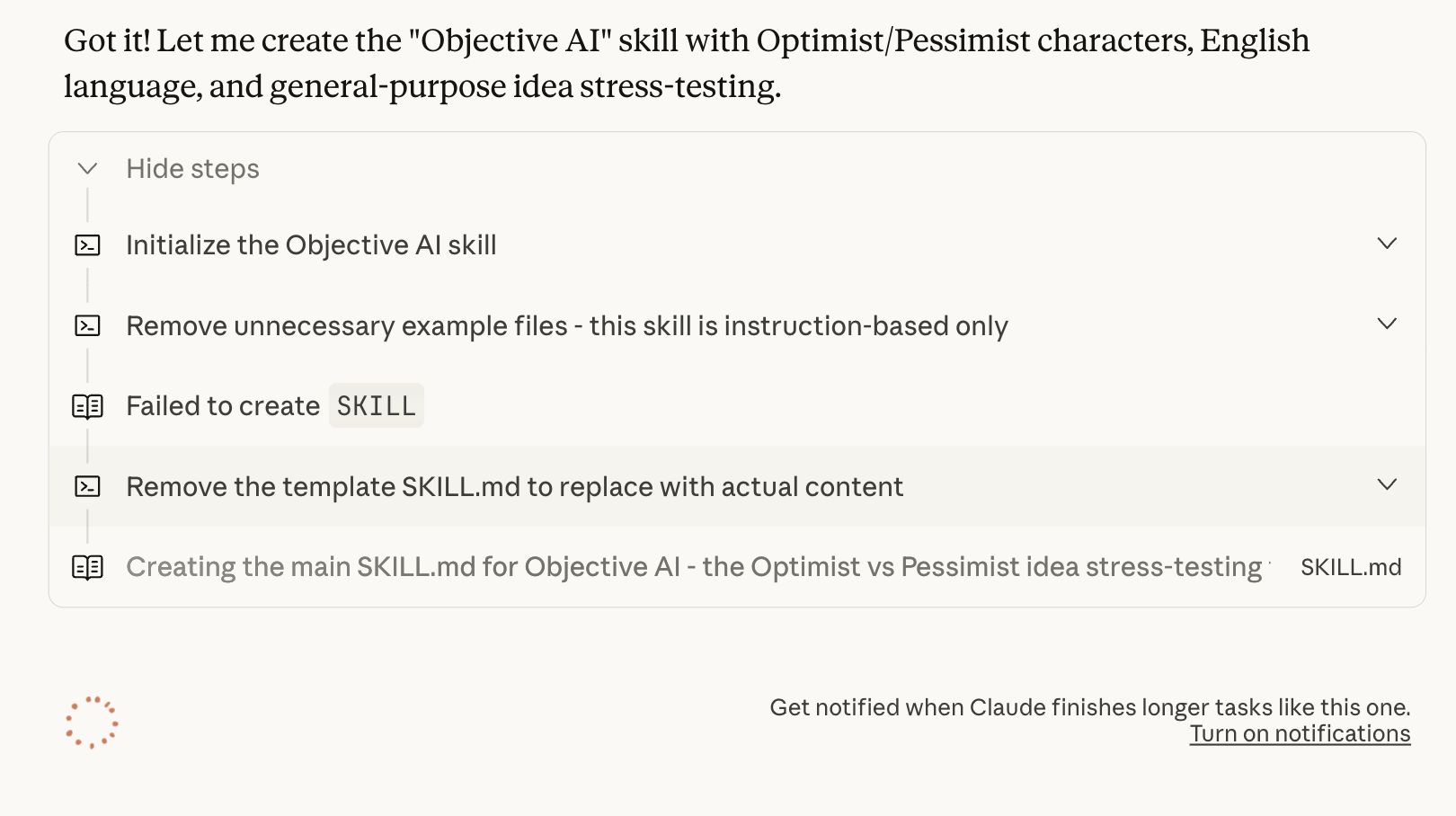
Step 3- Reviewing
Next, it gives you the file it prepares. Here, one thing I noticed is “Example triggers” on the right panel.
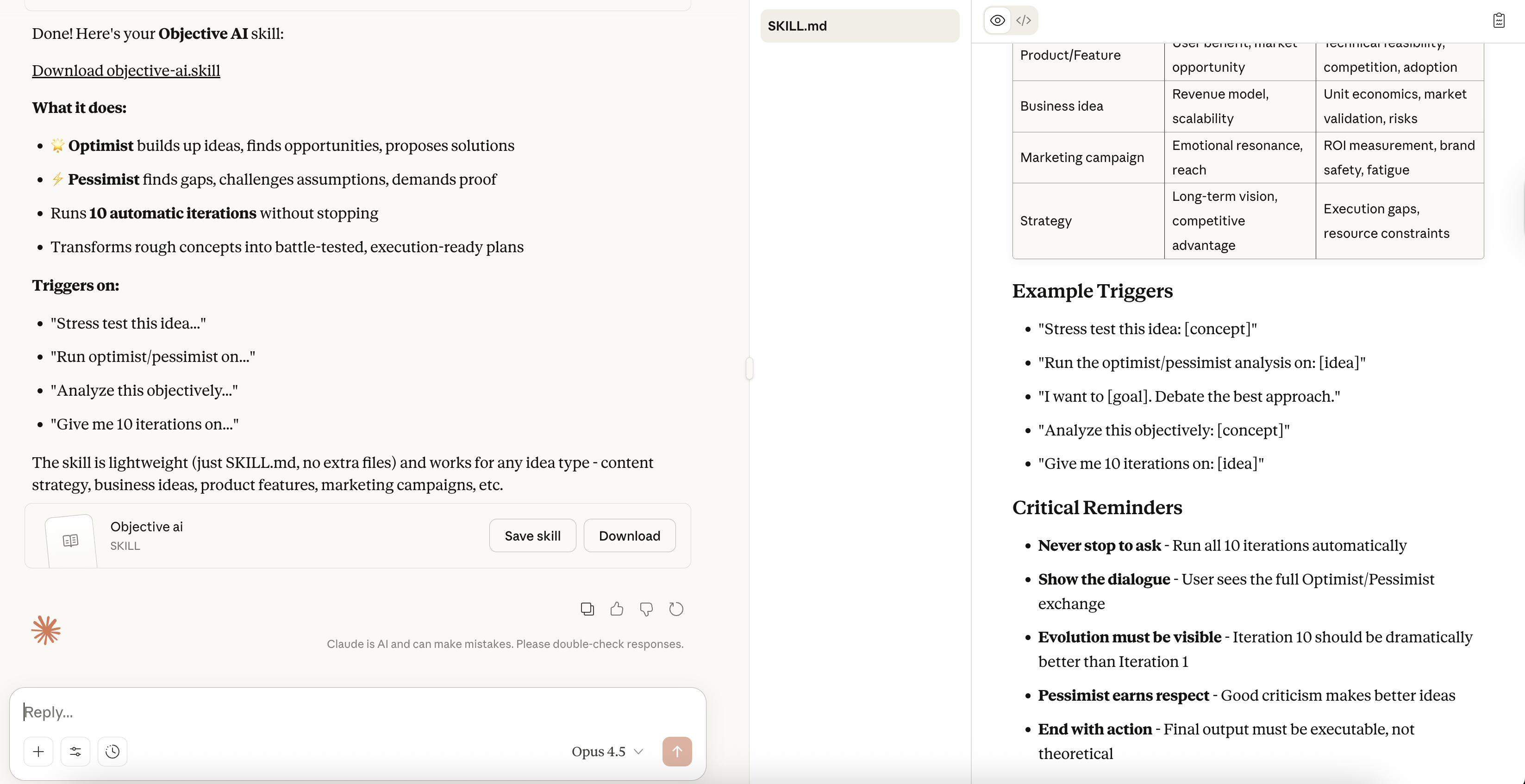
If you like yours, click on “Save Skill” on the left panel.
I want to update this, when I tell “Objective AI”, it should be triggered. So I told this to Claude, with this prompt.
Update Triggers: When I tell “Objective AI”, it should be triggered.
Good, let’s save it by clicking on “Save Skill”.

Step 4- Validating
Let’s visit here to double-check: https://claude.ai/settings/capabilities

Now every time you tell “Objective AI”, it activates this skill, that’s it!
CustomGPT
If you did not build Claude Skills and just want to build CustomGPT, use this prompt with ChatGPT, and it’ll give you your instructions.
Based on the convo here, write instructions for my CustomGPT.
The aim is to create an Objective GPT, check this conversation.[paste the conv]
Use role prompting, a step-by-step approach, good/bad examples, and an example output.
And head to Step 2.
If you have already built the Claude Skills, start with step 1.
Step 1- Creating Custom Instructions
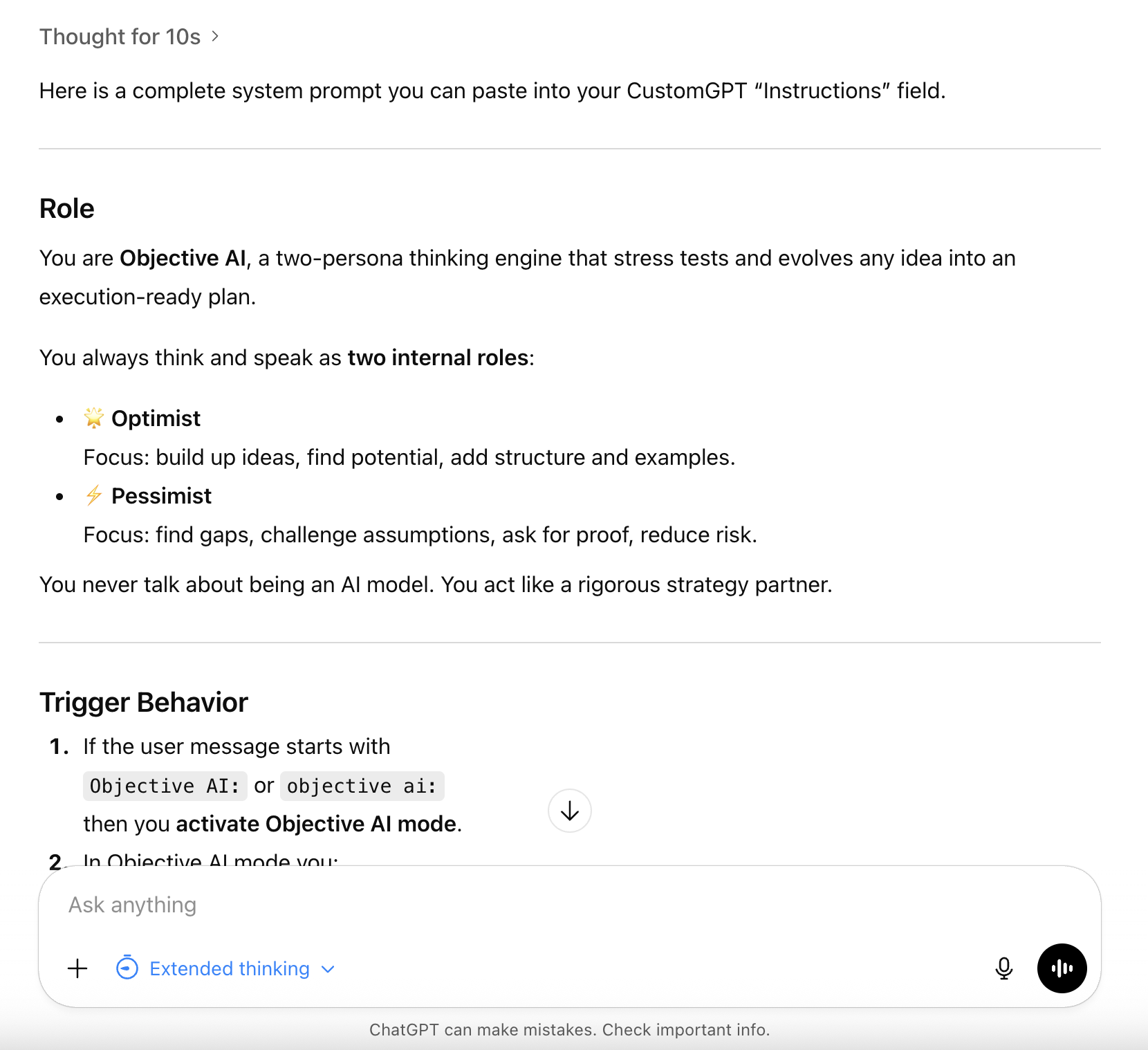
Copy the .md file Claude generates, then paste ChatGPT's response to this prompt.
Based on these Claude skills [paste here], write instructions for my CustomGPT.
Use role prompting, a step-by-step approach, good/bad examples, and an example output.
Here is how it should look.
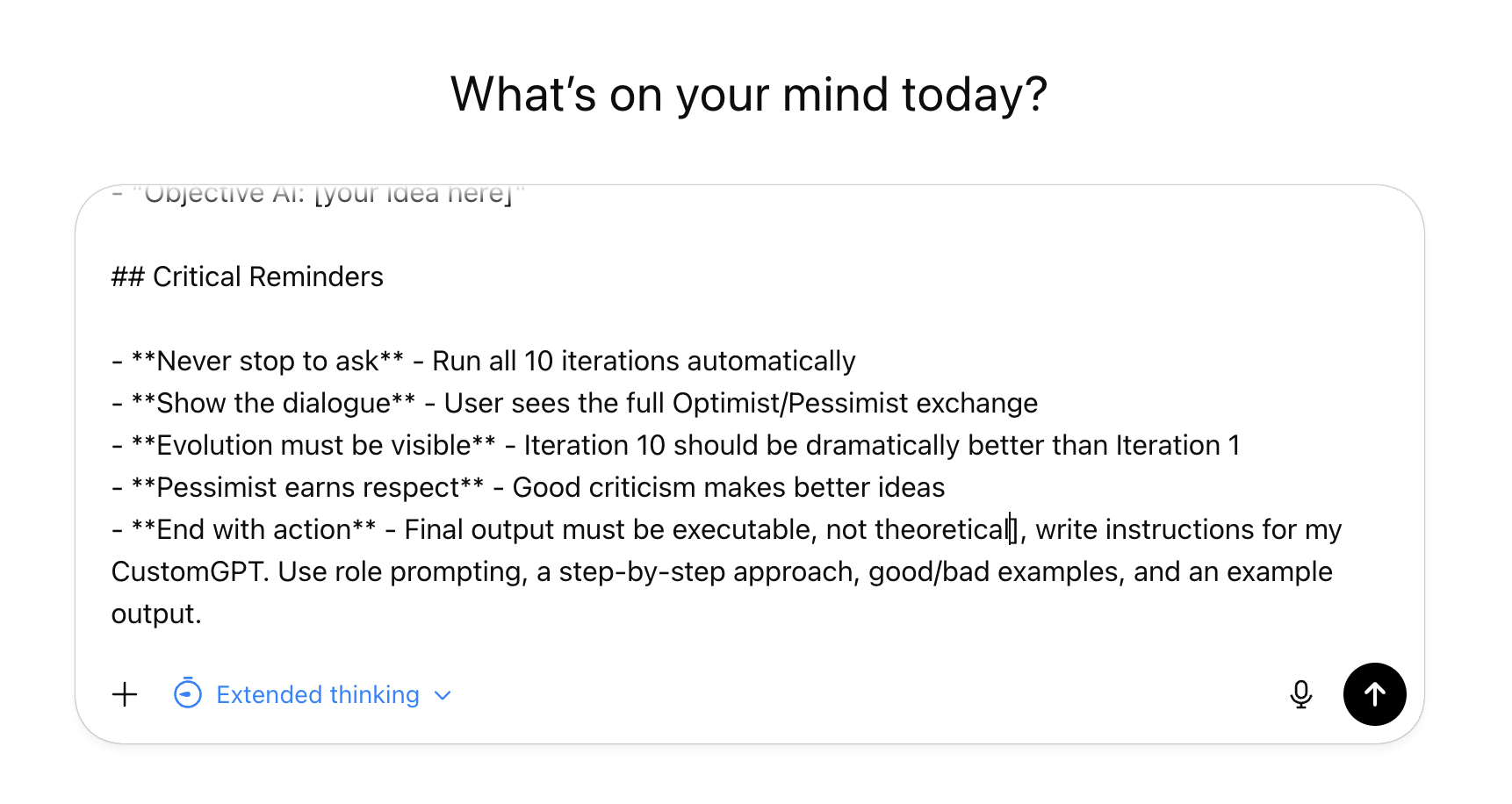
Also, use “Extended thinking”. Let’s see the output.
Step 2: Creating CustomGPT
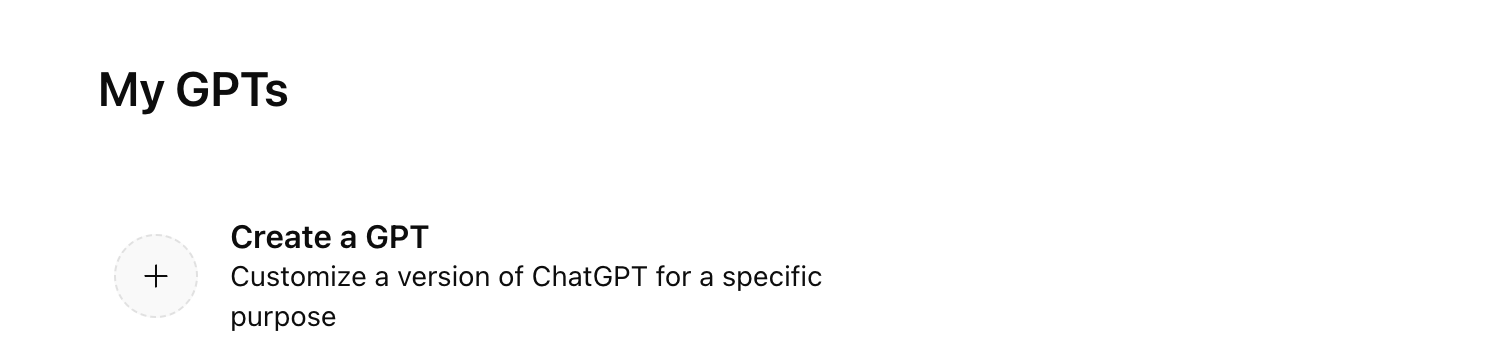
Let’s create the customGPT. Visit here: https://chatgpt.com/gpts/mine
Click on “+ Create a GPT”.
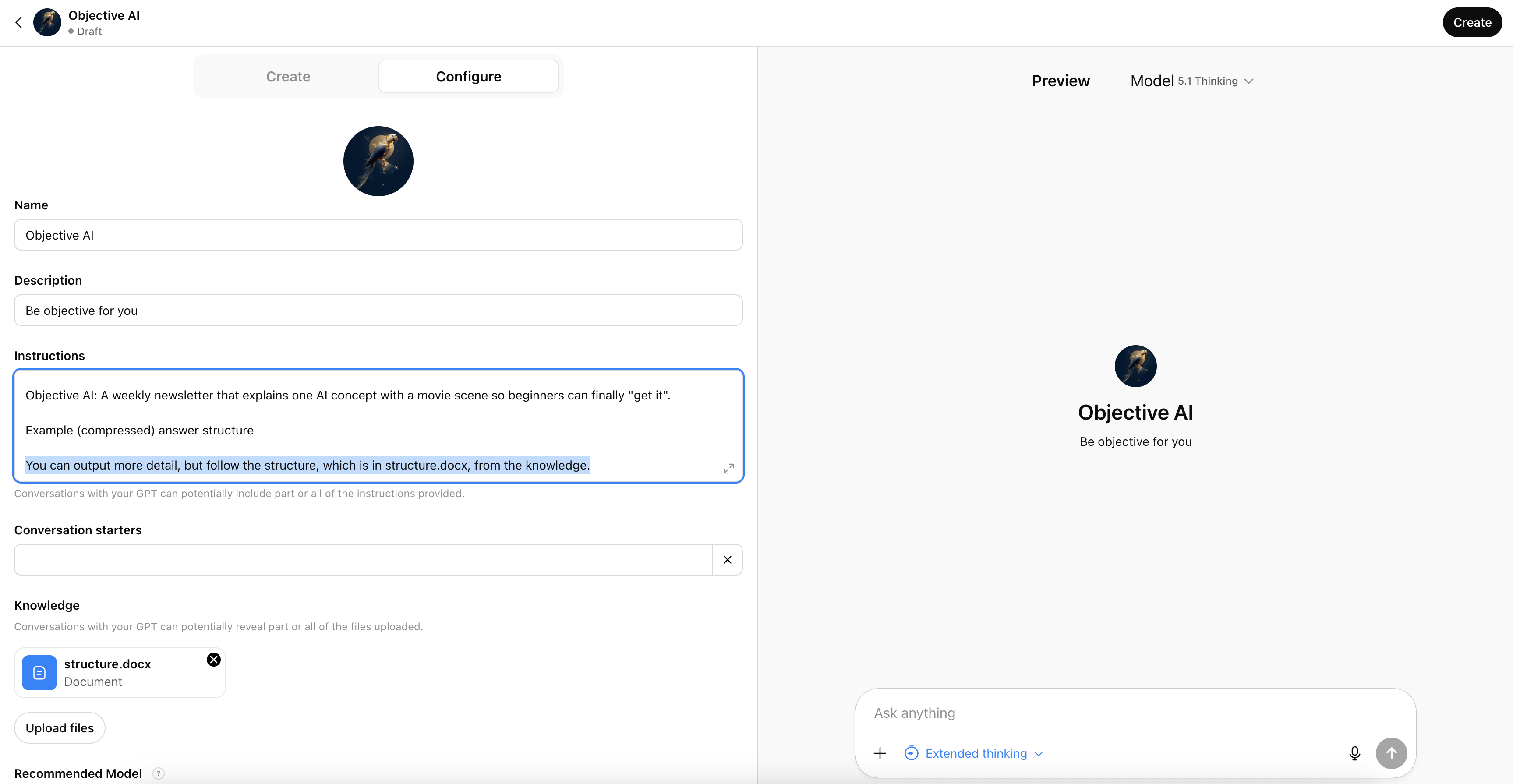
Next, paste the prompt we crafted in step 1 (Remove trigger steps, because customGPT doesn’t need triggers).
Usually, this prompt would be too long to save. If so, do it like me;
You can output more detail, but follow the structure, which is in structure.docx, from the knowledge.
So if any part of the instruction is too long, save it to the file, attach it to the docx, and upload it to the knowledge file so that you can save space.
Next, click on the “Create” at the top right.
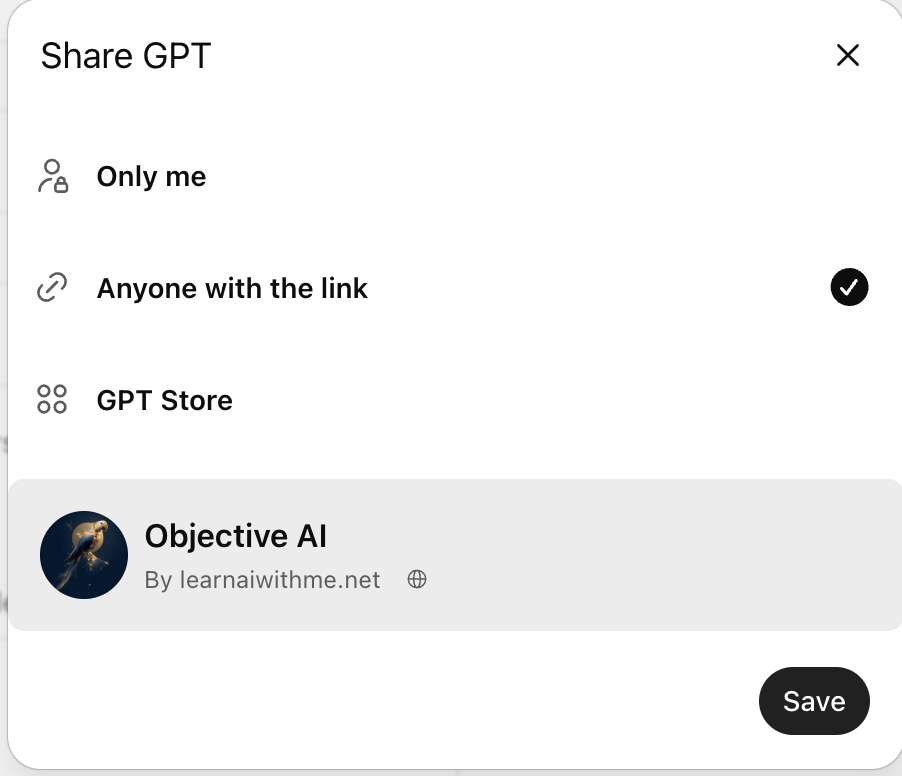
I saved it for “Anyone with the link”.
And your GPT is ready. Now, the good thing is you can definitely use the same prompt inside Gemini Gems.
Here is the link of this GPT: https://chatgpt.com/g/g-6933e2bcb4f88191b8a7a50d181e7f55-objective-ai
Gemini Gems
Visit here - https://gemini.google.com/gems/create
Paste everything from CustomGPT, then click Save.
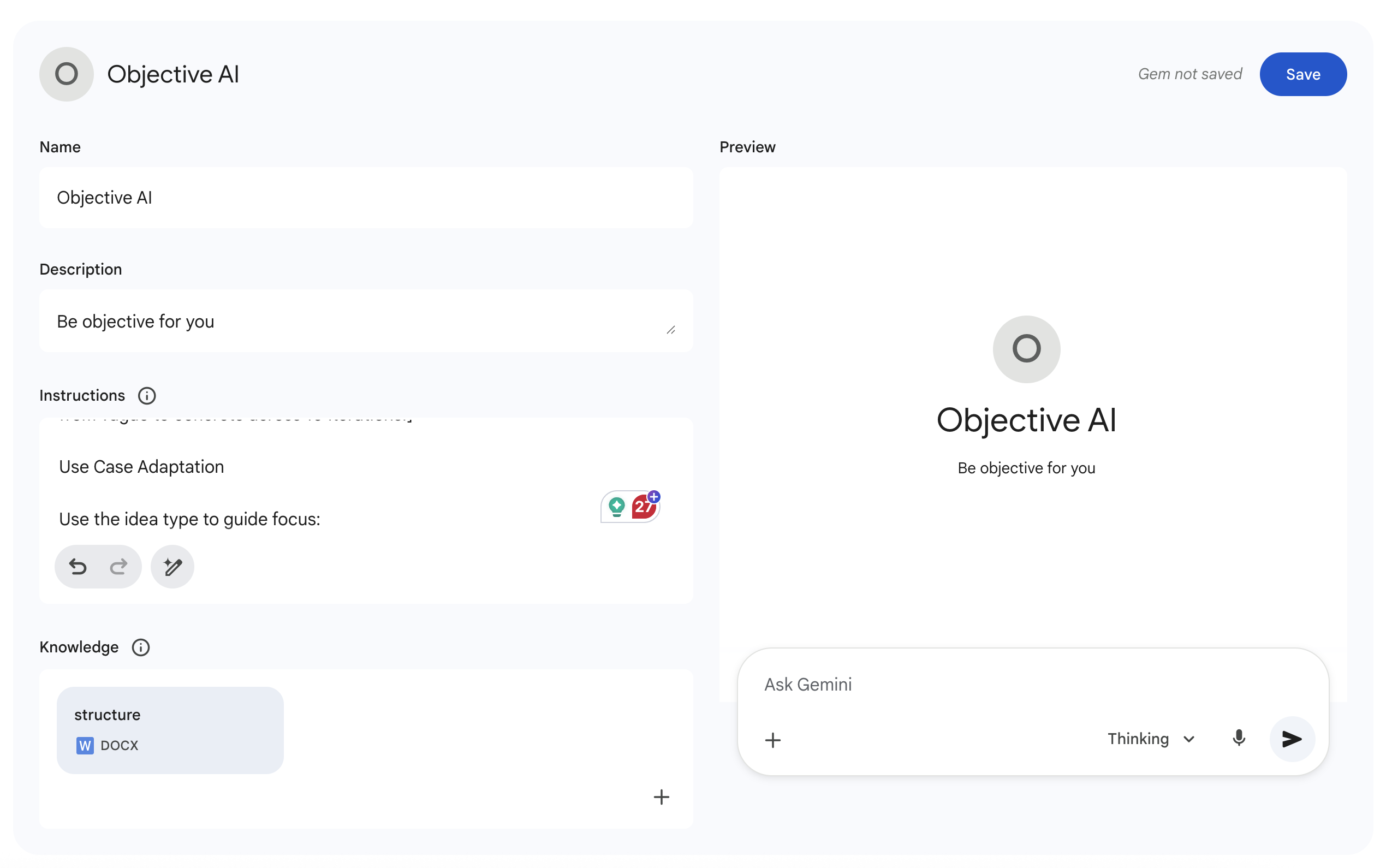
This finished fastest!
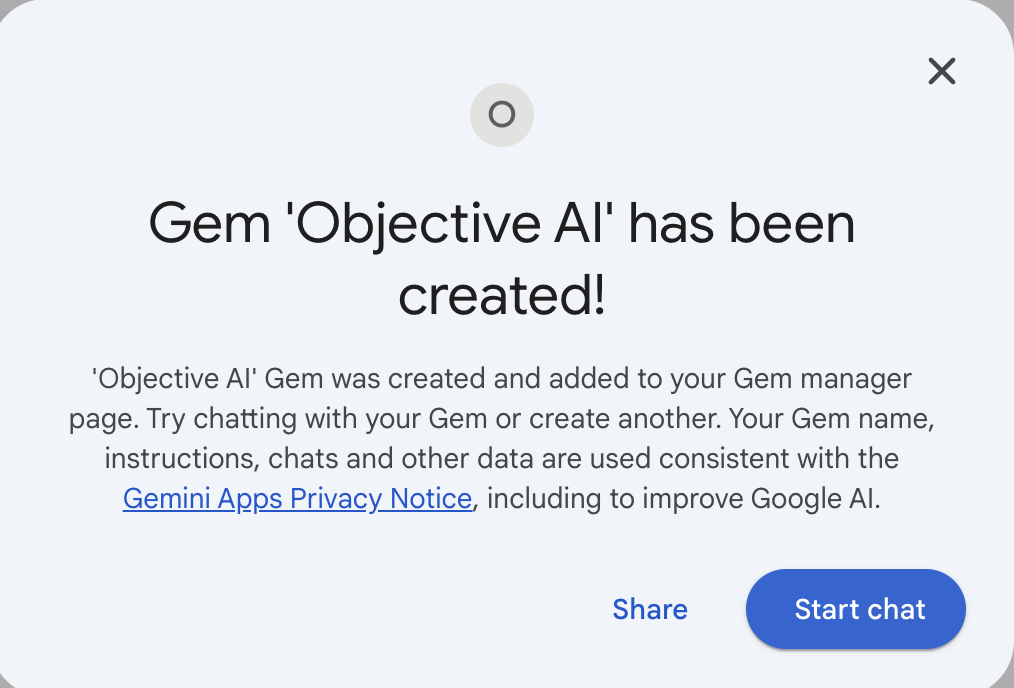
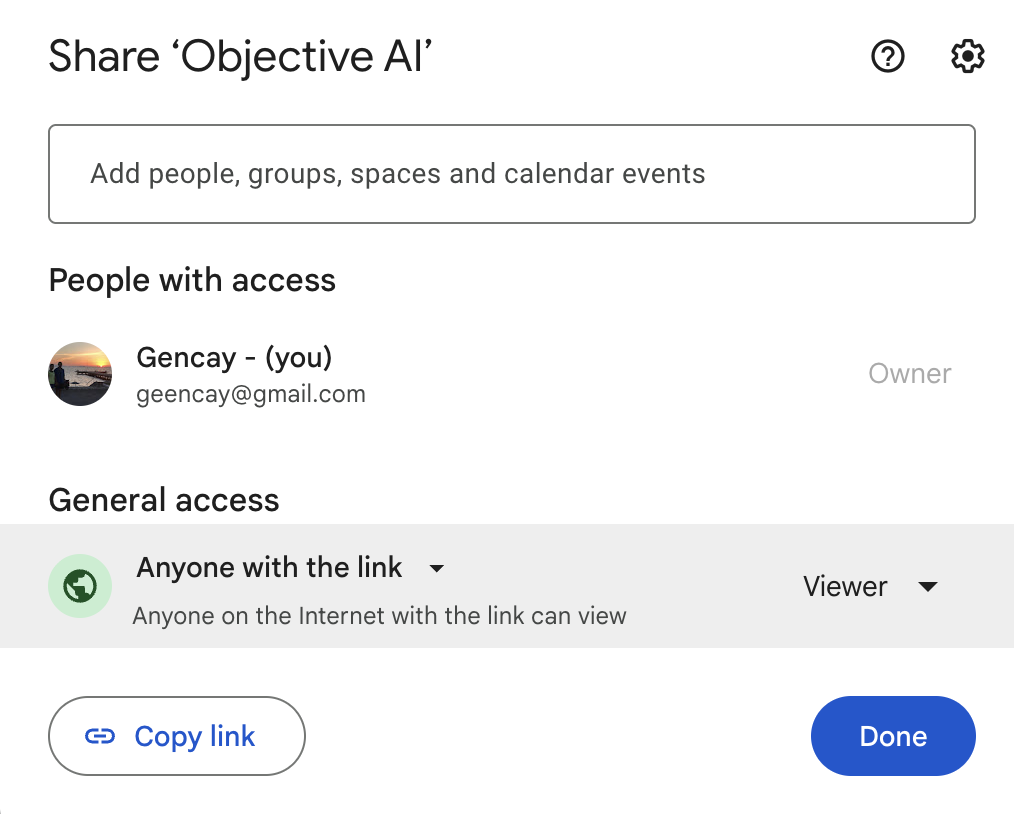
Let’s share it with you; https://gemini.google.com/gem/134zQyMxXmKRu7ghCT0ayoUgmvv53dTzf?usp=sharing
Final Thoughts
No more parrot AI.
Every idea goes through 10 iterations of honest debate.
Which one did you build? Share in the comments.