Claude Code + Startup-idea-generator + A little bit of iteration
By Gencay
Published: 2025-06-25
URL: https://www.learnwithmeai.com/p/claude-code-build-an-ai-app-in-5

AI is booming right now, and we’re seeing success stories from around the globe showcasing its use cases. I realized one thing: many of the creators of these apps don’t know how to code.
You might know how to code, but why did you have to do it from scratch if advanced tools are on the market? And that is what we will do together, and open your timer. In 5 minutes, you will have an AI app working.
But not just that, then, I’ll give you some platform names, and by using those platforms, you can host your app for free and add a user sign-in button, even monetizing them!
Claude Code
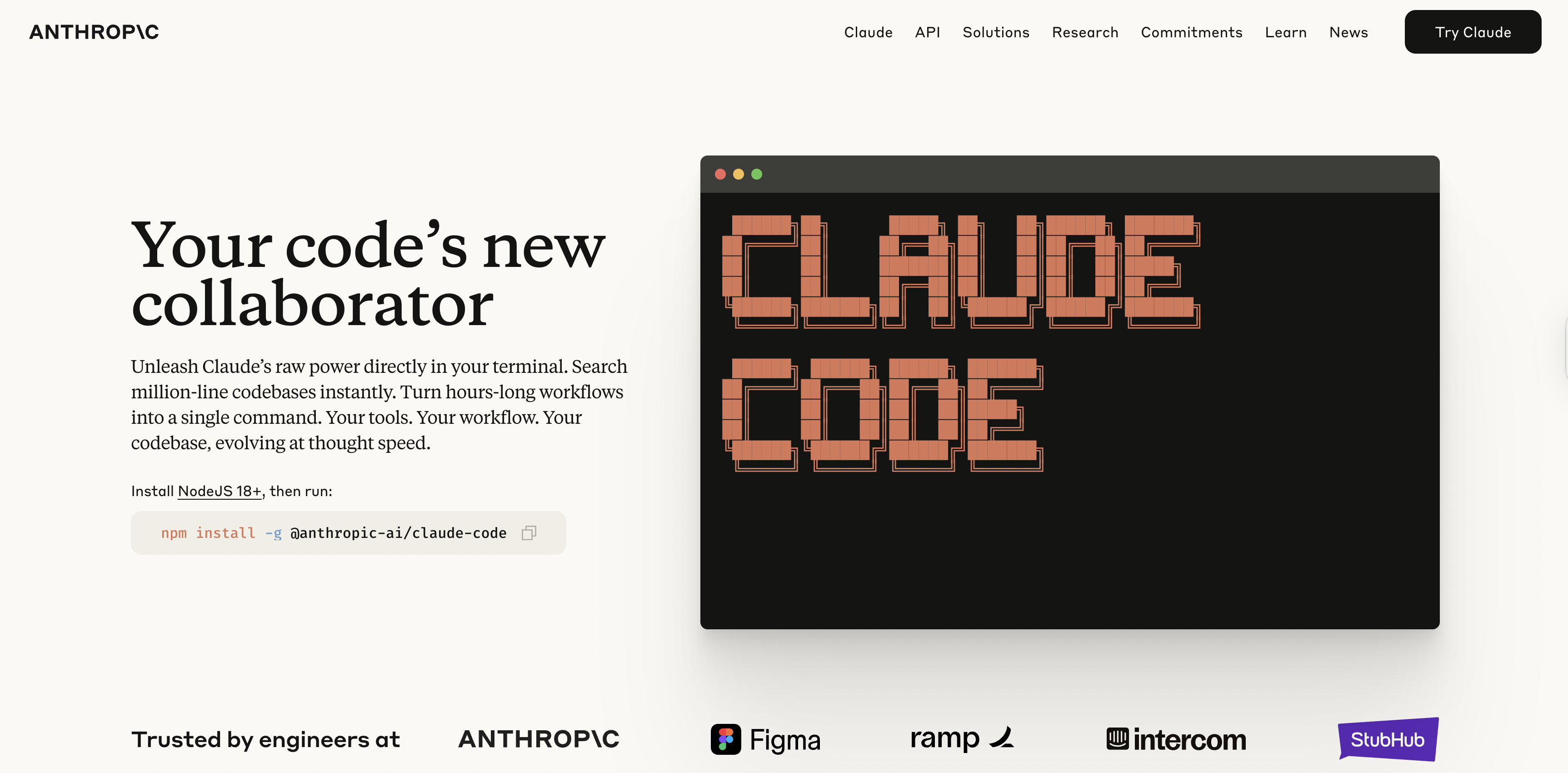
\For more details, visithere.\
Now we have just one prerequisite for this article: a Claude subscription. But I’ll make sure to tell you that you won’t regret it.
Good, I assume you have a Claude subscription right now. Now it will be pretty straightforward.
Step 1: Terminal
Open your terminal and paste this code here.
npm install -g @anthropic-ai/claude-code
I know you are now saying that there should not be any coding, but trust me, this one is necessary to install it.
Good, and initiate Claude.
Step 2: Initiate the Claude
Good, run this code on the terminal.
claude
If you did not sign in to your Claude account, it will ask you to do so. If the codes are finished now, let’s generate your app.
Step 3: Set up your project!
Now, you might not know your app idea. Here, the startup-idea-generator comes in.
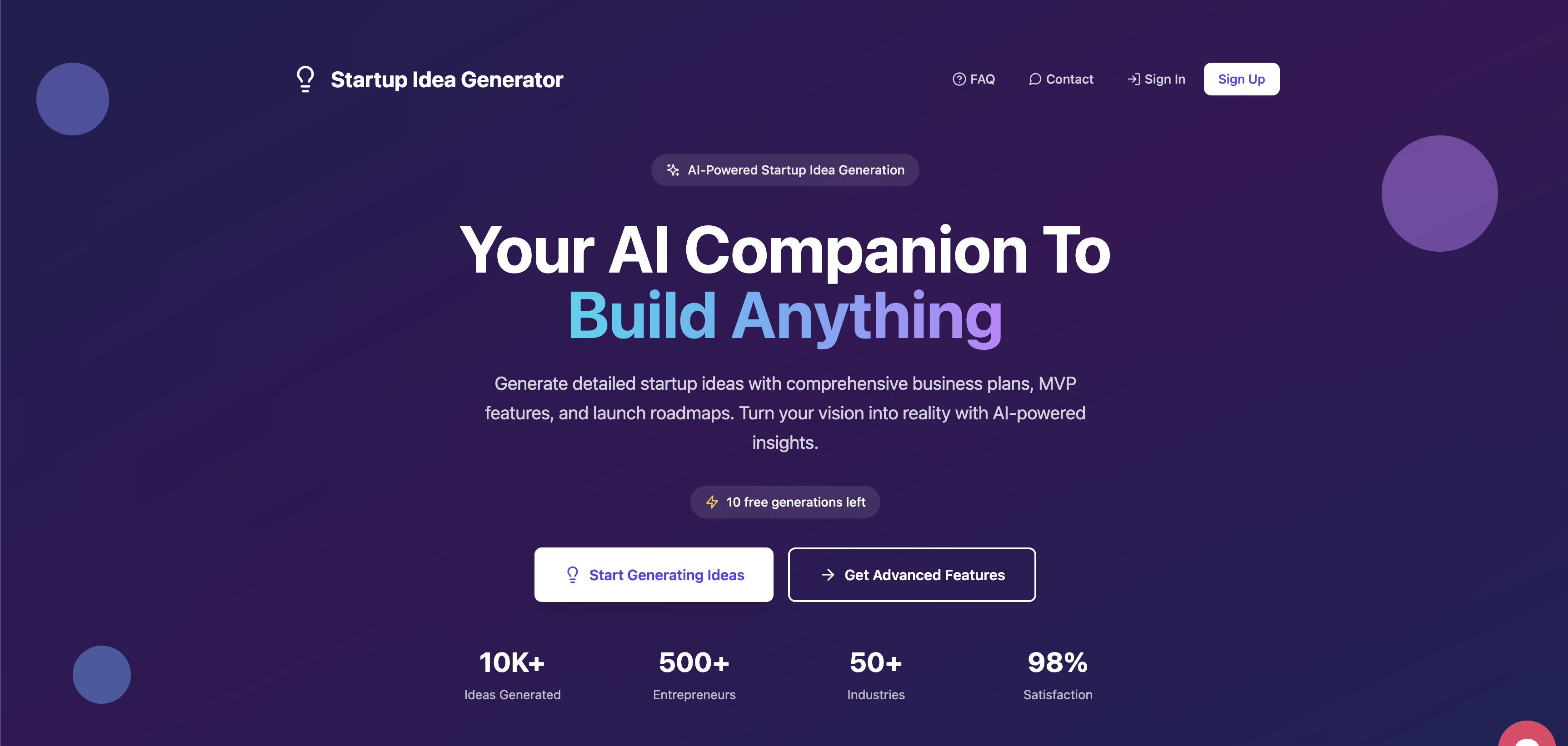
\Reference\
Here you can generate your start-up idea by just prompting.
Once you answer the following questions.
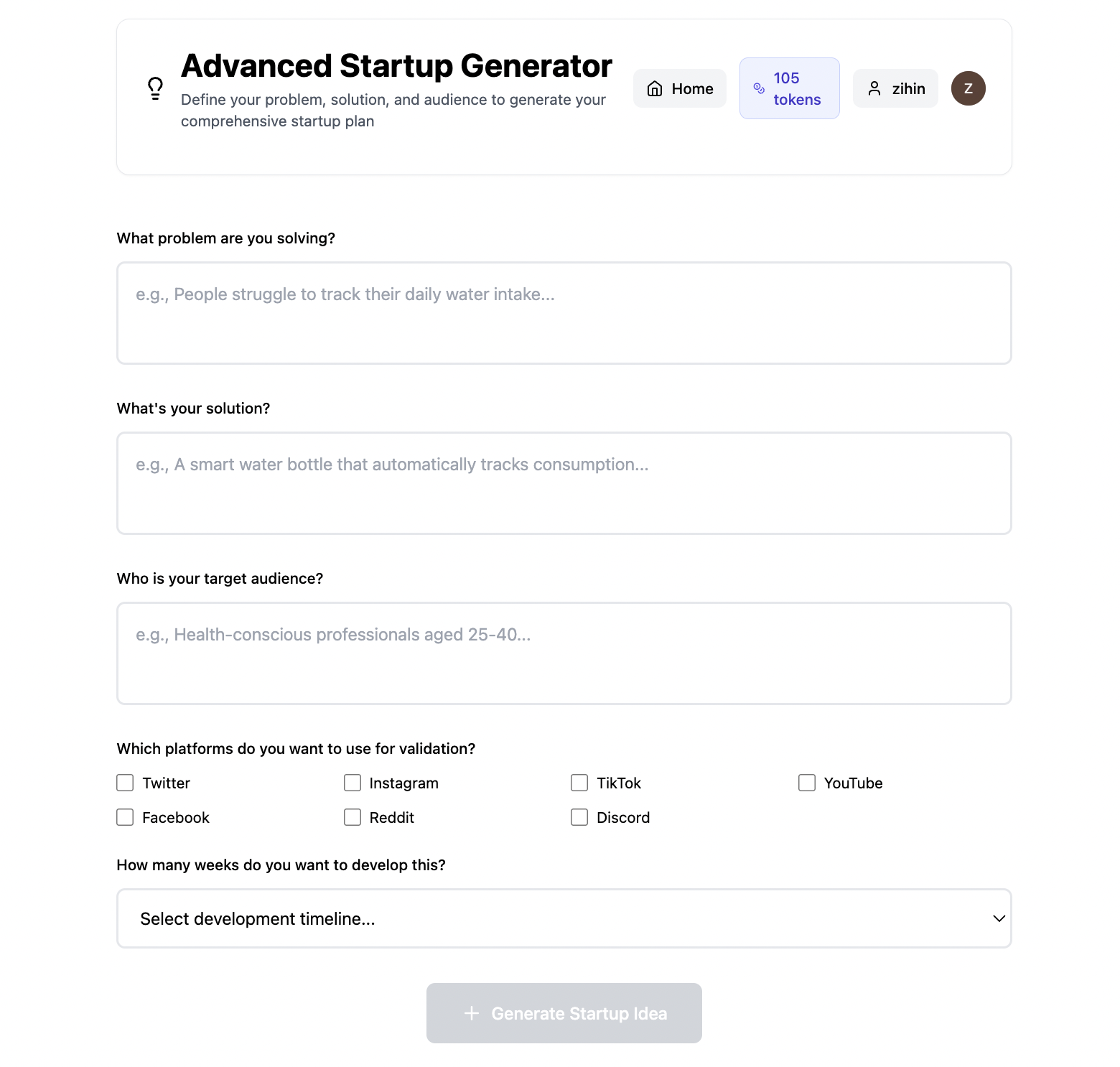
\Reference\
And approve the idea, you will see the following plan, if you approved.
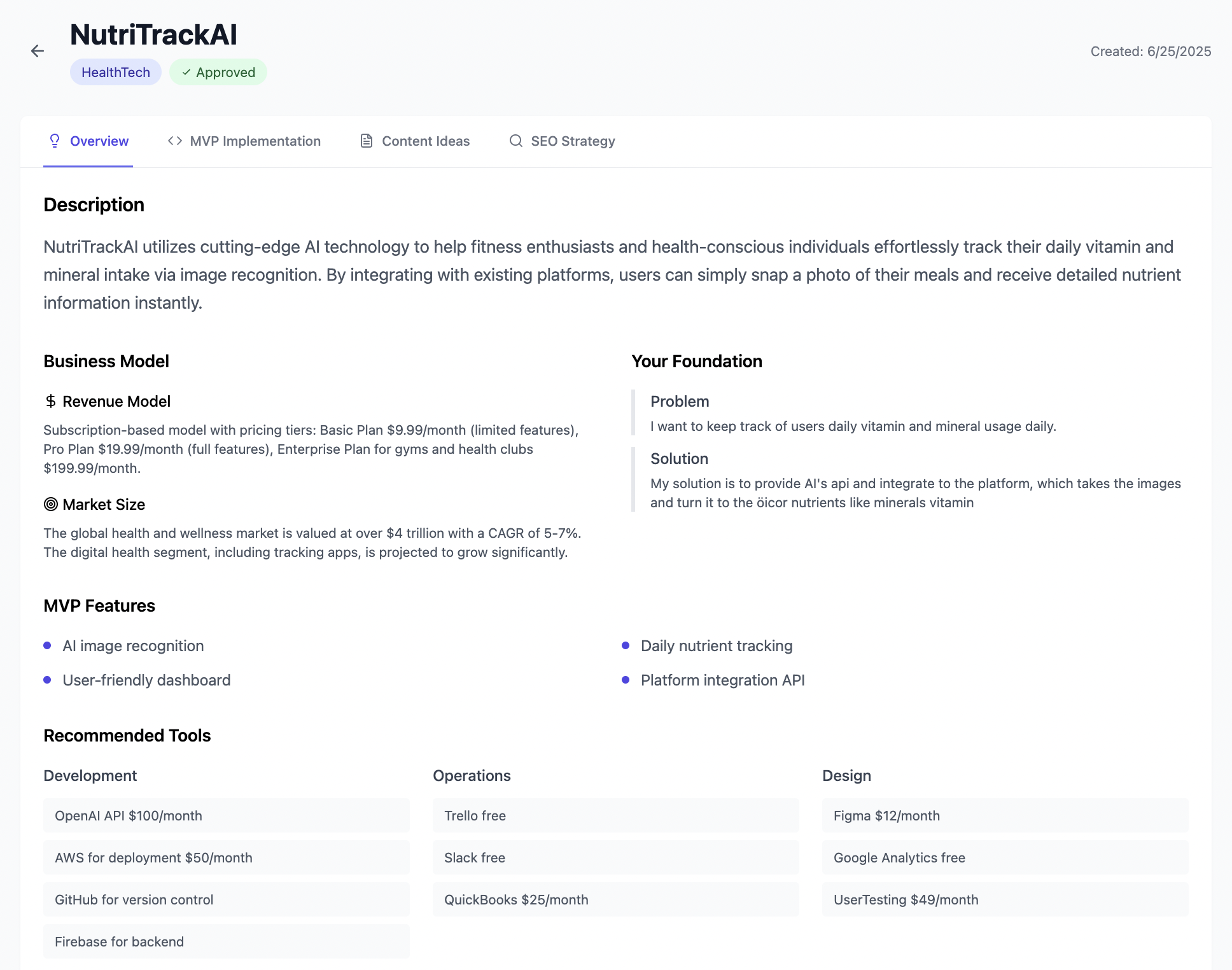
\Reference\
Good, now copy the description and MVP features and paste them to the Claude app.
First, it will create to-dos.
To-dos

And do these tasks one by one.
Tokens
It shows you the token usage too, if you want to know.
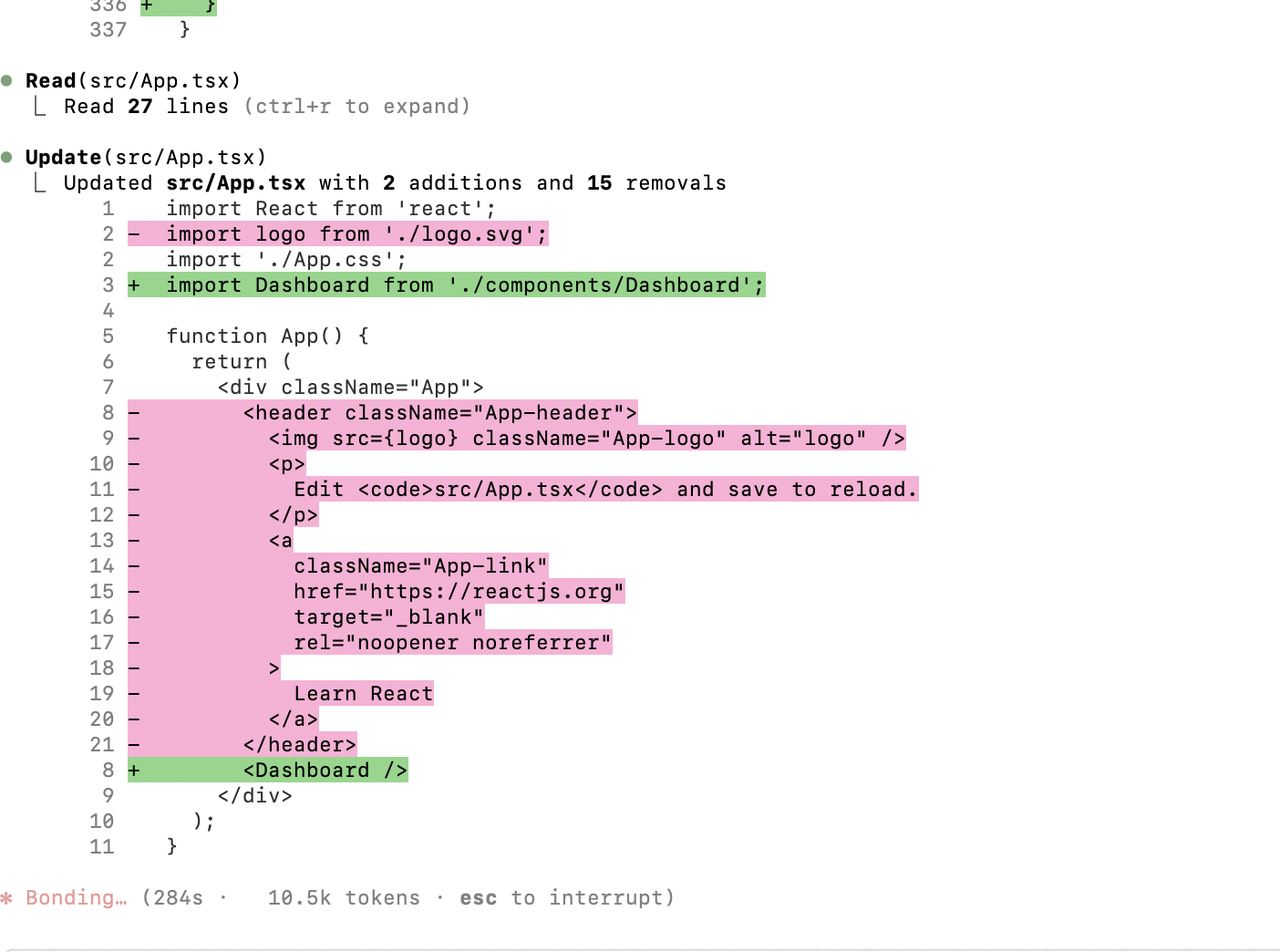
Questions
Of course, it will ask you questions along the way, because it still needs permission to create files or change some of them, just approve them as I did here;
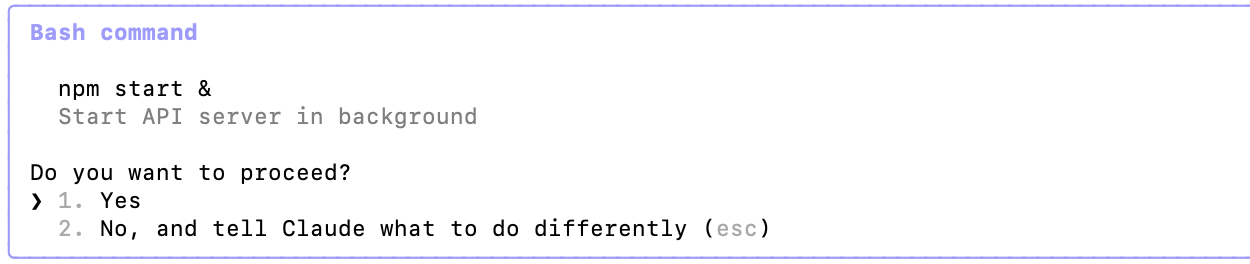
Step 4: Testing
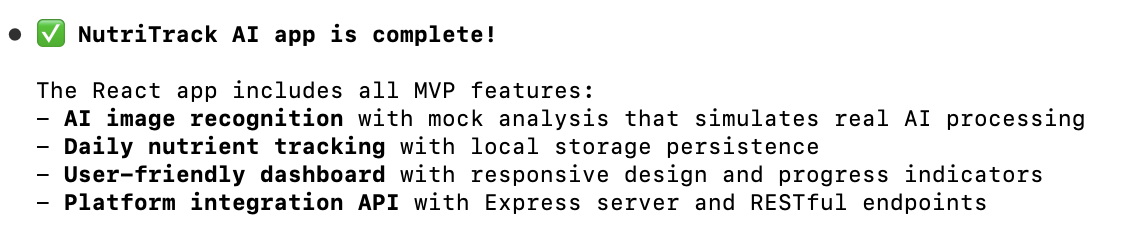
Now let’s test it.
NutriTrack AI
Here is our app, now it shows you daily nutrient intake.
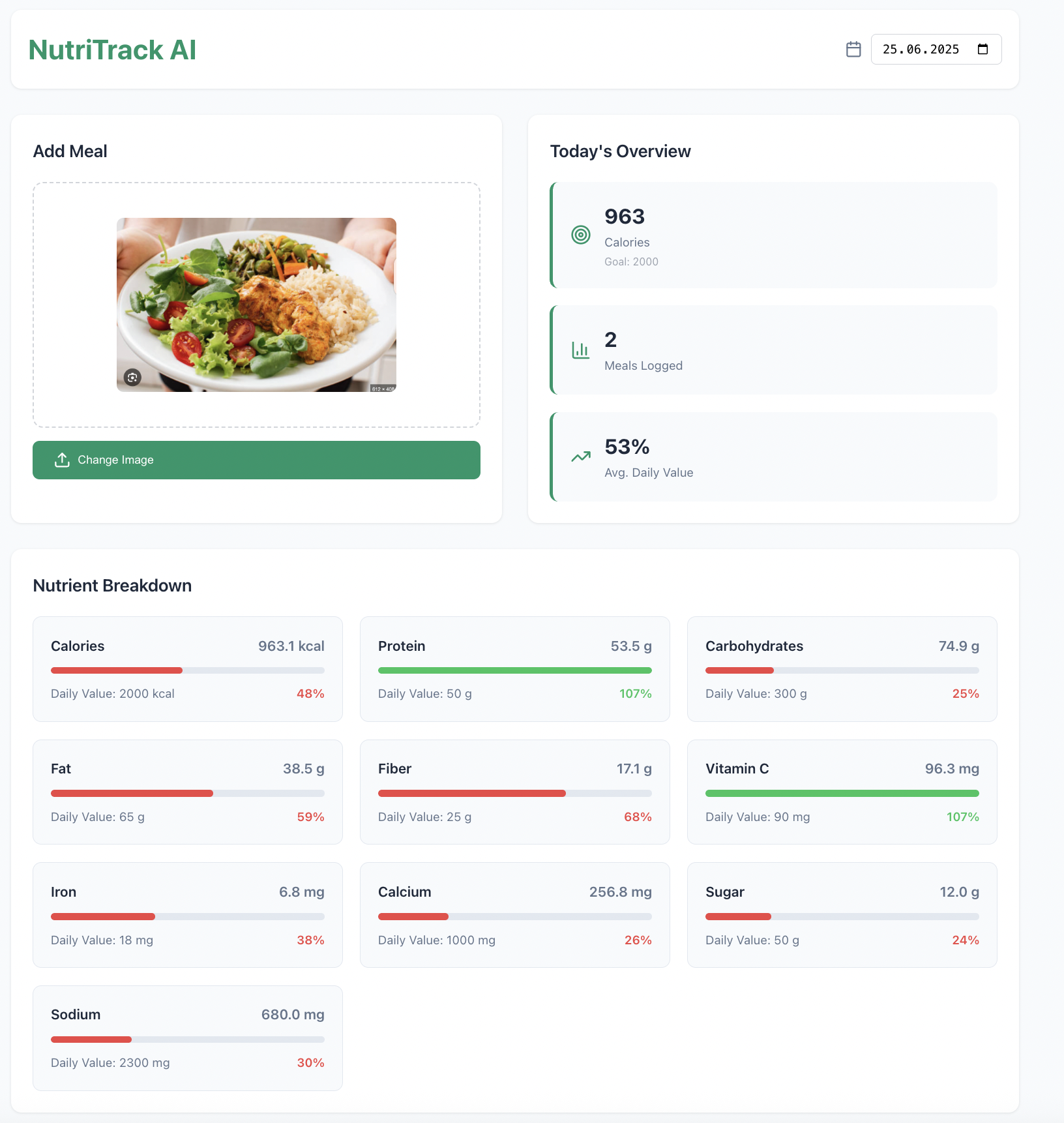
Amazing, right?
Step 5: Github + Vercel
In this step, you can upload this project to GitHub and connect it with Vercel; voila, your app will be online!
Step 6: User Authentication + Database
If you want to enhance your app, use Clerk. Clerk is a free tool, and it is very easy to use.
If you want to add a Database, use Firebase.
Why I kept short these steps? Copy information from above and paste it into the Claude Code while enhancing your app; it can do the rest.
Cursor
\Visit here\
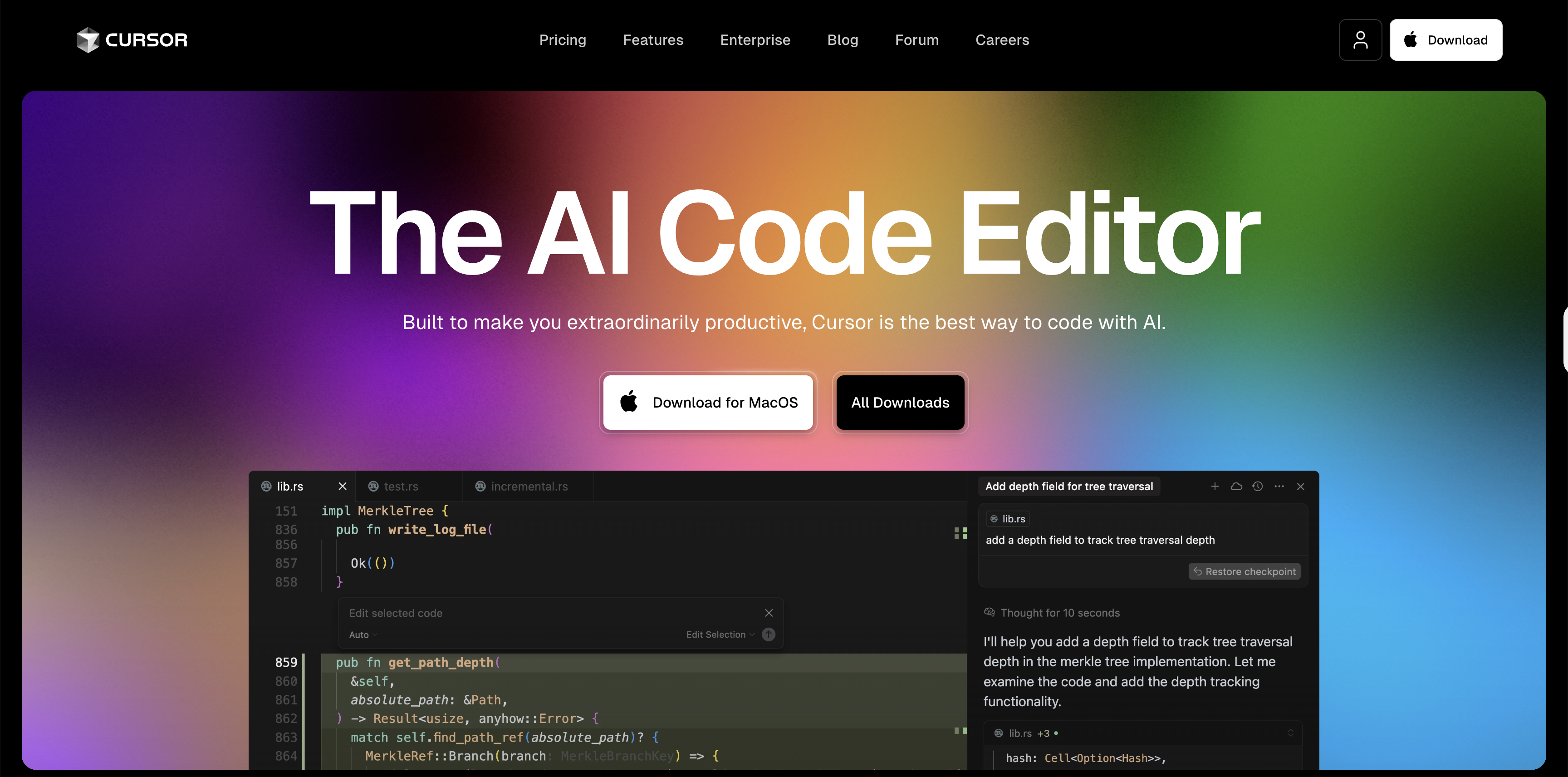
If you want to continue enhancing your app, download the cursor, use the free version, and open your project by selecting the working directory of the project you created with Claude Code.
You can continue enhancing your app by clicking on the prompt.
Conclusion
In this one, we created an AI app using Claude Code, and in the end, you have a full-stack AI app. You can enhance it by using the tools that I sent you and let the world know your app, and maybe, your app will be the next big thing, who knows? Do you think Mark Zuckerberg knew when he was coding Facebook?
Thanks for reading this one! See you next time!
.