How ChatGPT Canvas Changes AI, Technology, and Data Analysis!
By Gencay
Published: 2024-12-11
URL: https://www.learnwithmeai.com/p/chatgpt-canvas-amazing-update-has

\Created with Le chat\
Last week, OpenAI announced 12 days of OpenAI, during which they have published a new model, GPT-Pro. This model has no cap limits for some models and is the most intelligent model.
Also, a new version of the O1 model has been published, and now you can attach the document. Its cap limit seems to have increased.
But yesterday, they dropped the most significant news for me! Now, you can run code inside Canvas.
How to Activate Canvas?
While typing, after clicking here,
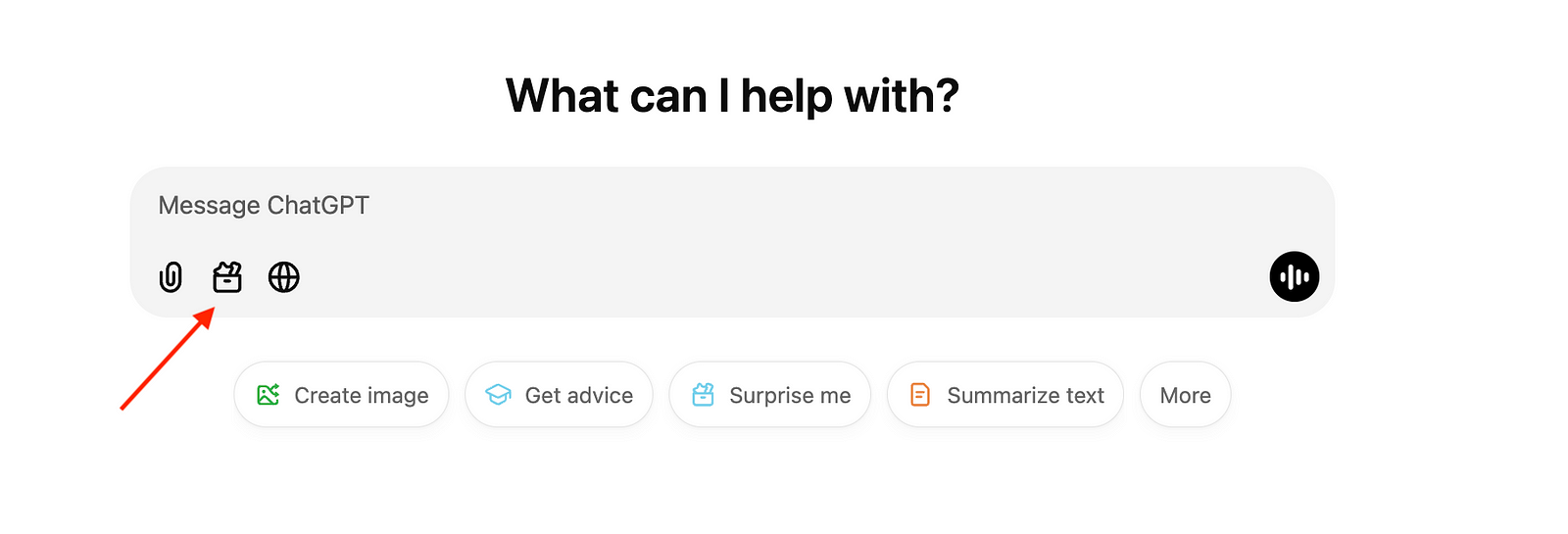
\SS of the ChatGPT\
This dropdown will be open after this.
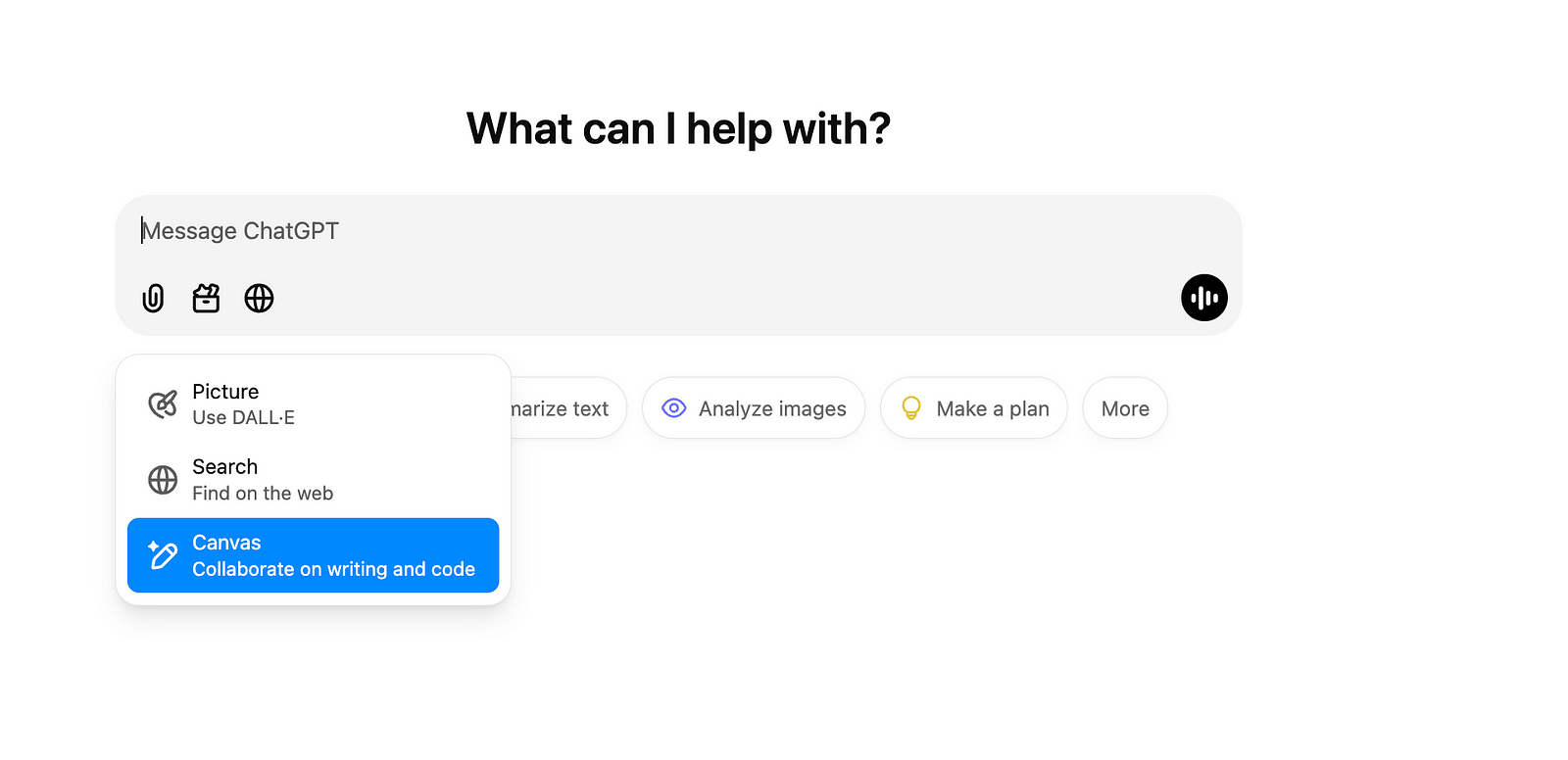
\Output of the canvas\
Now, let’s select Canvas from here and use your prompt. I’ll use this prompt to see how it runs codes.
How to run codes?
As you can see, the Canvas model shows itself just left to my prompt.Let’s click and see what happens.
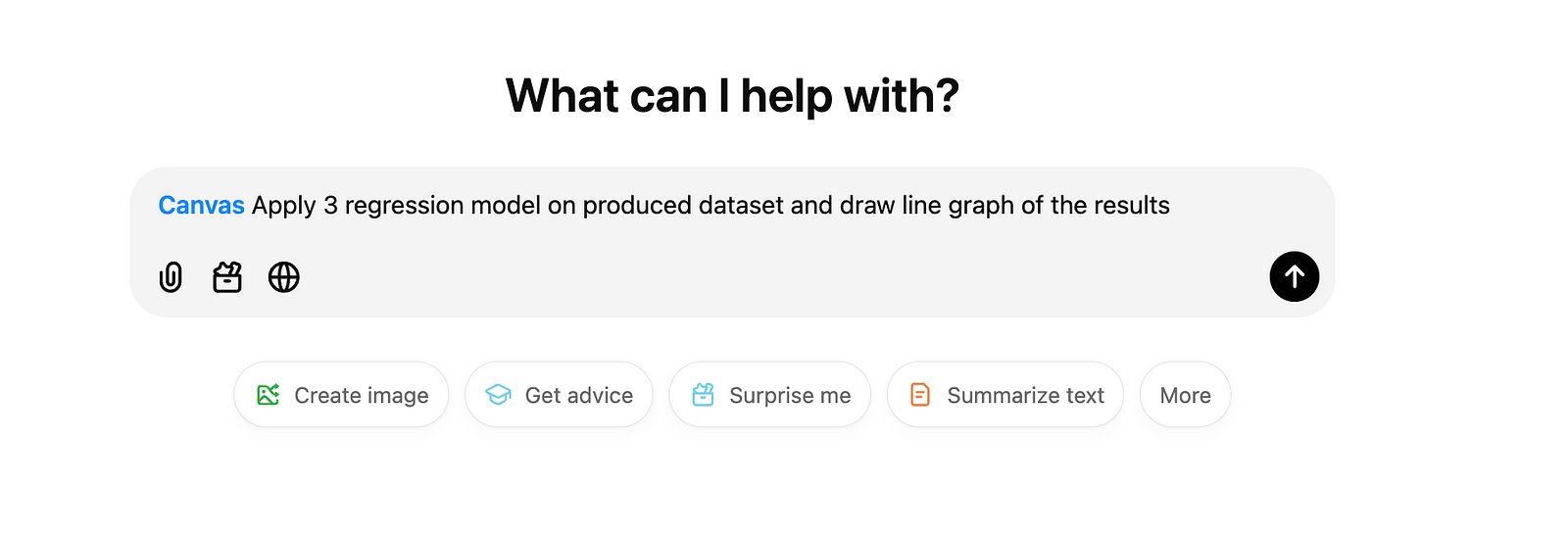
\SS of the canvas\
Now, it creates code but doesn’t run automatically; you should click the run button at the top right here.
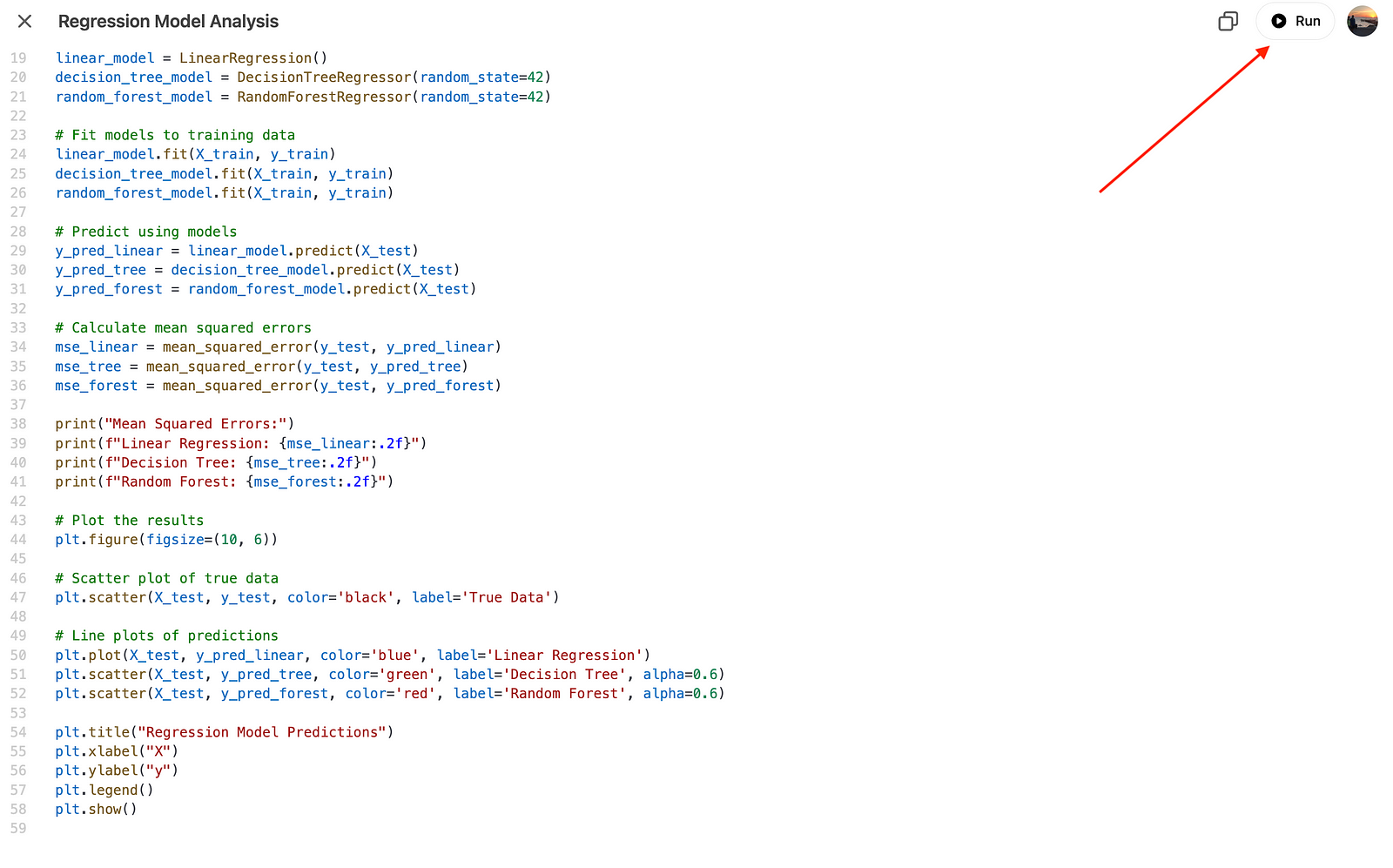
\SS of the canvas\
Good, now after clicking it, the console appears at the top-right, which includes output!
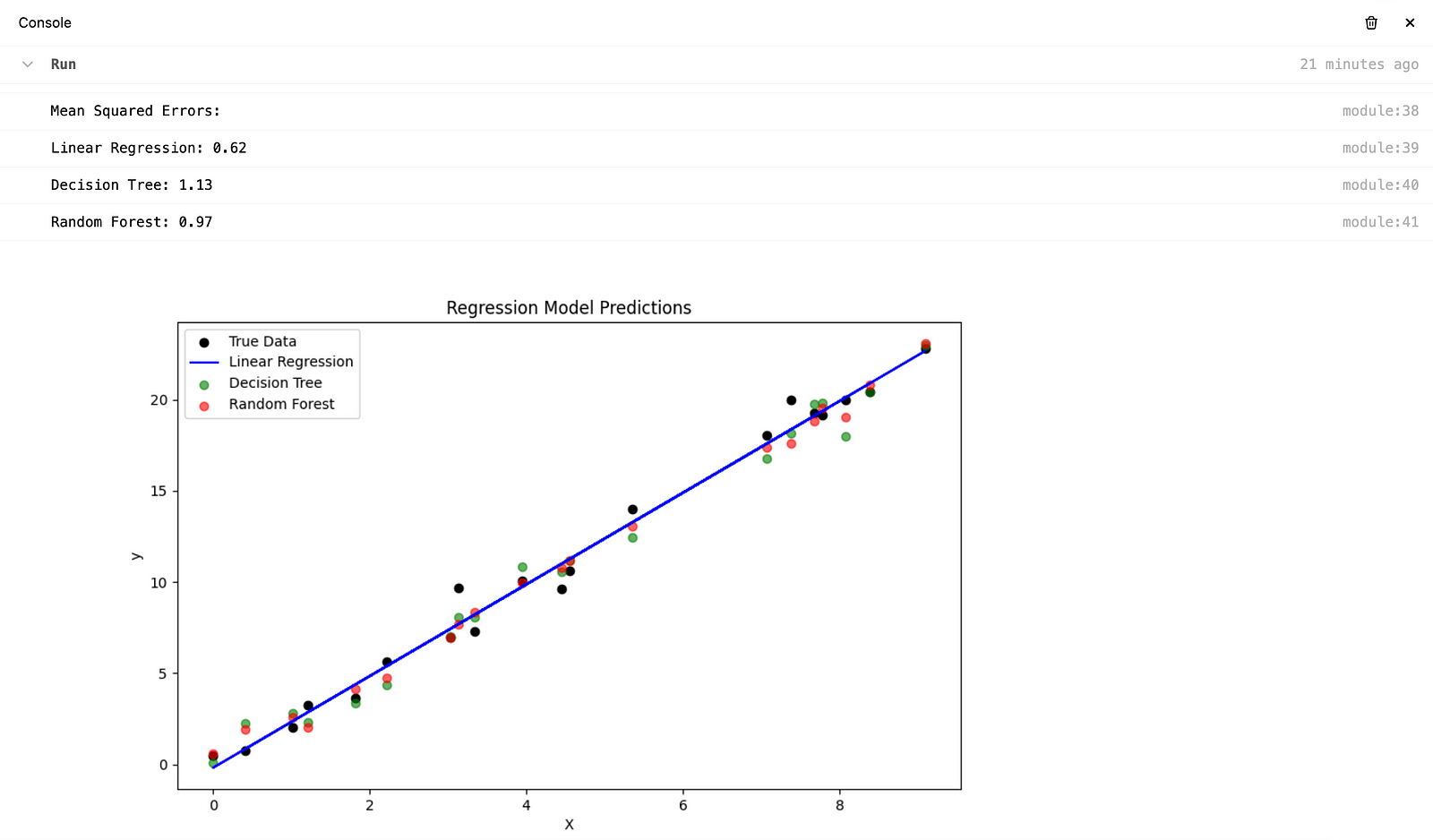
\SS of the Output\
Here is the entire screen.
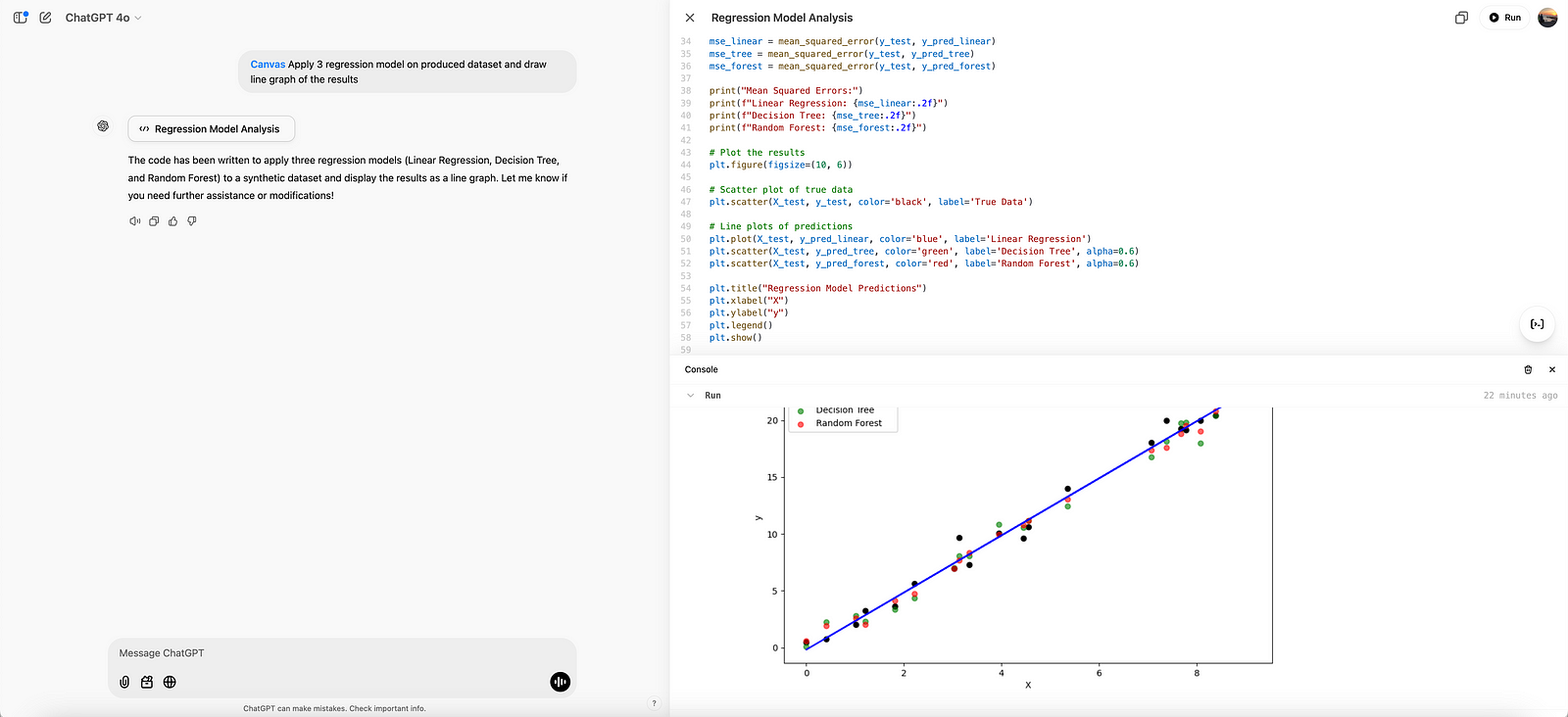
\SS of the output\
Check the top right and click on it. Here is the console.
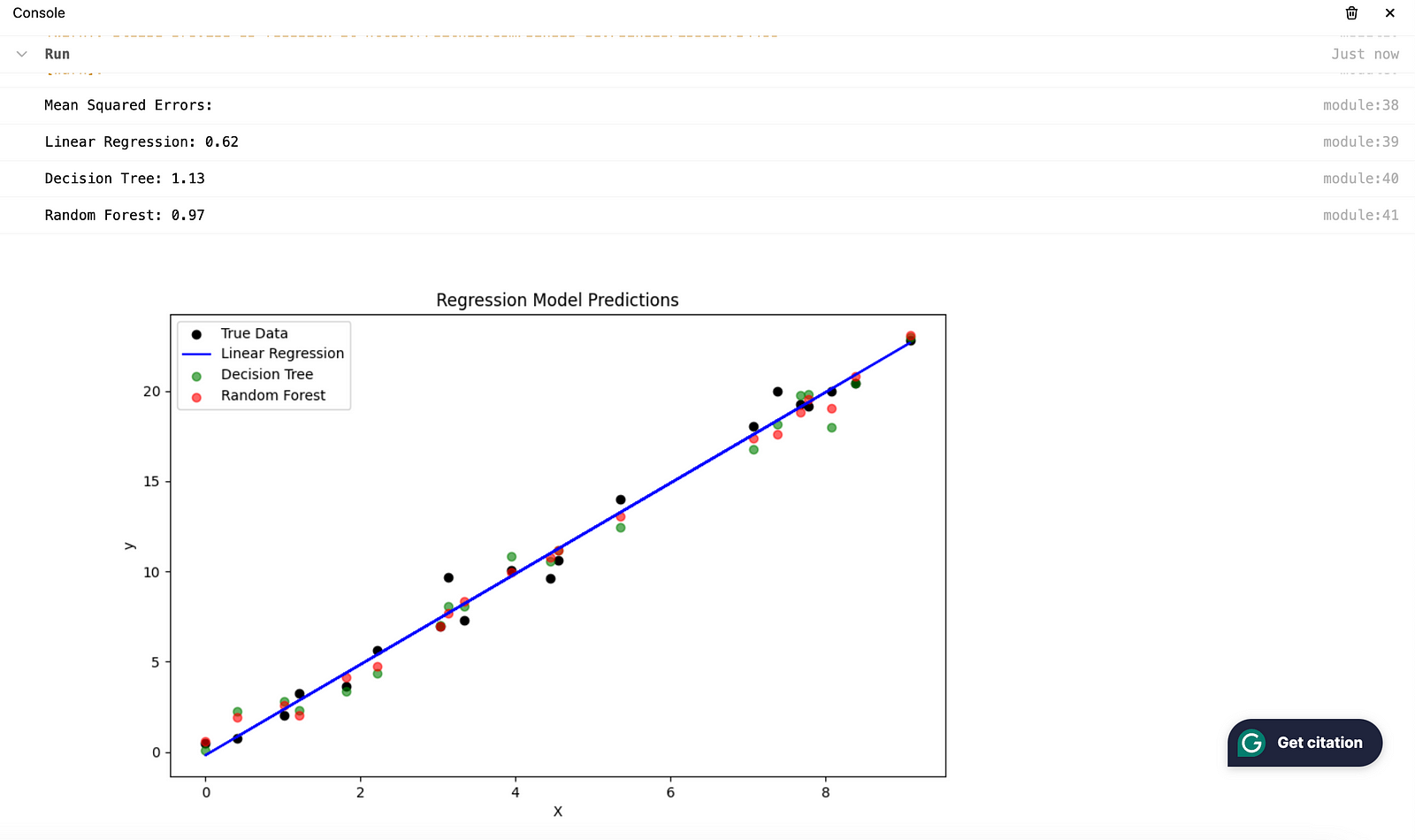
\Output of the canvas\
Wonderful, but that’s not it. Let’s go to this model's other features.
Writing Features
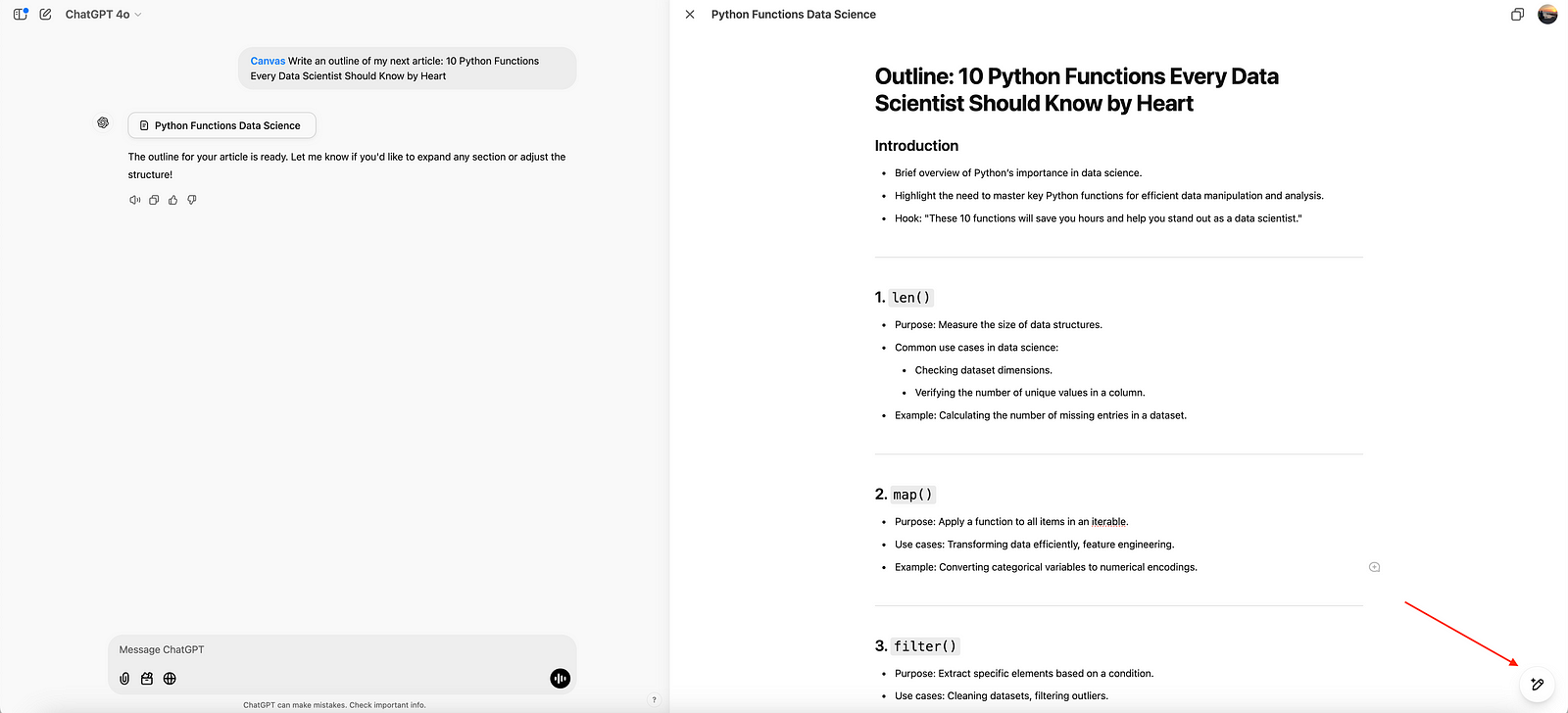
Now, there are a lot more updates about writing. They merged writing with coding, so I believe this will reduce the workload of technical writers. So, let’s ask Canvas to create an outline for me.
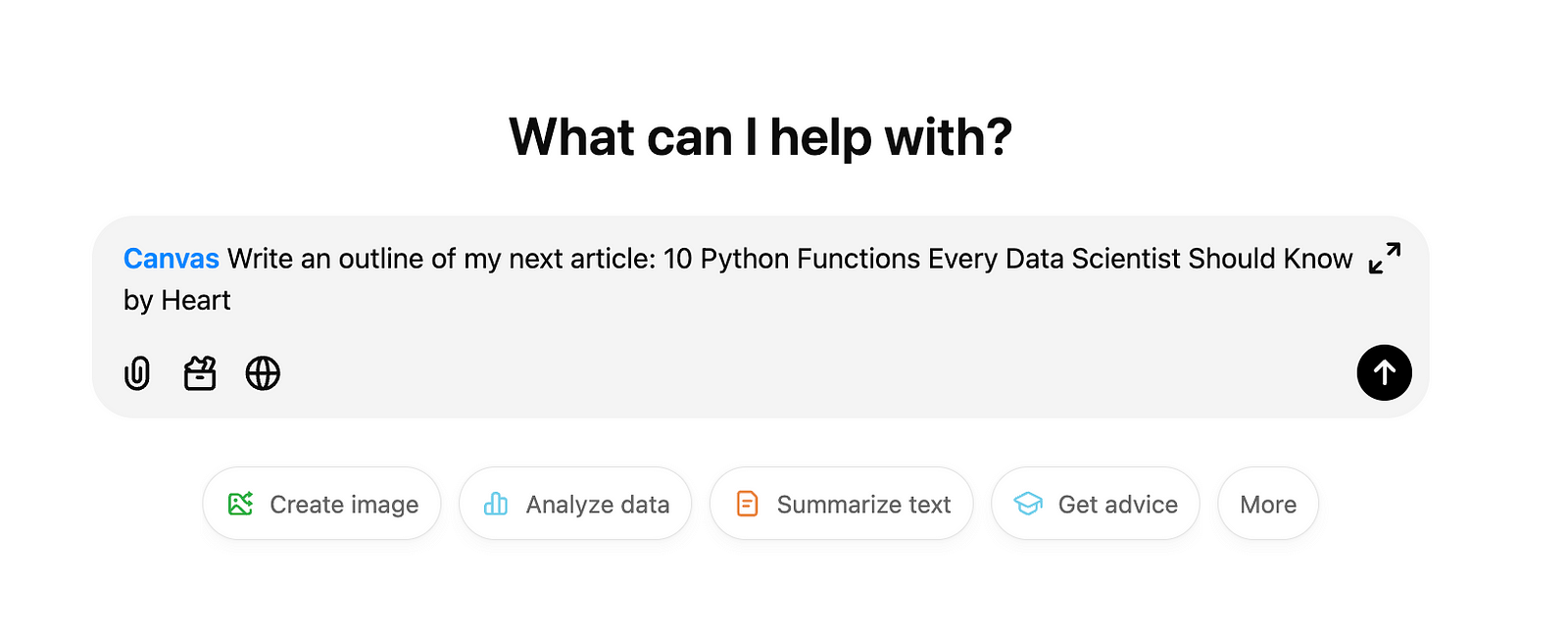
\SS of the Canvas\
Here is the outline it created.
\the\
Good. There are a lot more features for editing the texts. (Check the red arrow in the image above.)
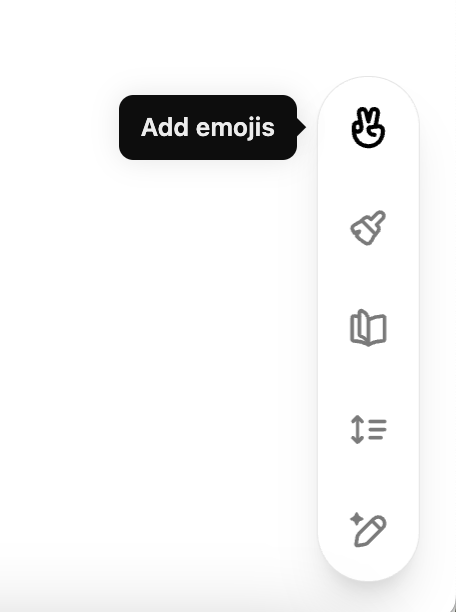
There are five buttons, and we will discover all of them!
Add Emojis
\SS of the canvas\
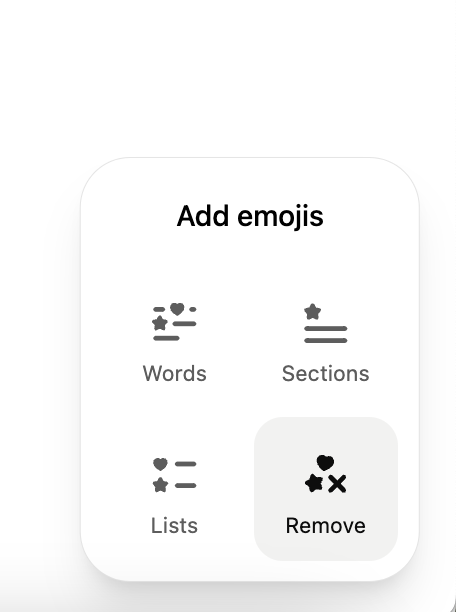
After clicking on add emojis, you will see the screen below.
\SS of the canvas\
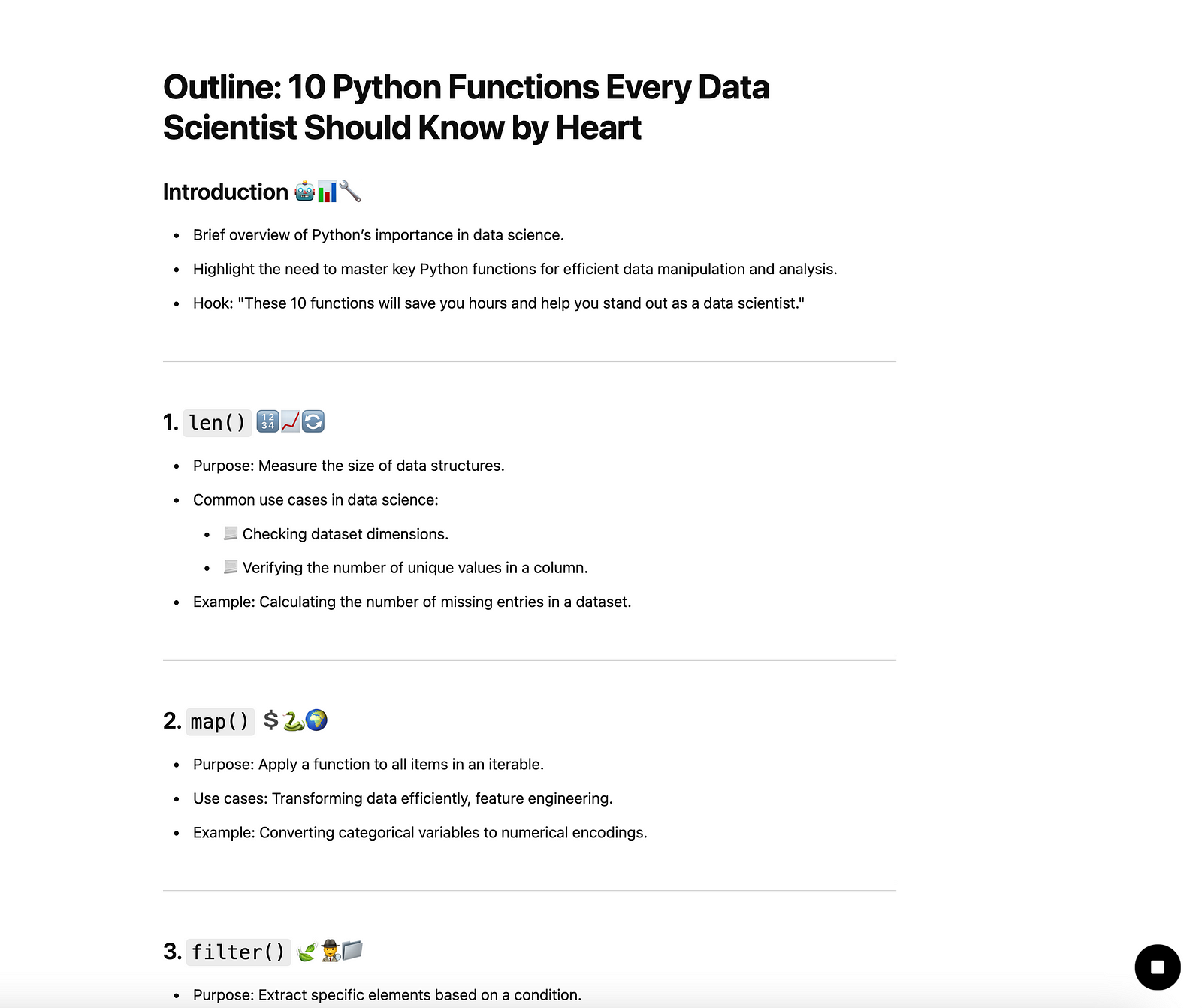
I clicked on “Lists”. Here is the output.
\SS of the canvas\
As you can see, it adds emojis near lists. You can also turn it back by selecting “Remove.”
Final Polish
\SS of the canvas\
Now, after clicking on the final polish, the outline is updated a little bit more by writing the complete introduction.

\SS of the canvas\
I clicked again to see what had changed, but nothing else had changed.
Reading Level
\SS of the canvas\
You can adjust your reading level from kindergarten to graduate level.
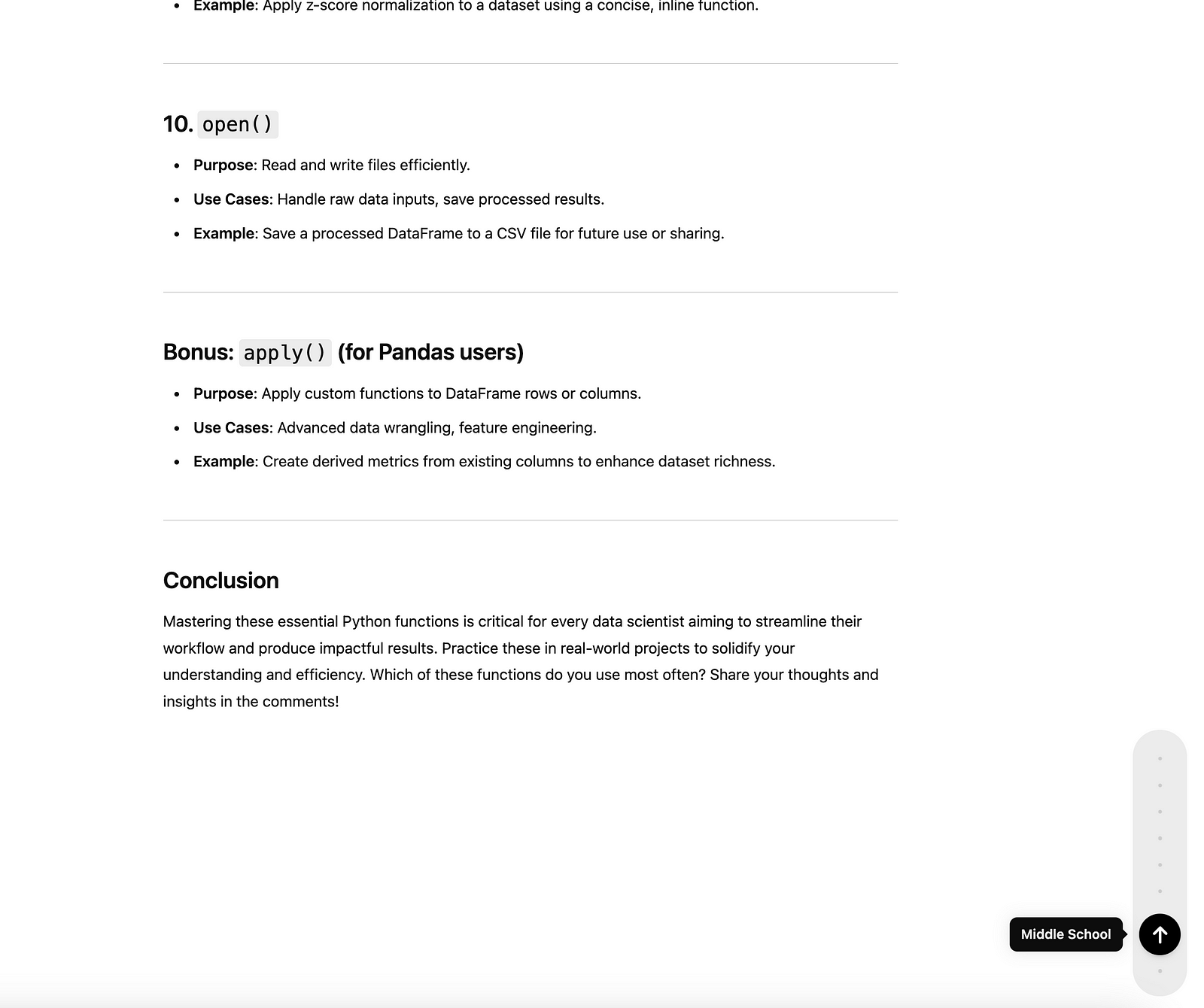
\SS of the canvas\
Here is the middle school version.

\SS of the canvas\
Interesting, I like it more!
Adjust the length
\SS of the canvas\
After clicking on it again, you can adjust the length by dragging and dropping. Here are the options;
- Shortest
- Shorter
- Current Level
- Longer
- Longest
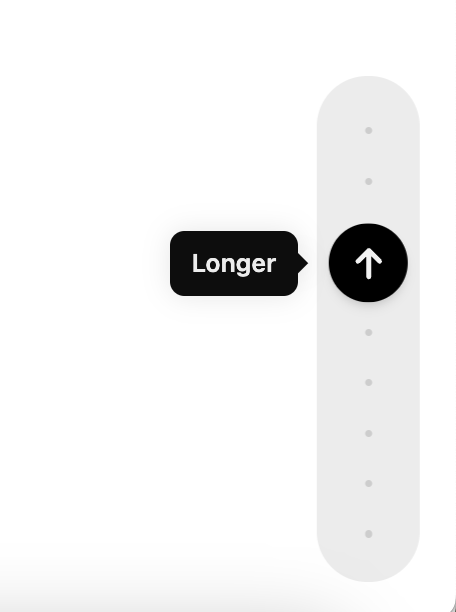
\SS of the canvas\
Let’s select shorter. Here is the output.
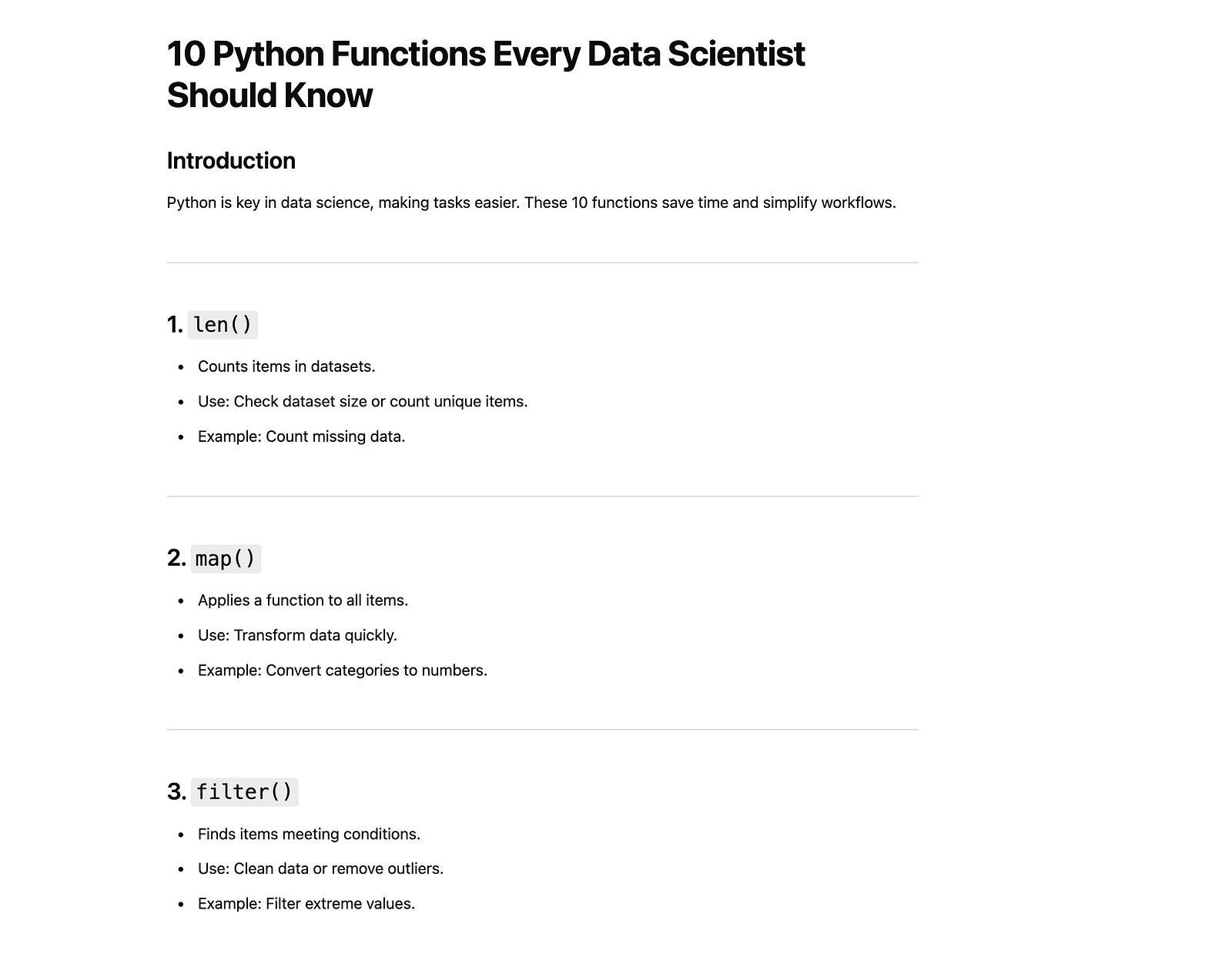
\SS of the canvas\
Good, I like it.
Suggest Edits
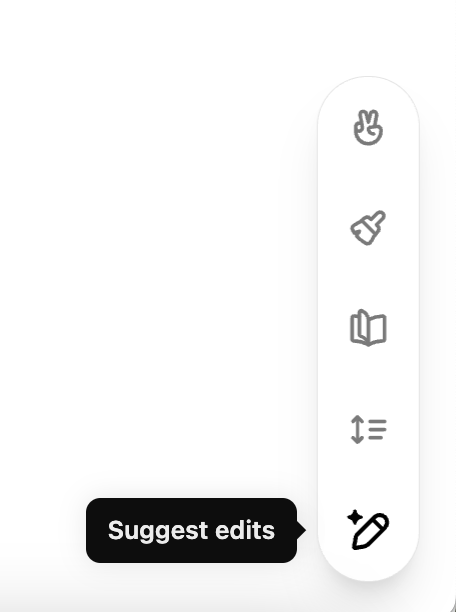
\SS of the canvas\
This one is the most amazing. You can add comments based on a part of the text.
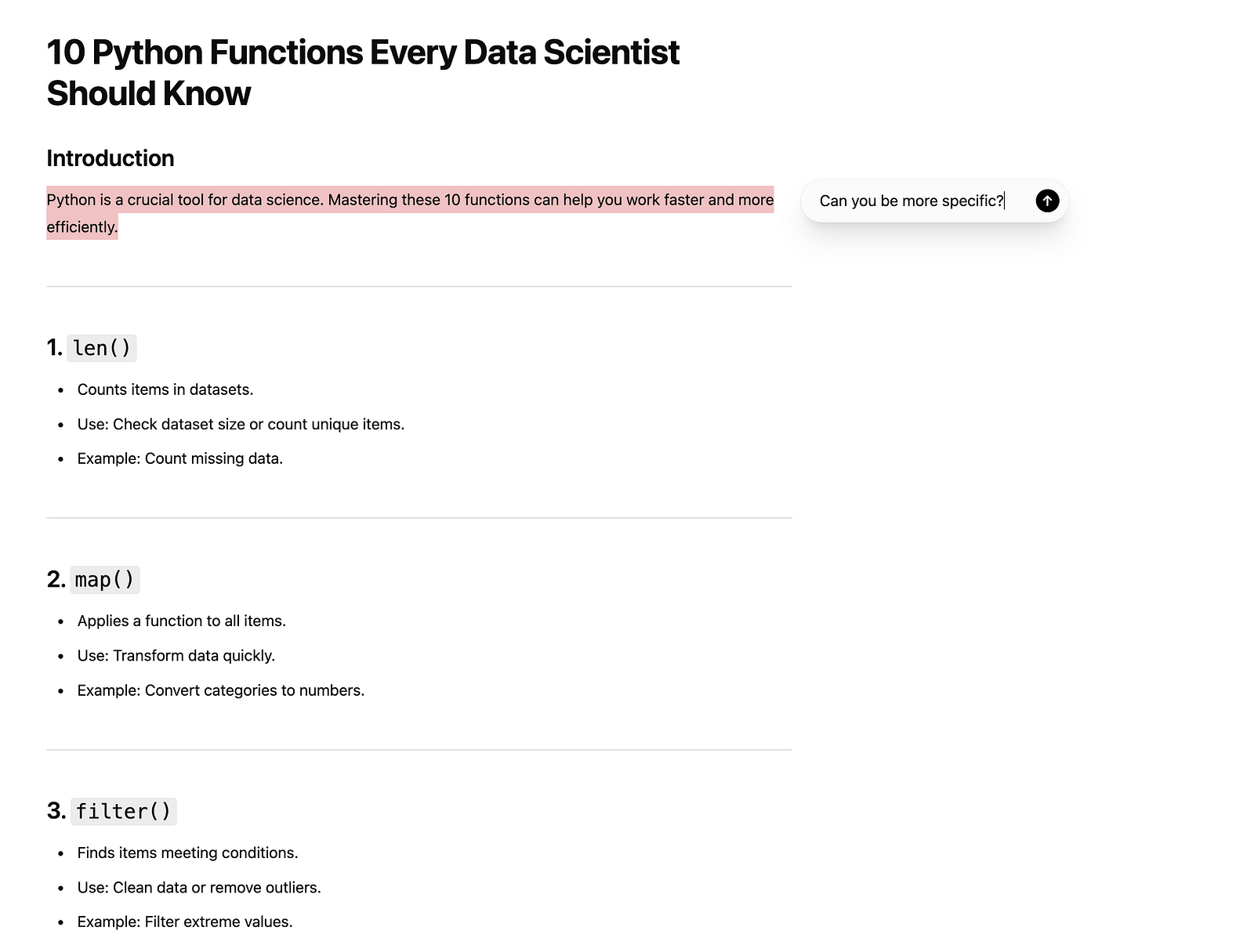
\SS of the canvas\
It has changed the introduction! One cool prompt to use here is this;
Leave some comments from the perspective of the editor who is also senior data scientist.
However, I got errors, so I opened the new conversation, used the same prompt that I used at the beginning of the conversation, and then used this prompt above. here is the result.
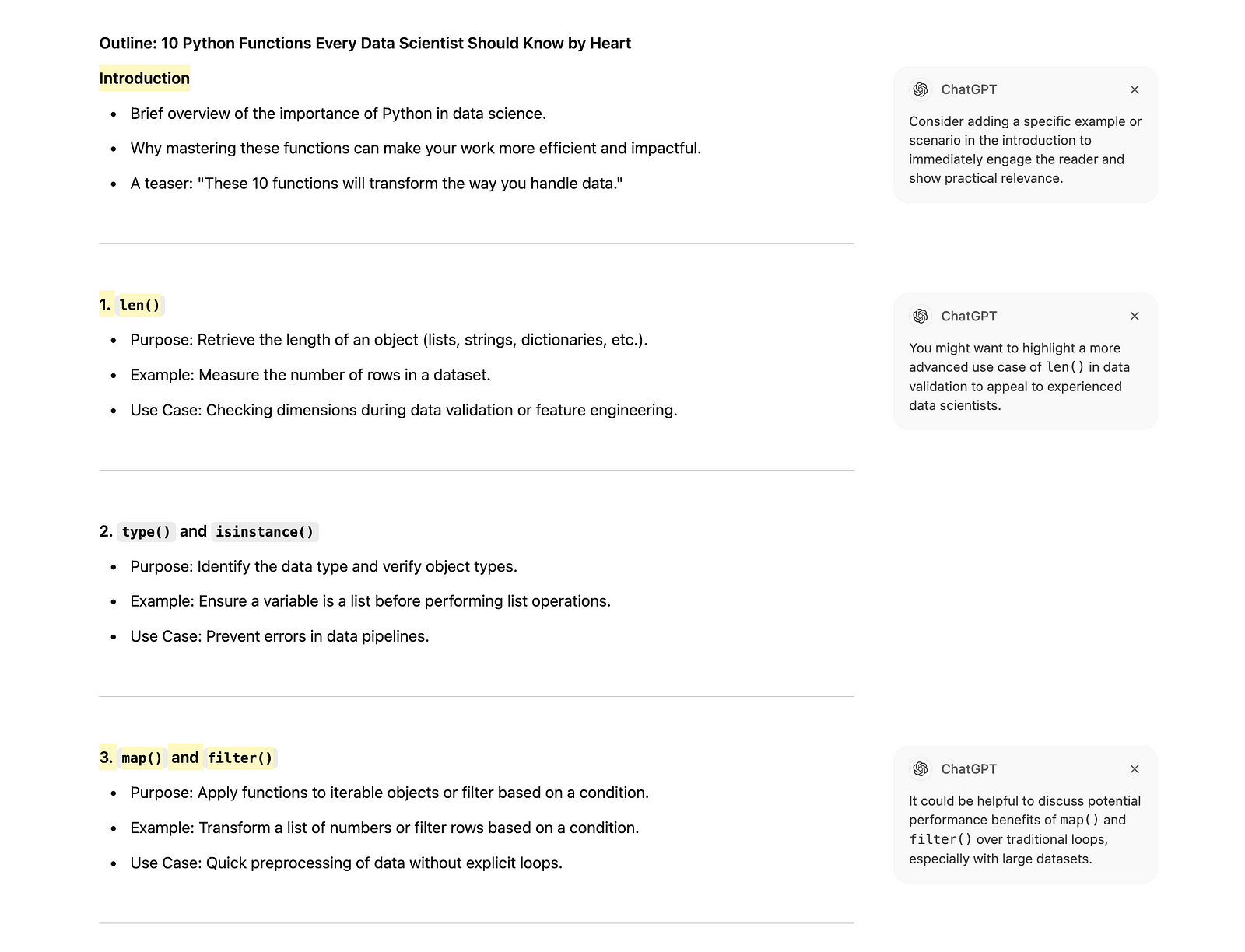
\SS of the canvas\
Final Thoughts
From the beginning of this AI summer, I have always imagined myself sitting in a big room with my editor and my boss.
At first, I was alone, worried about whether AI could replace my job as a technical writer.
Thanks to Canvas, I now see the same fear in the eyes of my editors and senior data scientists.