Track topics, verify images, and search like a pro
By Jeremy Caplan
Published: 2026-07-09
URL: https://wondertools.substack.com/p/search-smarter-verify-faster
Today’s tools help you track a topic with digital scouts, figure out where an image came from, and search like a pro without memorizing operators.
This is a guest post from , following up on his Digital Investigator’s Toolkit. Craig and Alexios Mantzarlis run Indicator, which publishes digital investigative guides and tools. They also have a free newsletter.
Yutori Scouts
Use it to: get an agent-curated summary of new info about a topic you care about, delivered on your schedule.
Think of Scouts as an AI-infused version of Google Alerts.
Specify a topic to keep an eye on, like the latest research in your field, new films, or news about your favorite sports team. Then, on a schedule you choose, AI agents scour the web and send back a collection of links with a summary of what they found. I get a nightly email at 7 p.m. ET with new OSINT tools, techniques, and writing.
It doesn’t surface something great every single day, but that’s OK. Set it up once, tweak as needed, and then it just runs. It’s simple, free, and a nice complement to other monitoring tools, like Google Alerts.
Sponsored Message

#### Turn goals into finished work with MyClaw
Give it a goal, not a question.MyClaw’s agents research a market, triage your inbox, or monitor a competitor, then hand back something usable: a report, a competitive update, or a daily brief. No terminal, no Docker, no server setup.
Choose OpenClaw or Hermes, and get results delivered straight to WhatsApp or Telegram.
Search by Image
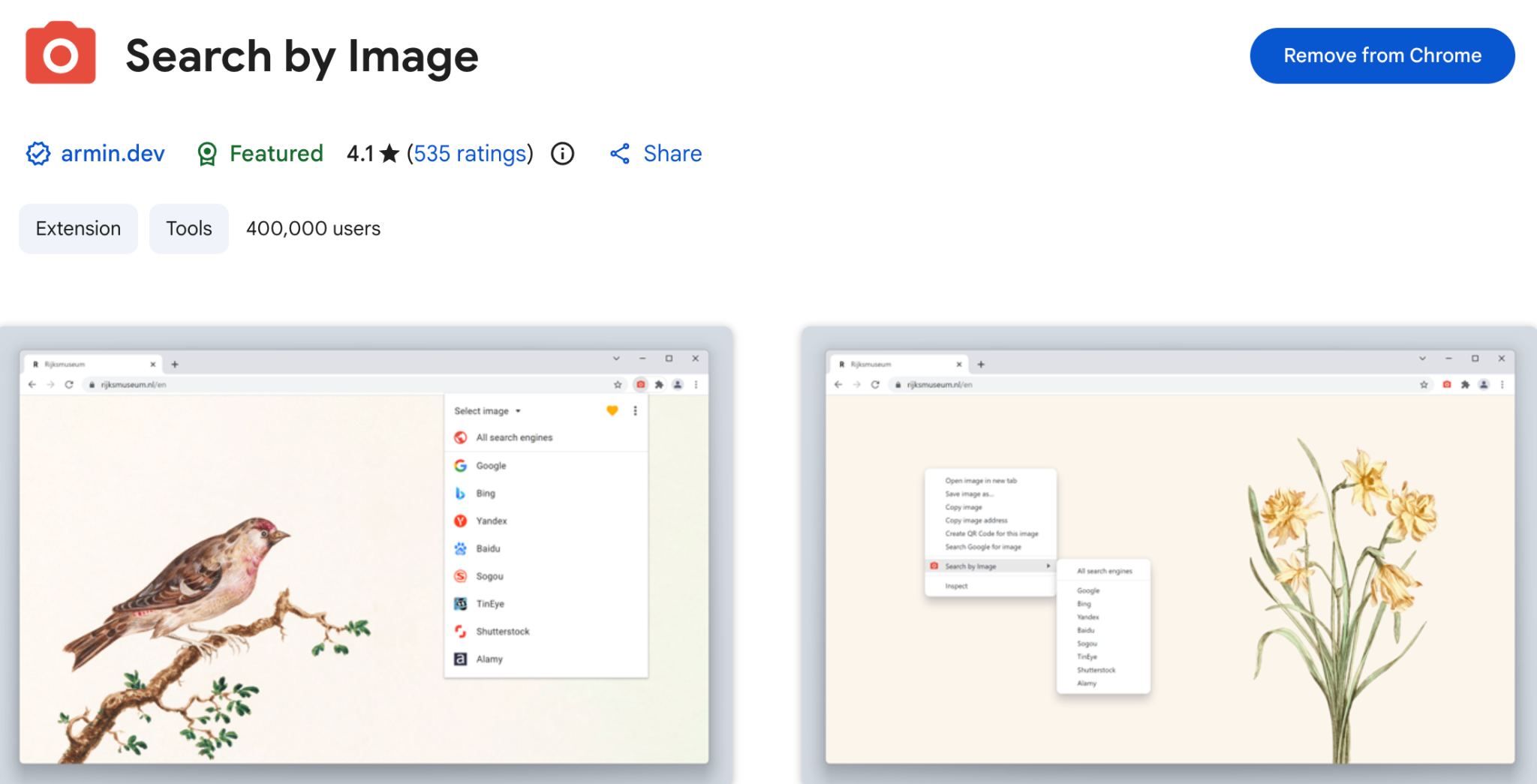
Use it to: check where an image really came from, and whether it’s been published before, across several search engines at once.
Reverse image search is one of the easiest, most powerful digital investigative techniques. You can easily find out where an image (or visually similar ones) have appeared online. It’s often the first step in verifying whether an image is authentic. A reverse image works for products, logos, and more. It also works for videos, which you convert into images by snapping a few screenshots.
If everyone knew how to conduct reverse image searches, we’d have fewer misleading images and videos circulating unchecked. It’s a powerful way to uncover the context and history of an image. It’s useful for research, but also for online shopping.
The concept is simple. In an ordinary web search, you type words and get back links (or, increasingly, an AI summary). With reverse image search, you give a search engine a picture and ask it to find matching or visually similar images. If you’ve used Google Lens, you’ve done a reverse image search.
The Search by Image extension makes it easier to search for the same image across the four leading reverse search engines: Google Lens, Bing, TinEye, and Yandex. You can select additional specialized search options in the settings.
Once installed, there are two ways to search an image.
1. Click the extension
- Click the red camera icon in the Chrome extension bar.
- It opens a menu where you can choose to search across the default engines or just pick one to start (screenshot).
- After you select the search engine, a button pops up to invite you to select an image to search (screenshot).
- Click on the image and the results open in a new tab(s).
OR 2. Right click
- My preferred method is to simply right-click on an image I want to search. This opens up a menu for “Search by Image.”
- Choose to search all default engines or select a specific one. Results open in a new tab.
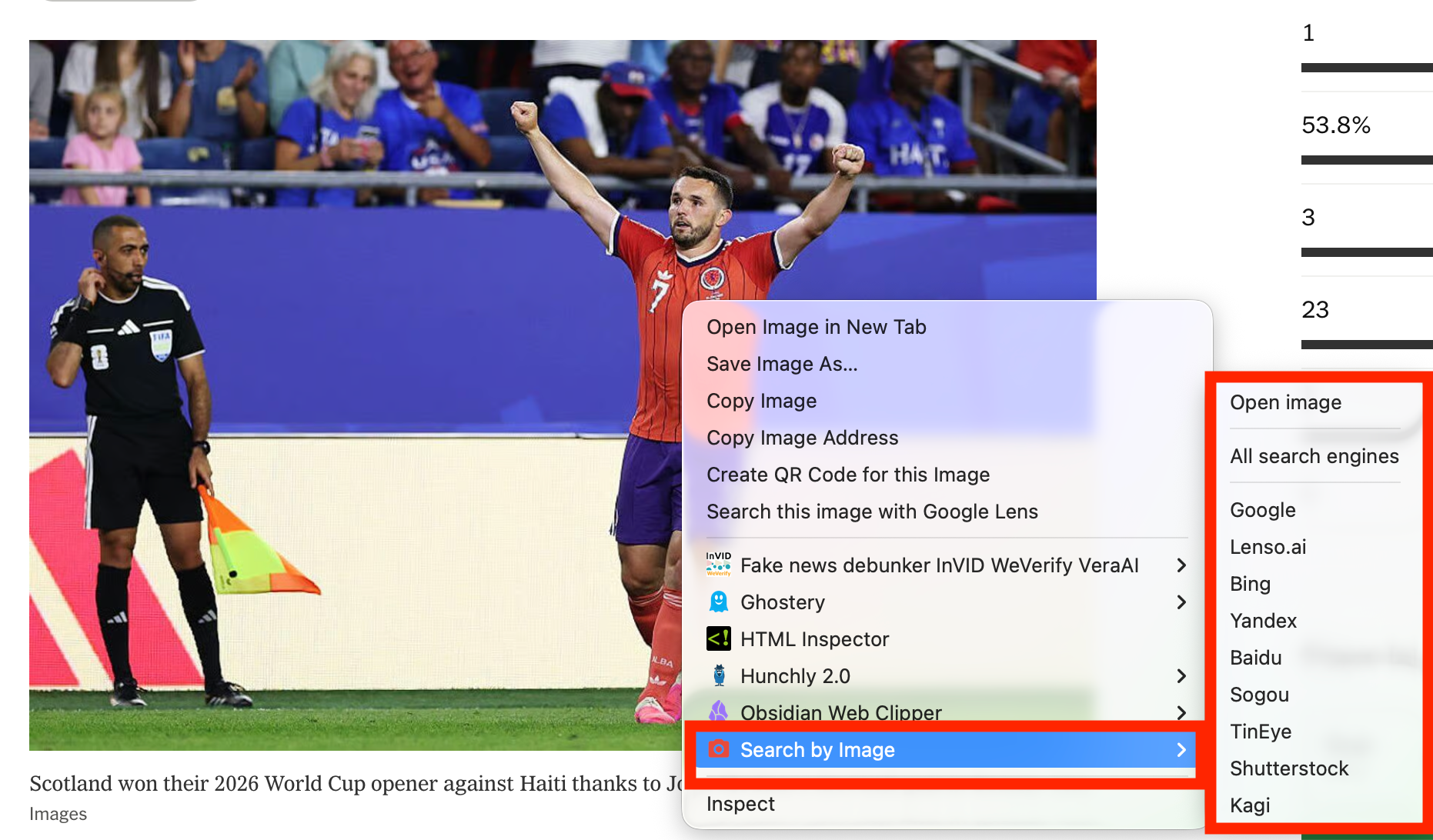
There are lots of customization options. For example, you can add one-click searches of stock-image sites like Shutterstock or other specialized sources.
SearchWhisperer
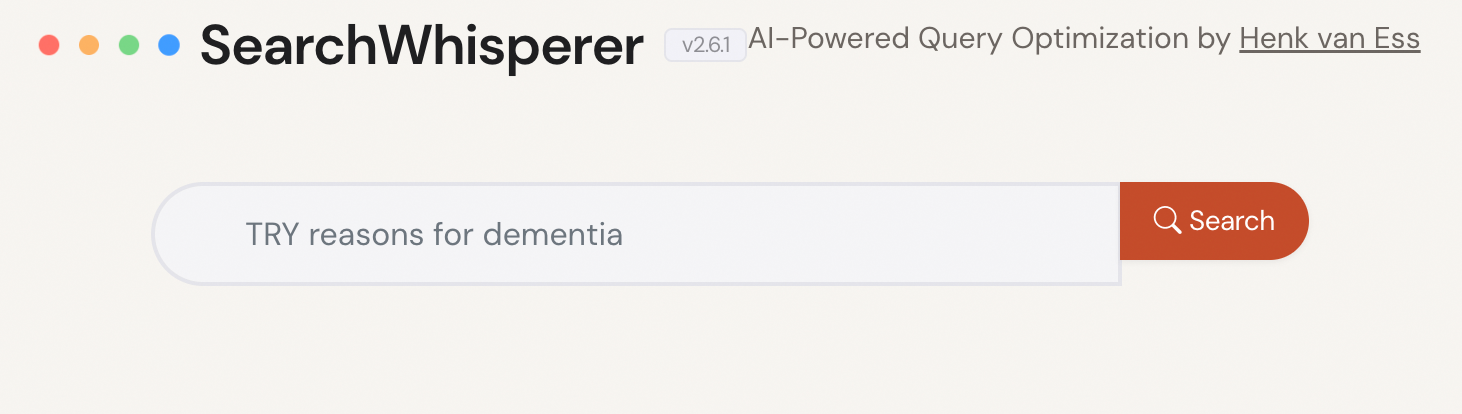
Use it to: find what you’re looking for through powerful, operator-based searches without having to memorize technical terms.
One of the true superpowers of the internet is knowing how to use advanced search operators.
Operators are specialized commands that help ensure a search engine understands what you’re looking for and returns relevant results. Operators are even more important now that search engines like Google and Bing are shifting to deliver AI-generated summaries instead of lists of relevant links. You increasingly need to force a search engine to show you the results you’re looking for. Operators are the way.
View a list of Google operators and descriptions of what they do.
Two of my favorite operators are:
- site: restrict results to a single domain.
- filetype: return results that fit a specific document type.
They’re particularly powerful when you use them together. For example, if I want to search the U.S. Department of Commerce’s website for PDF documents that contain the words “confidential” and “spacex,” I could enter this into Google:
site:commerce.gov filetype:pdf “Confidential” “spacex”
An advanced query that uses operators is often called a “dork.” Most people never learn operators and don’t know how to craft a dork. That’s a missed opportunity. If there’s one research skill worth investing in, this is it.
That’s why I recommend dork generators to anyone who wants to improve their search and research skills. There are many options, but I suggest Search Whisperer from , a trainer who also builds tools for journalists and researchers and writes .
- Start with a general search query like you’d enter into Google (screenshot).
- SearchWhisperer starts by analyzing your query 👇
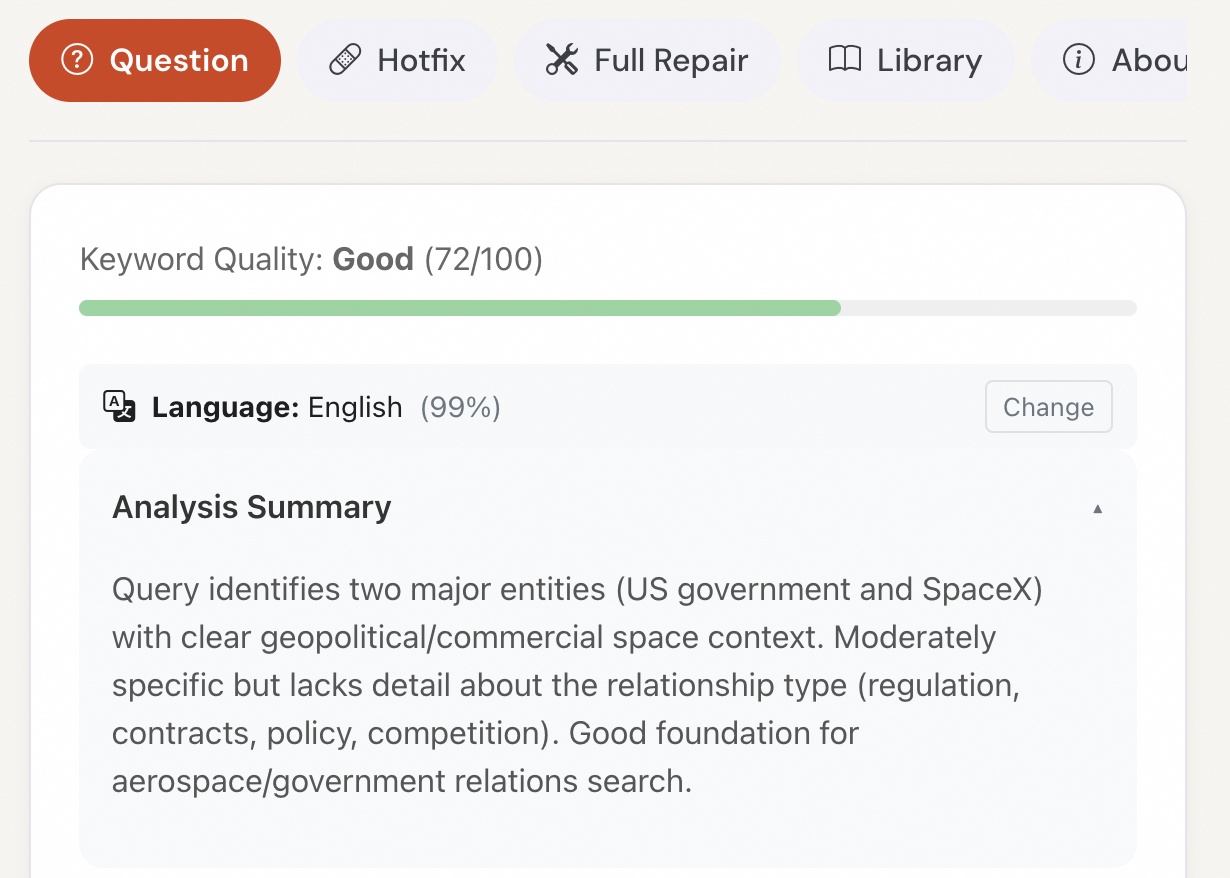
It suggests refinements:
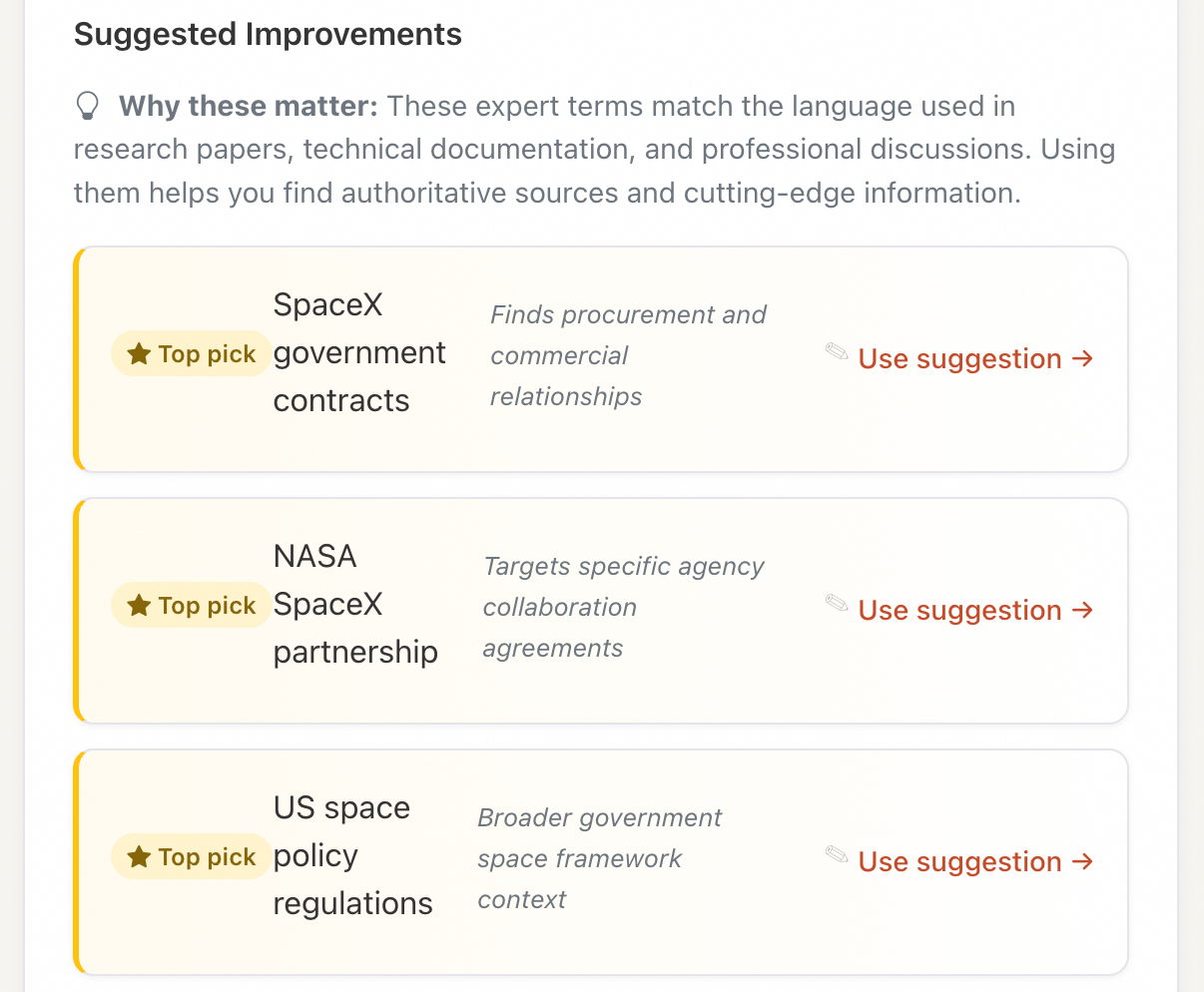
But the real magic is with the menu options at the top (screenshot).
Click on one and it will generate dorks that can help you home in on specific documents, sources, keywords, and other elements. Let’s test with “Hotfix.” It gives several options:
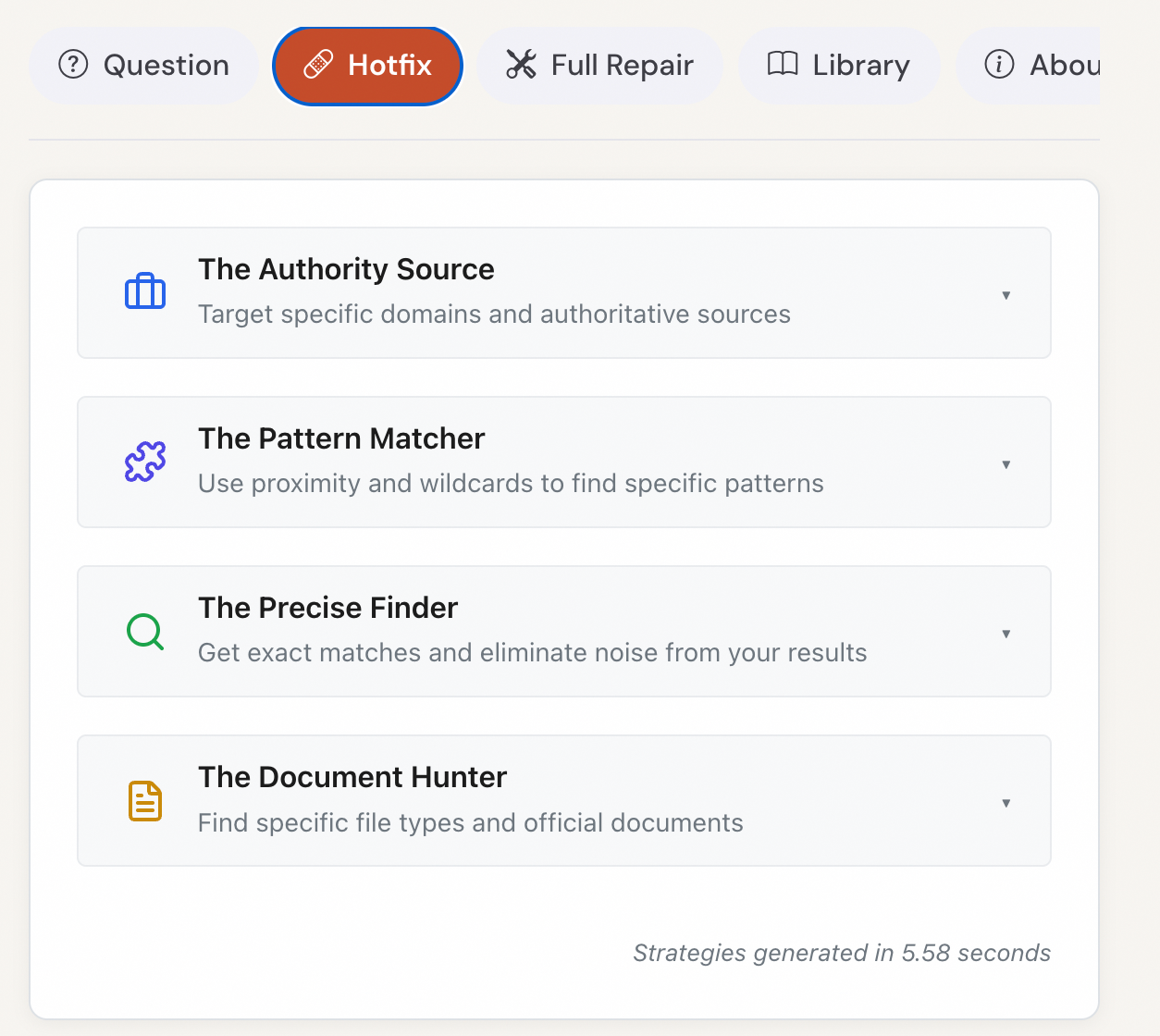
- I picked “The Document Hunter” and it suggested searches that focus on PDFs (screenshot).
- I clicked the button for “Find PDF Documents about US government and spacex” and it opened a new tab with this Google search (screenshot).
- I also chose “Find recent research content where ‘US government and spacex’ appears near ‘research’” under one of the Full Repair categories. It generated a pretty advanced Google dork (screenshot).
To get the most out of it: don’t just read the results. Look closely at the dorks built by the tool. Notice how they’re constructed. That’ll make it easier to earn to use operators and start writing your own.
Final tip: combine reverse image search with Gemini’s AI-image detection tool I recommended in my previous post.
Wonder Tools subscribers can claim 20% off an Indicator Membership. It’s a great way to build your digital investigative skills. Get access to our investigative and research guides, original reporting, a monthly workshop, plus all recordings. You’ll also get increased access to OSINT Navigator so you can find the right investigative tool for whatever you’re researching.