I Built a Claude Agent That Reads Everything and Briefs Me Every Morning.
By Mr V
Published: 2026-05-26
URL: https://useaitowrite.substack.com/p/how-i-use-claude-agent-research-to
Hey everyone:

Most people start their day the same way.
They open social media. Spend 60 minutes scrolling through noise looking for three things that actually matter.
The Claude research agent solves this.
Every morning before you open anything, Claude has already:
-
→ Read every source that matters to your work. ✅
-
→ Filtered everything irrelevant. ✅
-
→ Synthesized the developments worth knowing. ✅
-
→ Deposited a structured 5-minute brief in your Obsidian vault. ✅
You wake up. You read the brief. You start working.
That’s it.
What the Agent Actually Does
Four functions. Every morning. Automatically.
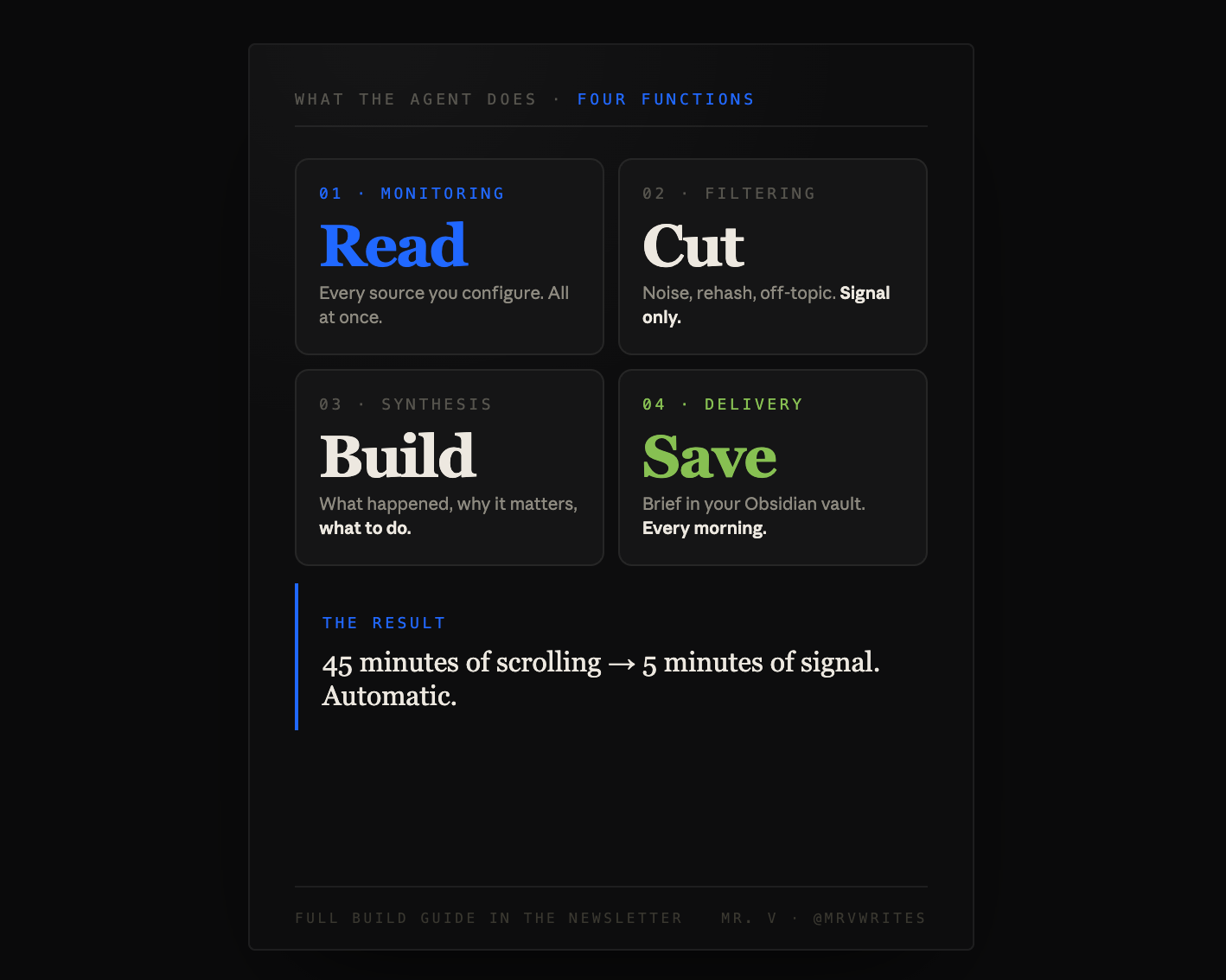
① Source monitoring. It reads every source you configure:
Industry news, competitor sites, academic papers, newsletters, GitHub repos, Reddit communities. Any source where important information for your work might appear.
② Signal filtering. It doesn’t summarize everything it reads.
It identifies what’s actually significant based on criteria you define. A new product launch from a competitor is significant. A blog post rehashing last week’s content is not. The filtering layer is what makes the brief useful, not just a compressed version of everything.
③ Synthesis. Not bullet points. A structured narrative.
What happened, why it matters, how it connects to what you already know, and what you should probably do about it.
④ Delivery. It deposits the brief in your Obsidian vault at a configured time.
It’s waiting when you open your laptop. You don’t have to trigger it manually.
These four functions replace 60-90 minutes of daily information gathering with five minutes of reading.
The Technical Architecture
Five components. Each one has a specific role.
Remove any one and the system produces worse results.
-
→ Claude is the intelligence layer. It reads raw information, applies your criteria to filter what matters, and synthesizes it into a structured brief.
-
→ Filesystem MCP connects Claude to your Obsidian vault. Direct read and write access. Claude reads your CLAUDE.md for context and deposits the brief in the correct folder automatically.
-
→ Tavily Search MCP gives Claude real-time web search. Without it, Claude only reasons from its training data. With it, Claude searches the live web and surfaces current information on any topic you specify.
-
→ Claude’s built-in scheduler fires the research agent at your configured time every morning. No extra tools. No self-hosted infrastructure. Set it once. It runs.
-
→ CLAUDE.md is the context layer that makes the brief relevant to your specific situation. It tells Claude what you do, what you care about, and what kind of information is actually actionable for you.
NOTE 📝: The claude scheduler is the piece most people overcomplicate.
You don’t need external workflow tools. Claude handles this natively. More on the exact setup in Step ❸.
The Complete Build Walkthrough
One-time setup. Anyone can do it.
Step ❶ — Get Your Tavily API Key
Go to: https://tavily.com (not affiliated)
→ Click “Get Started” or “Sign Up Free.”
→ Create a free account with your email.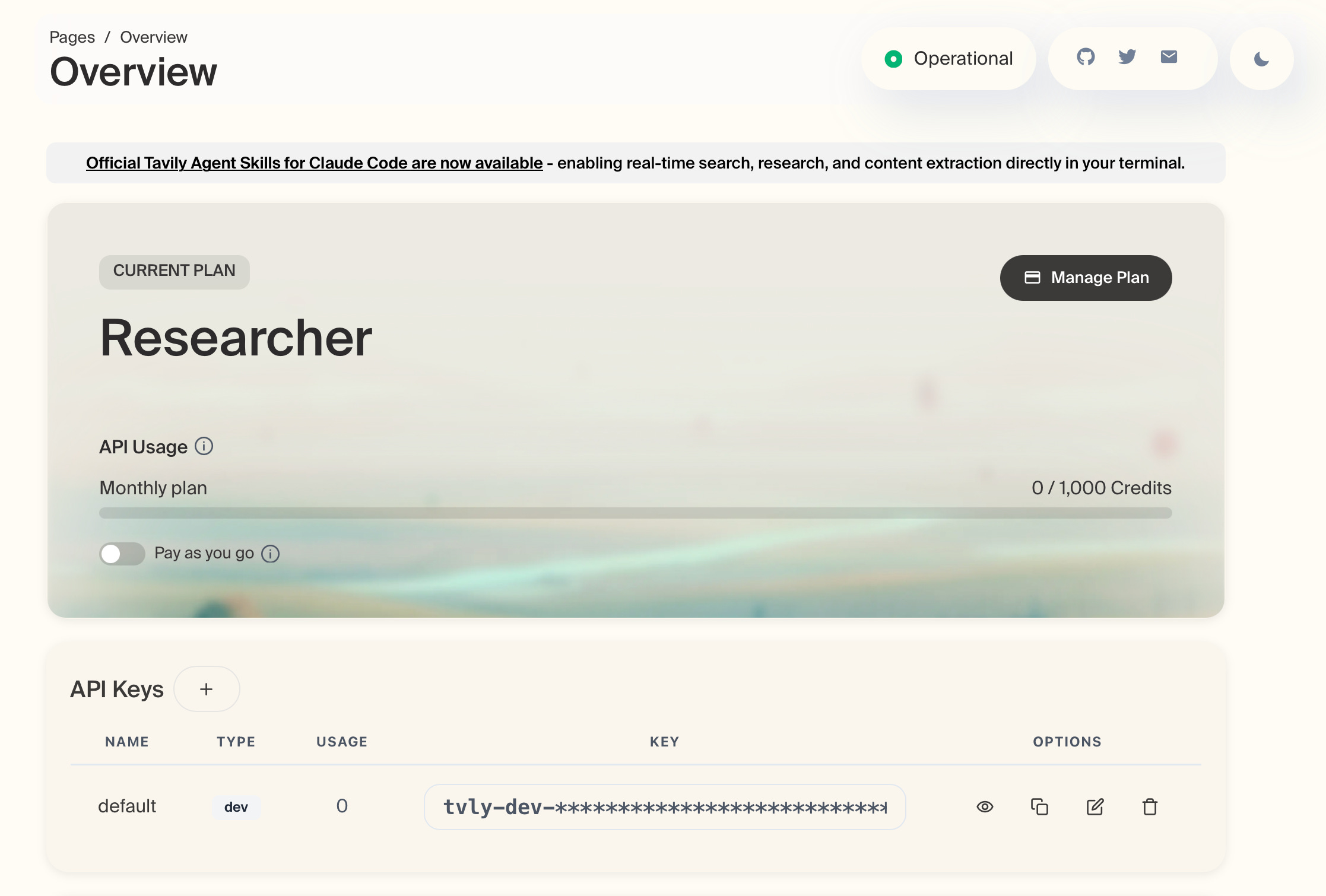
Once you’re inside the dashboard, look for API Keys in the left sidebar.
Click the + button to create a new key.
Name it: Morning Agent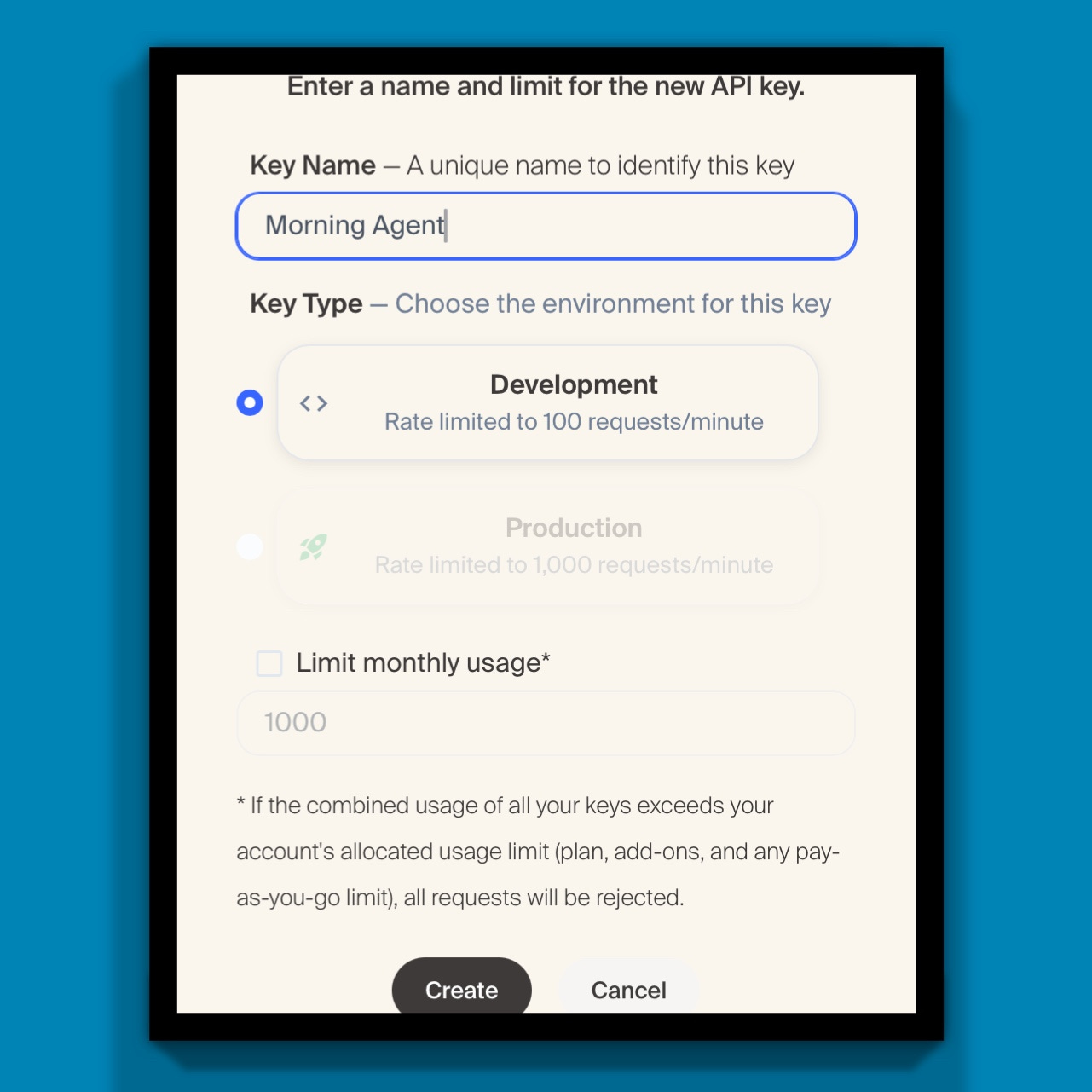
-
→ Hit Create.
-
→ Copy the key.

Paste it somewhere safe (a notes app or draft). You’ll need it in Step ❸.
The free tier gives you 1,000 searches per month. A daily research agent uses roughly 5–10 searches per run. 30 days × 10 = 300 searches.
You won’t hit the limit.
Note: I’m not affiliated with Tavily. It’s what I use. It works without technical issues.
Step ❷ — Find Your Claude Desktop Config File
This is a hidden file on your computer.
On Mac:
-
Open Finder.
-
Press Command + Shift + G.
-
A small box appears asking for a folder path. Type exactly this and press Enter:
~/Library/Application Support/Claude
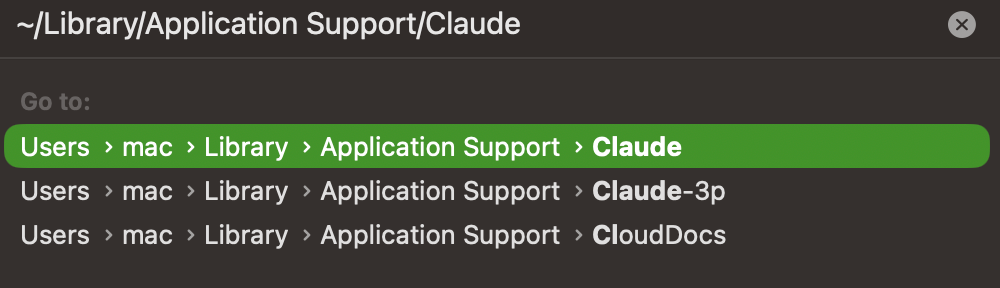
Look for a file called: claudedesktopconfig.json
On Windows:
→ Press Windows + R. Type:
%APPDATA%\Claude
Press Enter. Look for claudedesktopconfig.json
Step ❸ — Set Up Your MCP Connections
Right-click the config file.
Open With → TextEdit (Mac) or Notepad (Windows).
Delete everything in it. Paste this exactly:
{
"mcpServers": {
"filesystem": {
"command": "npx",
"args": [
"-y",
"@modelcontextprotocol/server-filesystem",
"/Users/YOURNAME/Documents/Obsidian/YourVaultName"
]
},
"tavily": {
"command": "npx",
"args": ["-y", "[email protected]"],
"env": {
"TAVILY_API_KEY": "paste-your-key-here"
}
}
}
}
DIAGRAM: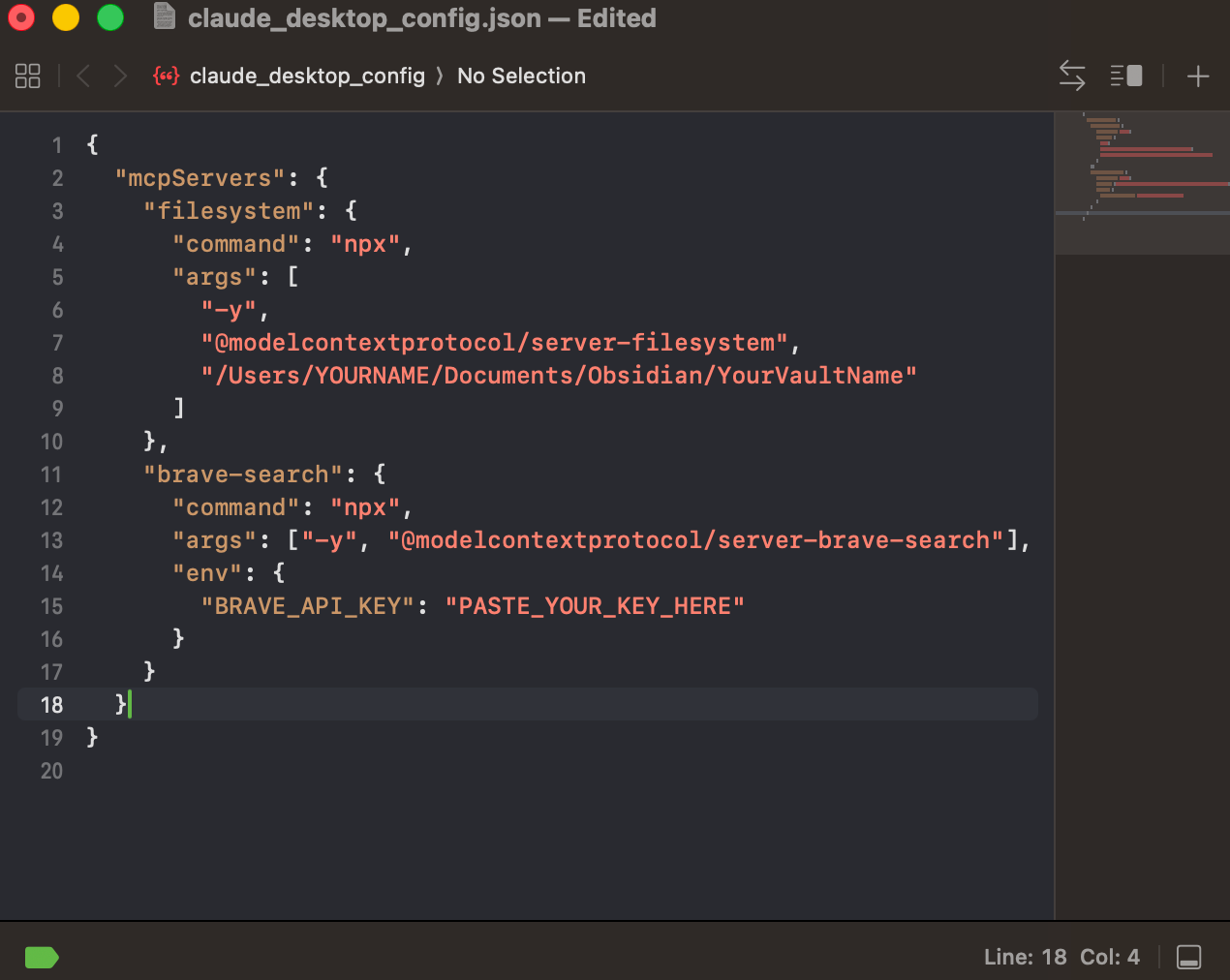
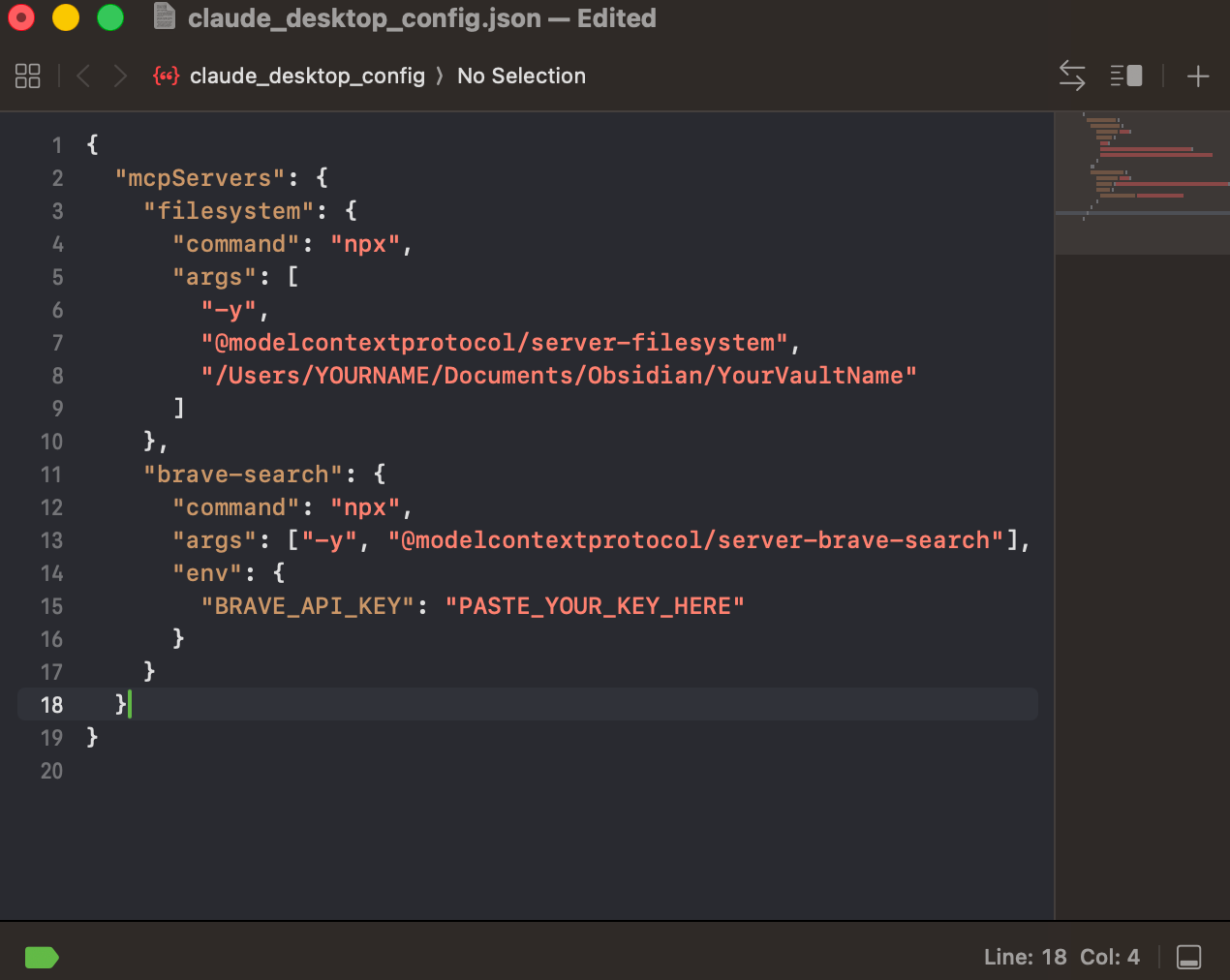
Now change exactly two things:
Thing 1 — Your Obsidian vault path.
Replace /Users/YOURNAME/Documents/Obsidian/YourVaultName with the real path to your vault.
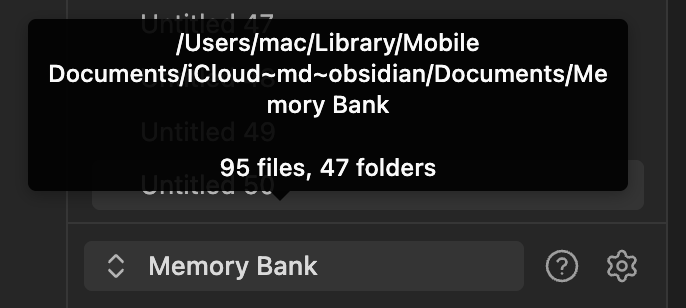
-
→ To find it: open Obsidian
-
→ right-click your vault name in the bottom left
-
→ Copy vault path.
Thing 2 — Your Tavily API key.
Replace paste-your-key-here with the key you copied in Step ❶.
Save the file. Close it.
✅ Config file saved.
Step ❹ — Restart Claude Desktop and Verify the Connection
Quit Claude Desktop completely.
(Mac: Command + Q. Windows: right-click taskbar icon → Quit.)
Reopen it. Start a new conversation.
Type exactly this:
List the files in my Obsidian vault root folderIf it returns your vault files, you’re connected. If not, recheck the config path for typos.
PHASE 2 — Build Your Obsidian Vault Structure
5 minutes. One folder to create.
Your vault structure will look like this:
vault/
BRIEFINGS/
[YYYY-MM-DD]-morning-brief.md  ← auto-generated daily
CLAUDE.md
[rest of your vault]
Step ❺ — Create the BRIEFINGS Folder
Open Obsidian.
In the left sidebar, right-click → New Folder.
Name it exactly: BRIEFINGS
Claude writes directly to this folder. You read directly from it.
Step ❻ — Create Your CLAUDE.md File
In Obsidian, in the root of your vault (not inside BRIEFINGS),
-
Create a new note.
-
Name it exactly: CLAUDE.md
Paste this template in and fill in every section with your real information:
# Research Agent Context

## Who I Am
[Your name. What you do. Who you write for.]
Example: I'm [Name] i teach [Topic]. My audience is [Audience].

## My Primary Focus Areas
[List the specific topics you need to stay informed about.]

## What Counts as Significant News for Me
[Be very specific. Not "AI news" — be narrow.]
Example:
- New Claude features or API changes
- Anthropic announcements
- New MCP servers or agent tools
- Major Substack updates
- A creator monetization strategy getting real traction
- A framework paper I can use in my writing

## My Competitive Landscape
[People, newsletters, or products you track closely.]
Example:
- [Name of newsletter 1]
- [Name of newsletter 2]
- [Any AI tool in your space]

## What I Already Know Well
[Topics where you only need NEW developments, not introductory coverage.]

## What I'm Currently Working On
[UPDATE THIS EVERY SUNDAY. Active projects where news is directly actionable.]

## Sources I Trust
[Specific publications or people worth prioritizing.]
Example:
- Anthropic blog (anthropic.com/news)
- Hacker News front page
- r/ClaudeAI subreddit
- [Specific newsletter you read]

## What I Specifically Do NOT Want
[This is the most important section. Be ruthless.]
Example:
- Generic AI hype articles with no actionable detail
- ChatGPT news (I use Claude exclusively)
- Crypto/web3 content
- Anything rehashing news from more than 48 hours ago

## Brief Format Preference
Structured narrative. Not just bullets. Tell me what happened, why it matters for my work, and what I should do about it.
✅ CLAUDE.md written and saved.
PHASE 3 — Set Up the Daily Schedule
This is where the system runs on its own.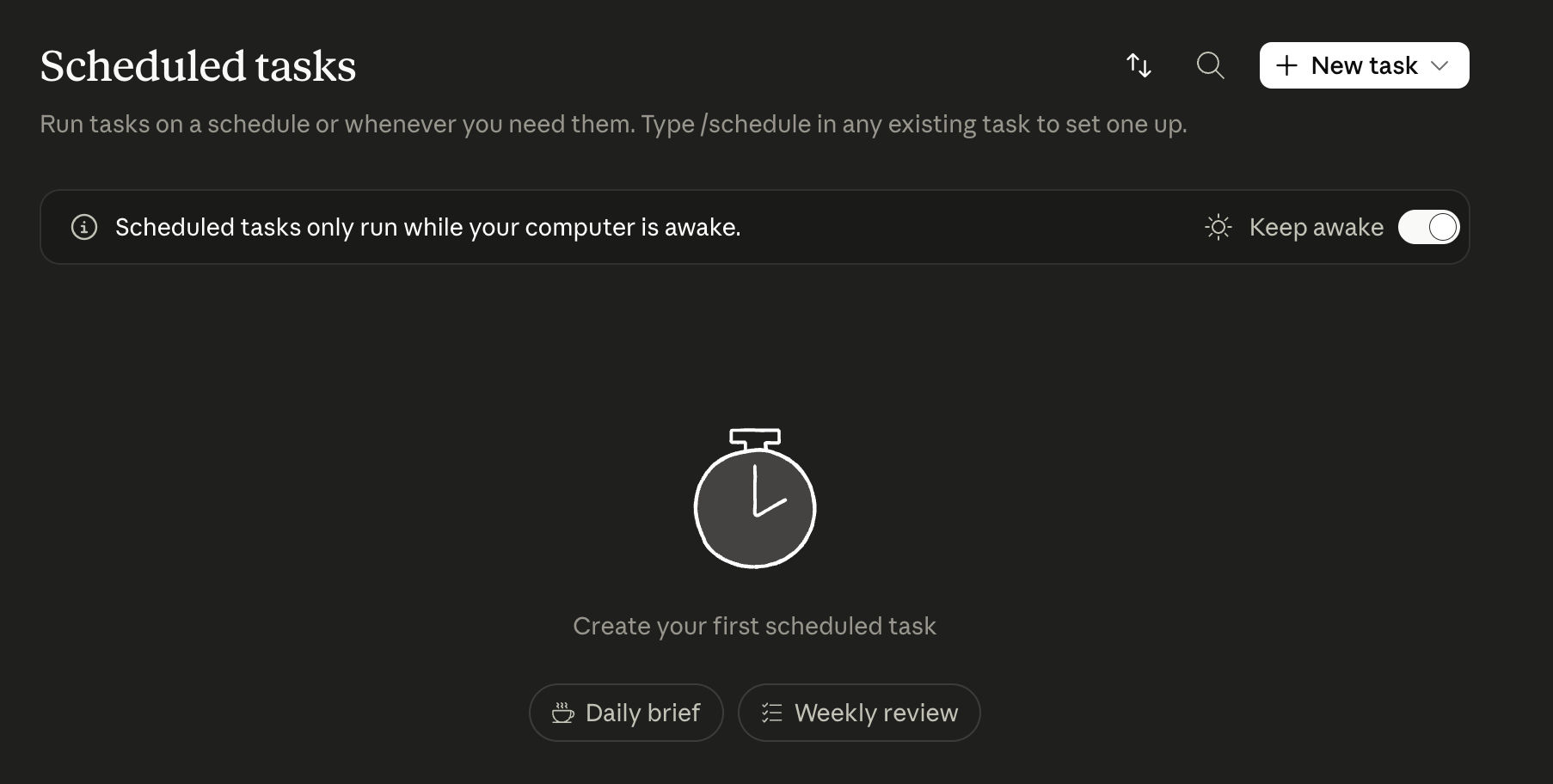
Step ❼ — Schedule Your Daily Brief
Open Claude Desktop (Cowork mode). Start a fresh conversation.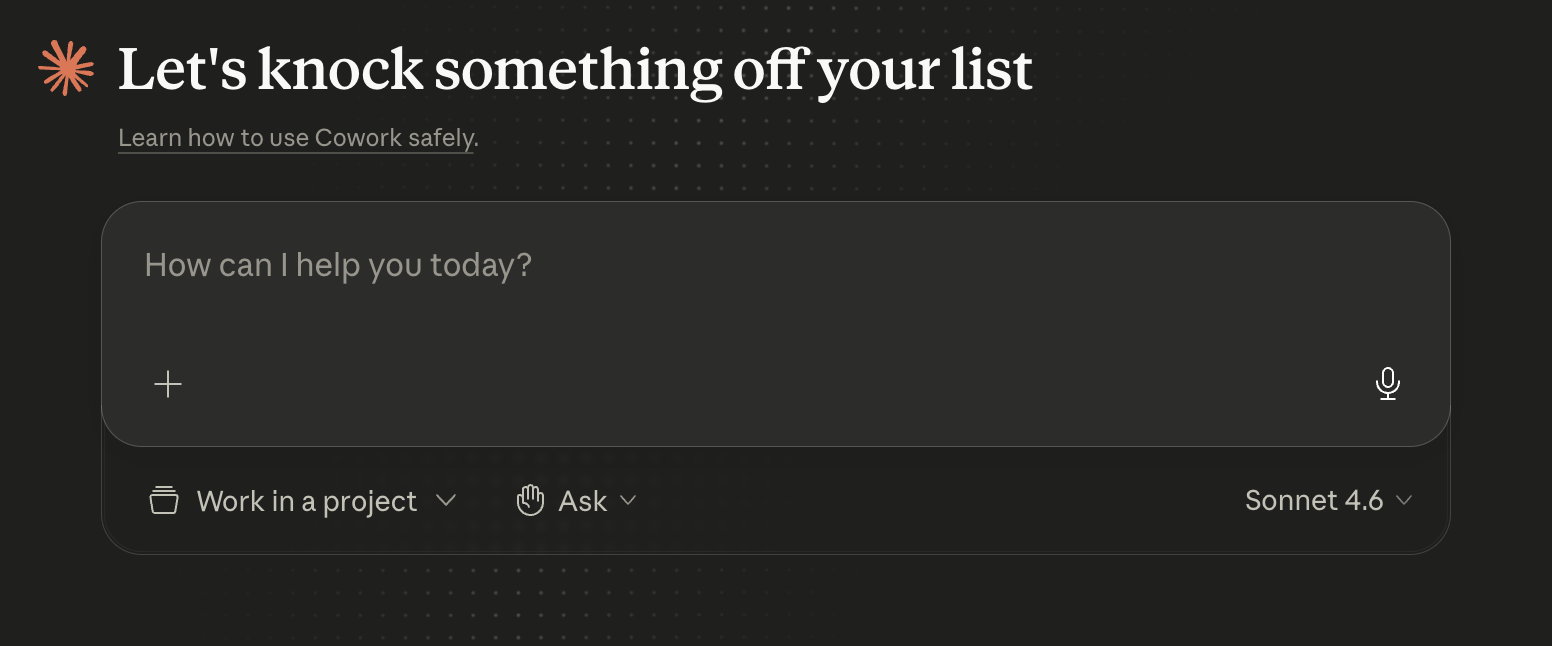
Type this message exactly:
→ This is the core prompt that runs every morning. It goes into your scheduled task as the full instruction set.