#149: How I Use an AI PDF Editor for Research, OCR & Cross-Border Work
By Alex Pawlowski
Published: 2026-02-19
URL: https://thestrategystack.substack.com/p/updf-rreview-ai-pdf-editorupdf-review-ai-pdf-editor

There’s a romantic myth about writing — that it happens in cafés, that strategy unfolds on whiteboards, that insight arrives in clean bursts of clarity.
In reality, serious work lives inside documents.
Increasingly, that means using an AI PDF editor to summarize, translate, OCR, and refine complex files without leaving the document itself.
Drafts. Contracts. Investor decks. Academic papers. Regulatory filings. Scanned agreements from multiple jurisdictions. Whether you’re an author, student, freelancer, or building companies internationally, the friction is rarely creativity. It’s document management.
That’s where UPDF entered my advanced AI workflows — not as a novelty experiment, but as a daily operational tool.
UPDF is an AI-powered PDF editor that combines editing, OCR, document conversion, translation, and contextual AI summarization in one interface.
How I Use UPDF to Manage Research-Heavy PDFs While Writing a Book
When working on a manuscript, the challenge isn’t producing ideas. It’s orchestrating material: research-heavy PDFs, annotated drafts, structural revisions, publisher contracts, and feedback layers.
A single chapter may sit next to a 40-page academic paper and three marked-up versions from editors. Without a structured system, the cognitive load escalates quickly.
This is where the AI Assistant inside UPDF becomes practical rather than flashy.
When I open a dense research paper, I don’t begin with passive scrolling.
In Practice
With the document open, I activate the AI panel and type:
“Summarize this document in 5 structured bullet points.”
Once generated, I follow up with:
“What assumptions does the author rely on?”
The AI responds within the document context, allowing immediate interrogation of the material.
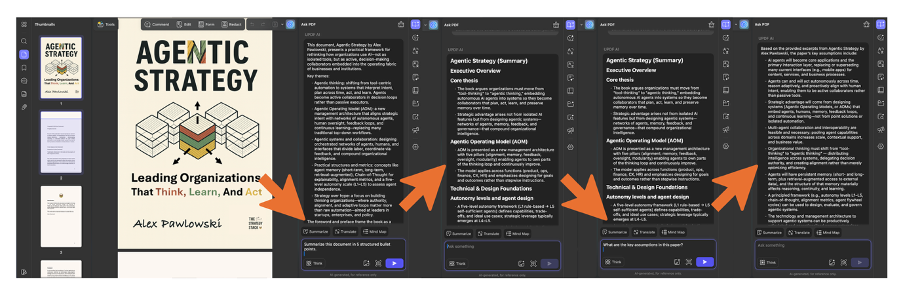 \Using AI feature “Ask Pdf” inside the document to extract\
I open the AI panel and ask it to:
- Summarize the key arguments in structured bullet points
- Identify assumptions behind the author’s claims
- Extract specific quotes tied to ethics or governance
- Clarify complex sections in simpler terms
Because the assistant operates inside the document itself, the interaction remains contextual. I don’t need to copy and paste into another platform. The document and the conversation coexist.
The result isn’t outsourced thinking. It’s accelerated orientation.
What matters is how decisions, feedback, and execution connect—this is the role of an AI operating model →
Editing My Own Work Directly
Once a manuscript draft is formatted into PDF, I reopen it intentionally in UPDF. Viewing your own writing in a fixed layout forces a different kind of evaluation.
Using Edit PDF, I can:
- Modify wording directly in place
- Adjust formatting inconsistencies
- Insert clarifying sentences
- Replace images or diagrams
- Add links when needed
This reduces revision loops and keeps refinement contained.
The annotation tools add another layer. I use them methodically:
- Highlights for thematic tagging
- Sticky notes for structural questions
- Underline and strike-through during tightening passes
For longer drafts, I move in stages: first argument clarity, then tone and repetition, then structural precision. The interface remains clean, which makes sustained revision sessions manageable.
For students and researchers working through dense PDFs, this combination of AI summarization and layered annotation replaces scattered workflows.
In Practice
To demonstrate this, I open a formatted draft, click Edit PDF, place the cursor directly inside a paragraph, change wording in place, adjust the font size from the toolbar, and resize an embedded image. Links can also be updated without recreating the document.
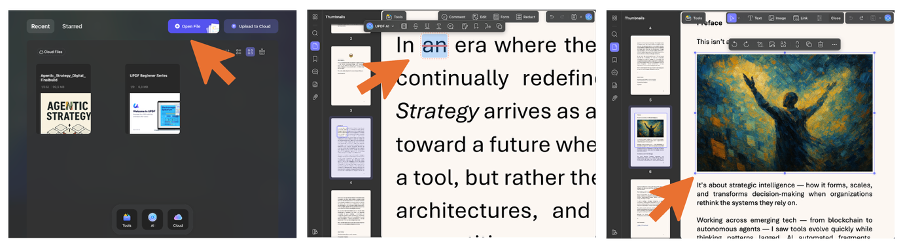 \Editing text, images, and links directly\
Building Companies Means Handling Friction Across Borders
If writing tests clarity of thought, international operations test clarity of documentation.
Contracts arrive scanned. Regulatory files are misaligned. Reports are long and dense. Some documents appear in other languages entirely.
Practical features matter here.
How to Use OCR in UPDF to Convert Scanned Contracts into Searchable PDFs
Scanned contracts are initially just images.
In Practice
I open a scanned agreement where text cannot be selected. After clicking Tools → OCR, selecting the language, and choosing “Searchable & Editable PDF,” the document becomes fully interactive. Text can now be selected, searched, highlighted, and analyzed.
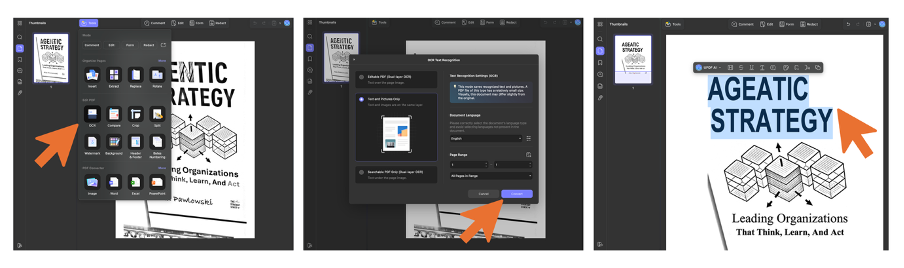 \Turning a scanned contract into searchab\
After running OCR inside UPDF, they become searchable and editable.
That transformation allows me to:
- Search for specific clauses instantly
- Highlight key sections
- Ask AI targeted questions about liability or termination
- Extract relevant passages
Without OCR, AI tools cannot meaningfully interact with scanned files. With it, the document becomes functional.
AI for Contract Orientation
When reviewing longer agreements, I use AI as a preparatory tool. Instead of reading 50 pages blindly, I begin by asking:
- What are the termination conditions?
- Where are liability limitations stated?
- What governing law applies?
- Are there indemnification clauses worth flagging?
This doesn’t replace legal review. It narrows focus before entering discussions.
Clarity before negotiation matters.

Translation Within Context
Operating internationally means documents often arrive in different languages.
Translating sections directly within UPDF keeps formatting intact and preserves context.
In Practice
With a foreign-language contract open, I activate the AI panel and request translation. The translated output appears alongside the original text. From there, I can immediately ask follow-up questions about specific clauses — without exporting or switching tools.
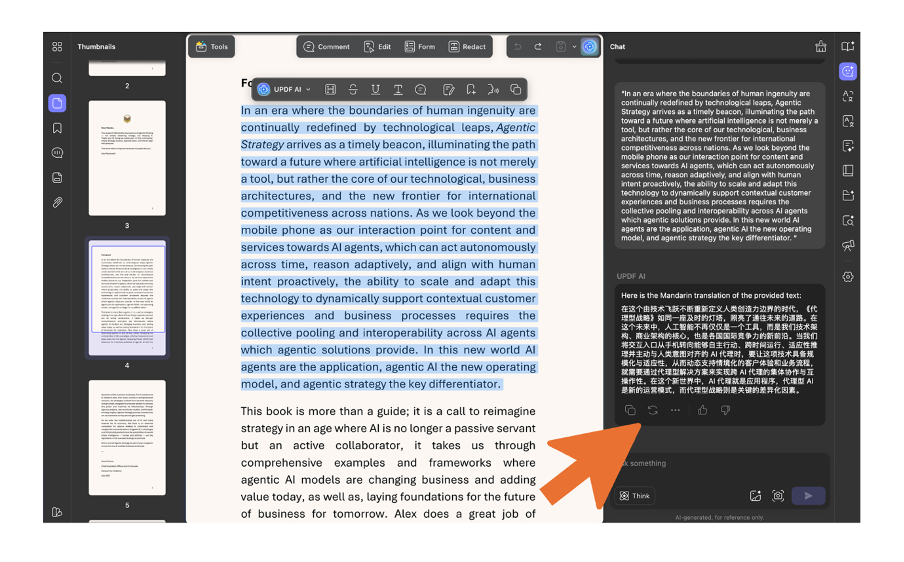 \Translating documents in one interface\
More importantly, after translation, I can immediately ask follow-up questions about specific clauses.
The workflow remains contained.
No exporting. No reformatting. No switching between platforms.
Converting PDFs to Word, Excel, and PowerPoint with UPDF (Without Losing Formatting)
Conversion is one of those features that sounds minor until you use it constantly.
In Practice
From the home dashboard, I select PDF to Word, upload a structured report, and convert it in seconds. The resulting Word file preserves headings, formatting, and layout — making it immediately editable.
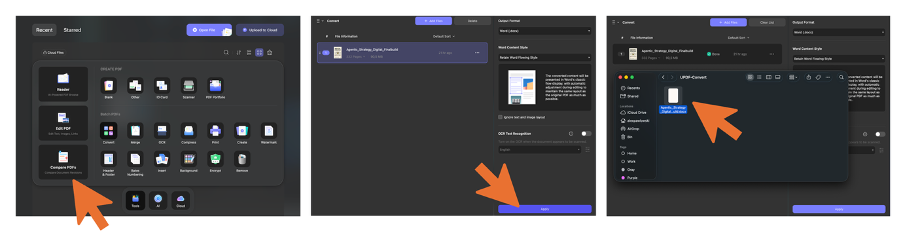 \Converting a structured PDF into an edit\
UPDF allows conversion to formats such as:
- Word
- Excel
- PowerPoint
- CSV
- HTML
- TXT and others
Extracting financial tables into Excel, turning a report into Word for editing, or adjusting presentation slides becomes straightforward.
Page organization tools are equally useful. I regularly:
- Reorder pages in investor decks
- Insert new sections
- Delete irrelevant pages
- Extract specific portions of longer documents
Rather than rebuilding files, I restructure them.
When reviewing revised drafts or updated agreements, the Compare feature highlights differences efficiently — eliminating manual scanning.
In Practice
By selecting Compare PDFs from the home screen and uploading two versions of a document, differences are automatically highlighted. This removes the need for manual side-by-side review.
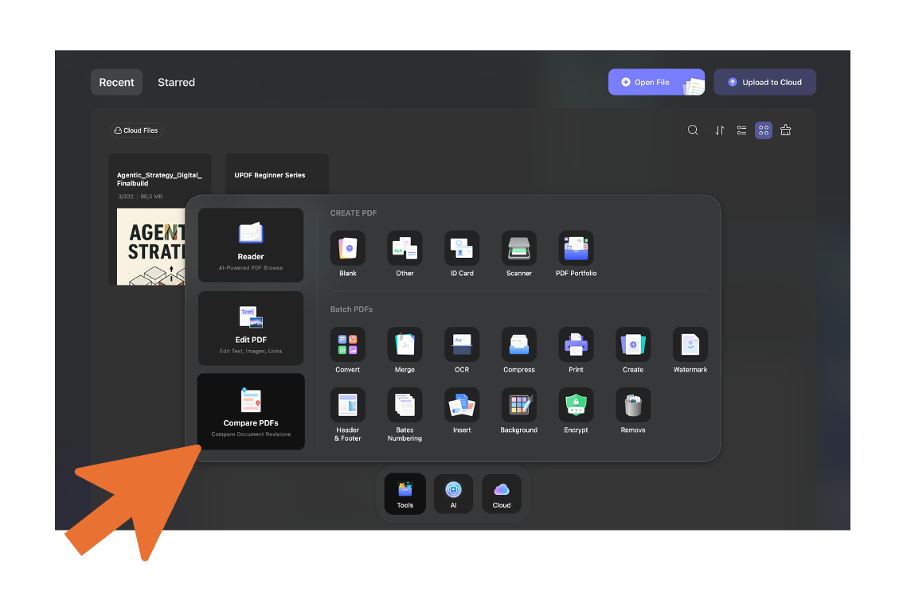 \Comparing two document versions instantly\
Security tools like password protection and redaction are practical additions when handling sensitive materials.
In Practice
Using the Protect function, I can add a password to restrict access. With the Redact tool, I select sensitive text and permanently remove it from the document before sharing.
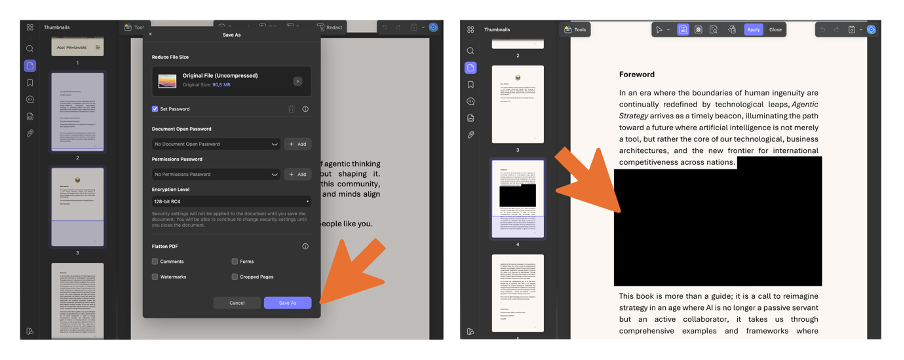 \Protecting and redacting sensitive information directly\
AI Beyond a Single Document
UPDF also includes a New Chat mode not tied to a specific PDF. I use this when structuring ideas before drafting or exploring a topic from scratch.
For research-heavy work, the Scholar Research and Paper Search tools help summarize complex academic subjects and clarify unfamiliar terminology. This is particularly useful for students or professionals navigating dense material.
It saves time without introducing unnecessary complexity.
Best Practice: Making the Tool Work Intentionally
Like any software, value depends on usage.
I approach UPDF in three stages:
1. Orientation Use AI summarization to understand structure and key arguments.
2. Interrogation Highlight, annotate, and ask contextual AI questions about specific sections.
3. Refinement Edit text, reorganize pages, extract sections, and finalize formatting.
This layered approach prevents overwhelm and keeps interaction deliberate rather than reactive.
Where It Fits
UPDF doesn’t aim to be enterprise-heavy or overly complex. It focuses on core PDF needs:
- Editing
- Converting
- OCR
- AI-powered summarization and translation
- Annotation
- Page organization
- Comparison
- Document protection
It works across Windows, macOS, iOS, and Android, with one license usable across devices. For users who process PDFs daily but don’t require enterprise-level infrastructure, that coverage is practical and sufficient.
Is UPDF Worth It? (Honest Review)
Pros
- Clean interface
- AI inside document context
- Strong OCR
- Cross-device license
- Good value vs Adobe
Limitations
- Not enterprise document automation
- AI credit system (if applicable)
- Fewer integrations than Adobe
Who It’s Best For
- Writers
- Researchers
- Founders handling contracts
- Students
- Cross-border operators
UPDF vs Adobe Acrobat
For many users, the alternative is Adobe Acrobat. Compared to Adobe:
- UPDF is lighter and more intuitive
- Pricing is significantly lower
- AI tools are integrated directly inside the document view
For enterprise-scale document automation and deep enterprise integrations, Adobe Acrobat still leads. For daily operational workflows and an agentic operating model, UPDF feels faster and less bloated.
Frequently Asked Questions About UPDF
Can UPDF summarize a PDF with AI?
Yes, the built-in AI Assistant allows structured summarization directly inside the document.
Does UPDF support OCR?
Yes, UPDF includes built-in OCR that converts scanned PDFs into searchable and fully editable documents.
Can UPDF translate PDFs?
Yes, translation happens within the document interface while preserving layout.
Is UPDF cheaper than Adobe Acrobat?
UPDF offers lower pricing and multi-device licensing.
Final Reflection
Documents used to be static containers.
Now they are interactive workspaces.
When you can summarize, translate, question, edit, reorganize, and secure a document without leaving it, the friction around personal knowledge work and related systems decreases. UPDF already covers most everyday PDF needs.
And increasingly, that is less about managing files — and more about managing thought inside them.
It is fundamentally a tool that supports agentic systems and economic coordination — where documents become active layers rather than static files.
If you want to try UPDF yourself, you can find the following links.
Buy Al-powered UPDF Editor with Exclusive discount
(One license can be used on four devices to Edit and Sync PDFs! It’s risk-free with UPDF’s 30-day money-back guarantee!)
👉 Unlock the Strategy Stack
…and access the Business Model Series, advanced Cheat Sheets, the S-Vault, and various essays at the intersection of strategy and technology.

Hit subscribe to get it in your inbox. And if this spoke to you:
➡️ Forward this to a strategy peer who’s feeling the same shift. We’re building a smarter, tech-equipped strategy community—one layer at a time.
Let’s stack it up.
A. Pawlowski | The Strategy Stack