Part 2 of Working Smarter with AI — Configure Claude's settings, memory, models and Projects with practical examples and ready-to-copy instructions.
Published: 2026-11-21
URL: https://thepromptshell.substack.com/p/claude-setup-guide-2026
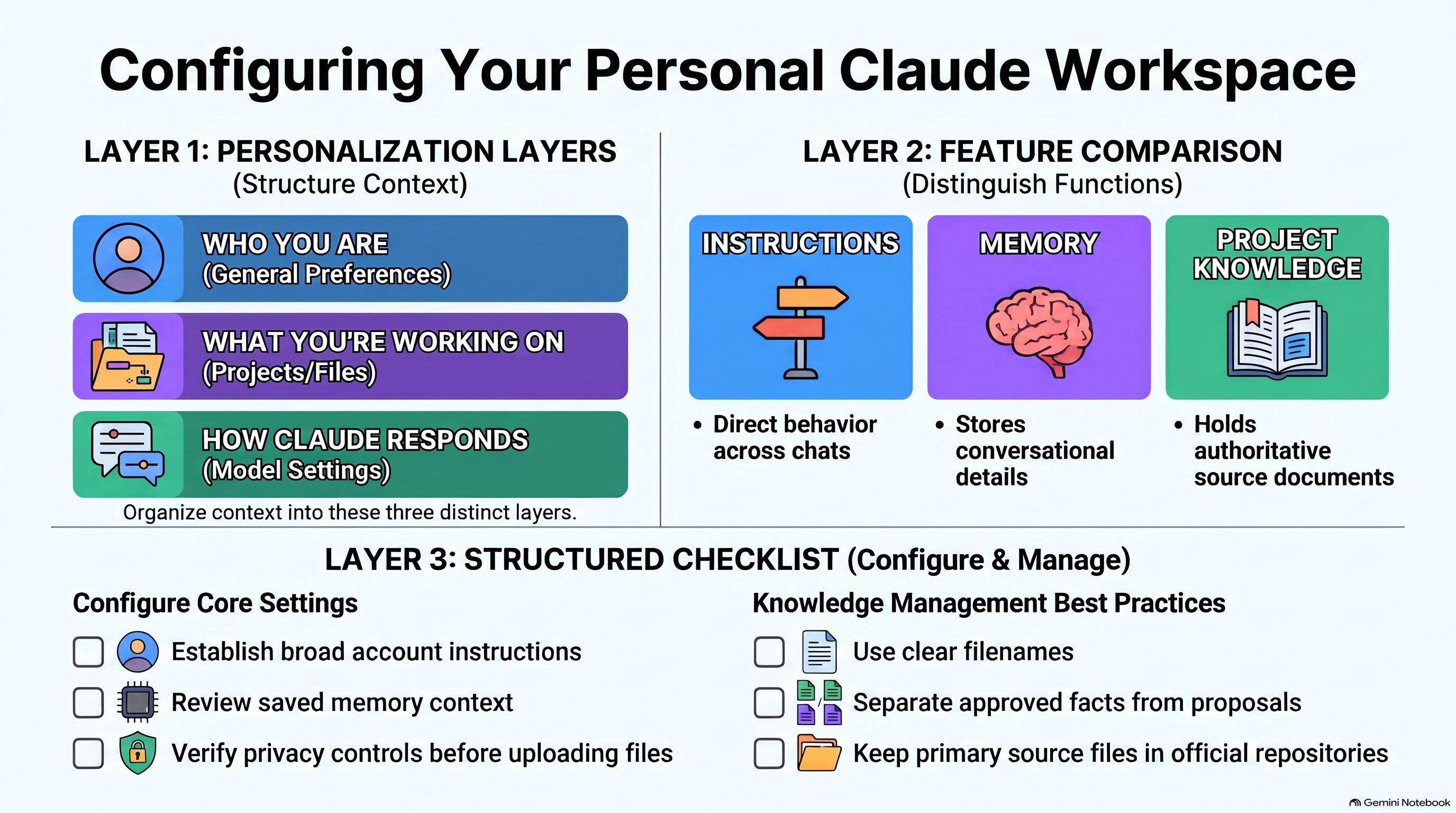
Setting up Claude properly involves more than choosing a model or writing better prompts. Its personalization settings, memory, Projects, and knowledge features can help you organize how Claude works with your information.
This guide explains how to configure those features step by step, including which settings matter, where to store different kinds of context, and how to build your first Claude Project.
Learn how to configure Claude for your own work, organize the information it needs, and stop rebuilding the same context every time you start a new task.
Imagine you have an important project meeting tomorrow.
You need to review a project’s objectives, understand the latest decisions, identify outstanding issues, and prepare questions for the people attending.
You open Claude and start explaining the background. You upload documents, describe the project, and explain how you want the information organized.
A week later, you need another update. You find yourself repeating much of the same information.
Now imagine a different approach where you open a Claude Project where you’ve already organized the relevant documents, instructions, and working context.
You ask Claude to help prepare for the meeting, and it can use that information without requiring you to provide everything again.
That’s the workspace we’re going to build.
In Part 1 of this series (Claude in 2026: You know the chatbot but do you know everything else?), we started exploring how to work more effectively with Claude. In this second article, we’ll focus on something that deserves attention before you start using more advanced features which is configuring Claude properly for the work you actually do.
We’ll go through the settings, models, personalization, memory, Projects, and knowledge management. I’ll explain what each option does, which ones are worth paying attention to, and how to configure Claude for your own needs.
We’ll do all of this with a practical example you can reproduce, whether you work in technology, marketing, operations, education, finance, or another field.
You won’t need programming knowledge or access to confidential business information.
By the end, you’ll have a simple Personal Claude Workspace and a clearer understanding of how to maintain it.
1. Claude Personalization Explained: What Goes Where?
Before opening the settings, there’s one distinction worth understanding.
Claude provides several ways to give it information and instructions. They may look similar, but they serve different purposes.
I find it easier to organize them into three layers.
Layer 1 — Who you are
This includes your general instructions and memory.
It’s where Claude can understand how you prefer to work, how you like information presented, and which relevant details may be useful across conversations.
For example, you might prefer concise answers, want technical subjects explained in simple language, or expect Claude to challenge recommendations that aren’t supported by evidence.
Layer 2 — What you’re working on
This is where Projects and knowledge management become useful.
You may have documents, procedures, project plans, research material, or meeting notes that relate to a particular activity.
A Project gives you a dedicated place to organize that information and define instructions specific to that work.
Layer 3 — How Claude responds
This includes model selection, reasoning effort, thinking controls, and response styles.
A quick summary and a difficult analytical problem don’t necessarily require the same settings.
These three layers are a practical framework rather than an official technical architecture.
The important thing is understanding where each type of information belongs.
A quick reference: What goes where?
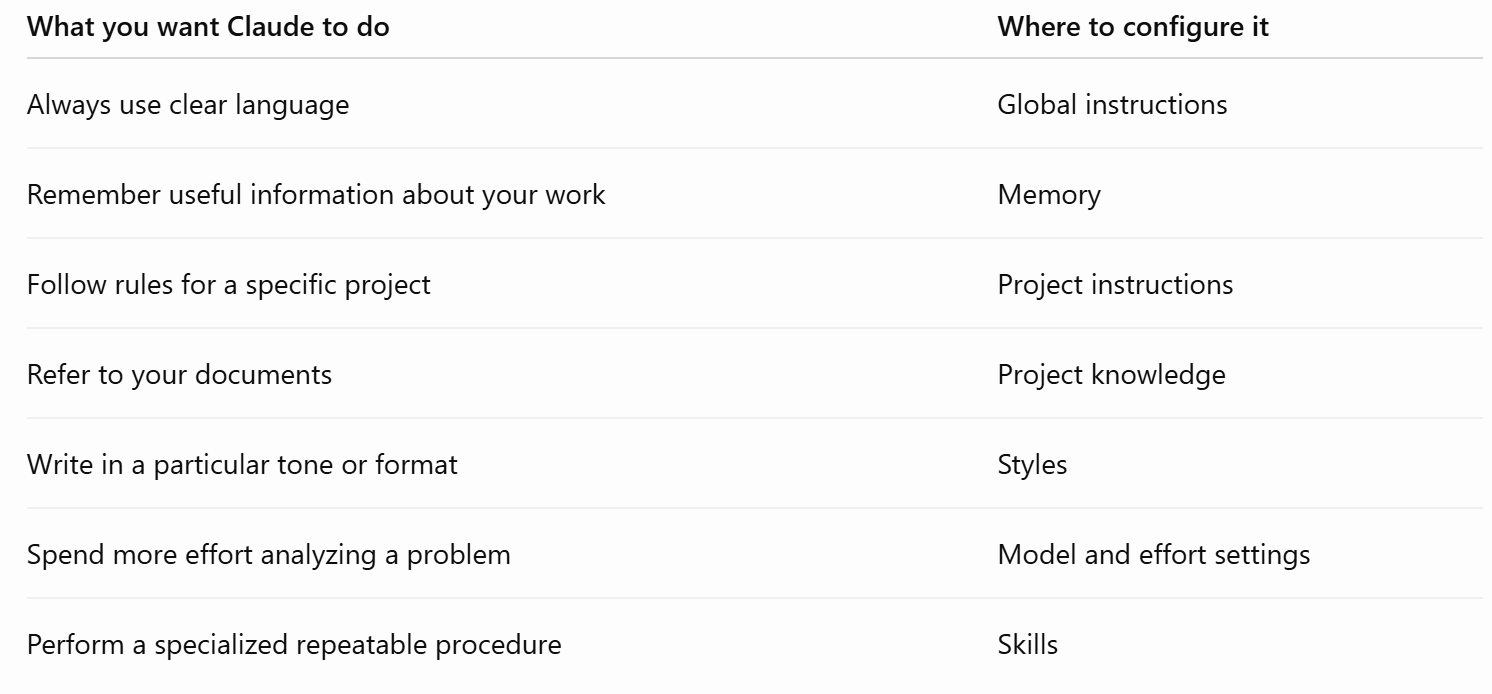
For example, if you want Claude to challenge unsupported conclusions in every conversation, put that in your global instructions.
If you want it to use a specific reporting format for one project, put that in the Project instructions.
If you want it to reference an approved project deadline, maintain that information in a document.
The goal is to give Claude the right information in the right place, rather than putting everything into one enormous instruction.
2. Start with Claude’s settings
Open Claude and sign in.
On the web interface, click your initials or profile icon, usually in the lower-left corner, and open Settings.
Anthropic has been updating Claude’s interface, so some menu labels may differ depending on your account and whether you’re using the established or newer experience.
I recommend reviewing five areas.
Account and plan
Check your current subscription and the features available to you.
Claude offers different plans, with differences in usage limits, available models, and certain advanced capabilities.
Don’t assume you need a paid subscription to start configuring Claude.
For example, Projects are available on free accounts, although Anthropic currently limits free users to five Projects.
Start with what your account supports and upgrade only when you encounter a limitation that matters to your work.
Personalization
Look for Settings → Your Claude → Instructions.
In older interfaces, this may appear under Account as Instructions for Claude.
This is where you define general preferences that Claude should consider across conversations.
We’ll configure it shortly.
Memory
Find the memory controls and review what Claude remembers.
Memory can preserve useful context from your conversations, but it’s worth checking whether the information remains accurate and relevant.
Privacy and data controls
Before uploading work-related documents, review the applicable privacy settings and your organization’s information-sharing policies.
Pay particular attention to confidential documents, personal information, and material you aren’t authorized to upload.
Appearance and convenience
Choose whichever interface settings make Claude comfortable to use.
These options are useful, but I wouldn’t spend too much time on them initially.
The biggest practical decisions are usually about instructions, context, and the information Claude can access.
3. How to Set Up Claude's Global Instructions
Claude allows you to define account-wide instructions that influence how it responds across conversations.
Think of these as your general working preferences.
They should be relevant to different activities, rather than describing one specific task.
Step 1 — Open your instructions
Navigate to:
Settings → Your Claude → Instructions
Or find the equivalent setting in your interface.
Step 2 — Add your preferences
Here’s a configuration you can copy and adapt.
Global instructions — Professional Work Assistant
I use Claude for professional work, research, writing, planning, and problem-solving.
Please follow these preferences:
1. Use clear, direct language and avoid unnecessary jargon.
2. Explain technical concepts in a way that non-specialists can understand.
3. Structure longer answers with meaningful headings and concise paragraphs.
4. Distinguish verified facts, assumptions, and recommendations.
5. Challenge my conclusions when you identify weak reasoning, missing information, or alternative explanations.
6. Do not invent figures, sources, quotations, or results.
7. If important information is missing, explain what needs to be confirmed.
8. Use practical examples when they help explain a concept.
9. Prefer specific recommendations over generic advice.
10. Adjust the level of detail to the complexity of the question.
You don’t need to use all ten instructions.
If you prefer shorter answers, say so. If you work in several languages, explain which language you normally want Claude to use.
If you’re a developer, you might add preferences about how code should be explained.
If you’re a manager, you might emphasize concise summaries, decision-making, and risk identification.
The important thing is to describe how you generally want Claude to work.
Step 3 — Avoid putting everything here
Imagine you add this instruction:
Always produce a weekly project status report.
That may be useful when preparing project updates but what happens when you ask Claude to explain a technical concept, draft an email, or research a product?
The instruction may influence responses where it doesn’t belong.
A better approach is to keep general preferences in your account instructions and move task-specific rules into Projects.
Step 4 — Try your configuration
Open a new conversation and ask:
Explain the difference between a spreadsheet and a database. When should a small business use each?
Then ask:
Our company wants to replace every spreadsheet with a database. Is that a good idea?
Review the answers.
Does Claude explain the concepts clearly? Does it identify trade-offs? Does it challenge the assumption that replacing every spreadsheet is necessarily a good decision?
This is a useful first check of your instructions.
4. Understand what Claude’s memory actually does
Global instructions and memory are related, but they aren’t the same thing.
Global instructions tell Claude how you generally want it to behave.
Memory allows Claude to retain relevant information from conversations.
For example, Claude might remember that you regularly prepare project updates, work with non-technical colleagues, or prefer a particular style of explanation.
That context can be useful when you return with another question.
How memory works
Claude’s current memory system stores information as individual topics as you chat.
You can also explicitly ask Claude to remember something.
For example:
Remember that I prefer executive summaries that begin with the main conclusion, followed by supporting evidence and recommended actions.
Claude may save this as a preference that can be considered in future conversations.
Memory is available on individual Claude plans, while Team and Enterprise organizations have additional administrative controls.
Review what Claude remembers
Open the memory controls in Settings.
Review the saved information and ask yourself:
- Is it still correct?
- Is it useful across conversations?
- Should Claude continue considering it?
- Would I prefer to remove it?
If a remembered detail is outdated, use the available controls to correct or delete it.
Memory isn’t your project database
This distinction is important.
Suppose you’re managing a project with a budget, a deadline, and several approved requirements.
Claude might remember that you’re working on the project, but the official budget, approved deadline, and requirements should remain in maintained documents.
If you do it like that, those documents can be reviewed, updated, and identified as authoritative sources.
Memory is useful for continuity. It shouldn’t replace reliable records.
What about memory inside Projects?
Claude also supports project-specific memory.
In the current documented experience, a Project can use its own memory alongside relevant account memory, but it doesn’t automatically use memory from other Projects.
If you want stronger separation, review the Use account memory option under the Project’s memory settings.
This is useful when you’re working on unrelated activities and don’t want context from one area influencing another.
When you don’t want Claude to remember something
Claude provides two options worth knowing.
Turn memory off for a conversation
Before sending the first message, use the memory control in the chat’s “+” menu.
The conversation can remain in your history without using or adding to memory.
Use an incognito chat
Incognito conversations aren’t saved to your normal chat history or memory.
However, they aren’t necessarily deleted immediately from Anthropic’s systems. Anthropic documents a 30-day safety retention period, or longer where applicable organizational policies require it.
Incognito chats are currently available outside Projects.
For me, the practical rule is straightforward:
Use memory for useful ongoing context. Use documents for information that must remain accurate, current, and verifiable.
Claude Memory vs. Project Knowledge: What’s the Difference?
Claude memory helps preserve useful context from conversations, such as ongoing interests, preferences, or information about your work.
Project knowledge contains documents and reference material you explicitly make available within a Project.
For example, Claude might remember that you regularly prepare project updates. But the approved budget, deadlines, and requirements should remain in maintained project documents.
A useful rule is to keep conversational context in memory and authoritative project information in knowledge files.
5. How to Create and Configure a Claude Project
Now let’s put these concepts together.
We’re going to create a Project called:
My Work Assistant
The idea is to build a workspace that can help you understand documents, prepare meetings, identify outstanding issues, and organize information.
To make the exercise easy to follow, we’ll use a fictional website improvement project.
You can reproduce it without sharing any real company information.
Step 1 — Create the Project
Open Claude Projects.
In the established interface:
- Select + New Project.
- Enter the name My Work Assistant.
- Add a description if the interface offers one.
- Create the Project.
You can use this description:
A workspace for reviewing project information, preparing meetings, understanding documents, and identifying decisions and next actions.
One detail worth knowing: in the established Projects interface, Claude doesn’t automatically receive the Project’s name and description as working context.
If the description contains information Claude needs, add it to the Project instructions or knowledge.
Anthropic is also introducing a redesigned Projects experience in stages. If your interface looks different, look for the equivalent instructions and knowledge or Library controls.
Step 2 — Add Project instructions
Your global instructions already explain your general preferences.
Now we’ll tell Claude how to work inside this Project.
In the established interface, open the Project’s knowledge area and select Set project instructions.
Copy the following.
Project instructions — My Work Assistant
Purpose
Help me understand, organize, and use information related to my current project.
Responsibilities
When I provide documents, notes, or questions:
1. Identify the relevant information.
2. Summarize important findings clearly.
3. Highlight decisions, responsibilities, deadlines, and unresolved issues.
4. Identify contradictions or missing information.
5. Recommend practical next steps when appropriate.
Source rules
- Prioritize the documents provided in this Project for project-specific facts.
- Identify the relevant source when making important factual claims.
- Do not invent facts or assume missing details are confirmed.
- If documents disagree, explain the disagreement.
- Distinguish approved decisions from proposals.
- Flag information that may be outdated.
- Separate documented facts from recommendations.
Output
For substantial analysis, use this structure when appropriate:
- Summary
- Important findings
- Risks or unresolved questions
- Recommended next actions
For simpler questions, use a shorter format.
These instructions establish a consistent way of working with project information.
They also address a problem that can easily be overlooked: a recommendation isn’t the same thing as an approved decision.
6. Create three simple knowledge files
Now we need to give Claude some information.
We’ll use three fictional documents about a small organization’s website improvement project.
You can create them using a basic text editor and save them as .txt files.
There’s no need for programming or specialized software.
File 1 — Project Overview
Create a file called:
Project\_Overview.txt
Copy this content:
Website Improvement Project
Last updated: 2 November 2026
Objective
Improve the organization’s website to make information easier to find and reduce unnecessary steps for visitors.
Main goals
- Simplify website navigation.
- Improve accessibility.
- Make contact information easier to find.
- Improve the experience on mobile devices.
Current status
Planning phase.
Approved target date
15 December 2026.
Teams involved
- Marketing: Content and navigation.
- IT: Technical implementation.
- Customer Support: User feedback.
Known constraints
- Limited development resources.
- Existing customer information must be protected.
- Changes require testing before release.
Open questions
- Which improvements should be prioritized?
- Who will approve the final design?
- What testing is required before launch?
This document contains the project’s basic information.
File 2 — Meeting Notes
Create:
Meeting\_Notes.txt
Copy:
Website Improvement — Meeting Notes
Meeting date: 10 November 2026
Topics discussed
- Customers are having difficulty finding support information.
- The navigation structure contains too many options.
- The mobile experience needs improvement.
Confirmed decisions
- The first release will prioritize navigation and access to support information.
- Marketing will prepare a proposed navigation structure.
- Customer Support will collect examples of recurring customer complaints.
Outstanding actions
- Marketing: Prepare the navigation proposal by 20 November.
- Customer Support: Submit customer feedback by 23 November.
- IT: Estimate development effort by 25 November.
Open decisions
- Final approval of the navigation structure.
- Confirmation of development capacity.
- Selection of participants for user testing.
This document contains decisions and actions from a meeting.
File 3 — Project Updates
Create:
Project\_Updates.txt
Copy:
Website Improvement — Project Updates
Last updated: 18 November 2026
Current situation
- Marketing is preparing the navigation proposal.
- Customer Support is collecting feedback.
- IT has not yet confirmed development capacity.
Main risks
- Limited development capacity may affect the schedule.
- Customer feedback is not yet complete.
- Final design approval is still pending.
Proposed schedule change
A revised completion date of 15 January 2027 has been suggested because of development capacity concerns.
This proposal has not been approved.
Confirmed position
The approved target date remains 15 December 2026 until a revised schedule is formally approved.
This third file introduces a realistic complication.
There is an approved deadline and a proposed new deadline.
The documents contain enough information for Claude to distinguish the two, but it still needs to interpret them correctly.
Upload the documents
Return to My Work Assistant.
In the established Projects interface, open the Project’s knowledge area, select the “+” option, and upload the three files.
Files uploaded to Project knowledge are intended for reuse across conversations within that Project.
This is different from attaching a document to one ordinary chat.
You now have a workspace containing project instructions and three reference documents.
7. Use your Project to prepare for a meeting
Let’s return to the situation from the beginning of the article.
You have a meeting tomorrow and need to prepare.
Open a conversation inside My Work Assistant and copy this prompt:
I have a meeting tomorrow about the Website Improvement Project.
Using the documents available in this Project, prepare a meeting briefing that includes:
1. The project’s current status.
2. Confirmed decisions.
3. Outstanding actions and their owners.
4. The three most important risks.
5. Decisions that still need to be made.
6. Five questions I should ask during the meeting.
Identify the source documents supporting important facts.
If information is missing or contradictory, explain it rather than making assumptions.
This is a useful task because it requires Claude to combine information from different documents:
- The Project Overview explains the objectives and constraints.
- The Meeting Notes contain confirmed decisions and actions.
- The Project Updates describe recent progress, risks, and the proposed schedule change.
Claude has the information needed to prepare a briefing, although you should still check the result against the source files.
An important follow-up question
Now ask:
What is the confirmed project deadline?
The reference documents establish that the approved deadline remains 15 December 2026.
The January date is only a proposal.
If Claude presents 15 January 2027 as the confirmed deadline, it has confused a proposed change with an approved decision.
That’s a useful reminder that uploading documents doesn’t remove the need to check important answers.
8. How to Organize Knowledge Files in Claude Projects
Now that you’ve created a Project, you might be tempted to upload everything related to your work.
I wouldn’t recommend doing that immediately.
A useful knowledge base depends on the relevance, accuracy, and maintenance of its information.
Keep documents organized
Use descriptive filenames.
For example:
Project\_Overview.txt
Meeting\Notes\2026-11-10.txt
Project\Updates\2026-11-18.txt
These are easier to maintain than filenames such as Document1.txt or Final\New\Version.txt.
Identify the source of truth
The website example demonstrates why this matters.
One document establishes the approved December deadline and another contains a proposed January deadline.
The second document is newer, but that doesn’t make the proposed date official.
The latest information isn’t always the approved information.
When managing project knowledge, distinguish confirmed decisions, proposals, historical information, and outstanding questions.
Separate stable information from changing information
Project objectives and terminology may remain relatively stable.
Deadlines, responsibilities, risks, and decisions may change frequently.
Keeping these categories separate makes updates easier.
Understand larger knowledge bases
On eligible paid plans, Claude can use retrieval-augmented generation, or RAG, when project knowledge approaches its context limits.
In simple terms, Claude can search a larger collection of information and retrieve relevant material instead of trying to include everything in the active context at once.
This increases the amount of project knowledge that can be handled, but it doesn’t make outdated or contradictory documents reliable.
Don’t replace your official document repository
A Claude Project is a useful working environment.
It shouldn’t automatically become the only location where important business documents are maintained.
If your organization has approved systems for storing contracts, procedures, decisions, or project records, keep the authoritative versions there.
Use Claude to work with information you’re authorized to provide.
9. Models — Which Claude model should you choose?
Now that we’ve configured your workspace, let’s look at the model itself.
Claude offers several models with different capabilities and trade-offs.
The available choices depend on your plan, account settings, and Anthropic’s current releases.
Rather than assuming one model is always best, I recommend choosing based on the task.
Understand the model families
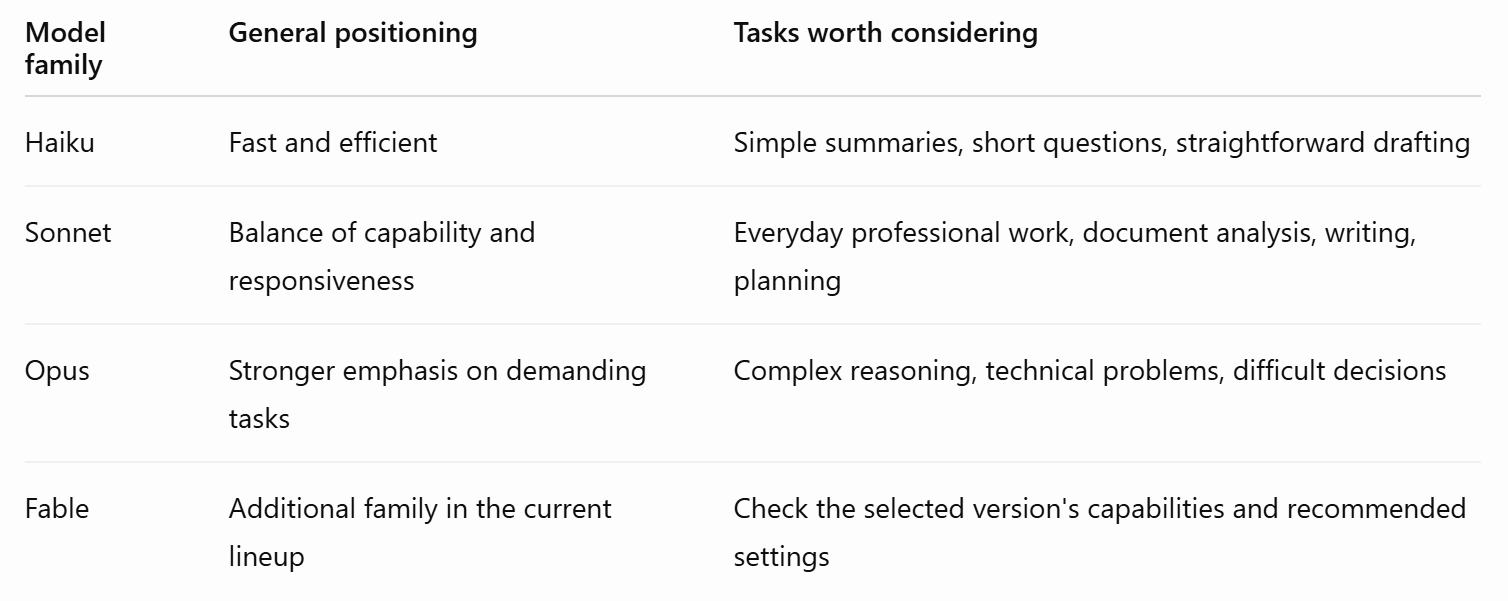
These descriptions are general guidance.
Different versions within the same family can behave differently, and model availability changes over time.
How to select a model
In Claude’s chat interface, locate the model name near the send button.
Click it to see the available models.
You may also find additional options under More models.
For most everyday work, I would start with the recommended default.
If you encounter a difficult task, consider a different model or effort level.
What does effort mean?
Effort controls how thoroughly Claude works on a response.
Depending on the model, available levels may include Low, Medium, High, Extra High, or Max.
Higher effort can be useful for demanding tasks, but it generally takes longer and consumes more tokens.
A practical starting point:
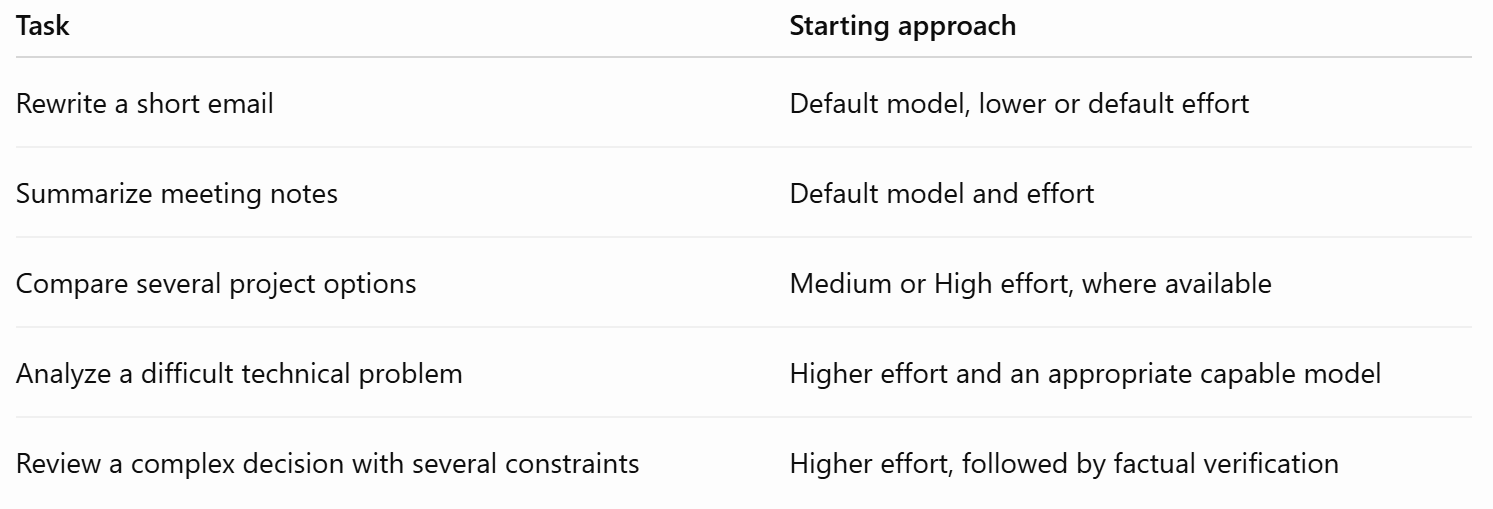
These are suggested starting points, not guarantees that a particular setting will produce the best answer.
What about thinking?
Claude also provides thinking capabilities that allow it to work through more complex problems before responding.
Thinking and effort are related but distinct controls.
In the current lineup, some models have thinking enabled by default and don’t offer a switch to turn it off.
Other models may provide a thinking toggle.
If your selected model doesn’t show that control, it doesn’t necessarily mean thinking is unavailable.
Check the model’s supported settings.
A simple model-selection exercise
Inside your Project, try these three prompts.
Task A — Simple summary
Summarize the Website Improvement Project’s objectives in five bullet points.
Task B — Analysis
Identify the main project risks, outstanding decisions, and dependencies.
Task C — Complex recommendation
Development capacity may delay the website launch. Compare three possible approaches to managing the situation, explain the trade-offs, and recommend the most reasonable option. Distinguish documented facts from assumptions.
Use the models available in your account and compare the answers.
Look at accuracy, completeness, clarity, usefulness, and response time.
The purpose isn’t to prove that one model is universally better.
It’s to understand which settings make sense for the tasks you actually perform.
10. Response styles — Change how Claude communicates
Claude also offers response styles.
These influence how answers are written and presented.
For example, you might prefer a concise professional style when preparing an email and a more explanatory style when learning something unfamiliar.
Depending on your interface, you may see predefined styles and options for customization.
Try a simple example
Ask:
Explain the main risks of introducing a new software system into a company.
First, use your normal style.
Then select a more concise style, if available.
Finally, try a more detailed or explanatory style.
Compare the structure, tone, and level of detail.
Styles or instructions?
Here’s the distinction I would use:
- Global instructions: General preferences that should apply across conversations.
- Project instructions: Rules and requirements for a particular area of work.
- Styles: How responses should be presented.
There can be overlap.
For example, if your global instructions request detailed explanations but your selected style emphasizes extreme brevity, you may get inconsistent results.
Keep your configuration simple and avoid unnecessary conflicts.
11. Other settings worth paying attention to
Before finishing, there are three additional areas I’d review.
Privacy and data use
Review your data controls and the policies applicable to your account.
Anthropic provides privacy and model-improvement controls for consumer accounts, while organizational plans have their own arrangements.
Don’t assume that a paid subscription automatically makes every business document appropriate to upload.
If you’re learning how to use Projects, start with fictional or non-sensitive information.
Connected applications
Claude may offer connections to external applications, depending on your account and organizational settings.
These can be useful when information already exists in another system but every connection should have a clear purpose.
Before enabling one, check what information it can access and whether those permissions are appropriate.
I would start with a simple workspace before adding integrations.
Usage limits
Models, document sizes, conversation lengths, and effort settings can affect usage.
If you regularly reach your limits, review which tasks are consuming your allowance.
A higher subscription may be useful, but it’s worth understanding the cause before upgrading.
12. Five common mistakes to avoid
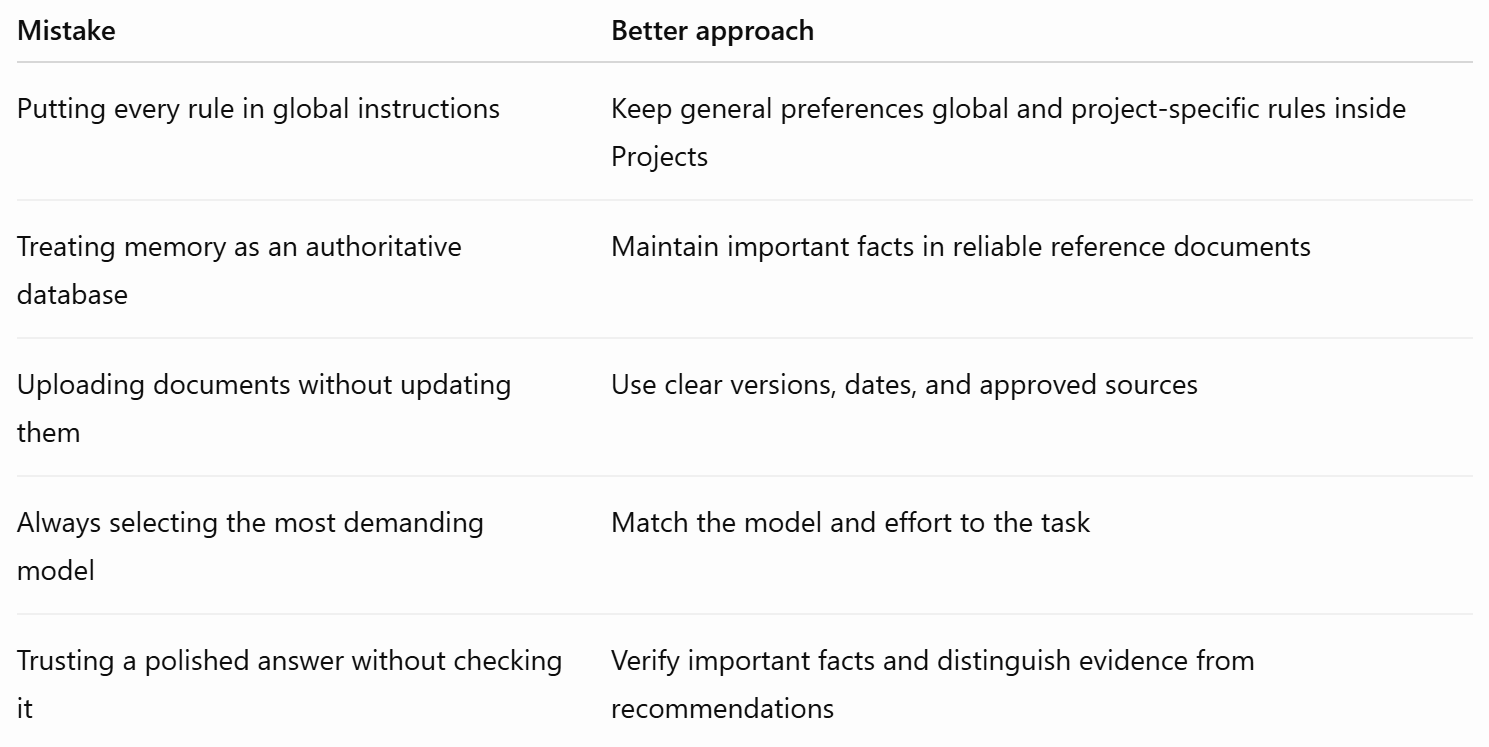
There’s a common theme here.
More personalization, more files, and more reasoning don’t automatically mean better results.
The configuration should help Claude understand your needs without introducing unnecessary complexity.
13. Your 10-minute Claude Workspace Challenge
If you’ve been reading without following the steps, here’s a shorter exercise you can complete using your own information.
You don’t need to reproduce the entire website example.
Your challenge
- Configure three global preferences. Choose instructions that would be useful across most of your conversations.
- Create a Project called My Work Assistant. Give it a clear purpose.
- Add one reference document. Use non-sensitive information about a task or project you understand well.
- Ask Claude to summarize the document. Check whether it identifies the main points correctly.
- Ask a question the document cannot answer. See whether Claude acknowledges the missing information.
That’s enough to start understanding the difference between an ordinary conversation and a workspace with maintained context.
If the result isn’t what you expected, check your instructions and source material before adding more complexity.
14. Your final configuration checklist
Before considering your workspace ready, review the following.
Settings and personalization
- I’ve reviewed my account settings and available features.
- I’ve configured my global instructions.
- I’ve kept task-specific rules out of my global preferences.
- I’ve reviewed memory and corrected outdated information where necessary.
- I’ve checked the relevant privacy controls.
Projects and knowledge
- I’ve created a Project for an area of work.
- I’ve added clear Project instructions.
- I’ve uploaded relevant reference material.
- I’ve organized documents with meaningful names.
- I’ve identified which information needs updating.
- I’ve reviewed how the Project uses memory.
Models and response settings
- I know which models are available in my account.
- I understand when higher effort may be useful.
- I’ve reviewed the thinking controls supported by my selected model.
- I’ve considered whether a different response style would help.
Verification
- I’ve checked an answer against its source document.
- I’ve asked a question with missing information.
- I’ve checked whether Claude distinguishes approved decisions from proposals.
You don’t need to complete every advanced configuration immediately.
Start with what solves a real problem in your work.
Final thoughts
There’s a difference between opening Claude whenever you need an answer and setting it up to support the work you do regularly.
The second approach requires some initial organization, but it gives you a more consistent starting point.
You don’t need to create dozens of Projects or upload every document you’ve ever worked with.
For some people, a few global preferences and one well-organized Project will be enough.
Others may benefit from separate workspaces for different activities.
The important thing is knowing what belongs in global instructions, what memory is useful for, what should remain in reference documents, and when to adjust the model.
The best Claude workspace isn’t the one with the most settings. It’s the one that gives Claude the information it needs without making your work more complicated.
If you take one action after reading this article, make it this: create one Project for something you work on regularly, add a small amount of reliable information, and use it for a real task.
Then improve the configuration as you learn what works for you.
Coming next — Part 3
Now that we’ve configured Claude and organized the information it needs, the next step is learning how to use that workspace for more consistent and repeatable work.
That’s where we’ll continue in Part 3.
Sources and further reading
This guide was prepared using Anthropic’s official documentation, reviewed on 20 November 2026. Features, interface labels, plan availability, and model options may change.
The Website Improvement Project and its documents are fictional teaching examples. No experimental performance results are claimed.
Here are some examples of other articles that I published. Give look at them because you may find some very interesting stuff.
The Complete Guide to Google Notebook - Part 1
The Complete Guide to Google Notebook - Part 2
12 AI businesses to make you rich
10 Real work problems I give AI instead of starting from scratch
The Biggest Risk of AI Isn’t Hallucinations. It’s Skipping the Thinking
Your AI Isn't Broken. Your Workflows Are
NotebookLM is becoming something ChatGPT and Claude were never designed to be