How Multitasking, Camera Previews, StandBy, and Shortcuts Put the Folding iPhone to Work
By TechTiff
Published: 2026-11-22
URL: https://techtiff.substack.com/p/iphone-duo-guide
Apple made a folding iPhone, so obviously I decided to give it something useful to do. I’ve got ChatGPT and Claude working side by side, a camera that lets people see their pictures while I’m taking them, and a desktop display that stands on its own.
So you can do things like put your AI assistant next to Mail and quickly work through your inbox, or open it with Notes while you’re working on a project.
The iPhone Duo opens to a full workspace. Give it something useful to do.
The Short Version
- The iPhone Duo can run two apps side by side on the inner display, so you’re not switching back and forth to multitask on your phone.
- The outer display can show a live preview from the back camera.
- StandBy turns the Duo into a desktop display.
- The hinge can trigger automations inside Shortcuts, so when you open or close the Duo it knows what to do next.
Getting to Work on the iPhone Duo
The Duo works a little differently from the iPhone you're used to. There's no Action button, Apple changed how the phone unlocks, and the Dock and status bar moved to the side of the screen. Here’s what I changed to make it work for me.
On my iPhone 18 Pro Max, a folder of shortcuts was linked to my Action button so I could quickly get to the ones I use every day. Since the Duo doesn't have an Action button, I moved that folder to a Shortcuts widget on my Home Screen.
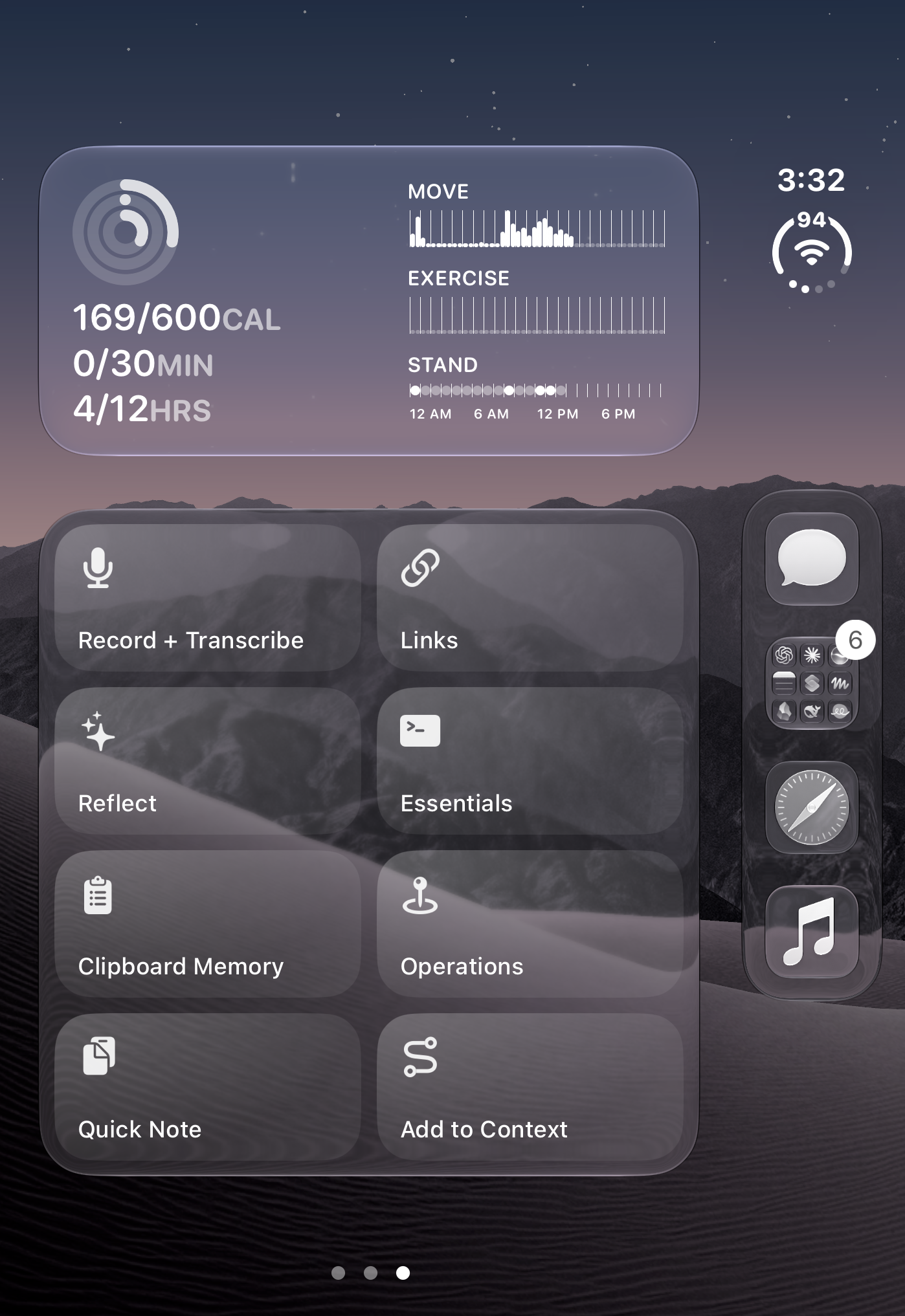
The Dock moved to the side of the display and a new status icon lives in the corner of the screen with your battery level around the outside, the Wi‑Fi symbol in the middle, and dots underneath for your cellular signal.
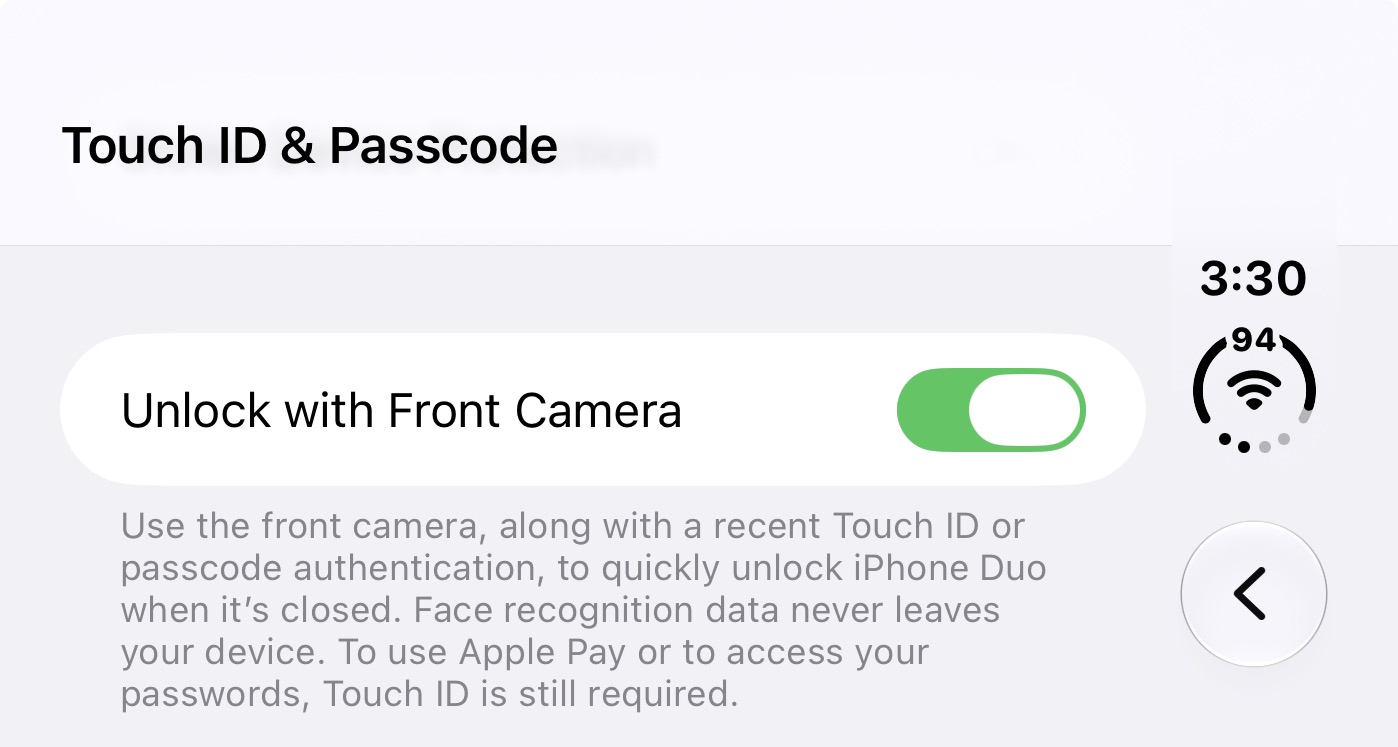
And iOS 27.3 beta 2 changes how the Duo locks and unlocks. Now you can unlock with the Front Camera in Settings under Touch ID & Passcode.
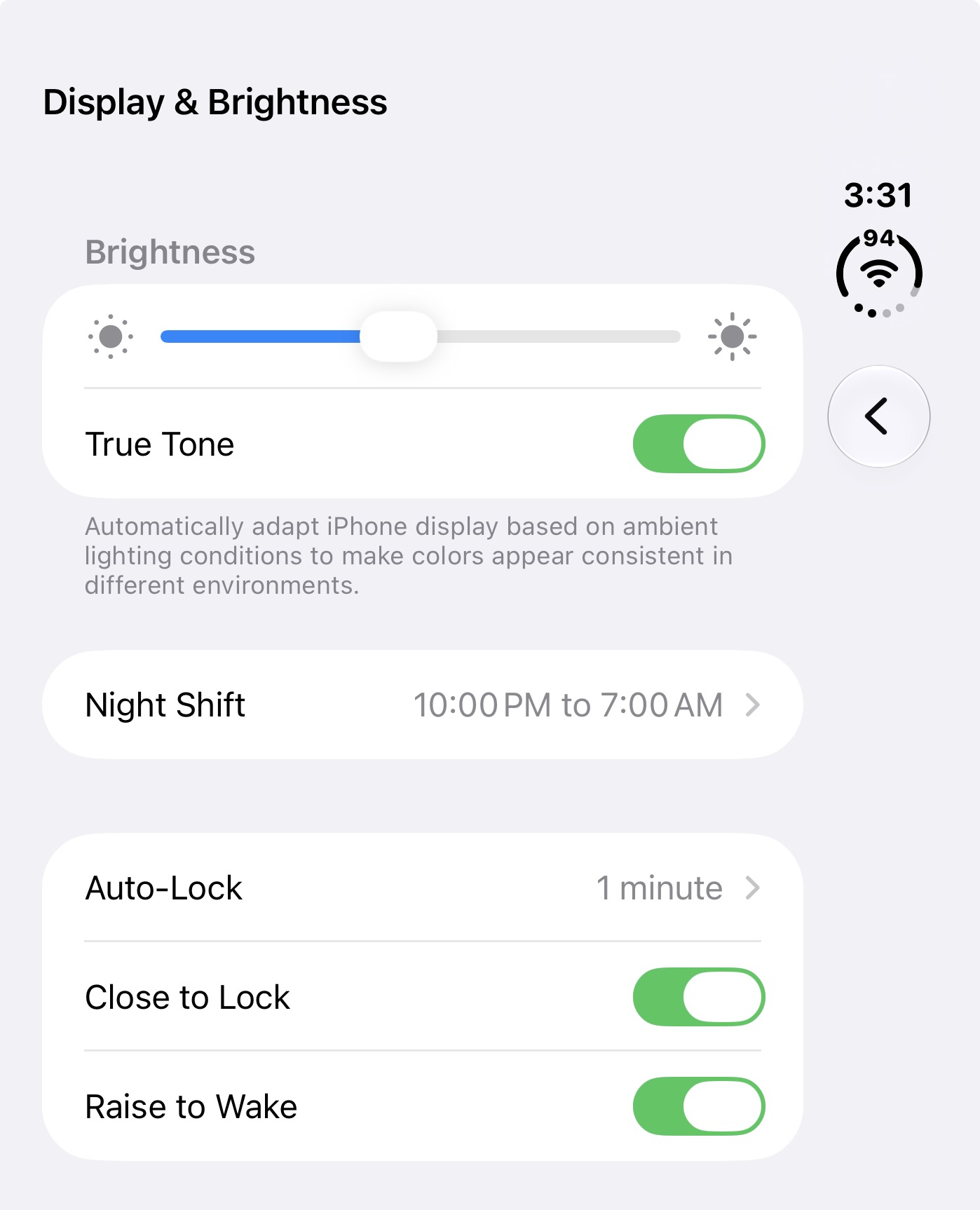
Set Close to Lock in Settings under Display & Brightness so your phone locks itself when you fold it shut.
Give Your AI Assistant a Place to Work
The inside screen opens two apps side by side, so your AI assistant sits right next to whatever you’re working on. Put Mail on one side and Claude on the other, and you get through your inbox fast.
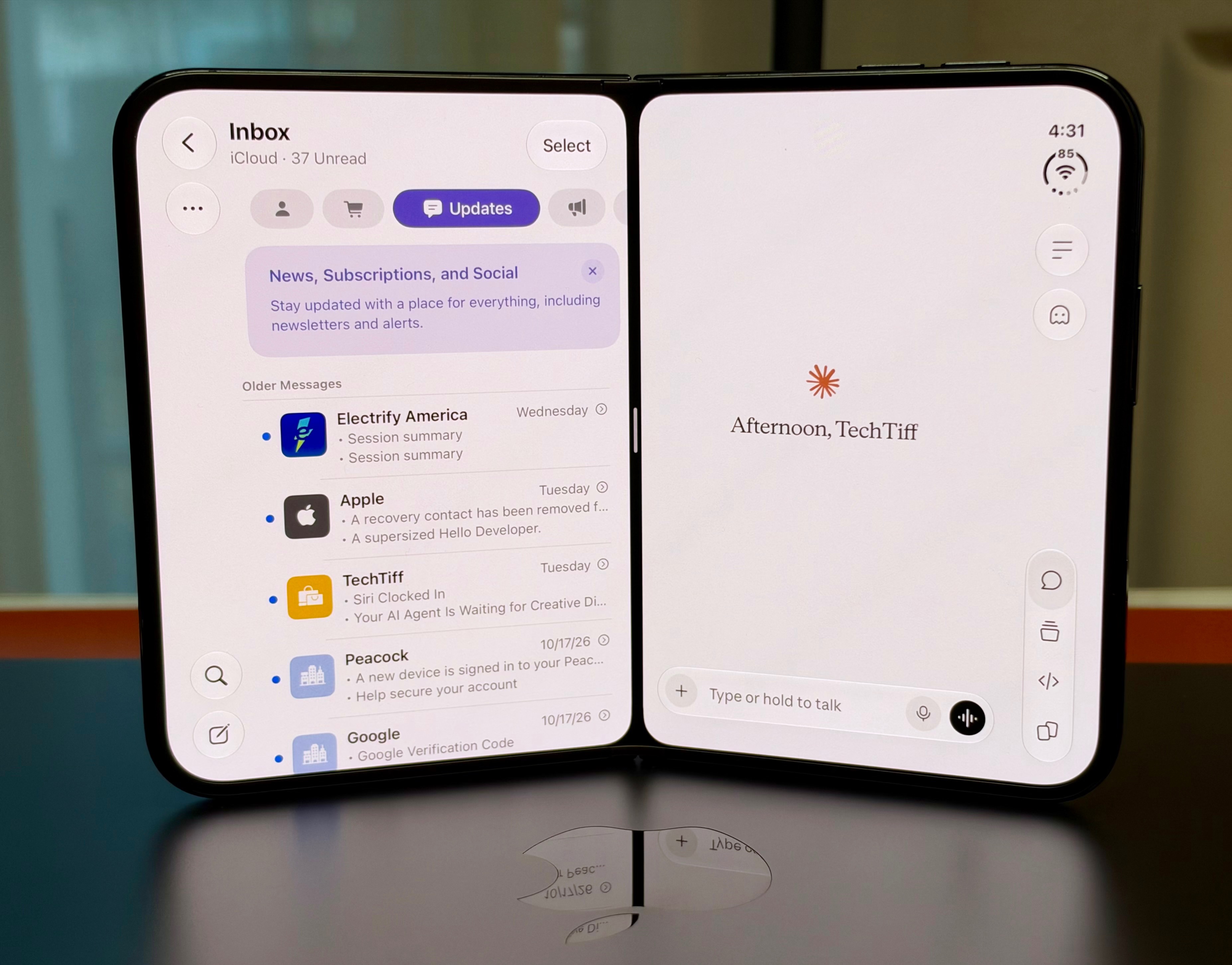
When you find a pair you use all the time, tap the black line between the two apps to save them. The next time you open Mail, Claude opens right next to it.
Preview Before You Take the Photo
When you’re taking pictures, Duo Preview uses the outer display to show a preview from the camera. So the person you’re taking a picture of can actually see what you’re capturing and make adjustments before you take the shot.
I’m even using it to record content with the rear cameras while seeing what I’m filming.
And Kid Cue plays animations on the front screen while you take pictures. The outer display plays Peanuts animations to get kids to look toward the camera.
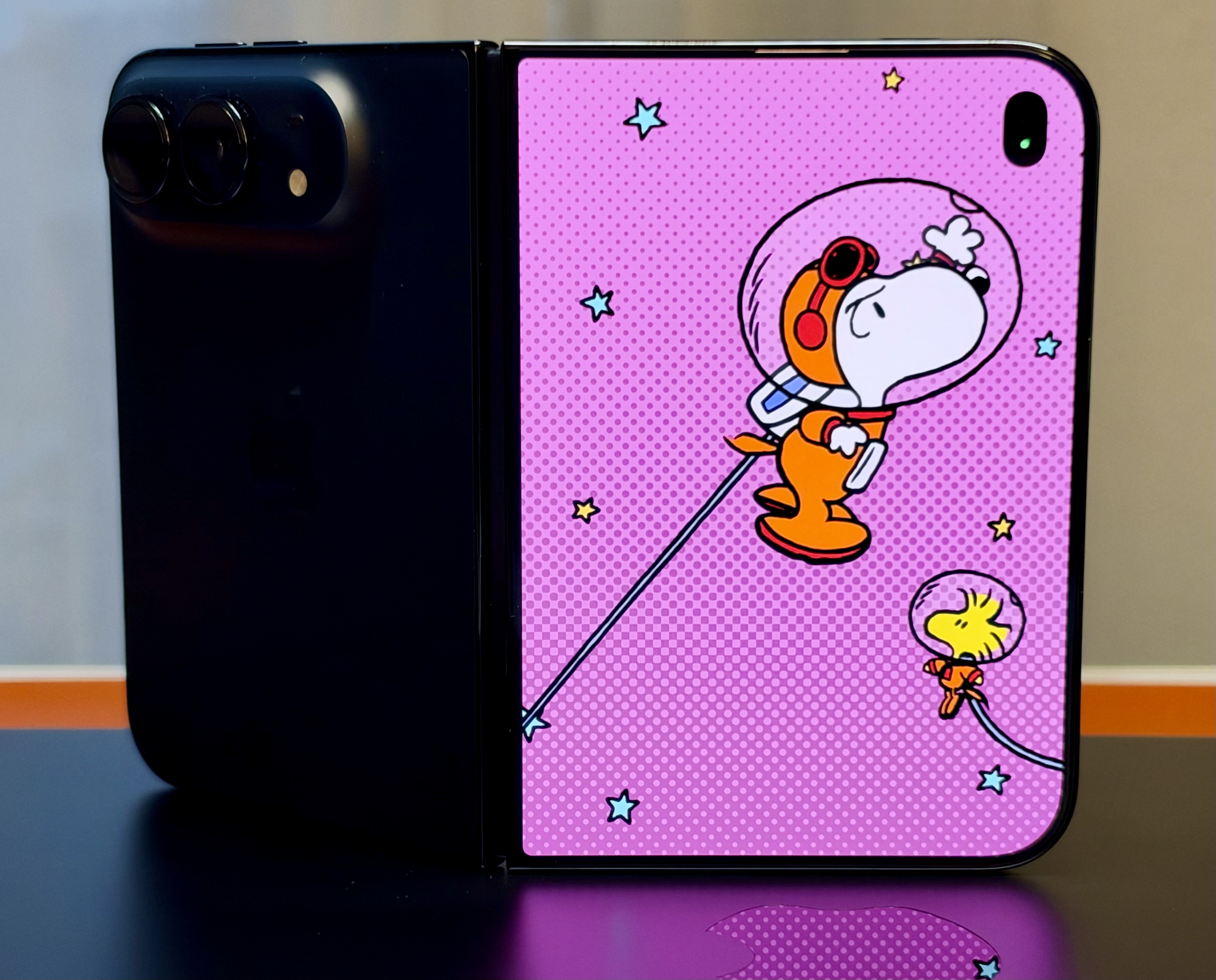
So apparently Snoopy has officially been assigned photographer assistant duties. Woodstock is handling the lighting, obviously.
Turn Your iPhone into a Desktop Display
Fold the Duo into a standing position and StandBy turns it into a little desktop display. Set it down and swipe between views to display things like a clock, your photos, the calendar, or the daily weather forecast.
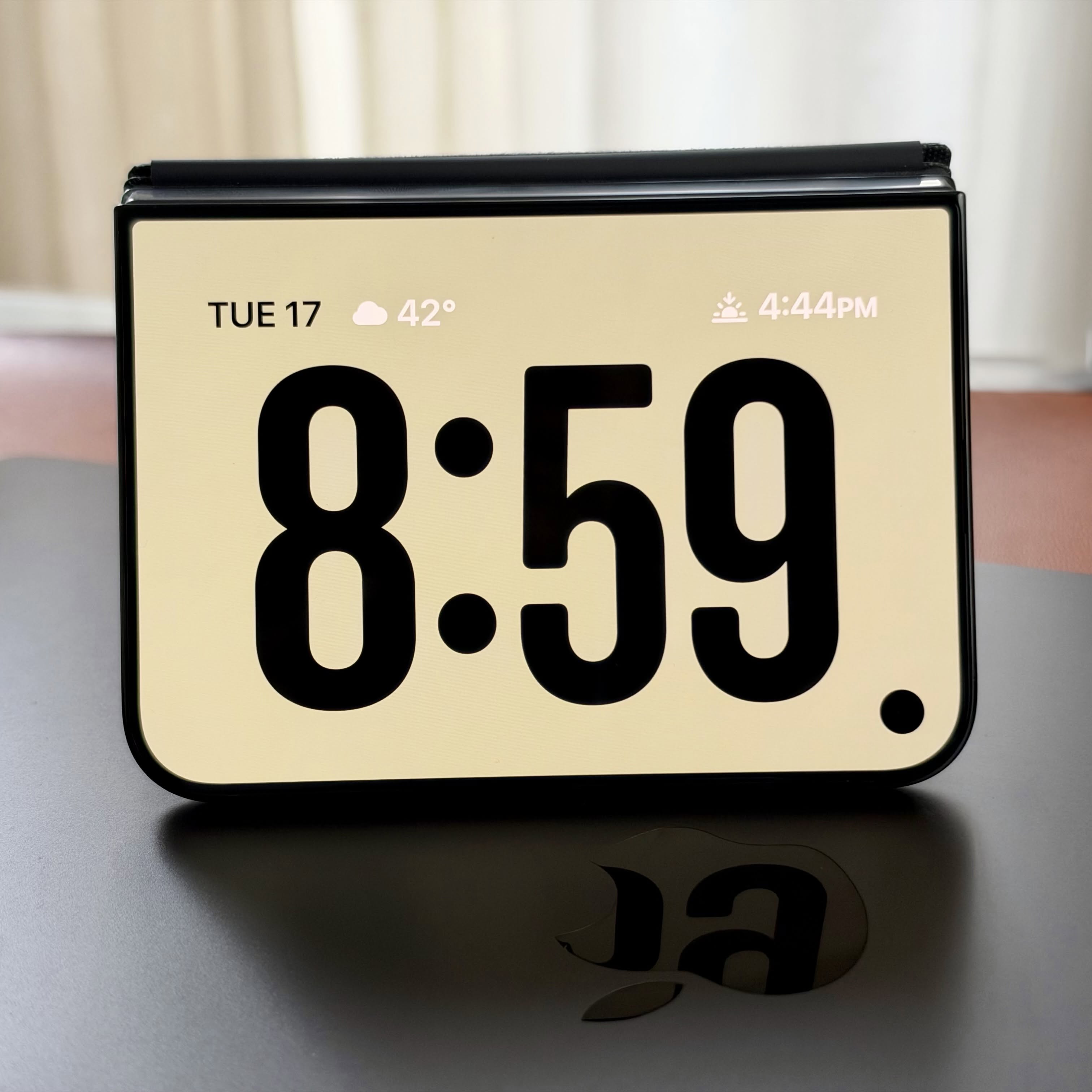
So even when you’re not actively using your phone, it still has something to do.
Shortcuts That Put the Duo to Work
Your iPhone Duo should know how to get ready for work. And a new automation trigger in Shortcuts on the Duo pays attention when you open or close the phone. So the hinge has actual responsibilities.
I’ve been experimenting with a few ways to make the Duo respond to what I’m actually doing, whether that’s opening my workspace, getting comfortable in bed, or satisfying my curiosity about how often I fold this thing.
Here are the Shortcuts I’m using on my Duo:
Set Up Your Workspace
This shortcut gets your iPhone Duo ready for work. You pick the apps you want to use, and it arranges your screen for you.
Start by choosing an AI assistant, like ChatGPT or Claude, to run on the left side of the screen. Then pair it with whatever app you’re working in.
So if you’re answering emails, reviewing notes, or planning a project, you’ve already got your AI assistant right next to the project and ready to go.
To build it, open the Shortcuts app and create a new shortcut with these actions:
- Add a List and include the AI assistants you want to work with, like ChatGPT, Claude, or whatever AI app you’re using.
- Use Choose from List to pick an assistant every time the shortcut runs.
- Add another List with the apps you normally work in. (I’ve got Mail, Notes, Reminders, and Calendar.)
- Add another Choose from List so you pick your work app.
- Then use the Split Screen action and set the first app field to the selected item from your AI list, which puts the AI app on the left side of the screen, and the second app field to the selected item from your work app list.
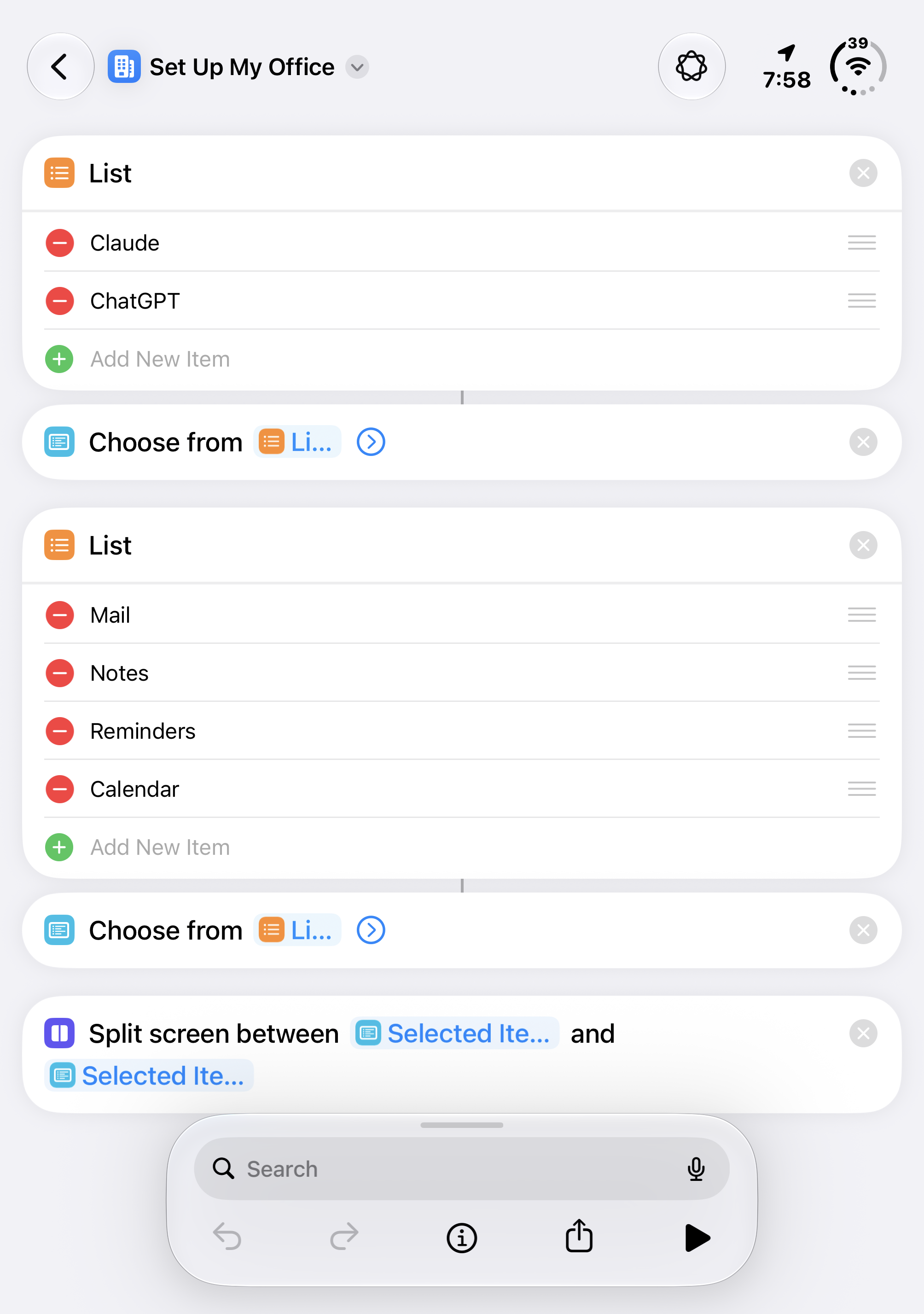
\Just pick what you need, and your iPhone arranges both apps side by side on the inner display.\
Put it on your Home Screen and your workspace is just a tap away.
Give the Hinge a Job
The Duo opens and closes all day, so the hinge might as well do something. Shortcuts has automation triggers called When iPhone is Opened and When iPhone is Closed, so every fold runs whatever you attach to it. Build the automations in the Automation tab and set each one to Run Immediately so the hinge skips the confirmation tap.
Set Your Orientation Lock
Since I tend to scroll in bed, I didn’t want the outer display to rotate when I’m lying down and using my phone.
So I set up an automation to turn on orientation lock whenever I close my Duo late at night to keep my outer display locked in portrait.
- Create an automation with the trigger When iPhone is Closed.
- Add an If action set to Current Time is after 10:00 PM or before 4:00 AM.
- Inside the If, add Turn orientation lock On.
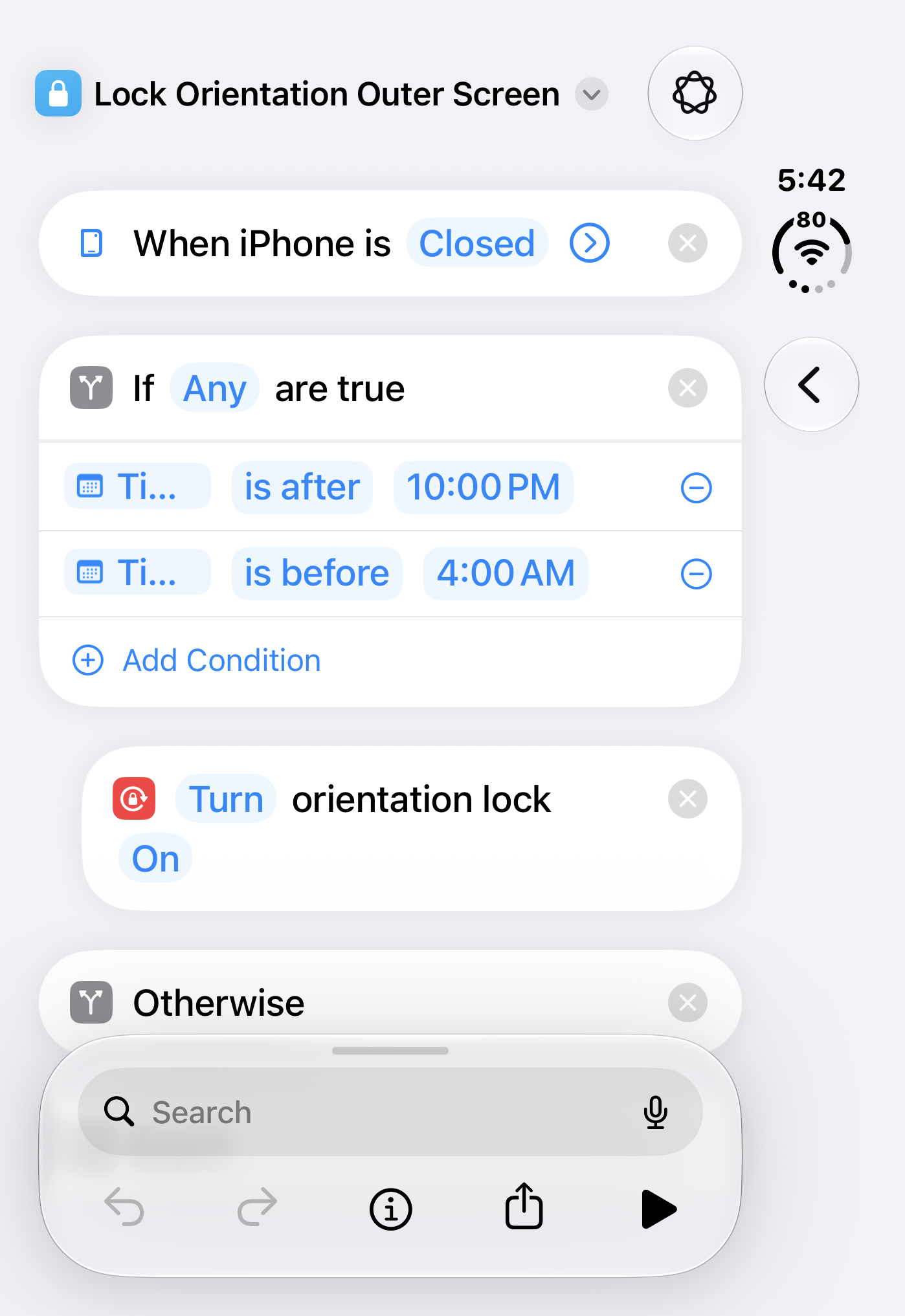
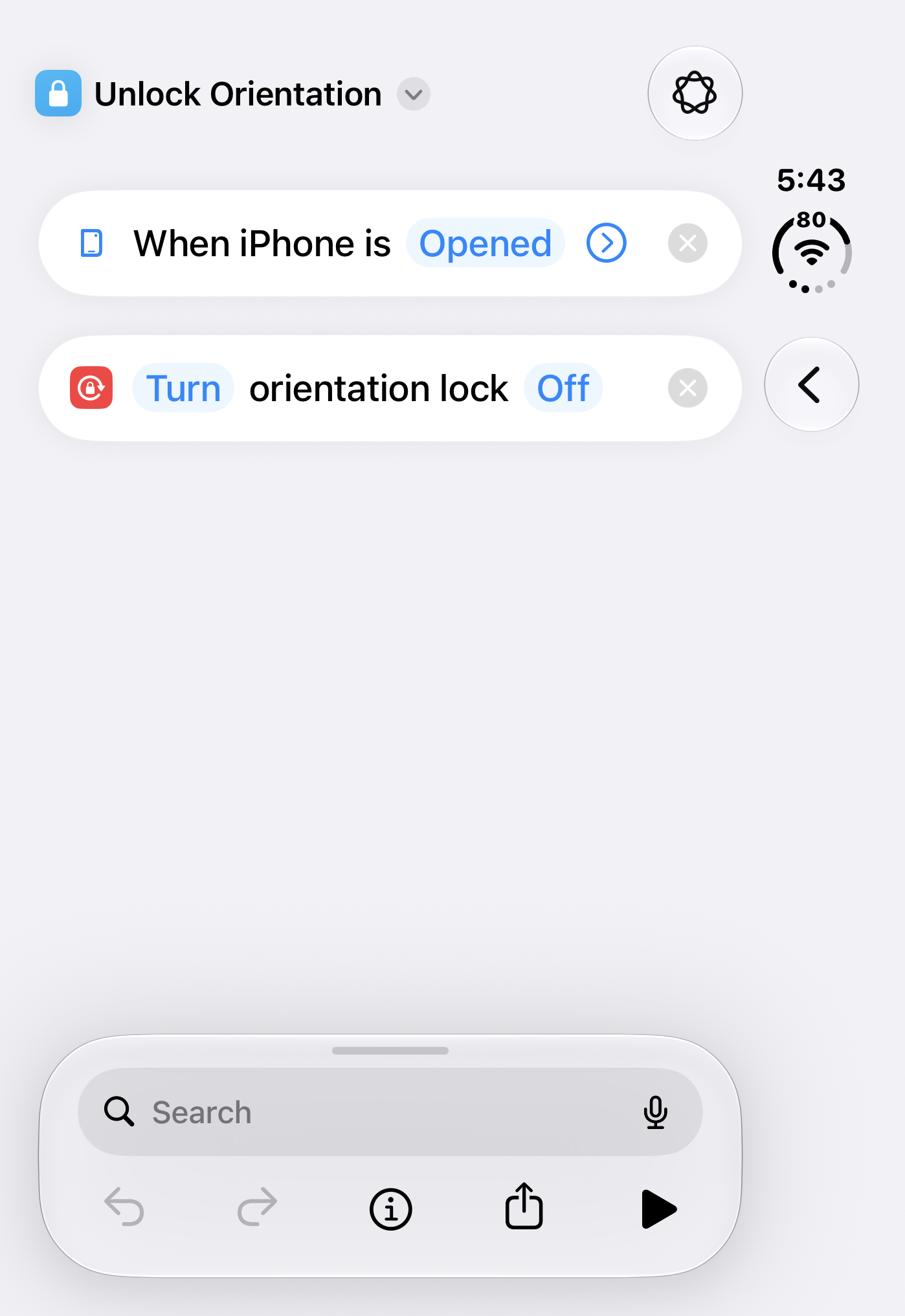
A second shortcut turns that orientation lock off automatically whenever I open the phone.
- Create an automation with the trigger When iPhone is Opened.
- Add Turn orientation lock Off.
Make Your Phone Track Its Folds
Obviously I needed to know how many times I’ve folded this thing, so I made a shortcut to track my folds for me.
Every time you close your Duo, an automation tracks your fold and adds it to a running counter. Everything is saved using the Store Content action in Shortcuts.
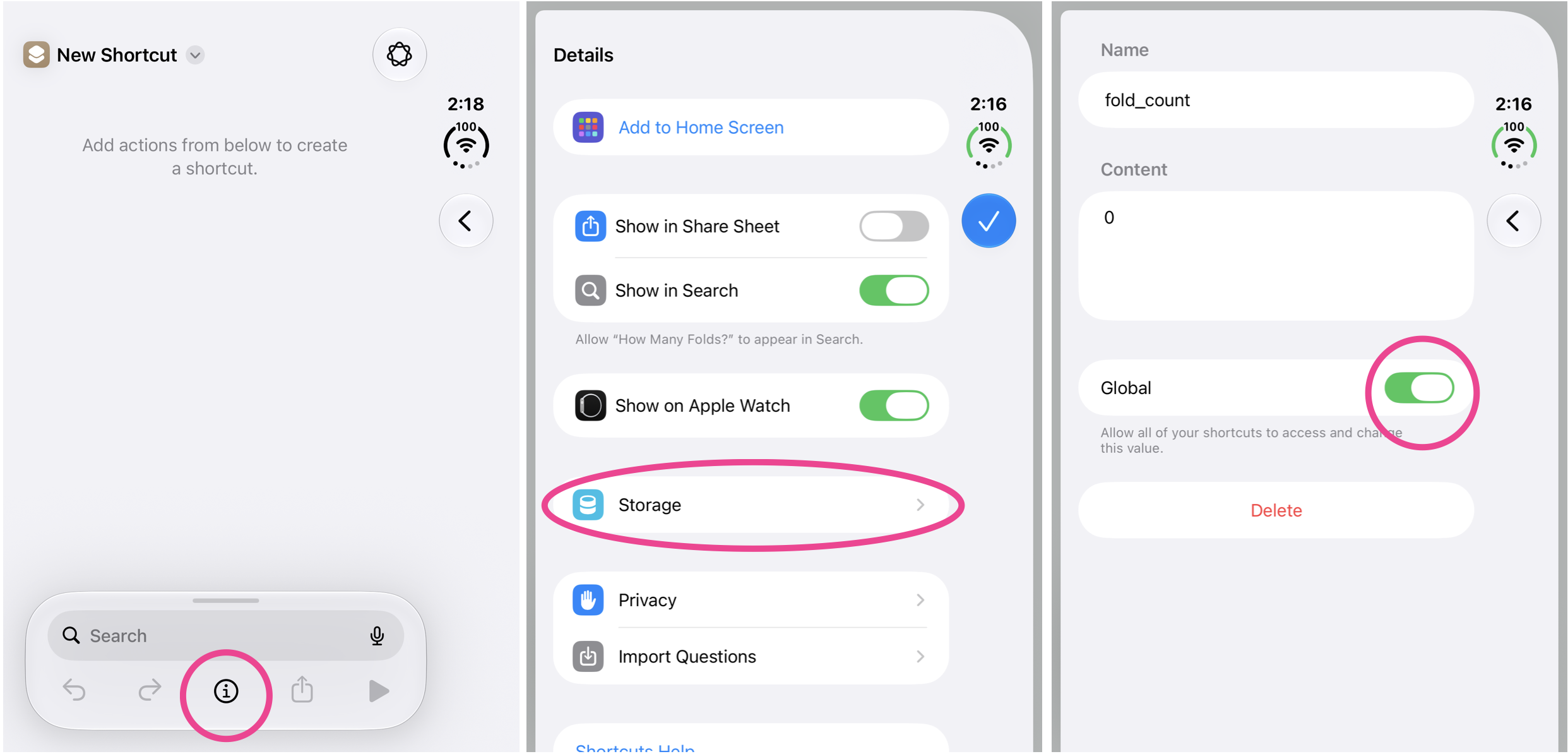
Before you create the full shortcut, tap “i” at the bottom of the screen and then go to Storage. Add a new item called fold\_count, set it to 0, and make sure to turn on the global toggle so you can get the total number of folds from any shortcut.
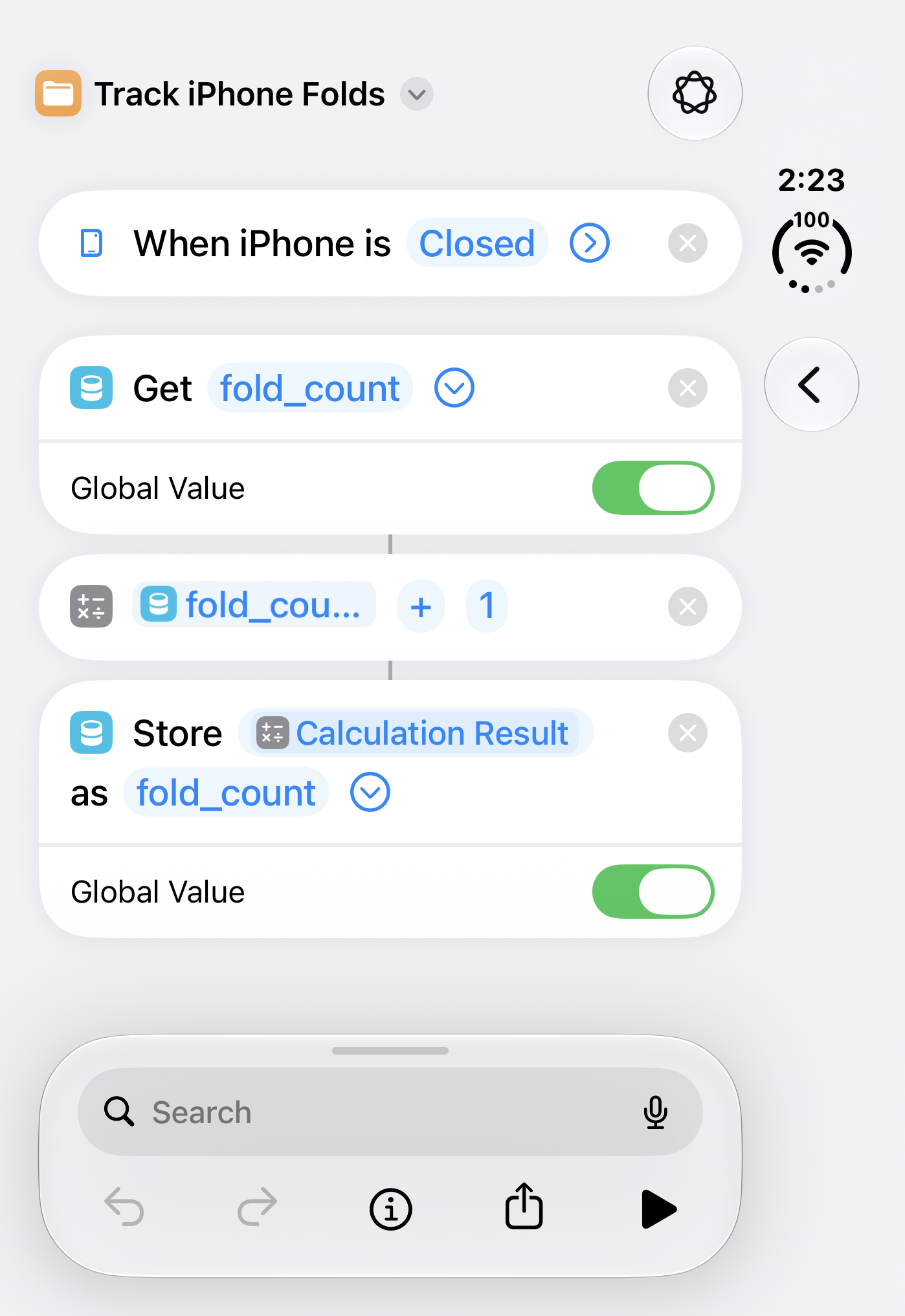
- Tap on automation and select When iPhone is Closed.
- Add Get Stored Content and select fold\_count. Make sure it’s set to get the global value.
- Use an action to Calculate set to fold\_count + 1.
- Finally, Store Content using the Calculation Result as fold\_count. Again, make sure it’s storing as a global value.
And since your phone’s keeping track, use another shortcut to get that total and show it in an alert.
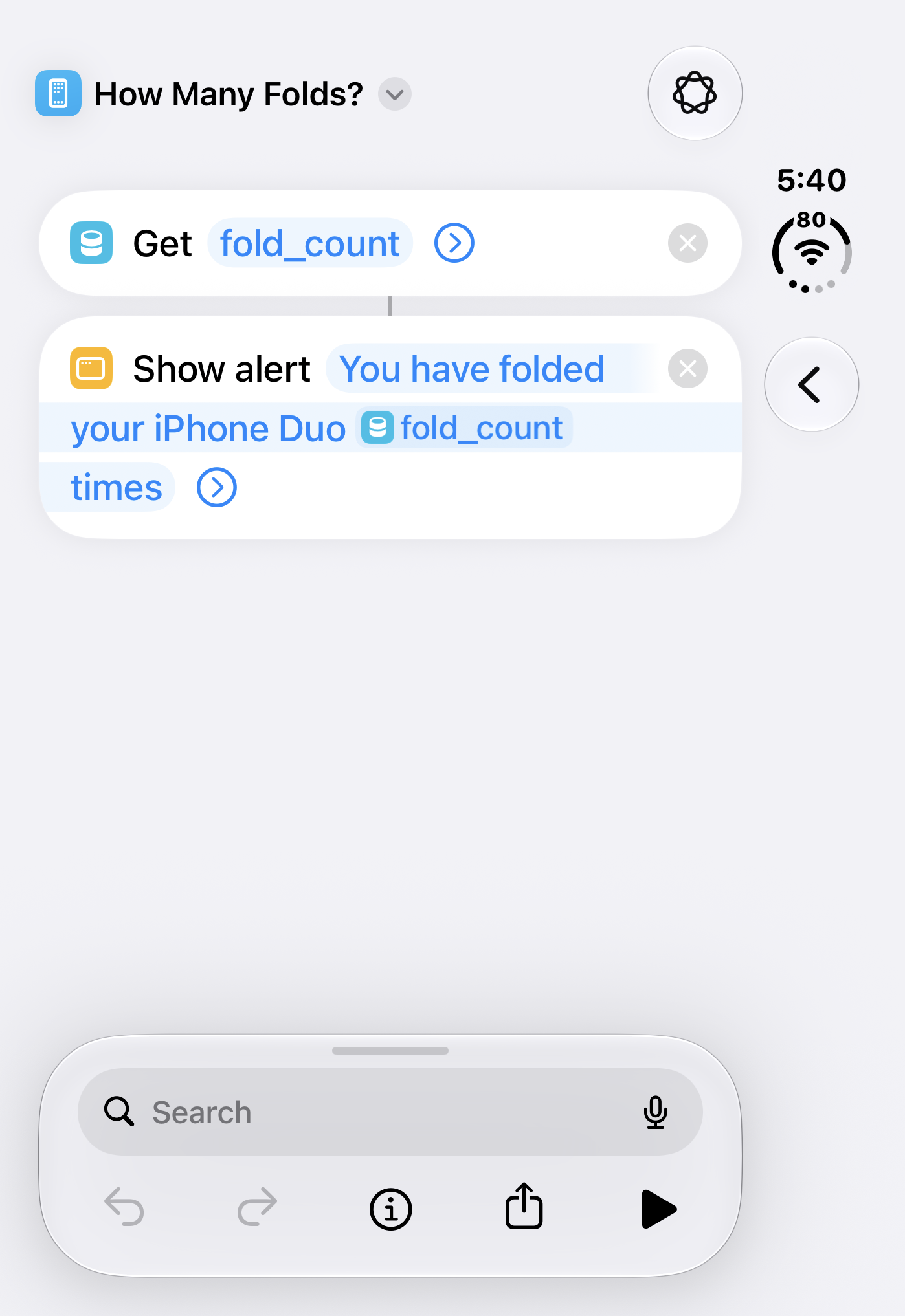
- Create a new shortcut and add Get Stored Content to get the fold\_count.
- Add Show alert with the text “You have folded your iPhone Duo [fold\_count] times.”
Your phone isn’t just folding and unfolding, it’s actually paying attention. So you can use the same automation trigger to set your wallpaper, start a timer, or run a series of actions on your phone.
Get More Out of Your iPhone Duo
So now you can run two apps side by side, let people see the photo before you take it, and keep your calendar on the desk while your iPhone Duo counts its own folds.
If you’re getting an iPhone Duo, make sure you actually give it something to do. For app ideas, check out the replies on my Threads post asking what to install first. Then grab the shortcuts above, set them up, and drop a comment with what your Duo is doing for you.
Your iPhone is sitting there, so let’s give it something to do.
If you want more shortcuts like these, AI Flow Club is where I share the systems and automations I build for my own phone: flow-club.techtiff.ai