Learn what Notion AI Skills are, how they differ from Custom Instructions, how to write your first skill with C.O.D.E., and how to build a skill library you actually use.
By Anfernee
Published: 2026-08-30
URL: https://solopreneurcode.substack.com/p/notion-ai-skills-the-complete-guide
You’ve probably typed the same prompt into Notion AI more than once.
Maybe it’s the one where you explain your brand voice again. Or the one where you describe how your weekly review works, what data to pull, what to leave out, how the output should be structured. You paste it, tweak it, get a decent result, then close the chat and lose the whole thing.
That’s how most people use AI. It works, but it never compounds.
Notion AI Skills fix that.
A Skill is a Notion page that holds the instructions for one repeatable job.
You write it once, refine it a few times, then run it whenever you need it.
Your team or collaborators can run it too. The quality stops depending on how well you happened to explain yourself or write your prompt that day. FINALLY!
And I’m here to guide you through everything and make your an expert in Notion AI Skills :)
Access your FREE Solopreneur Success Hub - your subscribers-only comprehensive command center for building and scaling a successful one-person business.
I created this all-in-one toolkit for building a profitable one-person business, something I wish existed when I first started, and it saves me 20+ hours a week.
Now, it’s yours… FREE!
More information about the Hub here.
Access My Solopreneur Success Hub
This guide covers the whole thing from zero.
What Skills are, how they work in Notion today, how they differ from Custom Instructions, why they perform better than one giant prompt, the five levels of skill writing, a co-creation process called C.O.D.E. that gets your expertise out of your head, a real skill I built and shipped, and how to organise a library that stays useful instead of turning into a graveyard of forgotten pages.
If you’re brand new to Notion or Notion AI, read it in order.
If you already have been an active user of Notion AI, or even have a few Notion AI Skills running, jump to the sections on the three levels of writing Notion AI Skills, C.O.D.E., and library architecture.
PS: The entire guide is over 9,000 words. Better save this for future reference. 
Part 1: Before Skills, there were Custom Instructions
Notion AI’s first real customisation layer was Custom Instructions, sometimes called personal instructions or agent instructions.
The idea is simple. You write a page (or a settings field) describing how AI should behave, and that context loads into every conversation automatically. Your tone. Your formatting preferences. Your business context. The rules you never want to repeat.
Mine started small. A few lines about writing in plain English, avoiding corporate filler, and citing workspace pages.
Then it grew.
I added my brand context: who I serve, what I sell, what I believe about solopreneurship. Reasonable. Then a daily brief routine with seven steps. Then a weekly reflection process with 21 days of activity analysis, a scoreboard, and an infographic. Then a newsletter repurposing workflow with 20 output sections. Then a decision framework selector covering 13 frameworks.
By the end, my AI assistant NOVA had an instruction page that read like an operations manual.
It still worked, but three problems showed up.
-
Every conversation carried the full weight. Asking “what’s a good subject line for this email?” loaded a document containing my entire weekly review procedure. That’s wasted context on a simple request.
-
The workflows became hard to improve. When the daily brief needed a tweak, I had to find it inside a long page, edit around unrelated rules, and hope I didn’t break something else.
-
And I could no longer tell what was permanent and what was occasional. Identity rules and one-off procedures sat side by side with no visible difference between them.
That’s the moment most people hit.
The instruction page feels like progress right up until it becomes the bottleneck.
Why cramming everything into one prompt hurts
This is a performance problem, and AI research has a name for it: the curse of instructions.
The finding is straightforward. The more parallel rules you ask a model to follow at the same time, the worse it performs across all of them.
It behaves a lot like human multitasking. Ask someone to:
-
watch the stove,
-
answer the phone,
-
help with homework, and
-
remember a shopping list,
And something gets dropped.
The same thing happens inside a bloated prompt. Instructions in the middle get skimmed. Edge instructions get ignored. The output looks plausible and quietly misses half your requirements. I get that alot, trust me.
There’s a second research-backed detail worth knowing. Content at the beginning and end of a prompt gets the most attention. The middle gets the least. If your most important rule is buried on line 340 of a 600-line instruction page, it’s competing for attention it will probably lose.
So the answer isn’t a better mega-prompt anymore.
It’s a different architecture of instructions.
Part 2: What are Notion AI Skills?
A Notion AI Skill is a page containing reusable instructions for one repeatable job.
That’s the whole concept. One page, one job.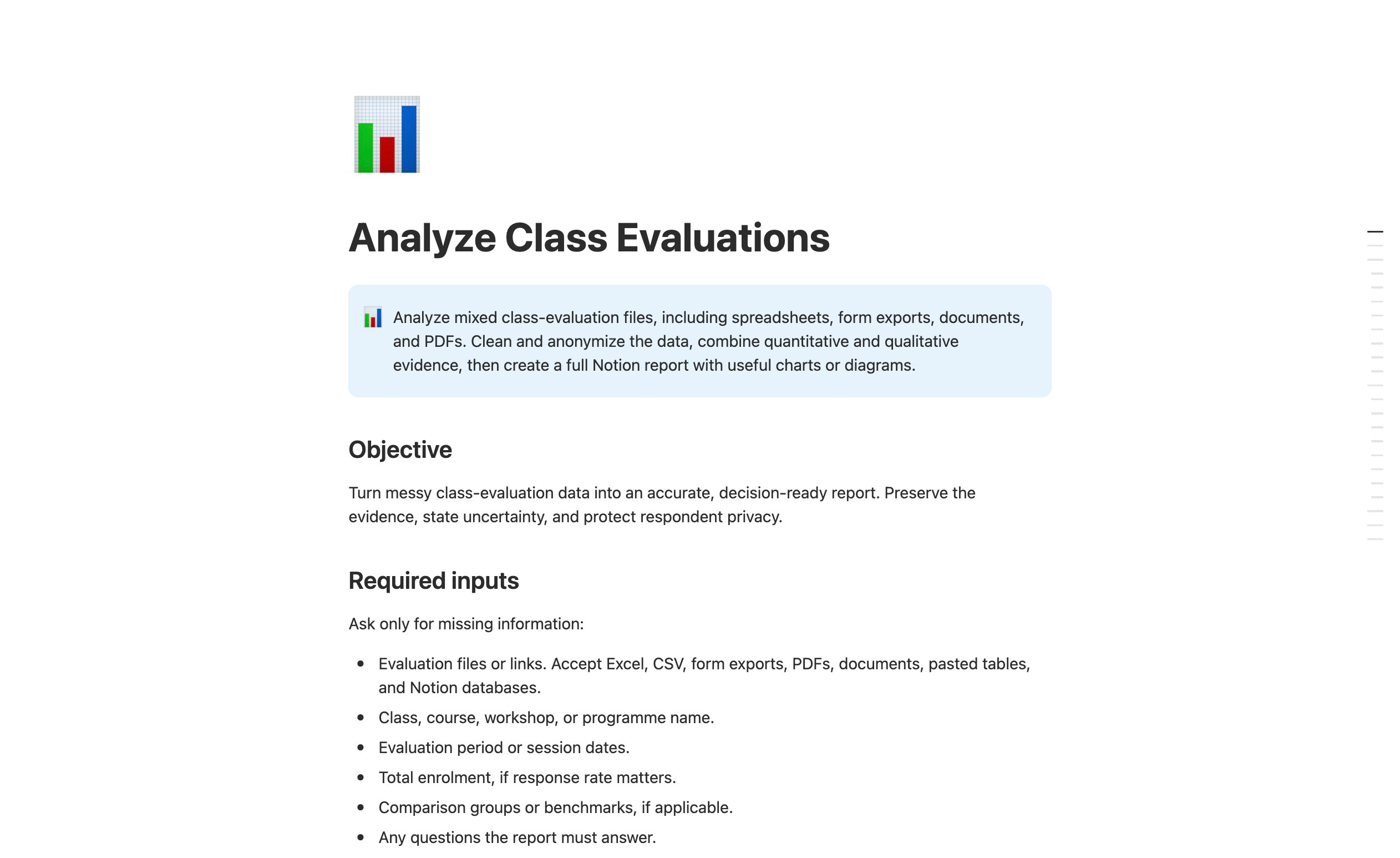
The page tells AI:
-
what the task is,
-
what inputs to gather,
-
which pages or databases to read,
-
what steps to follow,
-
what the output should look like, and
-
how to check the work before delivering it.
When you need that job done, you invoke the Skill and AI follows the instructions.
Here’s the difference between a prompt and a Skill:
A prompt is a one-off instruction.
A Skill is a saved procedure you can run again, share, improve, and hand to an agent.
A short history worth knowing
Custom Skills launched in Notion on 20 March 2026 as text-only pages. You marked a page as a Skill, then invoked it by @-mentioning it in chat or highlighting text on a page.
Skills 2.0 arrived in August 2026 and turned Skills into a proper product surface rather than a naming convention.
Here’s what changed.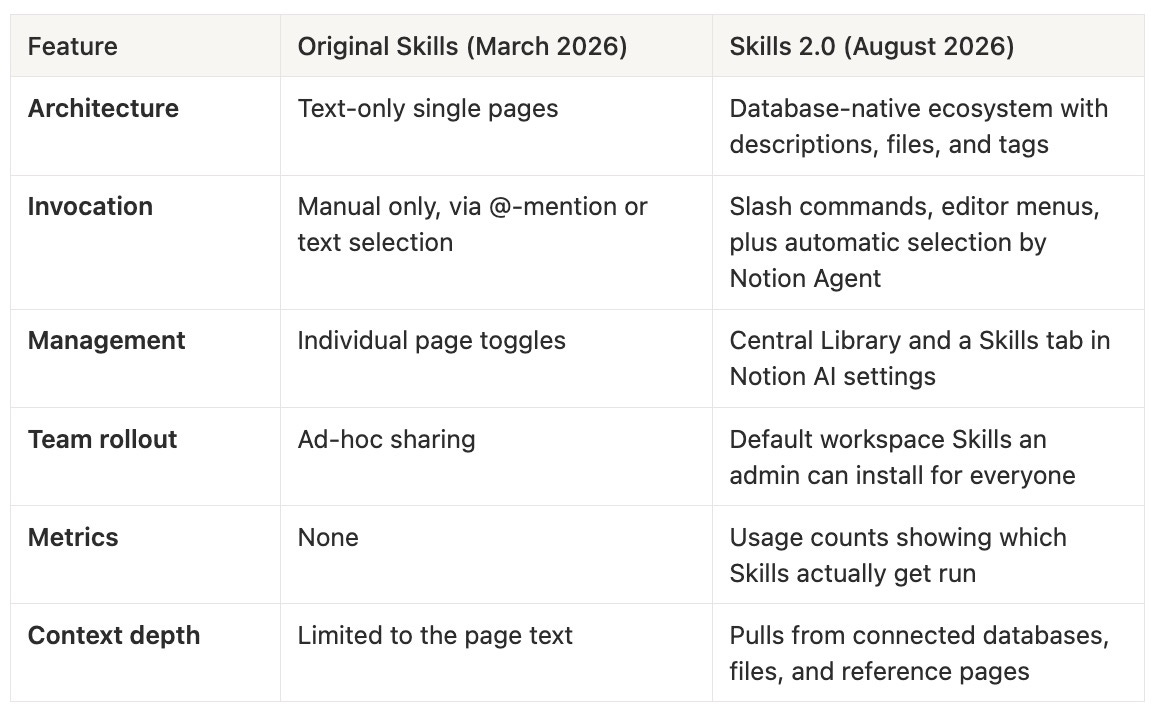
That product layer solved discovery and invocation.
It didn’t solve the hard part, which is writing instructions good enough to trust.
Most of this guide is about that hard part.
How Skills work today, step by step
-
Create or convert the page. Open Library, go to Skills, and add one. Or take any existing page and mark it as a Skill from the page menu. A banner appears at the top confirming it’s now a Skill.
-
Decide where it lives. A standalone Skill page can be run directly. A skills database arrives with Description and Files properties already set up, and only skills that live in one can run automatically, so that’s where anything shared belongs.
-
Write the description. This is the part beginners skip and later regret. The description is how Notion Agent decides whether your Skill matches a request. Vague description, wrong matches.
-
Invoke it. Run enabled Skills from AI chat with a slash command, from a text selection, from the slash menu beside content, or from a supported block’s menu. Automatic selection only works for Skills in a Skills database that have a description, and you can switch it off.
-
Share it. Skills follow normal page permissions. Skills shared with you appear in Library under Discover, where “Enable for me” adds one to your own set.
-
Give agents access deliberately. A Custom Agent can follow a Skill page once you add that page under its tools and access.
-
Download for local tools if needed. Notion can export a Skill to a folder for tools like Claude Code. Treat it as a point-in-time copy, not a live sync. Edit the Notion page later and the local file won’t update.
Slash command or @ mention?
Both work. They behave slightly differently.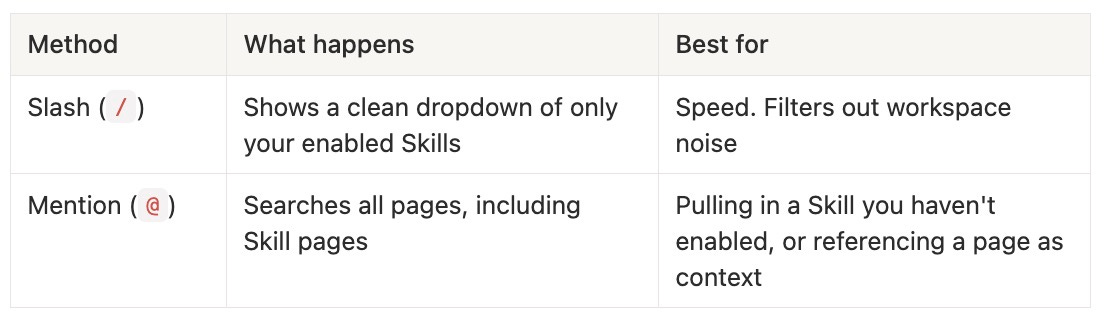
For daily use, enable the Skills you actually run and use the slash menu. Disable the rest. A short list beats a complete one.
A note on “Use automatically”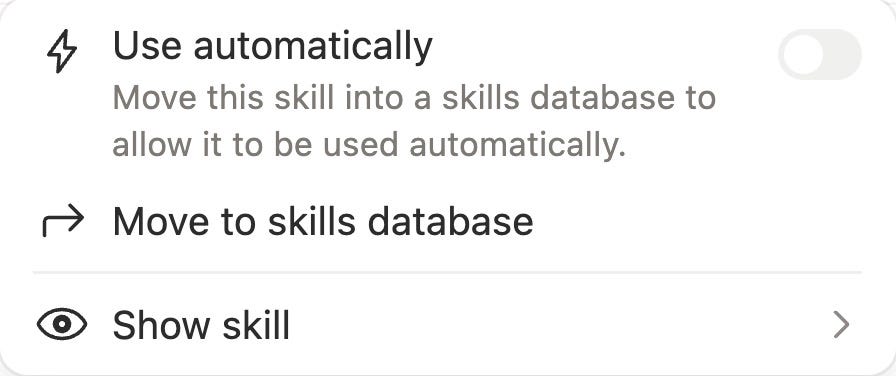
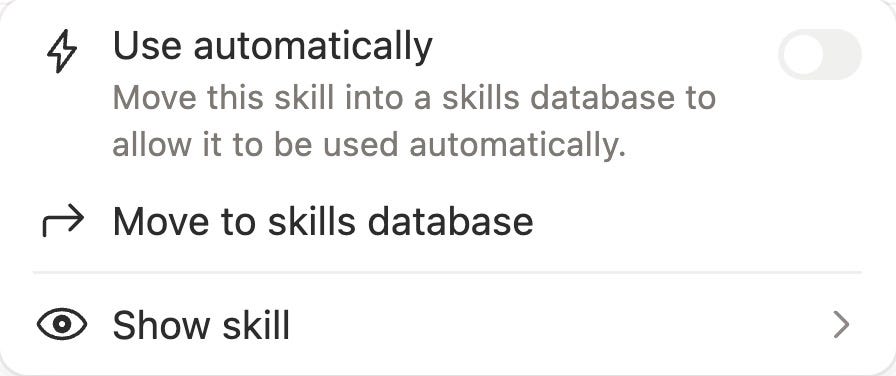
Every Skill has an auto-use toggle. Turn it on and Notion Agent reads the description in the background, then runs the Skill when it judges the request to be a match.
This helps with predictable, structured operations. Logging a CRM entry. Formatting meeting notes. Applying your workspace conventions. You say “log this deal” and the right procedure fires without you naming it.
It creates noise in three ways.
-
Every auto-use Skill loads its description into the session, which consumes usage and slows things down.
-
Overlapping or vague descriptions make the agent burn effort deciding between them.
-
And you lose control over when a heavy workflow runs.
My recommendation for beginners: leave auto-use off for everything except one or two Skills that carry workspace context. Invoke the rest deliberately. You’ll learn faster when you can see exactly which instructions produced which output.
Part 3: Custom Instructions vs AI Skills
This is the question that decides whether your setup stays clean or turns into a mess. Here’s the clearest way to think about it.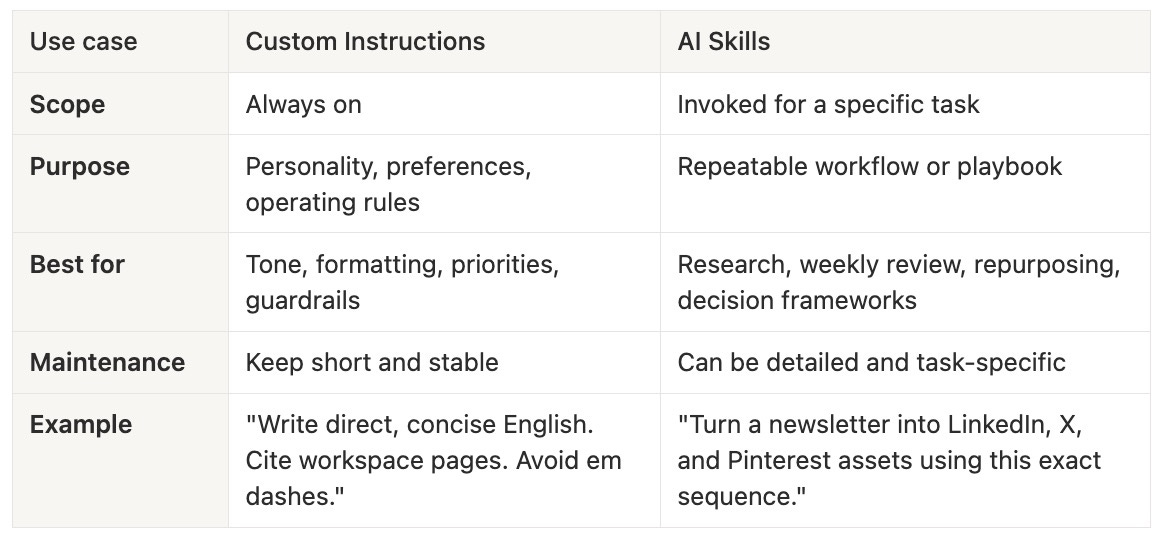
The one-question test
“Should AI do this every single time?” Put it in Custom Instructions.
“Should AI do this workflow only when I ask?” Make it a Skill.
That test resolves about 90% of cases.
For the rest, use these signals.
Move it into a Skill when the instructions contain:
-
A multi-step process with a defined order
-
A specific output format or template
-
A checklist you expect to revise on its own schedule
-
References to particular databases, files, or sources
-
Fallback rules for when something is missing
Keep it in Custom Instructions when it’s:
-
A voice or formatting preference
-
Business context AI needs in any conversation
-
A safety rule or boundary
-
Routing logic that helps AI pick the right approach
Don’t turn every preference into a Skill. If you want it followed in normal chat, it belongs in the always-on layer.
The three-layer model
Once the split clicks, your whole setup organises itself into three layers. This is called progressive disclosure, and it’s the structural fix for the curse of instructions.
Layer 1: Custom Instructions (always loaded)
Identity, voice, business context, guardrails, routing. Keep this lightweight. If it reads like half a book, every conversation starts carrying that weight.
Layer 2: Skills (loaded on demand)
One page per repeatable job. Loaded when invoked or matched. This is where detailed procedures live.
Layer 3: Reference pages (loaded by the Skill when needed)
For complex Skills, the fine detail for one step lives on a separate page. The Skill says “when you reach step 4, read this page.” Until then, AI stays focused.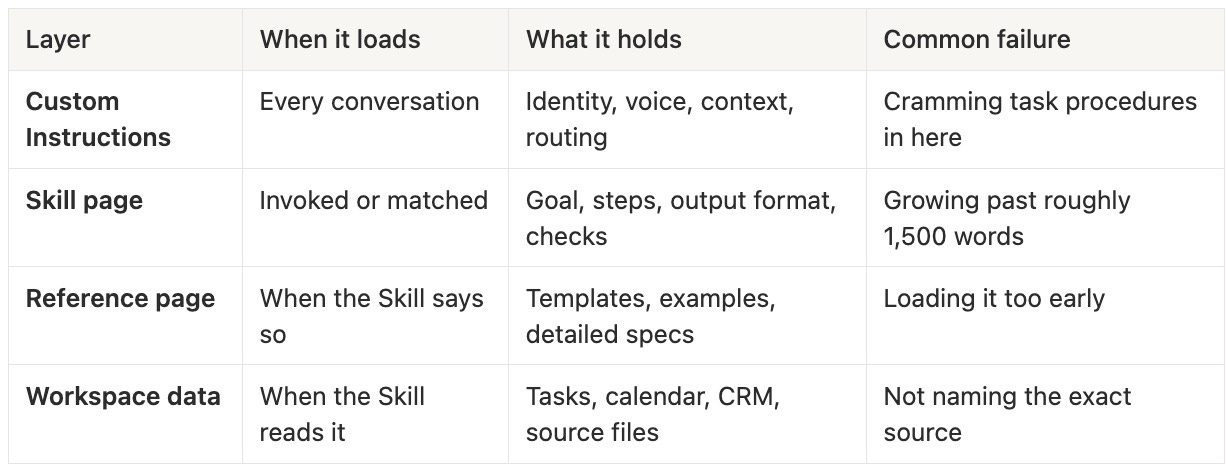
Below all the above sits your workspace data: tasks, calendar, CRM records, notes, source material. That’s the evidence layer, and it’s what stops AI output from being generic.
Part 4: Why Skills are so good for teams or collaboration
Skills turn AI from a personal productivity trick into shared infrastructure.
Three reasons, and the first one surprises most people.
1. Writing a Skill forces hidden assumptions into the open
When you tell AI to “create the client report,” you already know what that means. Which data to pull. What order the sections go in. Which numbers matter. What tone the client expects. What you’d never include.
AI knows none of it. So it guesses, silently, and presses on.
This happens between humans too. The difference is that a colleague pushes back and asks questions. AI doesn’t.
Writing a Skill forces you to confront every assumption you’ve been making. That alone improves the process, even before AI runs it. Several times I’ve written a Skill and discovered that my “documented” process had three undocumented judgement calls sitting in the middle of it.
For teams or collaborations, this is the real prize. A Skill is a written record of how your best person does the work.
2. Skills make AI output consistent across people
Without Skills, your team’s AI quality is a function of who’s typing.
Your best prompter gets great output.
Everyone else gets generic output and concludes AI is overhyped.
With a shared Skills database, the procedure is the same regardless of who runs it.
New hires get the good version on day one.
You point at the library and say: this is how we use AI here.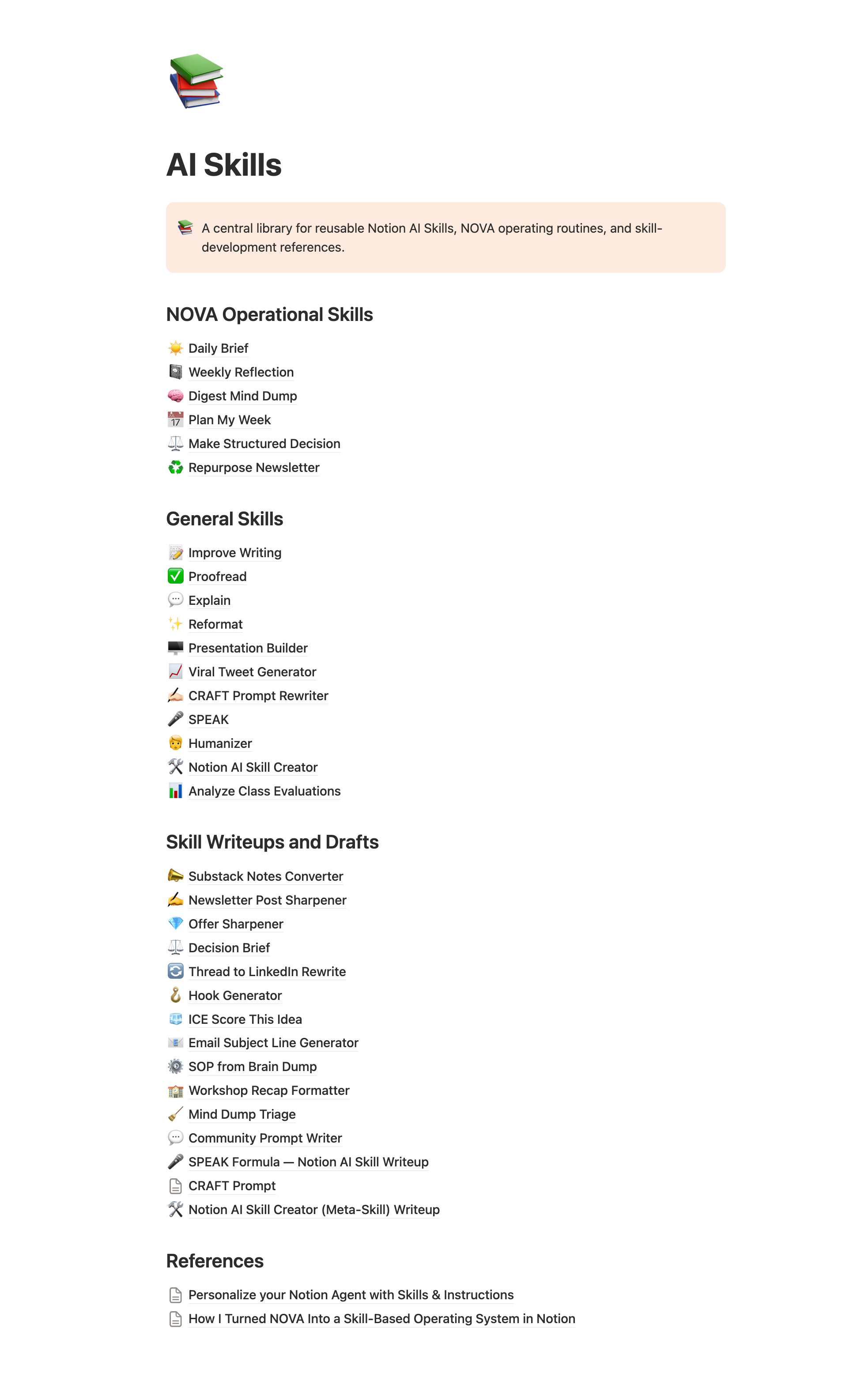
3. Skills are the building blocks for agents
An agent is an executor.
A Skill is a procedure.
Keep instructions in the Skill page and have the agent reference it, never duplicate it.
Do it that way and improving the Skill improves every agent that uses it.
Admin superpowers: default workspace Skills
If you run a workspace due to collaborations, this is the highest-leverage feature in Skills 2.0.
Admins can designate default Skills in Settings, Notion AI, Skills. Those Skills install and enable for every member automatically. Combined with auto-use, this is the closest thing Notion has to a workspace-wide system prompt.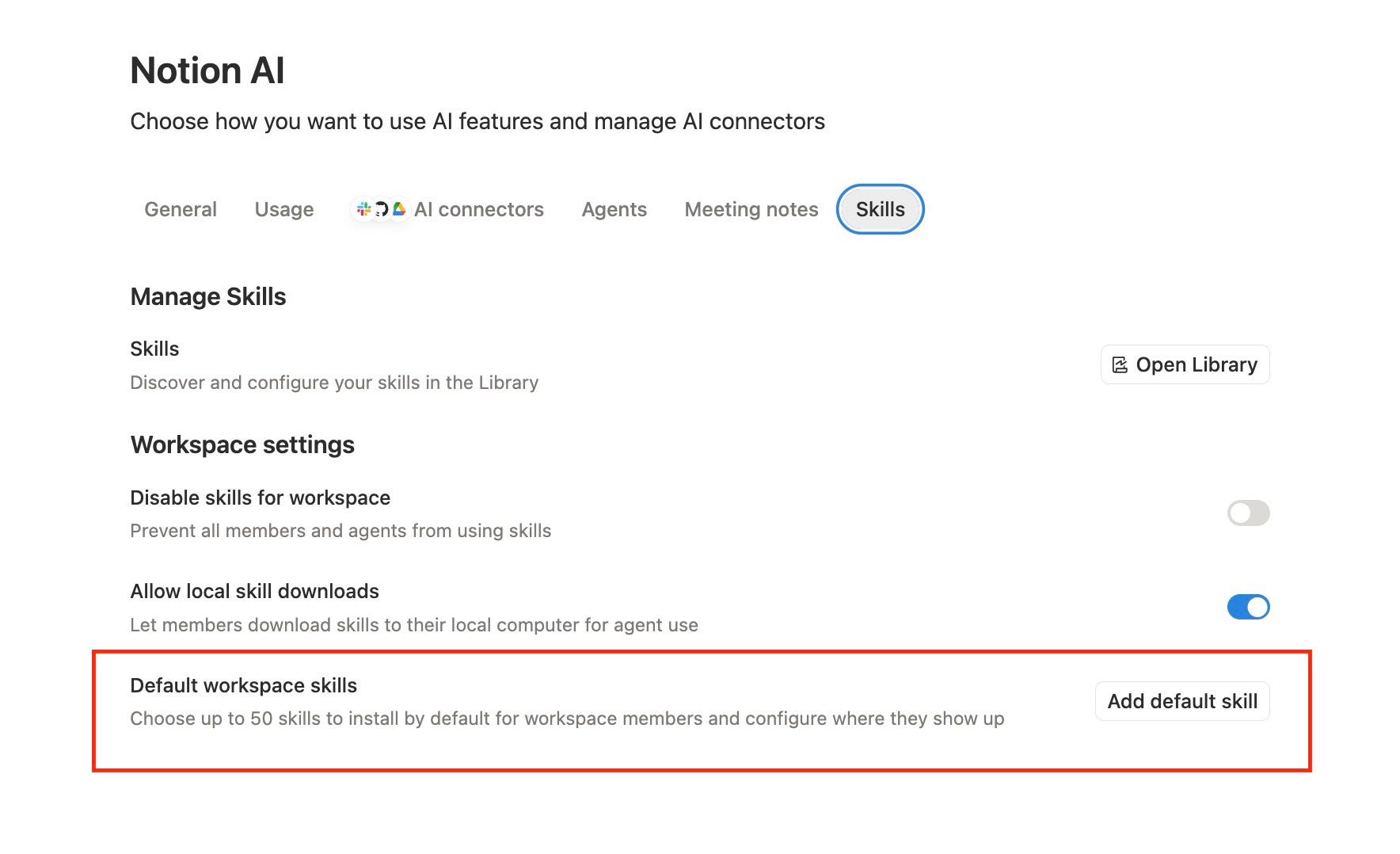
The setup worth copying: write one concise Skill that explains how your workspace actually works. Where tasks live. How meetings are handled. Which databases matter. Register it as a default Skill, turn on automatic use, and give it a description like “use this whenever the user asks anything about the workspace.”
That single move lifts the floor on every AI interaction in the company, because most people never set personal instructions at all.
One warning. Keep the default Skill short. It loads into conversations the same way personal instructions do, so a bloated default degrades every conversation in the workspace, not only yours.
Part 5: The 3 levels of Notion AI Skill writing
Not all Skills are equal. There are really only three places you can be, and knowing which one you’re in tells you exactly what to fix.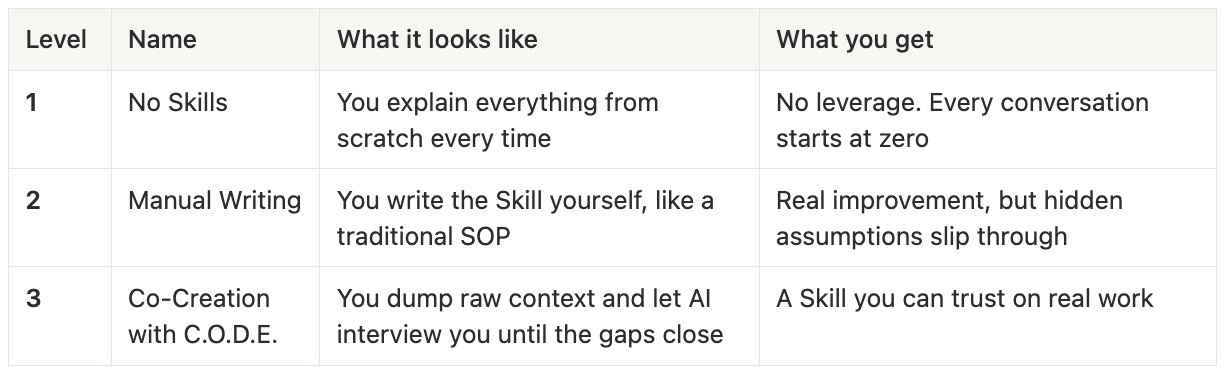
Level 1: No Skills
This is where everyone starts, and most people never leave.
You open a chat, describe what you want, get something usable, and close the tab. Tomorrow you describe it again, slightly differently, and get a slightly different result. The work isn’t bad. It just never accumulates.
The tell is that your output quality tracks your energy. On a sharp morning you write a careful prompt and get something good. On a tired afternoon you write three lines and get something generic, then decide AI isn’t that useful after all.
Nothing you learn at this level is retained anywhere except your own memory.
Level 2: Manual Writing
You sit down and write the Skill yourself. Purpose, steps, output format, maybe an example. It reads like an SOP because that’s essentially what it is.
This is honest work and it beats Level 1 comfortably. You now have something reusable, shareable, and improvable. If you only ever reach this level you’ll still be ahead of almost everyone.
But there’s a ceiling, and it’s a strange one. You’re limited by your awareness of your own expertise. The things you do automatically are exactly the things you forget to write down, because they don’t feel like decisions. They feel like breathing.
I’ve watched this happen in my own Skills repeatedly. I write what I think is a complete process, run it, and the output is subtly wrong in a way I can’t immediately explain. Then I realise there were three judgement calls sitting in the middle of the work that I’d never once articulated, to anyone, including myself.
A Skill written manually captures what you know you know. It misses what you know without knowing you know it, and that second category is usually where the quality lives.
The detour that wastes the most time
Before the third level, a warning about the shortcut people try instead.
The shortcut is skipping your own thinking entirely. You download a Skill template from the internet, or you type “write me a marketing skill” and accept whatever comes back.
It’s tempting because it’s fast and the result looks convincing. You have a Skill page. The formatting is clean. The headings are sensible. And the output is mediocre in a way that’s hard to diagnose, because nothing about the page looks wrong.
This is where most people quit and conclude Skills don’t work. They do work. You just handed over the one part nobody else can do for you.
A Skill is about your process. A downloaded template has none of your context, your edge cases, or your definition of good. “Write me a marketing skill” gives AI nothing to work from, so it produces something plausible and empty.
Use templates for structure. Never for content.
Level 3: Co-Creation with C.O.D.E.
The fix isn’t writing harder. It’s changing who asks the questions.
At Level 3 you stop writing the Skill alone. You dump everything you have, messy and unfiltered, and let AI interrogate you until the gaps close. Then you make it do the actual task on real input before anyone writes a Skill page, and you correct the result until it matches what you would have produced yourself.
That loop is C.O.D.E., and Part 6 walks through it step by step.
Capture, Organize, Draft, Evaluate.
The difference isn’t marginal. Manual writing gives you a Skill that needs correcting every run. Co-creation gives you one you can hand to someone else.
Two reasons it works.
-
The interview surfaces the assumptions you’d never have thought to write down, because AI has no context and therefore no shame about asking obvious questions.
-
And running the task before writing the page means your Skill is documenting a process that already produced a good result, rather than describing one you hope will.
Once you’re at Level 3 consistently, the remaining gains are structural rather than about knowledge. Keep the main page lean, push the fine detail onto reference pages, put your most important rules near the top and the bottom where attention is highest, build a self-check into the end, and revisit the Skill occasionally so it doesn’t quietly bloat.
Those refinements matter, but they’re polish. Get to Level 3 first. The gap between manual writing and co-creation is the entire game.
Part 6: C.O.D.E. - how to actually write a Skill
This is the method I use, and it’s what Level 3 co-creation actually looks like in practice.
Most AI prompts fail because the person asking knows more than they put in writing. You know the edge cases, what good looks like, and the judgement calls behind the work. AI can’t use context that stays in your head.
C.O.D.E. gets it out.
-
Capture what you know.
-
Organize the process and expose the gaps.
-
Draft the work.
-
Evaluate until it meets your standard.
Use it for repeatable work where quality matters: newsletters, client reviews, content plans, feedback analysis, operations.
1. Capture
Get the process out of your head. Don’t make it neat yet.
Collect everything behind how you do the work:
-
Strong and weak examples, plus what made the difference
-
Existing SOPs, checklists, meeting notes, voice notes, drafts, templates
-
Constraints, tools, inputs, outputs, decision rules, and the exceptions you handle without thinking
Explain the task the way you would to a capable teammate over lunch. Dictation helps here, because you naturally add nuance you’d never type.
Don’t filter. The messier the dump, the more hidden context you surface.
Prompt:
I’m turning this process into an AI skill.

Here is how I do it, including examples, rules, and exceptions.

Help me capture the full process before we structure it.
You should end with a raw process bank containing examples, rules, and exceptions.
2. Organize
Now ask AI to structure the raw material and point out what’s missing.
This is where the real value appears. AI is very good at spotting gaps and contradictions. It will notice that your old SOP says one thing and your brain dump says another. It will ask about edge cases you forgot existed.
Group everything into inputs, steps, standards, decision points, and outputs. Then answer the questions that matter:
-
What does a good result look like?
-
What must never happen?
-
Which choices depend on context?
-
What should AI do when information is missing?
-
Which examples set the standard?
Don’t rush. For a simple Skill this takes five minutes. For a complex reporting workflow it can take hours, and the investment pays back every single run.
Prompt:
Organize this process into a draft workflow.

Identify unclear steps, missing context, conflicting rules, and decisions that still need my judgment.

Ask the highest-value questions first.
You should end with a structured workflow, open questions, and your answers.
3. Draft
Here’s the step people get wrong.
Don’t ask AI to write the Skill page yet.
Ask it to do the task.
Use a real input, not a toy example. With all the context from the first two steps, AI now has far more to work with than a cold start. This first execution is your test run, and it will show you whether the instructions hold up on actual work.
Prompt:
Using the workflow we built, complete this task.

Follow the stated standards and show any assumptions you had to make.
That last clause matters. Making AI state its assumptions turns invisible guesses into a checklist you can correct.
You should end with a real output and specific feedback on it.
4. Evaluate
The first draft will land somewhere around 70 to 90% right, depending on complexity and how thorough you were.
Don’t stop there. Compare it against what you would have produced, then give specific feedback:
-
Are the facts, logic, and details right?
-
Did AI make sound calls where the workflow left room to choose?
-
Does the voice and format feel ready to use?
-
Did it cover the required steps and edge cases?
Feed the corrections back and run it again. Each loop turns a vague preference into a reusable rule. Each loop gets faster.
Keep going until you look at the output and think: yes, that’s what I would have produced.
Prompt:
Compare this draft with my feedback.

Update the workflow rules to prevent these mistakes, then produce a revised version.

Keep only instructions that improve the result.
Only then do you turn the proven workflow into a concise Skill page.
One honest caveat
C.O.D.E. works best when you already know what good looks like, because you’ve done the task before.
If you’re building a Skill for something entirely new, like an AI morning briefing you’ve never had, you still use the same loop. You just start lower.
Instead of 80% after the first cycle, expect 20 to 30%.
That’s fine. You’re learning the task and teaching it at the same time, and the loop is how you discover what you actually want.
The investment phase is real
For a while, building Skills takes more time than just doing the work.
That’s the cost of building leverage.
Break-even comes faster than you expect on anything you repeat weekly, and after that the returns compound.
A good Skill doesn’t save time once. It saves time every run, for every person who uses it.
When is a Skill finished?
Use this standard: a Skill is ready when it produces a usable result on three different real inputs without you rewriting the instructions.
It should contain:
-
A purpose and clear use case
-
Required inputs and where to find them
-
The workflow, including decision rules
-
Quality standards and common failure modes
-
A clear output format
-
One or two strong examples where useful
Keep it lean. Include what improves the result. Cut background detail that doesn’t change the work.
Part 7: A real example, the Analyze Class Evaluations skill
Abstract advice only goes so far.
Here’s a Skill I built end to end, and what it taught me.
The problem
I run workshops, and every workshop produces evaluation data. Rating scales, free-text comments, sometimes a PDF summary from the client, sometimes a spreadsheet export, sometimes both with different question wording.
The raw report tells you almost nothing useful. An average score with no denominator, no response rate, and no connection to what people actually wrote isn’t evidence. It’s a number.
What I wanted was a decision-ready analysis: clean data, anonymised respondents, correct scoring, quantitative and qualitative evidence connected to each other, and a prioritised action list.
Doing that manually took hours. It was also inconsistent, because I made different judgement calls each time.
Perfect Skill candidate: recognisable trigger, known inputs, defined process, standard output.
How I built it with C.O.D.E.
For Capture, I gave AI a real evaluation set, 19 responses across mixed formats, plus my notes on what I usually look for and what I ignore.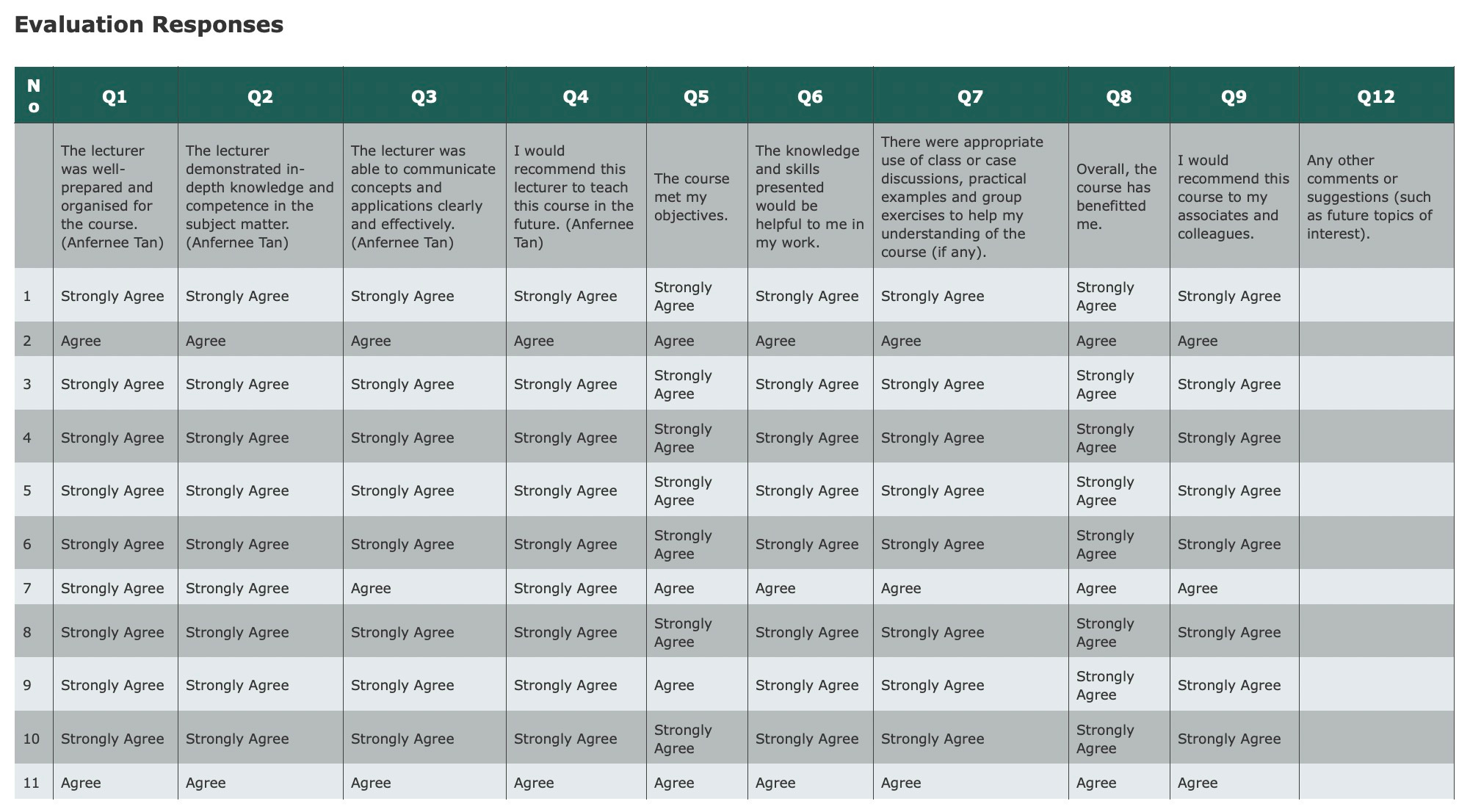
Organize surfaced things I’d never written down.
-
What counts as a valid partial response?
-
How should blanks, “not applicable”, and genuine zeros be treated differently?
-
When is a duplicate really a duplicate?
-
Should negatively worded items be reverse-scored, and how do I document that?
-
What do I do when two files use different scales?
One question changed the whole output. AI asked what scale the mean should be calculated on. I’d been sloppy about this before. Locking it to a five-point Likert scale changed the final numbers and gave me a defensible 4.74 out of 5 overall mean instead of a figure I couldn’t fully explain.
That’s what the Organize step is for. A single clarified assumption can be worth more than 500 words of instruction.
For Draft, AI ran the full analysis on the real evaluation set.
In Evaluate, I corrected the gaps and looped. The privacy rules got stricter. The chart selection rules got more specific. The fallback behaviour for missing enrolment data got defined.
What ended up in the Skill
The finished Skill covers eight stages:
-
Define the unit of analysis. What does one row represent? Which period, which respondent group, which scale? If this is unclear and would change the result, ask before analysing.
-
Extract and inventory. Read every file, build a compact inventory of source, section, record count, fields, scale, and anything unreadable. Never treat headers, examples, or repeated PDF page furniture as responses.
-
Protect privacy. Anonymise by default. Strip names, emails, and IDs. Replace references with neutral IDs like R001. Paraphrase or suppress comments that could identify someone.
-
Clean and reconcile. Preserve the raw source, work on a copy, standardise labels, map equivalent scales, document every reversal, and keep a data-quality log of each decision and its likely effect.
-
Quantitative analysis. Valid and missing counts, response rate where enrolment is known, distribution per option, mean and spread, top-box percentage. No invented benchmarks, no claimed significance without a real test.
-
Qualitative analysis. Code every usable comment, group codes into themes, count comments and distinct respondents per theme, note minority views, select representative anonymised quotes rather than vivid ones.
-
Integrate the evidence. Where do scores and comments agree? Where does a high average hide polarised responses? Where does a low-frequency theme carry high operational risk? Label each interpretation as evidence, inference, or open question.
-
Select visuals deliberately. Horizontal bars for ranked scores, diverging stacked bars for Likert distributions, heatmaps for many questions across few groups. No pie charts with many slices, no truncated axes, no chart that repeats something a sentence says better.
The output is a structured Notion report: overview, executive summary, method and data quality, quantitative findings, qualitative findings, integrated findings, a prioritised recommendation table, and an appendix with the coding framework and quality log.
The three lessons that transfer to any Skill
-
Fallbacks matter more than instructions. The Skill says exactly what to do when enrolment is unknown, when a scale is ambiguous, when files aren’t comparable. Without those rules, AI fills the gap with something confident and wrong.
-
Define your terms. “Clean the data” means nothing. “Separate blanks, not-applicable responses, and genuine zeros” is executable.
-
Build the quality check into the Skill. The final section is a verification list: do totals reconcile, can every number be traced, is every theme supported by coded comments, are limitations visible. AI runs that check before delivering, and it catches real errors.
Part 8: Turning a whole assistant into Skills
The class evaluation Skill was one job. The bigger move was restructuring my entire AI assistant.
My assistant is called NOVA. It had identity, voice, business context, decision frameworks, planning rules, content systems, and a long list of mode instructions, all on one page. It could produce a daily brief, review my week, triage my notes, plan my week, run decision frameworks, and repurpose a newsletter into a full campaign.
All of it lived in the always-on layer. So I audited the page and split it into four categories.
Identity and voice stayed in instructions. Name, role, writing style, formatting preferences, tone, language restrictions. These shape every answer.
Long-term business context stayed too. Who I serve, what I sell, what I believe. This helps AI make better calls without every Skill repeating a brand document.
Routing rules stayed, but short. Enough for AI to recognise a planning problem versus a content task versus an operations task.
Repeatable workflows moved to Skills. The test was simple. If a request starts from a recognisable trigger, uses the same sources, follows a familiar process, and produces a standard result, it’s a Skill.
Six workflows passed that test.
The six Skills
-
Generate Daily Brief. Pulls today’s unfinished tasks, checks the calendar, reviews meaningful work from the last 48 hours, compares priorities against the current weekly focus, and flags relationships that have gone quiet. Outputs six fixed sections and saves the result to a database. The refinement that mattered: defining what counts as a priority, what counts as meaningful recent activity, and what to say when nothing is due.
-
Run Weekly Reflection. Reviews the last seven days, then compares against the previous two weeks. Separates shipped work from maintenance, audits follow-through against last week’s commitments, and finds repeated bottlenecks. Ends with a constrained plan: one weekly outcome, up to three priority bets, two anti-goals, one 24-hour action, one if-then guardrail. The key refinement was defining a “ship.” A draft, a research session, or a reorganised workspace doesn’t count unless something was published, delivered, launched, sent, or made ready for use. That definition protects the review from flattering activity that moved nothing.
-
Digest Mind Dump. Turns 48 hours of captured notes into a digest capped at 800 words, grouped by theme, ending with a maximum of five actions. The word cap is a feature. A digest should help you choose, not become more reading.
-
Plan My Week. Starts with the calendar, asks four questions in one message, then builds the plan around existing commitments rather than against them. Flags days that can’t support deep work. Asks for approval before creating any tasks. That approval gate is deliberate, because planning is cheap to revise and a premature task list turns a rough idea into unwanted commitments.
-
Make Structured Decision. Reads a decision framework library, picks the right tool from thirteen options (ICE, RICE, Eisenhower, OODA, SPADE, RACI, Regret Minimization, Pre-mortem, 10/10/10, Cynefin and others), follows the framework, and shows the working. The refinement: a framework can make a decision look objective while resting on shaky assumptions, so the Skill now asks for the strongest counterargument and the assumption most likely to reverse the call.
-
Repurpose Newsletter. The largest one. Takes one newsletter and produces a full campaign page: source analysis, angles, X posts and threads, LinkedIn posts and visuals, Pinterest pins, image prompts, a CTA bank, keywords, a publishing schedule, remix ideas, SEO variations, audience-segment rewrites, A/B tests, and priority assets. The rules that made it reliable were operational, not creative: read the full source first, adapt rather than copy, give every asset one job, place a regeneration prompt below every visual, and keep the entire pack on one page.
What every one of them gained
Each Skill received the same five upgrades. Copy these.
-
A clear trigger and skip conditions. A vague description fires at the wrong time. Each Skill says exactly when to use it and when not to. The repurposing Skill runs for a full campaign pack. It doesn’t fire for “rewrite this LinkedIn post.”
-
Required inputs. What to collect, what can be inferred, and what to ask for only when it would change the result.
-
An ordered procedure, written like an onboarding guide. AI doesn’t need a lecture. It needs the correct sequence.
-
A fixed output. Consistent headings produce consistent results, which matters when you want to scan and compare briefs or reviews over time.
-
Quality checks and fallbacks. A short self-check at the end, plus explicit instructions for when a source, database, or capability is unavailable.
That last point is where most reusable AI workflows separate from ordinary prompts.
Good prompts tell AI what success looks like.
Better ones also tell it what to do when the real world shows up incomplete.
Part 9: Building a Skills library that stays useful
Individual Skills are helpful. A system of Skills changes how you work. Without organisation, though, your library becomes a graveyard.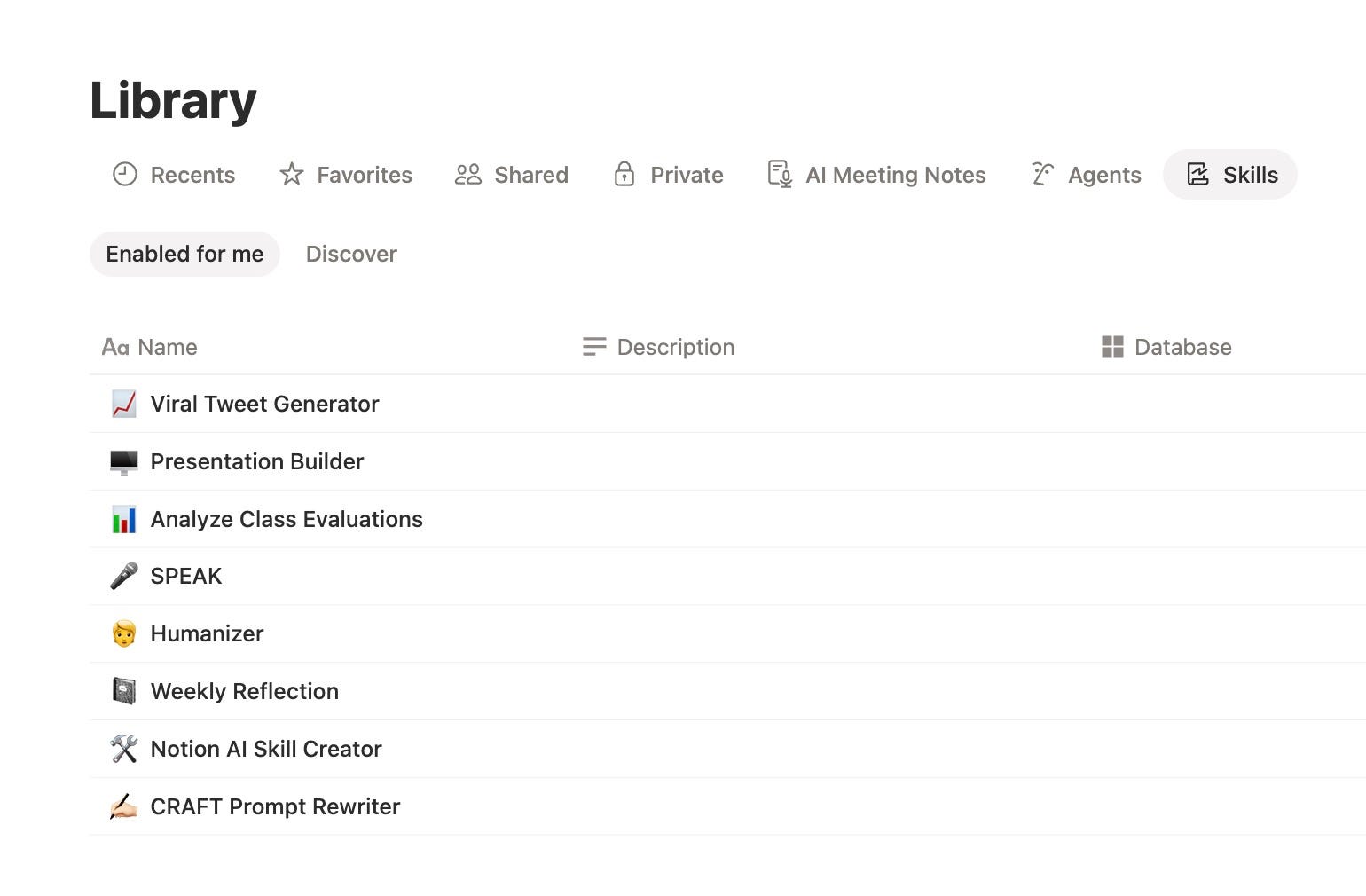
The good news is that the mechanics are trivial. Nothing in this part is hard. The work is deciding what goes where.
Turning a page into a Skill takes about ten seconds
Any page in your workspace can become a skill.
-
Open the page containing your instructions.
-
Click the three dots menu in the top right corner.
-
Select Use with AI.
-
Select Use as AI skill.
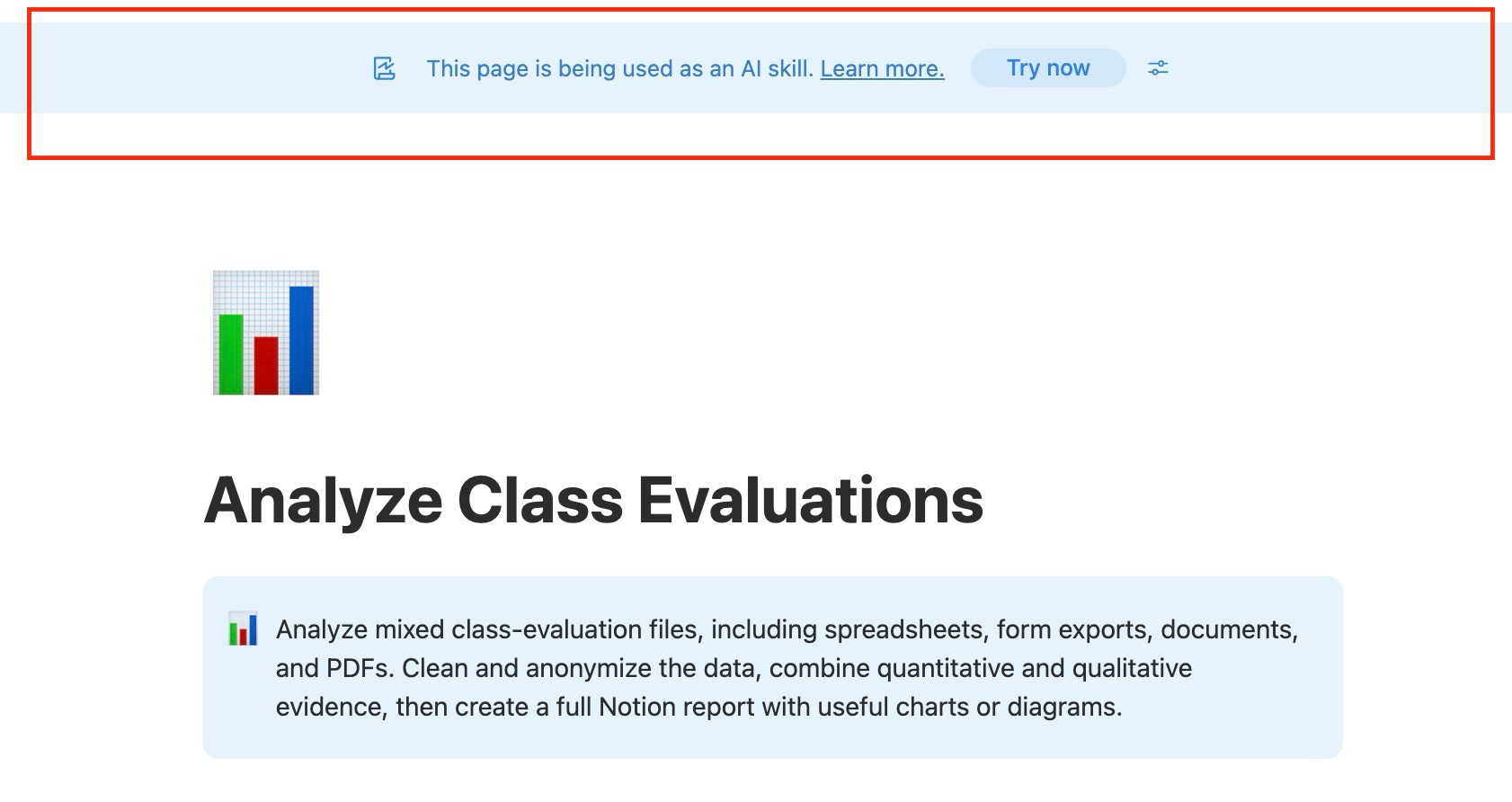
A blue banner appears at the top of the page confirming Notion now recognises it as a skill.
That’s it. No special page type, no setup, no migration. The page you already wrote is the skill.
You can reverse it just as fast. Open the same menu, uncheck the option, and the page goes back to being an ordinary page with all its content intact.
The Skills tab is your central hub
Notion gives you one place to see everything. Go to Settings and Members, open Notion AI, and you’ll find the Skills tab. You can also reach the same list from Library in your sidebar.
Two views matter here.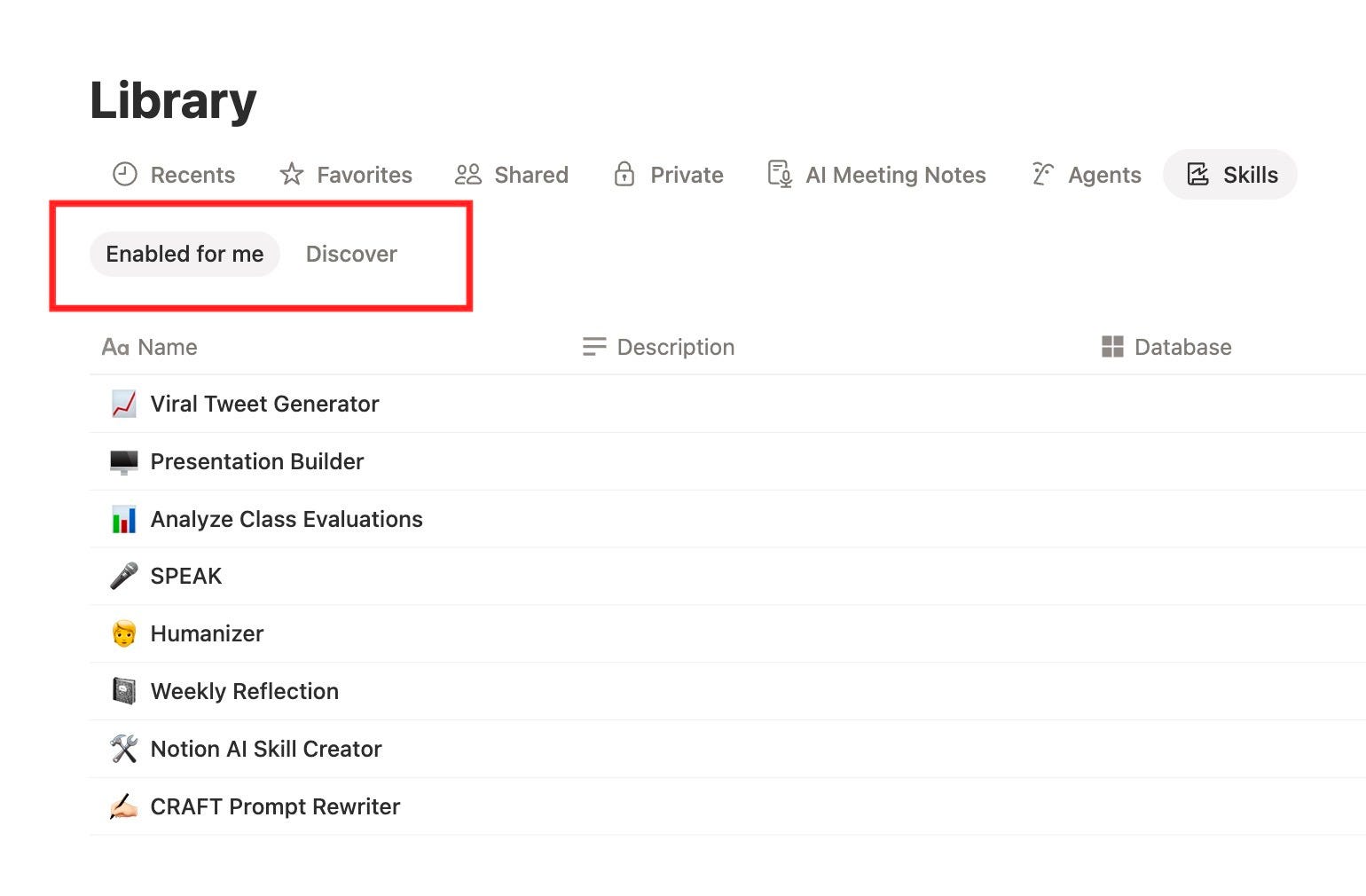
-
Enabled for me shows the skills currently active for you, the ones that appear when you type a slash in chat.
-
Discover shows other skills created in your workspace that you haven’t turned on yet. Find one you want and select Enable for me to add it to your own set.
That split is worth understanding, because having access to a skill and having it switched on are two different things.
Someone can share a skill with you and it still won’t show up in your menu until you enable it. This is also your cleanup tool. If your slash menu feels crowded, toggle skills off here rather than deleting anything.
When you need a Skills database
Everything above works for one person with a handful of skills. A database becomes worth it once other people are involved, or once automatic use matters to you.
The distinction is simple.
-
The Library is where skills are found.
-
A skills database is where they’re managed.
You don’t create the Library and you can’t customise it. You do create the database, and it’s what feeds the Library.
One feature makes this more than a tidiness decision. Automatic use only works for skills that live in a skills database, because that’s where the description is stored, and the description is what Notion Agent reads to decide whether a skill fits your request.
A standalone skill page has nowhere to keep one, so it can only ever run when you call it by name.
Create the skills database
Create a new page, select Database, then choose Skills.
The inline version works the same way: Database - Inline, then Skills.
You can also select the + next to a teamspace name and pick the same option, which is worth doing if your team needs access, because it saves moving the database and redoing permissions later.
If you already have a database full of playbooks or how-tos, convert it instead.
Open the database, select ••• then More settings, then Turn into Skills database.
That adds Description, Files, and Tags properties, and from then on every page created in it becomes a skill automatically.
To bring an existing standalone page in, open it, select ••• then Move to, and choose your skills database.
The page becomes a skill and picks up the skill properties.
The properties that come with it
A skills database behaves like any other Notion database, with two properties already set up.
Description says what the skill does and when to use it. Notion Agent reads it to decide whether the skill fits a request. This is also the reason automatic use only works for skills inside a skills database, because a standalone skill page has nowhere to store one.
Files holds supporting material: examples, reference docs, images, data files, scripts.
Everything else is yours to add. Notion suggests Owner, so one person keeps each skill current, and Status, so people can see which skills are ready to use.
If you want a fuller pipeline, use these:
-
Status: Not Started, In Creation, In Review, Active, Archived
-
Owner: who maintains and certifies it
-
Area: Marketing, Sales, Operations, Content, Admin
Then build a board view grouped by Status to see the pipeline, and a filtered Active view grouped by Owner so people can find vetted skills.
Organise by section, not by chronology
When I cleaned my own library, I deleted nothing.
I just sorted it into four sections:
-
Operational Skills (the six routines I run constantly)
-
General Skills (writing and formatting helpers)
-
Writeups and Drafts (source material for future Skills)
-
References (supporting pages)
The operating layer sits at the top. General helpers stay available without competing for attention. Older material is preserved without cluttering the list.
A Skill library isn’t a folder of prompts. It’s an interface for choosing how AI should help you.
The advanced layer: connecting Skills to processes
Before anything else, follow Notion’s own advice and start with one shared skills database. Add another only when a group needs different access, different owners, or a private space to draft in. What follows is what I run once one database stops being enough, and it’s built entirely from ordinary Notion databases and relations. Nothing here is a special feature. It’s a way of arranging what you already have.
My setup uses three connected databases.
-
Processes is the top layer. Each row is an outcome I care about, like Content Production or Client Onboarding, with a description and a relation to the skills that deliver it. It’s a plain database with a relation property, nothing more.
-
Skills is the native skills database. Each skill relates to the process it serves and, where relevant, to an agent.
-
Agents is a tracking layer, and this is the part people misread. A Custom Agent isn’t a database row. It’s a separate object in Notion with its own instructions, access, and triggers. What you’re building is a record of each agent, which skills it uses, and what it’s responsible for, so the wiring is visible in one place instead of living only inside each agent’s settings.
The link between an agent and a skill is real and supported. Open the Custom Agent, go to Tools and access, and add the skill page.
The agent follows that page when it runs.
The database relation documents that link, it doesn’t create it.
This structure earns its keep in three ways.
-
One skill can serve several processes, so improving it improves all of them.
-
Anyone joining can see which skills belong to which process.
-
And when you adopt something new, like an MCP connection or a Notion Worker running code inside an agent, you track it as another linked database instead of redesigning everything.
Most solopreneurs don’t need this on day one, and plenty never will. Start with one database and grow into it.
The three-skill production pipeline
Once you’re producing Skills regularly, treat Skill creation itself as a Skill.
-
The Skill Creator takes your C.O.D.E. output and turns it into a properly structured page: lean main page, progressive disclosure, important rules at the top and bottom.
-
The Skill Reviewer looks at the result with fresh eyes. It runs a cold-start simulation (could someone with zero context understand this?), a failure-mode analysis (where will this produce bad output, and is that handled?), and structural checks.
-
The Skill Compressor handles drift. Skills accumulate edge cases and get longer over time, so the compressor periodically condenses a Skill back to what matters, or recommends splitting it. Attach it to an agent on a monthly schedule and your library stays lean without you remembering to review it.
When to split a Skill
Reliable signals that a Skill has outgrown its scope:
-
The page exceeds roughly 1,500 words
-
It covers more than one distinct outcome
-
You’re adding “if X do this, if Y do that” branching
-
AI consistently underperforms on the later steps, which suggests the middle context is being lost
When you split, each new Skill should deliver value independently. If Skill B only makes sense after Skill A runs, that’s fine, but B should still produce a clear standalone output.
Part 10: Three principles that make Skills perform
Beyond frameworks and architecture, three habits separate Skills that look good from Skills that deliver.
Show, don’t tell
If you can show AI what good output looks like, it’s remarkably good at working out how to get there.
Include examples. A well-written report section. A before-and-after of a client email. A sample output with notes explaining why it works.
Worth knowing: current research suggests role prompting (”you are an expert marketer”) mostly makes AI more confident, not more capable. Your domain expertise, expressed as concrete examples, matters far more than a persona label.
Explain the why behind every rule
Instead of “never use passive voice,” write “use active voice because it keeps sentences shorter and makes the reader feel addressed directly.”
When AI understands the reasoning, it can apply it to situations the rule never covered. You get better generalisation from fewer instructions. Small change in how you write, disproportionate difference in output.
Treat every Skill as a living document
Your first version won’t be perfect. That’s expected.
Build the feedback loop: use the Skill, notice what’s off, update the page, run it again. Over time it accumulates real learnings, and periodically you compress it back to essentials.
The best Skills aren’t written by the smartest person in the room. They’re the ones that have been through the most iterations.
Part 11: Which Skills should you build first?
Your most valuable Skills will always be the ones built around your own recurring work.
But if you want a starting set that works regardless of role, these five cover a full week and teach you the patterns you’ll reuse everywhere else.
-
Notion AI Skill Creator, the meta-skill. Build this one first, because it makes every other Skill faster to produce. You give it a raw writeup: a brain dump, an old SOP, a transcript, a few examples of good and bad output. It runs the C.O.D.E. loop on your behalf, asks the gap-closing questions, then returns a properly structured Skill page with a purpose line, required inputs, an ordered procedure, an output format, quality checks, and fallbacks. It also enforces the structural rules for you: keep the main page lean, push detail onto reference pages, put the most important rules near the top and the bottom. Without it, every new Skill starts from a blank page and you quietly drift back to manual writing. With it, your Skill quality stops depending on how much energy you have that afternoon.
-
Plan My Day. Your morning entry point. It reads today’s calendar first, then pulls unfinished tasks, checks them against your current weekly focus, and tells you honestly how much real working time you have left after the meetings. The output is short: what today is actually for, the two or three things that must move, what you’re choosing not to do, and the first action to take in the next thirty minutes. The rule that makes it useful is the one that stops it listing everything. A plan that names ten priorities is a to-do list wearing a costume.
-
Review My Week. Your Friday or Sunday counterpart. It reviews the past seven days, then compares against the previous two weeks so you can see patterns instead of a single snapshot. It separates shipped work from maintenance, audits what you committed to last week against what actually happened, and names the bottleneck that keeps reappearing. Define the word “ship” inside this Skill or it will flatter you. A draft, a research session, and a tidied workspace don’t count unless something was published, delivered, sent, or made ready for use. End with a constrained plan for next week: one outcome, two or three bets, two anti-goals, one action in the next 24 hours.
-
Spar Me. The thinking partner. Instead of agreeing with you, it argues. You describe a decision, a positioning idea, a price change, or a piece of strategy, and it interviews you one question at a time until your assumptions are visible, then puts the strongest counterargument on the table and names the single assumption most likely to reverse your call. Two rules make or break it: one question per message, and no advice until the questioning is done. Both stop the Skill from collapsing into a generic pep talk. This is the fastest way to find the hole in an idea before the market finds it for you.
-
Prepare For Meeting. The one that saves the most visible embarrassment. Point it at a calendar event and it gathers the relevant context before you walk in: who is attending, what you discussed last time, which commitments from that conversation are still open, what the related project or client page currently says, and what changed since. The output is a one-page brief with a short recap, open items with status, three questions worth asking, and your desired outcome for the meeting. Give it an explicit fallback for thin context, because “no prior notes found, here is what I would confirm at the start” is far more useful than an invented history.
All five share the same anatomy: a goal, the context to gather, a step-by-step process, and an output standard.
That structure is exactly what this guide teaches, and because a Skill is just text, the same pages work in Claude, Codex, or whichever tool you adopt next.
Build them in that order.
-
The Skill Creator gives you a factory,
-
Plan My Day and Review My Week give you the daily and weekly rhythm,
-
Spar Me improves your decisions, and
-
Prepare For Meeting makes you look like the most organised person in the room.
Part 12: Your first weekend with Notion AI Skills
You don’t need a month. You need one focused weekend.
The plan below takes roughly six working hours spread across two days, and it’s deliberately sequenced to keep you out of the template shortcut.
You’ll finish with one Skill you trust, a cleaner instruction page, and a container ready for everything you build next.
Friday evening, 30 minutes: choose and capture. Pick one task you repeat at least weekly and where you already know what good looks like. Don’t pick your most complex workflow. Then do the Capture step and nothing else. Talk or type the whole process out: how you do it, what a good result looks like, the rules, the exceptions, one strong example and one weak one. Don’t tidy it. Close the laptop.
Saturday morning, 90 minutes: organise and draft. Paste the dump into Notion AI and run the Organize prompt. Answer its questions properly, especially the ones that feel obvious. Then run the Draft step on a real input, not a made-up one, and make AI state its assumptions.
Saturday afternoon, 90 minutes: evaluate twice. Compare the output against what you would have produced and give specific corrections. Feed them back, run again. Do two full loops minimum. Then turn the proven workflow into a Skill page and mark it as a Skill. You now have something real.
Sunday morning, 60 minutes: clean your instructions. Open your Custom Instructions and apply the one-question test to every paragraph. Move anything that’s a procedure into a Skill. Keep identity, voice, business context, and routing. Your instruction page should get noticeably shorter, and that alone will improve every conversation you have this week.
Sunday afternoon, 60 minutes: build the container and test. Create a Skills database with real descriptions, not labels. Add Status and Owner if anyone else will use it. Move your Skill in, disable everything you aren’t actually running, and leave auto-use off for now. Then run your Skill on two more real inputs. If it holds up without you rewriting the instructions, it’s finished.
On Monday, build the Skill Creator from Part 11 as your second Skill. Every Skill after that gets easier, because you’re no longer starting from a blank page.
Common beginner mistakes to avoid
-
[ ] Downloading a Skill template and using it as-is
-
[ ] Asking AI to write a Skill before you have dumped your own context
-
[ ] Writing a Skill for something you only do once
-
[ ] Leaving the description blank or vague
-
[ ] Turning on auto-use for everything
-
[ ] Letting one Skill cover three different outcomes
-
[ ] Duplicating Skill instructions inside an agent configuration
-
[ ] Never revisiting a Skill after the first version
Final thoughts
The shift here is small to describe and large in effect.
Don’t treat AI as something you instruct from scratch every time, but treat it as something you teach once and then run.
Keep identity and judgement in your instructions.
Put repeatable jobs into Skills.
Let your workspace supply the facts.
My own setup now has three layers.
-
NOVA knows how to think and write.
-
Skills tell it how to run a specific process.
-
The workspace gives it real evidence to work with.
The assistant carries less noise, the routines are easier to improve, and the whole thing behaves like an operating system rather than a pile of prompts.
You just need a set of Skill you trust to get things done.
Pick the task you’ve already explained twice.
That’s your first Skill.
FAQs
What is the difference between a Notion AI Skill and a regular prompt?
A prompt is a one-off instruction you type into chat. A Skill is a page holding reusable instructions for a recurring job. You can invoke it from chat or the editor, and if it sits in a Skills database with a clear description, Notion Agent can select it automatically. The difference that matters is persistence and shareability. A Skill works the same way for everyone on your team without anyone retyping anything.
Should something go in Custom Instructions or a Skill?
Ask whether AI should do it every single time. If yes, it belongs in Custom Instructions. If it’s a workflow you want run only when you ask, make it a Skill. Voice, tone, business context, and guardrails stay always-on. Multi-step processes with defined outputs become Skills.
How long should a Notion AI Skill page be?
Aim to keep the main page under roughly 1,500 words. Beyond that, move detail onto reference pages and have the Skill tell AI when to read them. Focused instructions outperform exhaustive ones, because performance degrades when a model juggles too many parallel rules.
Can a Notion AI Skill use my workspace data?
Yes, and the good ones do. A strong Skill names the specific pages, databases, and connected tools to read. It should also define what to do when one of those sources is missing or empty, because that fallback is what keeps output honest instead of invented.
Can Skills work with Custom Agents?
Yes, and they’re designed to. A Skill holds the instructions. An agent executes, on a schedule or a trigger. Keep the instructions in the Skill page and have the agent reference it. Never duplicate them, or the two versions will drift.
Do I need to know how to code?
No. Skills are plain-language instructions on a normal Notion page. If you can explain a process to a colleague, you can write one. C.O.D.E. just helps you extract that knowledge systematically.
Should every prompt become a Skill?
No. Build a Skill only for work you expect to repeat. One-off writing requests and simple questions don’t need permanent instructions, and every unnecessary Skill makes your library harder to search.
How do I get a team to actually use a Skill library?
Three things help most. Keep team Skills in a native Skills database. Give each one a clear description so the agent can match it. Enable only the Skills people genuinely need. Start with two or three high-impact jobs rather than an exhaustive catalogue, and appoint an owner for each.
You’re doing everything. But nothing is moving?
You are doing everything. But nothing is moving.
That is not a motivation problem.
Most solopreneurs are learning from everywhere and getting nowhere. Too much information. No clear system connecting effort to results.
You have everything it takes. You just do not have a clear system yet.
That is what paid subscribers get. Every system, playbook, prompt, and template. All inside the Premium Vault.
You’ll also gain access to this amazing tool I’ve built: Solopreneur OS for Claude: The complete operating system that is built to run your one-person business.
All for $79/year. That’s $6.58/month.
Upgrade now and unlock the Premium Vault worth thousands of dollars.
The Premium Vault holds the secret behind posts like this one, including the tools and resources I use to build the one-person business I love.
Thanks for reading! Ready for the next step?
Let’s crack the growth equation and build a thriving one-person business on your terms!
Anfernee