Meet how to make spreadsheets, with AI:
By Ruben Hassid
Published: 2026-05-24
URL: https://ruben.substack.com/p/how-to-make-perfect-spreadsheets
This guide will be the most easiest + the best way to create spreadsheets (Excel) with AI, with clear step-by-step instructions and screenshots.
How could I possibly know the best way to do it?
Because I tried every single AI to make spreadsheets.
1 - Copilot → absolutely terrible, couldn’t even make a spreadsheet.
2 - Copilot inside Excel → couldn’t make it work, after multiple trials.
3 - Claude → not as good as Claude Cowork.
4 - Claude inside Microsoft Excel → a good option. Not my favorite.
6 - Gemini (app and browser) → not as good as Claude Cowork or ChatGPT.
7 - Gemini inside Google Sheets → I wish, but I don’t have access to it (yet?).
8 - Grok - says “done” but you can’t open the excel file, you can’t even find it.
9 - ChatGPT → yes, but I prefer inside ChatGPT Google Sheets.
10 - ChatGPT inside Google Sheets → not to start, but to edit spreadsheets.
11 - Codex from OpenAI → it’s the best, but I was out of tokens within 2 prompts.
Only one is missing: Claude Cowork. Because it’s the best.
This newsletter is the full playbook of Cowork for Excel. How to set it up. How I use it every single week, deliver consulting work, and researching faster than I ever could alone. Also, where it falls short (I keep promising honesty).
Two things before we start:
- Save this guide and spend 15 minutes this week to explore Cowork.
- Send it to anyone who still hasn’t tried Cowork (or Claude).
This newsletter grows from your shares. I want to help a million people use AI right. Sharing keeps your articles free & helps me stay laser focused on mastering AI for you.
Forget prompts.
Claude is no longer (all) about prompts, because of Cowork.
A quick Claude Cowork reminder for some of you + how to access it:
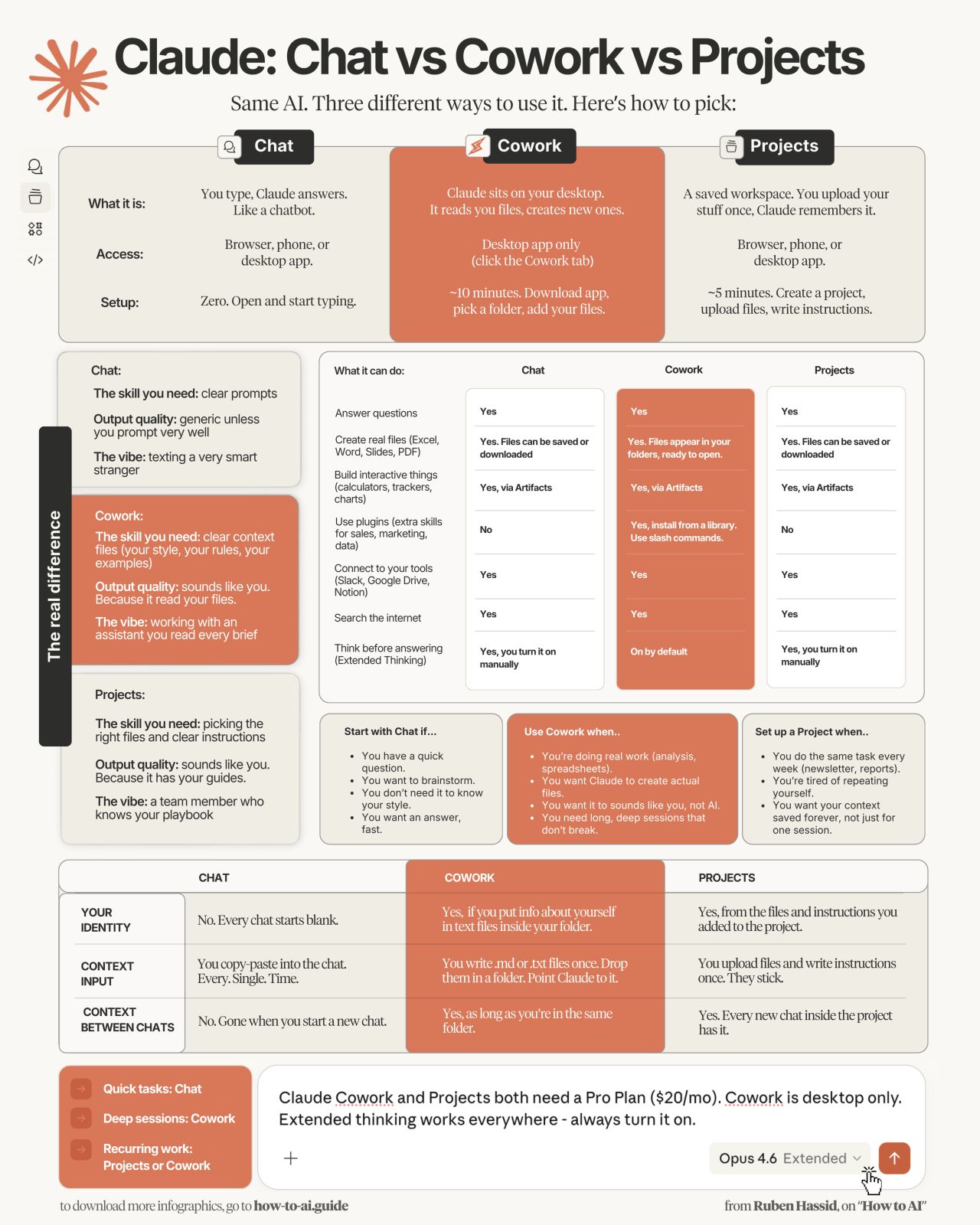 \If you want to use this image, credit me at the top, please.\
- Go to claude.com/download. Download the app.
- You need a Pro account ($20/month). It’s very much worth it.
- Open the app. Click on the Cowork tab at the top between Chat & Code.
- Select a folder from your computer. I wrote a lengthy guide on it here.
- Make sure to always select “Opus 4.7” and “Adaptive thinking”.
Once you are good to go, it’s actually quite simple.
How Cowork generates Excel.
I will explain both with a quick written list, and then with screenshots:
- Go to the Cowork tab. Make sure Google Drive is connected (it will be easier later once we connect Claude to Google Sheets, I personally love it).
- Use this prompt template:
Create an Excel spreadsheet from: [DATA: file path, folder, or pasted data, best is to upload data].

### Purpose:

[Who uses this and what decision/task it supports — 1 sentence.]

### Sheets needed:

- "[Sheet name]": [columns, what each row represents, any calculations or formulas]

- "[Sheet name]": [e.g., summary with totals, pivot, charts — or remove if only one sheet]

### Formatting:

[Currency/date formats, conditional highlighting, frozen header row, totals row — pick what applies.] Before building, list your top 10 assumptions so I can sanity-check them, then execute.
The magic part of the prompt is the “top ten assumptions to sanity check before execution”. I am the one controlling the AI, not the other way around.
Let’s now explain with screenshots from here so you can easily skim it.
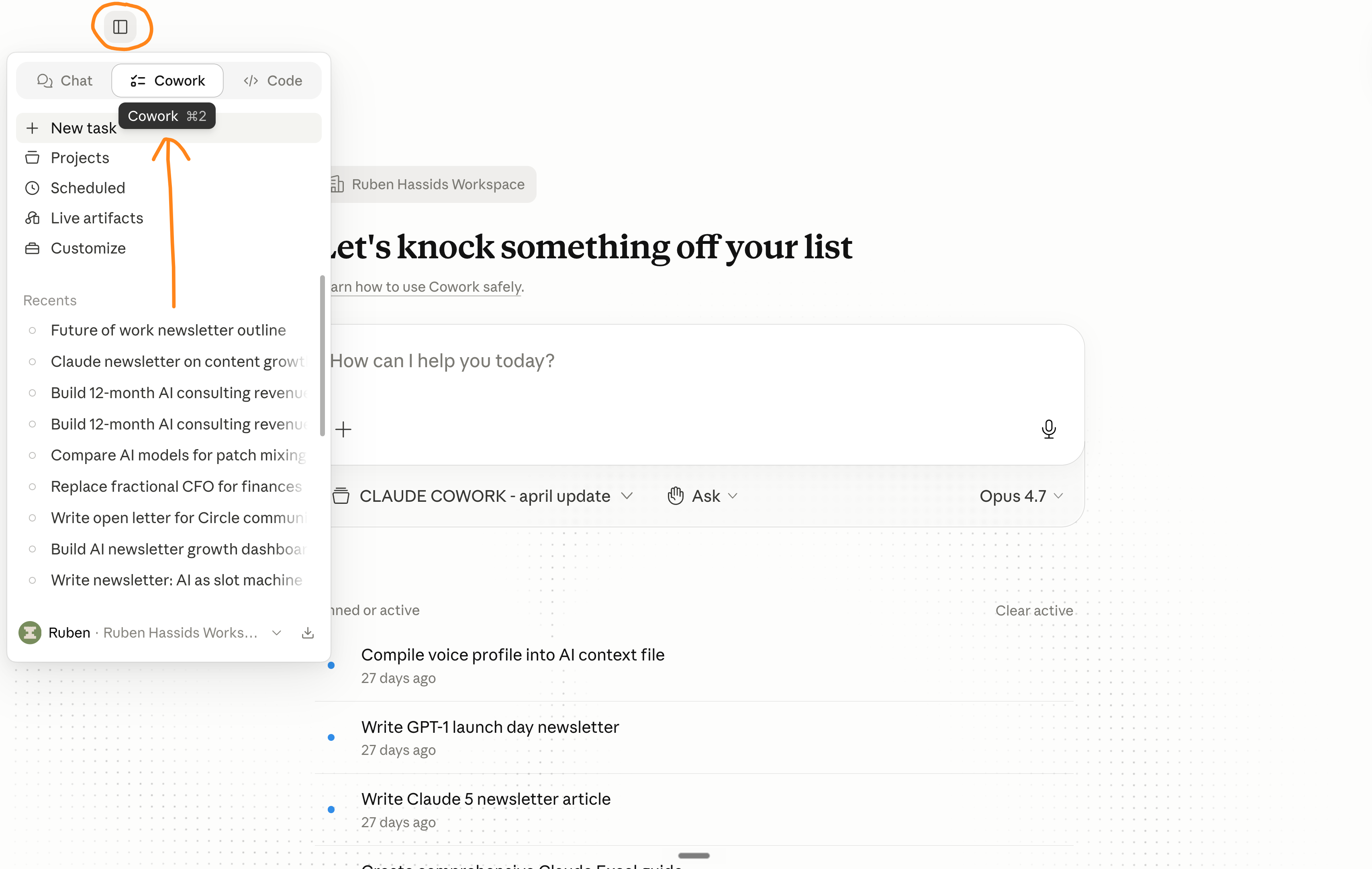 \When you open your Claude app, go to theCoworktab.\
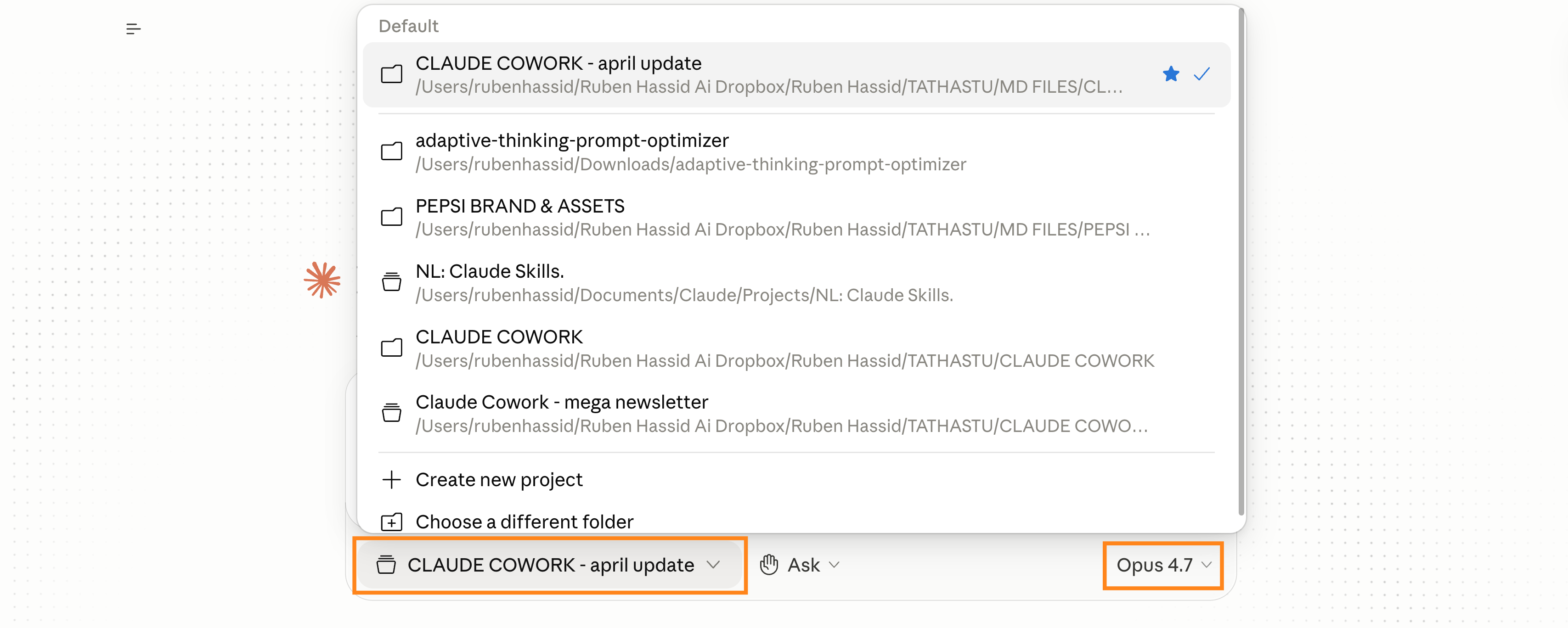 \And I made sure both thefolder& the rightmodelare selected.\
Then I copied the prompt template I shared right before.
Here’s an example here for my own consulting firm:
Create an Excel spreadsheet: 12-month revenue forecast for an AI consulting firm, covering July 2026 – June 2027.

### Purpose:

Board-ready forecast to plan hiring and runway. Used live in board meetings — needs to look polished and let the board pressure-test every assumption. \*\*Business context:\*\*

- 4 service lines with very different economics: (1) workshops, (2) full AI deployments, (3) AI sprints, (4) fractional Chief of AI retainers.

- Audience funnel (today, May 2026): Substack 600k growing +1m/year; social following 1m+ (800k from LinkedIn) growing +500k/year. Model how these feed inbound leads → discovery calls → proposals → won deals.

- Make your own assumptions for deal sizes, win rates, sales cycle length, delivery capacity, COGS, gross margin, and audience-to-lead conversion. Every assumption lives as a labeled, editable input on the Assumptions sheet — never hardcoded inside a downstream formula — so each one can be challenged and the model updates instantly.

### Sheets needed:

- “Assumptions”: all inputs grouped (Service lines, Audience & funnel, Costs, Headcount), with cell notes flagging which numbers are best guesses vs. anchored

- “Funnel”: monthly Substack + socials → leads → calls → proposals → won deals, split by service line

- “Revenue”: 12-month forecast by service line (bookings, recognized revenue, deferred), with monthly + cumulative totals

- “P&L”: revenue, COGS, gross margin, basic OpEx, contribution margin by service line

- “Dashboard”: single-screen summary with KPI tiles (ARR, total bookings, blended margin, headcount needed by quarter) and charts (revenue stack by service line, audience-to-revenue funnel)

- “Scenarios”: Base / Bull / Bear toggle that flexes 3–4 key drivers

### Formatting:

USD currency (no decimals), percentages where relevant, frozen header rows, conditional formatting on margin %, clean palette suitable for board projection, named ranges for the major inputs so formulas read like English. Before building, list your top 10 assumptions so I can sanity-check them, then execute.
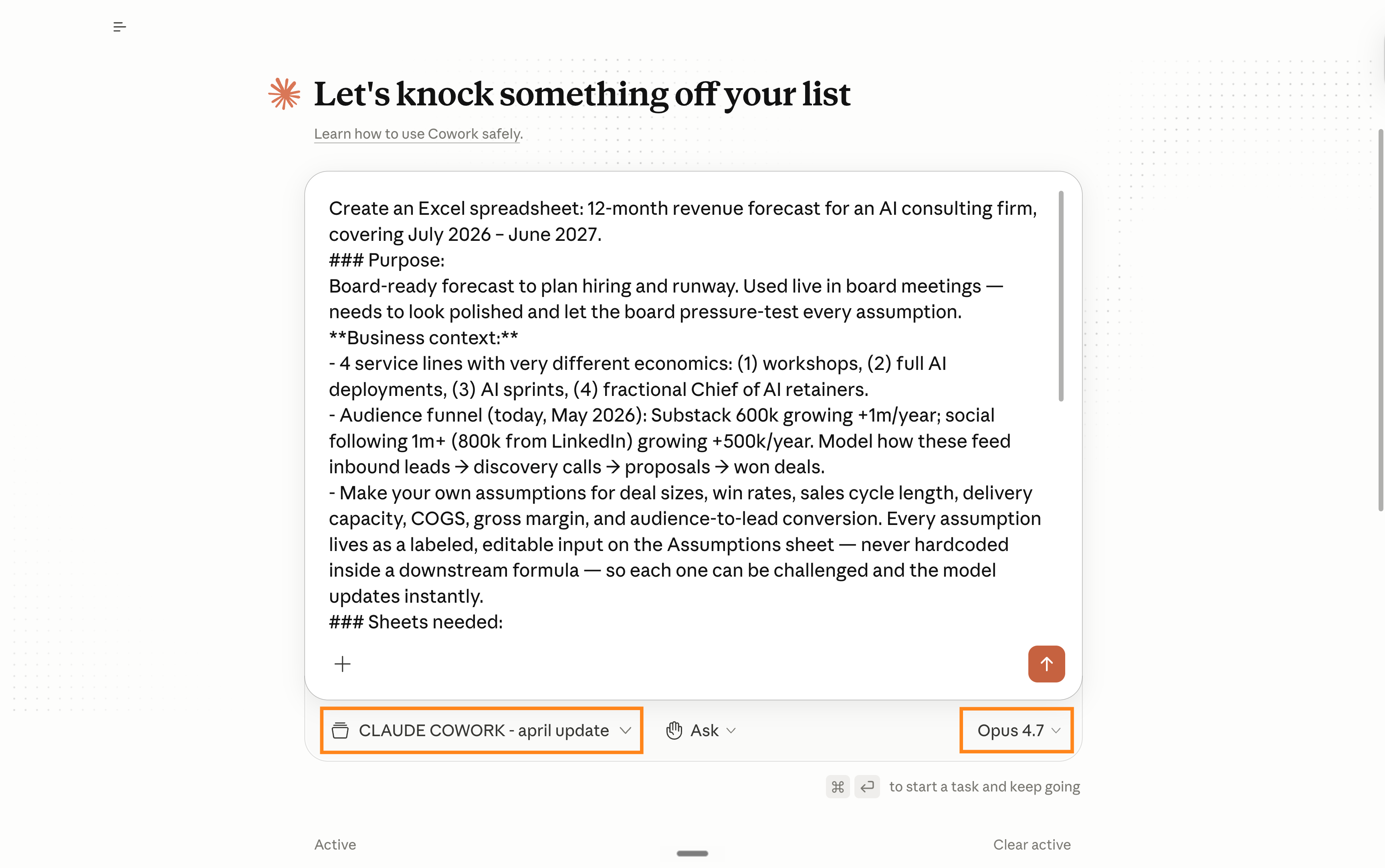 \You’re seeing the prompt copied and pasted, inside Claude Cowork.\
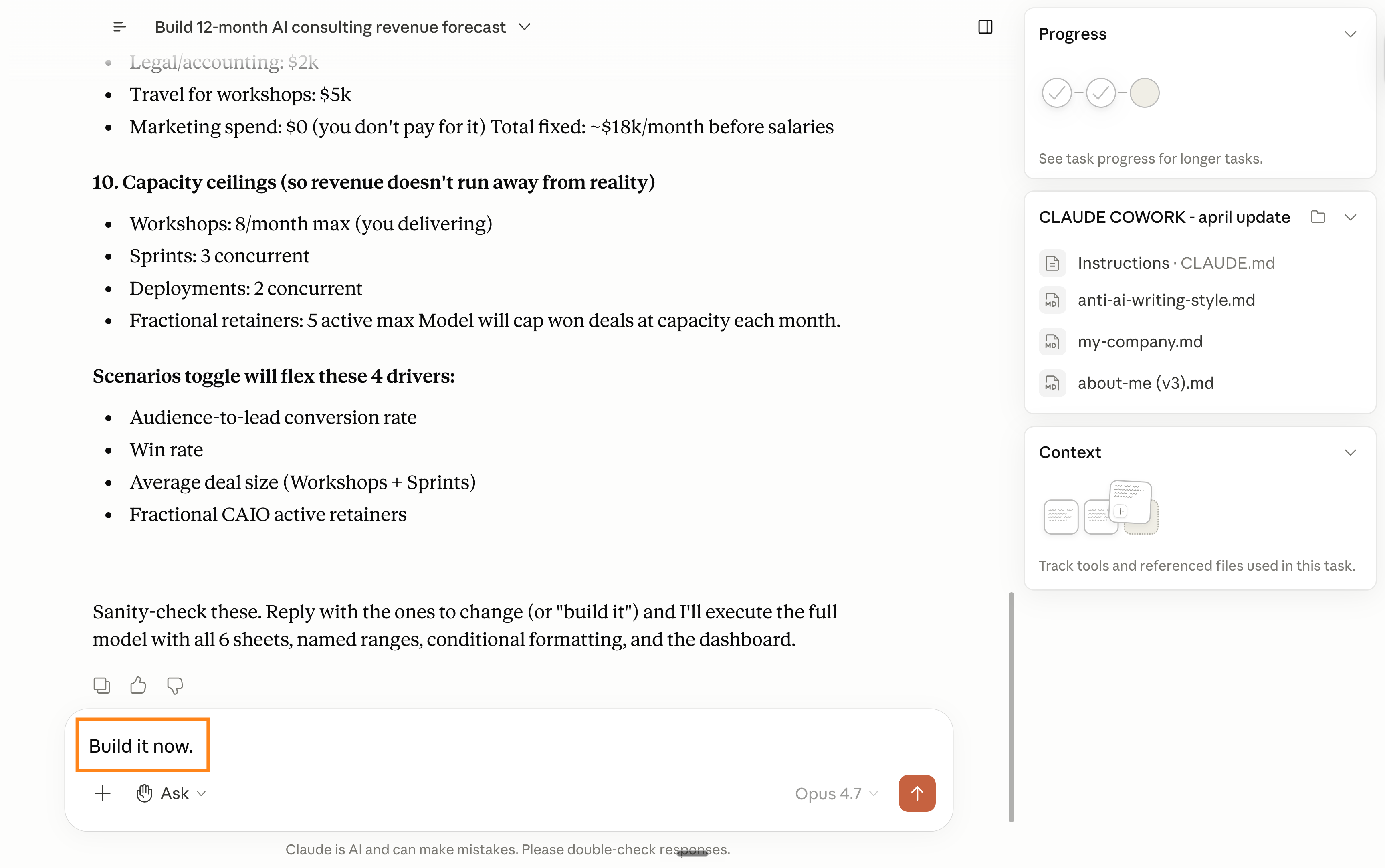 \As suggested in my prompts, I want Cowork to do 10 sanity checks before creating the spreadsheets. Just for the sake of the example here, I just said“build it now,”but you can obviously correct any of the assumptions.\
It then took Claude Cowork quite some time to make the spreadsheets. About 7 minutes, I believe. But if it’s how long it takes to make the best spreadsheets possible with AI, not bad.
Now what’s next? You can continue following me inside Claude Cowork with prompts to modify the entire spreadsheets, or move to Google Sheets.
Why Google Sheets? I just prefer Google Sheets to Microsoft Excel. It’s easier to use & share with others. Just make sure your Claude is connected to your Drive:
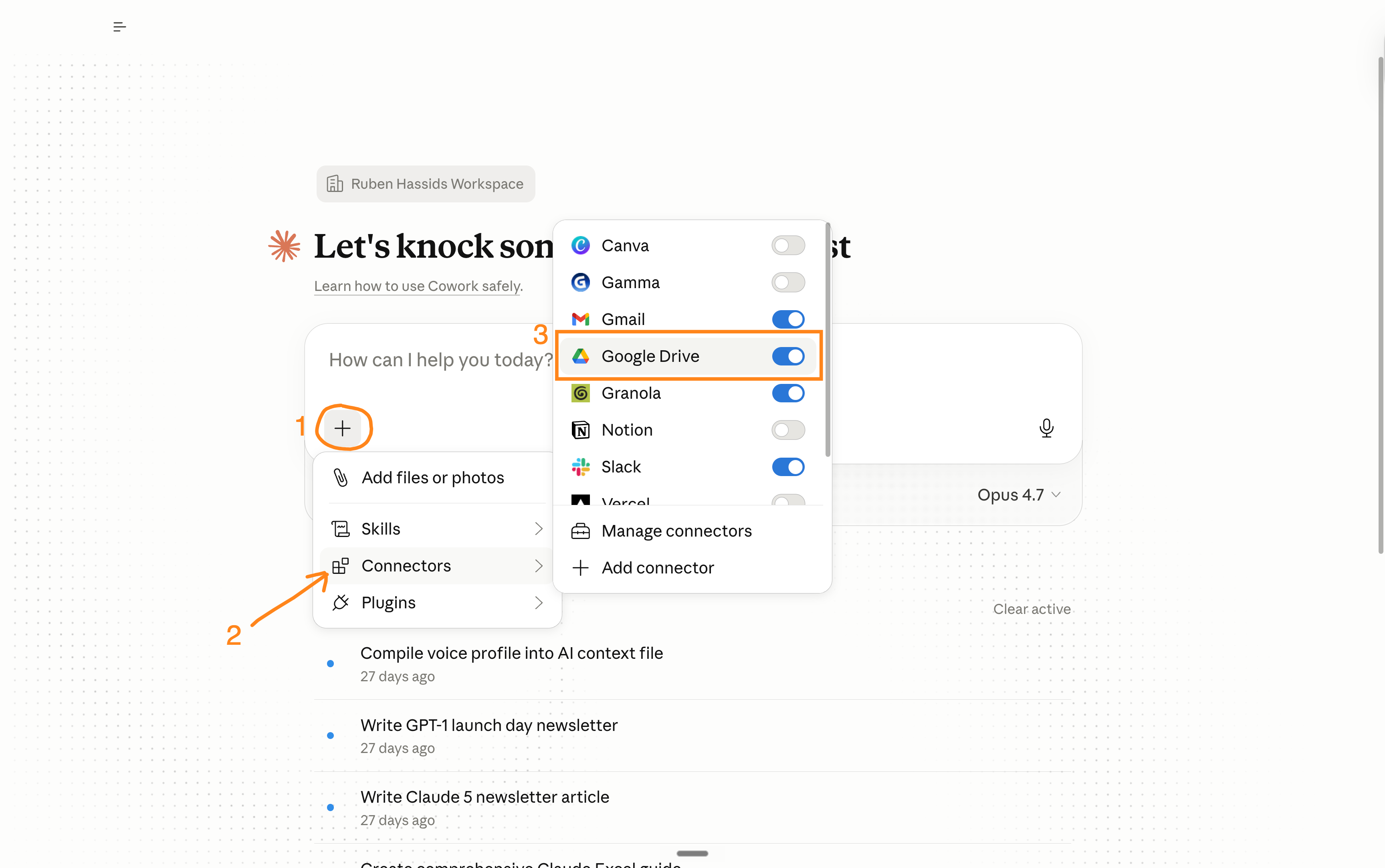 \When you click on the+→ there is “Connectors”. Connect yourGoogle Drive.\
Once your Claude Cowork is connected to your Drive, you can do this:
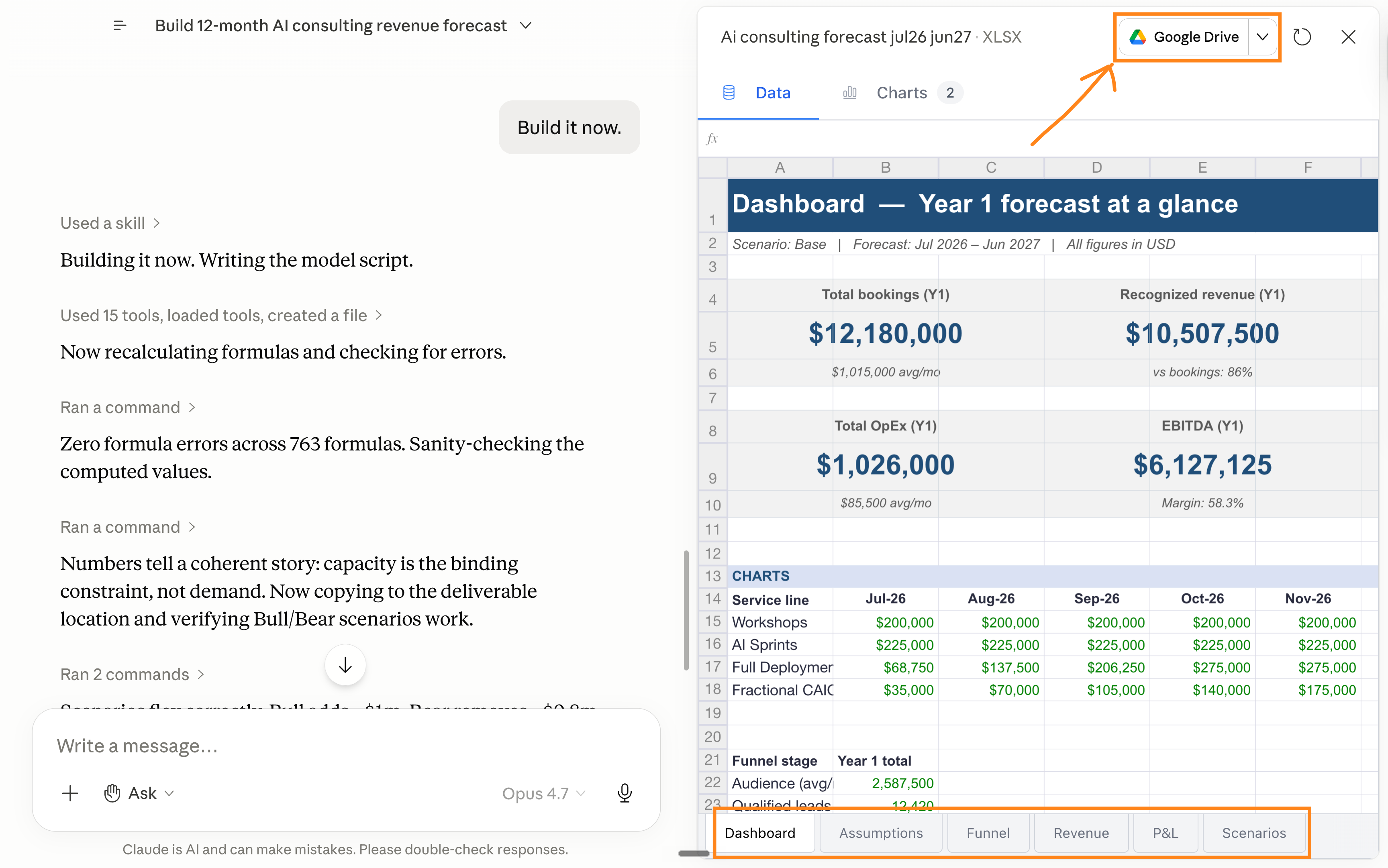 \This is the result of our prompt. 6 tabs. 700+ formulas. Everything works. Then I’d just click on Google Drive.\
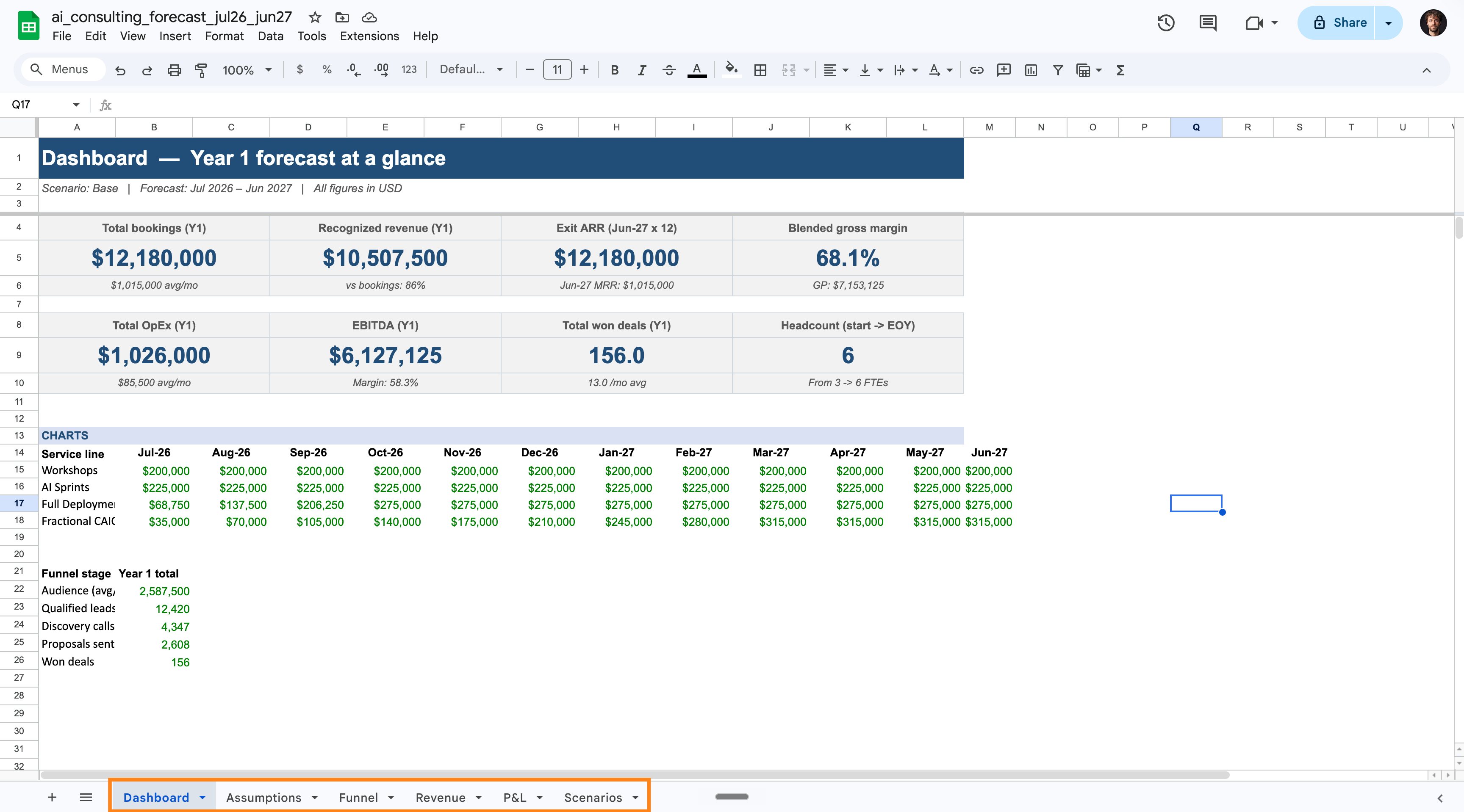 \And that will automatically open a Google Sheets with all of the data. The best way to work, in my opinion.\
I just taught you how to start a spreadsheet from scratch with AI.
Now, let’s quickly discover how to edit one with AI. Surprise, I use ChatGPT!
ChatGPT to edit spreadsheets.
So a quick recap:
- We wanted to create a complex spreadsheet.
- We downloaded Claude, paid for a plan, and went to the Cowork tab.
- We already did our job to set up the folder & select the right 4.7 model.
- And we simply copy & paste the prompt template I shared to make Excel.
- We wrote follow-up prompts and made sure our Google Drive is connected.
- Once we were proud of our spreadsheet, we clicked on “Google Drive”.
- It opened a very solid spreadsheet, right inside Google Sheets (for free).
Technically, you probably know how to use spreadsheets and just want to manually edit from there. I won’t teach you this!
But if you want to edit with AI, there is a new ChatGPT extension in Google Sheets. And I actually love it! It’s very simple to use.
I obviously tested it vs. Claude Cowork. But Cowork is better to start from scratch.
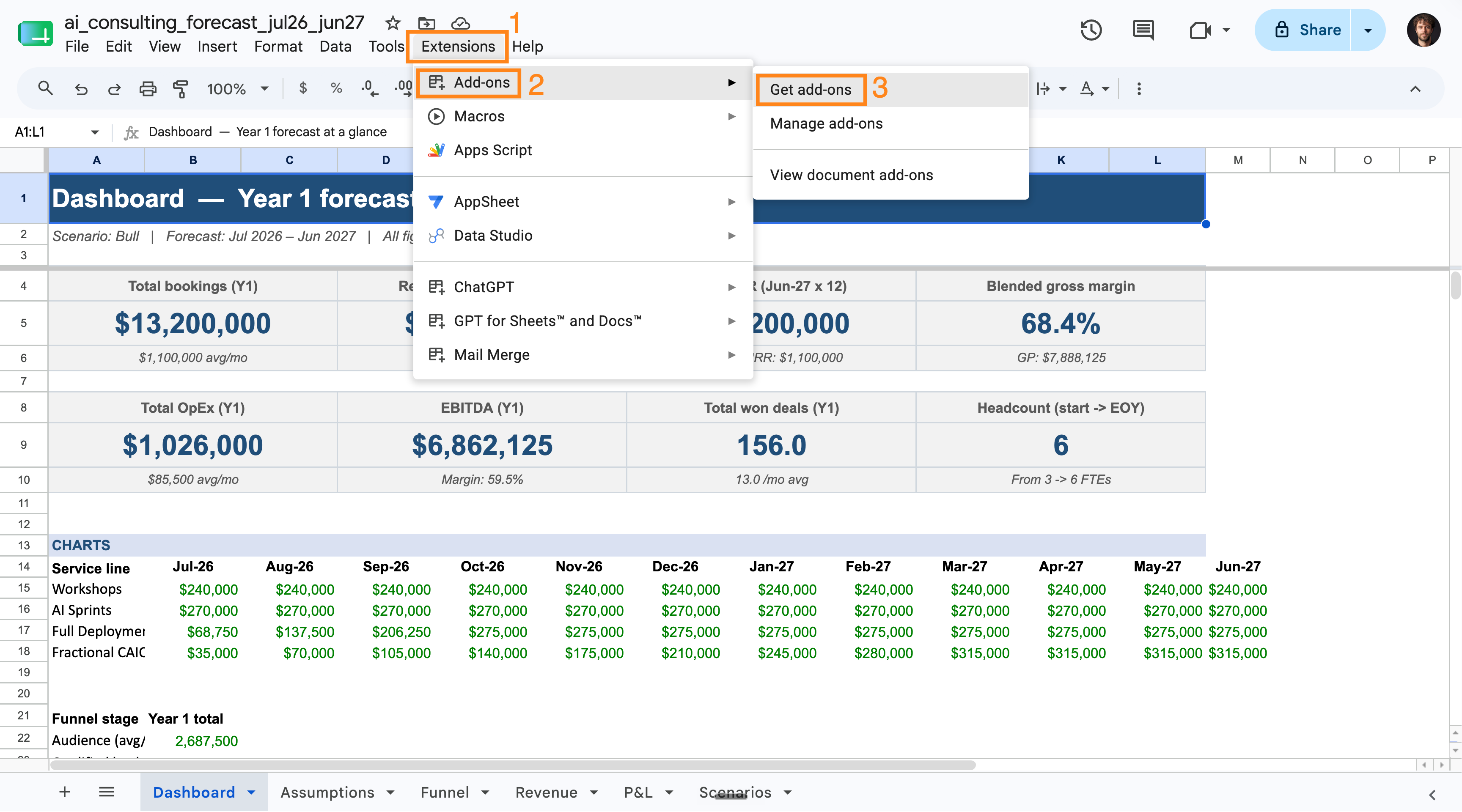 \Step 1: Go toExtensions→Add-ons→Get add-ons.\
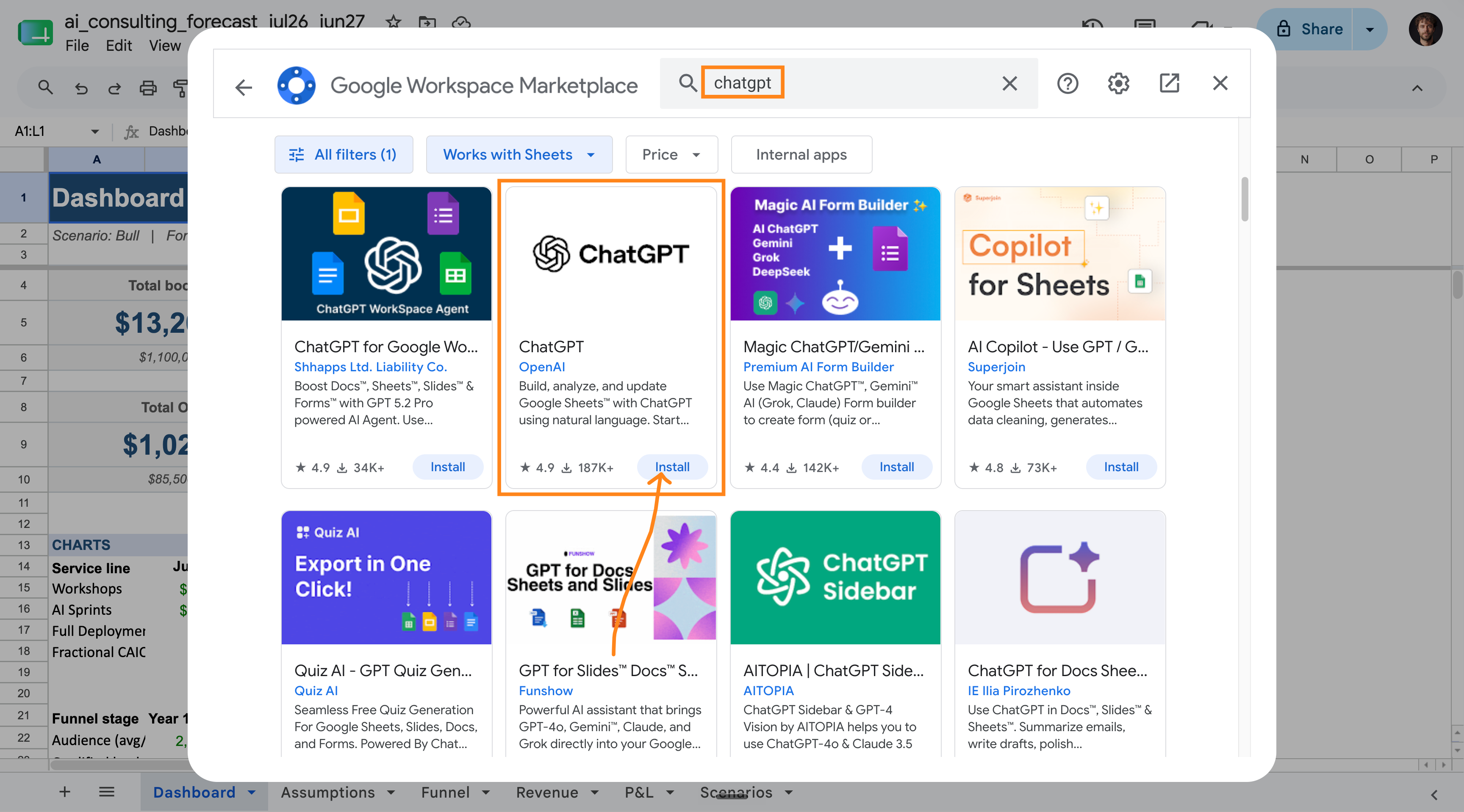 \Step 2: Search for “ChatGPT,” and be very careful to choose the official one fromOpenAI. By the way, it’sfree.\
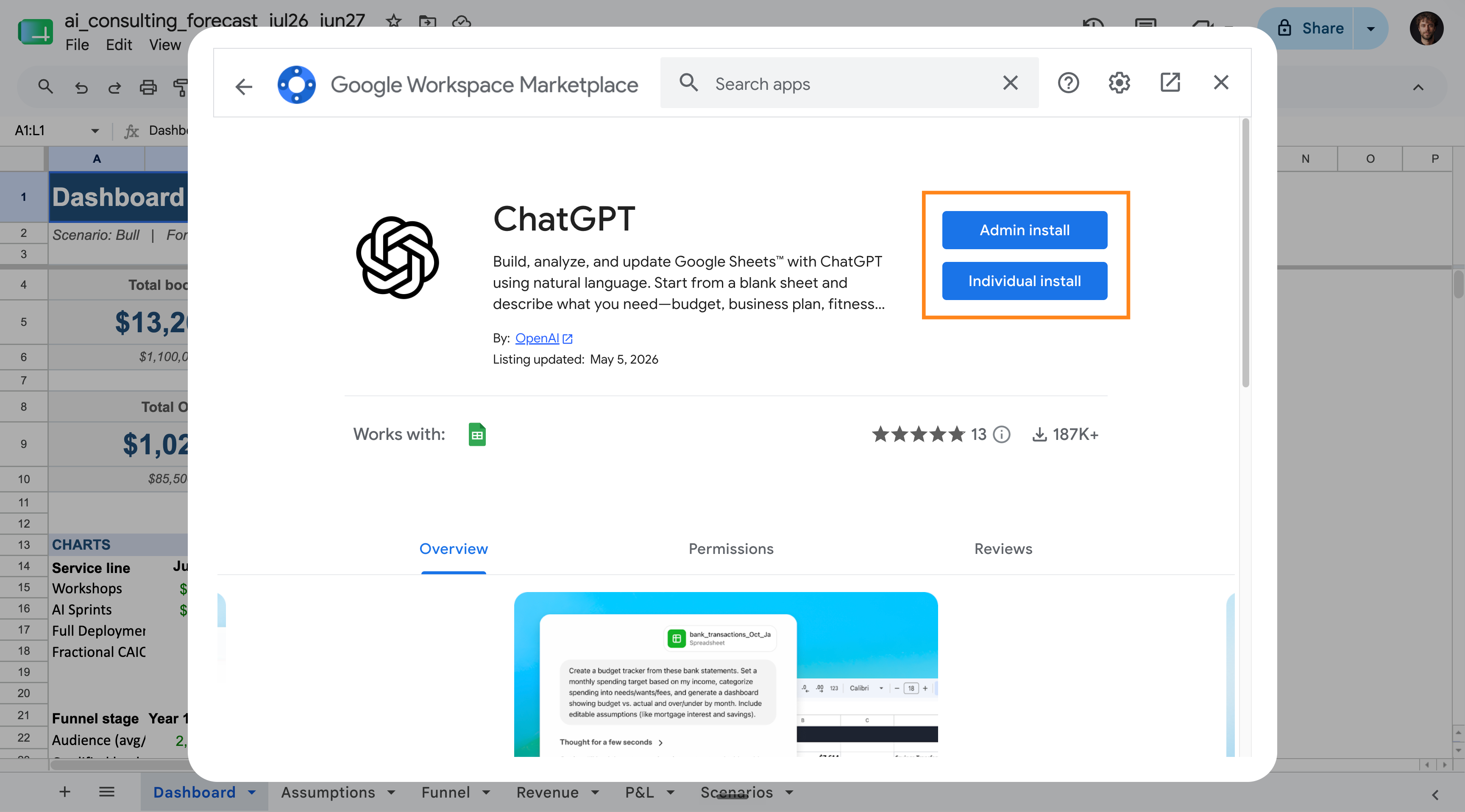 \Step 3: Install it. Any of the 2 works.\
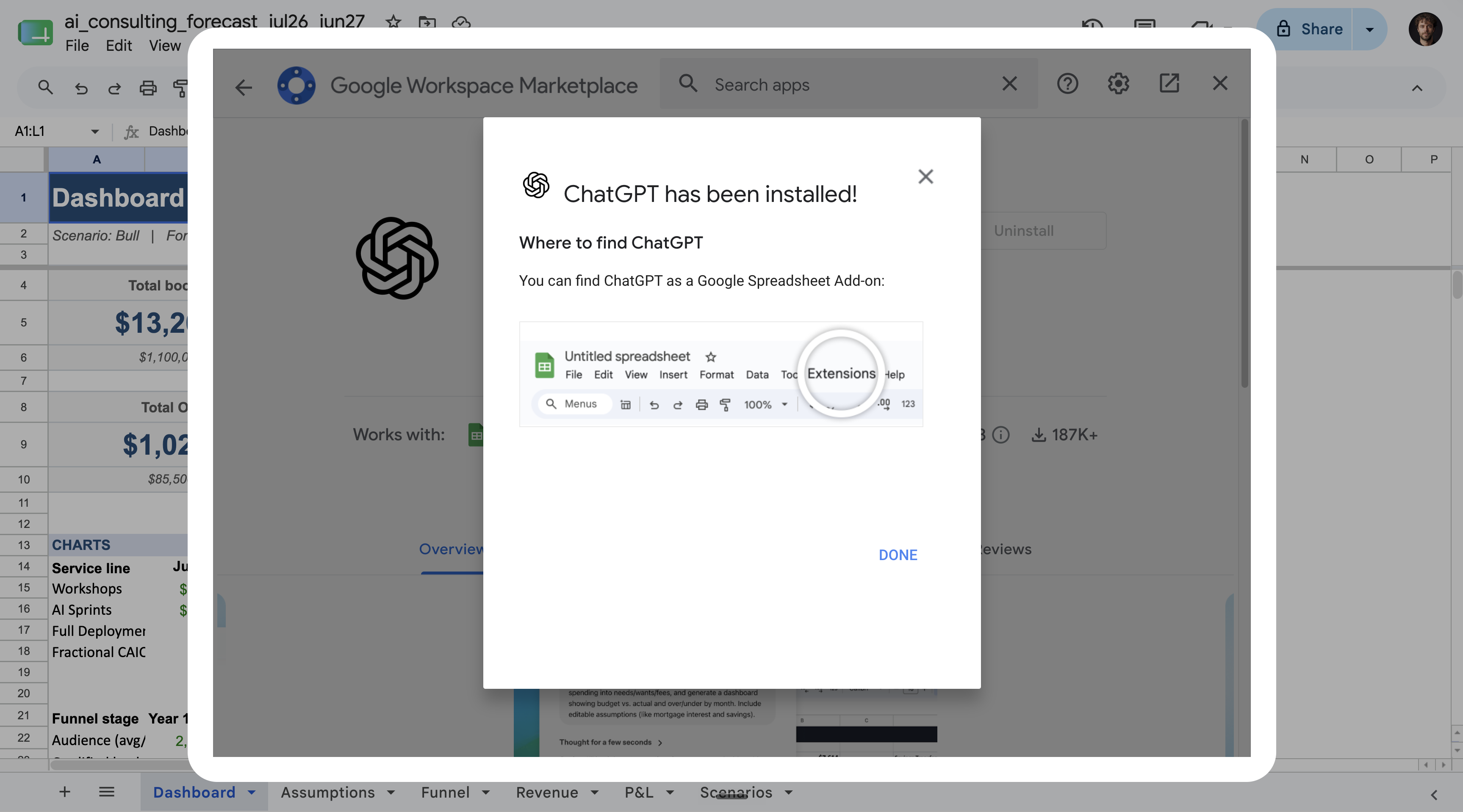 \Step 4: The download is done! You should see this.\
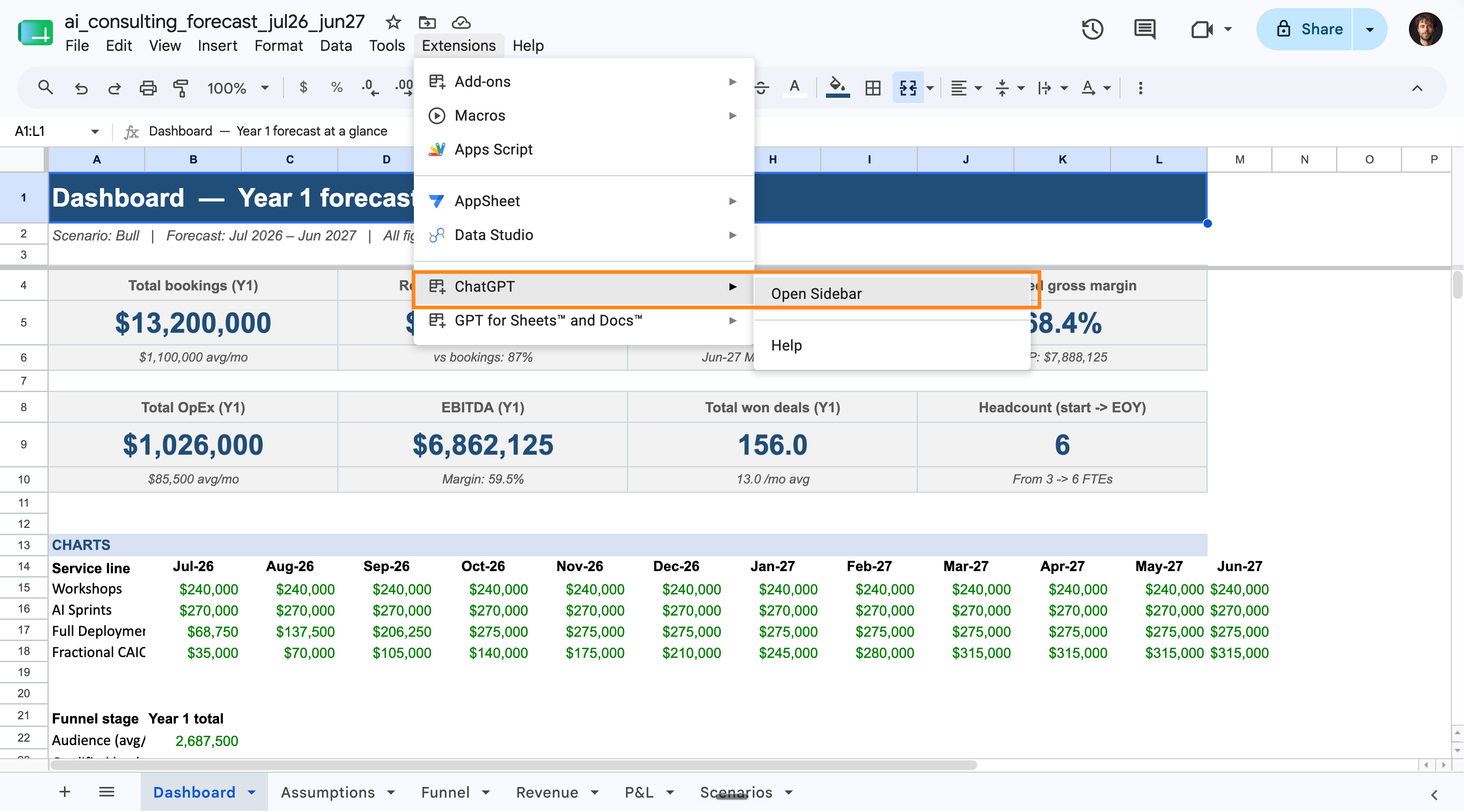 \Step 5:You now seeChatGPTin yourExtensionsmenu.\
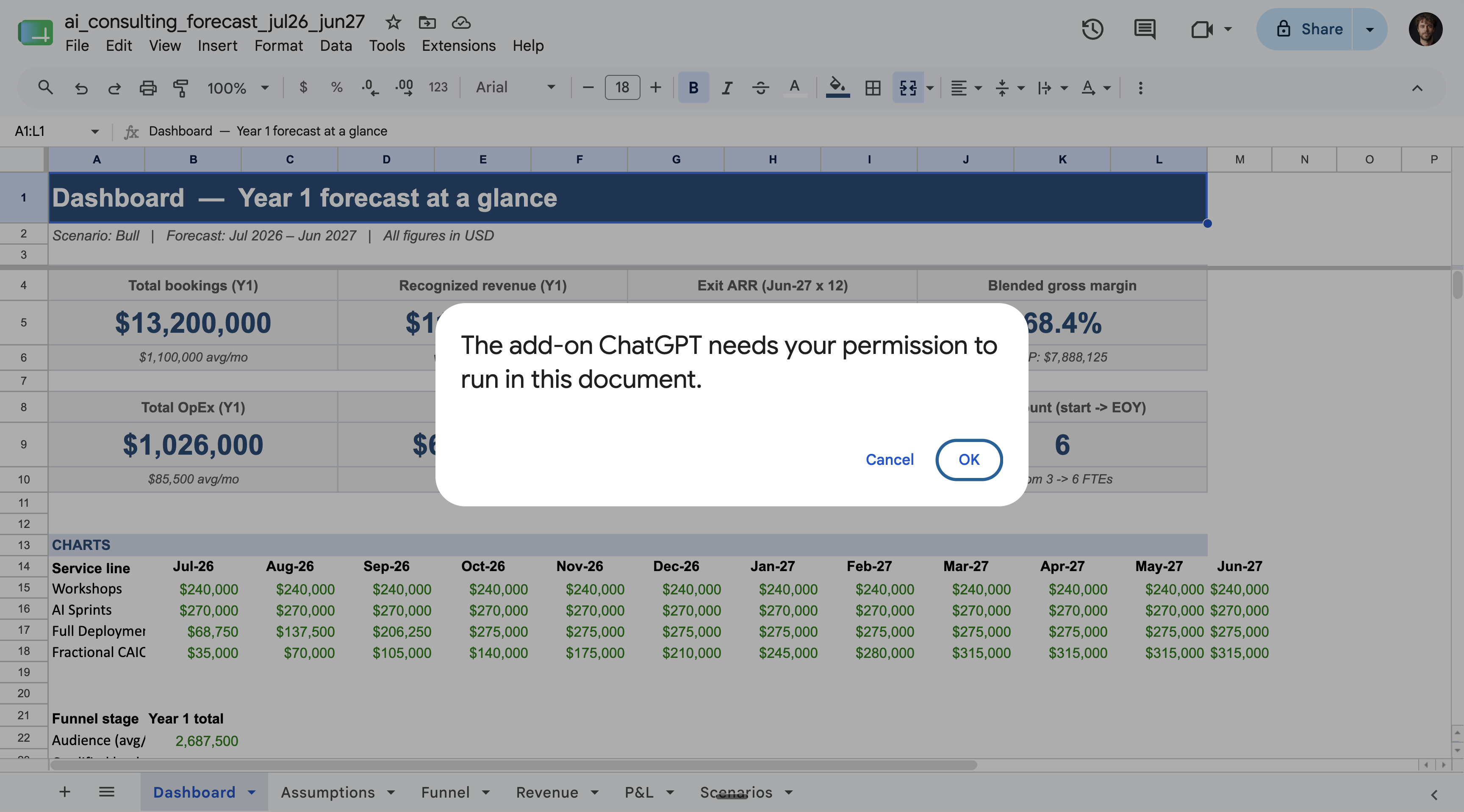 \Step 6: Only the first time you’ll use it, it will ask for permissions. Click “OK”.\
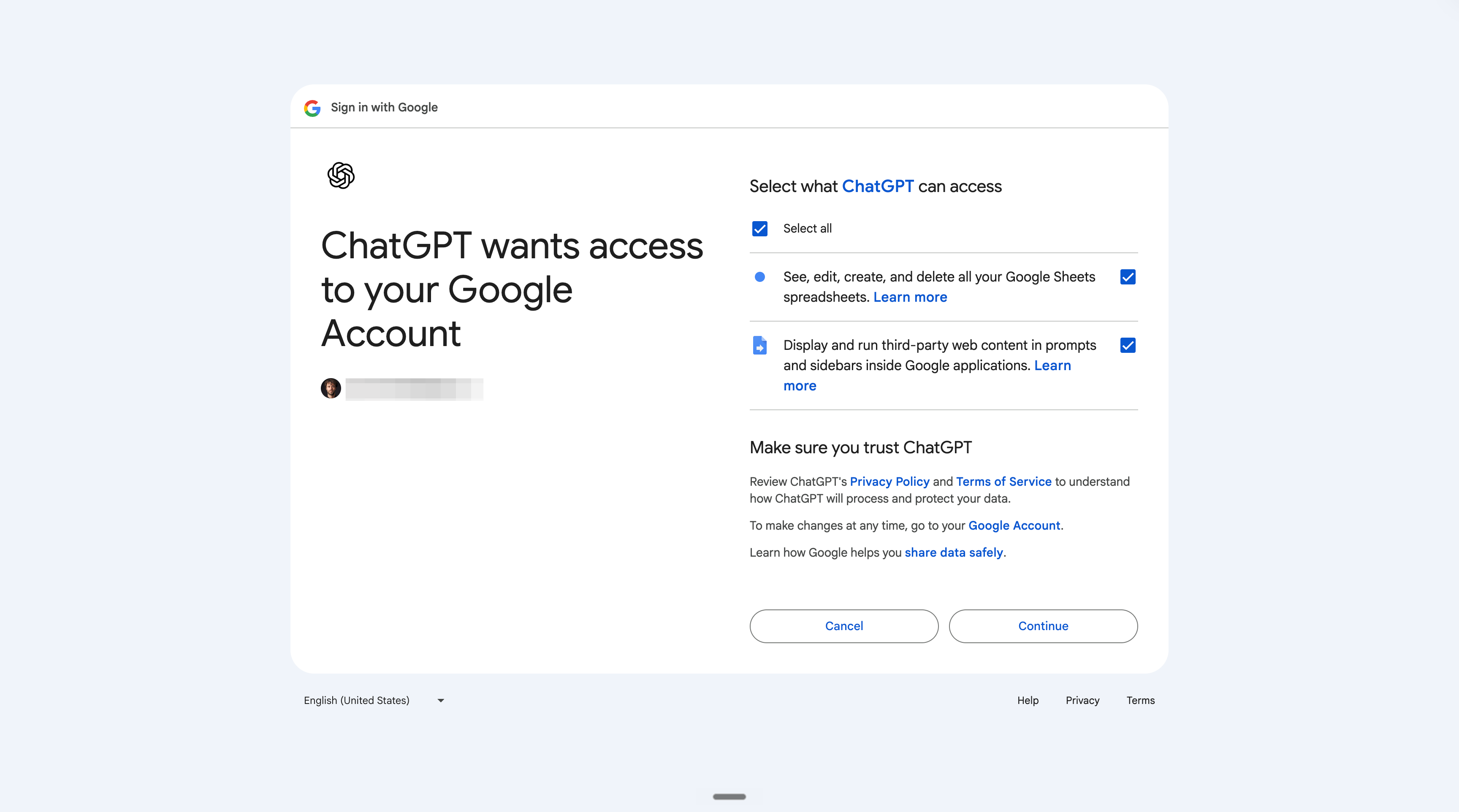 \Step 7: Well… give it permissions :)\
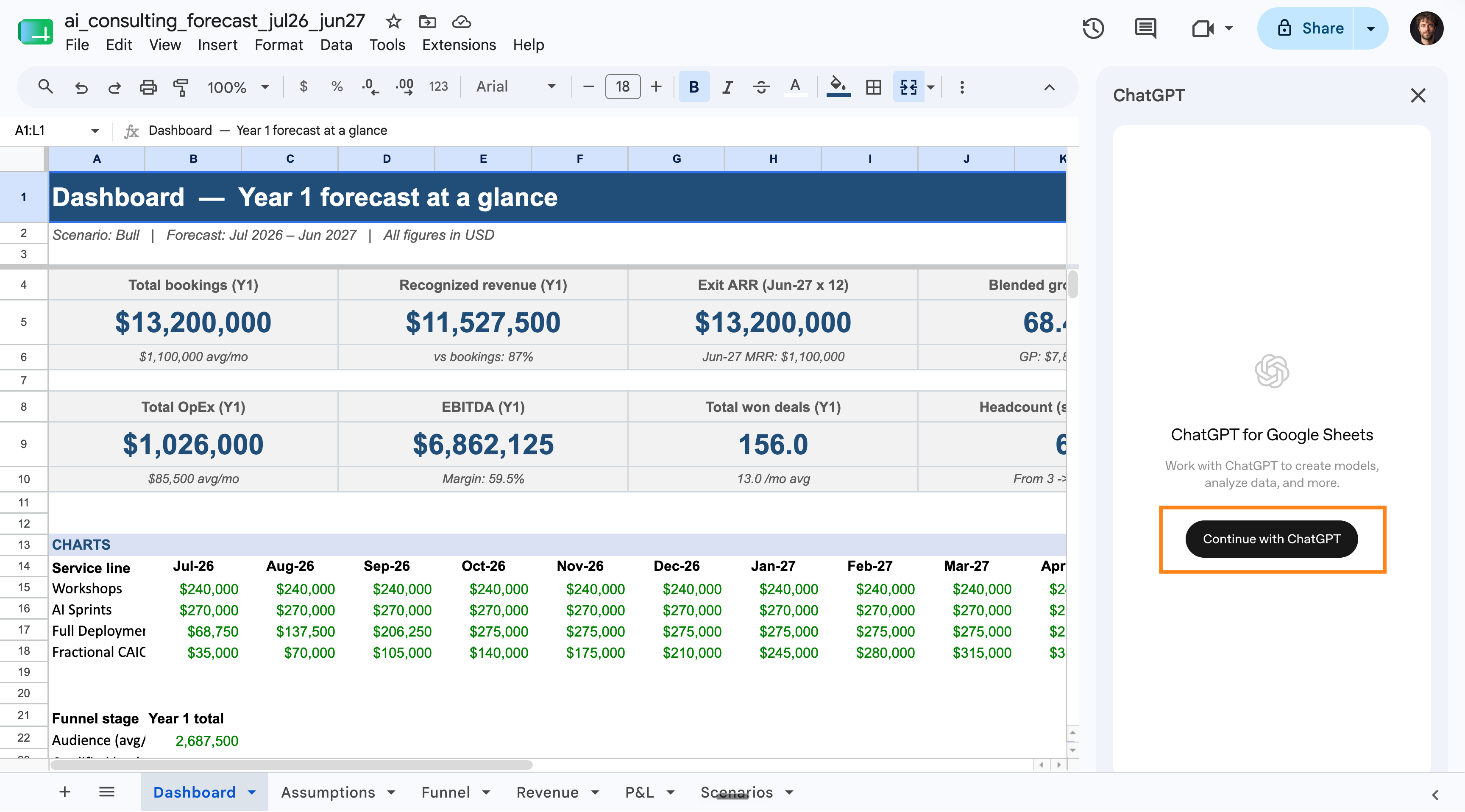 \Step 8: You need to connect your ChatGPT account.\
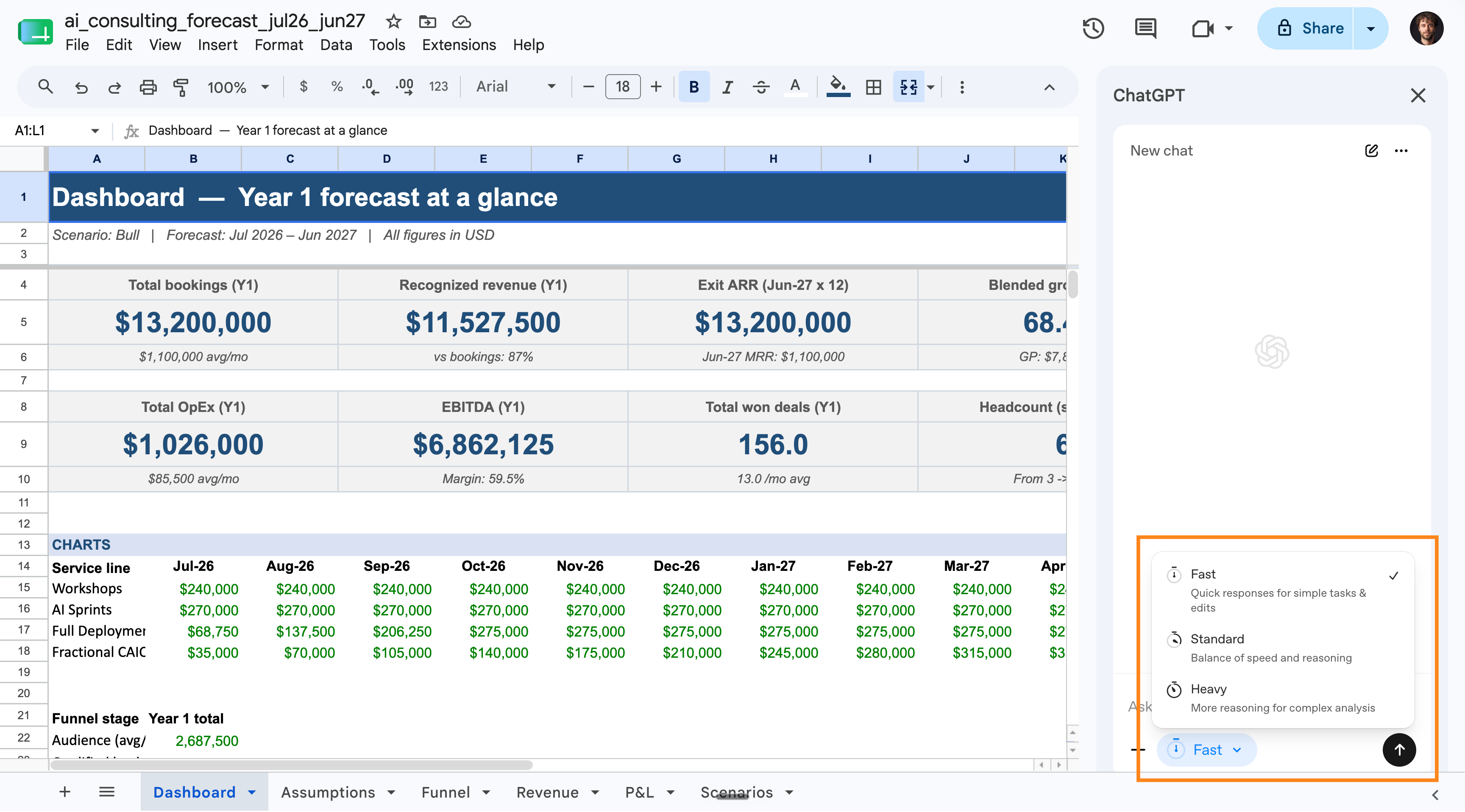 \Step 9:Pick the model. I prefer ‘Heavy’= the smartest model, but also the slowest.\
It’s finally time to prompt it. Some examples:
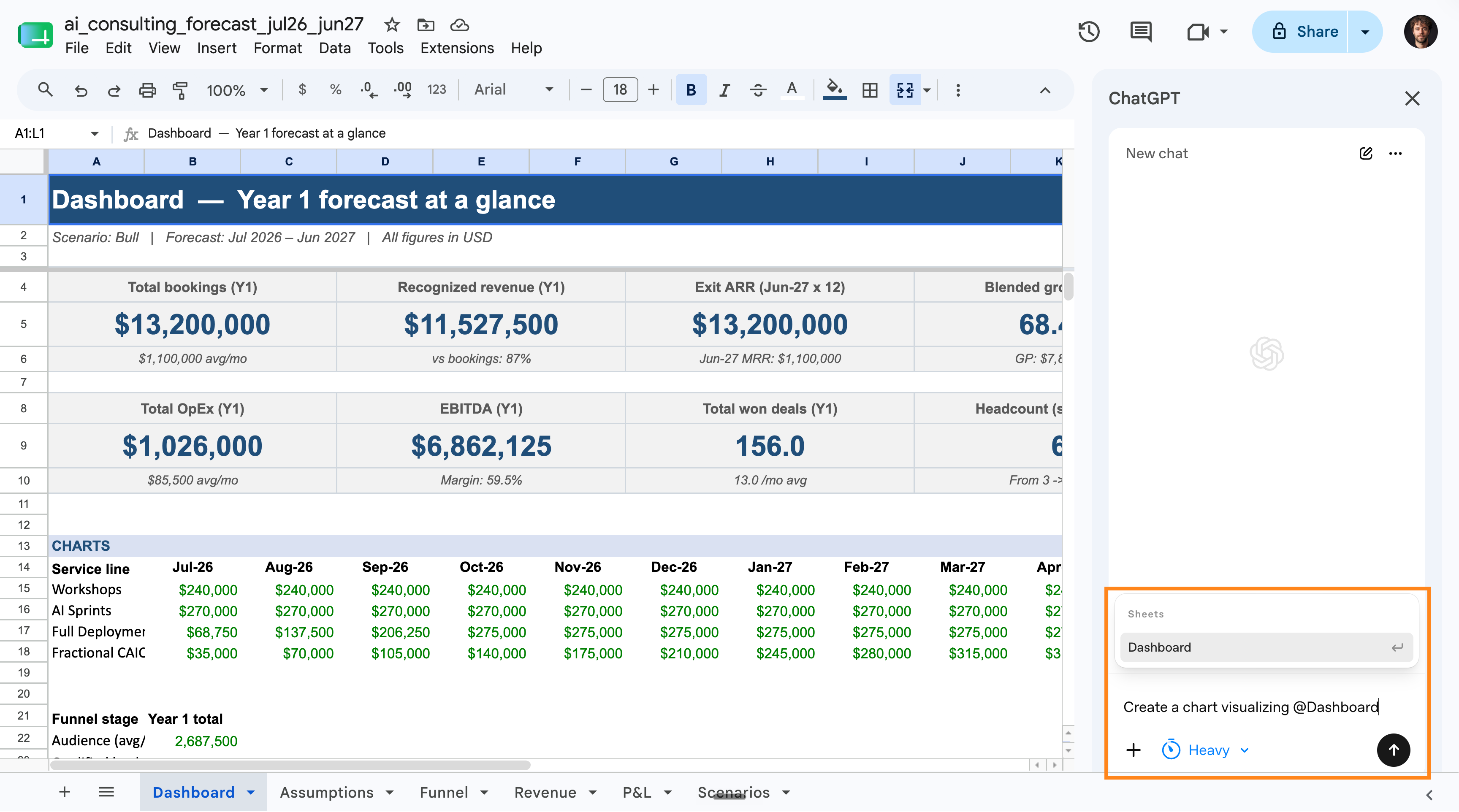 \Example 1: You can ask to visualize a tab. And you can @ a tab, it will ask you which one. Super practical!\
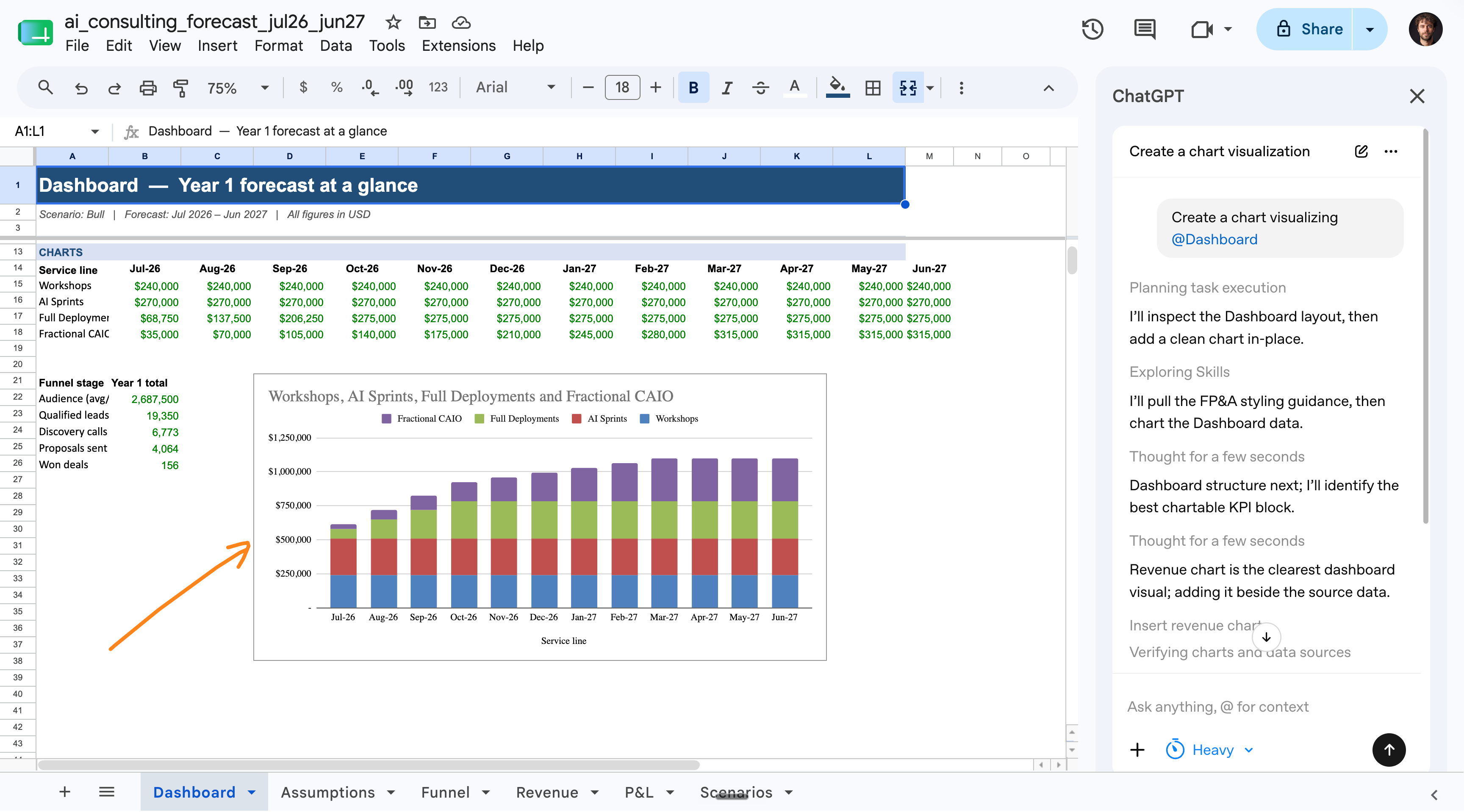 \Here’s the result of Example 1.\
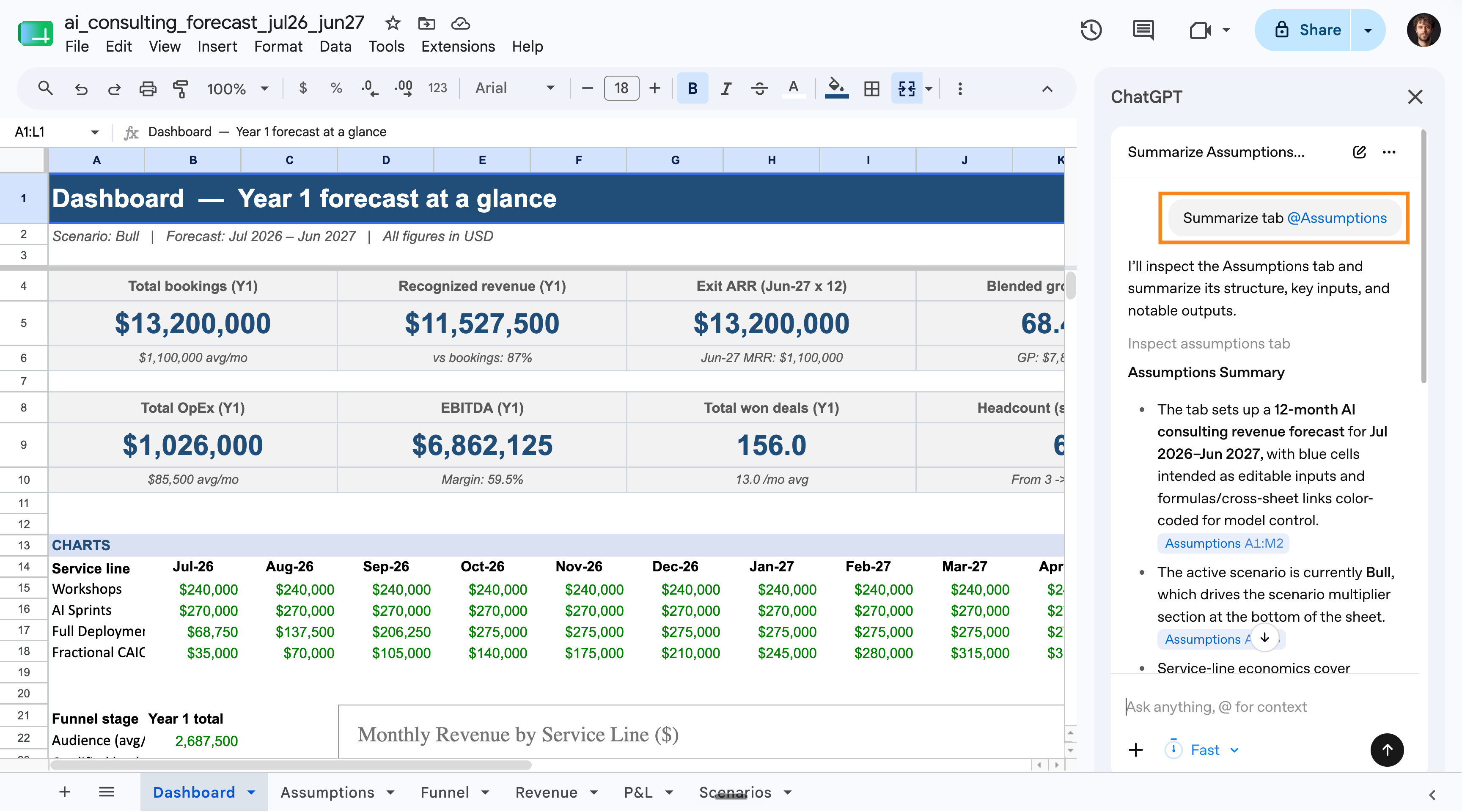 \Example 2: Summarize a tab. Even if the tab isn’t open.\
Now the best use case: editing the spreadsheet.
I prompted ChatGPT:
In @Assumptions, change the “Bull” scenario to be much more optimistic. Make the right assumption on how much more would be still realistic.
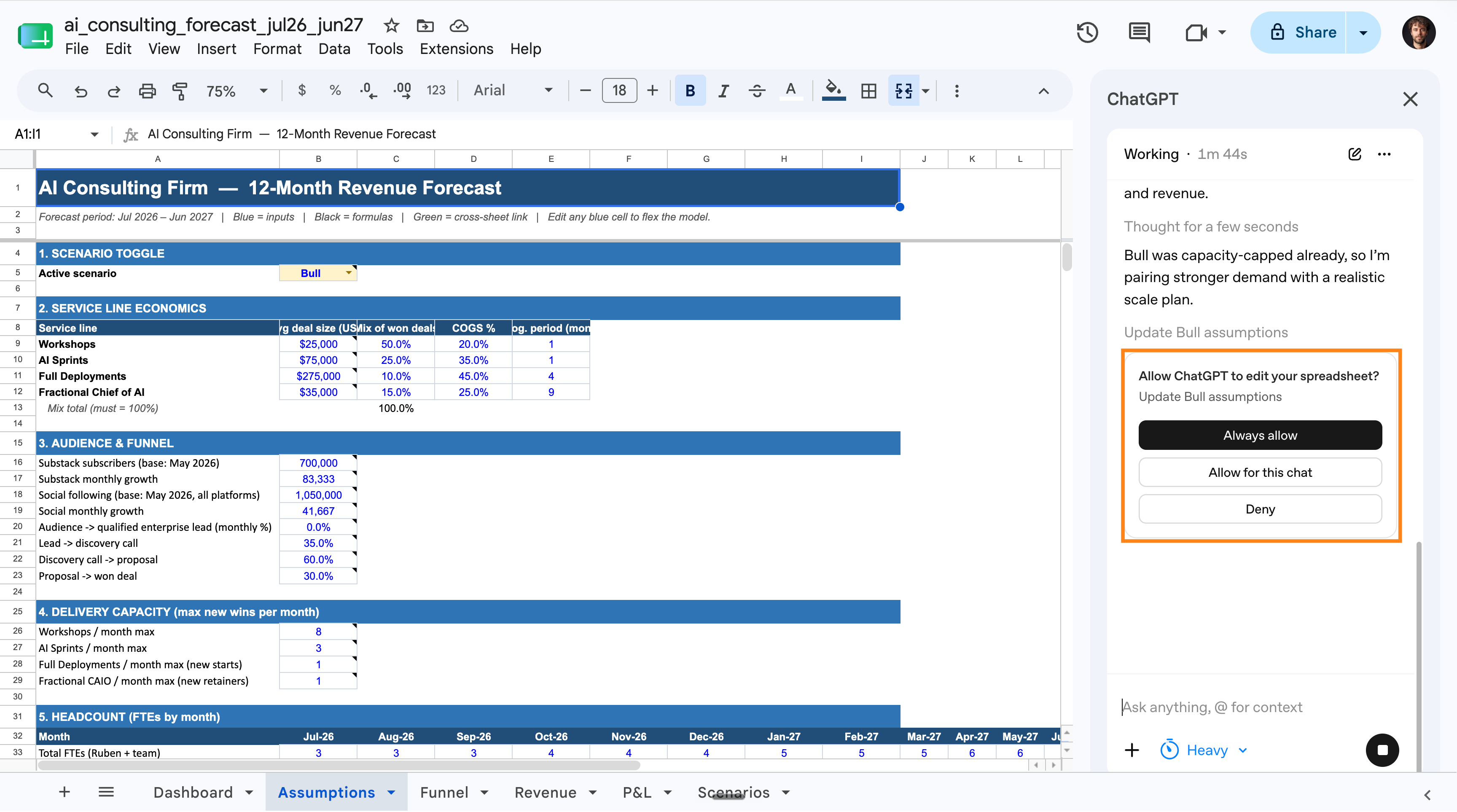 \Example 3: Heavy editing of the spreadsheet (the best use case). ChatGPT will ask you to allow it to edit.\
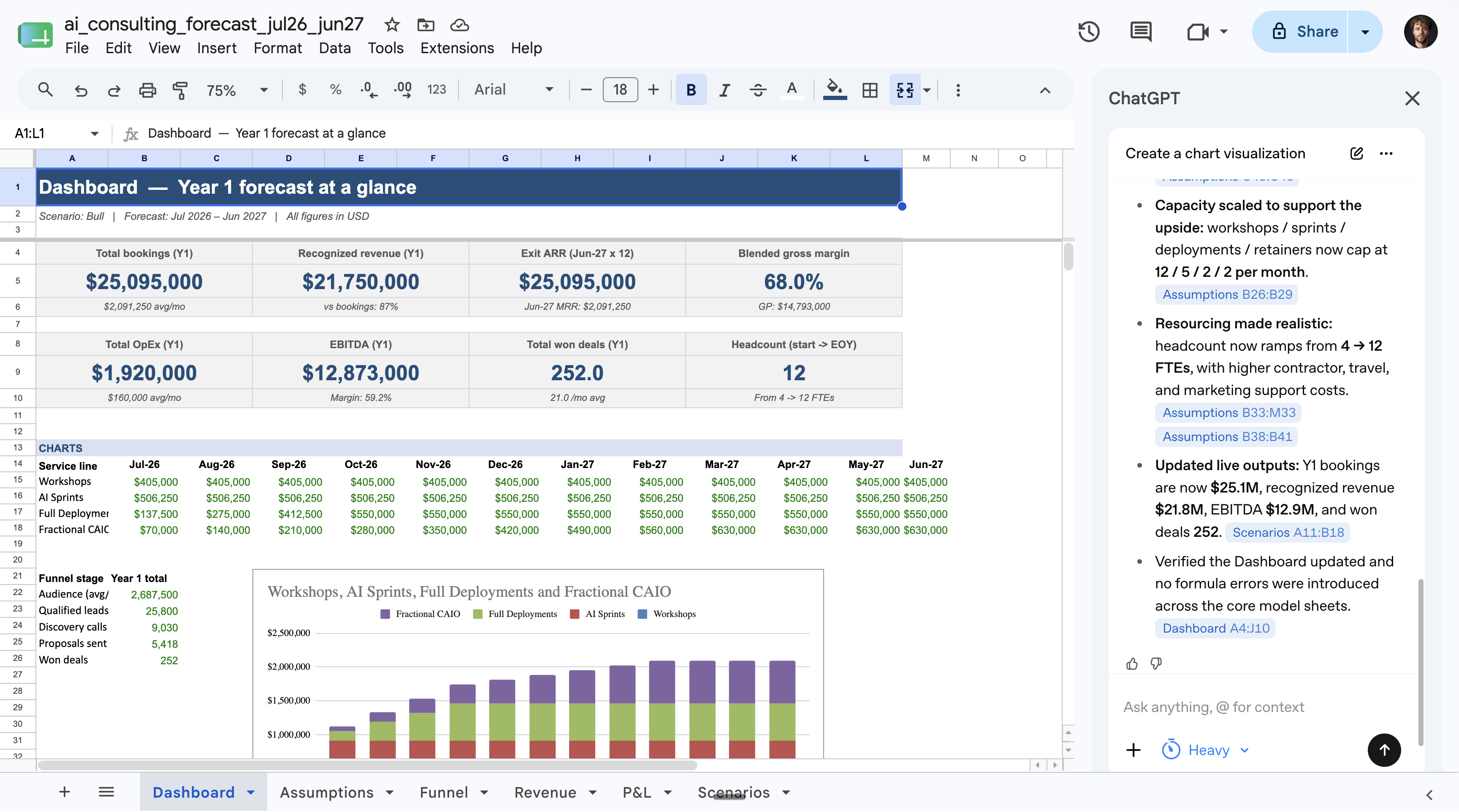 \And it works. It updated the entire spreadsheet in a couple of minutes!\
This is my favorite setup.
I start with my Claude Cowork → then open Google Sheets + ChatGPT’s extension. But if your full-time job is making spreadsheets, I have another way.
Another player: Shortcut.ai
I found another AI, Shortcut.ai, only made for spreadsheets.
I am not affiliated or paid by Shortcut.ai by the way. It’s an obvious reminder.
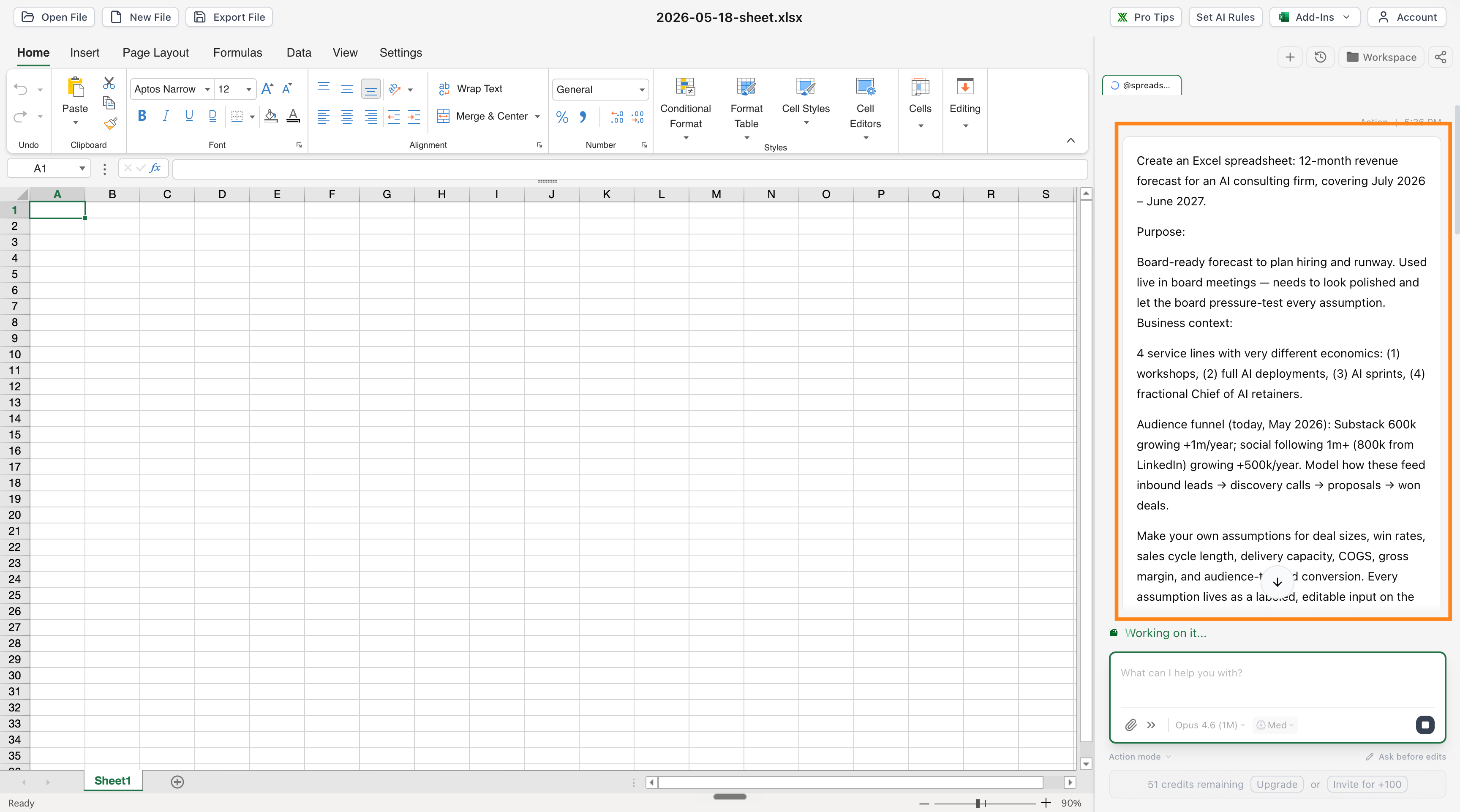 \You prompt it on the right. And I put the same prompt as for Cowork.\
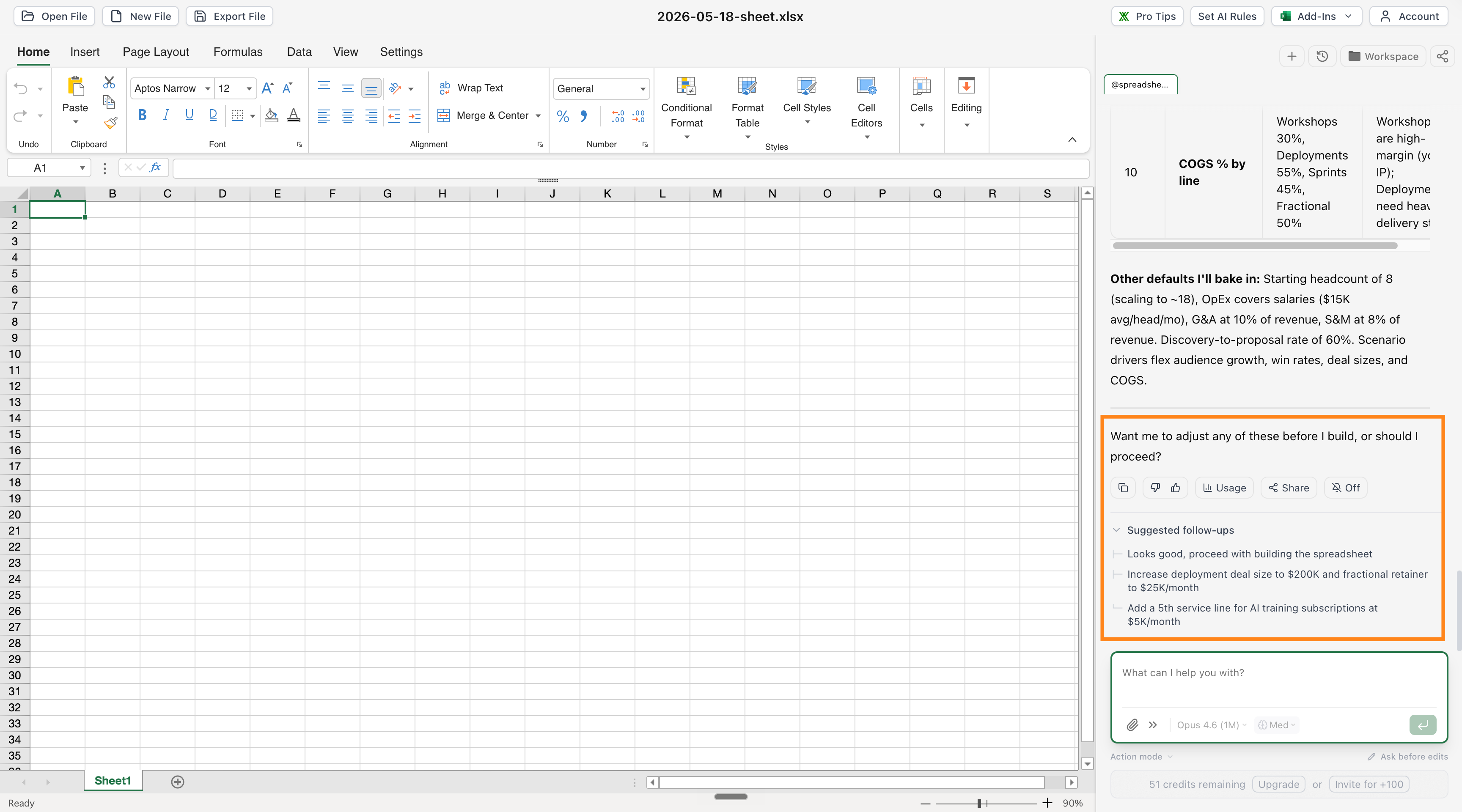 \I like that before executing, you have to select what you want. I said,“Look good”.\
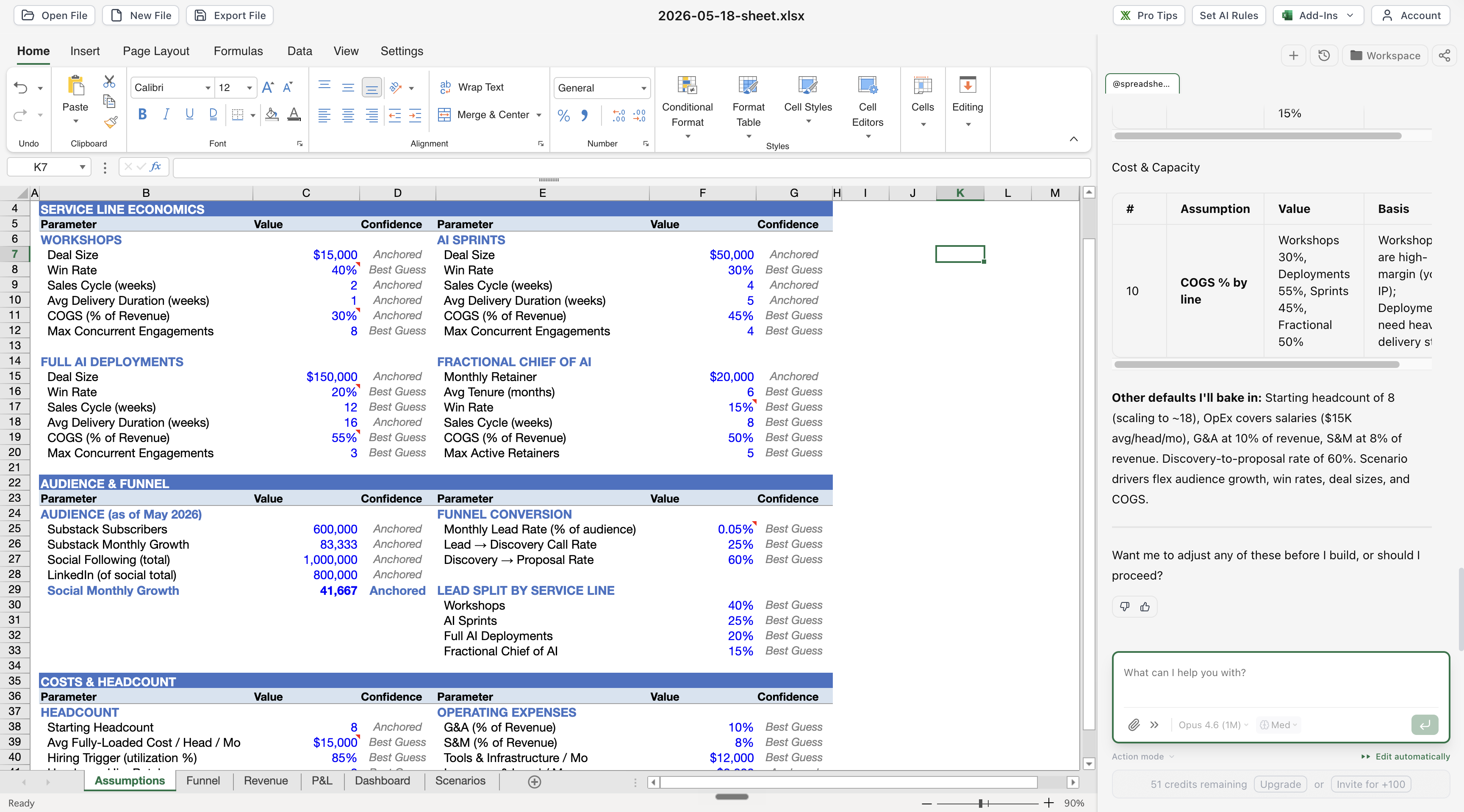 \Shortcut.ai gave me a very solid spreadsheet. Worth exploring if your full-time job is to make spreadsheets. Mine is not!\
Shortcut wants to replace both Microsoft & Google. A bold move.
And it does not have the context my Claude has. But you could update it here:
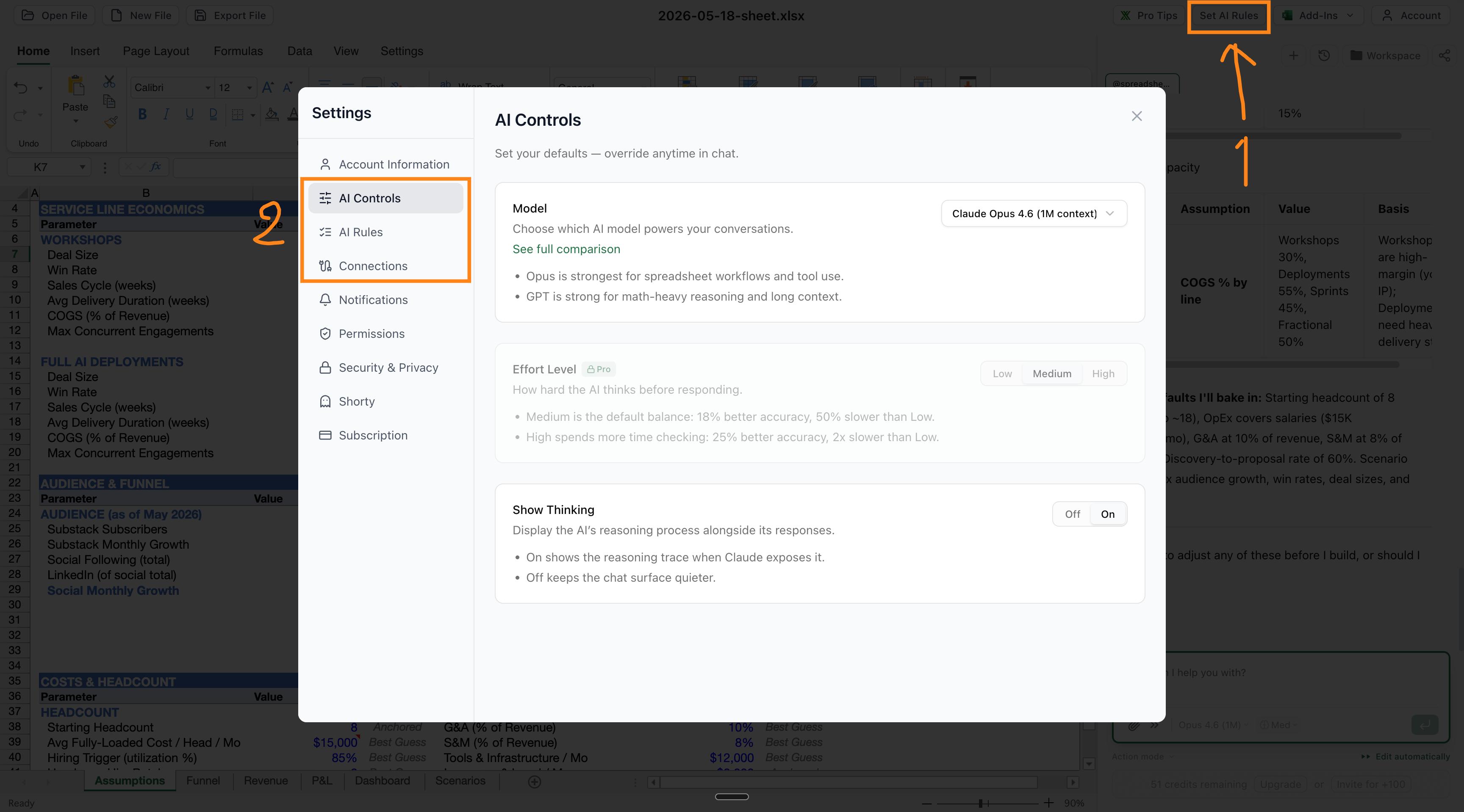 \It has a lot of different skills & controls to make it know your context. Like your job, your preferences, which AI model to use (like Claude).\
You might want to ask me, “Ruben, what should I use?”
- I don’t make more than one spreadsheet a day. So Claude Cowork → to Google Sheets → to sometimes editing with ChatGPT extension is enough.
- But if your full-time job is making spreadsheets, it’s worth exploring other options like Shortcut.ai or ChatGPT Codex (also very good! but costly).
Claude & Anthropic do not pay me.
So how do I keep writing everything for free?
- Over 600,000 people read my newsletter for free. I don’t need 600,000 people to pay me. Most people will do everything by themselves, and I get them.
- Over 3,500 people pay for my Substack. They join my Circle community, so AI isn’t such a lonely experience. I connect with them on Linkedin too!
- My consulting firm, GPC, has already helped over 15 enterprises in the US to accelerate their AI adoption.
In other words…
- You can do it by yourself for free.
- You can do it with you by paying for my Substack.
- Or I can do it for you, with my team, by messaging me on Linkedin.
I don’t care about Claude, ChatGPT, Grok, Gemini, or any other model.
I don’t pick sides. I’m not paid to make this newsletter.
I’m sharing, twice a week, how my work is transforming (very fast) with AI.
As I’m trying to keep up, I want you to keep up. So we move just as fast.
I want to be the greatest filter to the AI noise. And 600,000+ people read this twice a week to focus on the How. Some came because of my LinkedIn. But most readers subscribed because someone they trusted sent one of my articles to them.
If this article helped you, be that person for someone else (and share it):
It does not cost you anything to share. And sharing is caring :)
If someone did send you this, thank them and subscribe for free here: