How to set up Claude the right way (so you actually stop prompting).
By Ruben Hassid
Published: 2026-04-01
URL: https://ruben.substack.com/p/claude-skills
AI has different levels.
- Level 1: You’re using the free ChatGPT.
- Level 2: You’re using the paid ChatGPT + Thinking.
- Level 3: You’re using the paid Claude chat + Opus + Thinking.
- Level 4: You’re using the Premium plan of Claude + Cowork + Opus.
- Level 5: You have your entire team using Claude Teams with Projects.
It is time for us to level up with Skills.
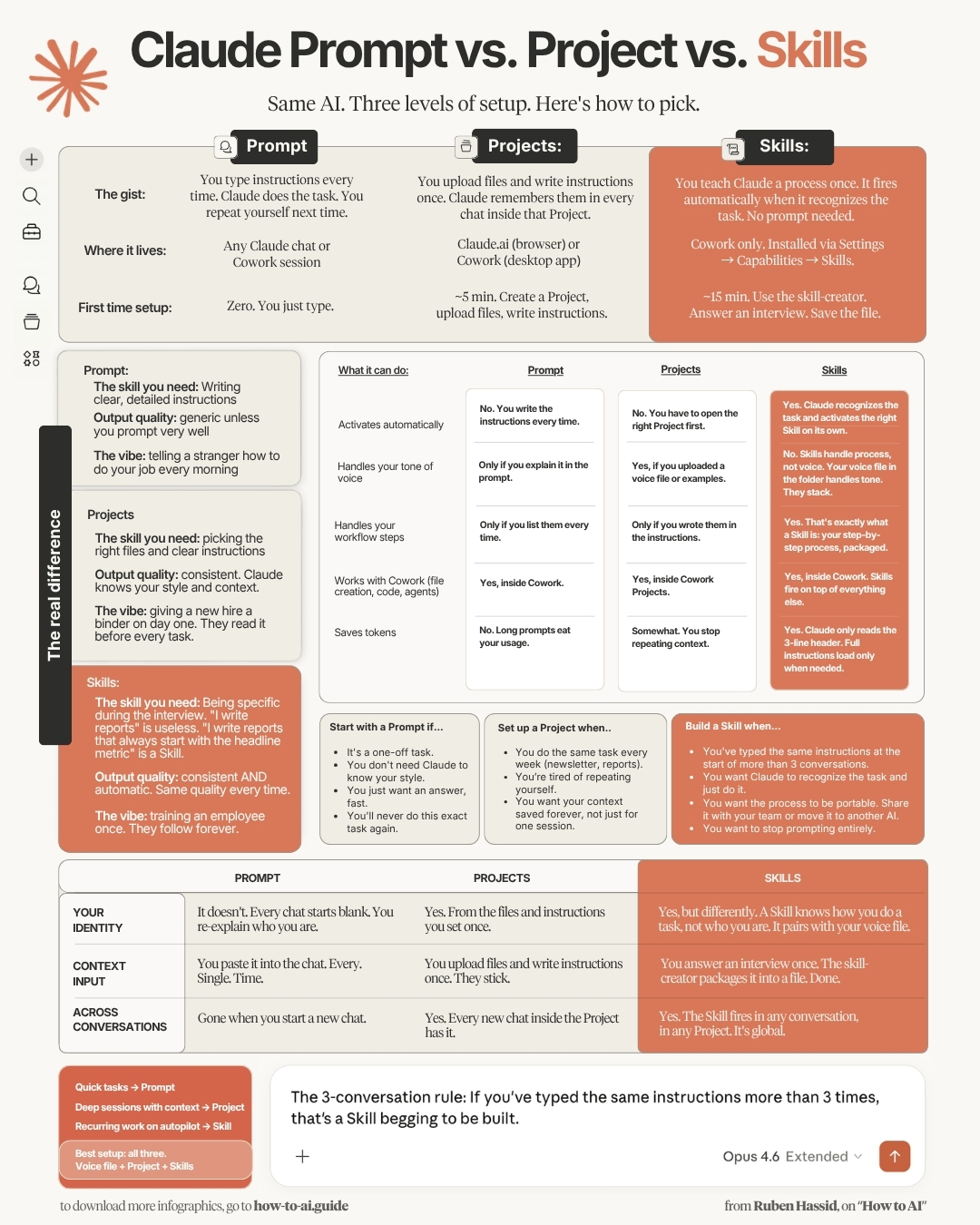 \Today’s newsletter is all aboutClaude Skills. The how.\
- Skills live inside Claude or any other AI.
- It’s like a very long context + instructions, living inside the AI.
- And you just /command it (like /brief or /linkedin or /contract-x).
- Skills can be shared with your team and downloaded from the web in libraries.
If Skills are so good, why didn’t I mention Skills earlier?
Because Claude, who invented Skills, made it so freaking technical (it’s absurd).
Like this is a preview of Anthropic’s guide for Claude Skills:
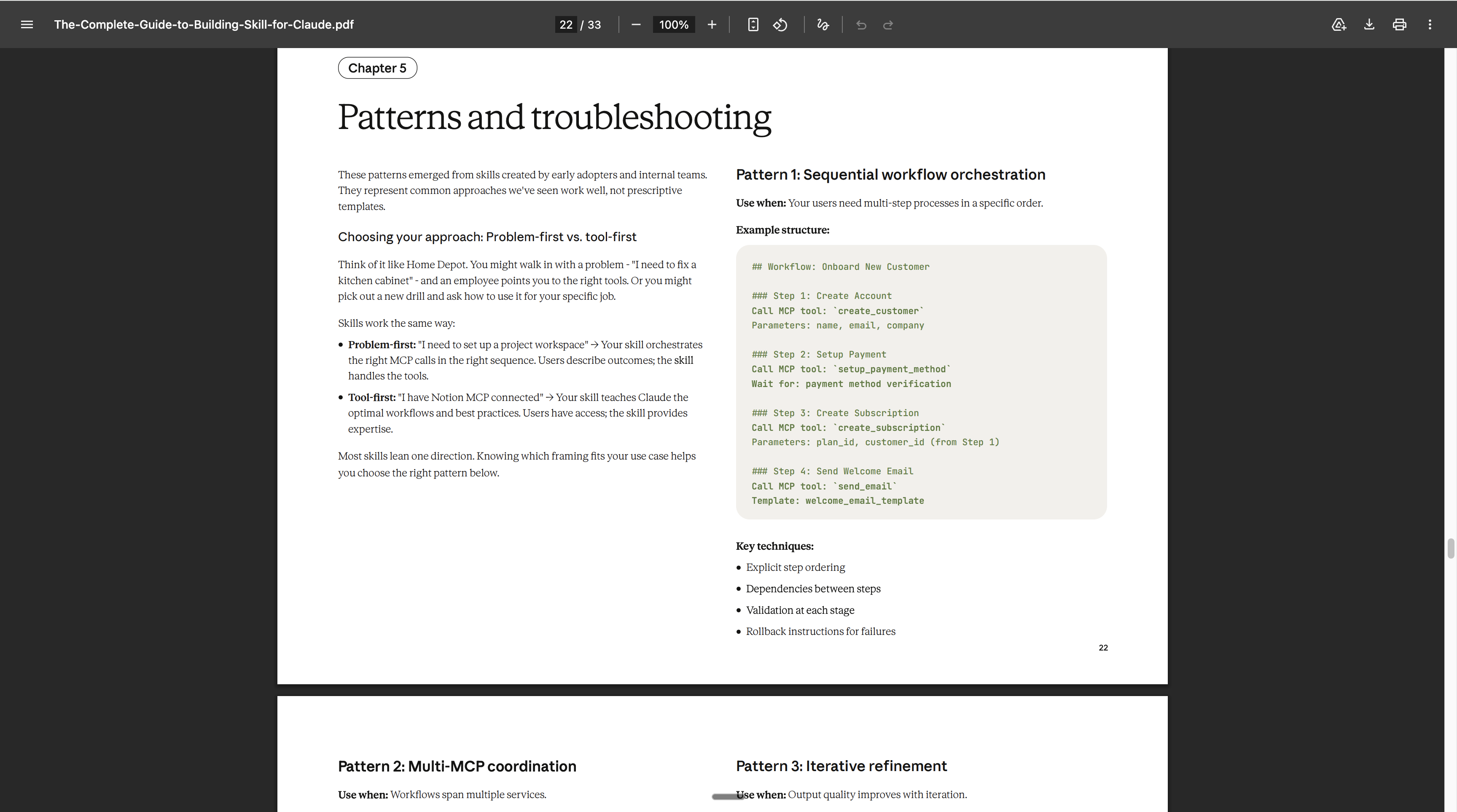 \The entire Anthropic guide is for developers.And we are not devs.\
So I spent entire days mastering Skills for us.
This is the guide I wish had existed before. Every definition, every step, every hack (near the end of this article). For people who don’t code (I don’t).
Two things before we start:
- Save this guide and spend 30 minutes this weekend to master Skills.
- Send it to anyone who keeps re-explaining the same task to Claude.
1 - What’s different with Skills?
You heard about how important “context” is for AI like ChatGPT or Claude.
Context is “how much the AI knows about you/ the task before doing it”.
And you know context is much more important than the prompt (but technically, context is a prompt, like it’s text too). You have many ways to share context with your AI. 1) prompt 2) files 3) skills.
Let’s say you want to write a Linkedin post. You can either:
1 - Write a very long prompt that has the context (who you are, the task that must be done, the precise steps to get there).
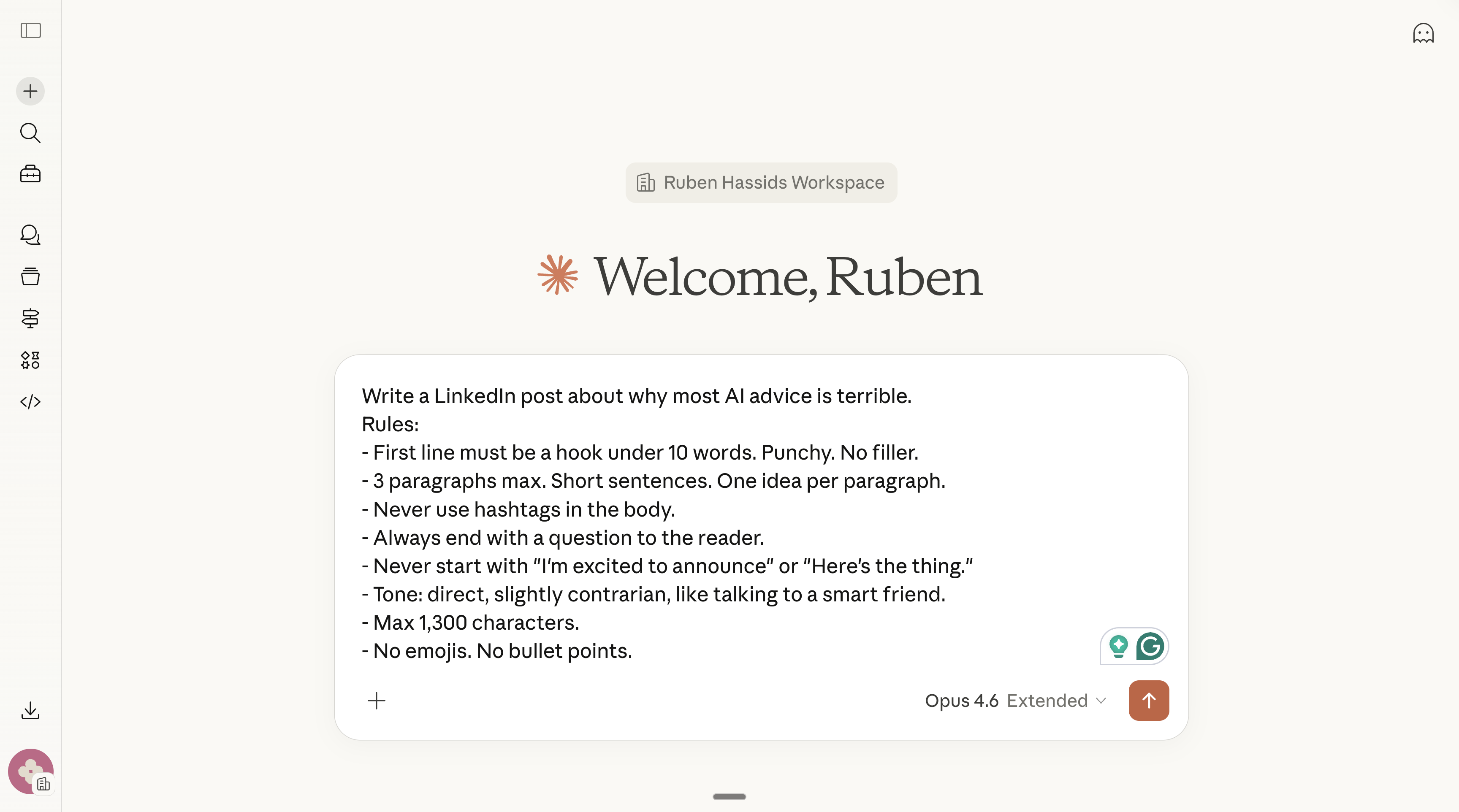 \Might be good. But now you need a prompt library & it's not so efficient.\
2 - Or write a very long text file, that you then upload to your favorite AI. I already explained how Claude perfectly captured my voice.
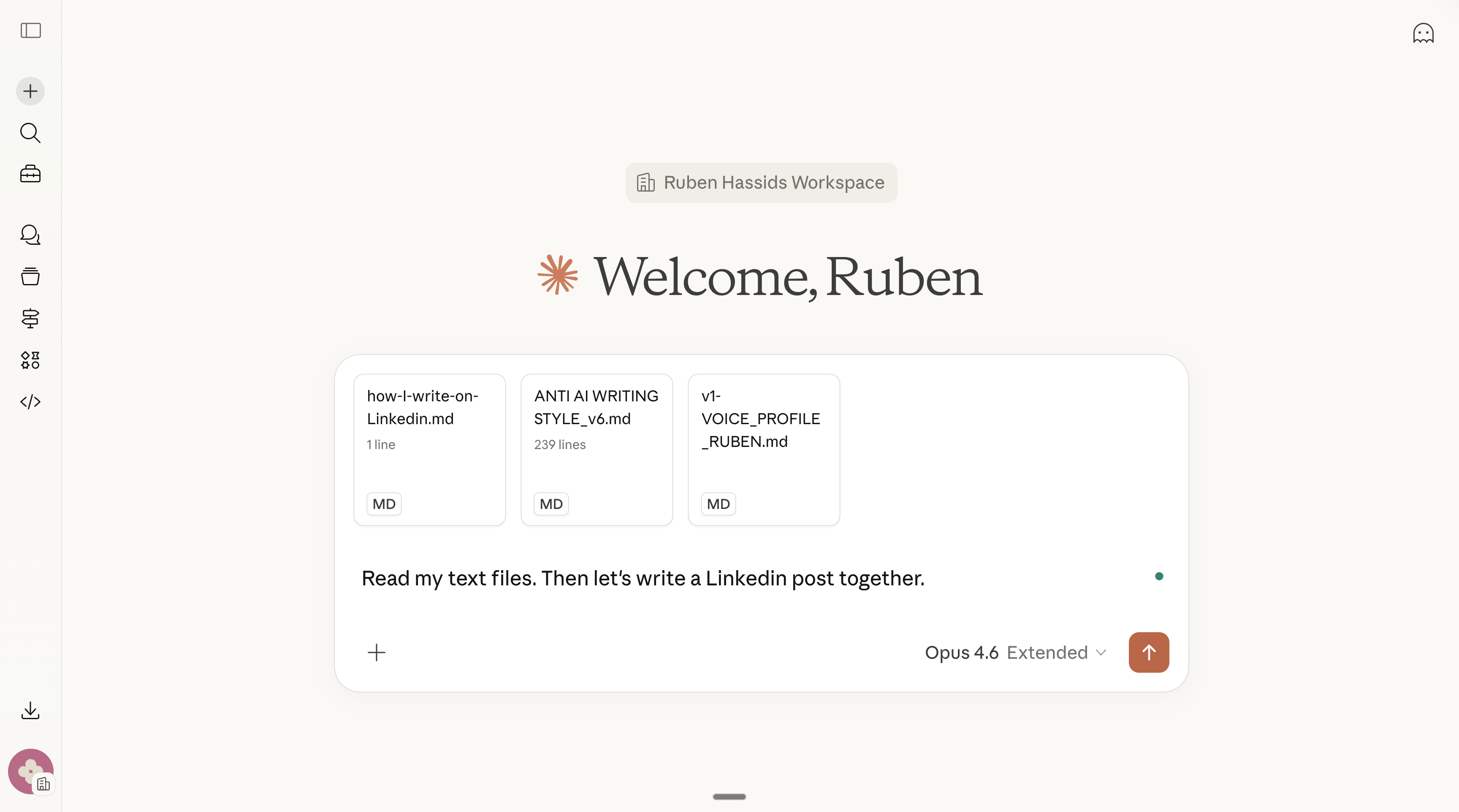 \Much faster, since you can store your instructions somewhere. And you can stack the md. files for each one of your needs.\
3 - Both the very long prompt (instructions) and the very long text file (also instructions, but with more context about YOU) can be uploaded inside a Project.
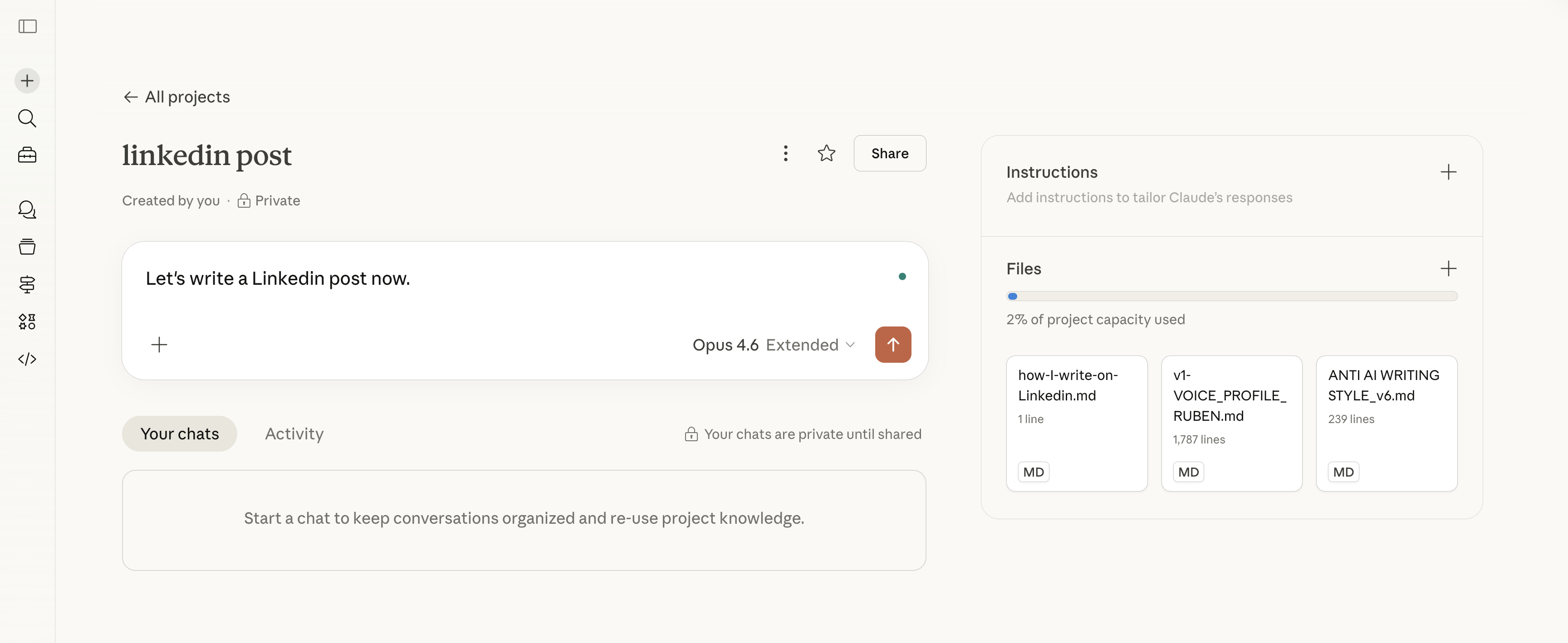 \The files are on the right, and you upload it only once. But you can start as many chats inside this Project as you want. Much more efficient.\
4 - And then you have Skills. It’s all of this, but as a slash command.
Context files need you to say “read my file first” every time.
Projects need you to open the right Project.
But Skills fire automatically. Claude recognizes the task from what you type and activates the right Skill on its own. You don’t invoke a Skill. It invokes itself.
I will show you how it works so you understand. And in the next section of this guide, I will teach you exactly how I did it (so you can do it too).
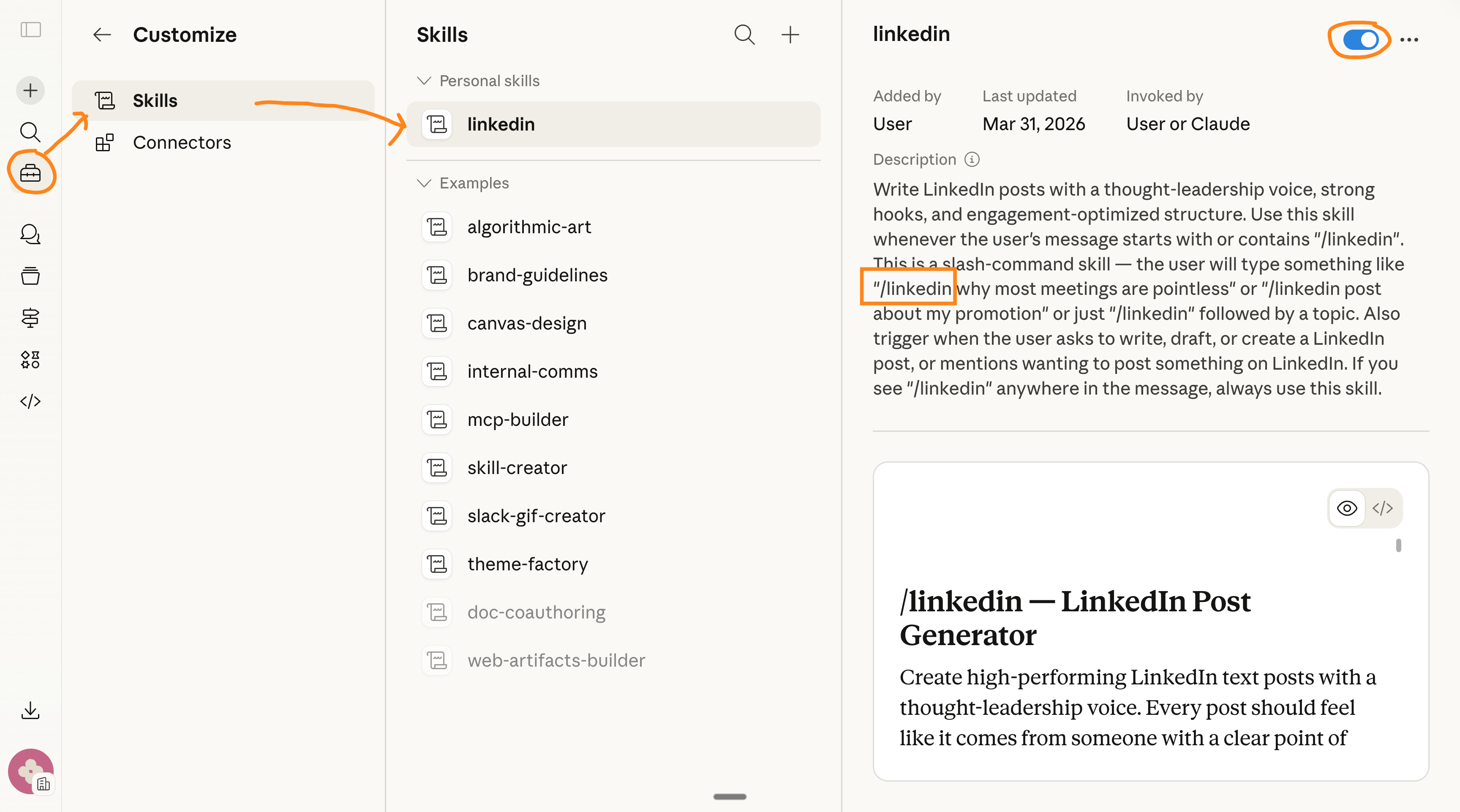 \This is where the Skills “live” inside Claude.\
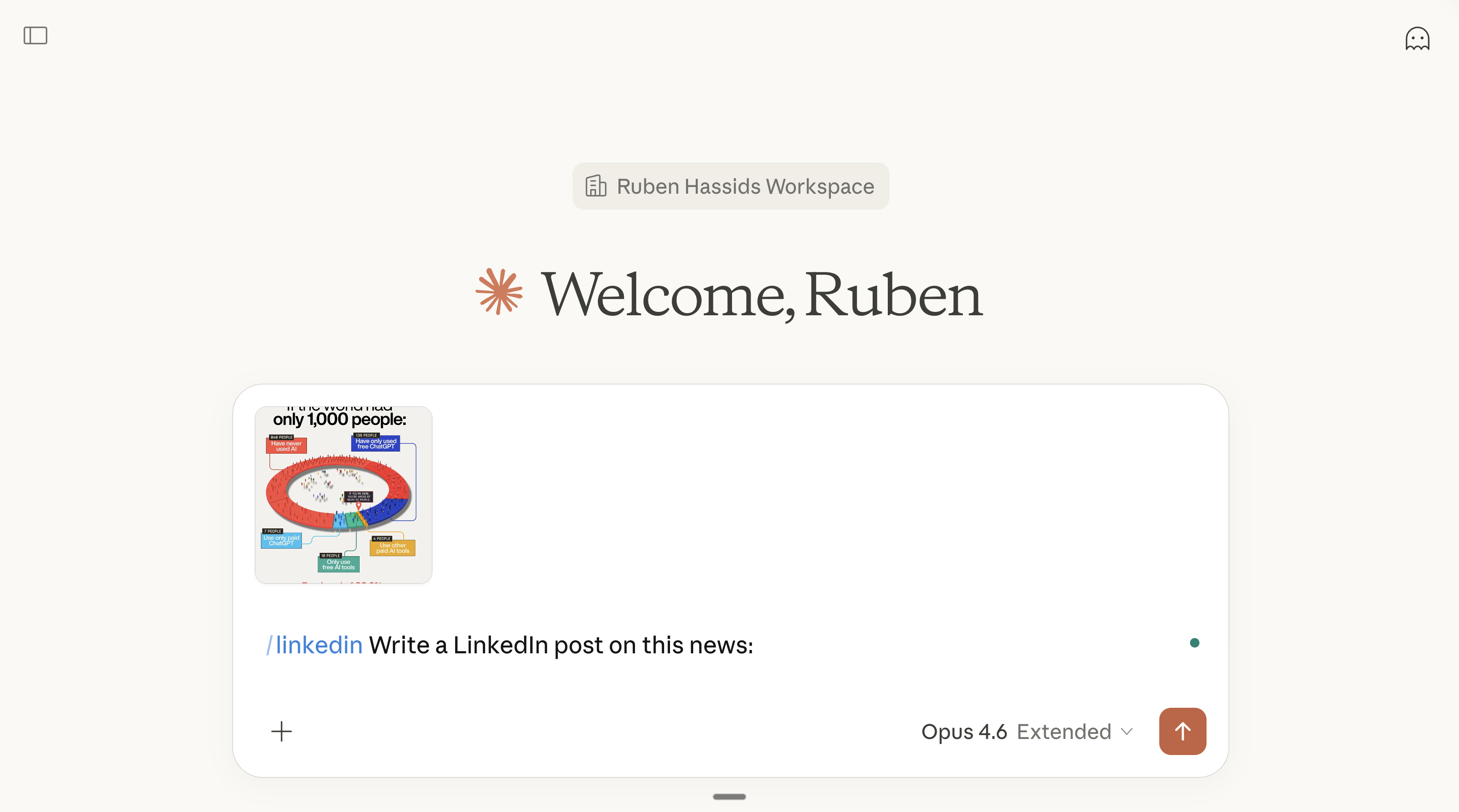 \I just type“/linkedin”anywhere on Claude, and it knows. Plus, even your team can use your skills (if you want them to).\
Now you might ask yourself:
- Cool Ruben, but how do I create my own Skills?
- Cool Ruben, but can I see your Linkedin post made with these skills?
- Cool Ruben, but how can I download your Skills, or the Skills of others?
I will answer every one of your questions (and more, because I’m cool like that).
2 - How to build your first Skill.
You really have two simple options to build a skill.
Option 1: Claude has a Skill Creator.
Sounds obvious, but yes, Claude made a Skill creator to create skills for Claude.
Are you following?
You describe the task, it interviews you, it generates everything. Same energy as the 100-question taste interview, but this time you’re capturing a process, not a personality.
Here’s the full walkthrough. I’m building a real Skill: the LinkedIn Post Skill:
Step 1: Open Cowork. Ask for the skill-creator.
Open Claude Cowork. Select your folder. Make sure you’re on Opus 4.6 + Extended thinking (like always). Type this:
Use the skill-creator to help me build a skill for writing LinkedIn posts.
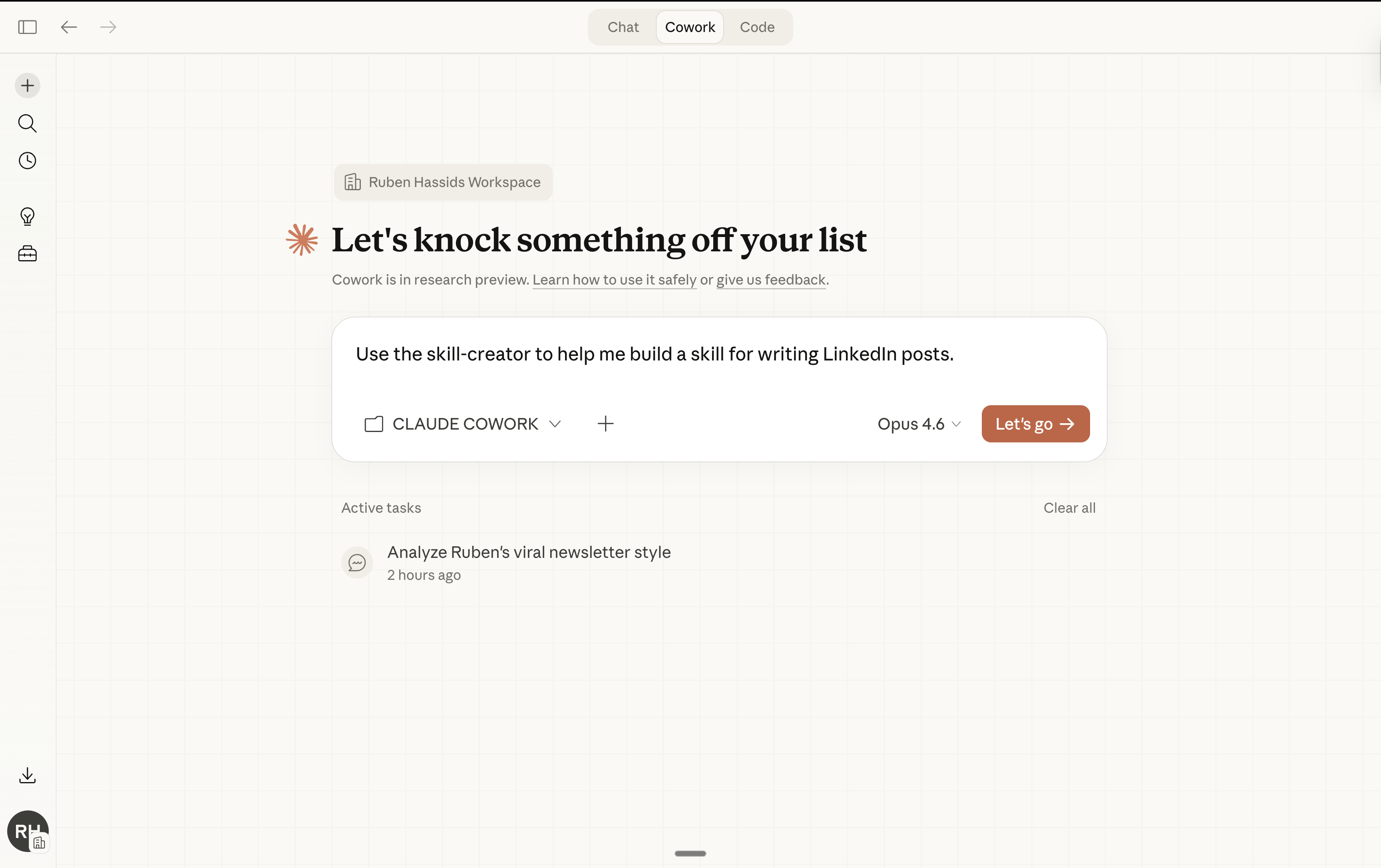 \Yes it’s this simple, I know.\
Step 2: Answer the interview.
The skill-creator starts asking questions. Answer like you’d answer the taste interview. Be specific. Be honest. You can either select Claude’s premade answers or just answer yourself. Obviously, it’s probably better you answer yourself.
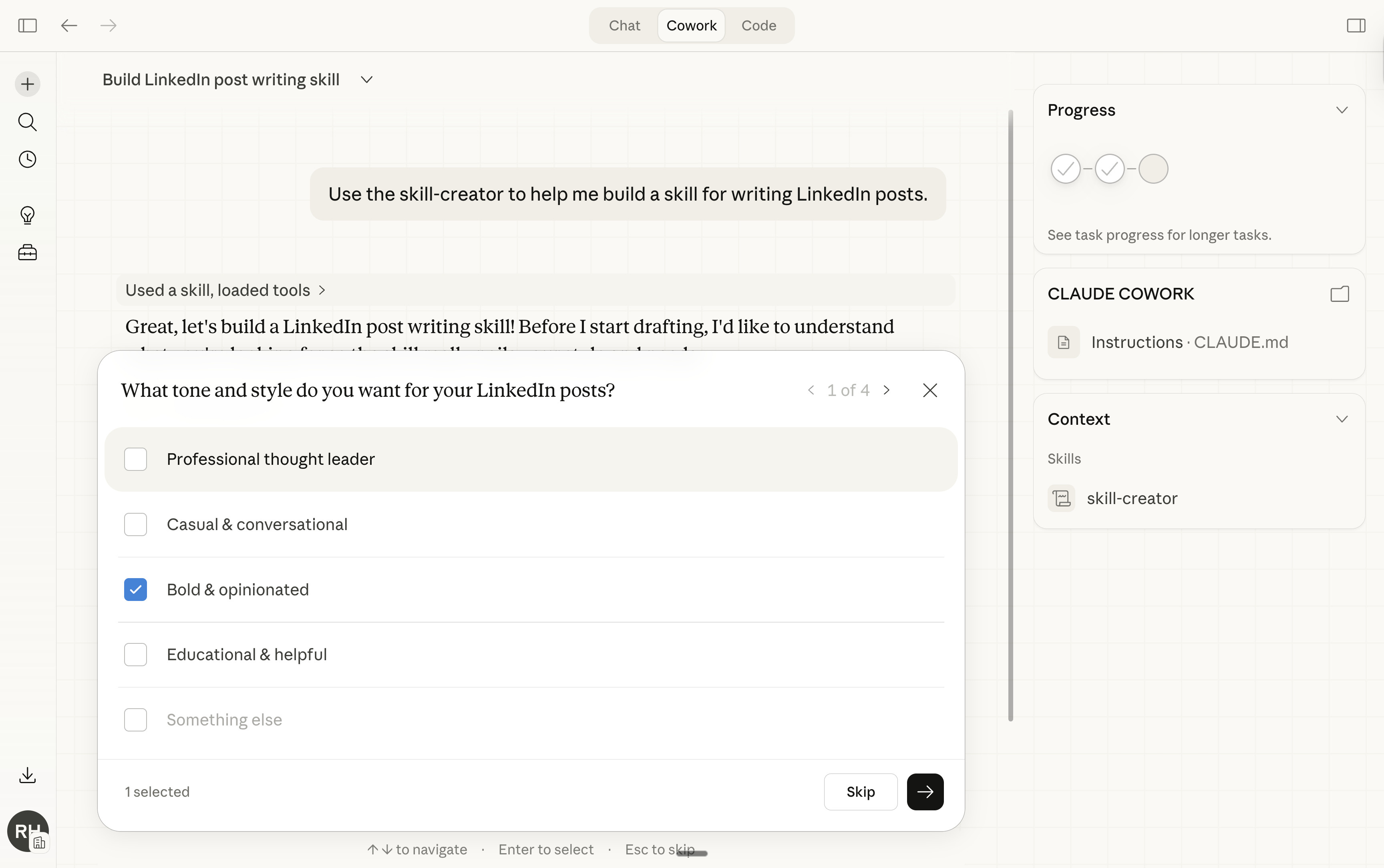 \That’s how Cowork will generate questions for you. Just answer or type “something else” if you want your own answers.\
Step 3: It generates everything.
The skill-creator produces:
- A folder with the right name (lowercase, hyphens, no spaces).
- A SKILL.md file with the trigger (/command) description + your instructions.
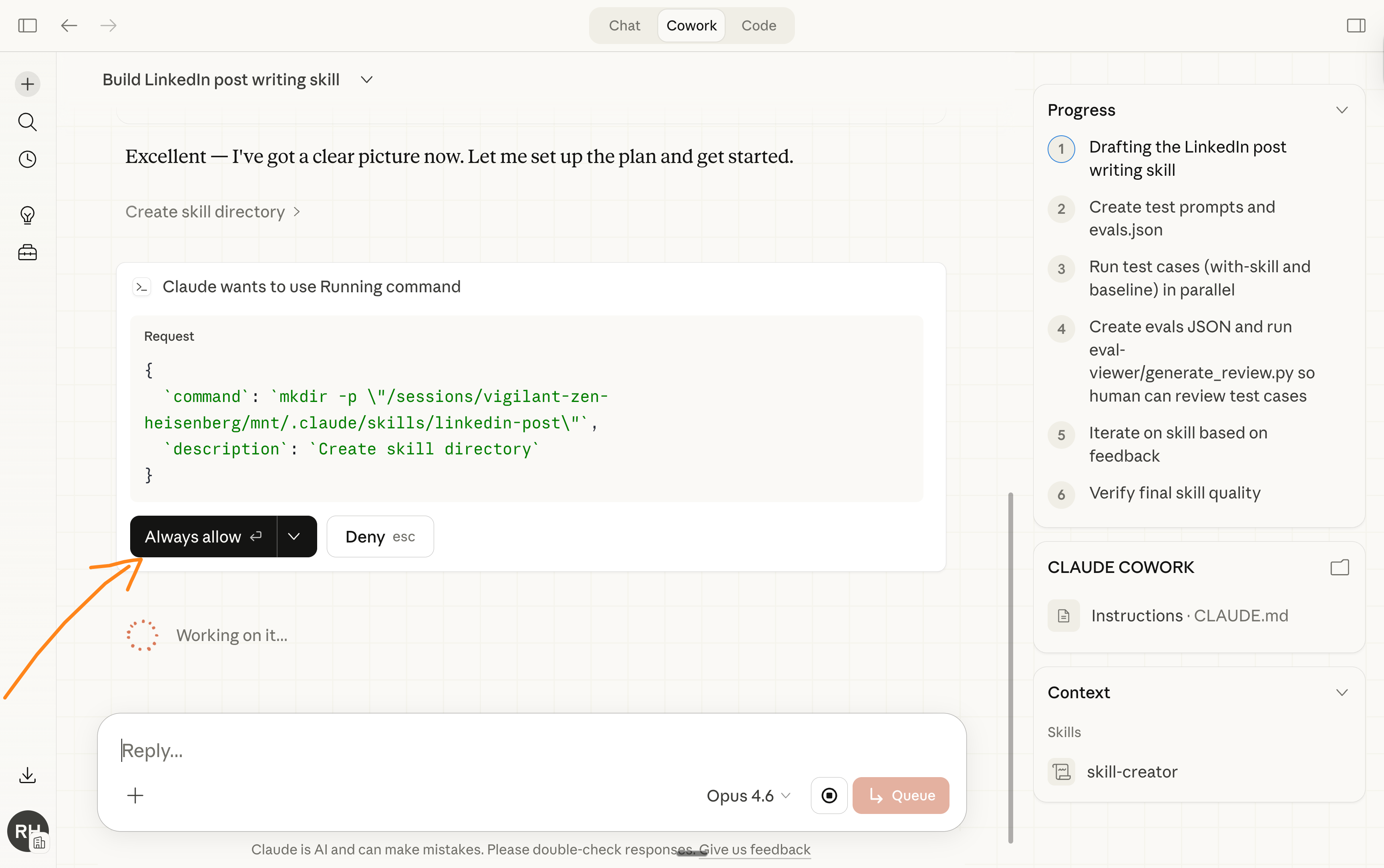 \You have to click “Always allow” so it makes it for you.\
Step 3: Claude even runs an evaluation for you to validate it.
It’s the most important step that most people will skip because they are either lazy or “lacking time”. Claude creates the evaluation of your new skill:
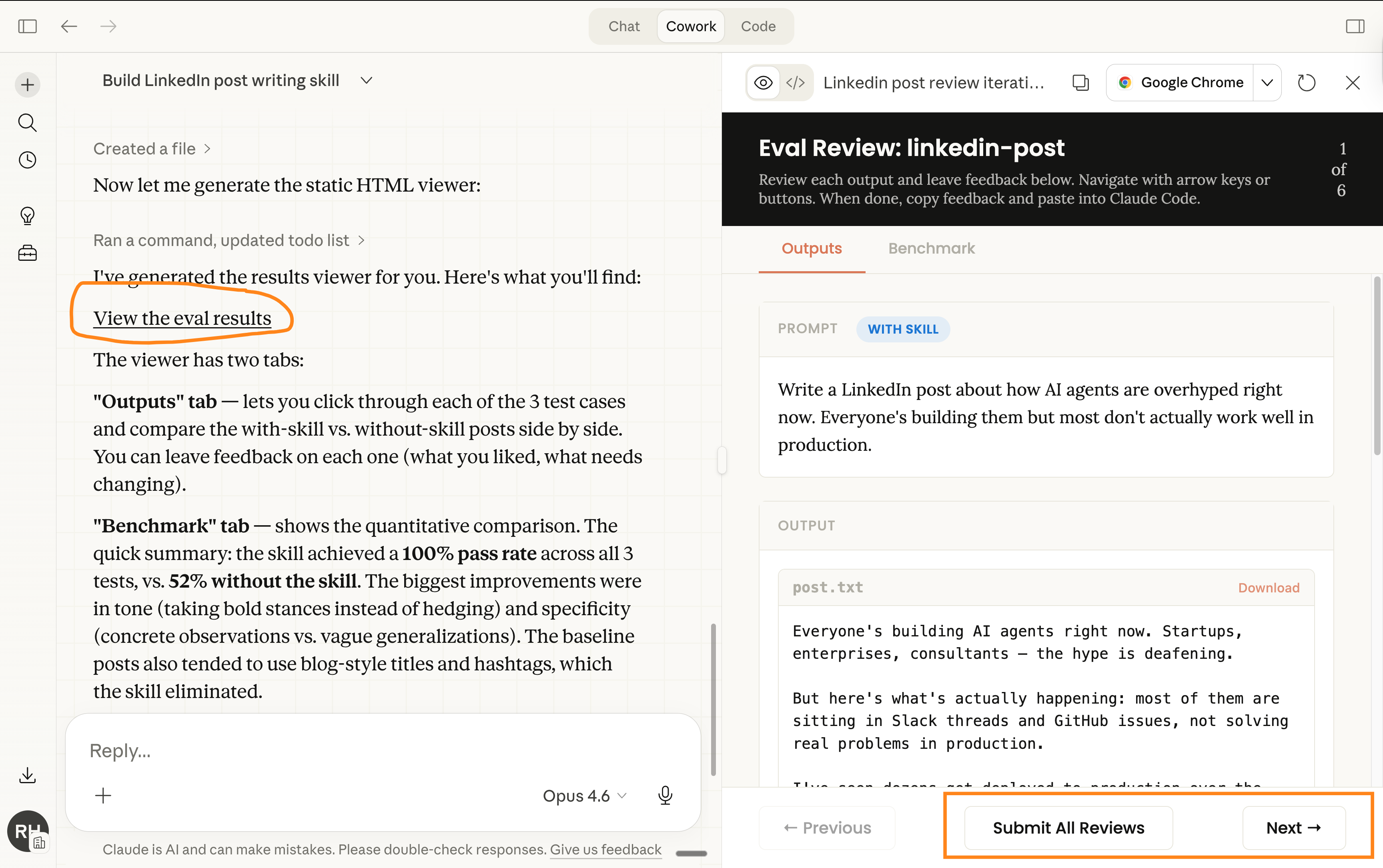 \See the “View the eval results”. That’s how you test your skills before downloading it for good.Take the time, it’s the most important step.\
Step 4: Save and install.
Once you’re happy with the skills, prompt it this:
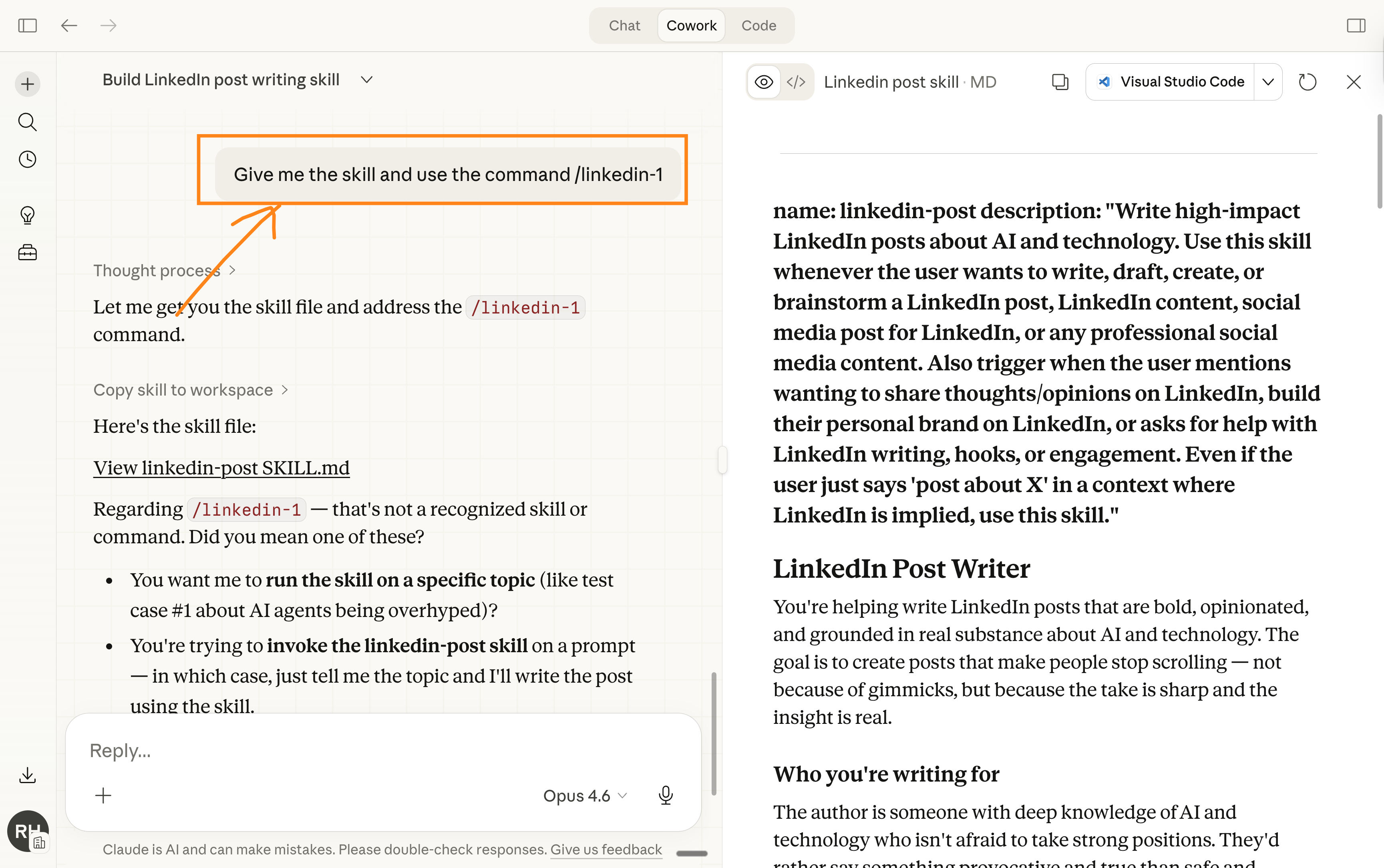
Save the Skill folder. Then install it:
Go to Settings → Capabilities → Skills → Upload.
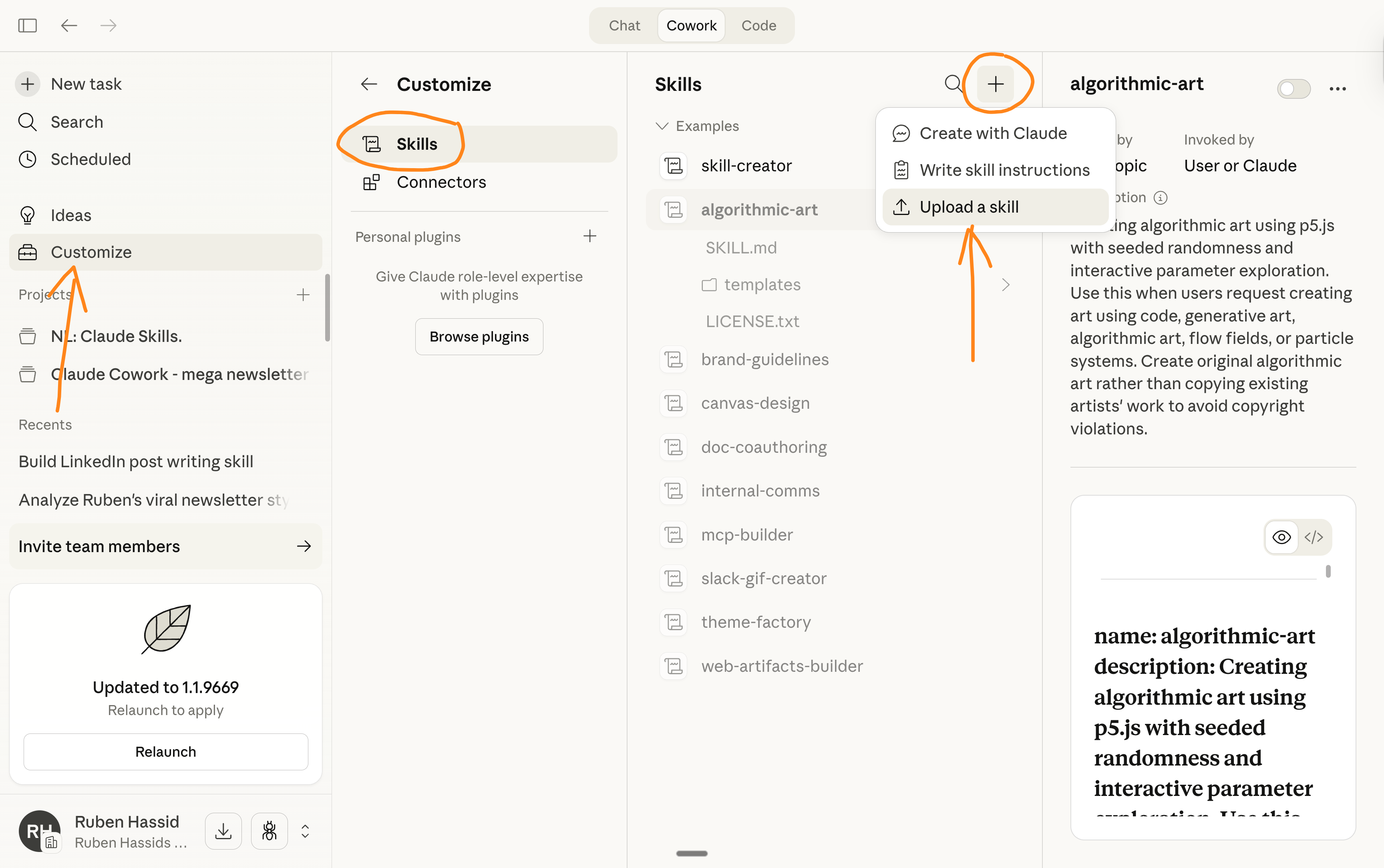 \Left menu > Customize > Skills > + > Upload a skill.\
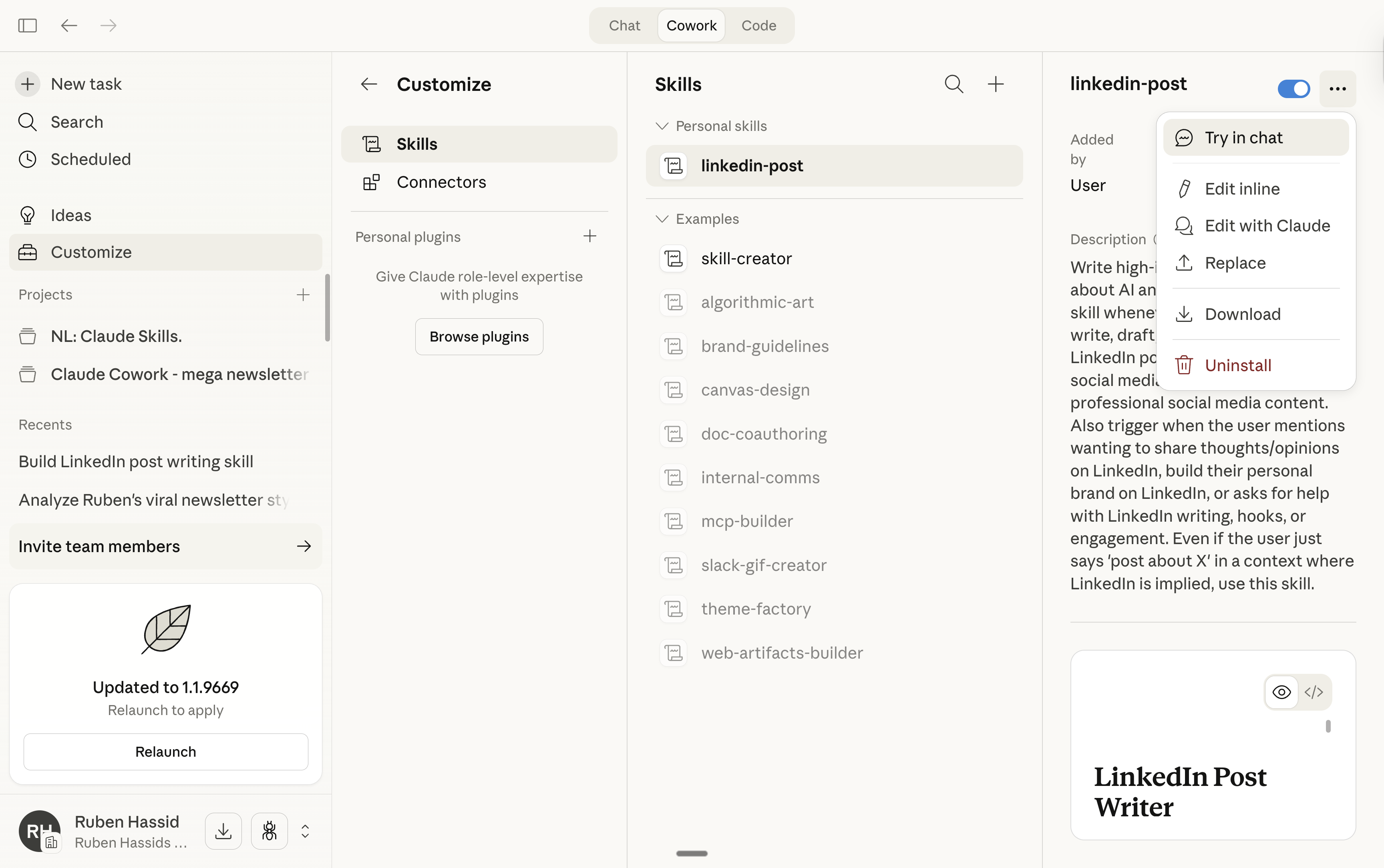 \Then the skill appears and you can “Try in chat”.\
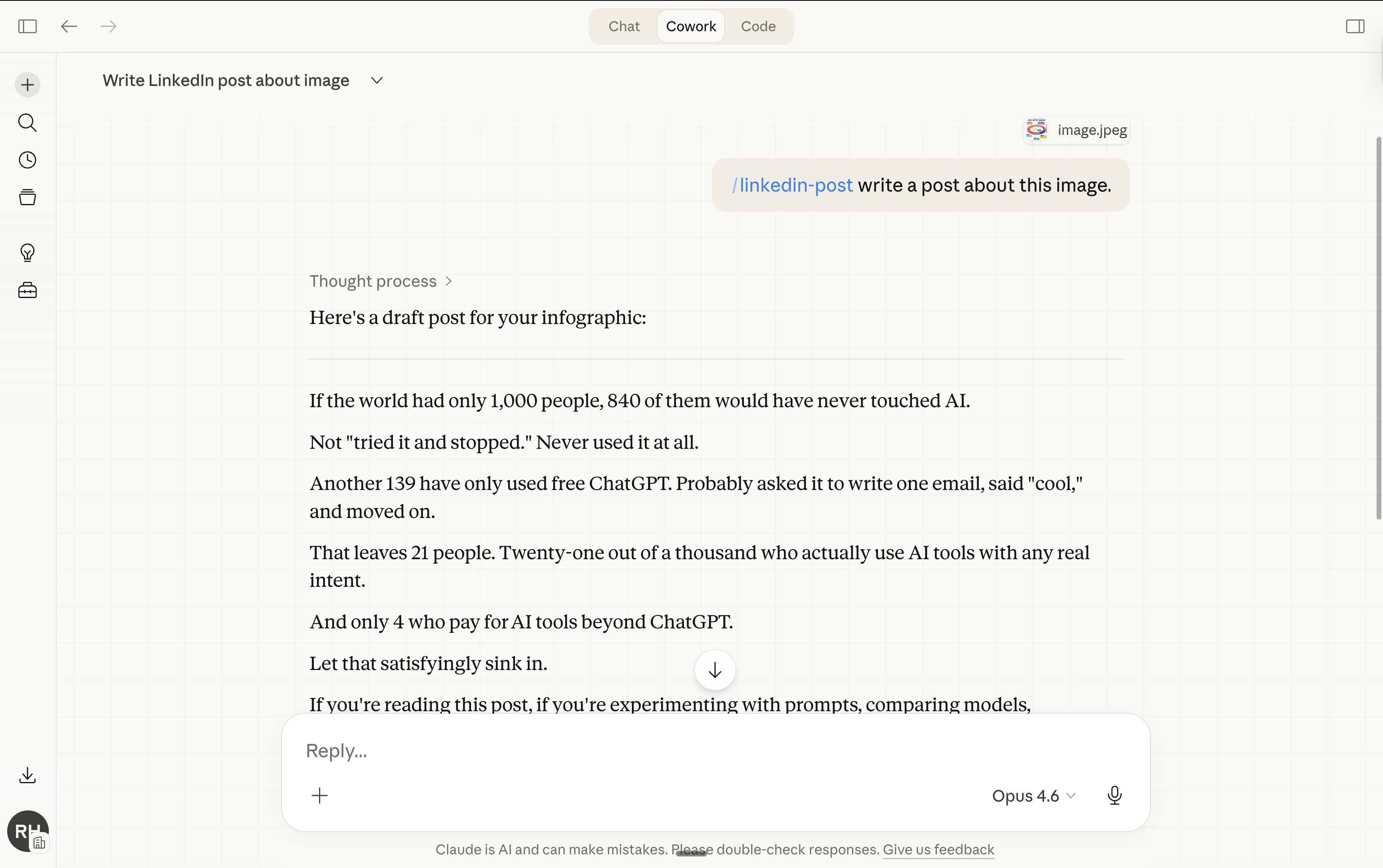 \And now I can use those skills as much as I want to. Everywhere. Even my team has access to it.\
Option 2: My consulting team made this for free.
I run a company in New York called GPC. It speeds up AI adoption across large US enterprises (e.g., training teams with a minimum of 100 people).
And we made this free tool: https://www.makemyskill.com.
As the name suggests, it helps build skills faster. The cool addition is to search the web for you before building the skill (in case you’re not exactly sure what you want the skill to have or not have).
It also skips the “interview” part. It’s a faster, more convenient version, but with less control, of what Claude did.
- Describe the skill. The longer the better.
- Download the skill & upload it to Claude.
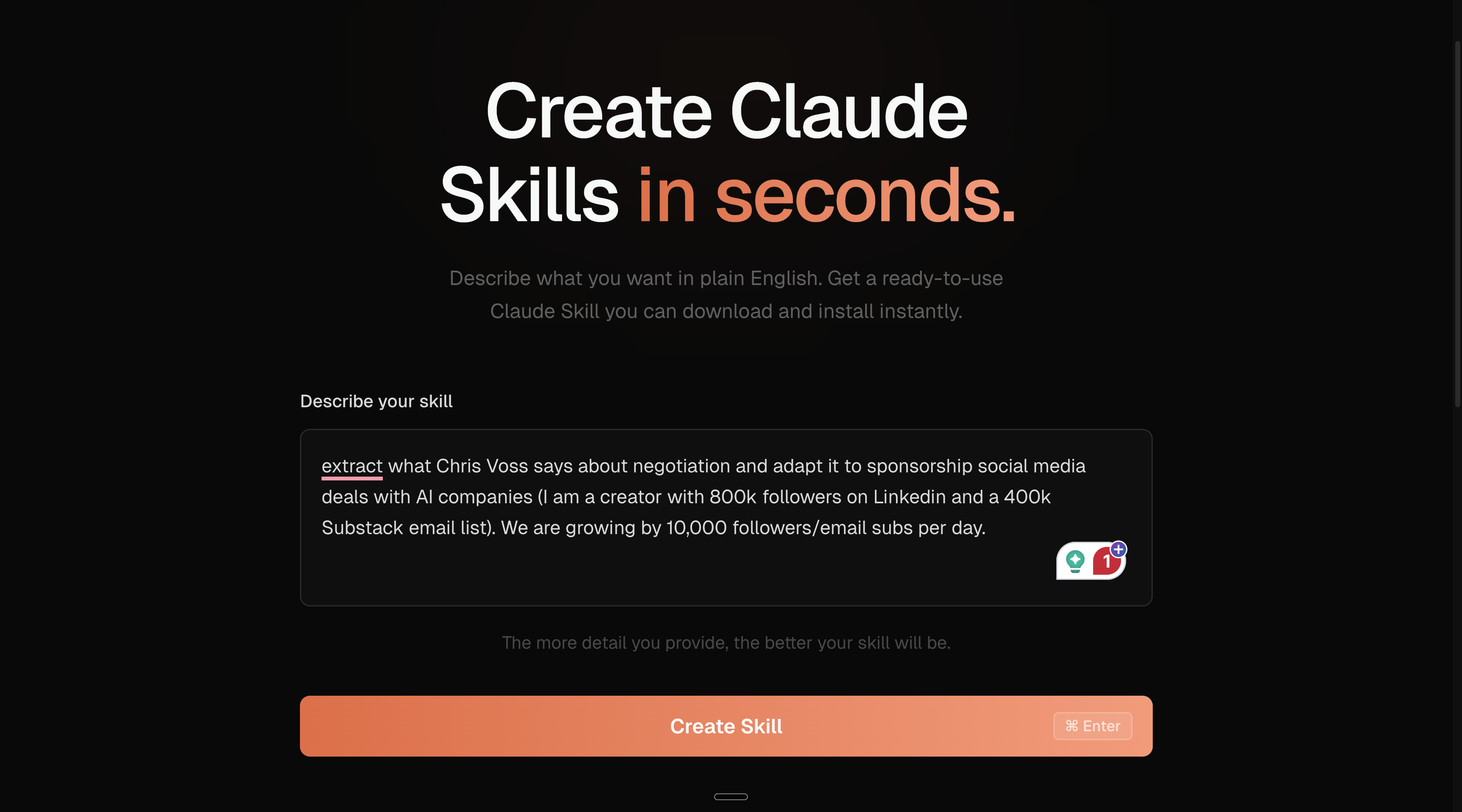 \Here’s an example where I need a bit of research first. I still gave some context. Then you hit Create Skill, and you just wait patiently.\
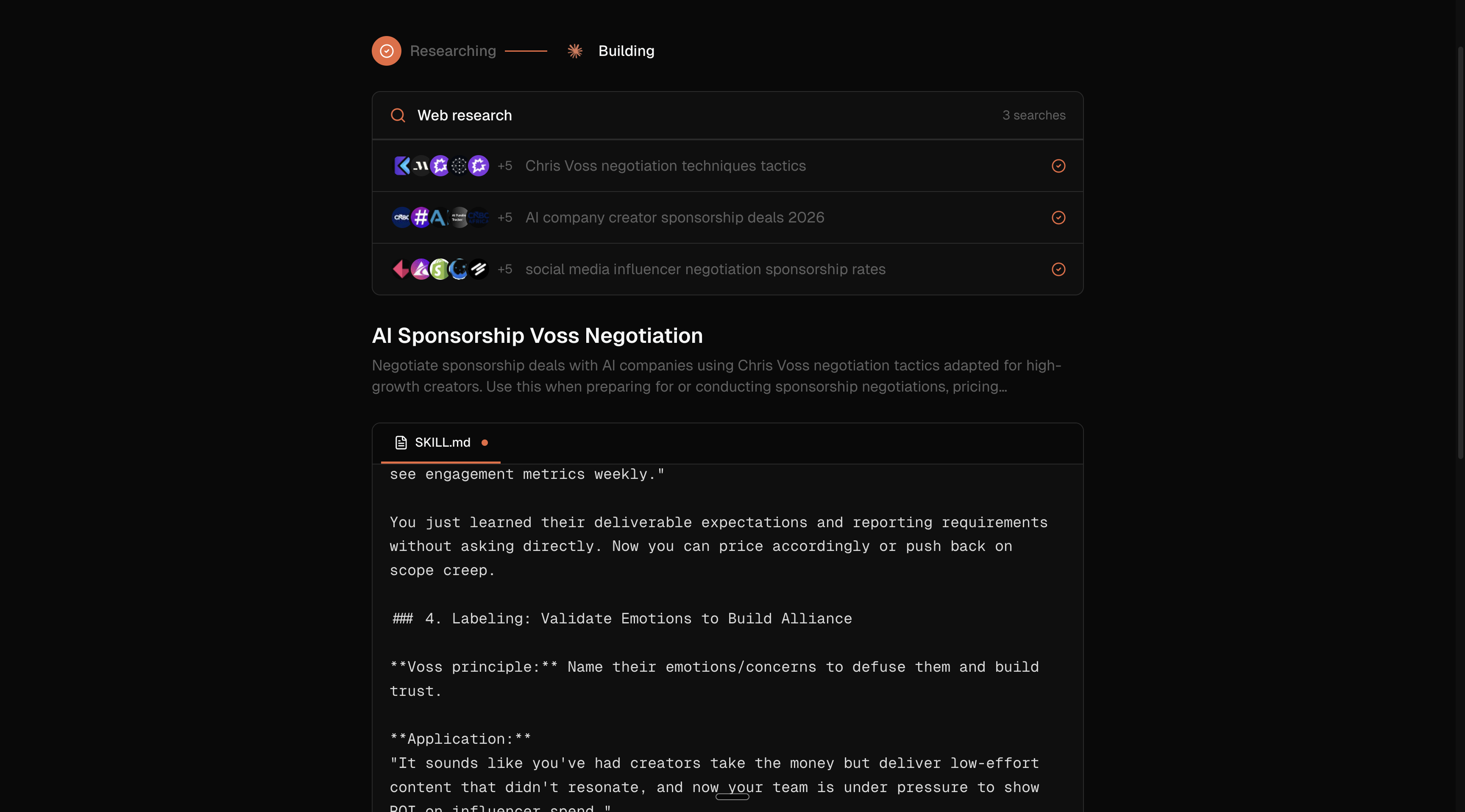 \It’s searching the web and writing the instructions at the same time.\
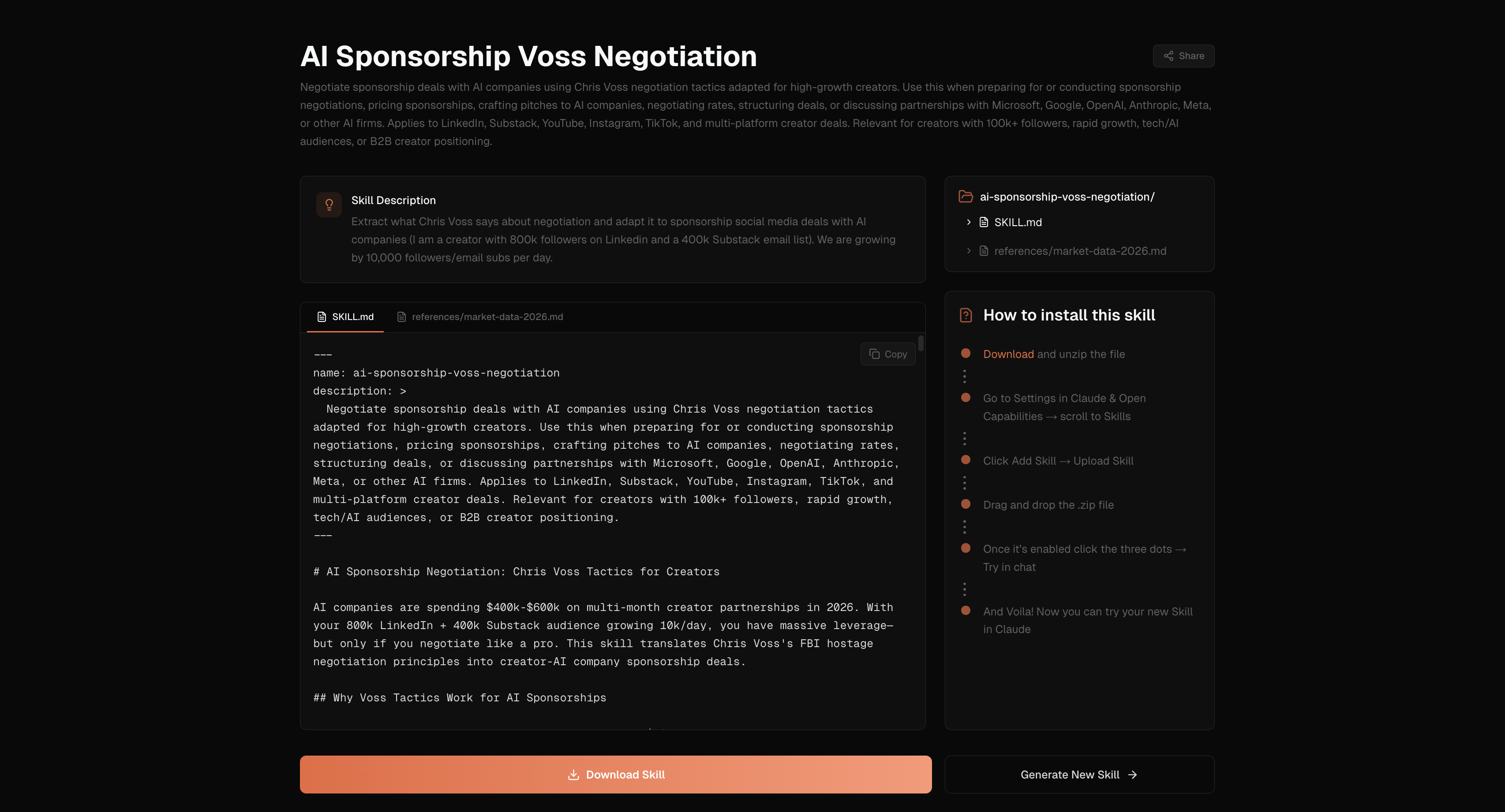 \If you like it so far and want to test it, click the big orange button.\
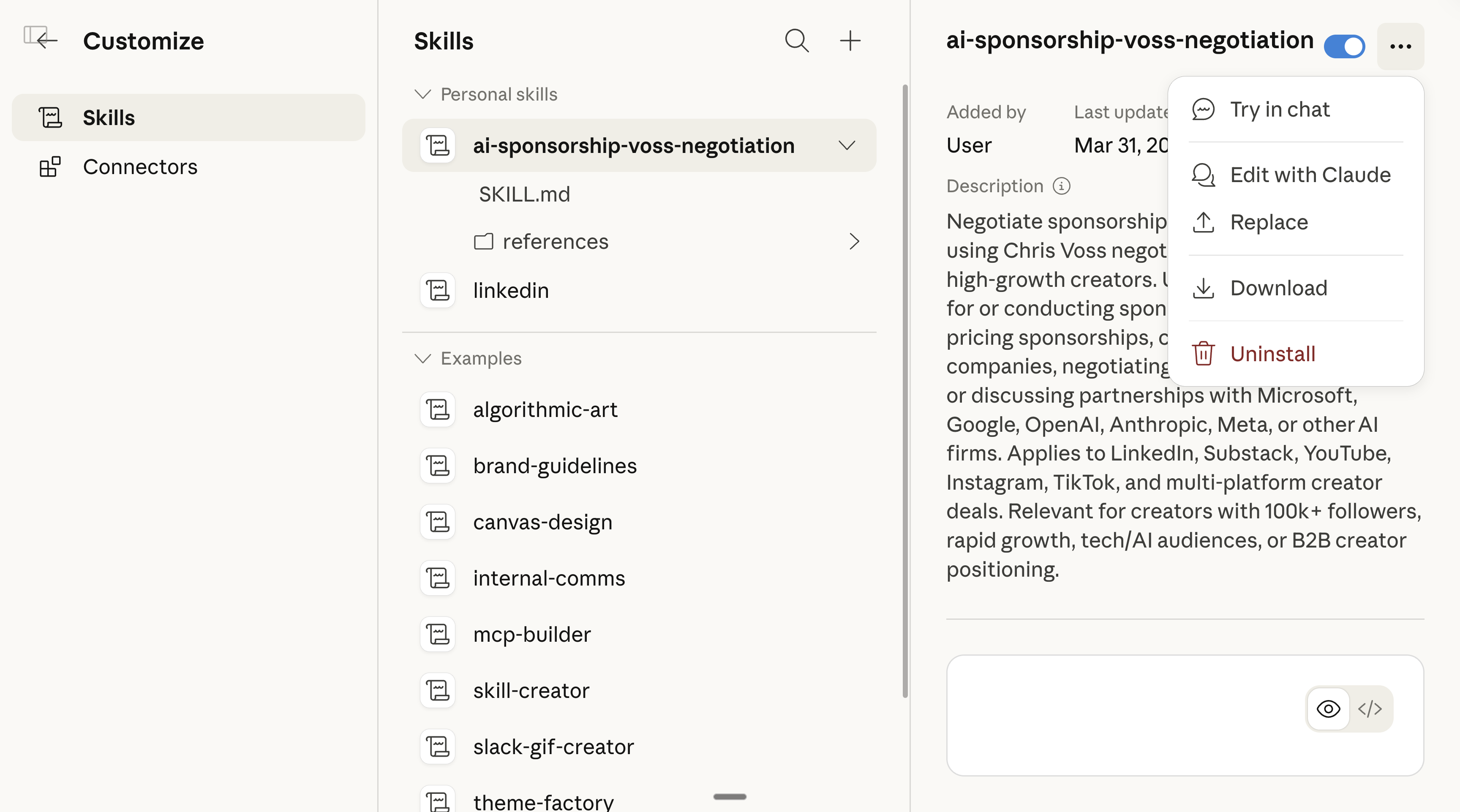 \Upload it to your Skills.\
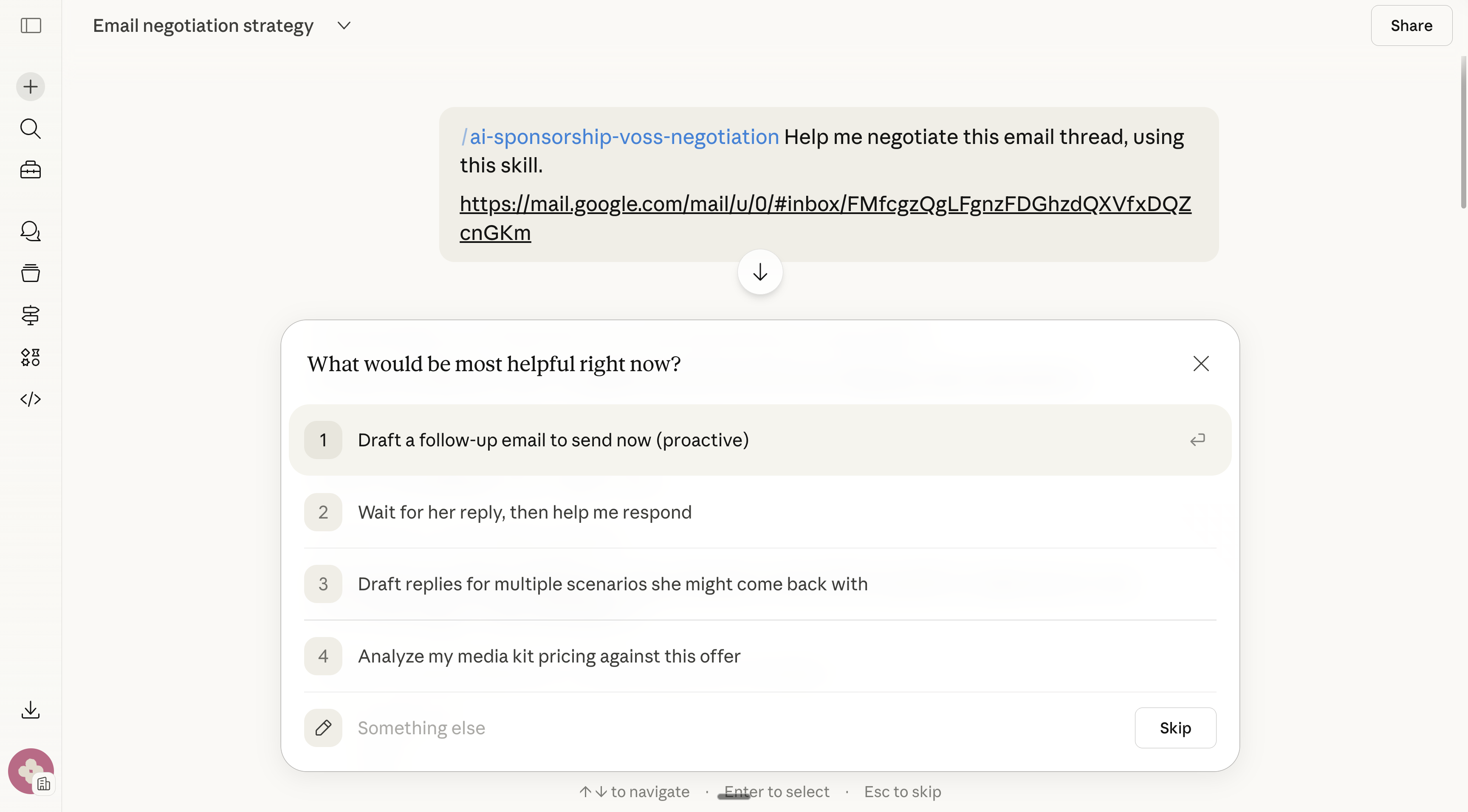 \Test it. Here I combined with the fact that my Claude is connected to my Gmail through connectors.\
If you need specific Claude skills for your business, and a company-wide Claude training for over 100 people in the US, send me a DM on Linkedin.
I read all of my Linkedin DMs.
3 - Access Claude’s team skills.
You don’t have to build everything from scratch.
Claude’s team makes pre-built Skills. To access it, do this:
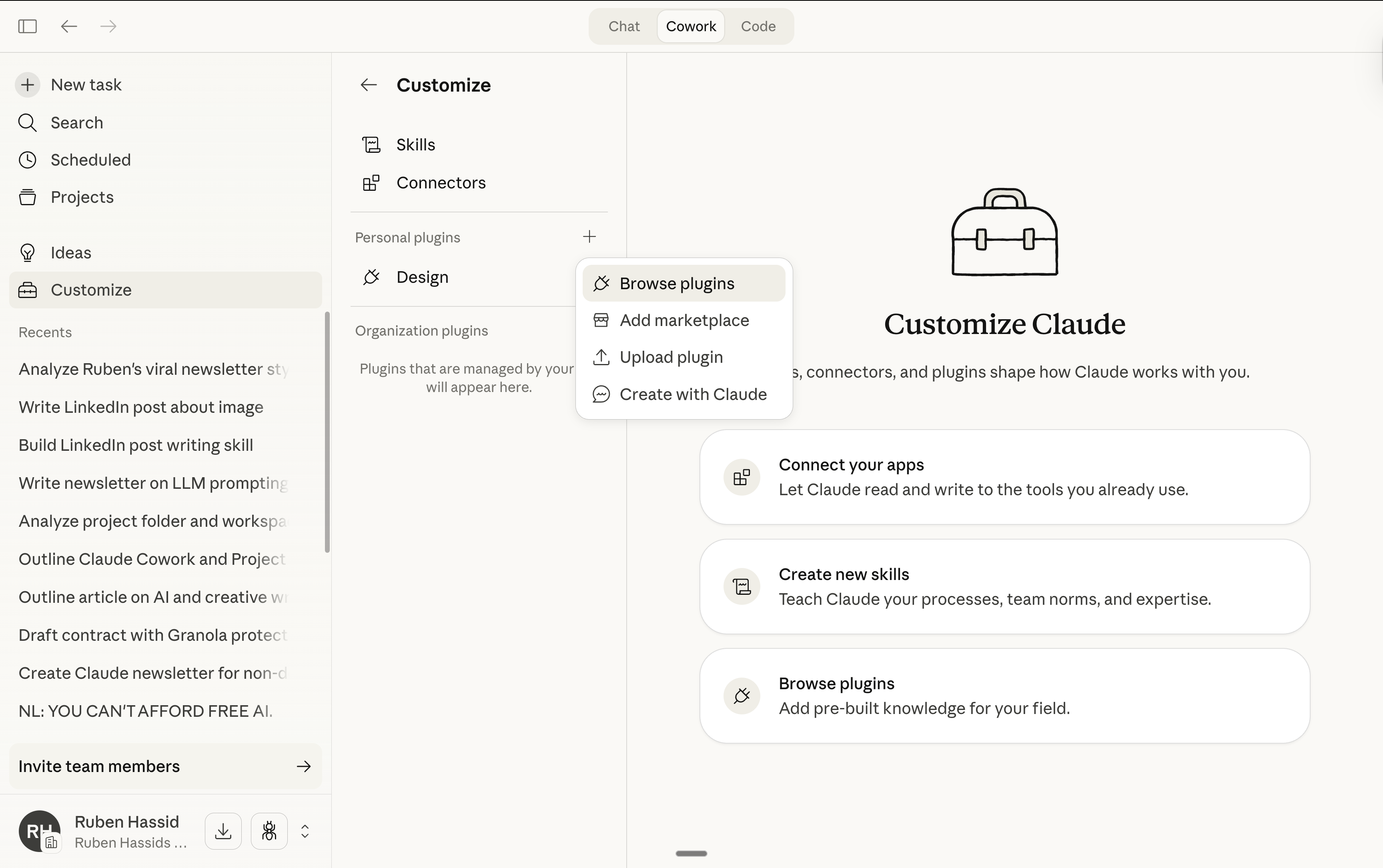 \Step 1: You must be on the desktop app. Go to Customize > Personal plugins > Browse plugins inside the +\
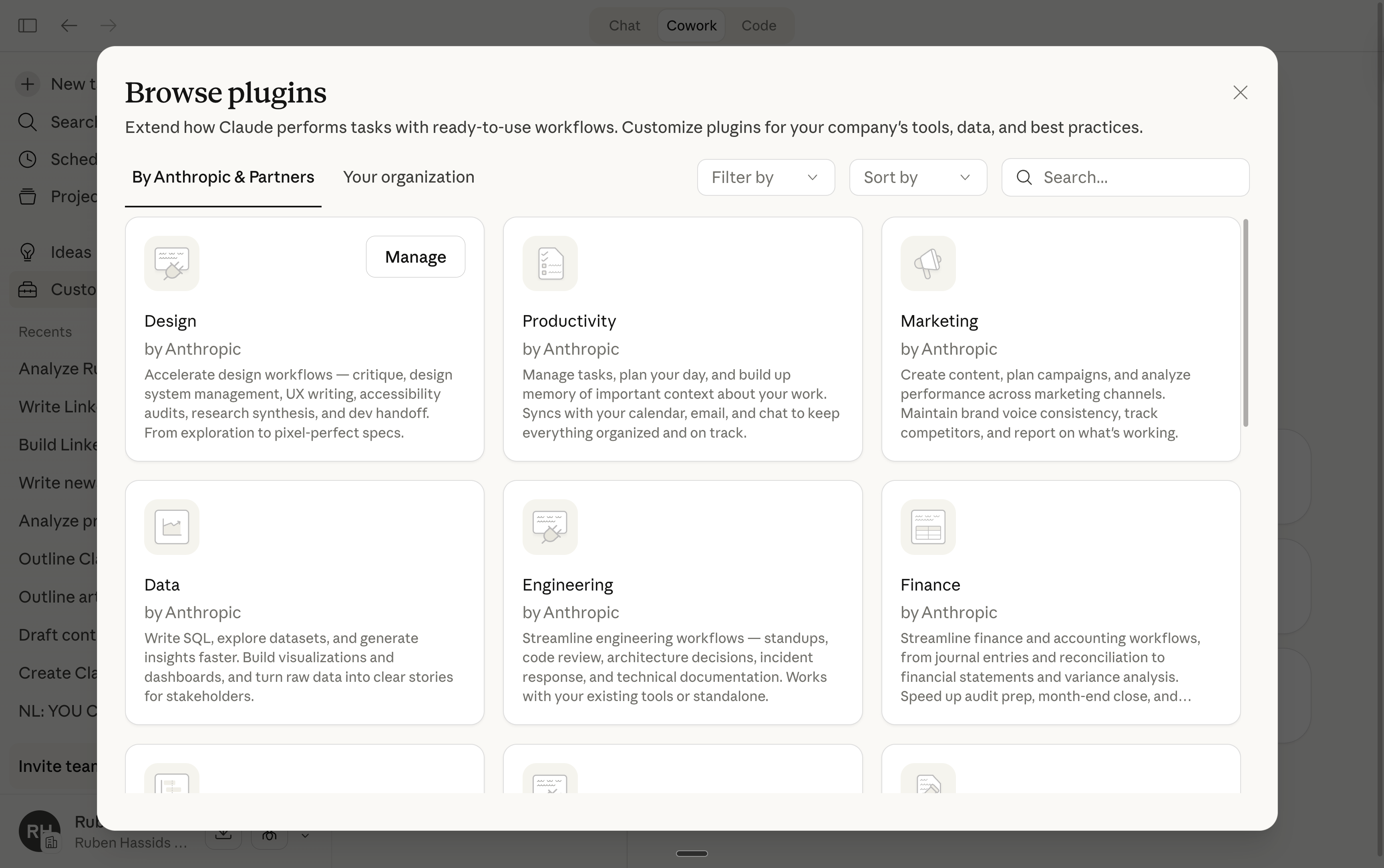 \You can browse plugins. A plugin is just a bunch of skills for a task. You can click on anyone of them and download it\
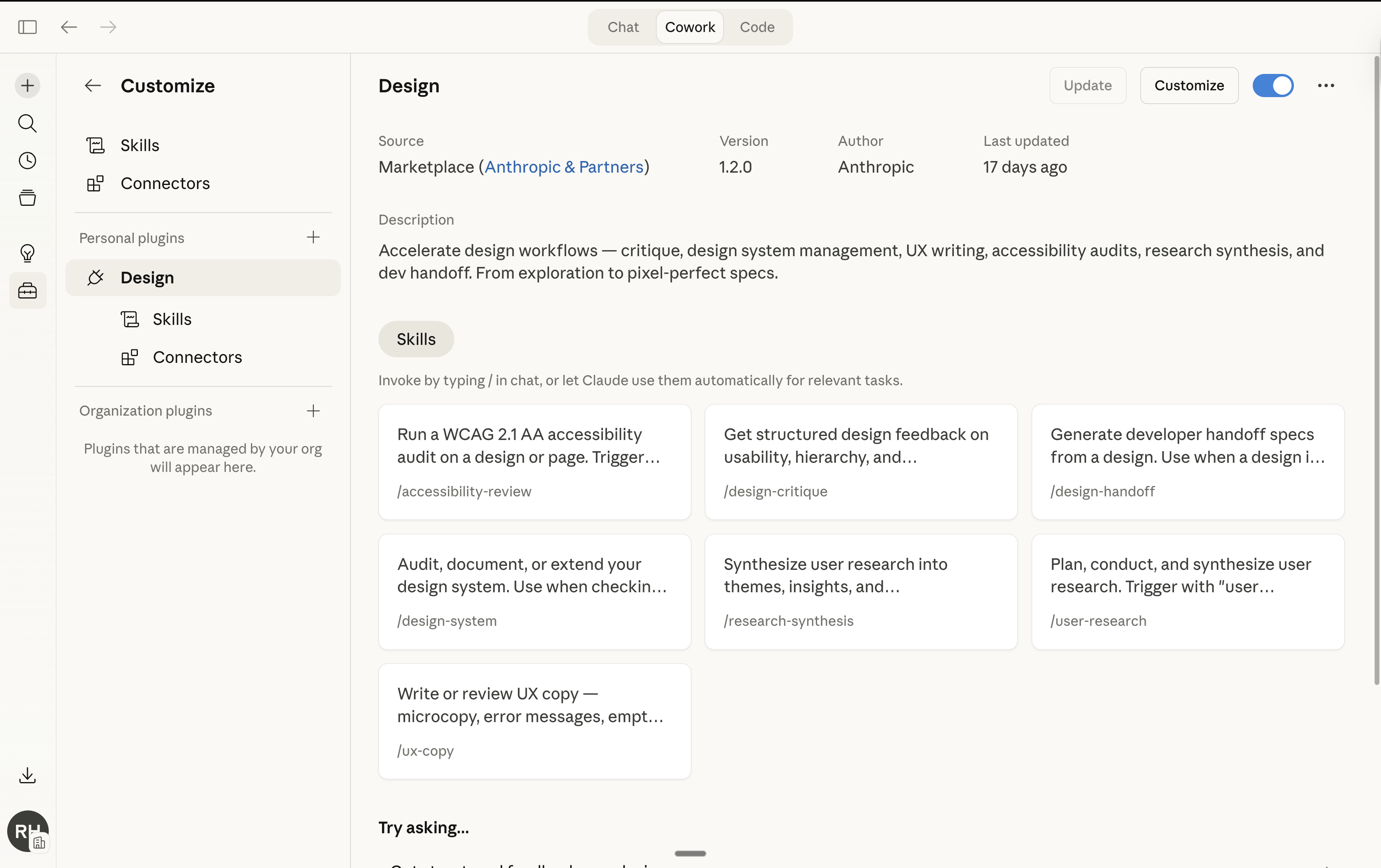 \You now have all of these new skills to test, from this one plugin.\
4 - My 7 favorite Skills hacks (few know).
I read Anthropic’s official 28-page guide. I read every creator who wrote about Skills. I tested it myself.
Here’s what they all missed, buried, or didn’t explain properly:
1. The debugging trick.
Your Skill doesn’t work when you’re calling it, and you don’t know why.
Ask Claude: “When would you use the linkedin-post skill?”
Claude quotes the description back to you, word for word. You instantly see what’s missing, what’s vague, what’s not matching your request.
Fastest fix for any broken Skill.
2. Negative triggers matter more than positive ones.
Remember I am just a text file? I wrote: “80% of the file is what I’m not.”
Same with Skills.
The “Do NOT use for…” line in your description is more important than the “Use when…” line. It prevents your Skill from hijacking conversations it shouldn’t touch.
3. Skills stack with your voice file.
Your about-me.md tells Claude who you are. Your Skill tells Claude how to do the job. They fire together. Simultaneously. Two layers.
So your LinkedIn Post Skill doesn’t need your voice rules. It handles the structure, the hooks, the CTA format. Claude already knows your voice from the .md file in your folder. The Skill handles process. The voice file handles tone.
4. Build Skills from your past conversations.
Don’t start from scratch. You’ve been giving Claude instructions for months. Those past prompts already contain the process. You just need to package it.
Claude reverse-engineers the workflow:
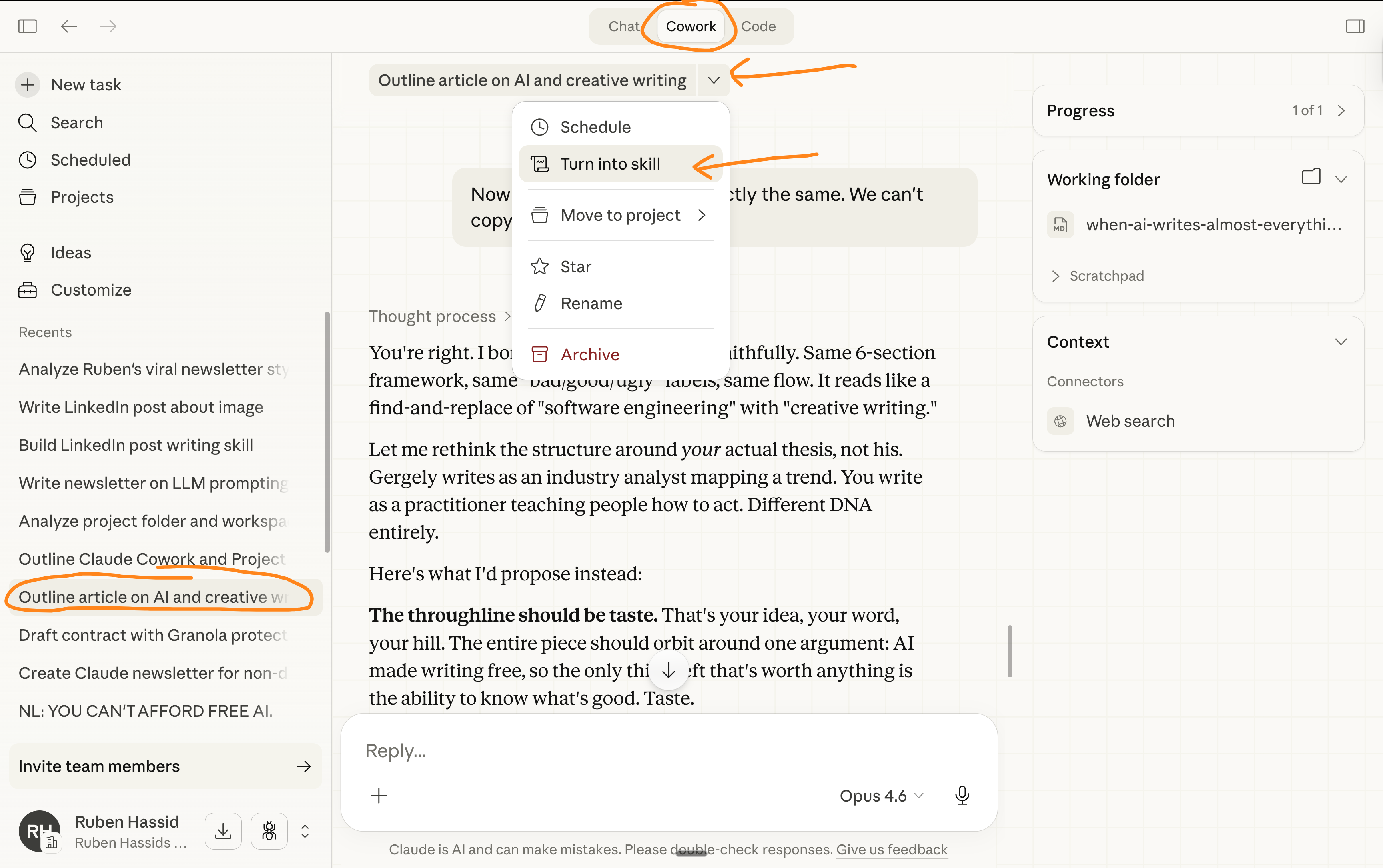 \Click on a Cowork chat session > on the name’s arrow > turn it into a skill.\
5. Skills save tokens (so that’s money).
You’d think installing 20 Skills would eat your usage. It’s the opposite.
Claude only reads the 3-line header of each Skill at first. The full instructions only load when a task matches. So 30 installed Skills barely touch your context window.
And Anthropic’s own data shows it: a task that took 15 back-and-forth messages and 12,000 tokens without a Skill took 2 questions and 6,000 tokens with one.
Your Pro plan goes further with Skills.
6. The “laziness” workaround.
Sometimes Claude cuts corners inside a Skill. Skips a step. Rushes the output.
The fix is counterintuitive. Don’t change the Skill file. Change your prompt.
Add this to your message: “Take your time. Quality over speed. Don’t skip steps.”
Anthropic themselves say this works better in the user prompt than inside the Skill instructions. I didn’t believe it until I tested it. It works.
7. Skills are portable — even outside Claude.
Anthropic published Skills as an open standard. The same SKILL.md file is designed to work across platforms.
Build a Skill for Claude today, and if Gemini or ChatGPT supports the format tomorrow, it transfers. No rewrite.
Same idea as your voice file. You showed it works on ChatGPT, Gemini, Grok. Now your workflows are portable too.
Where Skills fall short (I’ll be honest).
The description is everything. If you write a bad description, your Skill never fires. It just… doesn’t activate. You’ll wonder if it’s broken. It’s not. The description is just too vague. Use the debugging trick from Section 5.
Skills can hijack conversations. If your description is too broad, your Skill fires when you don’t want it. You ask Claude a simple question and your LinkedIn Post Skill activates. The fix: add negative boundaries. “Do NOT use for blog articles, newsletters, emails.”
It still needs editing. A Skill doesn’t produce perfection. It produces a consistent starting point, 80% there, every time, instead of starting from zero. You still review. You still push back. But the heavy lifting is done.
Usage still burns fast. Skills don’t magically eliminate token usage (beyond the efficiency gains from Trick #5). Cowork still eats your plan. Same caveat as my Cowork and Code guides. If you’re using Cowork daily, consider the Max plan ($100/month). I’m being direct about this because I don’t want you surprised.
Your first 30 minutes with Claude Skills.
Open your calendar. Book 30 minutes with yourself, this newsletter, and Claude.
Minutes 0–5: Open Cowork. Find the skill-creator.
→ Open Claude Cowork (you already have it from my past guides).
→ Select your Claude folder. Make sure you’re on Opus 4.6 + Extended thinking.
→ Type: “Use the skill-creator to help me build a skill for [your most repeated task].”
→ Don’t know which task? Pick the one you re-explain the most. That’s the one.
Minutes 5–15: Answer the interview. Build the Skill.
→ The skill-creator asks you questions. Answer them like you did for the taste interview.
→ Be specific. “I write reports” is useless. “I write weekly reports that always start with the headline metric, use 3 sections max, and end with next steps as bullet points” is a Skill that works.
→ It generates your SKILL.md. Review it. Ask for changes if anything feels off.
Minutes 15–20: Install and test.
→ Save the Skill folder. Upload it via Settings → Capabilities → Skills.
→ Open a new conversation. Type a request that should trigger the Skill.
→ Watch it fire automatically. Compare the output to what you used to get without it.
→ The difference is instant.
Minutes 20–25: Iterate.
→ Try 5 different phrasings. “Write a LinkedIn post.” “Draft a post for LinkedIn.” “I need LinkedIn content about X.” Does the Skill fire each time?
→ Try 2-3 unrelated requests. “Summarize this document.” “Draft an email.” Does the Skill stay quiet?
→ If something’s off: “When would you use this skill?” Fix the description based on what Claude says back.
Minutes 25–30: Browse Claude’s plugins (it’s a bunch of skills).
→ You know the process now.
→ Go fetch some more inside Claude Cowork > Customize > Personal plugins > The “+” > Go get some new skills for yourself.
→ And of course, test it.
→ Optional: realize you just saved yourself hours per week, and nobody told you it was this easy. Because they were too busy explaining the tech to you instead of how to do it.
I am not a Claude fan.
I know I talk (a whole lot) about Claude.
But I don’t care about Claude. Claude or Anthropic does not pay me.
I’m sharing, twice a week, how my work is speeding up (very fast) with AI.
As I’m trying to keep up, I want you to keep up.
So we move just as fast.
I want to be the great filter to your AI noise.
And 420,000 people read this twice a week to focus on the How.
Some came because of my LinkedIn. But most readers subscribed because someone they trusted sent them one of my articles.
If this article helped you, be that person for someone else (and share it):
If someone did send you this, thank them and subscribe for free here: