Exploring Prompts vs Skills in Edu App Development
By Phillip Alcock
Published: 2026-11-26
URL: https://aiworkflowsforteachers.substack.com/p/can-a-skill-help-create-better-educational
Time: About 30 minutes, estimated | Level: Beginner | Platforms: Gemini Skills and Gemini Canvas (gemini.google.com)
The Prompt App - https://sites.google.com/view/aiworkflowsforteachers-volcpr/full-page-embed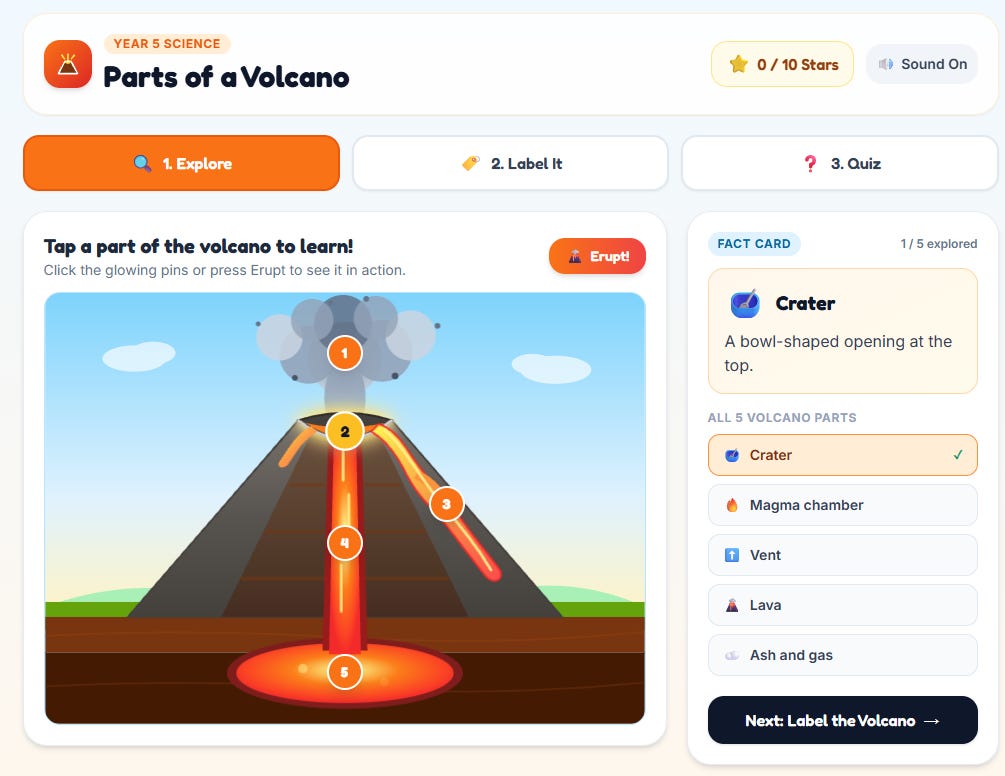
The Skill Based App - https://sites.google.com/view/aiworkflowsforteachers-volcski/full-page-embed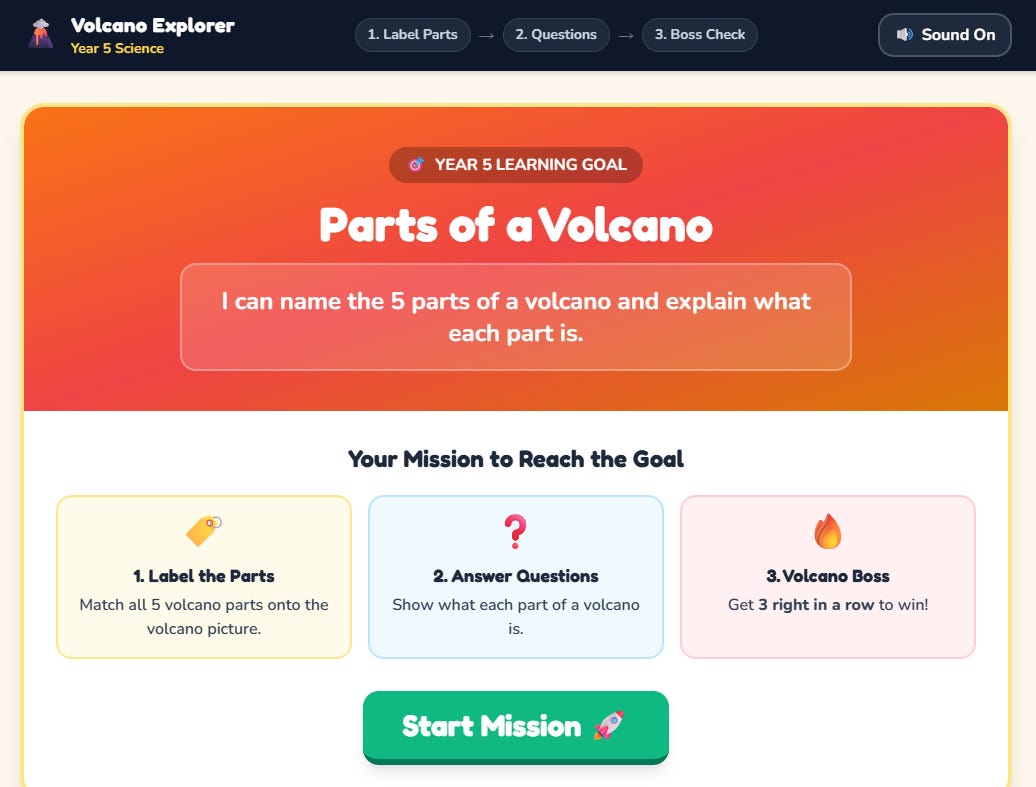
The prompt learning experience problem
A one paragraph prompt gives Gemini very little to work with and it’s kinda lazy to think that it can be educational without any intention. It knows the topic and the year level, and it fills the rest in itself. In this test the plain build was a decent volcano app, but it opened with a title and a tap instruction, stated no learning goal anywhere on the opening screen, and ended with a plain five question quiz. Nothing in it checked that a student could do the one thing the lesson was for.
The skill build was completely different. It opened with a banner headed YEAR 5 LEARNING GOAL and the sentence: I can name the 5 parts of a volcano and explain what each part is. It ran in three missions, and the third was a boss check that needs three correct answers in a row. Same topic, same teacher material, same plain prompt underneath. The only change was the skill block applied first.
Before you start
-
A Google account with Gemini. In this run the account was on Gemini Pro, signed in as Phil Alcock.
-
Your teacher material, short enough to paste. This run used five facts: Crater is a bowl shaped opening at the top. Magma chamber is a pool of melted rock under the volcano. Vent is a passage magma travels through. Lava is magma at the surface. Ash and gas are thrown into the sky during an eruption.
-
No student logins in either build. The teacher opens the finished app for the class.
Route: Gemini Skills (save the skill block) then Gemini Canvas chat one (plain prompt only) then Gemini Canvas chat two (skill first, then the same prompt) then your comparison notes.
Step 1: Write the skill block and save it
Platform: Gemini (https://gemini.google.com), Customise, Skills
Do this: One change since this workflow was planned: Gems have moved. The Skills page in this account carries the notice Gems migrated to skills, and the old Gem editor is no longer the route. Open Customise, then Skills, then Create manually, and save the block below as a skill named Edu App Builder. In this run the page then showed Skill created, with edu-app-builder listed under Installed (1). If your account still offers a Gem editor, paste the same block as the Gem instructions instead. The block itself is the working part.
AI prompt: Use with Gemini Skills, as the saved skill instructions
Starter template: save this block as it is. Change nothing except the name if your class needs a plainer one.
EDU APP SKILL. Start from the learning goal and state it on the opening screen. Use only questions and facts from the teacher material supplied in this chat. Set reading age to the year level given. No student logins. Big buttons and clear text. The game goal must be the learning goal. End with a boss check that needs three correct answers in a row.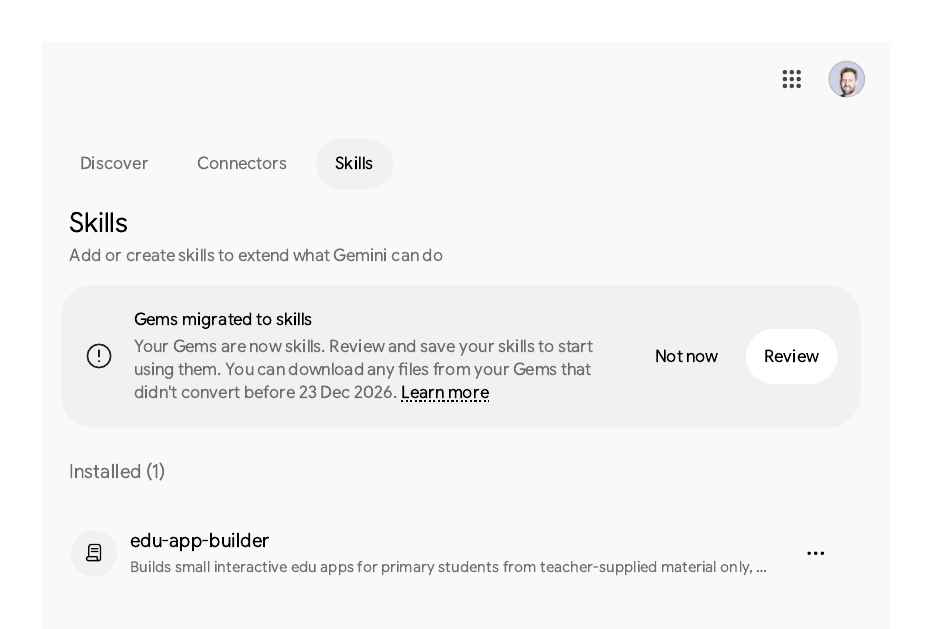 Screenshot: The Gemini Skills page after saving, showing the Gems migrated to skills notice and edu-app-builder under Installed
You should have: One saved skill named Edu App Builder, listed as installed.
Check before continuing: Open the skill and read the block back. Every line must still be there, including the boss check line at the end.
Step 2: Build the app from the plain prompt only
Platform: Gemini Canvas, new chat
Do this: Start a new chat, turn on Canvas, and paste only the plain prompt below. No skill, no extra instructions. Open the preview when Gemini finishes and note what the opening screen says and how the app ends.
AI prompt: Use with Gemini Canvas
Starter template: fill in the [BRACKETS] with your own topic and material.
Build a small interactive edu app for [YEAR LEVEL] about [TOPIC]. Use this material: [YOUR FACTS, ONE SENTENCE EACH]. Students label the parts and answer questions. For this test the filled prompt read: Build a small interactive edu app for Year 5 about parts of a volcano. Use this material: Crater is a bowl shaped opening at the top. Magma chamber is a pool of melted rock under the volcano. Vent is a passage magma travels through. Lava is magma at the surface. Ash and gas are thrown into the sky during an eruption. Students label the parts and answer questions.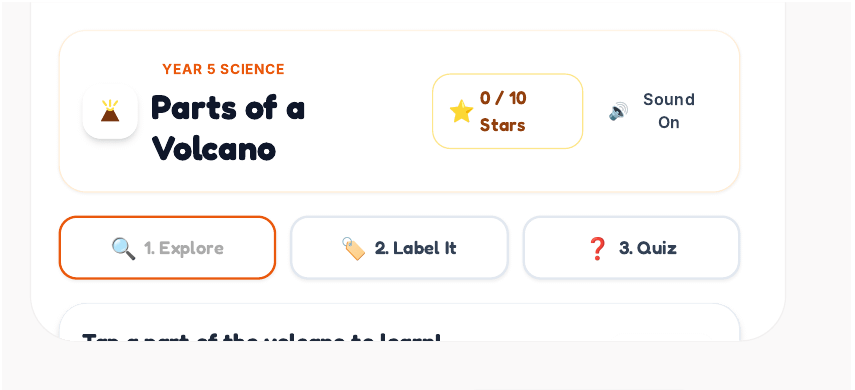 Screenshot: Build 1, the plain prompt app. Parts of a Volcano, Year 5 Science, with Explore, Label It and Quiz, and a stars counter. No learning goal on the opening screen.
You should have: A working volcano app built from the plain prompt alone.
Check before continuing: Read the opening screen. Write down whether it states a learning goal, and what the final activity is. In this run: no goal stated, and the app ended in a five question Quiz, with first question: What is the bowl shaped opening at the top of a volcano called?
What You Unlock Below the Paywall
-
Step 3 in full: the skill first build, with the skill block pasted at the start of the chat and the same plain prompt after it.
-
Screenshots of both finished apps, the skill first opening screen with its learning goal banner, and the plain app opening screen.
-
The honest comparison table from this run: learning goal, boss check, structure, question source, reading level and buttons.
-
Refinement tricks: tightening the skill block for your subject, and the one line to add when an app invents facts.
-
Two quick try challenges to finish.
AI Workflows for Teachers membership
This workflow is available to paid subscribers of AI Workflows for Teachers. Paid membership also includes access to other paid resources, including:
-
AI workflows designed for teachers.
-
Permission to reuse the workflows in training sessions.
-
13 packs from the Gumroad store at no extra cost. The packs are valued at over $200 USD and include skills and ebooks. I’ll send subscribers a Google Drive link to access them.
-
My new “AI With Purpose” book.
*Annual membership costs $50 USD in 2026 and $100 USD in 2027. Subscribe as a paid member to access the workflows and receive the 13 packs.
Membership support helps me continue creating AI resources for teachers and growing the publication.
AI for Teachers is a reader-supported publication. To receive new posts and support my work, consider becoming a free or paid subscriber.
Free subscription
Free subscribers receive at least one free post each week, along with partnership and sponsored posts. The 130 free workflows are also available to explore.
Step 3: Build the same app with the skill applied first
Platform: Gemini Canvas, second new chat
Do this: Start a second new chat, turn on Canvas, and send the skill block first, either by using your saved Edu App Builder skill in the chat or by pasting the block from Step 1 at the top of your message. Then paste the exact plain prompt from Step 2 underneath it, unchanged. Gemini replied in this run: I will now build the interactive Year 5 volcano learning app, complete with the learning goal opening screen, an interactive volcano labeling diagram, practice questions, and a 3 in a row Volcano Boss check based strictly on your supplied facts.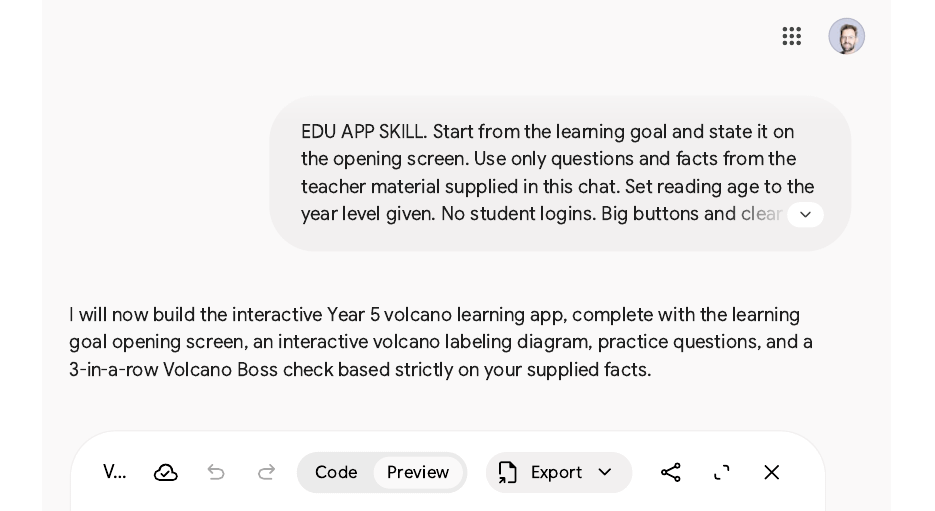 Screenshot: The start of the skill first chat, with the EDU APP SKILL block pasted first and Gemini confirming the learning goal screen and the boss check.
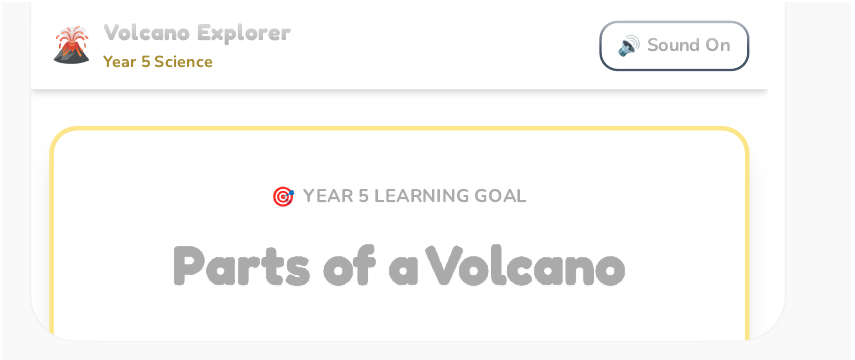 Screenshot: The top of Build 2, the skill first app, showing the YEAR 5 LEARNING GOAL banner above the Parts of a Volcano title. The goal sentence and missions are in the summary screenshot below.
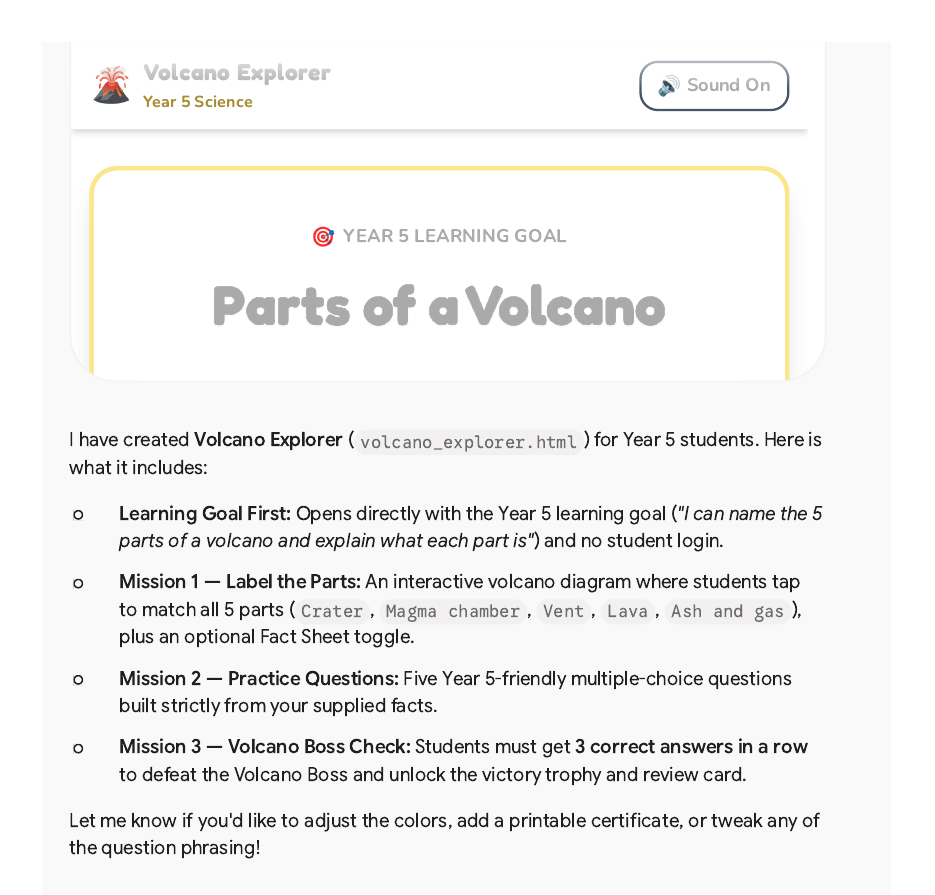 Screenshot: Gemini summary of Build 2, listing the learning goal first, the labelling mission, five questions built from the supplied facts, and Mission 3, the Volcano Boss Check.
You should have: A second volcano app on the same material, opening with a stated learning goal and ending with a boss check.
Check before continuing: Compare opening screens before you compare anything else. The goal sentence is the first thing a student sees in the skill build and is absent in the plain build.
The comparison, from this run
-
Learning goal: Plain build, none stated. Skill build, stated on the opening screen as: I can name the 5 parts of a volcano and explain what each part is.
-
Final check: Plain build, a five question quiz with a stars counter, 0 of 10 at the start. Skill build, Mission 3, Volcano Boss, get 3 right in a row to win.
-
Structure: Plain build, Explore, Label It, Quiz, with an Erupt button. Skill build, 1. Label Parts, 2. Questions, 3. Boss Check, with a Start Mission button.
-
Questions: Both builds drew on the supplied material. The plain build first quiz question and its fact cards matched the teacher text. The skill build summary states its five questions were built strictly from the supplied facts, which is the skill block line working as written.
-
Reading level and buttons: Both builds used short Year 5 text and big buttons. The skill build opening text is slightly longer because the goal is written as a full sentence. Neither build asked for a student login.
Refinement tricks
-
Add your reading rule to the skill block once, for example: Keep every sentence under 12 words. It then applies to every app you build with the skill.
-
If an app adds a fact you did not supply, reply in the same chat: Remove every fact that is not in my material, and rebuild. Then check the fact cards again.
-
Keep one skill per job. A second skill for quiz only apps, with no game parts, keeps both blocks short and readable.
What You’ve Built
A saved Edu App Builder skill in Gemini, two volcano apps built from the same prompt on the same material, and a written comparison showing what the skill changed: a stated learning goal, a boss check, and questions held to your material.
Quick try challenges
-
Do this: Build a third app on a new topic with the skill and check the goal banner appears without being asked. Or do this: Remove the boss check line from the skill, rebuild, and see what the app ends with instead.
-
Do this: Swap the volcano material for your next topic, keeping the skill block word for word. Or do this: Add the 12 word sentence rule to the skill and compare the opening screens.
Phil