Published: 2026-11-14
URL: https://aiworkflowsforteachers.substack.com/p/how-to-create-a-short-classroom-video
Time: 30-60 minutes, estimated, plus generation time | Level: Beginner | Platform: Gemini Notebook
Before you start
You will need a Gemini Notebook containing sources you have checked and have permission to use. Choose one concept, a year level and an observable learning goal before you begin.
Use the web version for this workflow. Google says interactive reports are web-only, and some content in them is restricted to users aged 18 or older. Review the age requirements, school policies and sharing settings before asking students to use the notebook. Avoid uploading identifiable student information. Gemini Notebook Help
Review producer notes requires a Google AI Ultra subscription. Without it, you can still create a Video Overview if the feature is available on your account, but you will need to review the finished video without the producer-notes stage. Google says video generation can take more than 30 minutes. Gemini Notebook Help
If you already have a checked video, start at Step 4. If you have an interactive overview too, start by reviewing both and planning how students will access them.
Route: Gemini Notebook sources → short video and interactive learning overview → teacher-reviewed learning experience.
AI Workflows for Teachers membership
This workflow is available to paid subscribers of AI Workflows for Teachers. Paid membership also includes access to other paid resources, including:
-
AI workflows designed for teachers.
-
Permission to reuse the workflows in training sessions.
-
13 packs from the Gumroad store at no extra cost. The packs are valued at over $200 USD and include skills and ebooks. I’ll send subscribers a Google Drive link to access them.
*Annual membership costs $50 USD. Subscribe as a paid member to access the workflows and receive the 13 packs.
Membership support helps me continue creating AI resources for teachers and growing the publication.
AI for Teachers is a reader-supported publication. To receive new posts and support my work, consider becoming a free or paid subscriber.
Free subscription
Free subscribers receive at least one free post each week, along with partnership and sponsored posts. The 130 free workflows are also available to explore.
Teach me about the prompt
The video prompt gives Gemini Notebook four decisions to work with: the concept, the learners, the source material and the sequence of the explanation.
Start by naming one concept rather than asking for a summary of the entire unit. A short video has limited time. “Explain evaporation” gives the tool a narrower task than “explain the water cycle”, leaving more room to show what happens to water particles.
The year level and learning goal tell Gemini Notebook what students should be able to do after watching. For example:
Students will be able to explain how liquid water becomes water vapour when it gains energy.
That goal gives you something to check in the finished video. If the narration only says that water “disappears”, it has missed the process students need to explain.
The prompt also asks for an everyday comparison. A useful comparison gives students something familiar to connect with a new idea, but it has limits. A puddle shrinking after rain is an observable example of evaporation; it does not show students the water particles themselves. Check that the narration and visuals do not leave students with the impression that the water has ceased to exist.
The requested sequence gives the video a beginning, middle and end:
-
Introduce the idea through a familiar example.
-
Show the process in a few clear steps.
-
Finish with a prediction question.
The timing in the prompt is a guide, not a guarantee. The Short format is approximately 60 seconds, and the finished video may arrange or time scenes differently. Review the producer notes and the final video for the teaching sequence you need.
The producer notes appear before the video is generated. You can review the proposed approach and provide feedback before selecting Proceed. Google says to add your feedback together; once you proceed, you cannot make further changes to those notes for that generation. Gemini Notebook Help
The interactive overview is a separate output. Google says these reports can suggest Studio content for you to add, but its documentation does not establish that an existing video will automatically be embedded in the report. Treat the video and overview as separate resources unless the report offers a suitable way to include the video you created. Gemini Notebook Help
The PBL Future Labs Learning Mission
The mission: Students investigate why some puddles disappear faster than others. They use a teacher-reviewed video and learning overview to develop an explanation for another class.
Driving question: How can we explain where a puddle goes and why some puddles dry faster than others?
Learning goal: Students will be able to explain evaporation and use observations to support a prediction about drying.
The final product: A student portfolio entry
Each student creates a portfolio entry for a younger class. It includes:
-
A labelled explanation of what happens to water during evaporation.
-
A prediction about which of two puddles would dry faster.
-
Evidence or reasoning supporting that prediction.
-
A reflection on one idea they changed or clarified during the investigation.
Students can present their entry as an annotated diagram, a written explanation, a short audio recording with labelled images, or a small slide deck. The teacher-created video and interactive overview serve as learning resources; students develop their own explanation for the audience.
Suggested learners: Years 5-6, adaptable to other year levels. Students should have some familiarity with solids, liquids and gases.
How the mission unfolds
-
Investigate. Show students two photographs or descriptions of puddles in different conditions. Ask them to predict which would dry faster and record their initial reasoning.
-
Learn. Students watch the short video and use the teacher-reviewed overview or a teacher-provided version of its questions. They compare the explanation with their initial prediction.
-
Create. Students prepare a first portfolio entry explaining evaporation and supporting their prediction.
-
Review and improve. Partners check whether the explanation accounts for what happens to the water. Students return to the sources and revise an unclear or unsupported statement.
-
Share and reflect. Students share their work with the intended audience and identify one change they made to their thinking.
The teacher’s role: Select the sources, model how to connect a claim to evidence, review the generated materials and give feedback on students’ explanations.
The students’ role: Make predictions, examine evidence, explain the process and decide how to communicate their thinking.
Evidence of learning: Look for an explanation that water becomes water vapour and a prediction supported by a relevant condition. Ask: “Where has the water gone, and what evidence or reasoning supports your prediction?”
Adapt the mission: Provide a partially labelled diagram and a word bank for students who need more support. For an extension, ask students to identify variables they would need to control in a fair test.
Steps
Step 1: Prepare the source material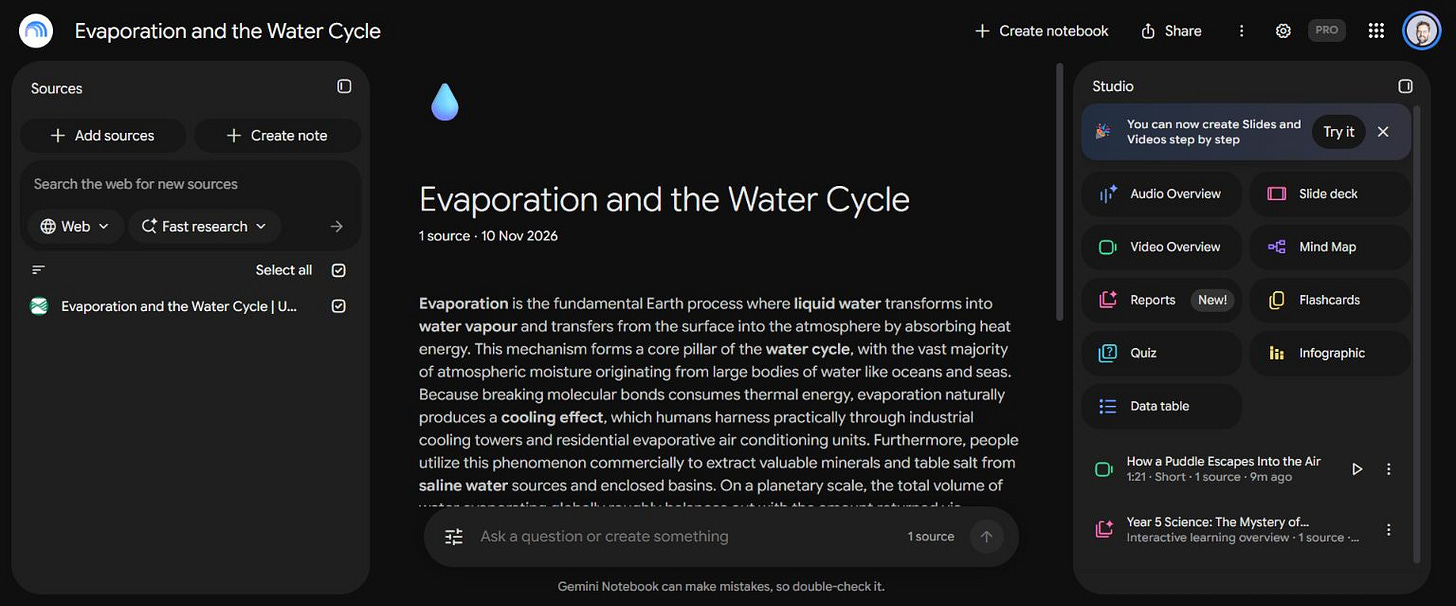
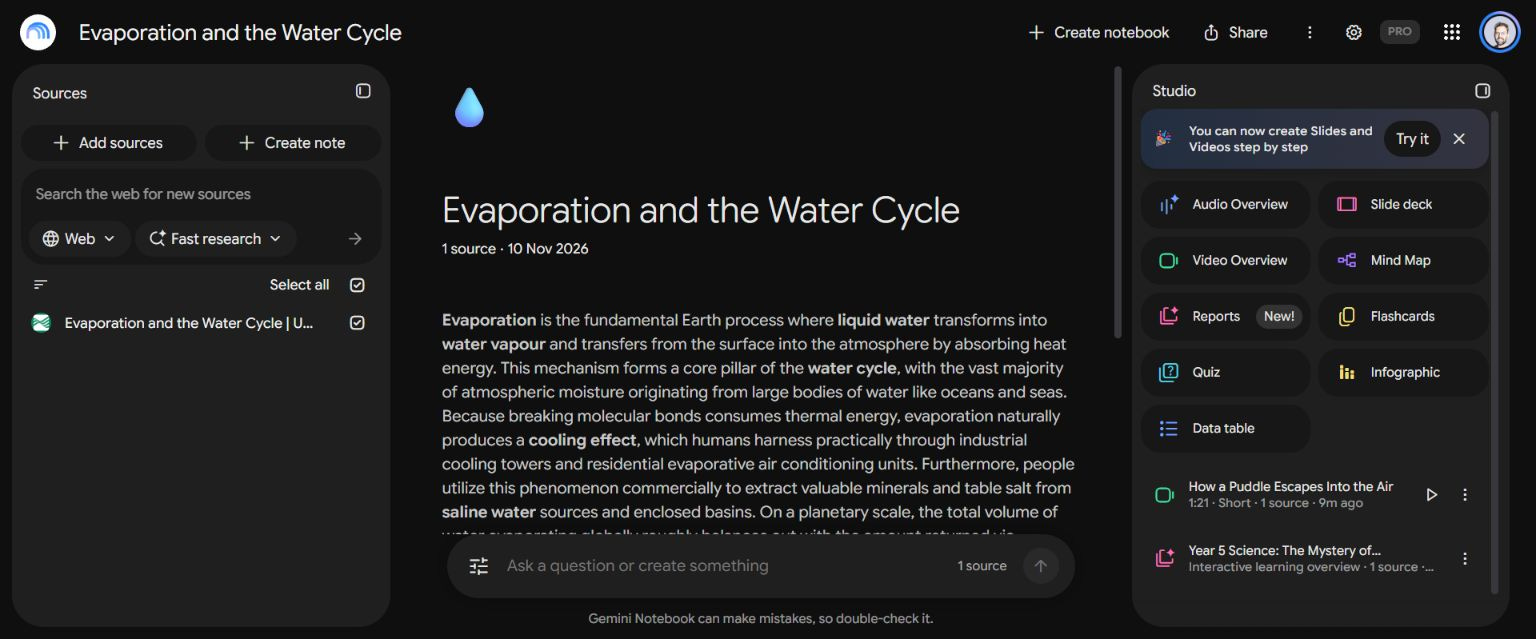
Platform: Gemini Notebook
Do this: Open your unit notebook, or create one and add your teacher-approved sources. Identify the source material that explains the concept you want students to learn. Remove or avoid material that is outdated, contradictory or unnecessary for the task.
Write down your year level and learning goal. For the example in this article, the concept is evaporation.
You should have: A notebook with reliable material that explains the selected concept, plus a specific learning goal.
Check before continuing: Find the explanation in the sources yourself. Check that the material contains enough detail to support the explanation and prediction you want students to make.
Take to the next step: Keep the notebook open and use its selected sources to create the video.
Step 2: Request a short video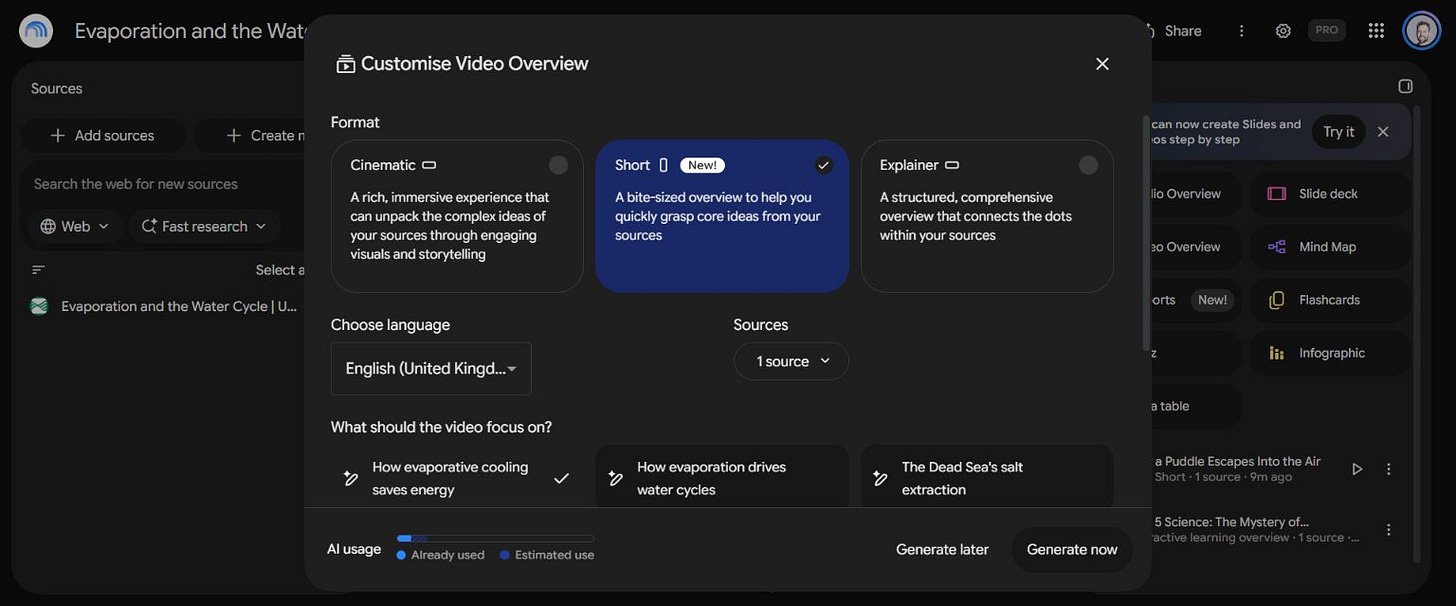
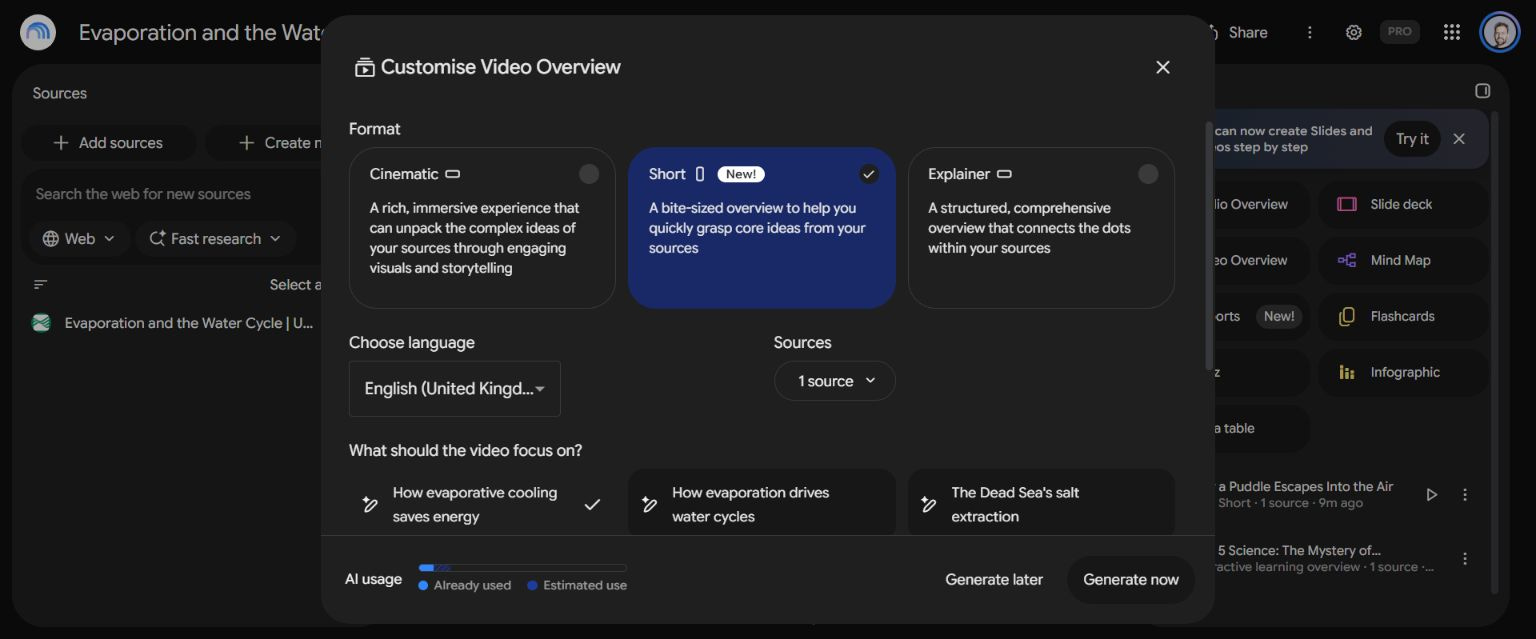
Platform: Gemini Notebook
Do this: In the Studio panel, select Video Overview and customise it. Choose the Short format. In the custom topic or steering prompt field, adapt the prompt below.
Turn on Review producer notes, then select Generate now. Google notes that choosing Generate later schedules the video without producer notes. Gemini Notebook Help
AI prompt: Use with Gemini Notebook Video Overview
Starter template: fill in the [BRACKETS].
Create a short video overview for [YEAR LEVEL] students explaining
[DIFFICULT CONCEPT].

Learning goal: Students will be able to [OBSERVABLE LEARNING GOAL].

Use the selected notebook sources for the factual explanation. If the
sources do not provide enough information, avoid filling the gap with
unsupported claims.

Aim for this sequence:

- In the first 15 seconds, introduce the concept using a familiar,
accurate example or comparison.
- In the middle 30 seconds, explain the process in clear steps.
- Near the end, ask one prediction question students can answer using
the explanation.

Use clear language suitable for the year level. Make the relationship
between the example and the concept clear, and avoid visuals that could
give students a misleading impression.
You should have: A request for a Short Video Overview and producer notes being generated.
Check before continuing: Confirm that the Short format and Review producer notes were selected before you generated the notes.
Take to the next step: Leave the notebook open and wait for the producer notes to appear in Studio.
If it fails: If the review toggle is unavailable, check whether your account has Google AI Ultra. You can generate the video without producer notes and review the finished result, or prepare a short storyboard yourself before generating it.
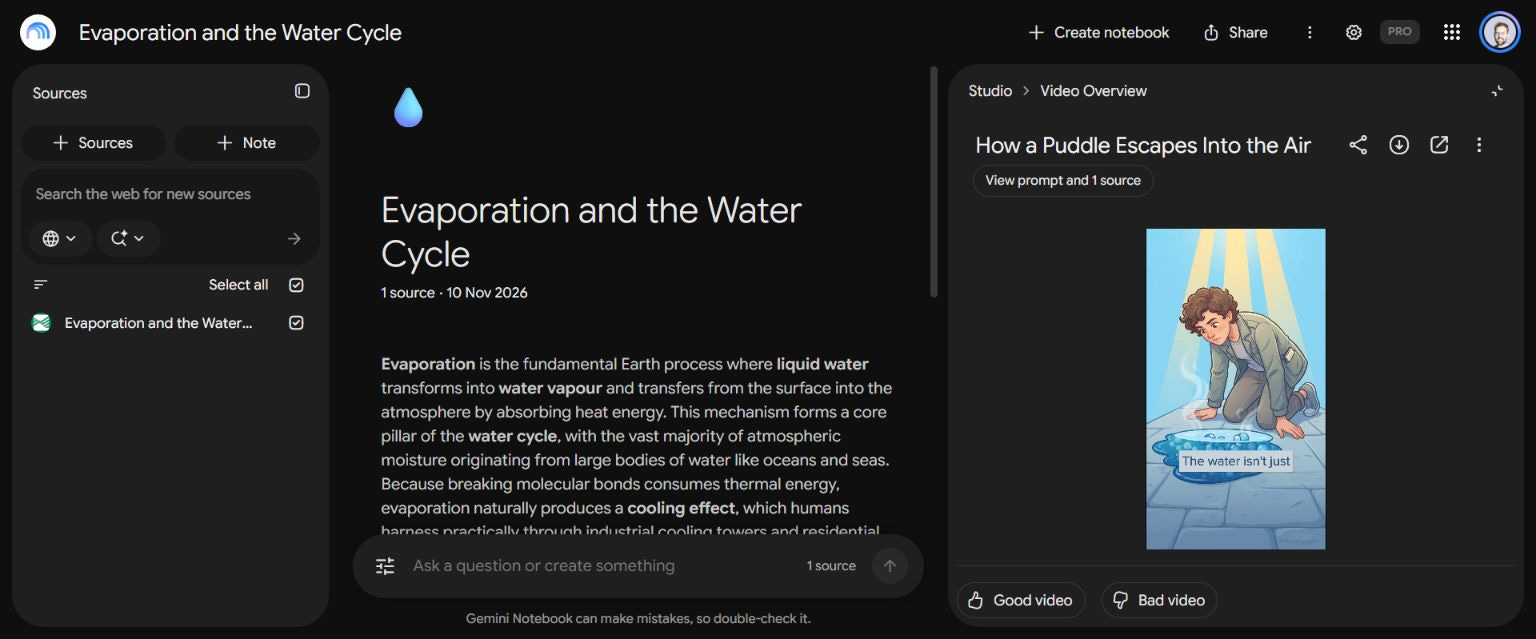
Step 3: Review the notes and generate the video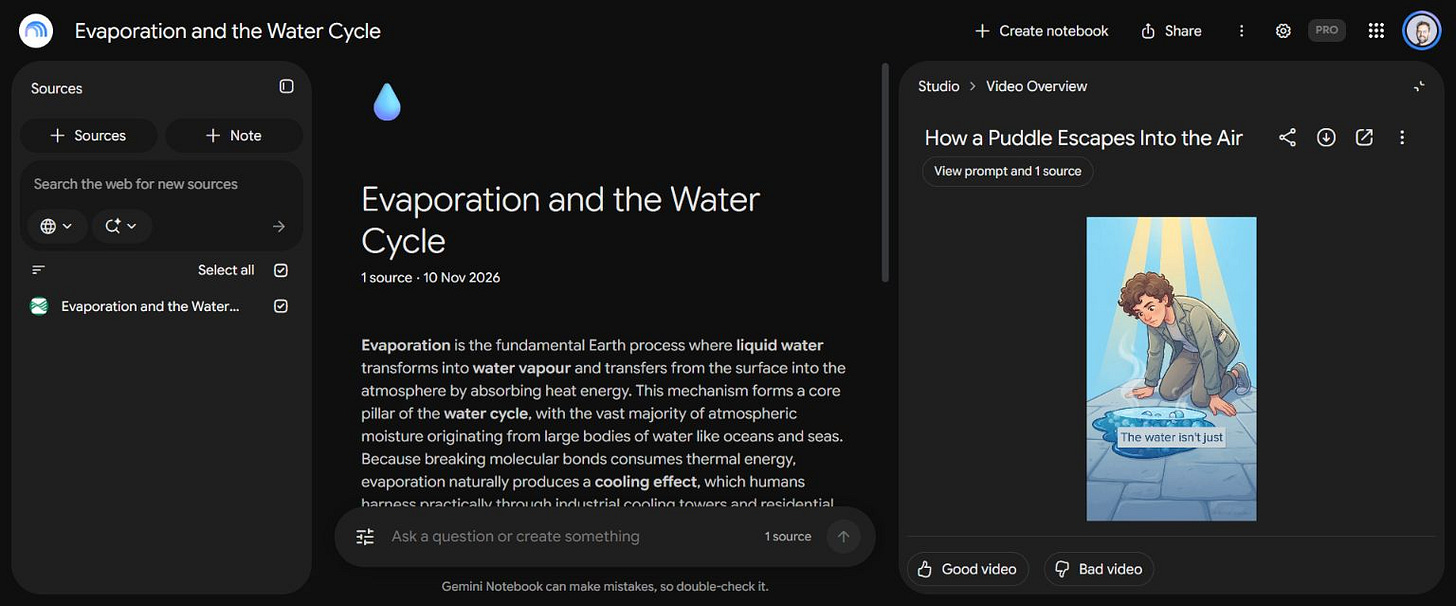
Platform: Gemini Notebook
Do this: When the producer notes are ready, select Review beside them in Studio. Compare the proposed sequence with your sources and learning goal.
Give your changes together before selecting Proceed. For example:
AI prompt: Use with Gemini Notebook producer notes
Revise the proposed sequence so the explanation clearly states that
liquid water becomes water vapour. Keep the puddle example, but do not
suggest the water disappears. End by asking students to predict which
puddle would dry faster and explain their reasoning.
Adapt the feedback to your concept. Select Proceed when the notes are ready.
You should have: A generated Short Video Overview in the Studio panel.
Check before continuing: Watch the whole video. Check the narration, labels and visuals against the sources. Answer the closing question yourself and check that students have enough information to attempt it.
Take to the next step: Keep the reviewed video in the notebook. Download it from the video player if you need a separate file and the download option is available.
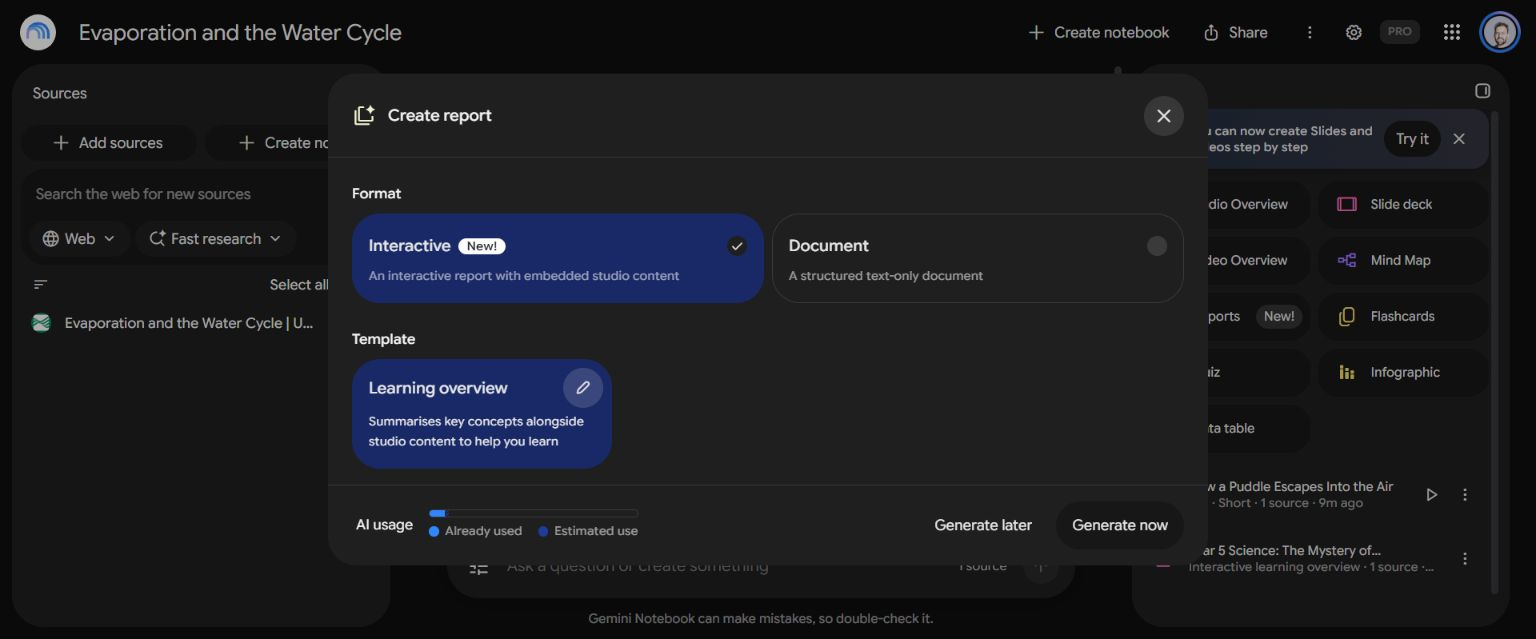
Step 4: Create the interactive learning overview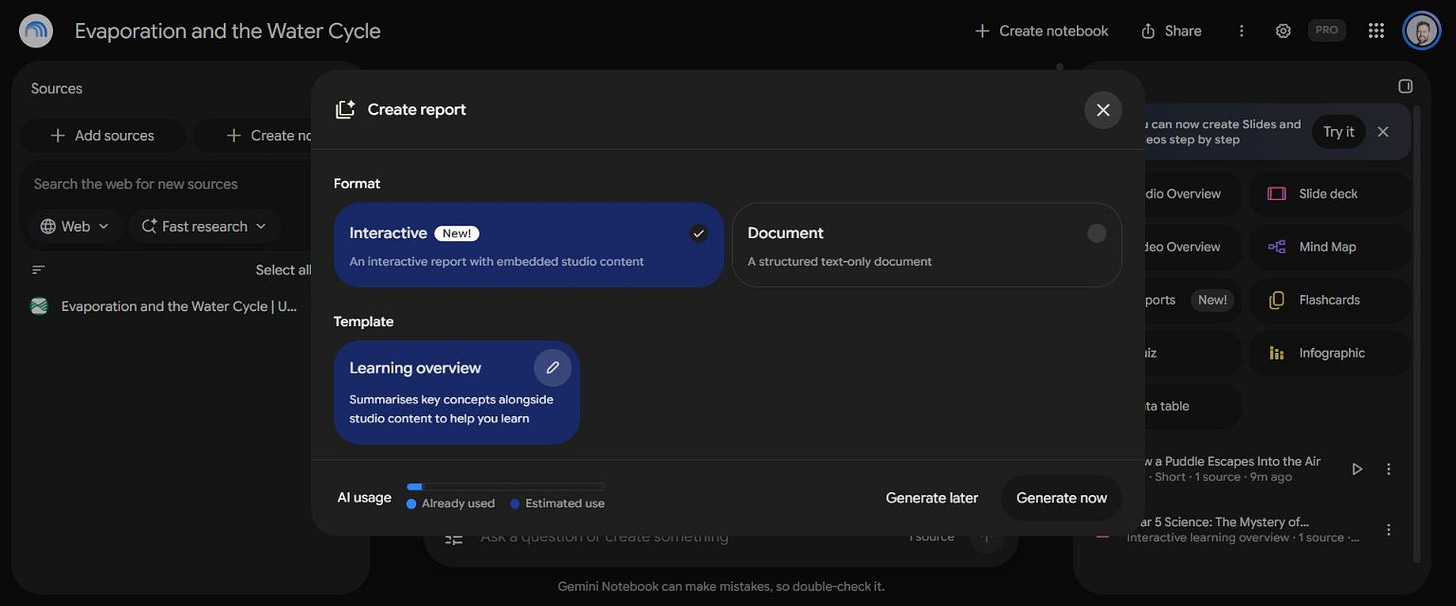
Platform: Gemini Notebook
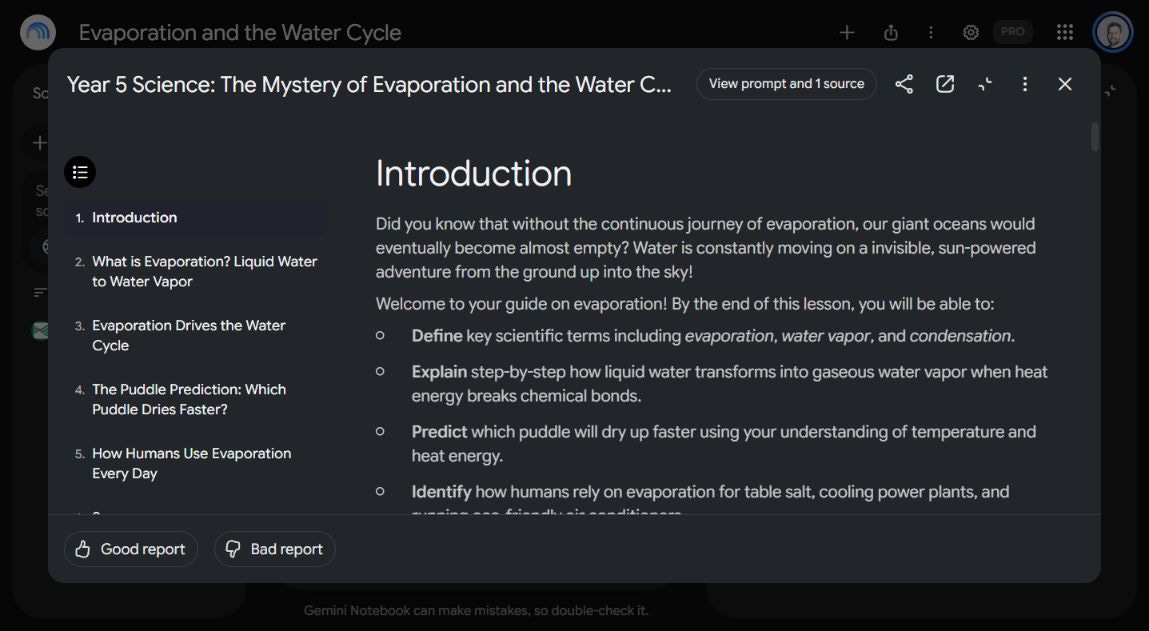
Do this: In Studio, select Reports, then Interactive. Under Template, select Learning Overview. Customise the generation settings if needed, then generate the report. Gemini Notebook Help
AI prompt: Use with Gemini Notebook Interactive Learning Overview
Starter template: fill in the [BRACKETS].
Create an interactive learning overview for [YEAR LEVEL] students
studying [CONCEPT].

Learning goal: Students will be able to [OBSERVABLE LEARNING GOAL].

Use the notebook sources for factual content. Explain the concept in
short sections with clear headings and language suitable for the year
level. Include a worked example where the sources support one.

Include opportunities for students to:
- Recall the key terms.
- Explain the process in their own words.
- Apply the idea to a prediction.

Suggest short-answer and fill-in-the-blank practice where available.
Identify gaps in the sources rather than inventing explanations.
Open the generated report. Where it suggests an artifact you want to include, select Add. Check what was generated and how it behaves. Do not assume it has automatically included the video from Step 3.
You should have: An interactive learning overview with a short explanation and any supported practice content you selected.
Check before continuing: Work through the overview as a student. Answer each question, check the feedback and compare factual statements with the sources. Check whether the video is included.
Take to the next step: Keep the overview and video available in the notebook. If the video is separate, plan to provide students with both resources.
If it fails: If a requested question type is unavailable or unsuitable, write that question yourself and provide it alongside the overview.
Step 5: Prepare the student learning path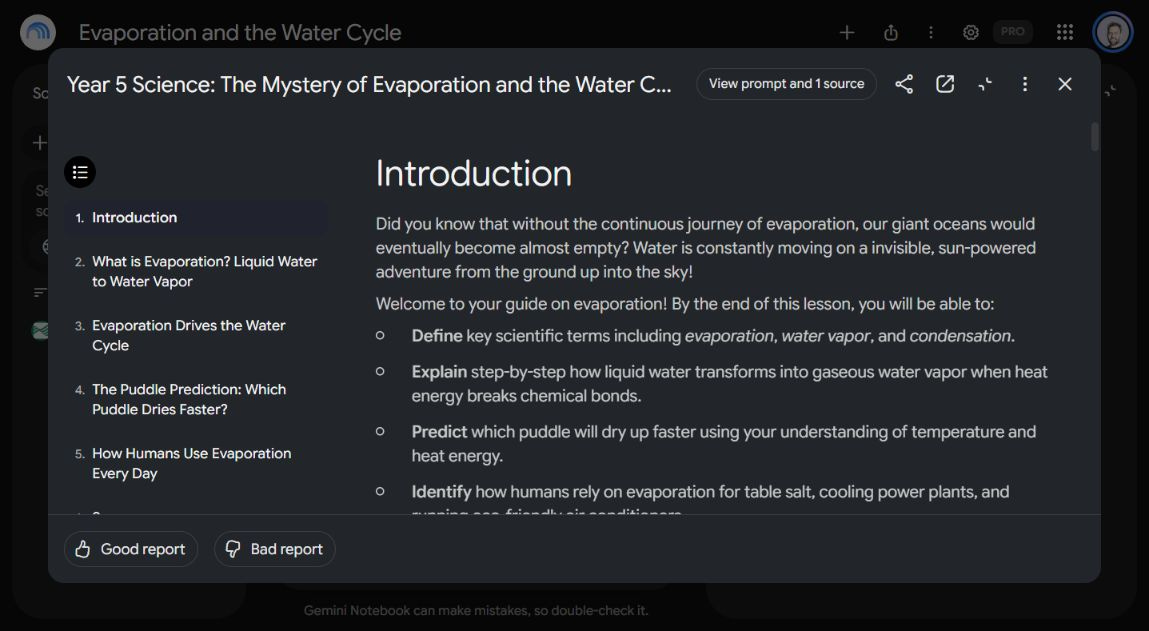
Platform: Gemini Notebook
Do this: Decide how students will access the resources under your school’s account and age policies. Google notes that a report link requires recipients to have access to the full notebook, so check the sources and other contents before sharing it. Gemini Notebook Help
Give students a clear sequence:
-
Watch the video and respond to its prediction question.
-
Work through the interactive overview.
-
Use the sources to check or revise their answer.
-
Explain their thinking in a portfolio entry.
If students cannot access the interactive report, show the reviewed resources as a class or provide the questions in a format your school permits.
You should have: A reviewed video, a reviewed learning overview and instructions for how students will use them.
Check before continuing: Confirm that students can access the chosen resources and that the practice asks them to demonstrate the learning goal.
Save and use: Keep the materials in the notebook or your school’s approved location. Share only with the intended audience.
Completion check
-
The video explains the selected concept accurately and ends with a usable prediction question.
-
The interactive overview and its practice have been checked against the sources.
-
Students have a clear way to access both resources, whether together or separately.
-
The final portfolio task asks students to explain their own reasoning.
Phil