Turn a description of your ideal classroom into a matching set of A4 signs that help students find and return supplies. Includes my free Ideogram skills pack.
By Phillip Alcock
Published: 2026-10-28
URL: https://phillipalcock.substack.com/p/create-classroom-supply-signs-with
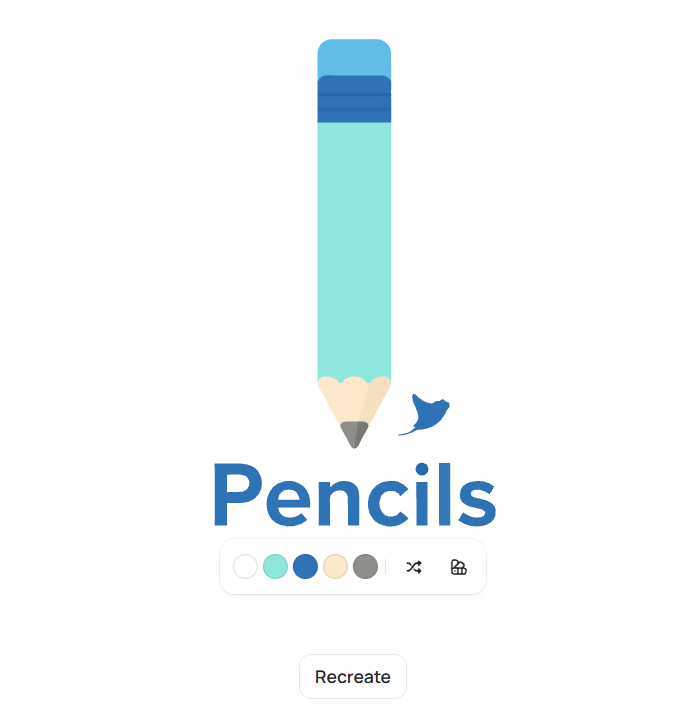 My creative Manta Ray Classroom! Made in Ideogram.ai
Your goal: Turn a description of your ideal classroom into a matching set of A4 signs that help students find and return supplies.
Time: 30–60 minutes, estimated | Level: Beginner | Platforms: Google Docs → ChatGPT → Ideogram Vector → print editor
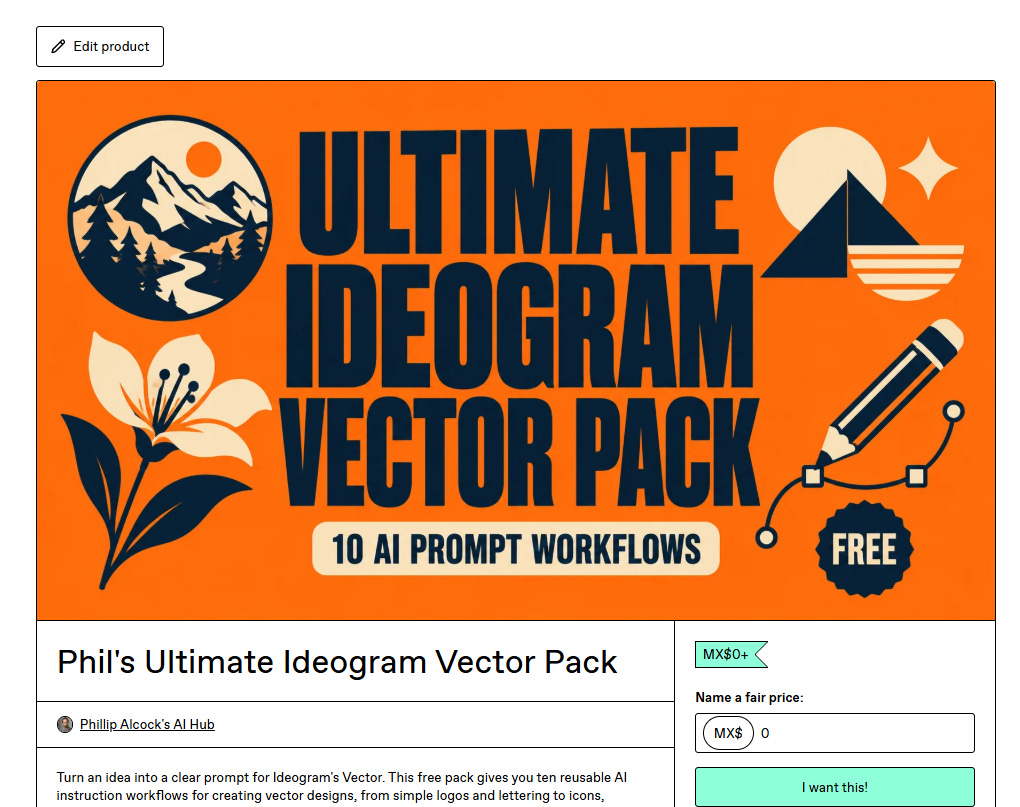
Download my free Ideogram Vector skill pack at my Gumroad Store. Use it to help you make better quality vector prompts in Chatgpt or Claude.
Get USD$200+ worth of AI and teaching resources free Paid subscribers get 13 AI and teaching resources, including my ebooks, to help create lessons, worksheets, games, videos, visuals and more.
Please consider joining a paid membership today!
As a thank you, you can access my ready-made AI skills and ebooks from my Gumroad store at no extra cost. Together, they’re worth over $200 USD.
The skill packs give you reusable instructions you can use with your own Claude, ChatGPT or Gemini account. Depending on the platform, you can upload the skill files directly or add their instructions to a project or conversation.
Before you start
You will need a description of your classroom, a list of the supplies you want to label, and access to Google Docs, ChatGPT and Ideogram Vector. You will also need a way to place an image on an A4 page and print it. An editor that supports SVG files will let you work directly with the vector designs.
Check Ideogram’s current account and generation options before making the full set. Its Vector page describes both prompt-to-SVG generation and conversion of an existing image to SVG. Ideogram
The finished set will contain five printable signs and their editable SVG files.
If you already have a classroom description, start at Step 2. If you have reviewed prompts, start at Step 3.
Route: Google Docs (classroom vision) → ChatGPT (design prompts) → Ideogram Vector (SVG signs) → print editor (A4 pages).
Steps
Step 1: Describe your classroom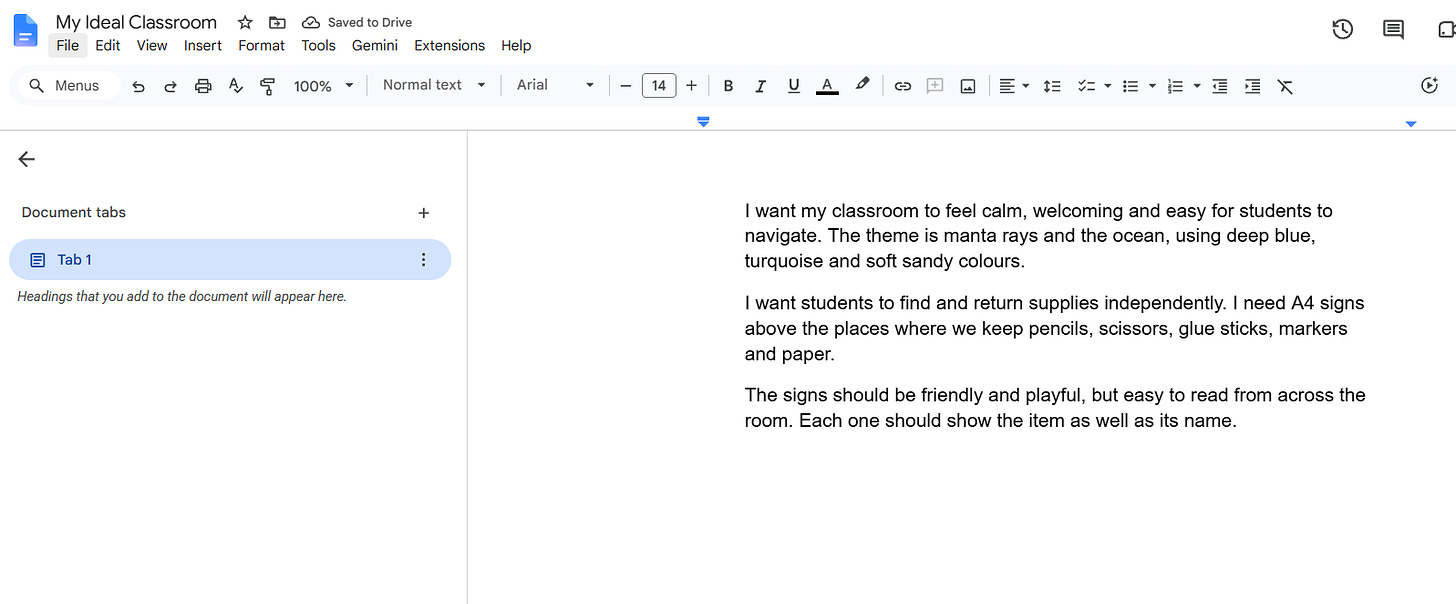 This is well worth experimenting with and choosing designs that fit.
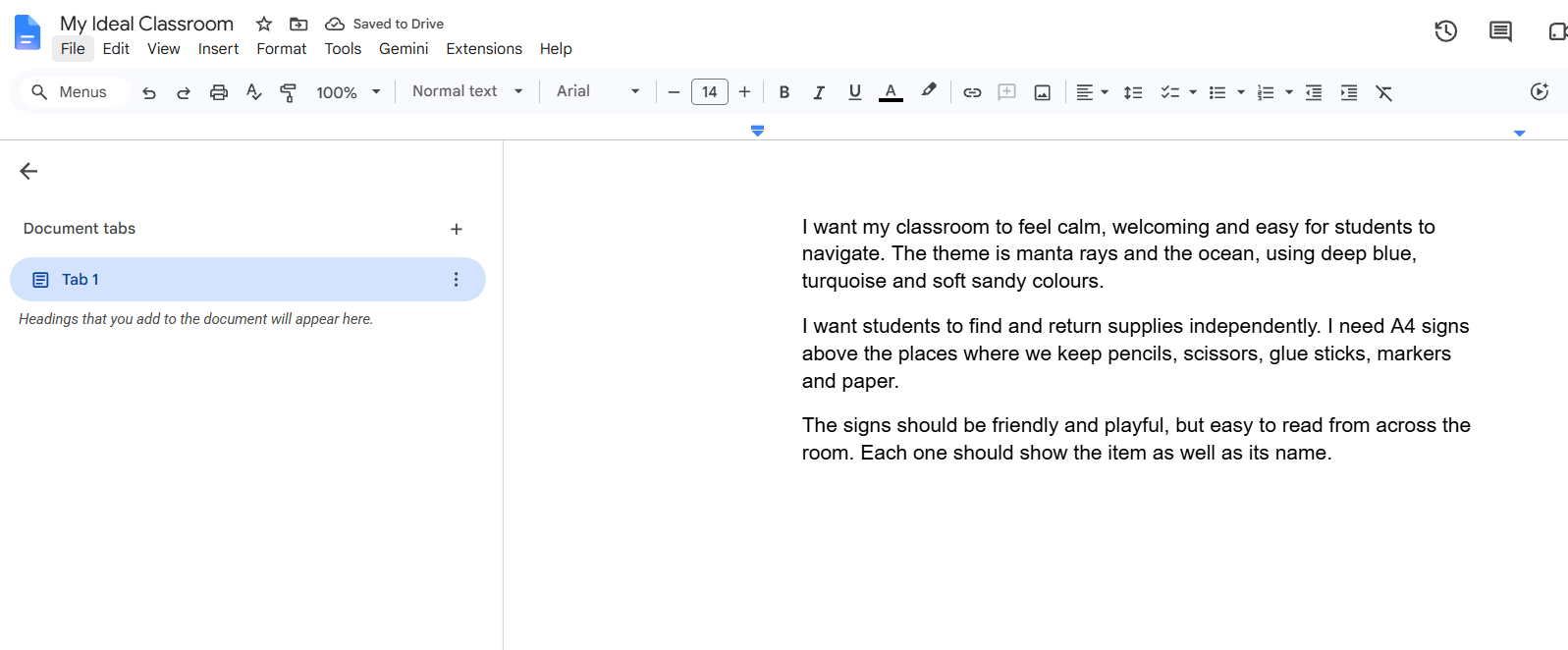
Platform: Google Docs
Do this: Create a document called My Ideal Classroom. Describe how you want the room to look and feel, and what students should be able to do independently. Include your students’ age range, the languages used in the classroom, and any accessibility needs that affect the signs.
For example:
I want my classroom to feel calm, welcoming and easy for students to navigate. The theme is manta rays and the ocean, using deep blue, turquoise and soft sandy colours.
I want students to find and return supplies independently. I need A4 signs above the places where we keep pencils, scissors, glue sticks, markers and paper.
The signs should be friendly and playful, but easy to read from across the room. Each one should show the item as well as its name.
You should have: A short classroom description and a list of the supplies you want to label.
Check before continuing: Confirm that the description names the supplies and gives enough detail to guide the colours, theme and readability of the signs.
Take to the next step: Copy the description from Google Docs. You will paste it into ChatGPT with the prompt below.
Step 2: Create the design prompts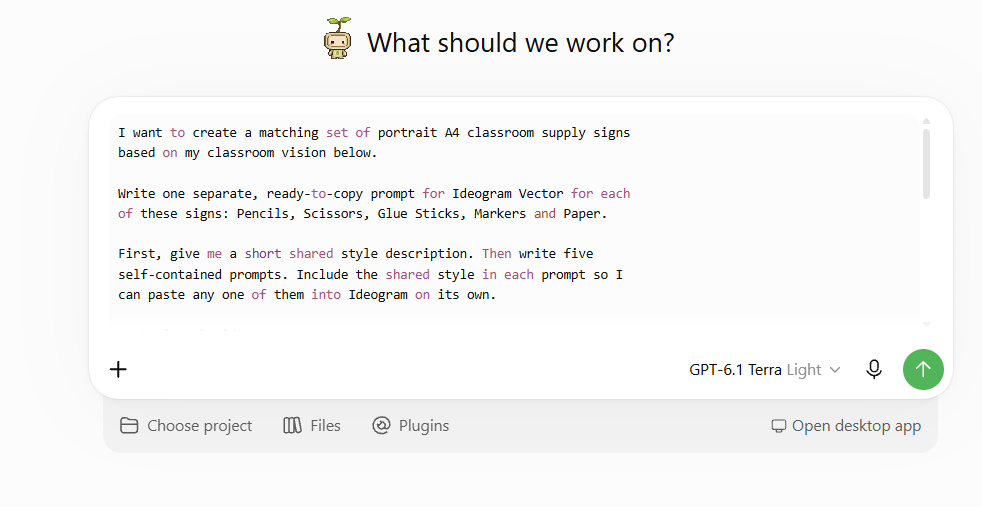
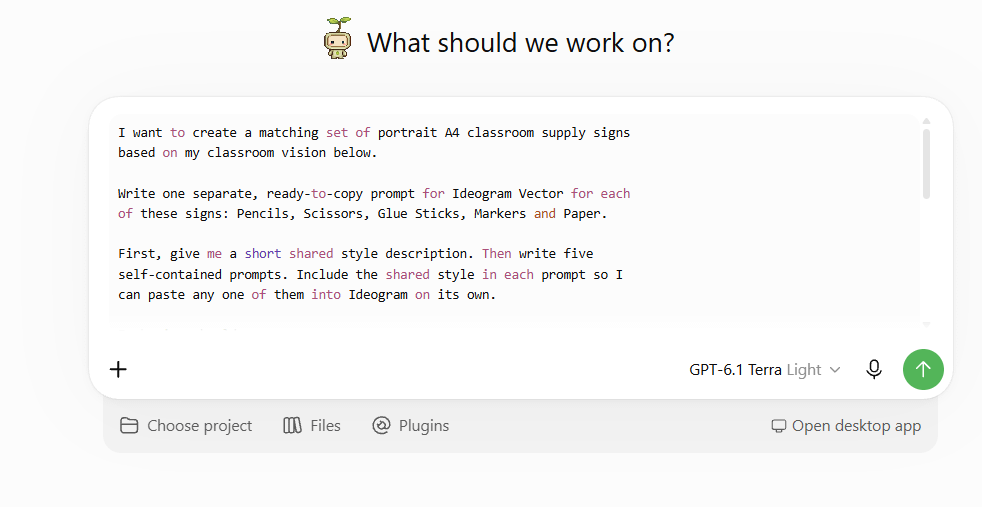
Platform: ChatGPT
Do this: Start a conversation. Paste the prompt below and replace the bracketed field with your classroom description. Change the supply names if your class uses different terms.
AI prompt: Use with ChatGPT
Starter template: fill in the [BRACKETS].
I want to create a matching set of portrait A4 classroom supply signs
based on my classroom vision below.

Write one separate, ready-to-copy prompt for Ideogram Vector for each
of these signs: Pencils, Scissors, Glue Sticks, Markers and Paper.

First, give me a short shared style description. Then write five
self-contained prompts. Include the shared style in each prompt so I
can paste any one of them into Ideogram on its own.

Each sign should:
- Show one large, recognisable illustration of the named supply.
- Include its exact name in large, clear lettering.
- Reflect my classroom theme with a consistent colour palette and
illustration style.
- Keep the supply and its label prominent, with the theme secondary.
- Use a clean background and avoid small details and extra text.
- Take account of the ages, languages and accessibility needs in my
description.

If my description does not specify an age range, language or
accessibility need, flag that so I can decide whether to add it.

My classroom vision:
[PASTE YOUR CLASSROOM DESCRIPTION]
You should have: A shared style description and five separate prompts, each naming one supply and its exact label.
Check before continuing: Read each prompt. Check the supply names, spelling, language and suitability for your students. Make any corrections in the conversation before generating artwork.
Take to the next step: Copy the complete Pencils prompt, including its style description, into Ideogram Vector.
Step 3: Generate and review the first sign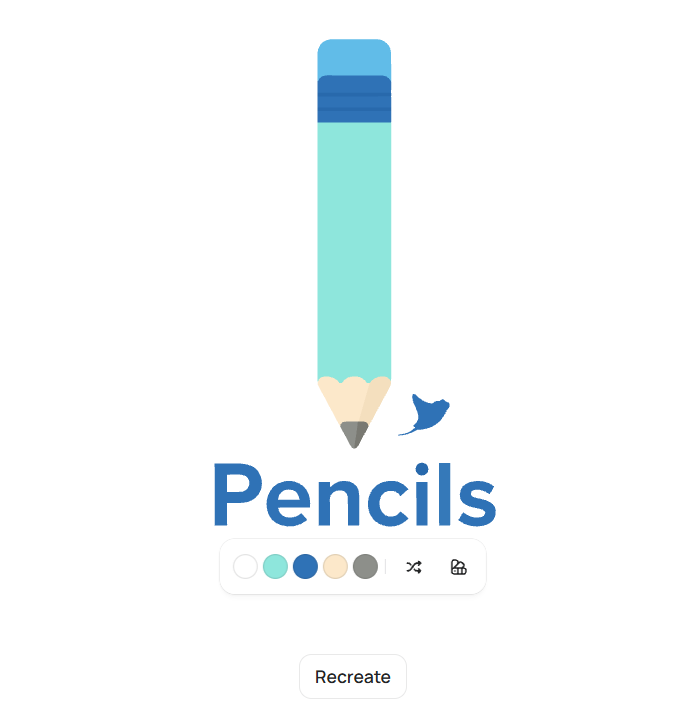
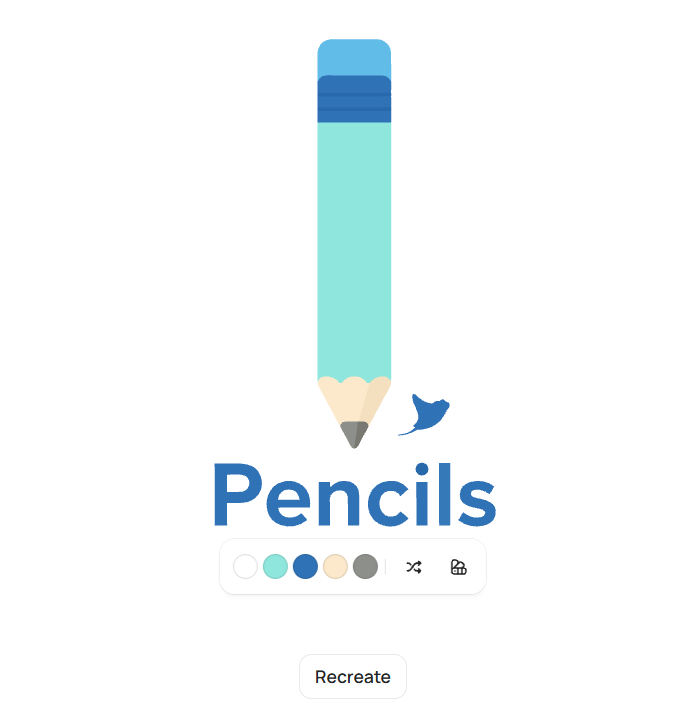
Platform: Ideogram Vector
Do this: Open Ideogram Vector and choose Create a vector. Sign in if needed. Paste your Pencils prompt and generate a design.
Review the result for spelling, legibility and a recognisable illustration. If it needs changes, revise the prompt and generate another version. For example, add: “Make the word PENCILS larger and the manta ray smaller.”
Download the SVG when you are happy with the design.
You should have: One Pencils sign as an SVG file.
Check before continuing: Confirm that the sign says exactly “Pencils”, the pencils are easy to recognise, and the label stands out from the background.
Take to the next step: Open the downloaded SVG in an editor that supports SVG files. Keep the other four prompts in ChatGPT for later.
If it fails: If the generated lettering is unclear, generate the illustration without text. Add the label in your print editor using a large, readable font. If your editor cannot open the SVG, use an SVG-compatible editor to prepare a printable page.
Step 4: Print and test the first sign
Platform: Your print editor
Do this: Create a portrait A4 page and place the Pencils design on it. Keep the whole design inside the printable area. Add the label if you generated an illustration without text.
Check the print preview, then print one sample. Hold it at the distance students will usually see it from, or ask a student to use it to identify the supply location.
You should have: One printed A4 Pencils sign and an editable version of its page.
Check before continuing: Confirm that the label is readable at the intended distance, the illustration is recognisable and no part of the design is cut off.
Take to the next step: Note any changes needed to the size, lettering or theme. Return to Ideogram Vector with the remaining prompts and any corrections.
Step 5: Make and print the remaining signs
Platform: Ideogram Vector
Do this: Generate the Scissors, Glue Sticks, Markers and Paper signs using their separate prompts. Apply any changes identified in the print test. Download each approved design as an SVG. (You can add a reference if you want it the same look)
You should have: Five SVG files with a consistent style and a distinct supply on each sign.
Check before continuing: Check every label for spelling and make sure each illustration matches its label. Compare the set for consistent colours, style and readable lettering.
Take to the next step: Open the four new SVGs in your print editor. Place each on a separate portrait A4 page, add labels if needed, and check the print previews.
Step 6: Finish the set
Platform: Your print editor
Do this: Print the remaining signs and check them at their intended viewing distance. Revise and reprint any sign that is hard to read or identify.
You should have: Five A4 signs ready to place above their supply locations.
Check before continuing: Confirm that every printed sign matches the supplies stored beneath it and that no text or artwork is cut off.
Save and use: Save the SVG files and editable A4 pages in your classroom resources folder. Place each sign above its matching supplies.
Completion check
-
Each sign names and shows the correct supply.
-
The labels are spelled correctly and readable from the intended distance.
-
The signs share a style without obscuring the supplies.
-
All five designs fit on portrait A4 pages.
-
The SVG files and editable print pages are saved.
After placing the signs, watch whether students can find and return the supplies. Adjust any sign that is easy to confuse with another.
Phil