(Without Knowing HTML or JavaScript)
By Phillip Alcock
Published: 2026-10-21
URL: https://phillipalcock.substack.com/p/how-to-build-an-interactive-classroom
Every teacher knows the frustration of watching students mindlessly guess multiple-choice questions on photocopied revision sheets without learning why an answer is correct. Most educational quiz software locks interactive feedback behind expensive school subscriptions or clunky student account logins. This tutorial walks you through a four-step workflow using Canva Code to turn standard curriculum review questions into an interactive, self-checking classroom widget that runs smoothly on any student device.
Phase 1: Build the Interactive Logic in Canva Code
Step 1: Open the Canva Code App Inside Your Design Canvas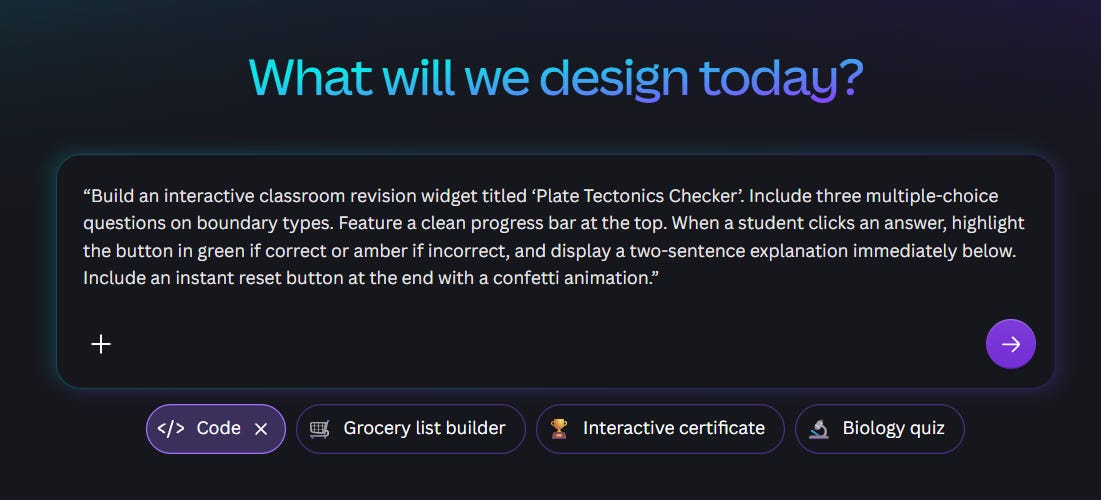
Open Canva and create a standard presentation or square digital worksheet. In the left apps panel, search for Canva Code, which allows teachers to build working interactive web elements using plain conversational English.
Start with a clear pedagogical specification that includes instant feedback and visual cues. Paste this prompt into the Canva Code input box:
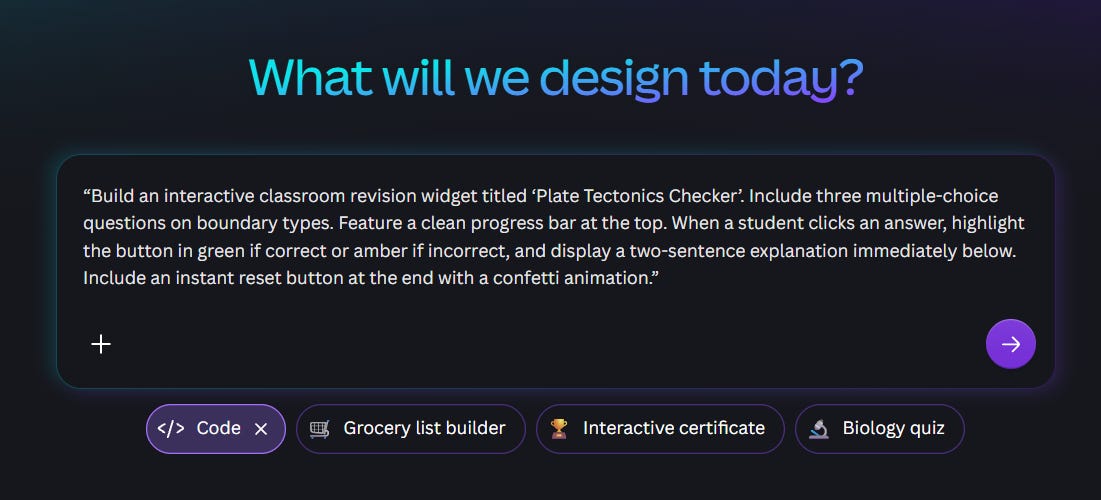
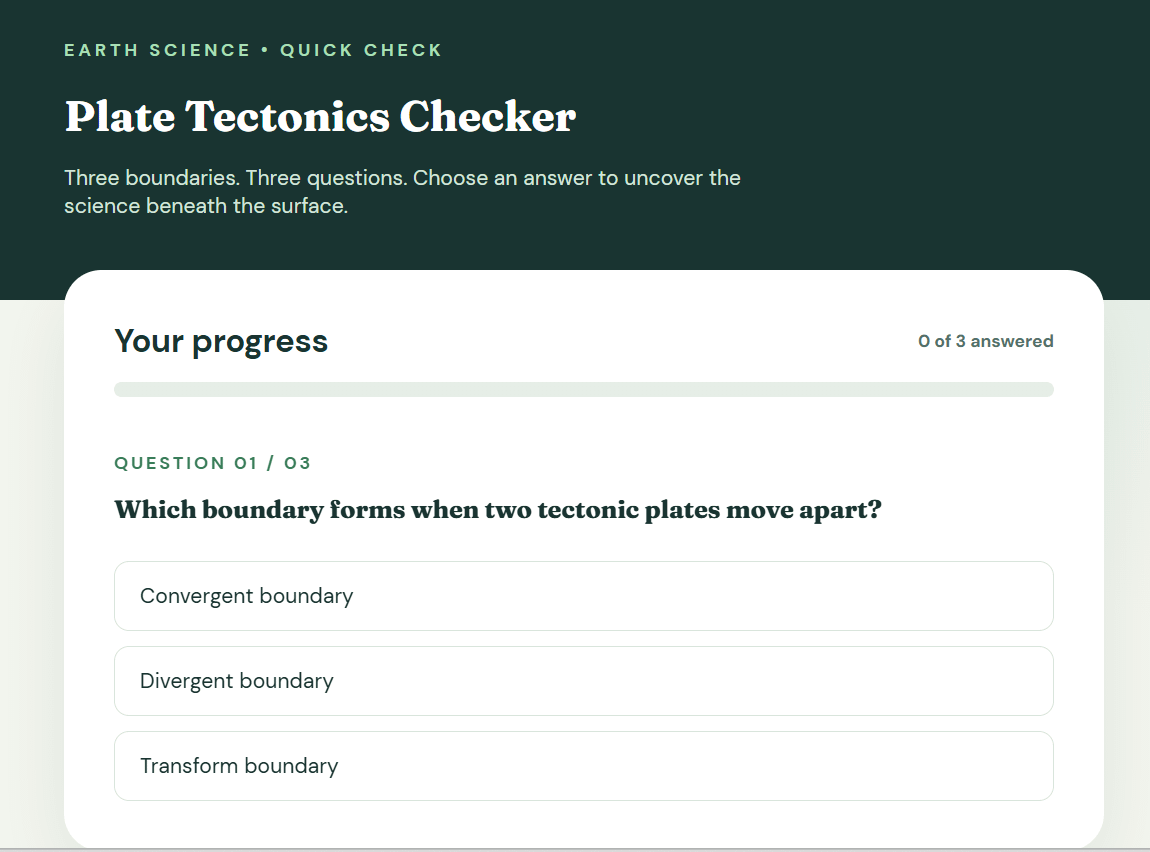
“Build an interactive classroom revision widget titled ‘Plate Tectonics Checker’. Include three multiple-choice questions on boundary types. Feature a clean progress bar at the top. When a student clicks an answer, highlight the button in green if correct or amber if incorrect, and display a two-sentence explanation immediately below. Include an instant reset button at the end with a confetti animation.”
Adjust by naming your specific subject or year level, for example, “for Year 8 French irregular verbs” or “for Year 10 Commerce inflation indicators.”
As the screenshot shows, Canva Code generates the underlying HTML, CSS, and interactive logic directly on your canvas without displaying complicated code blocks.
Step 2: Preview and Test the Interactive Button States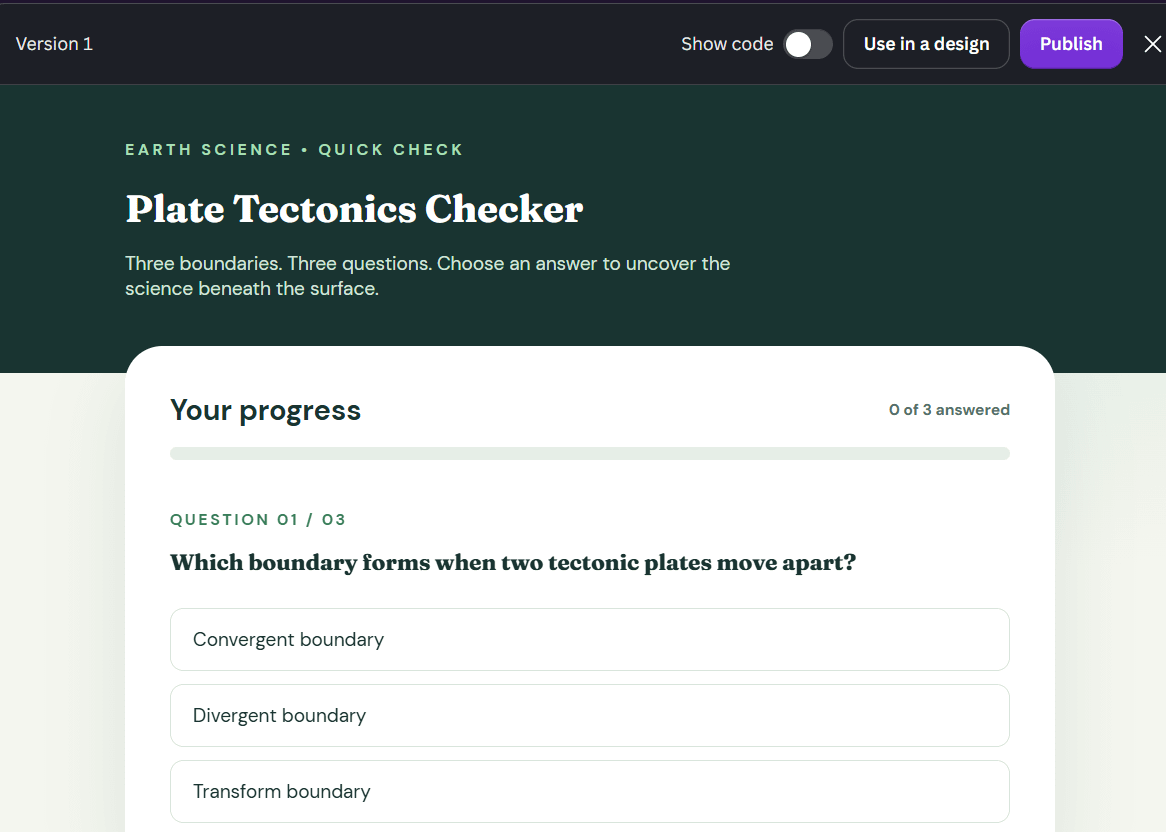
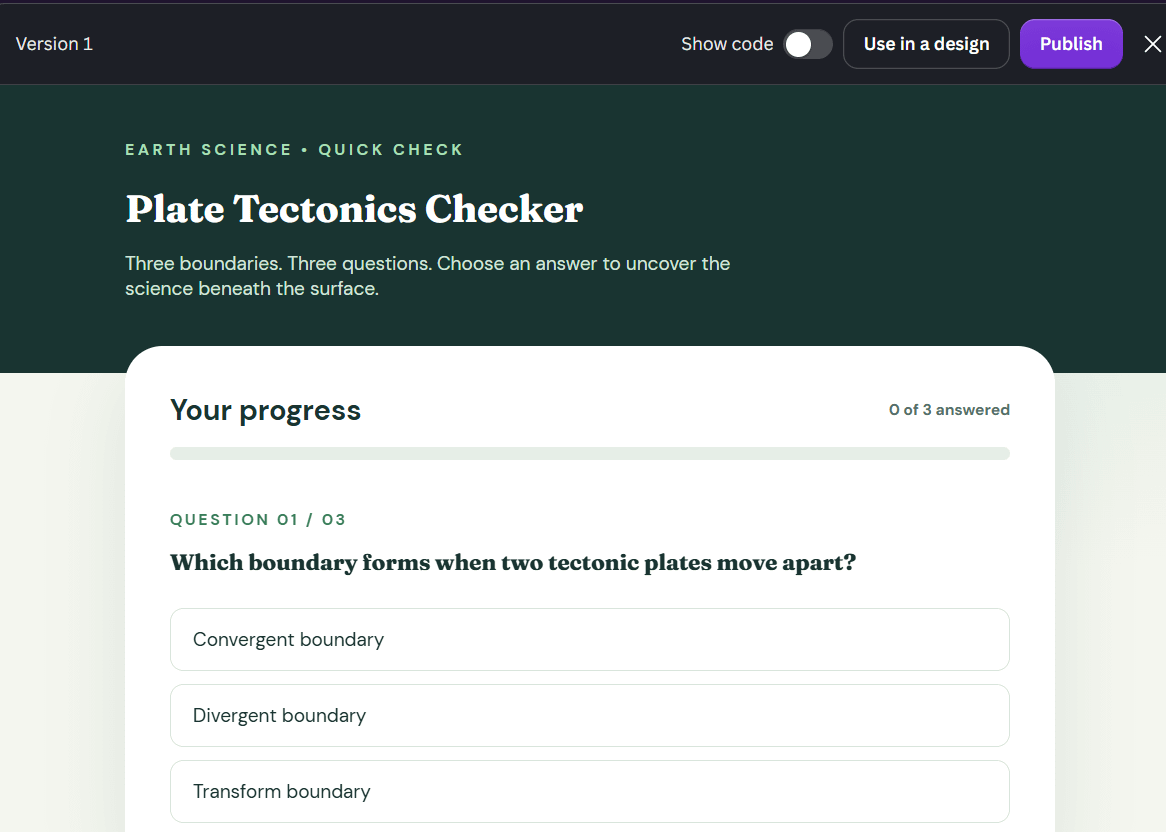
Click the interactive preview button in the top corner of the widget. Click through each question deliberately to verify that the feedback explanations are accurate.
Check the button sizing on mobile and desktop views to ensure students can tap options easily on touchscreen tablets.
Phase 2: Customise and Share with Students
Step 3: Push Back on Confusing Distractors and Adjust Feedback Tone
AI models sometimes generate overly complex distractor choices that confuse developing readers. Use Canva Code’s conversational revision bar to tune the questions.
Type a direct adjustment prompt:
“Simplify the wording in question two so it matches a Year 8 reading level. Ensure the incorrect feedback messages give a helpful clue pointing to heat convection in the mantle rather than just saying wrong.”
Adjust by adding personal classroom touches, such as “add a celebratory badge showing our school mascot when they score three out of three.”
Step 4: Embed the Live Widget Directly into Google Classroom or Canva Live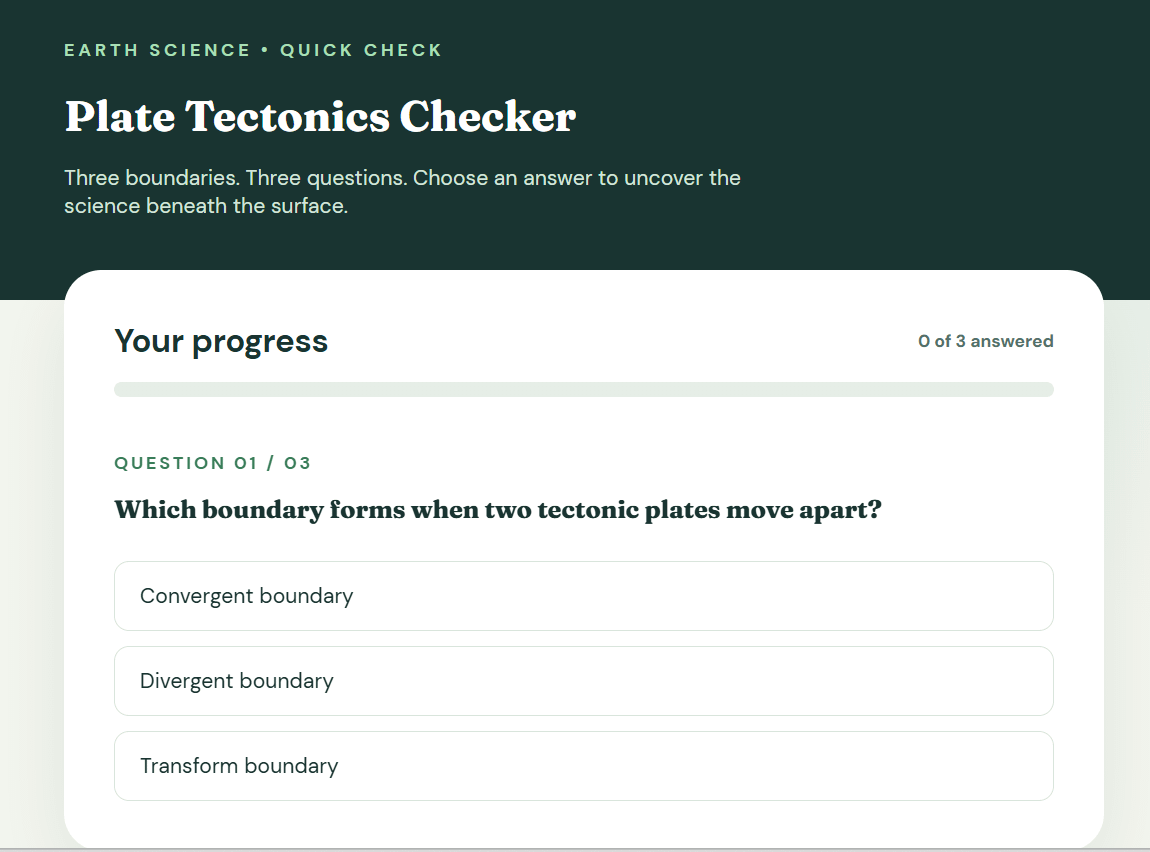
Click Publish in the top Canva toolbar.
The website is live here - https://pblfuturelabs.my.canva.site/how-to-build-an-interactive-classroom-quiz-widget-using-canva-code
Paste the link into Google Classroom, Microsoft Teams, or present it live on the classroom projector. Students click the link and complete the revision challenge in four minutes with zero account logins or third-party ads.
Pause and reflect: What happens to lesson momentum when mid-class formative checks take four minutes to run and zero minutes to grade?
What You’ve Built
You took a dry set of textbook revision questions and built a functional, interactive classroom widget using Canva Code. Instead of printing paper sheets or paying for third-party quiz apps, you generated an engaging, self-checking learning tool in under fifteen minutes.
Your students receive dignified, immediate diagnostic feedback that explains the reasoning behind every answer, turning a passive testing moment into an active learning dialogue.
Phil
Related reading: The Ultimate Beginners Guide to Canva AI for Teachers
PBL Future Labs works with educators globally to transform learning through AI-integrated project-based design. For consultation or professional development, contact [email protected] or visit pblfuturelabs.com.