A practical workflow for building AI presentations without trapping the text inside images
By Phillip Alcock
Published: 2026-07-21
URL: https://phillipalcock.substack.com/p/how-to-make-editable-slides-with
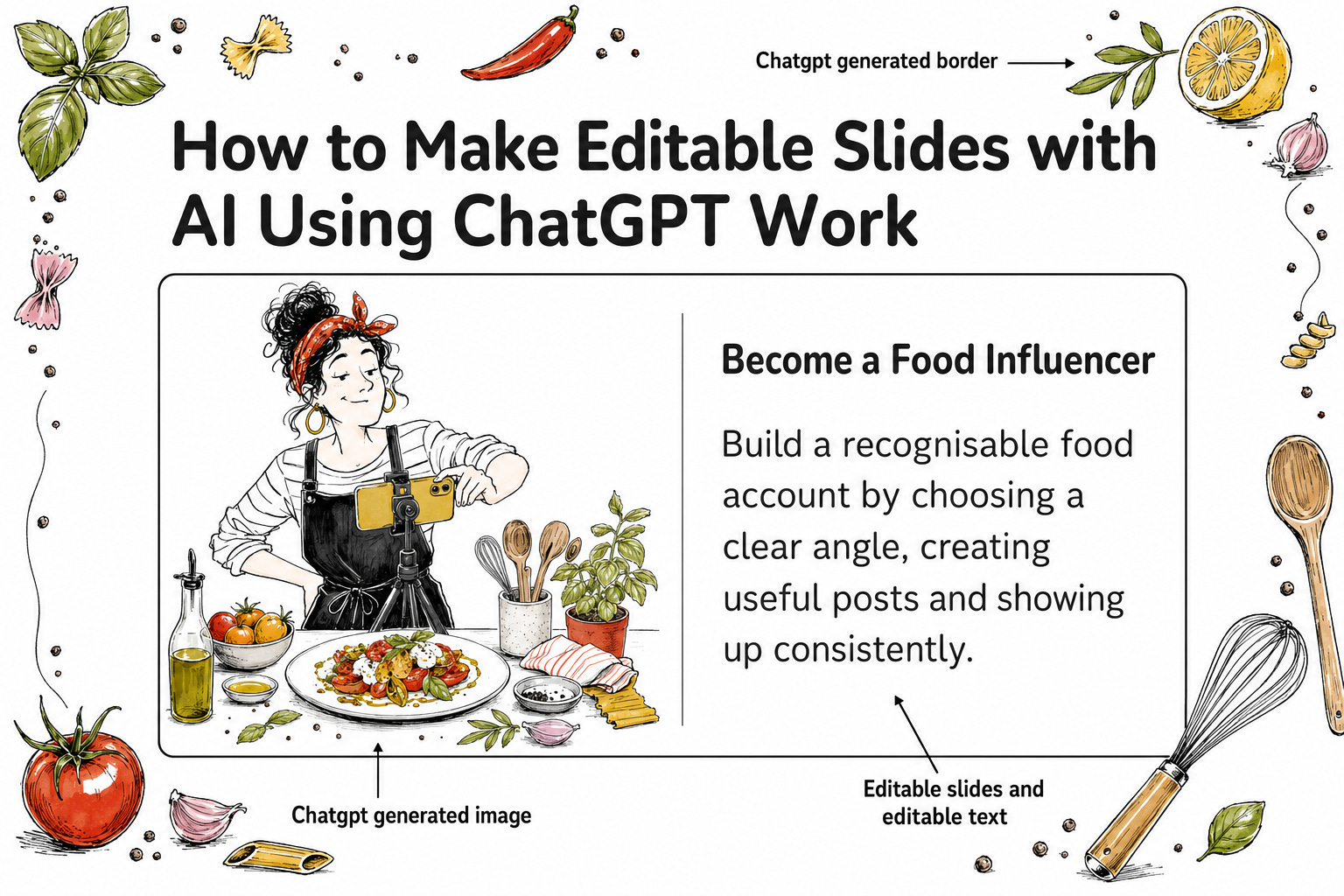
View the completed slides here - https://canva.link/x0bob06098c1ko7
ChatGPT Work now works inside PowerPoint. It builds and edits slides directly in the app, and everything it writes stays as live, editable text: click into a heading or instruction, rewrite it, move it around. It will then add AI-generated images alongside it.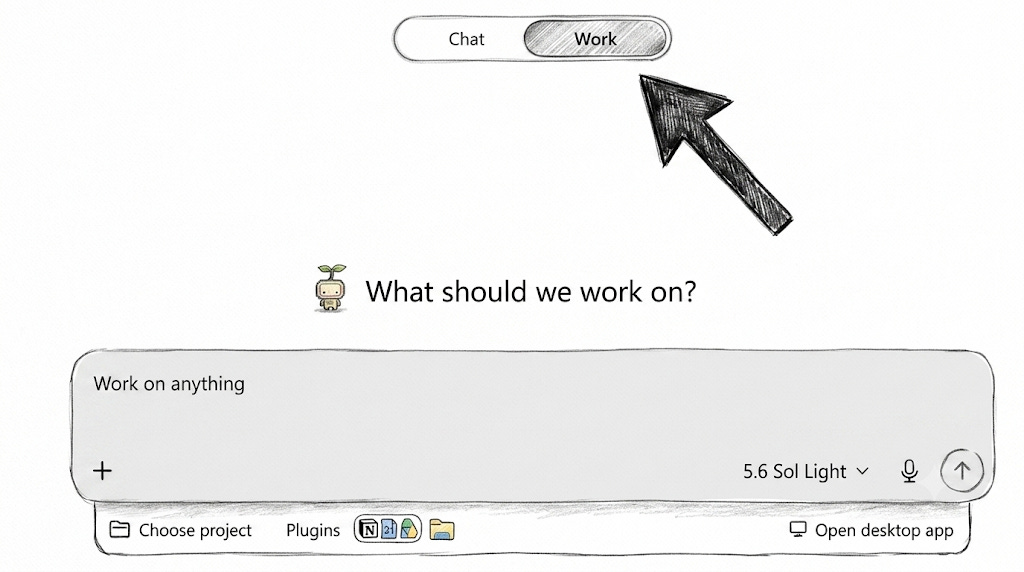
I always finish editing in Canva.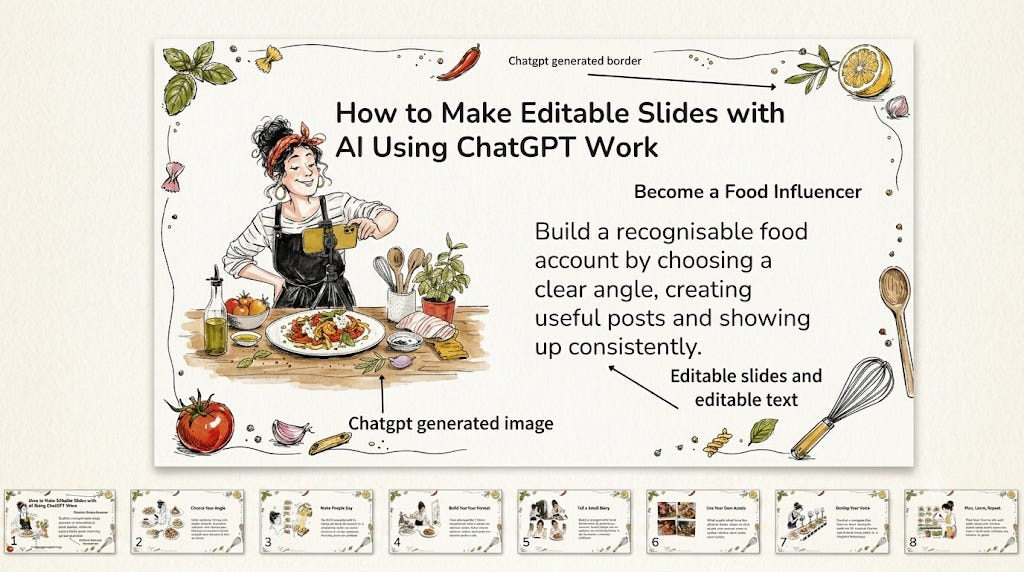
Keeping the text editable instead of flattening it into an image also matters for compliance. Screen readers can read live text, users can resize it, and it meets the accessibility standards schools sit under. Text baked into an image fails those checks.
AI Workflows for Education is a reader-supported publication. To receive new posts and support my work, consider becoming a free or paid subscriber.
Please consider joining a yearly membership! I make it super cheap at $50usd for everyone, I already have over 100 incredible workflows, and each sign up allows me to dedicate time for another workflow!
If you pay and you don’t like the content, I will happily refund you https://substackcdn.com/image/fetch/$s!gTTg!,fauto,qauto:good,flprogressive:steep/https%3A%2F%2Fsubstack-post-media.s3.amazonaws.com%2Fpublic%2Fimages%2F111a51ae-f8c5-4a7f-a715-4cdbd6584c5e_1672x941.png)
My basic rule is:
One image on the left. One editable heading and one editable text box on the right.
The background stays white. The layout barely changes. The interesting parts come from the artwork, photographs and topic-related borders.
Start with the outline, not the deck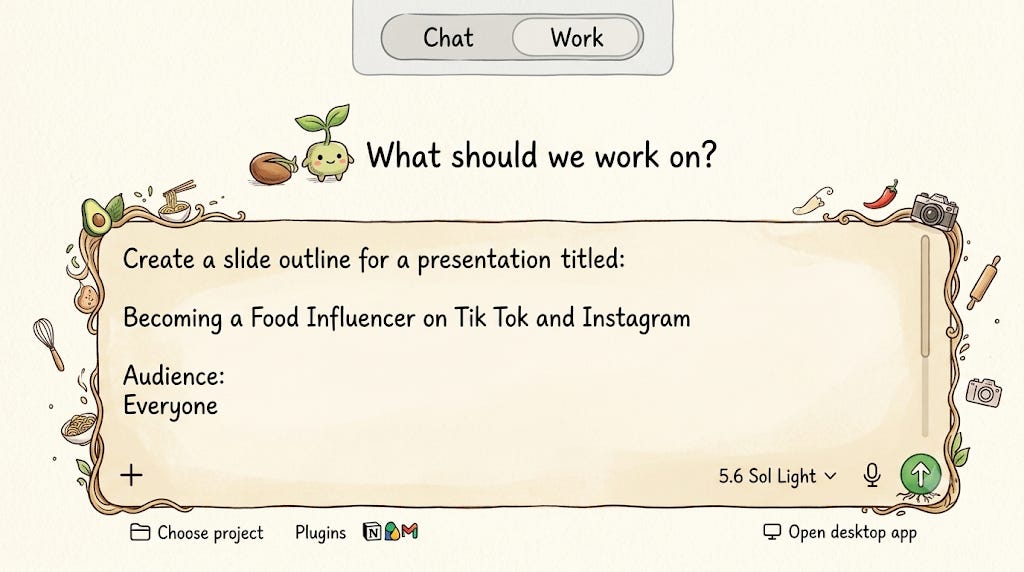
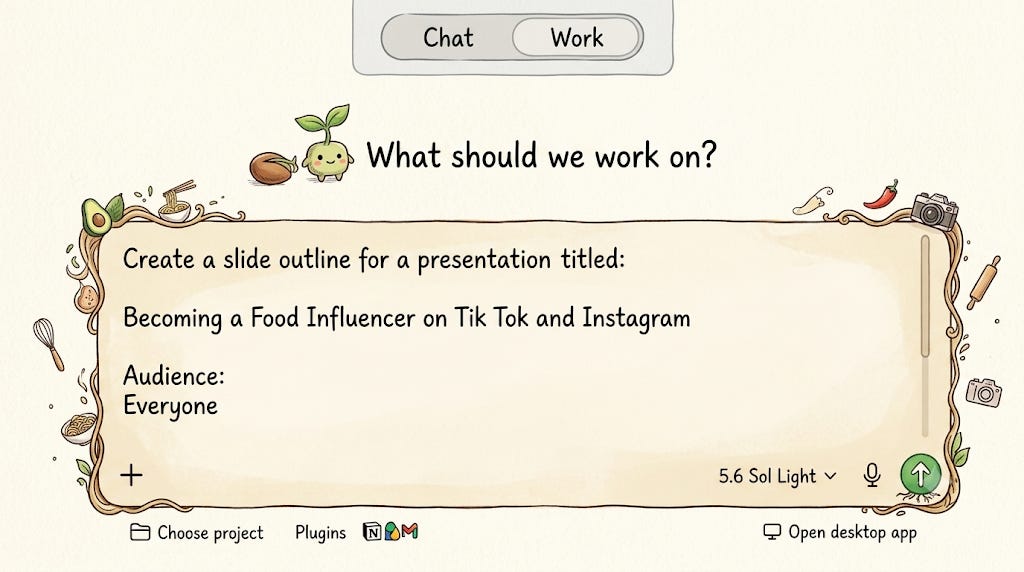
Do not ask ChatGPT to build the slides immediately.
First ask it to plan every slide in a table. This lets you inspect the sequence before it spends time creating layouts and images around a weak idea.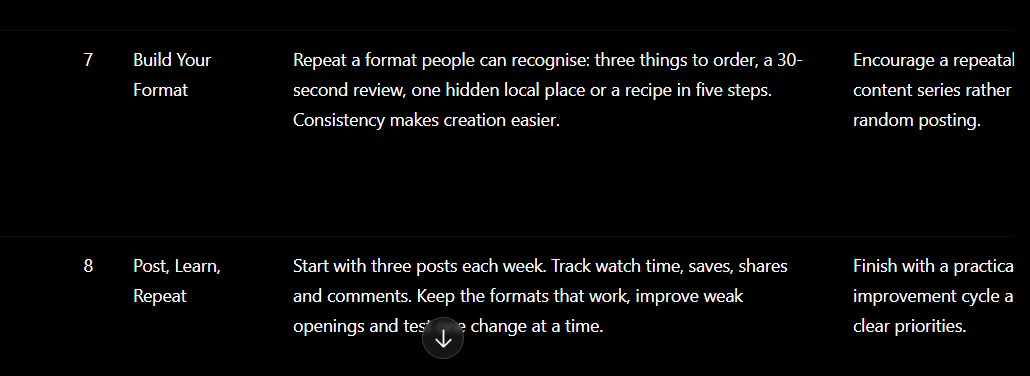 Planning in tables help to see the sequence and language.
For each slide, I ask for:
-
the heading;
-
the body text;
-
what the slide is meant to do;
-
a text-to-image prompt;
-
a real-photo suggestion, when a photograph would be better;
-
a border idea connected to the topic.
Here is the outline prompt.
Create a slide outline for a presentation titled:

[INSERT PRESENTATION TITLE]

Audience:
[INSERT AUDIENCE]

Purpose:
[EXPLAIN WHAT THE VIEWER SHOULD UNDERSTAND, CREATE OR DO]

Create [NUMBER] slides.

For each slide, provide:

1. Slide number
2. Short heading
3. Editable body text
4. Purpose of the slide
5. Detailed text-to-image prompt based on [HOPED ART STYLE]
6. Suggested real photograph, where appropriate
7. Simple topic-related border idea

Present the outline as a table.

Keep each heading short.

Keep the body text concise enough to fit inside one large text box.

Do not create the slides yet.
Give ChatGPT Work One Layout to follow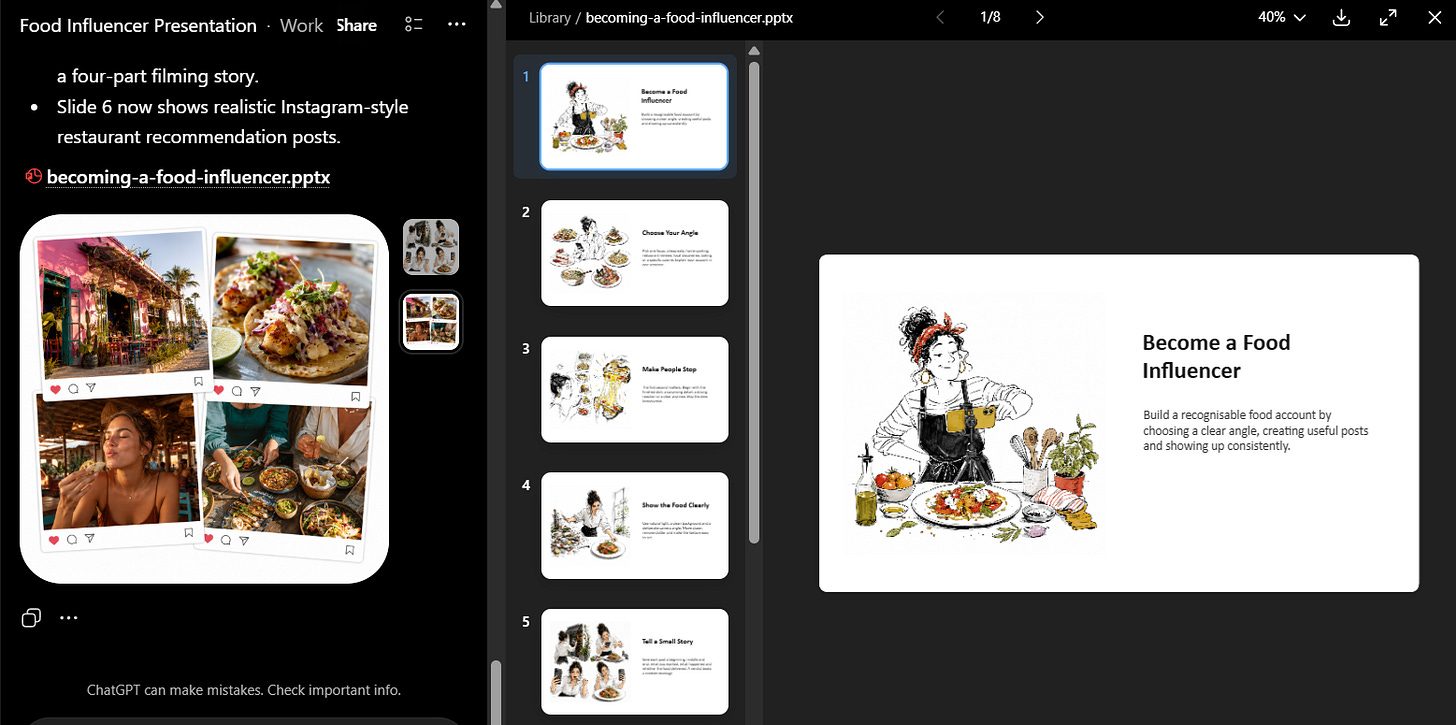
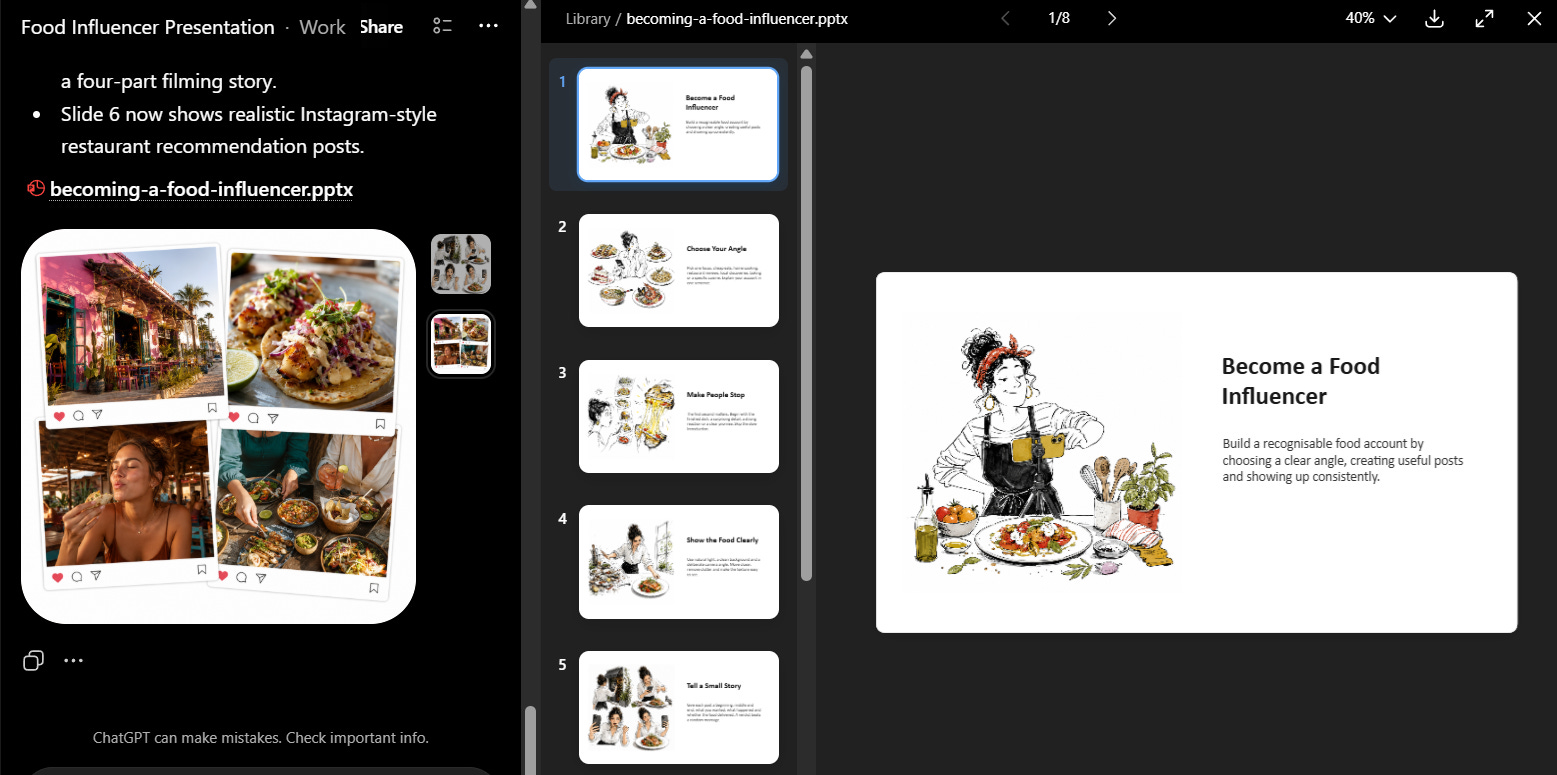
Once you are happy with the layout, the instruction is fairly strict: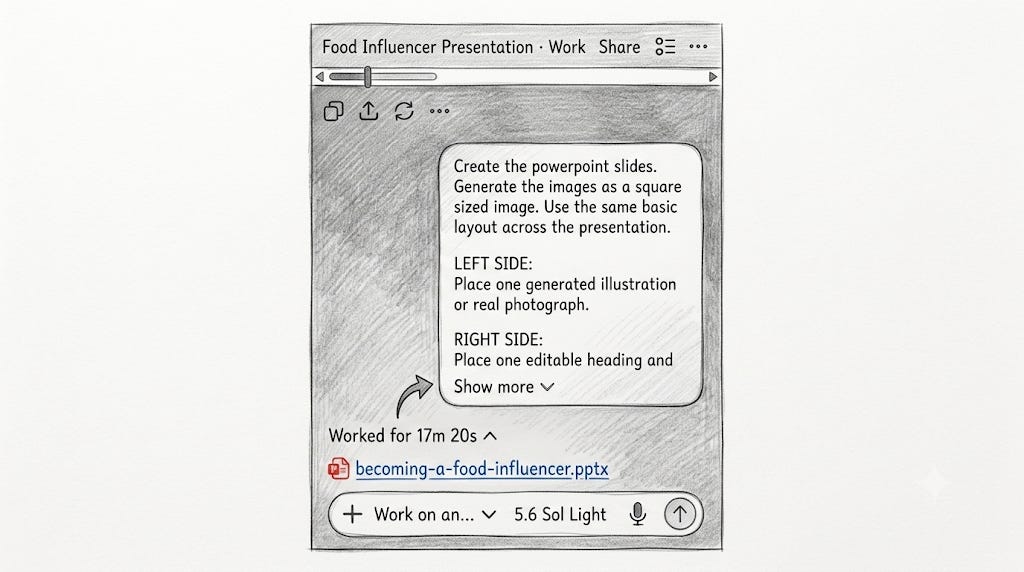
Create the powerpoint slides. Generate the images as a square sized image. Use the same basic layout across the presentation.

LEFT SIDE:
Place one generated illustration or real photograph.

RIGHT SIDE:
Place one editable heading and one editable body-text box.

BACKGROUND:
Pure white.

EDITABLE TEXT:
Each slide must contain exactly two editable text elements:

1. One heading
2. One body-text box

Do not place text inside generated images.

Do not add captions, decorative labels, speech bubbles or extra text boxes.

Keep the margins, text position and image proportions consistent across every slide.
The full workflow
The process is fairly simple once it is separated into stages.
-
Decide what the viewer should understand or create, work out the slide outline.
-
Plan the slides in a table.
-
Fix the sequence before designing anything.
-
Generate an image prompt for each relevant slide or ask AI to search for unsplash images.
-
Set one image-left and text-right layout.
-
Keep only one heading and one body-text box editable.
-
Give ChatGPT Work the full production specification.
-
Open the result and check every slide.
-
Save the successful deck and slide outline as a reference for the next one.
Good luck!
Phil
AI Workflows for Education is a reader-supported publication. To receive new posts and support my work, consider becoming a free or paid subscriber.
Please consider joining a yearly membership! I make it super cheap at $50usd for everyone, I already have over 100 incredible workflows, and each sign up allows me to dedicate time for another workflow!
If you pay and you don’t like the content, I will happily refund youhttps://substackcdn.com/image/fetch/$s!gTTg!,fauto,qauto:good,flprogressive:steep/https%3A%2F%2Fsubstack-post-media.s3.amazonaws.com%2Fpublic%2Fimages%2F111a51ae-f8c5-4a7f-a715-4cdbd6584c5e_1672x941.png)