More flexibility in how you publish, manage, and shape your experience on Substack
Published: 2026-04-08
URL: https://on.substack.com/p/new-on-substack-post-templates-notes
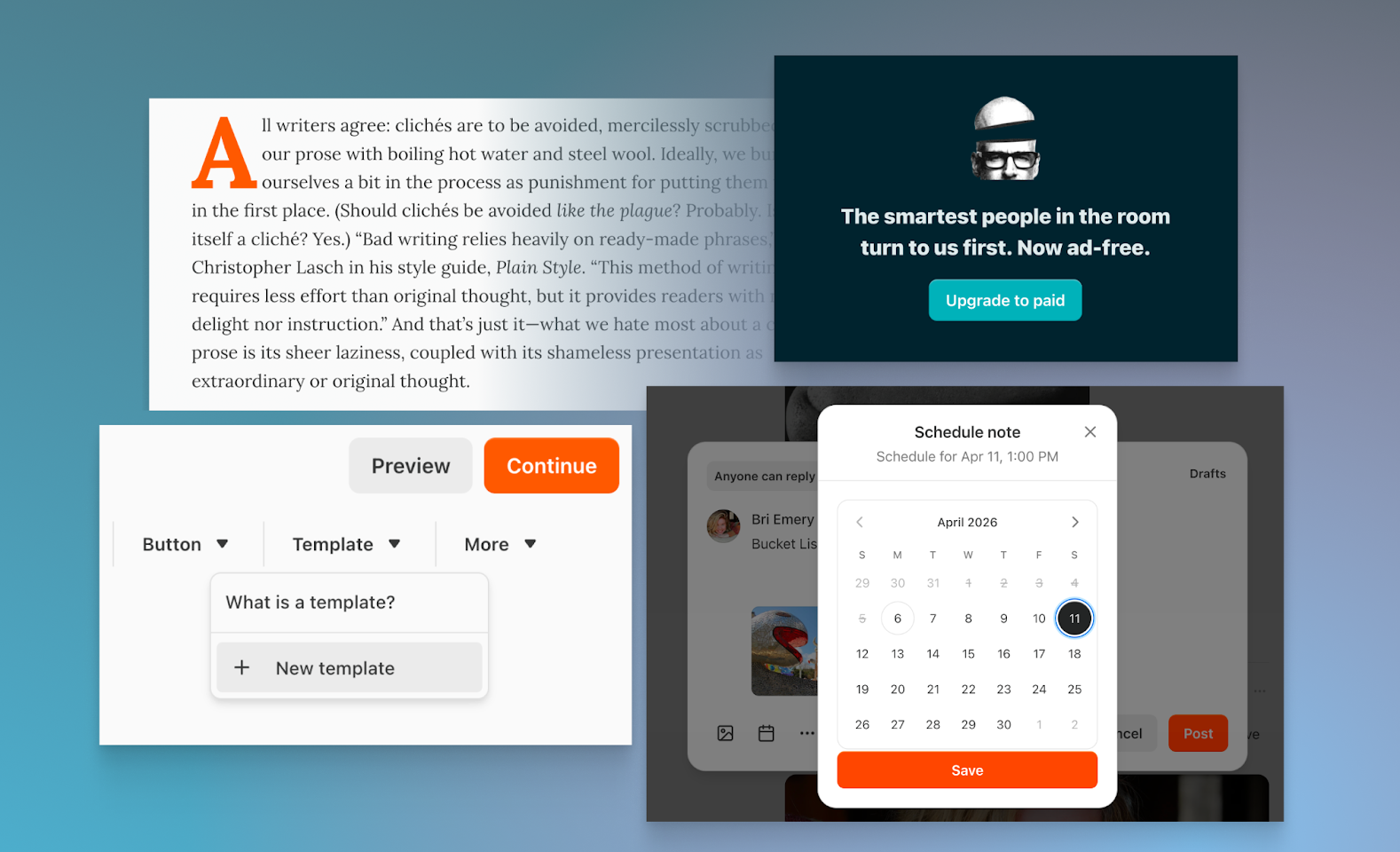
This month, we’re shipping a range of updates that give you more control over your publishing workflow—from scheduling Notes in advance to new live video tools, post templates, and design details that make your publication feel unmistakably yours. Here’s what’s new.
Post templates
You can now create and save templates for longform posts, directly within the post editor. If your workflow includes recurring elements like calls to action, disclaimers, section structures, sponsorship placements, or code blocks, you can save them once and reuse them in new drafts instantly.
This removes repetitive setup work and helps you stay consistent without starting from scratch each time. Build your format once, and reuse it whenever you need it.
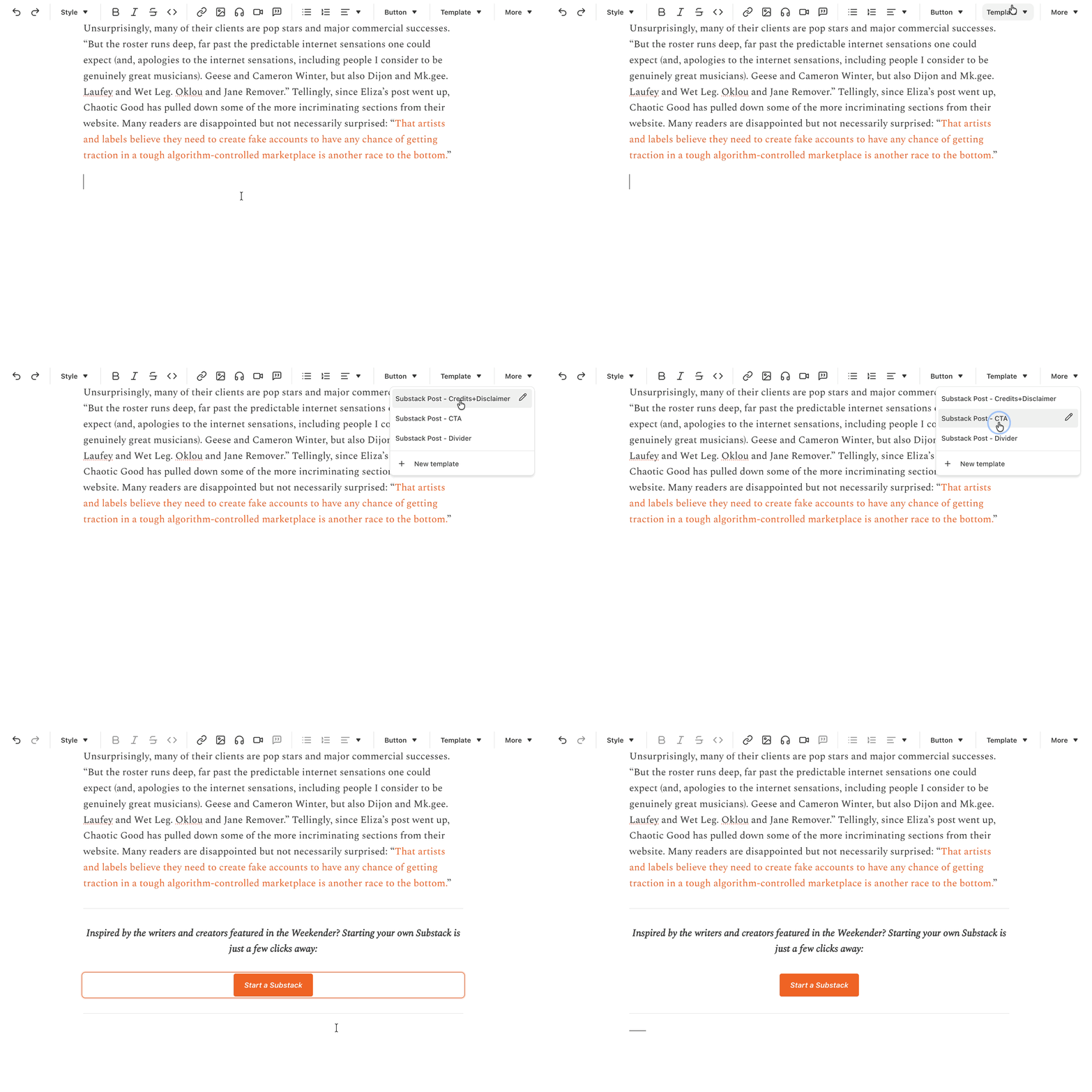 \Adding a saved call to action using the template feature\
Learn more about using post templates in our Help Center.
Drop caps
Enable a drop cap—the large, stylized first letter that opens a piece of writing—for your Substack publication. You can turn this on in the Website Editor in your publication settings. From there, click “Posts,” toggle on “Drop caps,” and click “Save.” Visible on web, drop caps are a small detail that can give your writing a more considered, editorial feel.
 \A drop cap, as seen onRacket News\
Learn more about adding a drop cap to your post in our Help Center.
Live video: more control over how you stream and manage events
We’ve expanded Substack Live with new tools for publications running regular video programming:
- Choose where you stream: You can now decide which publication to go live from each time you stream, instead of being limited to your primary publication. This is available across iOS, Android, and web.
- From the new live video management dashboard page on desktop, you can now:
- Schedule on behalf of a host. Contributors and admins can now schedule a livestream for another creator on your publication.
- Edit scheduled streams. You can now update the title, timing, host, and notification settings for any scheduled stream after it’s been created. If a host needs to swap out or a time needs to shift, you can handle it directly from the dashboard without canceling and starting over.
- Have quick access to stream keys. Contributors, admins, owners, and hosts can now view and copy stream keys directly.
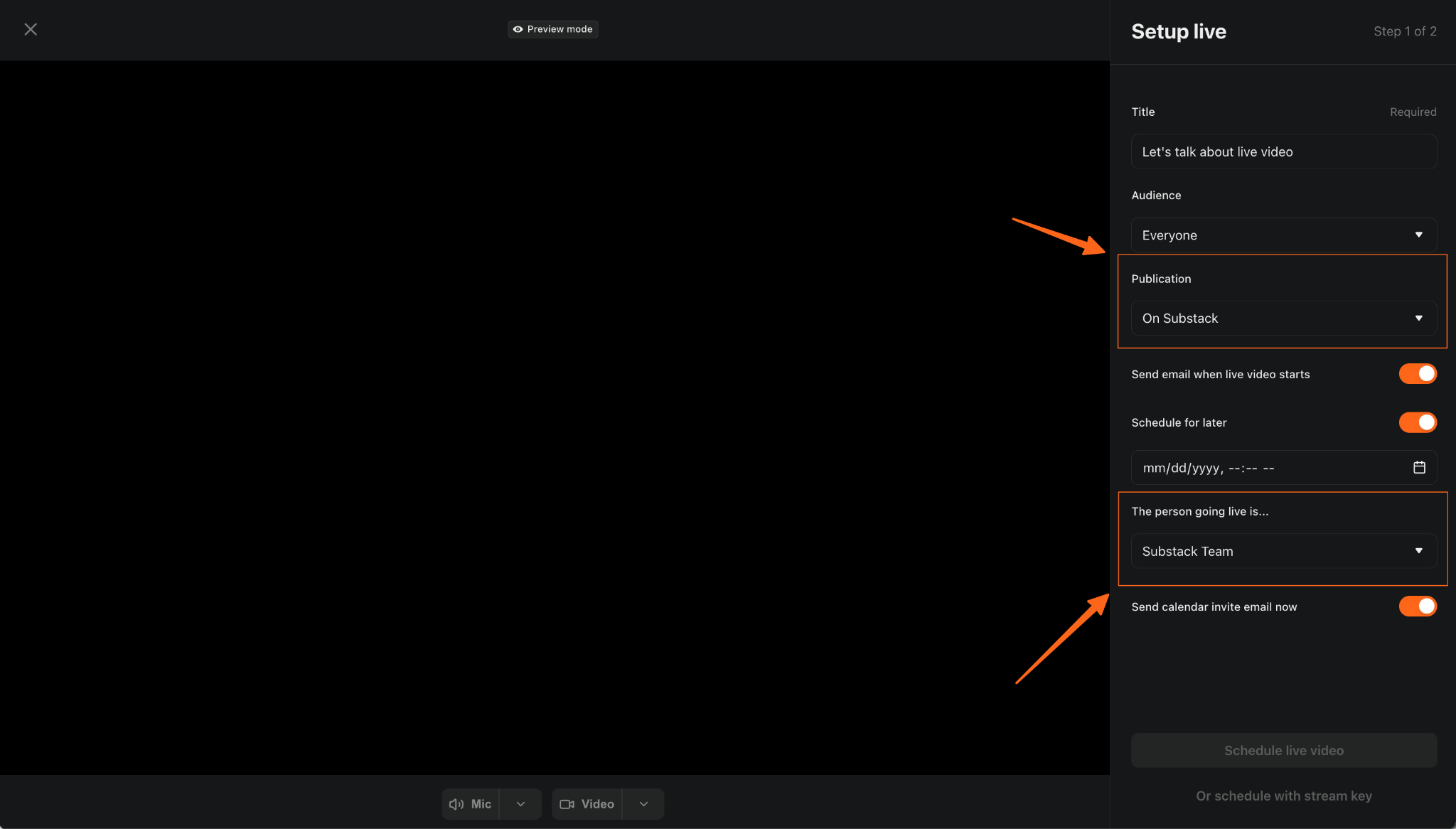 \Select which publication to go live from each time you stream. You can now also schedule a livestream for another creator on your publication.\
Learn more about managing live video in our Help Center.
Schedule Notes
You can now schedule Notes to publish at a specific time, on web, iOS, and Android. Write in advance, set a publishing time, and your Note will go out automatically. All scheduled Notes appear in your Notes Drafts tab, where you can continue editing right up until they publish.
- On web, click the 📅 icon in the composer
- On iOS and Android, tap “…” and select “Schedule”
- Choose a publishing time in your local time zone
- Find and edit your scheduled Notes anytime in the Drafts tab
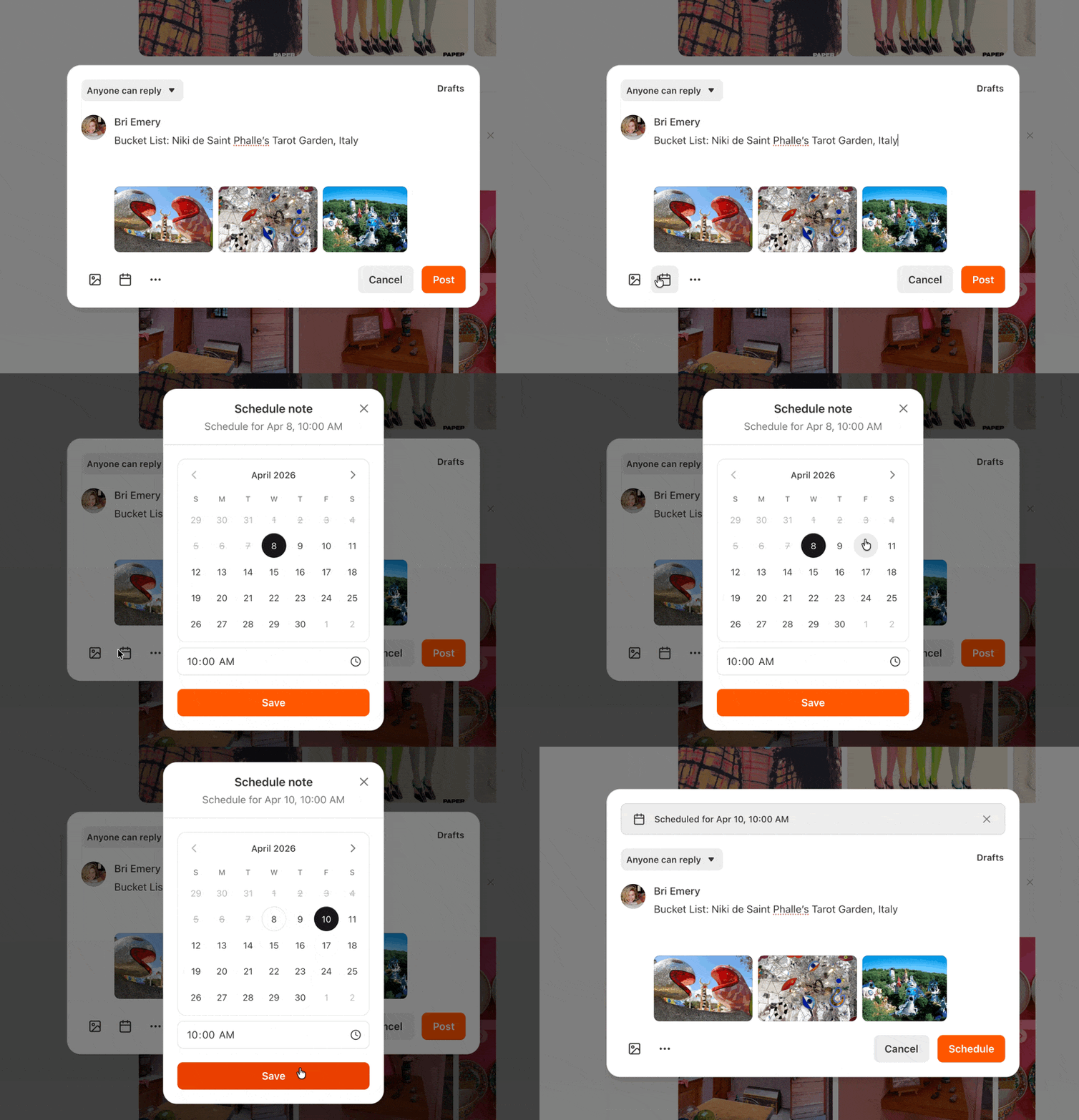 \Creatively HealingwriterBri Emeryscheduling a Note for a later date\
Learn more about drafting and publishing Notes in our Help Center.
Refine your feed with clearer controls
The “show less” control in your feed is now more visible and easier to use. When you see a Note you’re not interested in, tap the X to tell us why—whether it’s not relevant, feels like clickbait, or just isn’t what you’re looking for. Your feedback helps shape what you see going forward, so your feed stays focused on the work you care about.
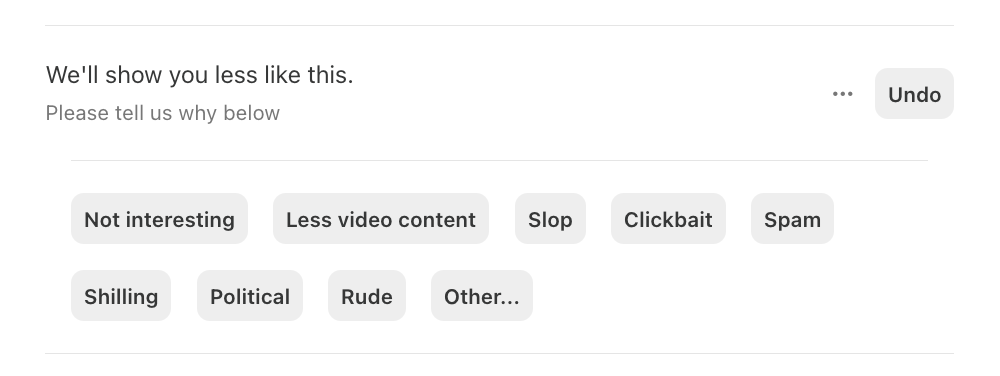 \Tap the X on any Note to help refine your feed\
Subscribe homepage block
The subscribe block—a customizable banner that prompts homepage visitors to subscribe—allows you to tailor your message to free, paid, and founding members. Now you can also customize its color and add a logo, giving you more ways to make it feel like yours.
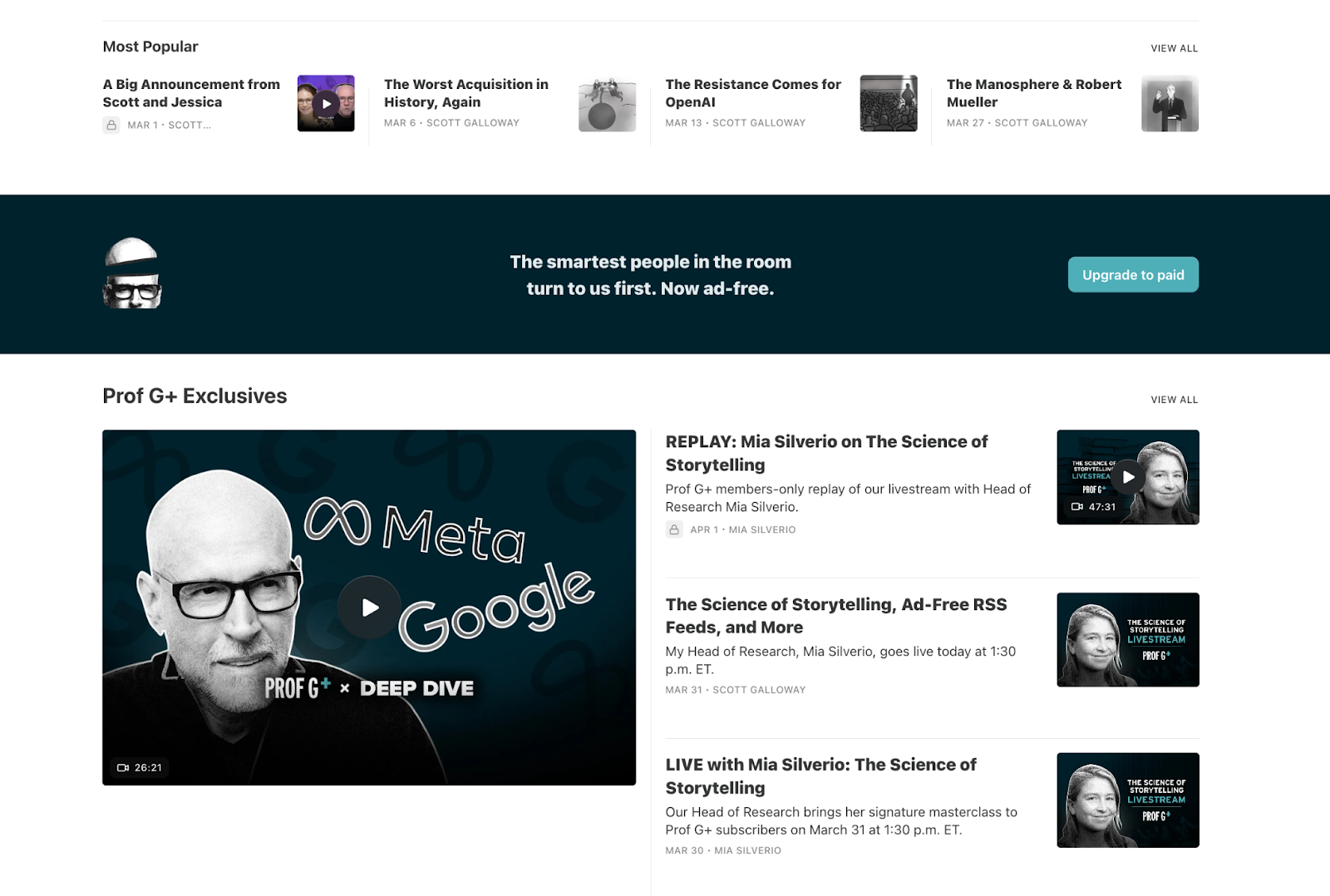 \Prof G Media’s homepage features a customized subscribe block that adapts its call to action based on each visitor’s subscriber tier.\
Callout block
Add callout blocks to your posts: visually distinct, formatted containers that let a piece of text stand apart from the rest of your writing. Use them to highlight a key idea, surface a quote from another writer, flag a note to readers, or draw attention to something you want to make sure doesn’t get skipped. It’s a clean way to add visual rhythm or reference something you want your audience to see.
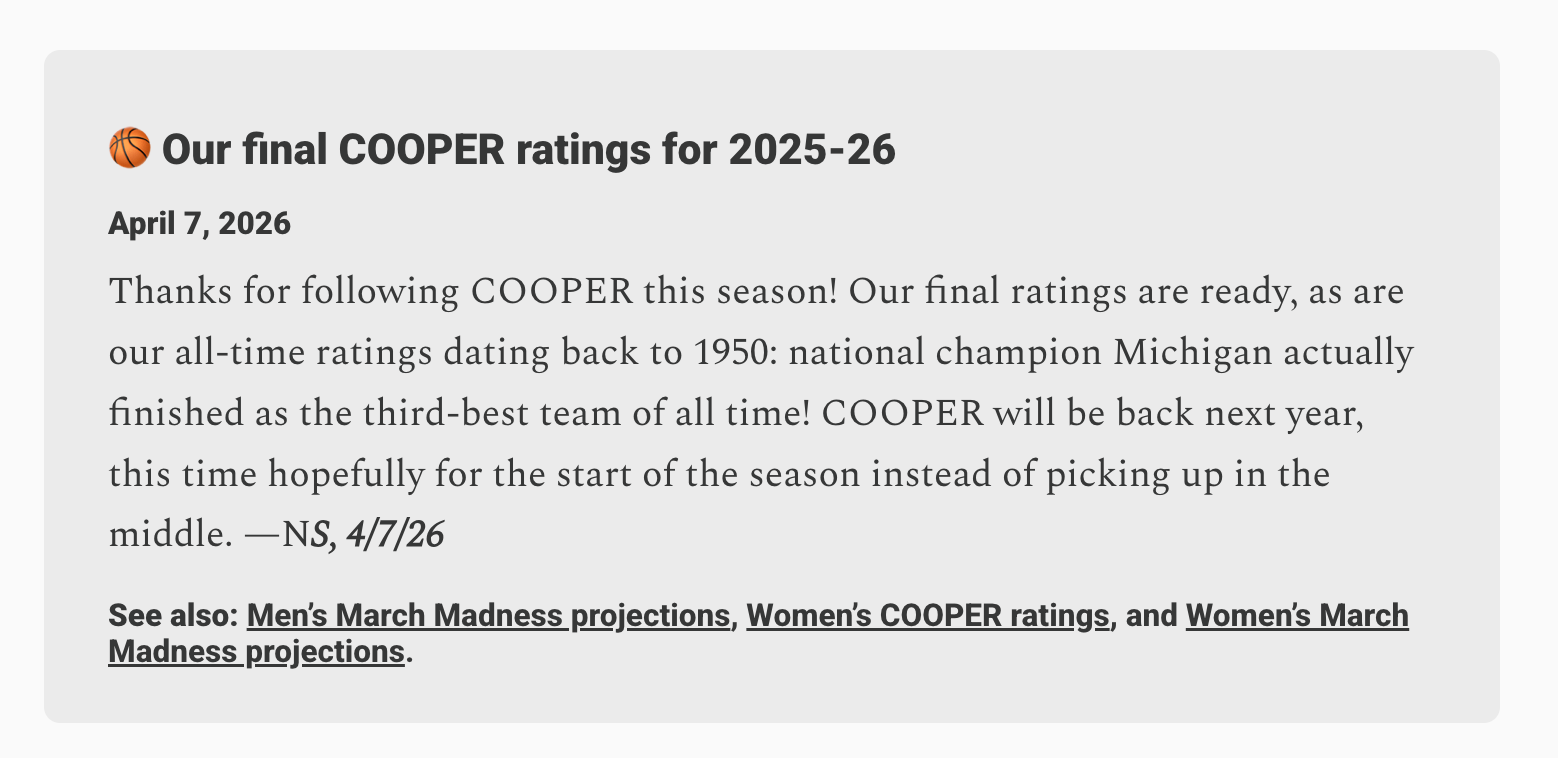 \Silver Bulletinused a callout block to highlight a season-end note from founderNate Silverwithin their NCAA basketball ratingspost.\
These updates are available now
We’re continuing to build tools that give you more control over how you publish and how you connect with your audience. As always, let us know what’s working and what you’d like to see next, in a Note, in a post, or by restacking.