A workflow for turning messy sources into MS Office files you can actually trust.
By Nate
Published: 2026-05-27
URL: https://natesnewsletter.substack.com/p/ai-office-files-verify-workflow
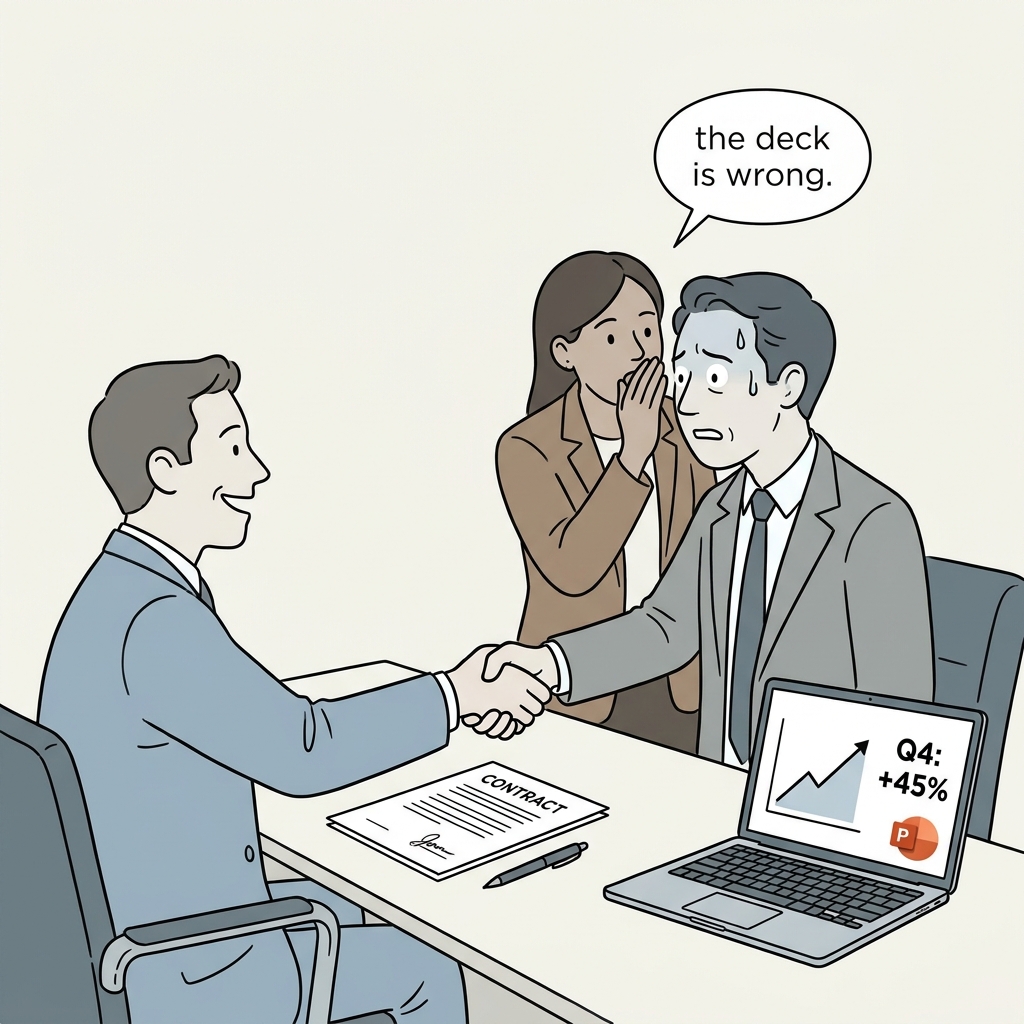
AI builds your board deck now. Drop a folder of messy files into ChatGPT or Claude or Copilot, ask for the deck or the budget or the QBR, and you get back something that looks like finished work. The capability is real and it is not the interesting part anymore. The interesting part is that the file looks done long before it is true.
Last quarter I opened a workbook that looked like a financial model. Assumption inputs at the top, revenue projections, valuation rolling up cleanly, and a written guide attached saying the model had been validated. Then I opened the revenue growth row. The formula copied the same two cells across every future year instead of rolling forward: =C5/B5-1, again and again. Excel did not flag it. There was no #REF! error. The valuation still looked clean. A busy person signs that deck and forwards it, and the mistake travels with it.
That is the new Office risk, and it is specific. A deck mixes current numbers with old ones. A spreadsheet carries a formula that points to the wrong cell. A model gets saved as an Excel file with almost no live formulas inside it. A chart looks executive-ready while nobody can say which source the data came from. None of these look wrong. They are wrong in the one way polish cannot show you, because polish is exactly what we are trained to read as trust.
So stop treating the generated file as the first thing you make. Make the truth layer first: an inventory of your sources, a map of which claim rests on which source, a log of every assumption, and a verification pass that tries to break the result before anyone else can. Build that, and the model gets far more useful, because now it is working on top of something real instead of guessing inside a costume that looks like work. Skip it, and you are shipping confidence you have not earned.
Here’s what’s inside:
- The four-stage workflow that turns a messy folder into a file you can defend: source prep, structure, creation, and verification, in that order and not skippable.
- Source prep and structure, the two stages nobody does, and the exact inventory and specification to demand from the model before it writes a single slide or formula.
- The PowerPoint rules: how to make slide headlines into traceable claims and turn speaker notes into the evidence layer that survives the forward.
- The Excel rules: a raw-data tab, an assumptions tab, and a checks tab that works like a smoke alarm, so a broken formula trips an alarm instead of riding into a board meeting.
- The Trust Layer, a guide and prompt kit for Office files that survive the forward: the guide that maps the six ways Office work breaks, plus a five-prompt runbook you paste in order, from the source-packet setup that catches conflicting numbers before a slide exists, to the two-model hostile review that hunts the formula a busy reader would have signed.
The truth layer is the whole game. The rest of this piece is how to build one.
Subscribers get all posts like these!
LINKS: Grab the Trust Layer Guide + Prompts
The guide is the reference. It walks through where Office work goes wrong, the eight steps it breaks the four-stage workflow into, and the full prompt sets with the reasoning behind each one, so you know what you are checking and why. The kit is what you run. It takes those same prompts and puts them in the order the work actually happens: a source-packet setup that splits facts from assumptions and logs every conflict before a single slide exists, then the Workbook Doctor for Excel risk, then the Deck Architect for the narrative spine, then the Excel-to-deck evidence map, then the Pretty-But-Wrong Detector as the final hostile review. The reason the kit opens with that setup step and the guide does not is that preparing the source packet is the move almost nobody makes, and it is the one that decides whether anything downstream can be trusted. Read the guide once to learn the workflow. Keep the prompt kit open every time a file is about to leave the room.
The mistakes are ordinary
The failures I worry about are ordinary enough to survive a quick review.
Another workbook looked like a financial model but contained hardcoded projections instead of formulas. It had assumptions in one place and outputs in another, but changing the assumptions would not reliably change the answer. A static table saved in spreadsheet format does not become a model by looking like one.
The same thing happens in PowerPoint. I have seen generated decks with sharp-looking headlines, charts, metrics, and executive language, but no meaningful source layer. Some had speaker notes, but the notes were just slide numbers or generic reminders. The slide looked finished. The evidence trail was missing.
A common PowerPoint failure is a chart that survives too long. Someone generates a board deck from a folder that contains a Q3 actuals export and a Q4 plan file. The slide headline says revenue is ahead of plan, the chart looks clean, and the speaker notes cite “finance export.” But the underlying numbers mix actuals and plan data without labeling the distinction. The deck does not look wrong. It is wrong in a way that will travel.
If that sounds like a problem only careless teams have, remember that OpenAI shipped benchmark charts at the GPT-5 launch where the bars did not match the numbers, and the person who signed off was human, not a model.
These examples matter because they are not edge cases. They are the normal result of asking AI to jump straight from messy sources to a finished file. The model is optimizing for the artifact you requested. If you ask for a deck, it will try to make a deck. If you ask for a spreadsheet, it will try to make a spreadsheet. Unless you explicitly define the evidence structure, the tool may treat source discipline as optional.
That is backwards. Source discipline is the work.
The new skill is traceability
The useful mental shift is from prompts to production workflow.
By now the capability itself is settled. Anthropic documents Claude’s ability to create Excel spreadsheets, PowerPoint presentations, Word documents, and PDFs. OpenAI documents spreadsheet and file analysis inside ChatGPT. Microsoft publishes specific guidance for how data has to be structured before Copilot works well in Excel. The tools can all build the file. What none of them hands you is the discipline around the file, and that discipline is what separates an artifact you can defend from one that merely looks finished.
A prompt asks for an output. A workflow defines the stages the output has to pass through before it can be trusted. For Office files, that workflow has four stages: source prep, structure, file creation, and verification.
This sounds slower than asking AI to make the deck. In practice, it is faster because it prevents the expensive rework that happens when a polished file turns out to be unsupported. It also changes the role of the human reviewer. Instead of scanning a beautiful deck and wondering if it is right, the reviewer can inspect the claim map, the source notes, the assumptions, and the checks.
Perfection is the wrong target anyway. You are not trying to make every AI-generated file flawless. You are trying to make every important claim and calculation inspectable, so that when something is off, a reviewer can find it before a reader does.
This is not necessary for every file. A rough internal status update does not need source IDs in every speaker note. A board deck does. A regulatory response absolutely does. Use the full workflow when the file will travel beyond the room where it was made, when people cannot ask the author follow-up questions, or when a number in the file will become a decision.
Source prep
Before asking for a deck or workbook, ask AI to help you prepare the source packet. This is the stage most people skip because it feels administrative, but it is the stage that determines whether the final file can be trusted.
A source packet is a small inventory of what each source is, when it was created, whether it is current, what it contains, and how it should be used. It needs an ID for every source, a name, date, owner, file type, and status such as current, superseded, background, estimate, transcript, or raw data. Sensitive or irrelevant material gets removed before any public-facing artifact is generated.
Facts, assumptions, estimates, interpretations, and open questions stay visibly separate. The conflict log records places where two sources disagree, and the review notes say which conflicts require a human decision before the file can be trusted.
Before creating any file, ask the AI to produce a source inventory and a conflict list. Do not let it write slide headlines or formulas yet. The first deliverable is a map of the material.
This one move changes the entire process. A messy folder becomes a controlled packet. The AI is no longer free to blend a transcript, an old deck, a current spreadsheet, and a half-remembered assumption into one confident answer. It has to tell you what it is looking at.
The step matters most when the sources include older drafts. A previous deck may contain a chart you like, but the number may be stale. A transcript may contain an executive preference, but not an approved decision. A PDF may contain a table that looks official, but the data may be planning estimates rather than public facts. If the source status is not labeled at the beginning, the finished file will blur those categories.
Structure
Once the source packet is organized, most people reach for the file. Resist that. The next step is structure.
For a deck, structure means the narrative spine. What decision does the audience need to make? What do they need to believe before they can make it? Which claims carry the argument? Which data supports those claims? Which points are still uncertain?
For a workbook, structure means the tab architecture. Where does raw data live? Where do assumptions live? Where are calculations performed? Where are checks recorded? Where does the user see the summary output?
Many AI-generated Office files go wrong at exactly this point. They begin with the visible artifact. A deck begins with slides. A workbook begins with formatted tabs. But a trustworthy file begins with a specification.
For PowerPoint, the specification should name the audience, decision context, one-sentence narrative spine, and slide list with claim headlines. It should also list source IDs for each slide claim, charts or visuals needed, assumptions, and open questions.
Only after that should it describe template, tone, chart style, typography, color, and accessibility rules. Those choices matter, but they should not arrive before the argument and evidence are clear.
For Excel, the specification should name the workbook purpose and user, tab map, raw data fields and source IDs, assumption list with owner and status, and calculation flow.
It should also define output metrics, required checks, and rules for formulas, hardcodes, units, dates, and scenario inputs. A workbook specification is not a formatting brief. It is a map of how truth moves through the file.
Ask AI for the file specification before it creates the file. Review the specification as if it were a blueprint. If the specification does not explain where the truth lives, the finished file will not either.
File creation
Only after source prep and structure should the AI create the PowerPoint or Excel file.
This is the stage where the tools feel most impressive. They can create slide layouts, charts, formulas, summaries, formatted tables, and downloadable files. But the creation stage should be constrained by the source packet and the file specification. The AI should not be inventing the story while it renders the deck. It should not be inventing the model while it formats the workbook.
Match the tool to the work. Reach for Microsoft 365 Copilot when the work already lives inside PowerPoint or Excel and the source data is structured the way Microsoft needs it. Claude file creation is the one to use when you want a downloadable spreadsheet, document, presentation, or PDF built from a workflow you describe. ChatGPT data analysis earns its place when the workbook needs code-backed inspection, calculations, tables, or charts. And when the argument is already settled and the only job left is making the deck look right, a design specialist like Beautiful.ai is the move.
For PowerPoint, I would separate deck creation into two passes. First, create the storyboard: slide titles, claims, evidence, and notes. Second, render the deck. This reduces the odds that visual polish will hide a weak argument. It also lets you catch unsupported claims before they become beautiful.
For Excel, I would separate workbook creation into three layers. First, load or reproduce the raw data exactly. Second, create the assumptions and calculation layer. Third, create the output views. The workbook should be able to answer a simple question: if I change an assumption, does the relevant output change for the right reason?
That question is more important than whether the workbook looks impressive. A spreadsheet that cannot recalculate is not a model. A model whose formulas cannot be inspected is not decision-ready. A decision-ready workbook shows its work.
Tell the AI to generate the file from the approved specification, preserve source IDs, label assumptions, avoid hardcoding calculated outputs, and add a verification layer. If the tool cannot include the verification layer inside the file, ask it to produce a separate review report.
The task-risk gradient is simple. AI is lowest-risk for formatting, layout exploration, chart drafts, summary wording, and consistency checks. It is medium-risk for source attribution and data extraction because the work is reviewable but easy to misread. It is highest-risk for numerical synthesis, financial calculation, regulatory language, and claims that will travel into a board-level decision. Let the model help everywhere, but do not give every task the same review burden.
Verification
The file is not done when it opens. The file is done when it has survived verification.
Verification is not the same as proofreading. Proofreading asks whether the artifact reads well. Verification asks whether the artifact can be trusted. The reviewer is checking sources, dates, formulas, assumptions, calculations, charts, and unsupported claims.
AI can help with this stage, but it cannot own it. A useful pattern is to make the model act as a hostile reviewer: find every slide claim with no source, every number that lacks a date, every formula that is copied inconsistently, every chart whose source data is unclear, every assumption presented as fact. Then a human still has to inspect the critical parts.
In my own work I keep the builder and the reviewer as two separate models. One model assembles the artifact. A second model, in a fresh context, runs the hostile review and returns a detailed edit list rather than a rewrite. That list goes back to the builder, which produces a new version, and the reviewer checks the new version against the same list. The loop runs until the edits stop landing. Only near the end do I add a language pass to catch the model’s own tells, the “you’re absolutely right” register that reads as machine rather than person. The reason to split the two roles is the same reason engineering teams do not let an author approve their own pull request. The model that wrote the file has already decided the file is good. A reviewer that had no hand in writing it, and is not rewarded for approving it, asks better questions. You do not need two vendors to do this. You need two contexts and a rule that the reviewer only enumerates.
I want to be careful not to overstate how much this catches. A model reviewing its own kind of output has a real blind spot, and I have watched the review pass wave through something a person would have flagged in ten seconds. The loop raises the floor. It does not replace the person who knows what the number is supposed to be.
This is where the earlier stages pay off. If the source packet exists, the reviewer can check the claim map. If the assumption tab exists, the reviewer can see what is being assumed. If the checks tab exists, the reviewer can see whether totals tie out and formulas behave as expected. If the slide notes contain source IDs, the reviewer can audit the deck without reverse-engineering it from scratch.
Make the last AI pass a verification pass, not a beautification pass. Ask for a written list of risks, missing sources, stale numbers, formula concerns, unsupported claims, and items requiring human judgment.
Use this hostile-reviewer prompt before sharing:
“Read this deck or workbook as a skeptical reviewer who suspects every claim and every number. For each slide or sheet, identify claims without source attribution, numbers without a date or source, charts whose underlying data is not traceable, formulas inconsistent across parallel rows or columns, and assumptions presented as facts. Produce a written list of every issue found. Do not fix anything. Just enumerate.”
A model can catch some of its own mistakes because the review task is different from the generation task, especially when you force it to enumerate rather than beautify. But it still cannot be the final authority on consequential claims. The human gate remains necessary for the claims, numbers, and assumptions that matter.
PowerPoint rules
A trustworthy AI deck is a deck whose argument can be traced.
Make slide headlines claims, not topics
Before slide creation, write the narrative spine in plain English. It should explain the audience, the decision, the current situation, the evidence, the implication, and the recommended action. Without that spine, AI will often create a plausible sequence of slides that feels like a deck but does not actually drive to a decision.
Use speaker notes as the evidence layer
Speaker notes should not be an afterthought. They should carry the source trail. For each slide, the notes should include the claim, the source IDs, the calculation or transformation if any, the assumptions, and the review status.
A practical slide-note template is: Claim. Source IDs. Calculation. Assumptions. Needs review. Not glamorous, but it turns a generated deck from a visual artifact into a reviewable artifact.
The right standard is not beautiful. It is clear, editable, and defensible.
Excel rules
Excel needs an even stricter workflow because spreadsheet errors can hide inside cells that look normal.
Keep the workbook inspectable
Start with a raw data tab that preserves uploaded or copied data as faithfully as possible. It should include source ID, source date, import date, and cleaning notes. Do not mix raw data with calculations. Microsoft advises that Copilot in Excel works best with structured tables or supported ranges, including unique headers, consistent formatting, and no blank rows or merged cells. OpenAI similarly advises clear columns and one record per row for spreadsheet analysis. That is not just tool hygiene. It is audit hygiene.
Make assumptions and checks visible
The assumptions tab is where judgment becomes visible. Each assumption should have a name, value, unit, source, owner, last-updated date, status, and note. Some assumptions will be sourced from documents. Some will be estimates. Some will be placeholders. Those categories should not be blurred.
Use a checks tab as the smoke alarm
The checks tab is the spreadsheet equivalent of a smoke alarm. It should include tie-outs, formula consistency checks, error scans, duplicate checks, stale-date checks, and scenario checks. It should show pass or fail without ambiguity.
For example: do totals equal the source totals? Are formulas consistent across the row? Are there hardcoded numbers in areas that should be formulas? Do output metrics change when assumptions change? Are any cells returning errors? Are date ranges mixed?
A checks tab would catch many of those quiet failures. A spreadsheet can look right and still be wrong. A checks tab gives the reviewer a place to start.
The practical workflow
- Collect the messy sources, label them, and remove anything sensitive or irrelevant before upload.
- Ask AI for a source inventory, source status, conflict log, and file specification before creating the final file.
- Generate the deck or workbook from the approved specification, preserving source IDs, assumptions, and calculation logic.
- Run a verification pass for unsupported claims, stale numbers, formula problems, hardcodes, and missing source notes before sharing.
Verification checks three things: that every claim has a source ID, that every formula behaves consistently when assumptions change, and that no AI-generated number lacks a date, owner, or review status. The checklist can live outside the article as a companion artifact. The article body should keep the principle clear.
What is actually upgraded
AI has made it much easier to create Office files. That matters. PowerPoint and Excel are still where an enormous amount of business judgment becomes visible. If AI can help people build those artifacts faster, the productivity upside is real, and the early measurements bear that out. The UK’s DWP trial, evaluated in early 2026, covered 3,549 staff and found an average saving of 19 minutes a day on eight routine tasks. A separate cross-government experiment reported 24 minutes saved on drafting documents and 19 on building presentations. The numbers are real. Both reports land on the same caveat, which is the one that matters here: the gains depend on training, workflow design, and human review. They are workflow gains, not magic.
But the bigger shift is not the file itself. A knowledge worker can now build a repeatable production system around those files, and that system is the thing worth owning.
So the move is not to drag in sources, ask for a deck, and hope the output is right. Prepare the sources, define the structure, create the file, then verify the truth.
The next deck you build with AI should start with four moves. First, write the one-sentence narrative spine before opening the AI tool. Second, drop your source materials into the project and ask for a source inventory and conflict log before any slides. Third, generate the storyboard with its claims, evidence, and notes before visual rendering. Fourth, run the hostile-reviewer prompt before sharing.
That shift matters because Office files often travel farther than the person who made them. A spreadsheet gets forwarded. A deck gets reused. A chart gets copied into another meeting. A number becomes part of a decision. Once that happens, the source trail matters more than the polish.
A fair question to ask here is why this still has to be assembled by hand. Why hasn’t someone shipped a button that turns a messy folder into a trustworthy deck. The honest answer is that knowledge work is contingent on domain knowledge in a way that resists a generic workflow. The reason a board deck is hard is that knowing which number matters, which source is current, and which assumption is load-bearing is the actual expertise. You cannot assume there are five evidence slots and wish away the sixth. Reality has a surprising amount of detail, and serious knowledge work lives in that detail. Tools will keep making individual steps easier. Source gathering, the review pass, the formula checks: that is real progress. But the harness around the work is still yours to build, because building it is how you stay good at the work.
So yes, let AI build the deck. Let it build the workbook. Let it do the formatting, the first-pass analysis, the chart drafts, the formula scaffolding, and the repetitive production work.
But do not let it hide the truth layer.
Every claim should know where it came from, every calculation should know what it depends on, and every assumption should be labeled as one. The finished file should have a review trail. That is the starting point. If your current workflow skips it, the next file you ship is the one to change.
I make this Substack thanks to readers like you! Learn about all my Substack tiers here