If you hate dealing with customer service, then I have some great news for you.
By Nate
Published: 2026-03-17
URL: https://natesnewsletter.substack.com/p/five-things-claudes-chrome-extension
Every AI company on Earth is racing to own the browser. OpenAI built Atlas from scratch. Perplexity shipped Comet. Both are entirely new applications — new windows, new tabs, new everything — because they’ve decided the browser is where AI goes next.
Anthropic did something different. They built an extension.
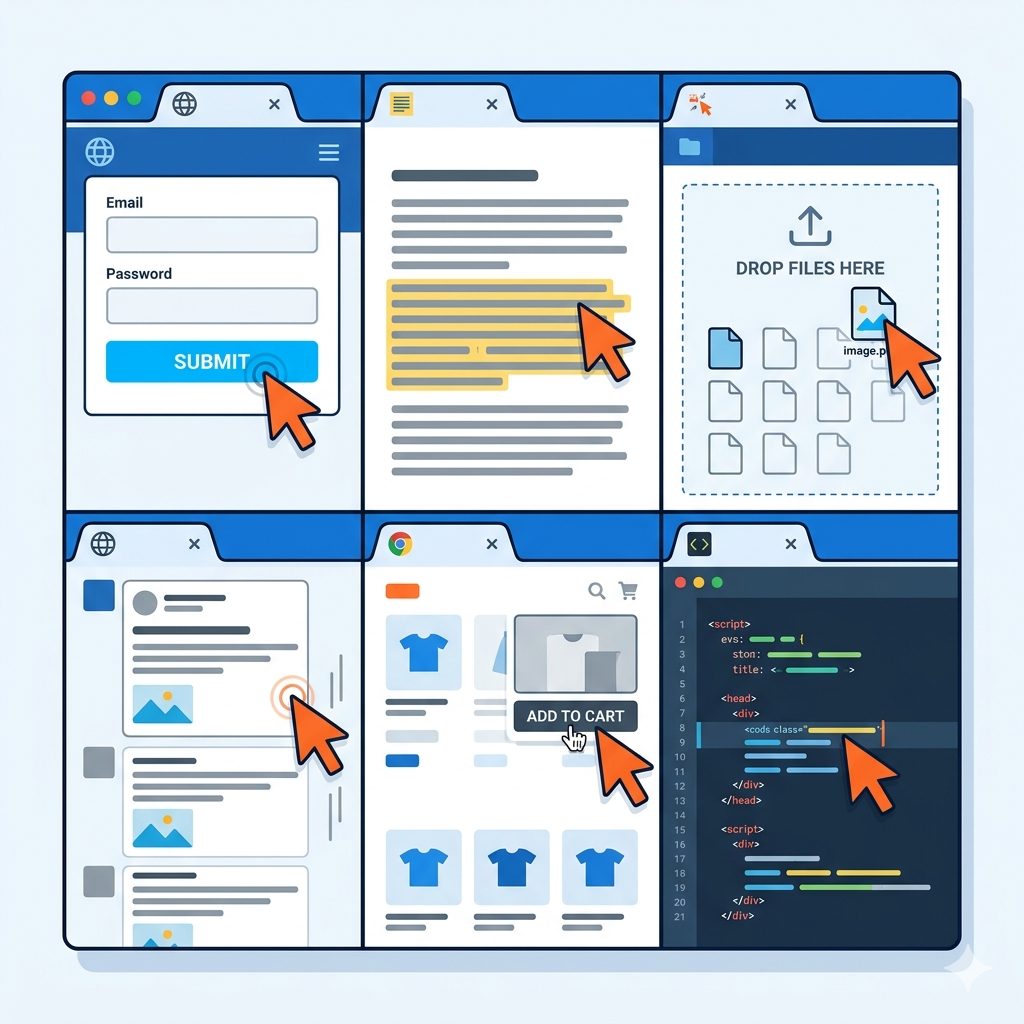
Not a new browser. A sidebar that sits inside Chrome — the browser you already use, with your logins, your cookies, your fourteen open tabs you’ve been meaning to close since Tuesday. Chrome is not something you have to install separately. It just kind of comes with most computers. And now Claude lives inside it. It sees what you see. It reads the page. It clicks buttons. It fills forms. It navigates between tabs. And — this is the part most people haven’t caught up to yet — it can do all of this on a schedule, automatically, while you do something else.
Most people still think of this as “AI that summarizes web pages.” It’s not. Summarization was 2024. Claude in Chrome operates websites — it takes actions. It clicks the buttons you would click, types in the fields you would type in, navigates the menus you would navigate — except it does it at the speed of automation and without the human attention cost. You describe what you want done, and Claude does the doing.
I’ve spent the last week pulling apart what’s actually real, what’s actually documented, and what’s actually working in the wild — because there’s a meaningful difference between a demo and a deployed capability, and that difference matters if you’re going to build workflows around this. Here are the use cases that are genuinely working, plus the real limitations you should know about before you build anything on top of this.
Here’s what’s inside.
- Let AI fight your customer service battle. A real billing dispute where Claude negotiated a $100 credit from AT&T without any human involvement.
- Record once, run forever. The scheduling capability that turns a single workflow into recurring automated work — and why it changes the economics of repetitive tasks.
- Inbox triage at machine speed. Gmail cleanup, calendar management, and organizing 900 messy Google Drive files into a logical structure.
- Multi-tab competitive intel. Claude reads across grouped tabs, extracts data from multiple sites simultaneously, and produces structured output — including full spreadsheets when paired with Cowork.
- Build, test, fix — without touching the browser. The developer integration that lets Claude Code write in the terminal while the Chrome extension tests in the browser.
- The real limitations. What happens when you expand the scope of a data-heavy task, and why you should break workflows into subtasks.
- Plus four prompts to help you find, plan, and safety-check your first automations before you activate anything.
Let me show you what’s actually working, what’s not, and where to start.
Subscribers get all posts like these!
Grab the prompts
Most people will read a post about browser AI agents, think “that’s cool,” and then go back to manually copying numbers between tabs on Friday afternoon. The prompt kit exists to make sure that’s not you. Four prompts — a weekly automation audit that finds the repetitive browser work eating your hours, a recording blueprint for your first scheduled workflow, a multi-tab intel operation planner, and a safety check that tells you go, adjust, or stop before you activate anything.
One quick note before we get into the use cases.
There are actually multiple ways to make Claude operate in Chrome — the extension sidebar, Claude Code from the terminal with claude --chrome, or Cowork, Anthropic’s desktop agent app. The underlying mechanics are the same across all three. I’m going to focus mostly on the extension because it’s the most accessible, but I’ll flag where Cowork or Claude Code give you something extra.
Let AI fight your customer service battle
Carl Vellotti — founder of The Full Stack PM and Claude Code instructor — posted a thread on January 3rd that got 333,000 views. He had a billing dispute with AT&T. Instead of spending forty-five minutes navigating hold music and scripted refusal, he launched Claude Code with the Chrome extension, opened AT&T’s live chat, and told Claude what he wanted: a refund for a recent outage.
Claude ran the conversation. It read the agent’s responses, typed contextual replies, pushed back when the initial offer was low, and escalated politely when the agent stalled. AT&T started at a $60 credit. Claude negotiated it to $100. Vellotti’s assessment: “Claude just paid for itself (x2).”
The underlying mechanics are straightforward. Claude in Chrome can read any text on the active page, type into any input field, click any button, and navigate between pages — all through natural language commands. It shares your browser’s login state, so it’s already authenticated everywhere you are. A live chat window is just a text field and a send button. Claude can read the incoming messages, reason about what to say, and type a response. The back-and-forth happens automatically.
The caveat Vellotti was honest about: it’s slow. He described it as “best for tasks where you can walk away for a while and let it work.” This isn’t real-time conversation at human speed. It’s a patient, relentless agent that will sit in a chat window for thirty minutes and never lose its composure, never get tired of repeating the same request, never accept a lowball offer out of frustration. You set the objective. Claude handles the tedium. You approve the final action.
And the larger pattern here matters. If you have a chat window in your browser, Claude can operate it. It’s not just AT&T — it’s Verizon, it’s Amazon, it’s any utility company with a chatbot. Anything where you can type into the screen, Claude can do the typing for you.
Worth noting: Vellotti used Claude Code launched from the terminal with claude --chrome, not just the sidebar extension. Both use the same browser interaction capabilities, but Claude Code gives you the full reasoning engine. If you’re trying this, that distinction matters.
Record once, run forever
This is the capability that turns a clever trick into an operating system for repetitive work, and it’s the one most people still haven’t internalized.
When you want to make Claude do something repeatedly, you don’t type a bunch of text explaining the task. Instead, you click the record icon in the extension panel. You perform the task you want Claude to learn — pulling analytics from a dashboard, checking a competitor’s pricing page, extracting data from a CRM, whatever it is. Anything that’s in the browser that you can do, Claude will see. Then you stop the recording. You save that entire workflow as a shortcut.
Now here’s where it gets structural: you can schedule that shortcut. Daily, weekly, monthly, annually. Click the clock icon, set the cadence, and Claude runs the task on autopilot. It doesn’t need you. It doesn’t need a reminder. It just executes.
When I was a marketing analyst, I had to do weekly reports for my bosses. So much of it was basically going around the web and pulling this from this logged-in state in one platform and pulling that from this logged-in state in another platform and this and that and the other thing. I think about how many Monday mornings I spent doing exactly that, and it’s a little painful. You can set up a recurring shortcut to pull LinkedIn analytics from a company page weekly, to check your favorite YouTube channels, to extract only the emails you actually care about, to look for all the new restaurants in your neighborhood and make a list for Friday. Some of it is personal and some of it is professional and it doesn’t matter. The point is: if you can do it on the web and you have to do it more than once, you can make a Claude shortcut to do it.
The Artificial Corner newsletter tested a more aggressive version: the author has Claude scrape Reletter’s Substack ranking charts every Tuesday using a scheduled Chrome extension task. The extension navigates the page, builds a table with 250 rows of data, and downloads it. Manually, it would take forever. With Claude, it takes a few minutes and runs automatically on schedule.
The catch: scheduled tasks only run when Chrome is open and your computer is awake. This isn’t a cloud function running on a server somewhere. It’s your browser, doing what you told it to, at the time you specified. Plan accordingly.
Inbox triage at machine speed
This one is popular because so few people actually like doing email. Open the Claude sidebar while you’re in Gmail, and the extension recognizes where it is and what it can do — it pops up the Gmail icon and asks what you’d like to help with. Anthropic’s support documentation confirms that Claude has built-in knowledge of how to navigate popular platforms including Gmail, meaning you don’t need to give it step-by-step instructions about where to click. Say “clean up my inbox” and it knows what Gmail looks like, where the controls are, and how to identify the noise.
Anthropic is doing the integration work for you — taking the popular places where we spend most of our day on the web and making sure Claude recognizes how to use them from the get-go. No custom instructions required.
TechRadar’s Eric Hal Schwartz tested this in his hands-on review. He also tested calendar management — giving Claude a brief description of when, where, and with whom he wanted to meet. Claude scanned his Google Calendar, proposed open time slots, and drafted an email to his guests. He then pointed Claude at his Google Drive and asked it to organize roughly 900 loose documents. Claude created a logical folder structure, sorted documents into six top-level folders with subfolders, and flagged nearly 50 duplicates. The transformation: from 900 unsorted files to an organized system, with Claude setting aside anything it wasn’t certain about for human review.
Anthropic also publishes a dedicated use case page for Google Drive organization: Claude navigates your Drive, proposes a folder structure, moves files where they belong, and flags duplicates and old files for review. You approve the changes instead of doing the sorting yourself.
What I’d caution against at this stage: automated email replies. Emails are high-value, especially emails to important stakeholders. I would not tell Claude to find the important emails and auto-draft replies — that runs the risk that Claude sends the wrong message to the wrong person, or accidentally hits send instead of saving a draft. Use this for inbox cleanup, Drive organization, and calendaring. Be cautious about the send function until you are sure you’re not going to risk sending to a stakeholder without your eyes on it first.
Multi-tab competitive intel
Sometimes the work requires pulling from multiple sites at once. You need competitor pricing from three different pages, or you’re comparing features across a handful of SaaS tools, or you’re pulling together a meal plan from recipes you have open in different tabs. Instead of having Claude work one site at a time, you can have all of them pulled up and let Claude tackle them in a group.
The mechanics: Claude can manage multiple tabs simultaneously. Drag tabs into Claude’s designated tab group, and it views and interacts with all of them at once. You don’t need to switch between tabs to compile information — Claude reads across all grouped tabs, synthesizes the content, and produces structured output. If you have a potato recipe and a chicken recipe up, for example, it can put together a complete dinner plan with a combined ingredients list and cooking schedule.
Where this gets really useful is combining it with the recording capability. If you have a competitive pricing analysis you need to run regularly, you can have all three competitor tabs up in the group, show Claude what you want from each tab, and save that workflow. Claude can pull data from those tabs simultaneously on whatever schedule you set. That’s the full loop: multi-tab navigation, data extraction across sites, structured output, recurring schedule. Four capabilities stacked into a single workflow that replaces what would otherwise be a human spending ninety minutes every Friday copying numbers between browser tabs and a spreadsheet.
Now, if you want to go a step further and get a full Excel file instead of just information printed in a chat window, that’s where Cowork comes in. Cowork is Anthropic’s desktop agent app, and it can work with the same Chrome tab groups the extension uses. The difference is that Cowork can produce deliverables — Excel models, comparison decks, formatted reports. Chrome gathers the information. Cowork produces the document. No copy-paste. No manual formatting. The browser does the research. The desktop agent does the production. You review the output.
Build, test, fix — without touching the browser
This one is for developers, and it’s the best-documented use case in this post.
One of the nice things about giving Claude eyes inside Chrome is that you’ve just given it eyes on the most popular browser on the planet, which renders so much of the internet we all see and consume every day. If you’re building something you want the rest of the internet to see and you want to test it, you obviously have to test it in Chrome. And now Claude can see it directly.
Anthropic’s support documentation describes the integration: “Build with Claude Code in your terminal. Test and verify in the browser with the Chrome extension. Debug issues using console logs — Claude can read errors, network requests, and DOM state directly.” The Claude Code documentation goes further with a specific example: you tell Claude “I just updated the login form validation. Can you open localhost:3000, try submitting the form with invalid data, and check if the error messages appear correctly?” Claude navigates to your local server, interacts with the form, and reports what it observes — all from the terminal.
But here’s the part developers should really sit with: you can schedule Claude to verify your site on a recurring basis and catch regressions. That’s not a tool you use when you think something is broken. That’s a tool that watches your production site continuously and tells you when something breaks before your users do. You can record a specific flow — like a test checkout — and say “run this every morning at nine.” Claude will do exactly that, and it becomes a very easy way to verify your product is still up and running.
And if you’re willing to go further, you can take a Figma mock, have Claude build it in code, have Claude verify the accuracy of what it built in the browser while looking at the Figma mock, and then have Claude debug it live. The experience is watching code being written in your terminal while Chrome autonomously opens tabs, clicks through your UI, reads console output, and reports back. One agent writes the code. Another version of Claude tests it in the browser. The human watches. The loop that used to require a developer, a QA engineer, and a staging environment now runs in two panes on a single laptop.
The real limitations — and how to work around them
I want to be honest about the limitations, because they matter if you’re going to build workflows around this.
The Neurony team — a product and marketing consultancy — tested the Chrome extension across four experiments in January. For most use cases, their assessment was positive: it “removes just enough friction to make ongoing monitoring easier and more consistent.” But when they tested LinkedIn contact monitoring — having Claude scan pages, review content across posts, interpret context, and produce summaries — they found that expanding the watchlist beyond a few people caused coverage to get spotty. Expected posts sometimes didn’t surface. One summary focused on a tangential update that technically matched their keywords but didn’t materially matter.
Anna Mills, who writes about AI in education, documented a similar pattern building a dedicated LinkedIn search skill for Claude in Chrome. It surfaced posts she remembered and some she’d missed, but there were false starts — Claude initially got zero results on searches where a human found content with the same terms. After troubleshooting, it worked, but the iteration was real.
The underlying issue is data volume. When you start to expand the scope of the task in a single workflow, Claude in Chrome doesn’t always do a perfect job of recognizing what’s really important. You’re feeding the LLM all of this open context from the web, and it has to look through that context window and find what actually matters. That can be hard. I expect this to improve as models get better, but for now: if you’re giving Claude a data-heavy task in Chrome, break it up into subtasks. You’re more likely to get useful results, especially if this is a recorded workflow running on a schedule. You don’t want mistakes. You’d rather do a very clean subtask than a messy comprehensive one.
Keep the watchlist small. Five to eight people you genuinely care about, filtered by two or three themes you’re actively tracking. That’s where this works. Trying to monitor fifty people across ten topics will produce noise.
What all of this actually means
The pattern across all of these use cases is the same, and it’s not the pattern most people expect.
What most people picture when they hear “AI in the browser” is a chatbot answering questions while you browse. That’s not what this is. This is a browser agent that does real work on your behalf — clicks, navigates, reads, extracts, runs workflows autonomously, especially on a schedule. That changes what you’re optimizing for entirely. With a chatbot, you optimize your questions. With a browser agent, you optimize your workflows. The skill isn’t prompting. The skill is looking at the repetitive work you do every week and asking: can I describe this clearly enough that an agent can do it for me, on a schedule, without supervision?
That skill generalizes, by the way. Whether you’re working with Claude or ChatGPT or another LLM, so much of what we’re going to be doing in 2026 involves giving an AI context on a repetitive piece of work and asking it to do the work. The UI can look different — sometimes you’re in the Chrome extension, sometimes you’re in Claude Code, sometimes you’re in Cowork, sometimes you’re in ChatGPT which also has scheduled tasks now — but the principle is the same. You have to understand what you want done and be able to either show it (which is what the record button in Chrome is for) or describe it clearly enough that it can be done by an LLM anyway.
Anthropic built something architecturally distinct from what everyone else is doing. OpenAI and Perplexity built new browsers because they wanted to control the full stack — the rendering engine, the security model, the data pipeline. Anthropic met users where they are. Inside Chrome. Using your existing logins. Seeing what you see. Claude inherits your entire authenticated web — every SaaS tool, every dashboard, every internal app you’re already logged into. No API keys. No integrations. No IT ticket to connect a new service. If you can open it in Chrome, Claude can operate it.
The tradeoff is real, and I’m going to be direct about it: you’re giving an AI visibility into your active browsing. TechRadar’s reviewer described the experience as “convenience with a side of digital paranoia.” Anthropic explicitly warns against using the extension for financial transactions, password management, or sensitive data operations. The prompt injection risk is reduced but not zero — if you go to a weird corner of the internet with a prompt-injected thread and you also have your email up in the same tab group, theoretically your LLM could get hijacked simply by reading the page and start doing things you didn’t ask for. That is a real risk. Use this on trusted sites. Review sensitive actions. Don’t open your bank account while this is running. Treat this like a capable but new employee: verify the output, especially early on.
The extension is available on all paid Claude plans. Pro users are limited to Haiku 4.5 — the fastest but least capable model. Max, Team, and Enterprise users can choose Opus 4.6, Sonnet 4.5, or Haiku 4.5 depending on the complexity of the task. If you’re planning complex multi-step browser work — like the LinkedIn monitoring or the multi-tab competitive analysis — the smarter model makes a meaningful difference, and you may find the Pro-tier model struggles with ambiguity.
In early 2025, even fall of 2025, some of the question was: does this work? Can the agent actually navigate the internet? We are past that now. In early 2026, the question is not whether this works. It does work. People are saving dozens of hours a week. They’re getting rid of a lot of repetitive work.
The question for you is whether you understand the tools well enough to identify the repetitive work you can offload. How many hours a week are you currently spending on tasks a browser agent could handle — and what would you do with those hours if you got them back?
I make this Substack thanks to readers like you! Learn about all my Substack tiers here and grab my prompt tool here